> ## Documentation Index
> Fetch the complete documentation index at: https://support.dripos.com/llms.txt
> Use this file to discover all available pages before exploring further.
# Post-Tax Deductions
A post-tax (or after-tax) deduction are amounts subtracted from an employee's paycheck after all applicable taxes (federal, state, local, Social Security, and Medicare) have been calculated and withheld.
Unlike a pre-tax deduction, a post-tax deduction does not reduce an employee's taxable income or the amount of taxes they owe for the current year.
Employees pay taxes on the full gross income, even if there are post-tax deductions withheld.
**Examples of Post-Tax Deductions:**
Contributions to retirement made with post-tax income, allowing for tax-free qualified withdrawals in retirement.
Court-ordered deductions for debts such as child support, student loans, or unpaid taxes. These are **mandatory**, not voluntary.
Premiums for certain types of life insurance, disability insurance, or voluntary supplemental policies.
Donations made through an employer's workplace giving program.
Fees paid to a labor union using post-tax income.
## Wage Garnishments
Employers may need to comply with legal orders from courts, the IRS, and state agencies to withhold portions of employee post-tax or net wages to cover unpaid taxes, child support, alimony or defaulted loans.
**Types of income that can be garnished include:**
* Hourly wages
* Salaries
* Commissions
* Bonuses
* Pensions and retirement plan payments
The garnishment order will typically specify the withholding amount or percentage and where to send payment.
In addition to the garnishment order, you must abide by **Title III of the Consumer Credit Protection Act (CCPA)**. The CCPA limits the amount of an individual's earnings that may be garnished and protects an employee from being fired if pay is garnished for only one debt.
Review these documents carefully.
**If you incorrectly process or fail to comply with a garnishment order, your business may face fines or held liable for the employee's debt.**
### Child Support Post-Tax Deduction
Child support is one of the most common wage garnishiments. Follow the steps below to set up this specific garnishment in Dripos Payroll:
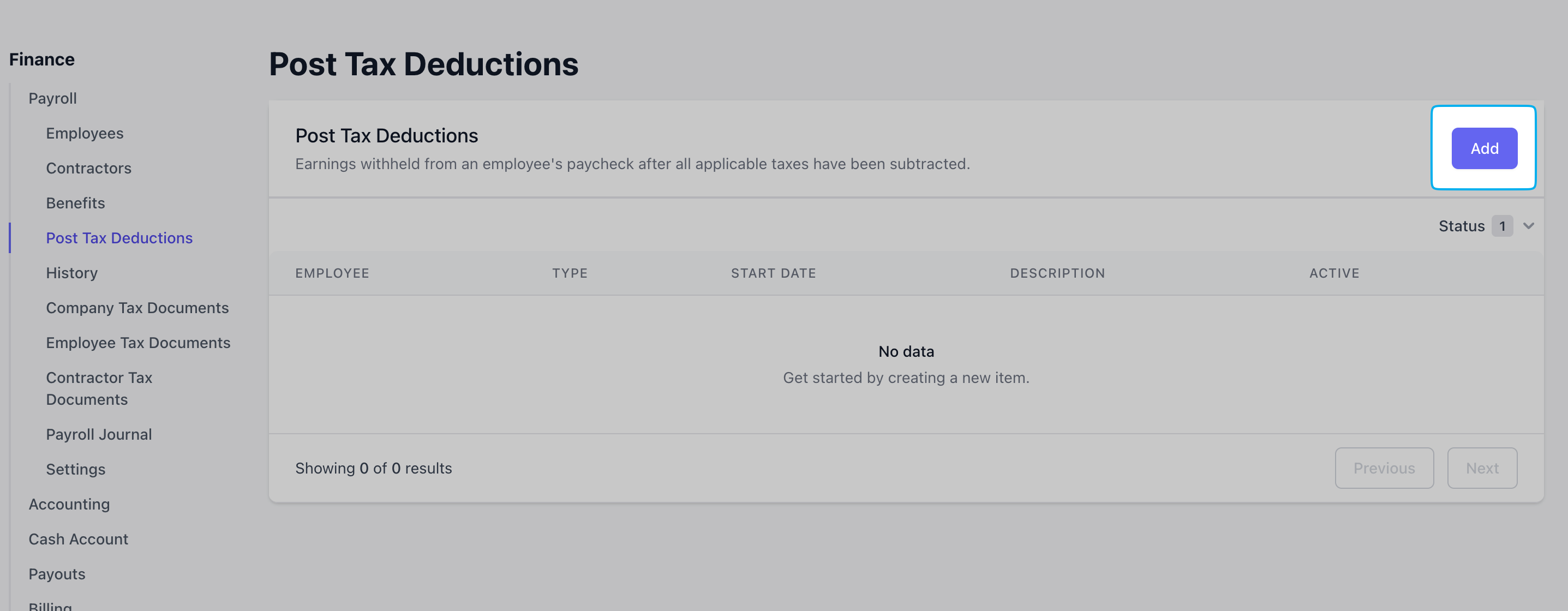
Navigate to [Dashboard > Finance > Payroll > Post-Tax Deductions](https://dashboard.dripos.com/payroll/post-tax) > click **Add**
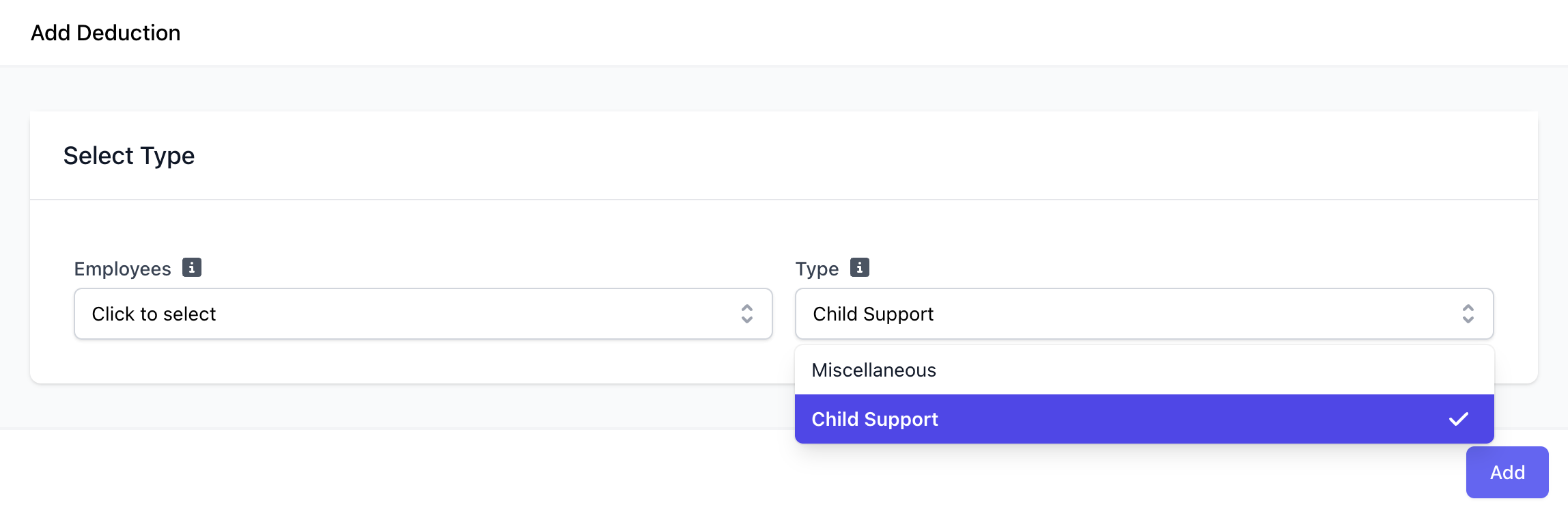
 Select the employee to create and apply this Child Support Deduction to. Select the **Type** as **Child Support** and click **Add**.
 Input the following fields:
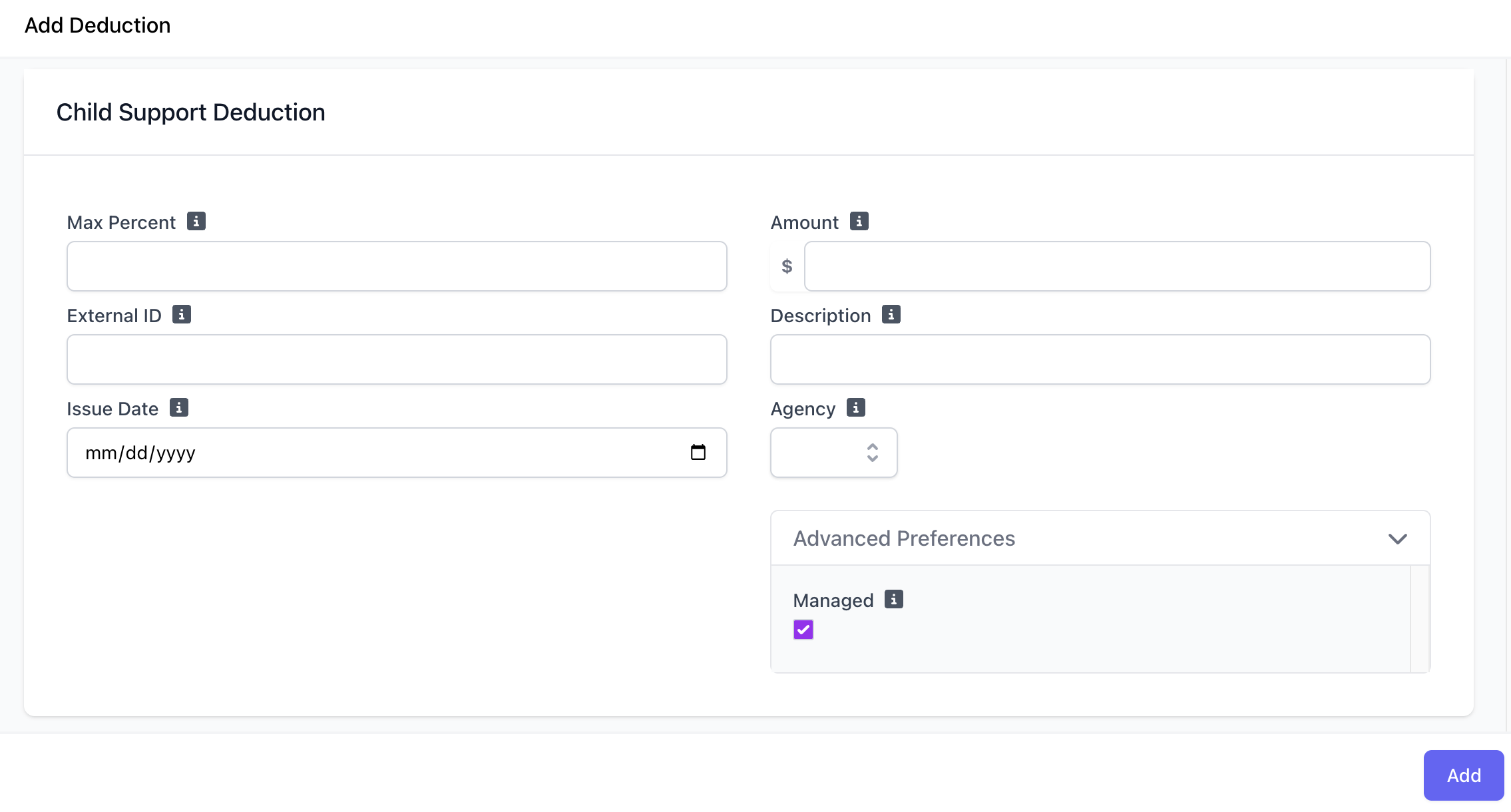 Maximum percentage of the employee's income that will be deducted.
Unique identifier of the garnishment order, listed as the case number on the order.
Date the collections agency issued the order.
Per pay period amount to deduct.
Description of the deduction. This is optional but can be helpful for record-keeping.
Select the state agency that issued the child support.
Select **Managed** for Dripos Payroll to remit the payment to the appropriate agency on the employer's behalf.
If **Managed** is not selected, the employer is responsible for remitting the money to the proper agency.
Click **Add** once the fields are completed. This post-tax deduction will take effect starting on the employee's next payrun.
***
## Miscellaneous Post-Tax Deductions
Follow the steps below to create and apply miscellaneous post-tax deductions.
**Common Examples of Voluntary Post-Tax Deductions:**
* Roth 401(k) or Roth 403(b) Contributions
* Certain Insurance Premiums
* Union Dues
* Charitable Contributions
* Payments for Other Benefits or Services
Make sure your employees are fully aware and provide written consent before you withhold funds for voluntary deductions.
**Employers are responsible for remitting these deductions directly.**
### Add Miscellaneous Post-Tax Deduction
Navigate to [Dashboard > Finance > Payroll > Post-Tax Deductions](https://dashboard.dripos.com/payroll/post-tax) > click **Add**
Select the employee(s) to create and apply this post-tax deduction to. Select the **Type** as **Miscellaneous** and click **Add**.
Maximum percentage of the employee's income that will be deducted.
Unique identifier of the garnishment order, listed as the case number on the order.
Date the collections agency issued the order.
Per pay period amount to deduct.
Description of the deduction. This is optional but can be helpful for record-keeping.
Select the state agency that issued the child support.
Select **Managed** for Dripos Payroll to remit the payment to the appropriate agency on the employer's behalf.
If **Managed** is not selected, the employer is responsible for remitting the money to the proper agency.
Click **Add** once the fields are completed. This post-tax deduction will take effect starting on the employee's next payrun.
***
## Miscellaneous Post-Tax Deductions
Follow the steps below to create and apply miscellaneous post-tax deductions.
**Common Examples of Voluntary Post-Tax Deductions:**
* Roth 401(k) or Roth 403(b) Contributions
* Certain Insurance Premiums
* Union Dues
* Charitable Contributions
* Payments for Other Benefits or Services
Make sure your employees are fully aware and provide written consent before you withhold funds for voluntary deductions.
**Employers are responsible for remitting these deductions directly.**
### Add Miscellaneous Post-Tax Deduction
Navigate to [Dashboard > Finance > Payroll > Post-Tax Deductions](https://dashboard.dripos.com/payroll/post-tax) > click **Add**
Select the employee(s) to create and apply this post-tax deduction to. Select the **Type** as **Miscellaneous** and click **Add**.
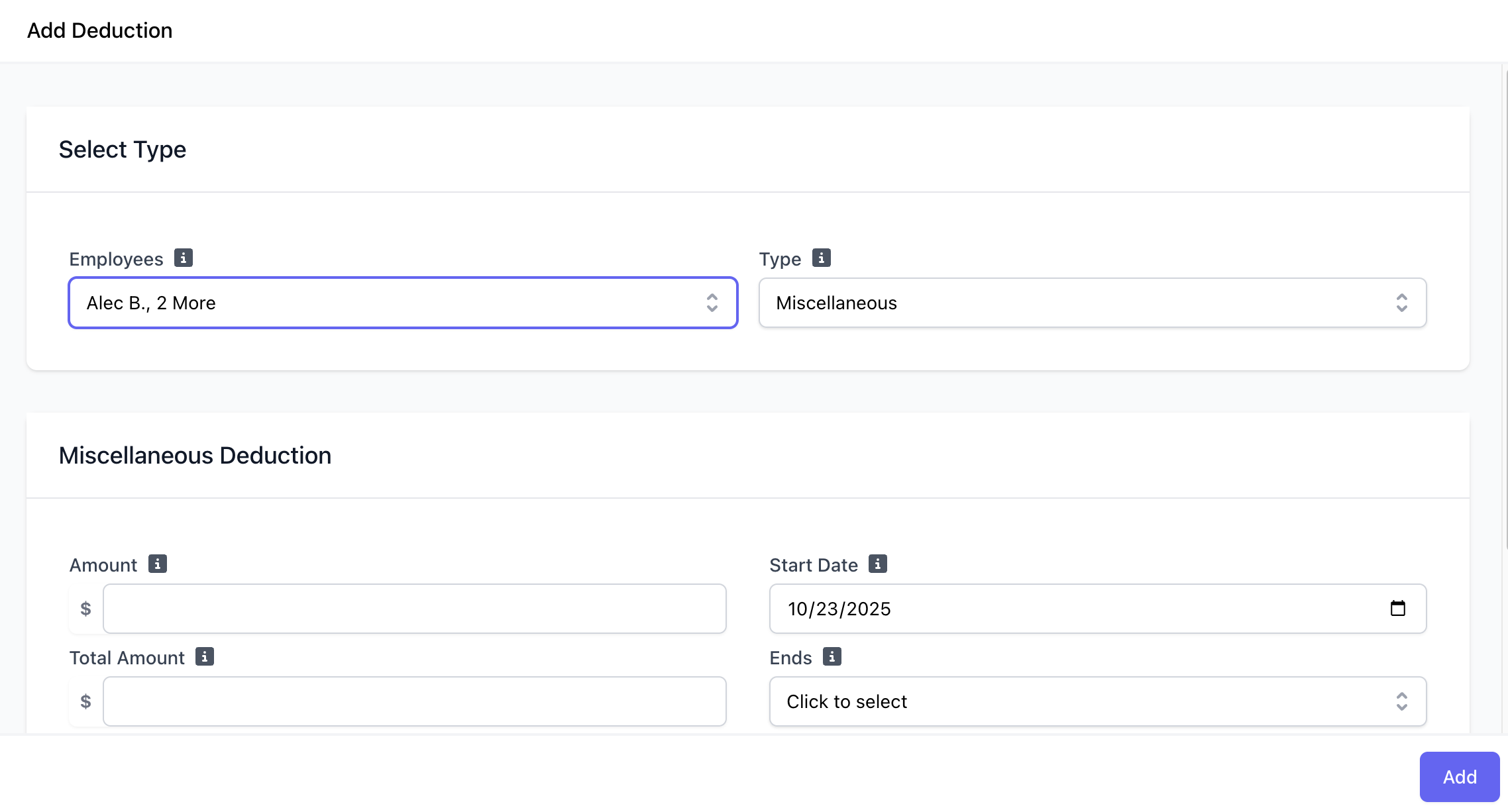 Complete the following fields:
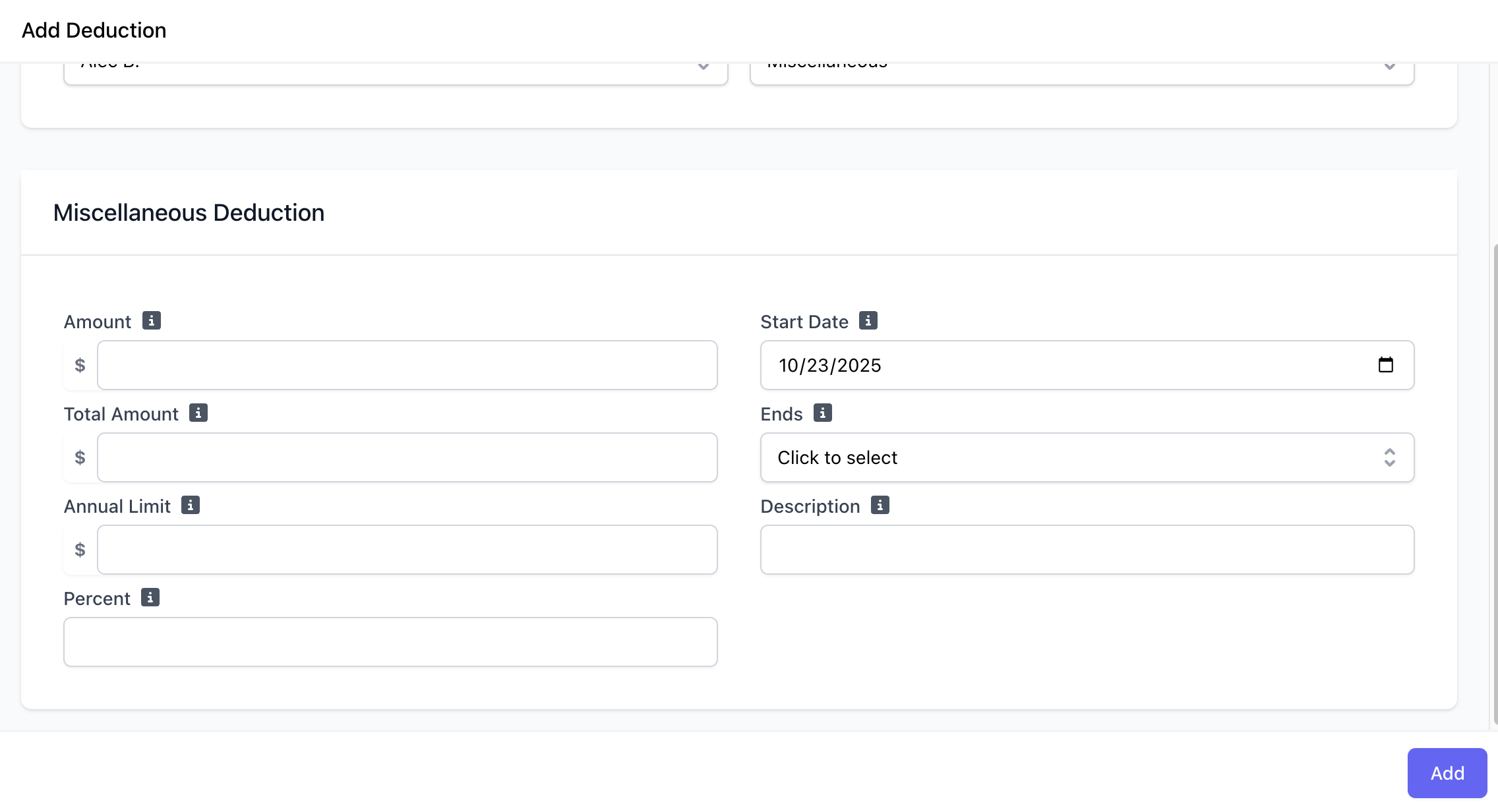 Fixed dollar amount for the deduction, if applicable. **Use either percent *or* amount.**
Total amount applies to the entire effective period of a deduction, which may span multiple payrolls or years if applicable. **Use either annual *or* total limit.**
Start date for the deduction.
End date of the deduction. If unsure or indefinite, select **Never**.
Annual limit for the deduction, if applicable. **Use either annual *or* total limit.**
Description of the deduction. This is optional but can be helpful for record-keeping.
Percentage of the employee's income that will be deducted. **Use either percent *or* amount**
Click **Add** to create the post-tax deduction.
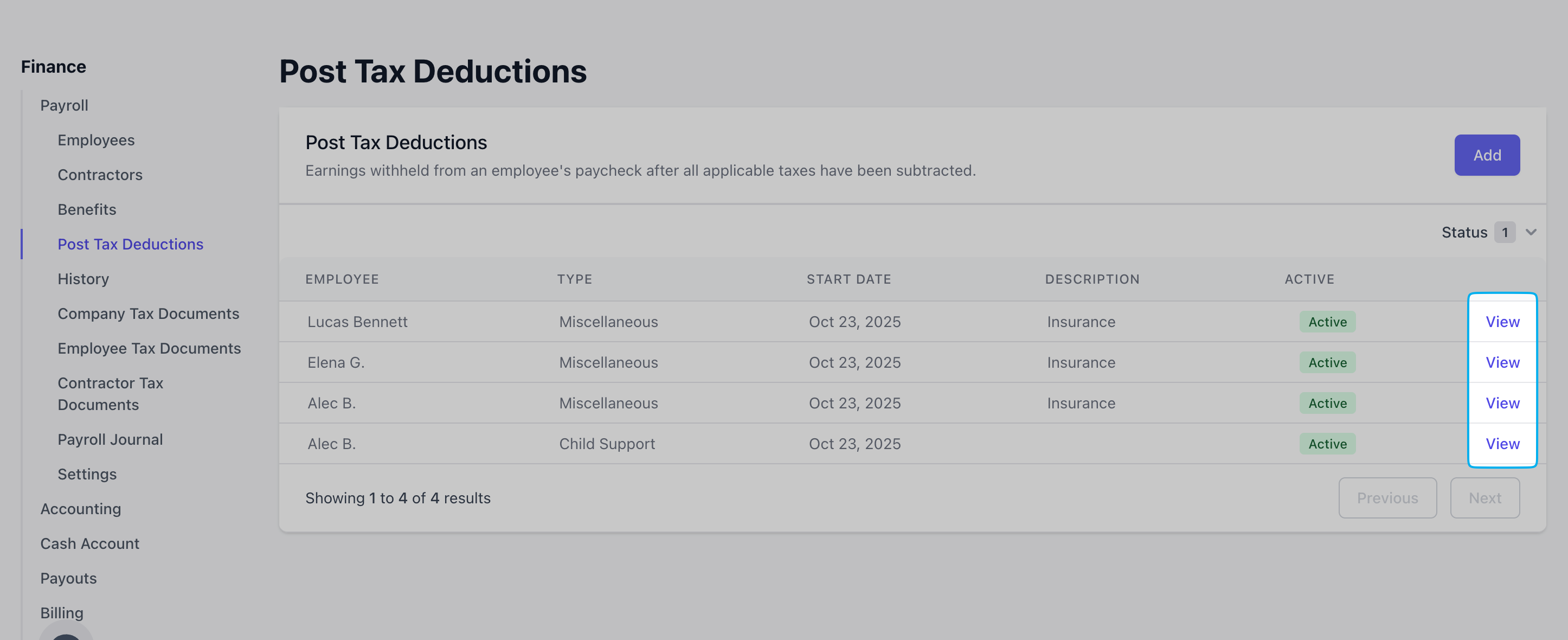
Edit or delete post-tax deductions by clicking **View** on the applicable employee's deduction.
Fixed dollar amount for the deduction, if applicable. **Use either percent *or* amount.**
Total amount applies to the entire effective period of a deduction, which may span multiple payrolls or years if applicable. **Use either annual *or* total limit.**
Start date for the deduction.
End date of the deduction. If unsure or indefinite, select **Never**.
Annual limit for the deduction, if applicable. **Use either annual *or* total limit.**
Description of the deduction. This is optional but can be helpful for record-keeping.
Percentage of the employee's income that will be deducted. **Use either percent *or* amount**
Click **Add** to create the post-tax deduction.
Edit or delete post-tax deductions by clicking **View** on the applicable employee's deduction.
 ***
## View Post-Tax Deductions in Payroll
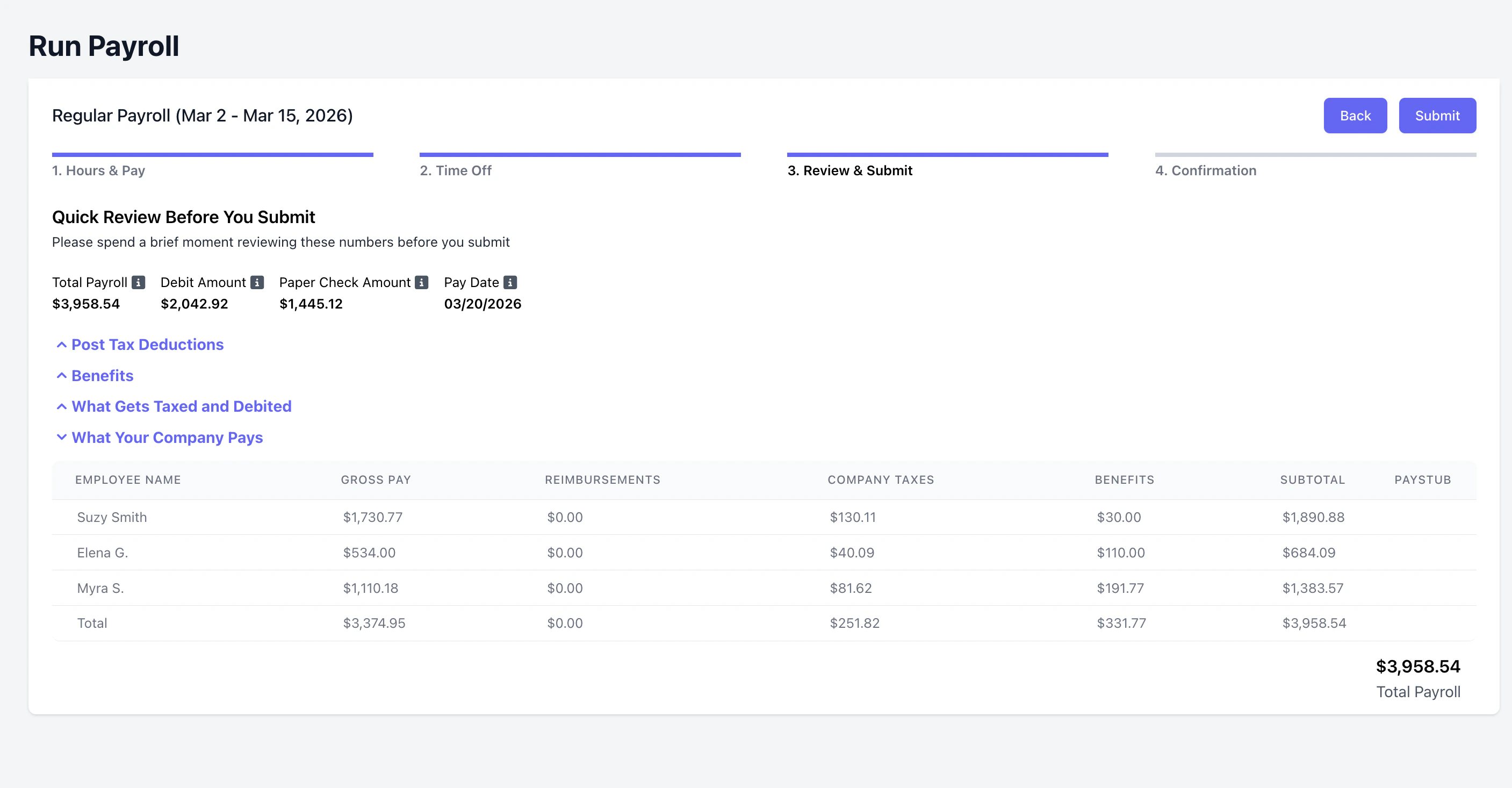
Post-tax deductions applied to a payrun will appear on page **3. Review & Submit** of payroll.
Once payroll is submitted, page **4. Confirmation** will also list the post-tax deductions applied.
***
## View Post-Tax Deductions in Payroll
Post-tax deductions applied to a payrun will appear on page **3. Review & Submit** of payroll.
Once payroll is submitted, page **4. Confirmation** will also list the post-tax deductions applied.
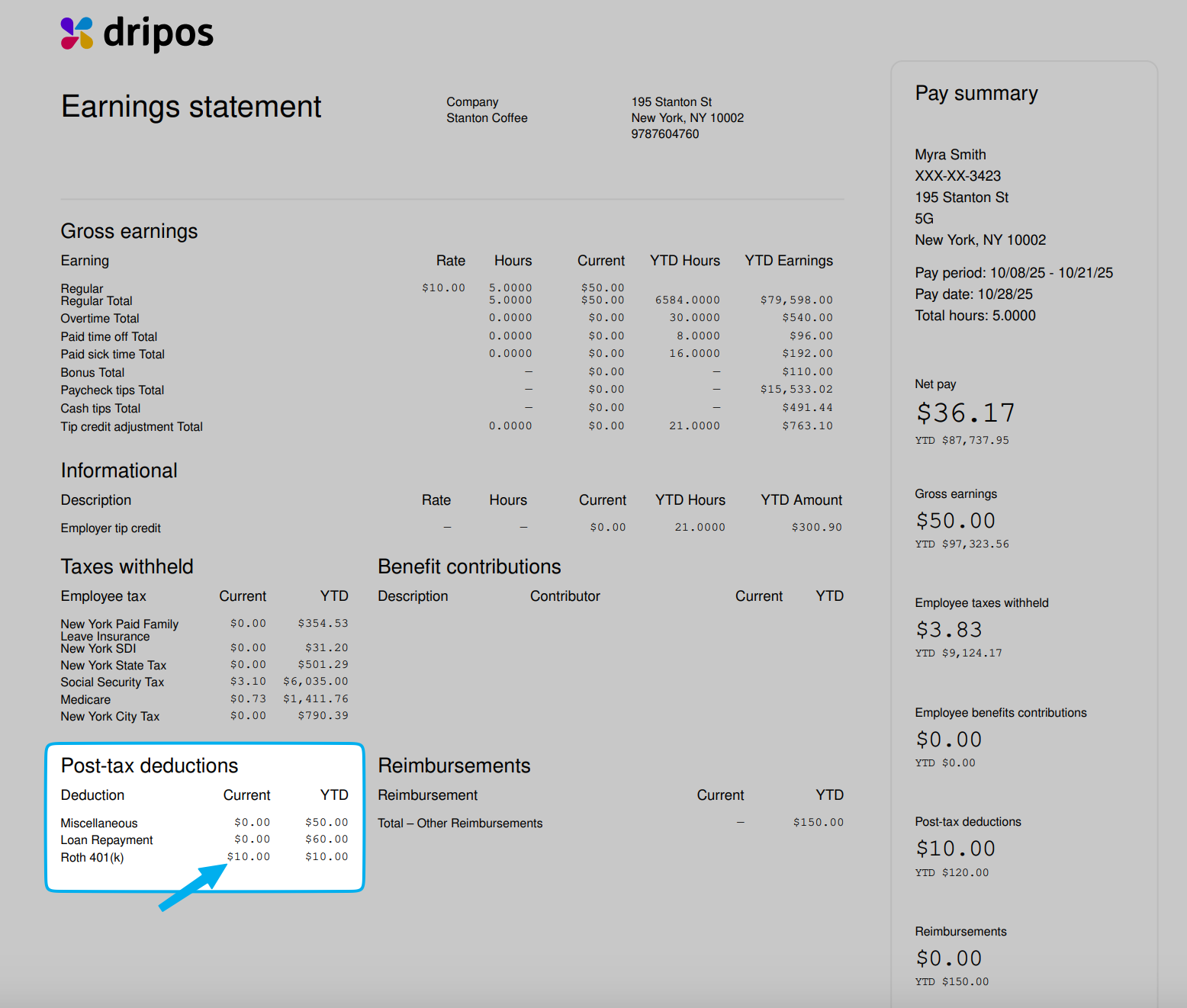
 Employees can view post-tax deductions on their paystubs.