> ## Documentation Index
> Fetch the complete documentation index at: https://support.dripos.com/llms.txt
> Use this file to discover all available pages before exploring further.
# Employee Payroll Guide
> Learn how to complete tax forms, set up direct deposit, view paystubs, and access your annual W-2
## Payroll Onboarding
**Payroll onboarding is not supported on mobile phone browsers. Complete this process on a computer or iPad browser.**
Click here to access your Employee Hub and log in with your phone number.
If you do not receive a Dripos verification code via text, contact your employer to confirm the phone number on file is correct.
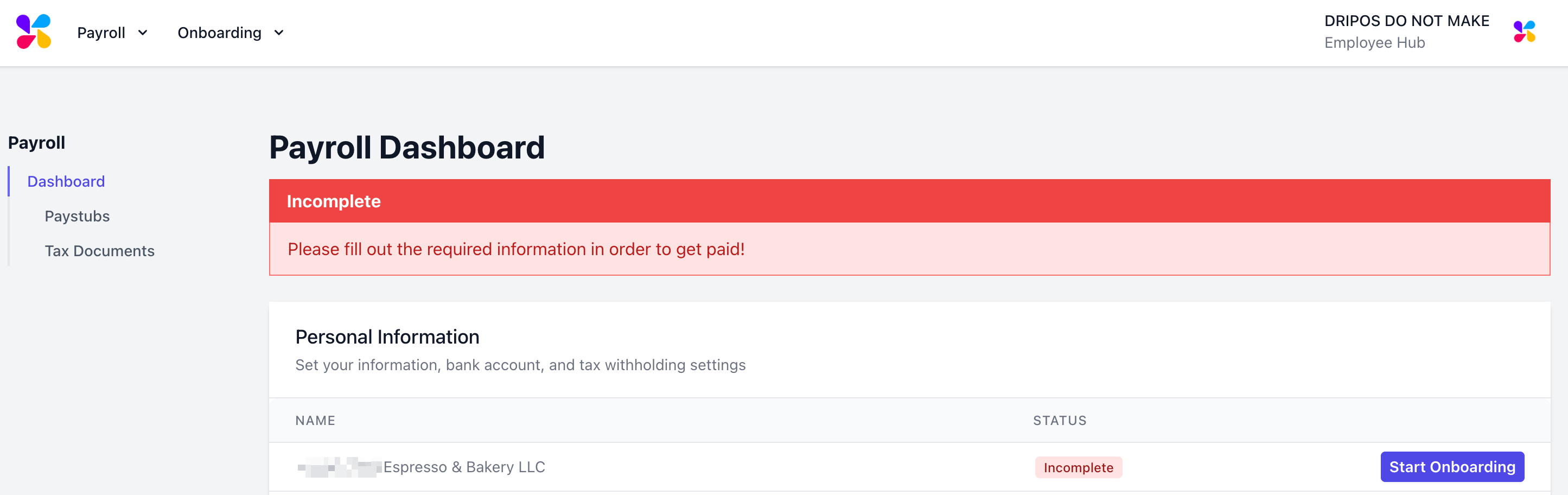
Log in to your Employee Hub and navigate to the [**Payroll Dashboard**](https://dashboard.dripos.com/hub/payroll). Click **Start Onboarding** next to the company name.
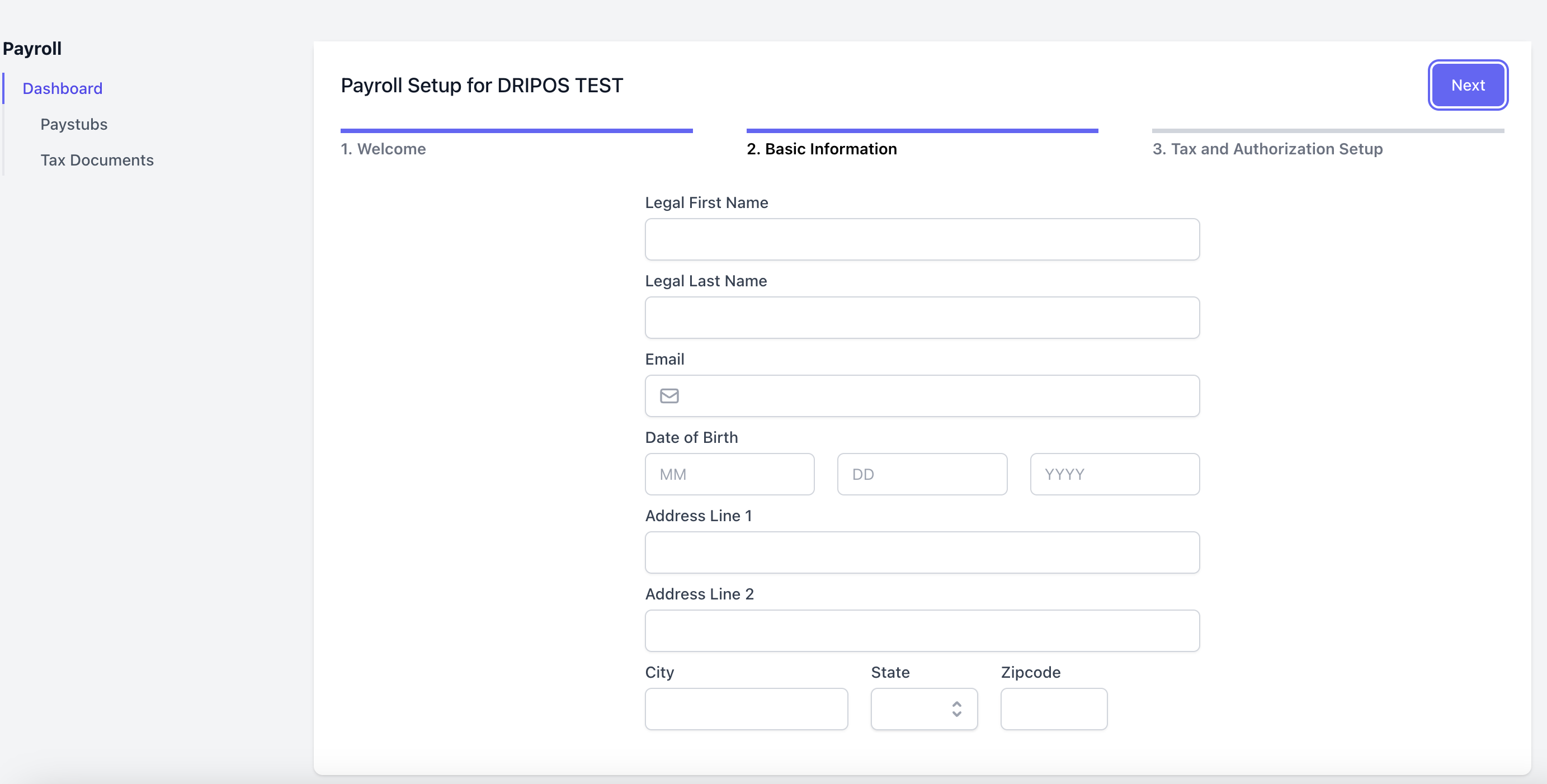
 Fill out the following fields and click **Next**.
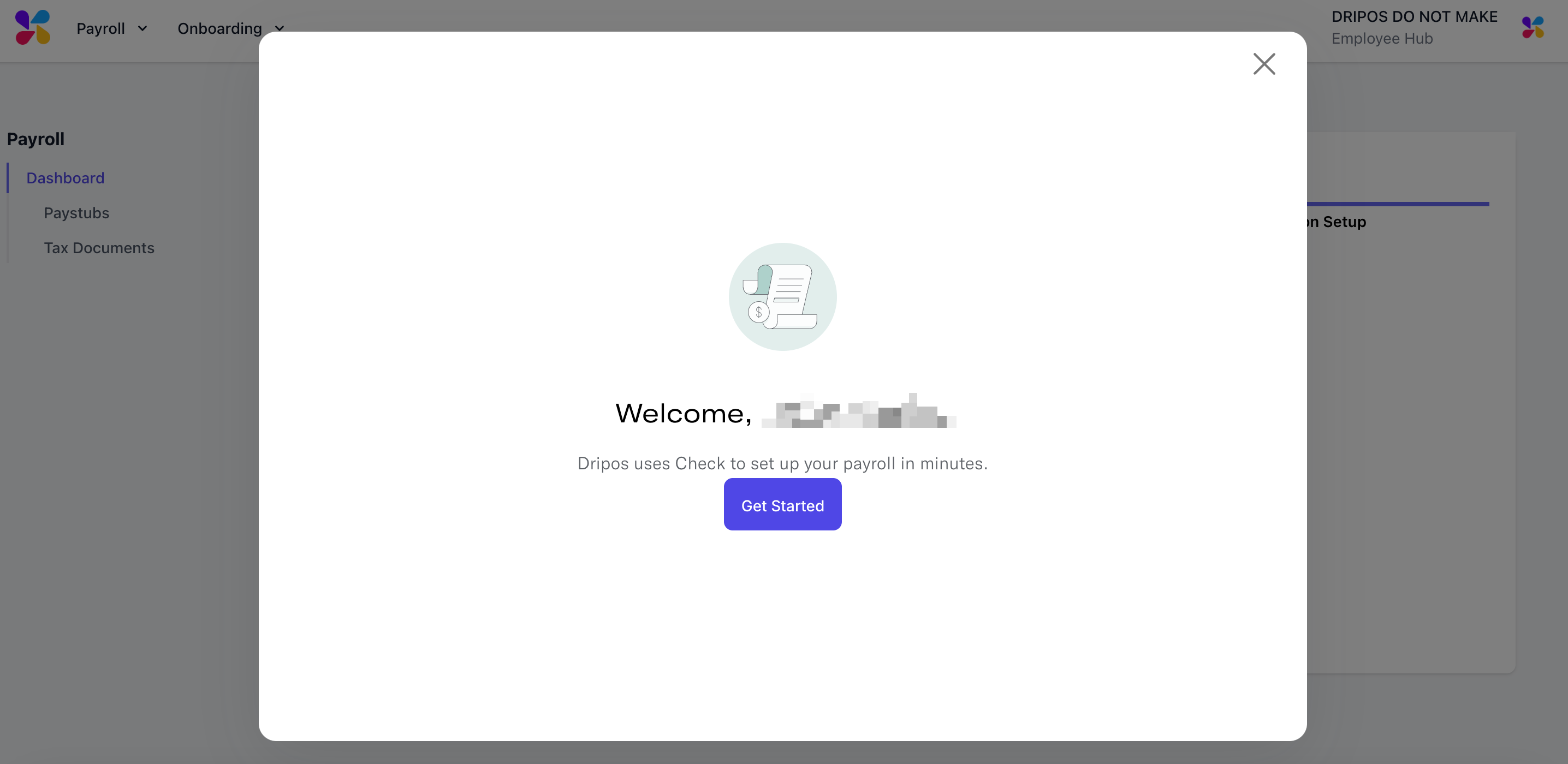
 Click **Get Started** to continue the payroll onboarding process.
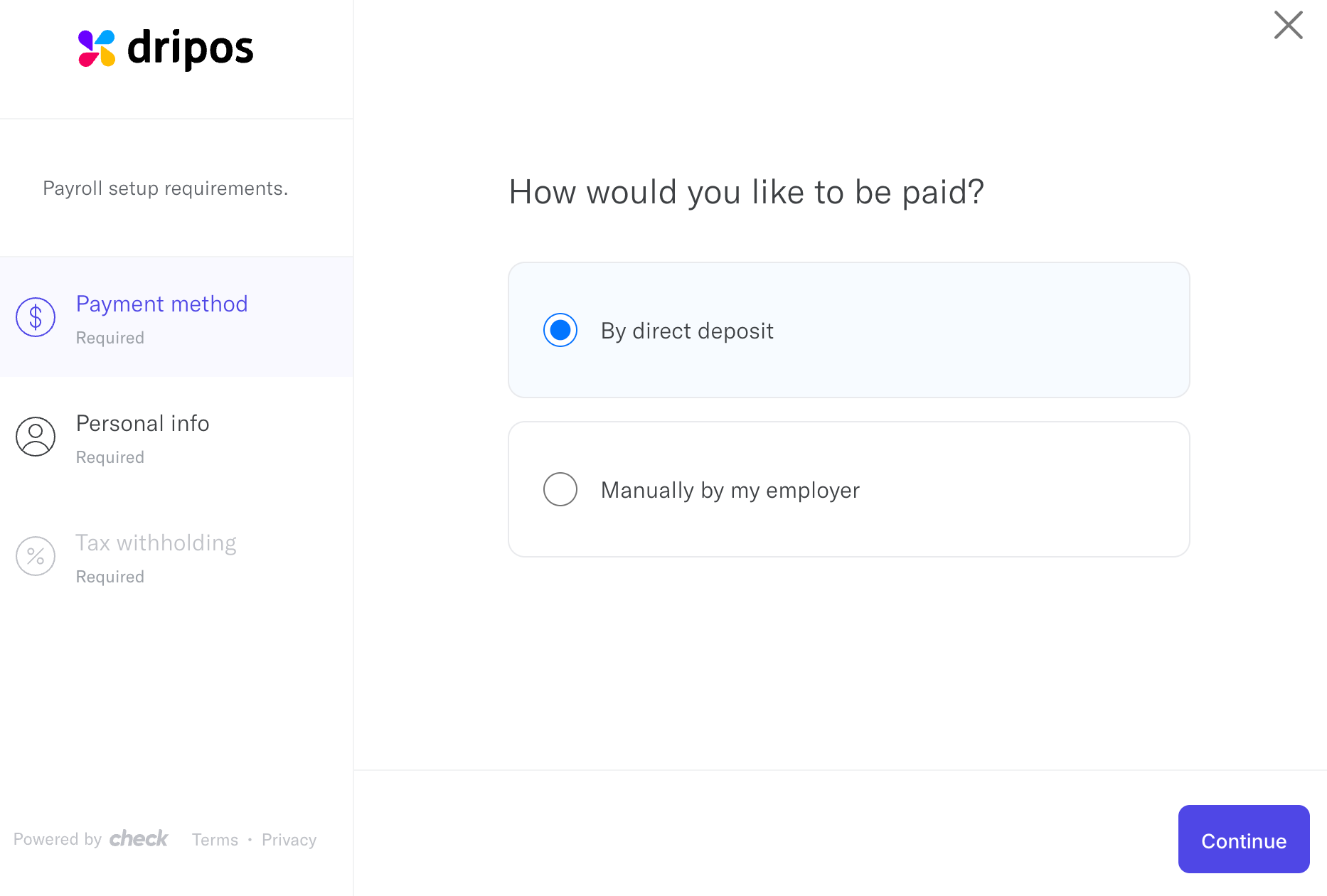
 Select your preferred payment method.
* *Direct Deposit*: Confirm routing and account numbers are correctly entered
* *Manual Check*: Confirm this payment method with your employer
Select your preferred payment method.
* *Direct Deposit*: Confirm routing and account numbers are correctly entered
* *Manual Check*: Confirm this payment method with your employer
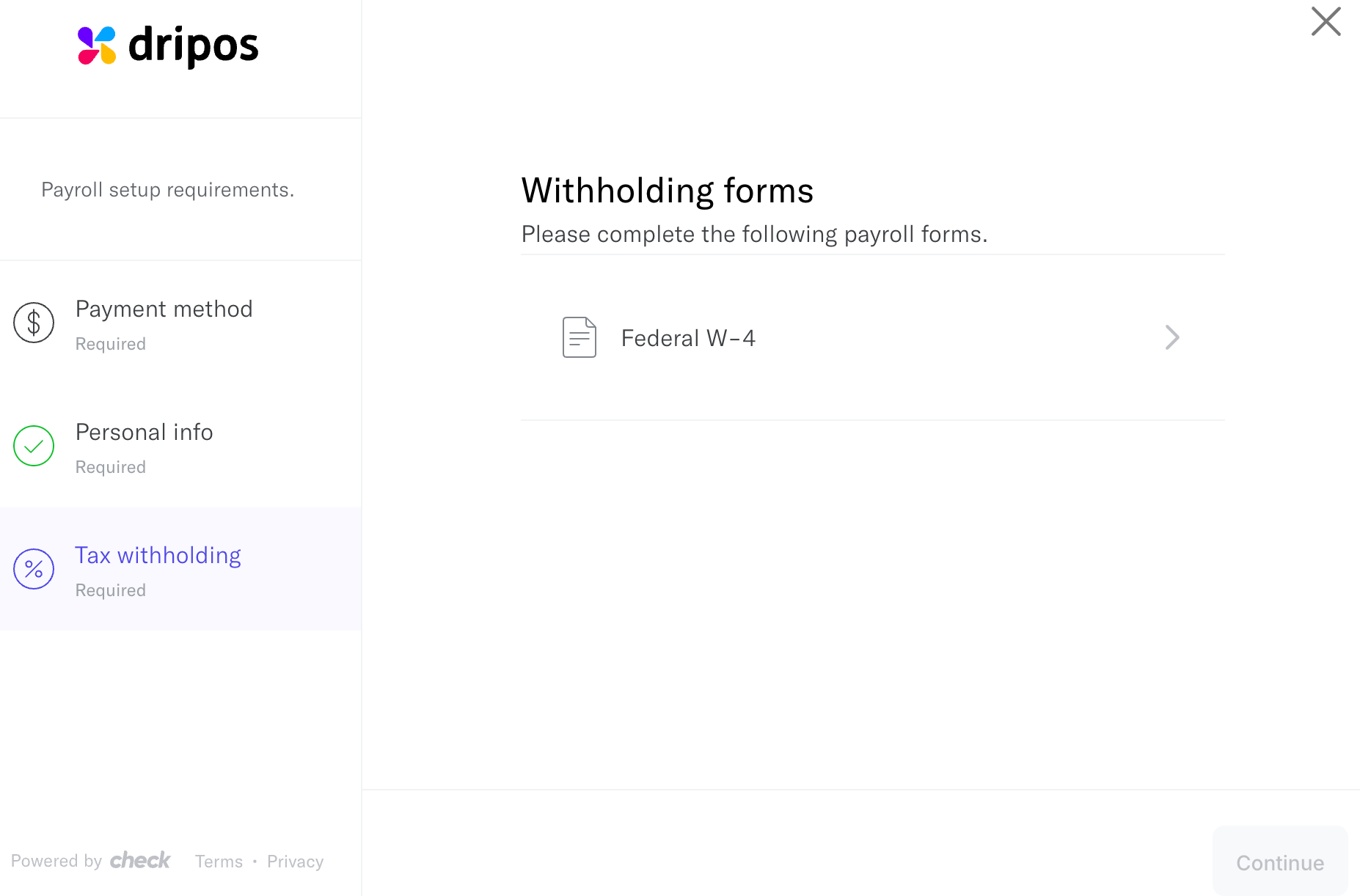
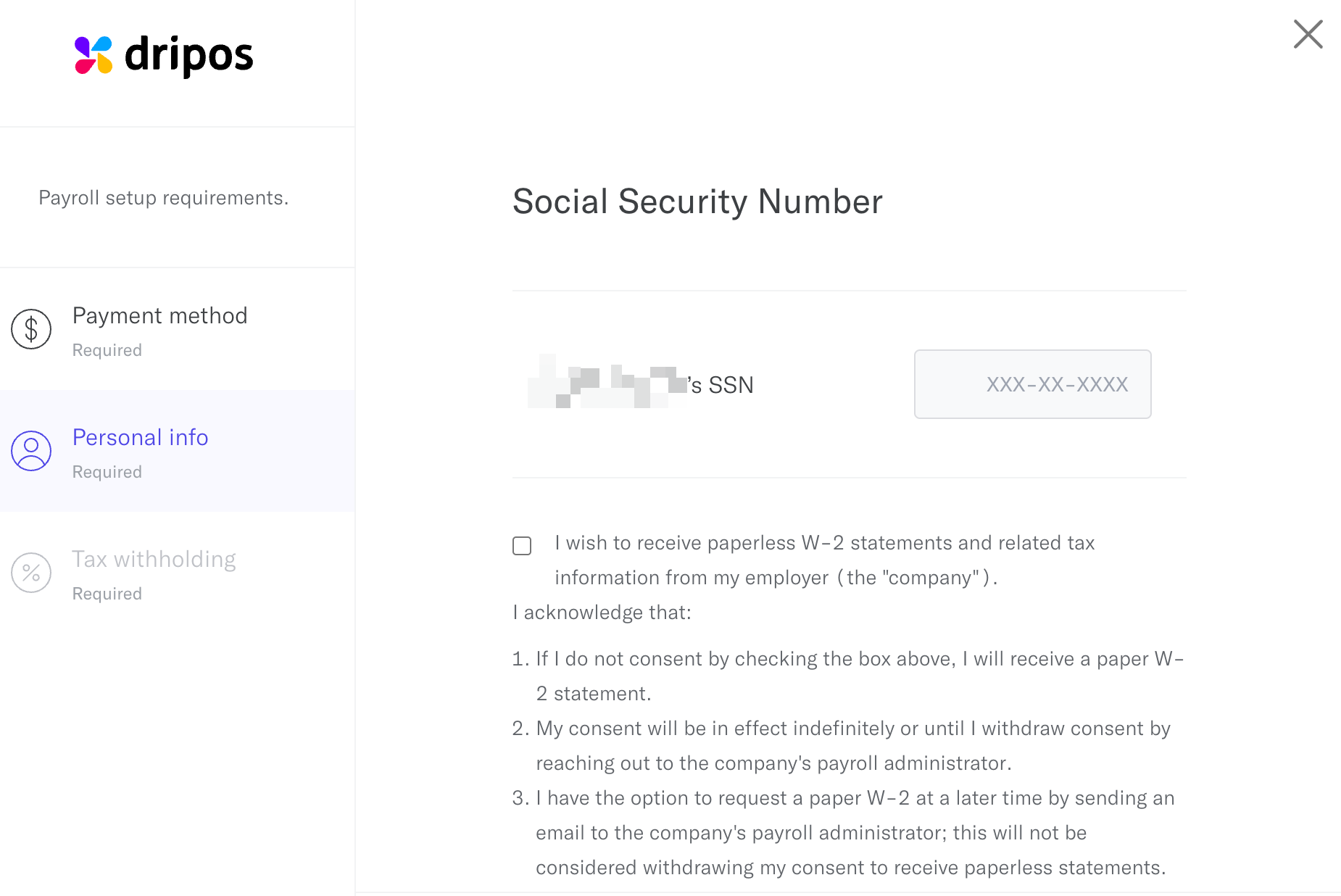 Refer to the [IRS website](https://www.irs.gov/newsroom/faqs-on-the-2020-form-w-4) or other resources to complete your W-4 accurately.
 ## Edit W-4 Information
Follow the steps below to make changes to a previously submitted W-4. Regenerate a new W-4 and submit changes in your Dripos Payroll Hub.
Log in to the [Employee Hub](https://dashboard.dripos.com/hub/payroll) using your phone number.
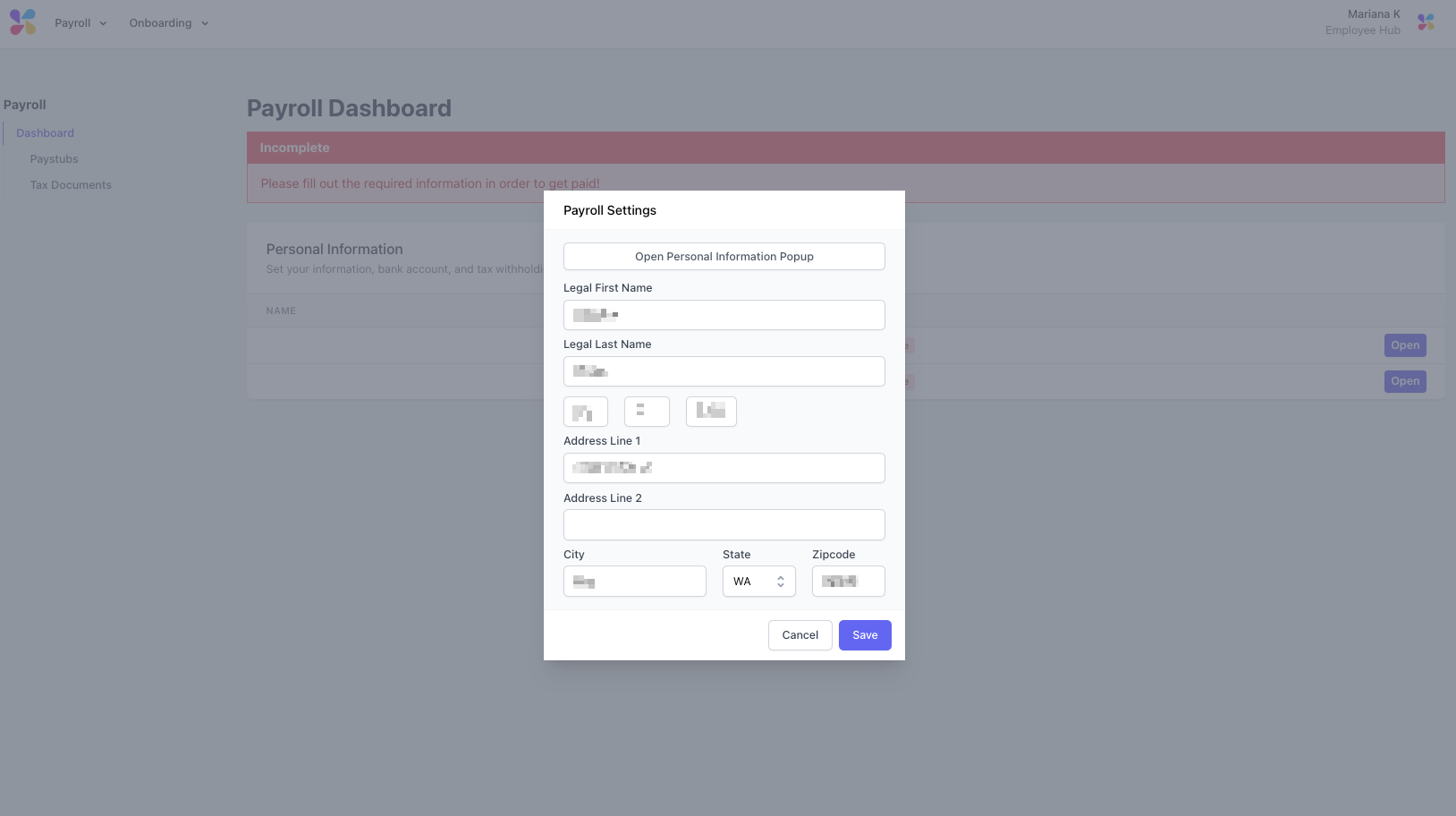
On the **Payroll Dashboard**, click **Open** next to the company name and then click **Open Personal Information Popup**.
## Edit W-4 Information
Follow the steps below to make changes to a previously submitted W-4. Regenerate a new W-4 and submit changes in your Dripos Payroll Hub.
Log in to the [Employee Hub](https://dashboard.dripos.com/hub/payroll) using your phone number.
On the **Payroll Dashboard**, click **Open** next to the company name and then click **Open Personal Information Popup**.
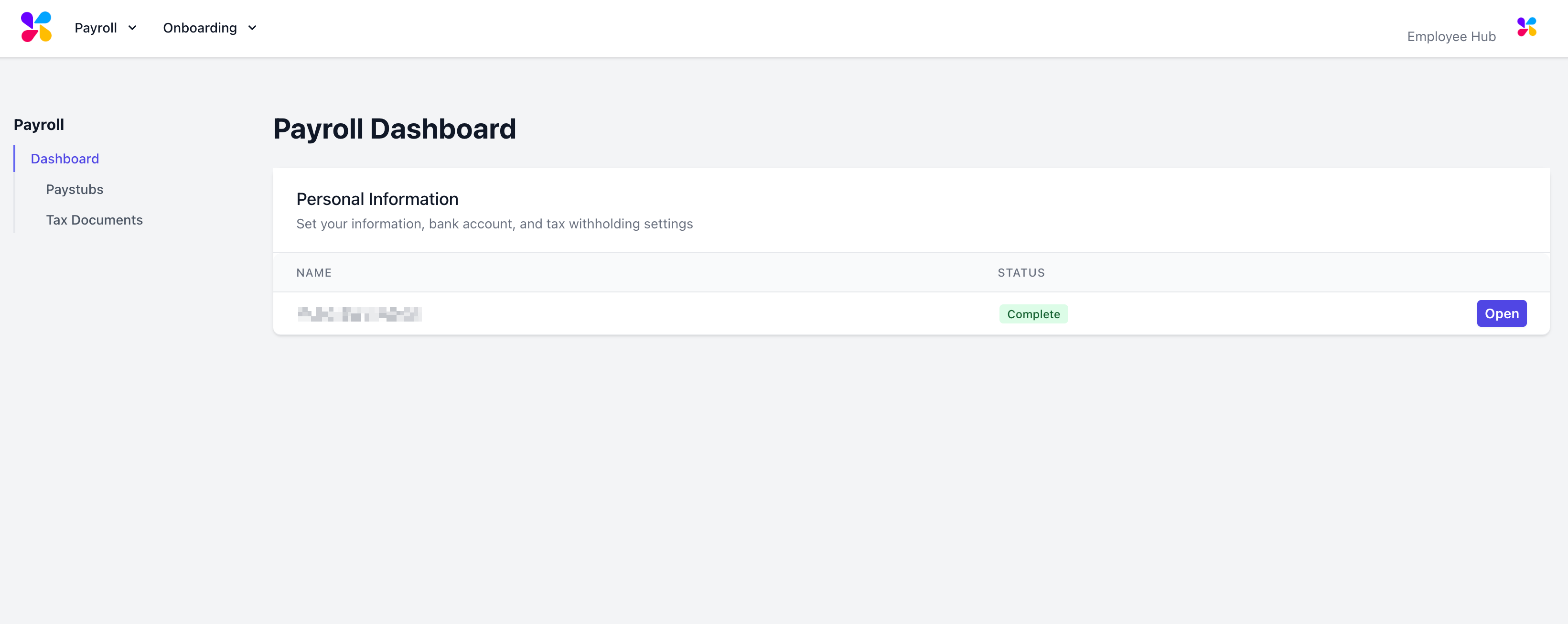
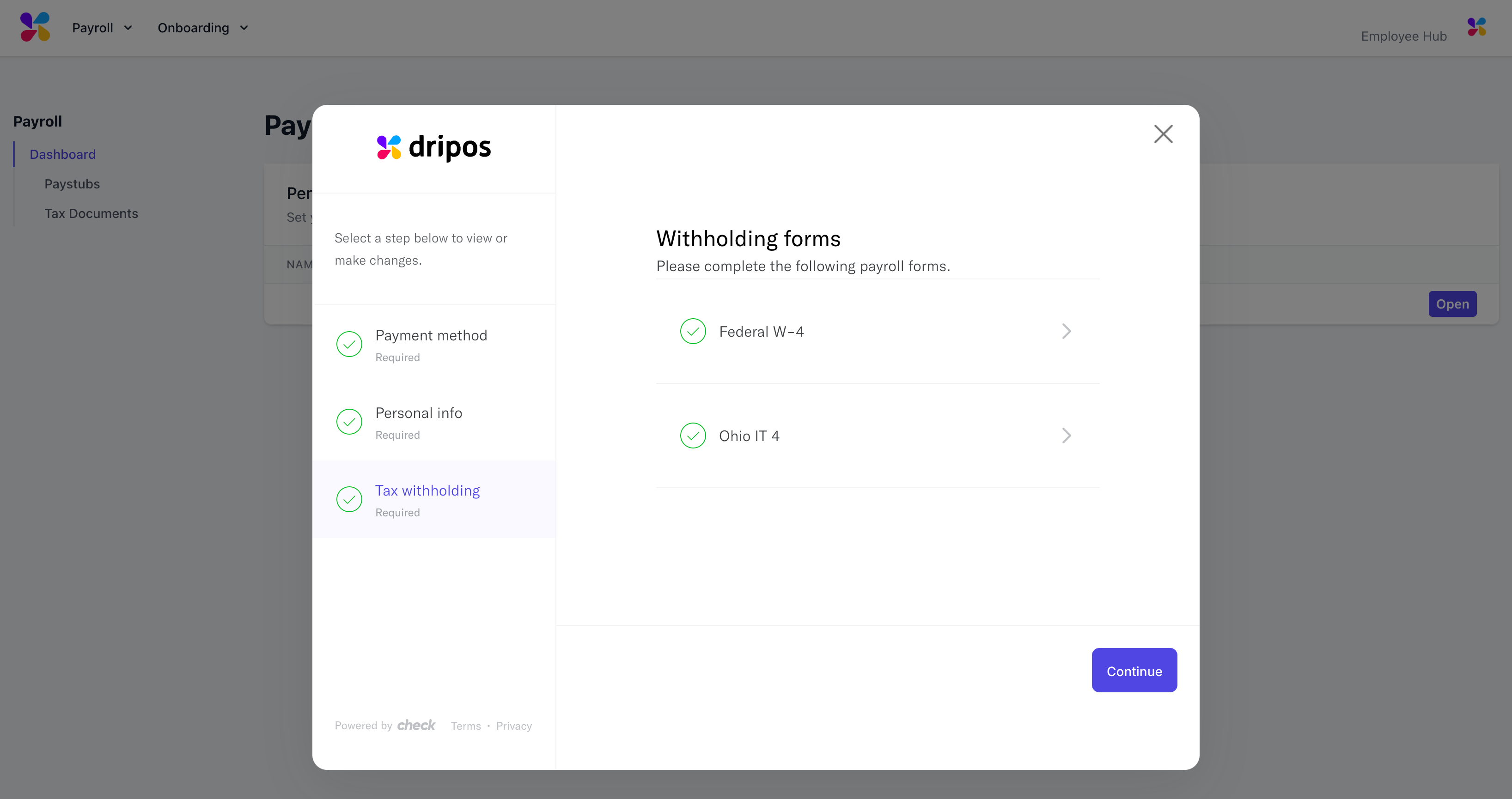
 Navigate to **Tax Withholding** on the left sidebar and click **Federal W-4**.
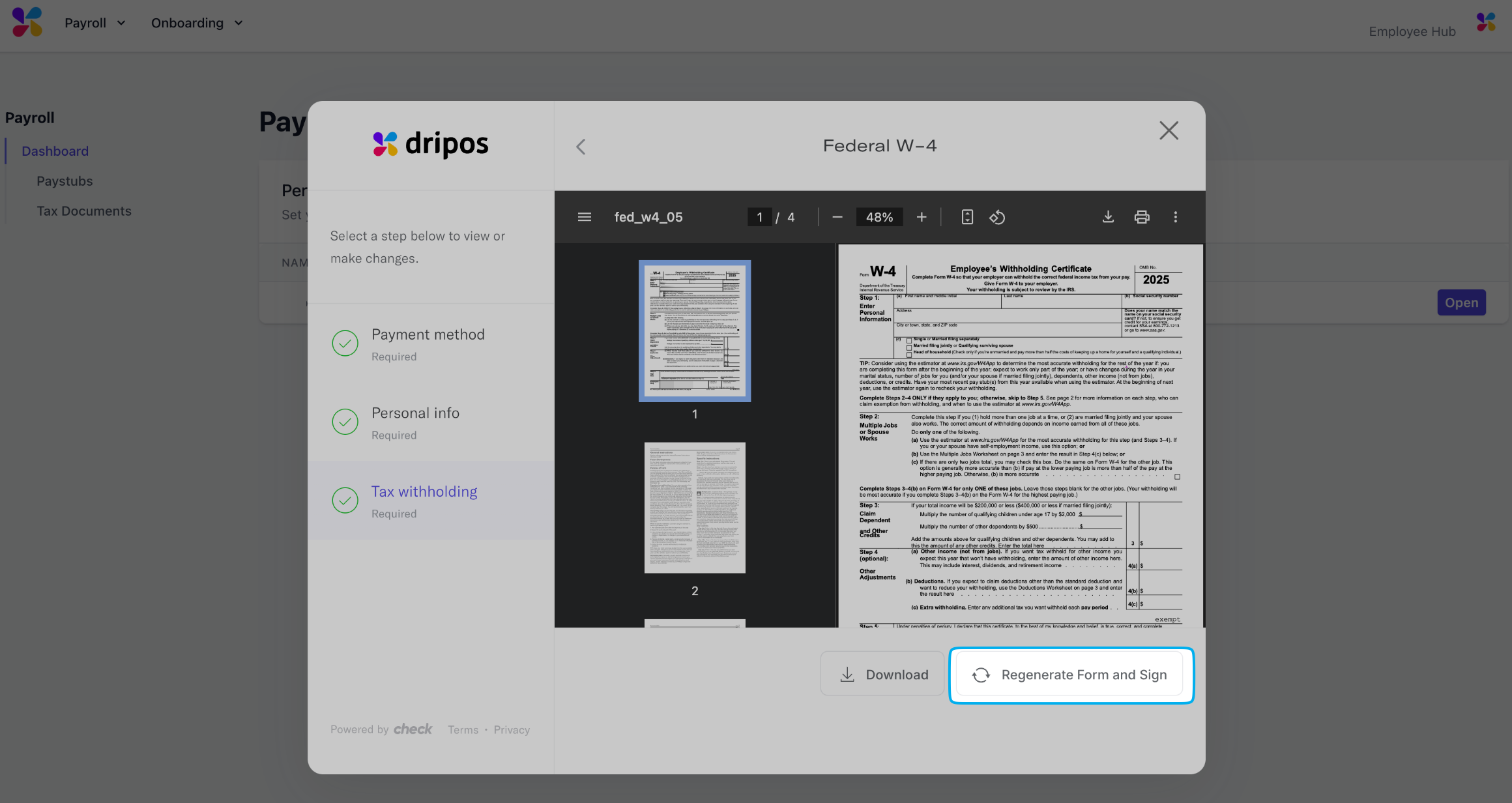
 Click **Regenerate Form and Sign** at the bottom right to make changes to your W-4 and submit the updated form.
 ## View Paystubs
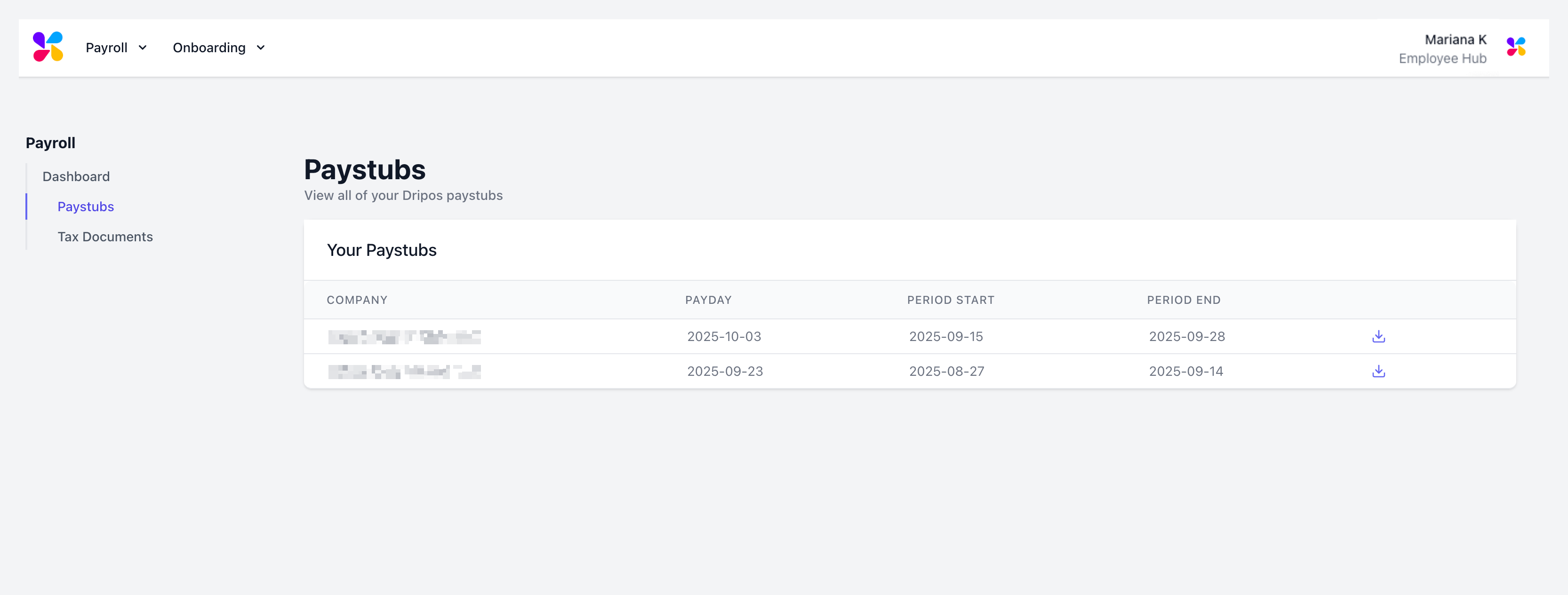
Employee paystubs are available for download on the [Employee Hub Payroll Dashboard](https://dashboard.dripos.com/hub/payroll/paystubs) **Paystubs** tab on the left sidebar.
## View Paystubs
Employee paystubs are available for download on the [Employee Hub Payroll Dashboard](https://dashboard.dripos.com/hub/payroll/paystubs) **Paystubs** tab on the left sidebar.
 \##View W-2s
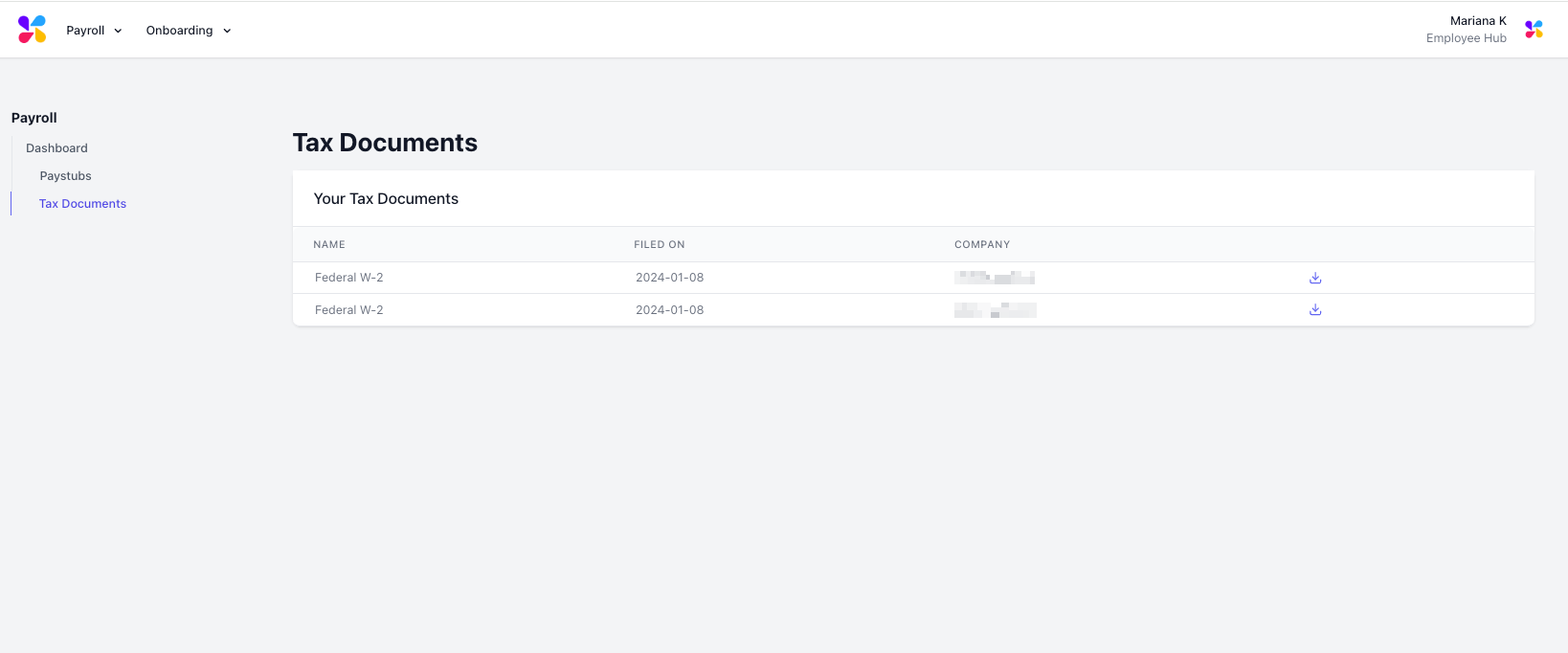
Employee W-2s are available for download on the [Employee Hub Payroll Dashboard](https://dashboard.dripos.com/hub/payroll/paystubs) **Tax Documents** tab on the left sidebar.
\##View W-2s
Employee W-2s are available for download on the [Employee Hub Payroll Dashboard](https://dashboard.dripos.com/hub/payroll/paystubs) **Tax Documents** tab on the left sidebar.
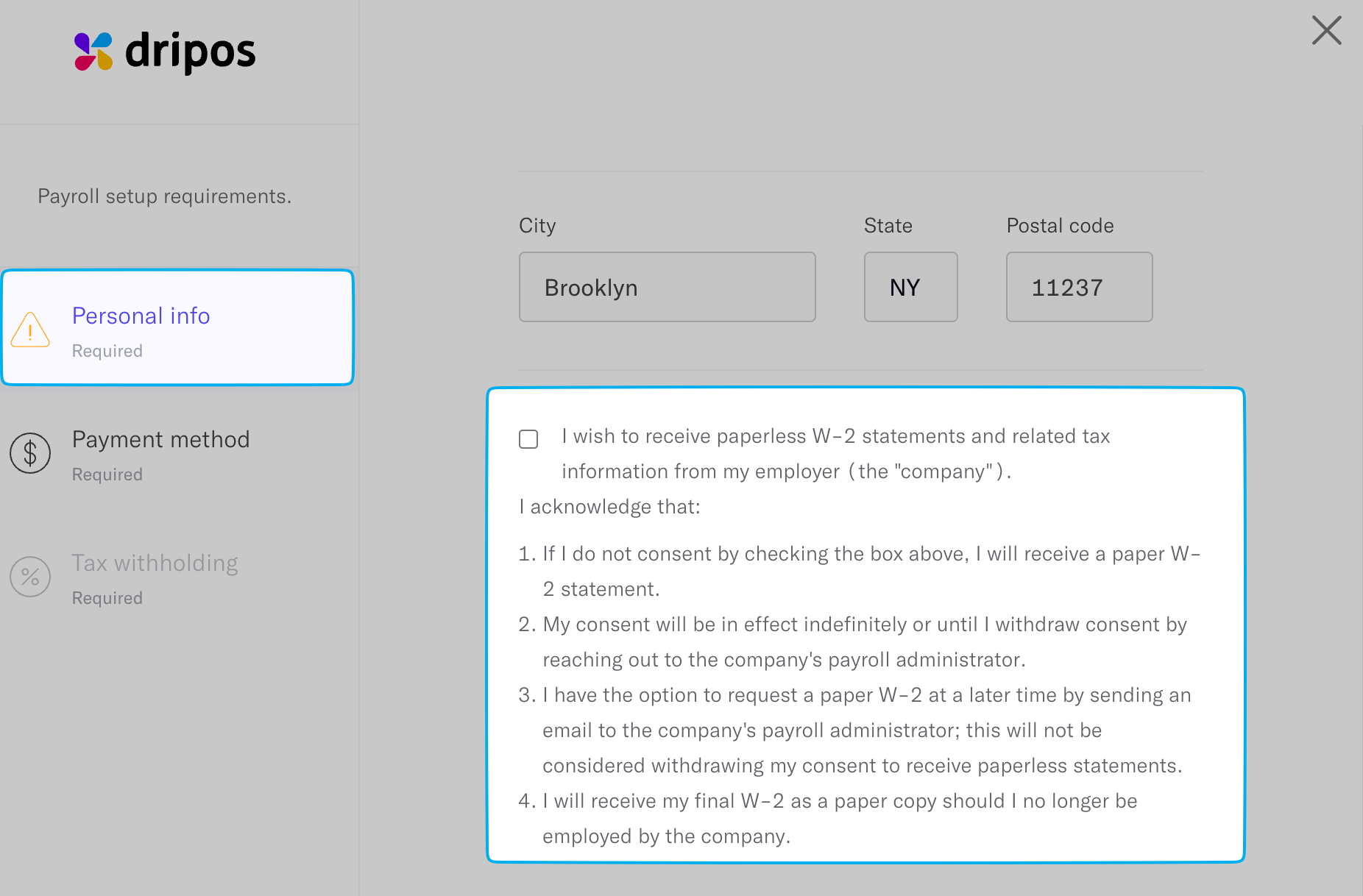
 To obtain paperless W-2s, employees must consent to this when initially onboarding onto payroll.