> ## Documentation Index
> Fetch the complete documentation index at: https://support.dripos.com/llms.txt
> Use this file to discover all available pages before exploring further.
# Run Payroll
> Learn about the different payroll types available
After onboarding onto Dripos Payroll, your shop will have the ability to run the following payroll types:
Run on regular weekly or bi-weekly pay cycles
Process payrolls outside of your regular pay schedule
Pay one-time bonuses to employees
## Processing Timelines
Your processing timeline is how long it takes for Dripos to process your payroll and pay your employees via direct deposit.
This processing timeline applies to **Regular**, **Off-Cycle**, and **Bonus** payrolls.
Most Dripos Payroll users will start with a 3-day processing timeline for Regular payroll.
*For a Monday through Sunday pay schedule, payrolls must be run by Tuesday for a Friday payday.*
Dripos Payroll users that successfully complete 10 regular payruns may be upgraded to 2-day processing.
*For a Monday through Sunday pay schedule, payrolls must be run by Wednesday for a Friday payday.*
***
## Funding Requirements
Failed fundings will result in a **penalty fee of \$150** to remedy the failed funding with our payroll partner.
Before submitting your payroll, you **MUST** have the **Debit Amount** settled in the bank account used for payroll.
If there are insufficient funds or the account is closed, **the payroll will fail to fund**.
**Failed fundings will result in:**
❗A **\$150 penalty fee** to resolve to failed funding.
❗Employees not being paid on time.
❗Your payroll account in 'bad standing'. This will block further payruns and prevent taxes from being remitted or filed properly on your behalf.
**In case of a failed funding:**
✅ Dripos will notify you via email and provide additional steps to fund the payroll and set your payroll account back to 'good standing'.
Contact [payroll@dripos.com](mailto:payroll@dripos.com) for assistance funding the payroll and putting your account back in good standing.
***
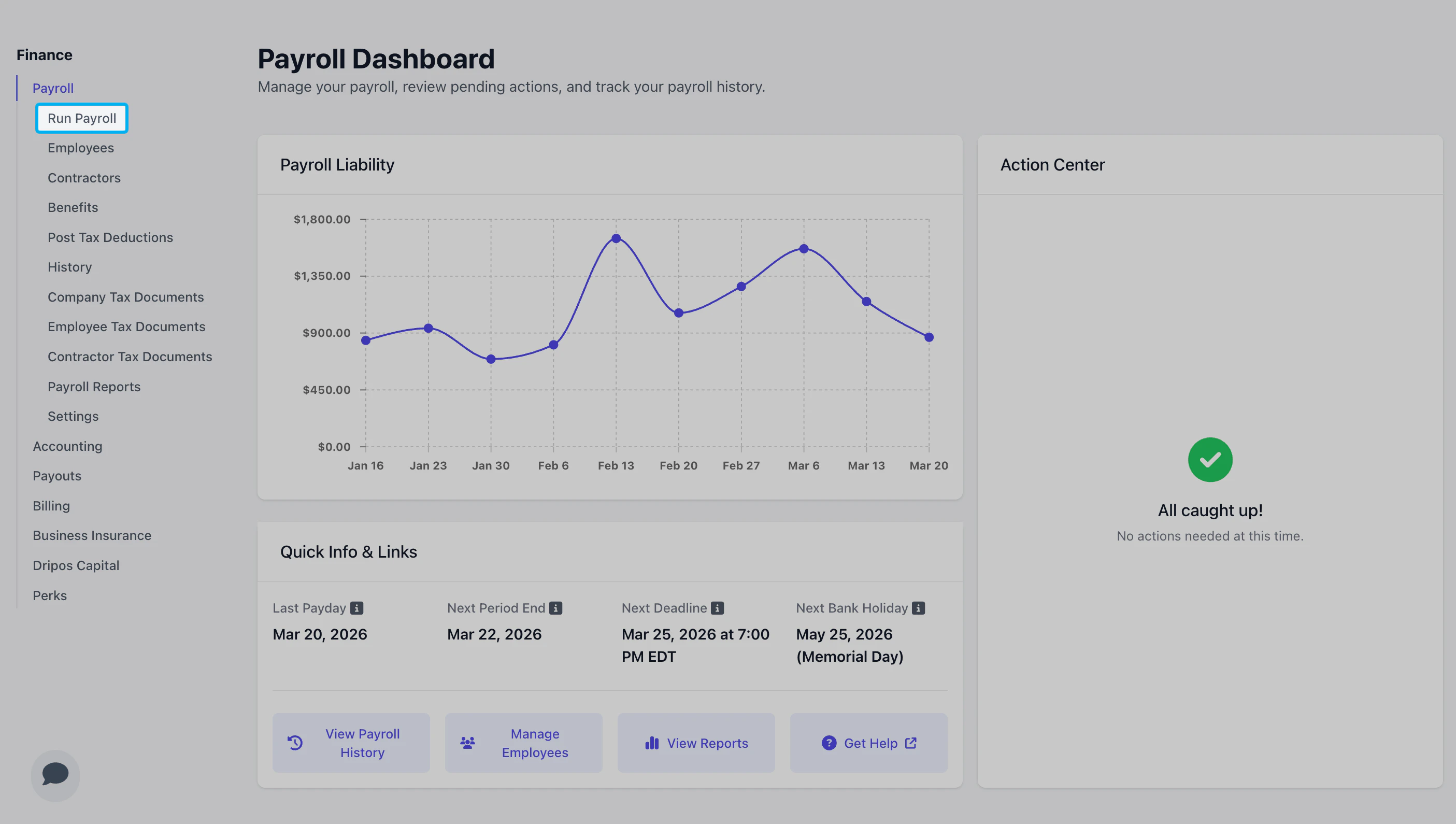
## Payroll Dashboard
Navigate to your [**Payroll Dashboard**](https://dashboard.dripos.com/payroll) to view your historical Payroll Liability, in addition to **Quick Info** on past and upcoming payroll dates.
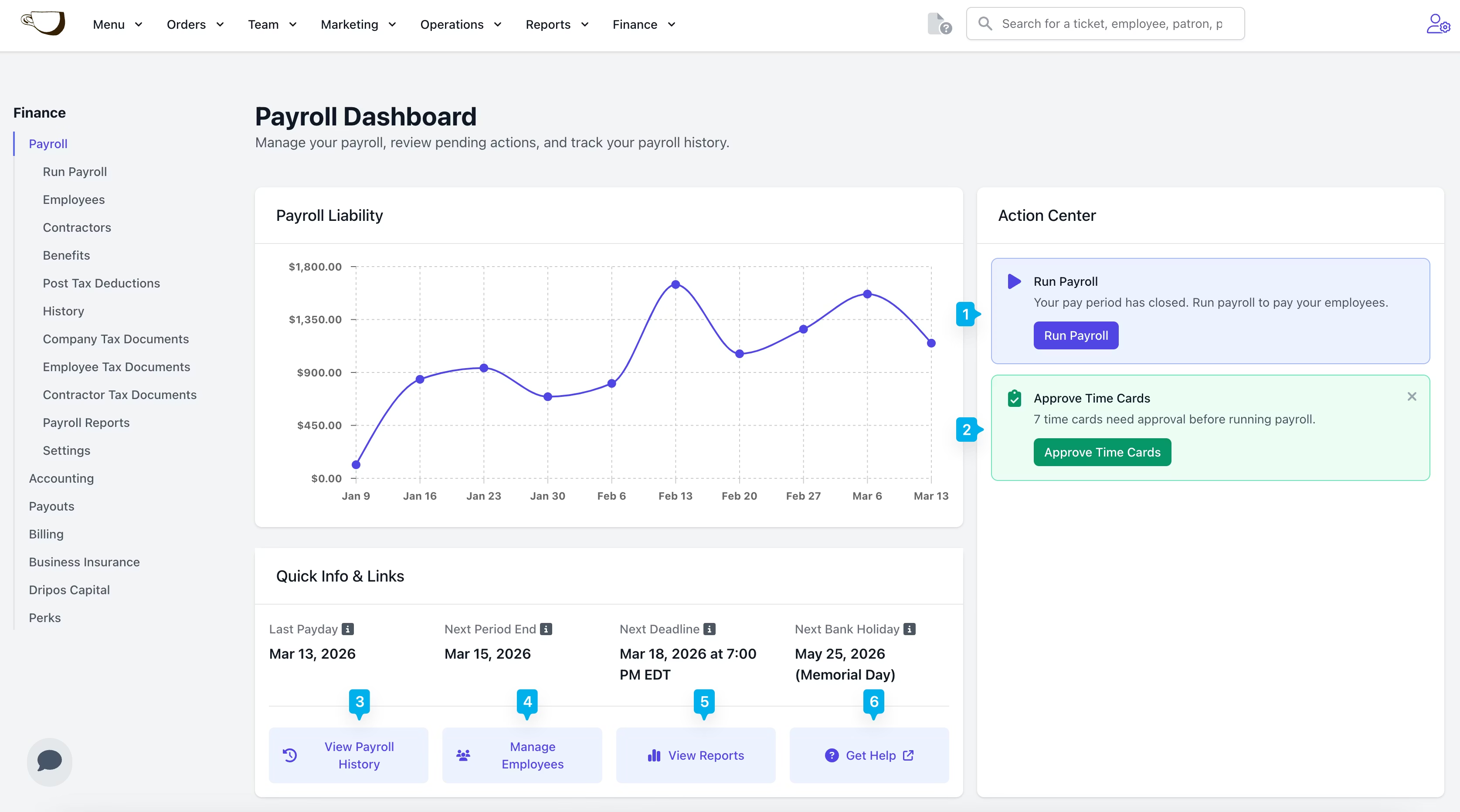 A *Run Payroll* button will appear when it is time to run your Regular payroll.
Edit and approve time cards before running your Regular payroll.
Review your historical payroll information.
Add employees to payroll and check their onboarding status.
Download Payroll Journal, Payroll Summary, Tax Deposit Breakdown, and other payroll files.
Reference helpful payroll guides.
## Regular Payroll
Regular payroll refers to a standard weekly or biweekly pay schedule for paying employees.
When onboarding onto Dripos Payroll, your onboarding specialist will set your preferred pay schedule to weekly or biweekly.
If you have not reviewed and approved the time cards for this payroll, click **Approve Time Cards** on the [Payroll Dashboard](https://dashboard.dripos.com/payroll).
You can also approve time cards in the Approval Center. Learn more about the Approval Center [here](/team/approval/approval-overview)
A *Run Payroll* button will appear when it is time to run your Regular payroll.
Edit and approve time cards before running your Regular payroll.
Review your historical payroll information.
Add employees to payroll and check their onboarding status.
Download Payroll Journal, Payroll Summary, Tax Deposit Breakdown, and other payroll files.
Reference helpful payroll guides.
## Regular Payroll
Regular payroll refers to a standard weekly or biweekly pay schedule for paying employees.
When onboarding onto Dripos Payroll, your onboarding specialist will set your preferred pay schedule to weekly or biweekly.
If you have not reviewed and approved the time cards for this payroll, click **Approve Time Cards** on the [Payroll Dashboard](https://dashboard.dripos.com/payroll).
You can also approve time cards in the Approval Center. Learn more about the Approval Center [here](/team/approval/approval-overview)
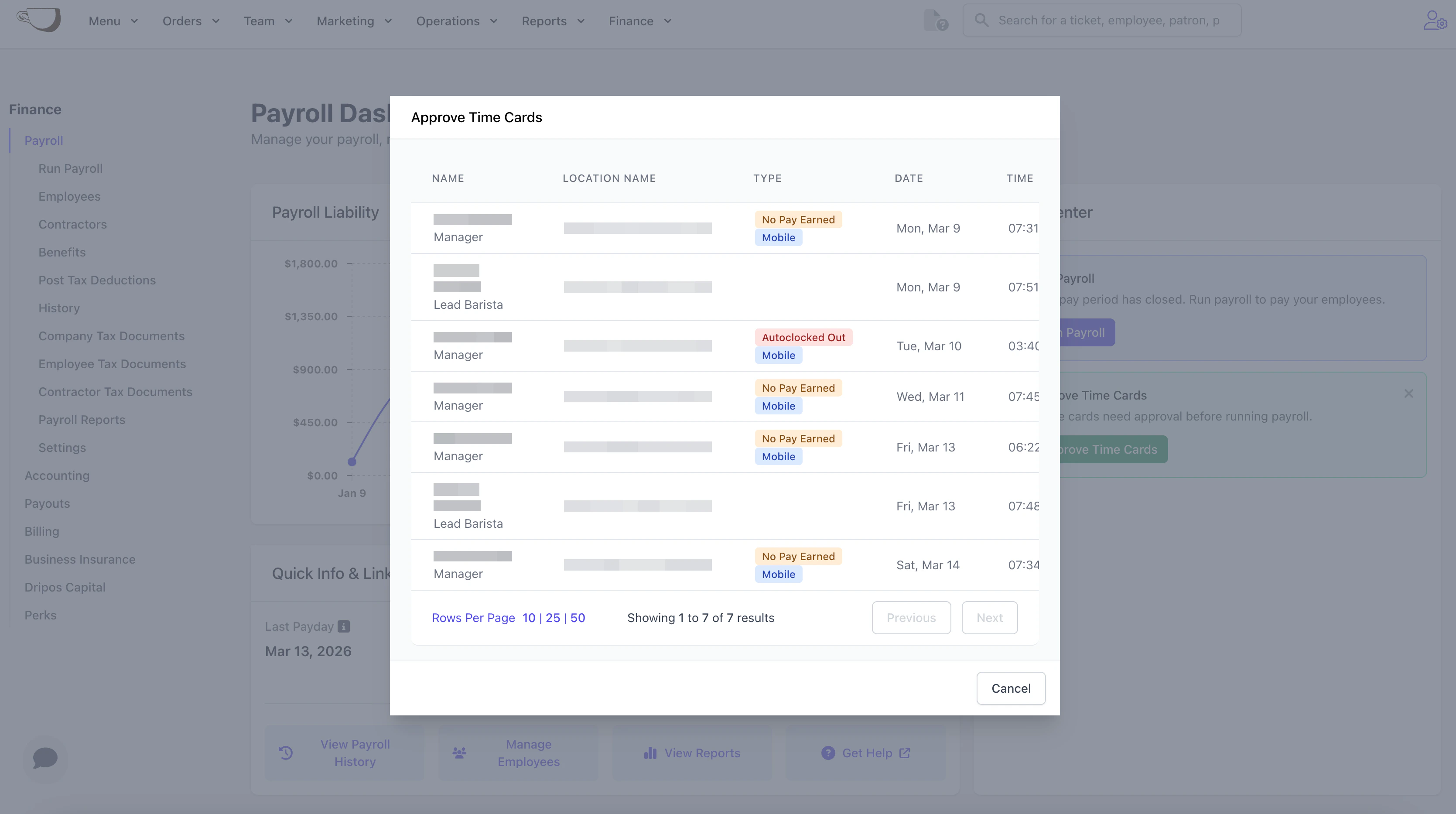
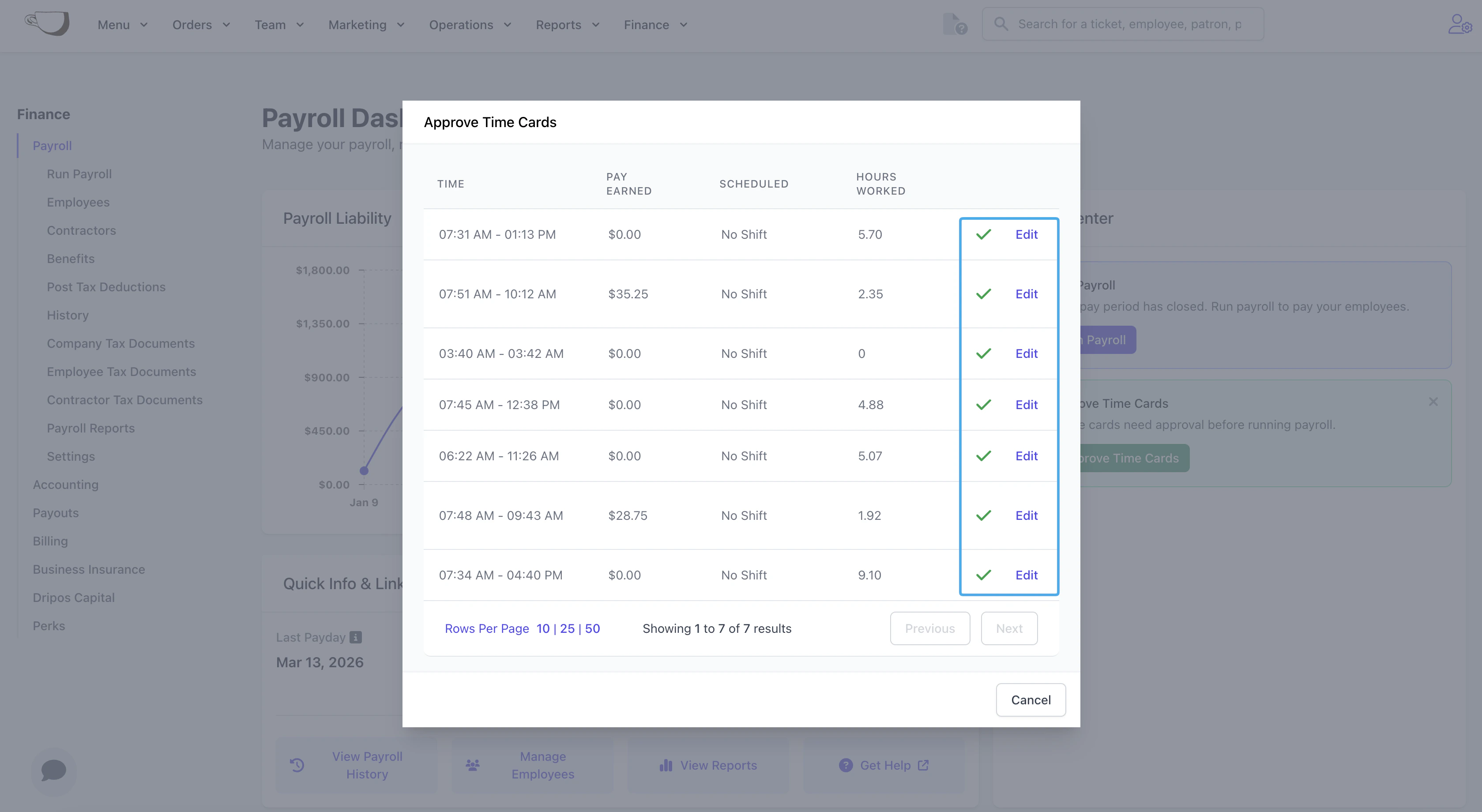 Click **Run Payroll** on your **Payroll Dashboard** or select **Run Payroll** from the left sidebar menu.
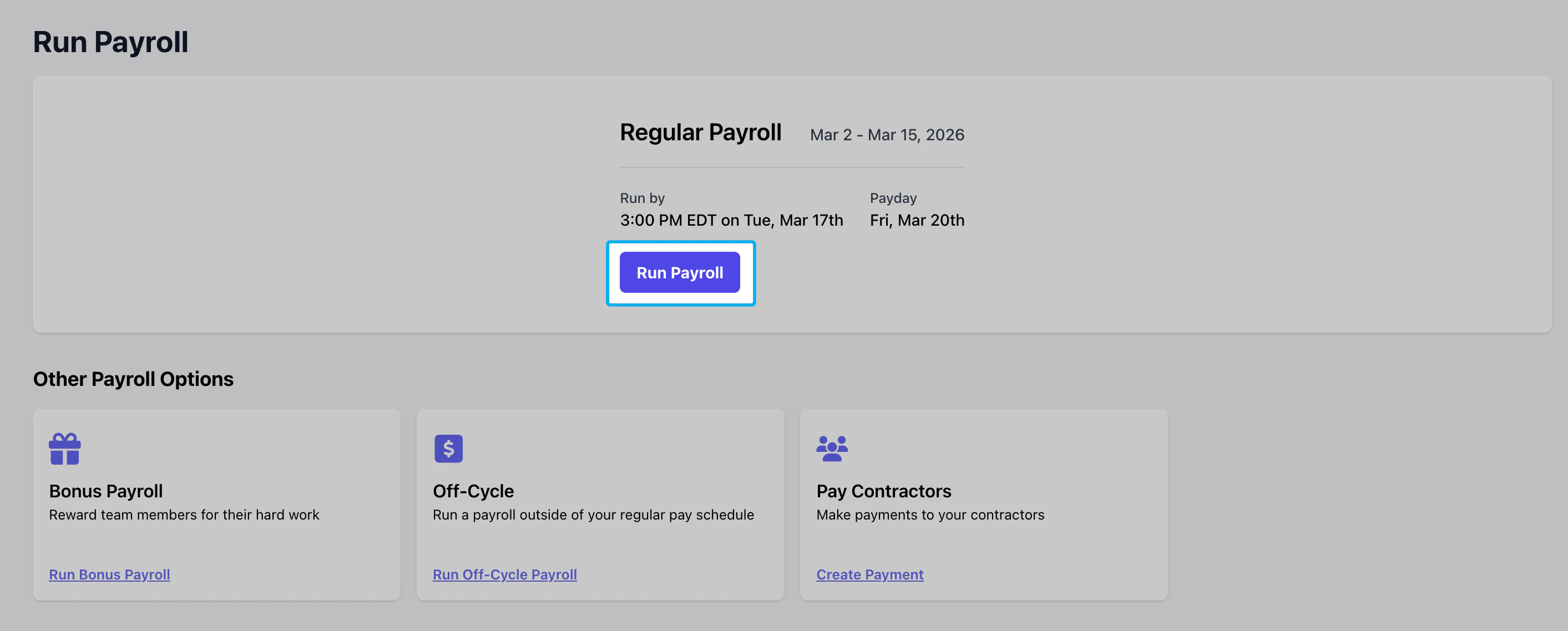
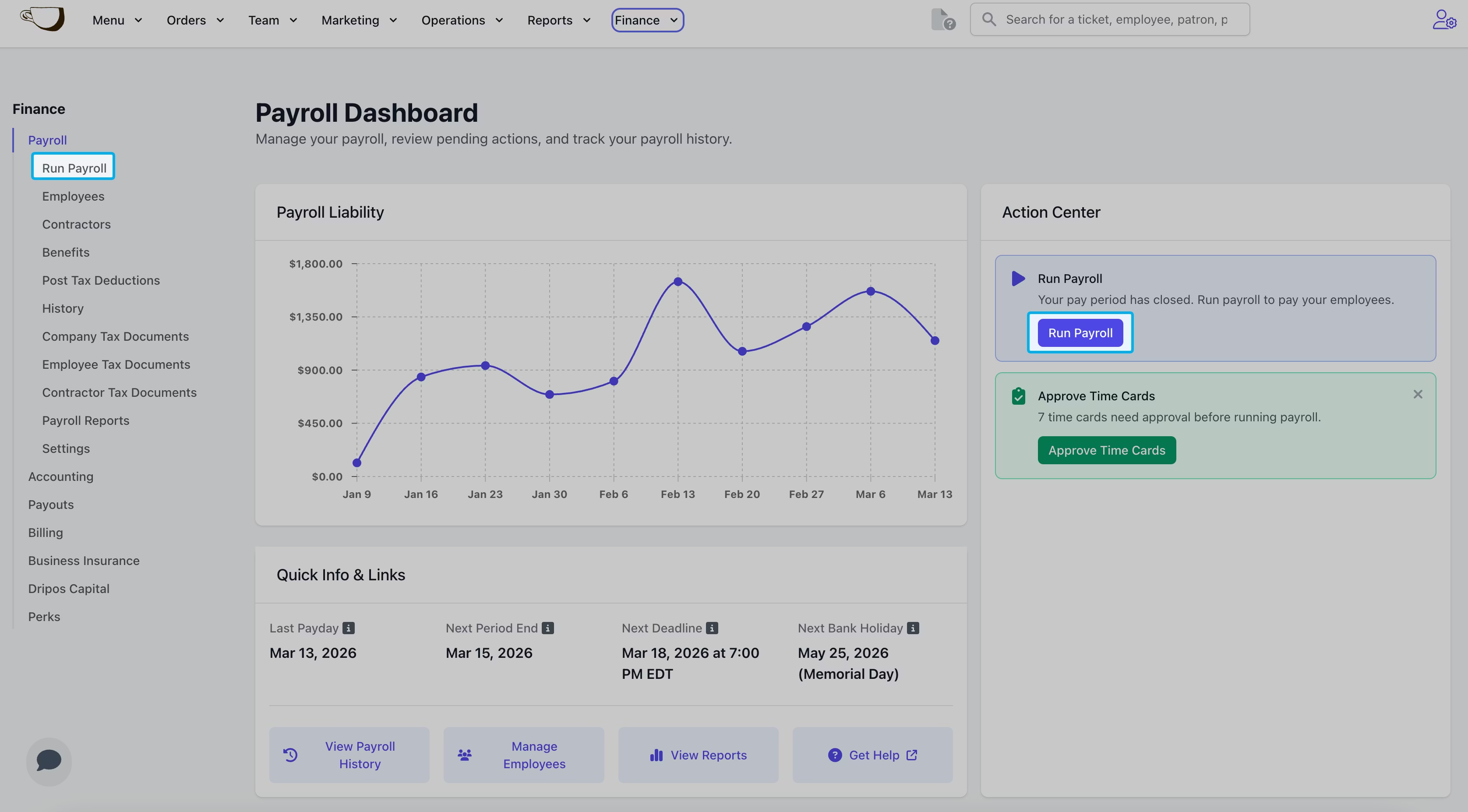 Click **Run Payroll** under Regular Payroll to begin.
 Confirm the hours and pay for each employee.
Review each employee to ensure their time cards and pay rates are accurate. To correct a payroll that is already processing, learn more [here](/finance/payroll/payroll-qa#void-a-payroll).
Confirm the hours and pay for each employee.
Review each employee to ensure their time cards and pay rates are accurate. To correct a payroll that is already processing, learn more [here](/finance/payroll/payroll-qa#void-a-payroll).
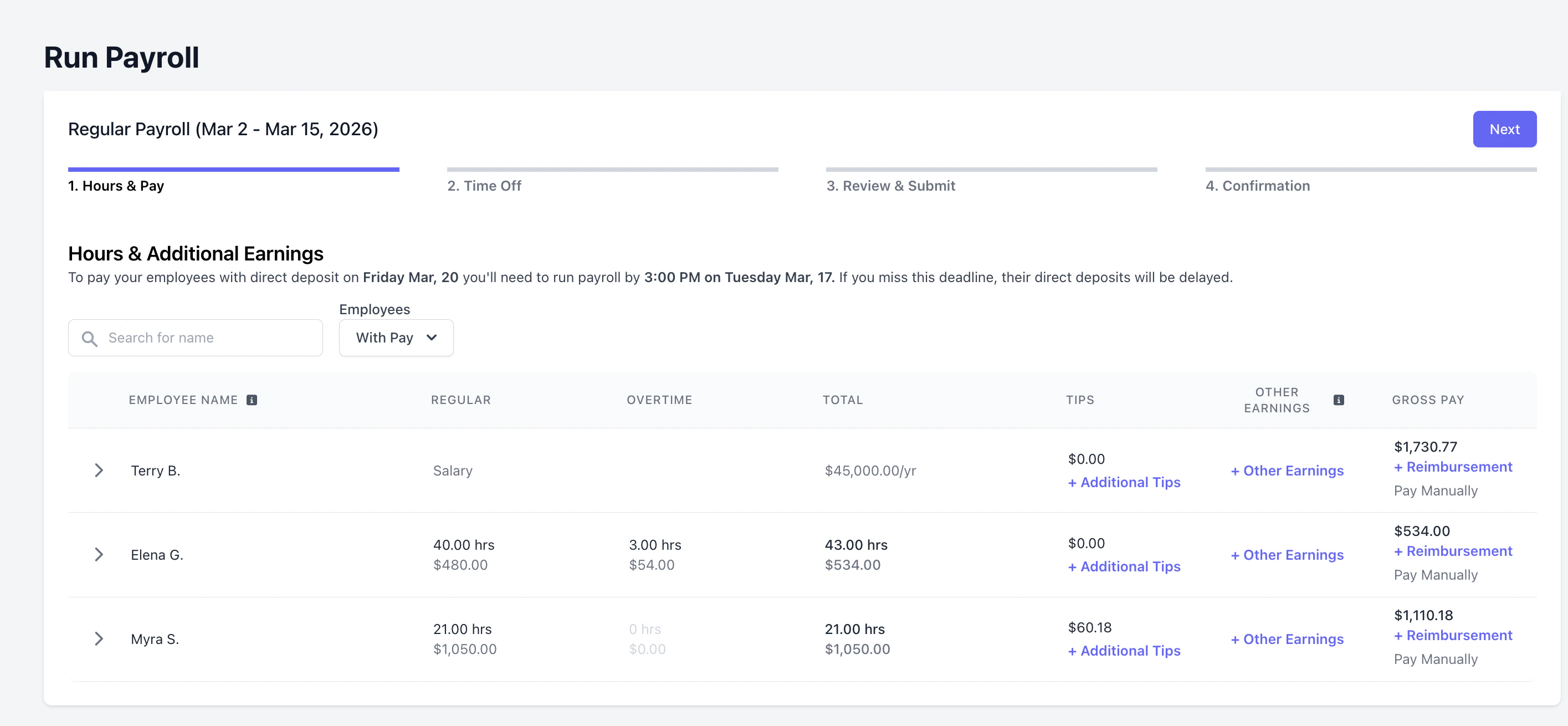 Use the dropdown arrow next to each employee's name to view detailed time cards and pay rate information for this payroll.
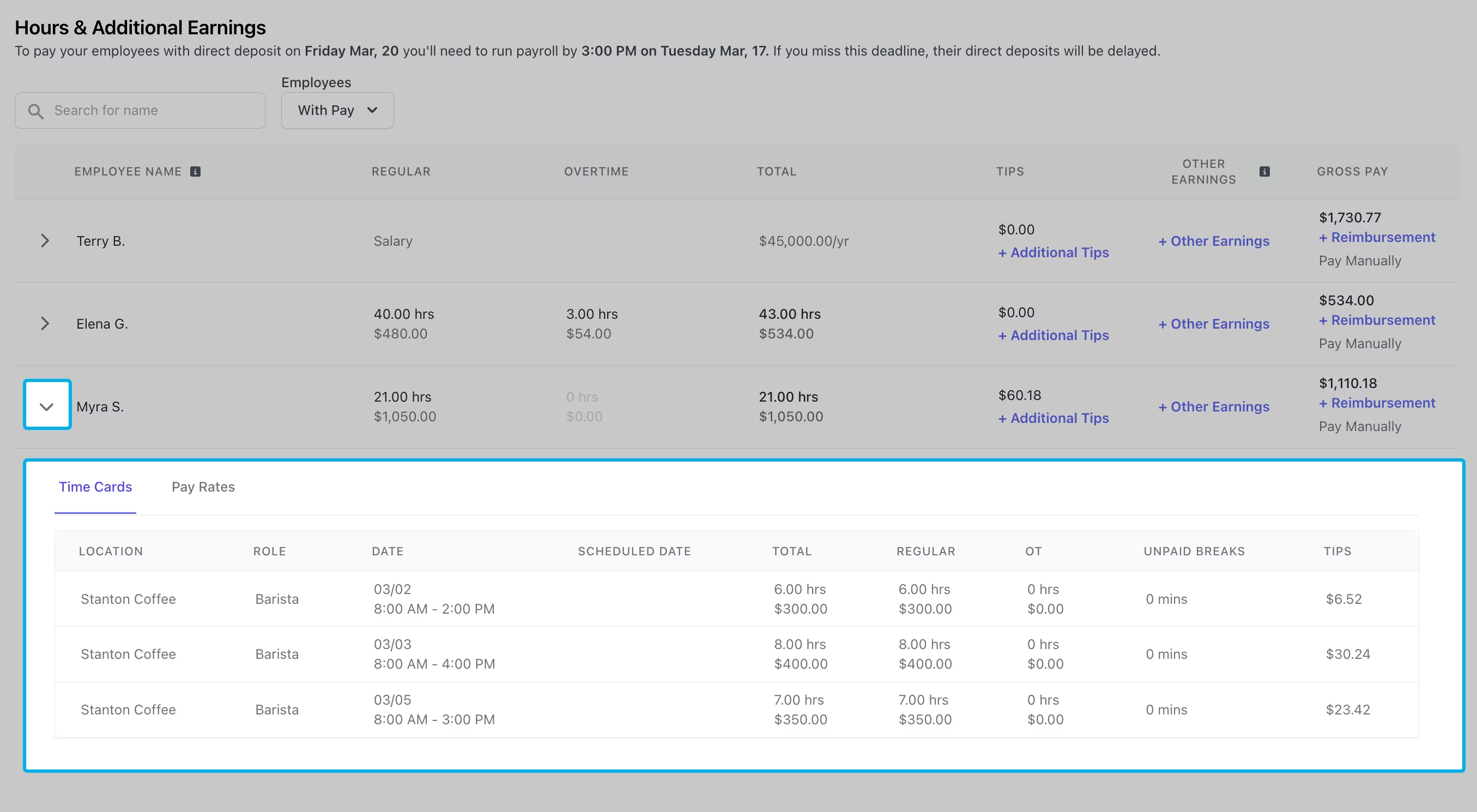 **Gross Pay**: Consists of all earnings before deductions, including regular wages, overtime, bonuses, commissions, and tips
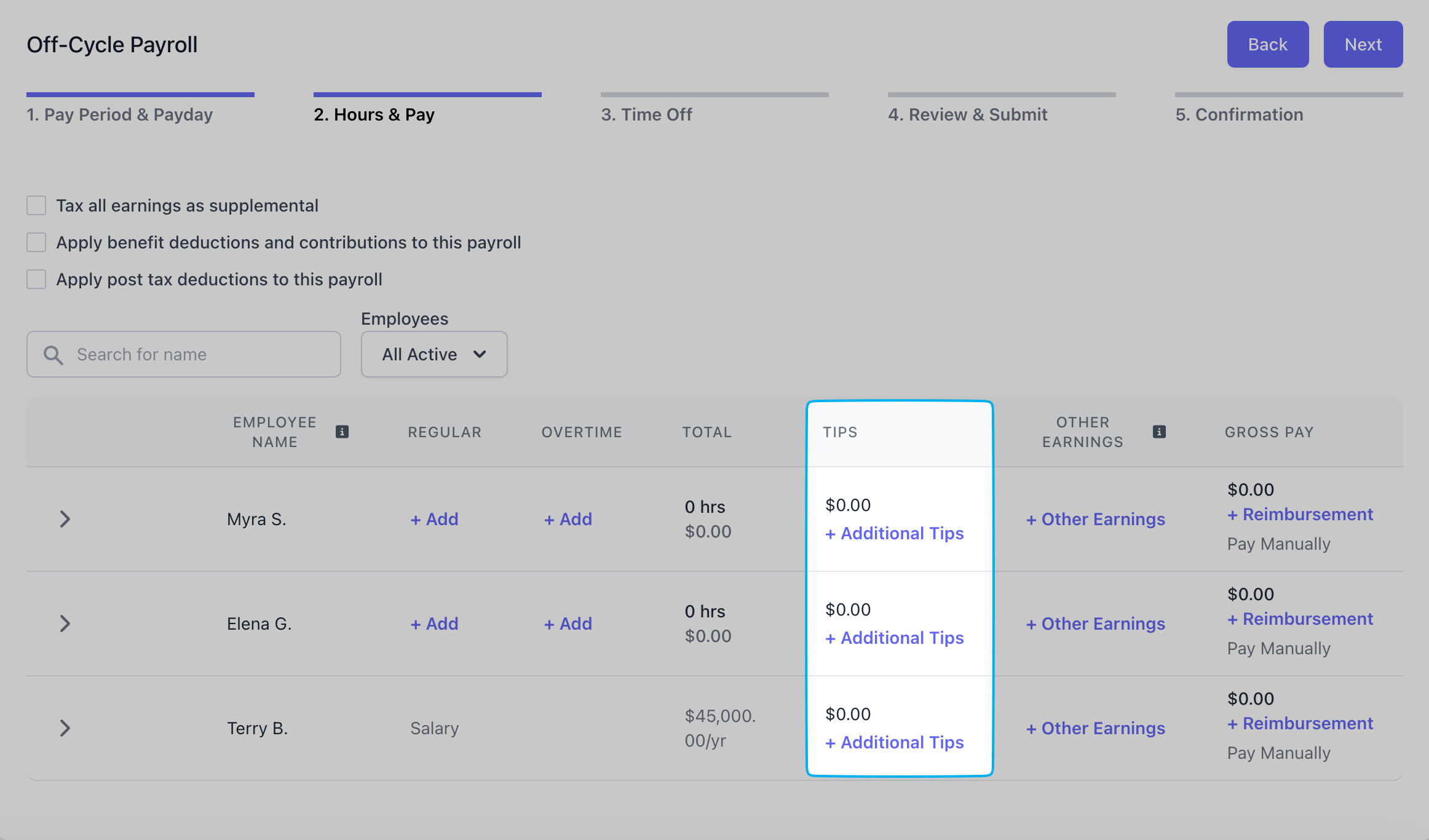
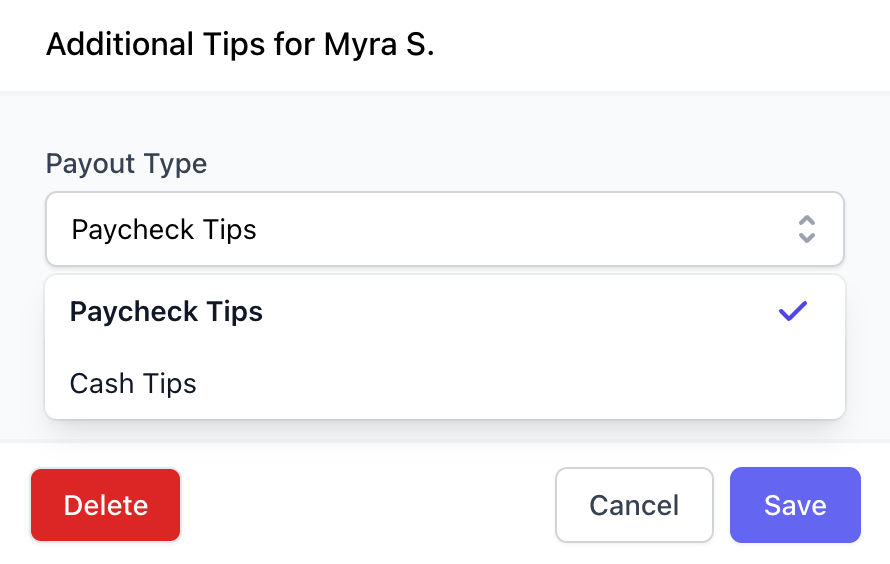
Use **+ Additional Tips** to add Paycheck Tips or record Cash Tips.
* ***Paycheck Tips***: Tips to be paid out to this employee via payroll
* ***Cash Tips***: Tips that have already been paid out in cash and are only being reported on payroll for tax purposes. Adding cash tips does not pay your employee additional tips through payroll.
 Click **+ Other Earnings** to include:
* ***Bonus***: Extra compensation given on top of regular wages
* ***Commission***: Pay earned based on the amount of sales or performance achieved
* ***Group Term Life***: Employer-provided life insurance that offers coverage to employees for a set term
* ***Severance***: Payment given to an employee when they are laid off or let go, typically based on tenure
* ***Non Hourly Regular***: Additional fixed amount paid to an employee, regardless of hours worked
* ***Other Imputed***: Other imputed pay added to an employee's gross taxable income (but not their actual take-home pay)
* ***Tip Credit Adjustment***: The difference between an employee's tips and the minimum wage they must receive
* ***Meal Period Premium Pay***: Supplemental, specifically categorized compensation required by California law when an employer fails to provide an employee with a compliant meal period
Use **+ Reimbursements** to make a payment to an employee through payroll as repayment for out-of-pocket business expenses. If properly documented, it is not considered wages. As long as the reimbursement meets certain IRS guidelines, they are not taxed (e.g., part of an accountable plan).
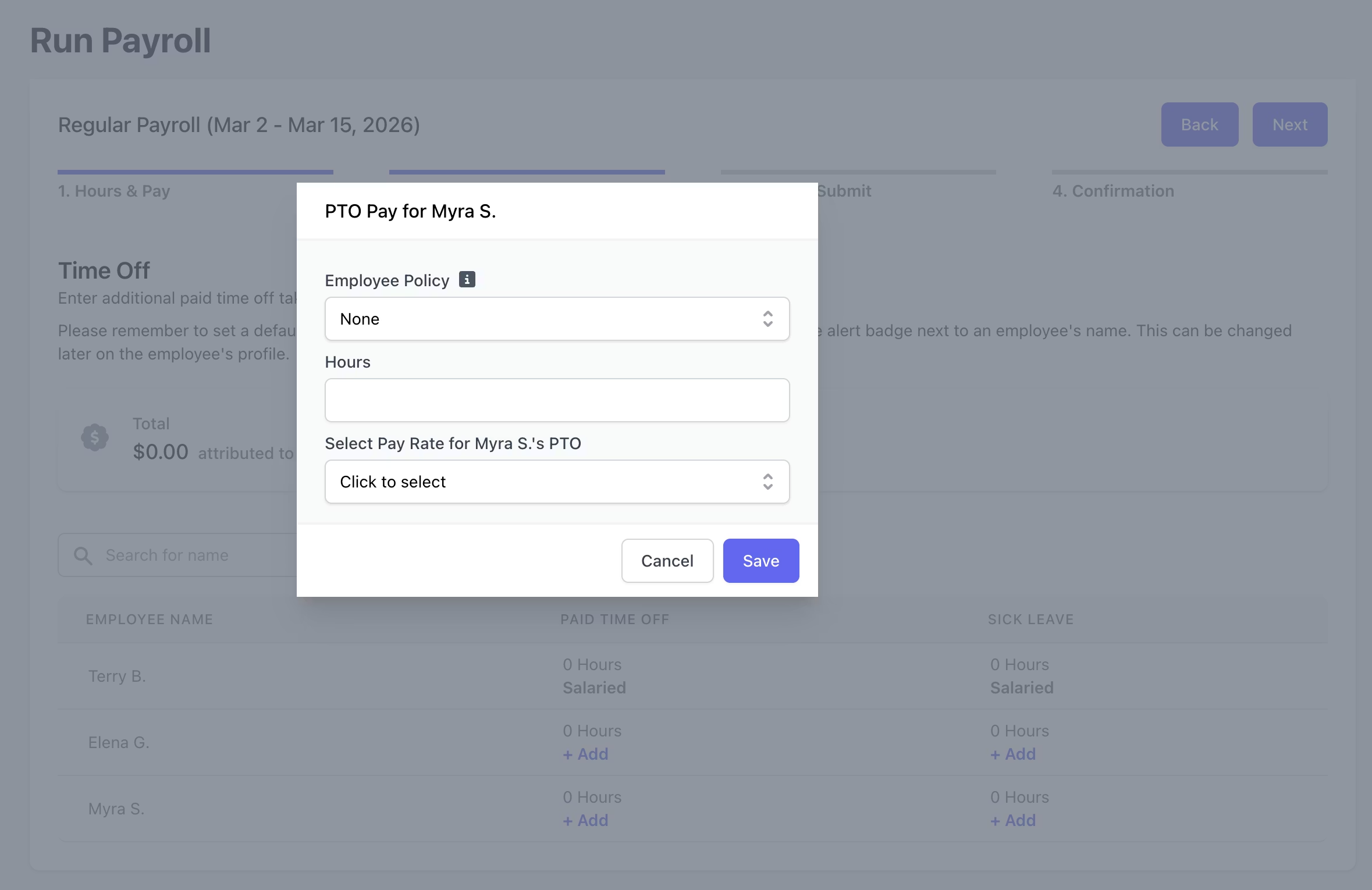
Time off requests that have been approved will automatically display here. For any additional **Paid Time Off** or **Sick Leave** hours, click **+ Add**.
Click **+ Other Earnings** to include:
* ***Bonus***: Extra compensation given on top of regular wages
* ***Commission***: Pay earned based on the amount of sales or performance achieved
* ***Group Term Life***: Employer-provided life insurance that offers coverage to employees for a set term
* ***Severance***: Payment given to an employee when they are laid off or let go, typically based on tenure
* ***Non Hourly Regular***: Additional fixed amount paid to an employee, regardless of hours worked
* ***Other Imputed***: Other imputed pay added to an employee's gross taxable income (but not their actual take-home pay)
* ***Tip Credit Adjustment***: The difference between an employee's tips and the minimum wage they must receive
* ***Meal Period Premium Pay***: Supplemental, specifically categorized compensation required by California law when an employer fails to provide an employee with a compliant meal period
Use **+ Reimbursements** to make a payment to an employee through payroll as repayment for out-of-pocket business expenses. If properly documented, it is not considered wages. As long as the reimbursement meets certain IRS guidelines, they are not taxed (e.g., part of an accountable plan).
Time off requests that have been approved will automatically display here. For any additional **Paid Time Off** or **Sick Leave** hours, click **+ Add**.
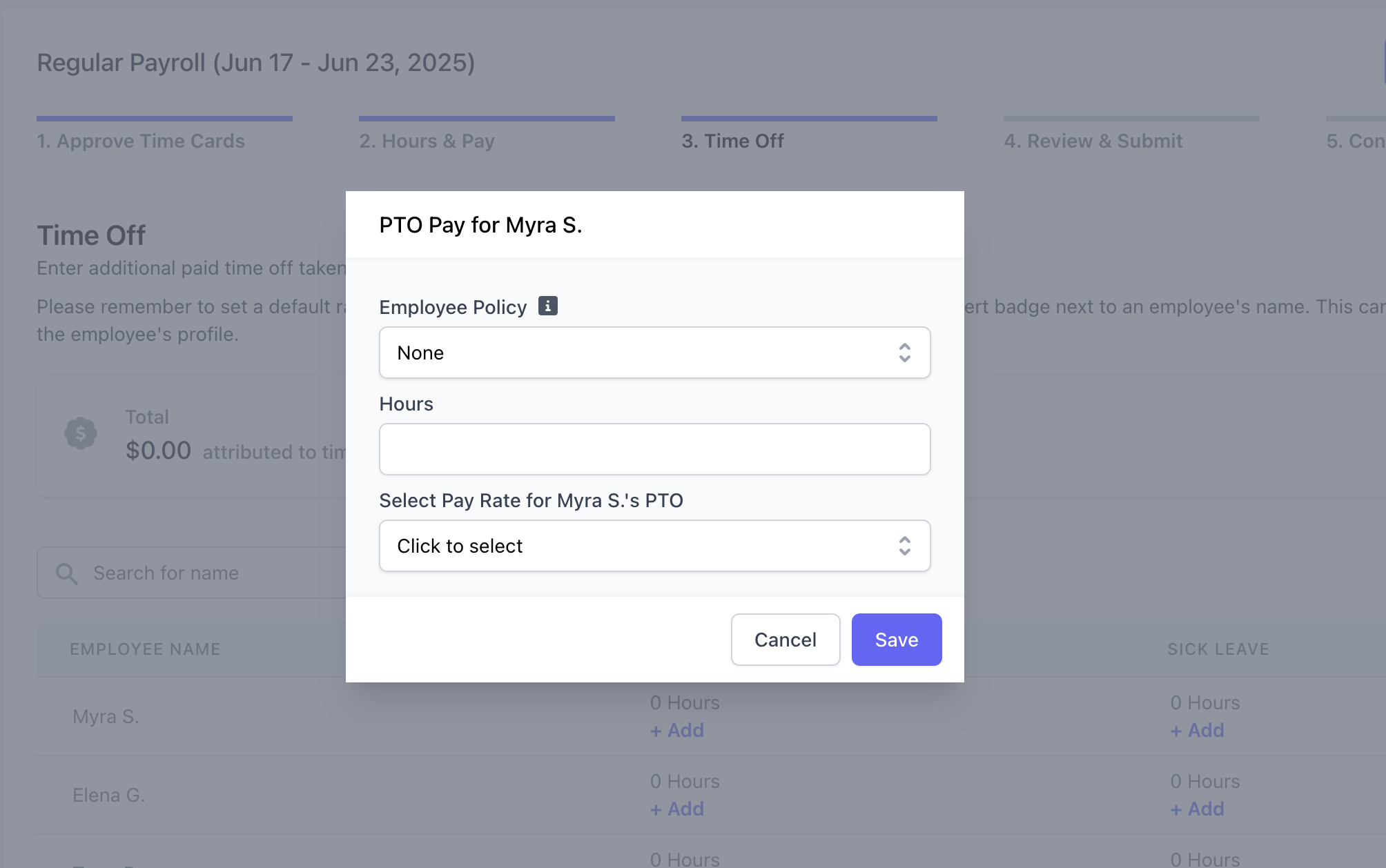
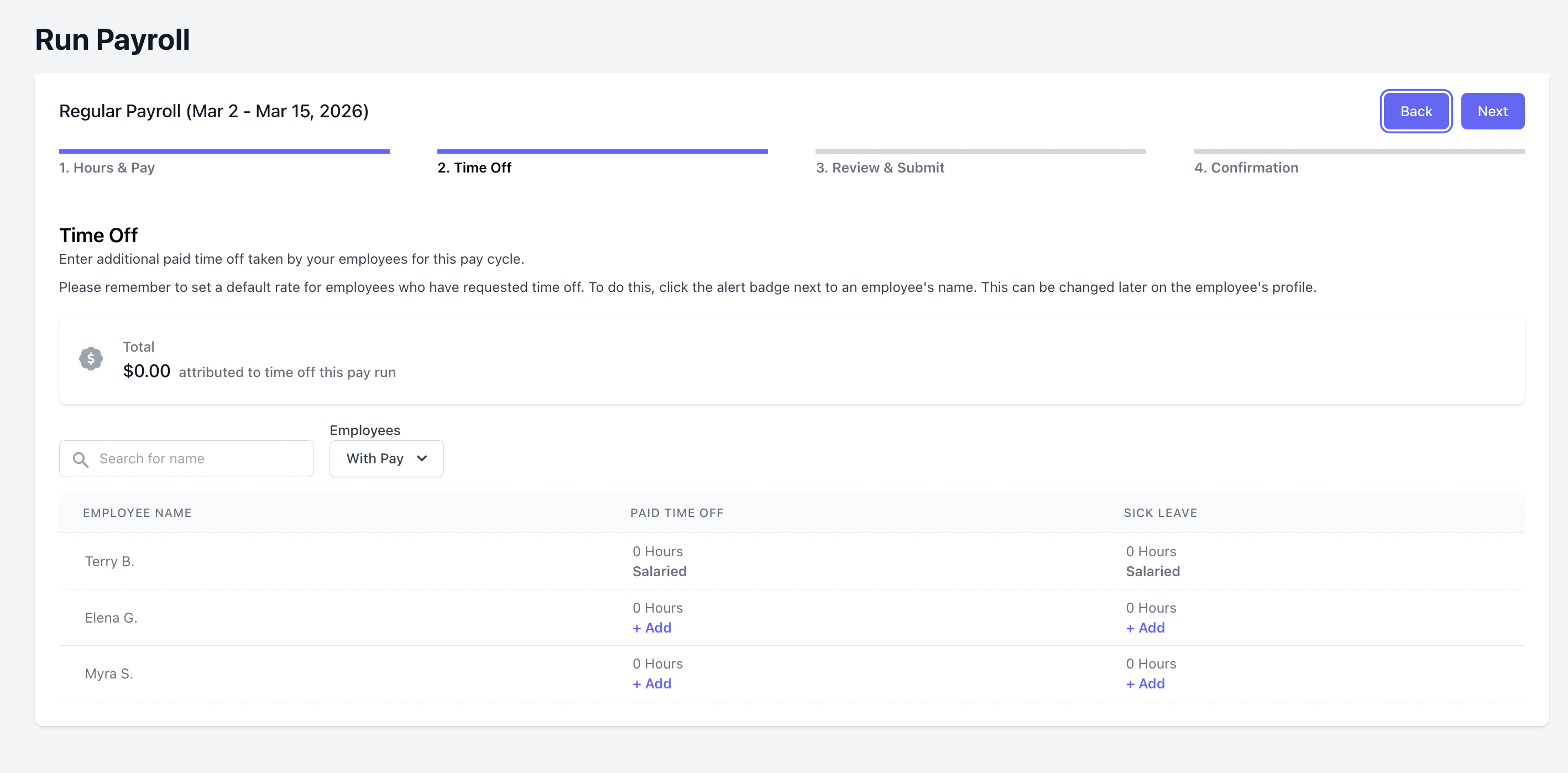 Select the applicable **Employee Policy**, input the number of **Hours**, and select a **Pay Rate for Employee's PTO**.
 Review the following information before clicking **Submit**.
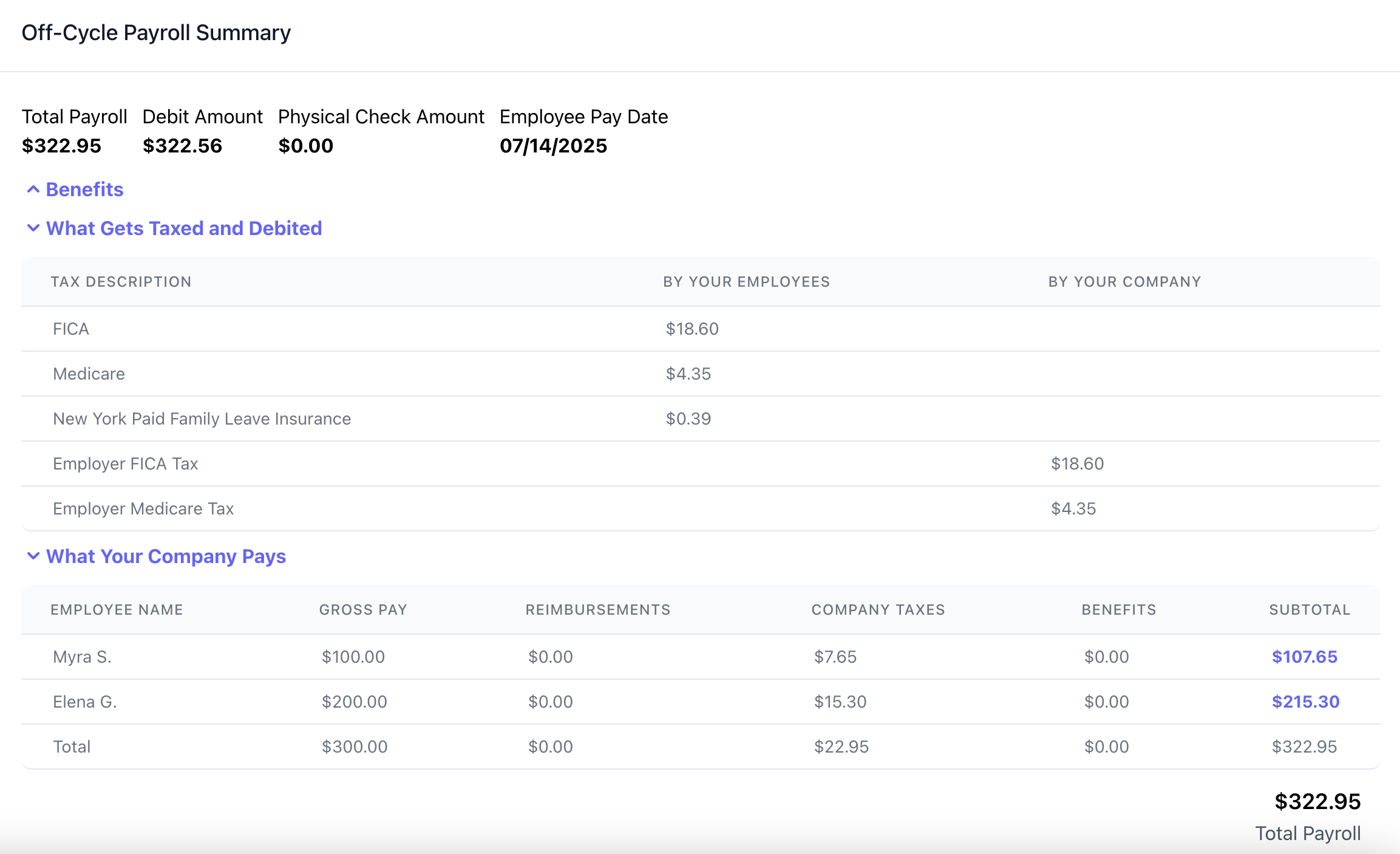
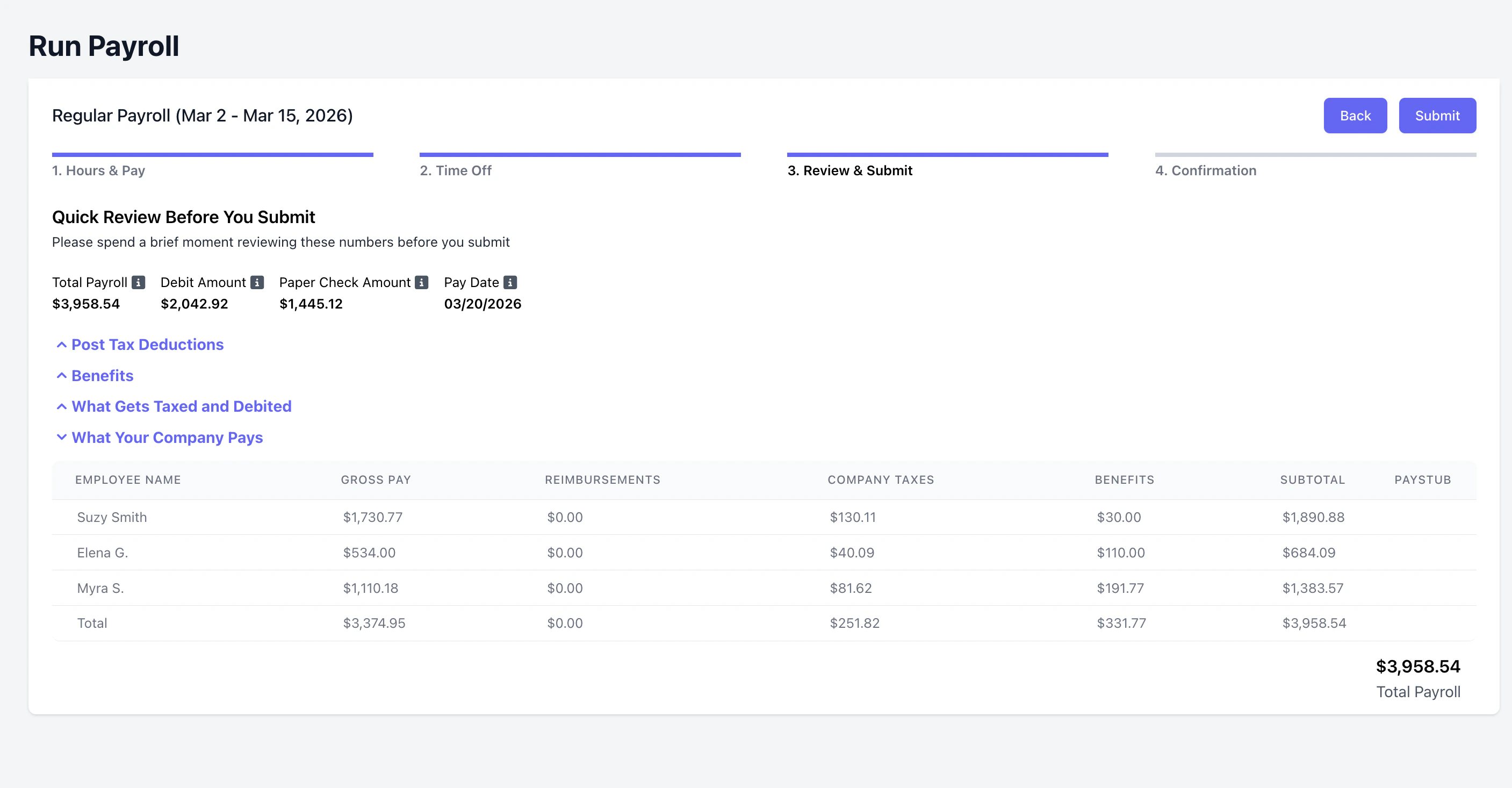 * ***Total Payroll***: Total cost of payroll for the employer
* ***Debit Amount***: Amount of funds that will be debited from your bank account to fund this payroll
* ***Paper Check Amount***: Amount to pay employees via paper check, if any
* ***Subtotal***: Subtotal that the employee is paying for each employee - this is not the employee's next pay
* ***Benefits***: Any benefits applied to an employee. Learn more about employee benefits [**here**](/finance/payroll/payroll-benefits)
* ***What Gets Taxed and Debited***: Total amount of taxes that will be withheld from employee paychecks. Total amount of taxes to be paid by the company.
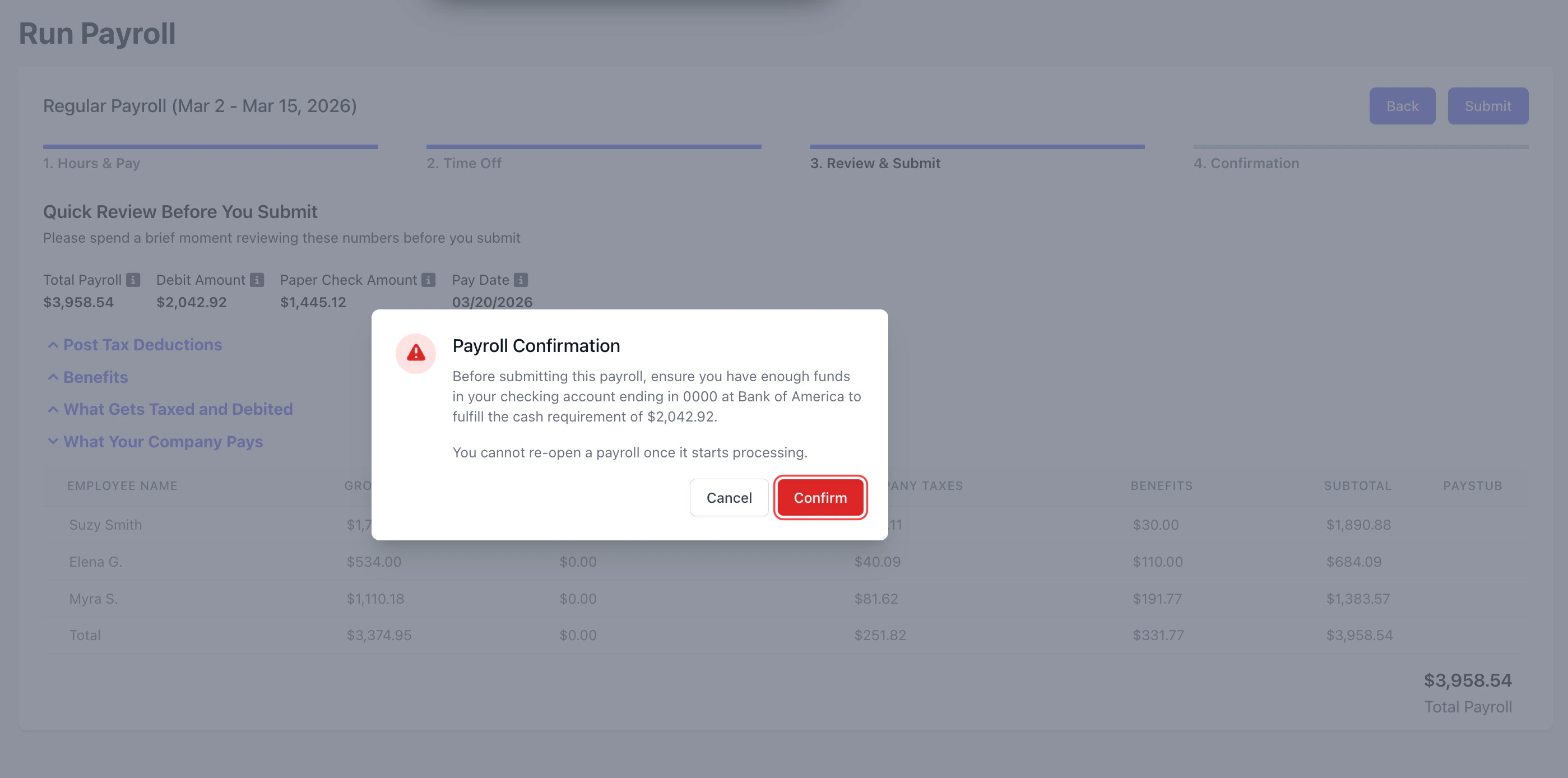
Click **Confirm** after ensuring your bank account has sufficient funds to cover this payroll.
If a payroll fails to fund, your account will be charged a **\$150 failed funding fee** and receive a penalty.
Accounts that reach **six** penalties will be **permanently removed** from Dripos Payroll.
* ***Total Payroll***: Total cost of payroll for the employer
* ***Debit Amount***: Amount of funds that will be debited from your bank account to fund this payroll
* ***Paper Check Amount***: Amount to pay employees via paper check, if any
* ***Subtotal***: Subtotal that the employee is paying for each employee - this is not the employee's next pay
* ***Benefits***: Any benefits applied to an employee. Learn more about employee benefits [**here**](/finance/payroll/payroll-benefits)
* ***What Gets Taxed and Debited***: Total amount of taxes that will be withheld from employee paychecks. Total amount of taxes to be paid by the company.
Click **Confirm** after ensuring your bank account has sufficient funds to cover this payroll.
If a payroll fails to fund, your account will be charged a **\$150 failed funding fee** and receive a penalty.
Accounts that reach **six** penalties will be **permanently removed** from Dripos Payroll.
 A final confirmation page will appear after successfully running payroll.
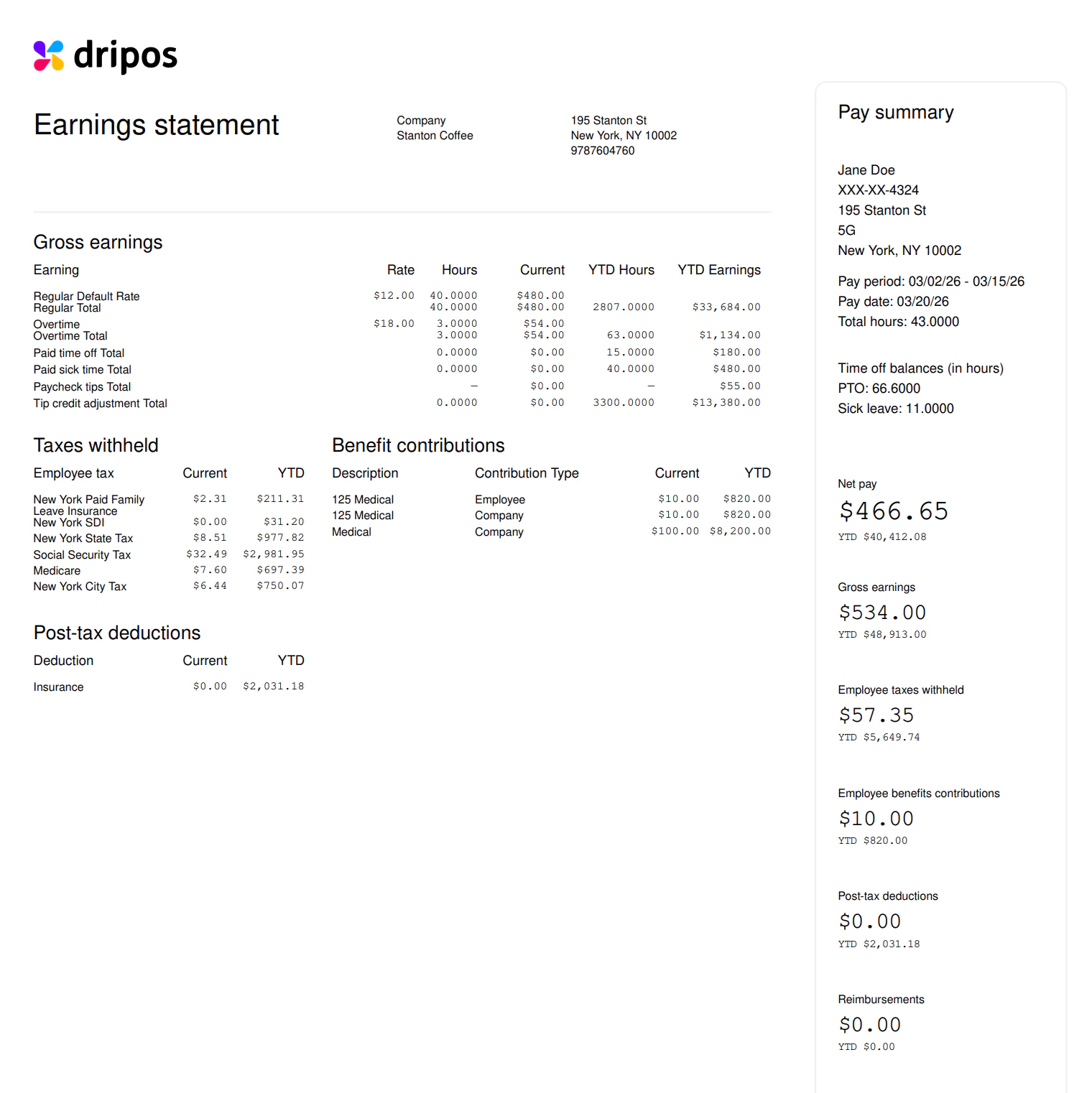
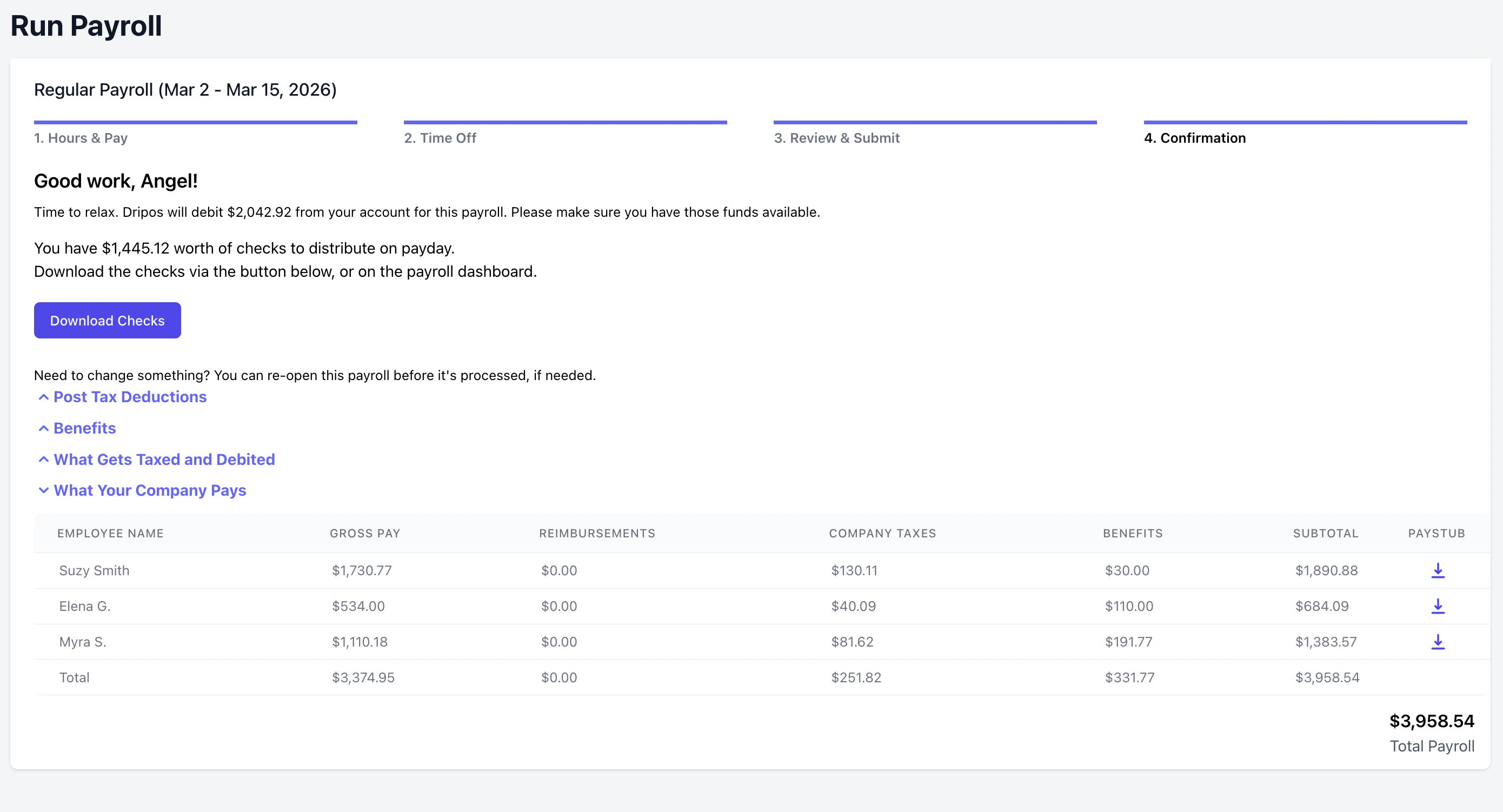 To view an employee's paystub, click the download button.
Paystubs will open as a PDF in a new tab. If the tab does not open, please check if you have pop-ups blocked on your web browser.
To view an employee's paystub, click the download button.
Paystubs will open as a PDF in a new tab. If the tab does not open, please check if you have pop-ups blocked on your web browser.
 ## Off-Cycle Payroll
Off-cycle payrolls can be run at anytime from your [Payroll Dashboard](https://dashboard.dripos.com/payroll).
Various off-cycle payroll uses cases include:
* ***Missed pay***: An employee was not included in a regular payroll run
* ***New hire start***: A new employee started after the regular payroll was processed
* ***Termination payout***: A final paycheck is due upon an employee’s departure
* ***Bonus or commission***: Paying discretionary or performance-based earnings separately
* ***Correction***: Fixing payroll errors from a previous run (e.g. wrong hours, incorrect pay rate)
* ***Reimbursement***: Issuing business expense reimbursements quickly
* ***Manual adjustment***: Adjusting for a retroactive raise or change in withholdings
* ***State requirements***: Some states may require faster payouts after termination
* ***Holiday conflicts***: Payroll needs to be moved due to bank or office closures
* ***Tip payouts***: Issuing tips more frequently than the regular pay schedule
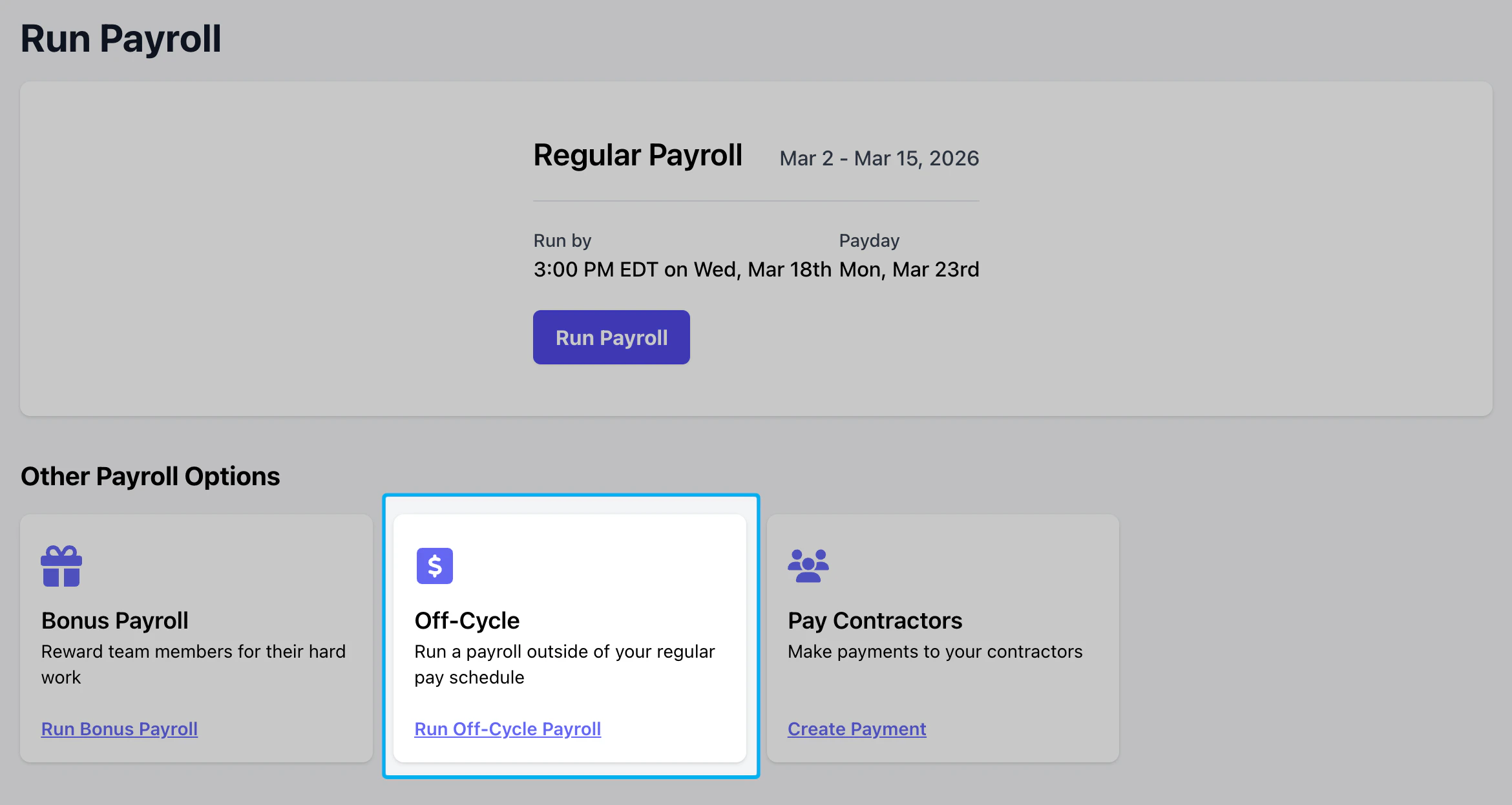
On your [Payroll Dashboard](https://dashboard.dripos.com/payroll), click **Run Payroll** from the left sidebar. Select **Off-Cycle** from **Other Payroll Options**.
## Off-Cycle Payroll
Off-cycle payrolls can be run at anytime from your [Payroll Dashboard](https://dashboard.dripos.com/payroll).
Various off-cycle payroll uses cases include:
* ***Missed pay***: An employee was not included in a regular payroll run
* ***New hire start***: A new employee started after the regular payroll was processed
* ***Termination payout***: A final paycheck is due upon an employee’s departure
* ***Bonus or commission***: Paying discretionary or performance-based earnings separately
* ***Correction***: Fixing payroll errors from a previous run (e.g. wrong hours, incorrect pay rate)
* ***Reimbursement***: Issuing business expense reimbursements quickly
* ***Manual adjustment***: Adjusting for a retroactive raise or change in withholdings
* ***State requirements***: Some states may require faster payouts after termination
* ***Holiday conflicts***: Payroll needs to be moved due to bank or office closures
* ***Tip payouts***: Issuing tips more frequently than the regular pay schedule
On your [Payroll Dashboard](https://dashboard.dripos.com/payroll), click **Run Payroll** from the left sidebar. Select **Off-Cycle** from **Other Payroll Options**.
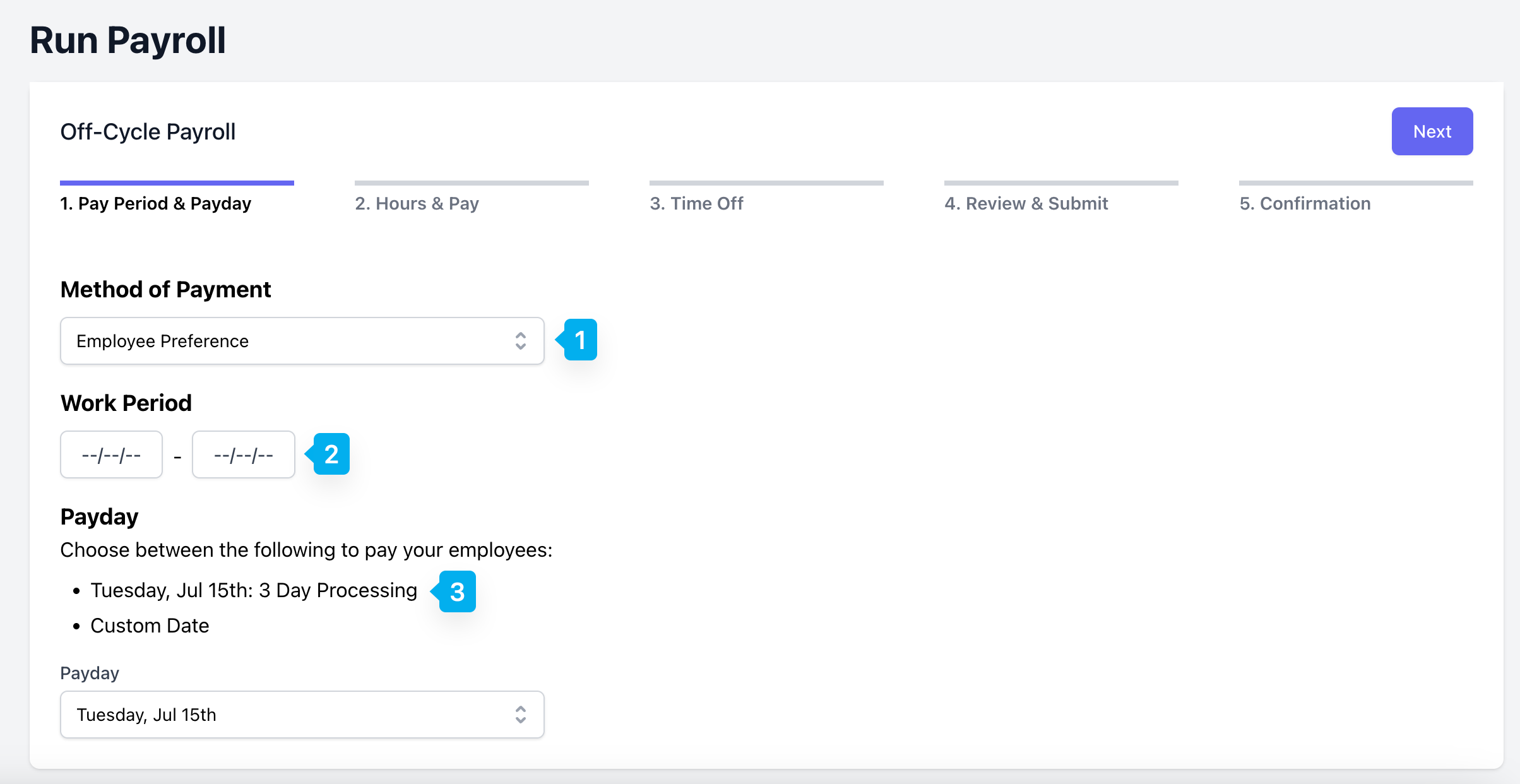 **Method of Payment**
* ***Employee Preference***: Employees will be paid using their chosen payment method (direct deposit or manual pay).
* ***Manual***: Employees will be paid manually. The employer is responsible for paying employees directly.
**Work Period**: Select the date range to pay employees for. Unpaid time cards within the selected work period will automatically be included in the off-cycle payroll.
**Payday**: The next available payday within your processing timeline will automatically be selected. You may also choose a custom date that falls after the next available payday.
If **Manual** is selected for **Method of Payment**, you may choose any date in the future. This date will be used for tax record purposes and you are responsible for paying your employees directly.
Unpaid time cards for the selected Work Period will appear under **Employees** - **With Pay**.
**Method of Payment**
* ***Employee Preference***: Employees will be paid using their chosen payment method (direct deposit or manual pay).
* ***Manual***: Employees will be paid manually. The employer is responsible for paying employees directly.
**Work Period**: Select the date range to pay employees for. Unpaid time cards within the selected work period will automatically be included in the off-cycle payroll.
**Payday**: The next available payday within your processing timeline will automatically be selected. You may also choose a custom date that falls after the next available payday.
If **Manual** is selected for **Method of Payment**, you may choose any date in the future. This date will be used for tax record purposes and you are responsible for paying your employees directly.
Unpaid time cards for the selected Work Period will appear under **Employees** - **With Pay**.
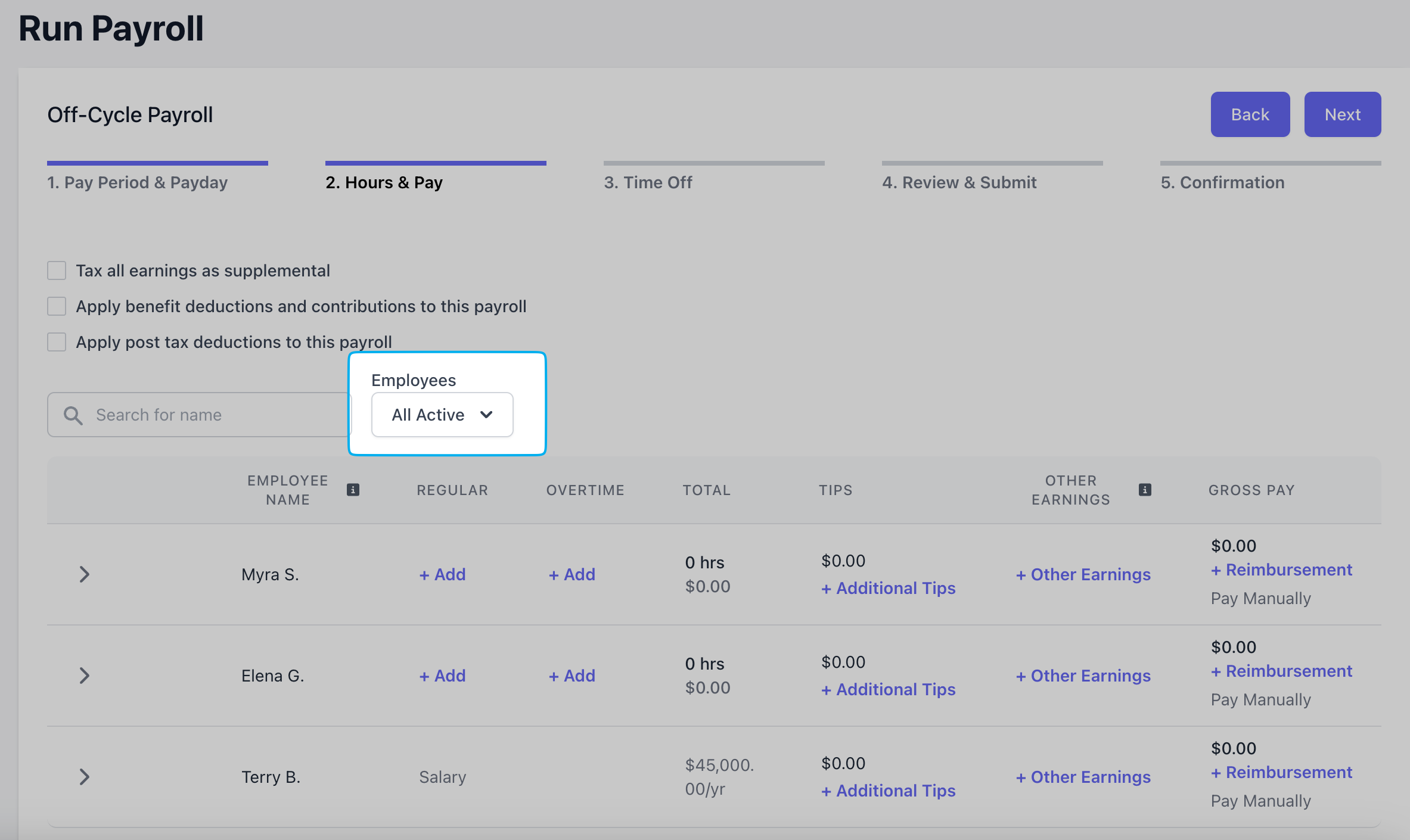
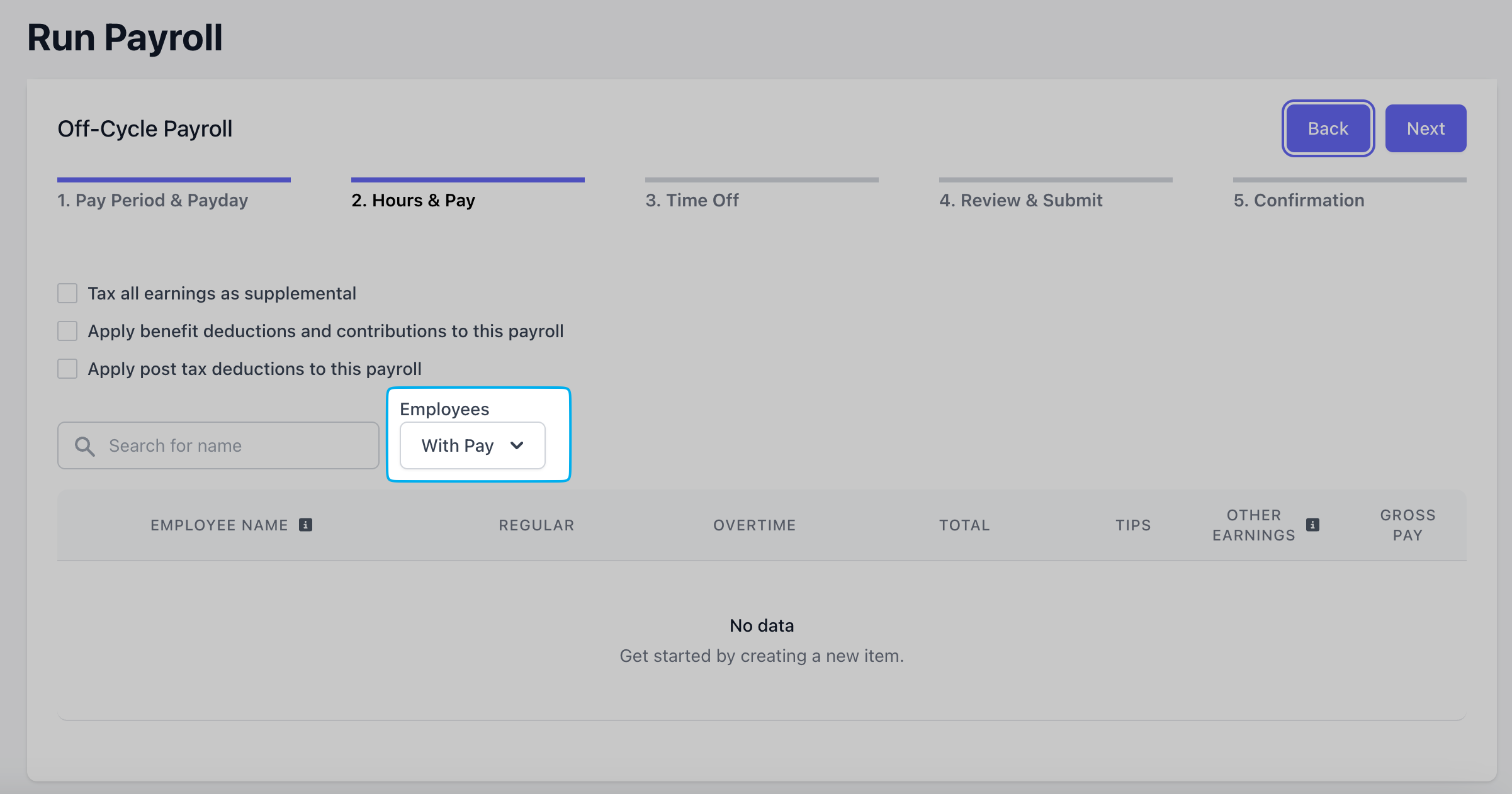 To show all active employees, change view to **Employees** - **With Pay** to **All Active**.
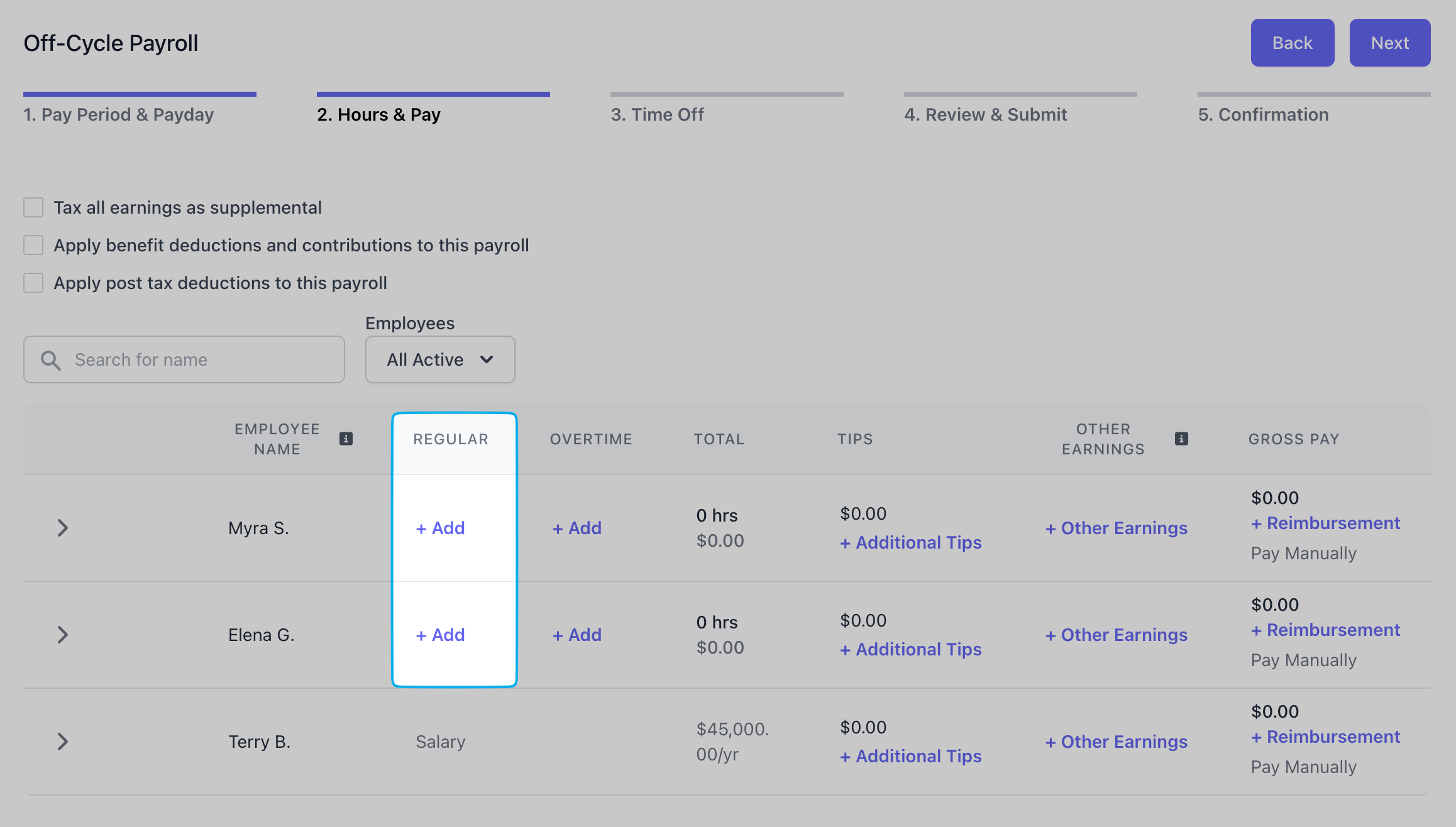
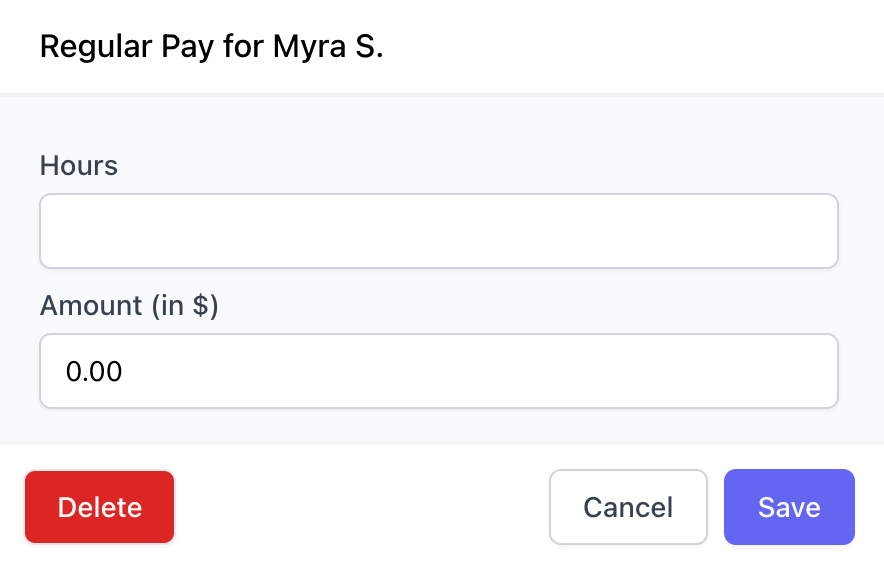
 Click **+ Add** to input **Regular Pay** for employees.
 Use **+ Additional Tips** to add Paycheck Tips or record Cash Tips.
* ***Paycheck Tips***: Tips to be paid out to this employee via payroll
* ***Cash Tips***: Tips that have already been paid out in cash and are only being reported on payroll for tax purposes. Adding cash tips does not pay your employee additional tips through payroll.
Click **+ Other Earnings** to include:
* ***Bonus***: Extra compensation given on top of regular wages
* ***Commission***: Pay earned based on the amount of sales or performance achieved
* ***Group Term Life***: Employer-provided life insurance that offers coverage to employees for a set term
* ***Severance***: Payment given to an employee when they are laid off or let go, typically based on tenure
* ***Non Hourly Regular***: Additional fixed amount paid to an employee, regardless of hours worked
* ***Other Imputed***: Other imputed pay added to an employee's gross taxable income (but not their actual take-home pay)
* ***Tip Credit Adjustment***: The difference between an employee's tips and the minimum wage they must receive
* ***Meal Period Premium Pay***: Supplemental, specifically categorized compensation required by California law when an employer fails to provide an employee with a compliant meal period
Use **+ Reimbursements** to make a payment to an employee through payroll as repayment for out-of-pocket business expenses. If properly documented, it is not considered wages. As long as the reimbursement meets certain IRS guidelines, they are not taxed (e.g., part of an accountable plan).
Time off requests that have been approved will automatically display here. For any additional **Paid Time Off** or **Sick Leave** hours, click **+ Add**.
Use **+ Additional Tips** to add Paycheck Tips or record Cash Tips.
* ***Paycheck Tips***: Tips to be paid out to this employee via payroll
* ***Cash Tips***: Tips that have already been paid out in cash and are only being reported on payroll for tax purposes. Adding cash tips does not pay your employee additional tips through payroll.
Click **+ Other Earnings** to include:
* ***Bonus***: Extra compensation given on top of regular wages
* ***Commission***: Pay earned based on the amount of sales or performance achieved
* ***Group Term Life***: Employer-provided life insurance that offers coverage to employees for a set term
* ***Severance***: Payment given to an employee when they are laid off or let go, typically based on tenure
* ***Non Hourly Regular***: Additional fixed amount paid to an employee, regardless of hours worked
* ***Other Imputed***: Other imputed pay added to an employee's gross taxable income (but not their actual take-home pay)
* ***Tip Credit Adjustment***: The difference between an employee's tips and the minimum wage they must receive
* ***Meal Period Premium Pay***: Supplemental, specifically categorized compensation required by California law when an employer fails to provide an employee with a compliant meal period
Use **+ Reimbursements** to make a payment to an employee through payroll as repayment for out-of-pocket business expenses. If properly documented, it is not considered wages. As long as the reimbursement meets certain IRS guidelines, they are not taxed (e.g., part of an accountable plan).
Time off requests that have been approved will automatically display here. For any additional **Paid Time Off** or **Sick Leave** hours, click **+ Add**.
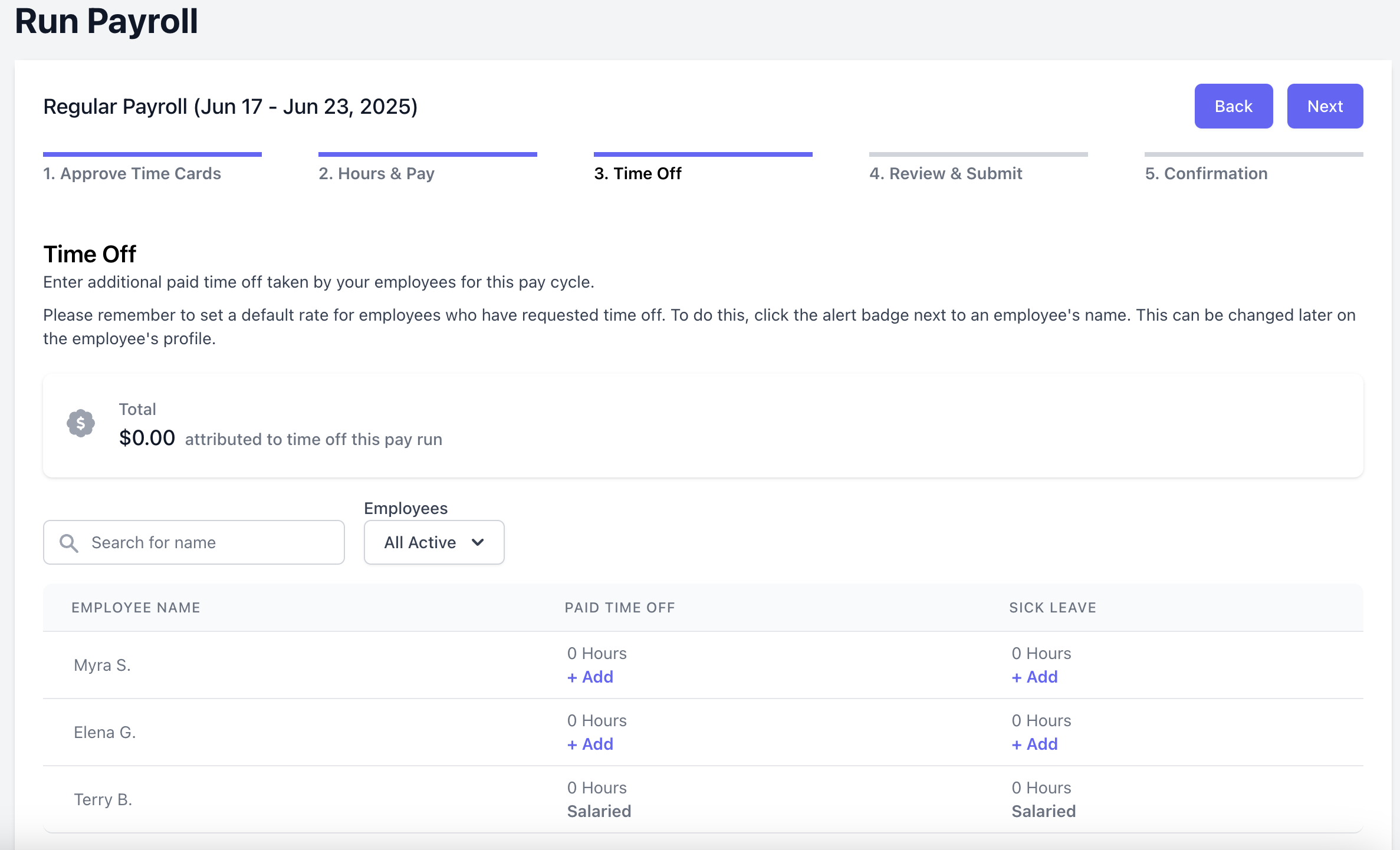 Select the applicable **Employee Policy**, input the number of **Hours**, and select a **Pay Rate for Employee's PTO**.
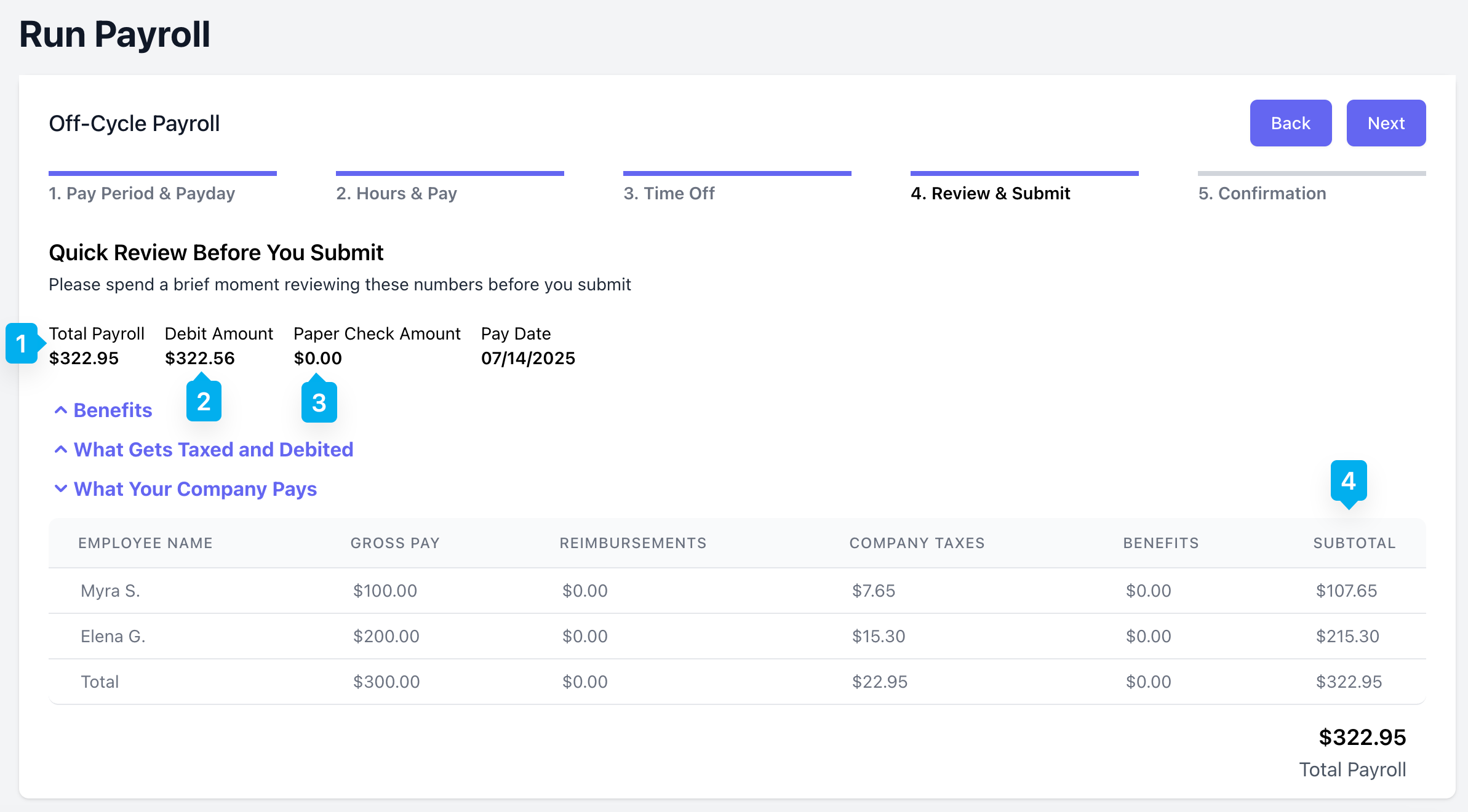 * ***Total Payroll***: Total cost of payroll for the employer
* ***Debit Amount***: Amount of funds that will be debited from your bank account to fund this payroll
* ***Paper Check Amount***: Amount to pay employees via paper check, if any
* ***Subtotal***: Subtotal that the employee is paying for each employee - this is not the employee's next pay
* ***Benefits***: Any benefits applied to an employee. Learn more about employee benefits [**here**](/finance/payroll/payroll-benefits)
* ***What Gets Taxed and Debited***: Total amount of taxes that will be withheld from employee paychecks. Total amount of taxes to be paid by the company.
Click **Confirm** after ensuring your bank account has sufficient funds to cover this payroll.
If a payroll fails to fund, your account will be charged a **\$150 failed funding fee** and receive a penalty.
Accounts that reach **six** penalties will be **permanently removed** from Dripos Payroll.
A final confirmation page will appear after successfully running payroll.
* ***Total Payroll***: Total cost of payroll for the employer
* ***Debit Amount***: Amount of funds that will be debited from your bank account to fund this payroll
* ***Paper Check Amount***: Amount to pay employees via paper check, if any
* ***Subtotal***: Subtotal that the employee is paying for each employee - this is not the employee's next pay
* ***Benefits***: Any benefits applied to an employee. Learn more about employee benefits [**here**](/finance/payroll/payroll-benefits)
* ***What Gets Taxed and Debited***: Total amount of taxes that will be withheld from employee paychecks. Total amount of taxes to be paid by the company.
Click **Confirm** after ensuring your bank account has sufficient funds to cover this payroll.
If a payroll fails to fund, your account will be charged a **\$150 failed funding fee** and receive a penalty.
Accounts that reach **six** penalties will be **permanently removed** from Dripos Payroll.
A final confirmation page will appear after successfully running payroll.
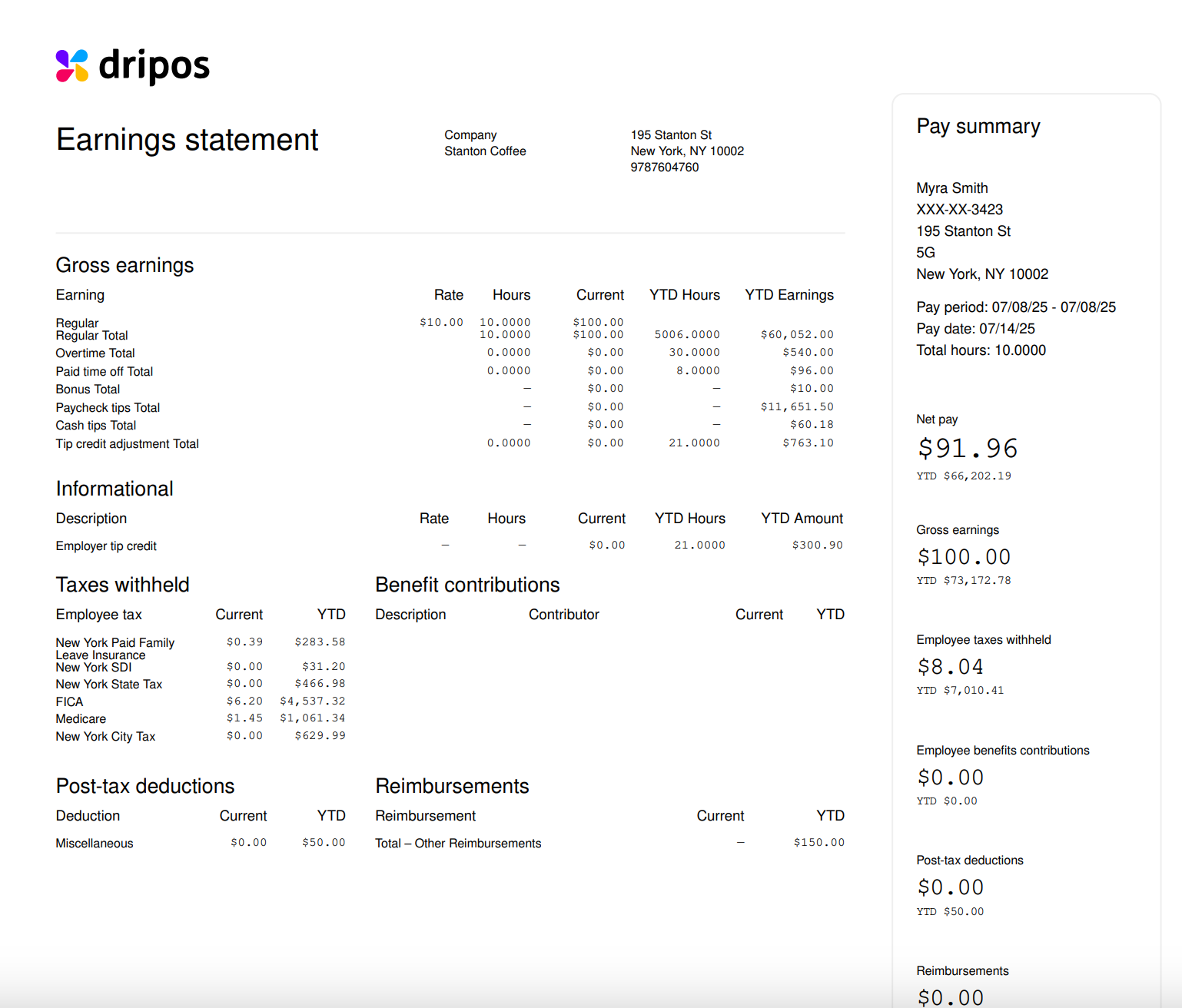
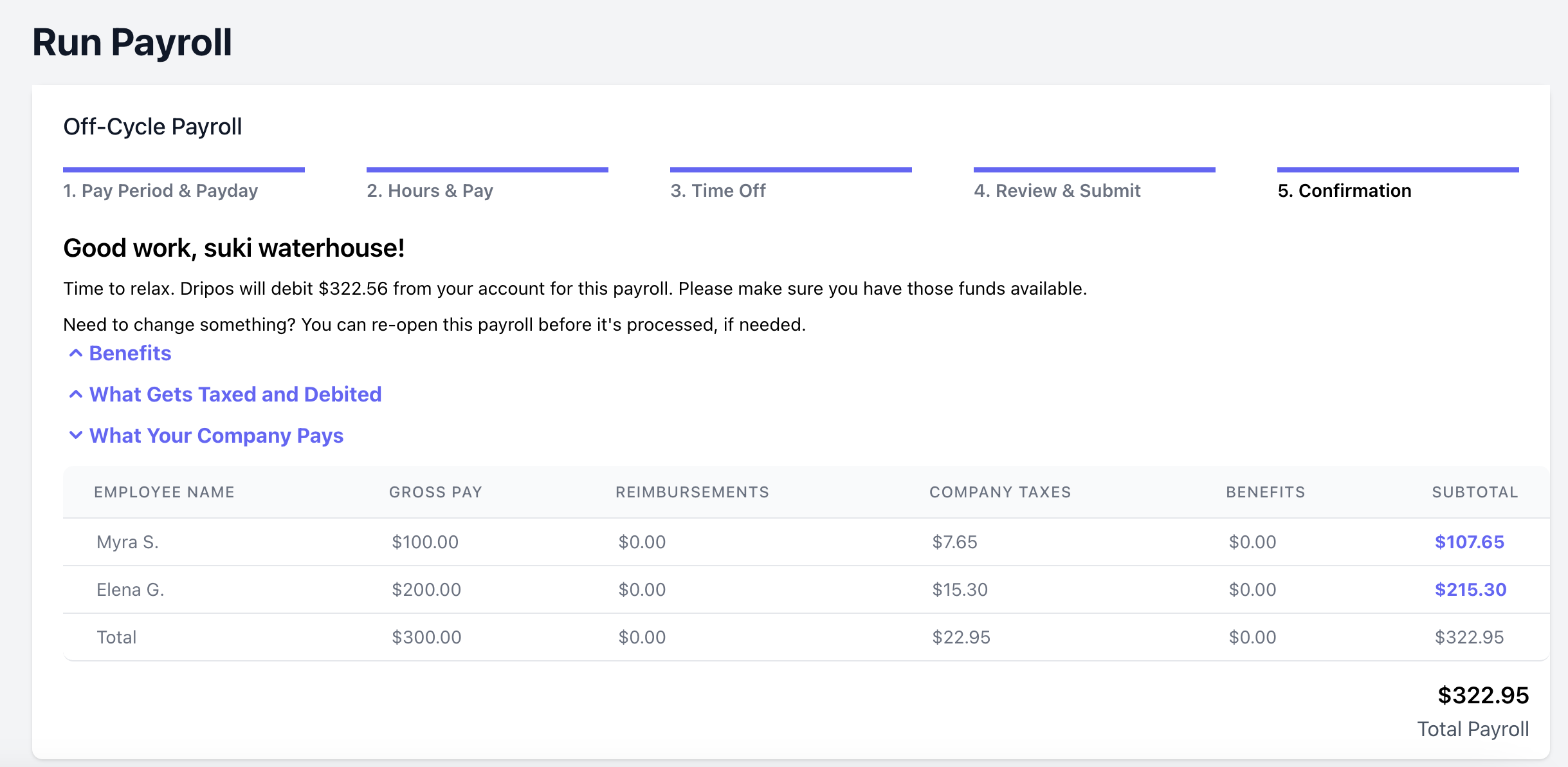 To view an employee's paystub, click the download button.
Paystubs will open as a PDF in a new tab. If the tab does not open, please check if you have pop-ups blocked on your web browser.
To view an employee's paystub, click the download button.
Paystubs will open as a PDF in a new tab. If the tab does not open, please check if you have pop-ups blocked on your web browser.
 ***
## Bonus Payroll
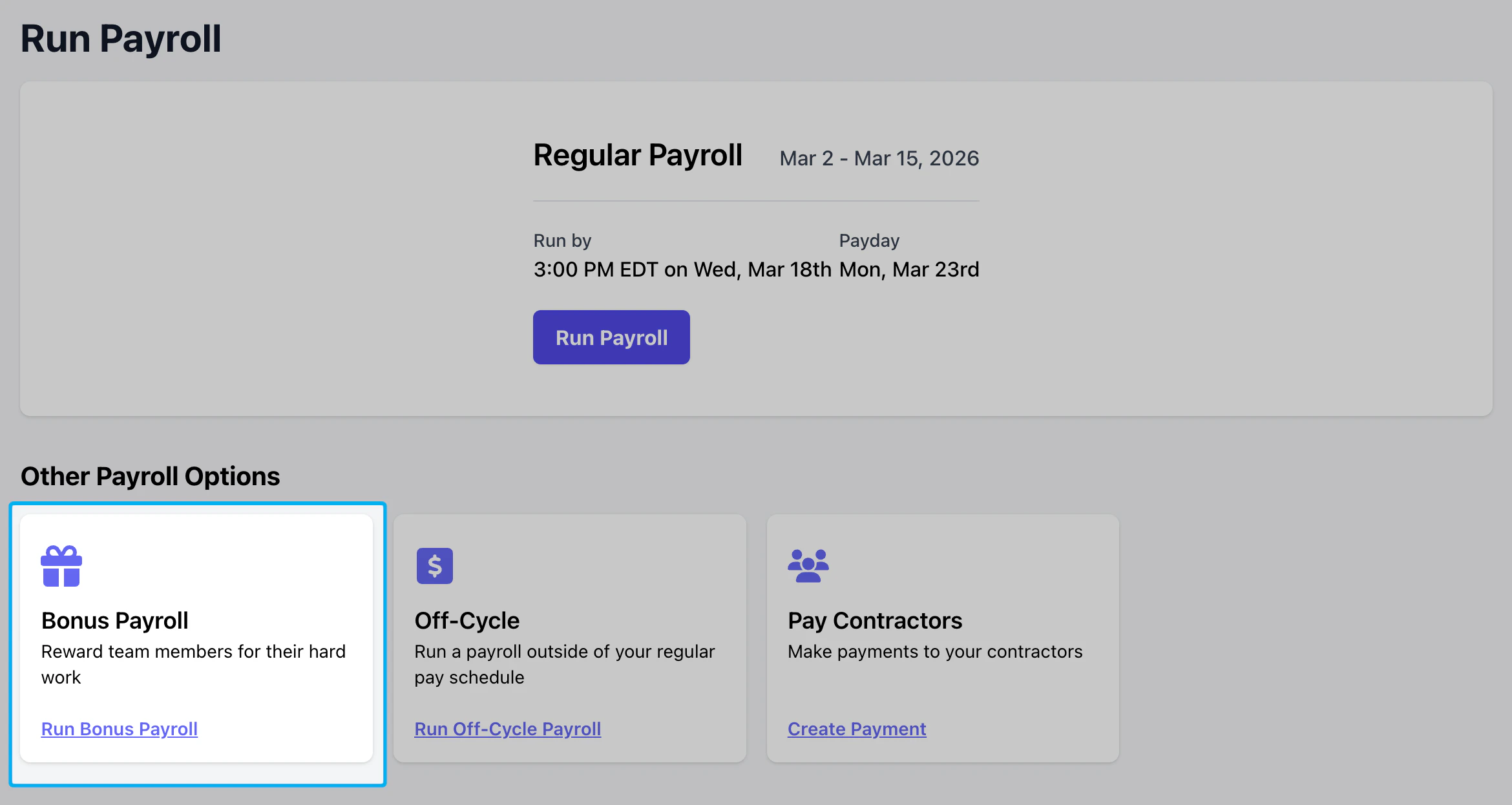
Bonus payrolls can be run at anytime from your [Payroll Dashboard](https://dashboard.dripos.com/payroll).
On your [Payroll Dashboard](https://dashboard.dripos.com/payroll), click **Run Payroll** from the left sidebar. Select **Bonus** from **Other Payroll Options**.
***
## Bonus Payroll
Bonus payrolls can be run at anytime from your [Payroll Dashboard](https://dashboard.dripos.com/payroll).
On your [Payroll Dashboard](https://dashboard.dripos.com/payroll), click **Run Payroll** from the left sidebar. Select **Bonus** from **Other Payroll Options**.
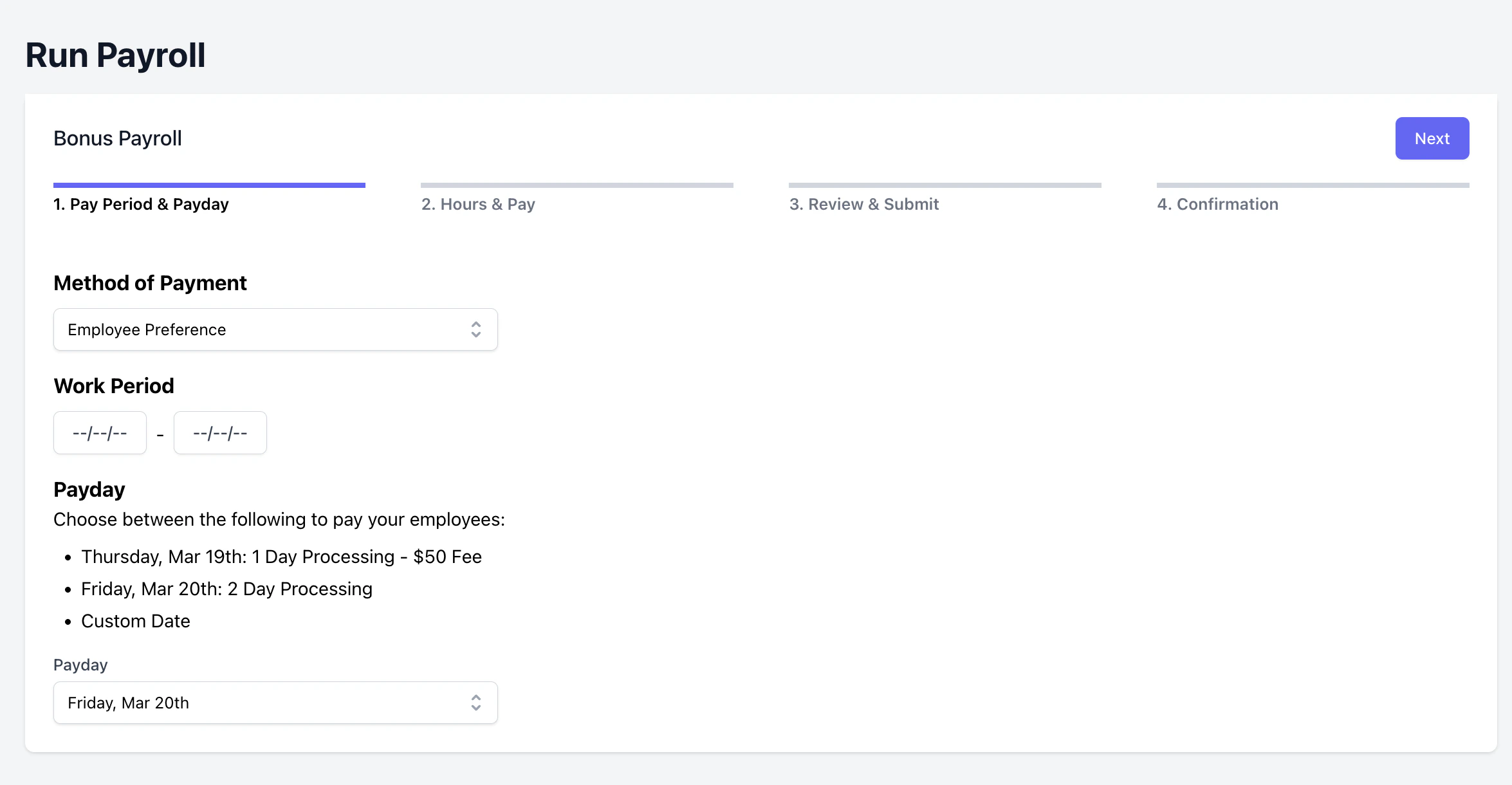 **Method of Payment**
* ***Employee Preference***: Employees will be paid using their chosen payment method (direct deposit or manual pay).
* ***Manual***: Employees will be paid manually. The employer is responsible for paying employees directly.
**Work Period**: Select the date range to pay employees for. Unpaid time cards within the selected work period will automatically be included in the off-cycle payroll.
**Payday**: The next available payday within your processing timeline will automatically be selected. You may also choose a custom date that falls after the next available payday.
If **Manual** is selected for **Method of Payment**, you may choose any date in the future. This date will be used for tax record purposes and you are responsible for paying your employees directly.
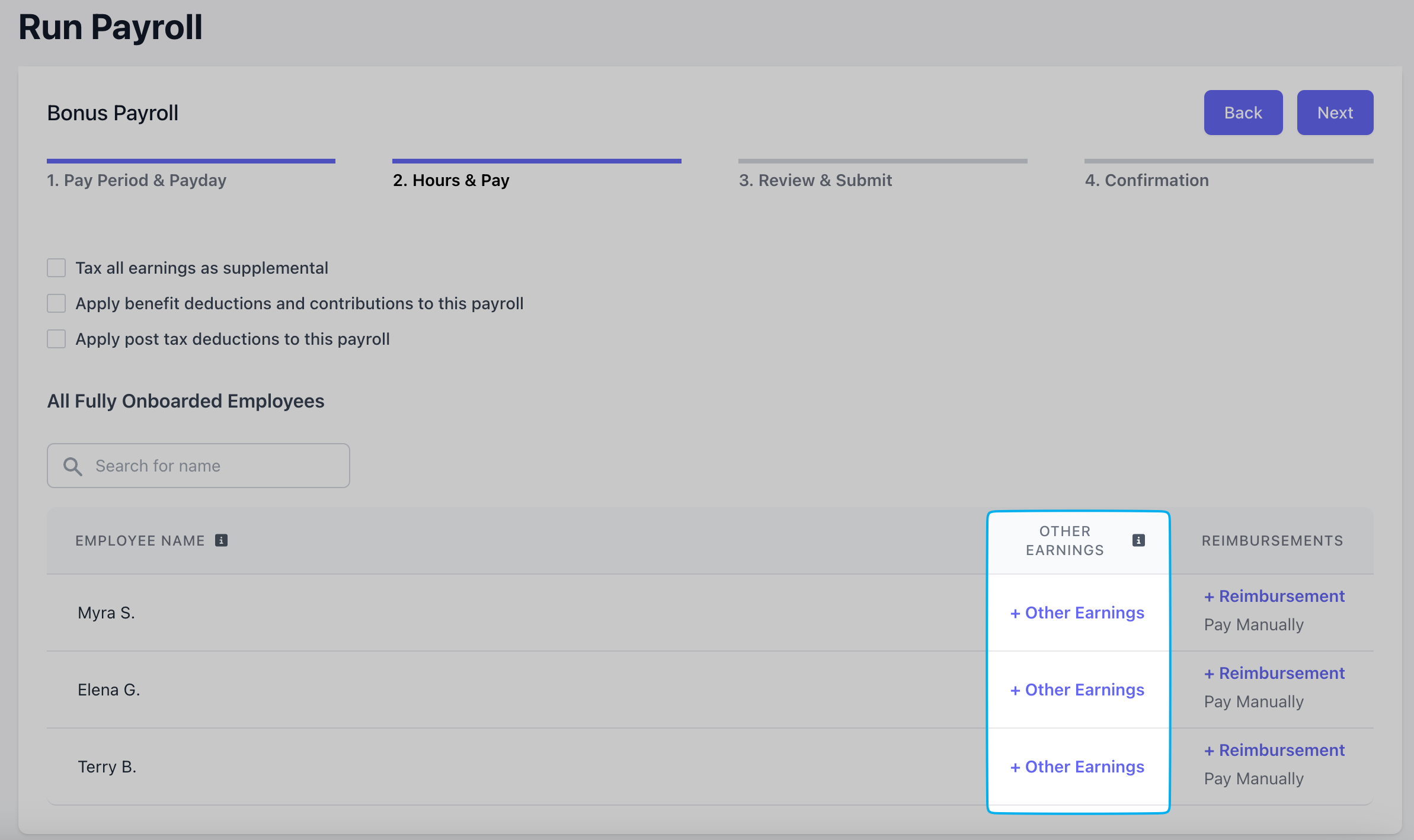
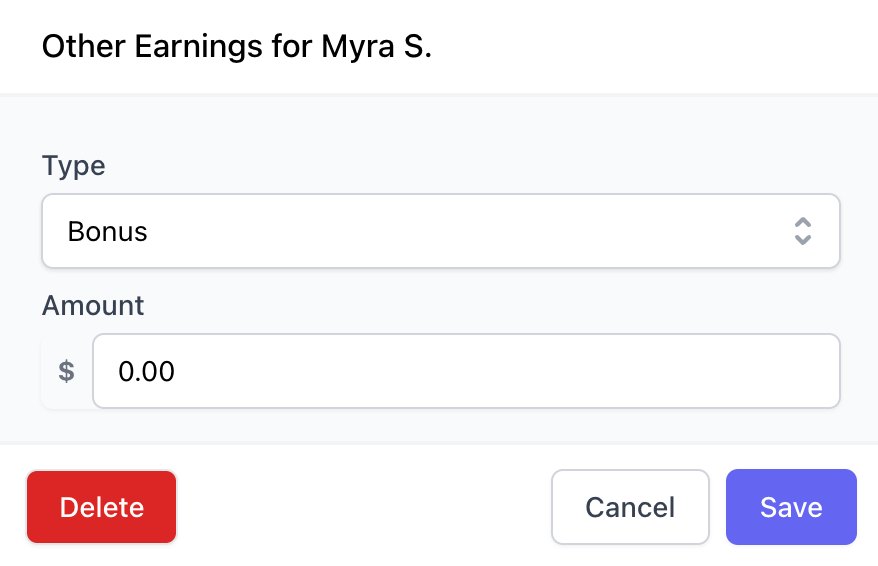
Click **+ Other Earnings**. Select **Bonus** as the **Type** and input the **Amount**.
**Method of Payment**
* ***Employee Preference***: Employees will be paid using their chosen payment method (direct deposit or manual pay).
* ***Manual***: Employees will be paid manually. The employer is responsible for paying employees directly.
**Work Period**: Select the date range to pay employees for. Unpaid time cards within the selected work period will automatically be included in the off-cycle payroll.
**Payday**: The next available payday within your processing timeline will automatically be selected. You may also choose a custom date that falls after the next available payday.
If **Manual** is selected for **Method of Payment**, you may choose any date in the future. This date will be used for tax record purposes and you are responsible for paying your employees directly.
Click **+ Other Earnings**. Select **Bonus** as the **Type** and input the **Amount**.
 Review the following information for the bonus payroll.
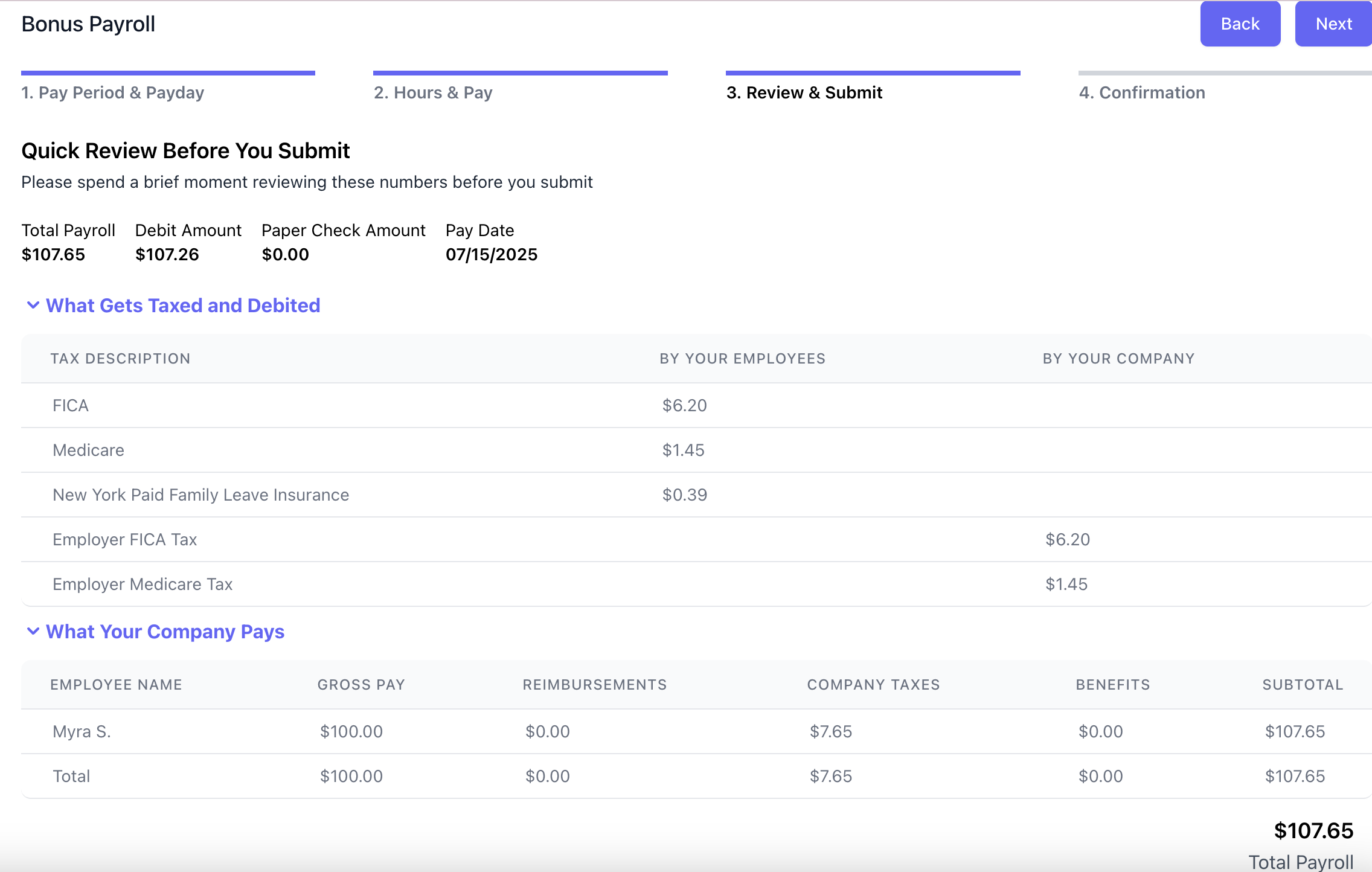 Click **Confirm** after ensuring your bank account has sufficient funds to cover this payroll.
If a payroll fails to fund, your account will be charged a **\$150 failed funding fee** and receive a penalty.
Accounts that reach **six** penalties will be **permanently removed** from Dripos Payroll.
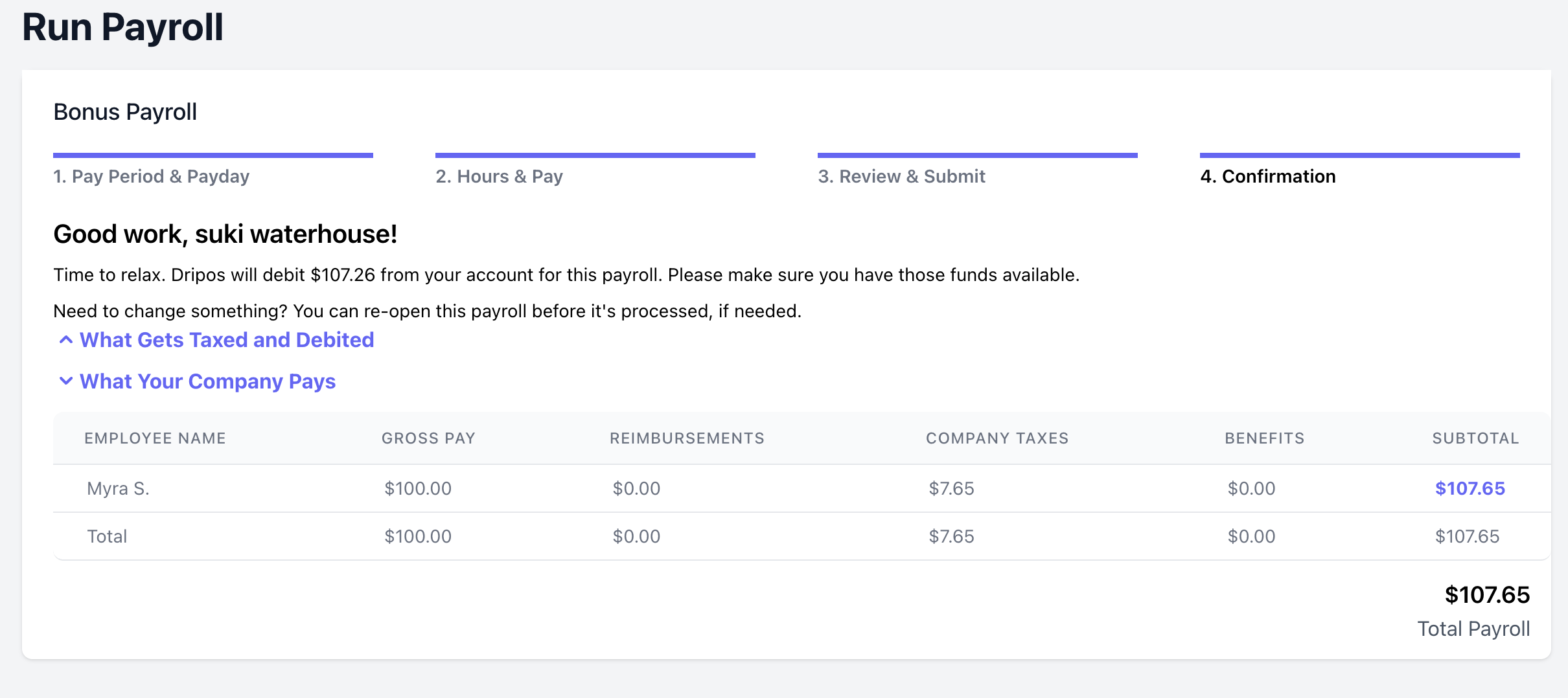
A final confirmation page will appear after successfully running payroll.
Click **Confirm** after ensuring your bank account has sufficient funds to cover this payroll.
If a payroll fails to fund, your account will be charged a **\$150 failed funding fee** and receive a penalty.
Accounts that reach **six** penalties will be **permanently removed** from Dripos Payroll.
A final confirmation page will appear after successfully running payroll.
 ***
## Payroll History
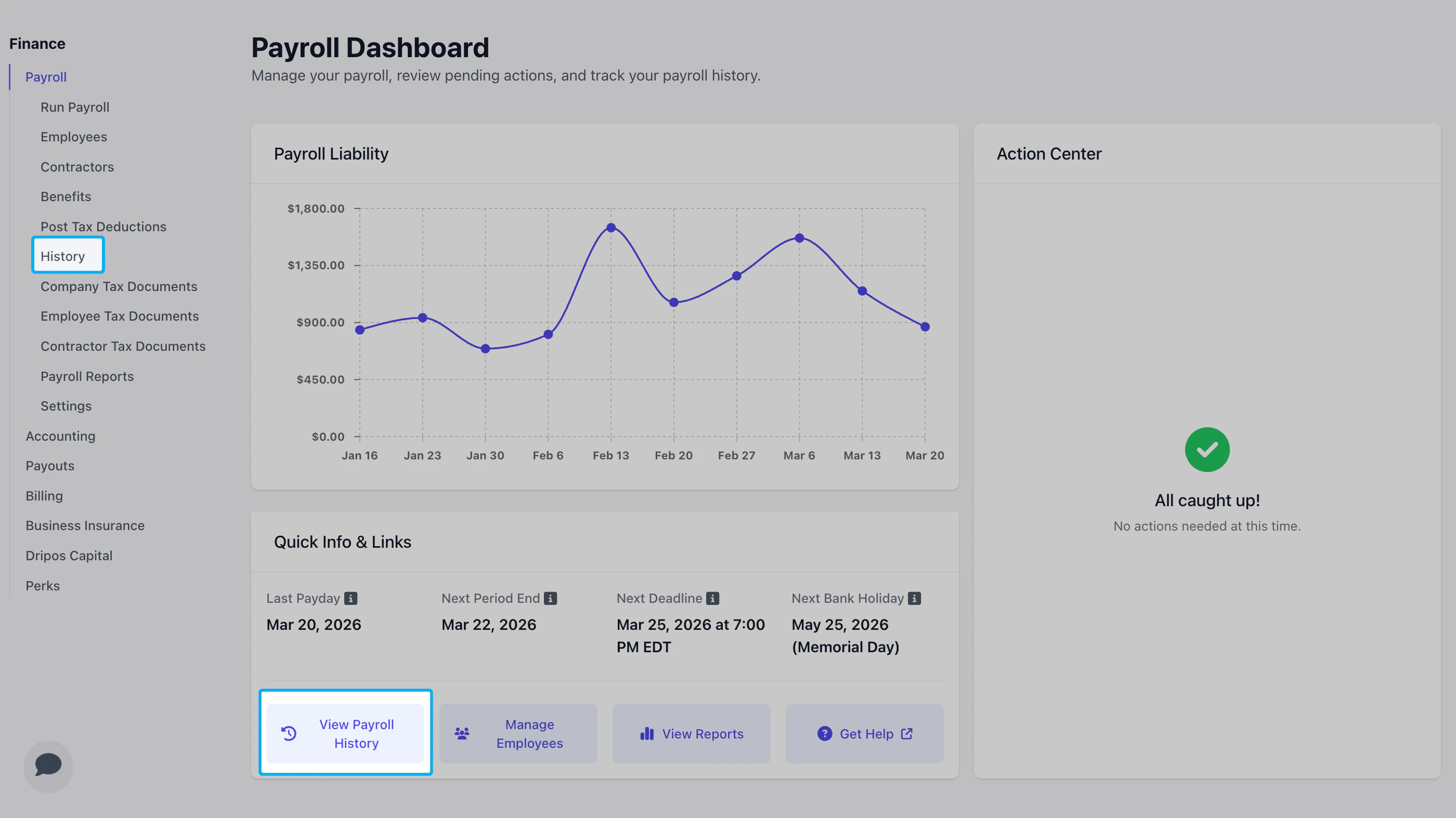
Select **View Payroll History** from your [Payroll Dashboard](https://dashboard.dripos.com/payroll) or click **Run Payroll** from the left sidebar.
***
## Payroll History
Select **View Payroll History** from your [Payroll Dashboard](https://dashboard.dripos.com/payroll) or click **Run Payroll** from the left sidebar.
 Click **View** next to a payroll to see additional details.
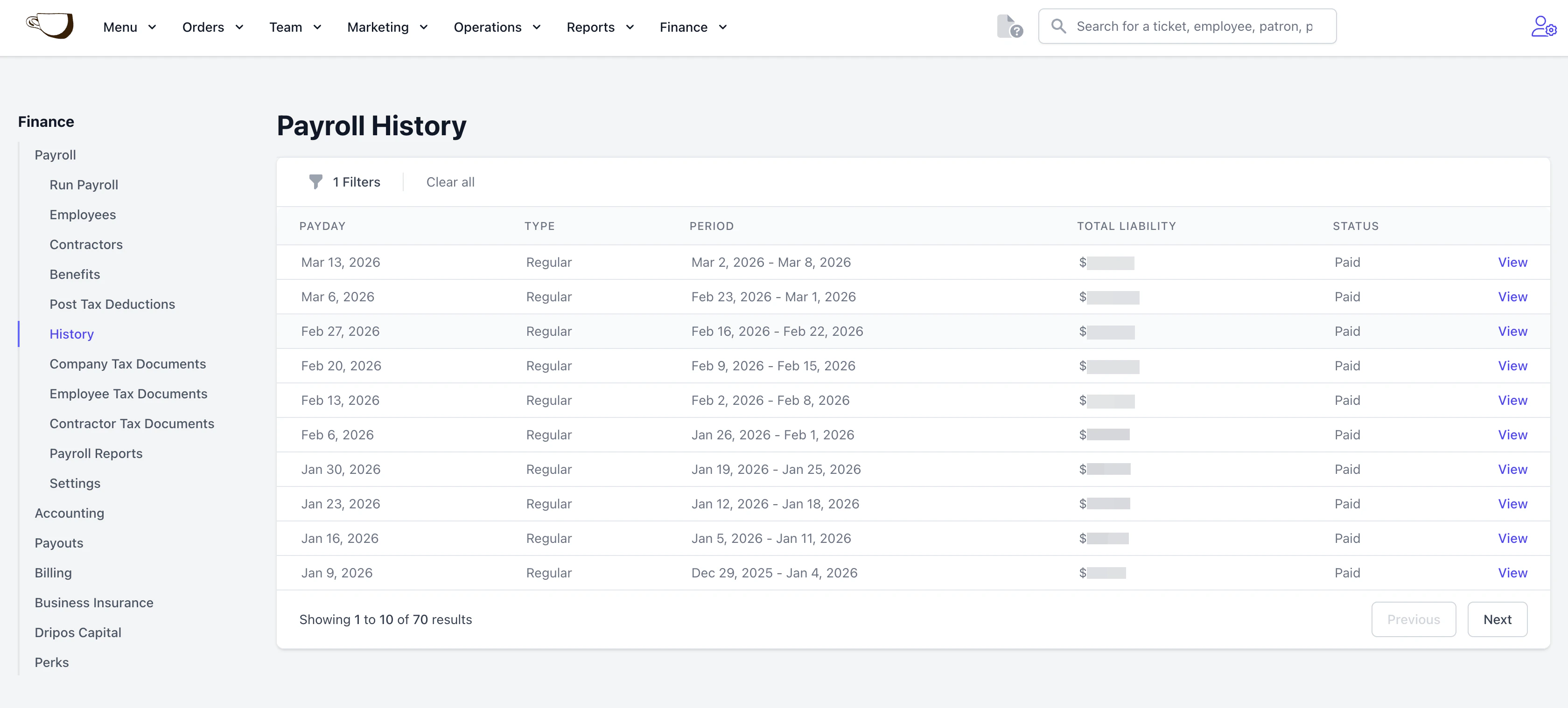 To view an employee's paystub, click the download button.
Paystubs will open as a PDF in a new tab. If the tab does not open, please check if you have pop-ups blocked on your web browser.
To view an employee's paystub, click the download button.
Paystubs will open as a PDF in a new tab. If the tab does not open, please check if you have pop-ups blocked on your web browser.