> ## Documentation Index
> Fetch the complete documentation index at: https://support.dripos.com/llms.txt
> Use this file to discover all available pages before exploring further.
# Cash Drawer Setup
> 💸 Connect a physical cash drawer to Dripos
## Require Hardware
* Physical cash drawer with an RJ11/RJ12 network port (see our recommendation [here](https://www.amazon.com/Register-Drawer-System-Removable-Key-Lock/dp/B09TN9MQJJ/ref=sr_1_5?keywords=volcora+cash+drawer\&qid=1678307558\&sprefix=volcora%2Caps%2C90\&sr=8-5))
* RJll/RJ12 cord (included [here](https://www.amazon.com/Register-Drawer-System-Removable-Key-Lock/dp/B09TN9MQJJ/ref=sr_1_5?keywords=volcora+cash+drawer\&qid=1678307558\&sprefix=volcora%2Caps%2C90\&sr=8-5))
* [Epson compatible printer](/hardware/print/print-overview)
## Connect Cash Drawer to Printer
Cash drawers communicate with Dripos through the Epson printer.
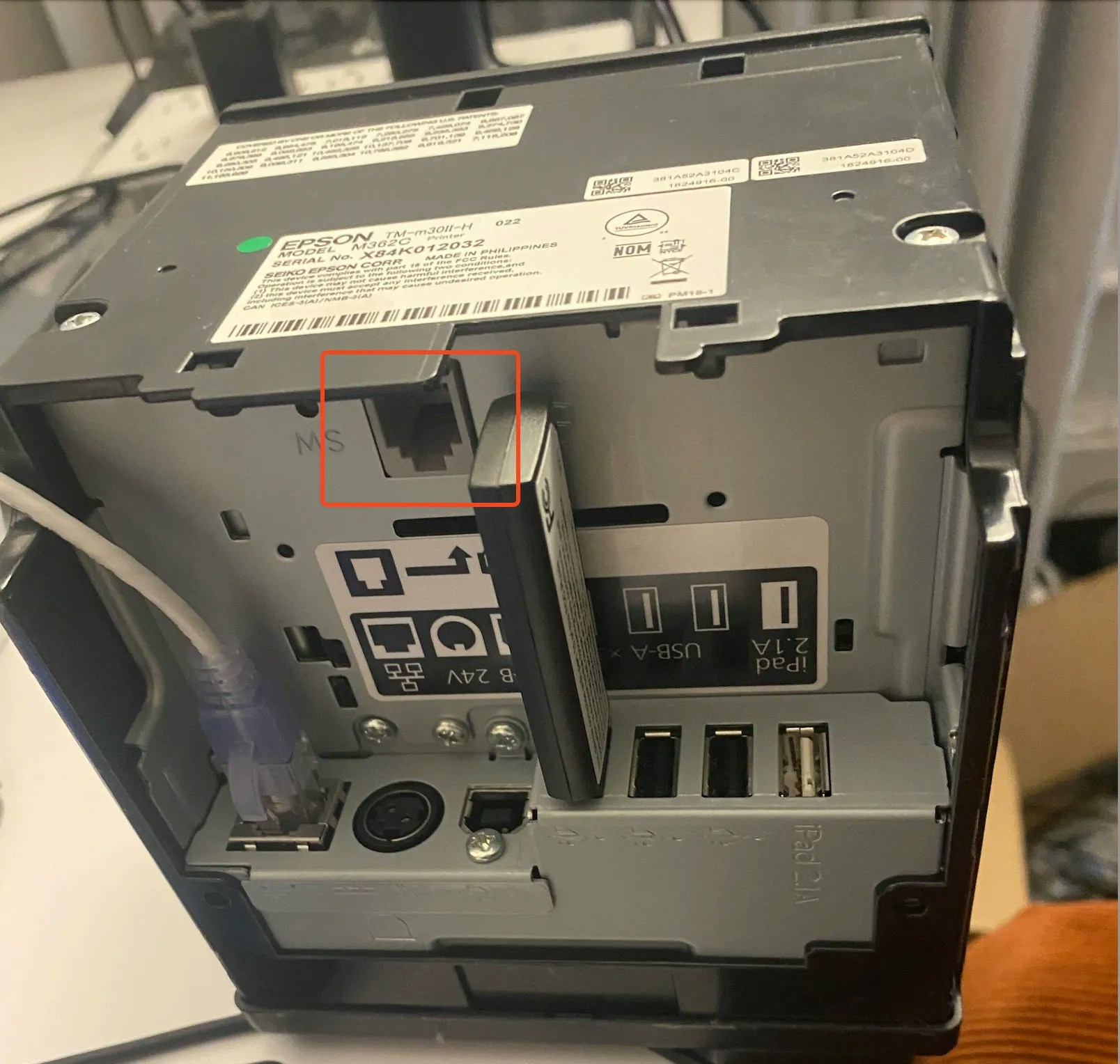
Plug the RJ11/RJ12 network cable into the back of the cash drawer and into the Epson printer.
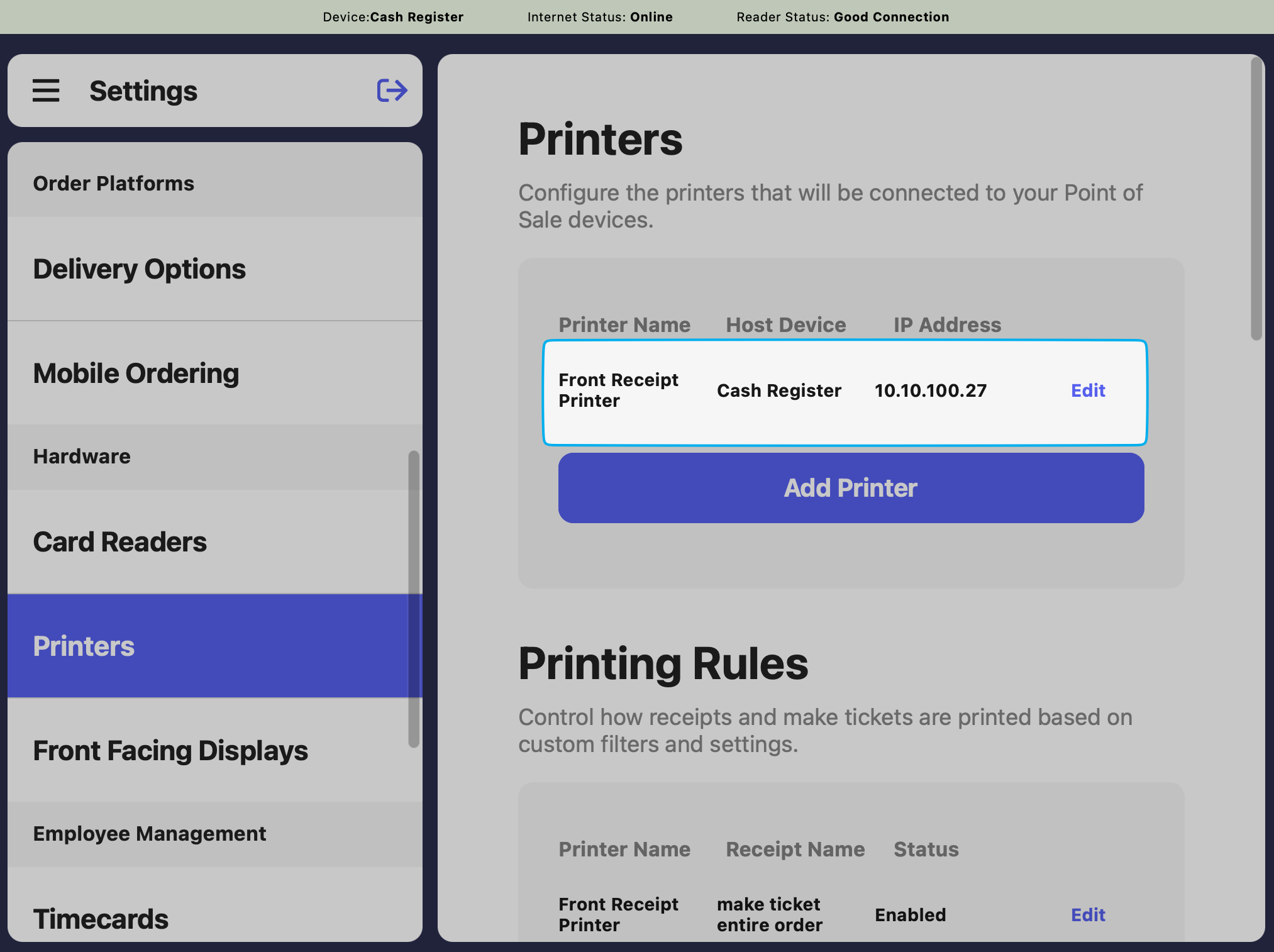
 On the Point of Sale, navigate to **Settings** > **Printers** > press **Edit** next to the printer to connect the drawer to
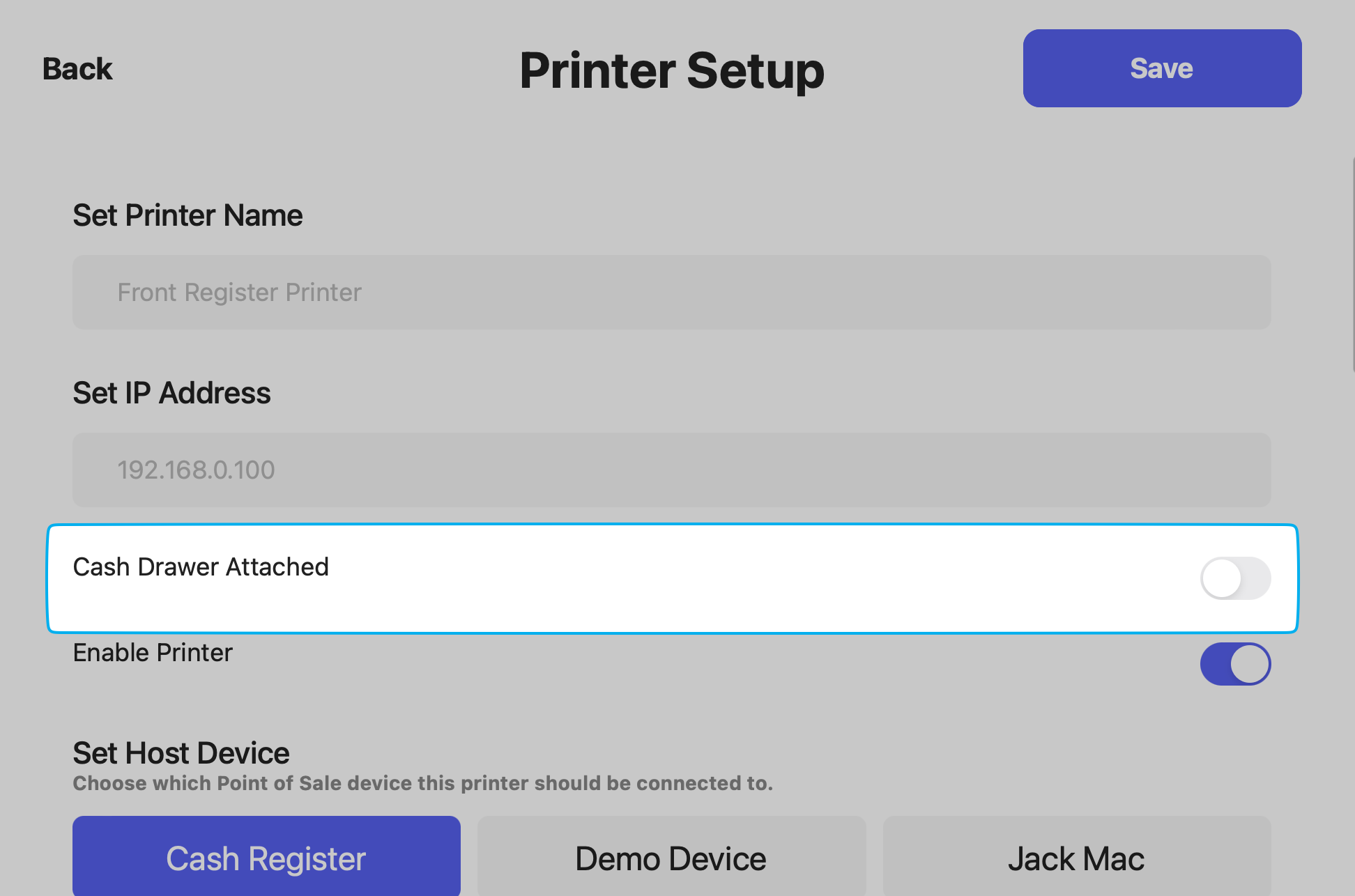
 Enable the toggle **Cash Drawer Attached** > press **Save**
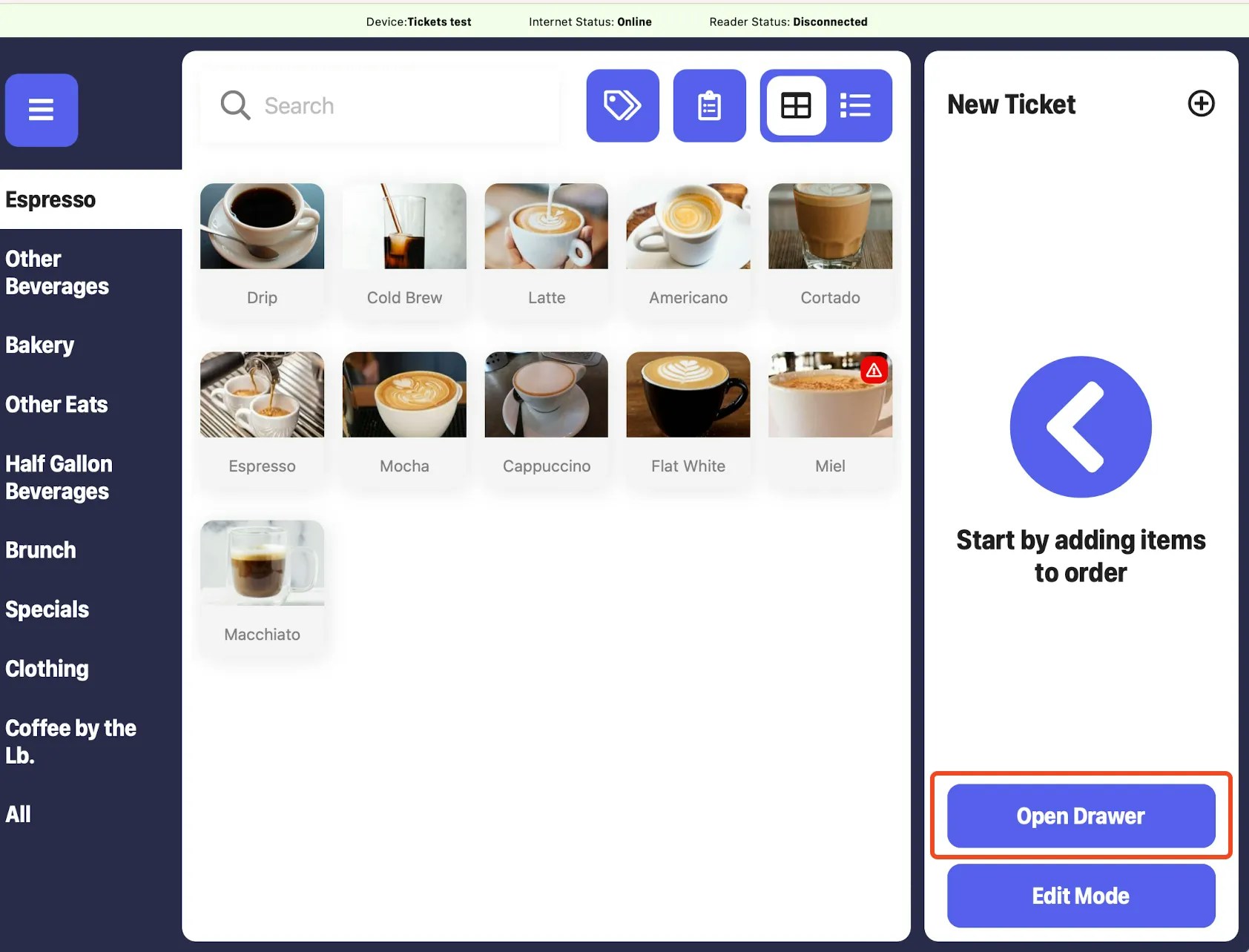
 On the register screen, the **Open Drawer** button will appear for Use
If the Open Drawer button does not appear, restart the app and try again.
On the register screen, the **Open Drawer** button will appear for Use
If the Open Drawer button does not appear, restart the app and try again.
 ***
Learn about daily cash drawer functionality within Dripos [here](/operations/cash/cash-overview)
***
Learn about daily cash drawer functionality within Dripos [here](/operations/cash/cash-overview)