> ## Documentation Index
> Fetch the complete documentation index at: https://support.dripos.com/llms.txt
> Use this file to discover all available pages before exploring further.
# Create Printing Rules
> Customize your printer workflow
Printing rules allow you to select which receipt template to use, filter certain categories or products to print, and more.
Examples of printer workflows:
* Only print customer receipts when requested
* Set kitchen printer to automatically print all food items
* Set barista printer to automatically print all drink category items
* Set printer to only print orders from the Drive Thru register
## Add Printing Rules
On the **Point of Sale** > **Setings** > **Printers** > **Printer Rules** and press **Add Printing Rule**.
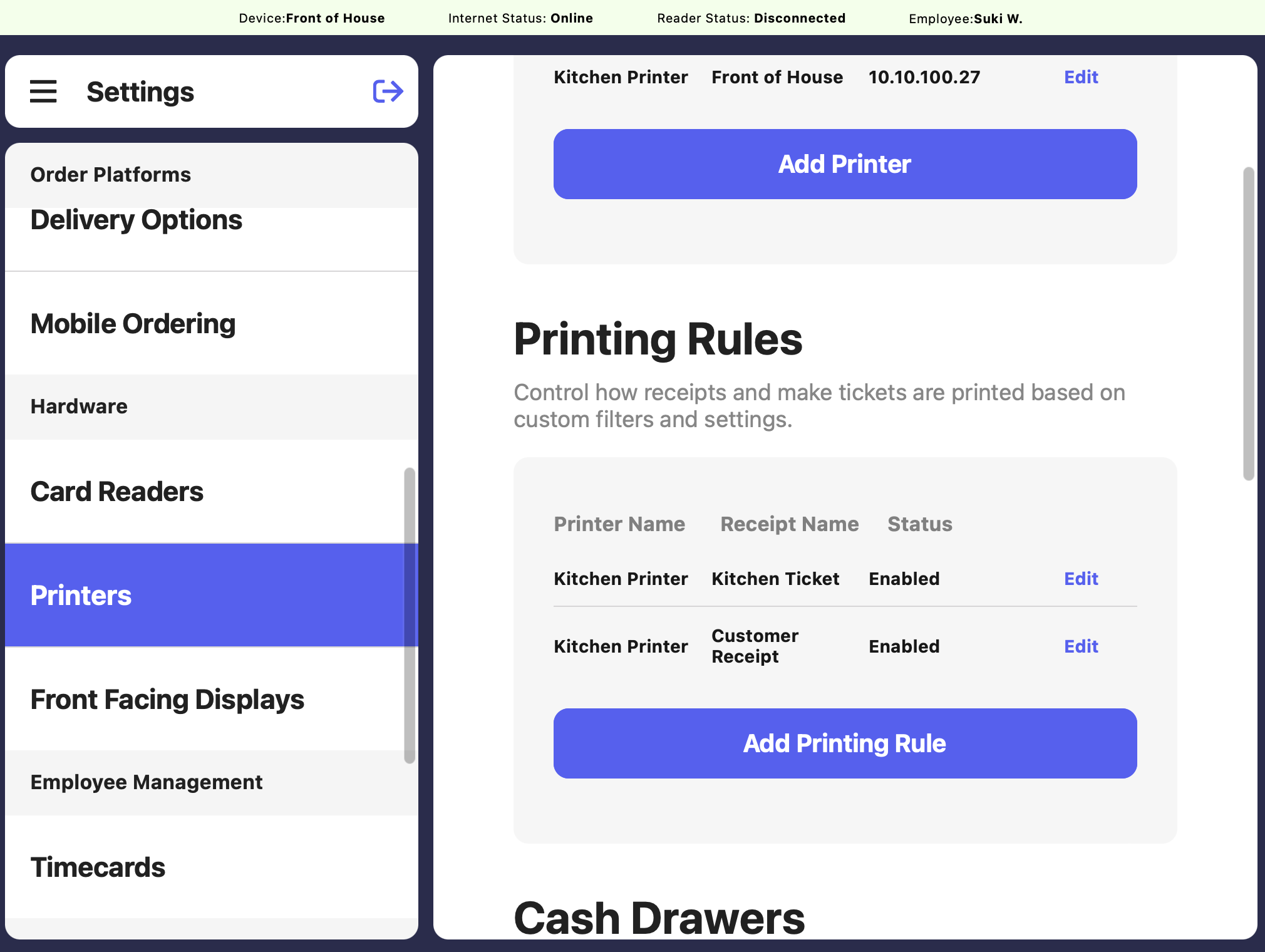 Make the following selections. Select the **Receipt Template** to use and the applicable **Printer** to use for this rule.
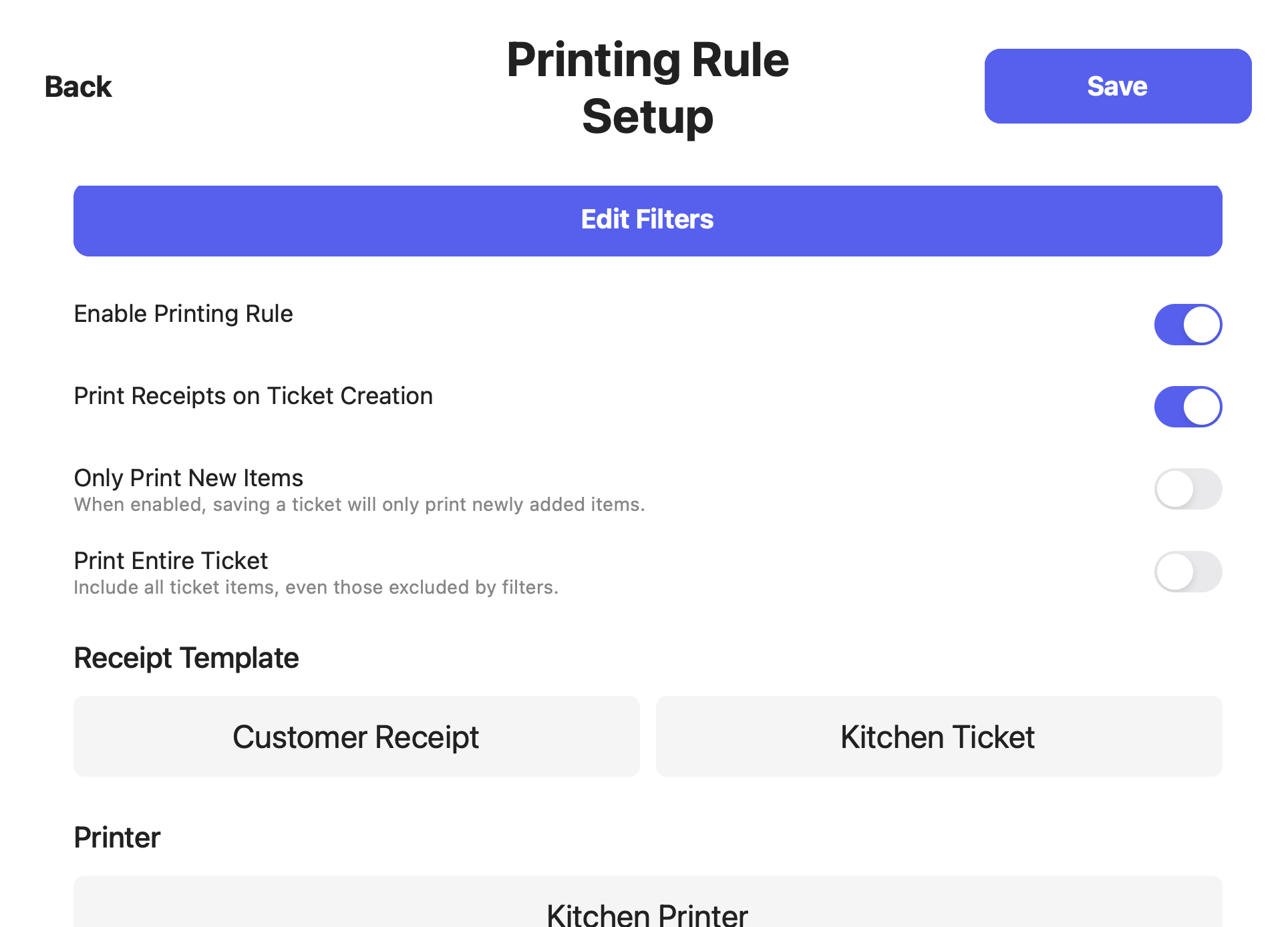 Enable or disable the printing rule
Receipts will automatically print after checkout
Products that have already printed will not print again - even if new items are added to the order or a saved ticket is updated
Gift cards will be included on make tickets
All ticket items will print if at least one item on the ticket is included in the printing rule filter (next section)
Click **Save**
## Filter Printer Rules
Add filters to only print specific ticket types, categories, products, or orders from specific devices.
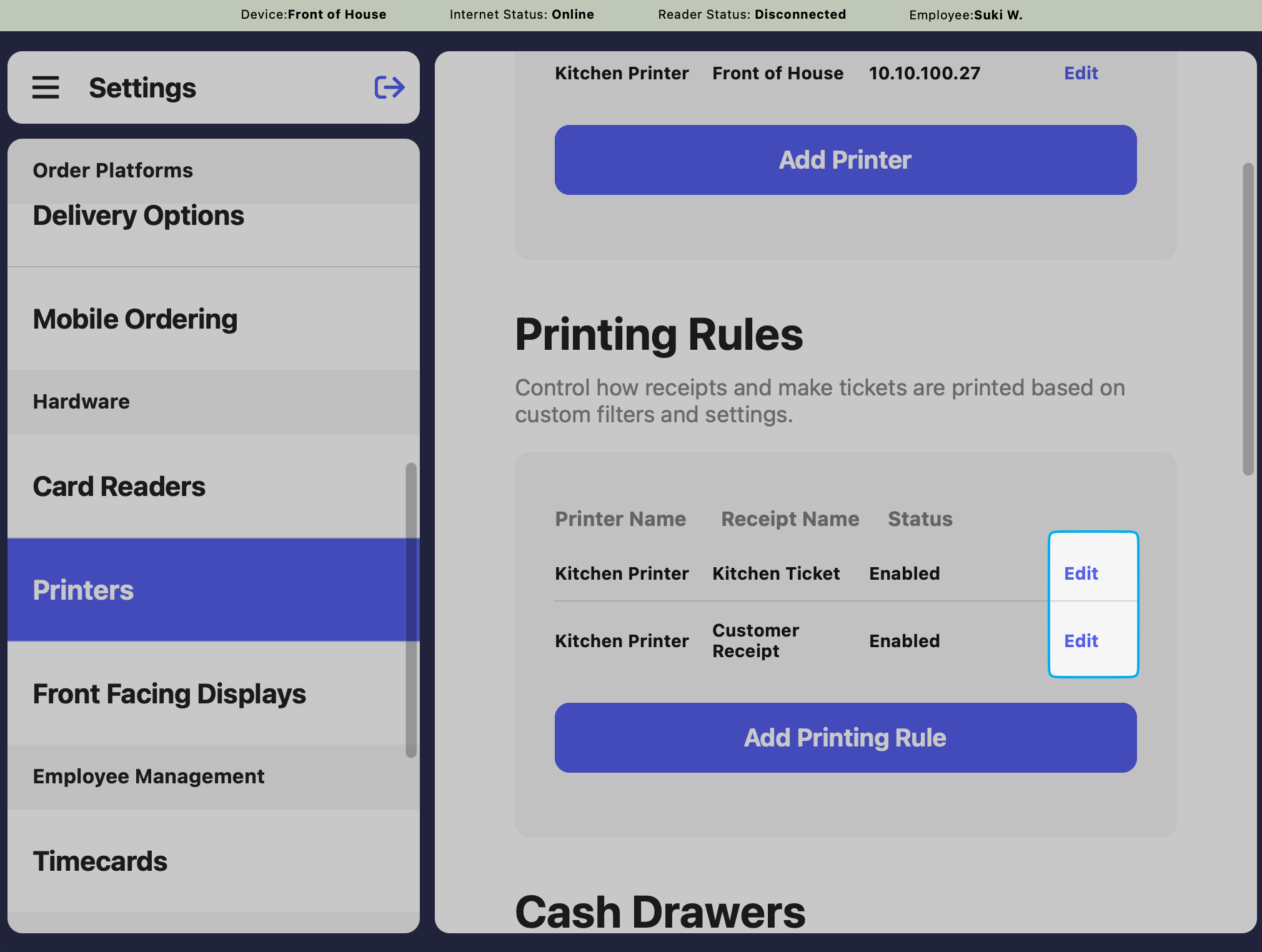
Navigate to POS **Settings** > **Printers**
Click **Edit** next to your printing rule and press **Edit Filters**
Enable or disable the printing rule
Receipts will automatically print after checkout
Products that have already printed will not print again - even if new items are added to the order or a saved ticket is updated
Gift cards will be included on make tickets
All ticket items will print if at least one item on the ticket is included in the printing rule filter (next section)
Click **Save**
## Filter Printer Rules
Add filters to only print specific ticket types, categories, products, or orders from specific devices.
Navigate to POS **Settings** > **Printers**
Click **Edit** next to your printing rule and press **Edit Filters**
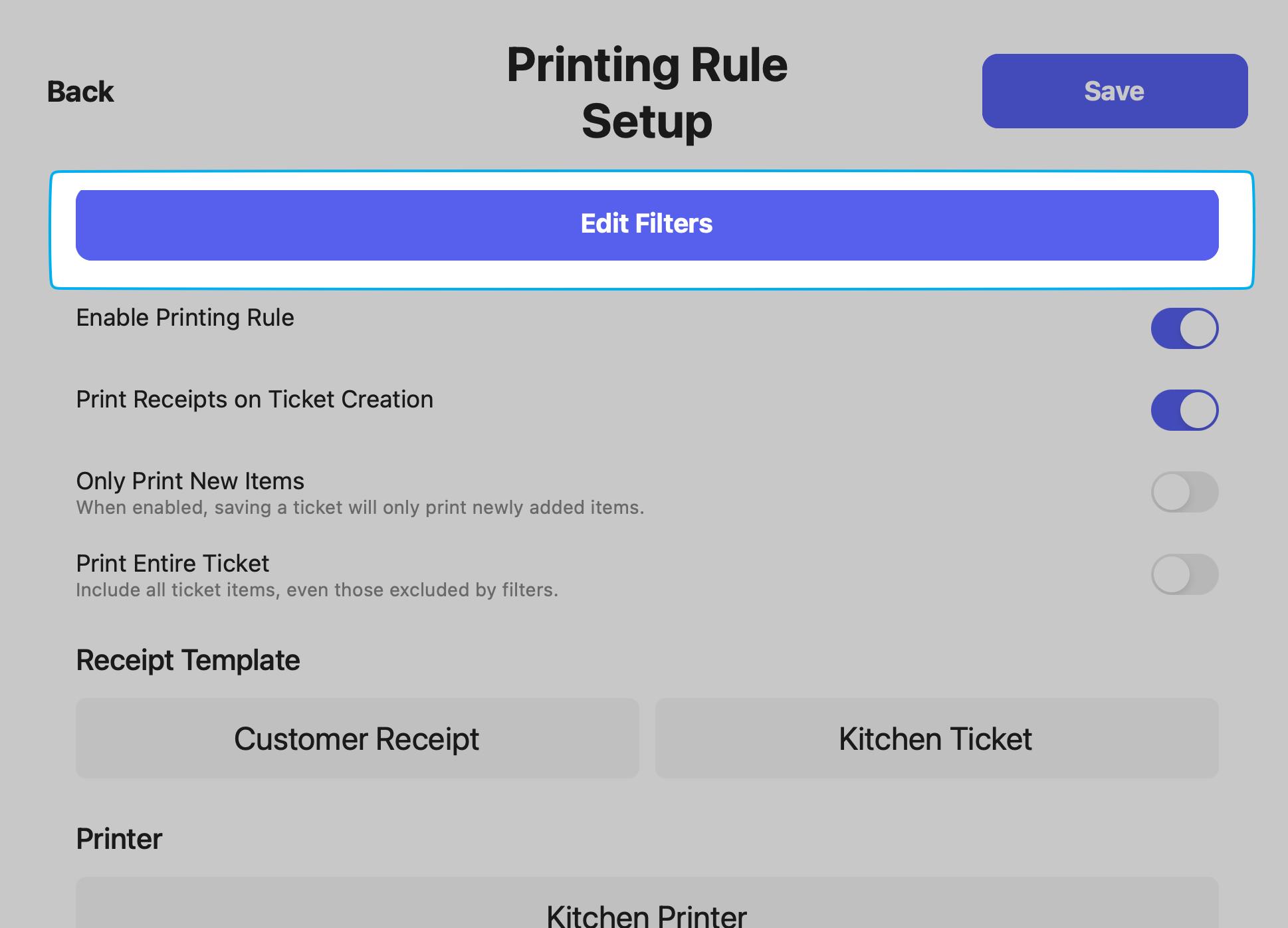 Printing rules are ordered by priority. The ones at the top take priority, but multiples rules can be applied.
For example, you can set **Filter by Ticket Type** to *For Here* and then **Filter by Category** like *Espresso*. This means only products in the Espresso category on orders using a For Here ticket type will be printed.
Printing rules are ordered by priority. The ones at the top take priority, but multiples rules can be applied.
For example, you can set **Filter by Ticket Type** to *For Here* and then **Filter by Category** like *Espresso*. This means only products in the Espresso category on orders using a For Here ticket type will be printed.
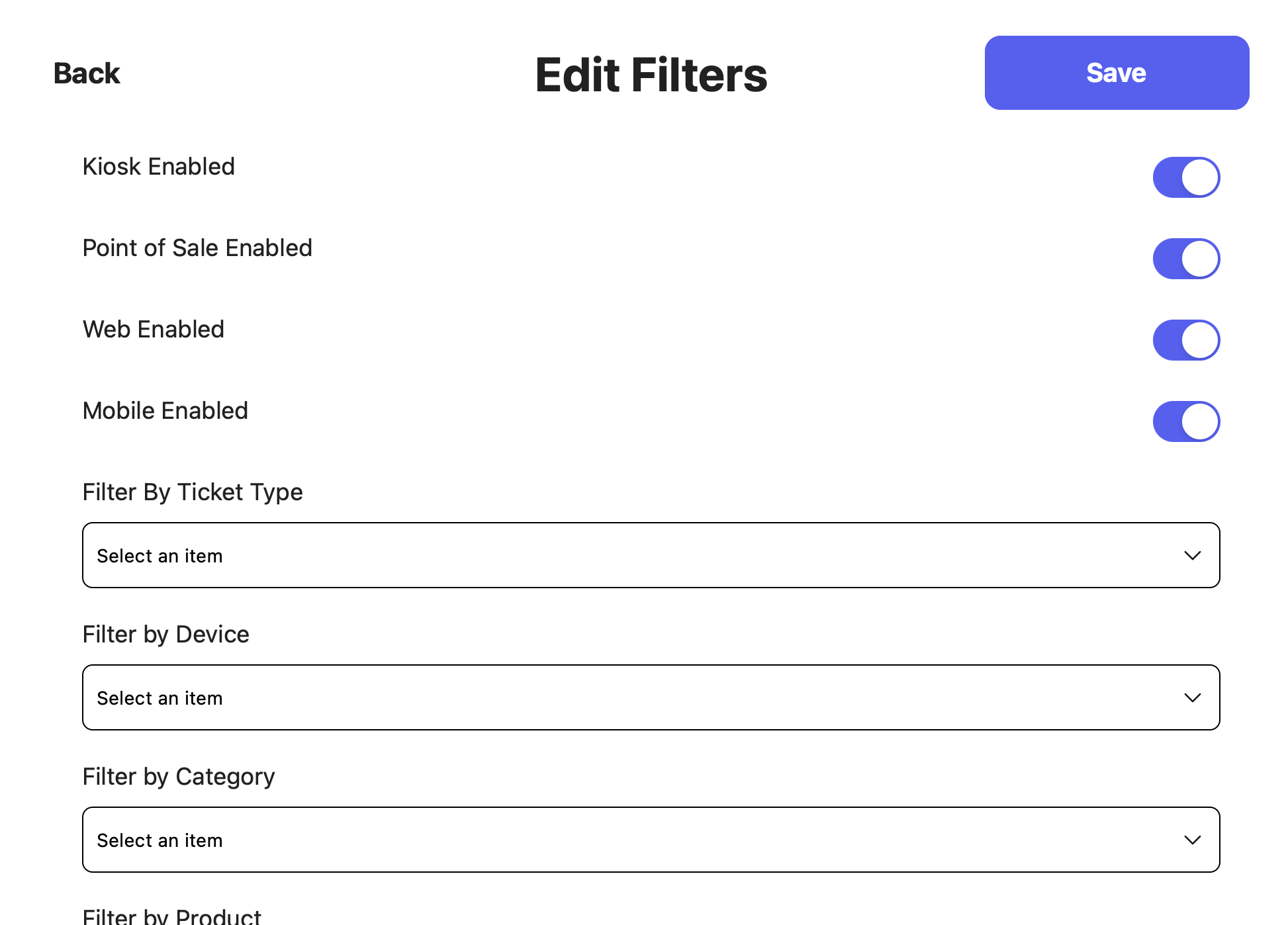 Print orders only from specific ticket types (For Here, To Go, Mobile, etc.)
Print tickets only from specific Point of Sale devices (Main Register, Drive Thru, etc.)
Print products from specific categories only (Espresso, Breakfast, etc.)
Print specific products only (Strawberry Matcha Latte, Mango Matcha Latte, Matcha Cookie, etc.)
Print orders only from specific ticket types (For Here, To Go, Mobile, etc.)
Print tickets only from specific Point of Sale devices (Main Register, Drive Thru, etc.)
Print products from specific categories only (Espresso, Breakfast, etc.)
Print specific products only (Strawberry Matcha Latte, Mango Matcha Latte, Matcha Cookie, etc.)