> ## Documentation Index
> Fetch the complete documentation index at: https://support.dripos.com/llms.txt
> Use this file to discover all available pages before exploring further.
# Stripe S700 Troubleshooting Guides
> Common troubleshooting steps for Stripe S700 readers
Remove a card reader from Wi-Fi mode and repair it in Advanced Reader Mode.
Complete the following steps on each Point of Sale device that has a card reader paired to it in Wi-Fi Reader Mode. Advanced Reader mode cannot be set up if there are any card readers in WiFi reader mode.
Navigate to **POS Settings** > **Card Readers**
Remove the card reader in **Wi-Fi Reader Mode** by clicking the **X** next to the reader
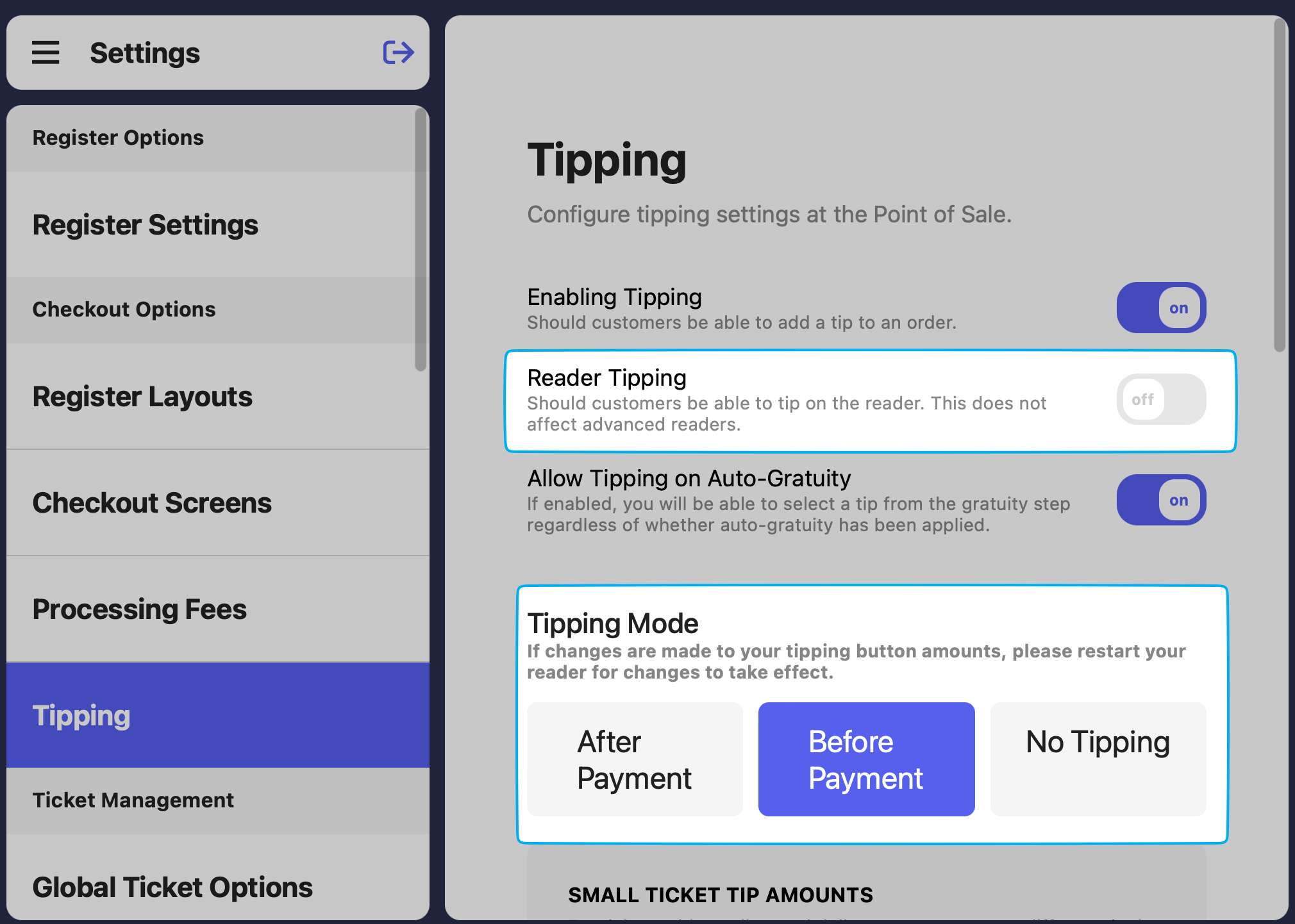
Navigate to **Tipping** within the Point of Sale settings and toggle **off** Reader Tipping
Set **Tipping Mode** to **Before Payment** or **After Payment**
 Navigate to **Advanced Settings** in settings > **Restart App**
Navigate back to POS settings > **Card Readers**
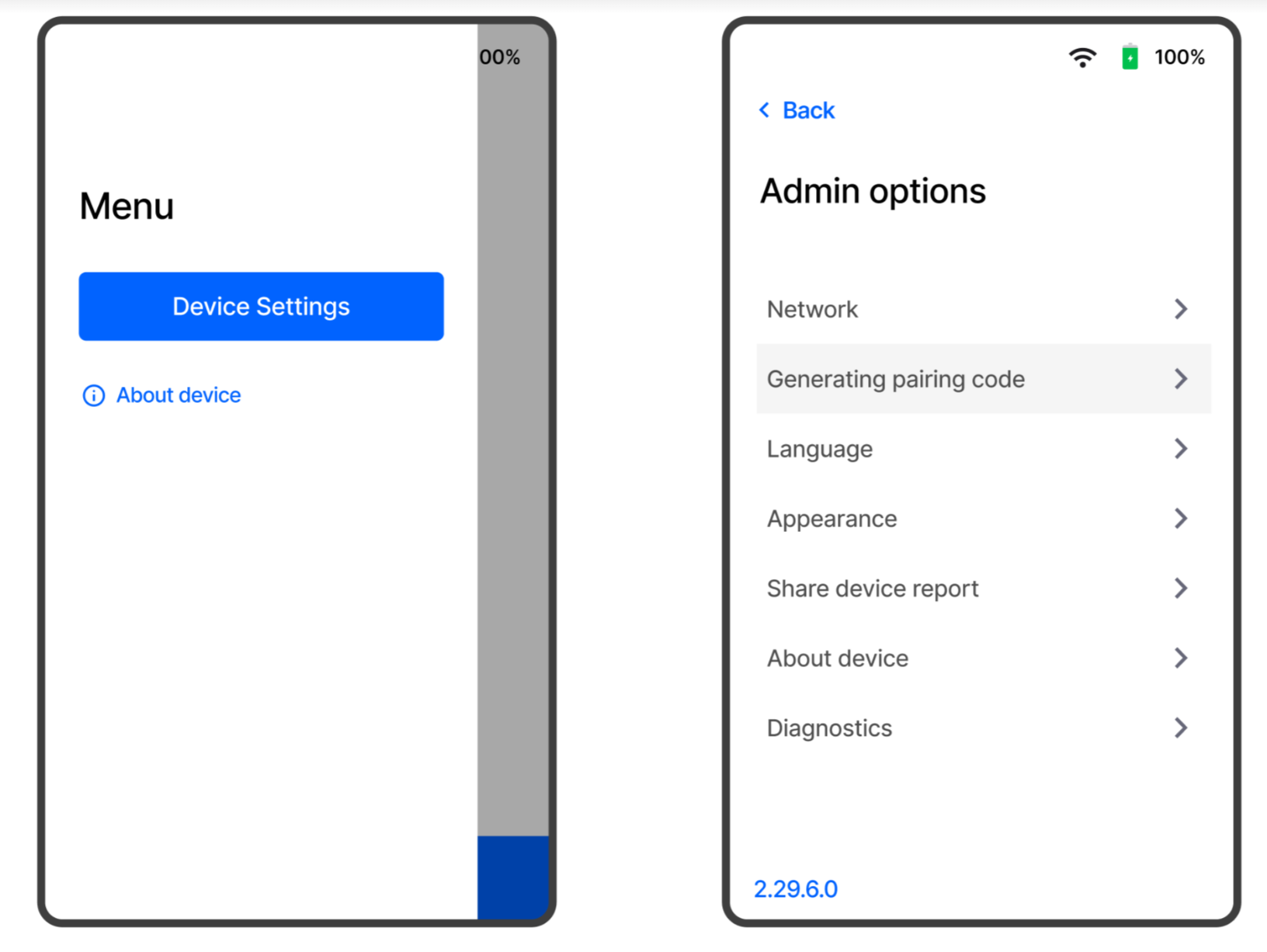
On the **card reader**, swipe from left to right on the screen > press **Device Settings** > enter pin **07139** > **Generate Pairing Code**
Navigate to **Advanced Settings** in settings > **Restart App**
Navigate back to POS settings > **Card Readers**
On the **card reader**, swipe from left to right on the screen > press **Device Settings** > enter pin **07139** > **Generate Pairing Code**
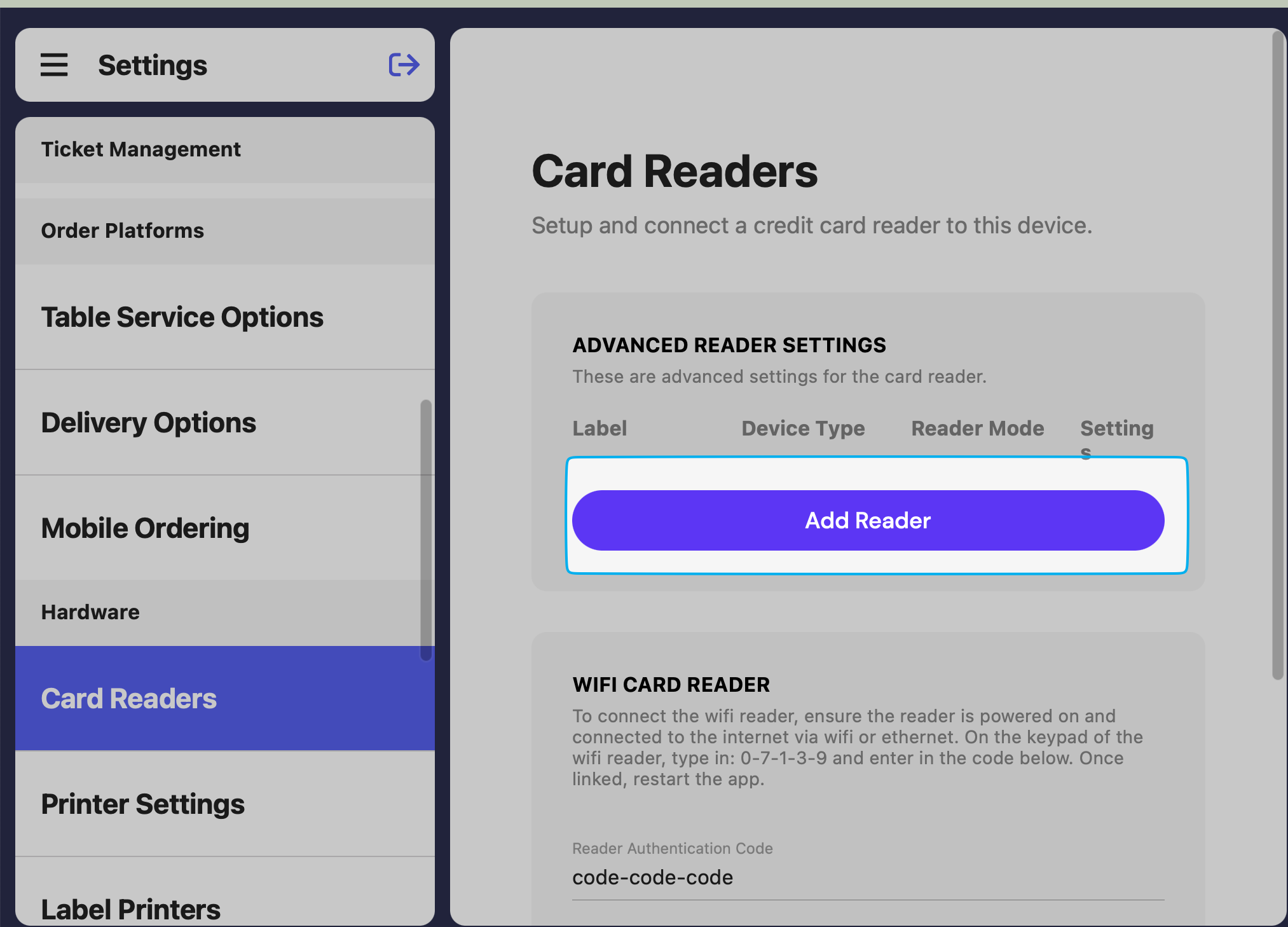
 Click **Add Reader** > enter pairing code > label reader > select **Host Device** of the iPad you are on > click **Save**
 The **WiFi password** will need to be inputted during this process.
On the Point of Sale tablet
* Press the **tribar** in the upper left screen corner
* Press the **Settings** button
* Scroll down to **Card Readers**
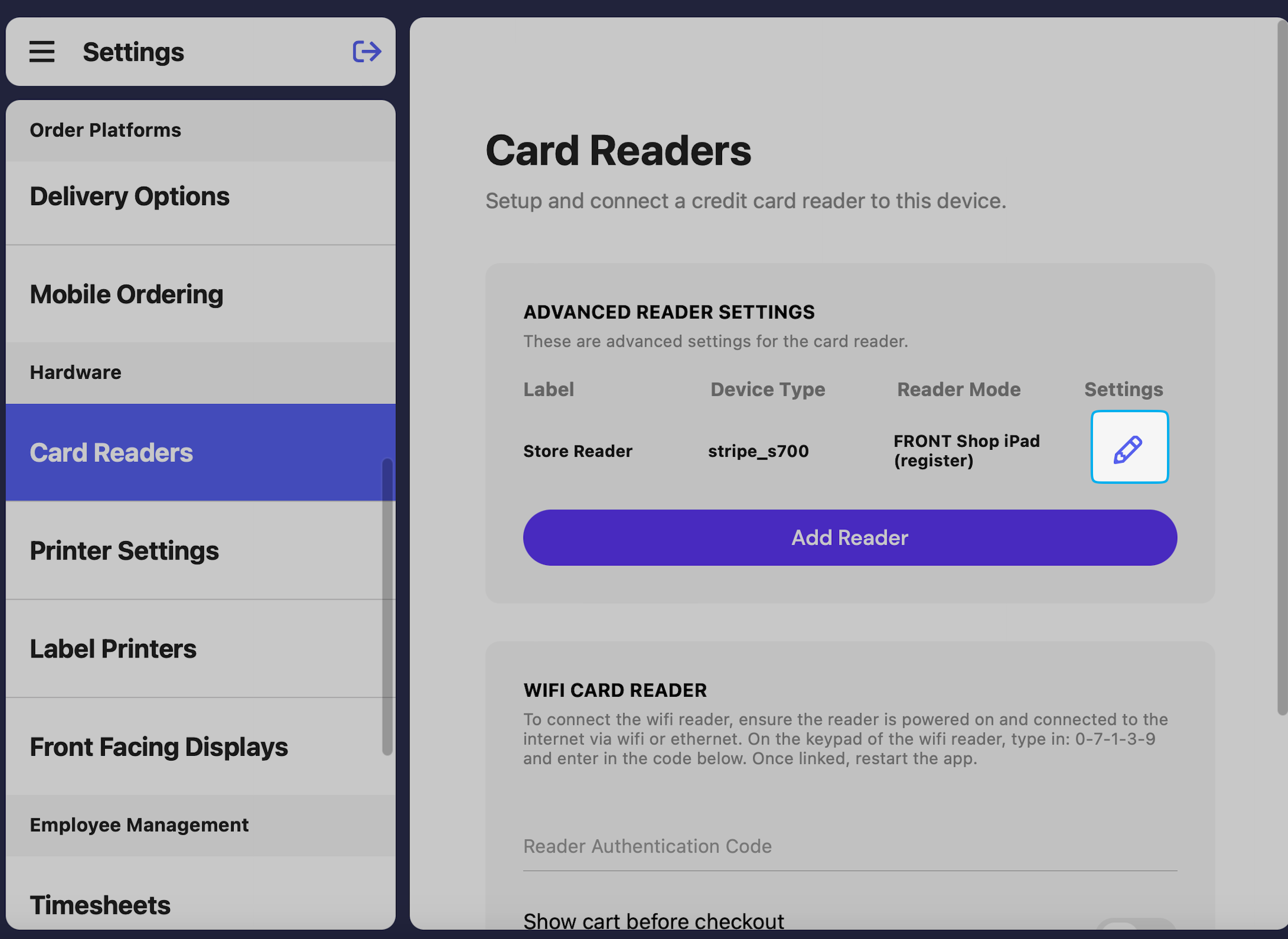
* Click the **pencil icon** next to the card reader to repair
The **WiFi password** will need to be inputted during this process.
On the Point of Sale tablet
* Press the **tribar** in the upper left screen corner
* Press the **Settings** button
* Scroll down to **Card Readers**
* Click the **pencil icon** next to the card reader to repair
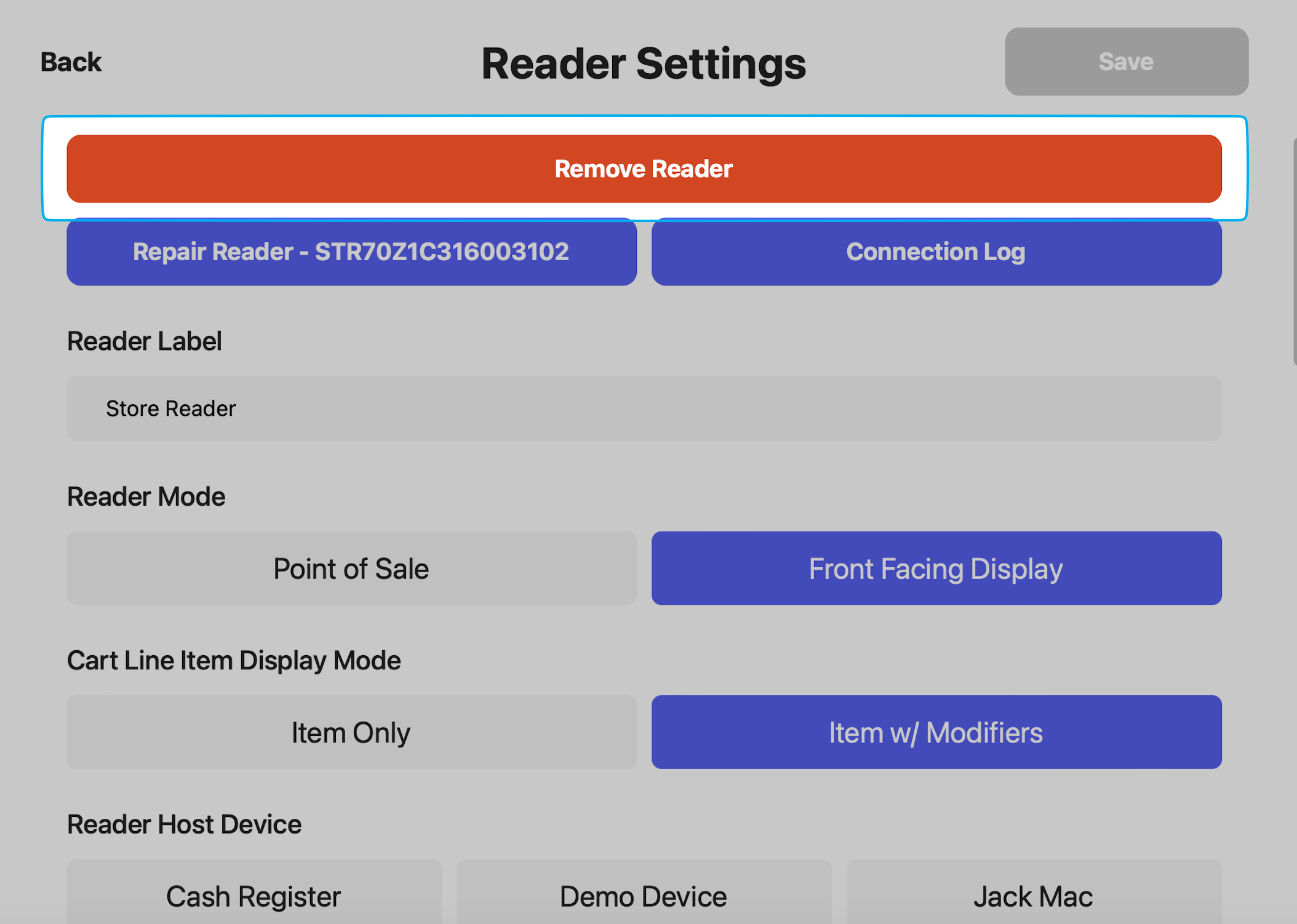 Hold down the power button and two volume buttons at the same time (that's all 3 buttons at once!)
The screen will ask to Factory Reset, press **Yes**
Hold down the power button and two volume buttons at the same time (that's all 3 buttons at once!)
The screen will ask to Factory Reset, press **Yes**
 Once the reader turns back on, the reader setup steps will begin. Follow [these steps](/hardware/reader/reader-s700) to repair a reader to the Point of Sale.
If the reader settings screen does not appear right away, swipe from left to right on the screen > press **Reader Settings** > PIN 07139
If an error screen appears, press **Reader Settings** > PIN 07139.
If an error screen continues to appear, hold down the power button for 10 seconds until the screen turns black and reboots.
When charging, you must remove the reader from the dock and plug the cable directly into the side. It will not charge properly if it is plugged into the side while sitting on the dock.
Press the **tribar** in the upper left corner of the POS
Once the reader turns back on, the reader setup steps will begin. Follow [these steps](/hardware/reader/reader-s700) to repair a reader to the Point of Sale.
If the reader settings screen does not appear right away, swipe from left to right on the screen > press **Reader Settings** > PIN 07139
If an error screen appears, press **Reader Settings** > PIN 07139.
If an error screen continues to appear, hold down the power button for 10 seconds until the screen turns black and reboots.
When charging, you must remove the reader from the dock and plug the cable directly into the side. It will not charge properly if it is plugged into the side while sitting on the dock.
Press the **tribar** in the upper left corner of the POS
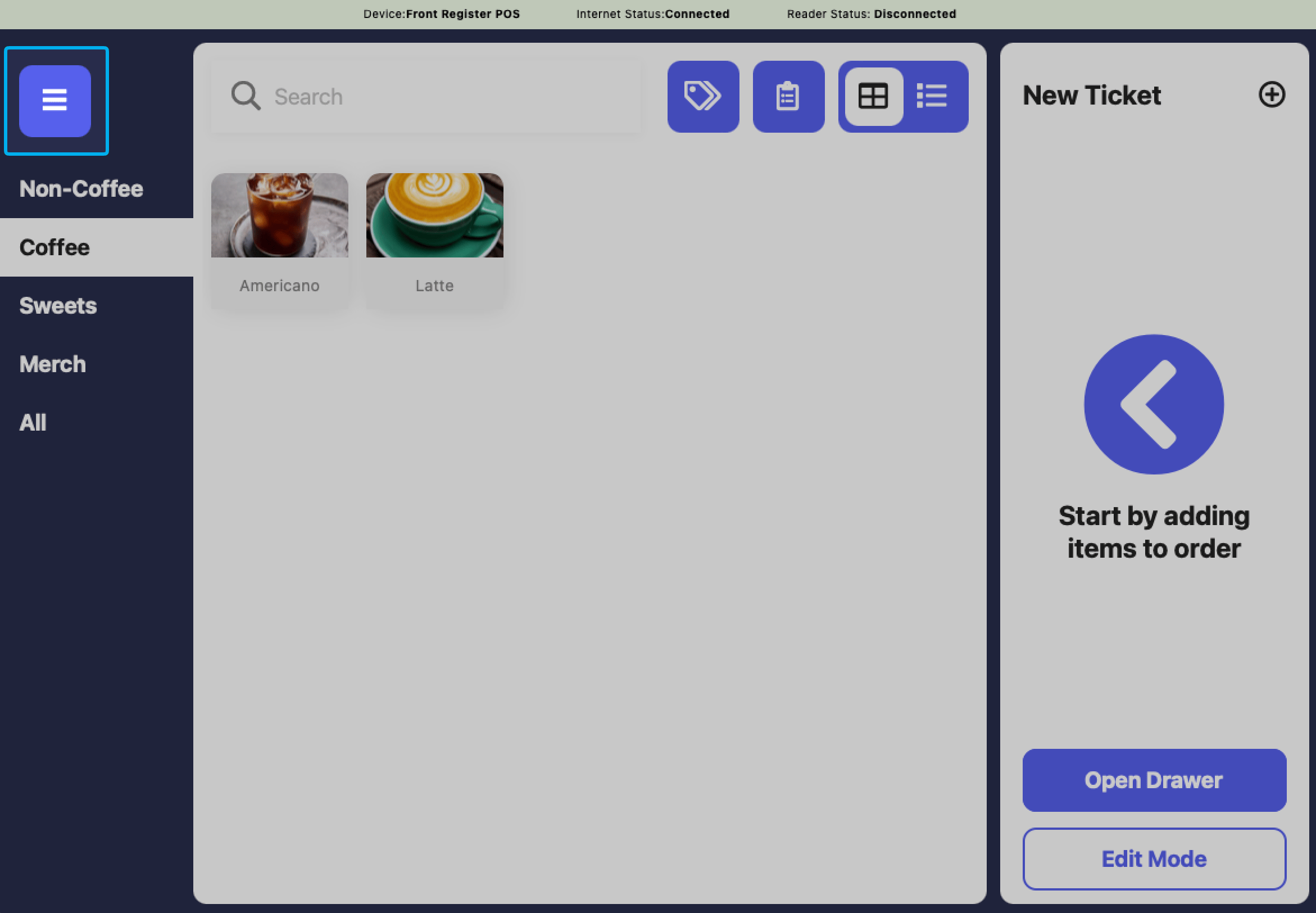 Press the refresh button (circular arrow) that appears next to the Dripos logo at the top of the side menu
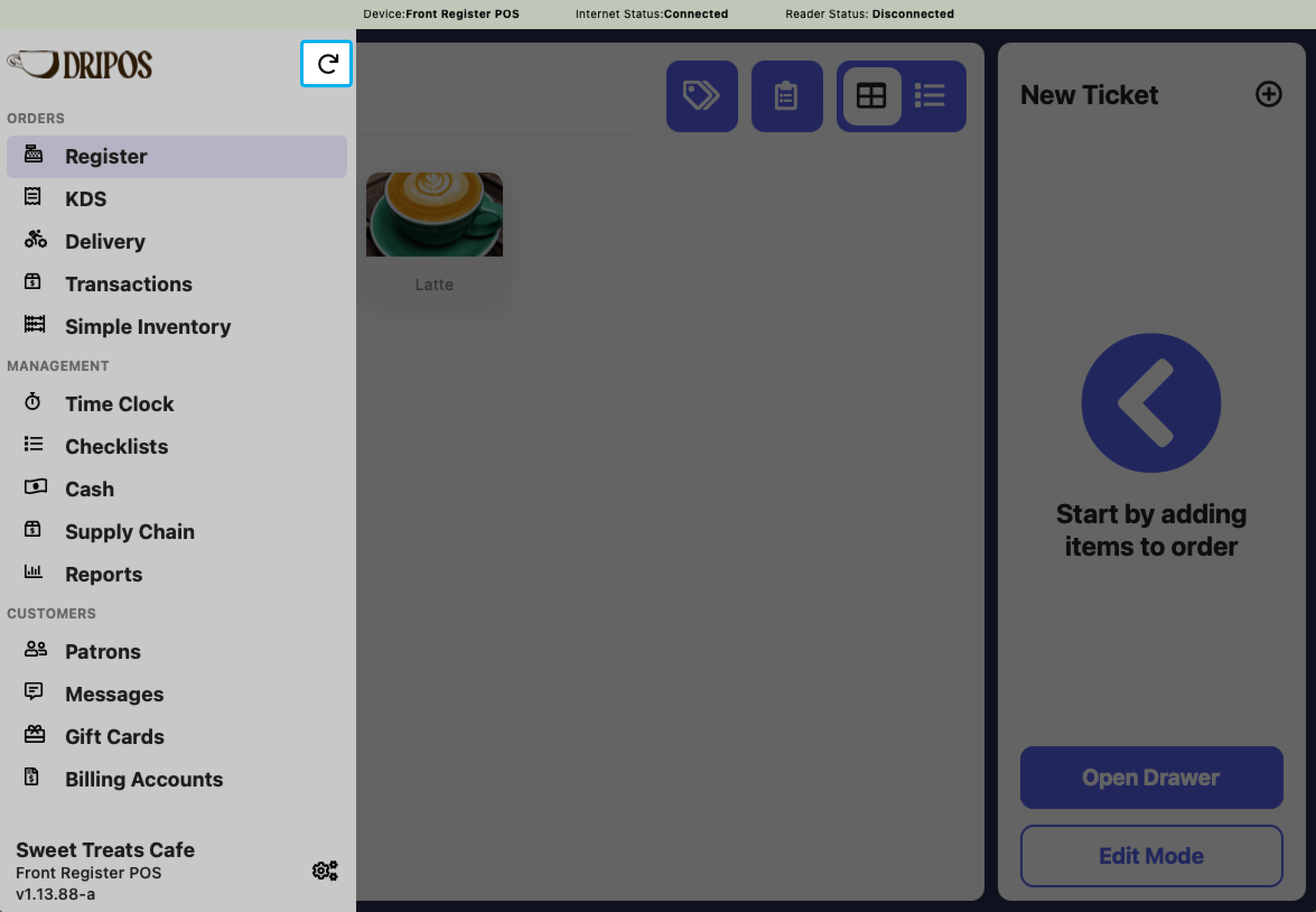 On the card reader, press **Confirm** on the “Could not Connect to Reader” message
Select the appropriate register on the the “Connect to Register” screen on the card reader after POS has been refreshed
Hold down the power button on the right hand side of the card reader until the screen turns black to perform a Hard Reset. **Ignore the pop-up options to "Power Off” or “Restart” the device.**
While the card reader is turning back on, press the **tribar** in the upper left corner of the POS
Press the refresh button (circular arrow) that appears next to the Dripos logo at the top of the side menu
Once the card reader turns on, the error message should disappear.
On the card reader, press **Confirm** on the “Could not Connect to Reader” message
Select the appropriate register on the the “Connect to Register” screen on the card reader after POS has been refreshed
Hold down the power button on the right hand side of the card reader until the screen turns black to perform a Hard Reset. **Ignore the pop-up options to "Power Off” or “Restart” the device.**
While the card reader is turning back on, press the **tribar** in the upper left corner of the POS
Press the refresh button (circular arrow) that appears next to the Dripos logo at the top of the side menu
Once the card reader turns on, the error message should disappear.