> ## Documentation Index
> Fetch the complete documentation index at: https://support.dripos.com/llms.txt
> Use this file to discover all available pages before exploring further.

# Stripe S700 Pairing Guide

> Learn how to set up and pair a card reader to your Dripos POS device.

<Warning>
  Only one card reader may be paired to a Point of Sale device at a time. Two Point of Sale tablets cannot share a card reader.
</Warning>

<Note>
  Need to order a new card reader? Place your order [here](https://hardware.dripos.com/)!
</Note>

<Accordion title="V3 Card Reader Pairing Instructions (Latest Update)">
  <Steps>
    <Step title="Turn on Card Reader">
      Hold down the power button for 5 seconds until a purple Stripe screen appears

      <Warning>
        When charging, you must remove the reader from the dock and plug the cable directly into the side. It will not charge properly if it is plugged into the side while sitting on the dock.

      </Warning>

      <Frame>
        <img src="https://mintcdn.com/frostbytetechnologiesinc/lA980-SrTShXzYYu/images/hardware/reader/reader-s700-0.webp?fit=max&auto=format&n=lA980-SrTShXzYYu&q=85&s=a41b027749703bce3a47eb902648fad3" width="1754" height="1241" data-path="images/hardware/reader/reader-s700-0.webp" />
      </Frame>
    </Step>

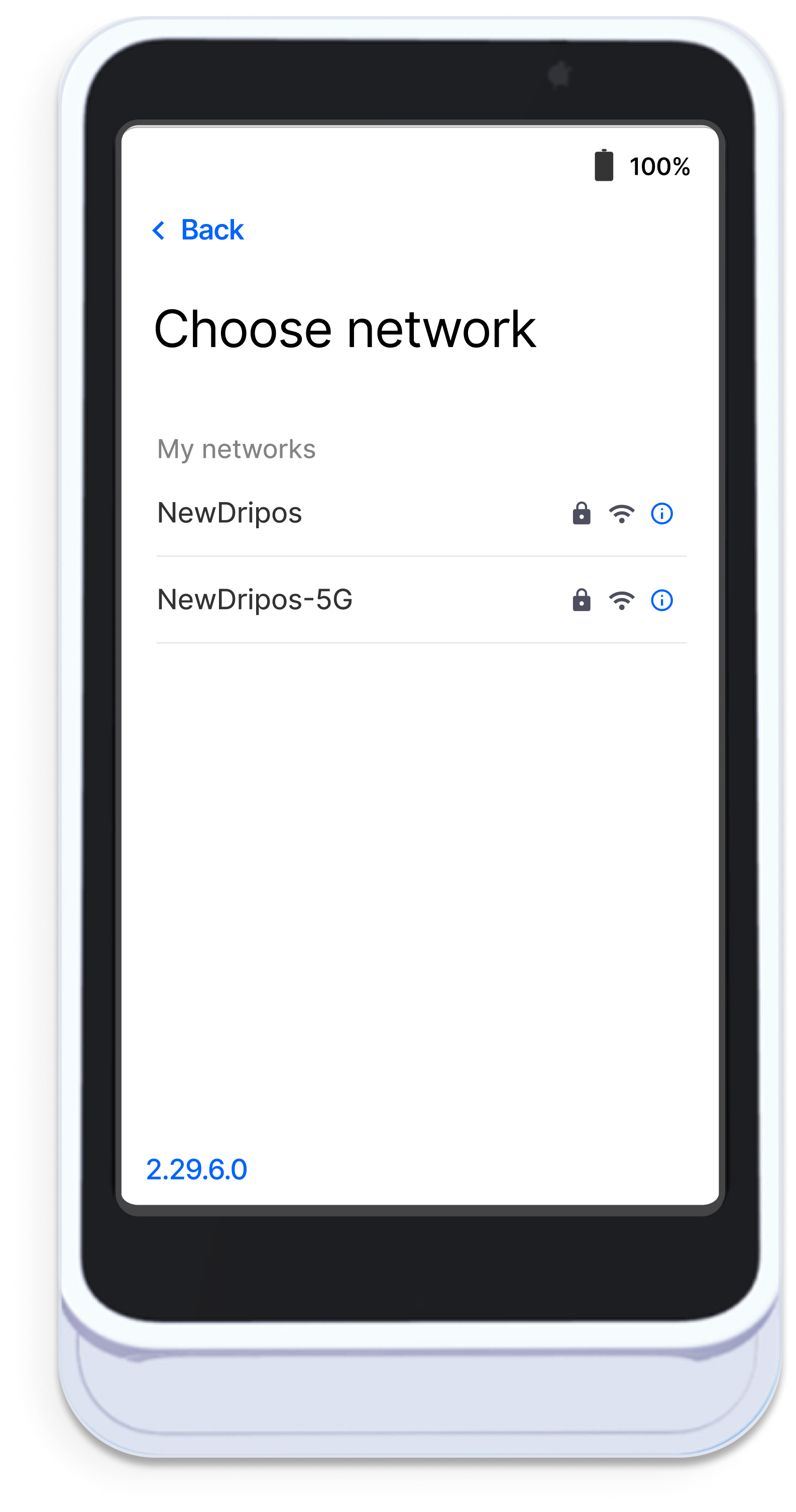
    <Step title="Choose Network">
      <Warning>
        The wifi network must be the same network the Point of Sale tablet is connected to.
      </Warning>

      <img src="https://mintcdn.com/frostbytetechnologiesinc/IRnuz7U5Ad0cC1Pm/images/s700%20-%2014.png?fit=max&auto=format&n=IRnuz7U5Ad0cC1Pm&q=85&s=5a3d421717bf21fef04baa115dd134a7" style={{width: "300px", height: "auto"}} width="1585" height="3011" data-path="images/s700 - 14.png" />
    </Step>

    <Step title="Register this Reader">
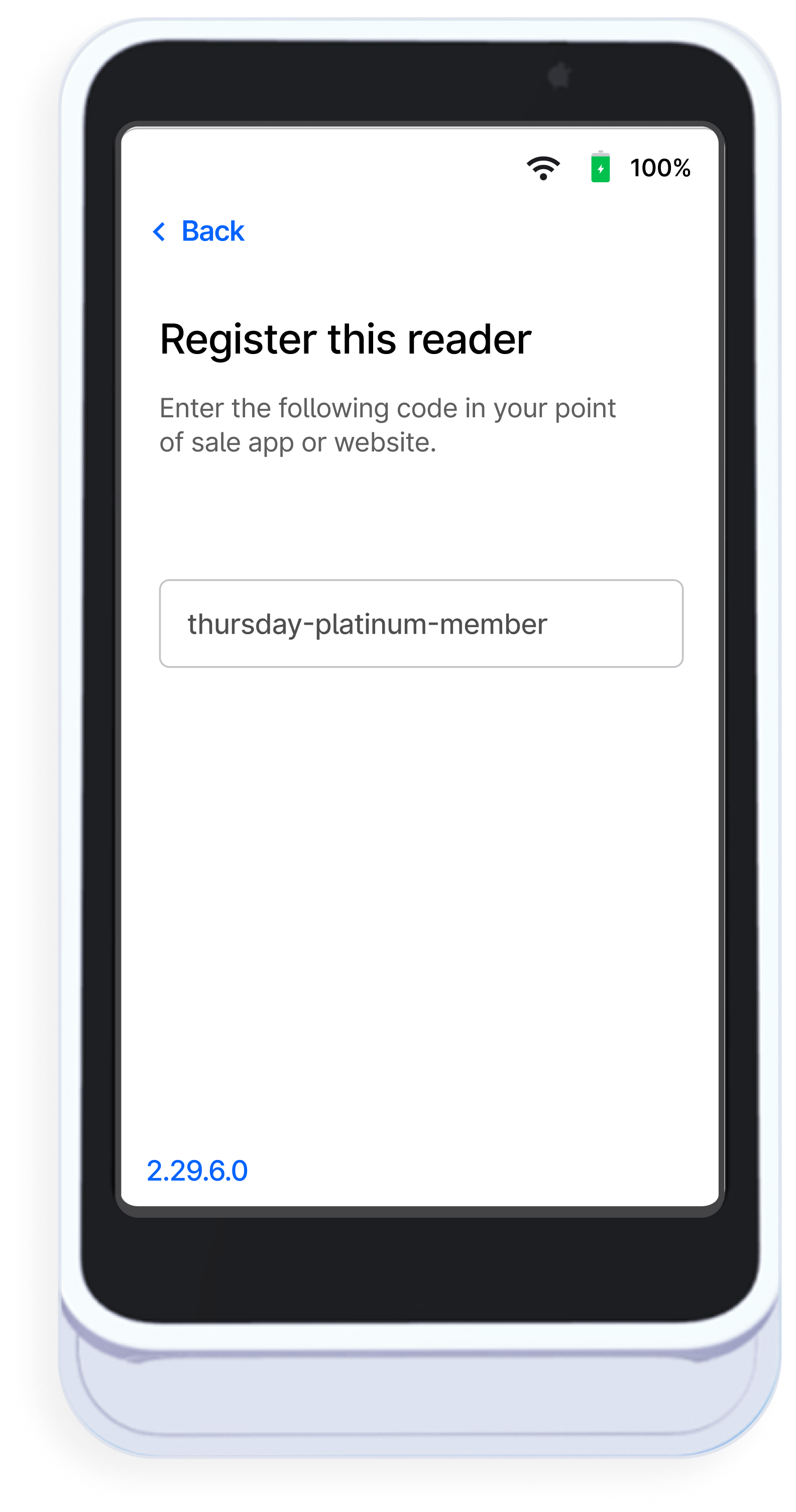
      The card reader will now display a three-word pairing code and is ready to connect to the Point of Sale
      <img src="https://mintcdn.com/frostbytetechnologiesinc/qhDv7Y4J3v4JDInZ/images/register.png?fit=max&auto=format&n=qhDv7Y4J3v4JDInZ&q=85&s=0dd1bd5da9d5dc72718f274746218e8d" style={{width: "300px", height: "auto"}} width="1585" height="3011" data-path="images/register.png" />
    </Step>

    <Step title="Add Reader">
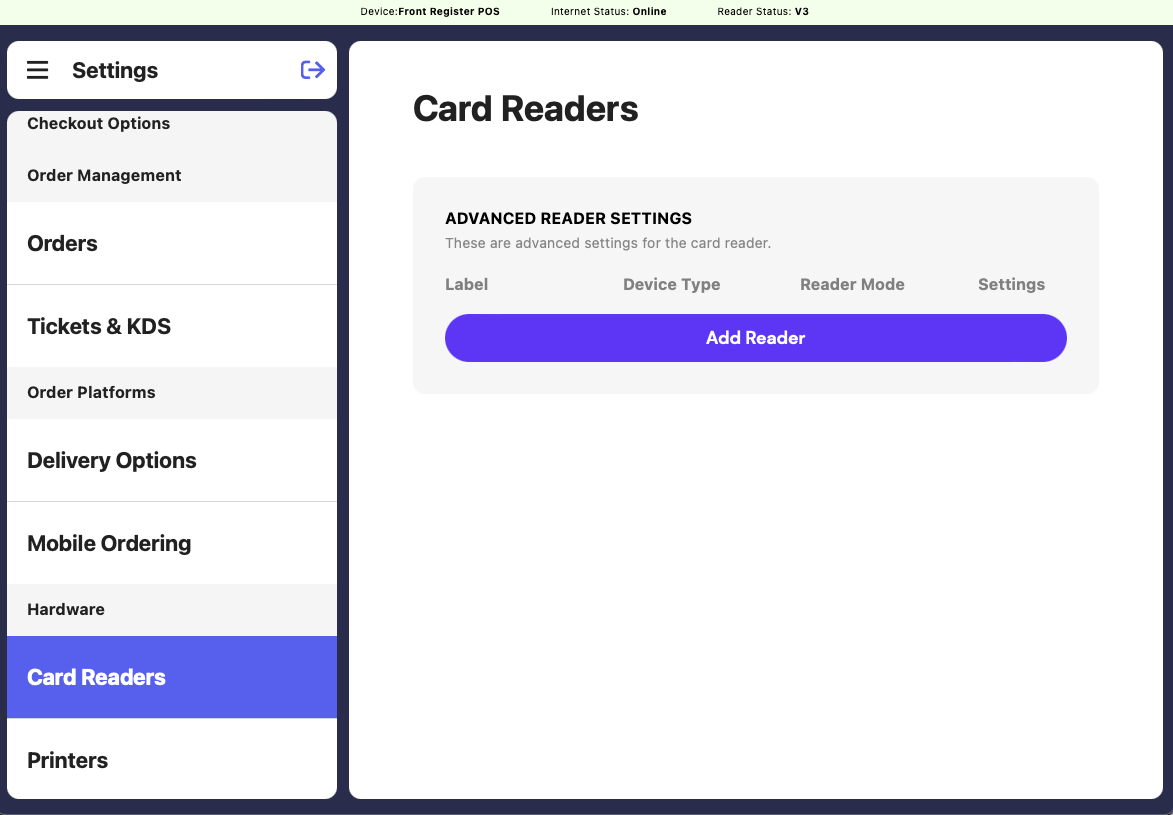
      On the Point of Sale, navigate to **Settings** > **Card Readers** and click **Add Reader**
      <Frame>
        <img src="https://mintcdn.com/frostbytetechnologiesinc/oDS0MwRd0kwnjh4a/hardware/hardware-images/reader-addreader.png?fit=max&auto=format&n=oDS0MwRd0kwnjh4a&q=85&s=990d8103f5a3d230e4bcbac3602835ed" width="1173" height="815" data-path="hardware/hardware-images/reader-addreader.png" />
      </Frame>
    </Step>

    <Step title="Reader Settings">
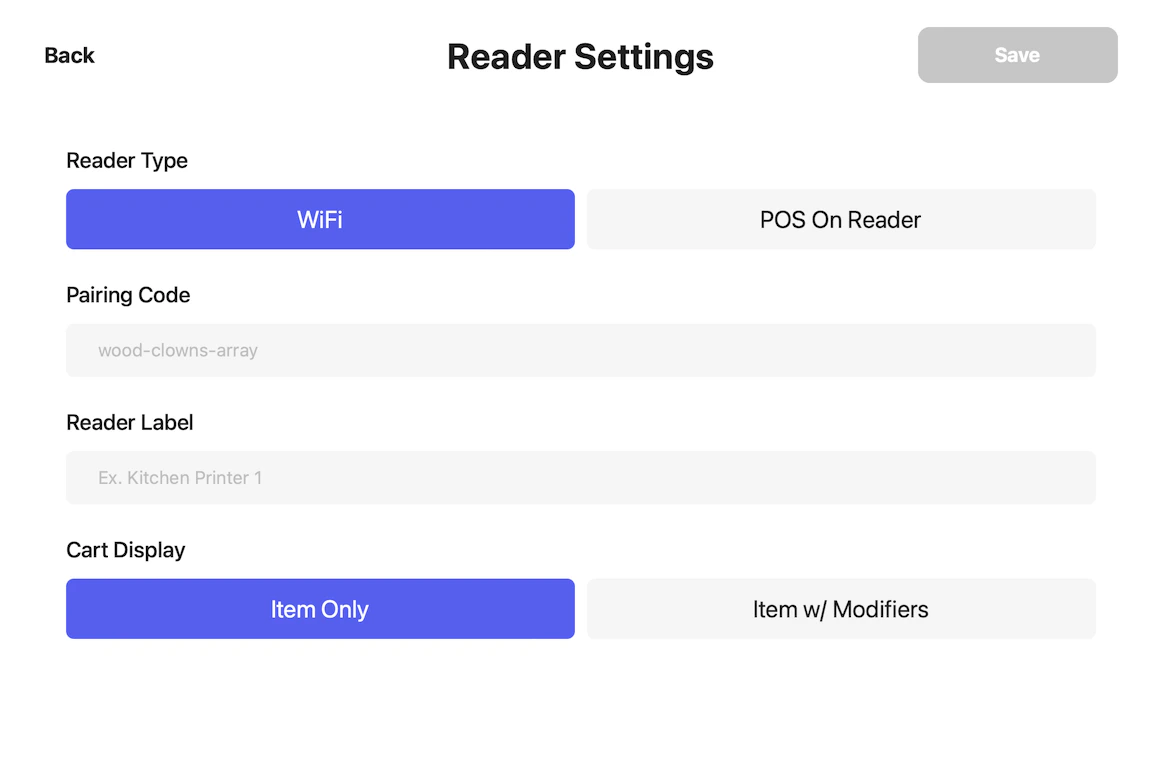
      Enter the following information and press **Save**
      <Frame>
        <img src="https://mintcdn.com/frostbytetechnologiesinc/2aAVq-slN_7TbT58/hardware/hardware-images/reader-pairv3.png?fit=max&auto=format&n=2aAVq-slN_7TbT58&q=85&s=3703f60b57b2c7dd0ed0b4bb036bce96" width="1163" height="770" data-path="hardware/hardware-images/reader-pairv3.png" />
      </Frame>

      **Reader Type**

      * Select **WiFi** as the **Reader Type**

      **Pairing Code**

      * Enter the pairing code shown on your card reader, including the dashes

      <img src="https://mintcdn.com/frostbytetechnologiesinc/qhDv7Y4J3v4JDInZ/images/register.png?fit=max&auto=format&n=qhDv7Y4J3v4JDInZ&q=85&s=0dd1bd5da9d5dc72718f274746218e8d" style={{width: "150px", height: "auto"}} width="1585" height="3011" data-path="images/register.png" />

      **Reader Label**

      * Create a name for this reader (i.e., Front Register Reader, Drive Thru Reader, Register 1 Reader)

      **Cart Display**

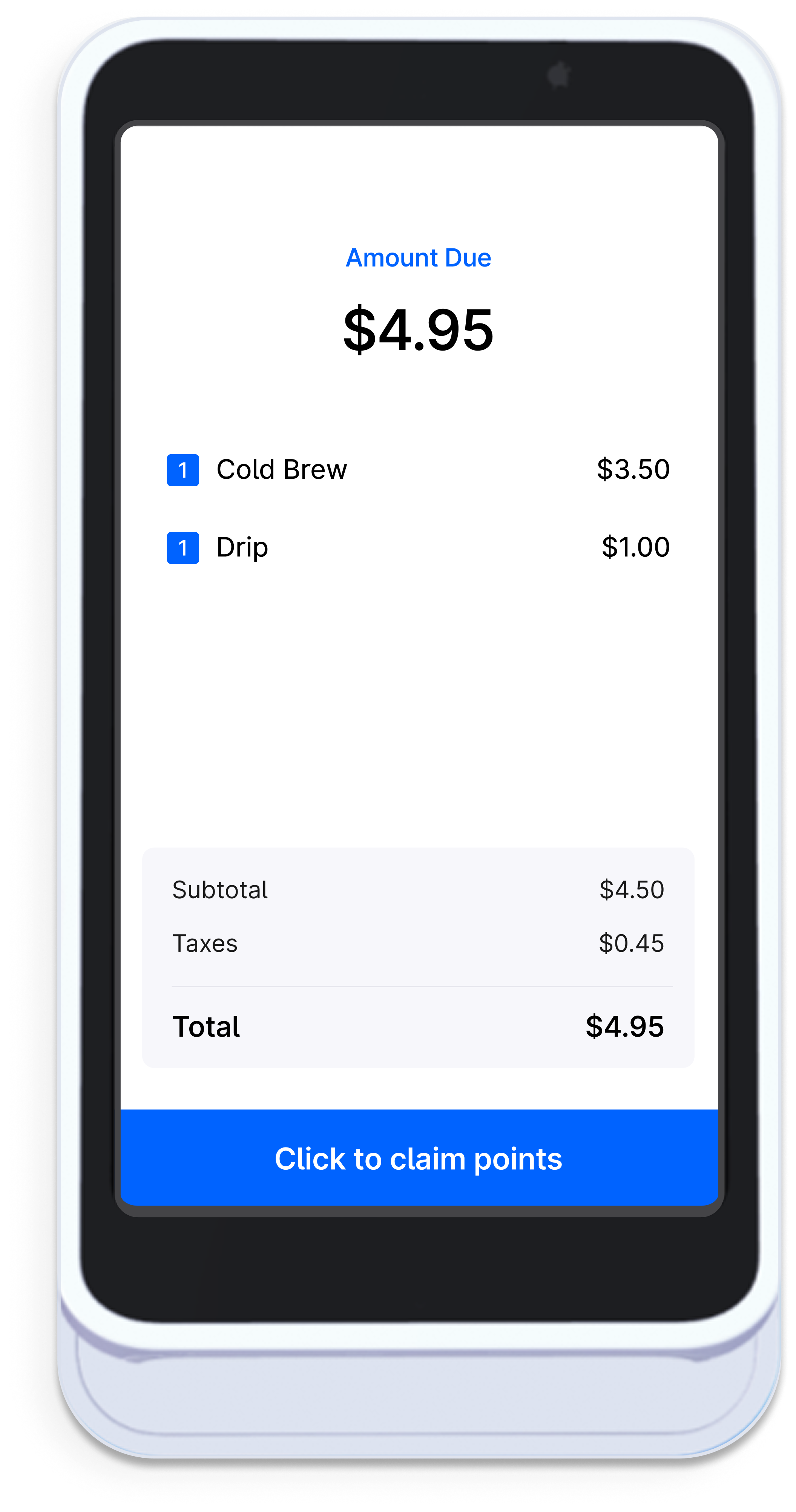
      * **Item Only**: Only products added to cart will display on the card reader for customers to view
      <img src="https://mintcdn.com/frostbytetechnologiesinc/IRnuz7U5Ad0cC1Pm/images/s700-02.png?fit=max&auto=format&n=IRnuz7U5Ad0cC1Pm&q=85&s=fc3c07fa9183b252b6b9958bed37b6bf" style={{width: "150px", height: "auto"}} width="2111" height="4011" data-path="images/s700-02.png" />

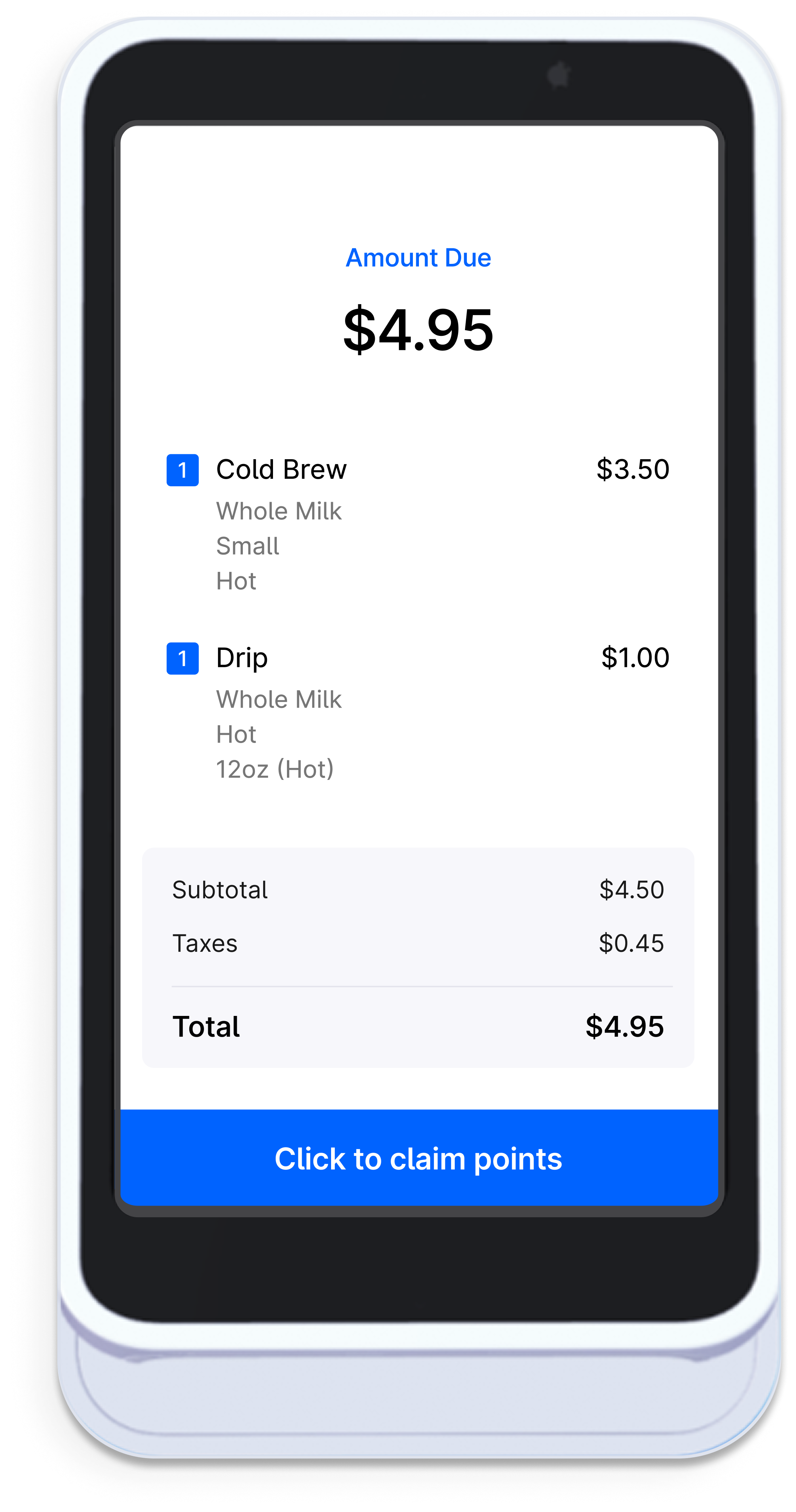
      * **Item w/ Modifiers**: Products and their selected modifiers will be shown on the card reader for customers to view
      <img src="https://mintcdn.com/frostbytetechnologiesinc/IRnuz7U5Ad0cC1Pm/images/s700-03.png?fit=max&auto=format&n=IRnuz7U5Ad0cC1Pm&q=85&s=b1754888c6ce261c07580d982179493f" style={{width: "150px", height: "auto"}} width="2111" height="4011" data-path="images/s700-03.png" />
    </Step>

    <Step title="Select a Register">
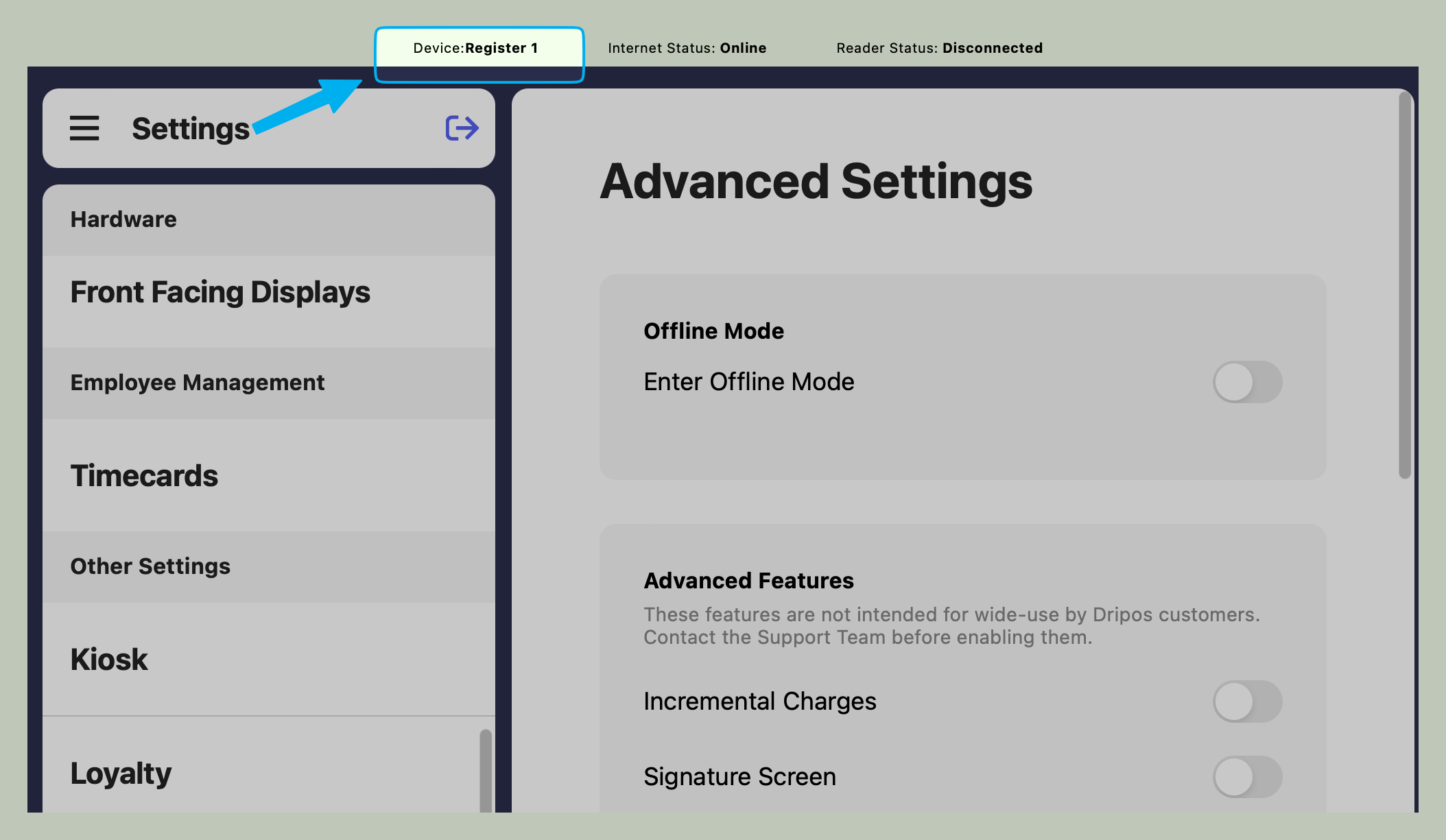
      After the card reader completes the updates, select the register device to connect this reader to

      <Tip>
        The name of the device is shown at the top of the Point of Sale app
        <Frame>
          <img src="https://mintcdn.com/frostbytetechnologiesinc/wrczndpe_v0PHot3/images/marketing/device.png?fit=max&auto=format&n=wrczndpe_v0PHot3&q=85&s=949aa9ec0b64875f33569b2f56d99f52" width="2108" height="1225" data-path="images/marketing/device.png" />
        </Frame>
      </Tip>
    </Step>
  </Steps>
</Accordion>

<Accordion title="Migrate to Latest Card Reader Software (For Existing Customers)">
  <Steps>
    <Step title="Turn Off V1 Setting">
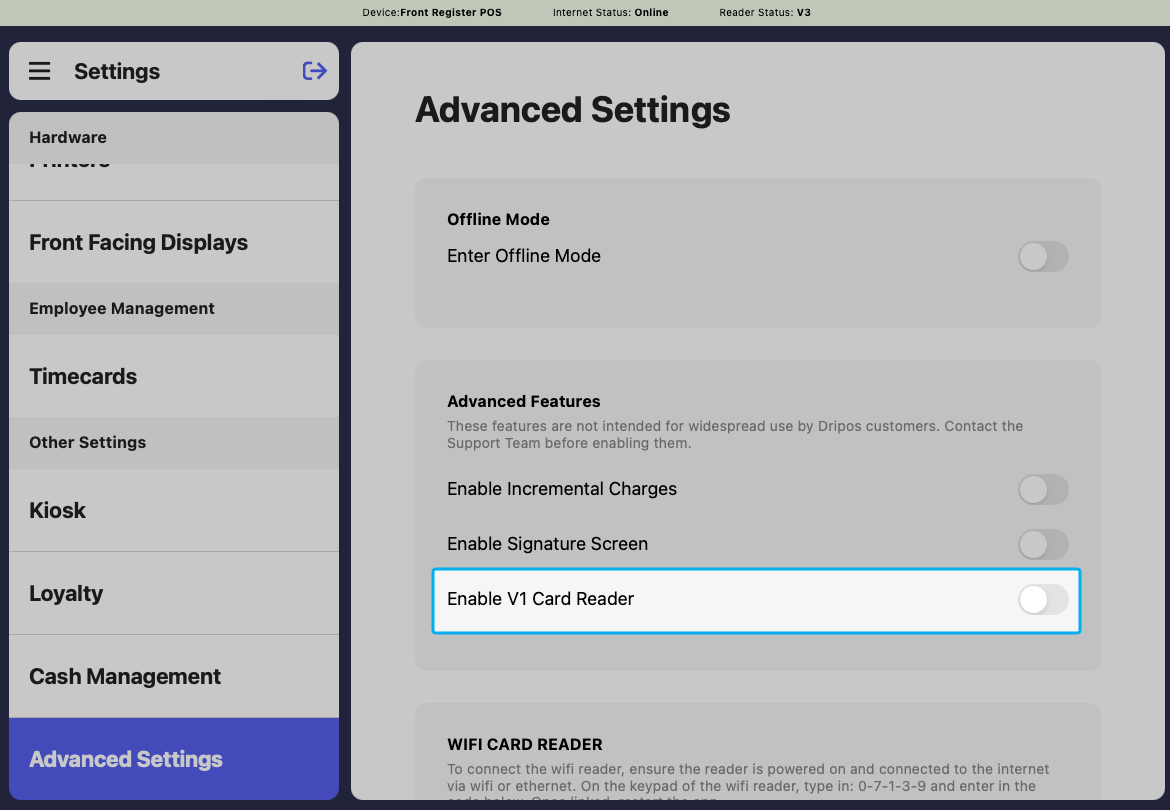
      On the Point of Sale, press the **tribar** <Icon icon="bars" /> in the upper left corner and navigate to **Settings** > **Advanced Settings** to turn off the **Enable V1 Card Reader** setting
      <Frame>
        <img src="https://mintcdn.com/frostbytetechnologiesinc/oDS0MwRd0kwnjh4a/hardware/hardware-images/reader-enablev1.png?fit=max&auto=format&n=oDS0MwRd0kwnjh4a&q=85&s=941af5c412652de20f5341485636b664" width="1170" height="810" data-path="hardware/hardware-images/reader-enablev1.png" />
      </Frame>
    </Step>

    <Step title="Restart the POS">
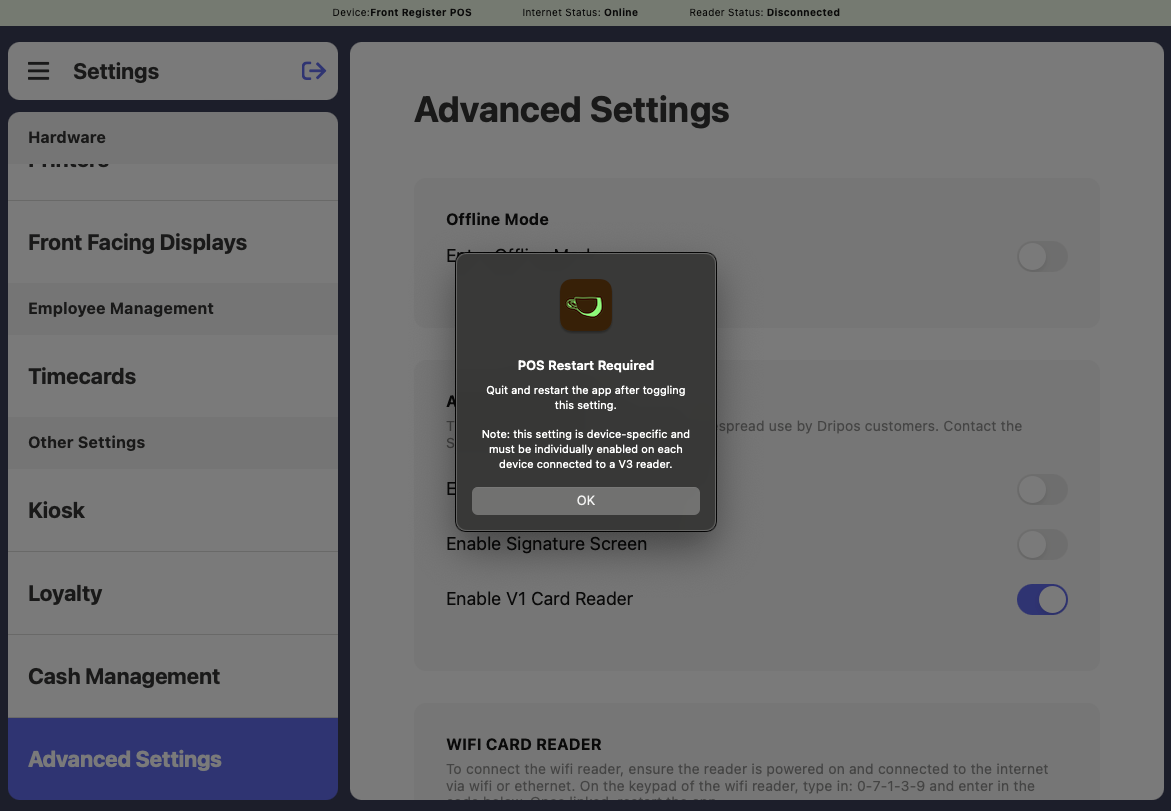
      Press **OK** and scroll down in **Advanced Settings** to select the **Restart App** button
      <Frame>
        <img src="https://mintcdn.com/frostbytetechnologiesinc/-3ze4gFs5jKLrehy/hardware/hardware-images/reader-restartposv1.png?fit=max&auto=format&n=-3ze4gFs5jKLrehy&q=85&s=d2f32938f68635dec222cc6b9d388f24" width="1171" height="811" data-path="hardware/hardware-images/reader-restartposv1.png" />
      </Frame>

      <Frame>
        <img src="https://mintcdn.com/frostbytetechnologiesinc/ADahhd6yCTTK8lvP/images/marketing/restart.png?fit=max&auto=format&n=ADahhd6yCTTK8lvP&q=85&s=4ebc111df5865bea8e7a3f13786447bc" width="2030" height="1514" data-path="images/marketing/restart.png" />
      </Frame>
    </Step>

    <Step title="Migrate to V3">
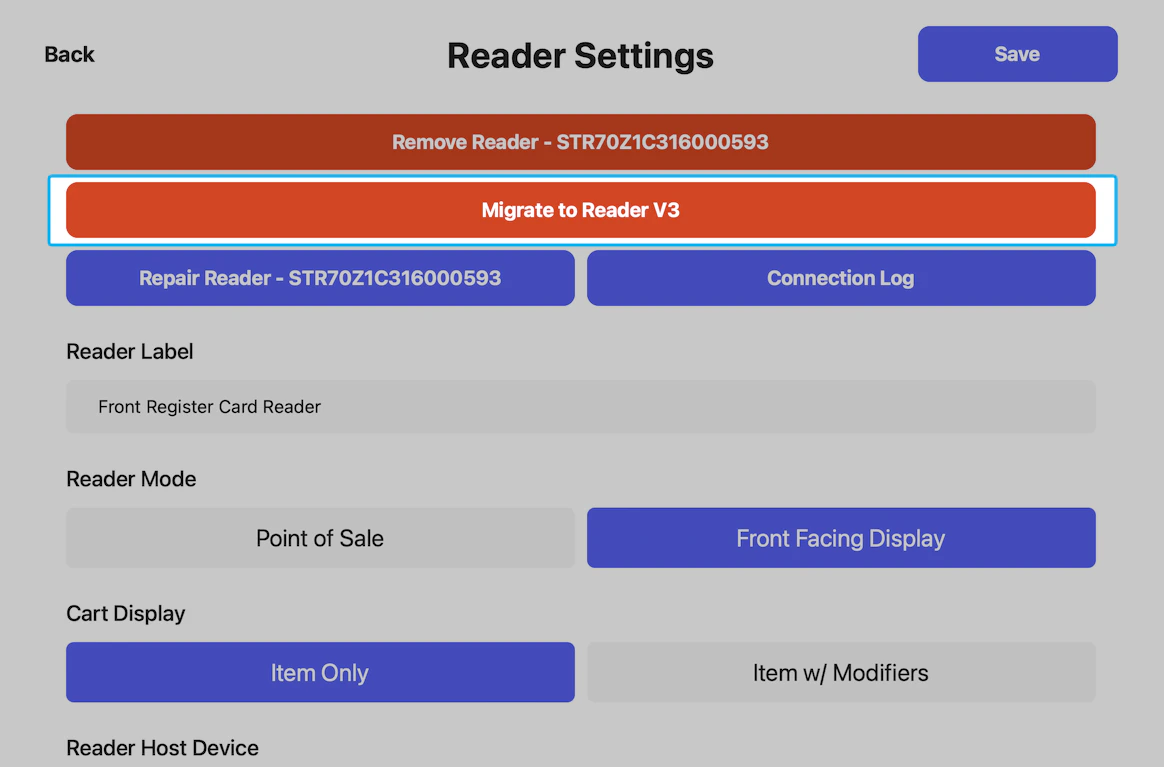
      Navigate to POS **Settings** > **Card Readers**, click the pencil icon to update an existing card reader and press **Migrate to V3**

      <Frame>
        <img src="https://mintcdn.com/frostbytetechnologiesinc/2aAVq-slN_7TbT58/hardware/hardware-images/reader-migratebutton.png?fit=max&auto=format&n=2aAVq-slN_7TbT58&q=85&s=6b2eed783ff19589f9ef719f05b0fa52" width="1164" height="767" data-path="hardware/hardware-images/reader-migratebutton.png" />
      </Frame>
    </Step>

    <Step title="Restart Card Reader">
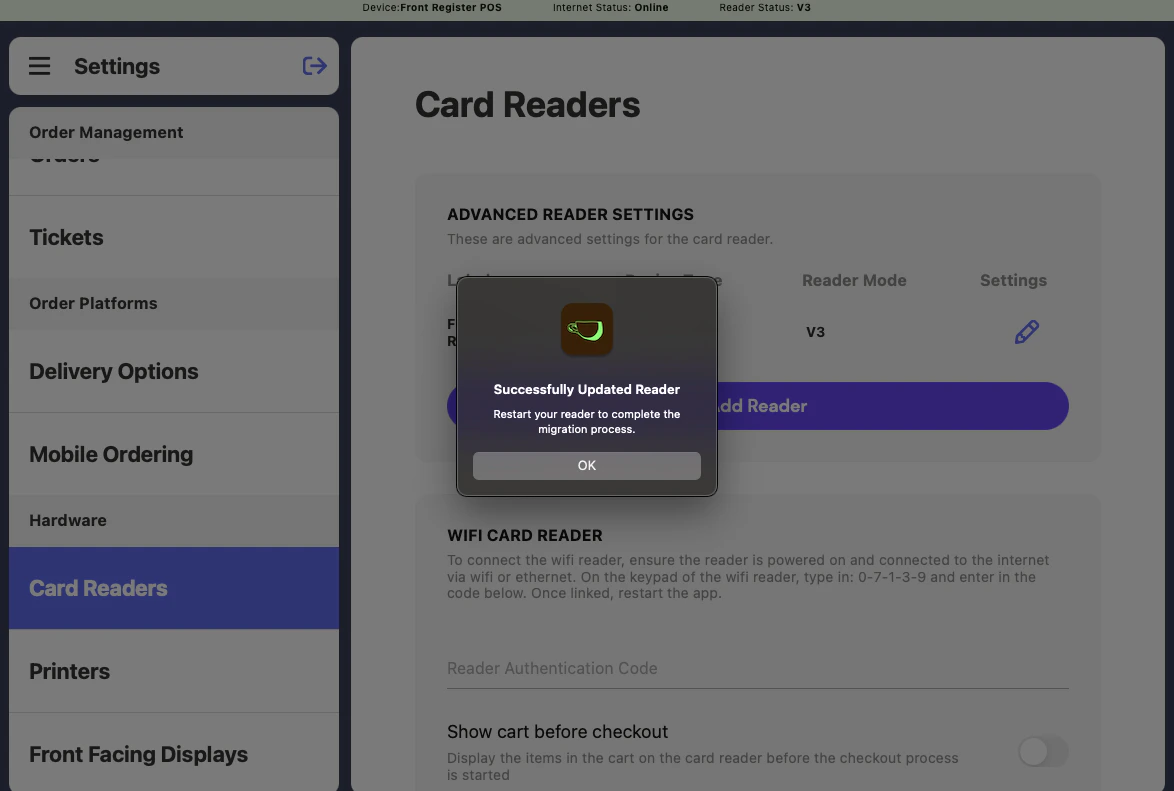
      Once your card reader successfully migrates to V3, press **OK** and hold the power button on the card reader to **Restart**

      <Frame>
        <img src="https://mintcdn.com/frostbytetechnologiesinc/2aAVq-slN_7TbT58/hardware/hardware-images/reader-successmigrate.png?fit=max&auto=format&n=2aAVq-slN_7TbT58&q=85&s=9a3e3e38405280039445b4b2bf833958" width="1174" height="791" data-path="hardware/hardware-images/reader-successmigrate.png" />
      </Frame>
    </Step>

    <Step title="Select a Register">
      After the card reader restarts, select the register device to connect this reader to

      <Tip>
        The name of the device is shown at the top of the Point of Sale screen.

        <Frame>
          <img src="https://mintcdn.com/frostbytetechnologiesinc/wrczndpe_v0PHot3/images/marketing/device.png?fit=max&auto=format&n=wrczndpe_v0PHot3&q=85&s=949aa9ec0b64875f33569b2f56d99f52" width="2108" height="1225" data-path="images/marketing/device.png" />
        </Frame>
      </Tip>
    </Step>
  </Steps>
</Accordion>

<Accordion title="Legacy Card Reader Instructions">
  <Danger> Do not pair your card reader using these instructions unless instructed by your onboarding specialist or Dripos Support. </Danger>

  <Steps>
    <Step title="Turn on Card Reader">
      Hold down the power button for 5 seconds until a purple Stripe screen appears

      <Frame>
        <img src="https://mintcdn.com/frostbytetechnologiesinc/lA980-SrTShXzYYu/images/hardware/reader/reader-s700-0.webp?fit=max&auto=format&n=lA980-SrTShXzYYu&q=85&s=a41b027749703bce3a47eb902648fad3" width="1754" height="1241" data-path="images/hardware/reader/reader-s700-0.webp" />
      </Frame>
    </Step>

    <Step title="Choose Network">
      <img src="https://mintcdn.com/frostbytetechnologiesinc/IRnuz7U5Ad0cC1Pm/images/s700%20-%2014.png?fit=max&auto=format&n=IRnuz7U5Ad0cC1Pm&q=85&s=5a3d421717bf21fef04baa115dd134a7" style={{width: "300px", height: "auto"}} width="1585" height="3011" data-path="images/s700 - 14.png" />
    </Step>

    <Step title="Register this Reader">
      Use the three-word pairing code to connect the reader to the Point of Sale device

      <img src="https://mintcdn.com/frostbytetechnologiesinc/qhDv7Y4J3v4JDInZ/images/register.png?fit=max&auto=format&n=qhDv7Y4J3v4JDInZ&q=85&s=0dd1bd5da9d5dc72718f274746218e8d" style={{width: "300px", height: "auto"}} width="1585" height="3011" data-path="images/register.png" />
    </Step>

    <Step title="Enable V1 Setting">
      On the Point of Sale, press the **tribar** <Icon icon="bars" /> in the upper left corner and navigate to **Settings** > **Advanced Settings** to turn on the **Enable V1 Card Reader** setting

      <Frame>
        <img src="https://mintcdn.com/frostbytetechnologiesinc/oDS0MwRd0kwnjh4a/hardware/hardware-images/reader-enablev1.png?fit=max&auto=format&n=oDS0MwRd0kwnjh4a&q=85&s=941af5c412652de20f5341485636b664" width="1170" height="810" data-path="hardware/hardware-images/reader-enablev1.png" />
      </Frame>
    </Step>

    <Step title="Restart the POS">
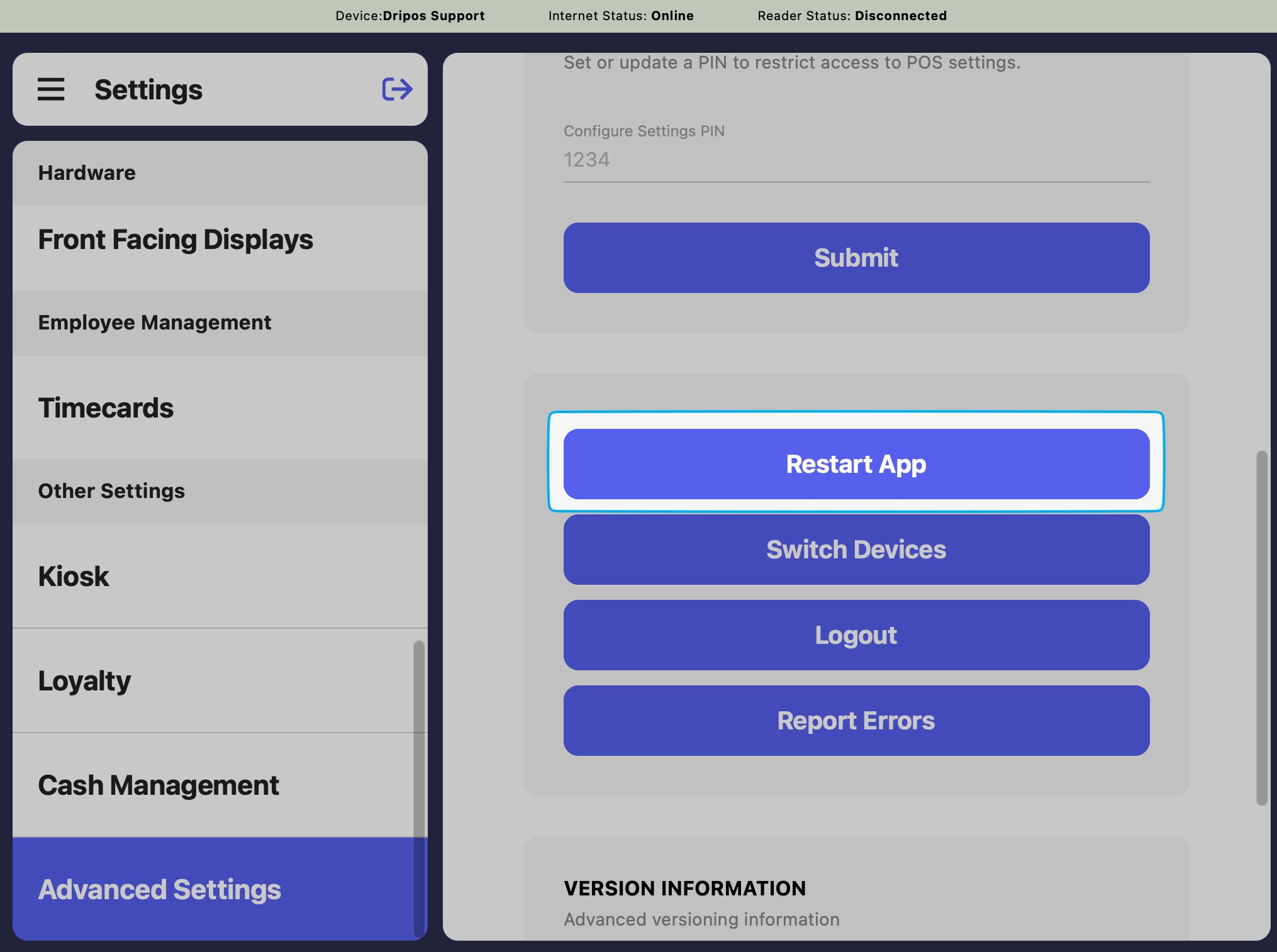
      Press **OK** and scroll down in **Advanced Settings** to select the **Restart App** button
      <Frame>
        <img src="https://mintcdn.com/frostbytetechnologiesinc/-3ze4gFs5jKLrehy/hardware/hardware-images/reader-restartposv1.png?fit=max&auto=format&n=-3ze4gFs5jKLrehy&q=85&s=d2f32938f68635dec222cc6b9d388f24" width="1171" height="811" data-path="hardware/hardware-images/reader-restartposv1.png" />
      </Frame>

      <Frame>
        <img src="https://mintcdn.com/frostbytetechnologiesinc/ADahhd6yCTTK8lvP/images/marketing/restart.png?fit=max&auto=format&n=ADahhd6yCTTK8lvP&q=85&s=4ebc111df5865bea8e7a3f13786447bc" width="2030" height="1514" data-path="images/marketing/restart.png" />
      </Frame>
    </Step>

    <Step title="Add Reader to Point of Sale">
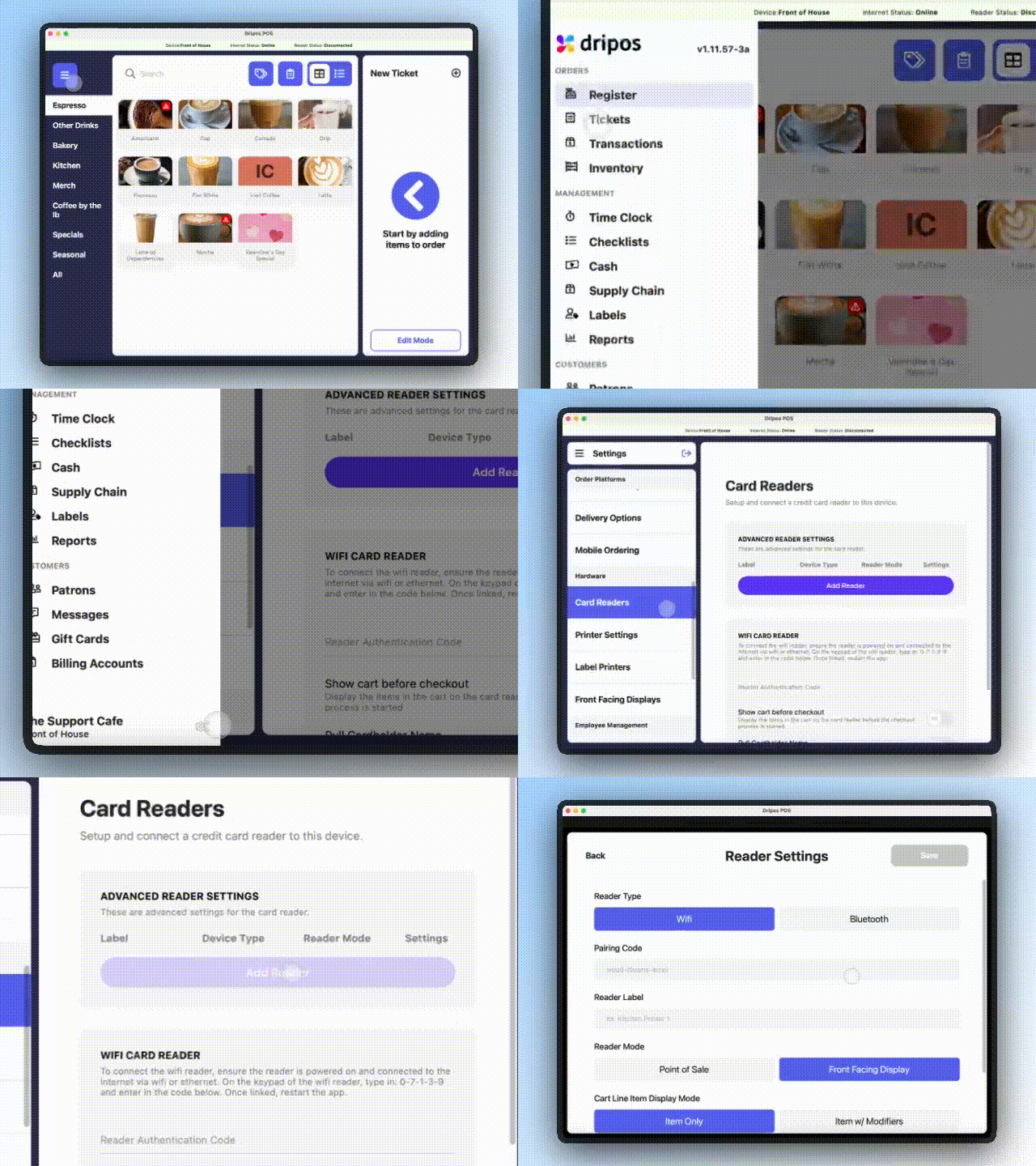
      On the Point of Sale, navigate to **Settings** > **Card Readers** and click **Add Reader**
      <Frame>
        <img src="https://mintcdn.com/frostbytetechnologiesinc/YqwdzHDi4ywuzB6Y/images/Add%20Reader%20to%20POS.gif?s=9c5ce477d7a4398c0231613f9fdc6530" width="640" height="480" data-path="images/Add Reader to POS.gif" />
      </Frame>
    </Step>

    <Step title="Configure Reader Settings">
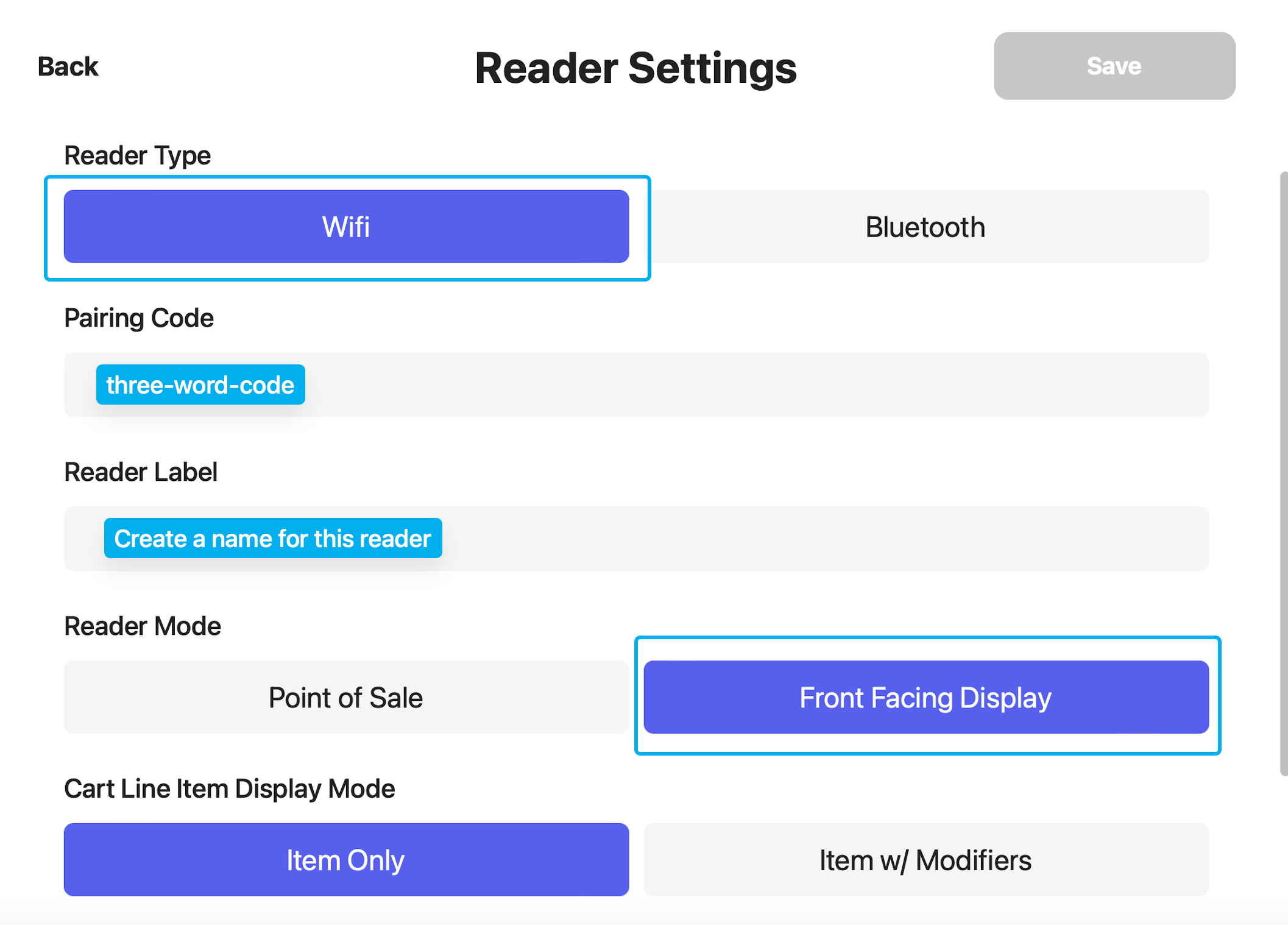
      Complete the fields below to pair the card reader to the Point of Sale
      <Frame>
        <img src="https://mintcdn.com/frostbytetechnologiesinc/qhDv7Y4J3v4JDInZ/images/reader%20setup.png?fit=max&auto=format&n=qhDv7Y4J3v4JDInZ&q=85&s=c6df07f1ea1c8d8ff1c981578fc62e2c" width="2114" height="1518" data-path="images/reader setup.png" />
      </Frame>

      <AccordionGroup>
        <Accordion title="Reader Type">
          Select **Wifi** for the S700 pairing
        </Accordion>

        <Accordion title="Pairing Code">
          Enter the three word code on the card reader from **Step 3**

          *\*Case sensitive including dashes **word-word-word***
        </Accordion>

        <Accordion title="Reader Label">
          Create a name for this reader, *i.e. Front Register Reader, Drive Thru Reader, Register 1 Reader*
        </Accordion>

        <Accordion title="Reader Mode">
          **Front Facing Display**: Customers can see their items in cart, enter their phone number, and pay with card.

          <img src="https://mintcdn.com/frostbytetechnologiesinc/IRnuz7U5Ad0cC1Pm/images/s700-02.png?fit=max&auto=format&n=IRnuz7U5Ad0cC1Pm&q=85&s=fc3c07fa9183b252b6b9958bed37b6bf" width="2111" height="4011" data-path="images/s700-02.png" />

          **Point of Sale**: Use card reader to view your full menu and take orders, as well as take payment.
        </Accordion>

        <Accordion title="Cart Line Item Display Mode">
          **Item Only**: Only products added to cart will display on the front facing card reader for customers to view

          <img src="https://mintcdn.com/frostbytetechnologiesinc/IRnuz7U5Ad0cC1Pm/images/s700-02.png?fit=max&auto=format&n=IRnuz7U5Ad0cC1Pm&q=85&s=fc3c07fa9183b252b6b9958bed37b6bf" width="2111" height="4011" data-path="images/s700-02.png" />

          **Item w/ Modifiers**: Products and their selected modifiers will be shown on the front-facing card reader for customers to view.

          <img src="https://mintcdn.com/frostbytetechnologiesinc/IRnuz7U5Ad0cC1Pm/images/s700-03.png?fit=max&auto=format&n=IRnuz7U5Ad0cC1Pm&q=85&s=b1754888c6ce261c07580d982179493f" width="2111" height="4011" data-path="images/s700-03.png" />
        </Accordion>

        <Accordion title="Reader Host Device">
          <Warning>
            One card reader per host device. Do not pair more than one card reader to a host device.
          </Warning>

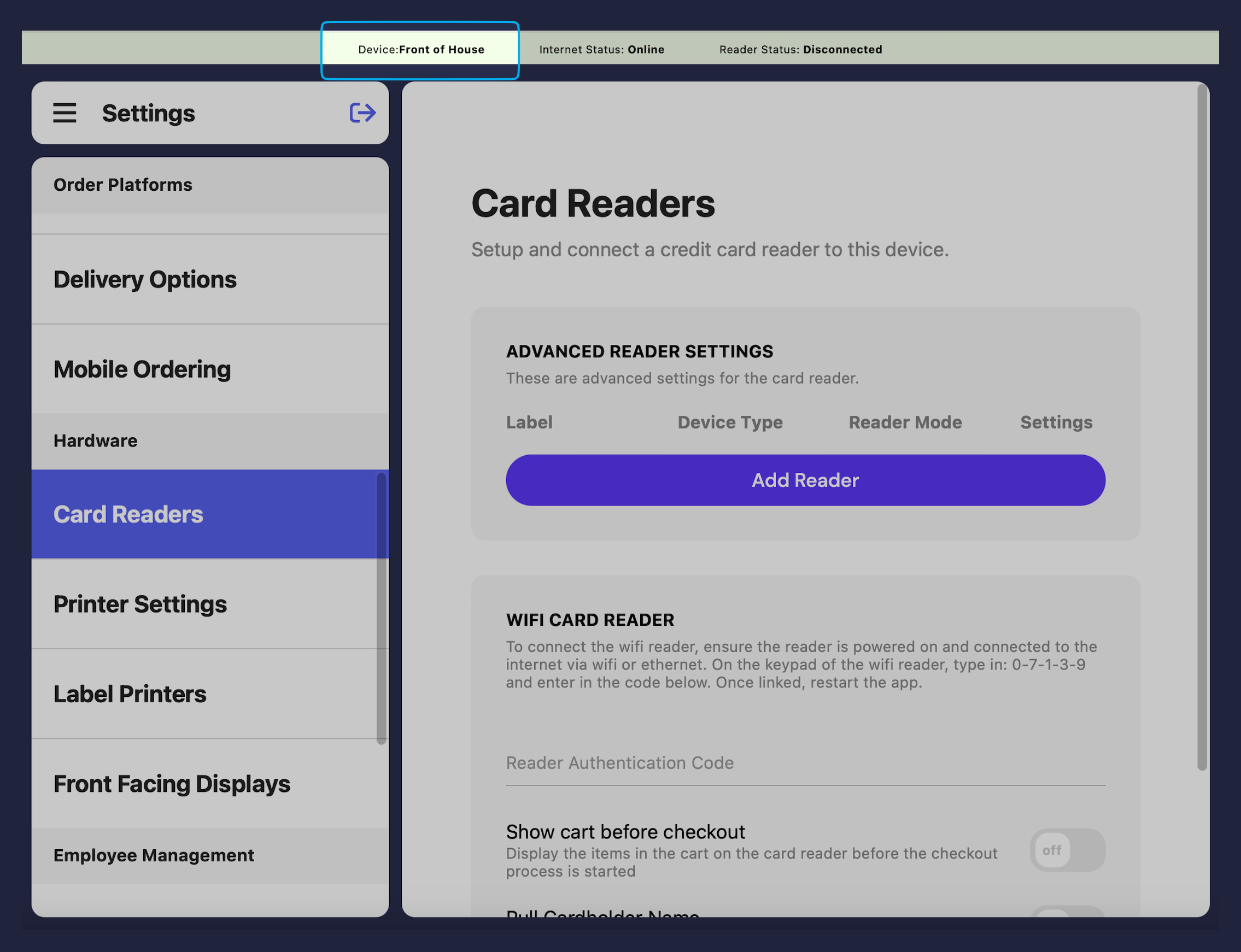
          Select the Point of Sale device to pair this reader with. Find the name of the device you are pairing to here:
          <Frame>
            <img src="https://mintcdn.com/frostbytetechnologiesinc/58CqbDgq14lJFANX/images/device%20name.png?fit=max&auto=format&n=58CqbDgq14lJFANX&q=85&s=a0cb34484c7766e615ad40376266b563" width="2270" height="1742" data-path="images/device name.png" />
          </Frame>
        </Accordion>
      </AccordionGroup>
    </Step>

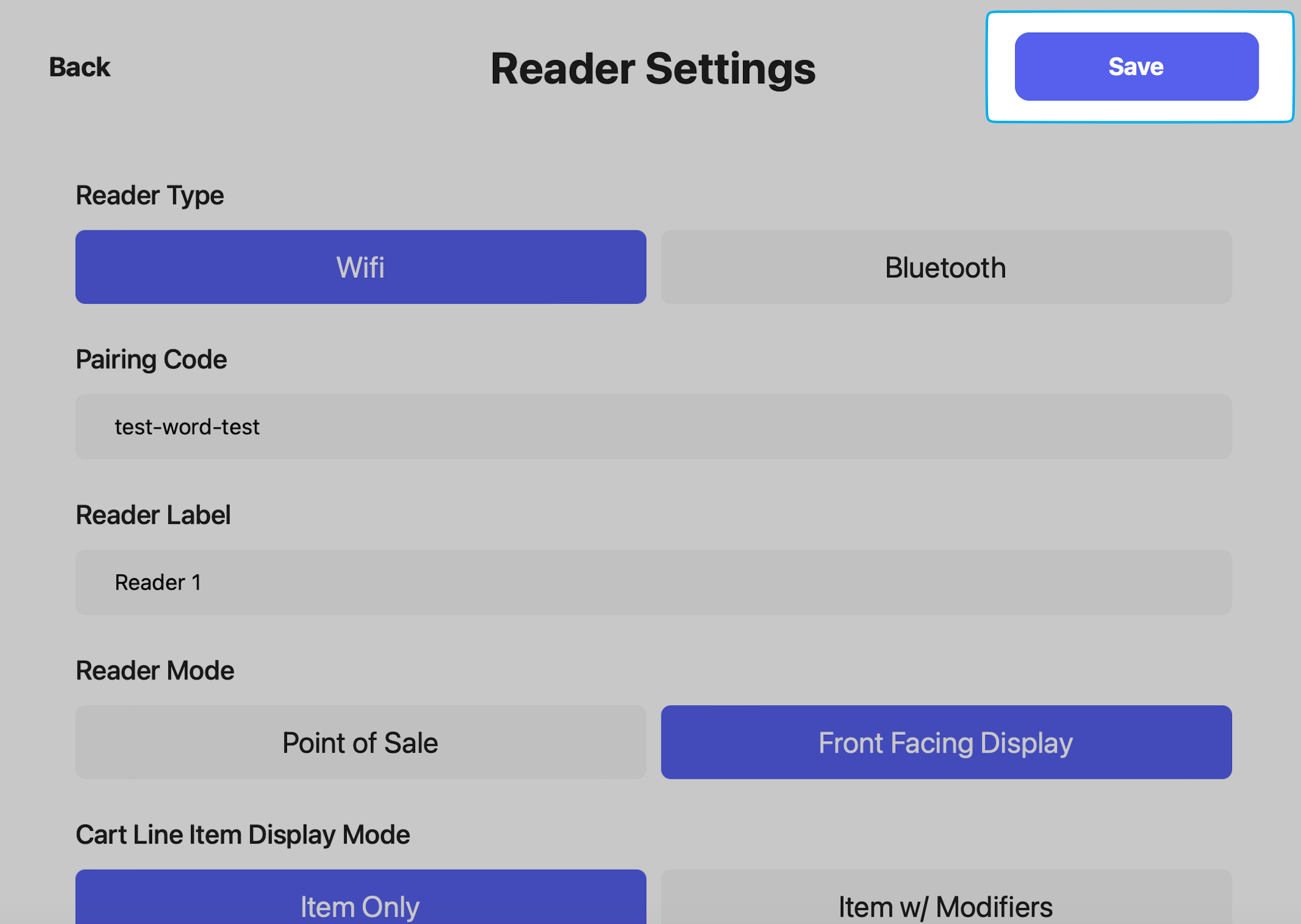
    <Step title="Save Reader">
      <Frame>
        <img src="https://mintcdn.com/frostbytetechnologiesinc/58CqbDgq14lJFANX/images/click%20save.png?fit=max&auto=format&n=58CqbDgq14lJFANX&q=85&s=4ae1a02b6f9a0b7034e35e9d693a936d" width="2112" height="1500" data-path="images/click save.png" />
      </Frame>
    </Step>

    <Step title="Confirm Reader Connection">
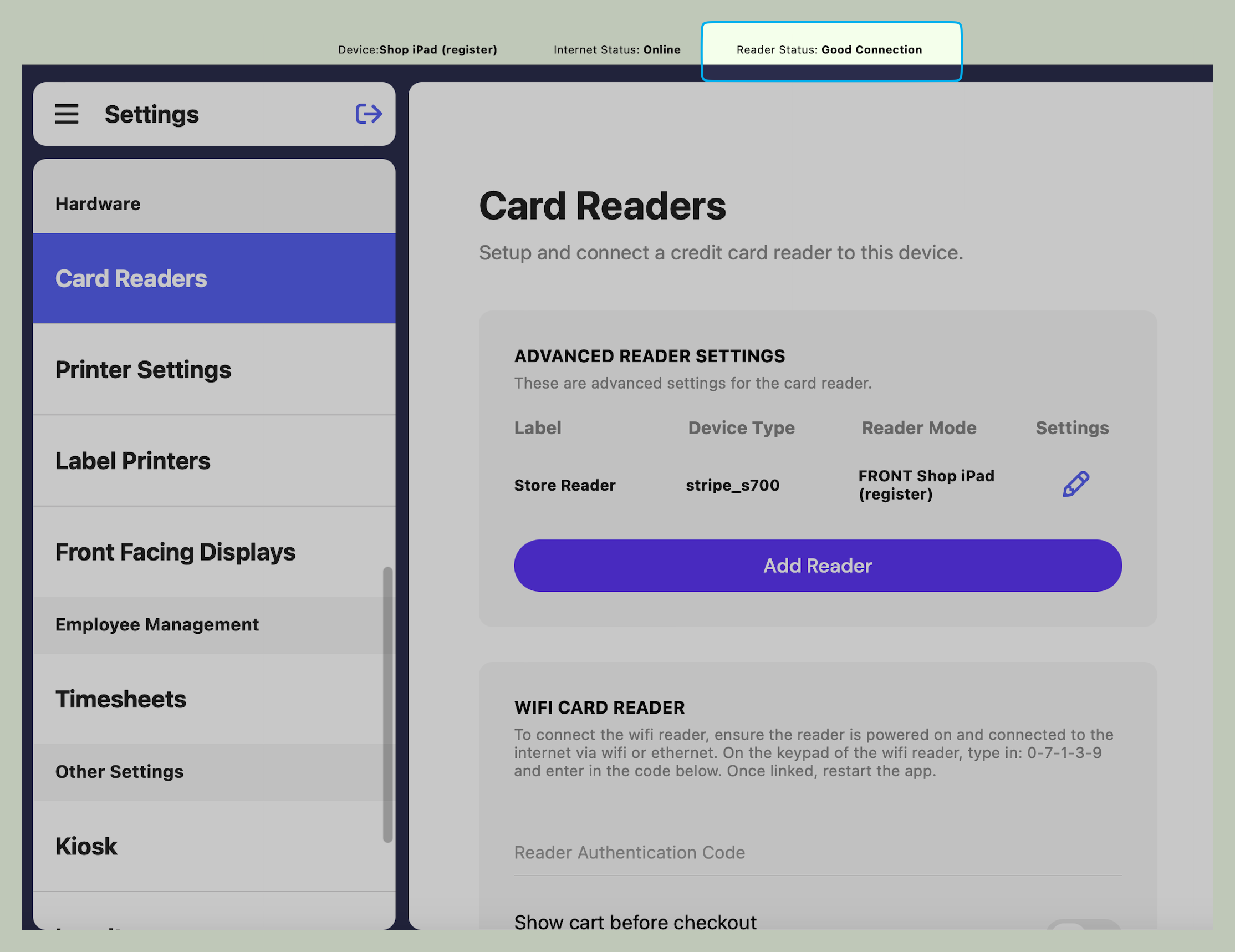
      Once a reader is successfully paired, confirm **Reader Status** = **Good Connection**
      <Frame>
        <img src="https://mintcdn.com/frostbytetechnologiesinc/M7fb2W8QvCkxzP1g/images/good%20connection.png?fit=max&auto=format&n=M7fb2W8QvCkxzP1g&q=85&s=1d58a0dbf6ab50732455ed085a83b81f" width="2228" height="1717" data-path="images/good connection.png" />
      </Frame>

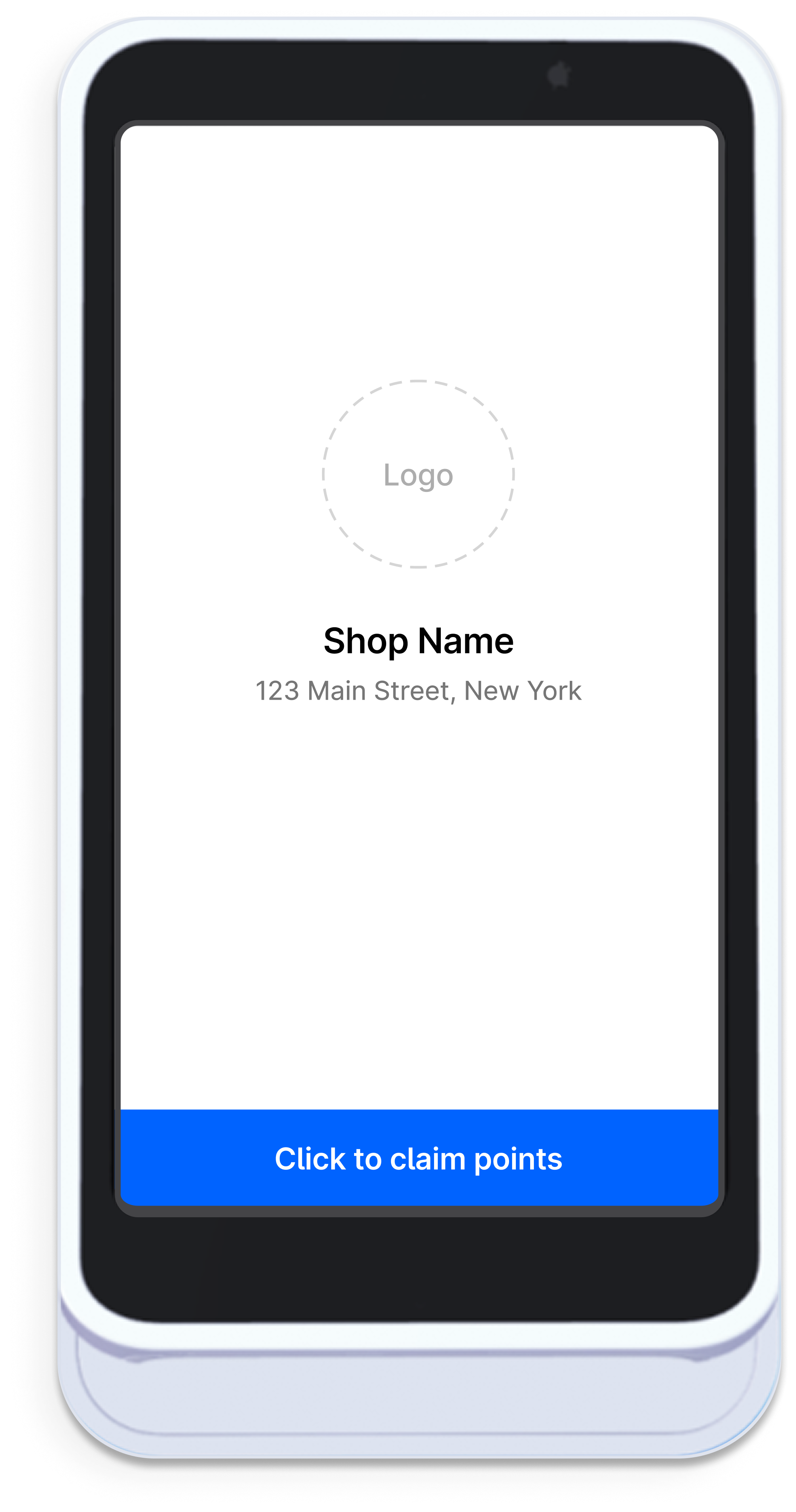
      The card reader screen will then display your shop's logo:
      <img src="https://mintcdn.com/frostbytetechnologiesinc/IRnuz7U5Ad0cC1Pm/images/s700-01.png?fit=max&auto=format&n=IRnuz7U5Ad0cC1Pm&q=85&s=4d2269ab812f047d20c0d27a31bd35a3" style={{width: "300px", height: "auto"}} width="2111" height="4011" data-path="images/s700-01.png" />
    </Step>
  </Steps>
</Accordion>