> ## Documentation Index
> Fetch the complete documentation index at: https://support.dripos.com/llms.txt
> Use this file to discover all available pages before exploring further.
# Campaigns
> 🎉 Dripos' new and improved marketing system is coming November 12th, 2025!
## Create a Campaign
*Campaigns can be created on any location Dashboard, as all locations share the same text marketing number and email.*
On the **Dashboard**, navigate to [**Marketing** > **Communications**](https://dashboard.dripos.com/communication-campaigns) > **Create Campaign**
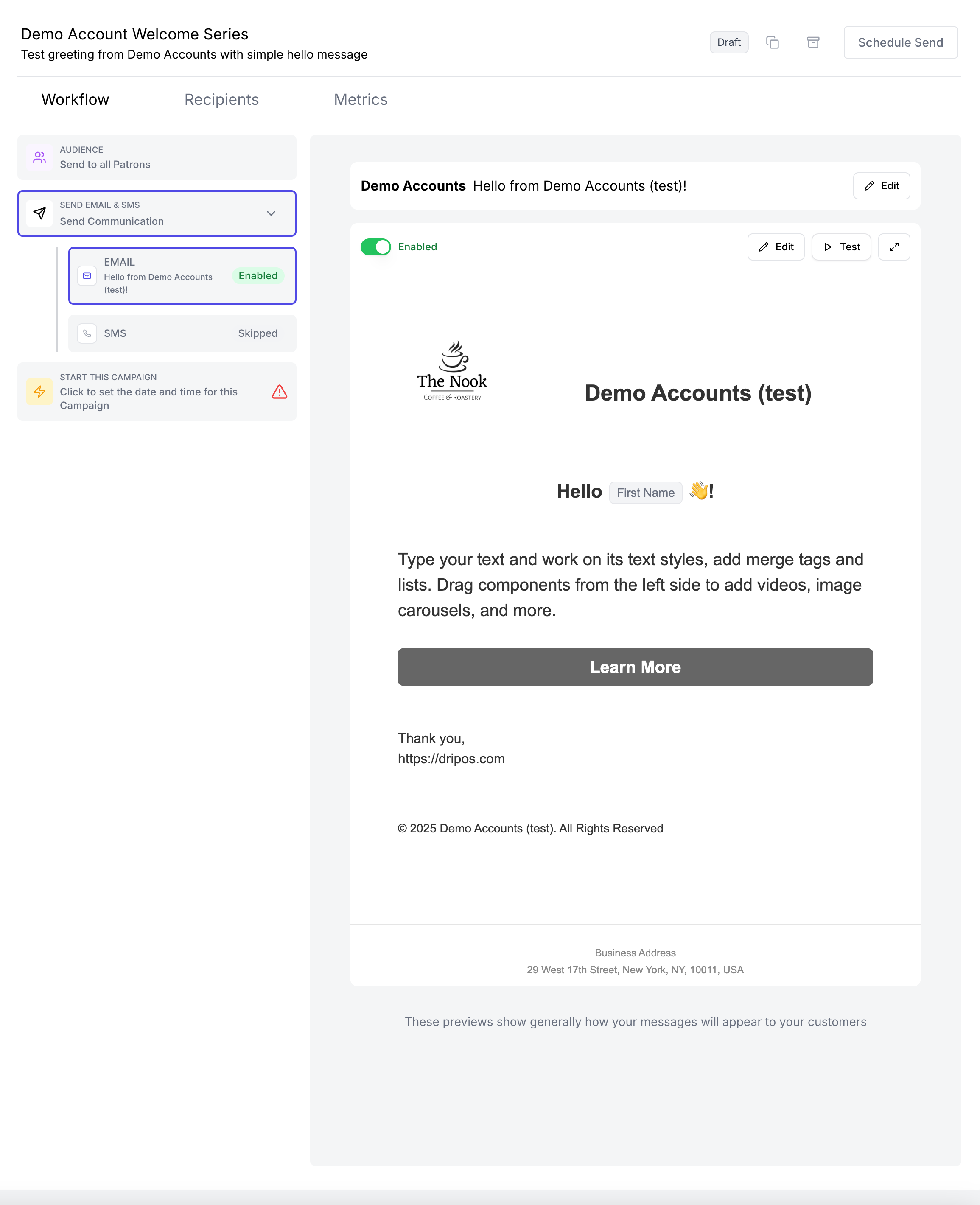
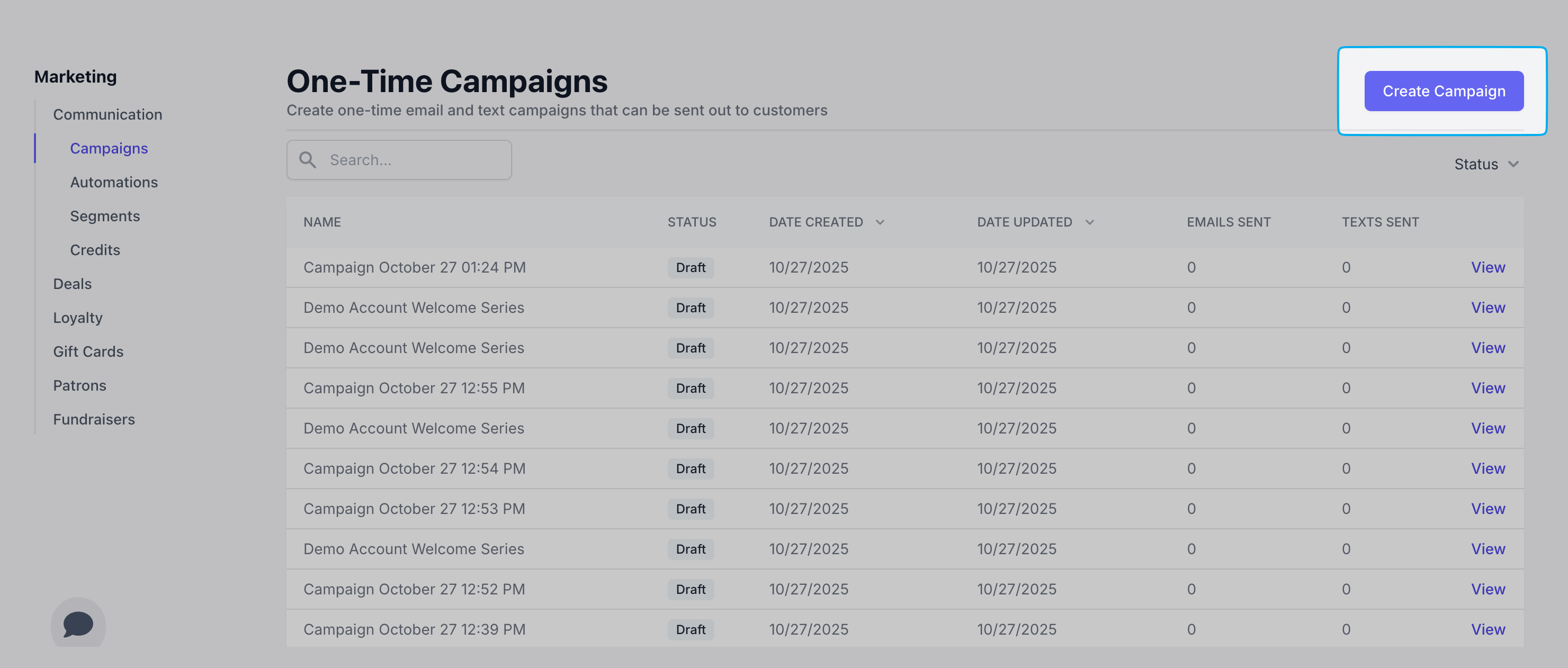 At any point in the campaign creation process, click **Skip & Save as Draft** to view the campaign draft in a full-page view.
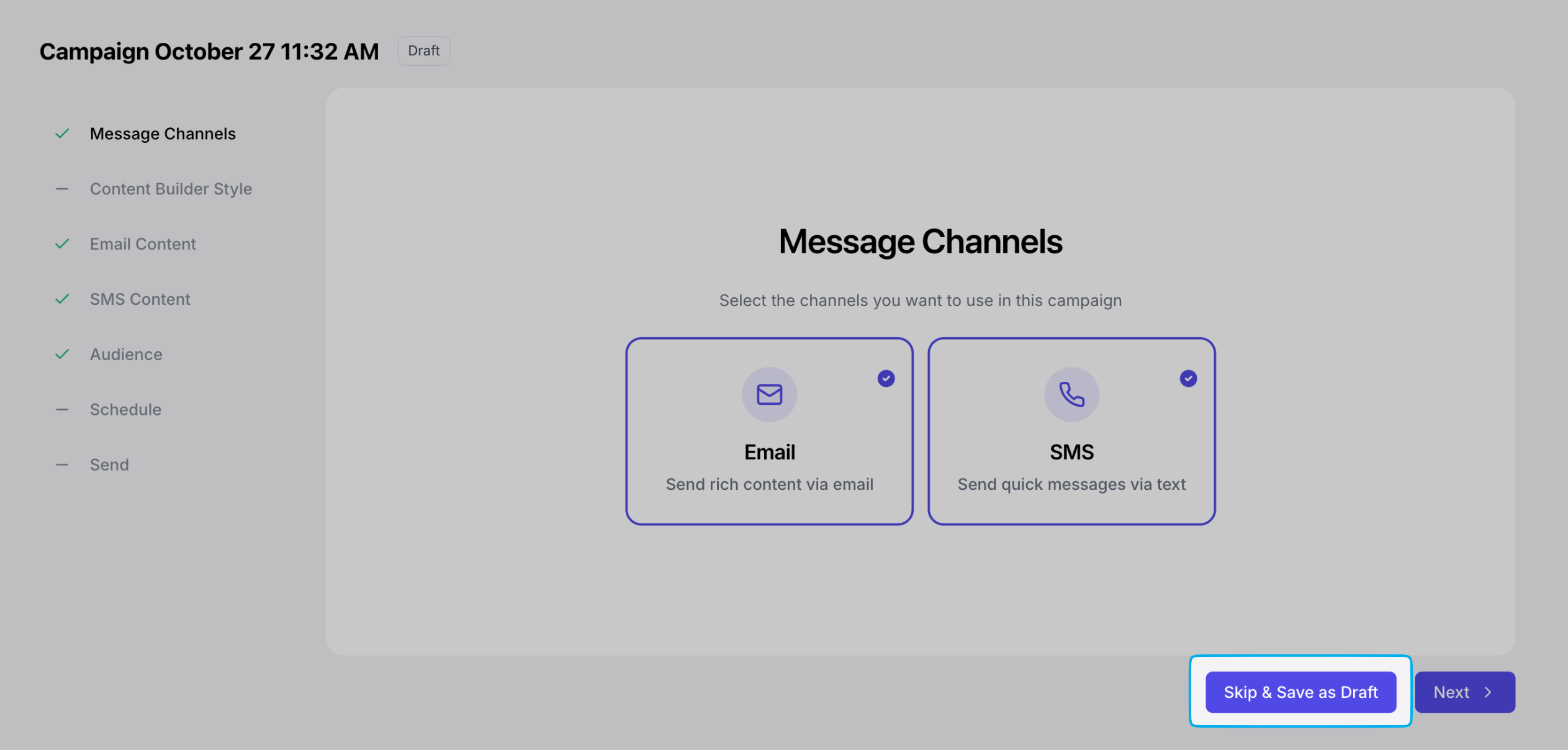
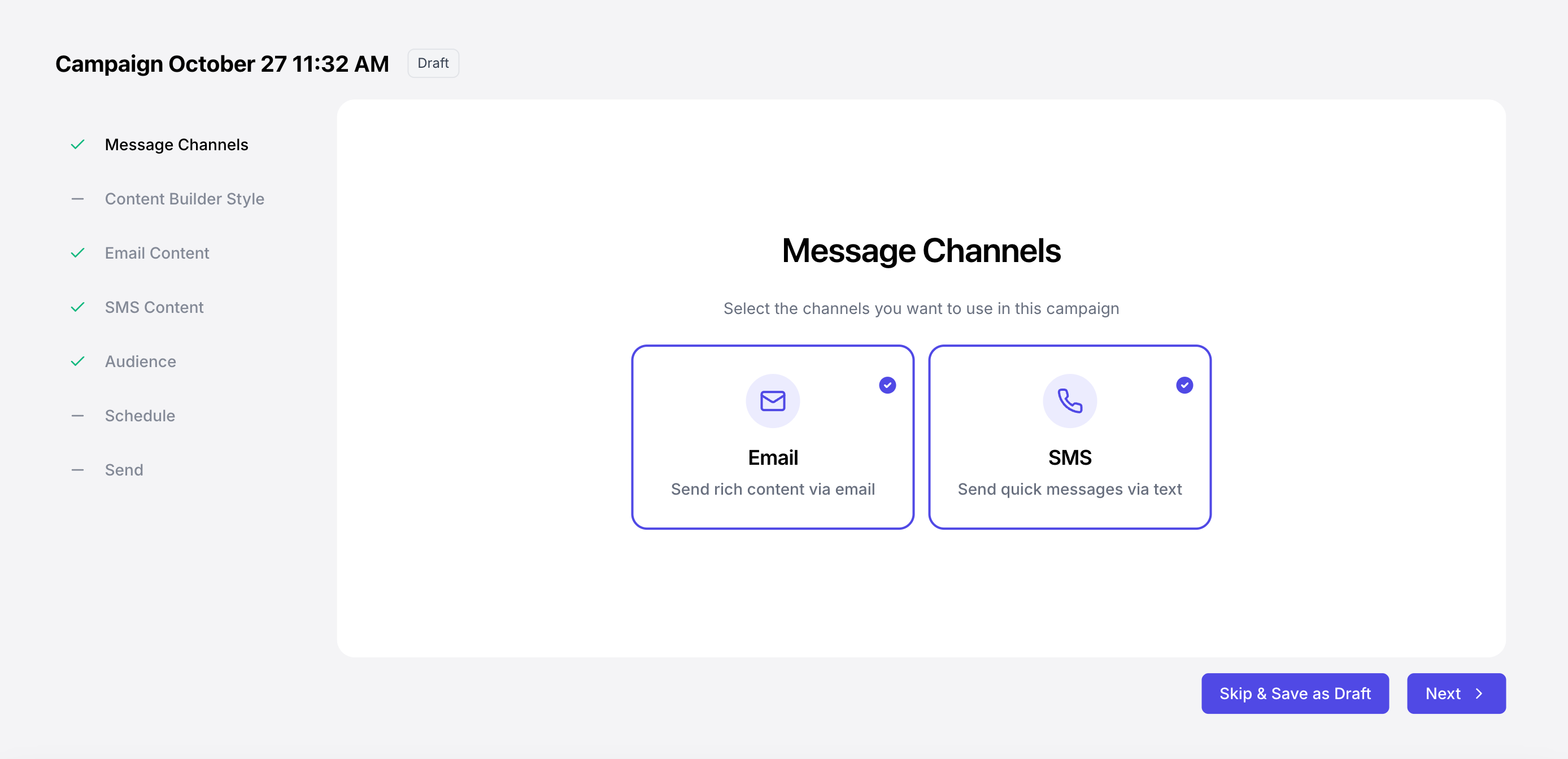
 ### Message Channels
Select the desired channel(s) to begin planning the content, audience, and strategy.
📧 **Email**: Best for detailed offers, rich visuals, and building longer-term relationships.
📱 **SMS**: Best for urgent alerts, immediate calls-to-action, and quick updates.
🤝 **Both** (Email & SMS): To create a coordinated multi-channel experience for the same marketing goal (e.g., send a detailed email with a brief SMS reminder).
### Message Channels
Select the desired channel(s) to begin planning the content, audience, and strategy.
📧 **Email**: Best for detailed offers, rich visuals, and building longer-term relationships.
📱 **SMS**: Best for urgent alerts, immediate calls-to-action, and quick updates.
🤝 **Both** (Email & SMS): To create a coordinated multi-channel experience for the same marketing goal (e.g., send a detailed email with a brief SMS reminder).
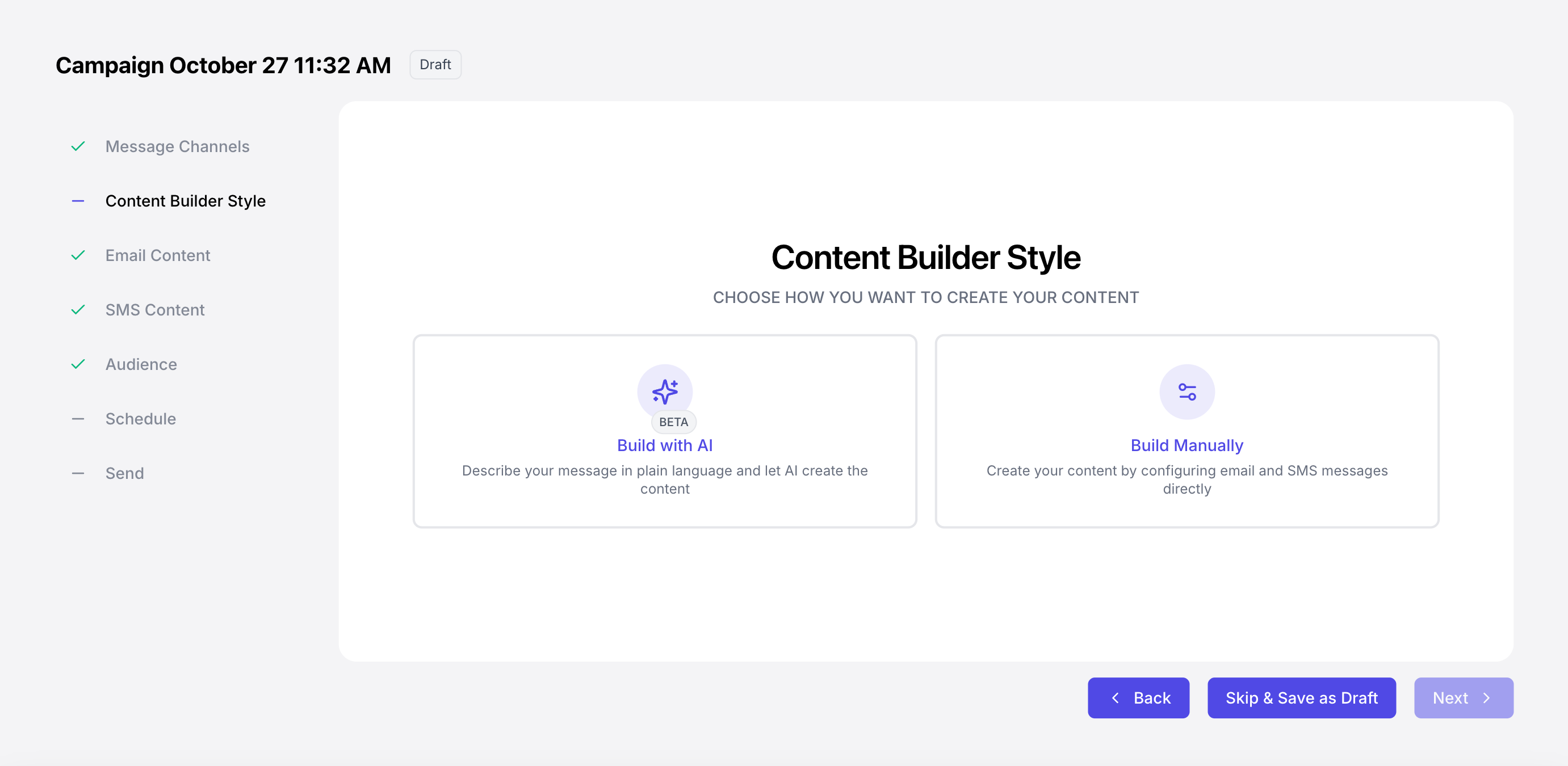
 ### Content Builder
Create your own SMS or email content, or ask AI to do it for you!
### Content Builder
Create your own SMS or email content, or ask AI to do it for you!
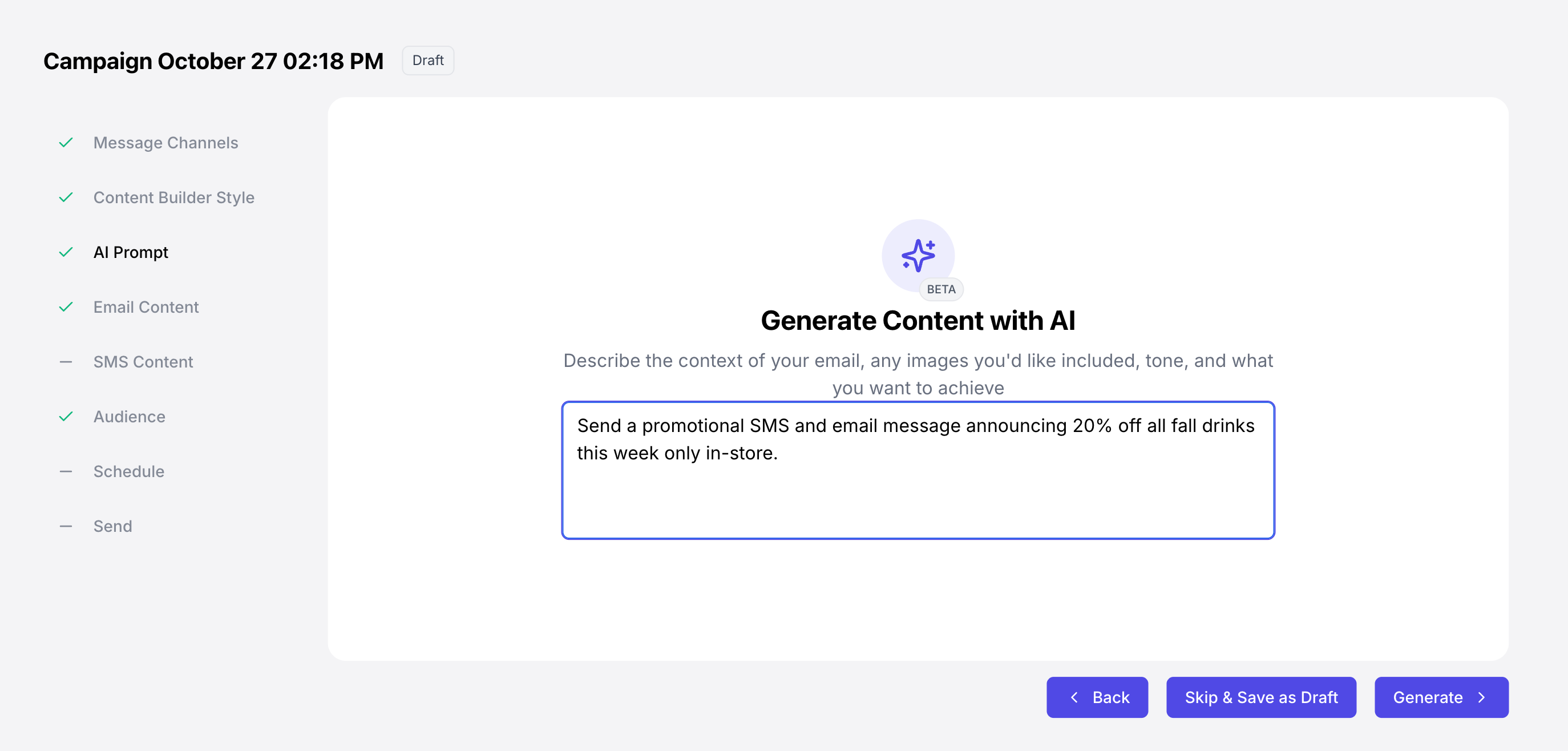
 The quality of the AI output directly depends on the quality of your input (the prompt). Here are some guidelines for how to best use AI to generate your marketing campaign with Dripos:
Clearly state the marketing objective, channel, and format.
*Example: "Write an SMS campaign messages to drive a flash sale of all fall drinks for this week only. Make it a quick read of under 20 seconds."*
Tell the AI who you're talking to and who you are.
*Example: "The audience is busy small business owners (B2B). Adopt a helpful, direct, and slightly humorous brand voice."*
Provide all essential campaign components, and set length limits.
*Example: "The offer is 40% off all fall drinks for this week only. Include the discount code FLASH40 and a Call-to-Action (CTA) to visit [www.dripos.com](http://www.dripos.com)"*
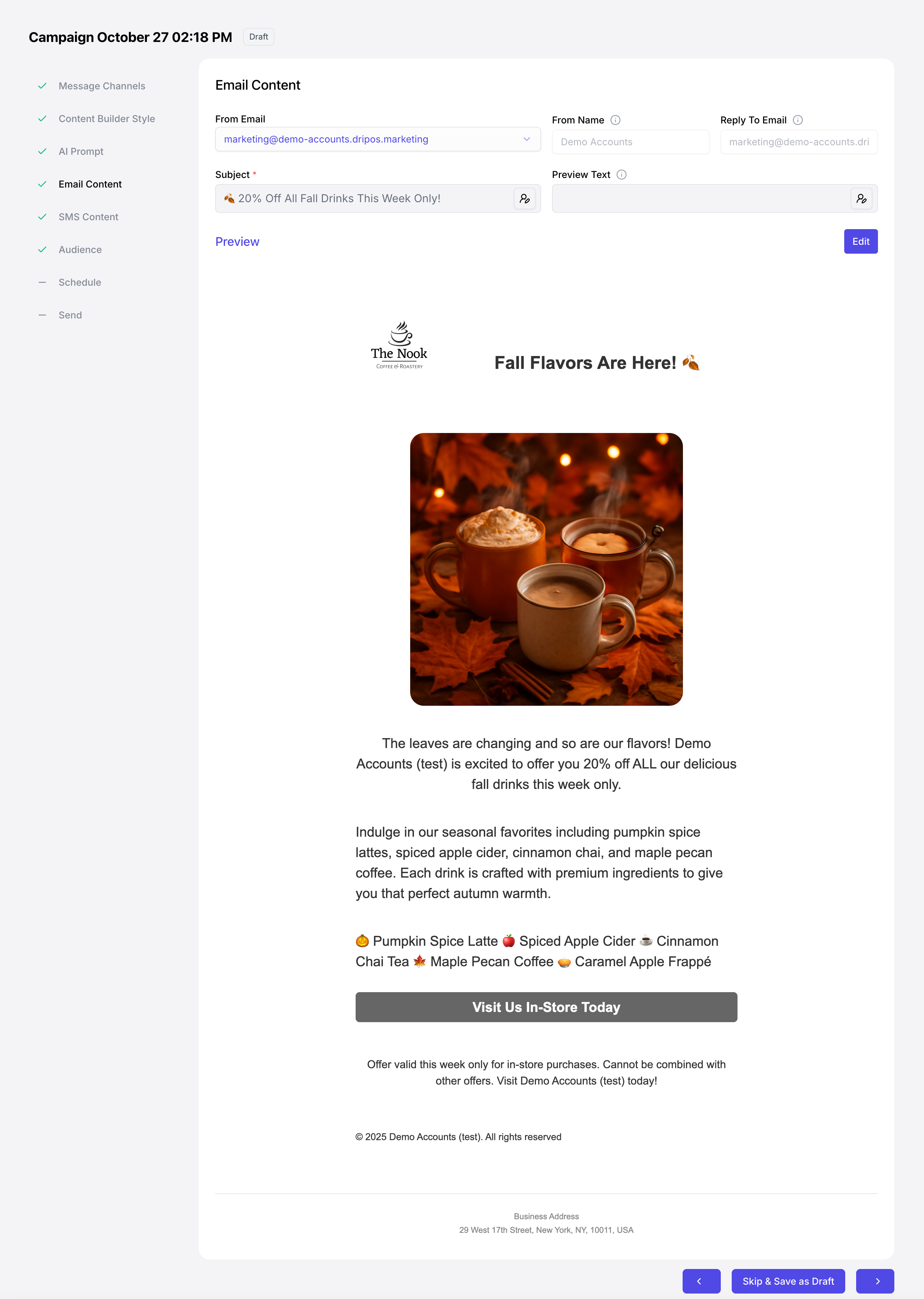
**AI Example**
**Tip**: Use AI to create the content outline, then use the editing tool to put your brand's unique spin on the message. Learn more about editing your content [here](/marketing/text/reach-campaign#edit-content).
The quality of the AI output directly depends on the quality of your input (the prompt). Here are some guidelines for how to best use AI to generate your marketing campaign with Dripos:
Clearly state the marketing objective, channel, and format.
*Example: "Write an SMS campaign messages to drive a flash sale of all fall drinks for this week only. Make it a quick read of under 20 seconds."*
Tell the AI who you're talking to and who you are.
*Example: "The audience is busy small business owners (B2B). Adopt a helpful, direct, and slightly humorous brand voice."*
Provide all essential campaign components, and set length limits.
*Example: "The offer is 40% off all fall drinks for this week only. Include the discount code FLASH40 and a Call-to-Action (CTA) to visit [www.dripos.com](http://www.dripos.com)"*
**AI Example**
**Tip**: Use AI to create the content outline, then use the editing tool to put your brand's unique spin on the message. Learn more about editing your content [here](/marketing/text/reach-campaign#edit-content).
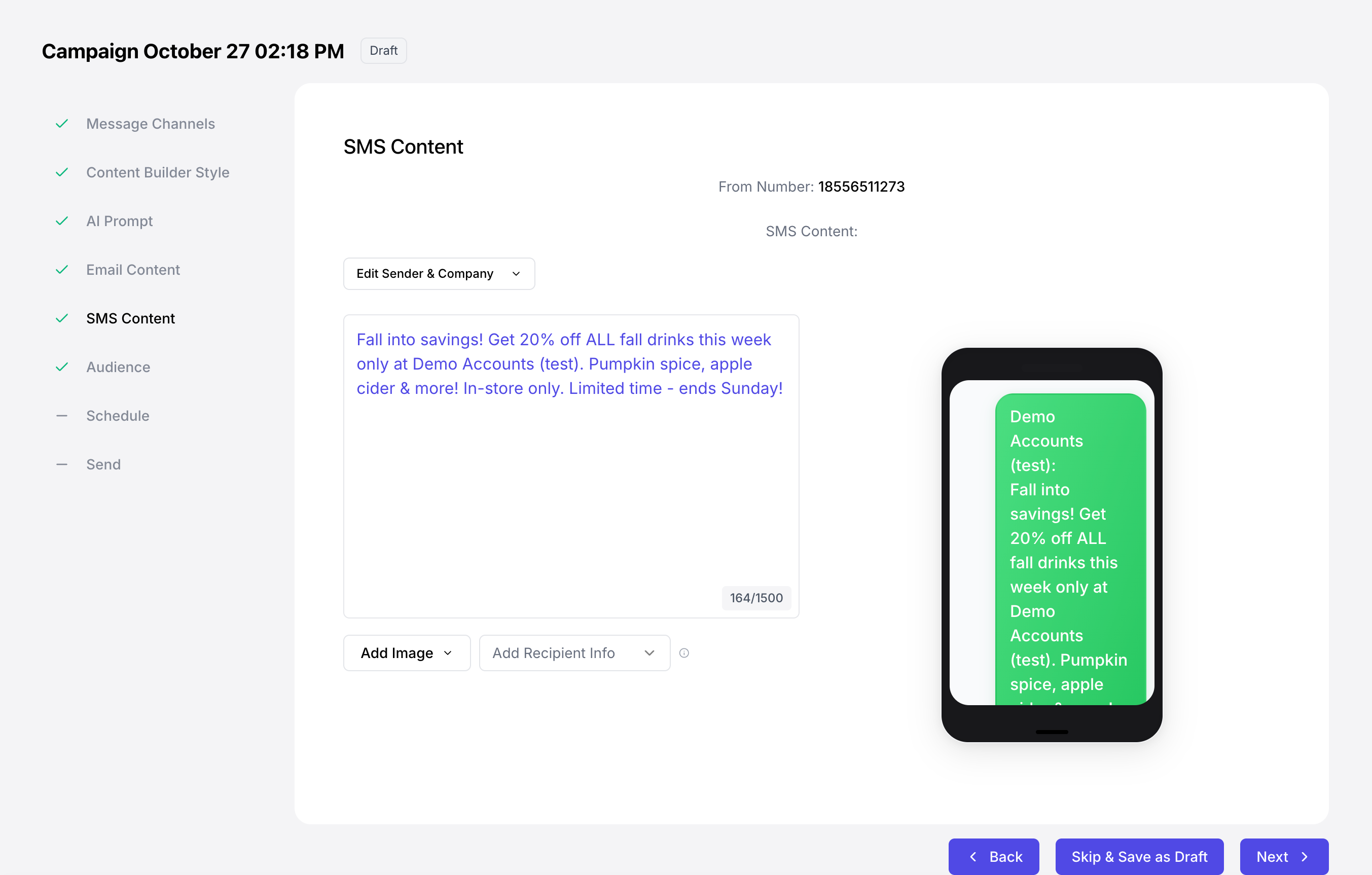 Start from scratch and create email & SMS content aligned with your brand! Upload images, select fonts and colors, and more.
Learn how to edit your messaging content [here](/marketing/communications/campaigns#create-campaign-content).
Start from scratch and create email & SMS content aligned with your brand! Upload images, select fonts and colors, and more.
Learn how to edit your messaging content [here](/marketing/communications/campaigns#create-campaign-content).
 ### Select Audience
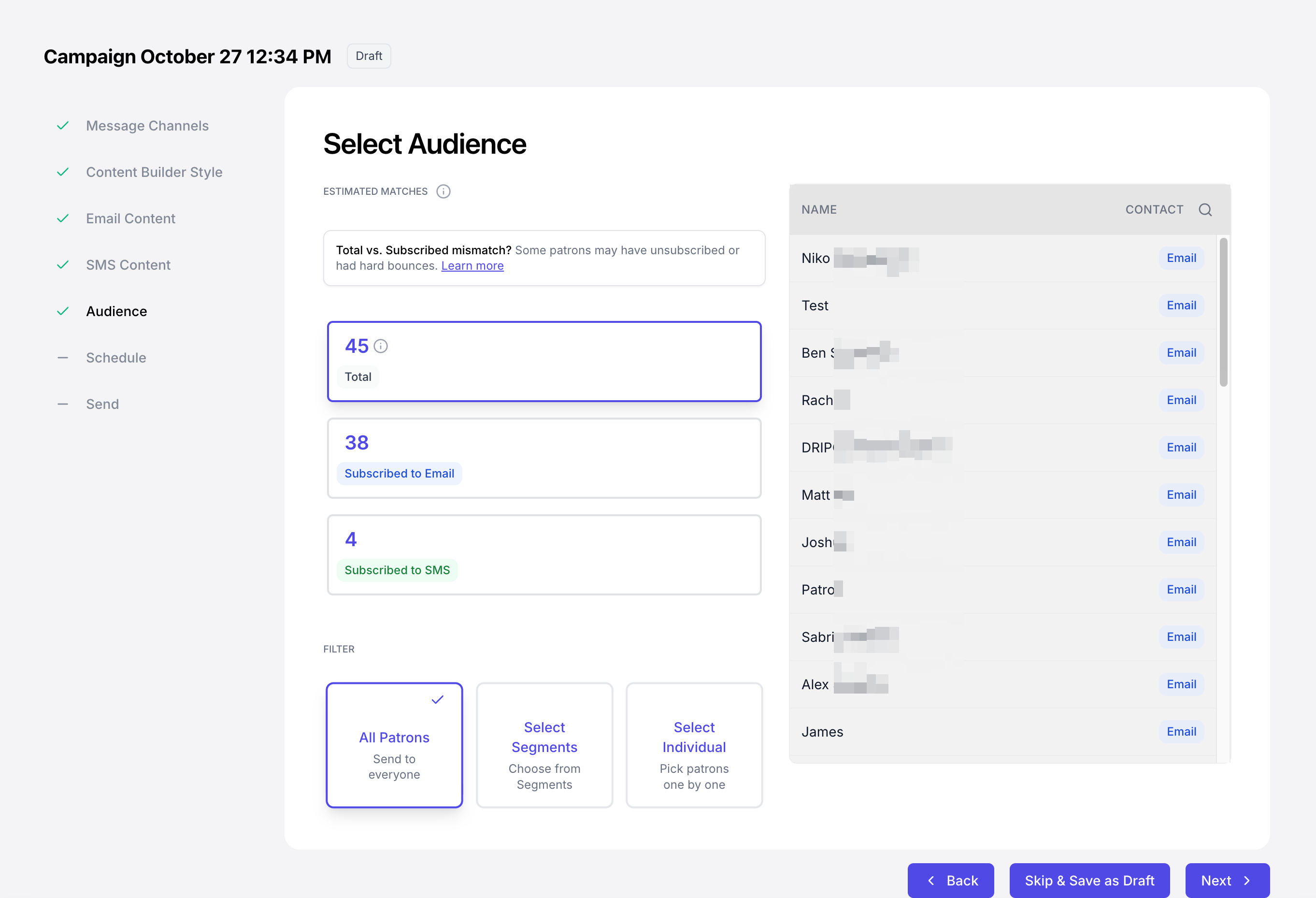
Determine who to send a campaign to, whether its all email and SMS subscribers or a specific segment of customers.
Selecting *All Patrons* will automatically send this campaign to all patrons subscribed to the messaging channel (email and/or SMS).
### Select Audience
Determine who to send a campaign to, whether its all email and SMS subscribers or a specific segment of customers.
Selecting *All Patrons* will automatically send this campaign to all patrons subscribed to the messaging channel (email and/or SMS).
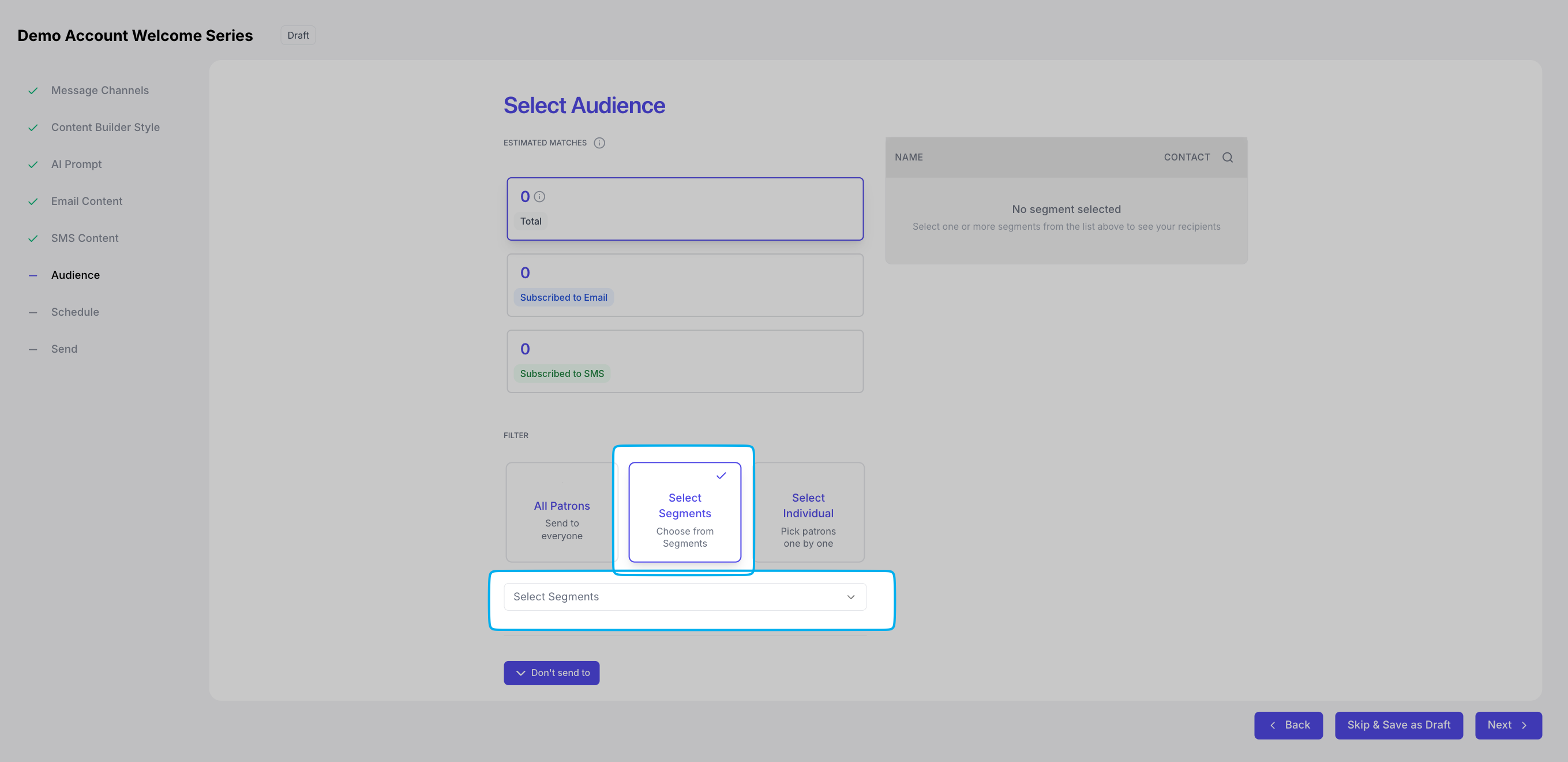
 Select a Dripos-made audience segment or create your own.
Learn how to create your own audience segment [here](/marketing/communications/campaigns#select-segments).
Select a Dripos-made audience segment or create your own.
Learn how to create your own audience segment [here](/marketing/communications/campaigns#select-segments).
 Dripos creates two automatic segments for your stores:
Patrons who have not visited your store(s) in the last 30 days. If they are opted into text marketing, they'll appear in the SMS list. All patrons with an email that meet this criteria will be added to the email list of this segment.
All patrons who have their birthday attached to their patron profile. *Patron birthdays are aquired (but not required) when signing up for text marketing*.
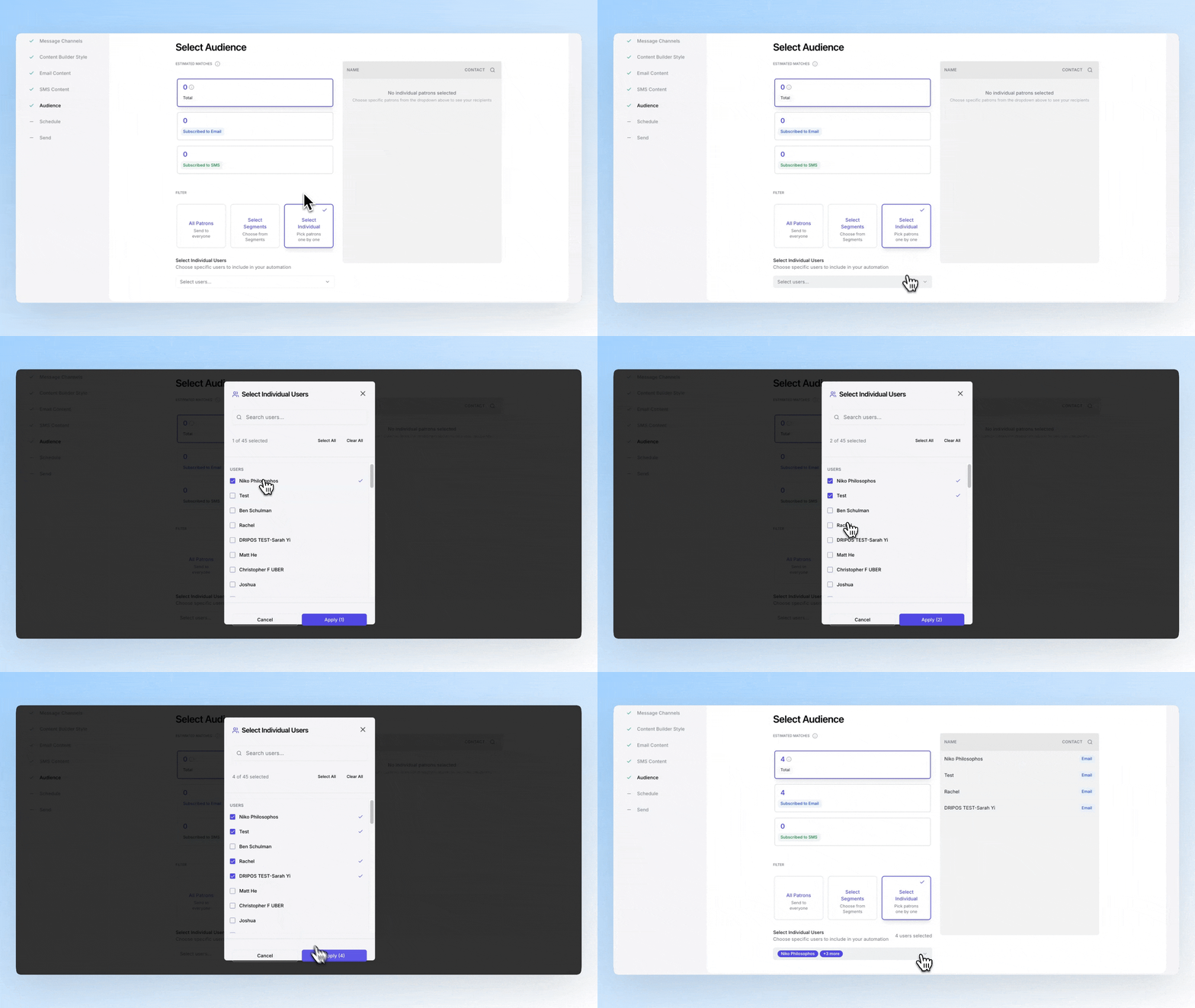
Select one or more individual patrons to send a campaign to.
Dripos creates two automatic segments for your stores:
Patrons who have not visited your store(s) in the last 30 days. If they are opted into text marketing, they'll appear in the SMS list. All patrons with an email that meet this criteria will be added to the email list of this segment.
All patrons who have their birthday attached to their patron profile. *Patron birthdays are aquired (but not required) when signing up for text marketing*.
Select one or more individual patrons to send a campaign to.
 ### Schedule Message
 ### Preview & Send
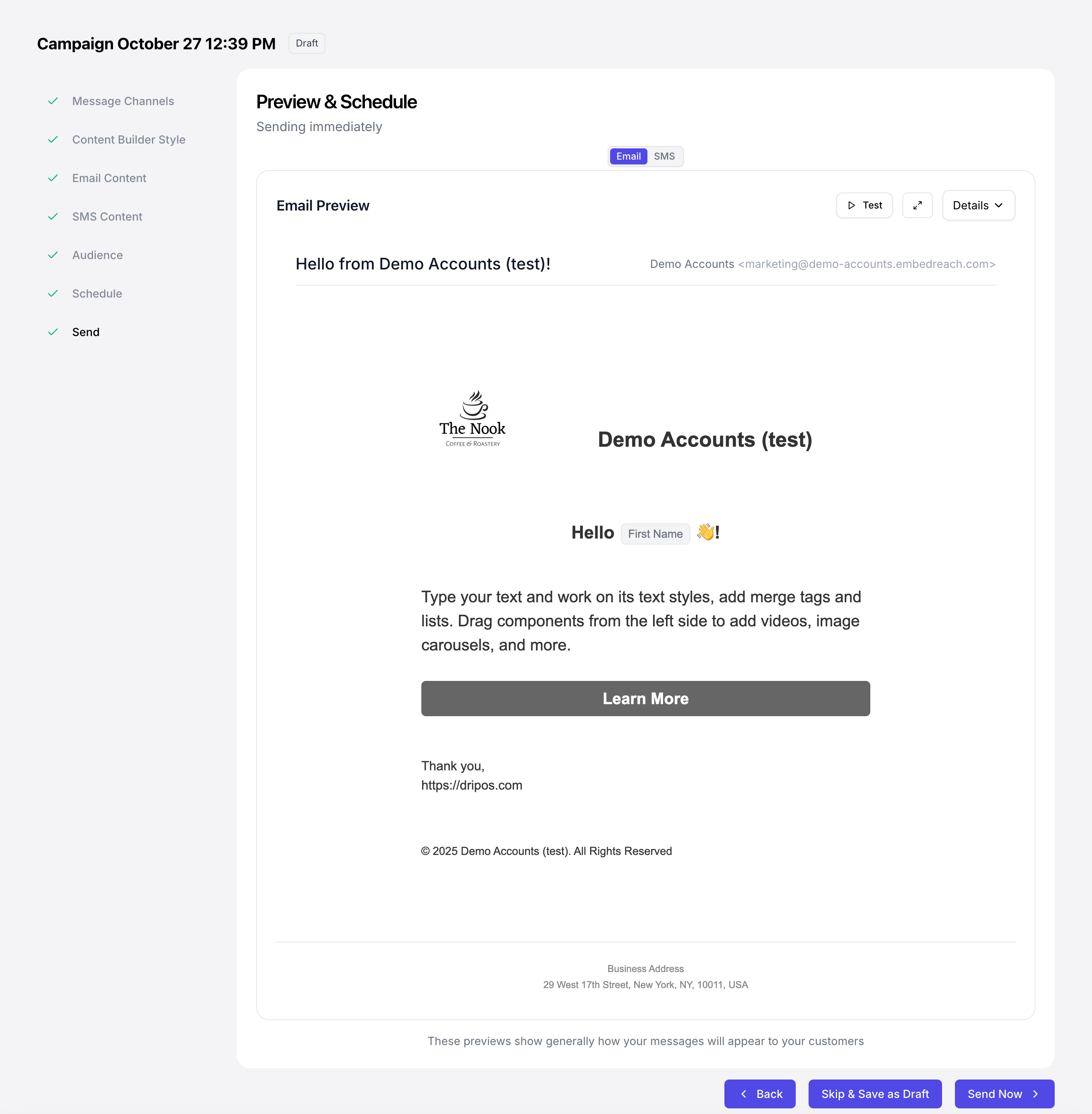 ## Create Campaign Content
### SMS Content
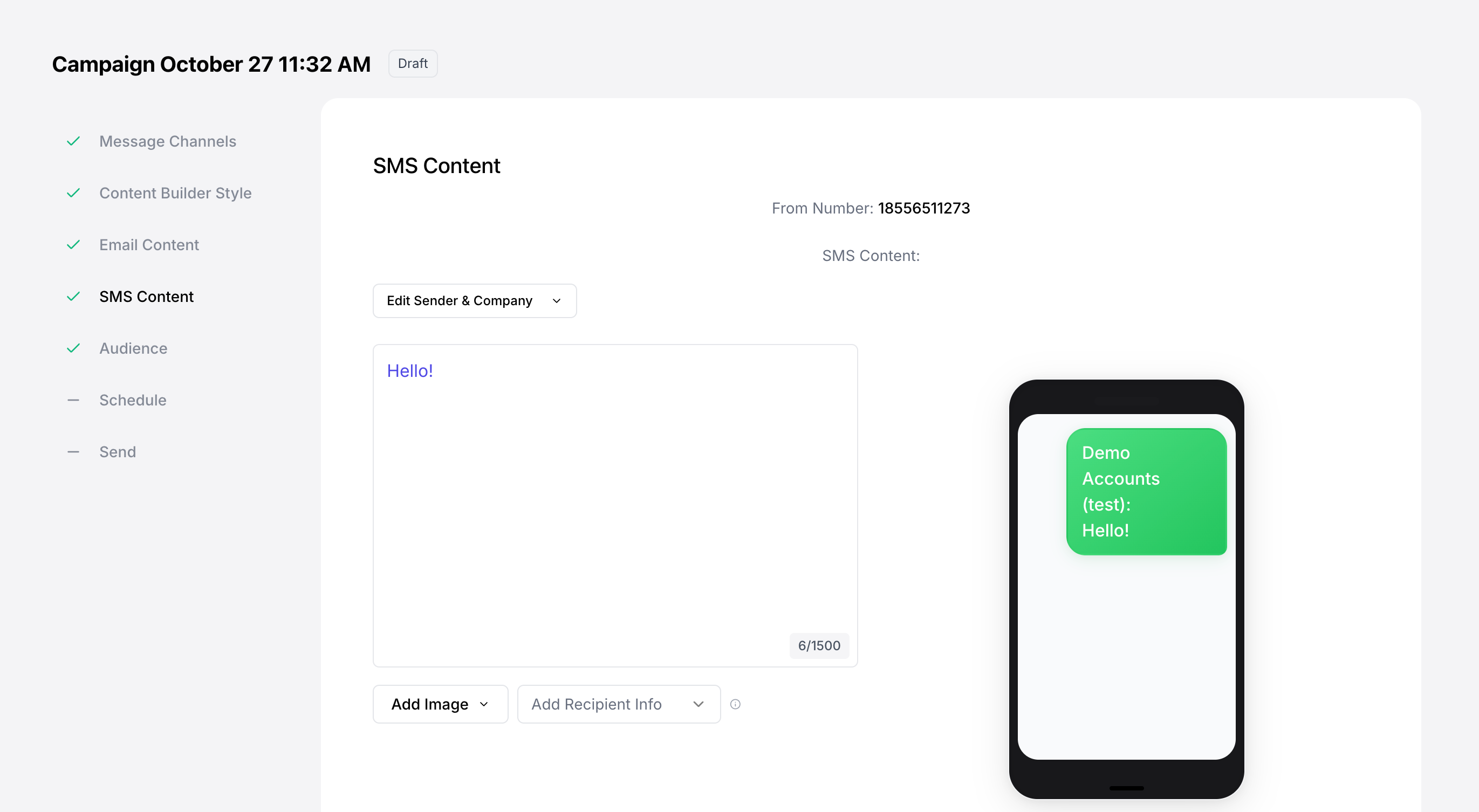
Create your SMS content directly on the **Campaign Builder** or save the campaign as a draft and edit later!
**SMS Content Creation Tools**
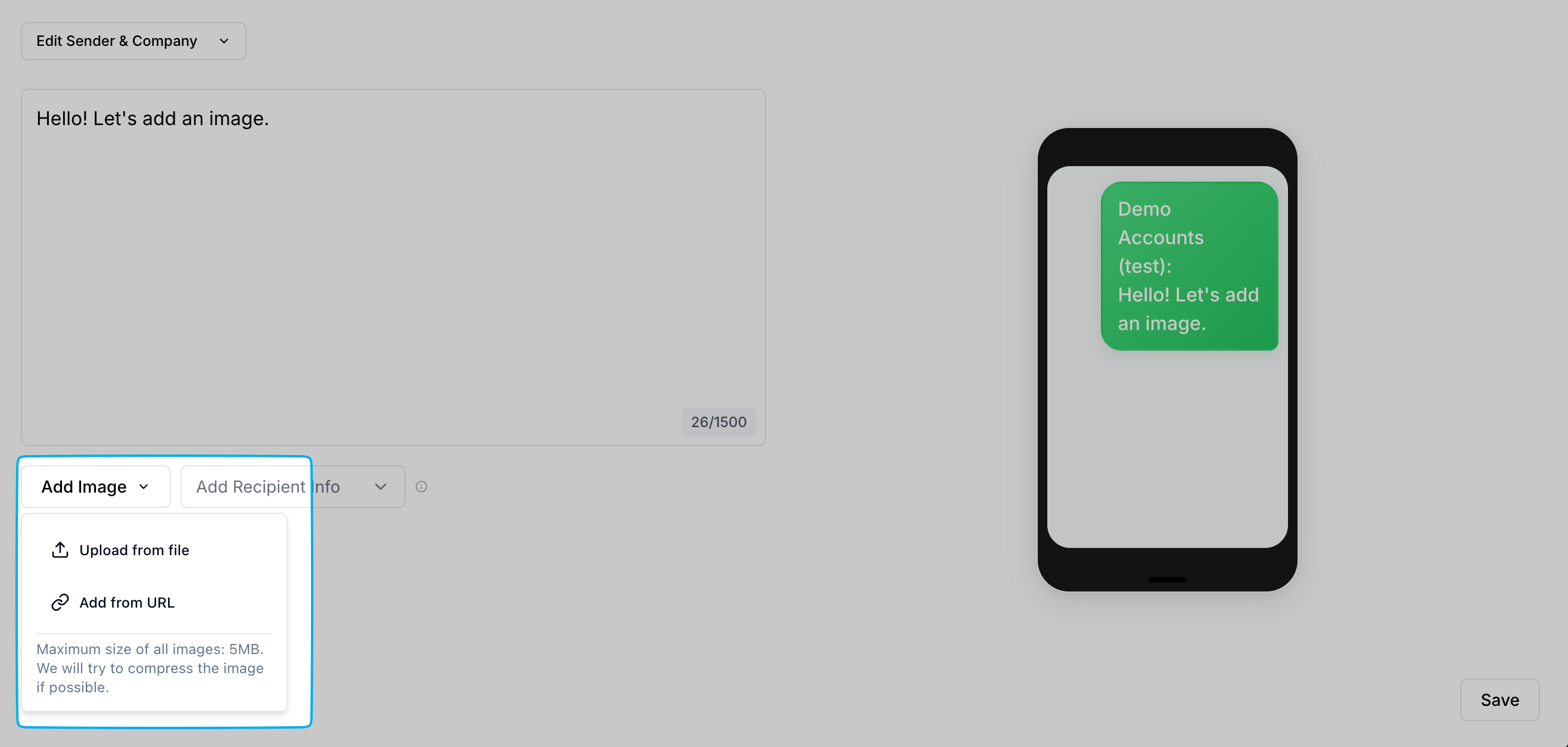
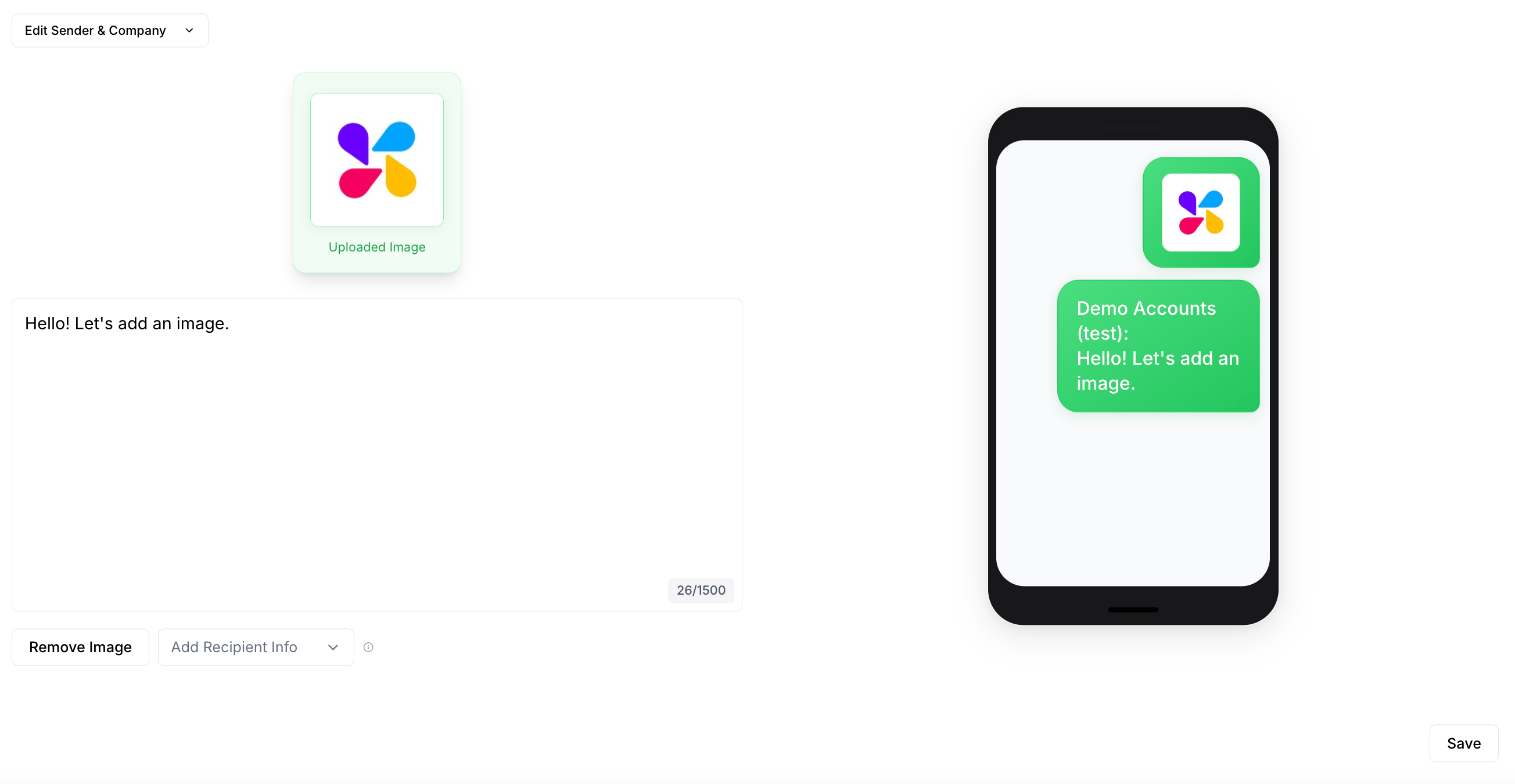
One image may be added to an SMS campaign.
Click **Add Image** to upload a file or add from a URL.
## Create Campaign Content
### SMS Content
Create your SMS content directly on the **Campaign Builder** or save the campaign as a draft and edit later!
**SMS Content Creation Tools**
One image may be added to an SMS campaign.
Click **Add Image** to upload a file or add from a URL.
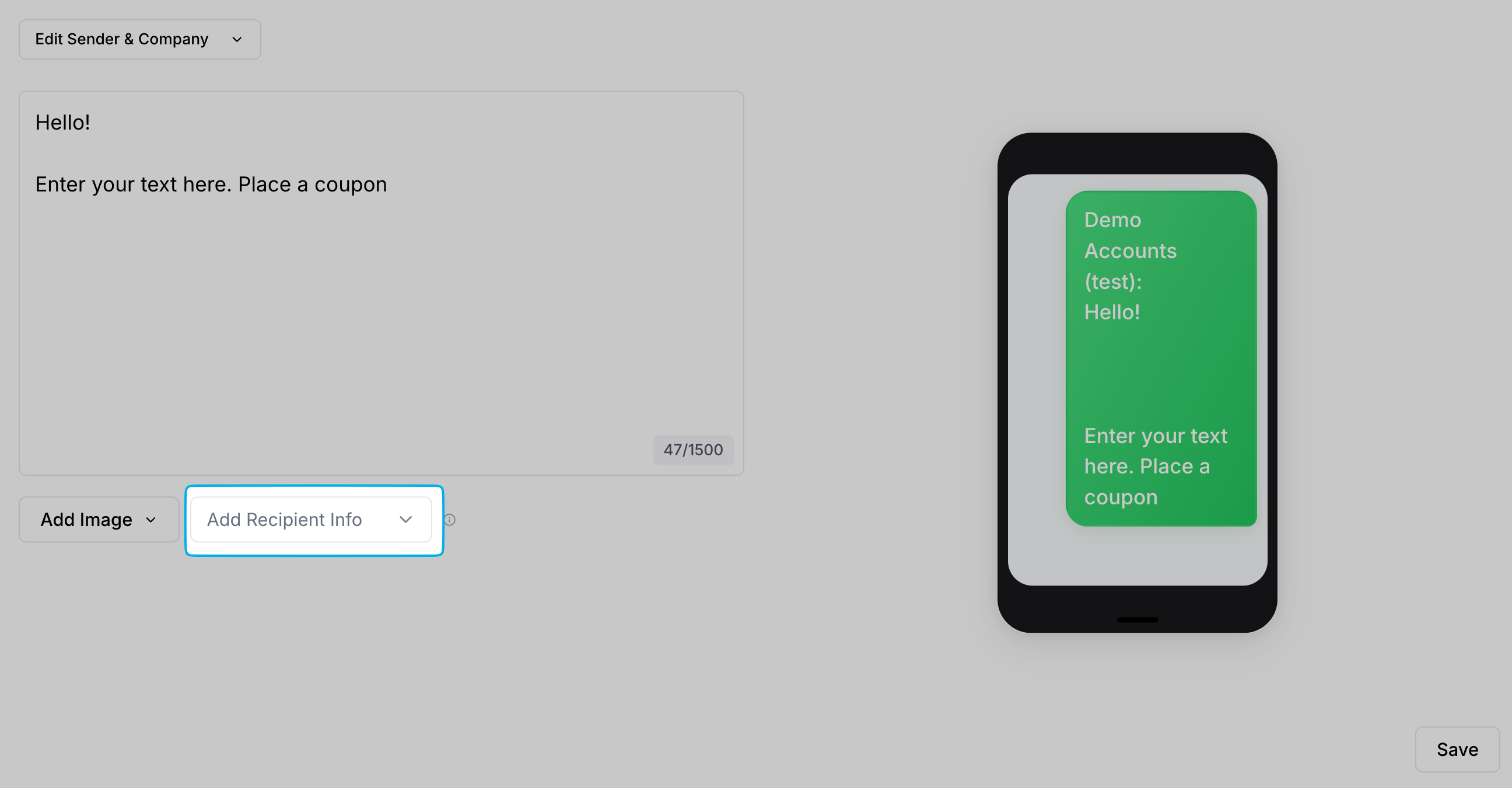
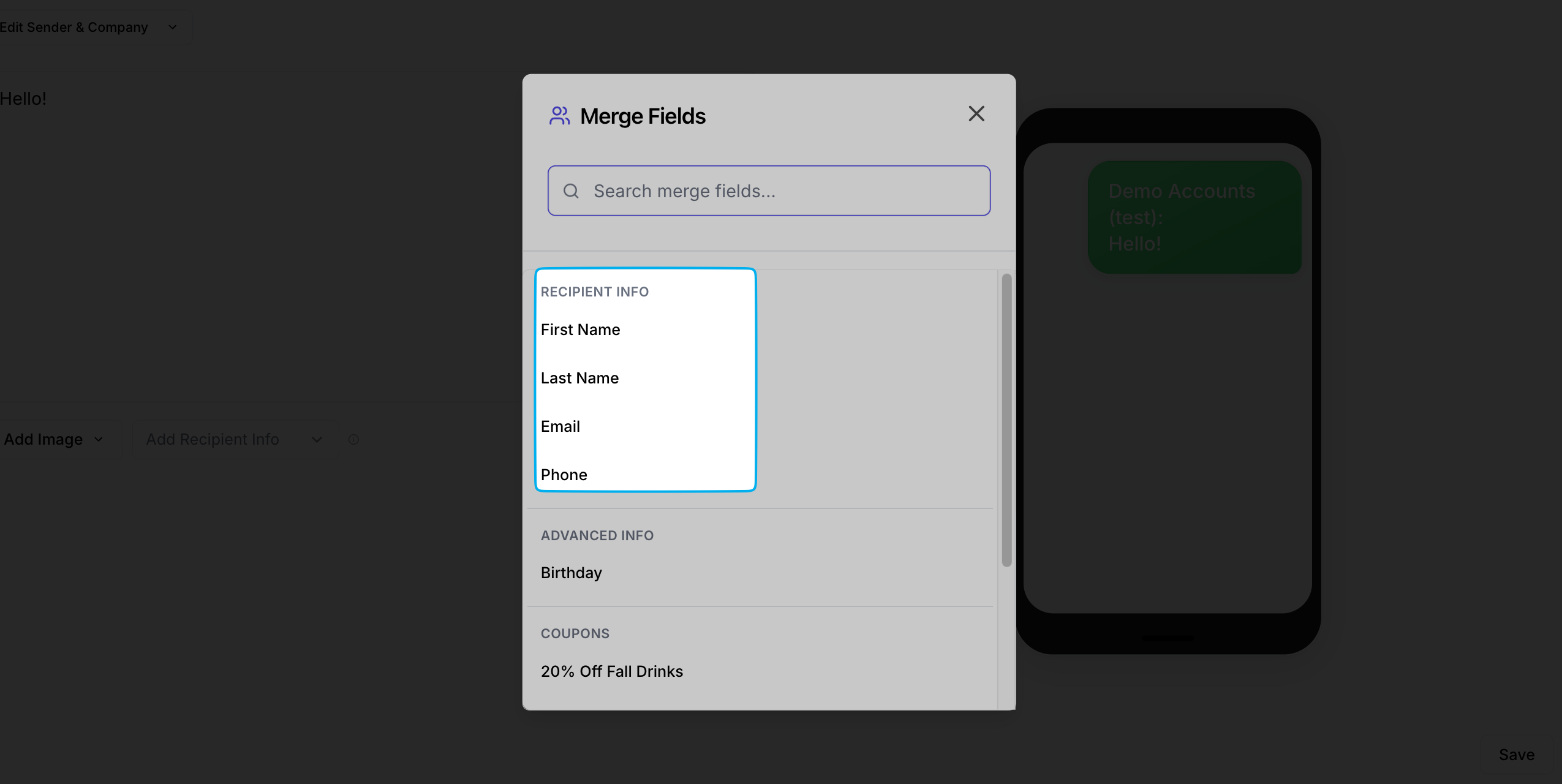
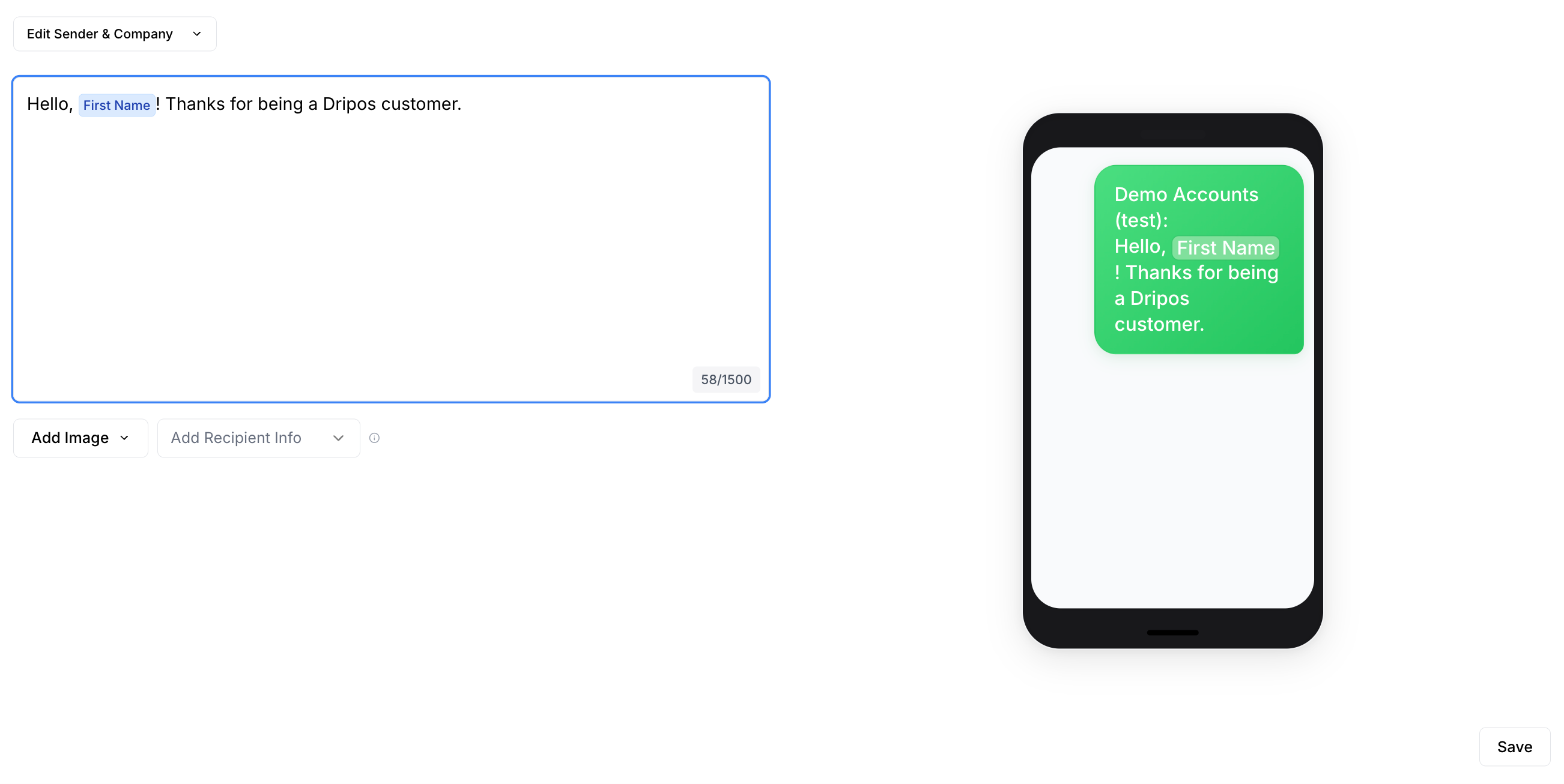
 Sending a generic text can feel... generic. Instead, you can use placeholders (like \[First Name]) to automatically insert each patron's name into your message. This makes the text feel like a one-on-one conversation, not a mass blast.
Click **Add Recipient Info** and select a placeholder of either First Name, Last Name, Email or Phone for each patron who receives this campaign.
Stick to using your customer's first name for a more casual, friendly message. A full name (e.g., "Jack Pawlik") also uses up valuable space that could be used for the offer, the call-to-action, or the discount code.
Sending a generic text can feel... generic. Instead, you can use placeholders (like \[First Name]) to automatically insert each patron's name into your message. This makes the text feel like a one-on-one conversation, not a mass blast.
Click **Add Recipient Info** and select a placeholder of either First Name, Last Name, Email or Phone for each patron who receives this campaign.
Stick to using your customer's first name for a more casual, friendly message. A full name (e.g., "Jack Pawlik") also uses up valuable space that could be used for the offer, the call-to-action, or the discount code.
 Send your customers coupon codes via SMS. Dripos offers two types of coupon codes: [**Generic Coupon Codes**](/marketing/promos/promos-overview#generic-coupon-codes) and [**Unique Coupon Codes**](/marketing/promos/promos-overview#unique-coupon-codes).
What's the difference?
The same code is sent to every customer.
**Code Example**: *SALE20, FLASH15, WELCOME10*
A different, one-time-use code is generated for every individual customer. Dripos will generate these individual codes so you don't have to!
**Code Example**: *X7T3P2D, S8A0H4B, J9K1L0M*
Consider a few things before picking your coupon type:
These coupons can be easily shared on social media, coupon sites, or forums.
This can be great for a wide-spread promotion, but keep it mind it can also lead to coupon abuse by a wider audience than anticipated.
**The good news** is you can easily define the maximum number of redemptions for a generic coupon when you create it. Additionally, customers must create a patron profile with your shop in order to apply this coupon on a mobile order.
Since each code is single-use, it prevents code sharing and fraud. You control exactly who uses the discount and how many times (usually once).
Before adding a coupon code, learn how to create a [**Generic Coupon Code**](/marketing/promos/promos-overview#generic-coupon-codes) and a [**Unique Coupon Code**](/marketing/promos/promos-overview#unique-coupon-codes) in Dripos.
### Generic Coupon Code
A **Generic Coupon Code** placeholder will send the same code to every customer.
To input a generic coupon code, simply type it into the body of message in plain text, i.e. WELCOME10
### Unique Coupon Code
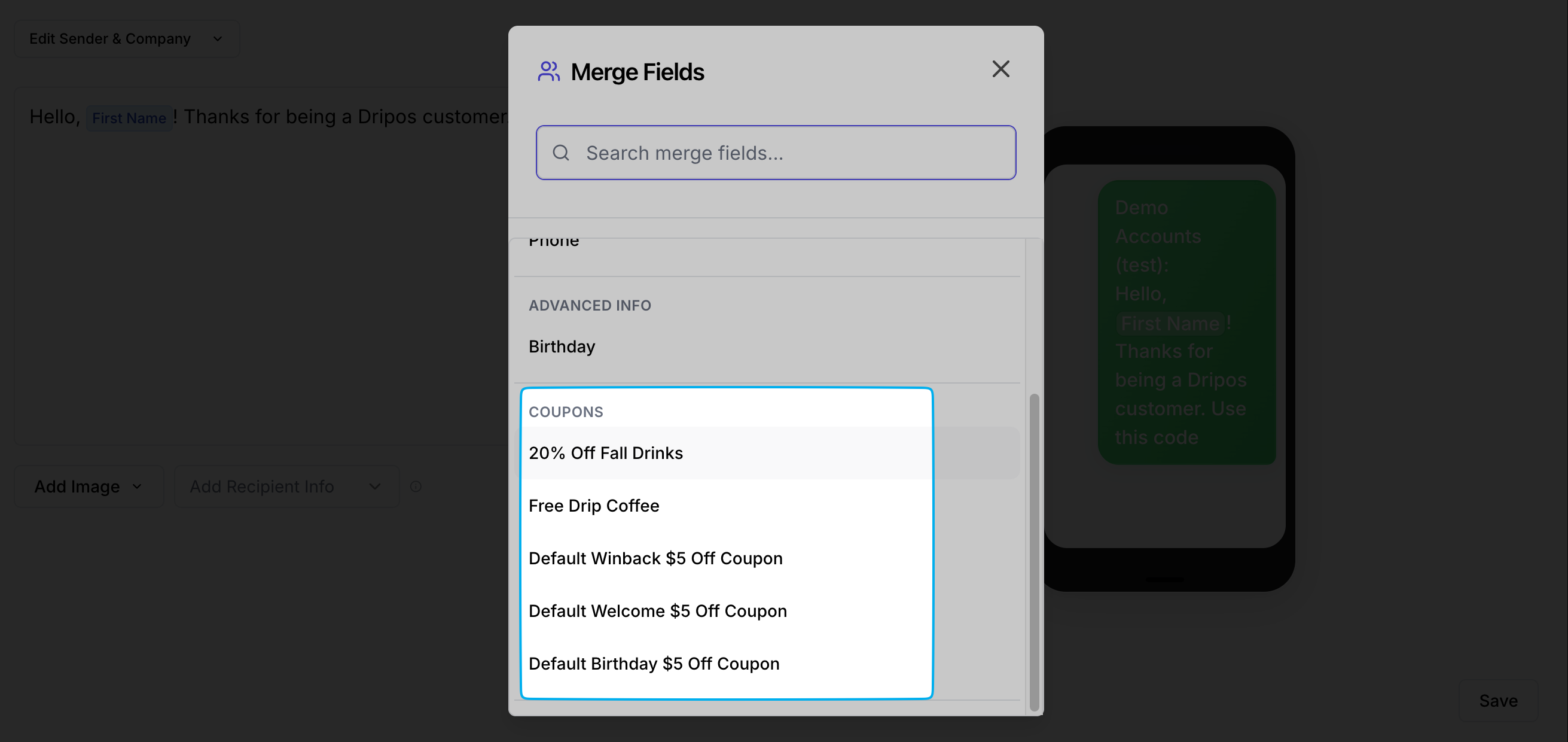
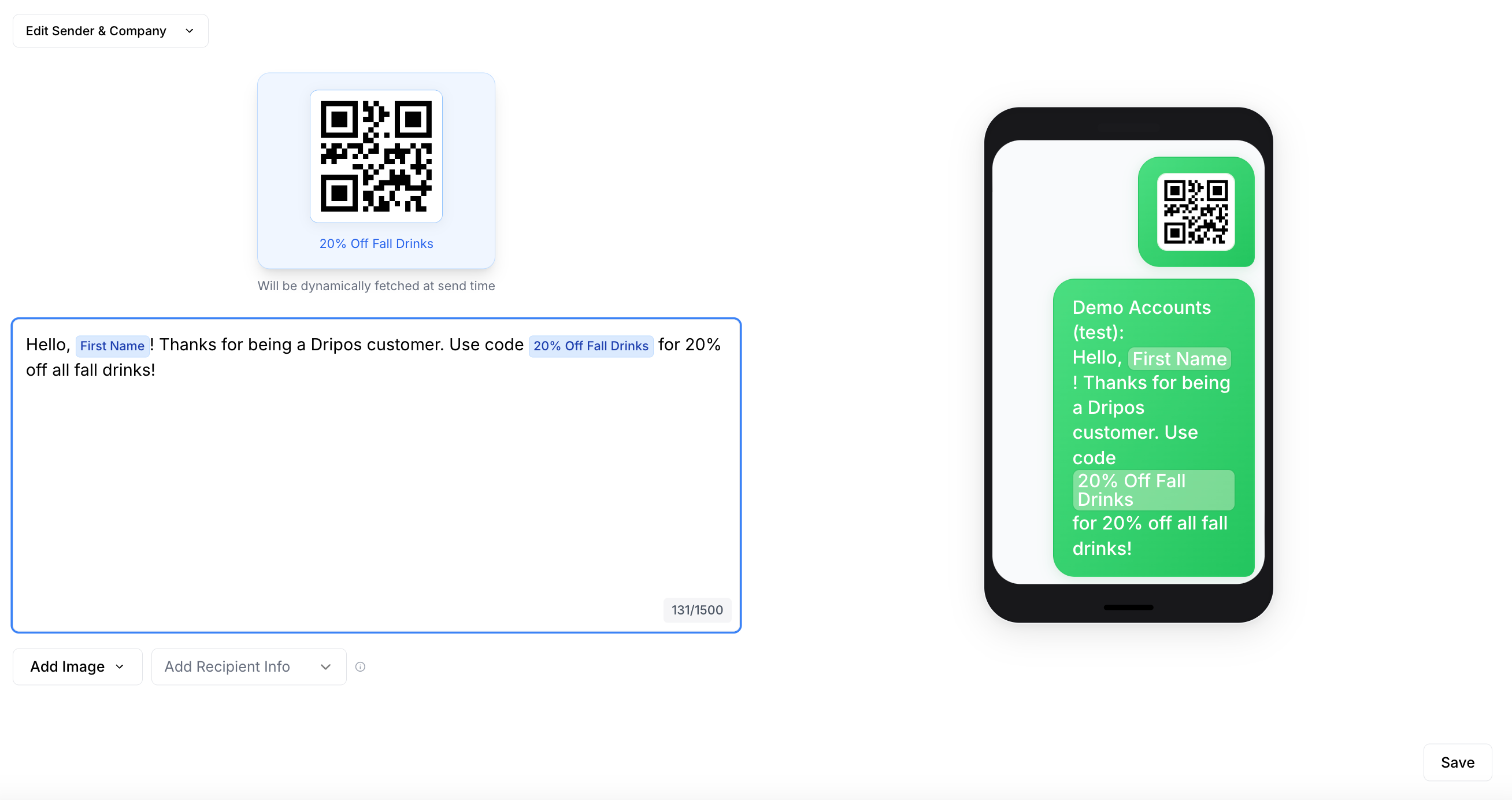
A **Unique Coupon Code** placeholder will send a different, one-time-use code for every individual customer. Dripos will generate these individual codes so you don't have to!
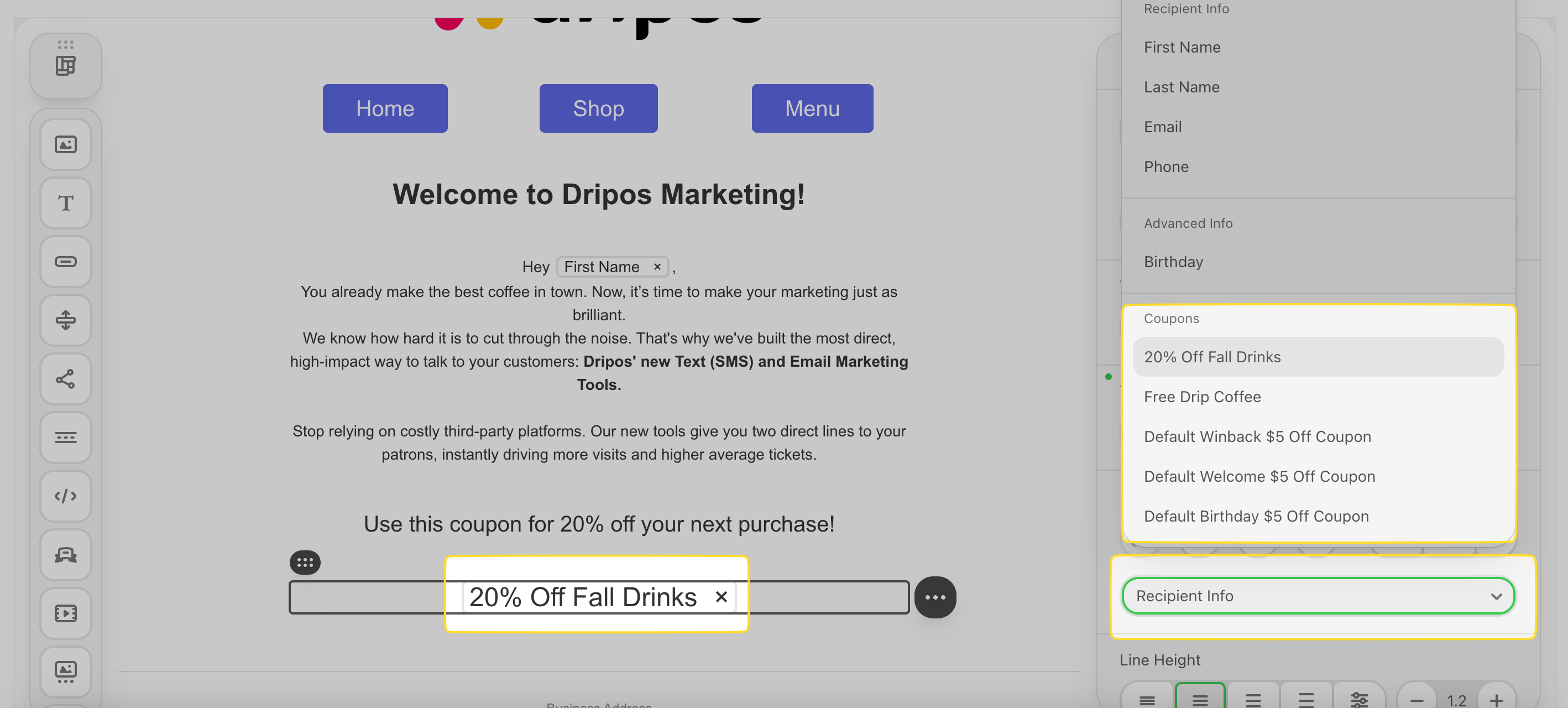
Click **Add Recipient Info**. All coupons you've created will appear under **Coupons**. Select one coupon placeholder to insert.
Send your customers coupon codes via SMS. Dripos offers two types of coupon codes: [**Generic Coupon Codes**](/marketing/promos/promos-overview#generic-coupon-codes) and [**Unique Coupon Codes**](/marketing/promos/promos-overview#unique-coupon-codes).
What's the difference?
The same code is sent to every customer.
**Code Example**: *SALE20, FLASH15, WELCOME10*
A different, one-time-use code is generated for every individual customer. Dripos will generate these individual codes so you don't have to!
**Code Example**: *X7T3P2D, S8A0H4B, J9K1L0M*
Consider a few things before picking your coupon type:
These coupons can be easily shared on social media, coupon sites, or forums.
This can be great for a wide-spread promotion, but keep it mind it can also lead to coupon abuse by a wider audience than anticipated.
**The good news** is you can easily define the maximum number of redemptions for a generic coupon when you create it. Additionally, customers must create a patron profile with your shop in order to apply this coupon on a mobile order.
Since each code is single-use, it prevents code sharing and fraud. You control exactly who uses the discount and how many times (usually once).
Before adding a coupon code, learn how to create a [**Generic Coupon Code**](/marketing/promos/promos-overview#generic-coupon-codes) and a [**Unique Coupon Code**](/marketing/promos/promos-overview#unique-coupon-codes) in Dripos.
### Generic Coupon Code
A **Generic Coupon Code** placeholder will send the same code to every customer.
To input a generic coupon code, simply type it into the body of message in plain text, i.e. WELCOME10
### Unique Coupon Code
A **Unique Coupon Code** placeholder will send a different, one-time-use code for every individual customer. Dripos will generate these individual codes so you don't have to!
Click **Add Recipient Info**. All coupons you've created will appear under **Coupons**. Select one coupon placeholder to insert.
 ### Email Content
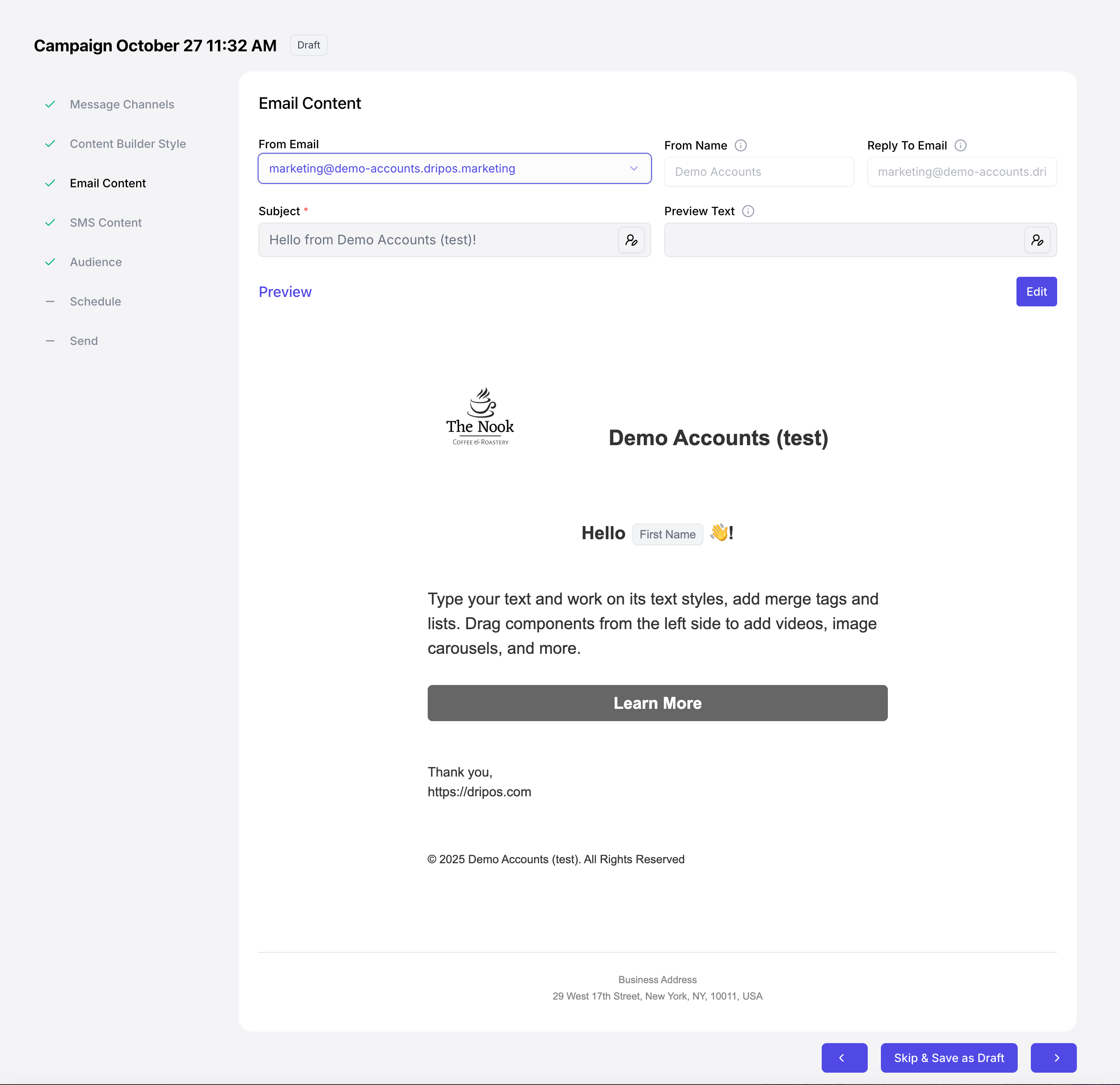
Create your email content directly on the **Campaign Builder** or save the campaign as a draft and edit later!
An email body is made up of *stripe* blocks, structures, and containers.
A **stripe** (the wrapper/section) is the largest, outermost element. It controls the background color or image for that entire section of the email, including the areas outside the main content columns.
The **structures** are the elements inside the stripe. It defines the column layout for the content. Its primary purpose is to hold the main content and specify how many columns there will be (e.g., one large column, two equal columns, a sidebar, etc.).
A stripe can contain multiple structures (rows). This is the element that typically handles responsive stacking on mobile. For example, a two-column structure on a desktop will collapse into two stacked single-column structures on a phone.
The **containers** (content blocks) are the smallest, most functional elements placed inside the structures. This is where the actual user-facing content lives. This includes:
* Text
* Images
* Buttons (Call To Actions)
* Spacers
* Social Media Icons
In short, the **stripe** defines the background, the **structure** defines the layout, and the **containers** defines the feature.
### Email Content
Create your email content directly on the **Campaign Builder** or save the campaign as a draft and edit later!
An email body is made up of *stripe* blocks, structures, and containers.
A **stripe** (the wrapper/section) is the largest, outermost element. It controls the background color or image for that entire section of the email, including the areas outside the main content columns.
The **structures** are the elements inside the stripe. It defines the column layout for the content. Its primary purpose is to hold the main content and specify how many columns there will be (e.g., one large column, two equal columns, a sidebar, etc.).
A stripe can contain multiple structures (rows). This is the element that typically handles responsive stacking on mobile. For example, a two-column structure on a desktop will collapse into two stacked single-column structures on a phone.
The **containers** (content blocks) are the smallest, most functional elements placed inside the structures. This is where the actual user-facing content lives. This includes:
* Text
* Images
* Buttons (Call To Actions)
* Spacers
* Social Media Icons
In short, the **stripe** defines the background, the **structure** defines the layout, and the **containers** defines the feature.
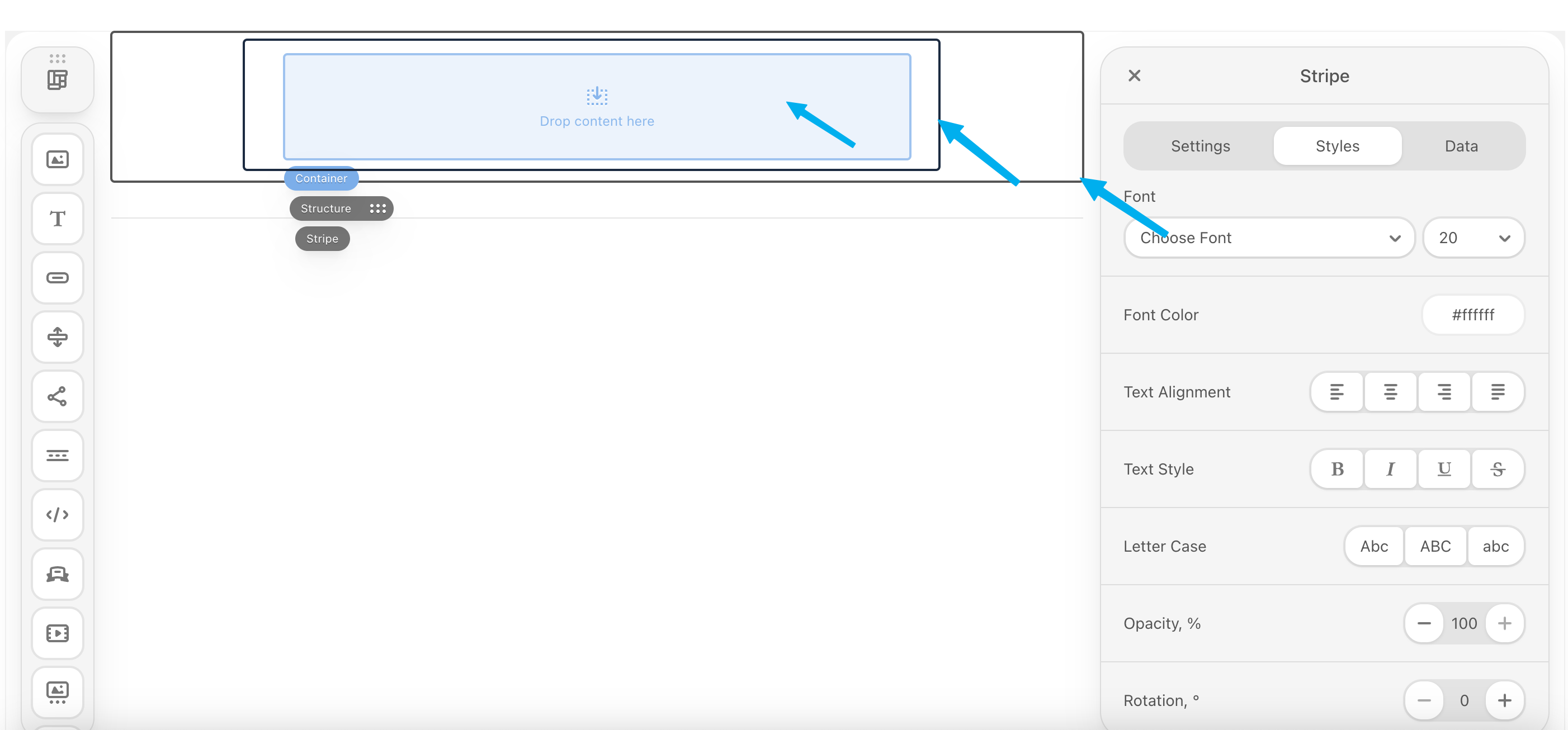 An email body may contain four types of **stripes**:
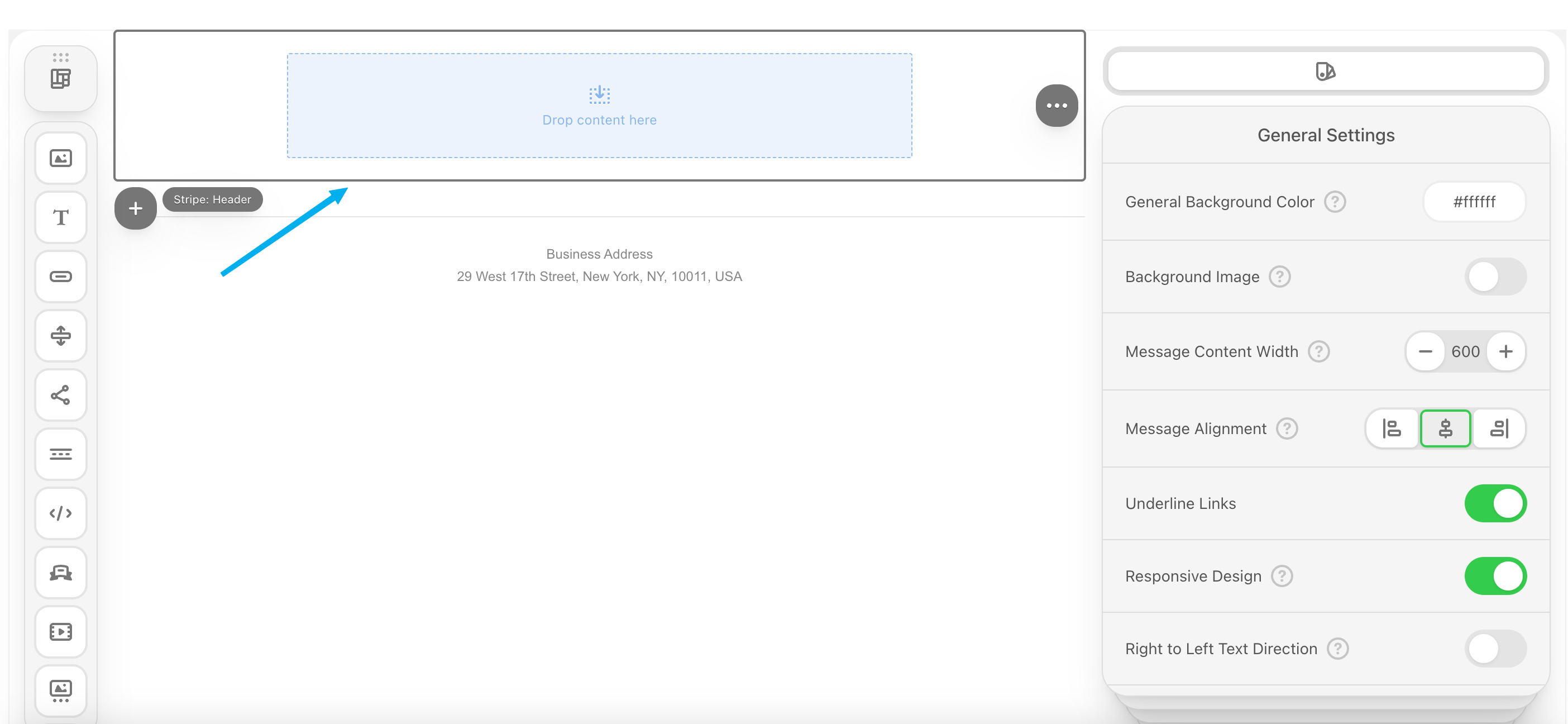 * **Header**: The header area is a place where companies usually put their logo, contact details, menu links, etc.
* **Content**: The content area is the part of the email that is filled with the main message for customers.
* **Footer**: The footer area is a place for contact details, social media icons, an additional menu, etc.
* **Info**: The info area is typically set at the bottom of the email. It may contain unsubscribe links, terms of use, privacy policy, etc.
* **Header**: The header area is a place where companies usually put their logo, contact details, menu links, etc.
* **Content**: The content area is the part of the email that is filled with the main message for customers.
* **Footer**: The footer area is a place for contact details, social media icons, an additional menu, etc.
* **Info**: The info area is typically set at the bottom of the email. It may contain unsubscribe links, terms of use, privacy policy, etc.
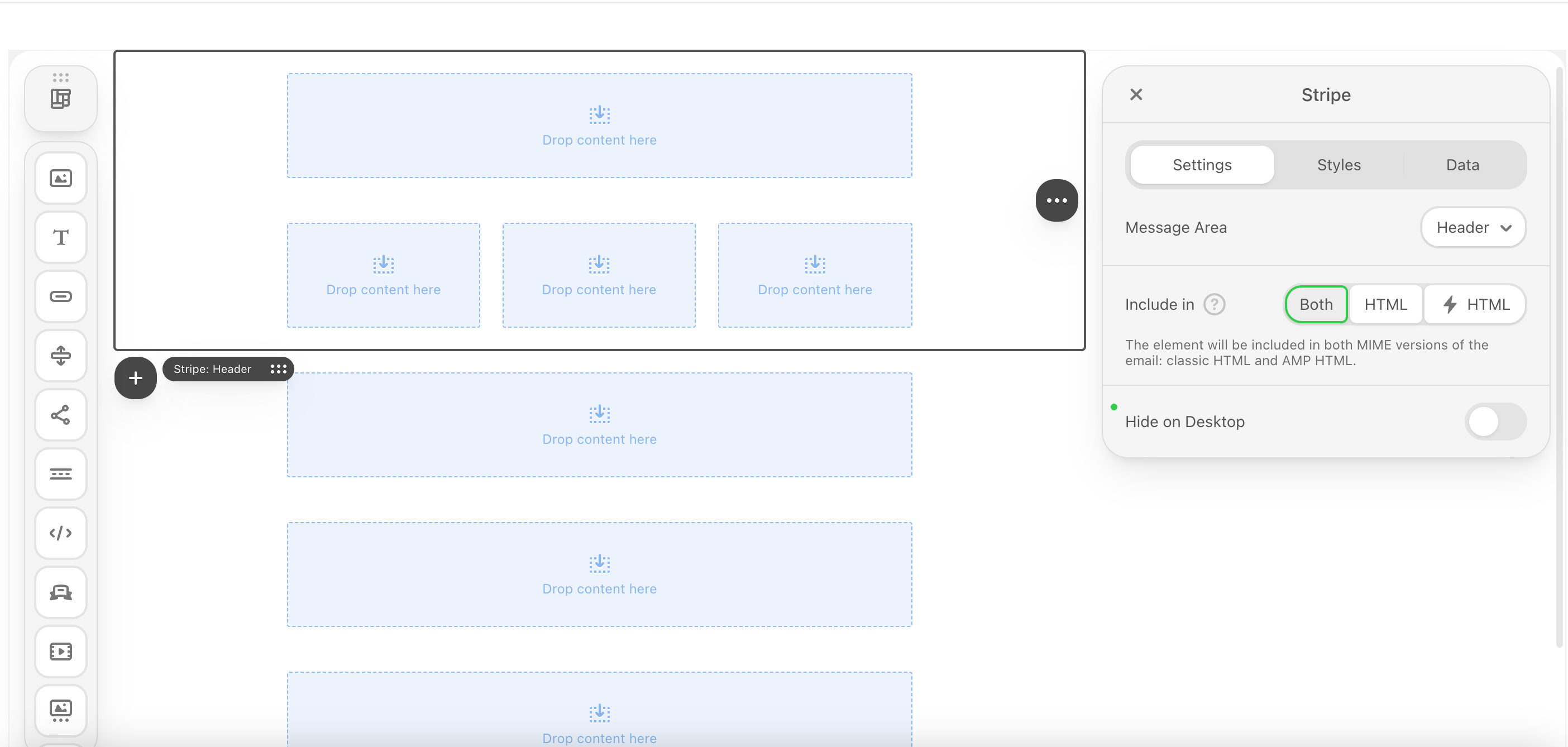
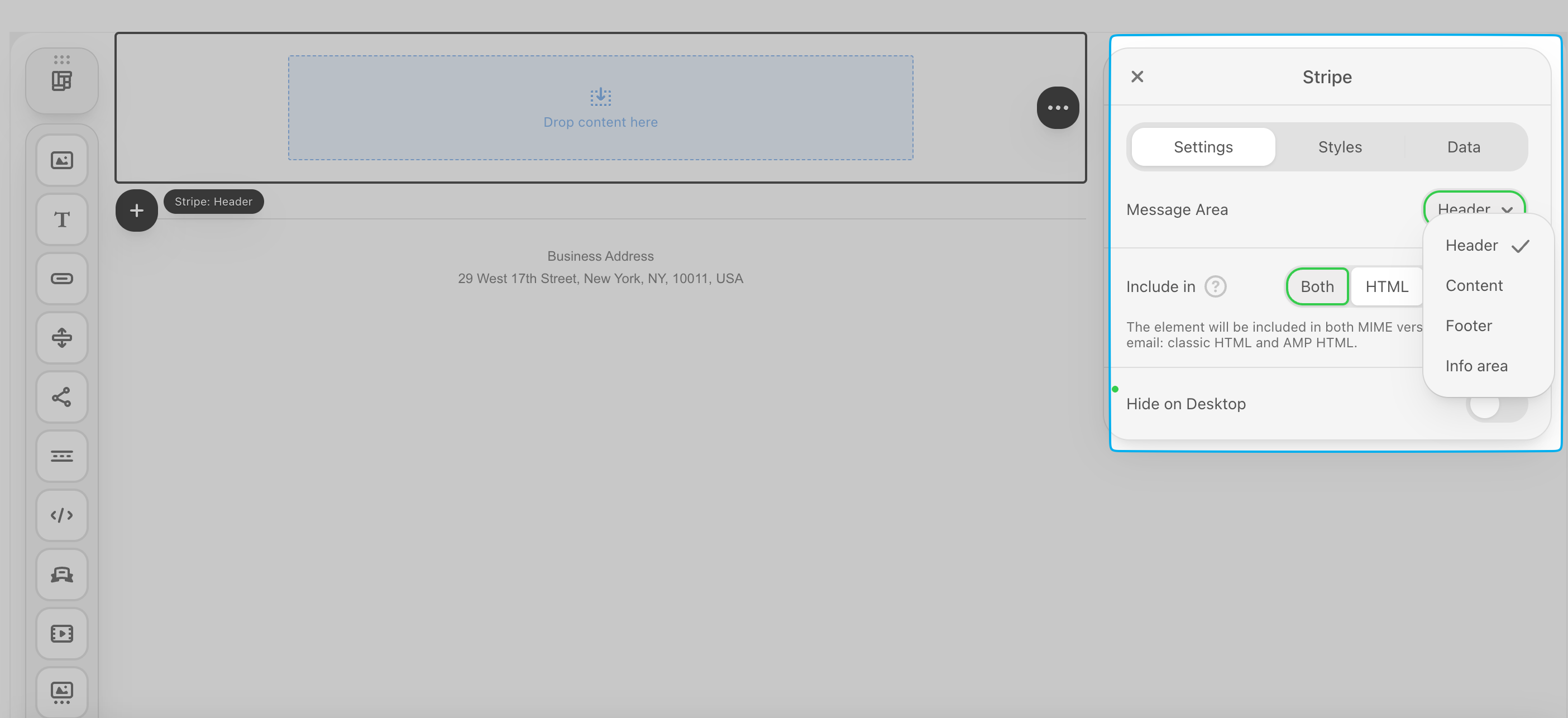 Click the **+** button on a stripe block to add an additional stripe.
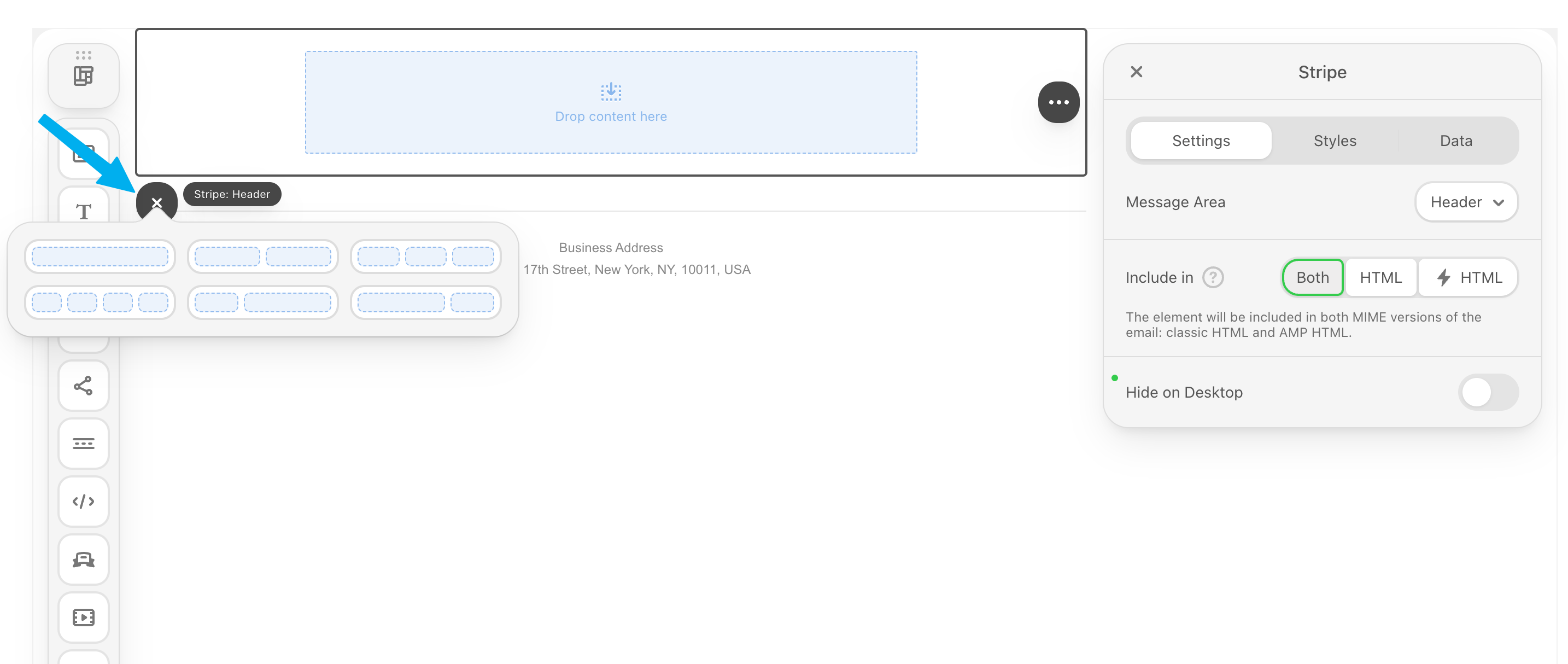 Change the type of *stripe* in the information box to the right.
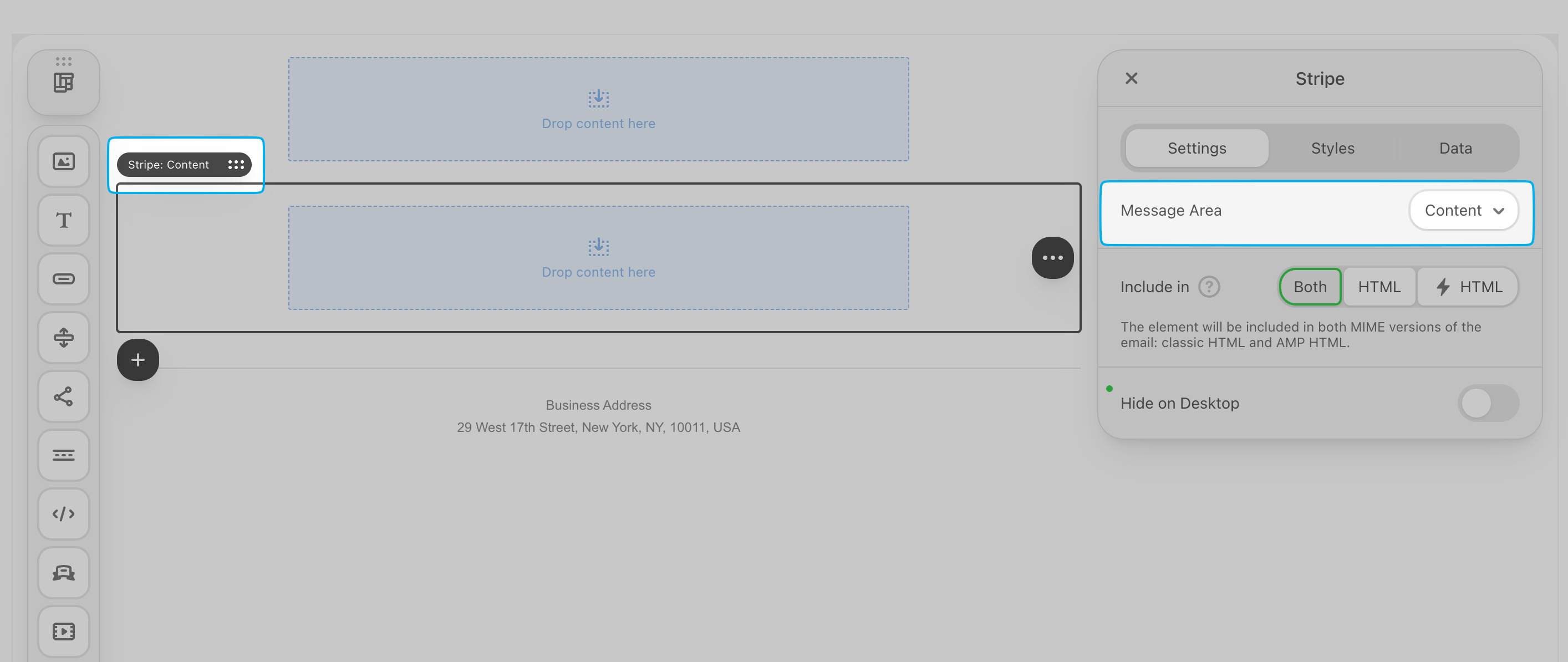 A typical marketing email will have all four types of Stripes.
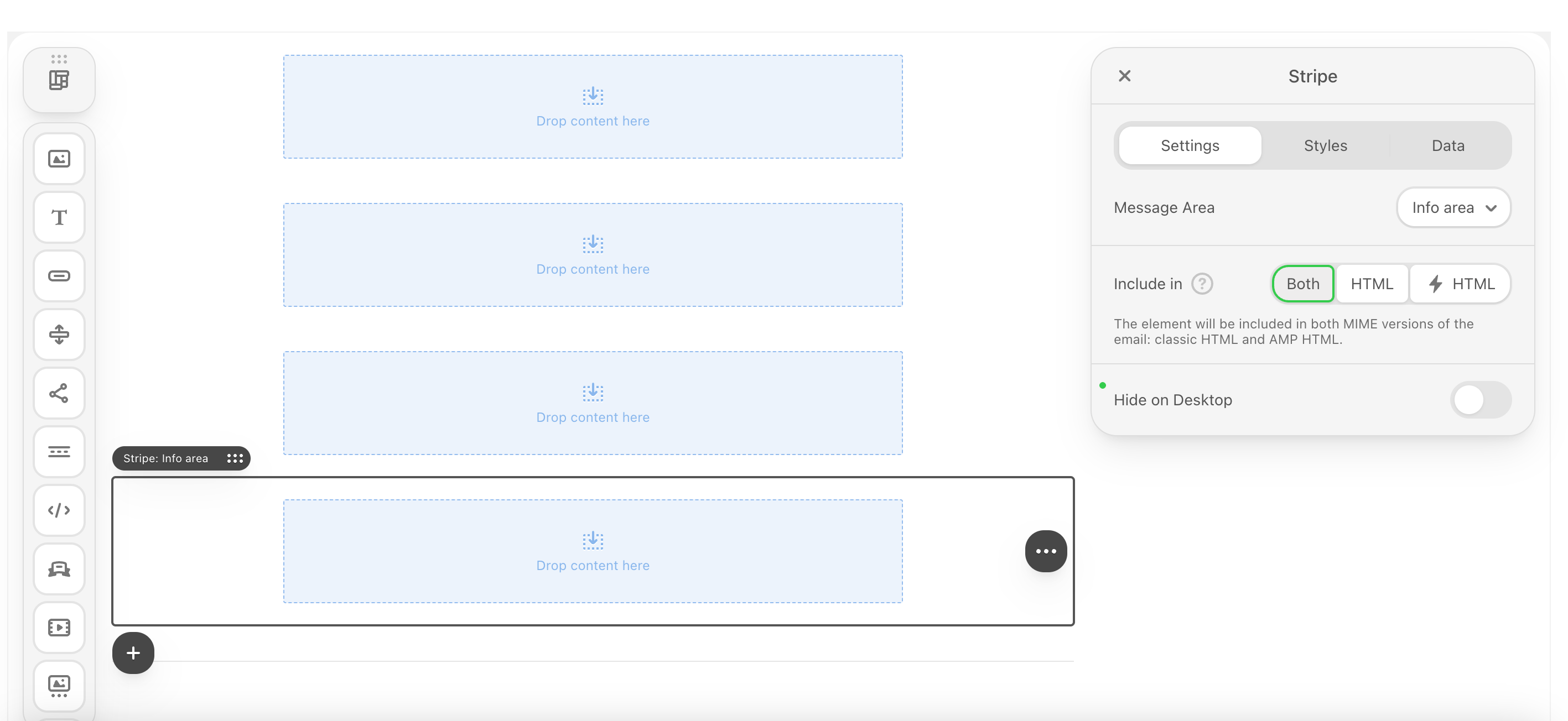 Stripes will contain one or more structures. A single structure can be divided into multiple containers (columns).
*Example: To display a product image next to a description, you use a two-container structure (Container A: 40% width for image | Container B: 60% width for text).*
Add a structure to a stripe by clicking the **structure icon** in the left hand corner
Stripes will contain one or more structures. A single structure can be divided into multiple containers (columns).
*Example: To display a product image next to a description, you use a two-container structure (Container A: 40% width for image | Container B: 60% width for text).*
Add a structure to a stripe by clicking the **structure icon** in the left hand corner
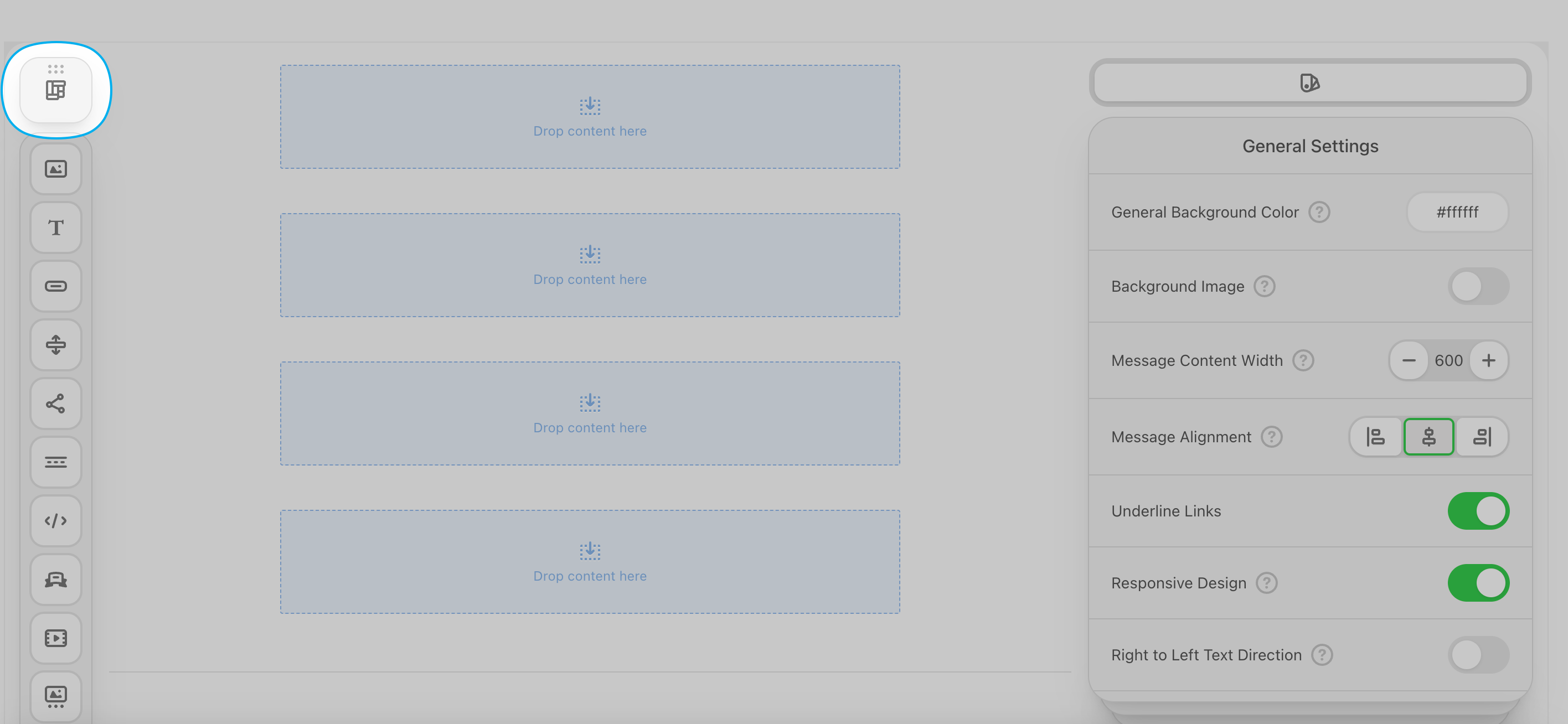 Select the number of containers to insert
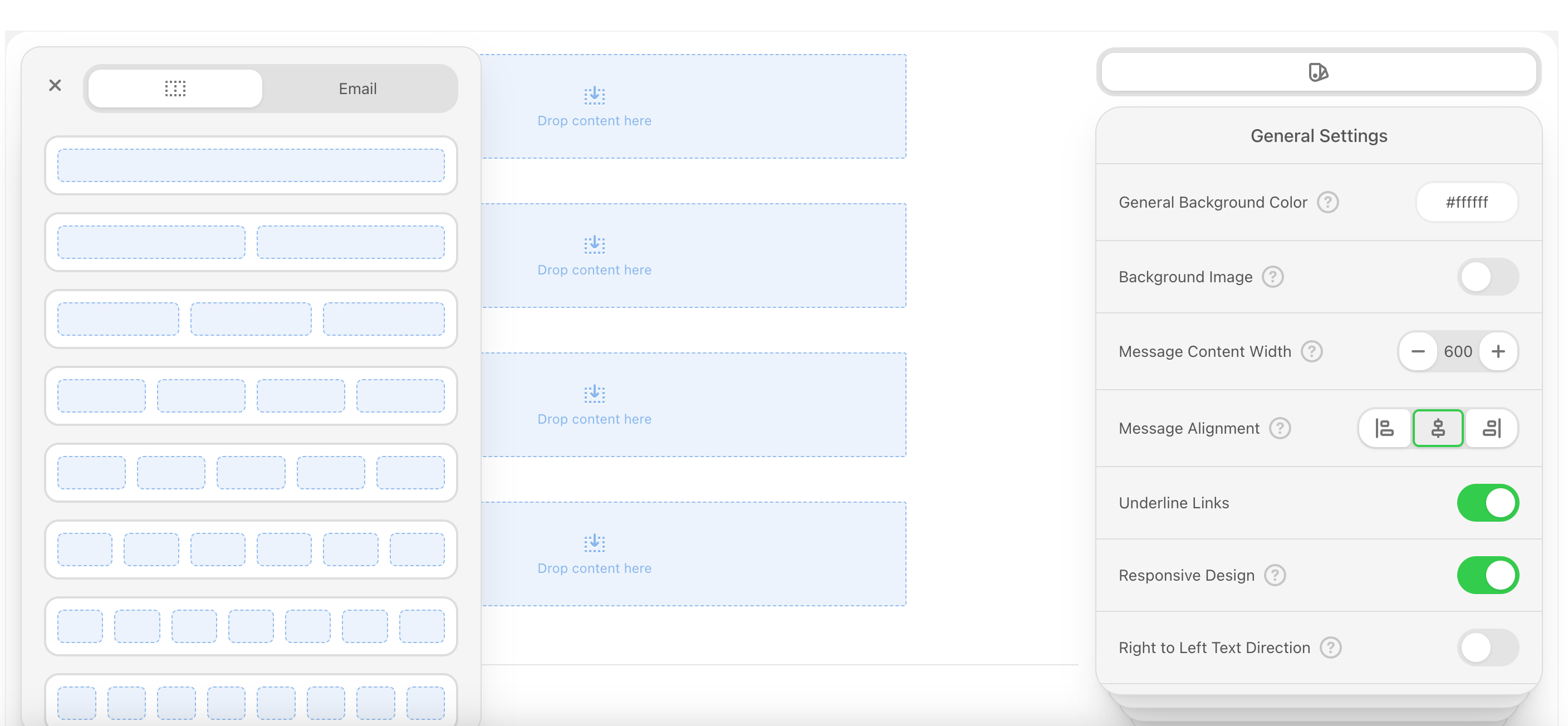 Drag and drop the structure with its containers into a stripe
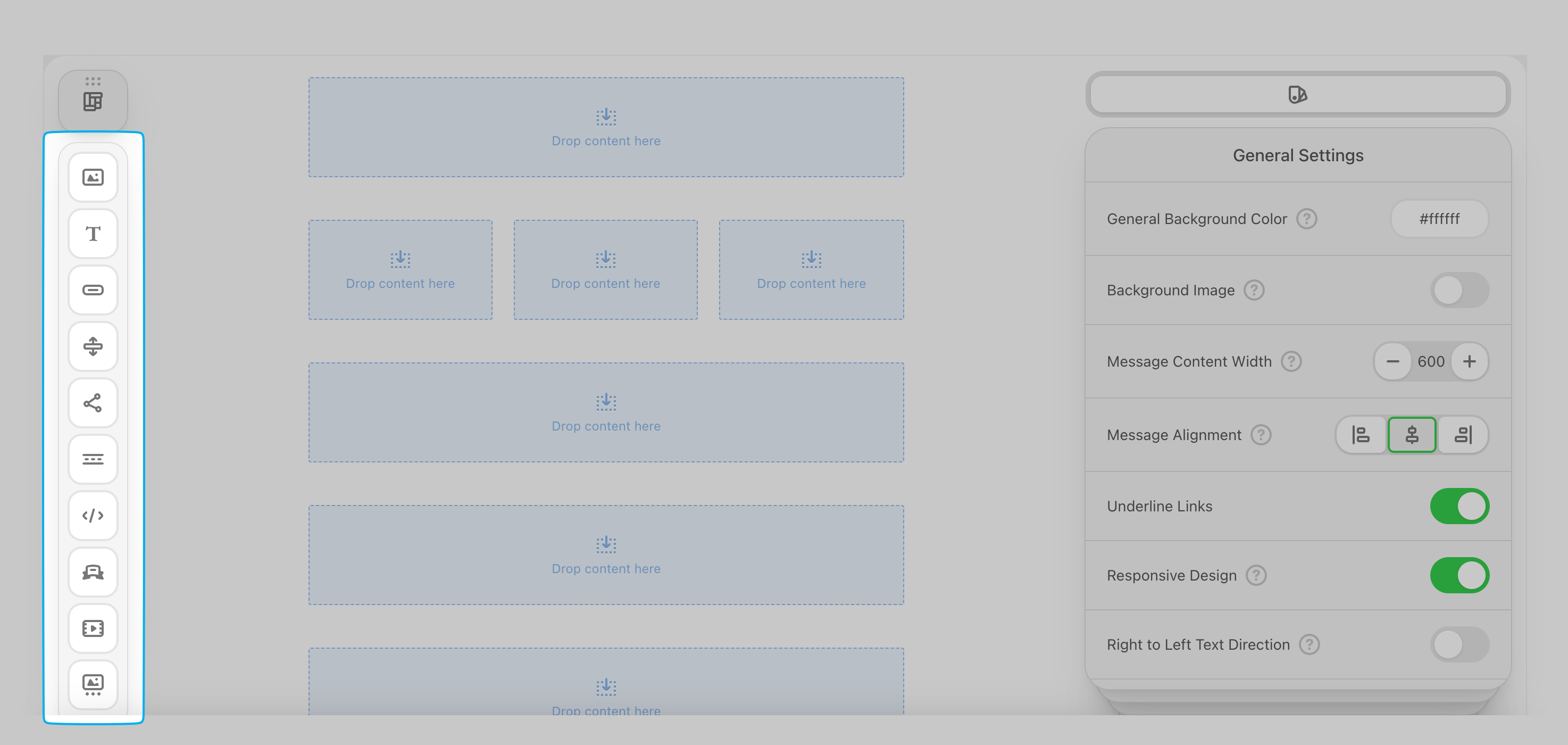
 After inserting the structural layers (stripes and structures), it's time to fill the containers with content.
The core functionality of any email is delivered through these standardized blocks:
* **Text Block**: Used for headlines, body copy, and paragraph text. Allows for formatting (bold, italic), color, font control, and hyperlinking.
* **Image Block**: Used for visual assets (banners, product photos).
* **Button Block (CTA)**: The primary interactive element. Contains the link URL, button text, and color/padding styles.
* **Spacer/Divider Block**: Provides necessary white space or a horizontal line to separate content and improve readability.
* **Social Link Block**: A group of small, linked icons for platforms like X, Facebook, and Instagram.
Drag and drop any of these content icons into a container to begin:
After inserting the structural layers (stripes and structures), it's time to fill the containers with content.
The core functionality of any email is delivered through these standardized blocks:
* **Text Block**: Used for headlines, body copy, and paragraph text. Allows for formatting (bold, italic), color, font control, and hyperlinking.
* **Image Block**: Used for visual assets (banners, product photos).
* **Button Block (CTA)**: The primary interactive element. Contains the link URL, button text, and color/padding styles.
* **Spacer/Divider Block**: Provides necessary white space or a horizontal line to separate content and improve readability.
* **Social Link Block**: A group of small, linked icons for platforms like X, Facebook, and Instagram.
Drag and drop any of these content icons into a container to begin:
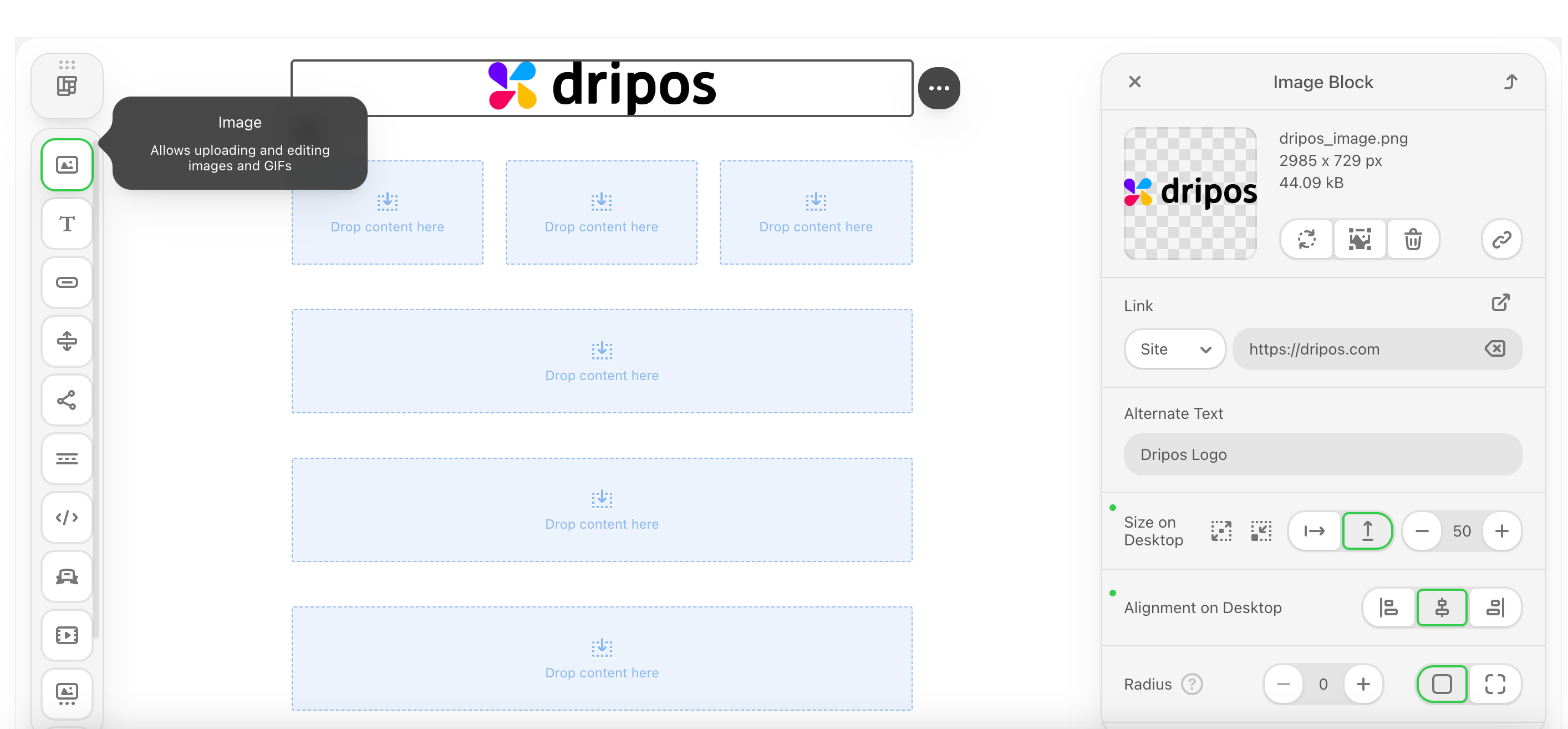
 Add images to your emails, edit them in real time, add clickable links, and more!
Drag and drop the image icon into a container.
Add images to your emails, edit them in real time, add clickable links, and more!
Drag and drop the image icon into a container.
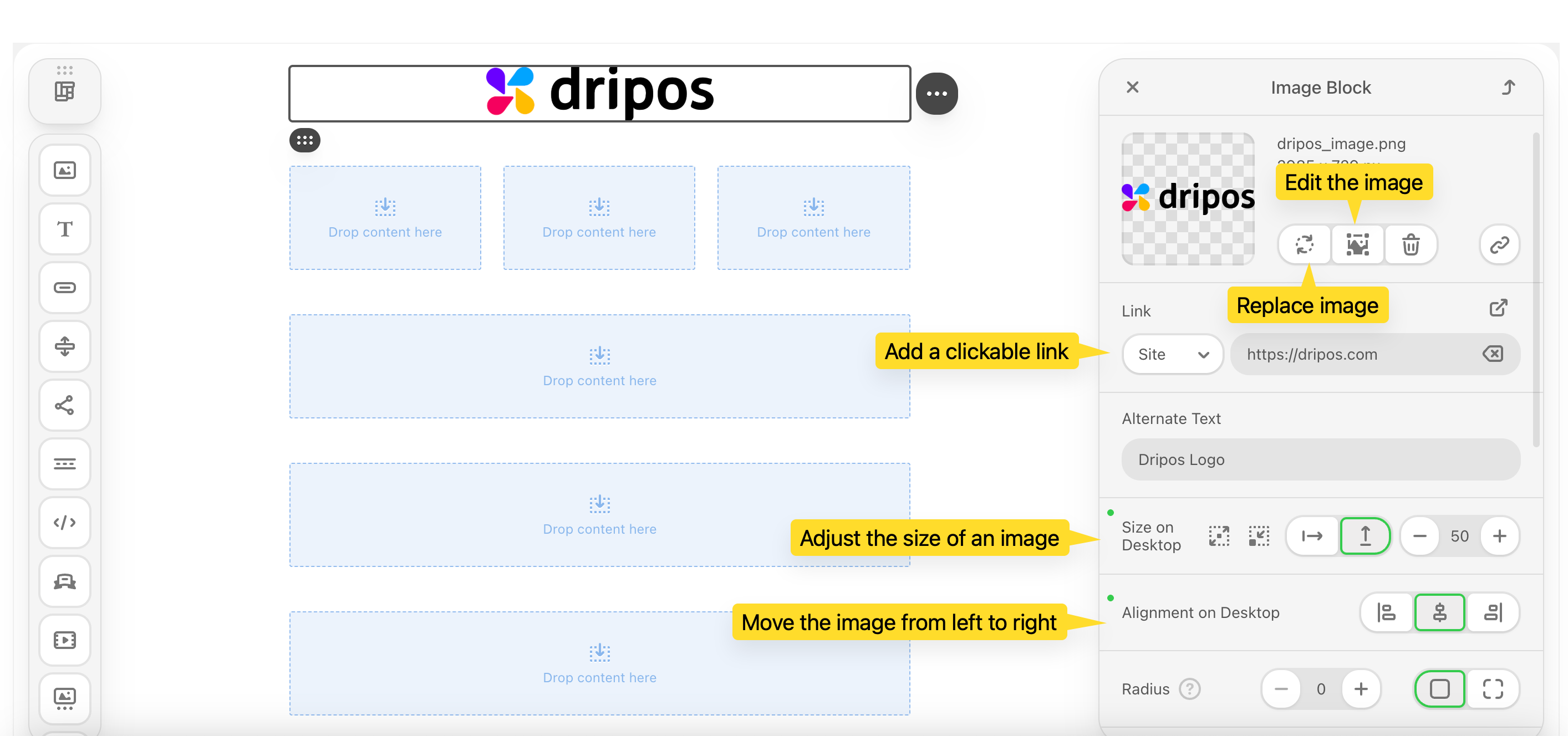
 Use the various tools to edit your image within your email.
 Add clickable buttons to your emails that link out to your order website, menu, store website, etc.
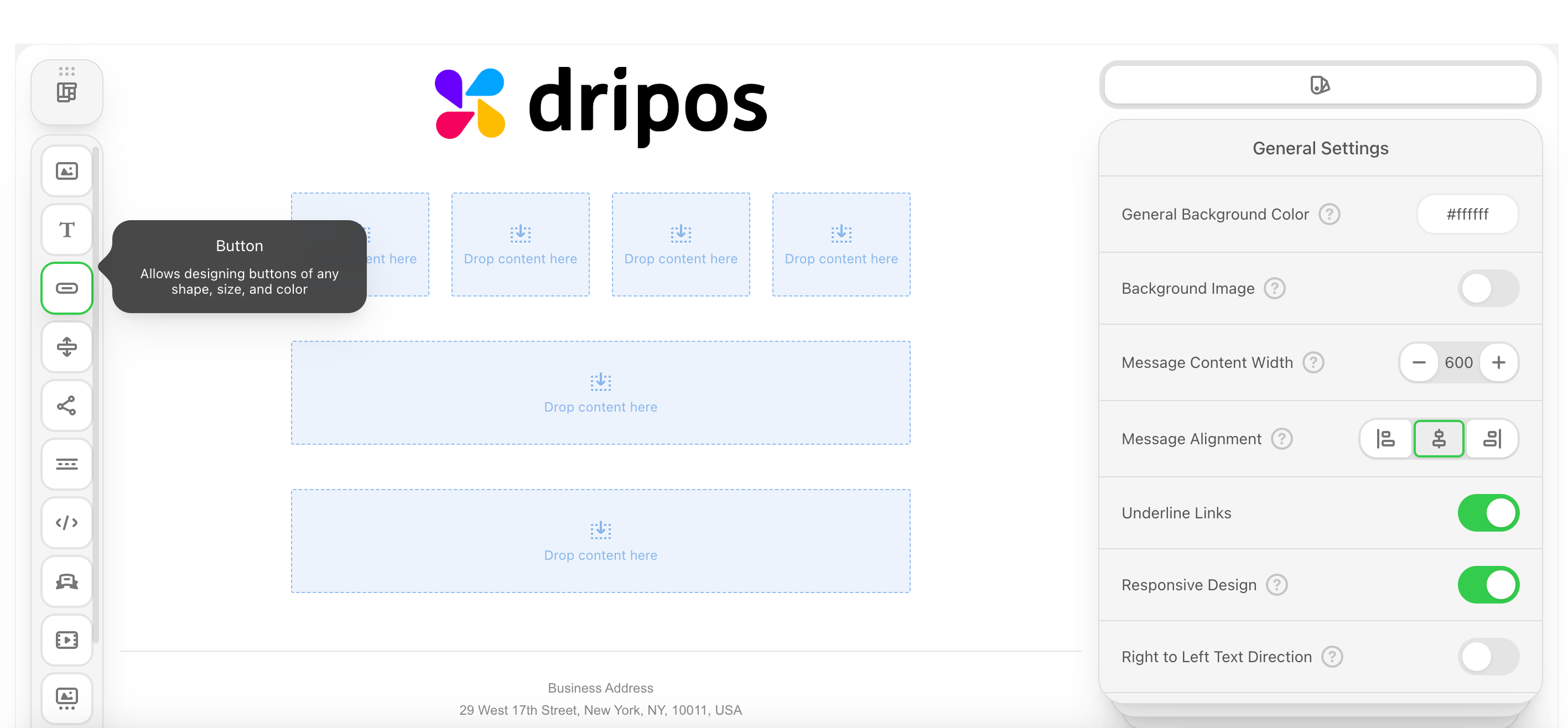 Click the **Buttons** icon on the right and drag and drop it into a container.
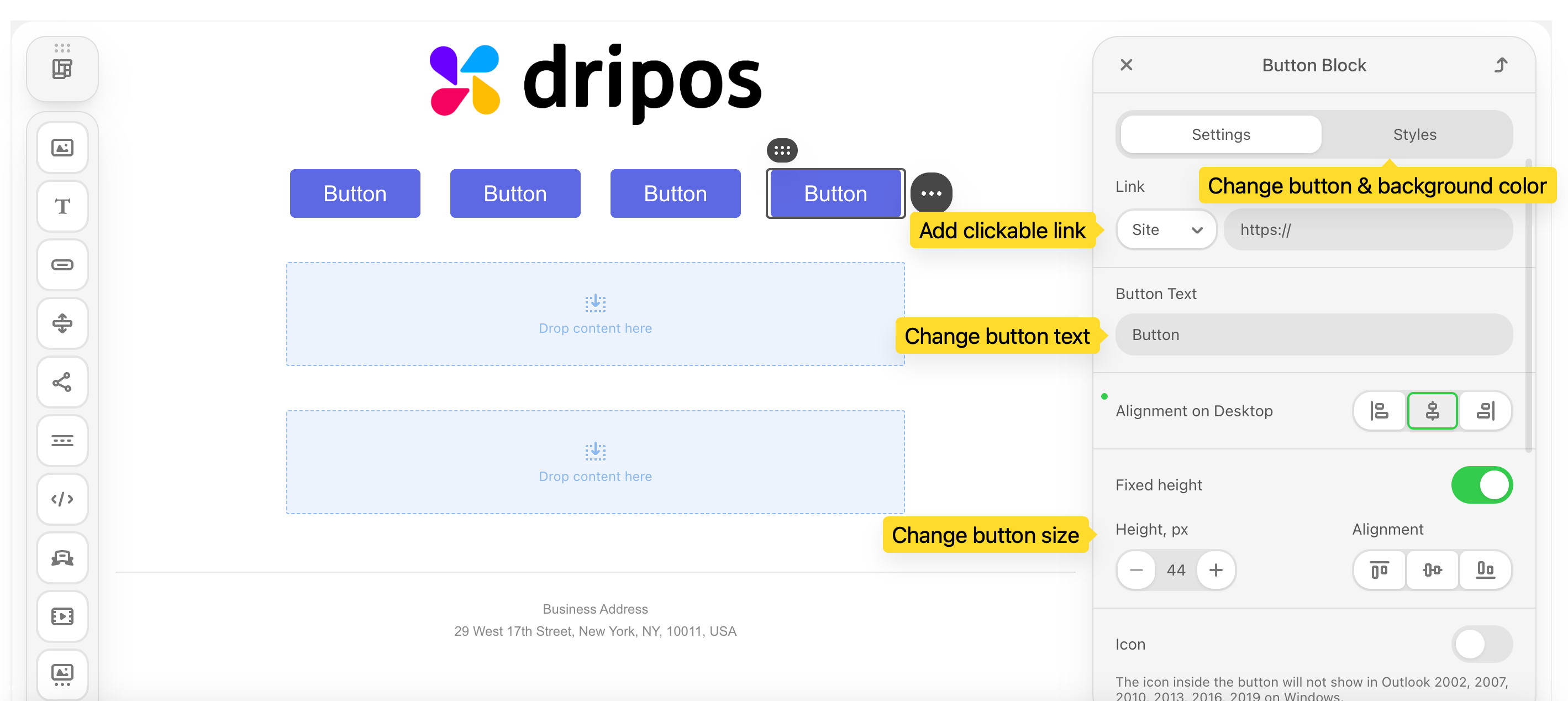
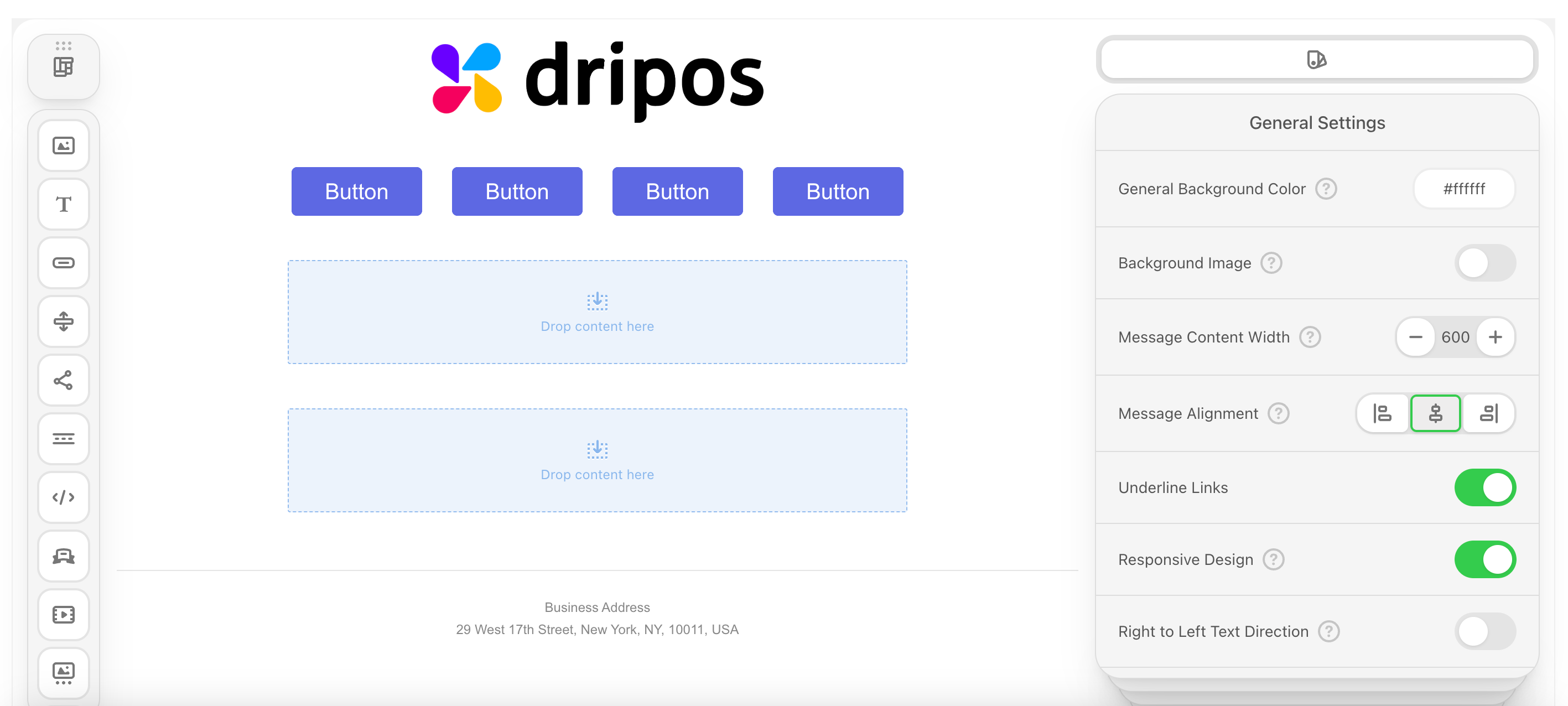 Add a clickable link to each button, change the size and the text of the button.
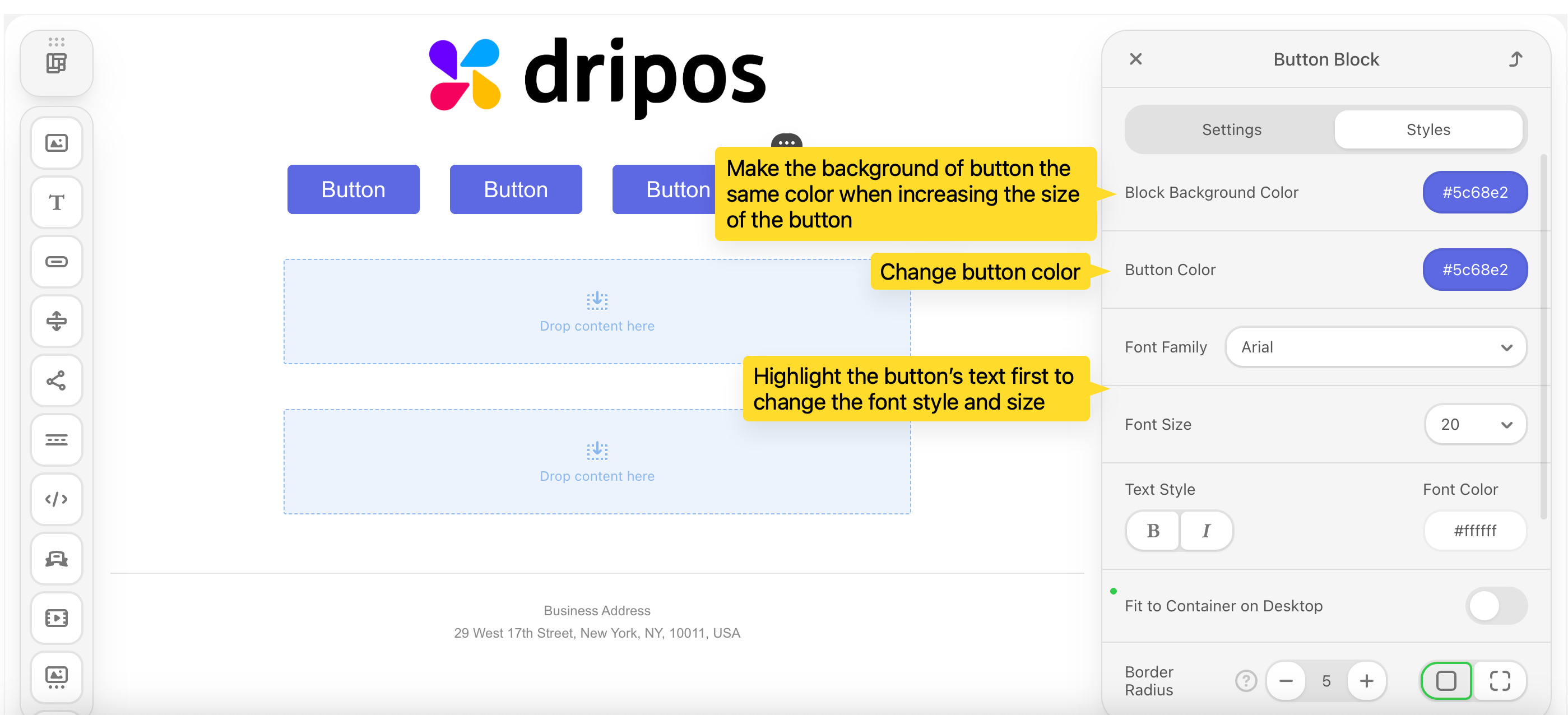
 Adjust the style of the button, i.e., it's color, font, font size, position, etc.
 **Example**
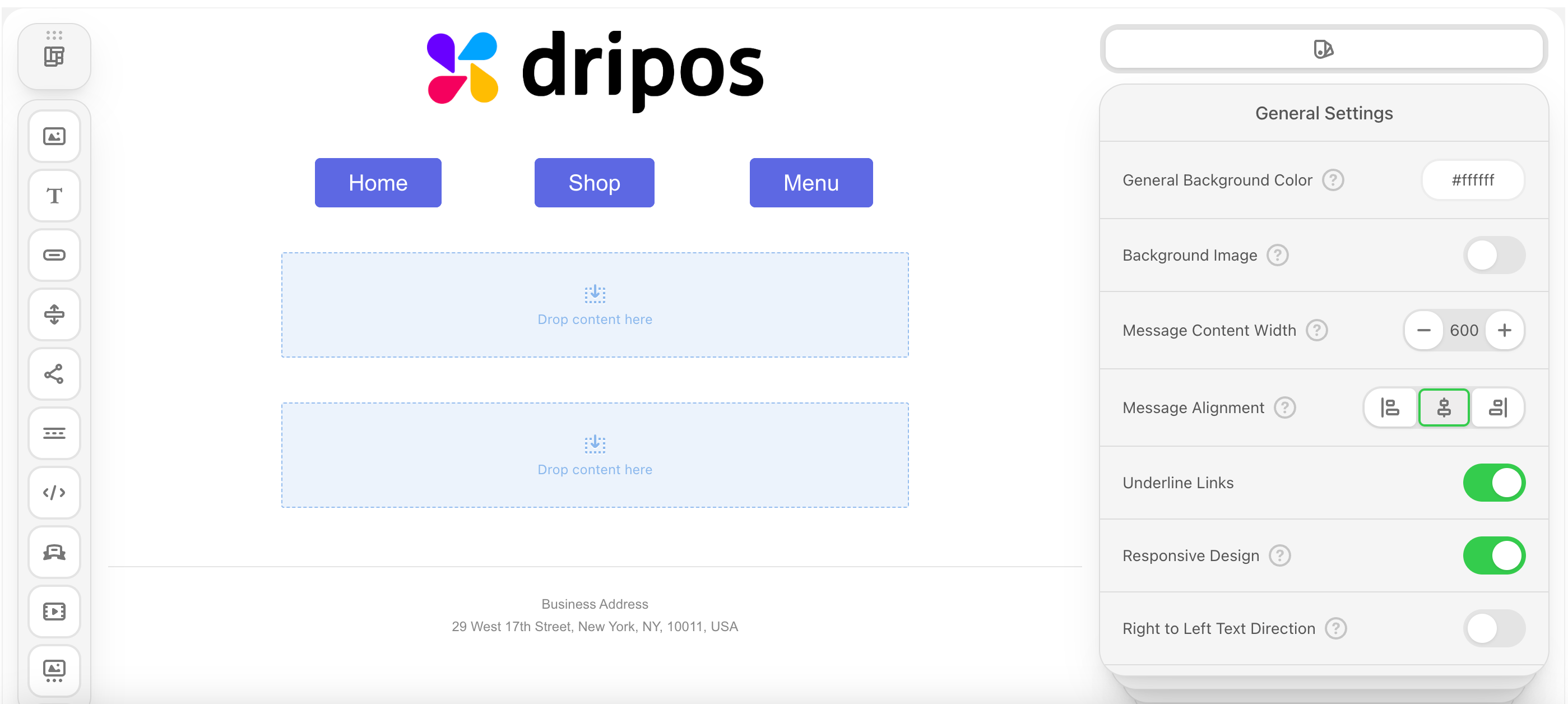 Add text, bulleted lists, numbered lists, and tables to your emails.
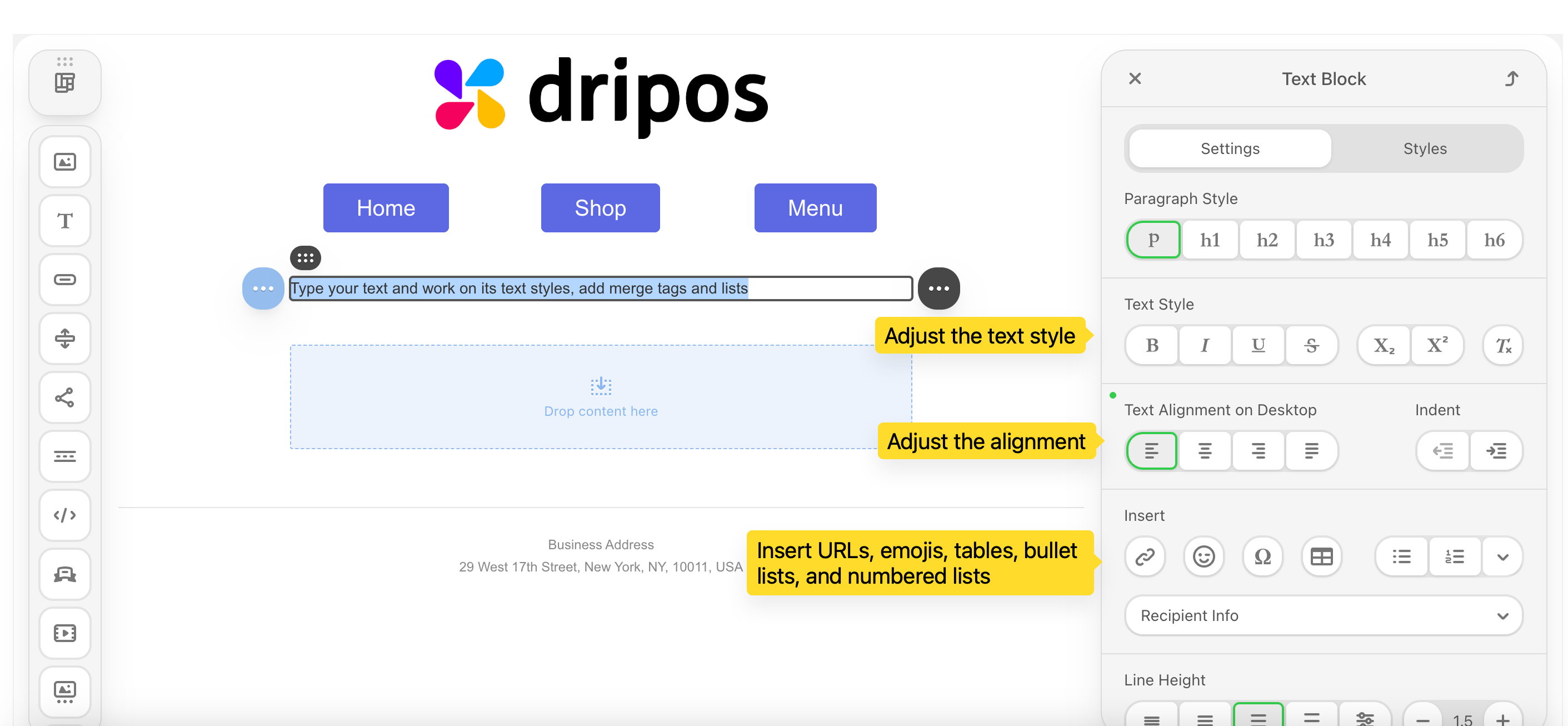
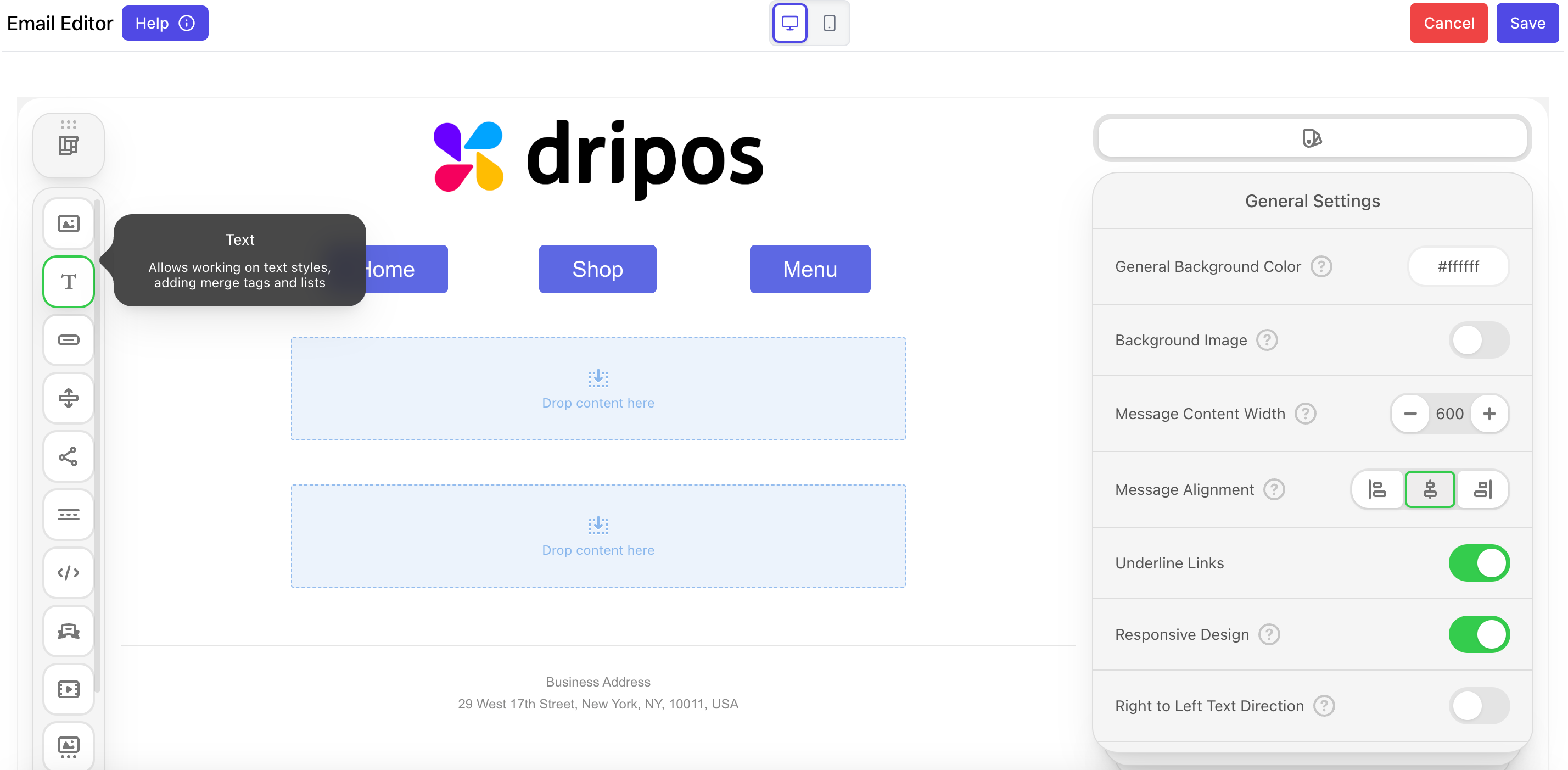 Click the **Text** icon on the right and drag and drop it into a container. Adjust the text style, i.e. style, color, size, position
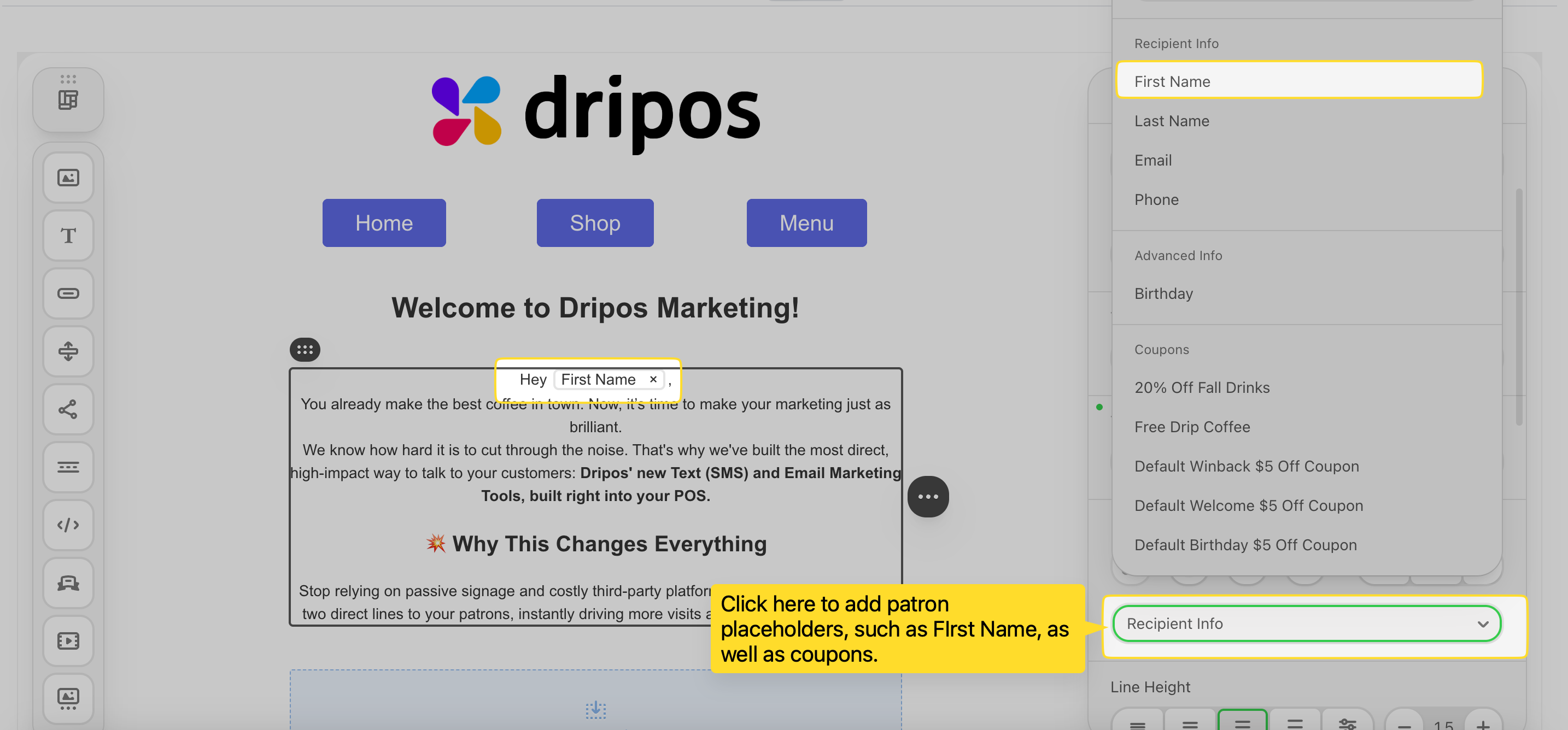
 Sending a generic email can feel...generic. Instead, you can use placeholders (like \[First Name]) to automatically insert each patron's name into your message. This makes the email feel like a one-on-one conversation, not a mass blast.
Click **Recipient Info** and select a placeholder of either First Name, Last Name, Email or Phone for each patron who receives this campaign.
Stick to using your customer's first name for a more casual, friendly message. A full name (e.g., "Jack Pawlik") also uses up valuable space that could be used for the offer, the call-to-action, or the discount code.
Sending a generic email can feel...generic. Instead, you can use placeholders (like \[First Name]) to automatically insert each patron's name into your message. This makes the email feel like a one-on-one conversation, not a mass blast.
Click **Recipient Info** and select a placeholder of either First Name, Last Name, Email or Phone for each patron who receives this campaign.
Stick to using your customer's first name for a more casual, friendly message. A full name (e.g., "Jack Pawlik") also uses up valuable space that could be used for the offer, the call-to-action, or the discount code.
 Send your customers coupon codes via email. Dripos offers two types of coupon codes: [**Generic Coupon Codes**](/marketing/promos/promos-overview#generic-coupon-codes) and [**Unique Coupon Codes**](/marketing/promos/promos-overview#unique-coupon-codes).
What's the difference?
The same code is sent to every customer.
**Code Example**: *SALE20, FLASH15, WELCOME10*
A different, one-time-use code is generated for every individual customer. Dripos will generate these individual codes so you don't have to!
**Code Example**: *X7T3P2D, S8A0H4B, J9K1L0M*
Consider a few things before picking your coupon type:
These coupons can be easily shared on social media, coupon sites, or forums.
This can be great for a wide-spread promotion, but keep it mind it can also lead to coupon abuse by a wider audience than anticipated.
**The good news** is you can easily define the maximum number of redemptions for a generic coupon when you create it. Additionally, customers must create a patron profile with your shop in order to apply this coupon on a mobile order.
Since each code is single-use, it prevents code sharing and fraud. You control exactly who uses the discount and how many times (usually once).
Before adding a coupon code, learn how to create a [**Generic Coupon Code**](/marketing/promos/promos-overview#generic-coupon-codes) and a [**Unique Coupon Code**](/marketing/promos/promos-overview#unique-coupon-codes) in Dripos.
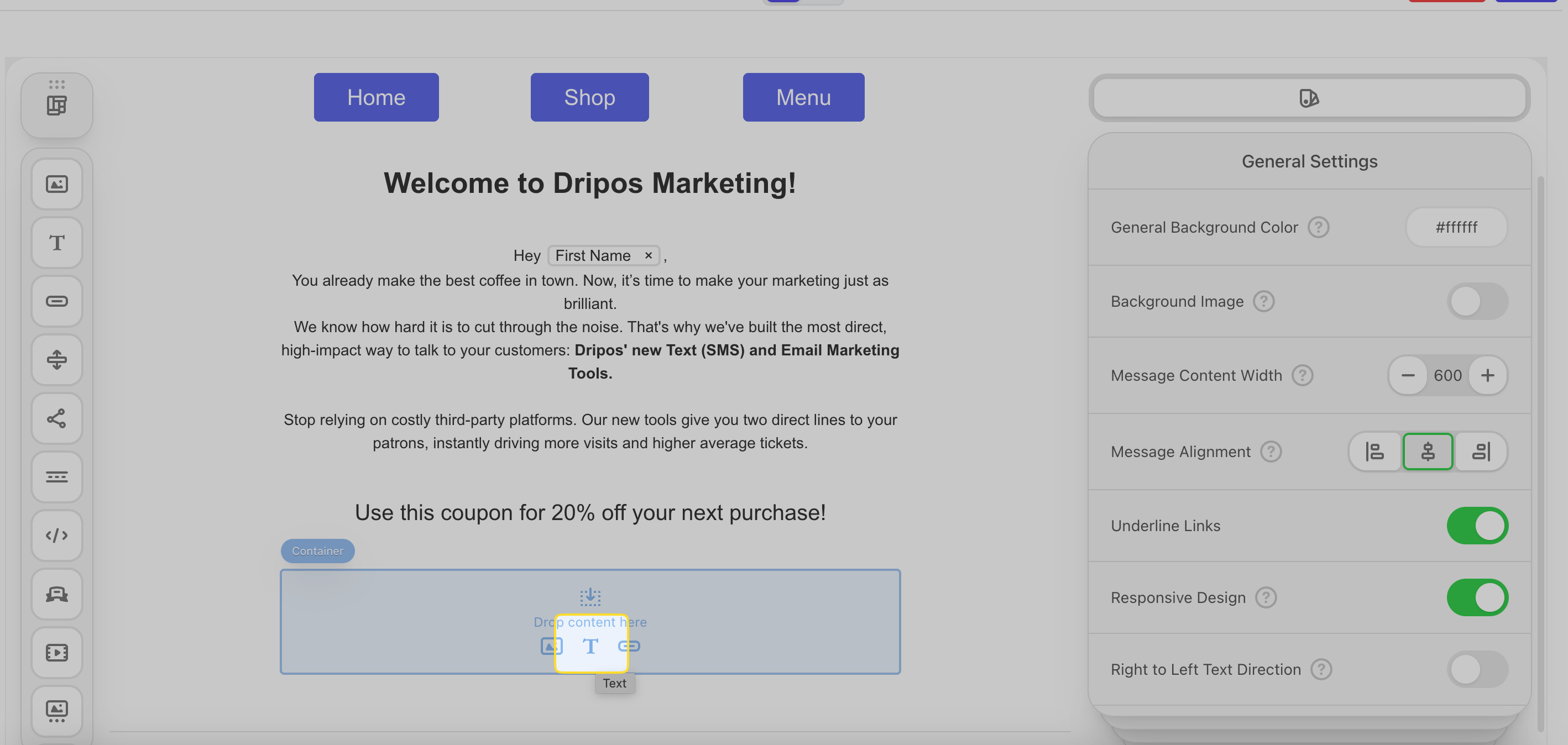
Click the **text** icon in an empty container to add a text box.
Send your customers coupon codes via email. Dripos offers two types of coupon codes: [**Generic Coupon Codes**](/marketing/promos/promos-overview#generic-coupon-codes) and [**Unique Coupon Codes**](/marketing/promos/promos-overview#unique-coupon-codes).
What's the difference?
The same code is sent to every customer.
**Code Example**: *SALE20, FLASH15, WELCOME10*
A different, one-time-use code is generated for every individual customer. Dripos will generate these individual codes so you don't have to!
**Code Example**: *X7T3P2D, S8A0H4B, J9K1L0M*
Consider a few things before picking your coupon type:
These coupons can be easily shared on social media, coupon sites, or forums.
This can be great for a wide-spread promotion, but keep it mind it can also lead to coupon abuse by a wider audience than anticipated.
**The good news** is you can easily define the maximum number of redemptions for a generic coupon when you create it. Additionally, customers must create a patron profile with your shop in order to apply this coupon on a mobile order.
Since each code is single-use, it prevents code sharing and fraud. You control exactly who uses the discount and how many times (usually once).
Before adding a coupon code, learn how to create a [**Generic Coupon Code**](/marketing/promos/promos-overview#generic-coupon-codes) and a [**Unique Coupon Code**](/marketing/promos/promos-overview#unique-coupon-codes) in Dripos.
Click the **text** icon in an empty container to add a text box.
 Click **Recipient Info**. All coupons you've created will appear under **Coupons**. Select one coupon placeholder to insert.
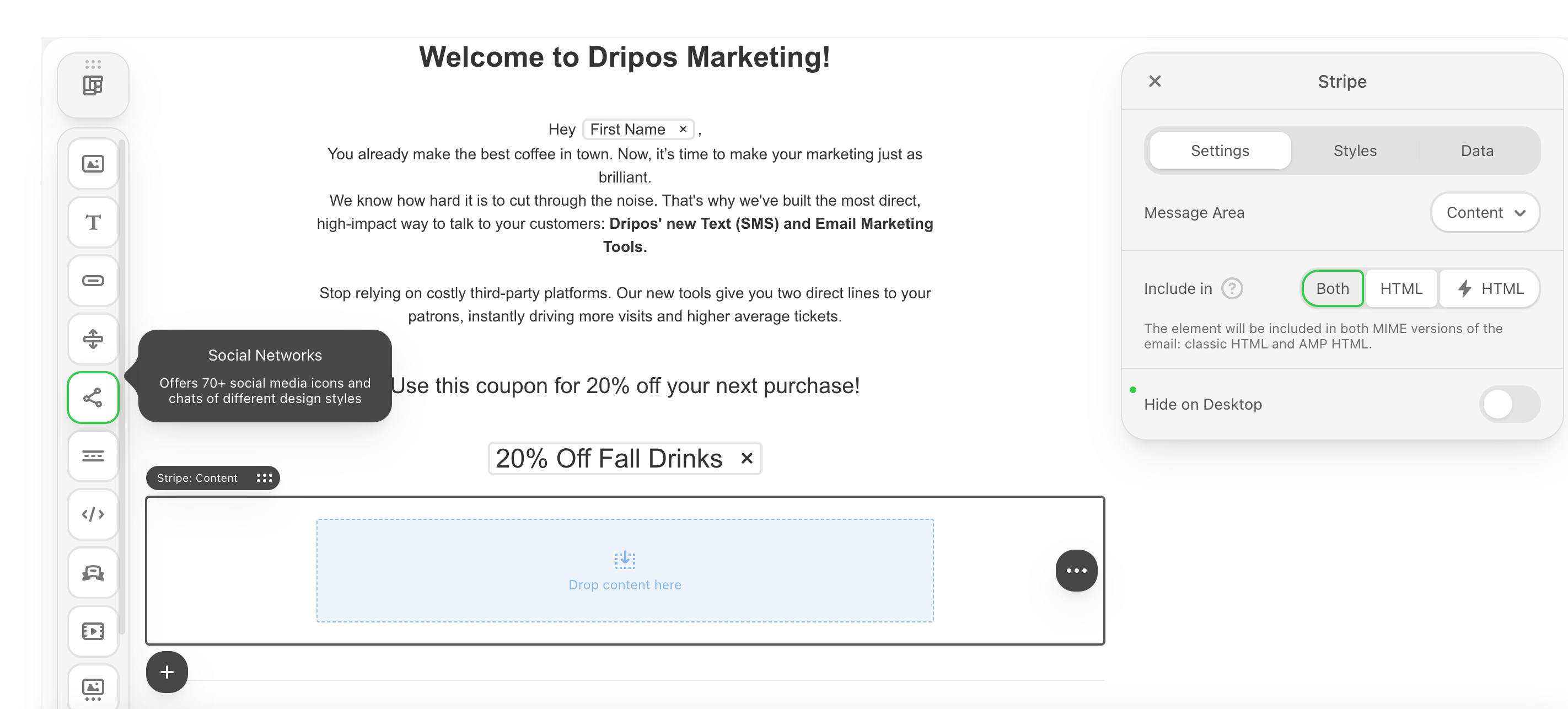
 A **Generic Coupon Code** placeholder will send the same code to every customer.
A **Unique Coupon Code** placeholder will send a different, one-time-use code for every individual customer. Dripos will generate these individual codes so you don't have to!
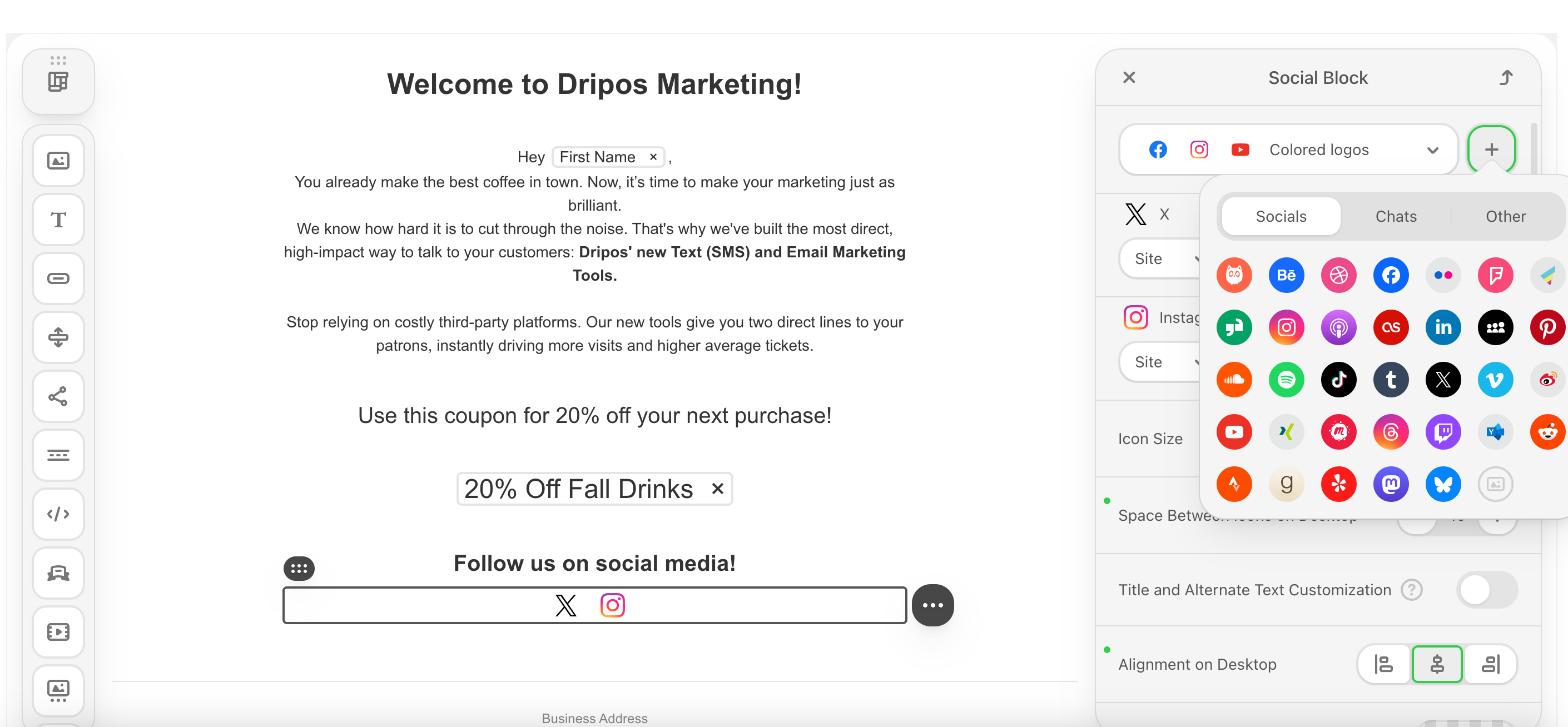
Add your social network pages to your emails with clickable links.
Drag and drop the **social networks** icon into an empty container.
A **Generic Coupon Code** placeholder will send the same code to every customer.
A **Unique Coupon Code** placeholder will send a different, one-time-use code for every individual customer. Dripos will generate these individual codes so you don't have to!
Add your social network pages to your emails with clickable links.
Drag and drop the **social networks** icon into an empty container.
 Enter the URL for each page into its designated field. You may delete any icons you do not wish to use.
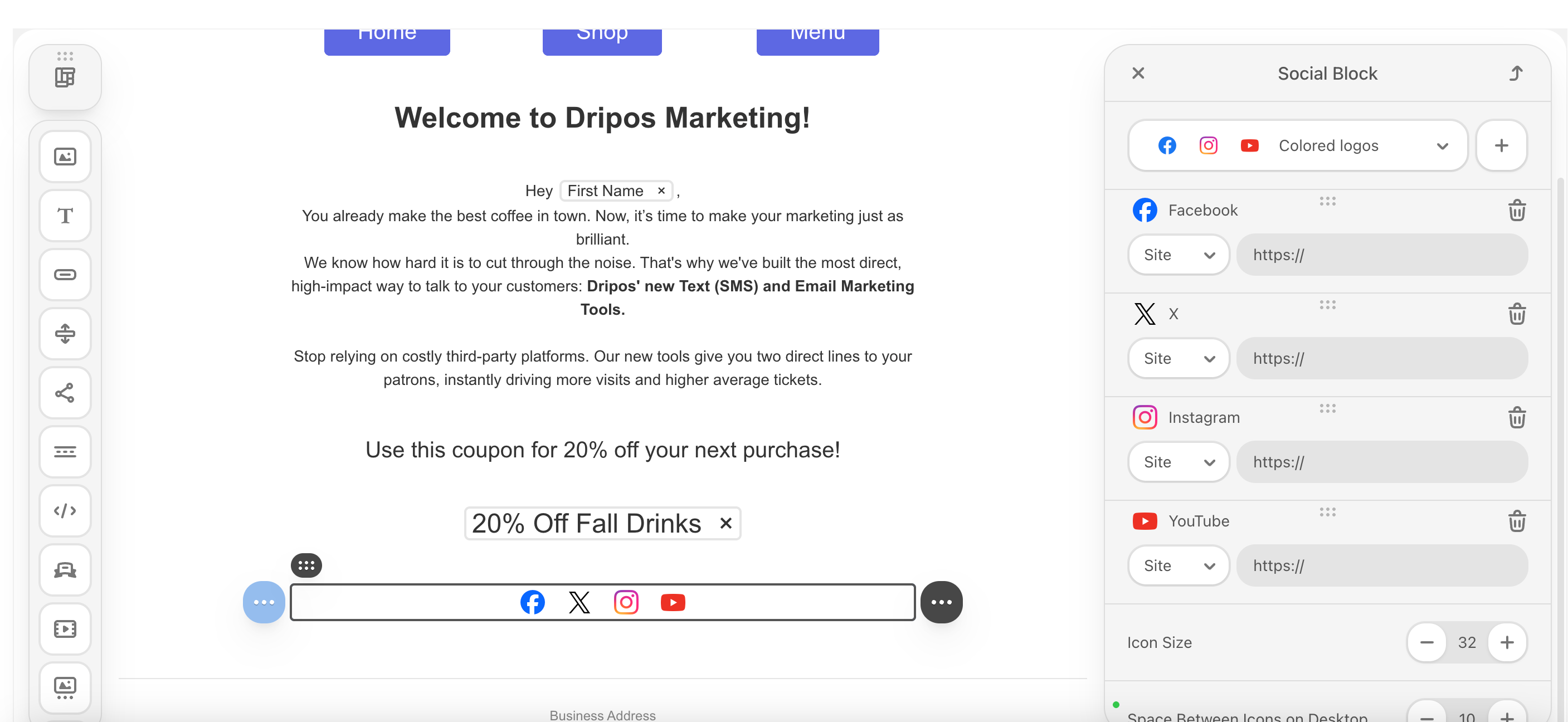 Add any additional icons and links!
 Add a navigational menu to your email.
Add a **structure** to your email. Then drag & drop the **menu** icon into the structure.
Add a navigational menu to your email.
Add a **structure** to your email. Then drag & drop the **menu** icon into the structure.
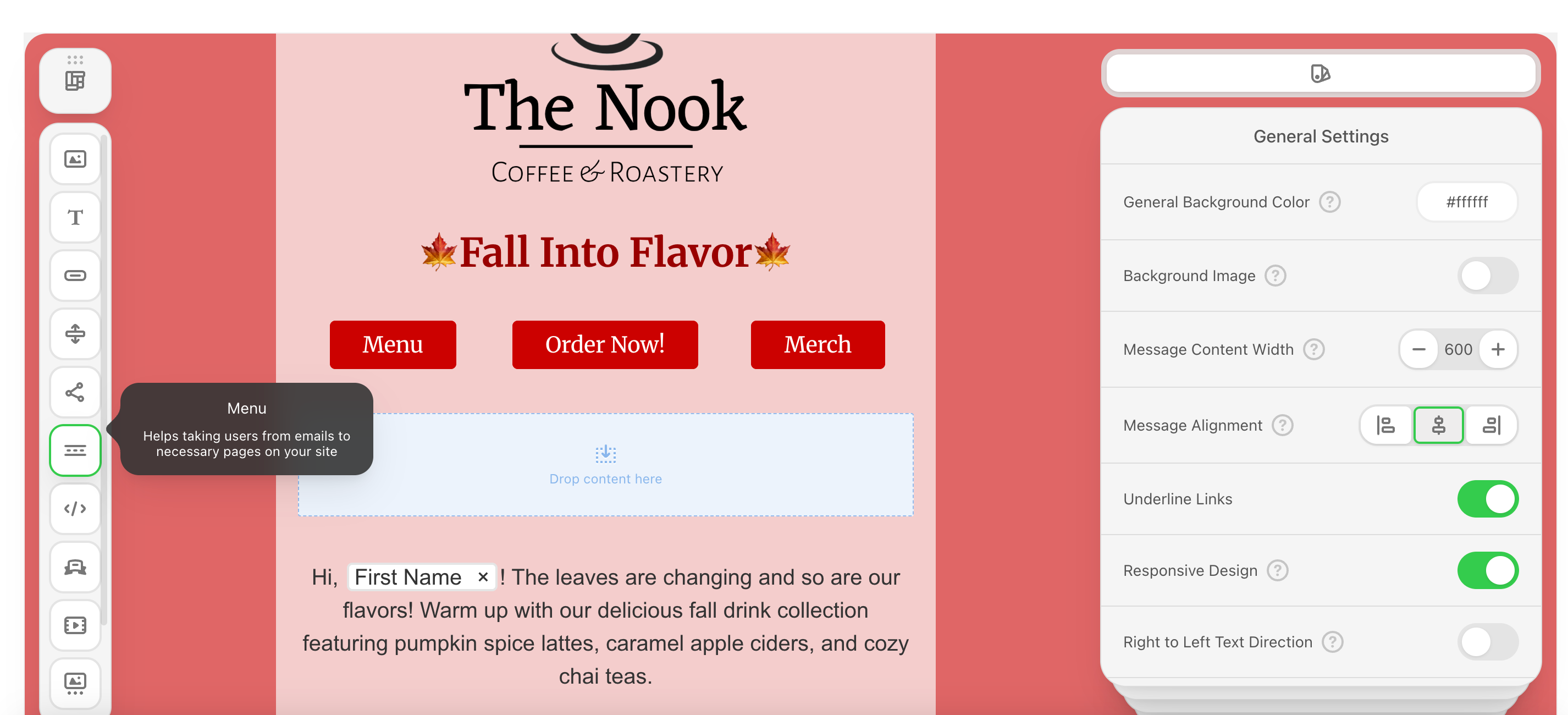 See [**Buttons**](/marketing/text/reach-campaign#buttons) to learn how to create the red button option seen above.
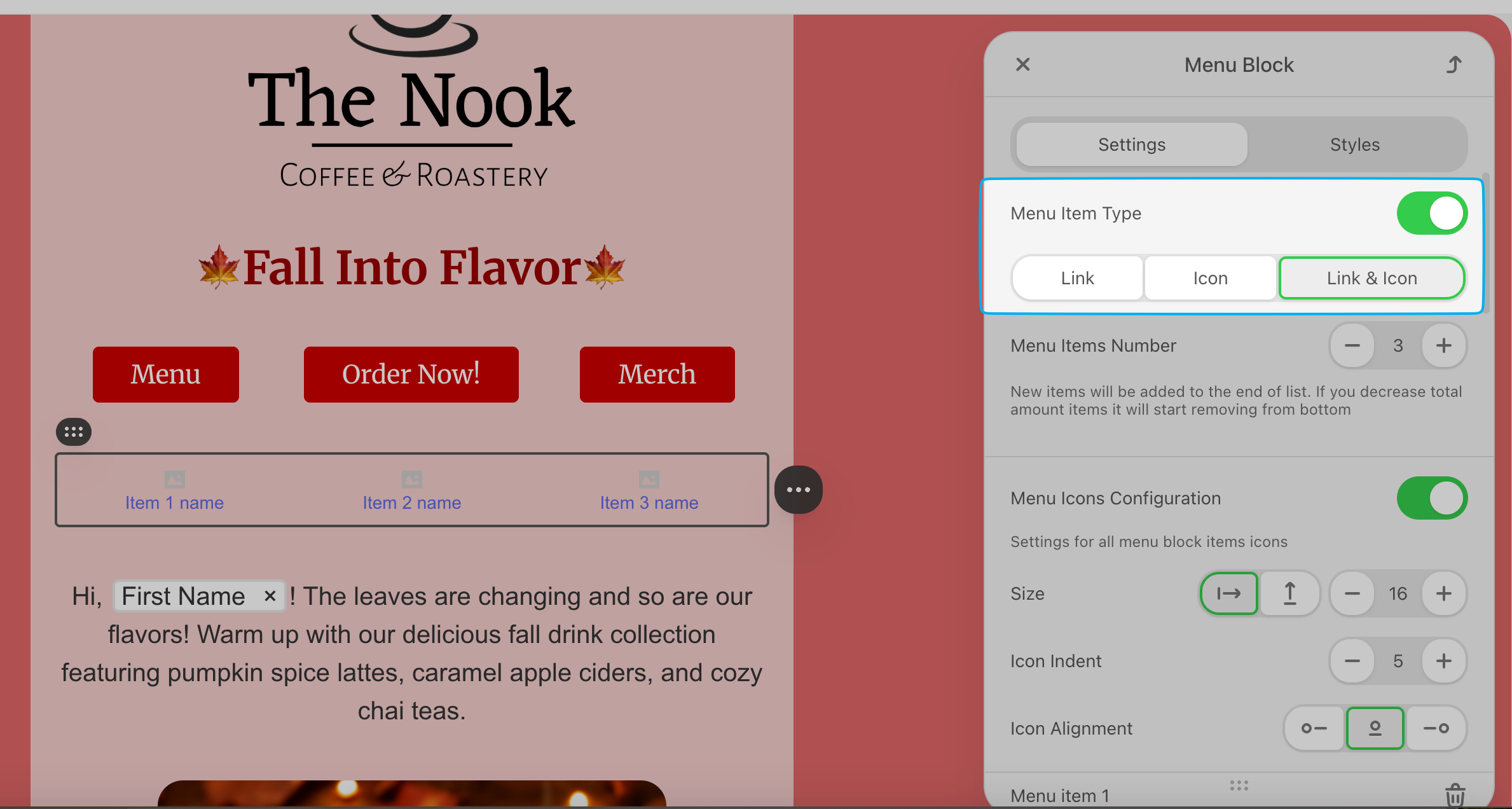
Choose a menu item type:
**Link**: Solely display a clickable link
**Icon**: Solely display a clickable icon
**Link & Icon**: Display both a clickable icon and link name
See [**Buttons**](/marketing/text/reach-campaign#buttons) to learn how to create the red button option seen above.
Choose a menu item type:
**Link**: Solely display a clickable link
**Icon**: Solely display a clickable icon
**Link & Icon**: Display both a clickable icon and link name
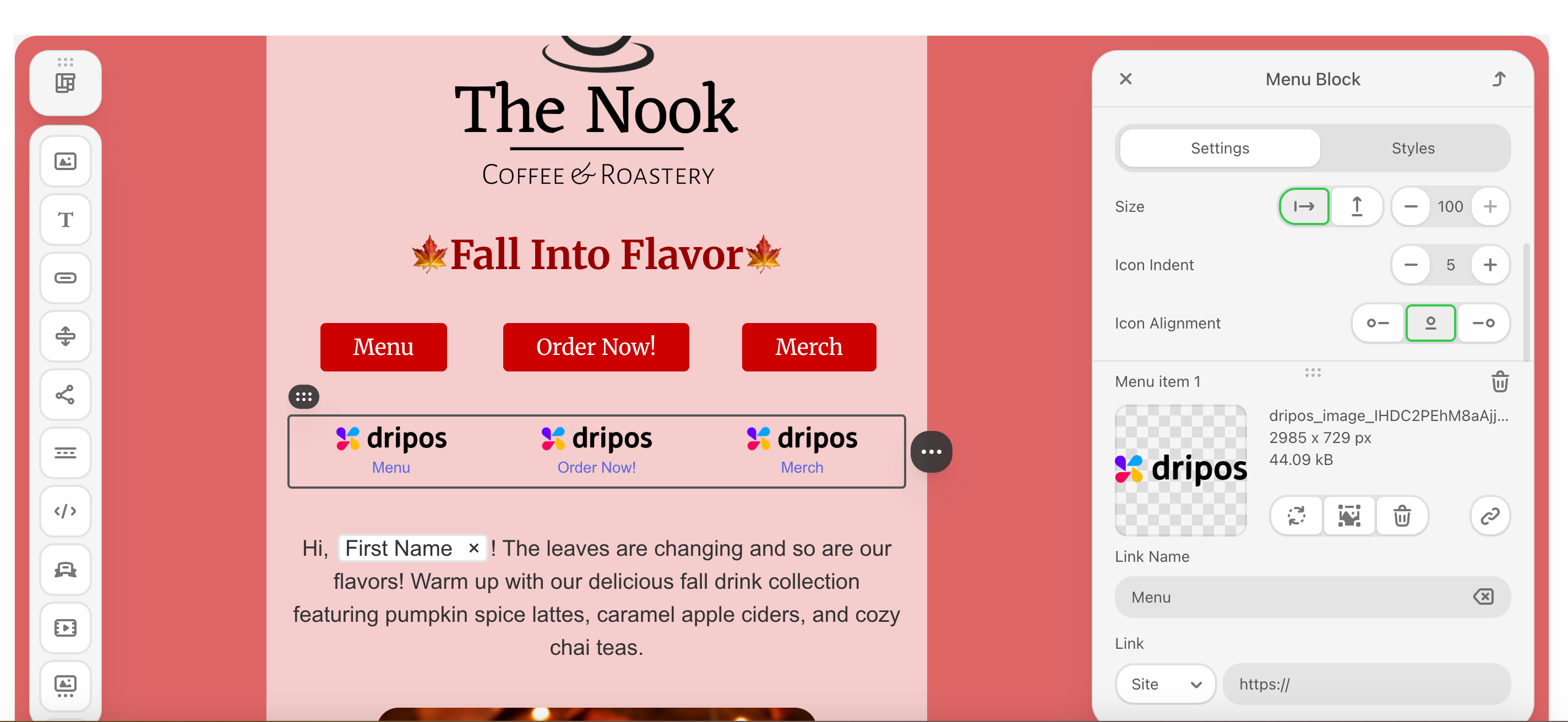
 Input images, links, and link titles.
Change the size of the images as well and adjust the menu with the options listed.
Input images, links, and link titles.
Change the size of the images as well and adjust the menu with the options listed.
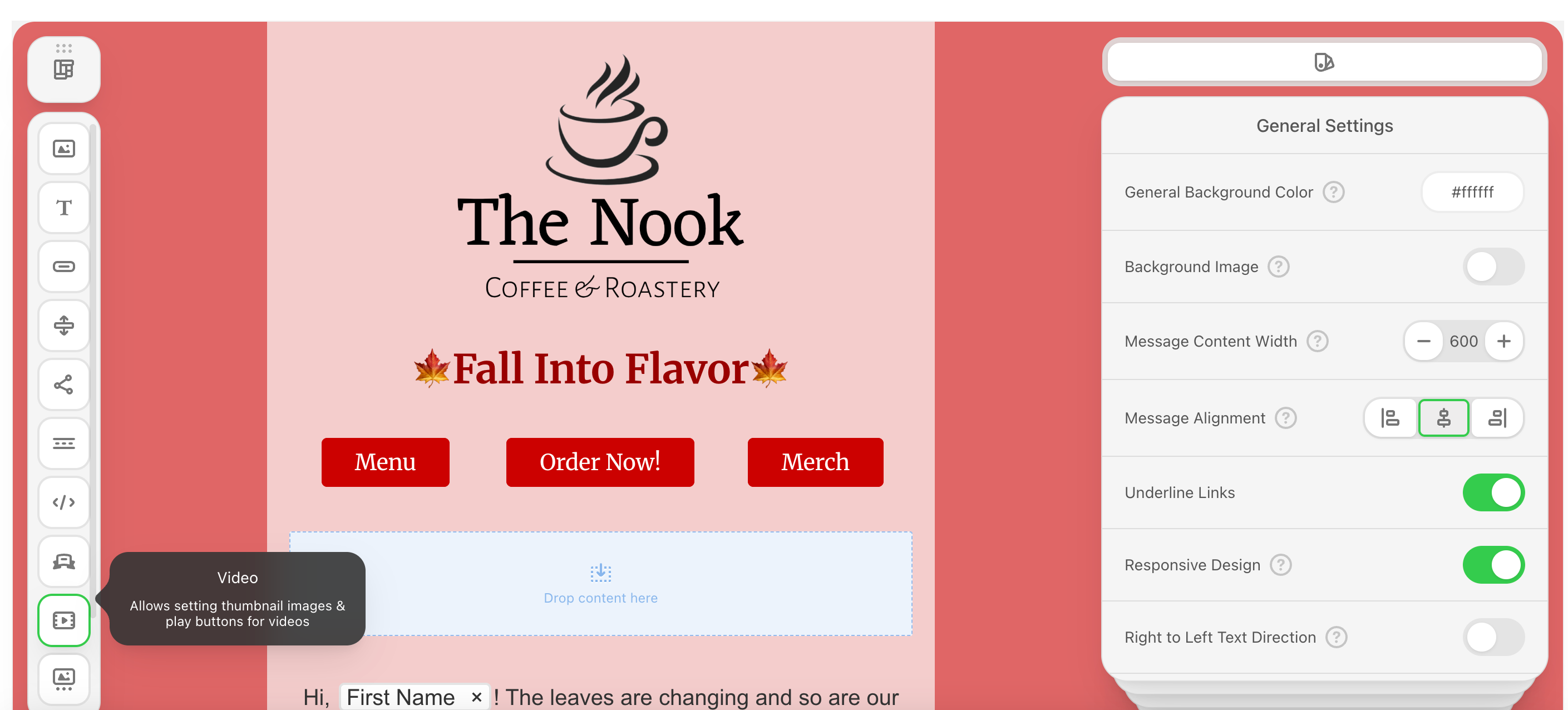
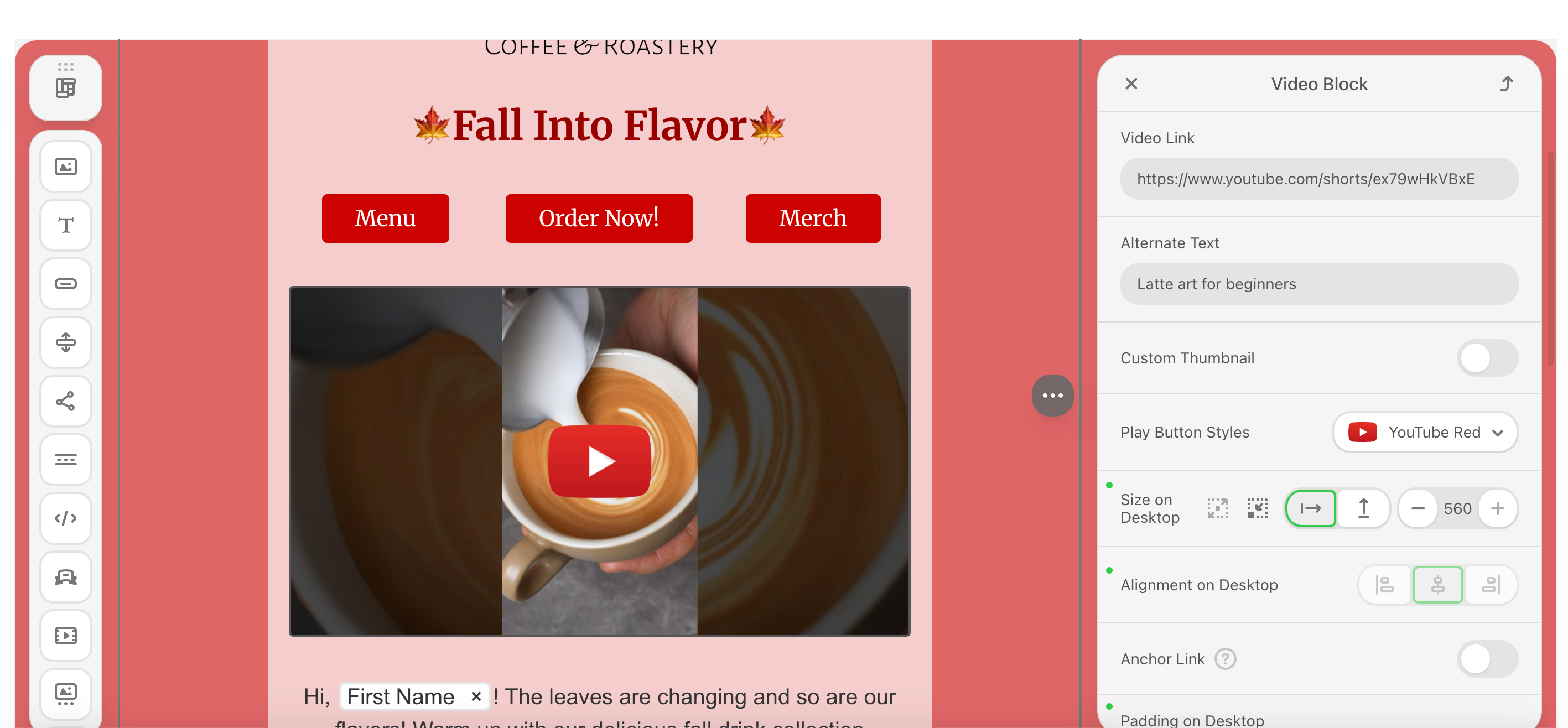
 Add a YouTube, Instagram, TikTok, or Vimeo video to your email body.
Add a structure to your email body and drag & drop the video icon into the structure.
Add a YouTube, Instagram, TikTok, or Vimeo video to your email body.
Add a structure to your email body and drag & drop the video icon into the structure.
 Upload your video URL to embedded the video.
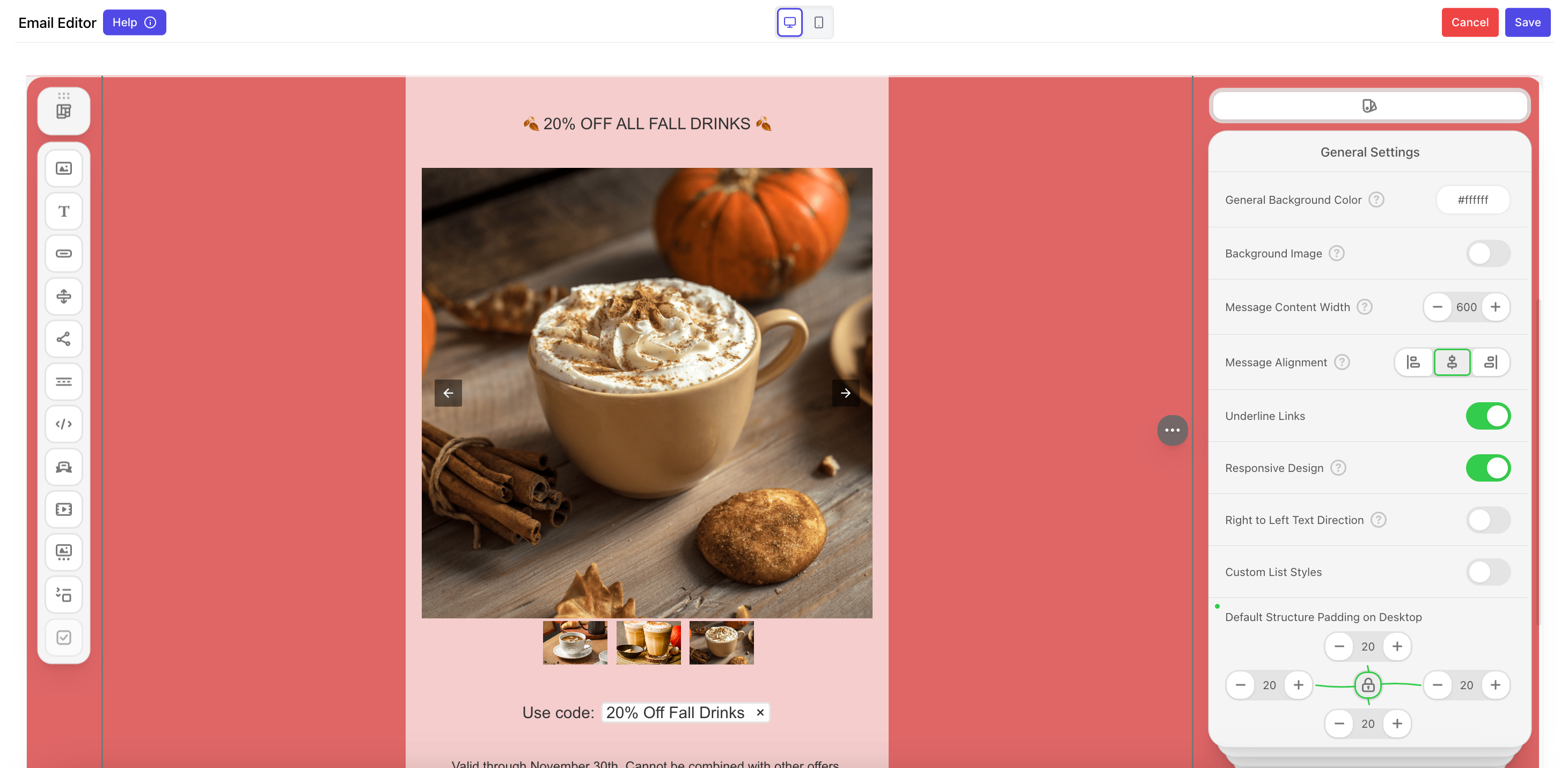
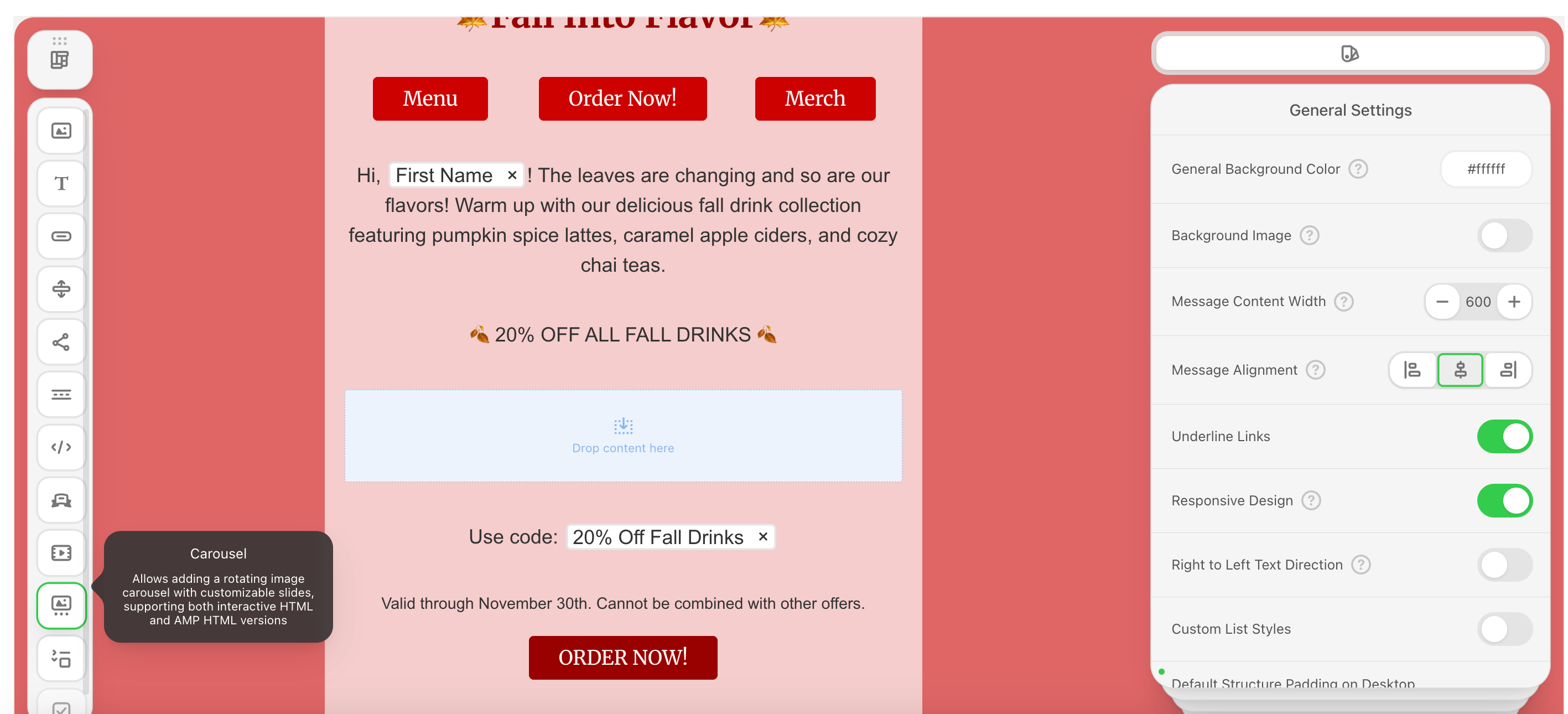
 Add a rotating image carousel and add automated rotation effects.
Add a structure to your email body and drag & drop the carousel icon into the structure.
Add a rotating image carousel and add automated rotation effects.
Add a structure to your email body and drag & drop the carousel icon into the structure.
 Add your first image on the right side hand
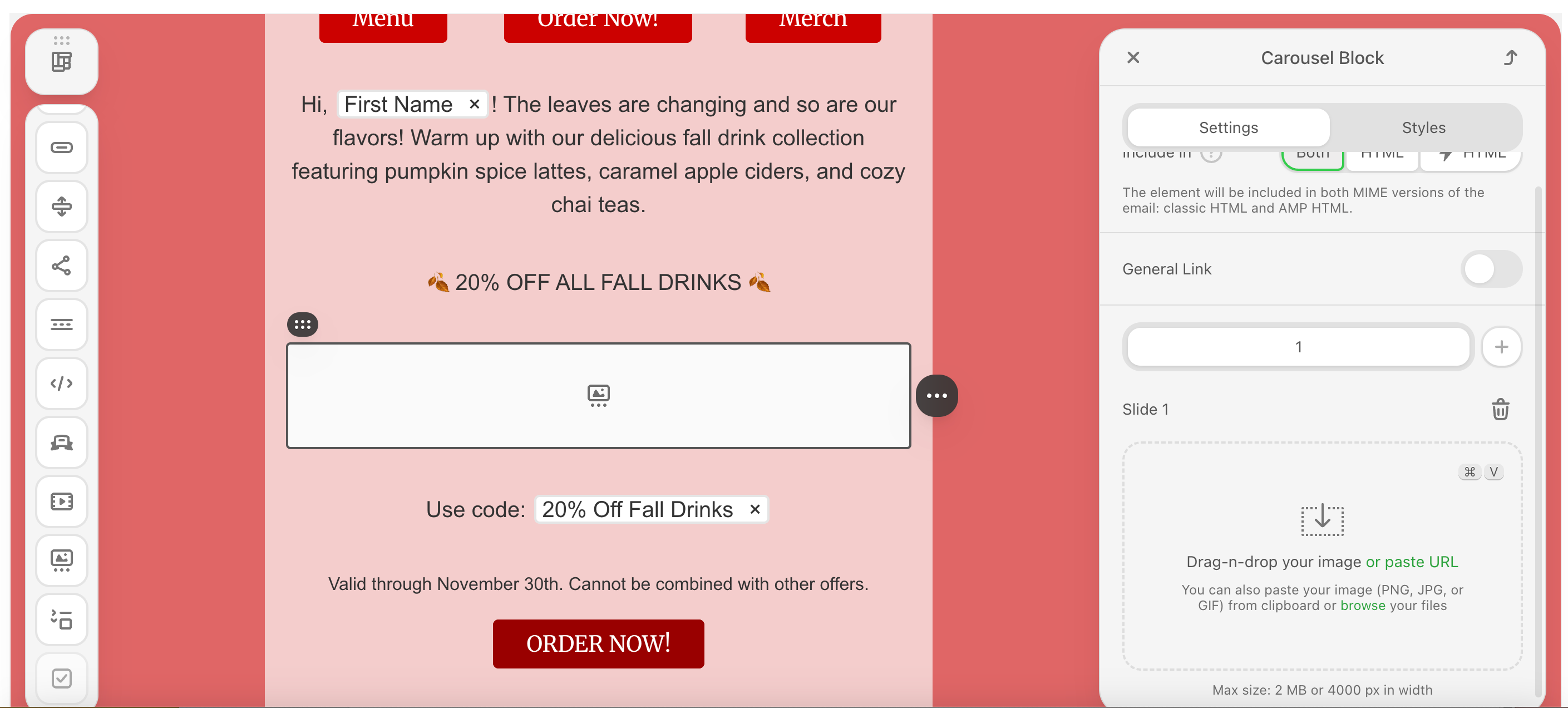 Click the **+** icon to add another image to the carousel.
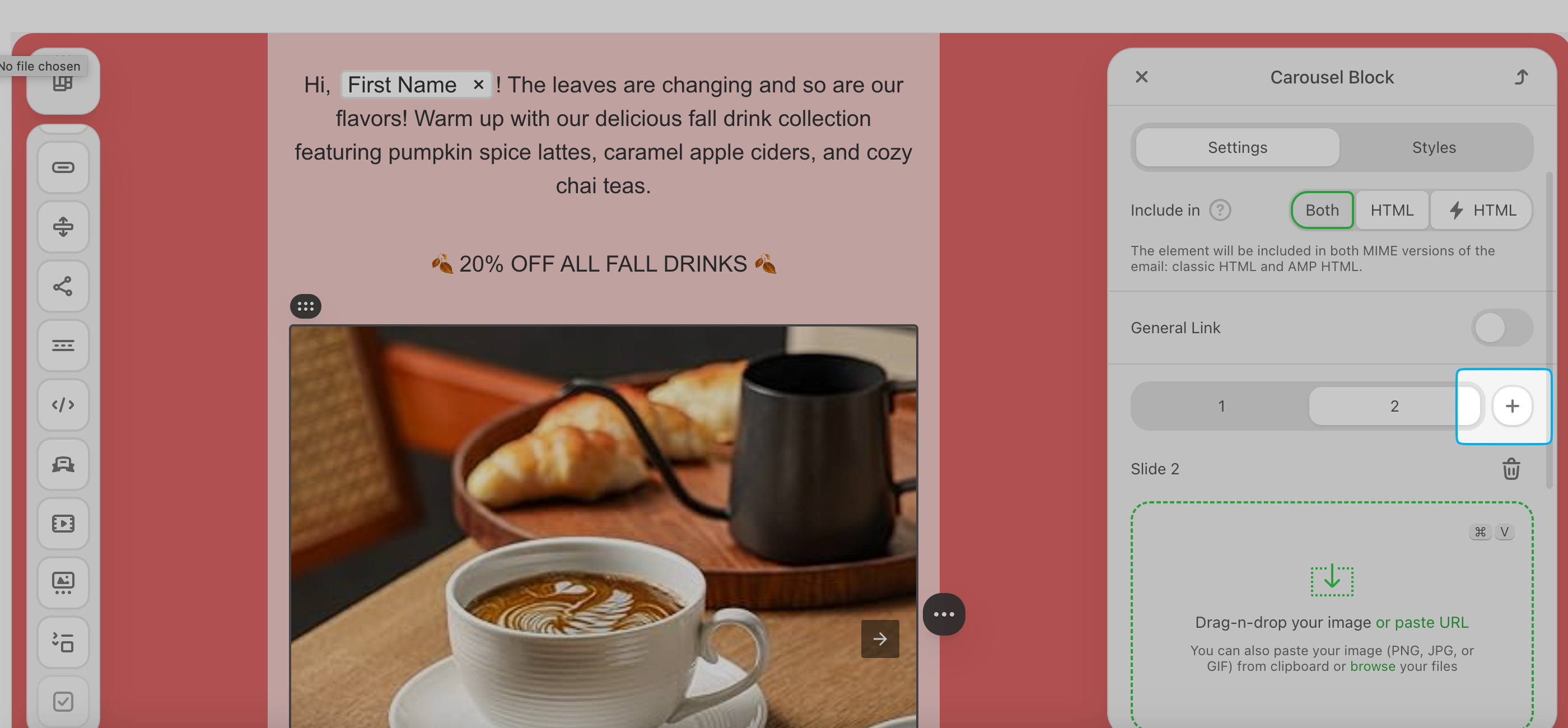 Add animations to have your carousel rotate on its own!