> ## Documentation Index
> Fetch the complete documentation index at: https://support.dripos.com/llms.txt
> Use this file to discover all available pages before exploring further.
# Marketing Billing
> View your current billing period, upcoming charges, and campaign usage.
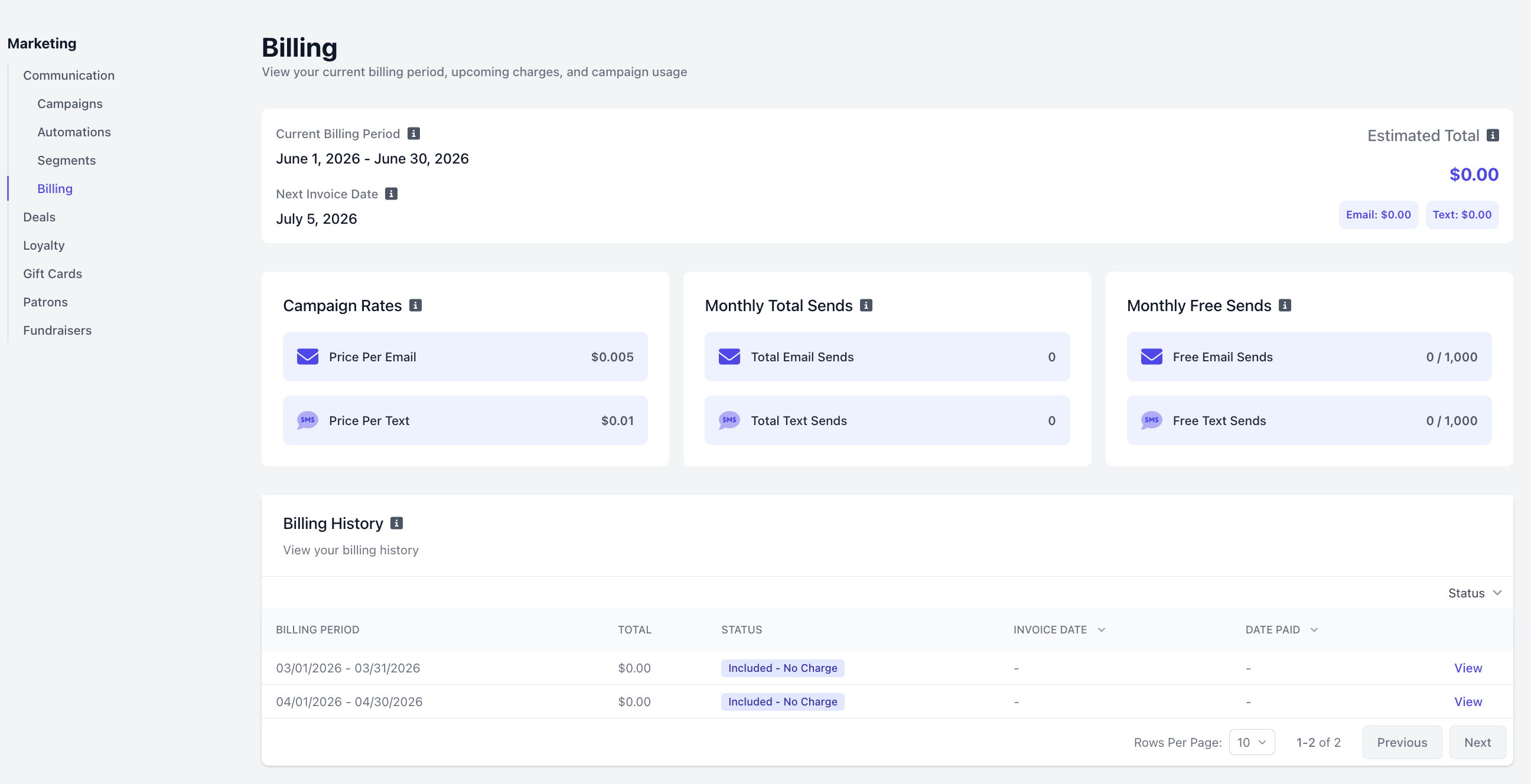
Dripos has moved away from the credit-purchase system. You no longer need to buy credits upfront — instead, you are automatically charged at the end of each billing period based on the messages successfully delivered that month.
On the **Dashboard**, navigate to **Marketing** > **Communications** > **Billing**
 ***
## How Billing Works
Dripos Marketing uses a simple pay-as-you-go model. At the end of each billing period, you are charged based on the number of emails and texts that were successfully delivered.
* **Billing periods** run from the 1st to the last day of each calendar month.
* Your invoice is generated on the **5th of the following month**.
* You are only charged for **successfully delivered** messages — failed or undelivered sends are not billed.
***
## Campaign Rates
Rate applied to every email delivered beyond your monthly free tier.
Rate applied to every SMS delivered beyond your monthly free tier.
***
## Free Sends
Every Dripos marketing account includes **1,000 free emails** and **1,000 free texts** each month.
* Free sends are applied automatically at the end of the billing period.
* Free sends reset at the start of every new billing period.
* Unused free sends do not roll over to the following month.
***
## Monthly Usage
The **Billing** page gives you a real-time snapshot of your activity for the current billing period.
The total number of emails and texts sent so far this billing period.
How many of your 1,000 free emails and 1,000 free texts have been used this period.
***
## Understanding Estimated Campaign Costs
When reviewing a campaign before sending, Dripos displays a projected cost breakdown so you can anticipate charges before confirming.
All figures shown at campaign review are **estimates**. Your final charge may be slightly lower, since you are only billed for successfully delivered messages. Free sends are applied at the end of the billing period and reflected on your final monthly statement.
The combined projected cost for the campaign across email and/or SMS. This reflects estimated charges only — any applicable free sends will be calculated and applied to your final monthly statement.
Calculated using the expected number of emails multiplied by your per-email rate (\$0.005). The final charge may be lower, as you are only billed for successfully delivered emails.
Calculated using the expected number of texts multiplied by your per-text rate (\$0.01). The final charge may be lower, as you are only billed for successfully delivered texts.
***
## Billing History
View all past invoices in the **Billing History** section at the bottom of the page. Each entry shows the billing period, total charged, invoice status, invoice date, and date paid.
Click **View** on any row to see a full breakdown of charges for that period.
Months where your total sends fall within the free tier will appear with the status **Included - No Charge**.
***
## How Billing Works
Dripos Marketing uses a simple pay-as-you-go model. At the end of each billing period, you are charged based on the number of emails and texts that were successfully delivered.
* **Billing periods** run from the 1st to the last day of each calendar month.
* Your invoice is generated on the **5th of the following month**.
* You are only charged for **successfully delivered** messages — failed or undelivered sends are not billed.
***
## Campaign Rates
Rate applied to every email delivered beyond your monthly free tier.
Rate applied to every SMS delivered beyond your monthly free tier.
***
## Free Sends
Every Dripos marketing account includes **1,000 free emails** and **1,000 free texts** each month.
* Free sends are applied automatically at the end of the billing period.
* Free sends reset at the start of every new billing period.
* Unused free sends do not roll over to the following month.
***
## Monthly Usage
The **Billing** page gives you a real-time snapshot of your activity for the current billing period.
The total number of emails and texts sent so far this billing period.
How many of your 1,000 free emails and 1,000 free texts have been used this period.
***
## Understanding Estimated Campaign Costs
When reviewing a campaign before sending, Dripos displays a projected cost breakdown so you can anticipate charges before confirming.
All figures shown at campaign review are **estimates**. Your final charge may be slightly lower, since you are only billed for successfully delivered messages. Free sends are applied at the end of the billing period and reflected on your final monthly statement.
The combined projected cost for the campaign across email and/or SMS. This reflects estimated charges only — any applicable free sends will be calculated and applied to your final monthly statement.
Calculated using the expected number of emails multiplied by your per-email rate (\$0.005). The final charge may be lower, as you are only billed for successfully delivered emails.
Calculated using the expected number of texts multiplied by your per-text rate (\$0.01). The final charge may be lower, as you are only billed for successfully delivered texts.
***
## Billing History
View all past invoices in the **Billing History** section at the bottom of the page. Each entry shows the billing period, total charged, invoice status, invoice date, and date paid.
Click **View** on any row to see a full breakdown of charges for that period.
Months where your total sends fall within the free tier will appear with the status **Included - No Charge**.