> ## Documentation Index
> Fetch the complete documentation index at: https://support.dripos.com/llms.txt
> Use this file to discover all available pages before exploring further.
# Fundraiser System Overview
> Raise money for causes you care about.
Fundraisers let you collect donations by asking customers if they want to round up or add a custom amount to their order. Fundraisers are created in the Dashboard and are available for use on the Point of Sale.
## Create a Fundraiser
Create fundraisers from the Dashboard to be utilized on the Point of Sale.
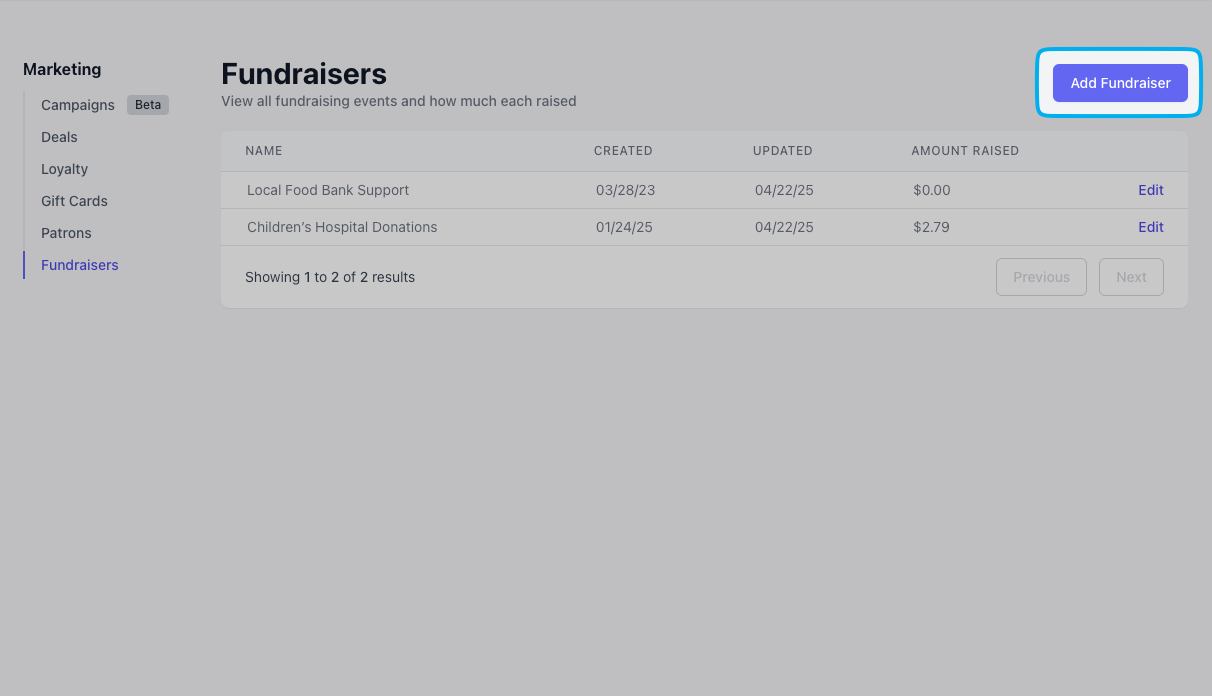
On the Dashboard, navigate to **Marketing** > **Fundraisers**
Click **Add Fundraiser** in the top right corner
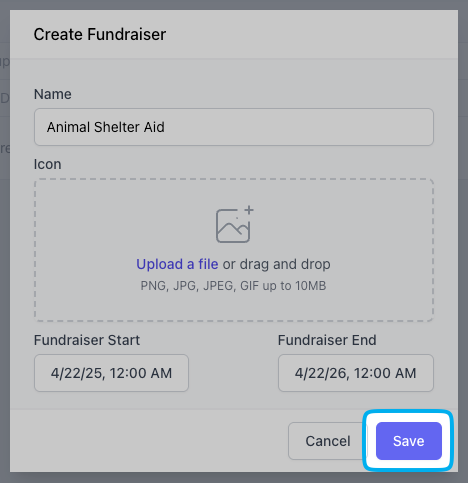
 Input the fundraiser’s Name, Start Date and End Date. Optionally attach an image to display on the fundraiser pop up. Click Save.
 ***
## Fundraisers at Checkout
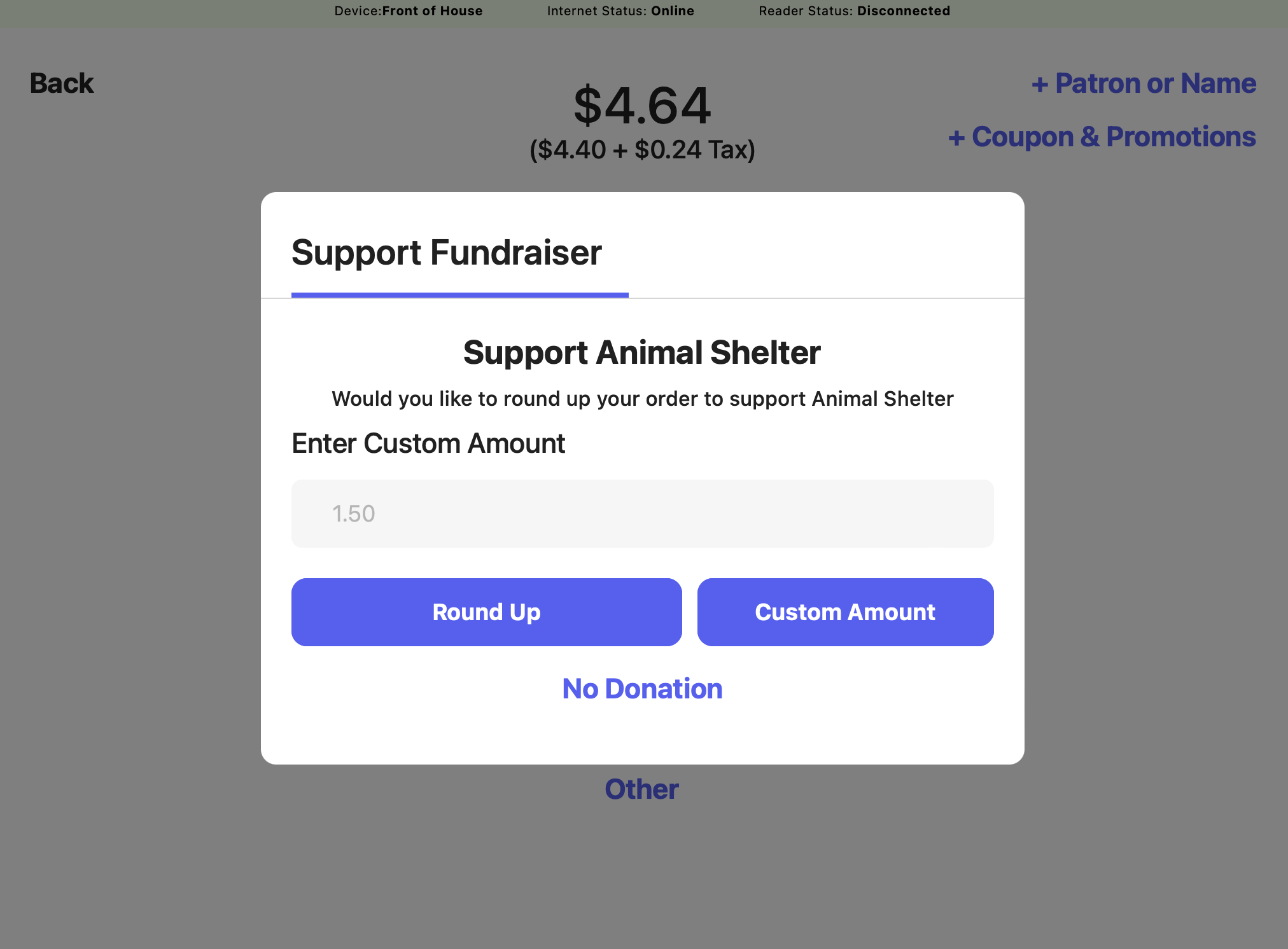
When a checkout occurs during an active fundraiser date range, the fundraiser prompt will automatically appear as part of the checkout process on the Point of Sale.
Customers will see the fundraiser pop-up just before selecting their payment method.
The fundraiser pop-up displays on the Point of Sale screen only at this time. Employees should ask customers which donation option they would like to select.
***
## Fundraisers at Checkout
When a checkout occurs during an active fundraiser date range, the fundraiser prompt will automatically appear as part of the checkout process on the Point of Sale.
Customers will see the fundraiser pop-up just before selecting their payment method.
The fundraiser pop-up displays on the Point of Sale screen only at this time. Employees should ask customers which donation option they would like to select.
 ***
## View Donations
Donations collected from fundraisers are paid out through your daily Stripe payouts.
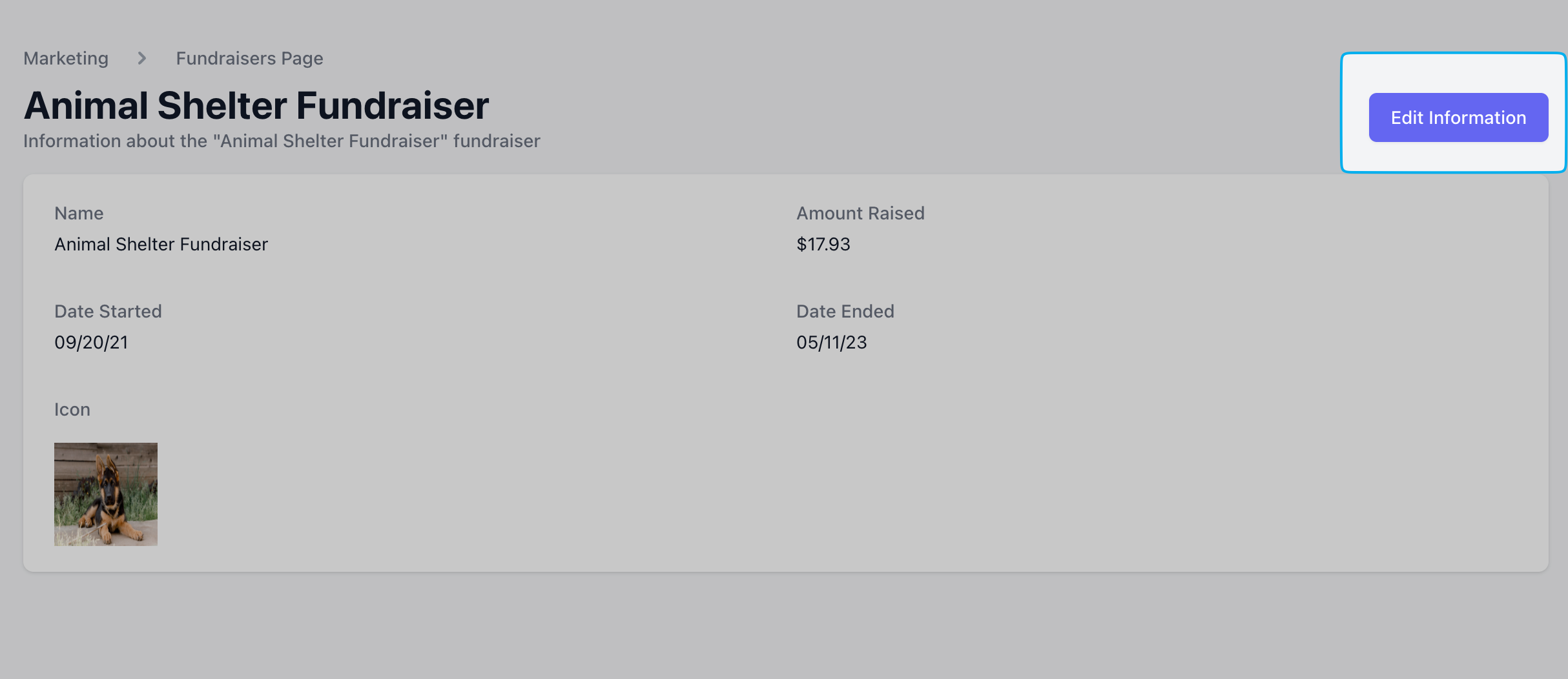
To view a fundraiser’s progress, on the Dashboard navigate to **Marketing** > **Fundraisers** and click into a specific fundraiser. The **Amount Raised** from a Fundraiser is displayed on its page.
***
## View Donations
Donations collected from fundraisers are paid out through your daily Stripe payouts.
To view a fundraiser’s progress, on the Dashboard navigate to **Marketing** > **Fundraisers** and click into a specific fundraiser. The **Amount Raised** from a Fundraiser is displayed on its page.
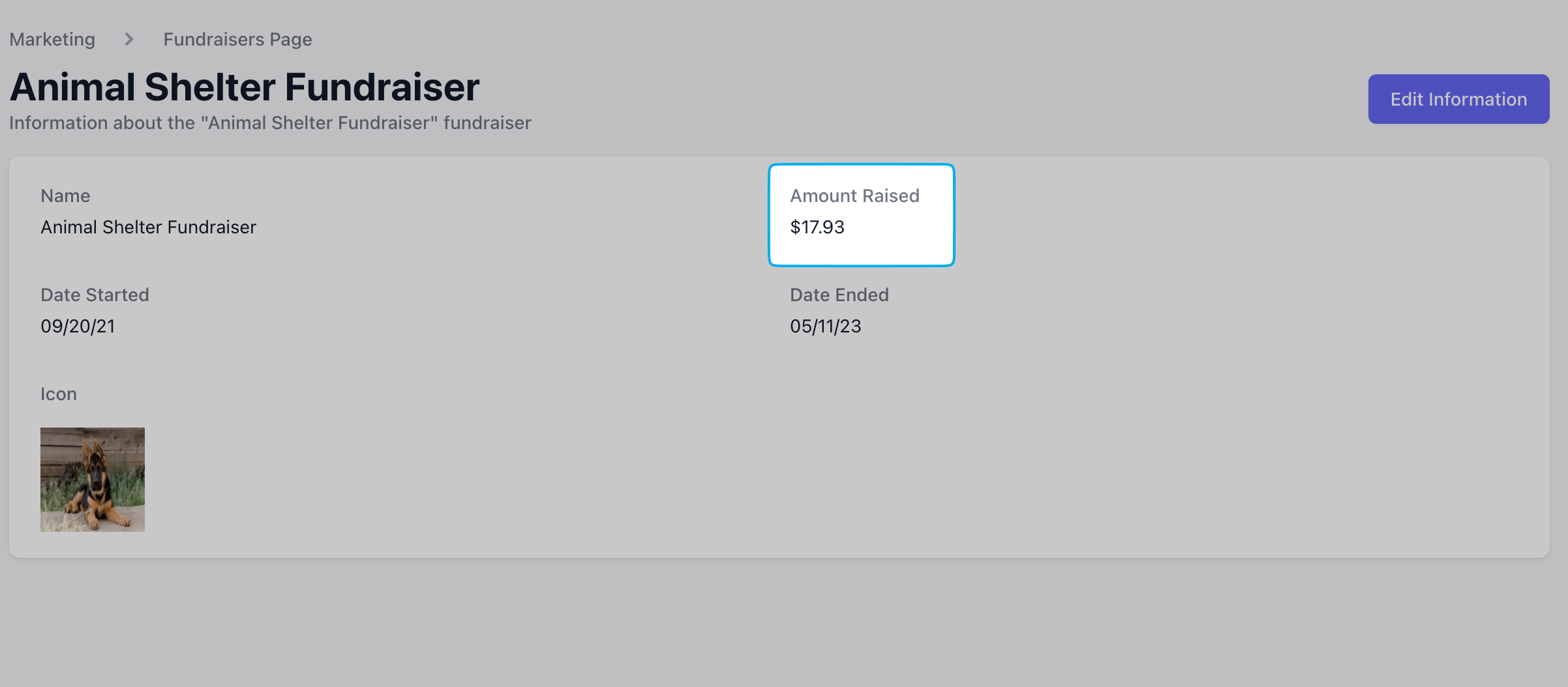 To edit a fundraiser’s name, image, or date range, press **Edit Information** in the top right.