> ## Documentation Index
> Fetch the complete documentation index at: https://support.dripos.com/llms.txt
> Use this file to discover all available pages before exploring further.
# Gift Card Basics
> Learn all about creating and managing your gift cards
With Dripos, you can sell both digital and physical gift cards directly through your Point of Sale system.
In addition, your customers can conveniently purchase digital gift cards themselves through the Dripos Order App or your store's Order Website.
Need to create one manually? You can also issue gift cards anytime through your Web Dashboard.
## Create and Sell Gift Cards
**Purchase Gift Cards on the POS**
Sell a gift card directly from the Point of Sale during checkout.
Always add a phone number or email address to a gift card if possible.
The phone number or email address should be the contact information of the individual *receiving* the gift card.
To sell a **physical gift card**, enter the **Gift Card Number**, which is a 12-16 digit unique PAN (Personal Authentication Number).
Click **Scan Card** to utilize your tablet's camera to scan a Code 128 barcode on the back of Dripos Compatible Gift Cards.
To learn more about Dripos Compatible Gift Cards, click [here](/marketing/giftcards/giftcards-physical)
**Schedule Send a Gift Card**
Purchase a gift card today and schedule a future date for the recipient to receive it.
**Purchase Gift Cards on the Order App**
**Purchase Gift Cards on the Order Website**
**Purchase Gift Cards from Online Gift Card Page**
Every Dripos location has an online marketplace where customers can buy their shop's gift cards - even outside of store hours!
View your gift card website link [here](https://dashboard.dripos.com/settings/order-website-links).
### Manually Create Gift Cards from the Web Dashboard
Gift cards created from the web dashboard do **not** send a notification message to the recipient.
Click **Actions** > **Resend** to send a manually created gift card to a recipient.
Gift cards created on the Web Dashboard will **not** show up in the gift card sales reports.
***
## Manage Gift Cards
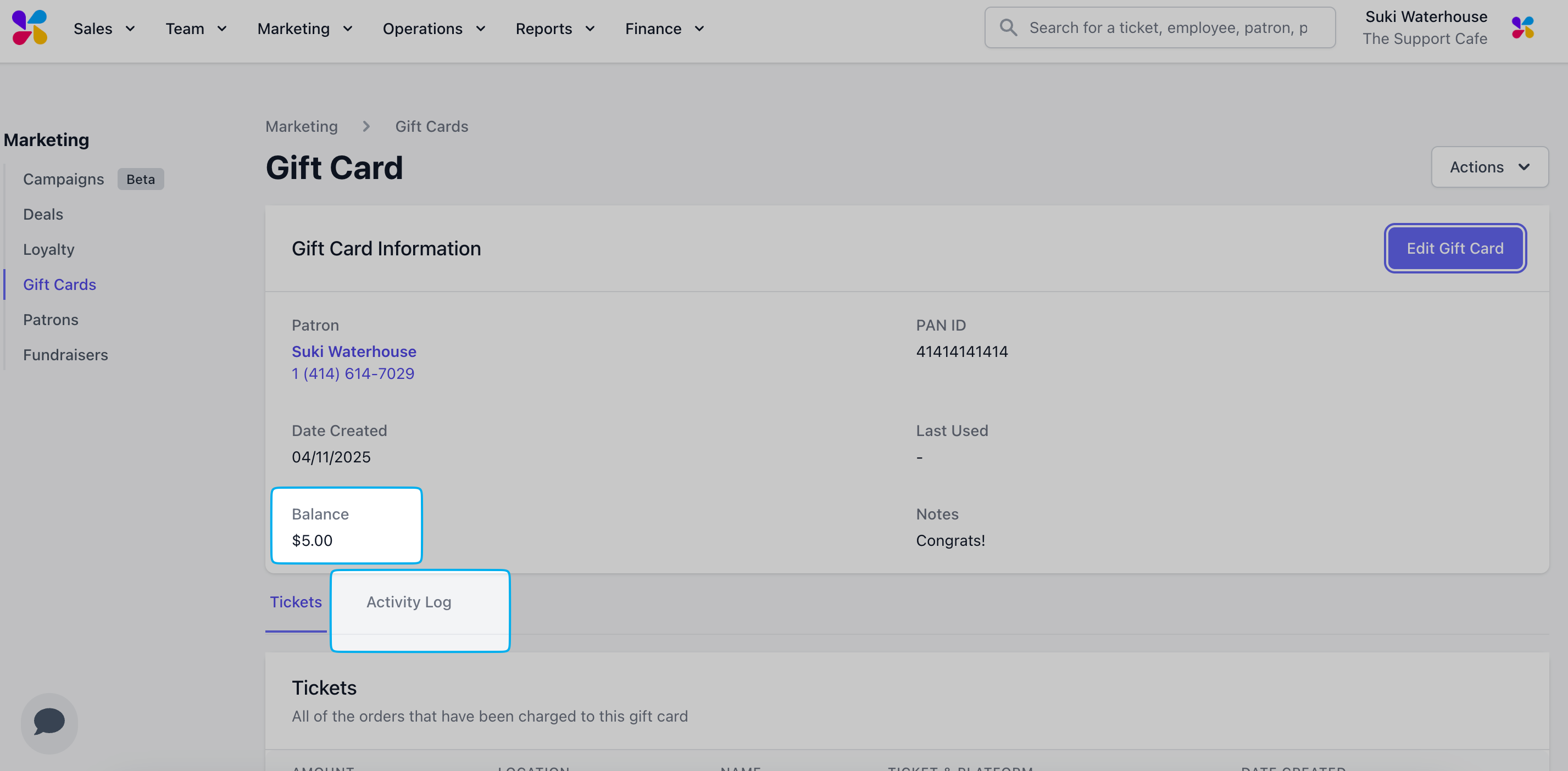
Navigate to **Marketing** > **Gift Cards** > **View** gift card > see **Balance**.
View **Activity Log** for a list of all transactions associated with this gift card.
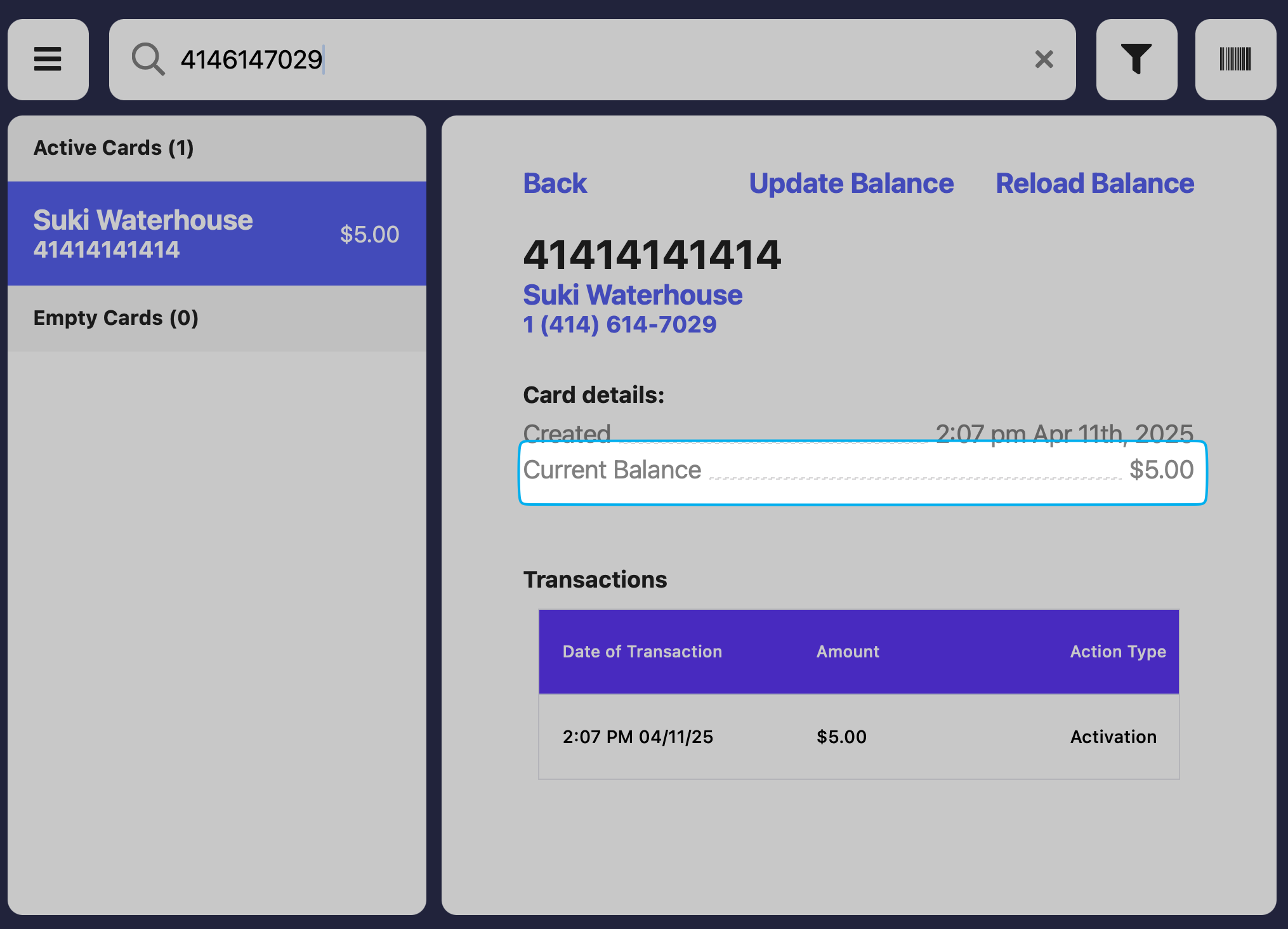
 Press the **tribar** in the upper left screen corner > **Gift Cards**
Search for gift card by phone number, email, or PAN ID in the top search bar.
See **Current Balance** and all transactions associated with this gift card at the bottom of the screen.
Press the **tribar** in the upper left screen corner > **Gift Cards**
Search for gift card by phone number, email, or PAN ID in the top search bar.
See **Current Balance** and all transactions associated with this gift card at the bottom of the screen.
 Patrons can access their gift cards associated with their account using either their phone number or email address.
To view their gift cards, they simply need to log in to their account through your shop’s ordering website using that associated phone or email.
Patrons can access their gift cards associated with their account using either their phone number or email address.
To view their gift cards, they simply need to log in to their account on the Dripos Mobile App using that associated phone or email.
### Adjust Gift Card Balance on the Web Dashboard
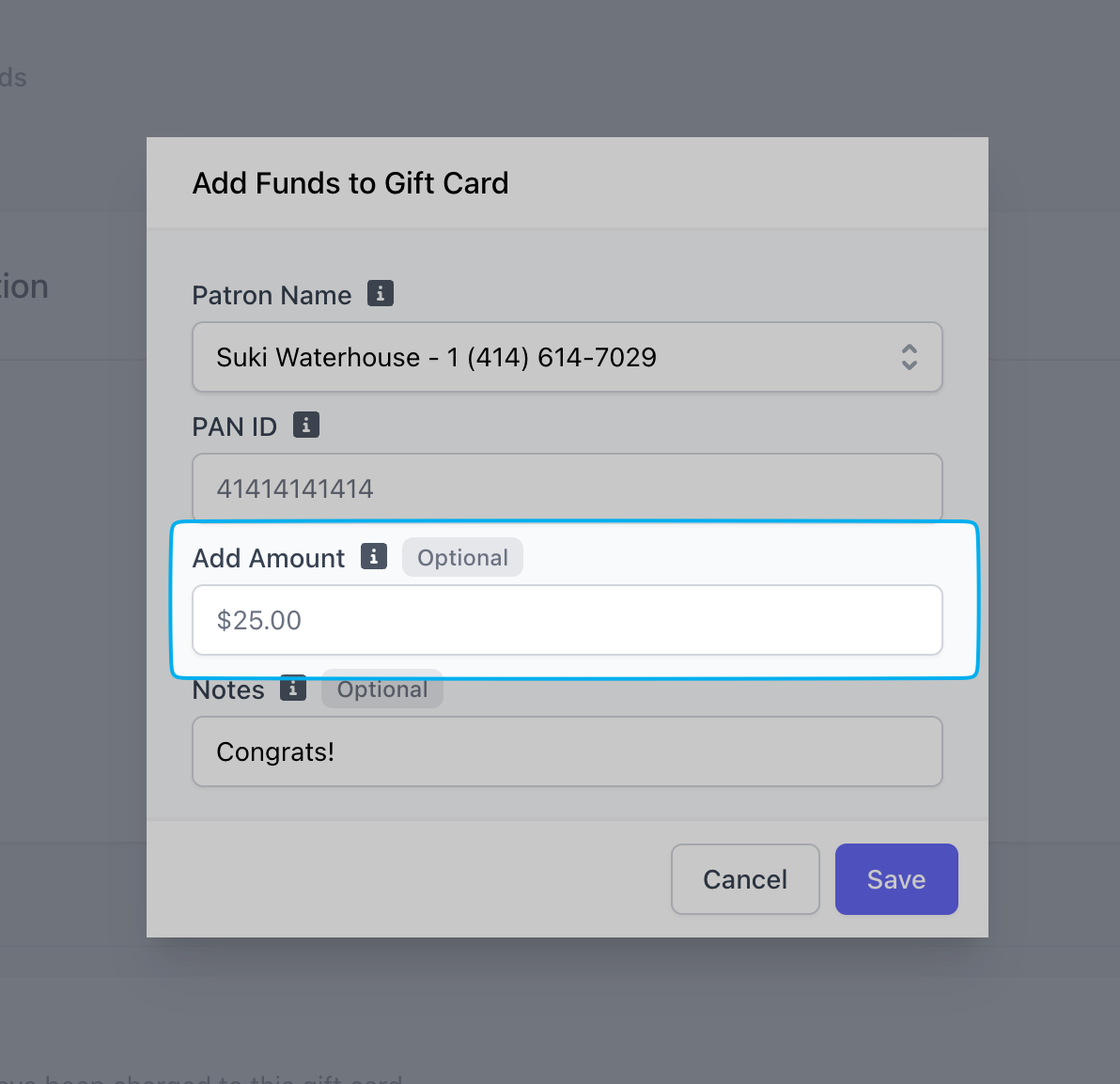
Navigate to **Marketing** > **Gift Cards** > **View** gift card > **Edit Gift Card**
To **increase** a gift card balance, add an amount *i.e, \$15*
To **decrease** a gift card balance, enter a negative amount using a (-) sign *i.e., -\$10*
Patrons can access their gift cards associated with their account using either their phone number or email address.
To view their gift cards, they simply need to log in to their account through your shop’s ordering website using that associated phone or email.
Patrons can access their gift cards associated with their account using either their phone number or email address.
To view their gift cards, they simply need to log in to their account on the Dripos Mobile App using that associated phone or email.
### Adjust Gift Card Balance on the Web Dashboard
Navigate to **Marketing** > **Gift Cards** > **View** gift card > **Edit Gift Card**
To **increase** a gift card balance, add an amount *i.e, \$15*
To **decrease** a gift card balance, enter a negative amount using a (-) sign *i.e., -\$10*
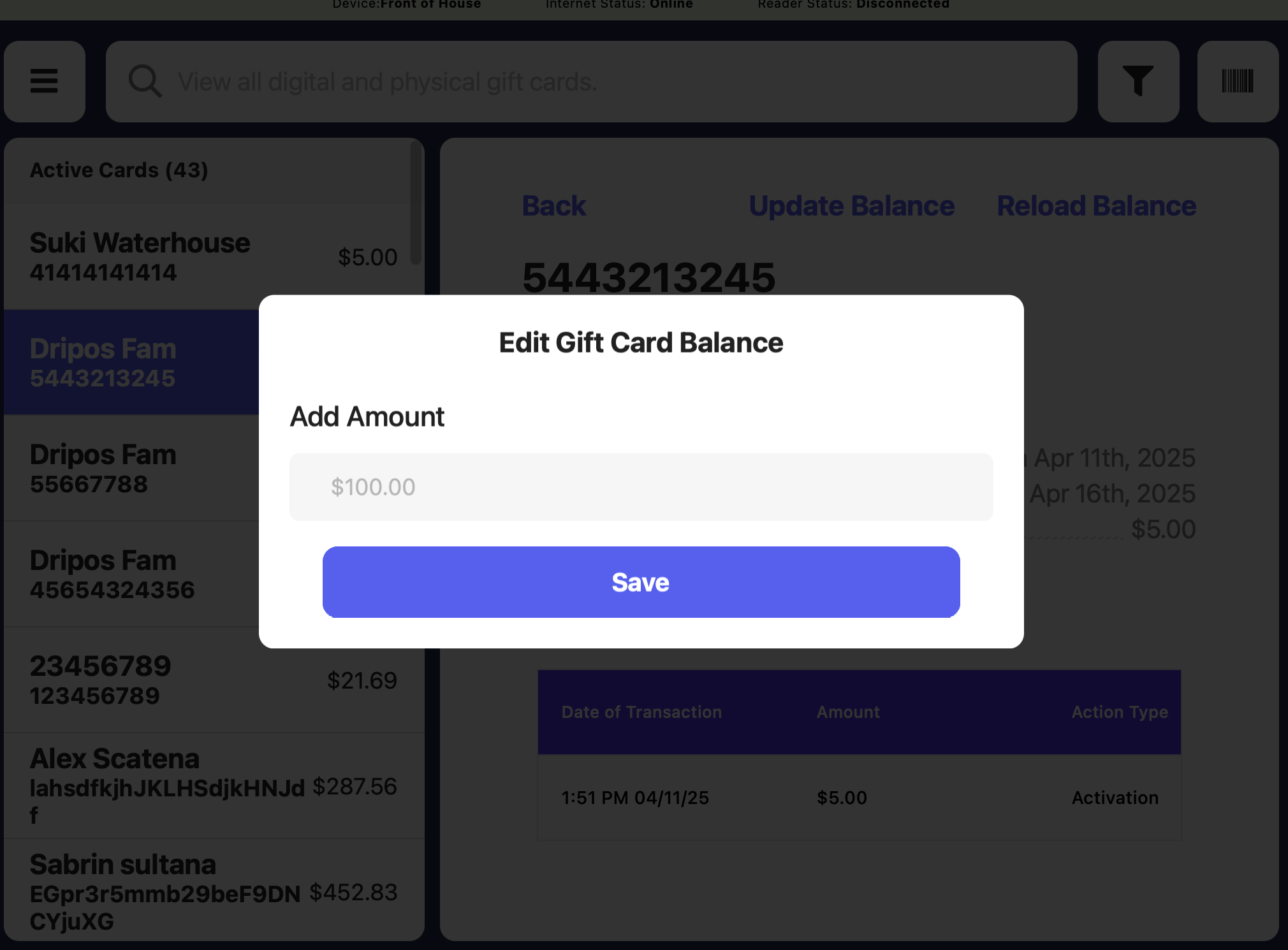
 ### Adjust Gift Card Balance on the POS
Press the **tribar** in the upper left screen corner > **Gift Cards** > select gift card > **Update Balance**
To **increase** a gift card balance, add an amount *i.e, \$15*
To **decrease** a gift card balance, enter a negative amount using a (-) sign *i.e., -\$10*
### Adjust Gift Card Balance on the POS
Press the **tribar** in the upper left screen corner > **Gift Cards** > select gift card > **Update Balance**
To **increase** a gift card balance, add an amount *i.e, \$15*
To **decrease** a gift card balance, enter a negative amount using a (-) sign *i.e., -\$10*
 Reuse a physical gift card by reloading it!
Press the **tribar** in the upper left screen corner > **Gift Cards** > select gift card > **Reload Balance**
Press the **tribar** in the upper left screen corner > **Gift Cards** > select gift card > **Reload Balance**
### Delete a Gift Card
Gift Card PAN IDs are locked and cannot be changed after a gift card is purchased.
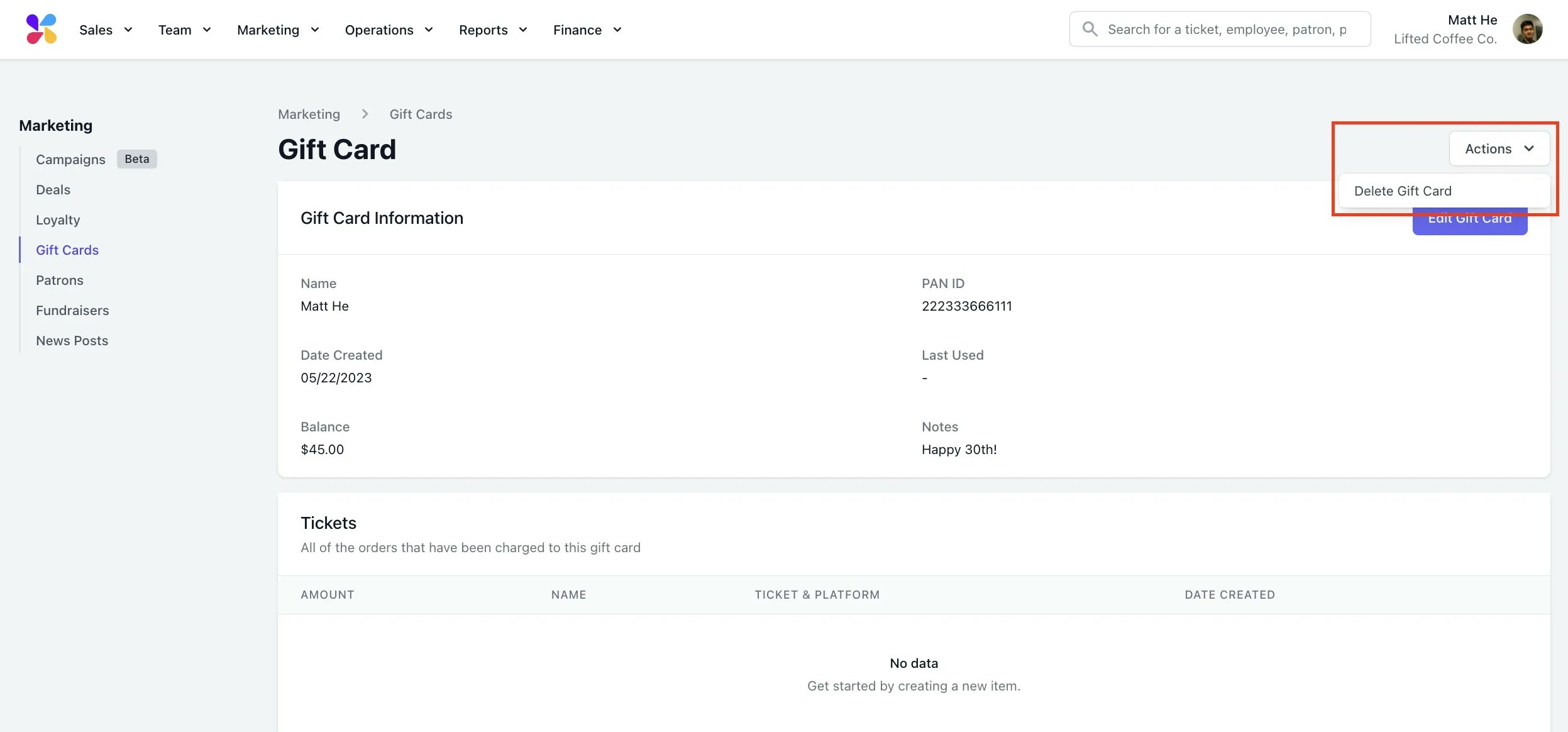
Gift cards can only be deleted from the **Wed Dashboard**.
Navigate to **Marketing** > **Gift Cards** > **View** gift card > click **Actions** > **Delete Gift Card**
If a patron has purchased a gift card with a PAN ID that does not match their physical card, we recommend processing a new transaction using the correct PAN and deleting the previously issued gift card
Reuse a physical gift card by reloading it!
Press the **tribar** in the upper left screen corner > **Gift Cards** > select gift card > **Reload Balance**
Press the **tribar** in the upper left screen corner > **Gift Cards** > select gift card > **Reload Balance**
### Delete a Gift Card
Gift Card PAN IDs are locked and cannot be changed after a gift card is purchased.
Gift cards can only be deleted from the **Wed Dashboard**.
Navigate to **Marketing** > **Gift Cards** > **View** gift card > click **Actions** > **Delete Gift Card**
If a patron has purchased a gift card with a PAN ID that does not match their physical card, we recommend processing a new transaction using the correct PAN and deleting the previously issued gift card
 ***
## Redeem Gift Cards
Physical gift cards can be redeemed upon checkout by clicking **Gift Card** on the payment method screen and using one of these methods:
Click **Scan** to scan the barcode of the gift card.
Search for a gift card by the PAN ID number.
If a patron is checked in, their linked gift cards will appear at the top of the list.
Redeem physical and digital gift cards on the order app.
If a patron is logged in at checkout, all gift cards linked to their phone number will appear for use.
Guests can redeem digital or physical gift cards at checkout by entering the PAN ID.
Redeem physical and digital gift cards on the order website.
If a patron is logged in at checkout, all gift cards linked to their phone number will appear for use.
Guests can redeem digital or physical gift cards at checkout by entering the PAN ID.
Digital gift cards can be redeemed upon checkout by clicking **Gift Card** on the payment method screen and using one of these methods:
Search for a gift card by the PAN ID number.
If a patron is checked in, their linked gift cards will appear at the top of the list.
Redeem physical and digital gift cards on the order app.
If a patron is logged in at checkout, all gift cards linked to their phone number will appear for use.
Guests can redeem digital or physical gift cards at checkout by entering the PAN ID.
Redeem physical and digital gift cards on the order website.
If a patron is logged in at checkout, all gift cards linked to their phone number will appear for use.
Guests can redeem digital or physical gift cards at checkout by entering the PAN ID.
***
## Gift Card Settings
View and edit all gift card settings from the [Dashboard](https://dashboard.dripos.com/settings?tab=gift-cards).
Click the **settings icon** in the upper right corner > **Settings** > **Gift Cards**
### Purchase & Format Settings
***
## Redeem Gift Cards
Physical gift cards can be redeemed upon checkout by clicking **Gift Card** on the payment method screen and using one of these methods:
Click **Scan** to scan the barcode of the gift card.
Search for a gift card by the PAN ID number.
If a patron is checked in, their linked gift cards will appear at the top of the list.
Redeem physical and digital gift cards on the order app.
If a patron is logged in at checkout, all gift cards linked to their phone number will appear for use.
Guests can redeem digital or physical gift cards at checkout by entering the PAN ID.
Redeem physical and digital gift cards on the order website.
If a patron is logged in at checkout, all gift cards linked to their phone number will appear for use.
Guests can redeem digital or physical gift cards at checkout by entering the PAN ID.
Digital gift cards can be redeemed upon checkout by clicking **Gift Card** on the payment method screen and using one of these methods:
Search for a gift card by the PAN ID number.
If a patron is checked in, their linked gift cards will appear at the top of the list.
Redeem physical and digital gift cards on the order app.
If a patron is logged in at checkout, all gift cards linked to their phone number will appear for use.
Guests can redeem digital or physical gift cards at checkout by entering the PAN ID.
Redeem physical and digital gift cards on the order website.
If a patron is logged in at checkout, all gift cards linked to their phone number will appear for use.
Guests can redeem digital or physical gift cards at checkout by entering the PAN ID.
***
## Gift Card Settings
View and edit all gift card settings from the [Dashboard](https://dashboard.dripos.com/settings?tab=gift-cards).
Click the **settings icon** in the upper right corner > **Settings** > **Gift Cards**
### Purchase & Format Settings
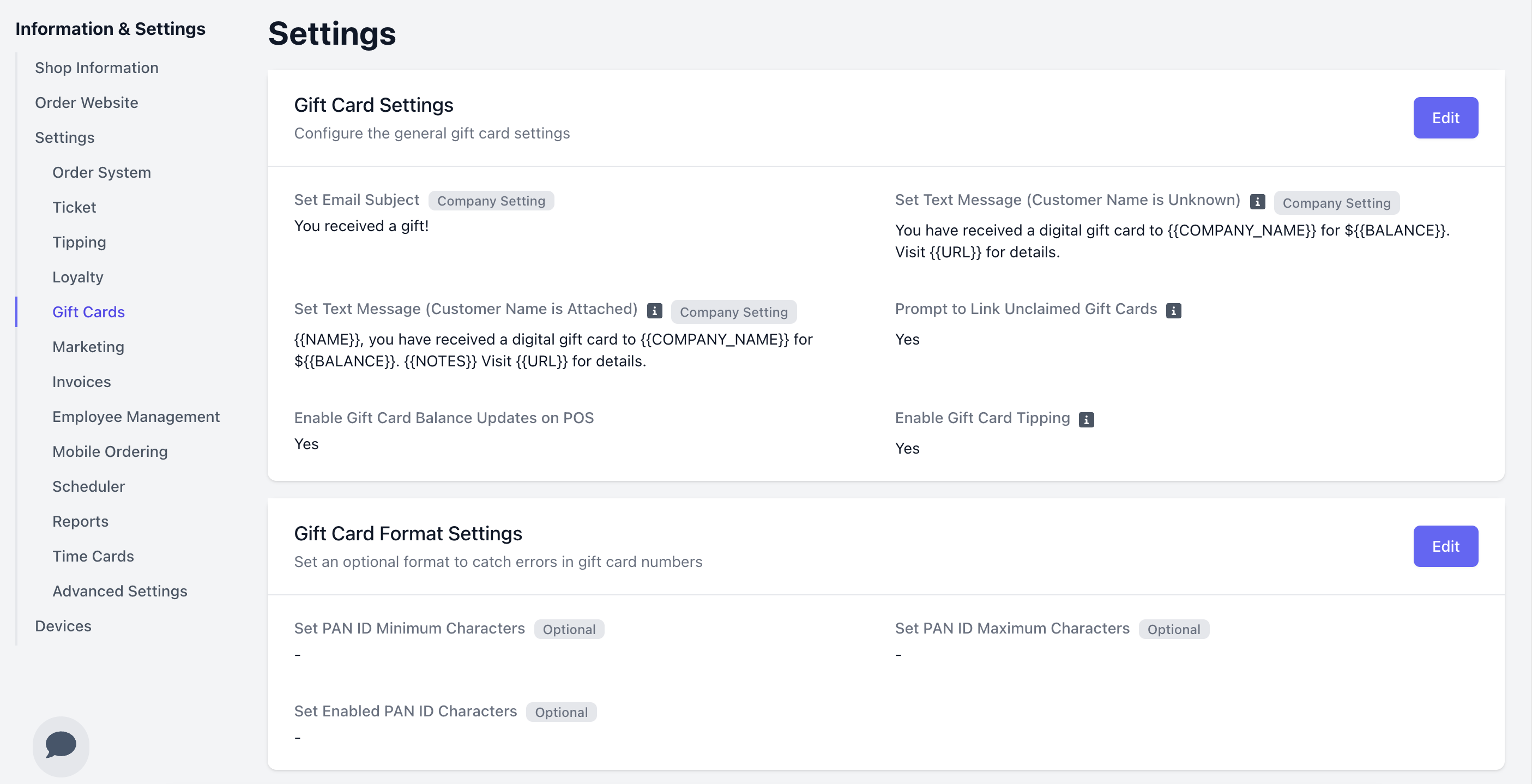 The text that a customer will receive when a gift card is created for them.
> **Max Length:** Messages can be 512 Characters
>
> **Text Tags:** The following text consists of tags that can be used when editing your gift card text.
>
> * **NOTES:** The notes attached to this gift card.
>
> * **BALANCE:** The balance in dollars of the gift card.
>
> * **URL:** The url that can be used to view the balance of this gift card.
>
> * **COMPANY\_NAME:** The name of the company attached to this location.
Once you've completed your edits, click **Save** to save your changes!
The text that a customer will receive when a gift card is created for them.
> **Max Length:** Messages can be 512 Characters
>
> **Text Tags:** The following text consists of tags that can be used when editing your gift card text.
>
> * **NOTES:** The notes attached to this gift card.
>
> * **BALANCE:** The balance in dollars of the gift card.
>
> * **URL:** The url that can be used to view the balance of this gift card.
>
> * **COMPANY\_NAME:** The name of the company attached to this location.
>
> * **NAME:** The name of the customer/patron.
Once you've completed your edits, click **Save** to save your changes!
When a patron is attached to a transaction, selecting an unclaimed gift card during checkout will prompt you to link it to their account.
If enabled, cashiers can update the balance of gift cards on the Point of Sale.
Learn more about updating the balance of a gift card [here](marketing/giftcards/giftcards-basics#adjust-gift-card-balance).
Allow patrons to add a tip when paying with Gift Cards.
**Set PAN ID Minimum Characters:** Sets the minimum length required for gift card PAN IDs, blocking creation or reload of cards with shorter numbers.
**Set PAN ID Maximum Characters:** Sets the maximum allowed length for gift card PAN IDs, preventing use of longer numbers for new or reloaded cards.
**Set Enabled PAN ID Characters:** Set the allowed characters for a gift card number. This field is case-sensitive. (e.g. 1234567890 or abcdef). Leave this field blank to allow any characters.
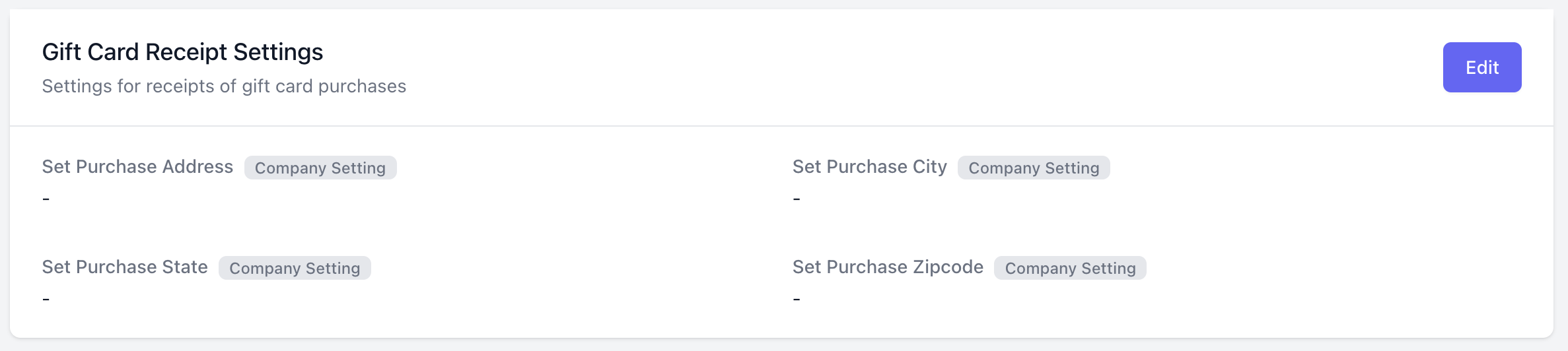
### Receipt Settings
Settings for receipts of gift card purchases
The text that a customer will receive when a gift card is created for them.
> **Max Length:** Messages can be 512 Characters
>
> **Text Tags:** The following text consists of tags that can be used when editing your gift card text.
>
> * **NOTES:** The notes attached to this gift card.
>
> * **BALANCE:** The balance in dollars of the gift card.
>
> * **URL:** The url that can be used to view the balance of this gift card.
>
> * **COMPANY\_NAME:** The name of the company attached to this location.
Once you've completed your edits, click **Save** to save your changes!
The text that a customer will receive when a gift card is created for them.
> **Max Length:** Messages can be 512 Characters
>
> **Text Tags:** The following text consists of tags that can be used when editing your gift card text.
>
> * **NOTES:** The notes attached to this gift card.
>
> * **BALANCE:** The balance in dollars of the gift card.
>
> * **URL:** The url that can be used to view the balance of this gift card.
>
> * **COMPANY\_NAME:** The name of the company attached to this location.
>
> * **NAME:** The name of the customer/patron.
Once you've completed your edits, click **Save** to save your changes!
When a patron is attached to a transaction, selecting an unclaimed gift card during checkout will prompt you to link it to their account.
If enabled, cashiers can update the balance of gift cards on the Point of Sale.
Learn more about updating the balance of a gift card [here](marketing/giftcards/giftcards-basics#adjust-gift-card-balance).
Allow patrons to add a tip when paying with Gift Cards.
**Set PAN ID Minimum Characters:** Sets the minimum length required for gift card PAN IDs, blocking creation or reload of cards with shorter numbers.
**Set PAN ID Maximum Characters:** Sets the maximum allowed length for gift card PAN IDs, preventing use of longer numbers for new or reloaded cards.
**Set Enabled PAN ID Characters:** Set the allowed characters for a gift card number. This field is case-sensitive. (e.g. 1234567890 or abcdef). Leave this field blank to allow any characters.
### Receipt Settings
Settings for receipts of gift card purchases
 ### Preset Amount Settings
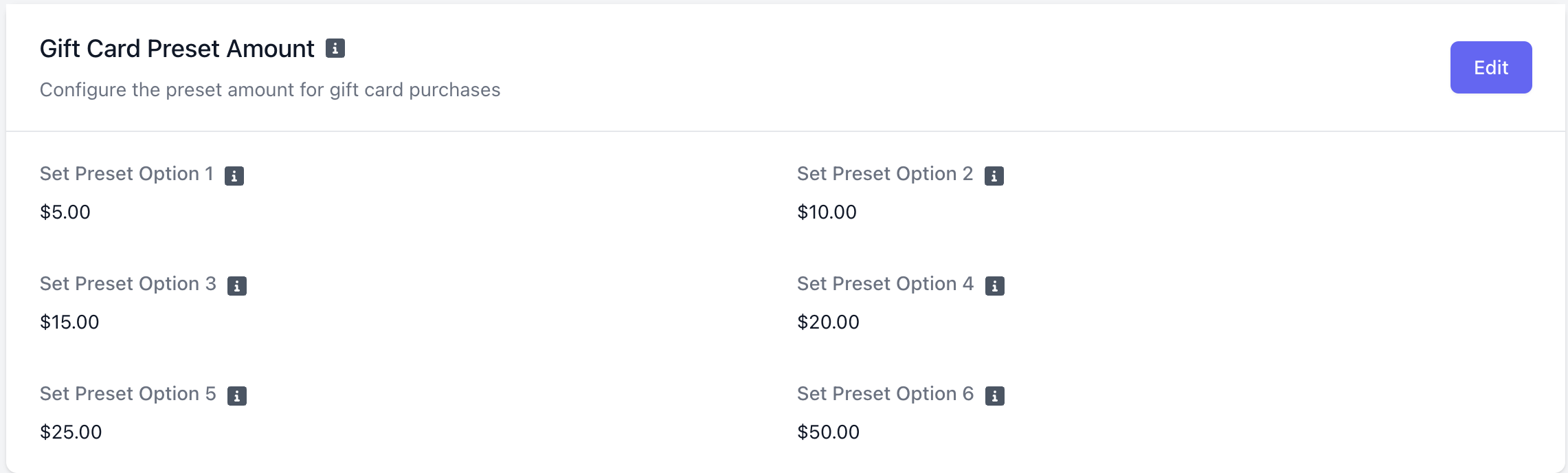
Choose default gift card amounts to be presented in the gift card purchasing menu on the POS. The cashier will be able to input a custom amount as well.
### Preset Amount Settings
Choose default gift card amounts to be presented in the gift card purchasing menu on the POS. The cashier will be able to input a custom amount as well.
 ### Custom Image Settings
Create custom digital gift cards for your store!
### Custom Image Settings
Create custom digital gift cards for your store!
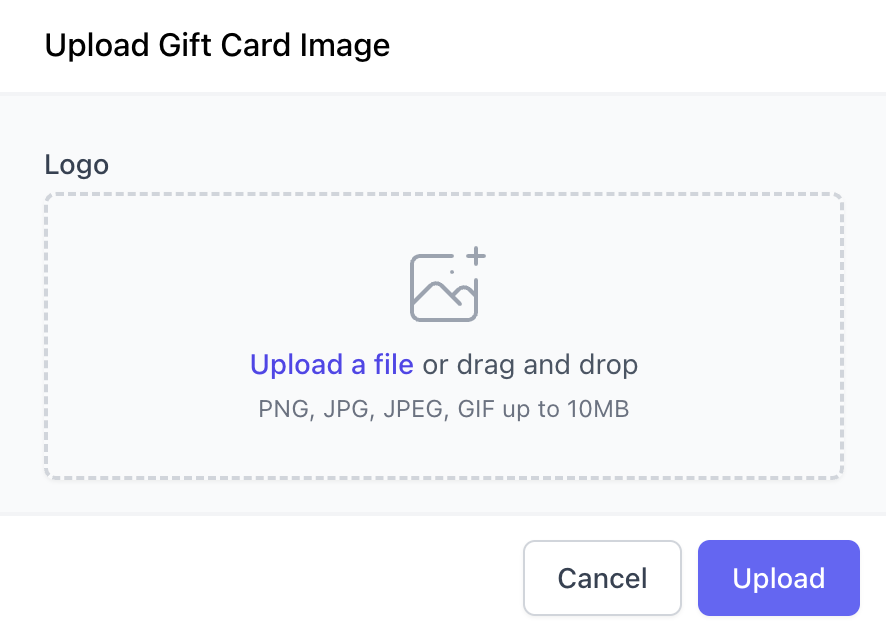
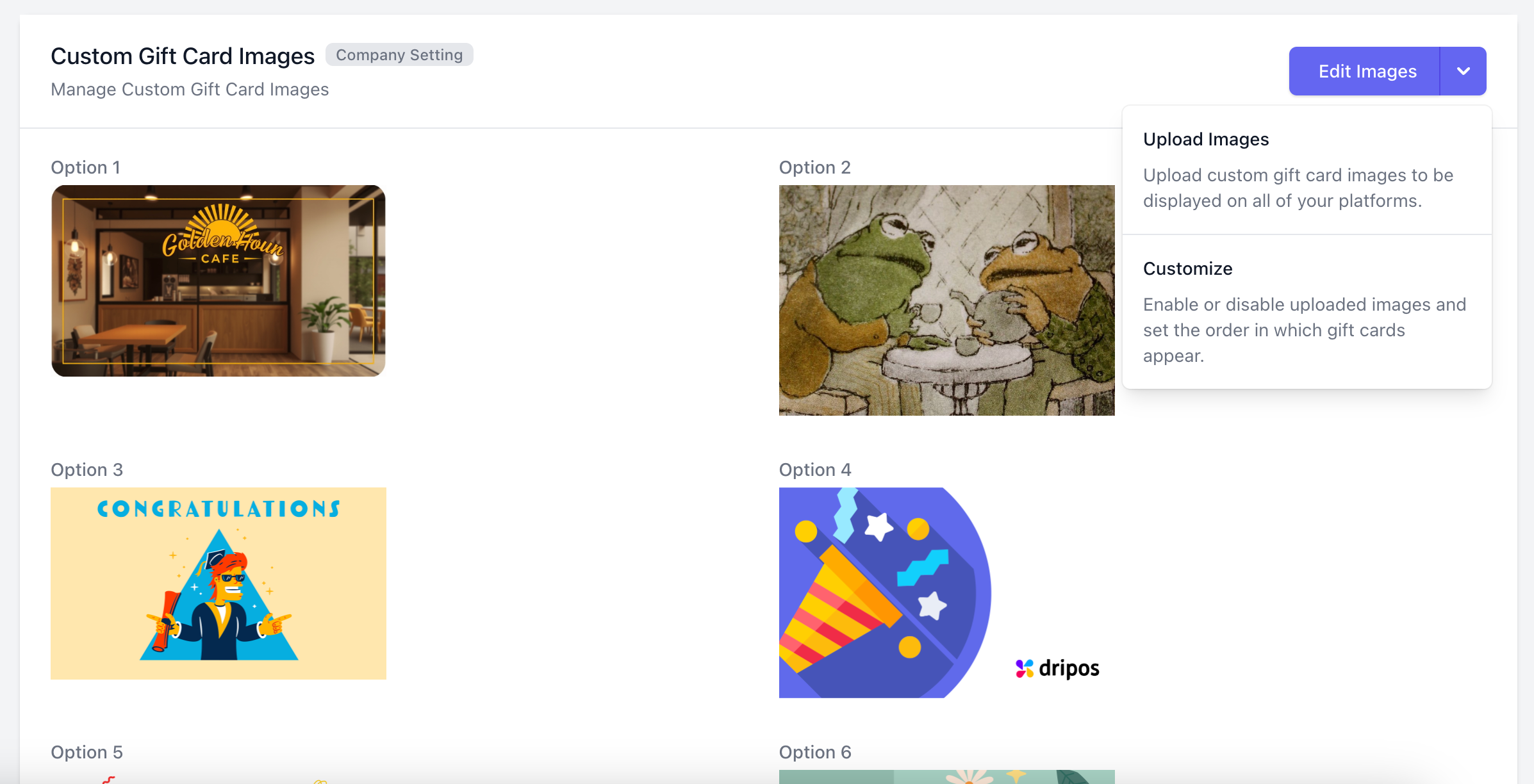 > **Upload Images:** Click **Edit Images > Upload Images**. Upload a file up to 10MB. Click **Upload** once you're done.
 > **Customize Gift Cards:** Reorder the display of gift cards and enable/disable specific gift cards. Click **Edit Images > Customize**.
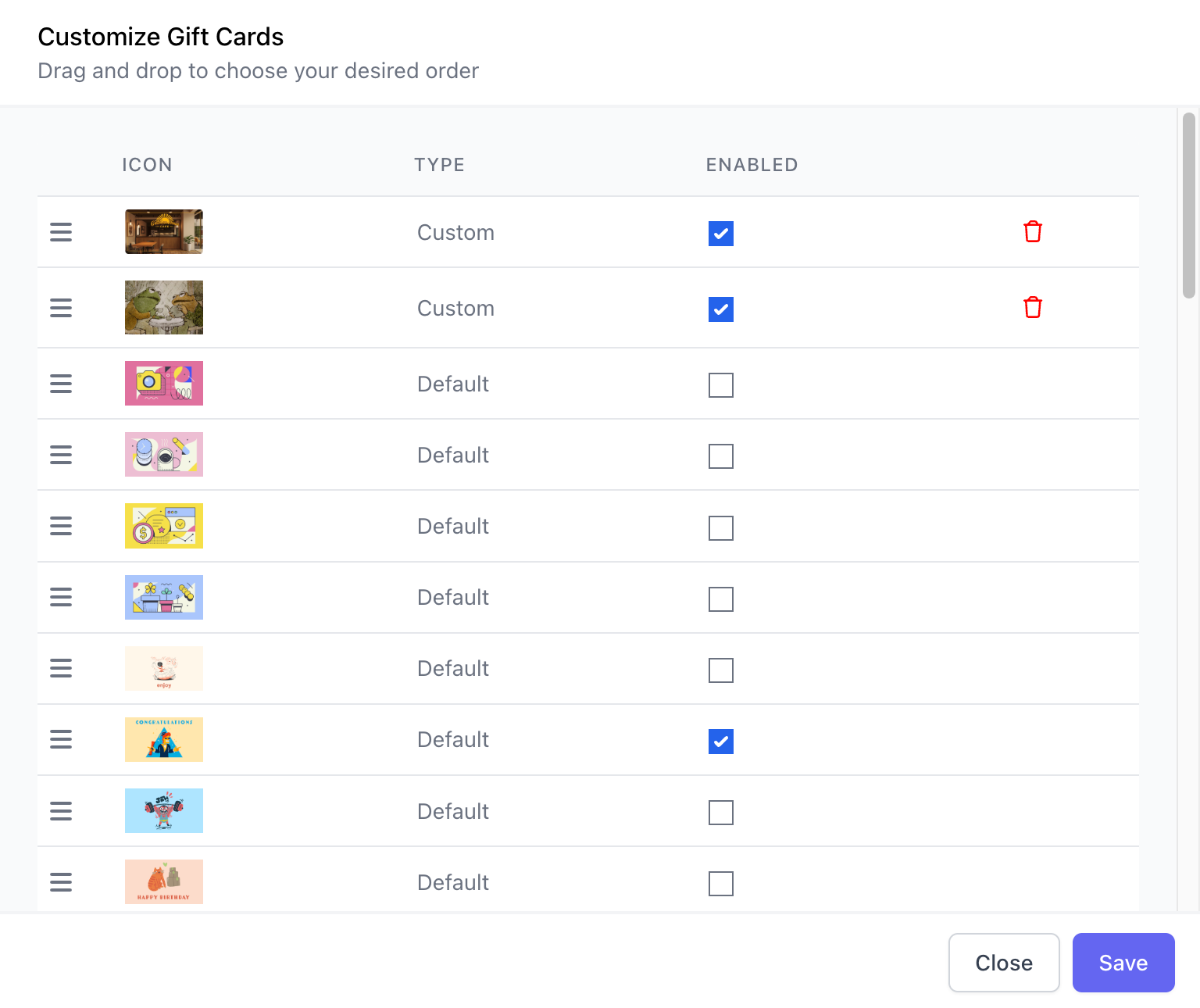 > **Reorder Images:** Click on the three lines on the left most column and drag your image's row to reorder them.
>
> **Enable / Disable Images:** Under the column labeled **Enabled**, select or disselect the checkboxes to enable or disable, respectively.
>
> **Delete Images:** To delete your uploaded images, click the red **trashcan icon**.
> **Reorder Images:** Click on the three lines on the left most column and drag your image's row to reorder them.
>
> **Enable / Disable Images:** Under the column labeled **Enabled**, select or disselect the checkboxes to enable or disable, respectively.
>
> **Delete Images:** To delete your uploaded images, click the red **trashcan icon**.