> ## Documentation Index
> Fetch the complete documentation index at: https://support.dripos.com/llms.txt
> Use this file to discover all available pages before exploring further.

# Manage Loyalty

> Learn how patrons can earn and redeem loyalty points during the checkout process

## Earn Loyalty Points

<Icon icon="check" iconType="solid" /> To earn loyalty points, customers must input their phone number during the checkout process.

<Icon icon="check" iconType="solid" /> Customers will automatically earn loyalty points if the products in their cart meet your loyalty system's earning rules.

See below for the various ways patron information can be inputted for an order:

<Tabs>
  <Tab title="S700 Card Reader">
    **S700 Card Reader**

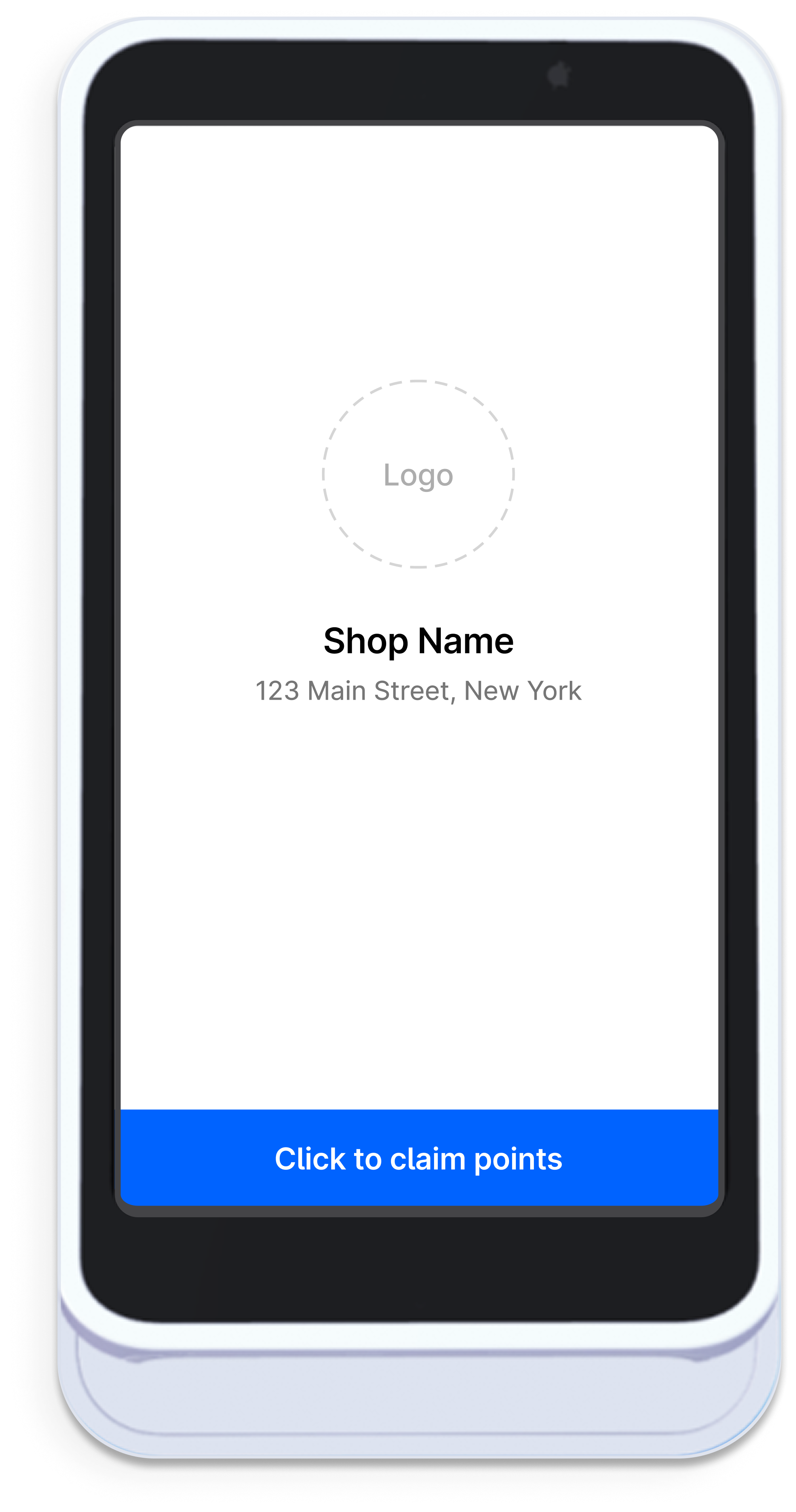
    <Icon icon="check" iconType="solid" /> Customers may input their phone number at any point throughout the checkout process from the S700 card reader by clicking **Claim to claim points**.
    <img src="https://mintcdn.com/frostbytetechnologiesinc/4jGjCD4Uh5XsOIaE/images/marketing/s700.png?fit=max&auto=format&n=4jGjCD4Uh5XsOIaE&q=85&s=b94154766b0270f7775a515dd25a1b61" width="2111" height="4011" data-path="images/marketing/s700.png" />
  </Tab>

  <Tab title="Point of Sale">
    **Point of Sale**

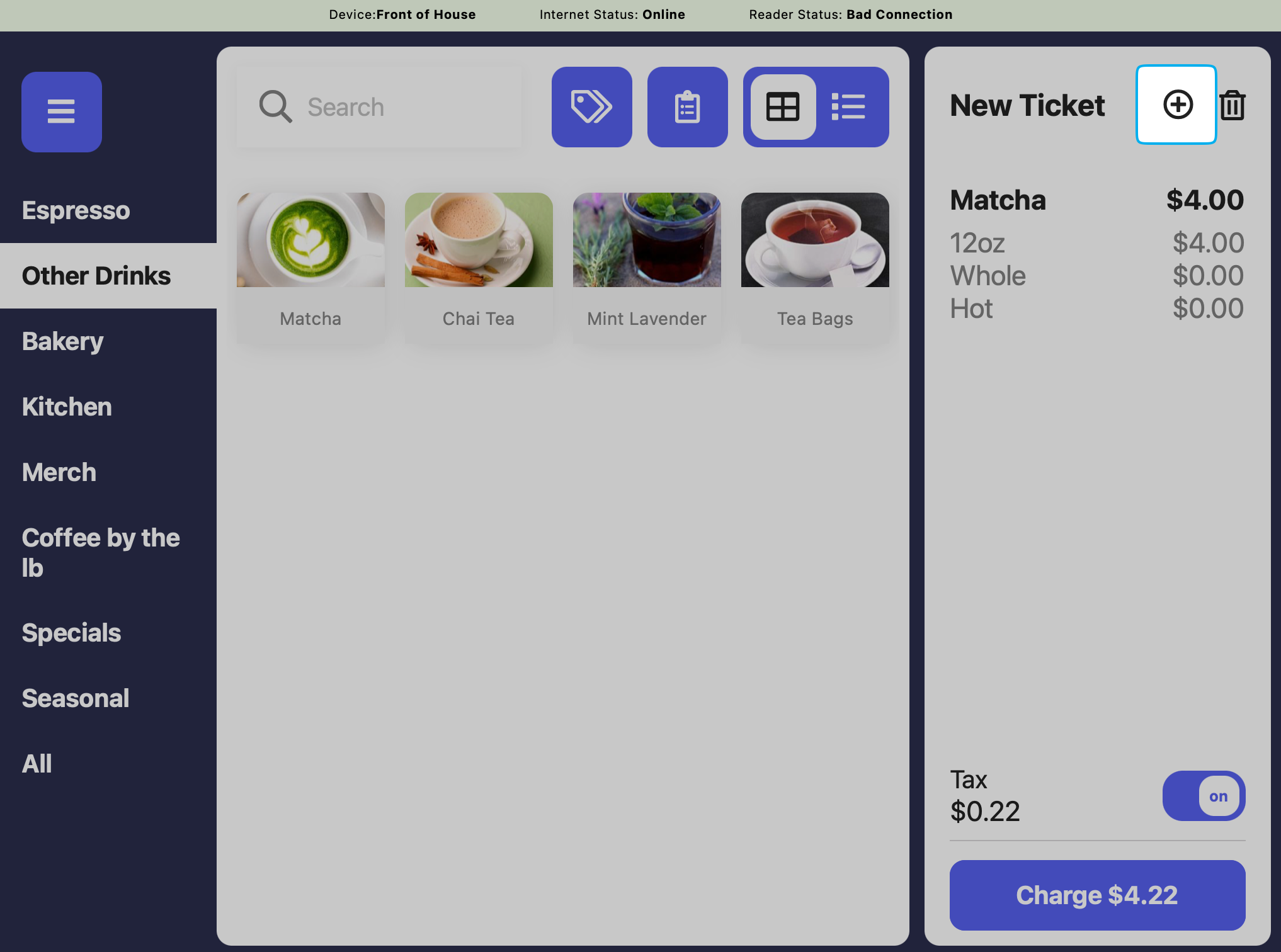
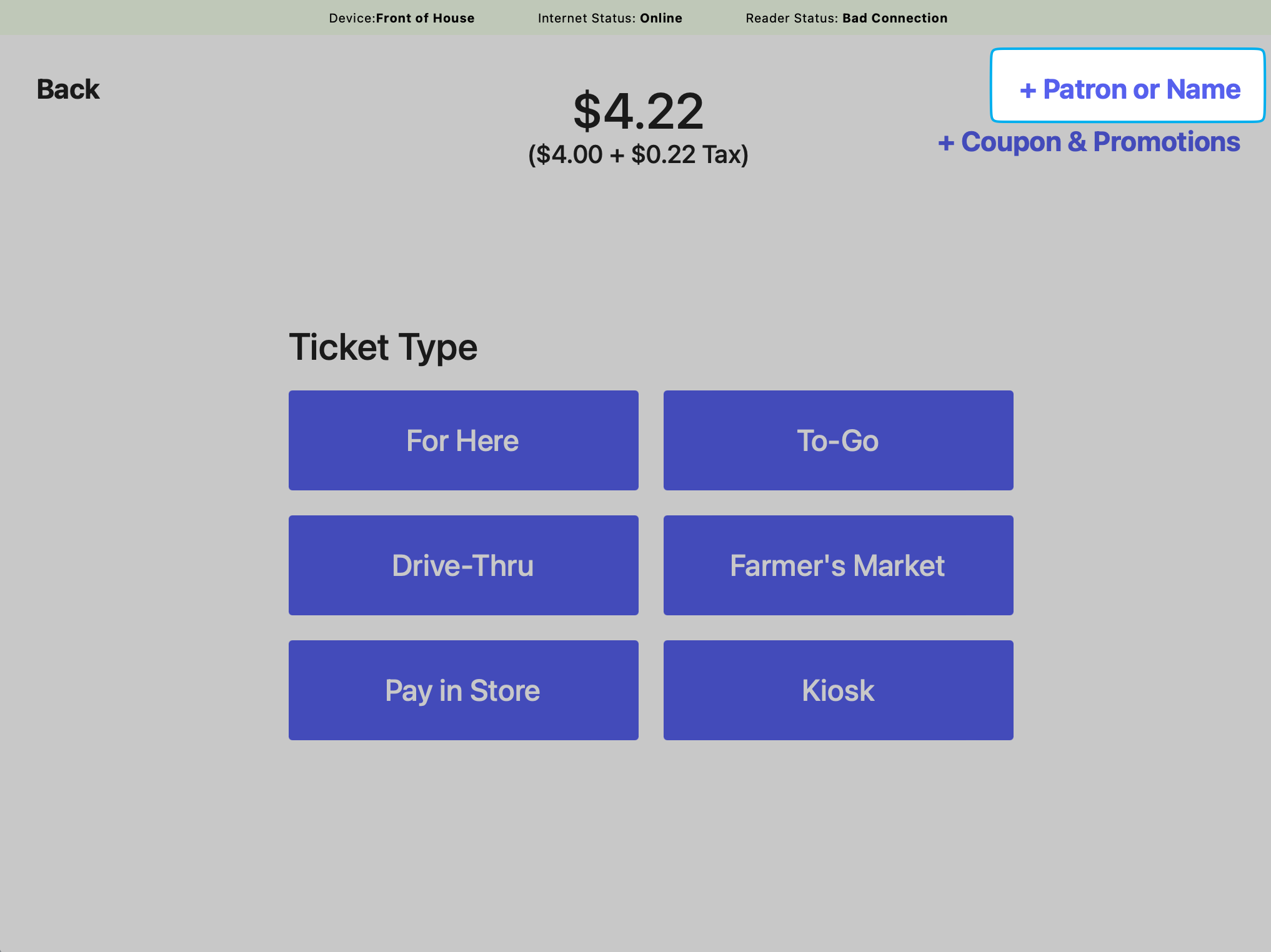
    <Icon icon="check" iconType="solid" /> Cashiers may enter patron information on the Point of Sale from either the cart or the payment screen.
    <CardGroup cols={2}>
      <Card title="Cart">
        <img src="https://mintcdn.com/frostbytetechnologiesinc/mTVmRq9WKaPzORrS/images/marketing/p1.png?fit=max&auto=format&n=mTVmRq9WKaPzORrS&q=85&s=7aa89a80c3fe32e7f74abacf94caf119" width="2034" height="1512" data-path="images/marketing/p1.png" />
      </Card>

      <Card title="Payment Page">
        <img src="https://mintcdn.com/frostbytetechnologiesinc/mTVmRq9WKaPzORrS/images/marketing/p2.png?fit=max&auto=format&n=mTVmRq9WKaPzORrS&q=85&s=9a4fba24fe0414c33029a1c0af7b5cc4" width="2034" height="1524" data-path="images/marketing/p2.png" />
      </Card>
    </CardGroup>
  </Tab>

  <Tab title="Order Website">
    **Order Website**

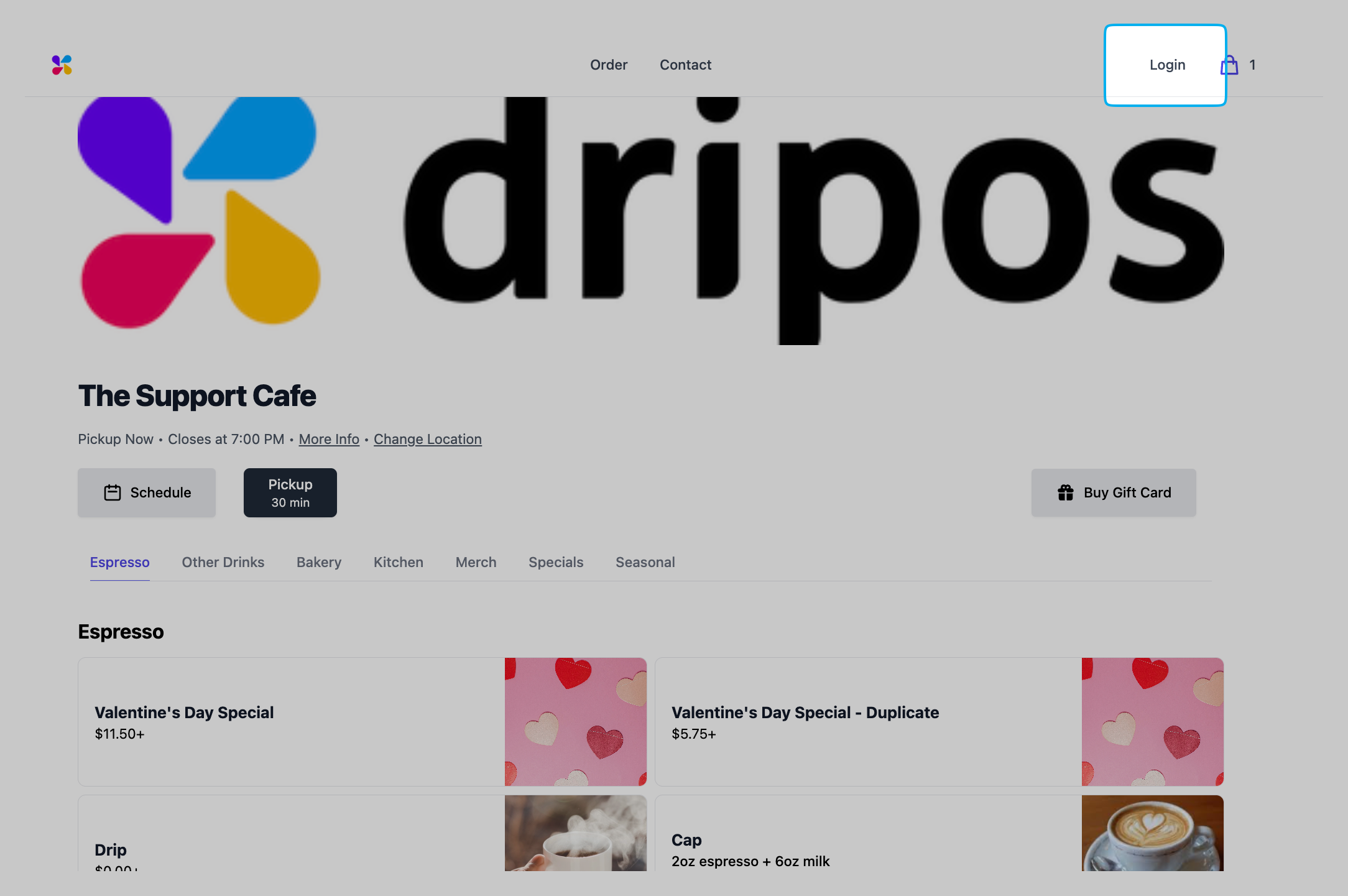
    <Icon icon="check" iconType="solid" />  Customers can log into the order website to place orders under their patron account
    <Frame>
      <img src="https://mintcdn.com/frostbytetechnologiesinc/mTVmRq9WKaPzORrS/images/marketing/oweb1.png?fit=max&auto=format&n=mTVmRq9WKaPzORrS&q=85&s=056d9b091c6d7a957f7b7e0a5b9ad189" width="2168" height="1441" data-path="images/marketing/oweb1.png" />
    </Frame>

    <Frame>
      <img src="https://mintcdn.com/frostbytetechnologiesinc/mTVmRq9WKaPzORrS/images/marketing/oweb2.png?fit=max&auto=format&n=mTVmRq9WKaPzORrS&q=85&s=dae53182619774c4ccae58c7f55cf0e0" width="2078" height="1214" data-path="images/marketing/oweb2.png" />
    </Frame>

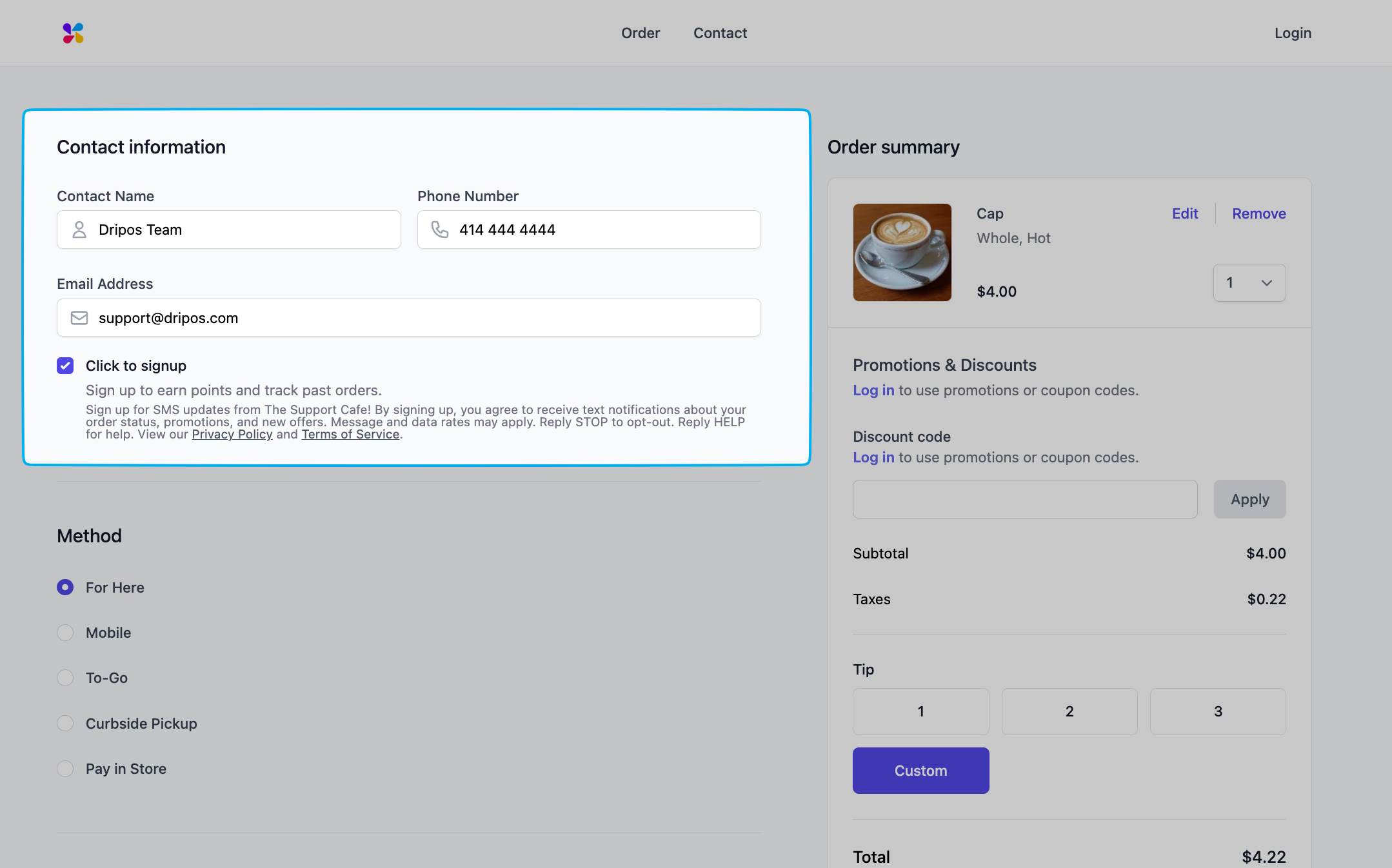
    <Icon icon="check" iconType="solid" /> Customers can also create a new patron account during the checkout process
    <Frame>
      <img src="https://mintcdn.com/frostbytetechnologiesinc/mTVmRq9WKaPzORrS/images/marketing/oweb3.png?fit=max&auto=format&n=mTVmRq9WKaPzORrS&q=85&s=cfc6f55f19142069f79a34688f70e0ab" width="2158" height="1346" data-path="images/marketing/oweb3.png" />
    </Frame>
  </Tab>

  <Tab title="Order App">
    **Order App**

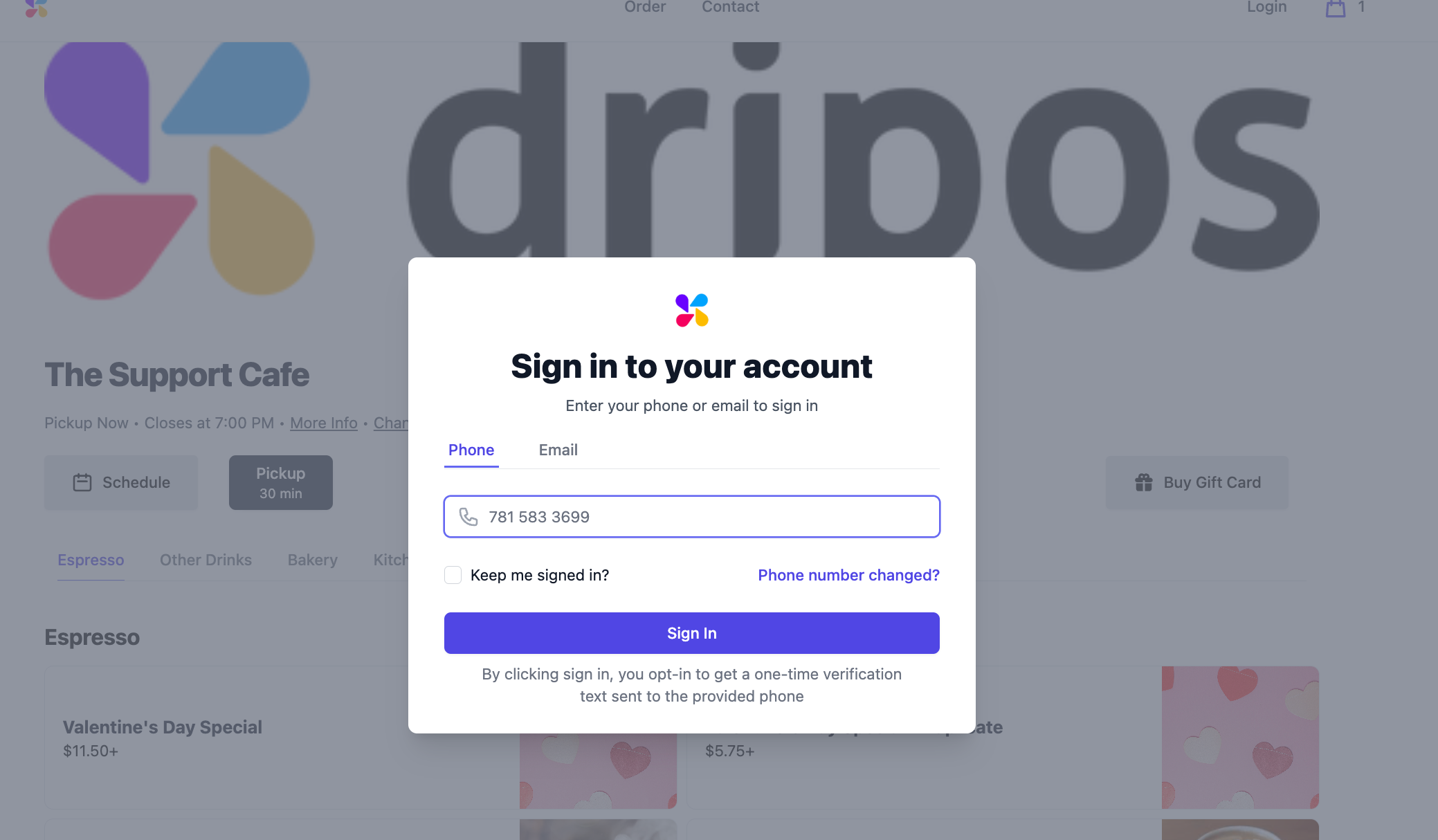
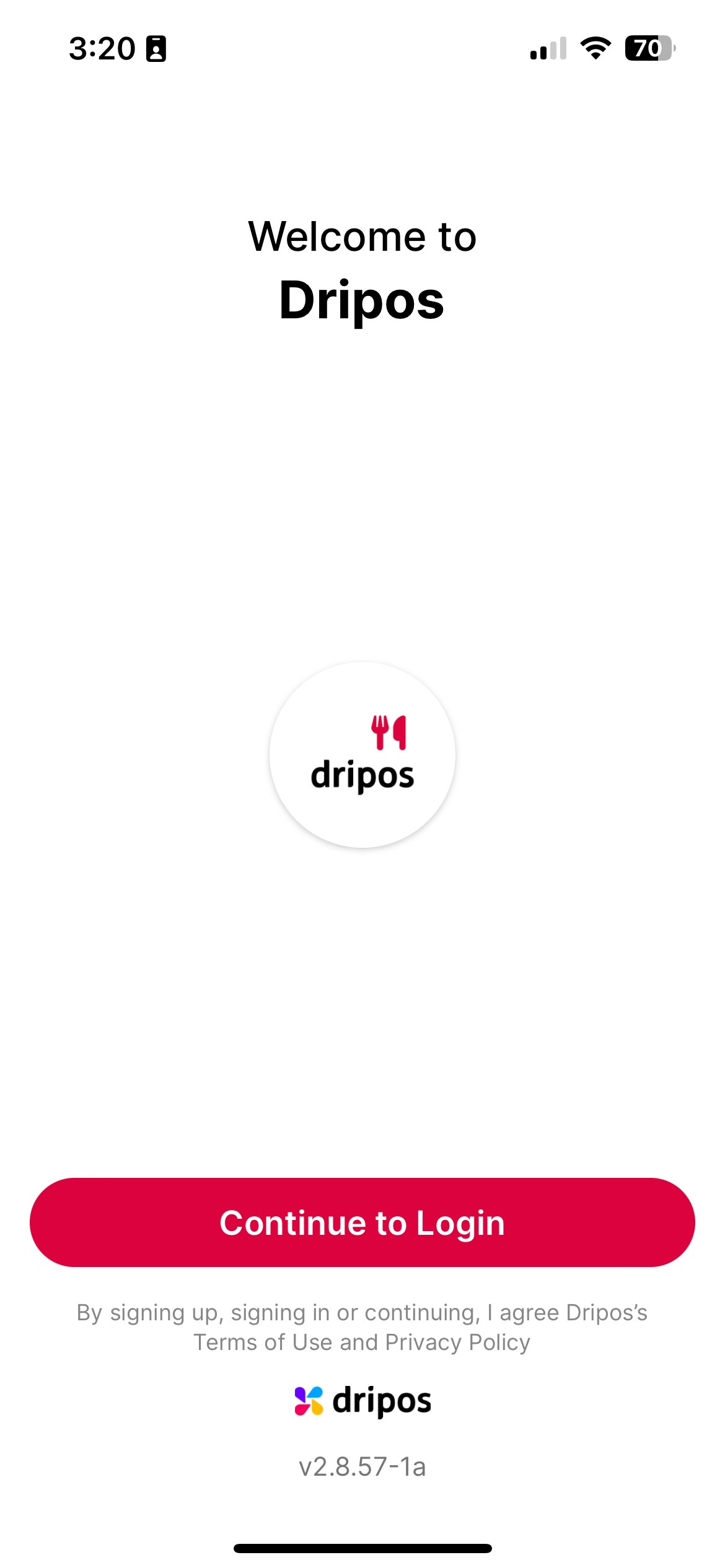
    <Icon icon="check" iconType="solid" /> Customers will be required to log in with a phone number to place an order on the Dripos Order App, thus ensuring a patron account is created.
    <Frame>
      <img src="https://mintcdn.com/frostbytetechnologiesinc/VrhEjY59xTUtWdDh/images/marketing/login.jpeg?fit=max&auto=format&n=VrhEjY59xTUtWdDh&q=85&s=455cbd10dbd16c32ab916105c0dd45a3" width="1170" height="2532" data-path="images/marketing/login.jpeg" />
    </Frame>
  </Tab>
</Tabs>

***

## Redeem Loyalty Points

When a customer earns enough points for a reward, available rewards will automatically appear at checkout.

<Tabs>
  <Tab title="S700 Card Reader">
    **S700 Card Reader**

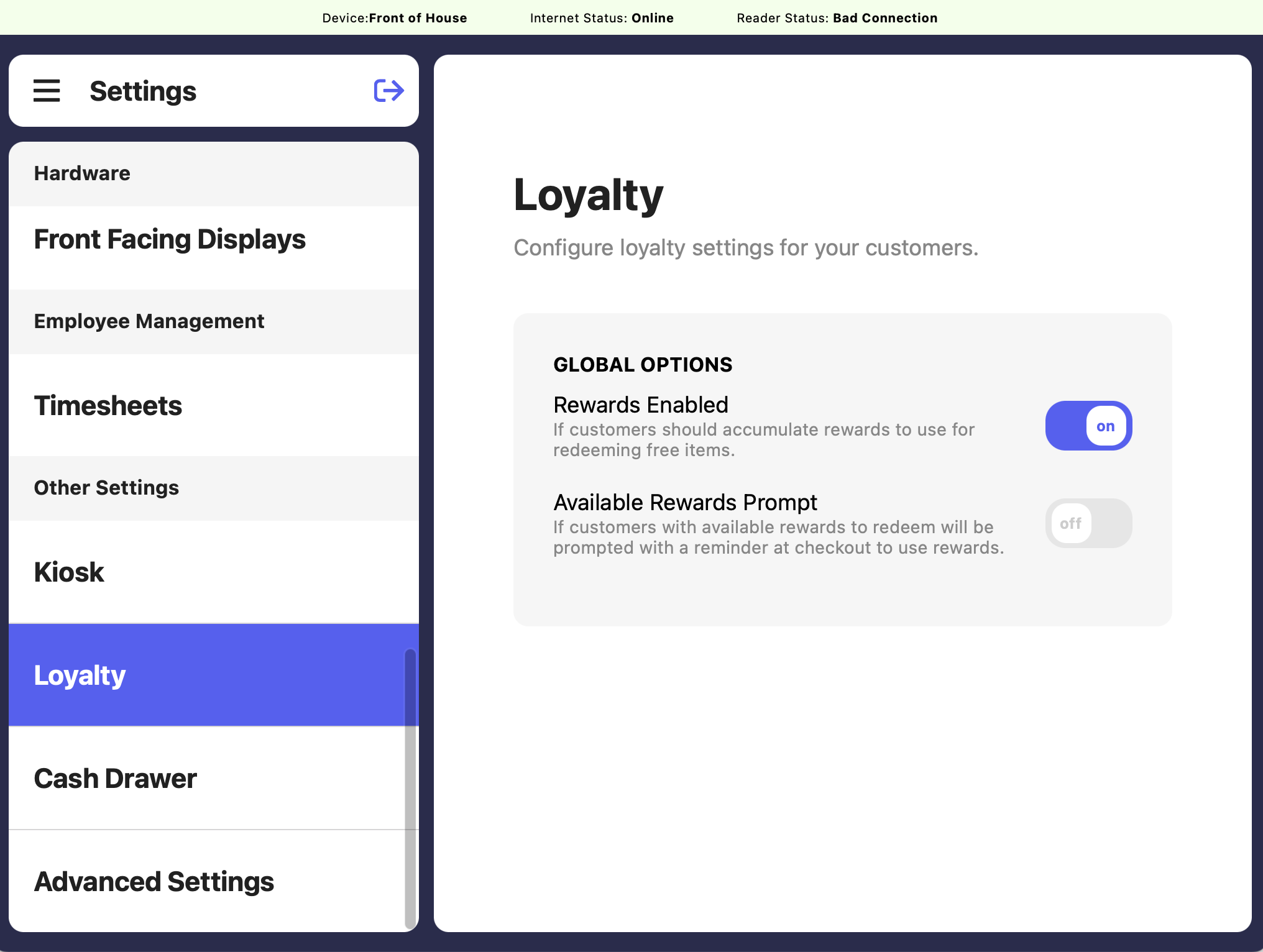
    **Available Rewards Prompt**: If enabled, customers will be prompted on the S700 card reader screen to redeem their loyalty rewards should they be eligible
    <Frame>
      <img src="https://mintcdn.com/frostbytetechnologiesinc/mTVmRq9WKaPzORrS/images/marketing/loyl5.png?fit=max&auto=format&n=mTVmRq9WKaPzORrS&q=85&s=536086f10422911cb445e3a79f66c0f1" width="2032" height="1532" data-path="images/marketing/loyl5.png" />
    </Frame>
  </Tab>

  <Tab title="Point of Sale">
    **Point of Sale**

    There are two methods for redeeming rewards from the Point of Sale

    <Steps>
      <Step title="Payment Method Screen">
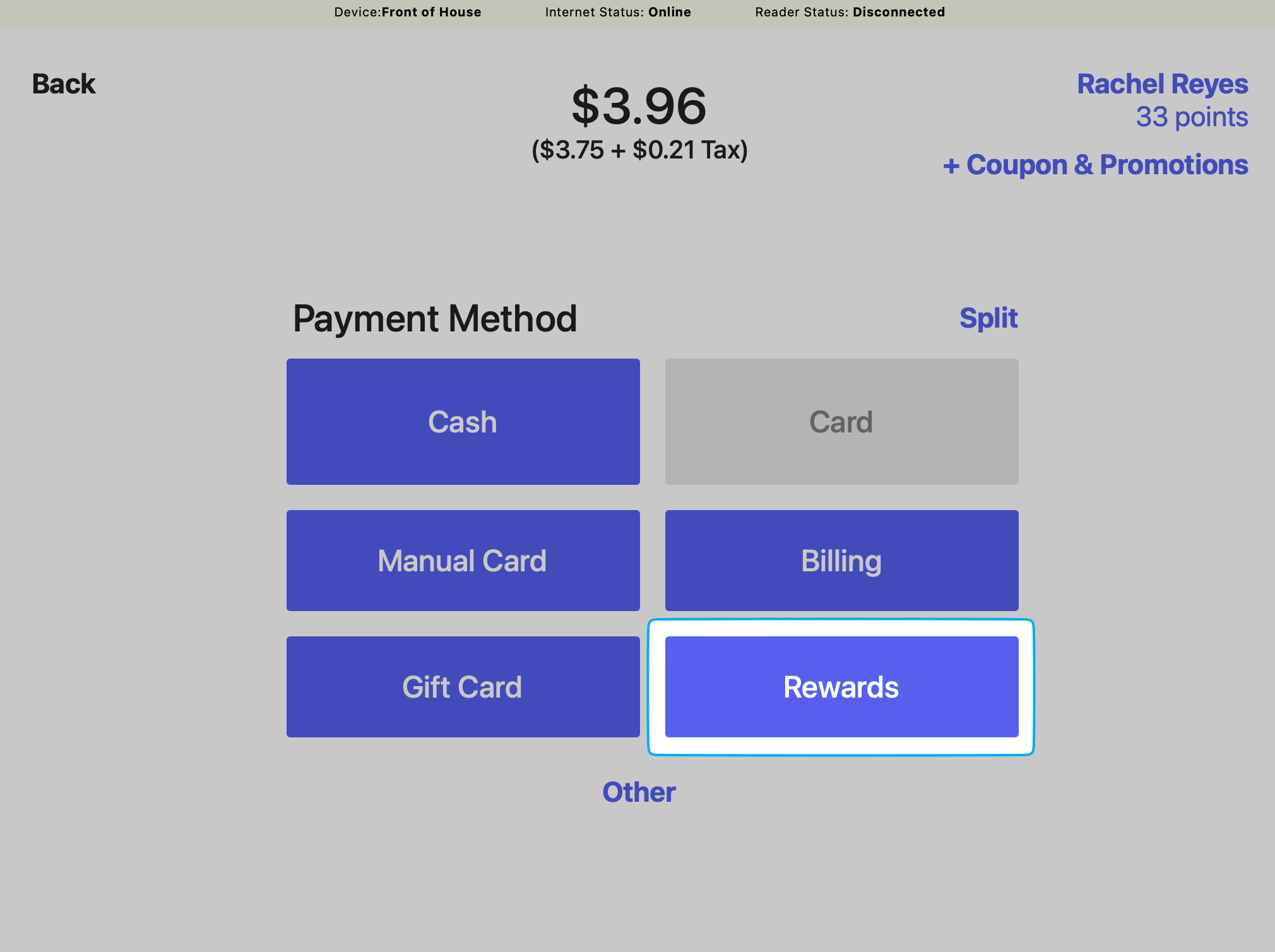
        Select Rewards on the payment method screen to view any available rewards the customer may have
        <Frame>
          <img src="https://mintcdn.com/frostbytetechnologiesinc/MS4pCALzr9u3BeI5/images/marketing/pay.png?fit=max&auto=format&n=MS4pCALzr9u3BeI5&q=85&s=bac76cd6aaf95afa5fb6e1bf9d8af4b5" width="2020" height="1508" data-path="images/marketing/pay.png" />
        </Frame>
      </Step>

      <Step title="Rewards Pop Up">
        **Available Rewards Prompt**: If enabled, cashiers will be prompted to select if a customer would like to redeem their loyalty rewards.

        <Frame>
          <img src="https://mintcdn.com/frostbytetechnologiesinc/mTVmRq9WKaPzORrS/images/marketing/loyl5.png?fit=max&auto=format&n=mTVmRq9WKaPzORrS&q=85&s=536086f10422911cb445e3a79f66c0f1" width="2032" height="1532" data-path="images/marketing/loyl5.png" />
        </Frame>

        <iframe frameborder="1" className="rounded-xl w-full aspect-video" allow="accelerometer; autoplay; clipboard-write; encrypted-media; gyroscope; picture-in-picture; web-share" allowfullscreen src="https://www.loom.com/embed/d5b7eac150174e6383cfabde1844ed62?sid=7f4cfe3e-4dd4-4ddc-a4cd-057ee084e948" />
      </Step>
    </Steps>
  </Tab>

  <Tab title="Order Website">
    **Order Website**

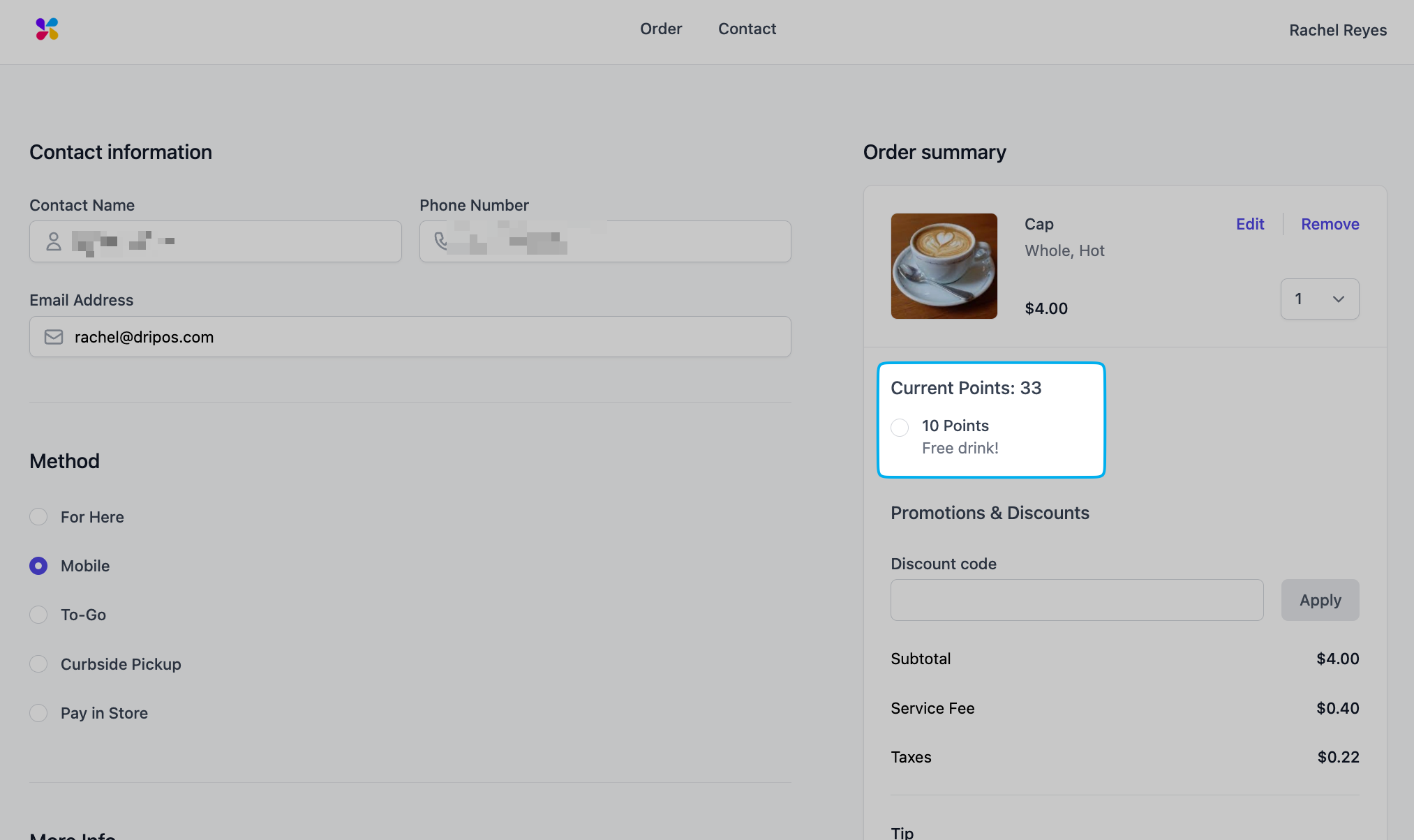
    When a customer is signed in on the order website, any available rewards will appear at checkout.
    <Frame>
      <img src="https://mintcdn.com/frostbytetechnologiesinc/mTVmRq9WKaPzORrS/images/marketing/owebpoint.png?fit=max&auto=format&n=mTVmRq9WKaPzORrS&q=85&s=423d0a9ffcb393177e6383bd67002d02" width="2026" height="1204" data-path="images/marketing/owebpoint.png" />
    </Frame>
  </Tab>

  <Tab title="Order App">
    **Order App**

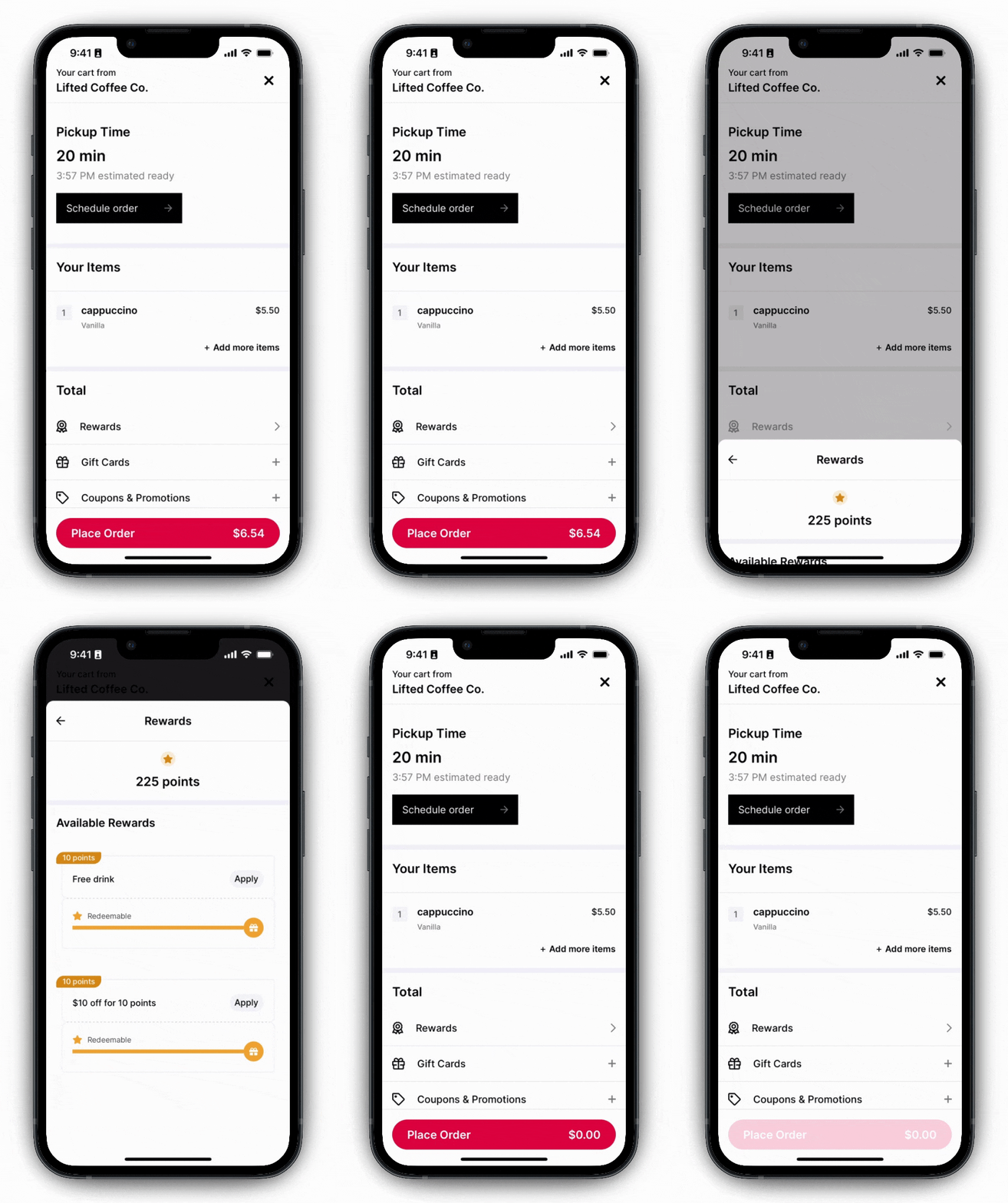
    When a customer is signed in on the order app, any available rewards will appear at checkout.
    <img src="https://mintcdn.com/frostbytetechnologiesinc/4jGjCD4Uh5XsOIaE/images/marketing/redeemapp.gif?s=96072e7f3b1ddc08ea19cbf84064bc1b" width="604" height="1080" data-path="images/marketing/redeemapp.gif" />
  </Tab>
</Tabs>

***

## View Order Loyalty Activity

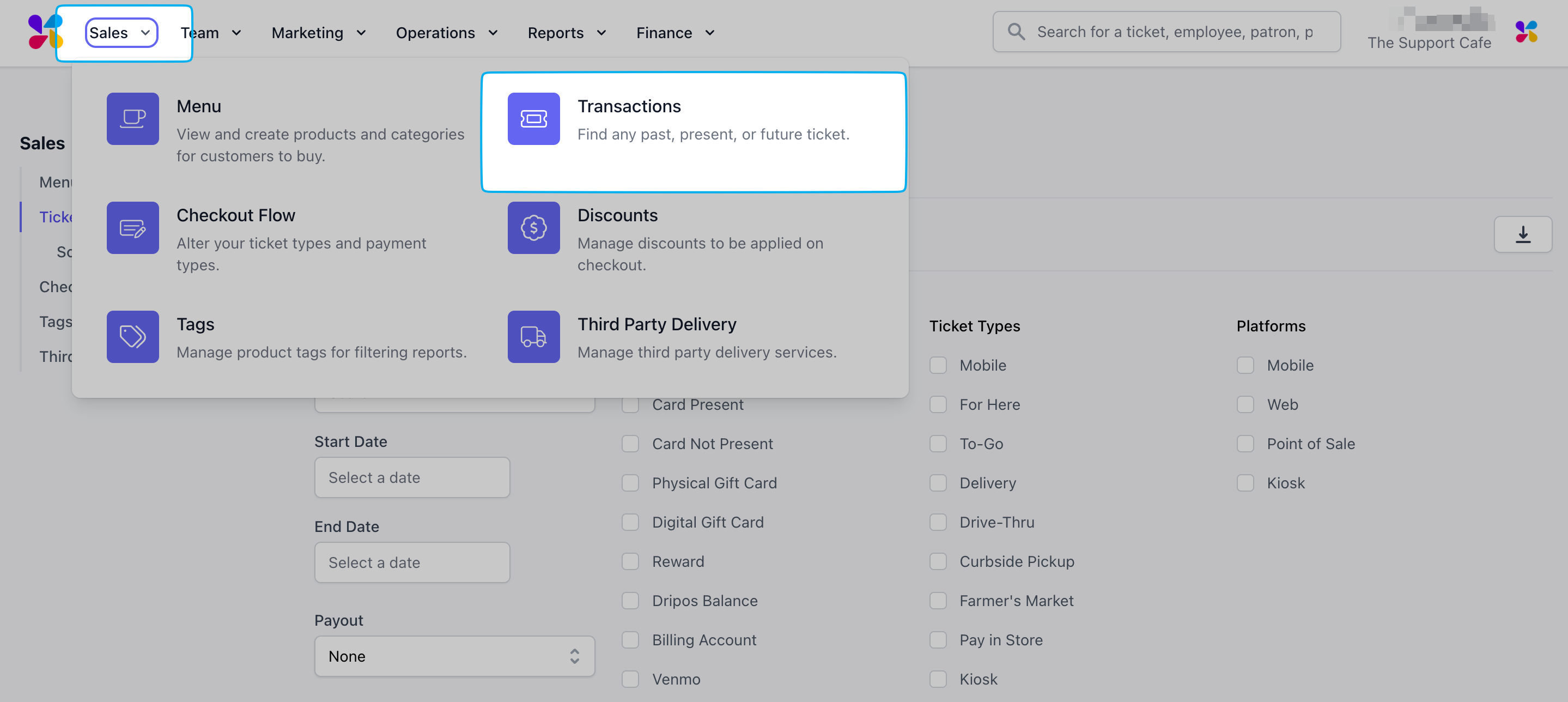
View points earned and redeemed on an order from the transaction page

<AccordionGroup>
  <Accordion title="Dashboard">
    Click **Sales** > **Transactions**

    <Frame>
      <img src="https://mintcdn.com/frostbytetechnologiesinc/5TCbpDpxb8QW_pnA/images/orders/trans9.png?fit=max&auto=format&n=5TCbpDpxb8QW_pnA&q=85&s=a27b2ed41201ca339e25775981deb523" width="2878" height="1288" data-path="images/orders/trans9.png" />
    </Frame>

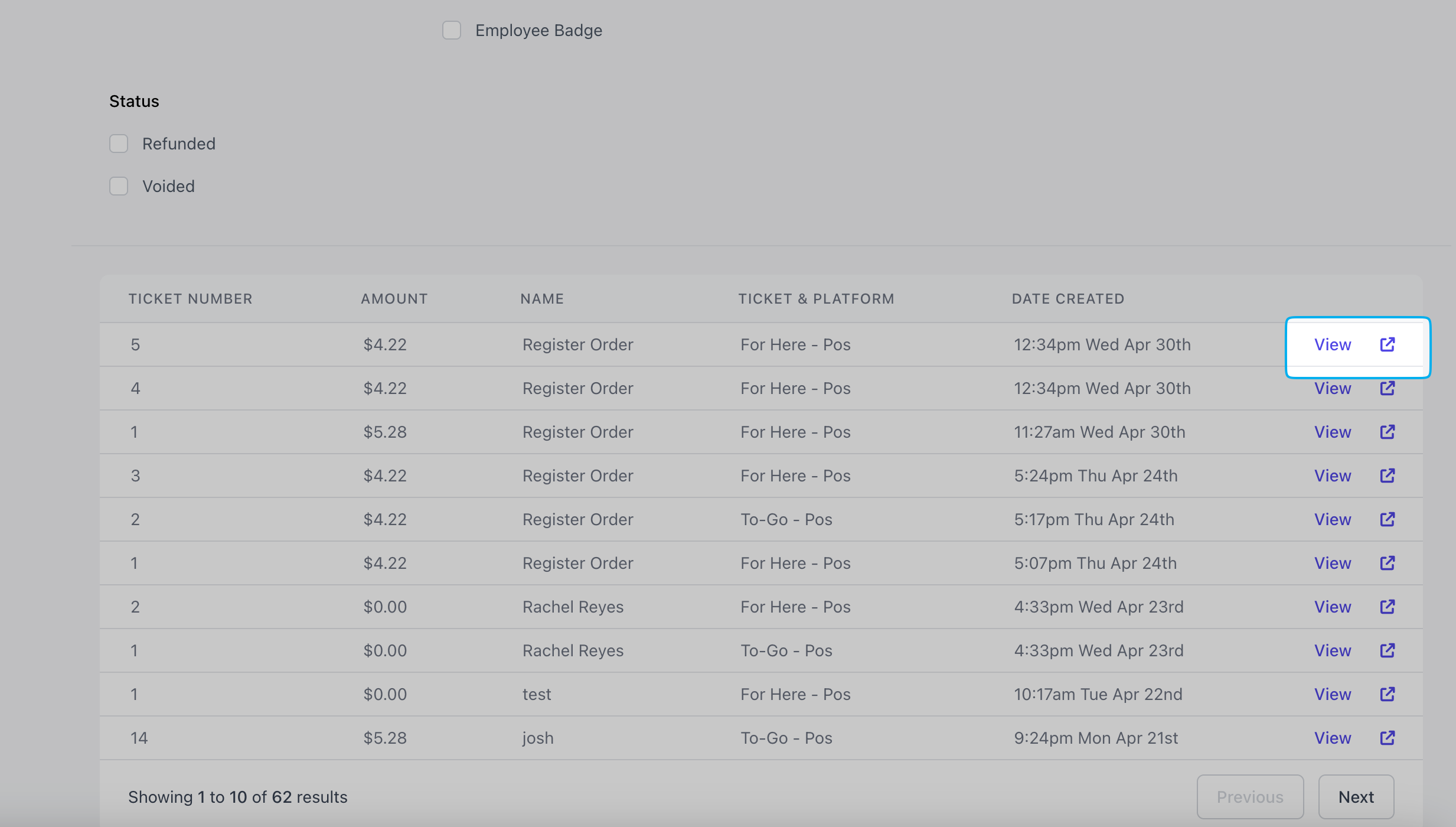
    Click **View** or the new tab icon to open a transaction's page
    <Frame>
      <img src="https://mintcdn.com/frostbytetechnologiesinc/5TCbpDpxb8QW_pnA/images/orders/trans12.png?fit=max&auto=format&n=5TCbpDpxb8QW_pnA&q=85&s=c001bc6c1cb37818bfe94adb47db7a32" width="2466" height="1400" data-path="images/orders/trans12.png" />
    </Frame>

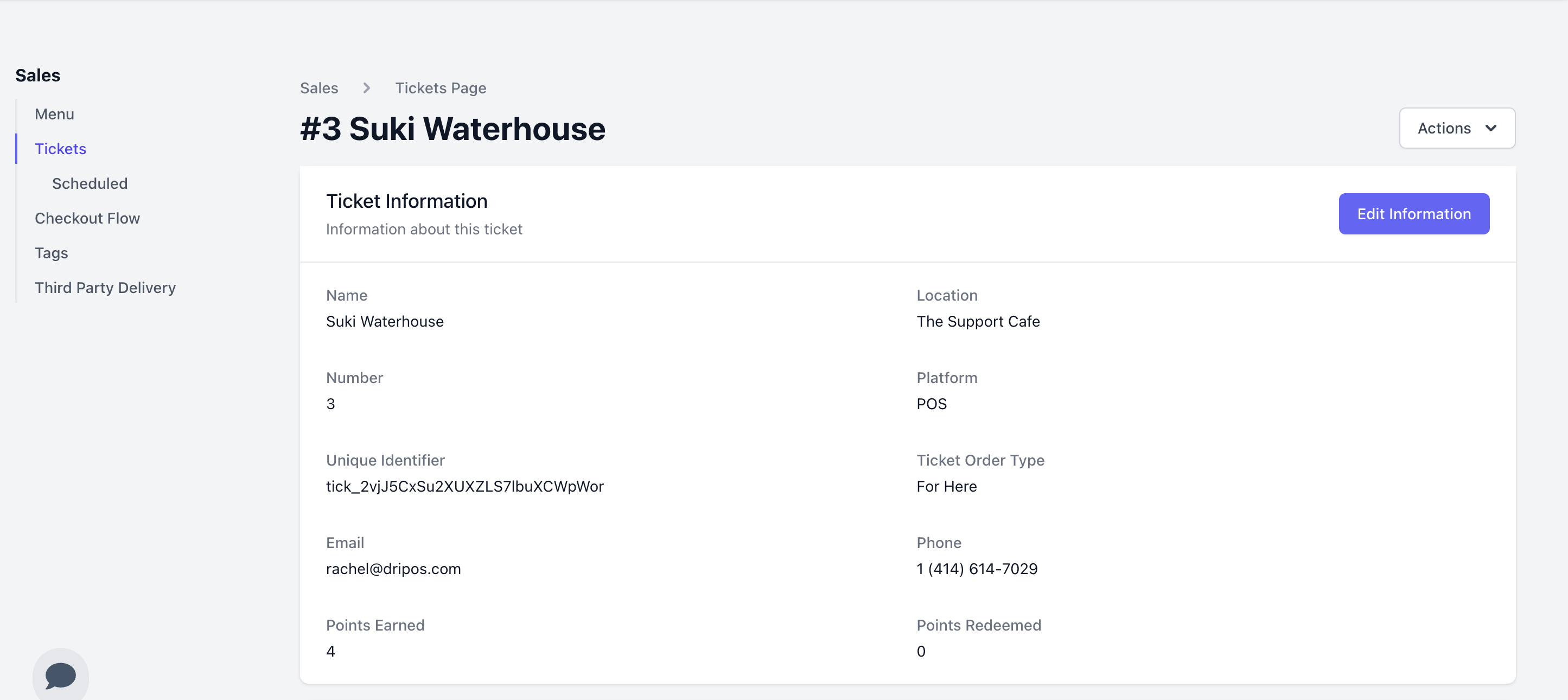
    View points earned and points redeemed on the transaction:
    <Frame>
      <img src="https://mintcdn.com/frostbytetechnologiesinc/5TCbpDpxb8QW_pnA/images/orders/trans14.png?fit=max&auto=format&n=5TCbpDpxb8QW_pnA&q=85&s=459504c6896858f4a284543825d13469" width="2890" height="1290" data-path="images/orders/trans14.png" />
    </Frame>
  </Accordion>

  <Accordion title="Point of Sale">
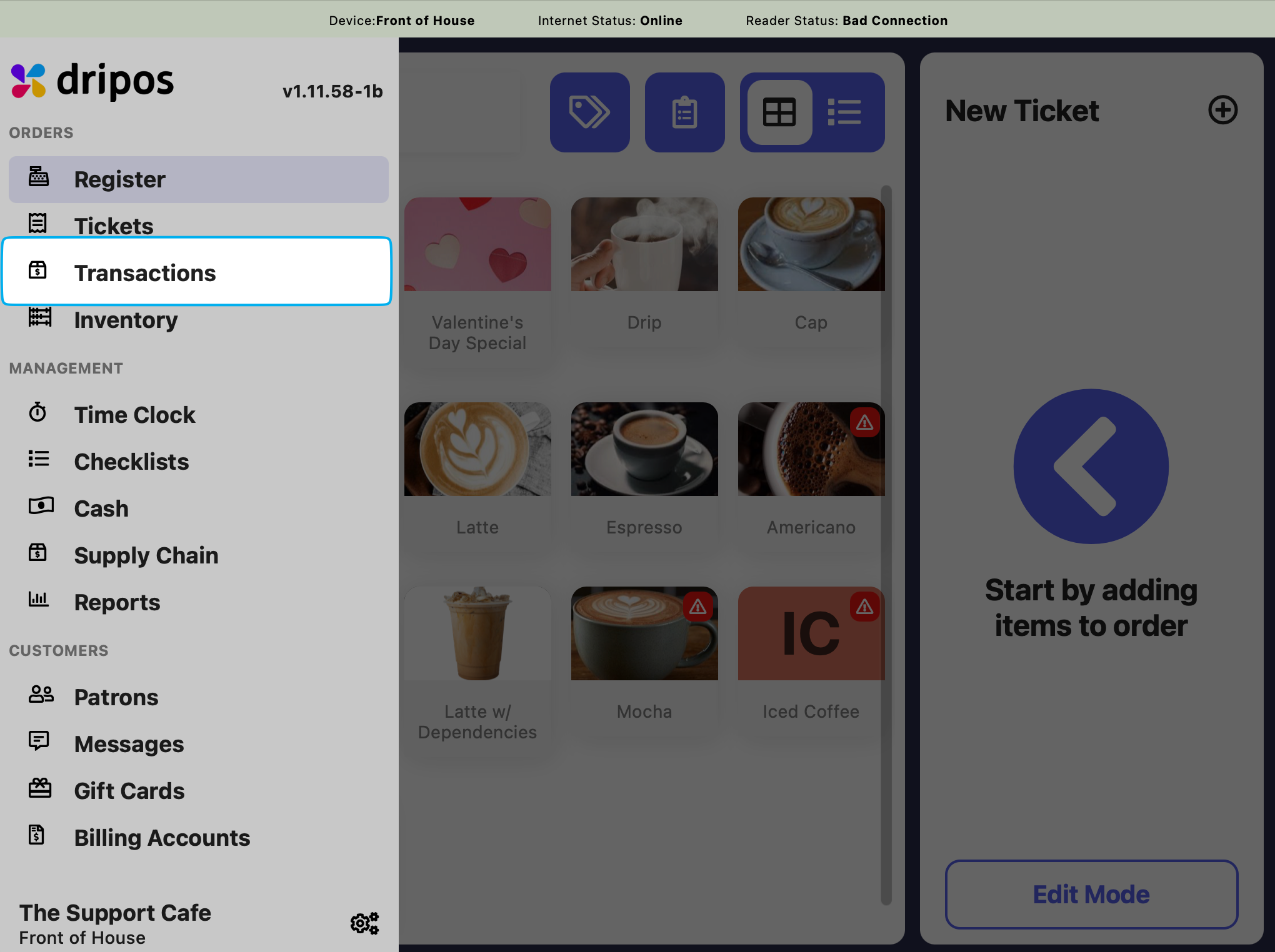
    Press the **tribar** <Icon icon="bars" /> in the upper left screen corner > **Transactions**
    <Frame>
      <img src="https://mintcdn.com/frostbytetechnologiesinc/9D-DNP_EiKWuhNmc/images/orders/postrans.png?fit=max&auto=format&n=9D-DNP_EiKWuhNmc&q=85&s=cf2711a60e77dbe5f58434c805ad2000" width="2040" height="1524" data-path="images/orders/postrans.png" />
    </Frame>

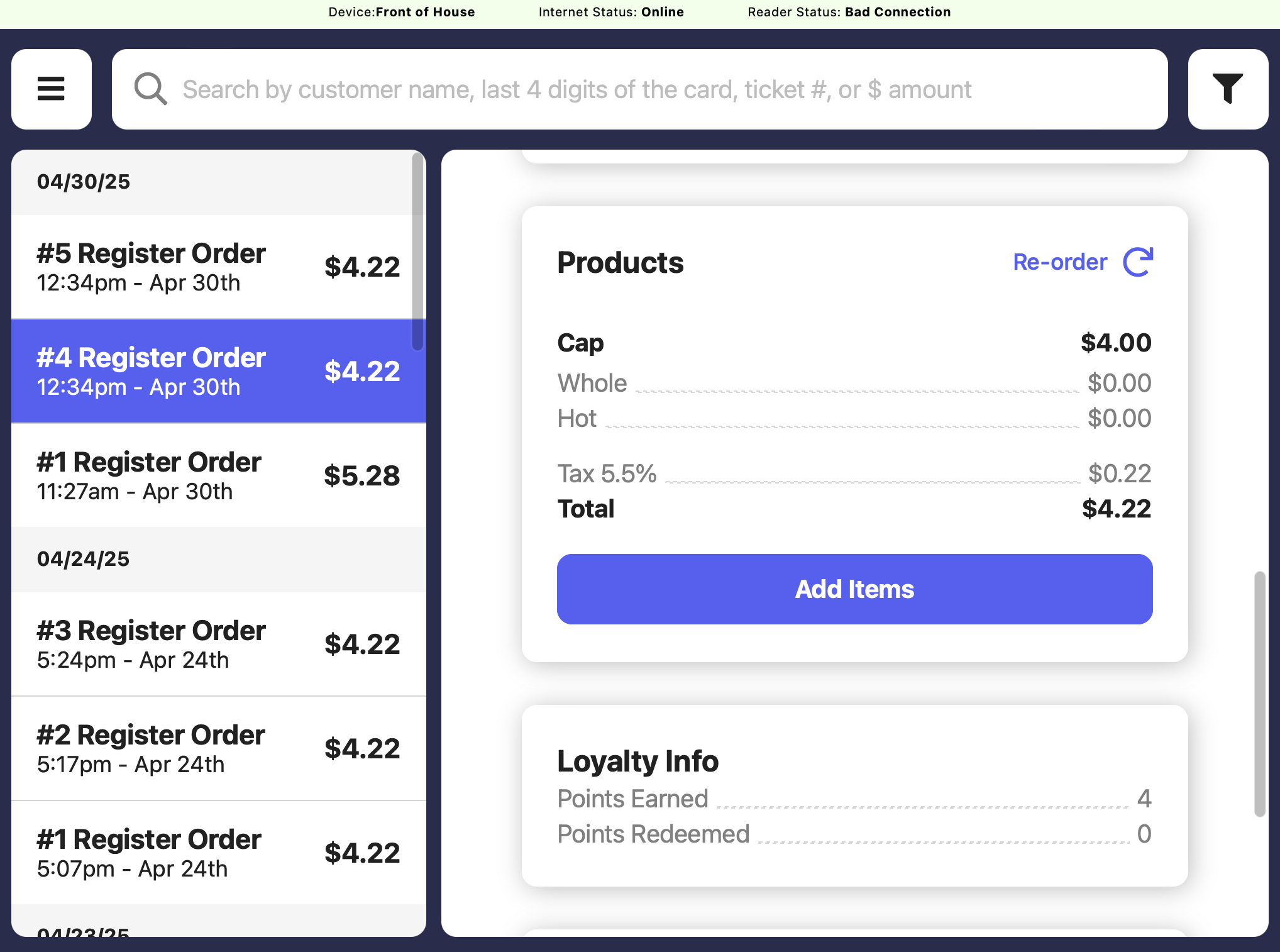
    View loyalty points earned and redeemed on any specific transaction
    <Frame>
      <img src="https://mintcdn.com/frostbytetechnologiesinc/5TCbpDpxb8QW_pnA/images/orders/trans3.png?fit=max&auto=format&n=5TCbpDpxb8QW_pnA&q=85&s=1b8f67c40026e29e88f381596e2ca3b8" width="2036" height="1514" data-path="images/orders/trans3.png" />
    </Frame>

    <Warning>
      After a transaction is complete, loyalty points earned and redeemed as well as the patron attached cannot be changed.

      Adjust the points on a patron profile by navigating to the **tribar** <Icon icon="bars" /> in the upper left screen corner > **Patrons** > search for the patron > Edit Patron Info > Points
    </Warning>
  </Accordion>
</AccordionGroup>

***

## View Customer Loyalty Activity

View patron profiles and their loyalty history

<AccordionGroup>
  <Accordion title="Dashboard">
    **Dashboard**

    <Steps>
      <Step title="">
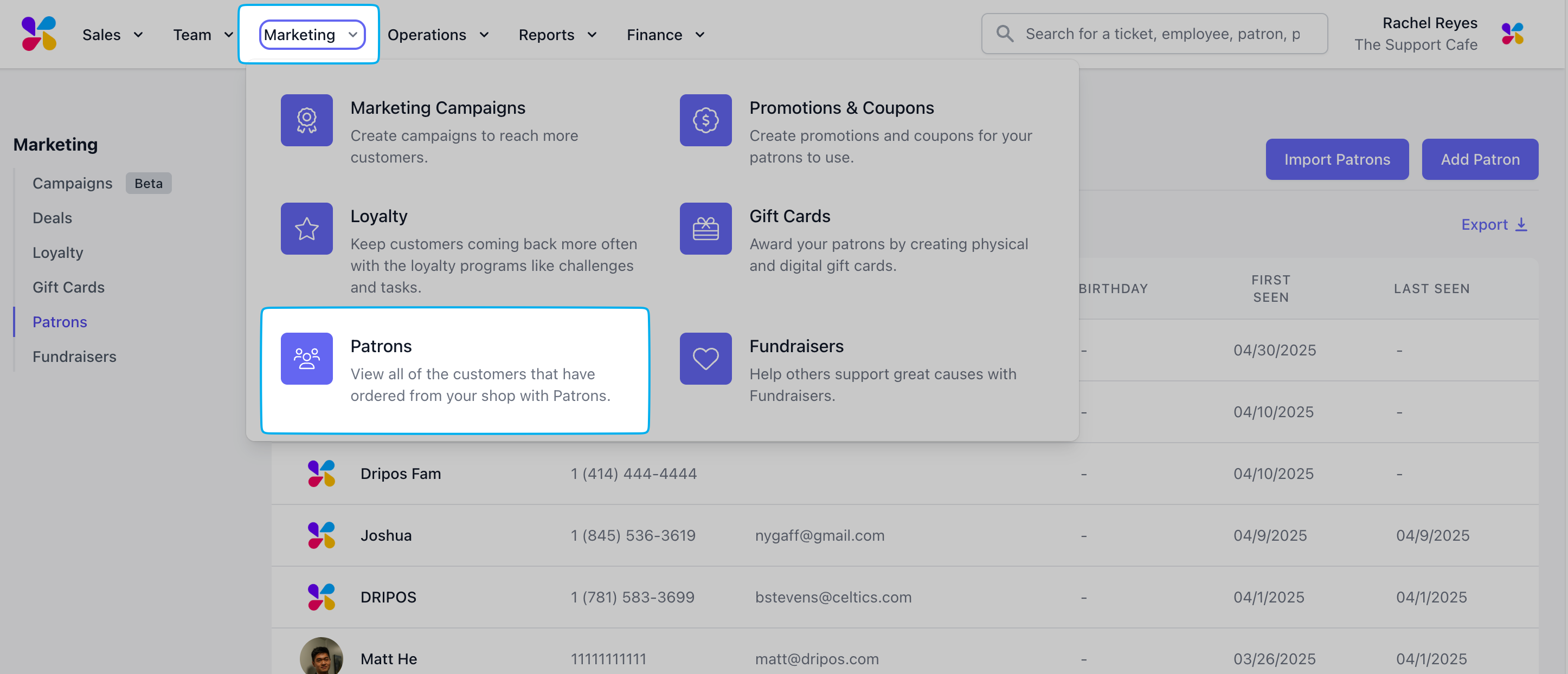
        Click **Marketing** > **Patrons**

        <Frame>
          <img src="https://mintcdn.com/frostbytetechnologiesinc/ovWQENzgxAhoe77f/images/marketing/view1.png?fit=max&auto=format&n=ovWQENzgxAhoe77f&q=85&s=f36c49df87dd49eb330450b967d10379" width="2892" height="1244" data-path="images/marketing/view1.png" />
        </Frame>
      </Step>

      <Step title="">
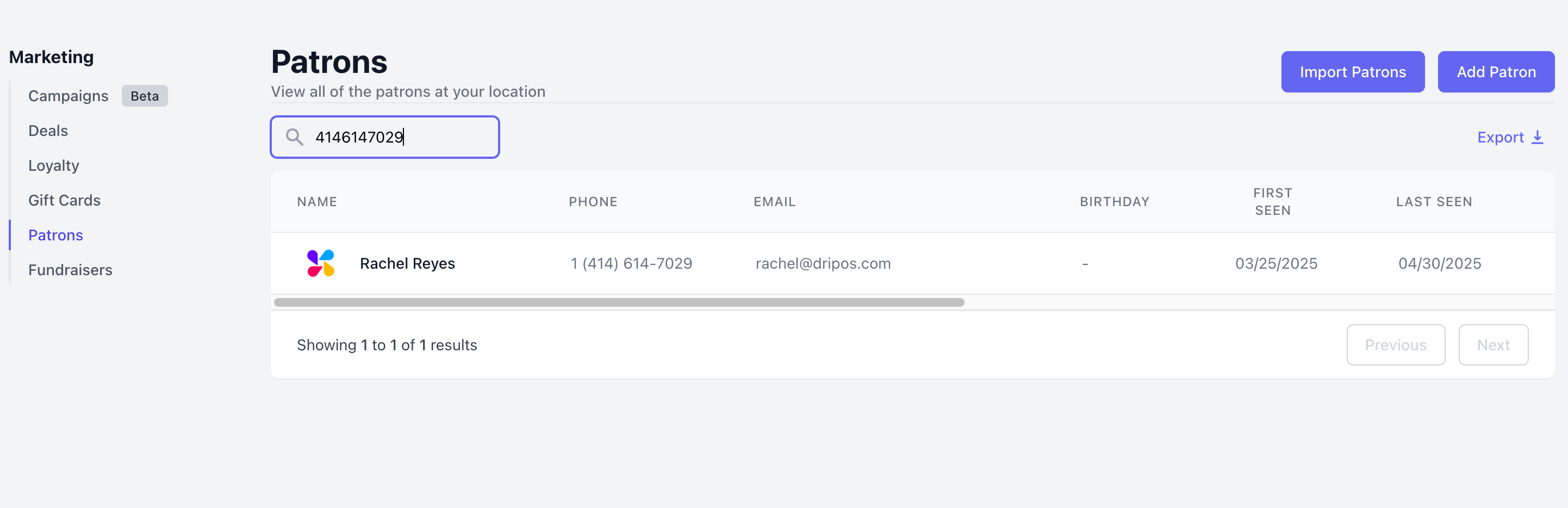
        Search for patron by name, phone number, or email
        <Frame>
          <img src="https://mintcdn.com/frostbytetechnologiesinc/ovWQENzgxAhoe77f/images/marketing/view2.png?fit=max&auto=format&n=ovWQENzgxAhoe77f&q=85&s=c36cd999aada60589e5a1a24d6e42123" width="2884" height="934" data-path="images/marketing/view2.png" />
        </Frame>
      </Step>

      <Step title="">
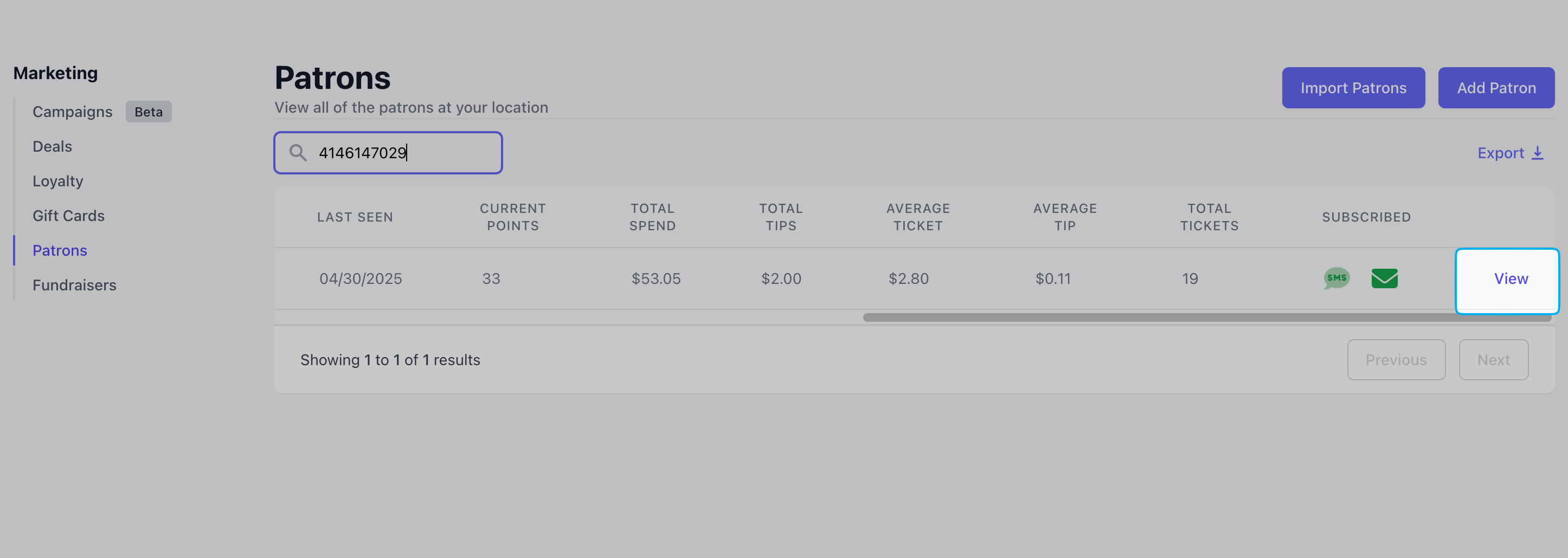
        Click **View** on the patron profile

        <Frame>
          <img src="https://mintcdn.com/frostbytetechnologiesinc/ovWQENzgxAhoe77f/images/marketing/view3.png?fit=max&auto=format&n=ovWQENzgxAhoe77f&q=85&s=49265131055242333d4785ca808bb654" width="2892" height="1030" data-path="images/marketing/view3.png" />
        </Frame>
      </Step>

      <Step title="">
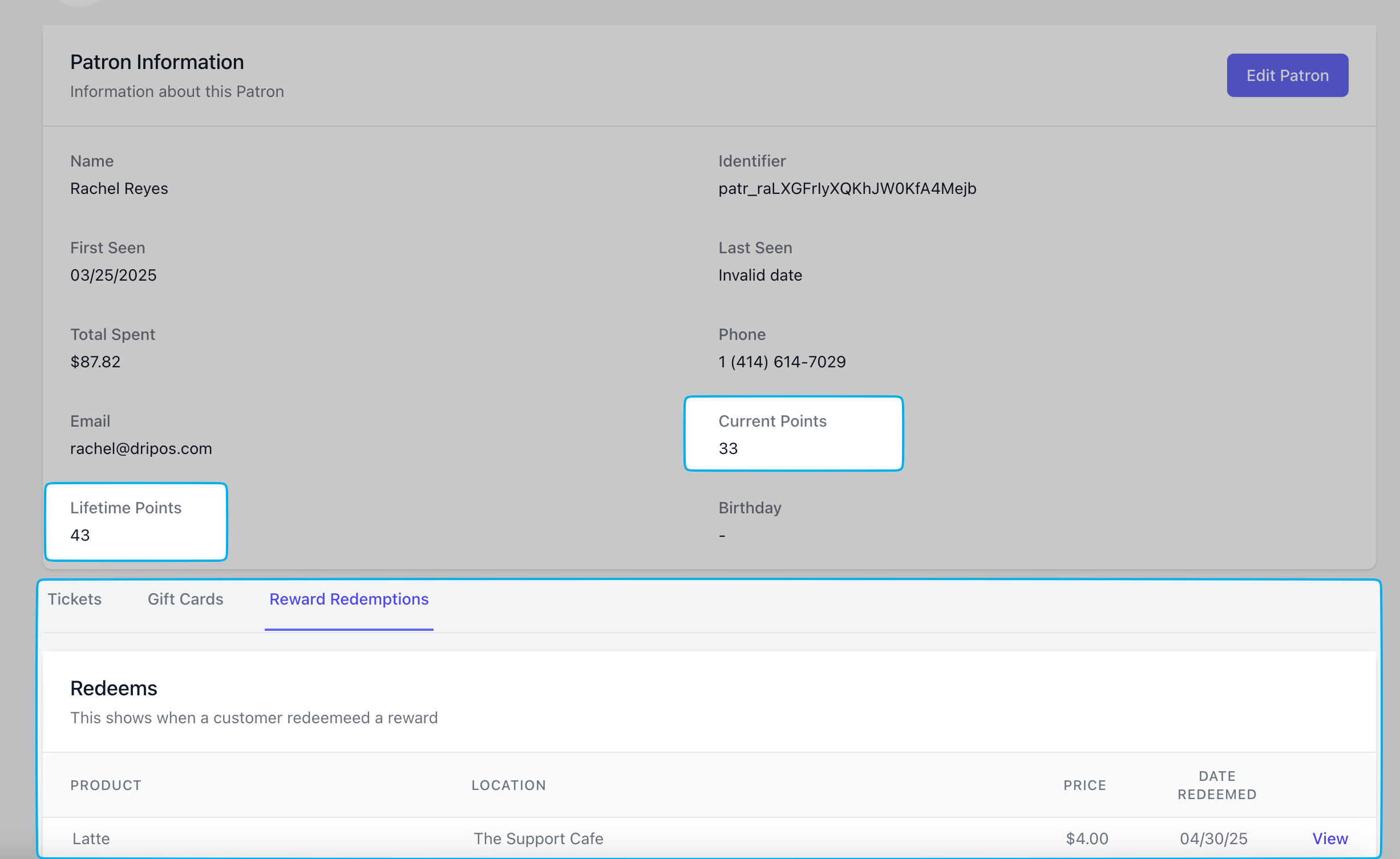
        View the current points, their lifetime points, and all redemption history from their profile page
        <Frame>
          <img src="https://mintcdn.com/frostbytetechnologiesinc/ovWQENzgxAhoe77f/images/marketing/view4.png?fit=max&auto=format&n=ovWQENzgxAhoe77f&q=85&s=5a22db7bd4543906282628fd93664b43" width="2454" height="1506" data-path="images/marketing/view4.png" />
        </Frame>
      </Step>

      <Step title="">
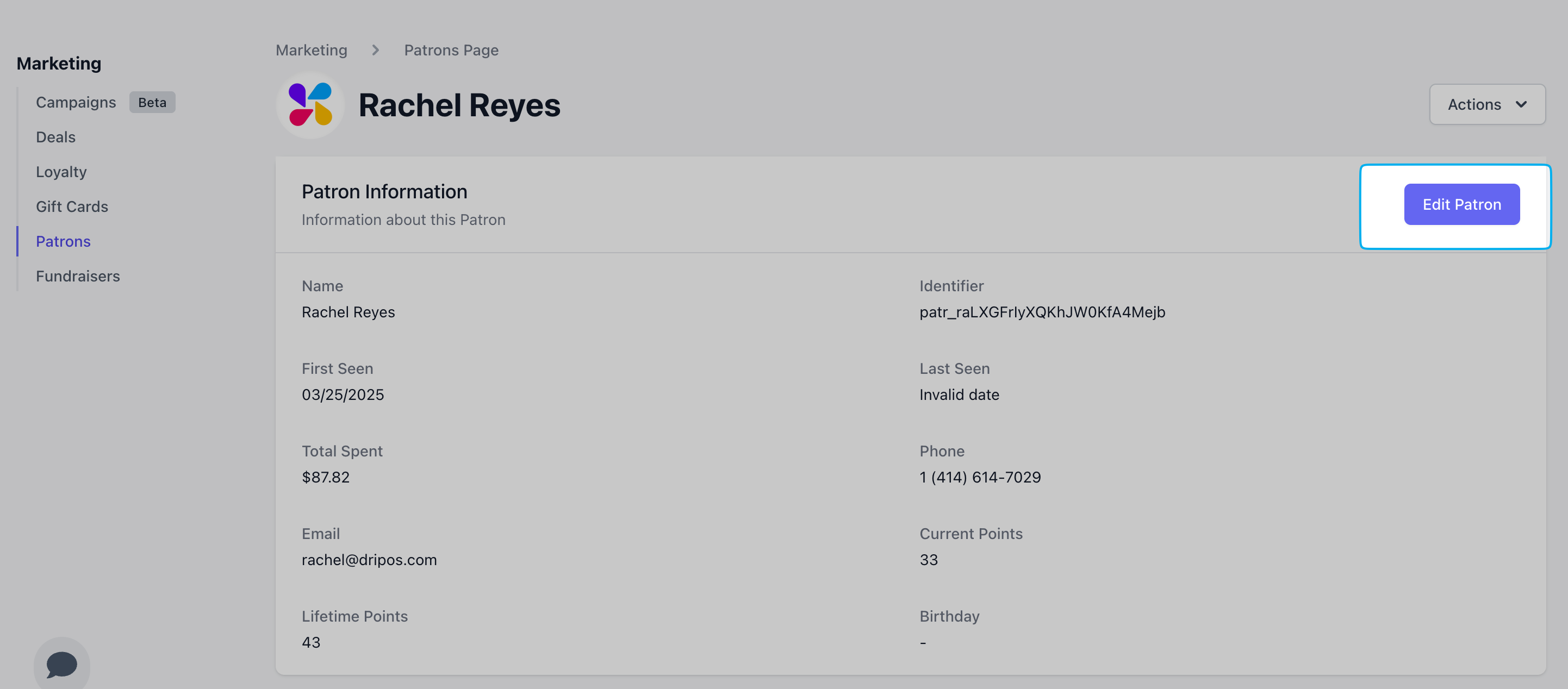
        To add or remove patron points manually, click **Edit**
        <Frame>
          <img src="https://mintcdn.com/frostbytetechnologiesinc/ovWQENzgxAhoe77f/images/marketing/view5.png?fit=max&auto=format&n=ovWQENzgxAhoe77f&q=85&s=3bf1c274163b24a7851fa6fe1e574bc2" width="2884" height="1268" data-path="images/marketing/view5.png" />
        </Frame>
      </Step>

      <Step title="">
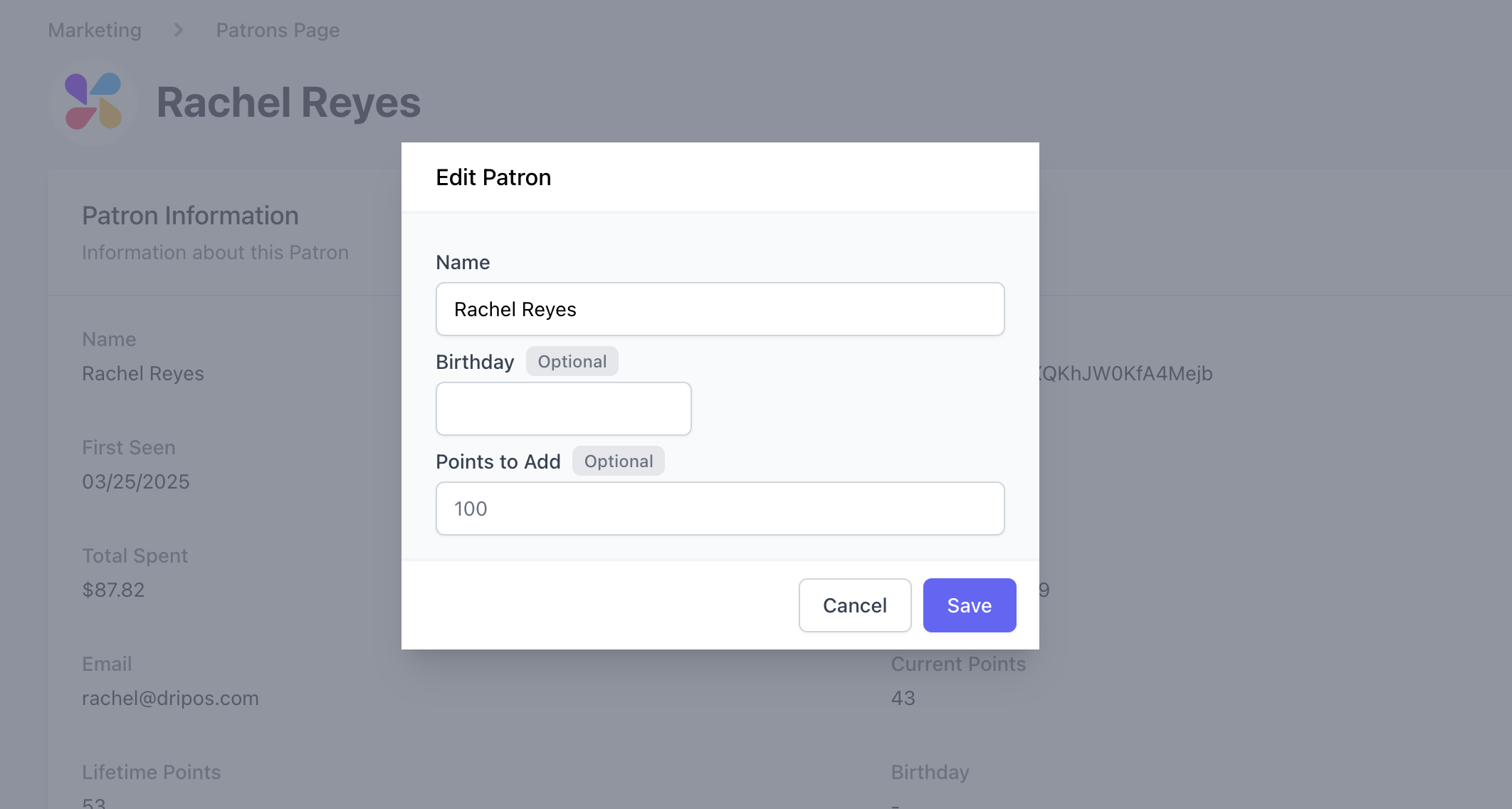
        Add a positive (10) number to add points and a negative number (-10) to remove points fromt this patrons profile > click **Save**
        <Frame>
          <img src="https://mintcdn.com/frostbytetechnologiesinc/ovWQENzgxAhoe77f/images/marketing/view7.png?fit=max&auto=format&n=ovWQENzgxAhoe77f&q=85&s=205a805eaa07abc5ac6dea05576355ed" width="2124" height="1136" data-path="images/marketing/view7.png" />
        </Frame>
      </Step>
    </Steps>
  </Accordion>

  <Accordion title="Point of Sale">
    **Point of Sale**

    <Steps>
      <Step title="">
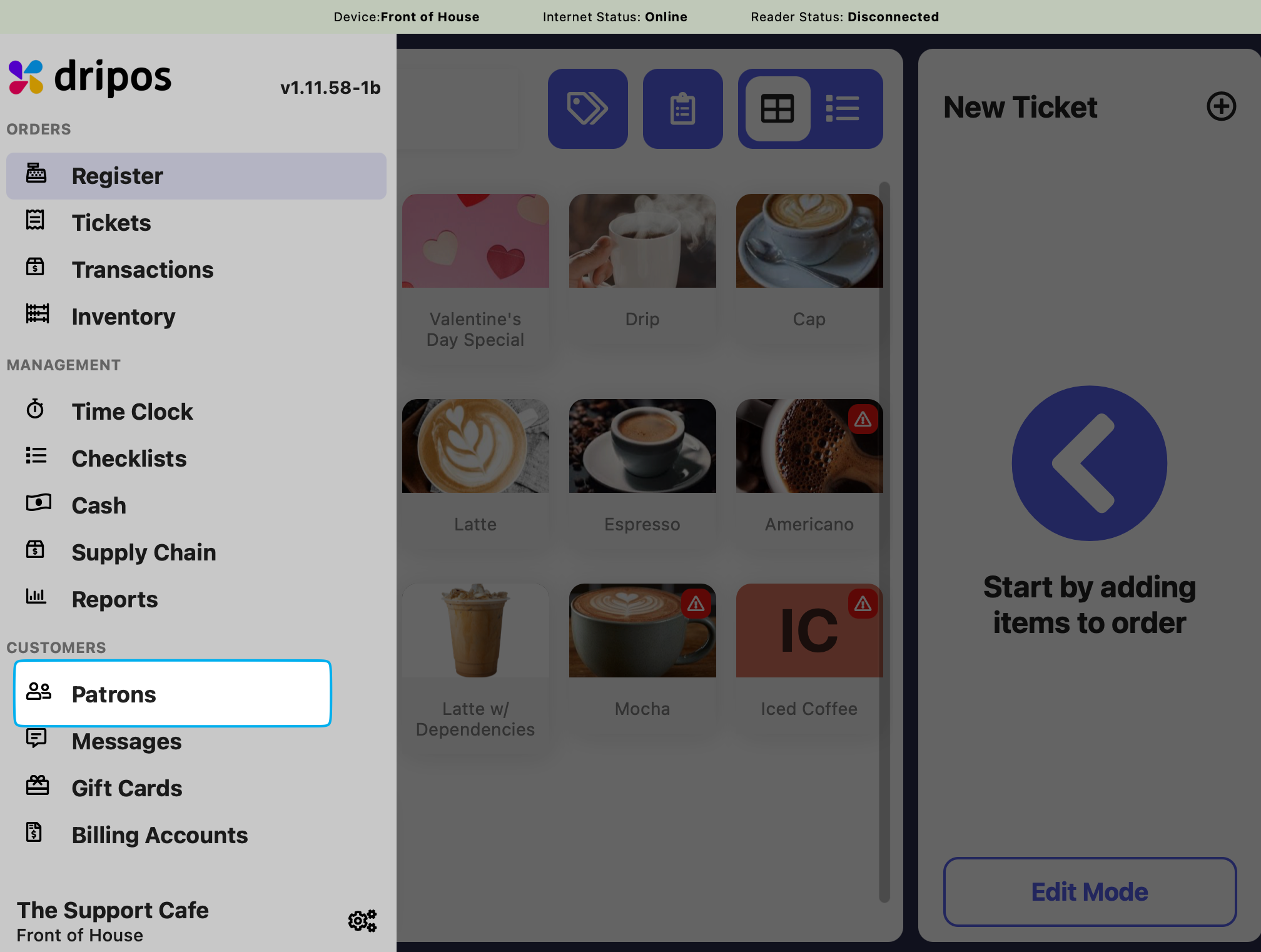
        Press the **tribar** <Icon icon="bars" /> in the upper left screen corner > **Patrons**
        <Frame>
          <img src="https://mintcdn.com/frostbytetechnologiesinc/MS4pCALzr9u3BeI5/images/marketing/pos1.png?fit=max&auto=format&n=MS4pCALzr9u3BeI5&q=85&s=4ff6f0f1eecc4ab28c2fd48d98aaace6" width="2016" height="1522" data-path="images/marketing/pos1.png" />
        </Frame>
      </Step>

      <Step title="">
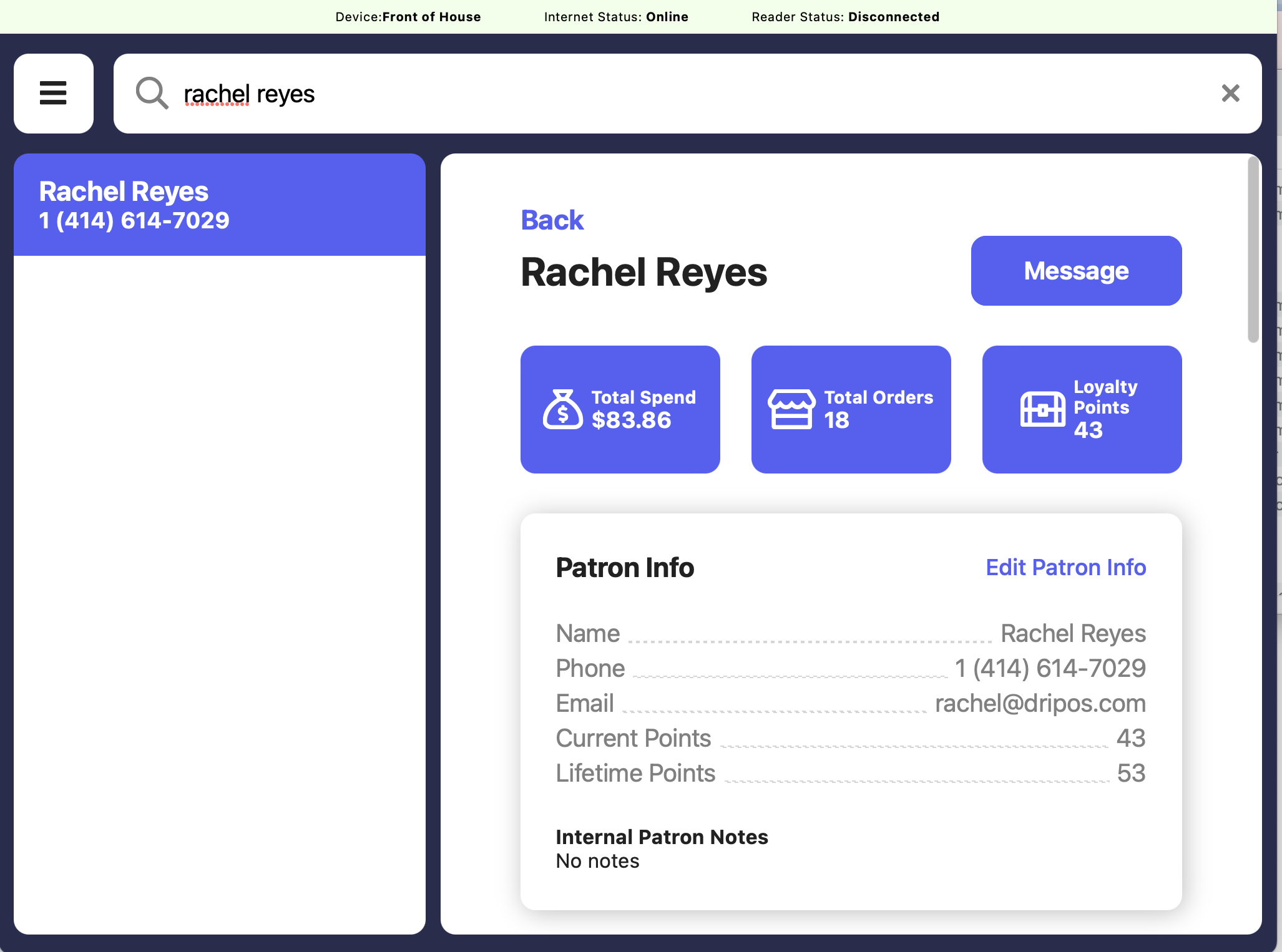
        Search for patron by name, phone number, or email
        <Frame>
          <img src="https://mintcdn.com/frostbytetechnologiesinc/MS4pCALzr9u3BeI5/images/marketing/pos2.png?fit=max&auto=format&n=MS4pCALzr9u3BeI5&q=85&s=402b4ebc030c5b69612b8840f0846d36" width="2054" height="1526" data-path="images/marketing/pos2.png" />
        </Frame>
      </Step>

      <Step title="">
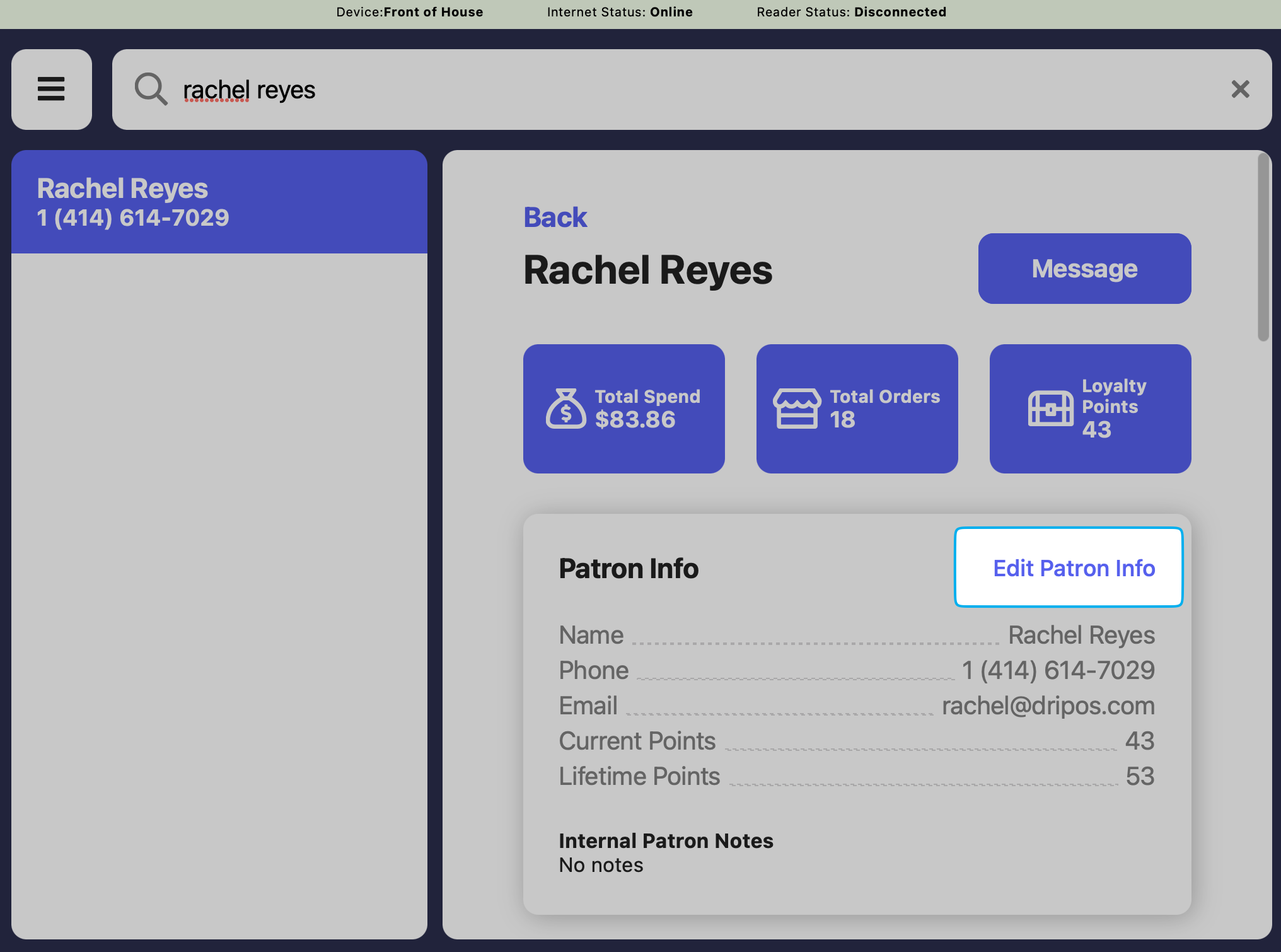
        To change the patron's point amount, click **Edit Patron Info**
        <Frame>
          <img src="https://mintcdn.com/frostbytetechnologiesinc/MS4pCALzr9u3BeI5/images/marketing/pos3.png?fit=max&auto=format&n=MS4pCALzr9u3BeI5&q=85&s=8a4835f867ee1c9096a37214fb48e36e" width="2032" height="1510" data-path="images/marketing/pos3.png" />
        </Frame>

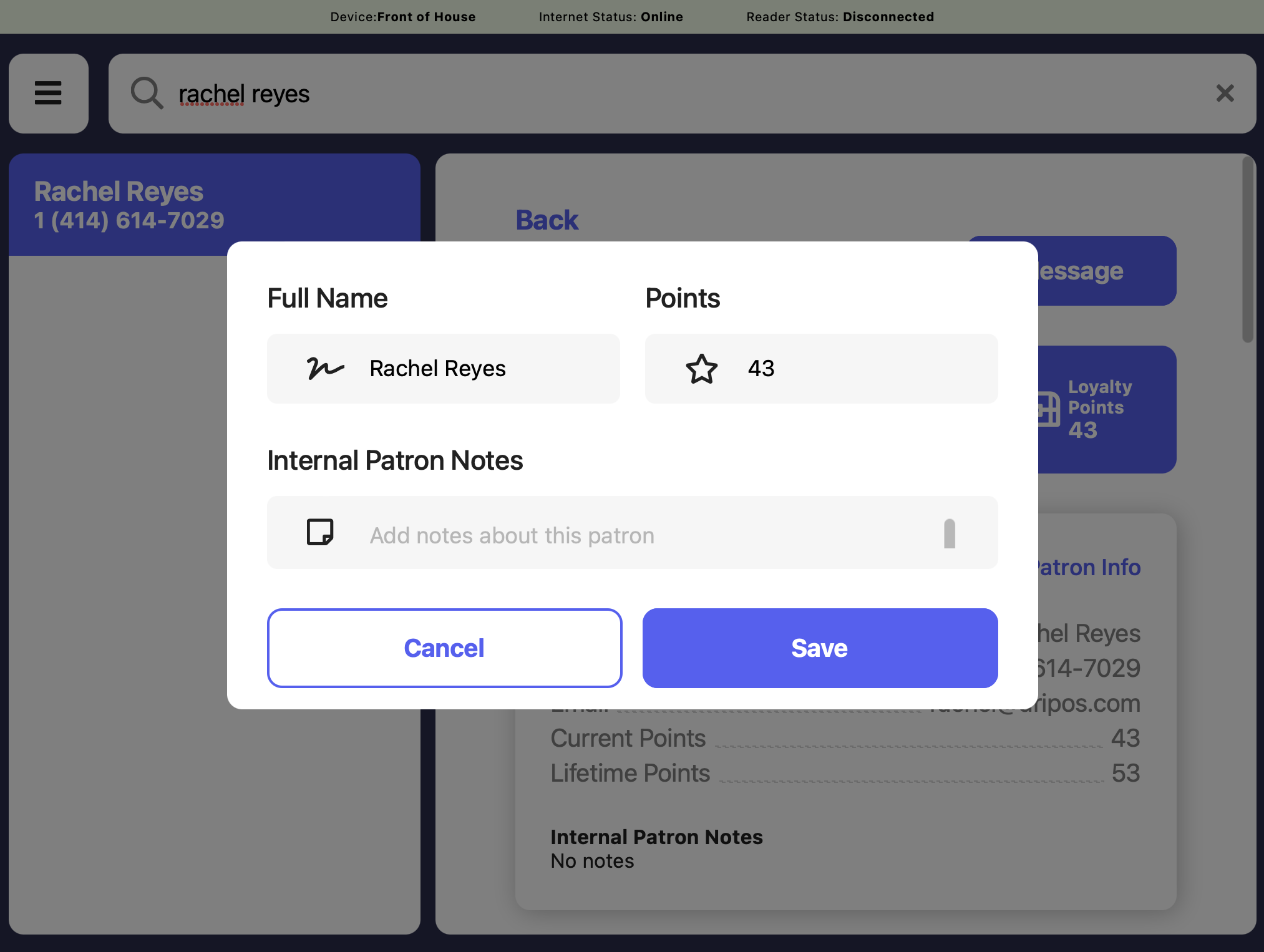
        Change the total amount of points > click **Save**
        <Frame>
          <img src="https://mintcdn.com/frostbytetechnologiesinc/MS4pCALzr9u3BeI5/images/marketing/pos4.png?fit=max&auto=format&n=MS4pCALzr9u3BeI5&q=85&s=7eb5f1215d564623b2f5c74423f76219" width="2026" height="1526" data-path="images/marketing/pos4.png" />
        </Frame>

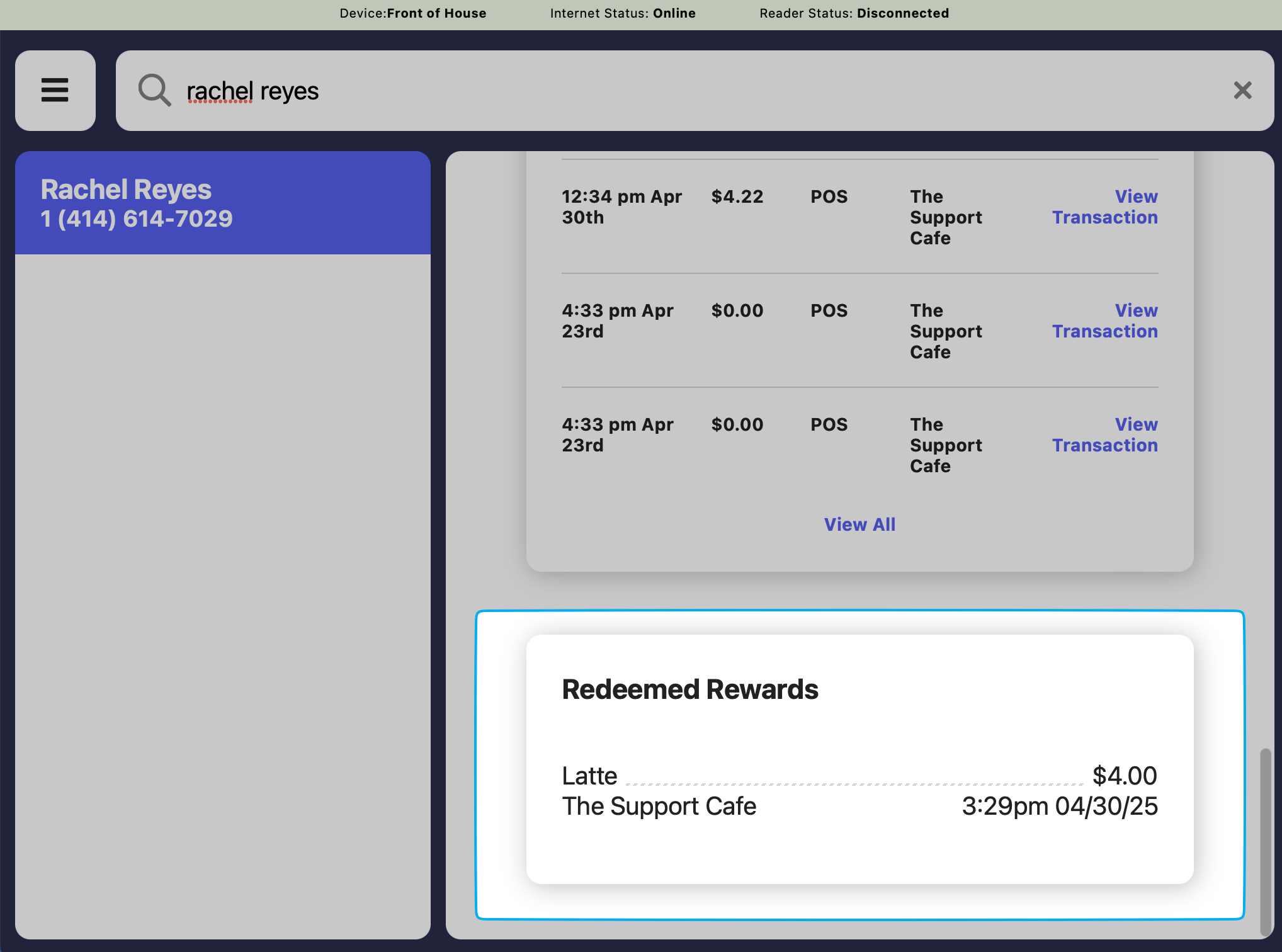
        Scroll to the bottom to view patron loyalty redemption history
      </Step>

      <Step title="">
        <Frame>
          <img src="https://mintcdn.com/frostbytetechnologiesinc/MS4pCALzr9u3BeI5/images/marketing/pos6.png?fit=max&auto=format&n=MS4pCALzr9u3BeI5&q=85&s=55054986411611917afb16ffe2cb8766" width="2036" height="1512" data-path="images/marketing/pos6.png" />
        </Frame>
      </Step>
    </Steps>
  </Accordion>
</AccordionGroup>