> ## Documentation Index
> Fetch the complete documentation index at: https://support.dripos.com/llms.txt
> Use this file to discover all available pages before exploring further.
# Create Your Loyalty Program
> Build your shop's loyalty system with Dripos
💝 You choose how customers earn points and what they can redeem them for—customize rewards your way!
## Enable Loyalty
Loyalty needs to be activated and configured in your system settings before it can be used.
On the **Dashboard** click the Dripos logo in the upper right corner > **Settings** > **Loyalty**
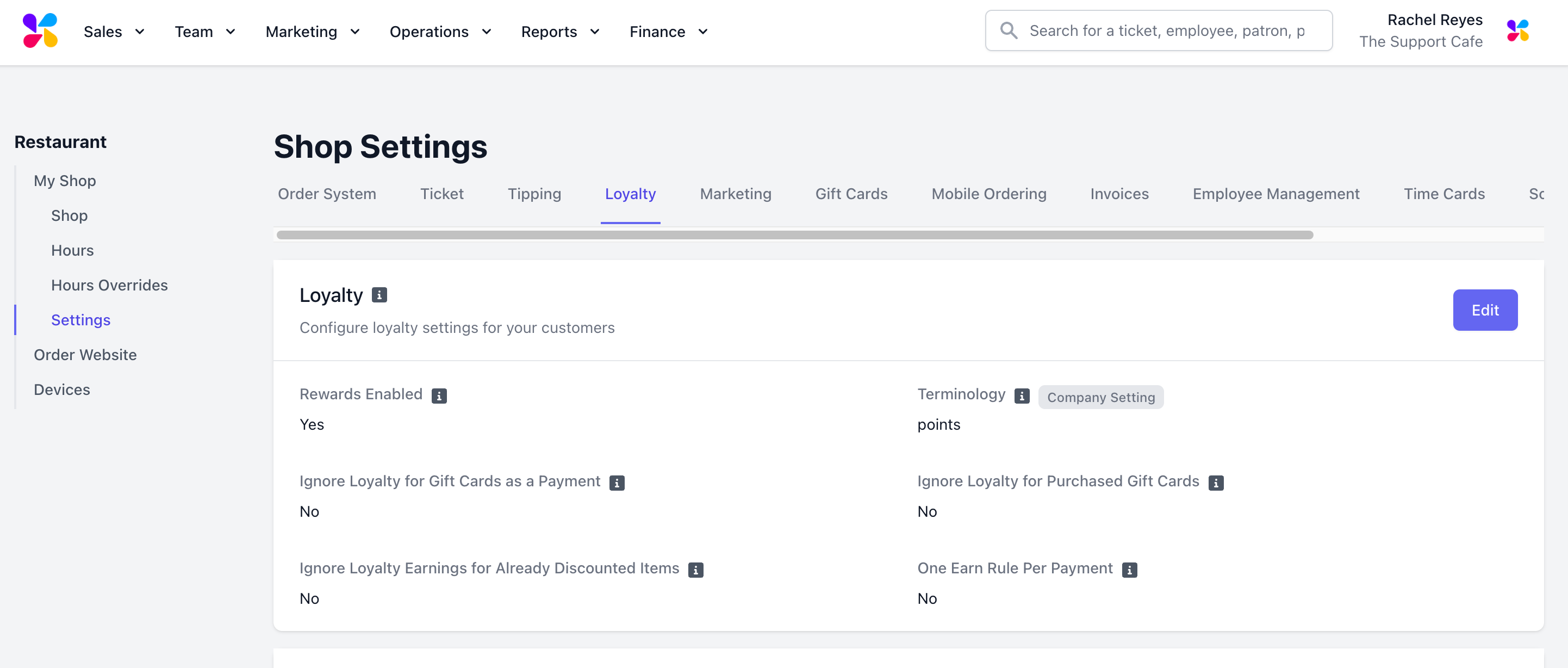 Click **Edit** and configure the following settings:
> **Rewards Enabled** = **Yes**
>
> **Terminology**: Determine the name of your loyalty earnings (points, stars, stamps, etc)
>
> **Ignore Loyalty for Gift Cards as a Payment**: If **Yes**, transactions purchased with a gift card will not earn loyalty points.
>
> **Ignore Loyalty for Purchased Gift Cards**: If **Yes**, the purchase of a gift card will not earn the patron loyalty points.
>
> **Ignore Loyalty for Already Discounted Items**: If **Yes**, purchases of already discounted items will not earn the patron loyalty points.
>
> **One Earn Rule Per Payment**:
>
> * If **Yes**, only one earn rule will be applied per payment. The rule that generates the maximum amount of points will be applied.
>
> * If **No**, the patron will earn the sum of the points for each satisfied earn rule.
Click **save**.
***
## Create Earning Rules
On the **Dashboard** click **Marketing** > **Loyalty**
Click **Edit** and configure the following settings:
> **Rewards Enabled** = **Yes**
>
> **Terminology**: Determine the name of your loyalty earnings (points, stars, stamps, etc)
>
> **Ignore Loyalty for Gift Cards as a Payment**: If **Yes**, transactions purchased with a gift card will not earn loyalty points.
>
> **Ignore Loyalty for Purchased Gift Cards**: If **Yes**, the purchase of a gift card will not earn the patron loyalty points.
>
> **Ignore Loyalty for Already Discounted Items**: If **Yes**, purchases of already discounted items will not earn the patron loyalty points.
>
> **One Earn Rule Per Payment**:
>
> * If **Yes**, only one earn rule will be applied per payment. The rule that generates the maximum amount of points will be applied.
>
> * If **No**, the patron will earn the sum of the points for each satisfied earn rule.
Click **save**.
***
## Create Earning Rules
On the **Dashboard** click **Marketing** > **Loyalty**
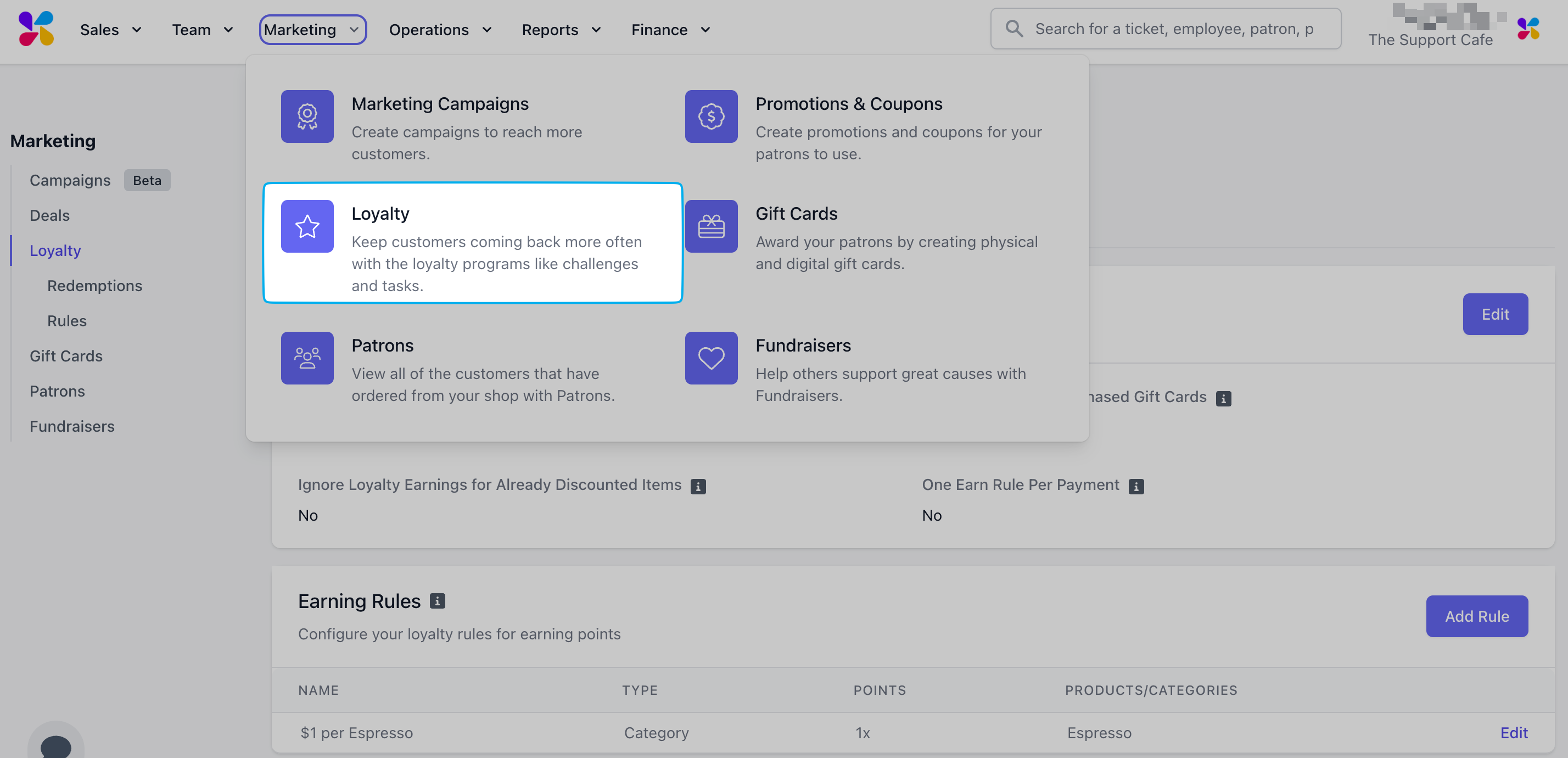 Click **Rules** and navigate to **Earning Rules**.
Earning rules will determine how your customers earn loyalty points.
Click **Rules** and navigate to **Earning Rules**.
Earning rules will determine how your customers earn loyalty points.
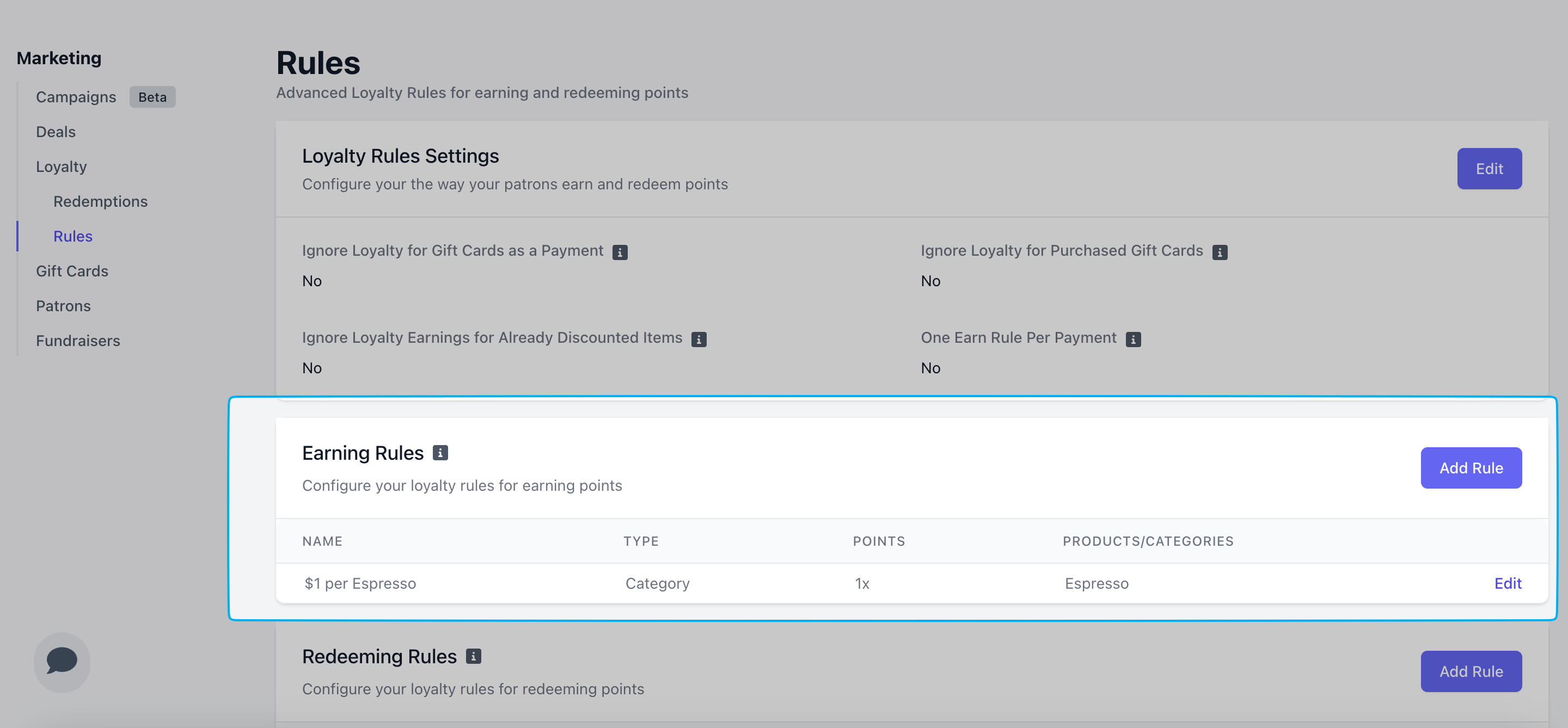 Click **Add Rule**
There is no limit to how many rules can be created.
If loyalty settings are configured to only allow for one earn rule per payment, the rule that generates the maximum amount of points will be applied. Otherwise, the patron will instead earn the sum of the points for each satisfied earn rule.
Click **Add Rule**
There is no limit to how many rules can be created.
If loyalty settings are configured to only allow for one earn rule per payment, the rule that generates the maximum amount of points will be applied. Otherwise, the patron will instead earn the sum of the points for each satisfied earn rule.
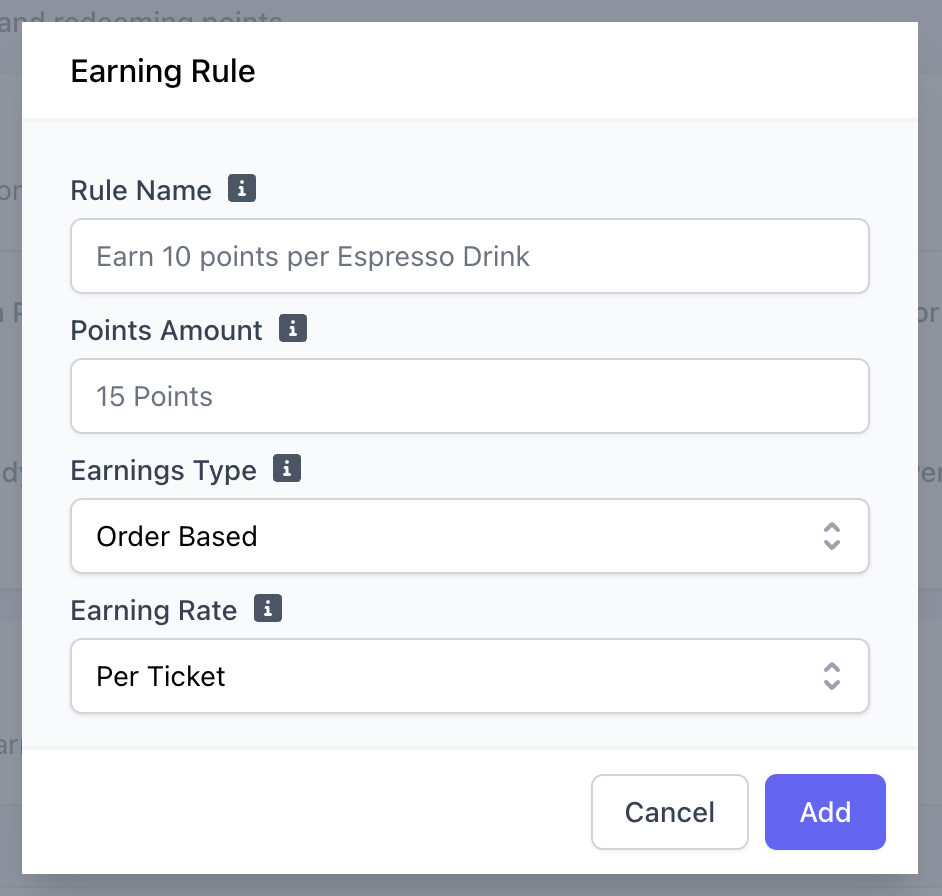 *Examples: 1x per Espresso, 1x per dollar spent, 2x per Latte*
The amount of Points to be earned for this rule.
* **Order Based**: Earnings are accrued for each order at a flat rate per order.
* **Product Based**: Earnings are accrued based on orders of specific products.
* **Category Based**: Earnings are accrued based on orders of products in specific categories.
* **Per Ticket**: This rule will apply a constant number of Points for each order satisfying this rule. **Points Amount** will be the amount of points earned
* **Per Dollar**: **Points Amount** will be a multiplier. If **Points Amount** is 2, patrons will earn 2x Points for each dollar spent that satisfies this rule.
*Click on each image to view*
*Examples: 1x per Espresso, 1x per dollar spent, 2x per Latte*
The amount of Points to be earned for this rule.
* **Order Based**: Earnings are accrued for each order at a flat rate per order.
* **Product Based**: Earnings are accrued based on orders of specific products.
* **Category Based**: Earnings are accrued based on orders of products in specific categories.
* **Per Ticket**: This rule will apply a constant number of Points for each order satisfying this rule. **Points Amount** will be the amount of points earned
* **Per Dollar**: **Points Amount** will be a multiplier. If **Points Amount** is 2, patrons will earn 2x Points for each dollar spent that satisfies this rule.
*Click on each image to view*
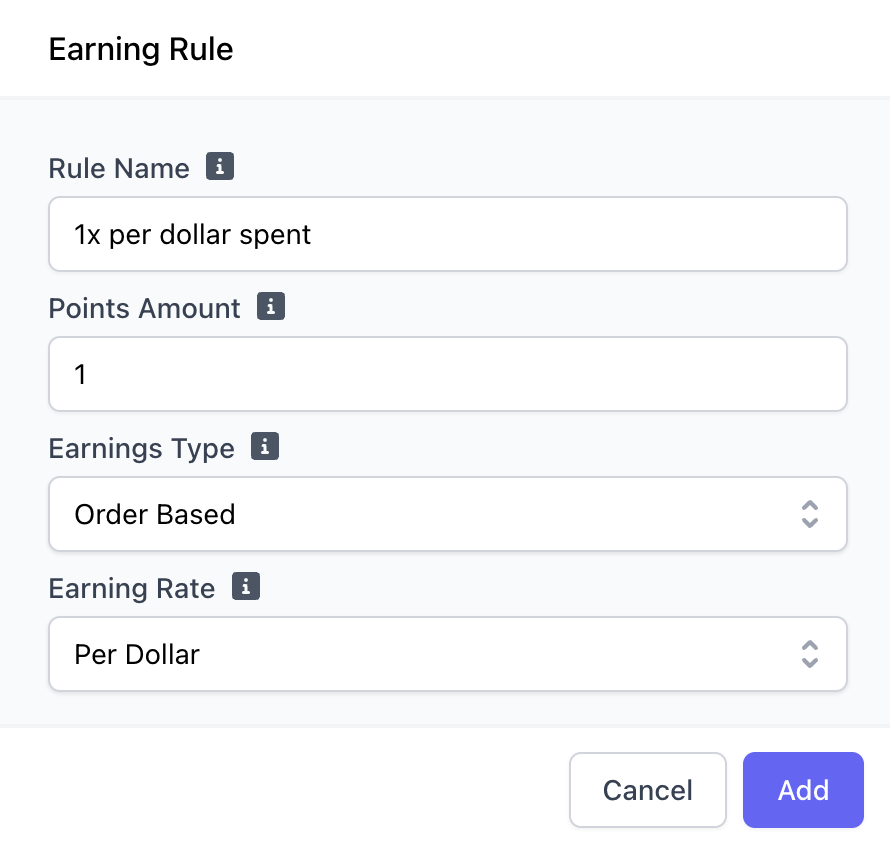
 **Order Based**: The rule is 1 point earned per dollar spent in an order with no limits.
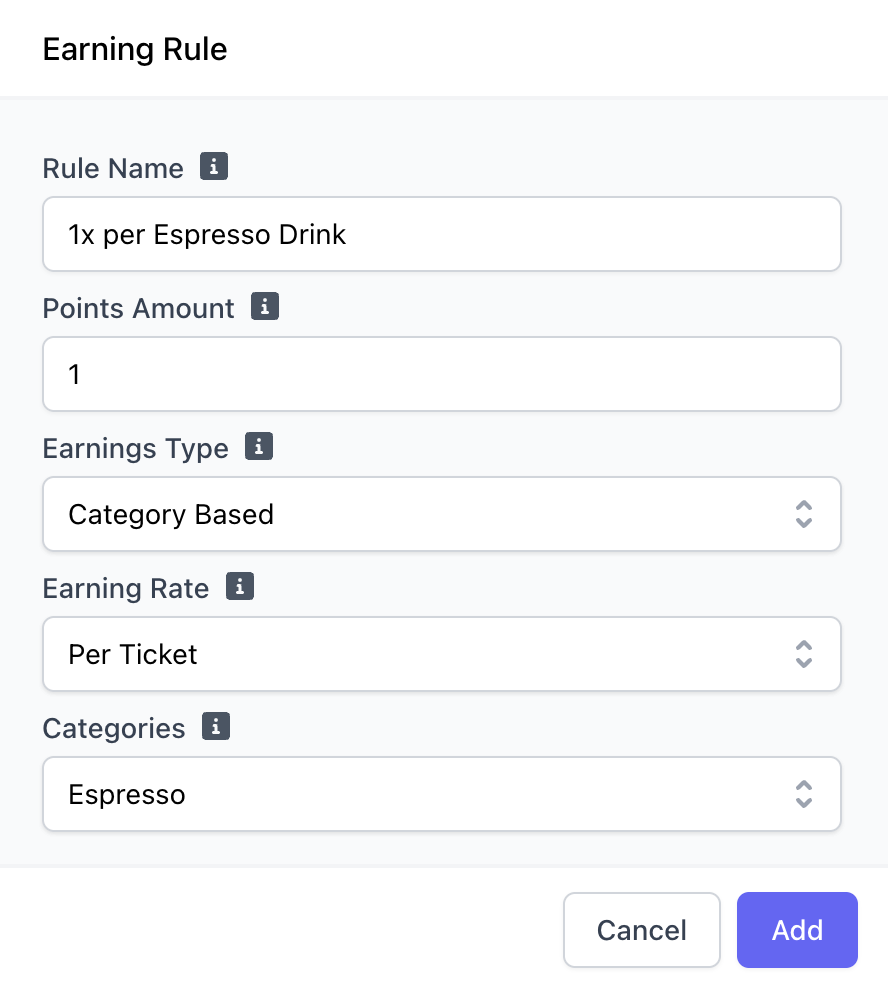
**Category Based**: The rule is 1 point earned an any drink ordered from the Espresso menu category.
If loyalty settings are configured to only allow for one earn rule per payment, this rule would only apply to one drink ordered. If disabled, the patron will earn points on all Espresso menu items in the order.
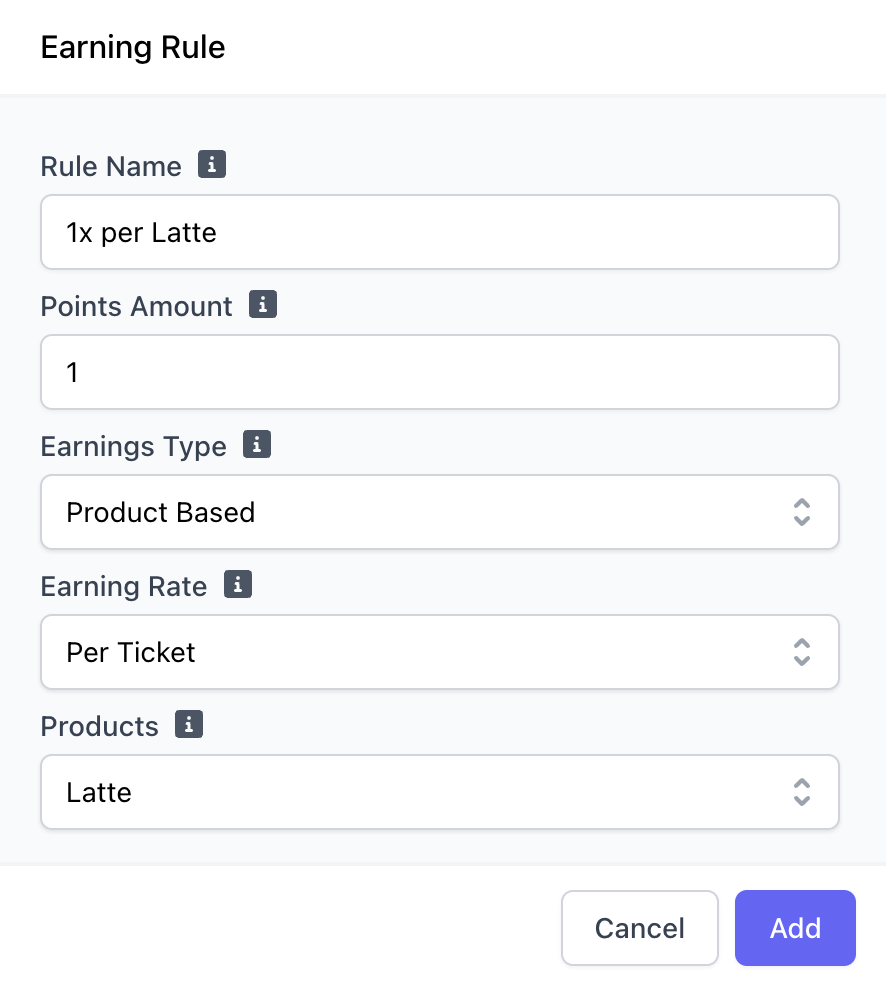
**Product Based**: The rule is 1 point earned per Latte.
If loyalty settings are configured to only allow for one earn rule per payment, this rule would only apply to one latte in the order. If disabled, the patron will earn points on every latte in the order.
Enable your store's loyalty earning rules on certain days of the week and/or specific times of day. *i.e., Double Point Tuesday or Happy Hour earnings*
By default, all loyalty earning rules are active 24/7 unless recurrence settings are edited.
Create a new earning rule or click **Edit** next to your existing earning rule
**Order Based**: The rule is 1 point earned per dollar spent in an order with no limits.
**Category Based**: The rule is 1 point earned an any drink ordered from the Espresso menu category.
If loyalty settings are configured to only allow for one earn rule per payment, this rule would only apply to one drink ordered. If disabled, the patron will earn points on all Espresso menu items in the order.
**Product Based**: The rule is 1 point earned per Latte.
If loyalty settings are configured to only allow for one earn rule per payment, this rule would only apply to one latte in the order. If disabled, the patron will earn points on every latte in the order.
Enable your store's loyalty earning rules on certain days of the week and/or specific times of day. *i.e., Double Point Tuesday or Happy Hour earnings*
By default, all loyalty earning rules are active 24/7 unless recurrence settings are edited.
Create a new earning rule or click **Edit** next to your existing earning rule
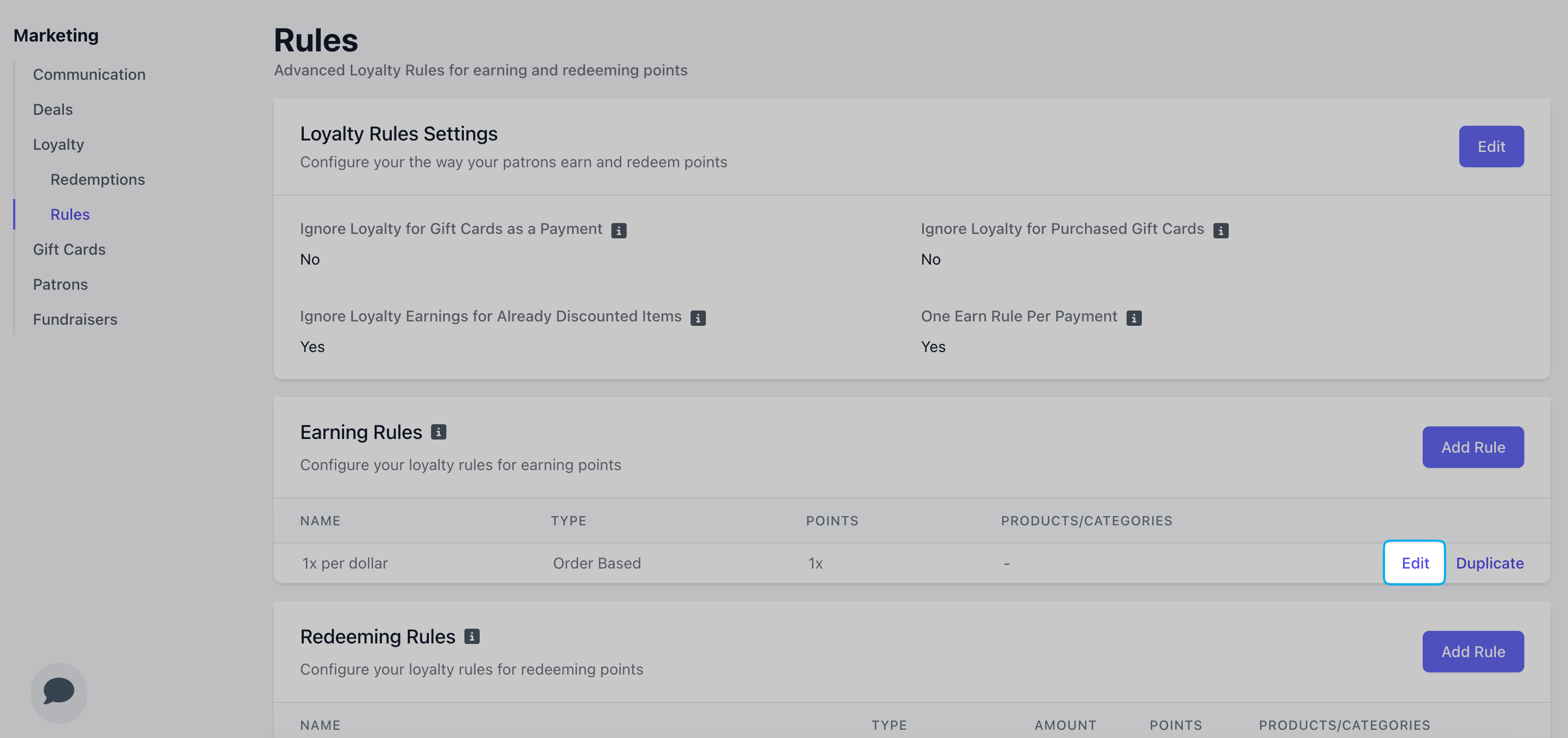 Click the dropdown for **Recurrence Settings**
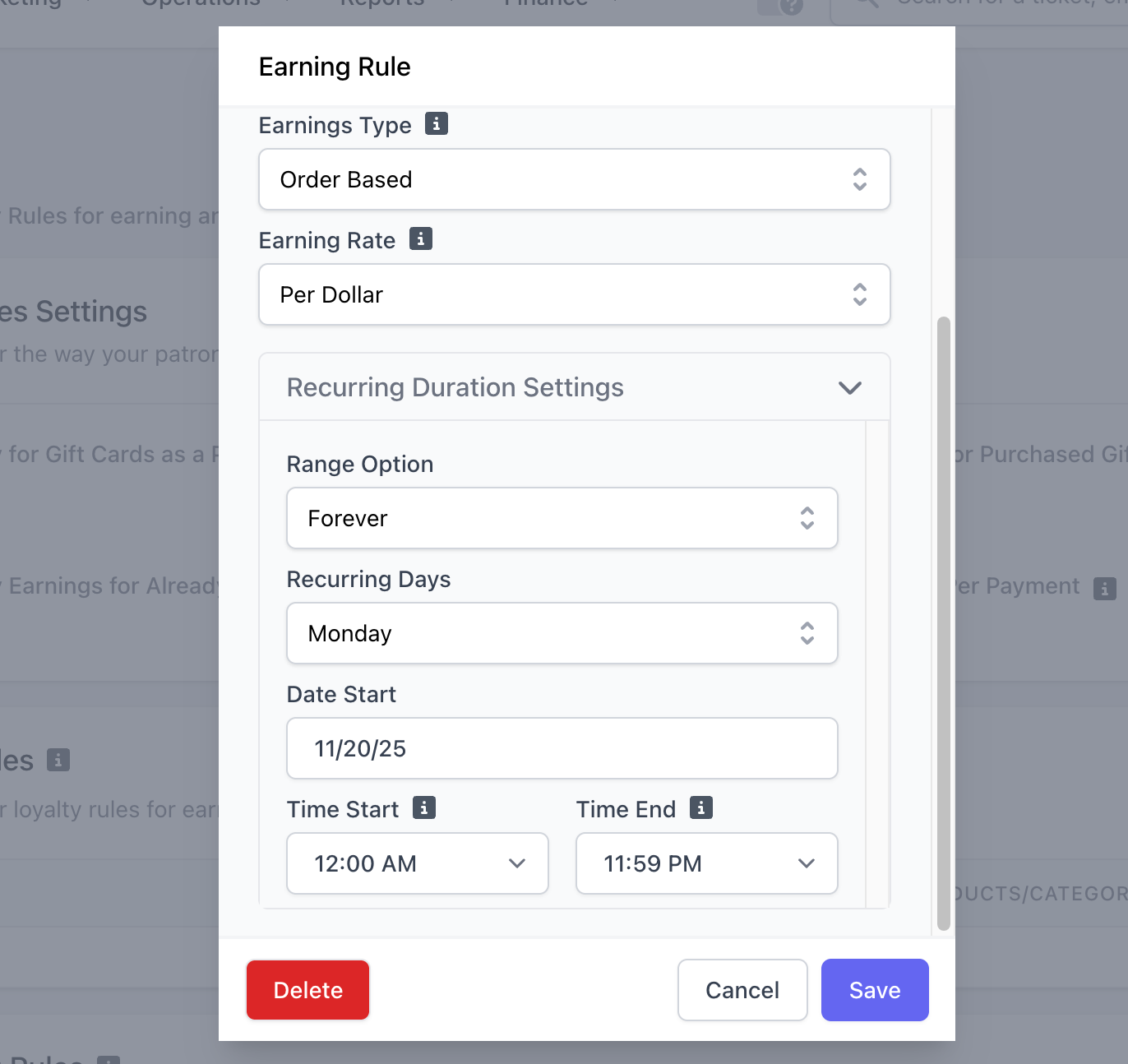 Select **Forever** keep this setting active indefinitely. Select **Date Range** to specify a start and end date for this earning rule.
Select which days of the week this rule will be active on during the set date range.
Select the date this rule will first be active. If **Date Range** was selected, select the end date of this earning rule.
Select the start and end time that this rule will be active on the specified days of the week you've select.
In the example above, this earning rule will be active every Monday starting on 11/20/25 with no end date.
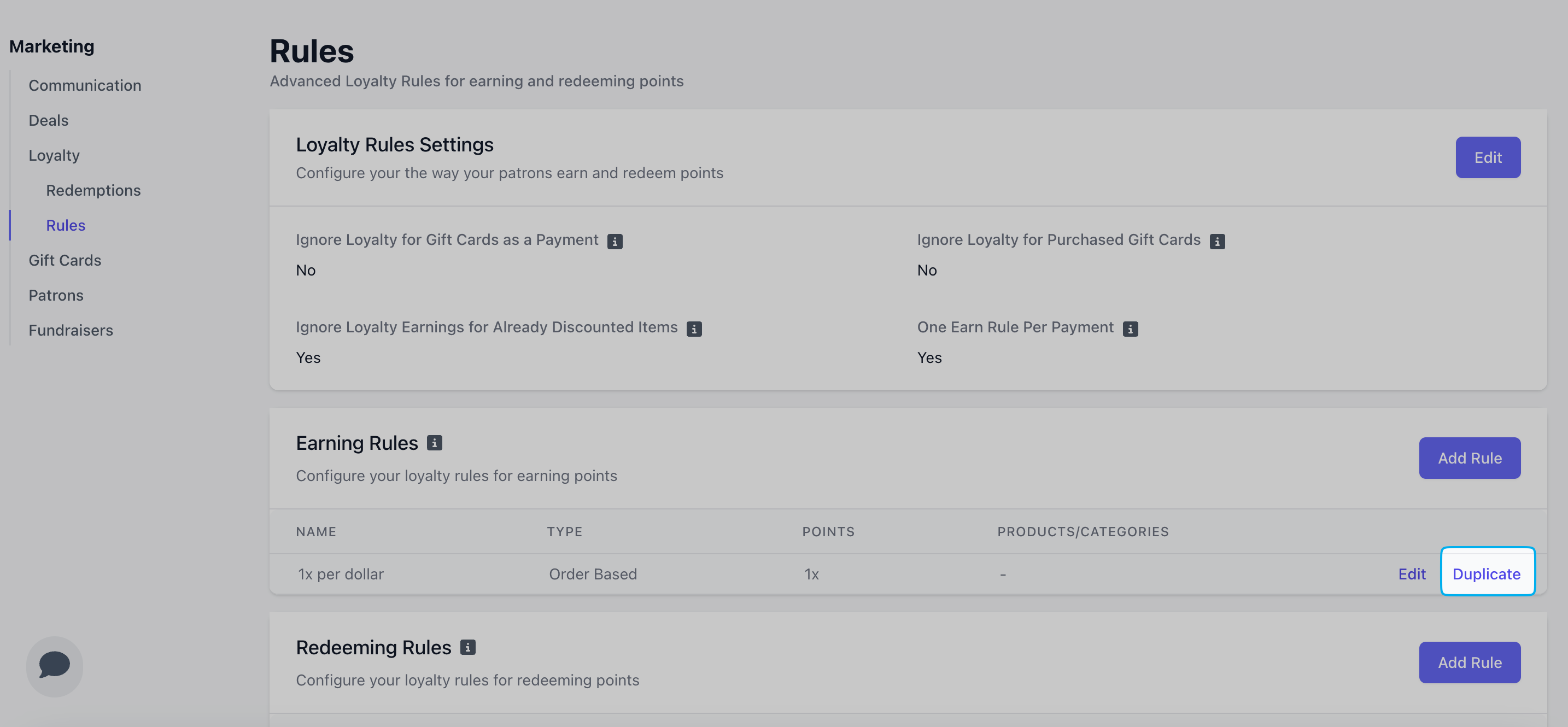
Use the **Duplicate** function and recurrence settings to double, triple, etc. the amount of points a patron earns during certain days and times of the week, *i.e., Double Point Tuesday; earn triple points from 4-5PM everyday.*
Select **Forever** keep this setting active indefinitely. Select **Date Range** to specify a start and end date for this earning rule.
Select which days of the week this rule will be active on during the set date range.
Select the date this rule will first be active. If **Date Range** was selected, select the end date of this earning rule.
Select the start and end time that this rule will be active on the specified days of the week you've select.
In the example above, this earning rule will be active every Monday starting on 11/20/25 with no end date.
Use the **Duplicate** function and recurrence settings to double, triple, etc. the amount of points a patron earns during certain days and times of the week, *i.e., Double Point Tuesday; earn triple points from 4-5PM everyday.*
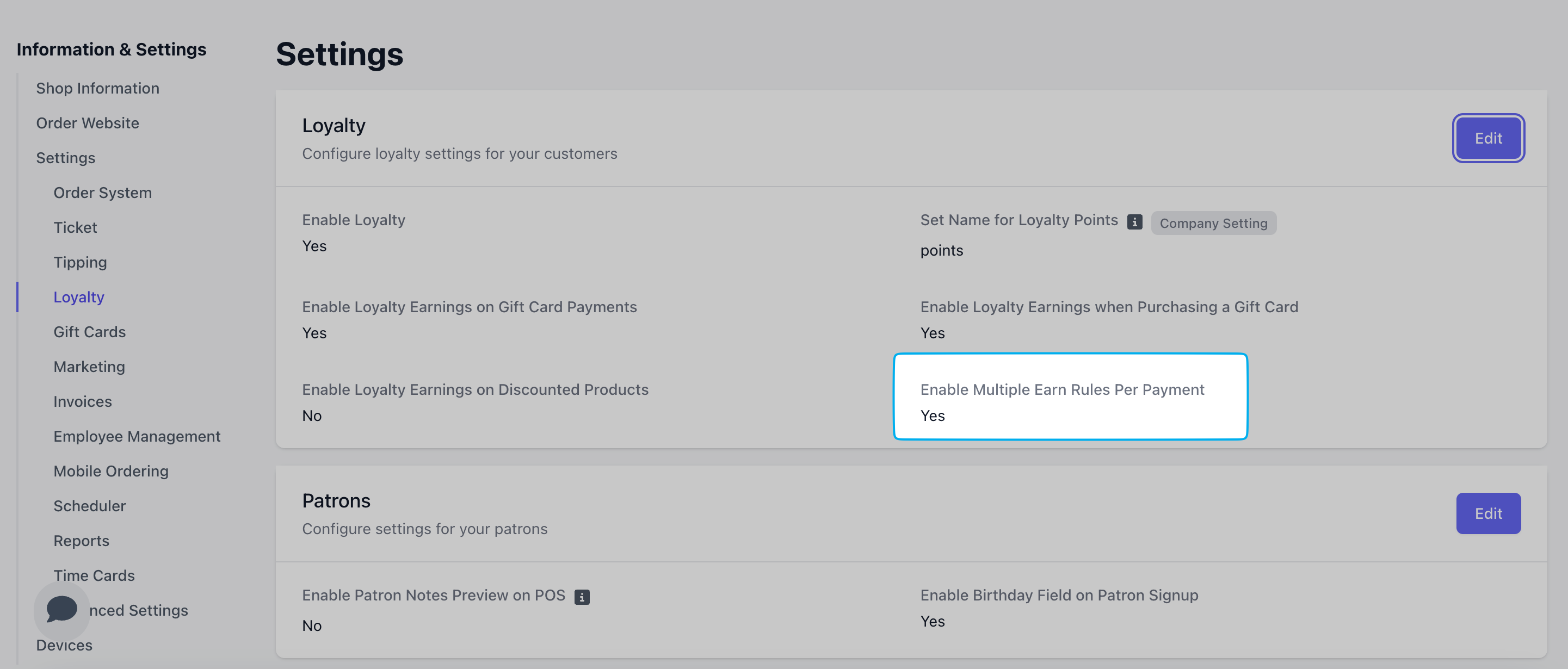
 The setting **Enable Multiple Earn Rules Per Payment** must be set to **Yes** in order for duplicate rules to apply both at once.
Enable this setting on the **Dashboard** under **Settings** > **Order System** > **Loyalty**
The setting **Enable Multiple Earn Rules Per Payment** must be set to **Yes** in order for duplicate rules to apply both at once.
Enable this setting on the **Dashboard** under **Settings** > **Order System** > **Loyalty**
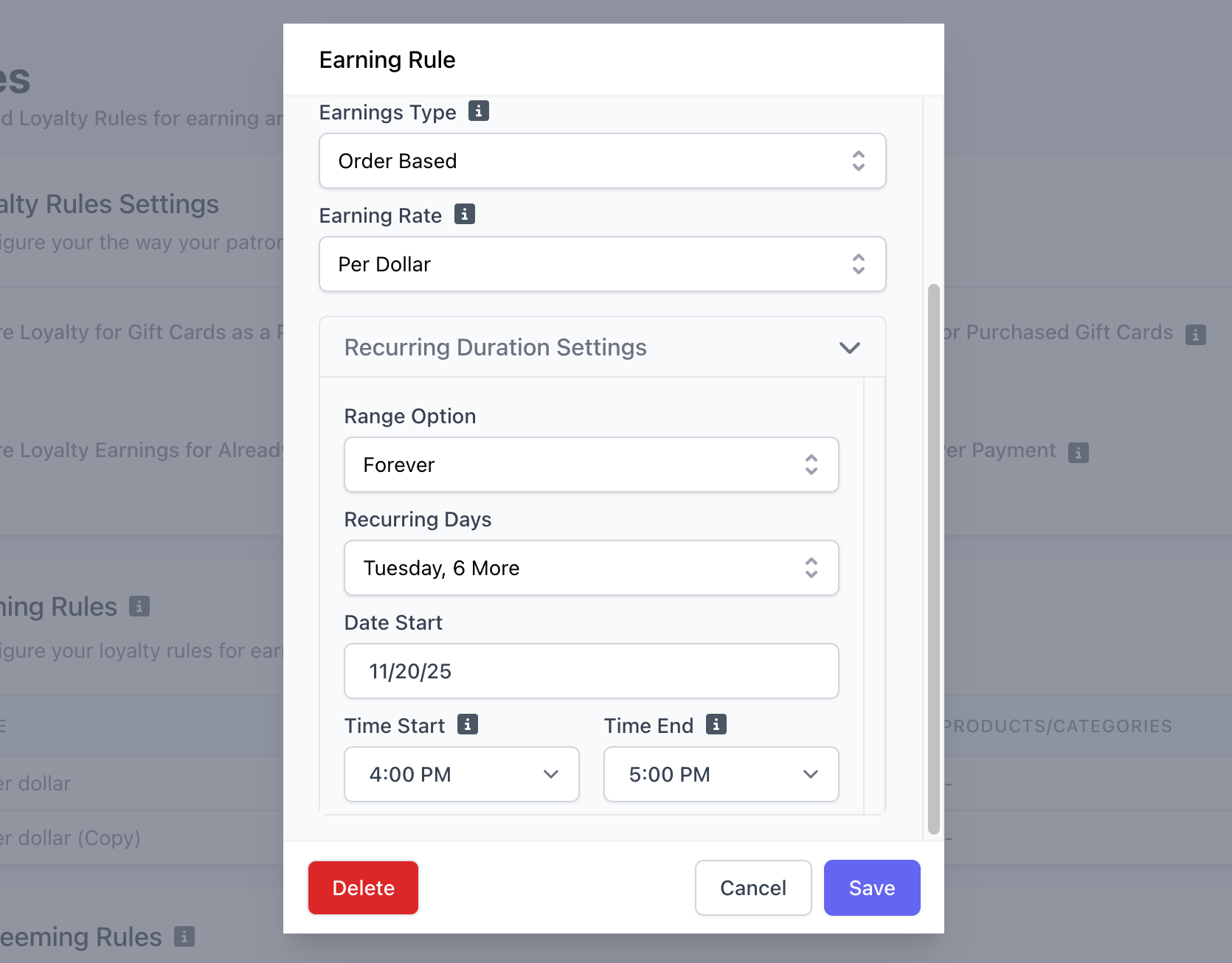
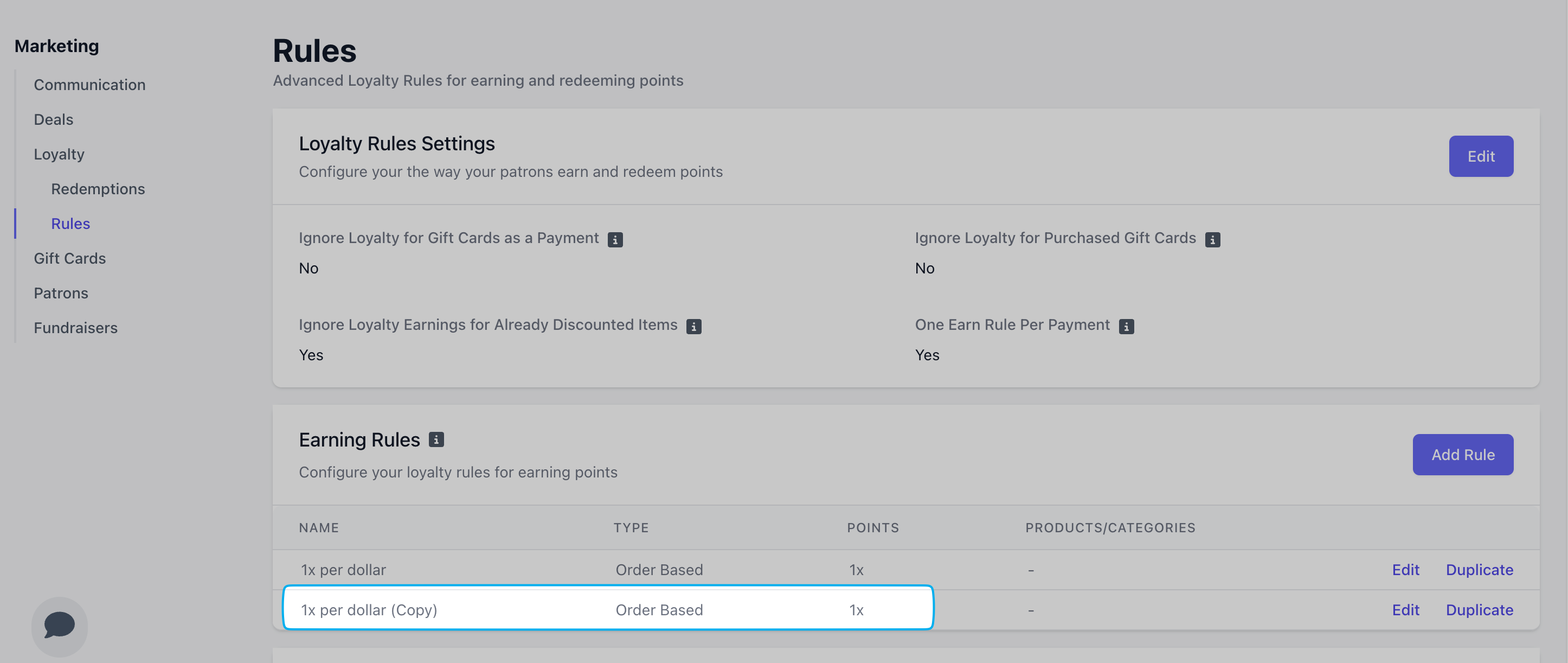
 Set the recurrence times for this duplicate rule to be active. *In this example, this rule is active every day from 4-5PM.*
 Click **Save** to add the new duplicate rule.
 ***
## Create Redemption Rules
On the **Dashboard** click **Marketing** > **Loyalty**
Click **Rules** and navigate to **Redemption Rules**.
Redemption rules will determine how your customers spend their loyalty points.
***
## Create Redemption Rules
On the **Dashboard** click **Marketing** > **Loyalty**
Click **Rules** and navigate to **Redemption Rules**.
Redemption rules will determine how your customers spend their loyalty points.
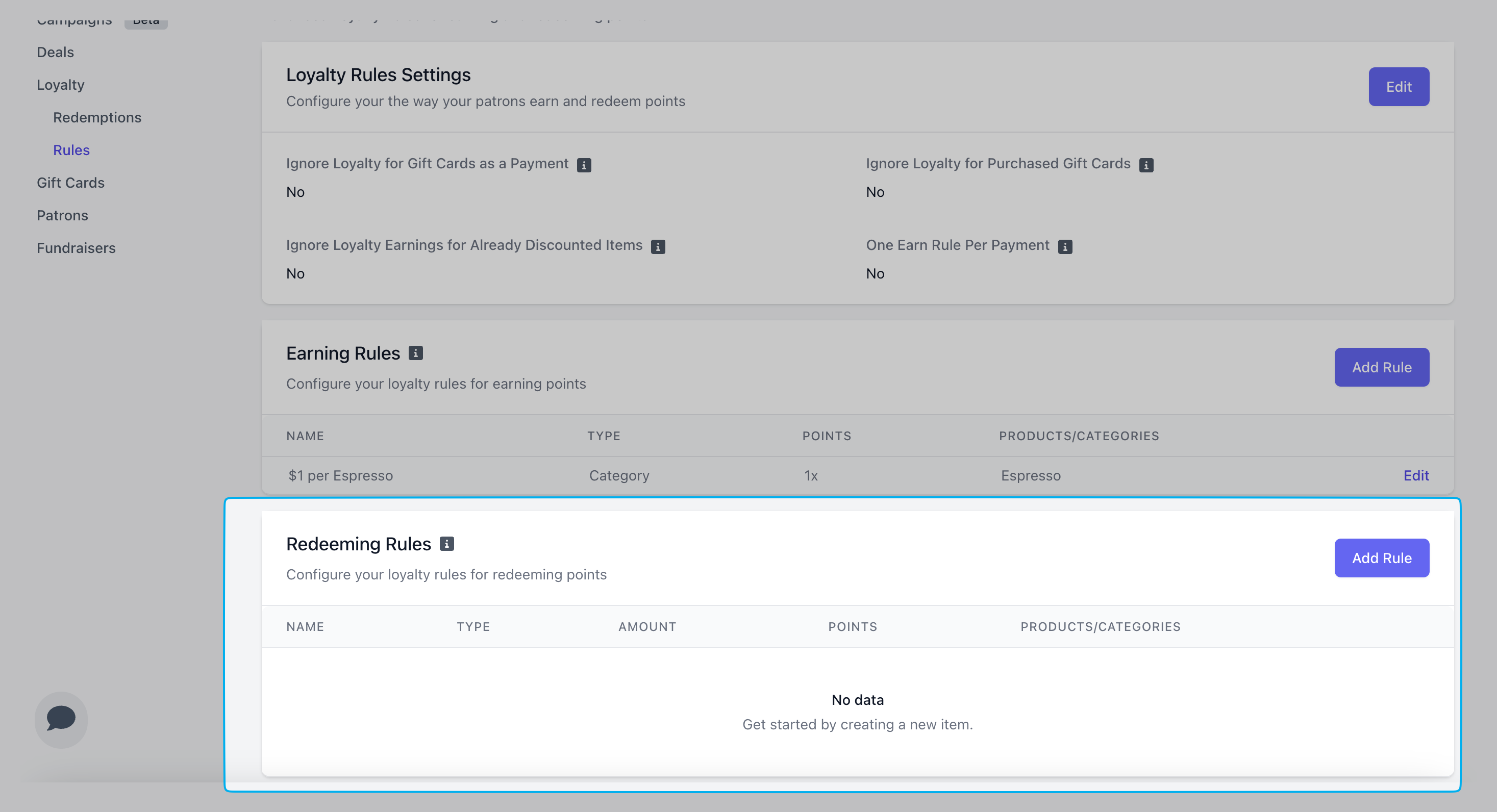 Click **Add Rule**
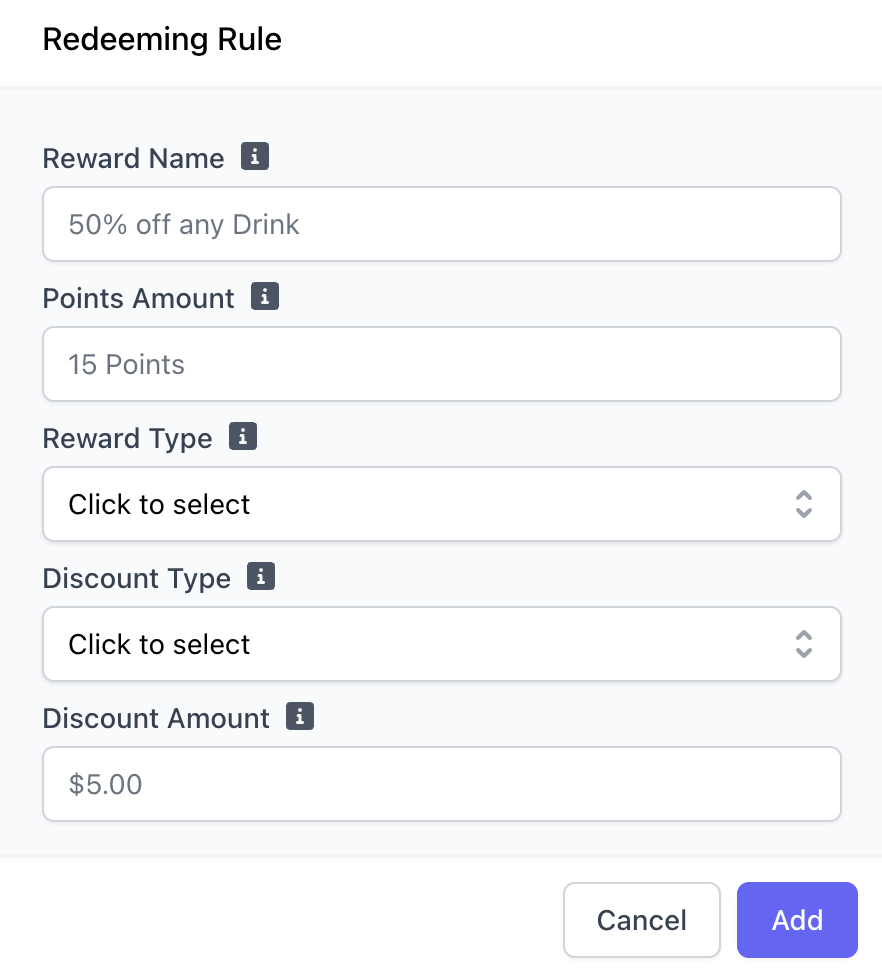 *Examples: \$5 off any drink, 10% an order*
The amount of Points needed to redeem this reward.
* **Discount Entire Sale**: The discount amount will be applied to the order total.
* **Discount Specific Product**: The discount amount will only be applied to certain products.
* **Discount Specific Category**: The discount amount will only be applied to products of certain categories.
* **Discount All Products**: The discount will only apply to the most expensive product in an order. A maximum dollar value may be set so the discount does not exceed a certain amount.
* **Dollar**: Reward will be of a dollar amount, \$5
* **Percent**: Reward will be of a percentage amount, 10%
*Examples: \$5 off any drink, 10% an order*
The amount of Points needed to redeem this reward.
* **Discount Entire Sale**: The discount amount will be applied to the order total.
* **Discount Specific Product**: The discount amount will only be applied to certain products.
* **Discount Specific Category**: The discount amount will only be applied to products of certain categories.
* **Discount All Products**: The discount will only apply to the most expensive product in an order. A maximum dollar value may be set so the discount does not exceed a certain amount.
* **Dollar**: Reward will be of a dollar amount, \$5
* **Percent**: Reward will be of a percentage amount, 10%
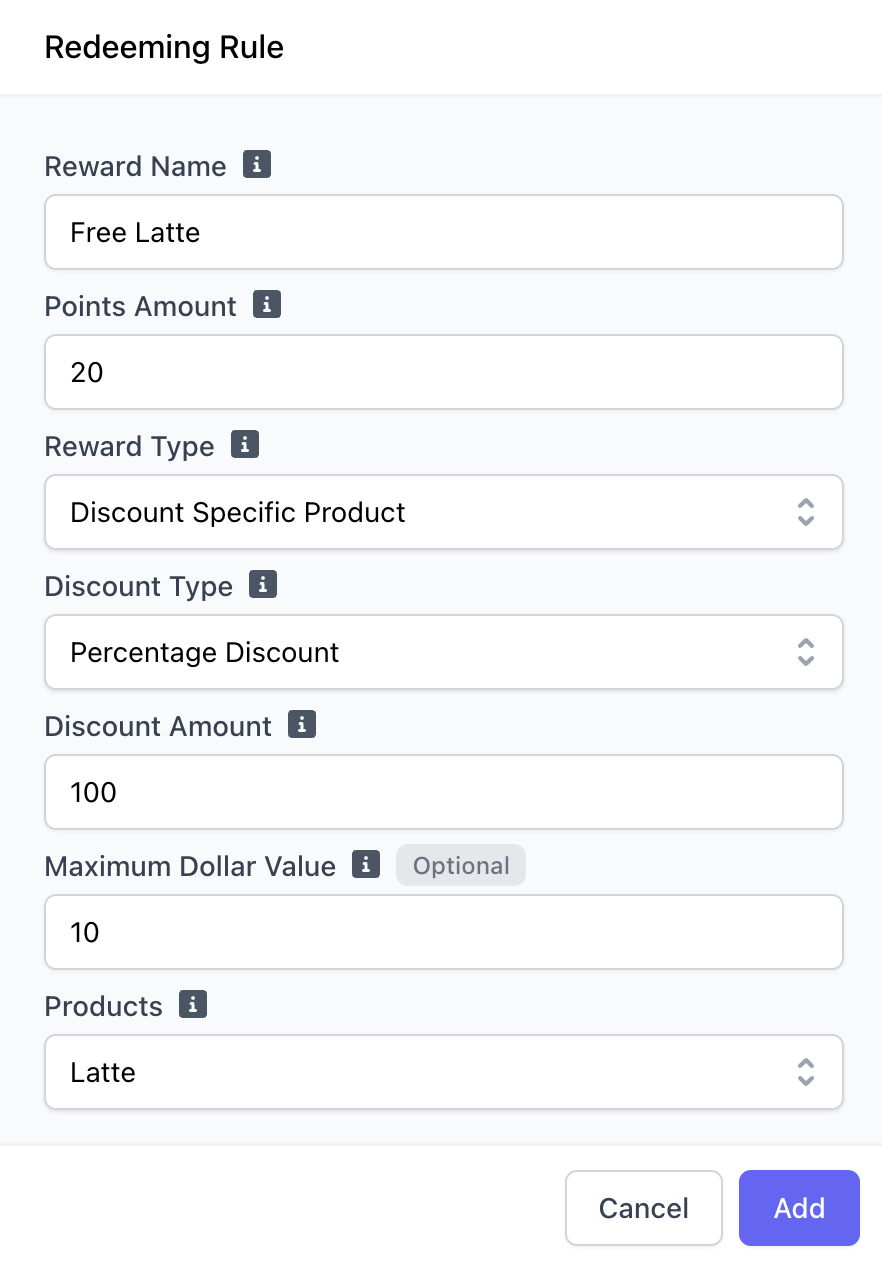
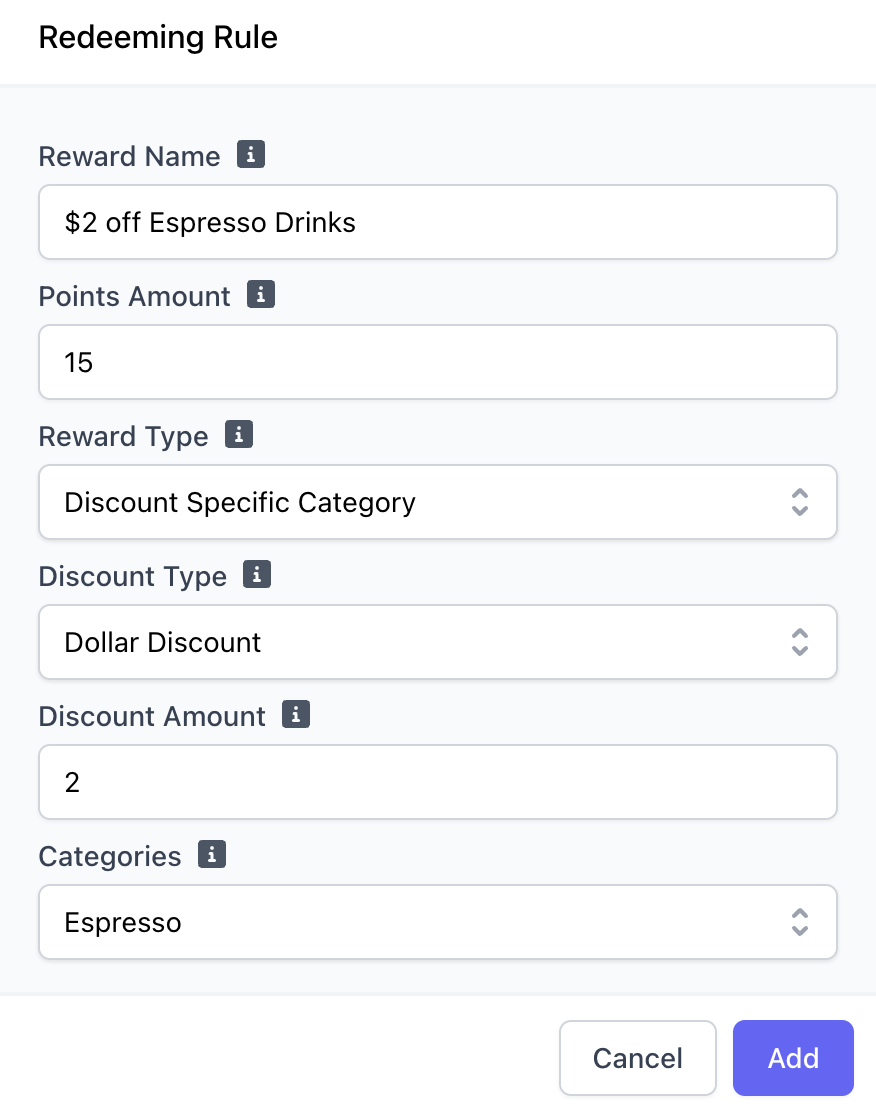
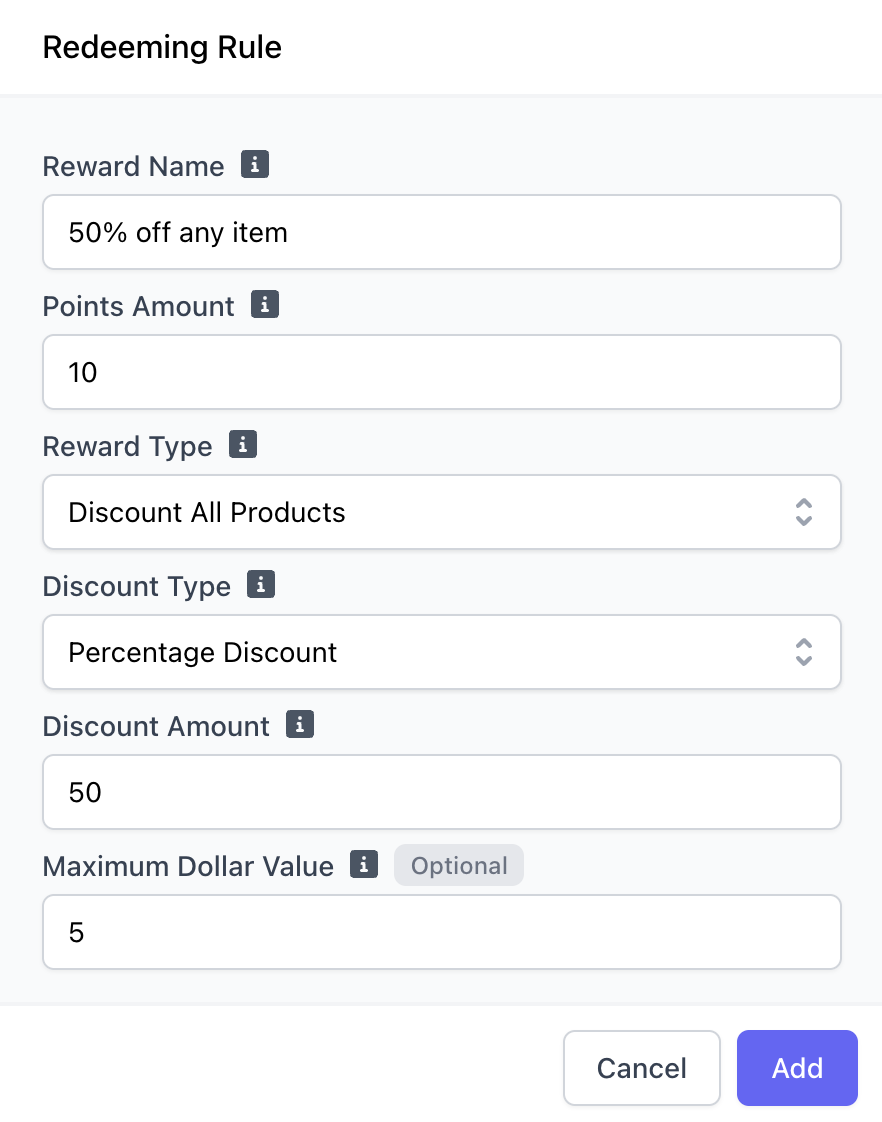 > **Discount Entire Sale**: The rule is 10% off an entire order if the customer has earned 10 loyalty points. The maximum discount to be given is \$5.
>
> **Discount Specific Product**: The rule is a free latte if the customer has earned 20 loyaly points. The maximum discount to be given is \$10.
>
> **Discount Specific Category**: The rule is \$2 off any drink from the Espresso category if the customer has earned 15 loyaly points.
>
> **Discount All Products**: The rule is 50% off any product in cart if the customer has earned 10 loyalty points. The maximum discount to be given is \$5 off a product.
> **Discount Entire Sale**: The rule is 10% off an entire order if the customer has earned 10 loyalty points. The maximum discount to be given is \$5.
>
> **Discount Specific Product**: The rule is a free latte if the customer has earned 20 loyaly points. The maximum discount to be given is \$10.
>
> **Discount Specific Category**: The rule is \$2 off any drink from the Espresso category if the customer has earned 15 loyaly points.
>
> **Discount All Products**: The rule is 50% off any product in cart if the customer has earned 10 loyalty points. The maximum discount to be given is \$5 off a product.