> ## Documentation Index
> Fetch the complete documentation index at: https://support.dripos.com/llms.txt
> Use this file to discover all available pages before exploring further.

# Manage Patron Accounts

> Manage adresses, saved cards, and gift cards attached to patron accounts

## Link Payment Methods

Link card payment methods to patron accounts. When a linked card is used as payment, the patron account will automatically then attach itself to the order.

<Tabs>
  <Tab title="Point of Sale">
    ### Point of Sale

    <Steps>
      <Step title="">
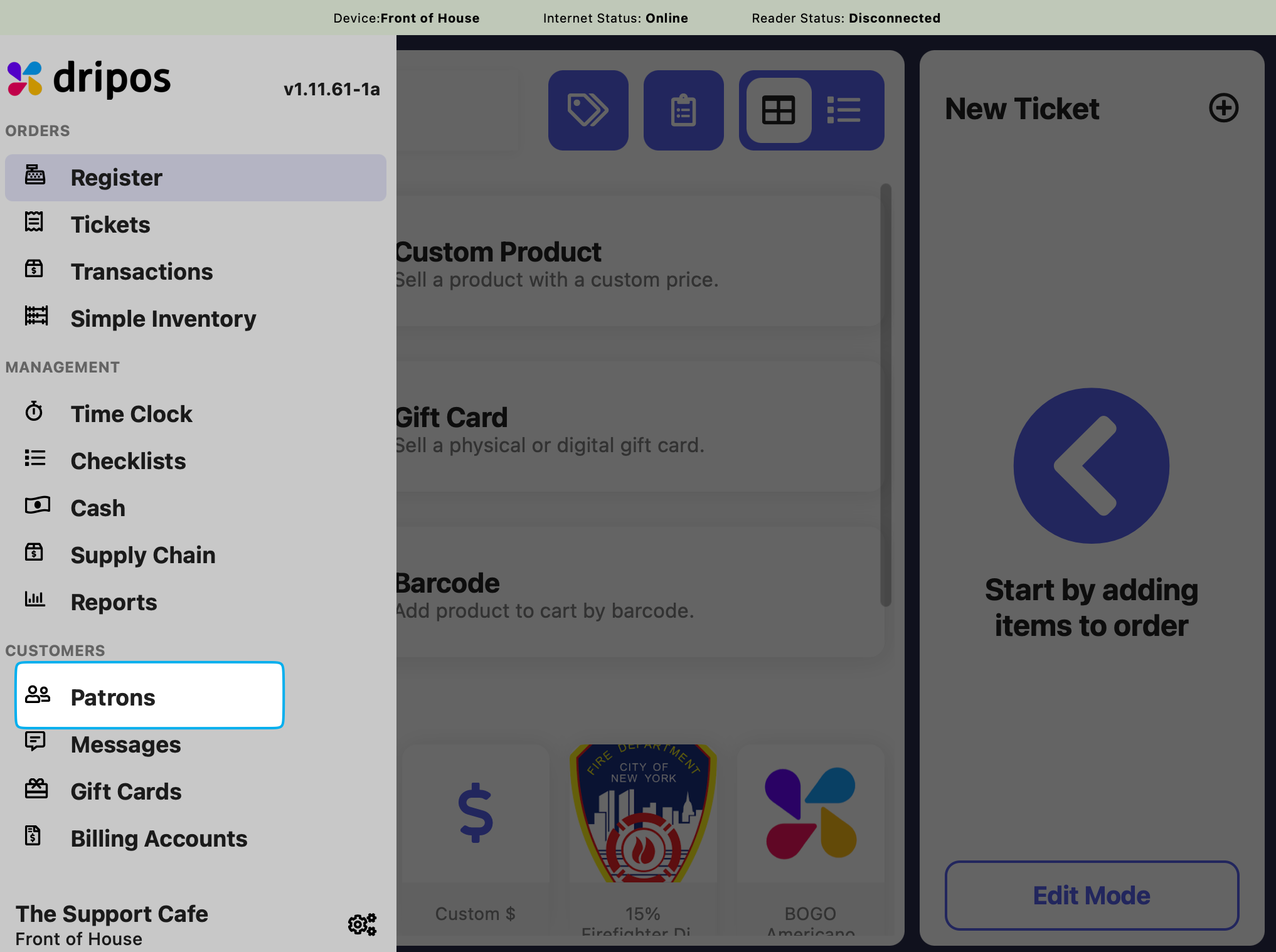
        Press the **tribar** <Icon icon="bars" /> in the upper left screen corner > press **Patrons**
        <Frame>
          <img src="https://mintcdn.com/frostbytetechnologiesinc/mTVmRq9WKaPzORrS/images/marketing/pat1.png?fit=max&auto=format&n=mTVmRq9WKaPzORrS&q=85&s=40eaecc5d6b51e31ae7df91f51b96a2f" width="2034" height="1518" data-path="images/marketing/pat1.png" />
        </Frame>
      </Step>

      <Step title="">
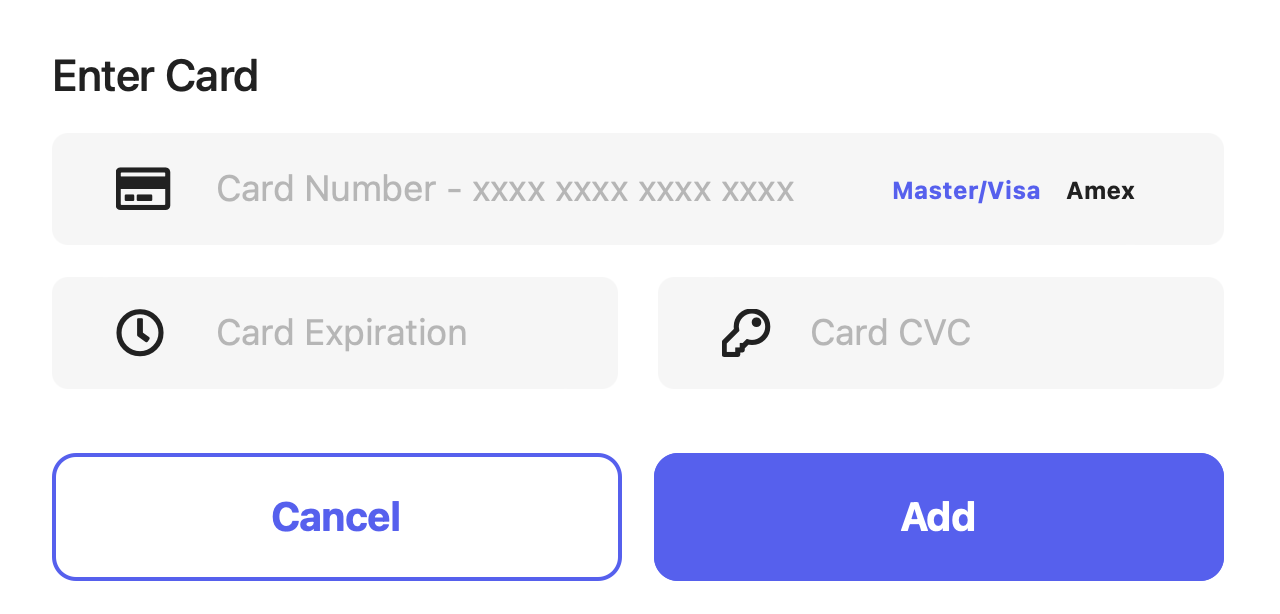
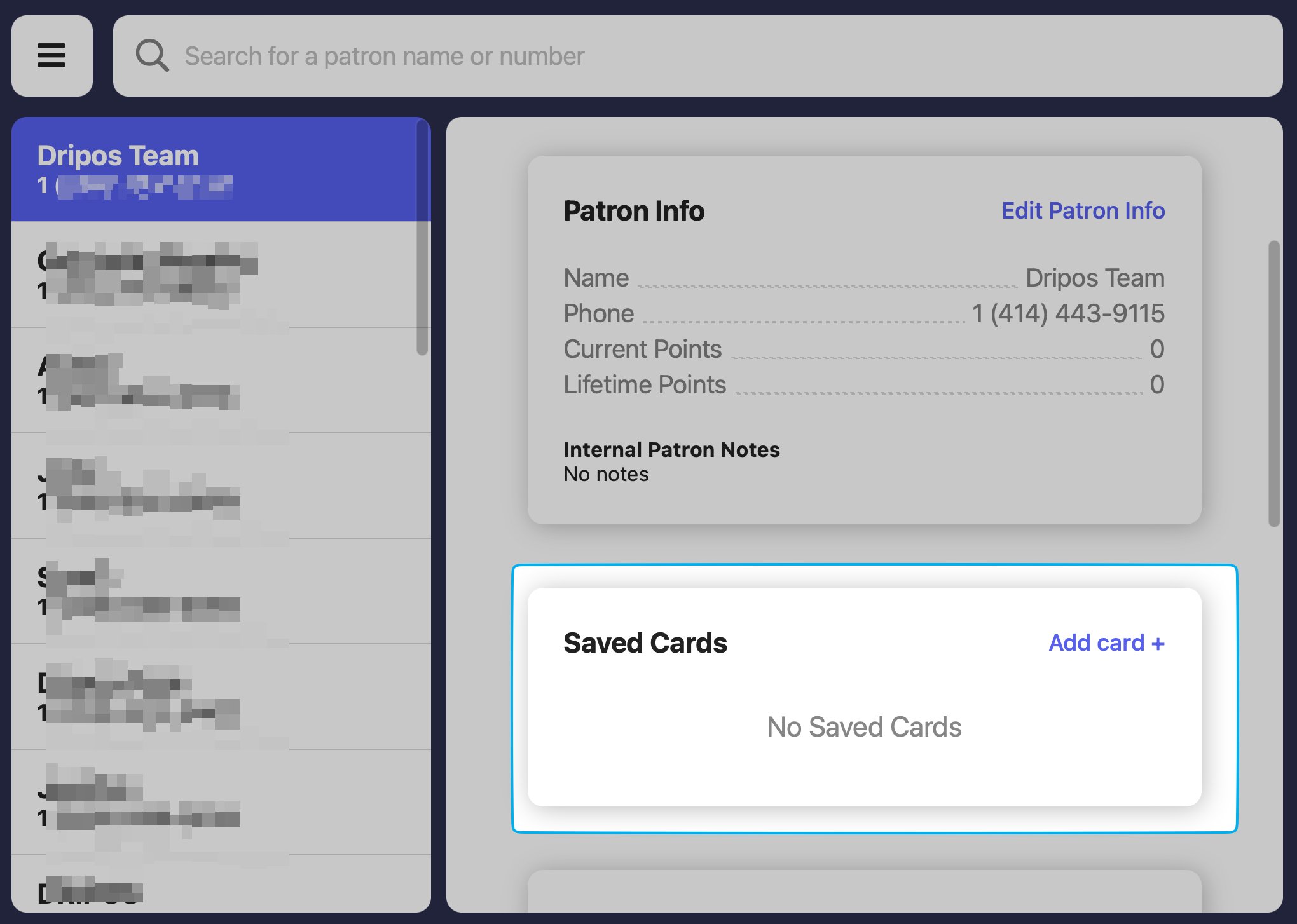
        Find the patron and select **Add Card** > fill out the card information to save
        <Frame>
          <img src="https://mintcdn.com/frostbytetechnologiesinc/PQ1hXtuwuUDdgAEq/images/marketing/pat40.png?fit=max&auto=format&n=PQ1hXtuwuUDdgAEq&q=85&s=eb0de5c3bc627e4660ca8a193484bf5a" width="2040" height="1454" data-path="images/marketing/pat40.png" />
        </Frame>

        <Frame>
          <img src="https://mintcdn.com/frostbytetechnologiesinc/PQ1hXtuwuUDdgAEq/images/marketing/pat41.png?fit=max&auto=format&n=PQ1hXtuwuUDdgAEq&q=85&s=d196215e75a51050a54e549ec77f6cdc" width="1280" height="614" data-path="images/marketing/pat41.png" />
        </Frame>
      </Step>
    </Steps>
  </Tab>

  <Tab title="Order App">
    ## Order App

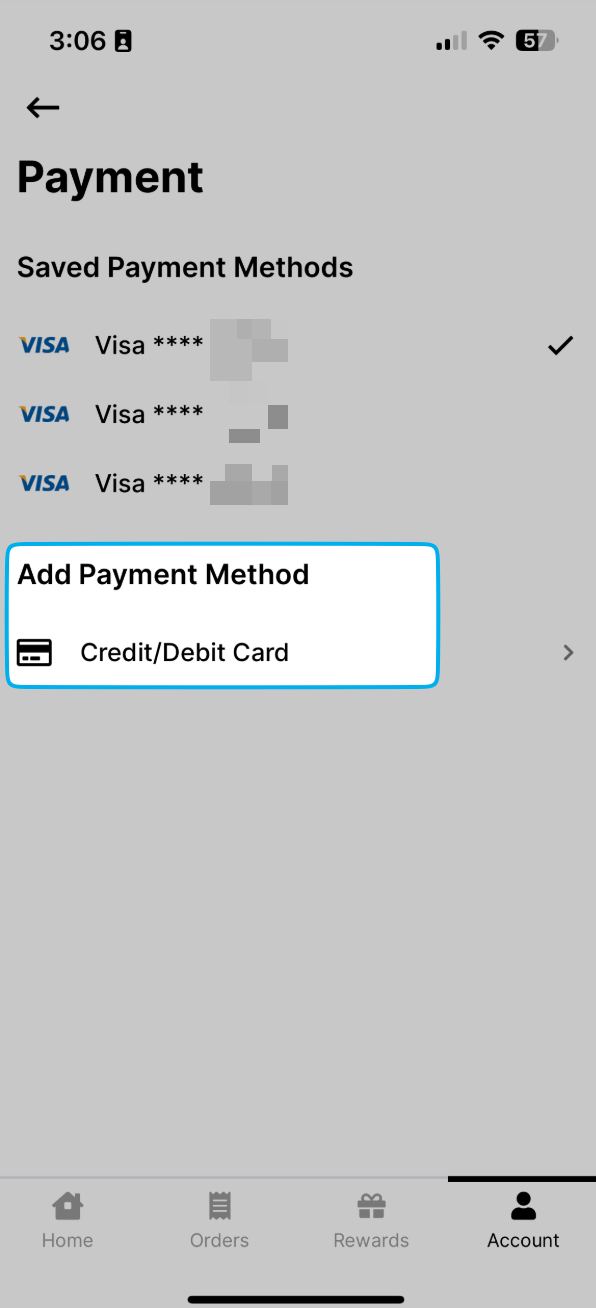
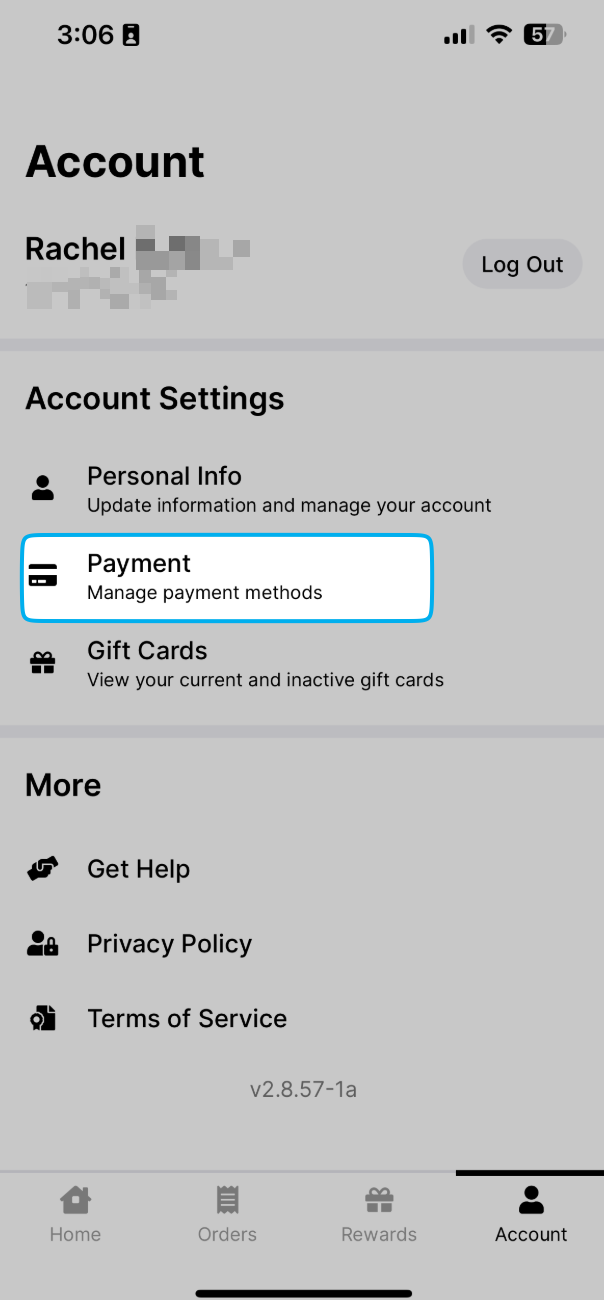
    Click **Account** > **Payment** > **Add Payment Method**
    <CardGroup cols={3}>
      <Card title="">
        <img src="https://mintcdn.com/frostbytetechnologiesinc/tskhRhgQtiZyXdLc/images/orders/SCR-20250527-nlbg.png?fit=max&auto=format&n=tskhRhgQtiZyXdLc&q=85&s=460a682bd9de1b94dc21281b92f09a8b" width="604" height="1300" data-path="images/orders/SCR-20250527-nlbg.png" />
      </Card>

      <Card title="">
        <img src="https://mintcdn.com/frostbytetechnologiesinc/tskhRhgQtiZyXdLc/images/orders/SCR-20250527-nkvi.png?fit=max&auto=format&n=tskhRhgQtiZyXdLc&q=85&s=8665eb02e6d9917125ec9d1099a4775a" width="596" height="1308" data-path="images/orders/SCR-20250527-nkvi.png" />
      </Card>

      <Card title="">
        <img src="https://mintcdn.com/frostbytetechnologiesinc/Q3wq0FmCbBn5Z8Wt/images/orders/IMG_8194.PNG?fit=max&auto=format&n=Q3wq0FmCbBn5Z8Wt&q=85&s=0280ca0a85ceb7218835d54391f0fdb0" width="1170" height="2532" data-path="images/orders/IMG_8194.PNG" />
      </Card>
    </CardGroup>
  </Tab>
</Tabs>

***

## Link Gift Cards

Link physical and digital gift cards to patron accounts.

When a patron is attached to an order, their gift cards are automatically available as a payment option—no searching required.

<Tabs>
  <Tab title="Point of Sale">
    Attach an existing gift card to a patron account.

    <Steps>
      <Step title="">
        Press the **tribar** <Icon icon="bars" /> in the upper left screen corner > press **Patrons**

        <Frame>
          <img src="https://mintcdn.com/frostbytetechnologiesinc/mTVmRq9WKaPzORrS/images/marketing/pat1.png?fit=max&auto=format&n=mTVmRq9WKaPzORrS&q=85&s=40eaecc5d6b51e31ae7df91f51b96a2f" width="2034" height="1518" data-path="images/marketing/pat1.png" />
        </Frame>
      </Step>

      <Step title="">
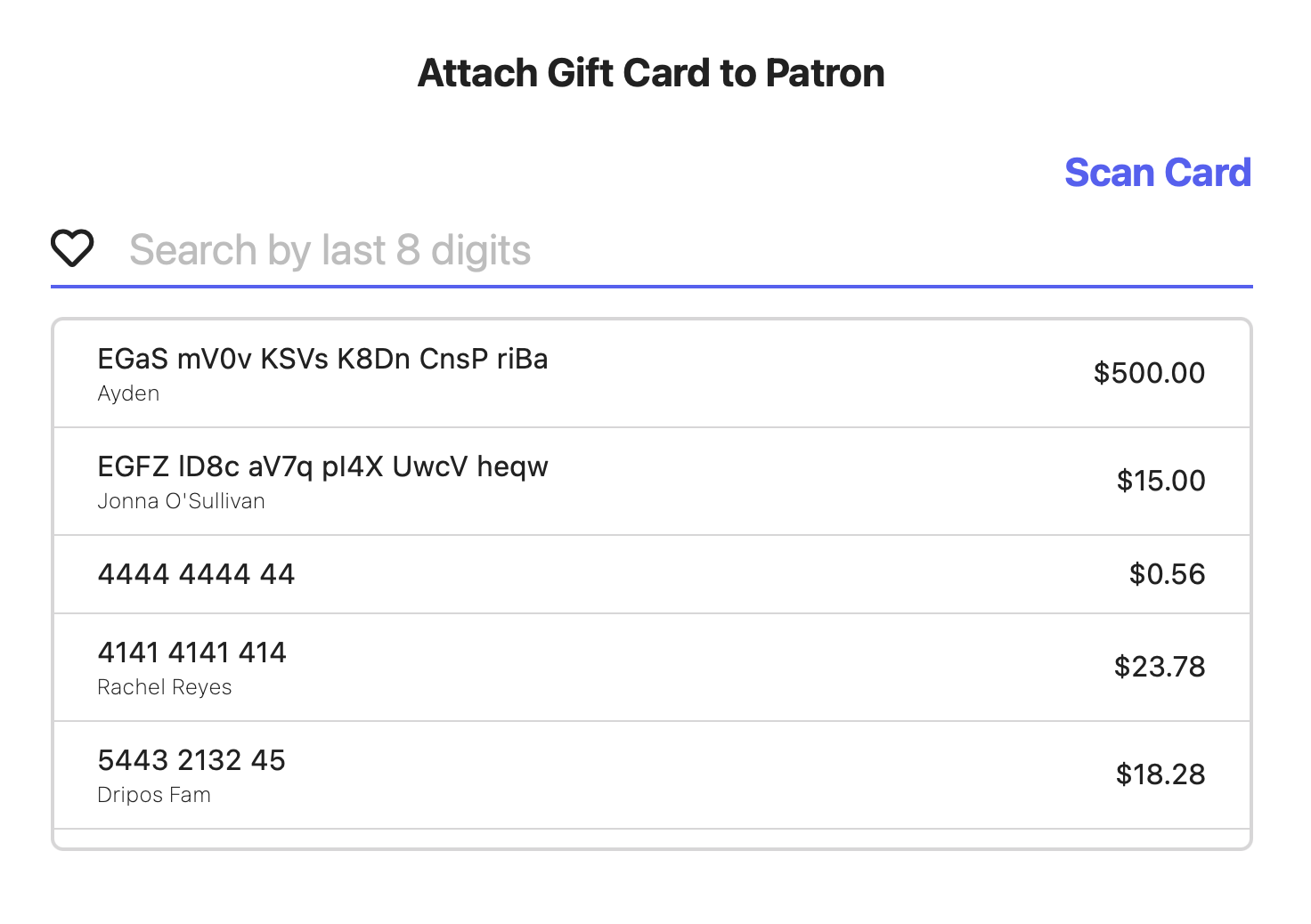
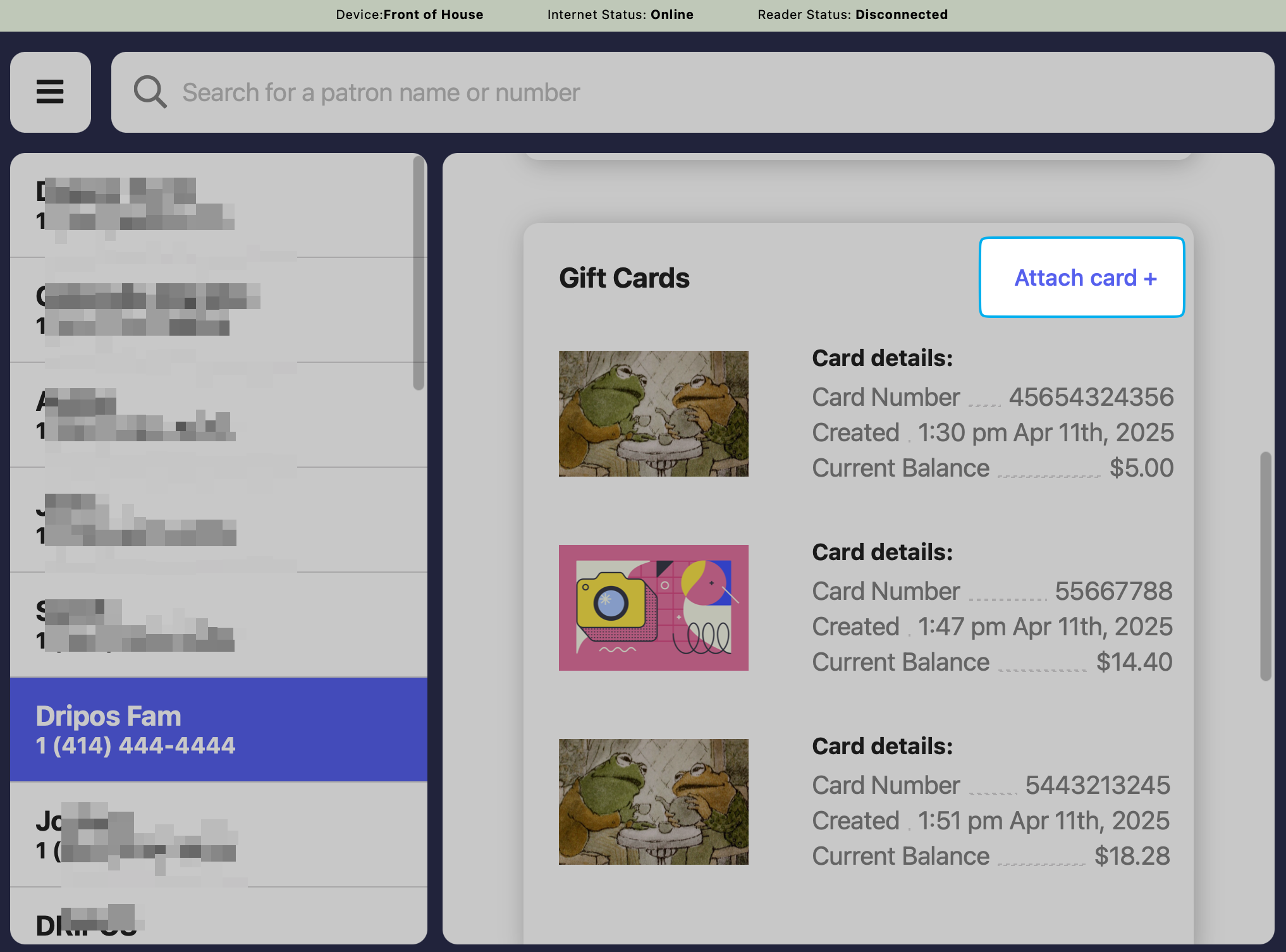
        Find the patron and click **Attach Card**
        <Frame>
          <img src="https://mintcdn.com/frostbytetechnologiesinc/lA980-SrTShXzYYu/images/marketing/SCR-20250527-nnje.png?fit=max&auto=format&n=lA980-SrTShXzYYu&q=85&s=921069ba6403e6e9bea56d5c8454b378" width="2034" height="1506" data-path="images/marketing/SCR-20250527-nnje.png" />
        </Frame>

        <Frame>
          <img src="https://mintcdn.com/frostbytetechnologiesinc/lA980-SrTShXzYYu/images/marketing/SCR-20250527-nnxe.png?fit=max&auto=format&n=lA980-SrTShXzYYu&q=85&s=a36518b42e7ae8bad80ca1ef1b57e340" width="1472" height="1038" data-path="images/marketing/SCR-20250527-nnxe.png" />
        </Frame>
      </Step>
    </Steps>
  </Tab>

  <Tab title="Dashboard">
    ### Dashboard

    Add a patron to an existing gift card

    <Steps>
      <Step title="">
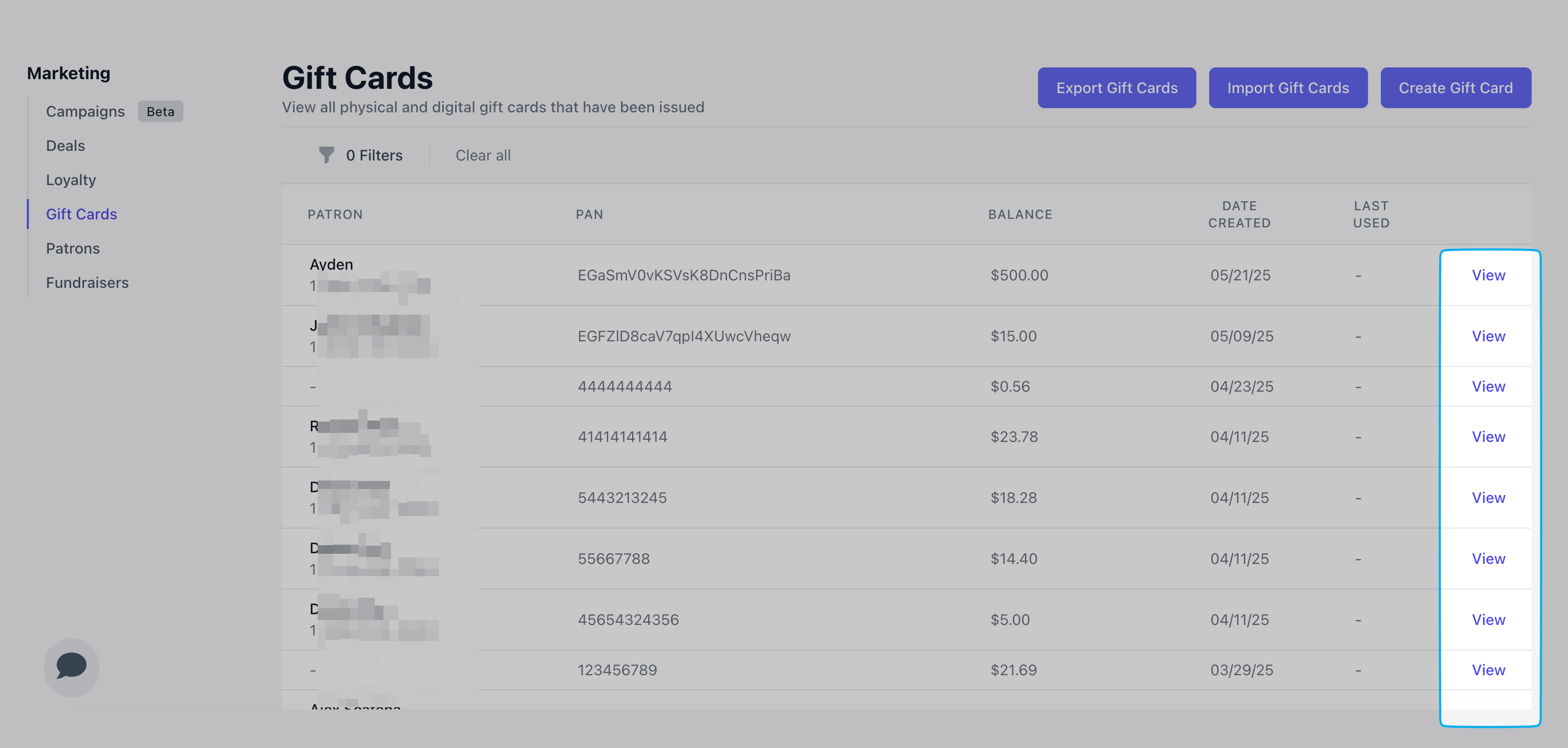
        Click **Marketing** > **Gift Cards** > **View** a gift card
        <Frame>
          <img src="https://mintcdn.com/frostbytetechnologiesinc/lA980-SrTShXzYYu/images/marketing/SCR-20250527-nood.png?fit=max&auto=format&n=lA980-SrTShXzYYu&q=85&s=f5fab0f6add06da5cca78779668d3250" width="2932" height="1398" data-path="images/marketing/SCR-20250527-nood.png" />
        </Frame>
      </Step>

      <Step title="">
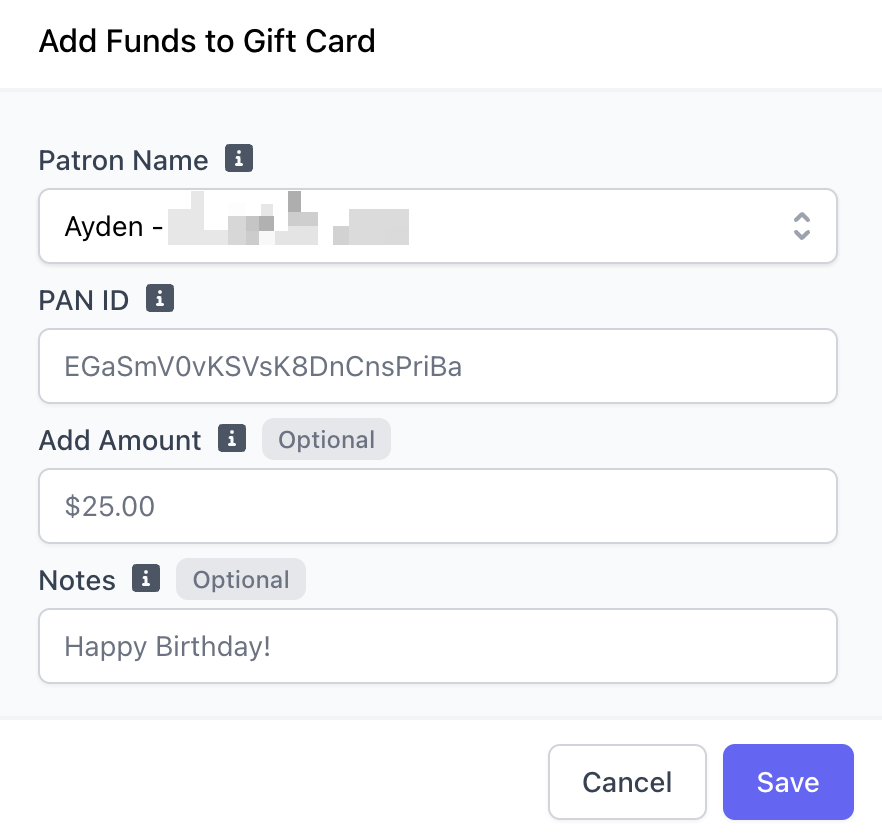
        Click **Edit Gift Card** > add a patron name or phone number > click **Save**
        <Frame>
          <img src="https://mintcdn.com/frostbytetechnologiesinc/lA980-SrTShXzYYu/images/marketing/SCR-20250527-noxq.png?fit=max&auto=format&n=lA980-SrTShXzYYu&q=85&s=46dd37b94d49404b2d0b35a5c32560d5" width="882" height="836" data-path="images/marketing/SCR-20250527-noxq.png" />
        </Frame>
      </Step>
    </Steps>
  </Tab>
</Tabs>

***

## Merge Patron Accounts

Merge two patrons' loyalty points and transaction history into one patron account.

To merge one patron account with another, Dripos will transfer all data and history from one patron to another and the original account will be archived.

<Accordion title="How to Merge Patron Accounts">
  Merge patron accounts from the **Dashboard**

  <Steps>
    <Step title="">
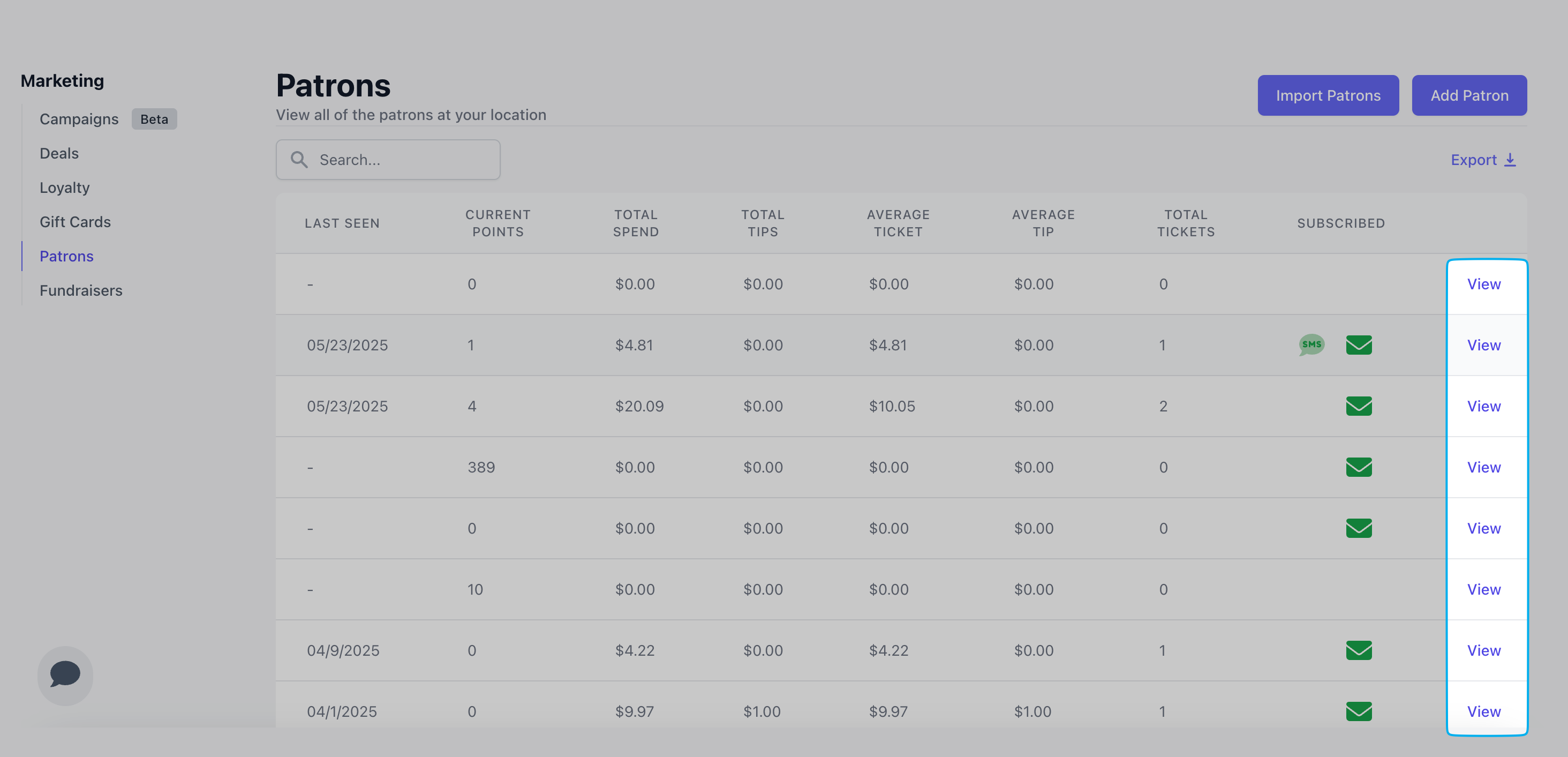
      Click **Marketing** > **Patrons**
    </Step>

    <Step title="">
      Locate the patron whose history you want to merge. This will ultimately be the patron profile that is archived. Click **View**.
      <Frame>
        <img src="https://mintcdn.com/frostbytetechnologiesinc/lA980-SrTShXzYYu/images/marketing/SCR-20250527-nqde.png?fit=max&auto=format&n=lA980-SrTShXzYYu&q=85&s=5edf3ff318e79e895e762c4933abe401" width="2928" height="1413" data-path="images/marketing/SCR-20250527-nqde.png" />
      </Frame>
    </Step>

    <Step title="">
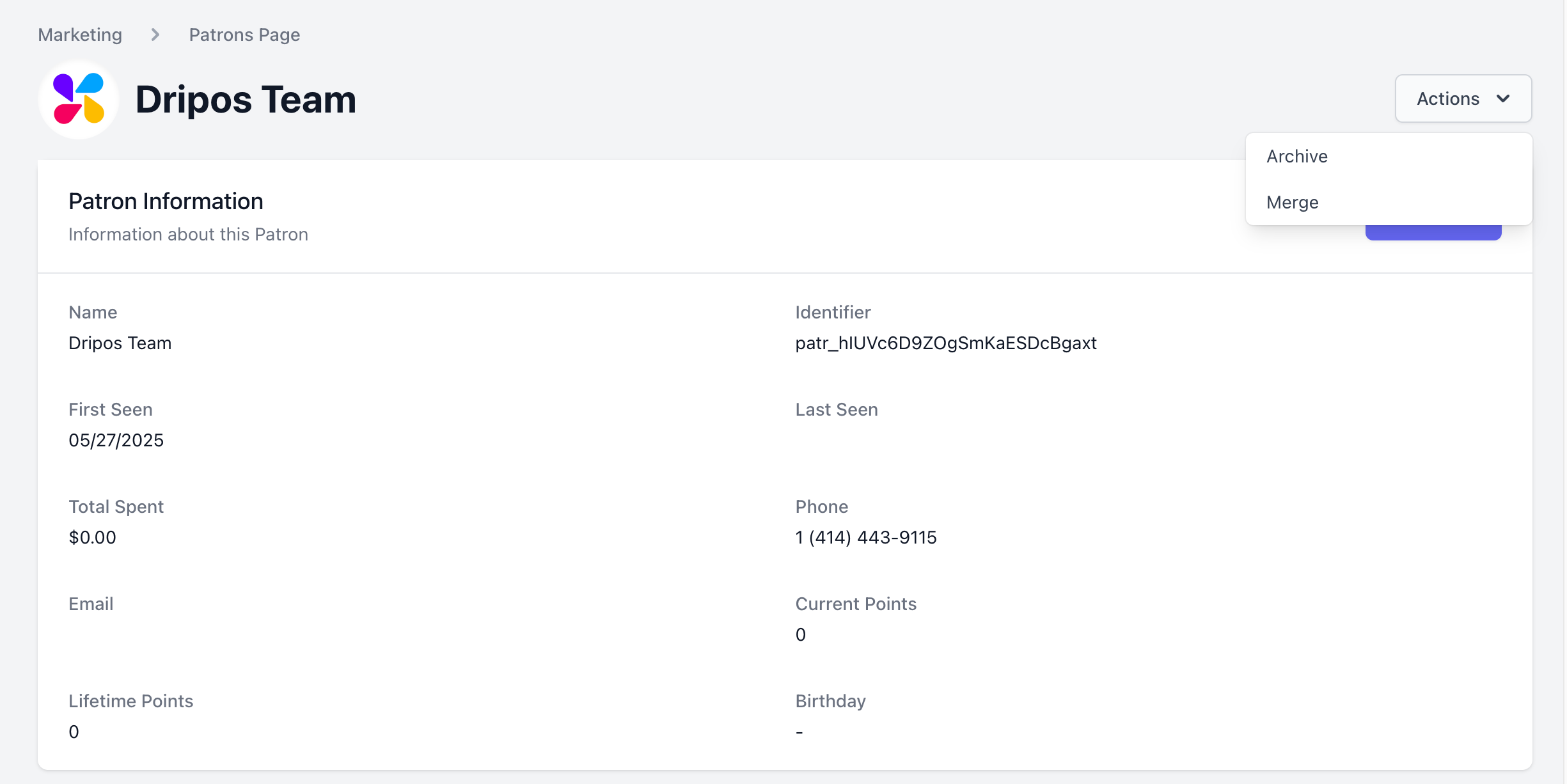
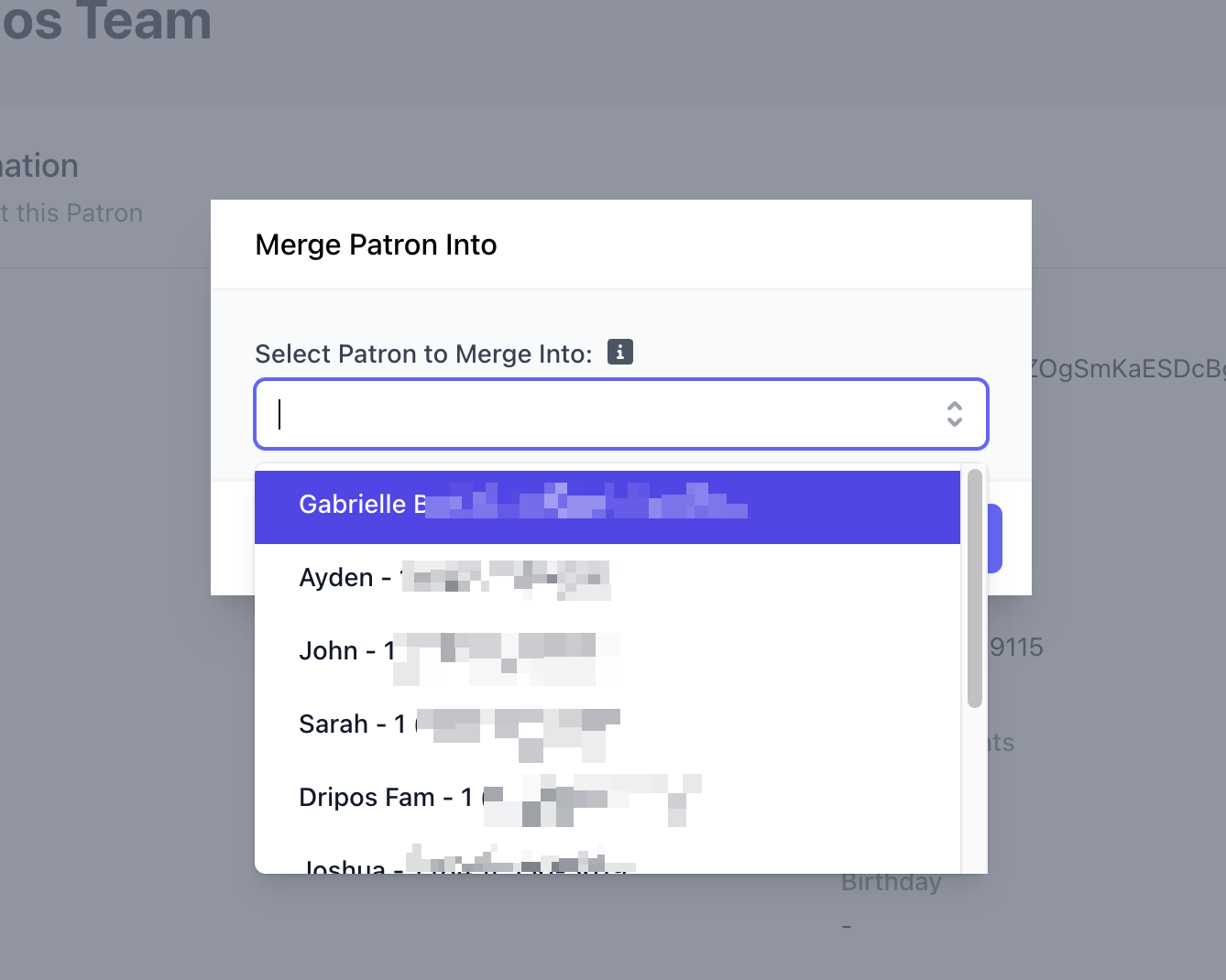
      Click **Action** > **Merge** > Select a patron to merge the current patron account into. The patron you search for will be the patron account that remains with both patrons' history after the merge.
      <Frame>
        <img src="https://mintcdn.com/frostbytetechnologiesinc/lA980-SrTShXzYYu/images/marketing/SCR-20250527-nqgt.png?fit=max&auto=format&n=lA980-SrTShXzYYu&q=85&s=51d760e875951eb11d6a36acccc35db7" width="2450" height="1226" data-path="images/marketing/SCR-20250527-nqgt.png" />
      </Frame>

      <Frame>
        <img src="https://mintcdn.com/frostbytetechnologiesinc/lA980-SrTShXzYYu/images/marketing/SCR-20250527-nqjq.png?fit=max&auto=format&n=lA980-SrTShXzYYu&q=85&s=b7b26785e6f3afd90ef8b0f4ce4e934b" width="1338" height="1070" data-path="images/marketing/SCR-20250527-nqjq.png" />
      </Frame>
    </Step>
  </Steps>
</Accordion>

***

## Archive Patron Accounts

<Accordion title="How to Archive Patron Accounts">
  Archive Patrons from the **Dashboard**

  <Steps>
    <Step title="">
      Click **Marketing** > **Patrons**
    </Step>

    <Step title="">
      Locate the patron who you'd like to archive. This will ultimately be the patron profile that is archived. Click **View**.

      <Frame>
        <img src="https://mintcdn.com/frostbytetechnologiesinc/lA980-SrTShXzYYu/images/marketing/SCR-20250527-nqde.png?fit=max&auto=format&n=lA980-SrTShXzYYu&q=85&s=5edf3ff318e79e895e762c4933abe401" width="2928" height="1413" data-path="images/marketing/SCR-20250527-nqde.png" />
      </Frame>
    </Step>

    <Step title="">
      Click **Action** > **Archive**

      <Warning>
        *The patron will be archived instantly!*
      </Warning>

      <Frame>
        <img src="https://mintcdn.com/frostbytetechnologiesinc/lA980-SrTShXzYYu/images/marketing/SCR-20250527-nqgt.png?fit=max&auto=format&n=lA980-SrTShXzYYu&q=85&s=51d760e875951eb11d6a36acccc35db7" width="2450" height="1226" data-path="images/marketing/SCR-20250527-nqgt.png" />
      </Frame>
    </Step>
  </Steps>
</Accordion>

***

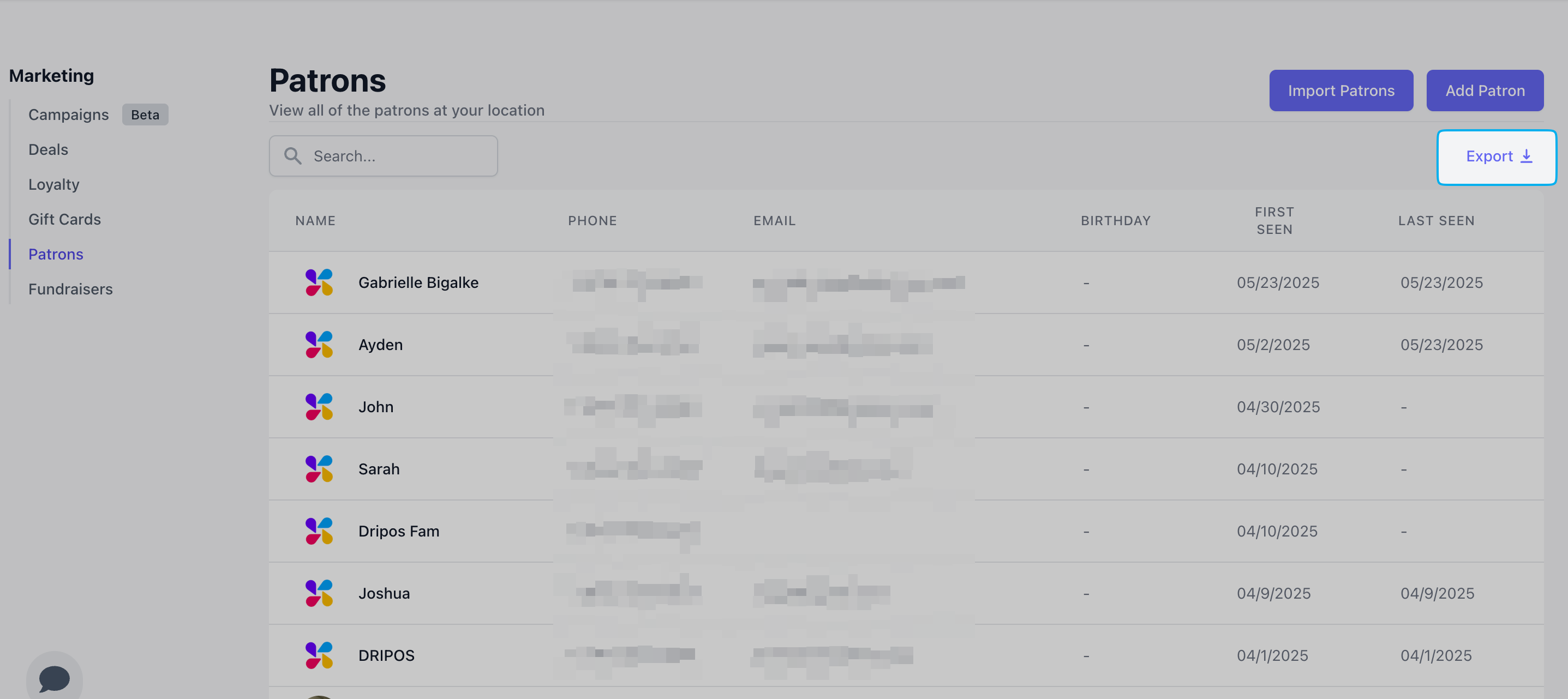
## Export Patron List

Export your list of patrons to a .csv file

<Accordion title="Export Patron List to .csv File">
  On the **Dashboard**, click **Marketing** > **Patrons** > click **Export**
  <Frame>
    <img src="https://mintcdn.com/frostbytetechnologiesinc/lA980-SrTShXzYYu/images/marketing/SCR-20250527-odlc.png?fit=max&auto=format&n=lA980-SrTShXzYYu&q=85&s=55456018d8e0062ac5f97996a93a9722" width="2874" height="1282" data-path="images/marketing/SCR-20250527-odlc.png" />
  </Frame>
</Accordion>