> ## Documentation Index
> Fetch the complete documentation index at: https://support.dripos.com/llms.txt
> Use this file to discover all available pages before exploring further.
# Before Pre-Launch
> We're almost at the finish line! Please be on-site for Call 3 to check off the tasks below.
You must have all hardware with you during our Pre-Launch call! The purpose of this call is to ensure hardware is set up properly and ready for your first day live on Dripos.
### Task 1: Unbox Your Hardware
Have your iPad(s) and card reader(s) charged and connected to wifi beforehand. You will need to set up Apple ID on the iPad(s).
To pair your card reader in advance, follow these instructions [here](/hardware/reader/reader-s700).
To connect your printer in advance, follow these instructions [here](/hardware/print/basics/print-setup).
Ethernet cables are not included with the printers and will need to be purchased separately before the next call.
### Task 2: Run a Wifi Speed Test
Google search "Internet Speed Test" and run this on your POS tablet.
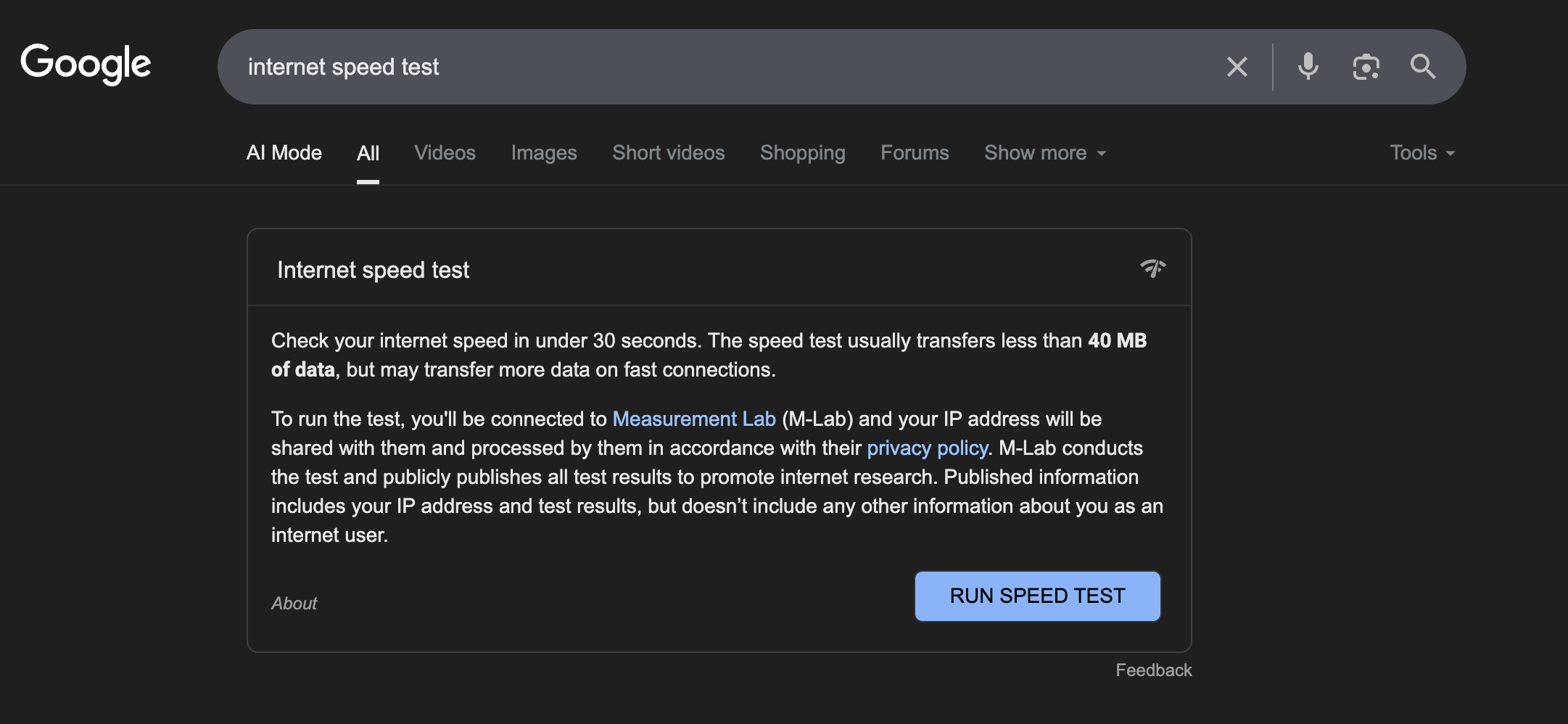 Dripos requires a minimum download speed of 50 Mbps and upload speed of 15 Mbps to operate. For the most reliable performance, we recommend having a stronger plan that provides 100 to 300 Mbps download speed and 20 to 25 Mbps upload speed.
Read more about our Wifi and Router setup [here](/hardware/hardware-router).
To prevent connectivity or wifi issues, we recommend setting up your router as close to your front register as possible.
### Task 3: Download Dripos POS App
Download the Dripos POS App for [Apple](https://apps.apple.com/us/app/dripos-point-of-sale/id1545180462) or [Android](https://play.google.com/store/apps/details?id=com.corkdrinks.drippos\&hl=en_US) tablets.
### Task 4: Review Menu in POS App
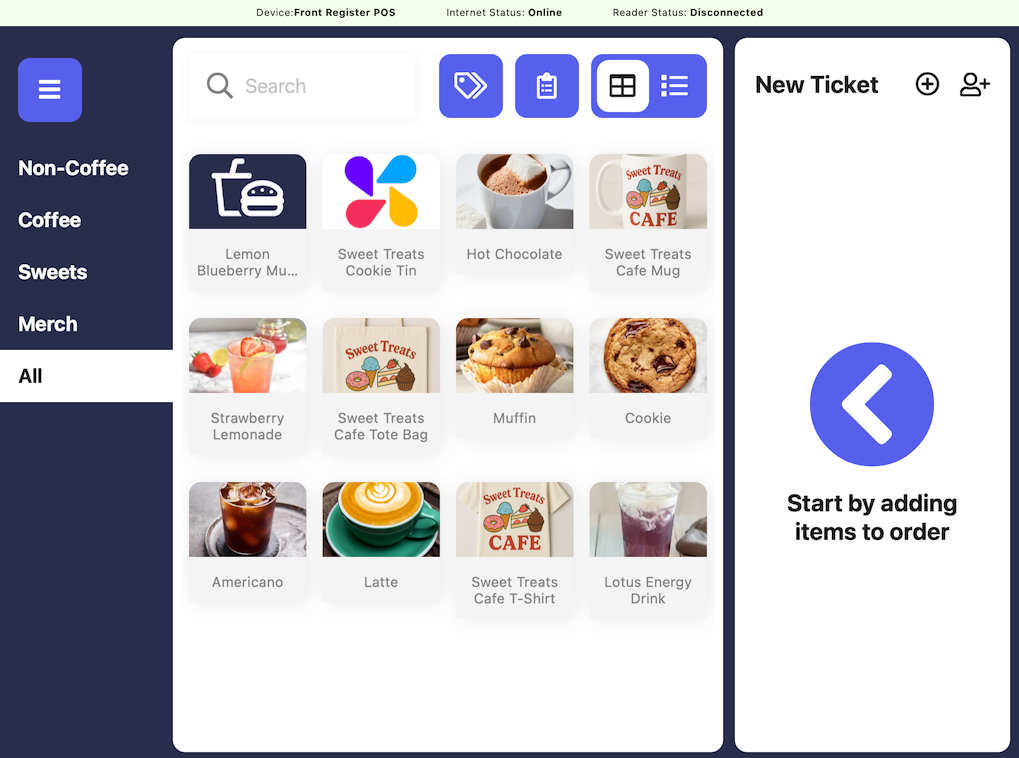
Navigate and familiarize yourself with the POS. This is a great way to check whether your products and modifiers are set up correctly!
Dripos requires a minimum download speed of 50 Mbps and upload speed of 15 Mbps to operate. For the most reliable performance, we recommend having a stronger plan that provides 100 to 300 Mbps download speed and 20 to 25 Mbps upload speed.
Read more about our Wifi and Router setup [here](/hardware/hardware-router).
To prevent connectivity or wifi issues, we recommend setting up your router as close to your front register as possible.
### Task 3: Download Dripos POS App
Download the Dripos POS App for [Apple](https://apps.apple.com/us/app/dripos-point-of-sale/id1545180462) or [Android](https://play.google.com/store/apps/details?id=com.corkdrinks.drippos\&hl=en_US) tablets.
### Task 4: Review Menu in POS App
Navigate and familiarize yourself with the POS. This is a great way to check whether your products and modifiers are set up correctly!
 ### Task 5: Update Dashboard Settings
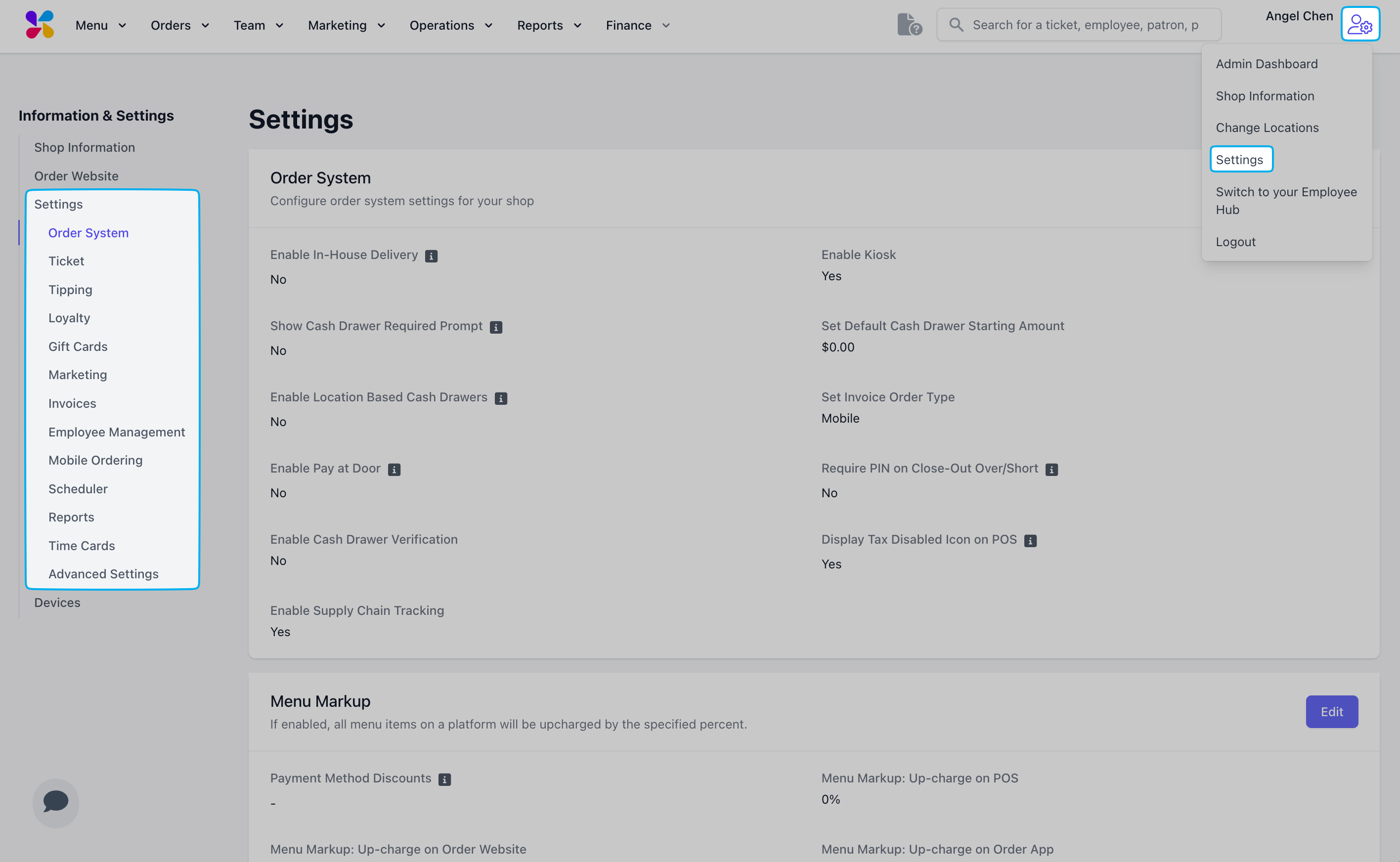
Adjust any shop-specific features within your Web Dashboard settings [here](https://dashboard.dripos.com/settings/order-system). You can find this on the Dripos Dashboard by navigating to **Settings Icon** > **Settings**.
### Task 5: Update Dashboard Settings
Adjust any shop-specific features within your Web Dashboard settings [here](https://dashboard.dripos.com/settings/order-system). You can find this on the Dripos Dashboard by navigating to **Settings Icon** > **Settings**.
 ### Task 6: Set Up Online Ordering
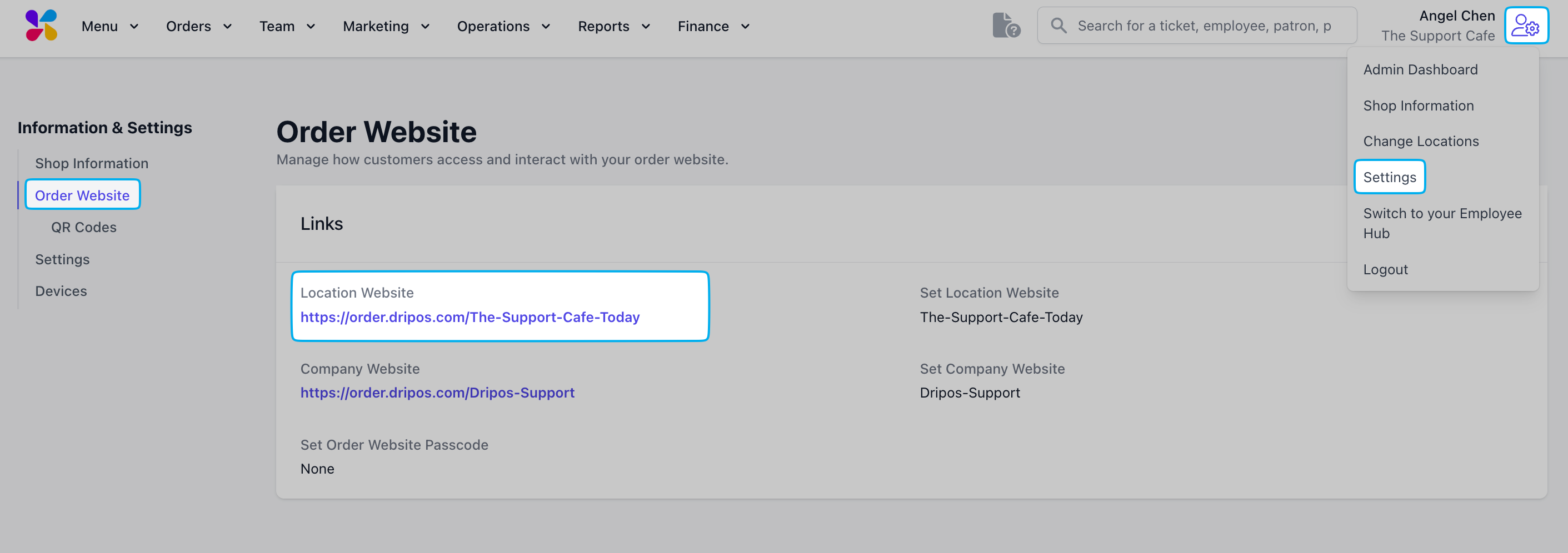
Access the online ordering link for your shop [here](https://dashboard.dripos.com/websites). You can find this on the Dripos Dashboard by navigating to **Settings Icon** > **Settings** > **Order Website**.
### Task 6: Set Up Online Ordering
Access the online ordering link for your shop [here](https://dashboard.dripos.com/websites). You can find this on the Dripos Dashboard by navigating to **Settings Icon** > **Settings** > **Order Website**.
 ### Task 7: Complete Any Remaining Tasks
Check to see if there are any tasks remaining from before the [Kick Off ](/onboarding/start-calls/call-1)or [Pulse Check](/onboarding/start-calls/call-2) calls!
### Task 7: Complete Any Remaining Tasks
Check to see if there are any tasks remaining from before the [Kick Off ](/onboarding/start-calls/call-1)or [Pulse Check](/onboarding/start-calls/call-2) calls!