> ## Documentation Index
> Fetch the complete documentation index at: https://support.dripos.com/llms.txt
> Use this file to discover all available pages before exploring further.
# Billing Account Basics
> Learn how to create and utilize billing accounts on Dripos
Dripos billing accounts function as a convenient way for customers to pay off orders over an extended period of time.
When an order is placed at the Point of Sale, billing accounts can be selected as a payment method.
Billing accounts can then be paid off from the Point of Sale or via an invoiced payment link.
## Create Billing Accounts
Create a billing account either from the **Dashboard** or the **Point of Sale**
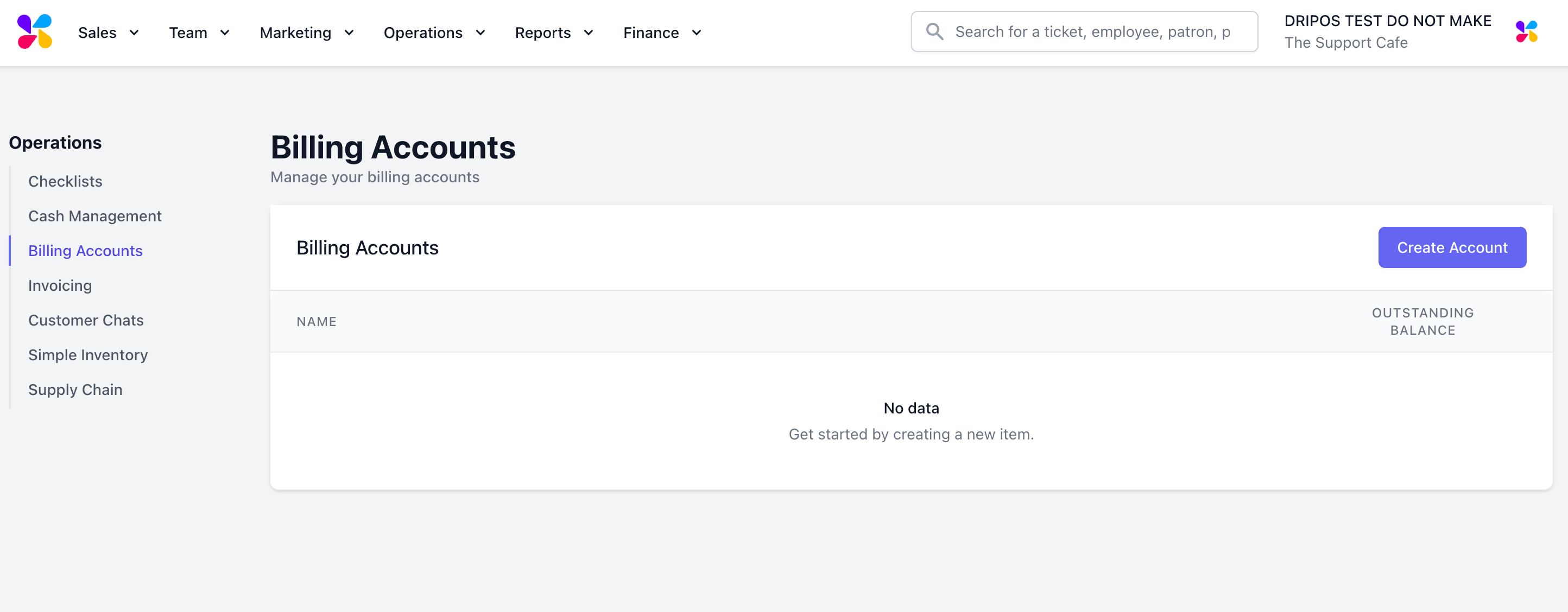
1. Navigate to **Operations** > **Billing Accounts** > **Create Account**
 2. Fill out the following fields:
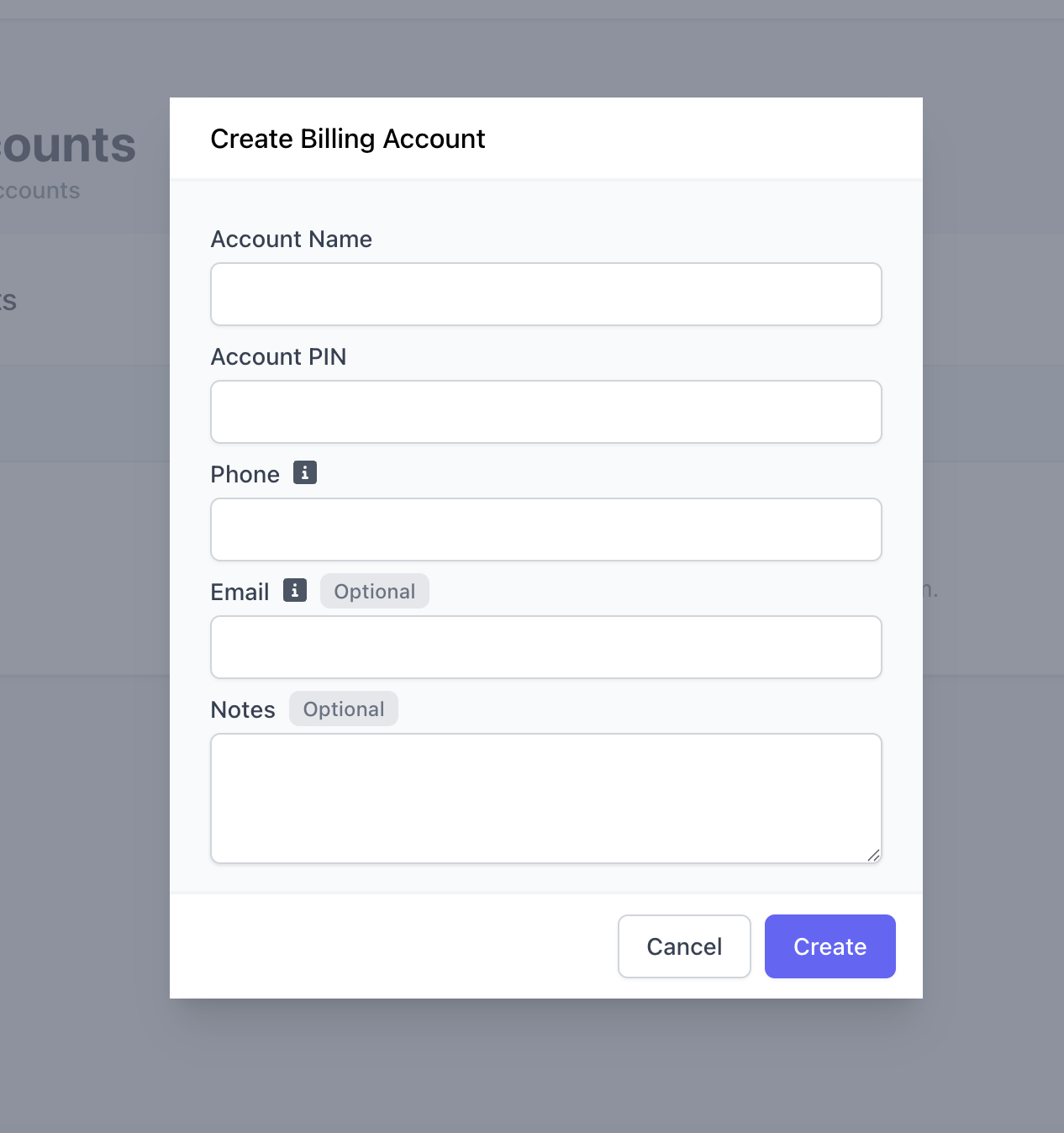 > **Account Name:** Special event, customer name, etc.
>
> **Account PIN:** Security PIN to access billing account
>
> **Phone:** Customer phone number
>
> **Email (Optional):** Customer email address
>
> **Notes (Optional)**
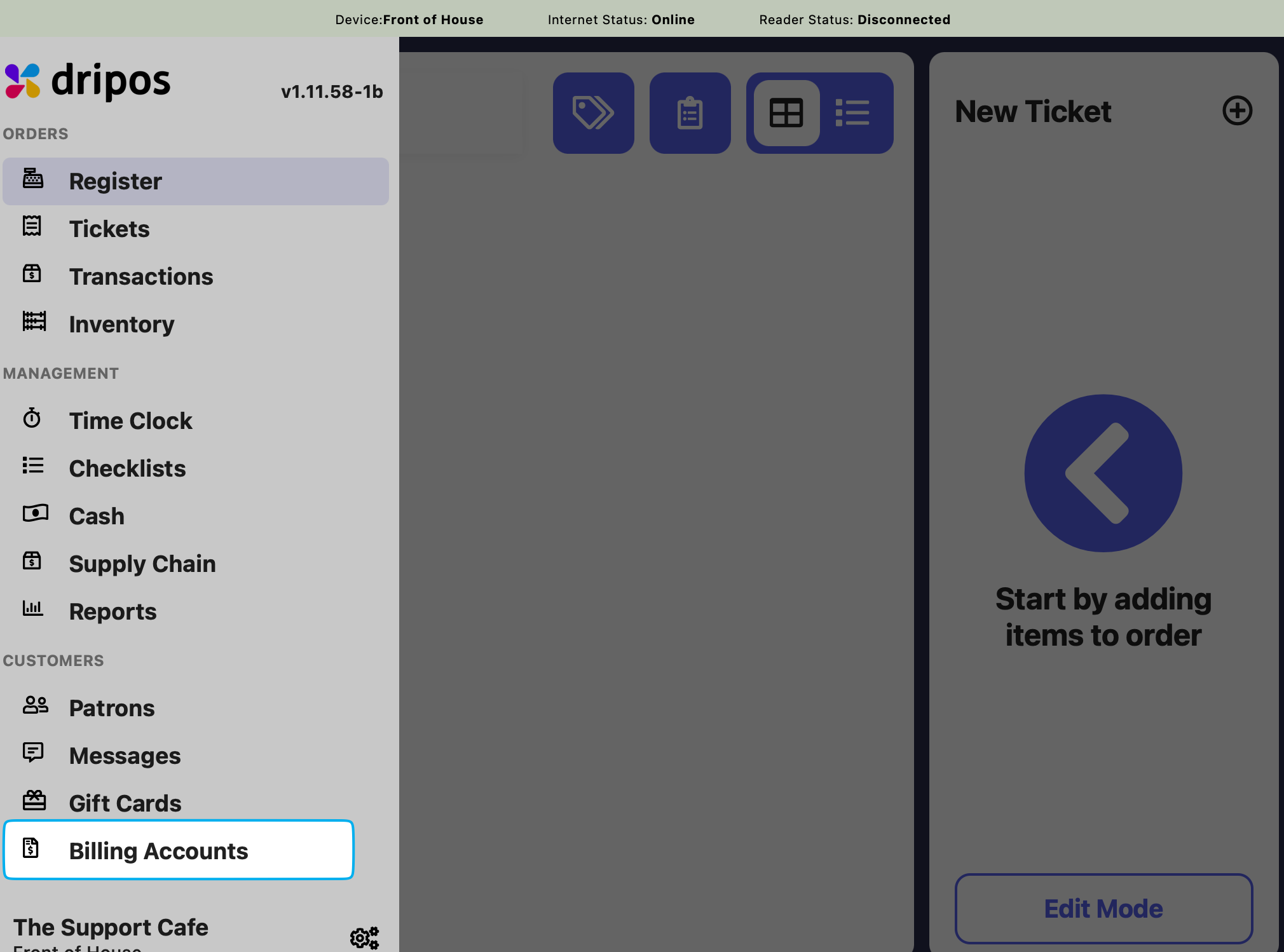
1. Press the **tribar** in the upper left screen corner > **Billing Accounts**
> **Account Name:** Special event, customer name, etc.
>
> **Account PIN:** Security PIN to access billing account
>
> **Phone:** Customer phone number
>
> **Email (Optional):** Customer email address
>
> **Notes (Optional)**
1. Press the **tribar** in the upper left screen corner > **Billing Accounts**
 2. Press **New Billing Account**
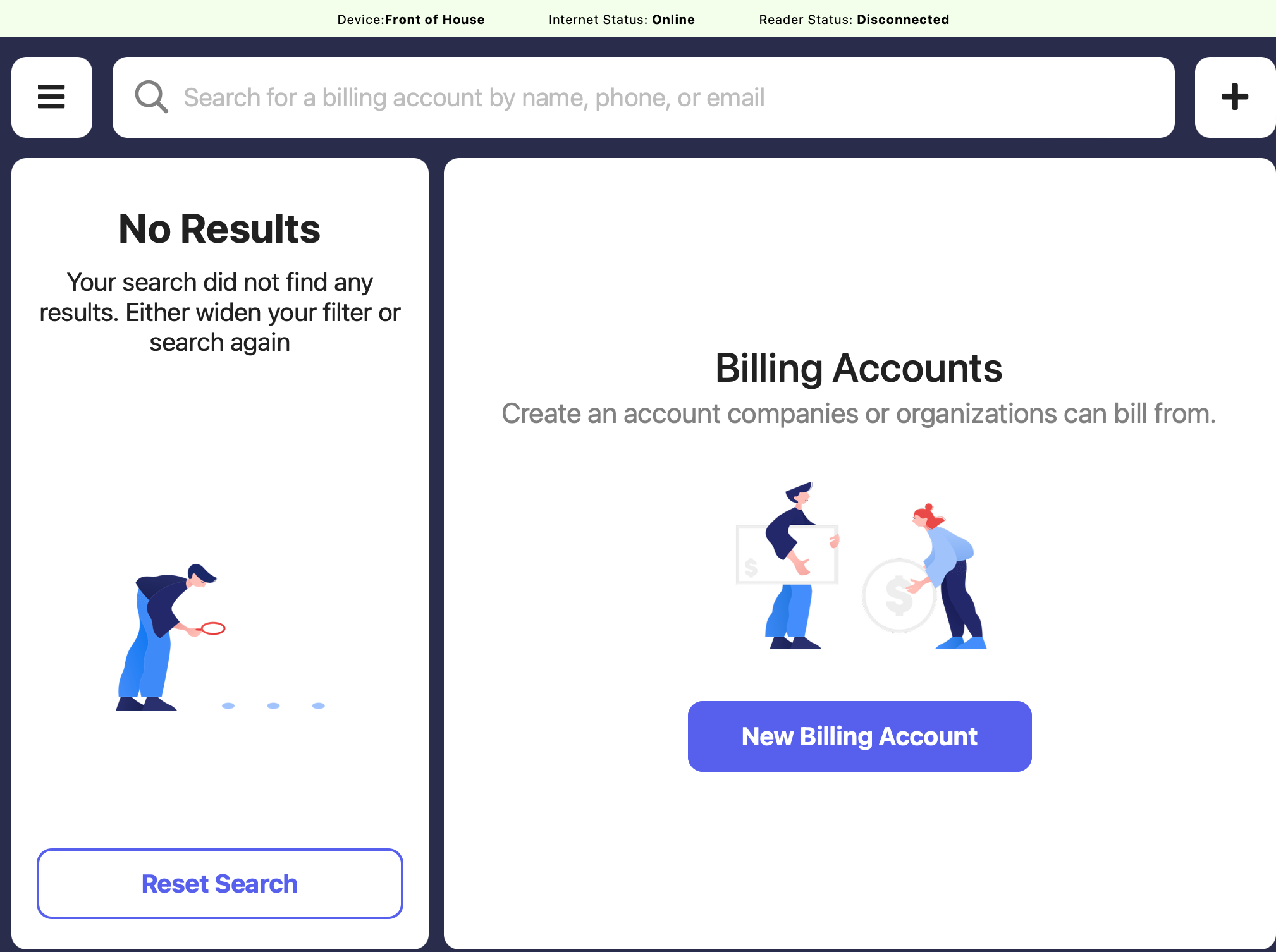 3. Fill out the following fields and press **Create Billing Account**
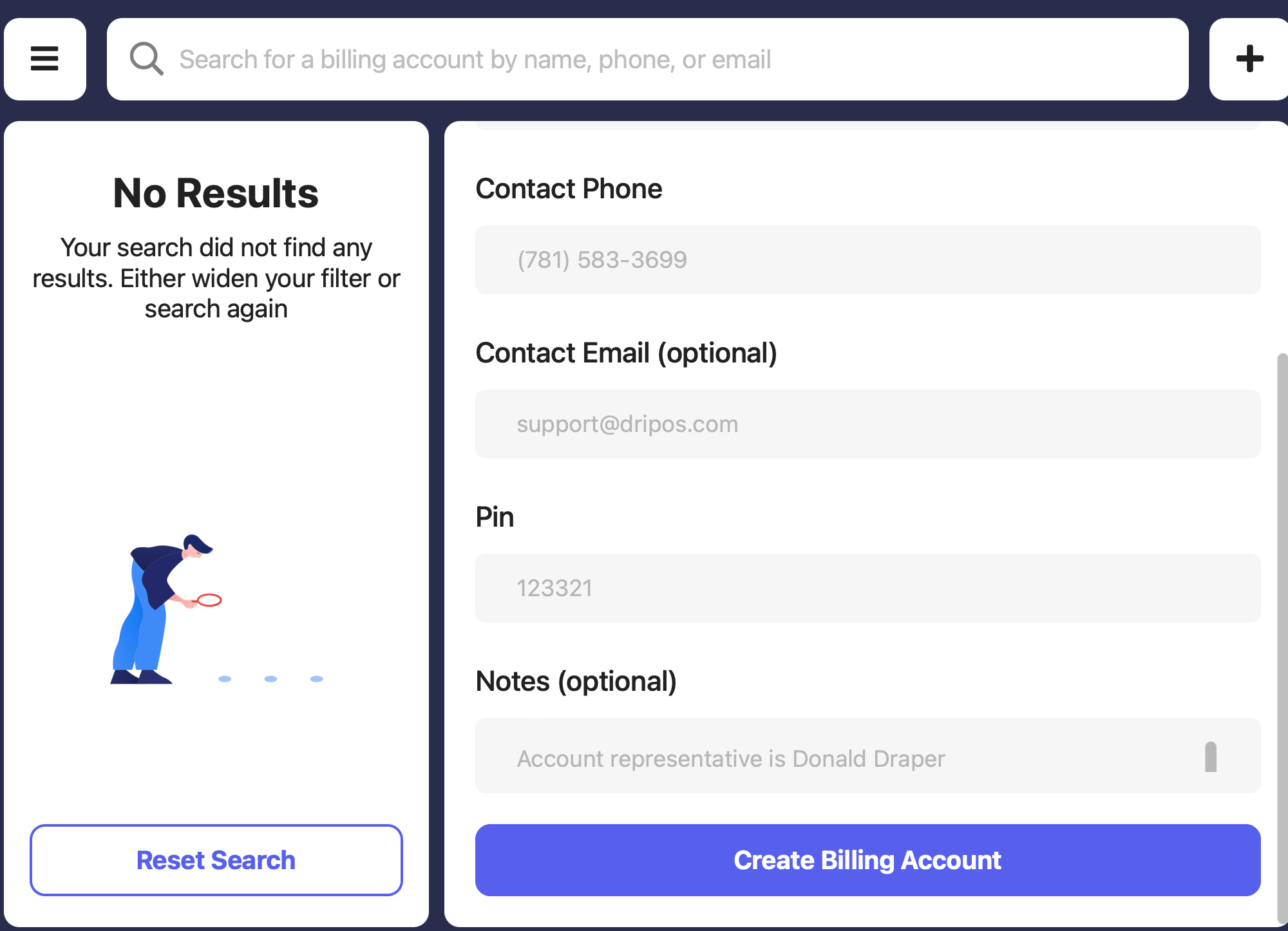 > **Name:** Special event, customer name, etc.
>
> **Phone:** Customer phone number
>
> **Email (Optional):** Customer email address
>
> **Account PIN:** Security PIN to access billing account
>
> **Notes (Optional)**
***
## Checkout with a Billing Account
Billing accounts can be used as payment on orders created from the Point of Sale.
Billing accounts as a whole are then paid off at a later time with real payment (card, cash, etc).
1. Create a new order and add items to cart as usual > click **Charge**
2. On the **Payment Method** screen press **Billing**
> **Name:** Special event, customer name, etc.
>
> **Phone:** Customer phone number
>
> **Email (Optional):** Customer email address
>
> **Account PIN:** Security PIN to access billing account
>
> **Notes (Optional)**
***
## Checkout with a Billing Account
Billing accounts can be used as payment on orders created from the Point of Sale.
Billing accounts as a whole are then paid off at a later time with real payment (card, cash, etc).
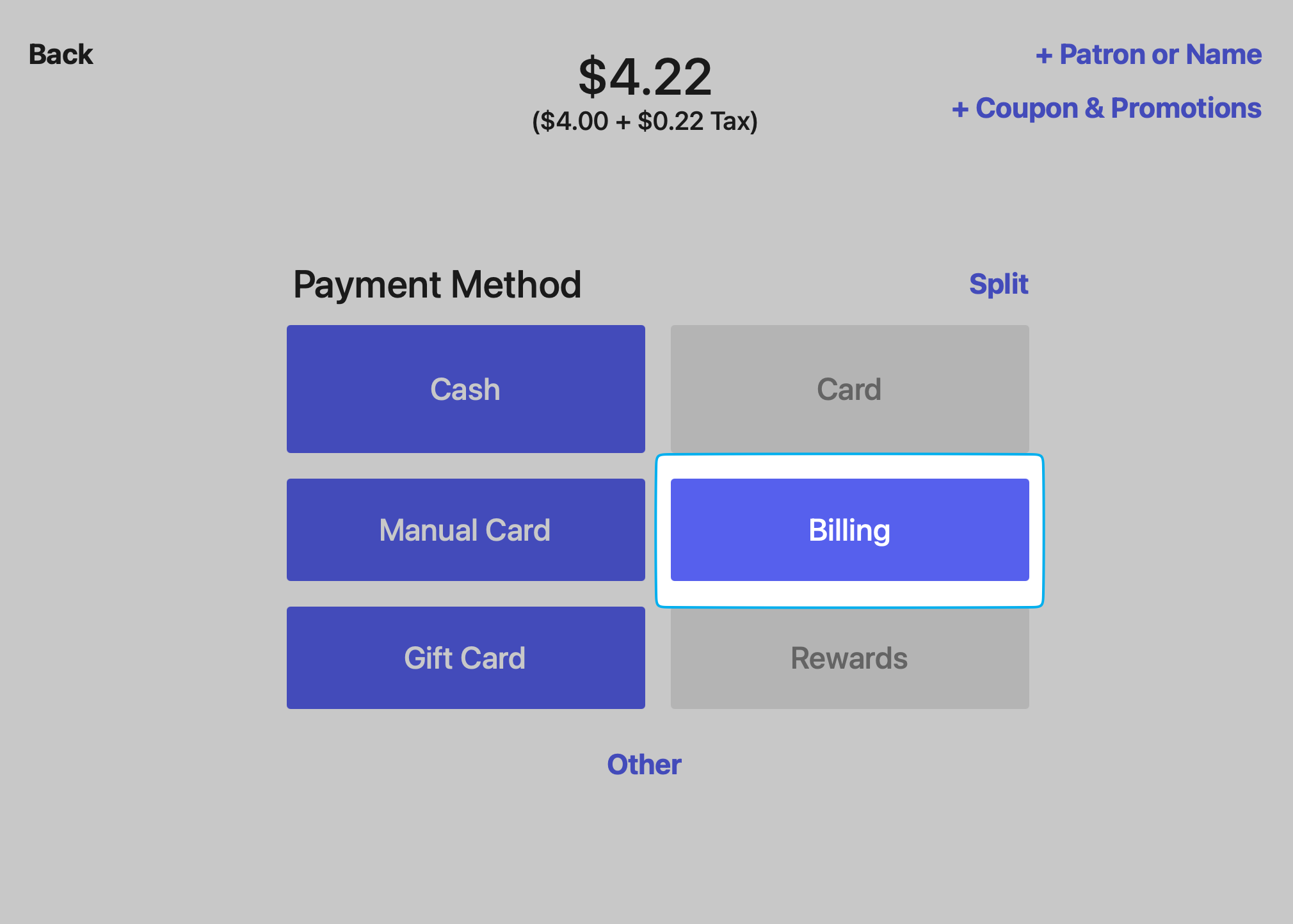
1. Create a new order and add items to cart as usual > click **Charge**
2. On the **Payment Method** screen press **Billing**
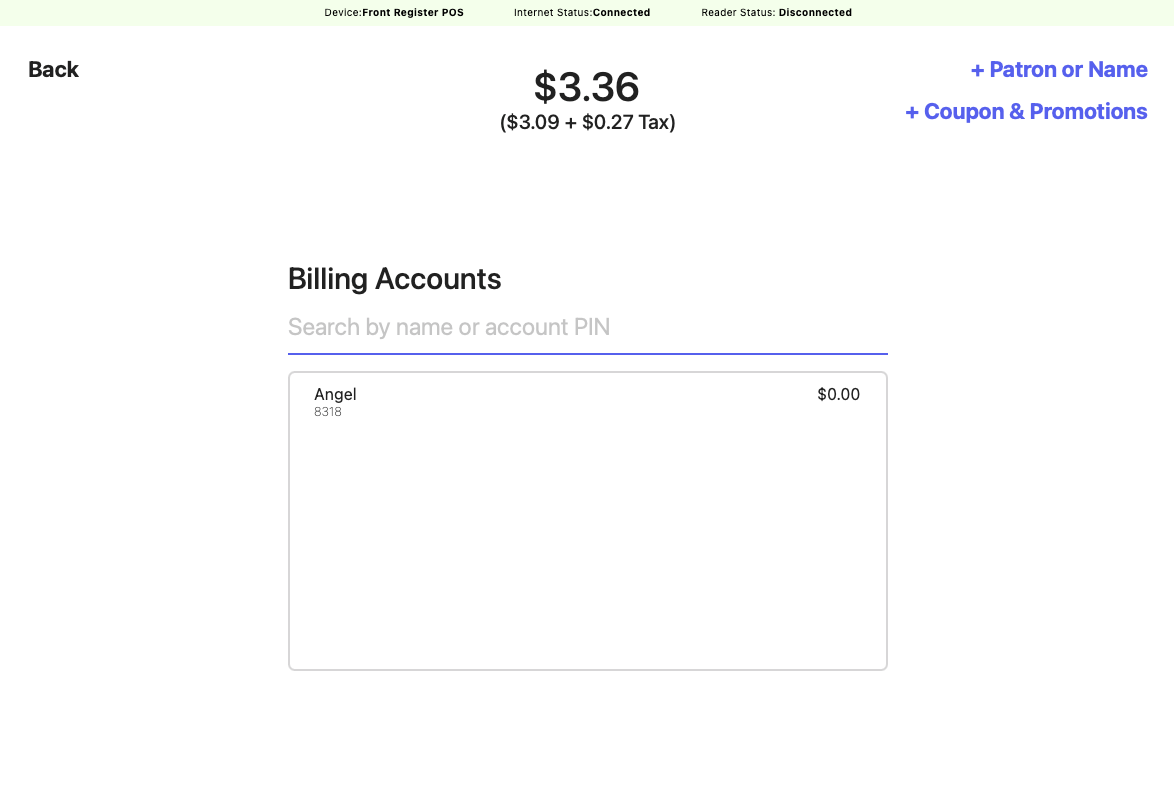
 3. Select the customer’s billing account using the dropdown or search for the billing account by Name or PIN
 ***
## Pay Off Billing Accounts
Pay off and collect payment on billing accounts directly from the Point of Sale or the Dashboard
1. Press the **tribar** in the upper left screen corner > **Billing Accounts**
2. Select the billing account and press **Pay Balance**
***
## Pay Off Billing Accounts
Pay off and collect payment on billing accounts directly from the Point of Sale or the Dashboard
1. Press the **tribar** in the upper left screen corner > **Billing Accounts**
2. Select the billing account and press **Pay Balance**
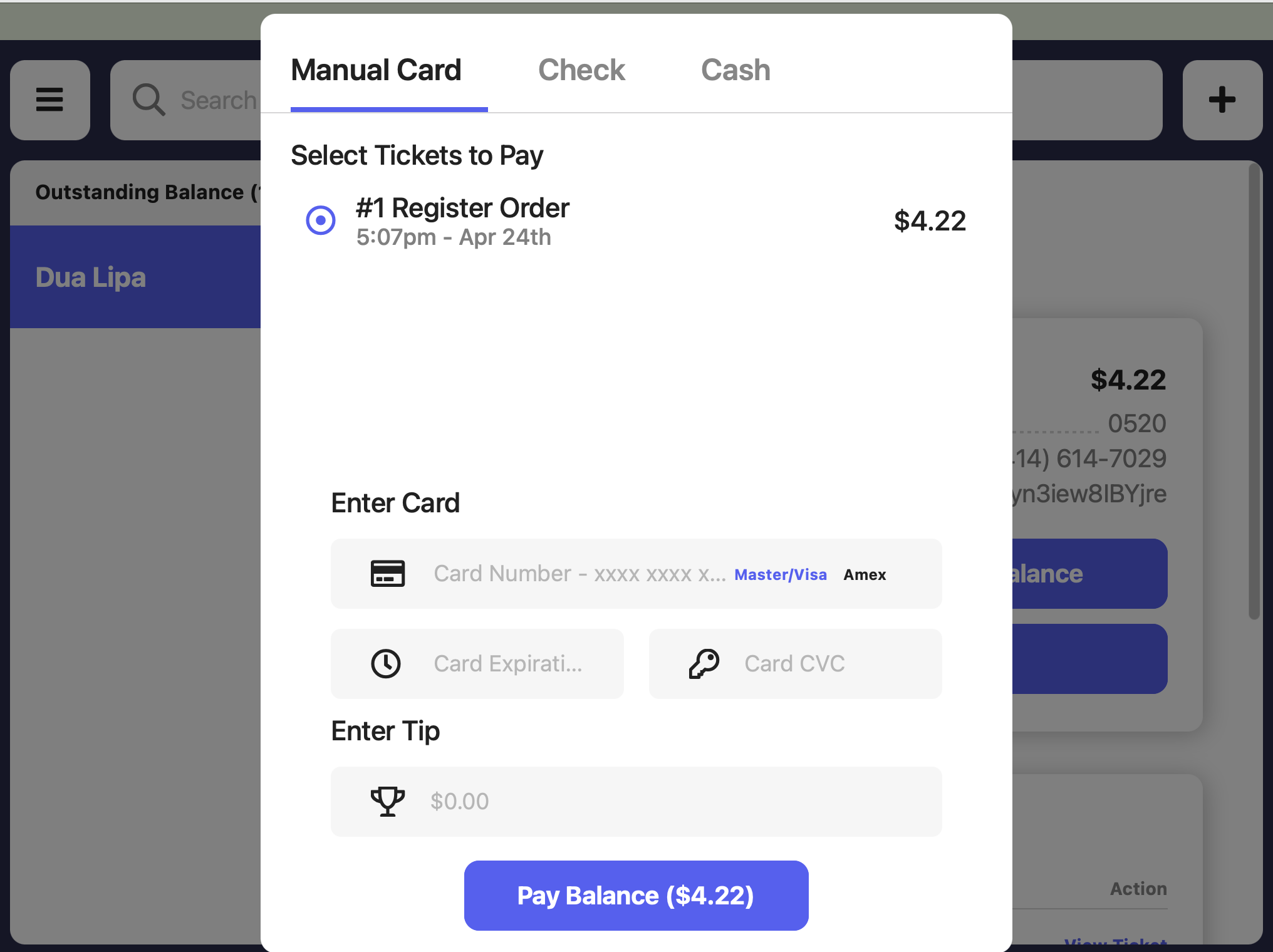
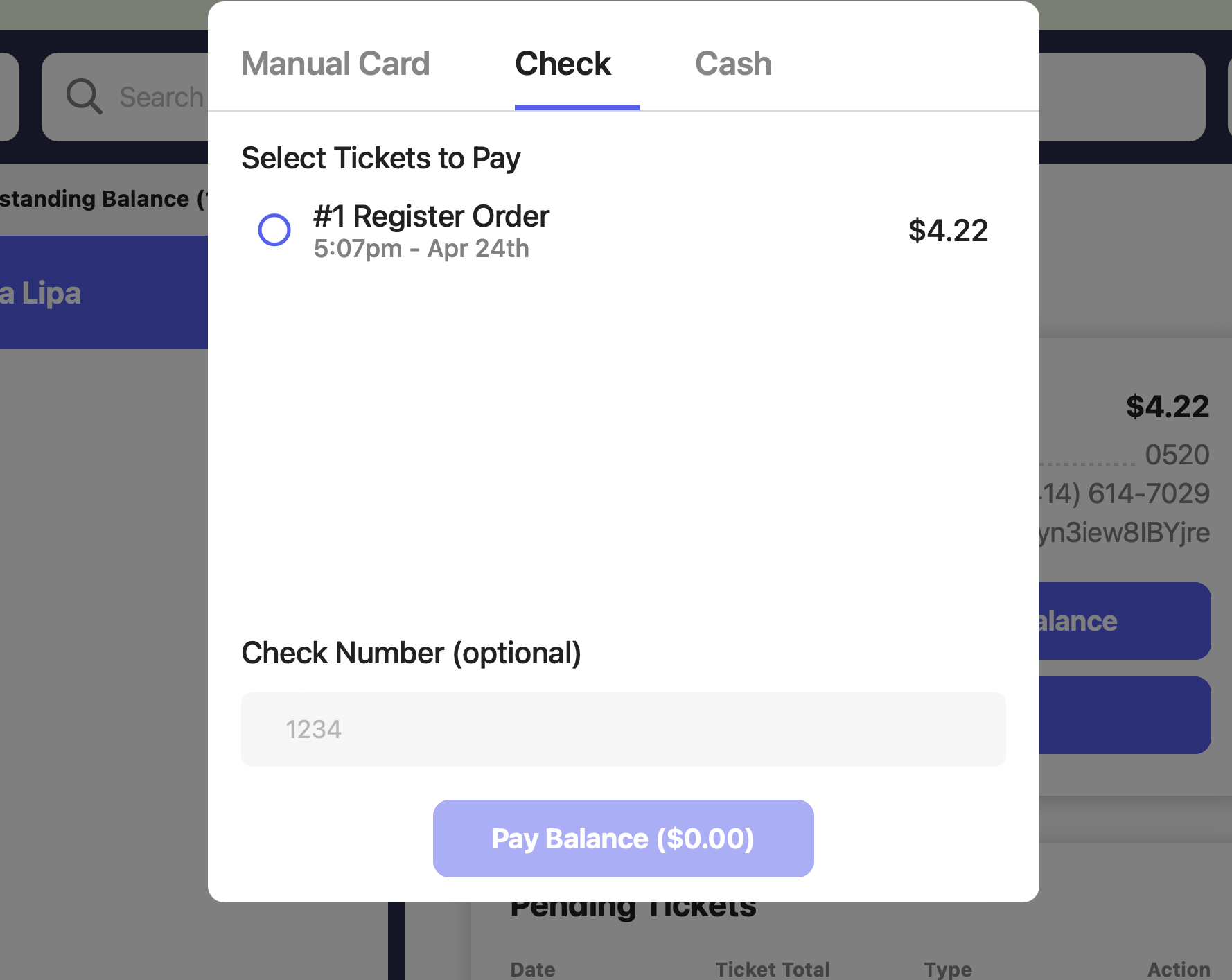
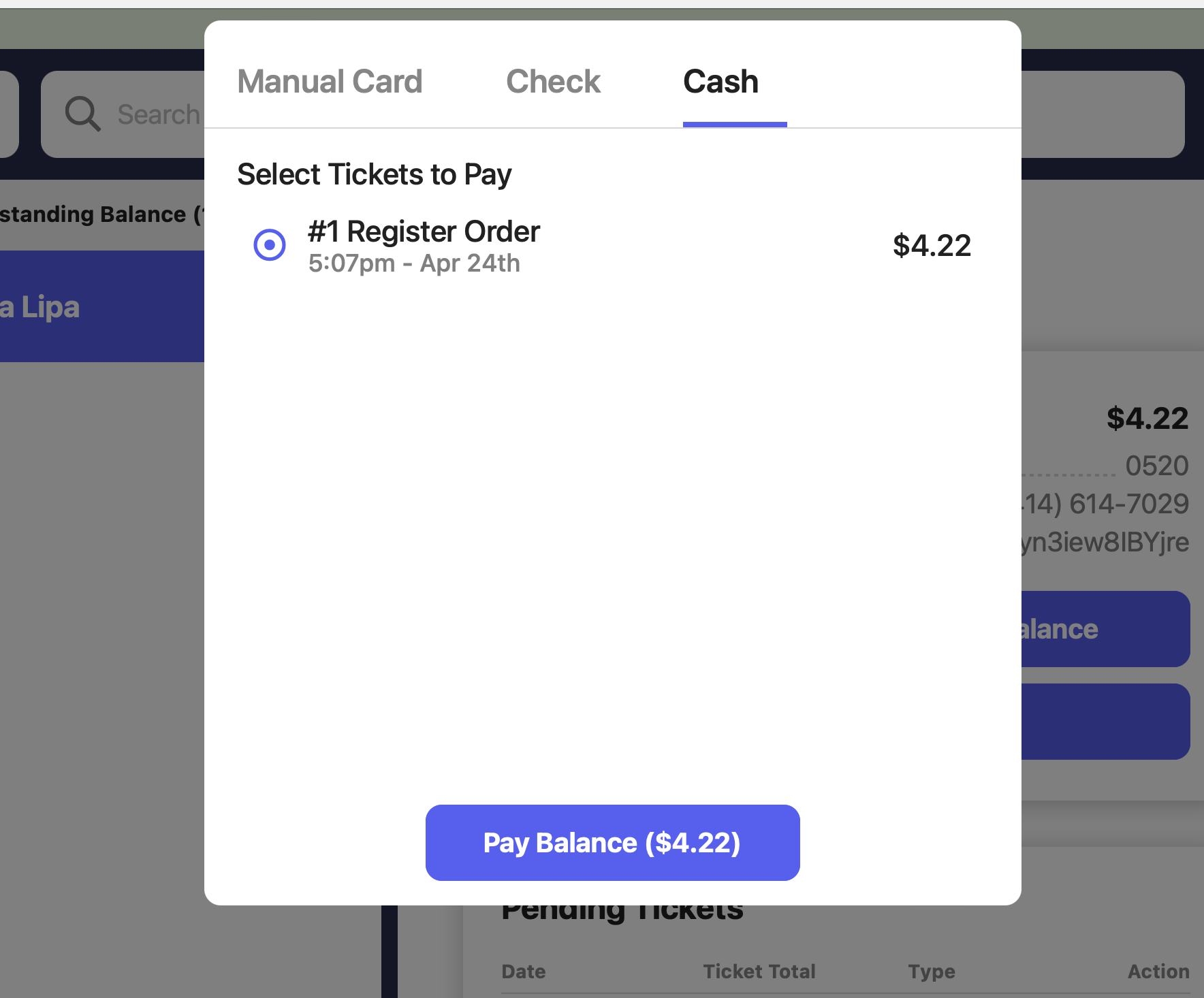
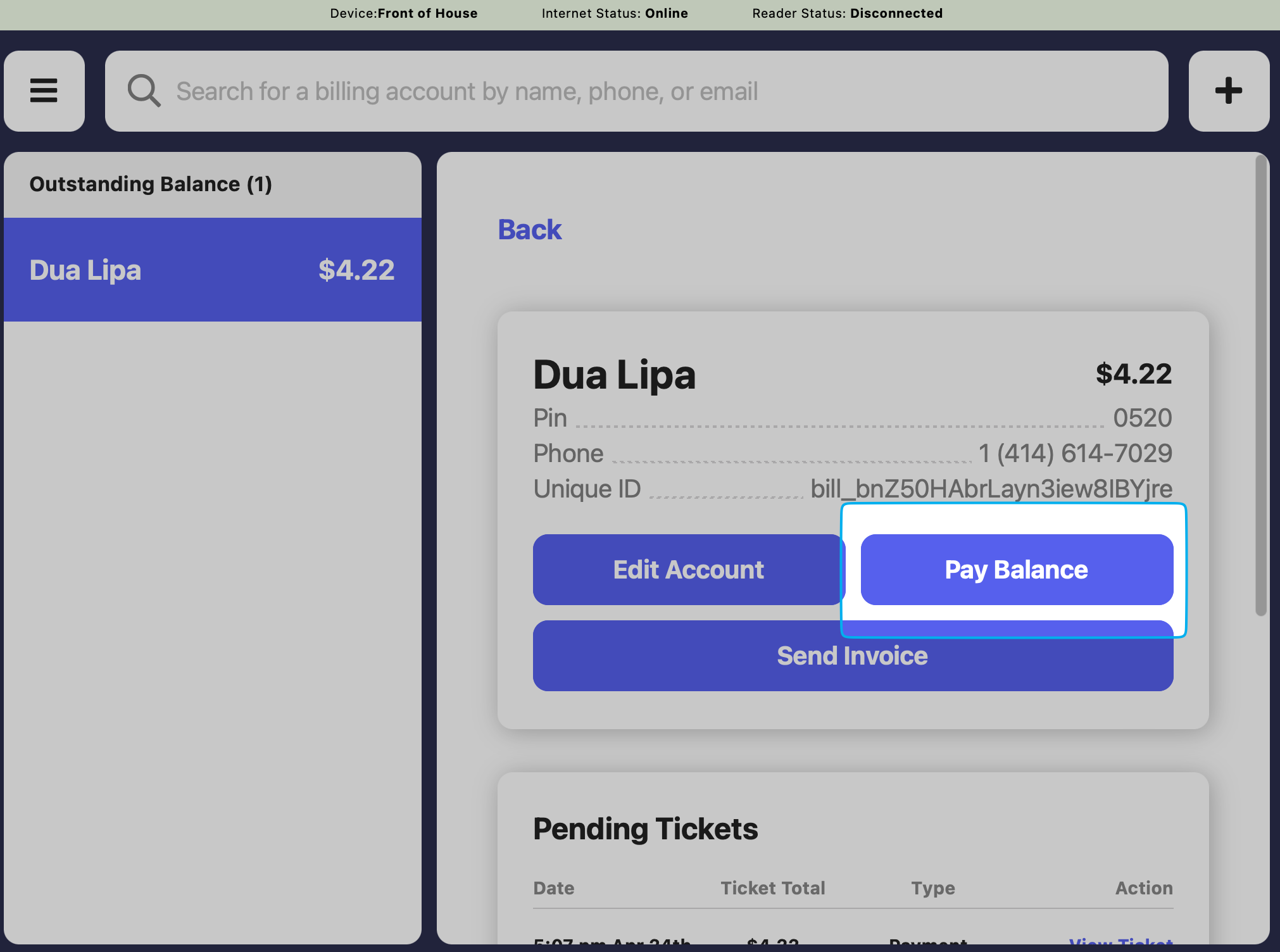 3. Billing accounts can be paid by manual card, check, or cash.
Disselect a ticket to remove it from this payment and remain unpaid on the billing account for now.
3. Billing accounts can be paid by manual card, check, or cash.
Disselect a ticket to remove it from this payment and remain unpaid on the billing account for now.
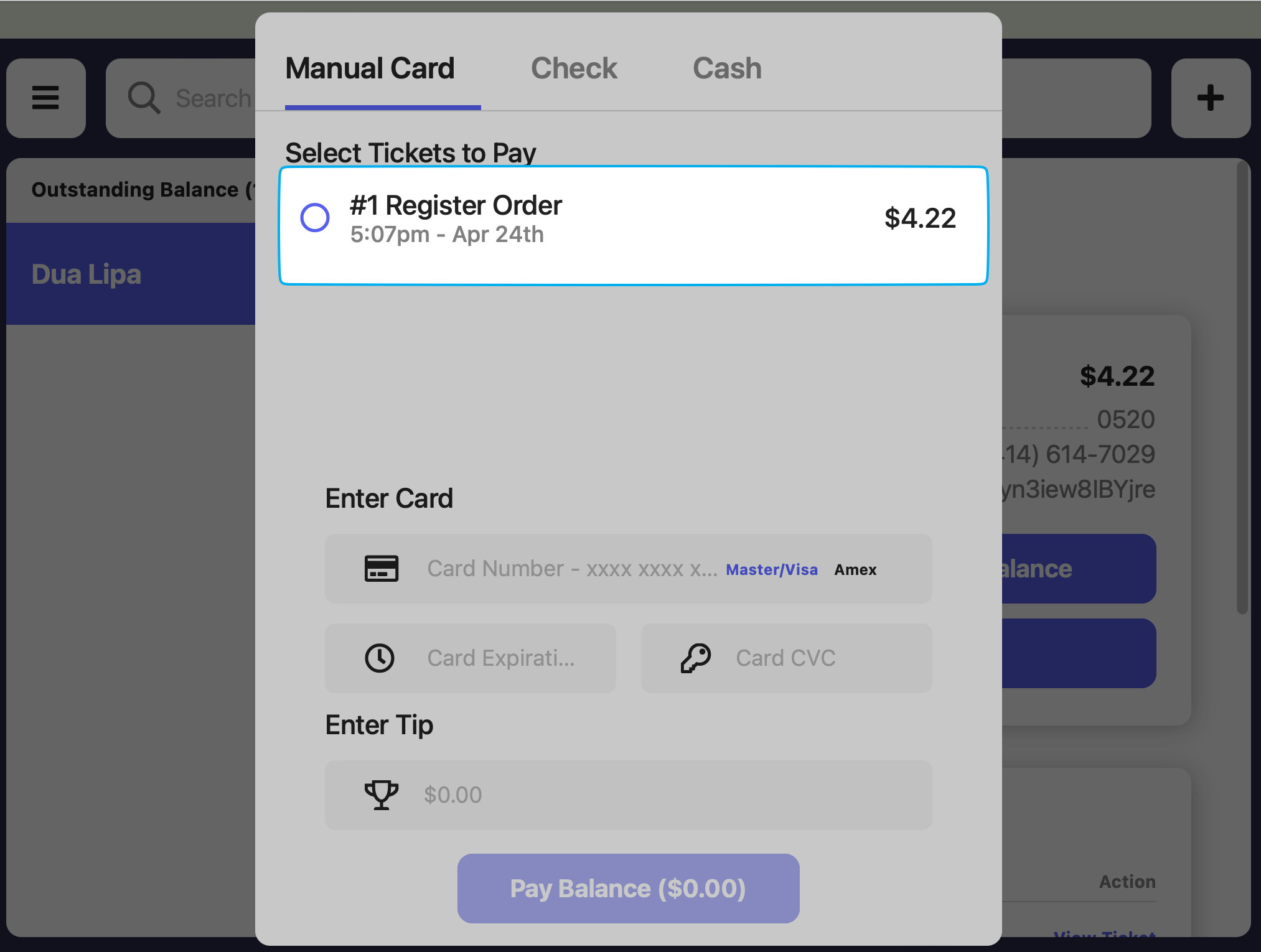 > **Manual Card**: Insert the card details and press **Pay Balance** to complete the transaction.
 > **Check**: Enter the check number (optional) and press **Pay Balance** to complete the transaction.
 > **Cash**: Press **Pay Balance** to complete the transaction.
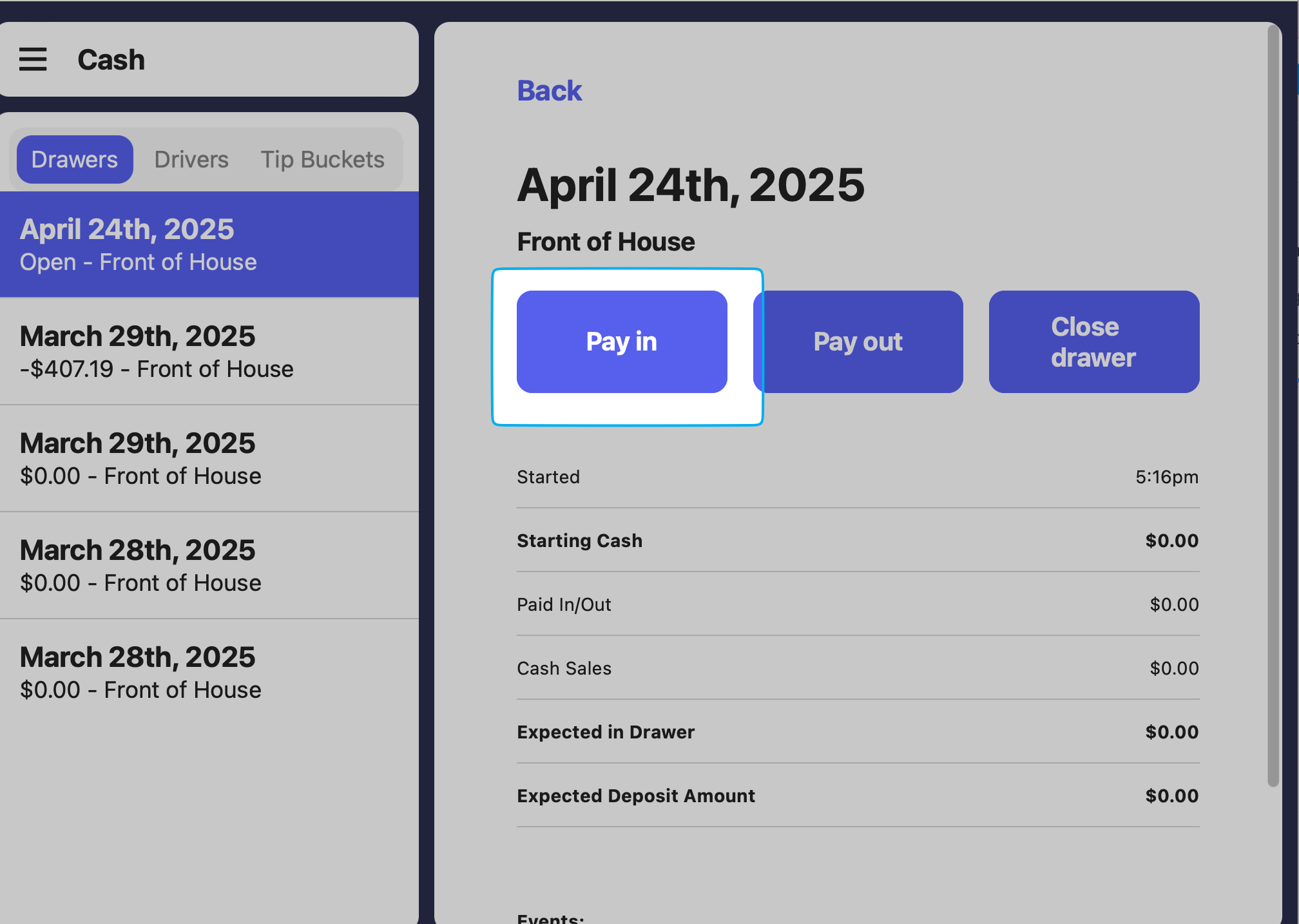
 The cash sale will be recorded in your reports, but it will not be reported in your cash drawer.
To record a pay in to your cash drawer, navigate to the open **Cash Drawer** on your Point of Sale and press **Pay In** to track the billing account payment in your drawer.
The cash sale will be recorded in your reports, but it will not be reported in your cash drawer.
To record a pay in to your cash drawer, navigate to the open **Cash Drawer** on your Point of Sale and press **Pay In** to track the billing account payment in your drawer.
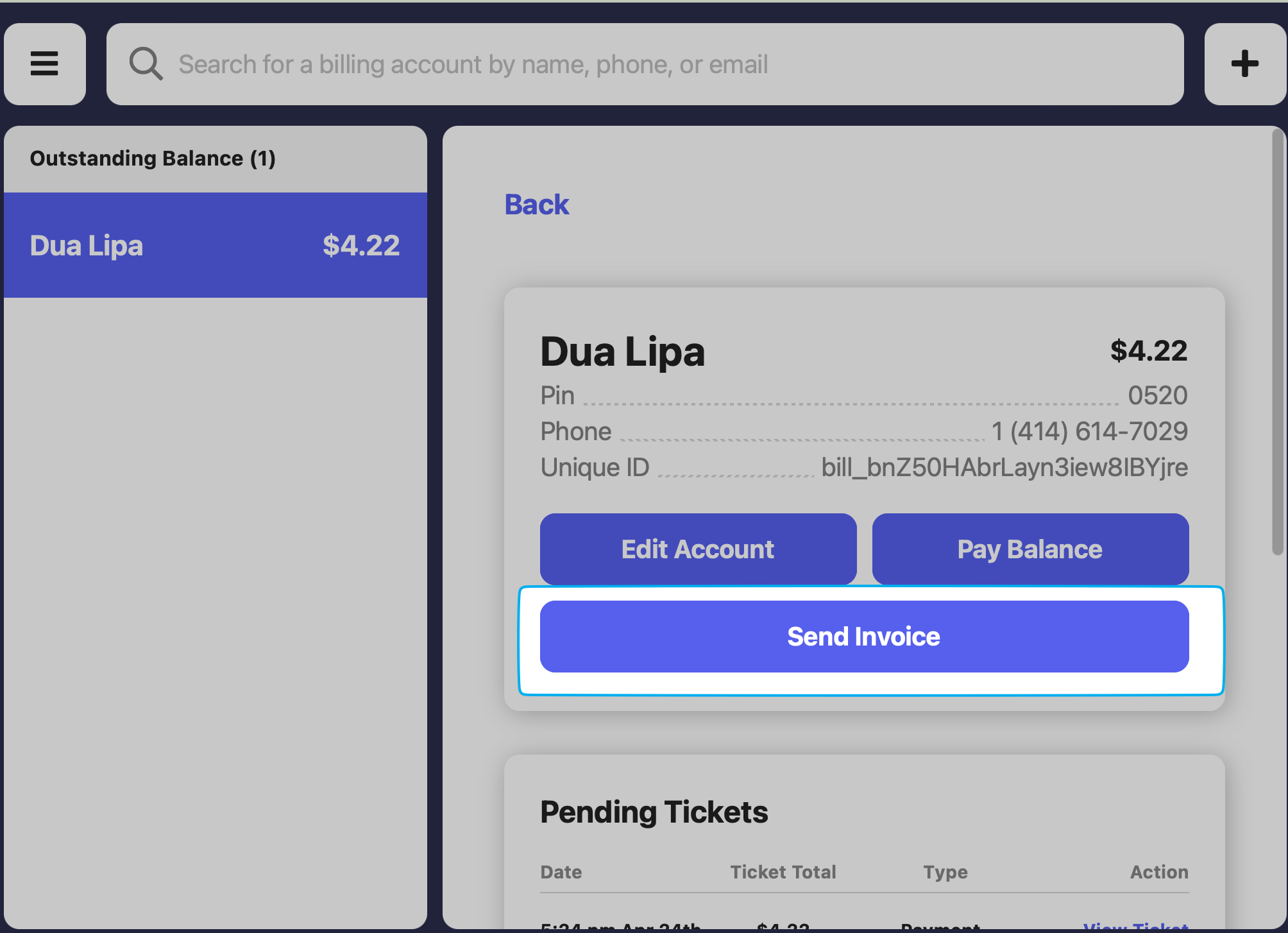
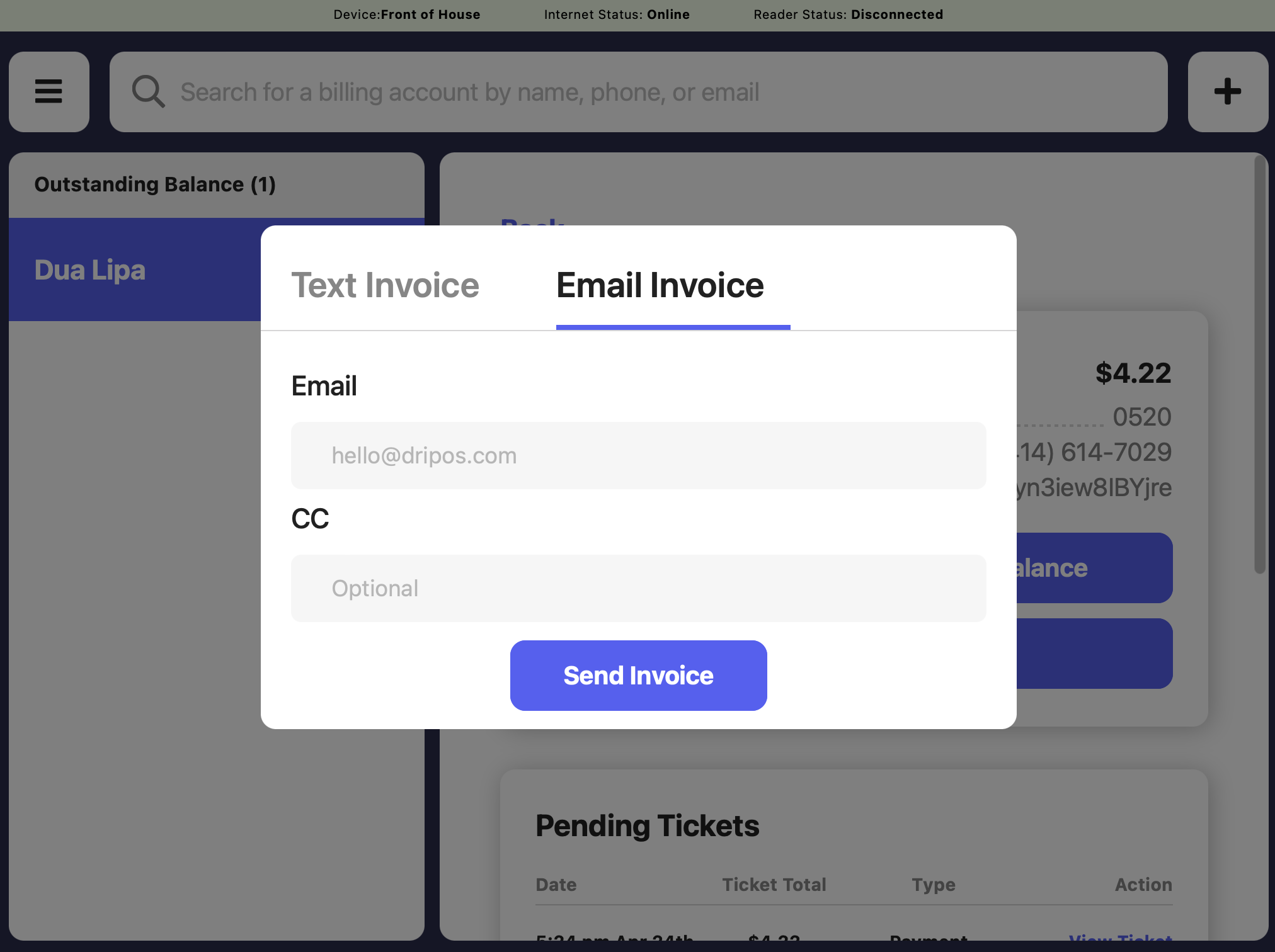
 4. To send an invoice with a payment link to the email or phone number attached instead, click **Send Invoice**
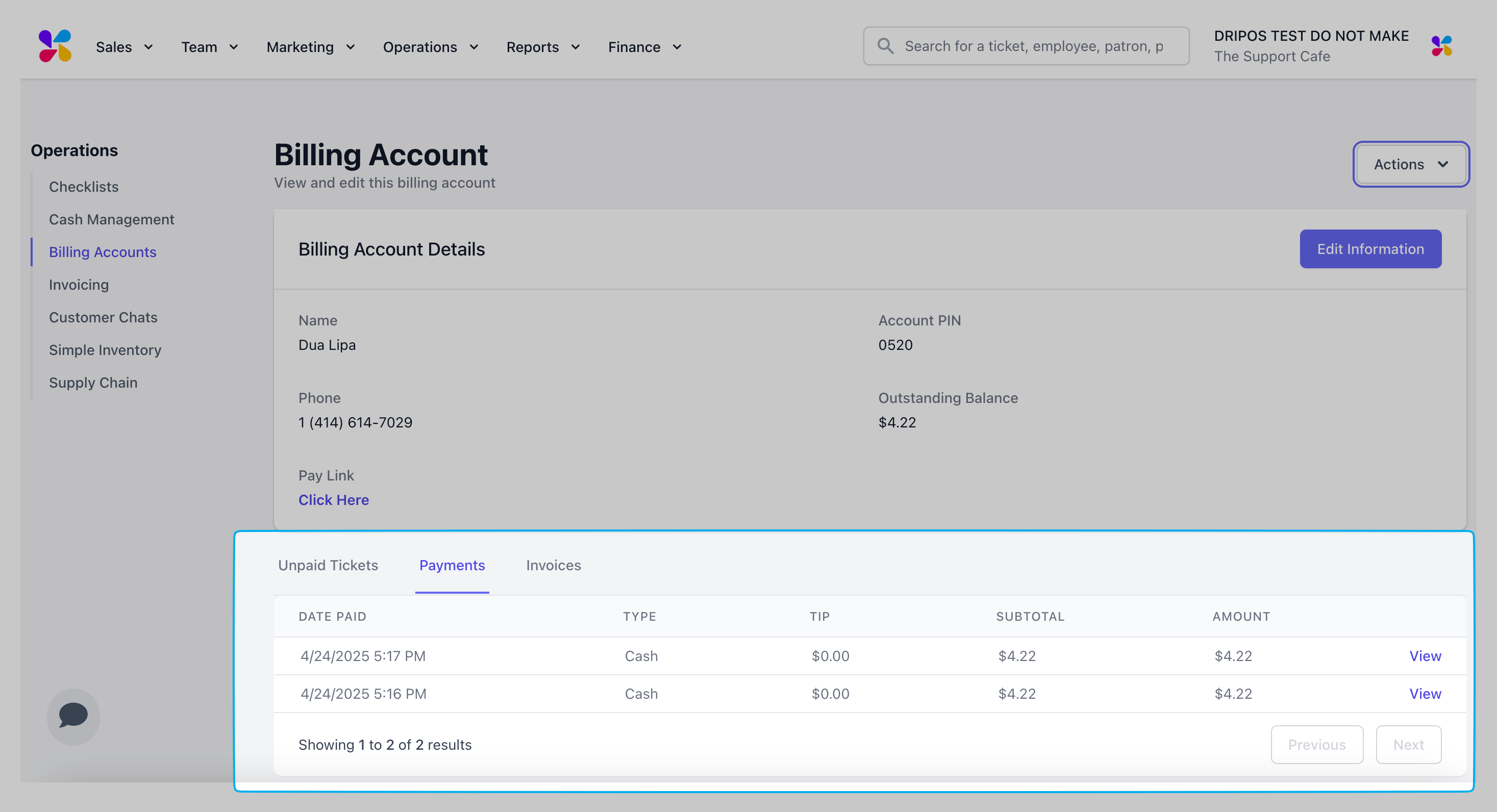
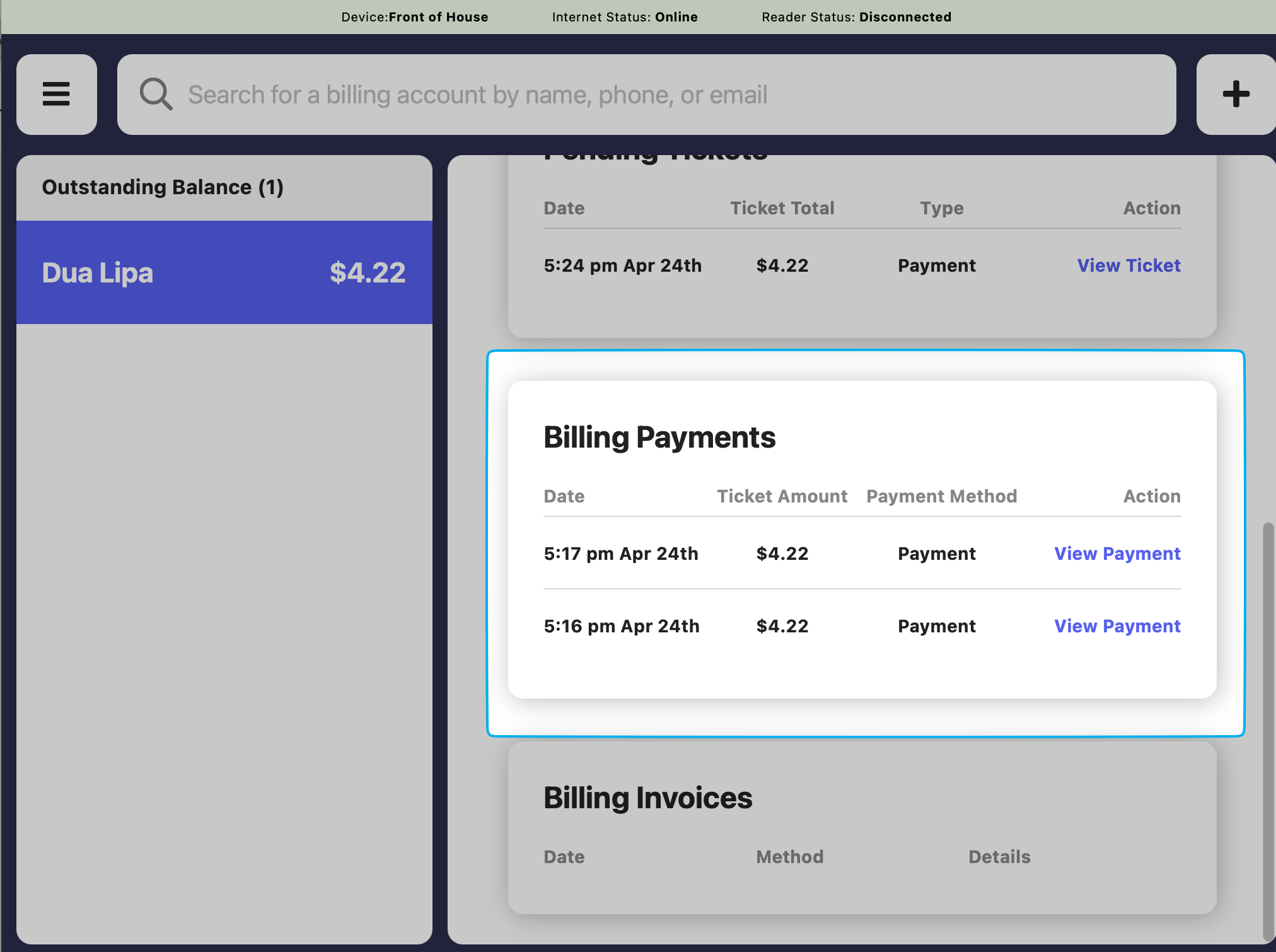
 5. View all completed payments here:
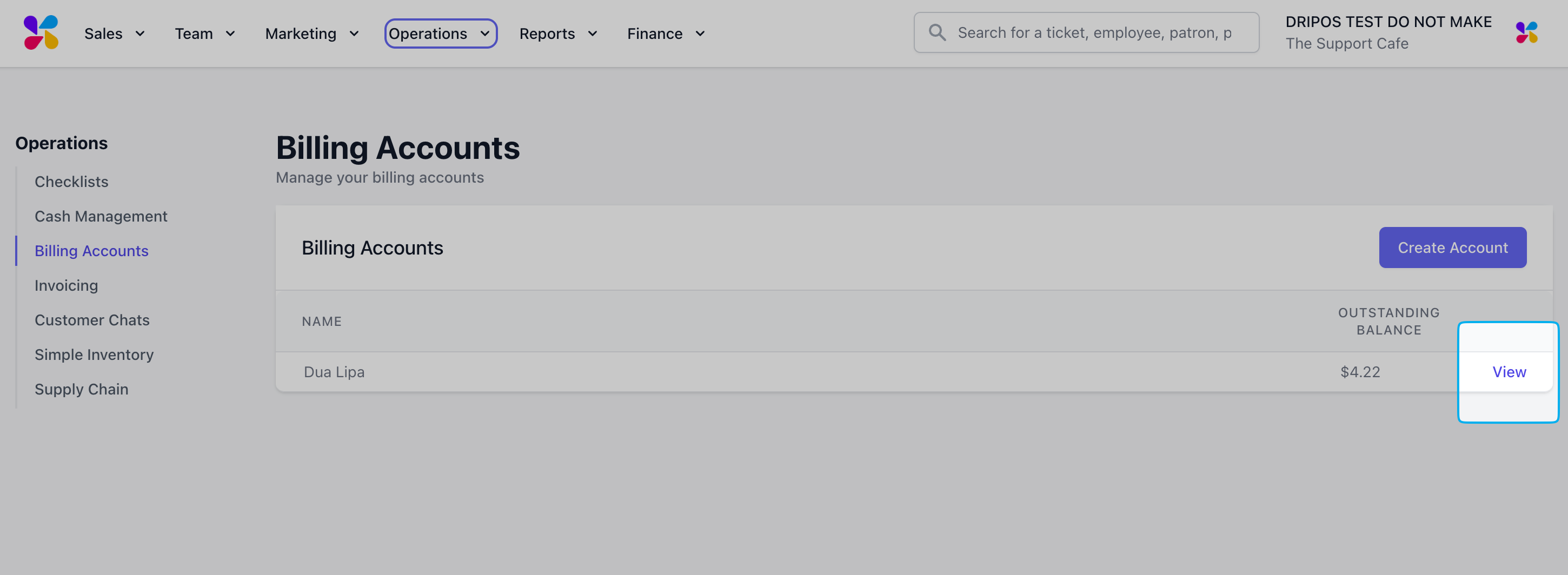
 1. Under **Operations** > **Billing Accounts** > click **View** on the billing account
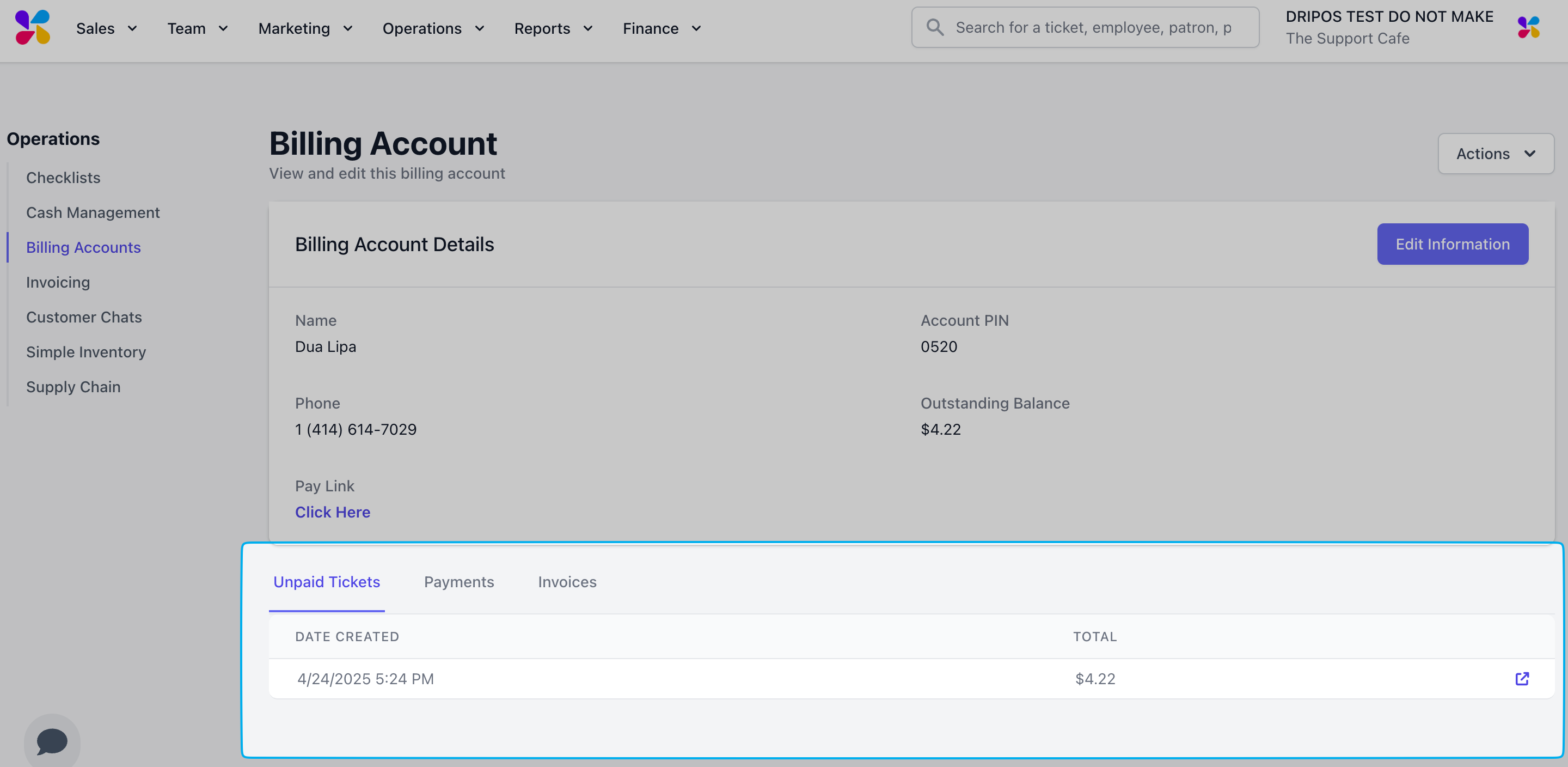
 2. View all unpaid tickets here:
 3. Click **Actions** > select one of the payment options listed:
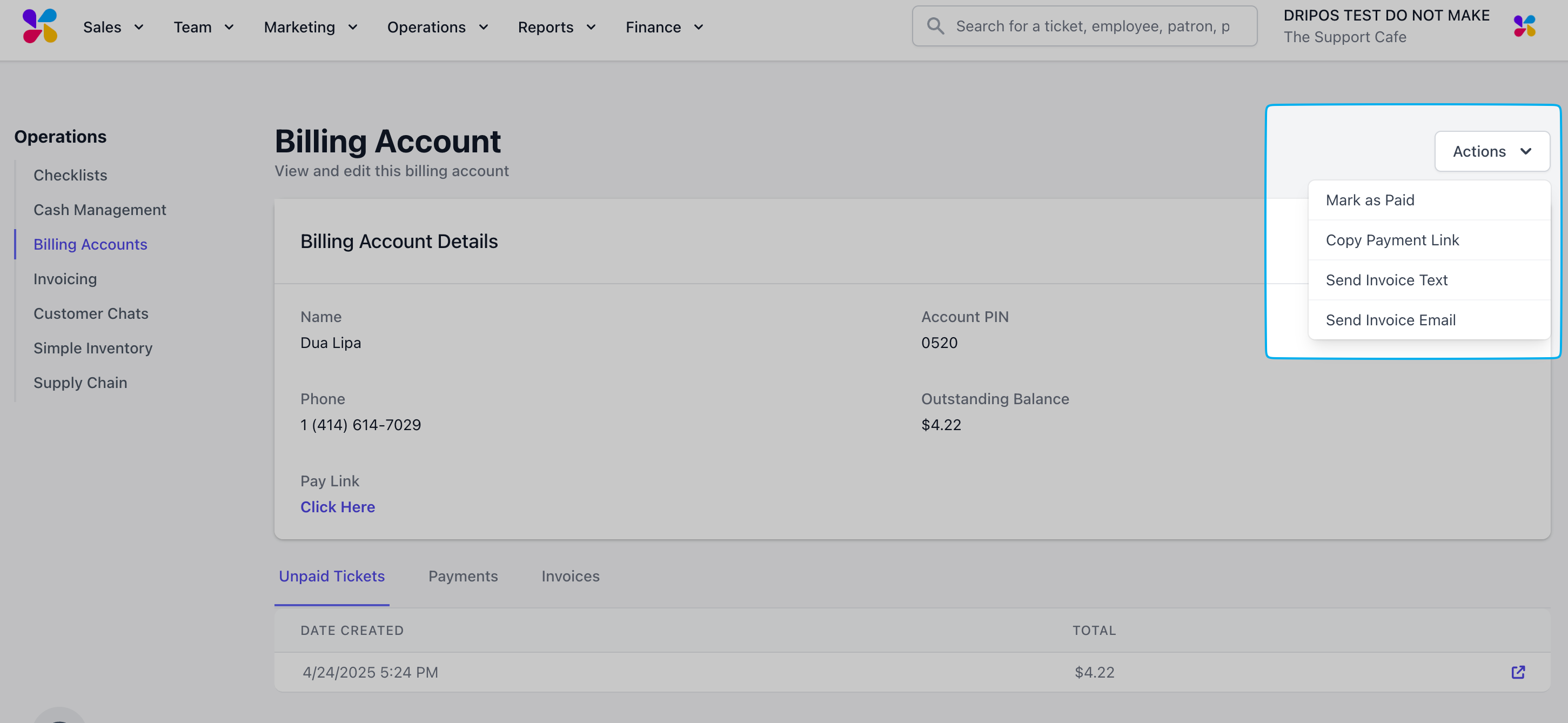 > **Mark as Paid**: Mark the invoice as paid if you've collected payment elsewhere
>
> **Copy Payment Link**: Copy the URL to the payment link
>
> **Send Invoice Text**: Send the billing account invoice payment link to the number on file
>
> **Send Invoice Email**: Send the billing account invoice payment link to the email on file
4. View all completed payments here:
> **Mark as Paid**: Mark the invoice as paid if you've collected payment elsewhere
>
> **Copy Payment Link**: Copy the URL to the payment link
>
> **Send Invoice Text**: Send the billing account invoice payment link to the number on file
>
> **Send Invoice Email**: Send the billing account invoice payment link to the email on file
4. View all completed payments here: