> ## Documentation Index
> Fetch the complete documentation index at: https://support.dripos.com/llms.txt
> Use this file to discover all available pages before exploring further.
# Setup Basics
> Learn how to set up a cash management system with Dripos
## Overview
Press the **tribar** in the upper left screen corner > **Cash** to access your cash drawers
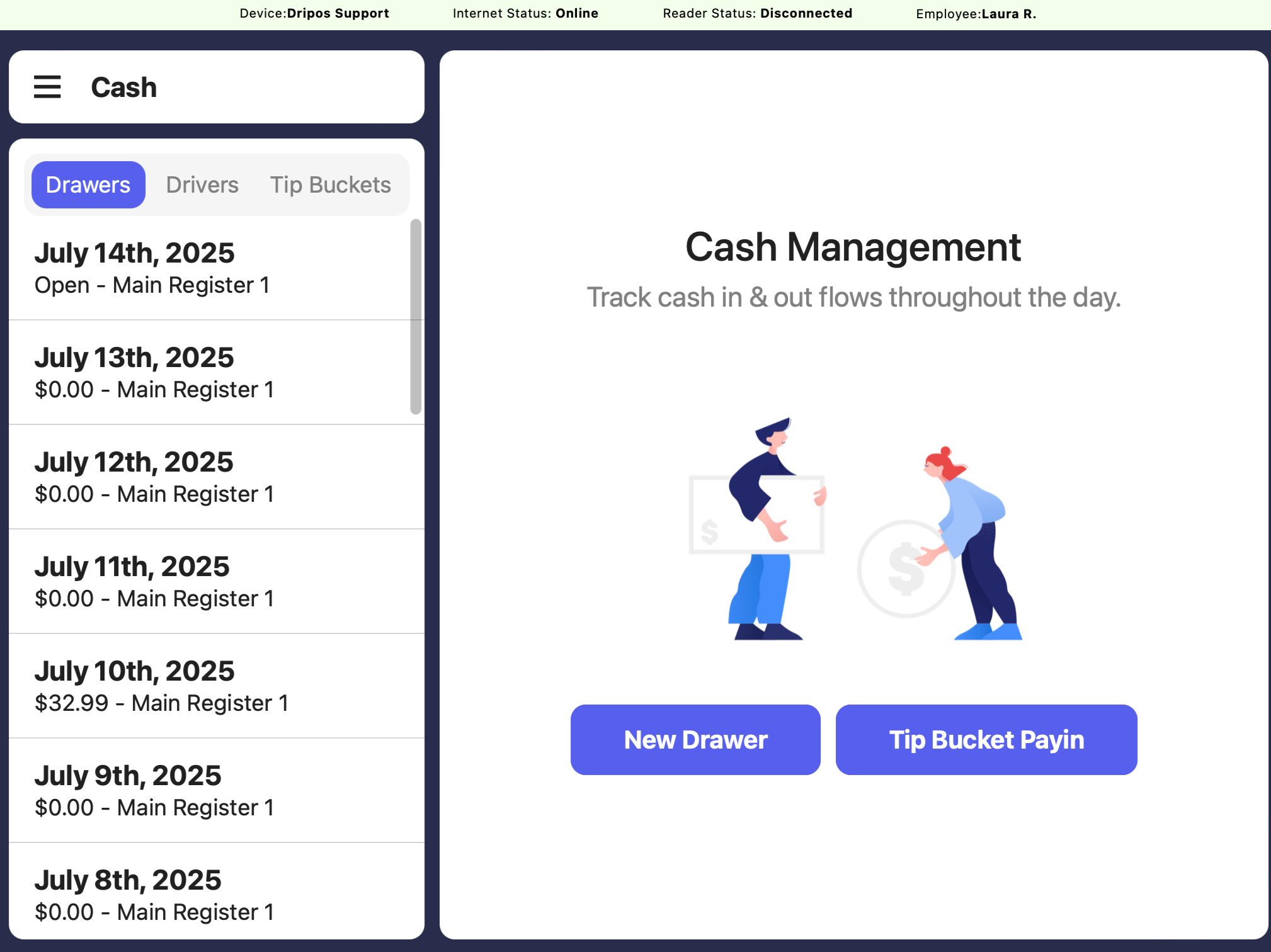 Open a new cash drawer at the start of every business day
Combine your cash and card tips into one tip pool
View all open and closed cash drawers under **Drawers**
View all tip bucket payin activity under **Tip Buckets**
***
## Open a Cash Drawer
Start each day with a new cash drawer to keep track of money movement throughout the day
Tap **New Drawer** and enter the starting amount of cash you are starting with in the drawer > press Submit
Open a new cash drawer at the start of every business day
Combine your cash and card tips into one tip pool
View all open and closed cash drawers under **Drawers**
View all tip bucket payin activity under **Tip Buckets**
***
## Open a Cash Drawer
Start each day with a new cash drawer to keep track of money movement throughout the day
Tap **New Drawer** and enter the starting amount of cash you are starting with in the drawer > press Submit
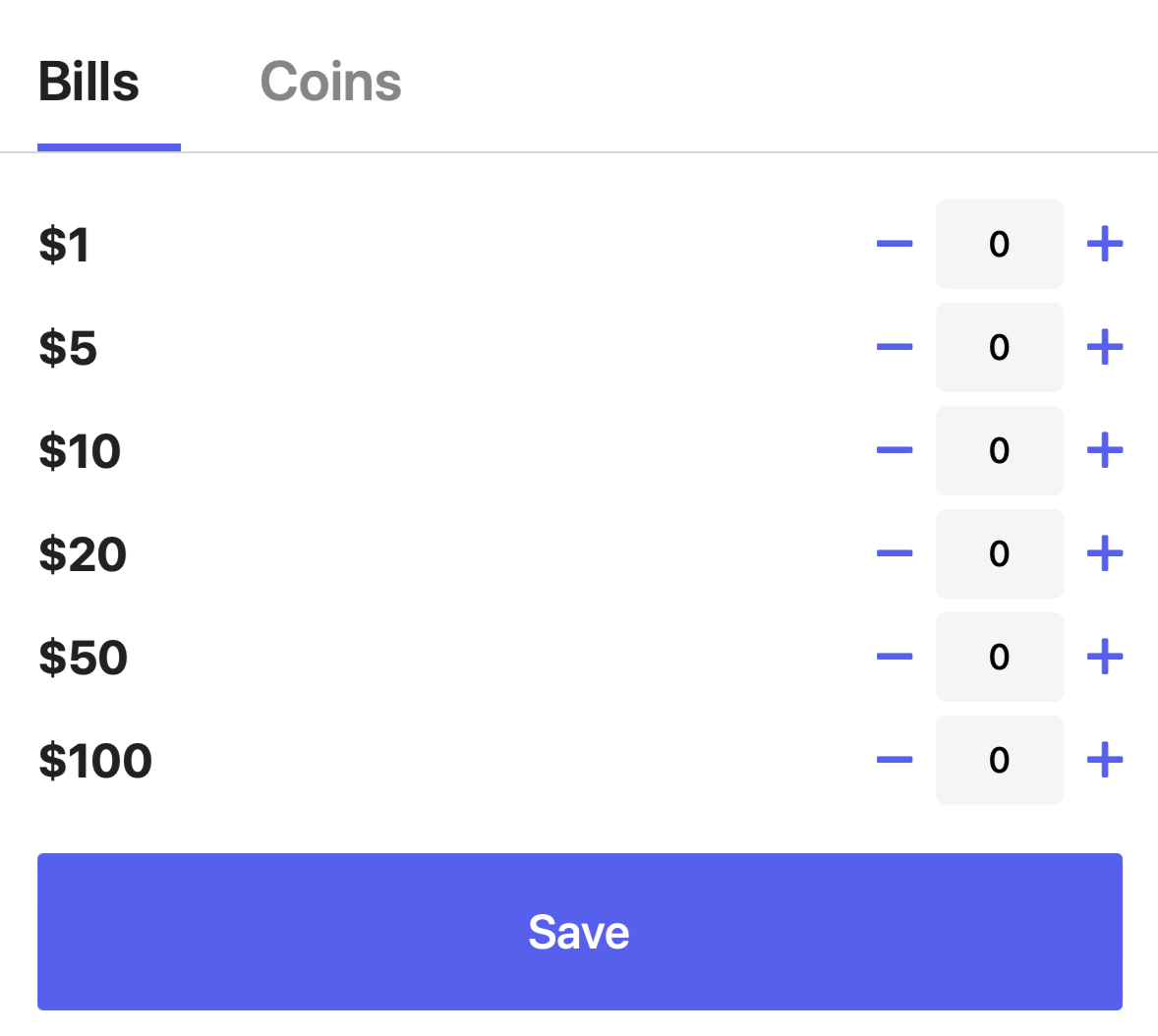
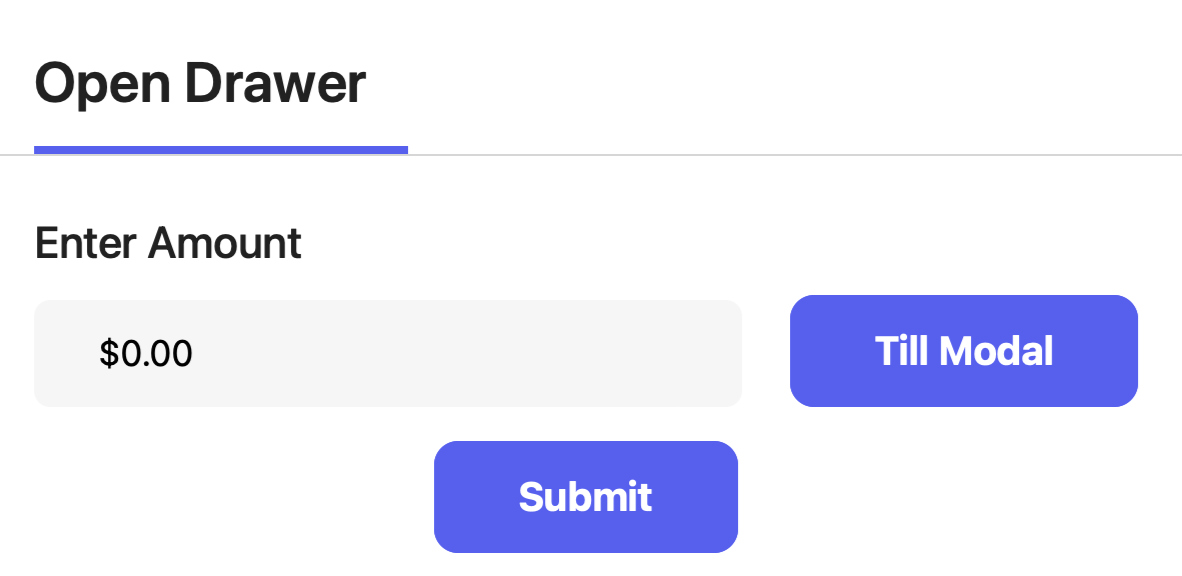 An alternative option is to tap **Till Modal** to enter the starting amount of cash by specific bills
 ***
## Understand Cash Drawers
***
## Understand Cash Drawers
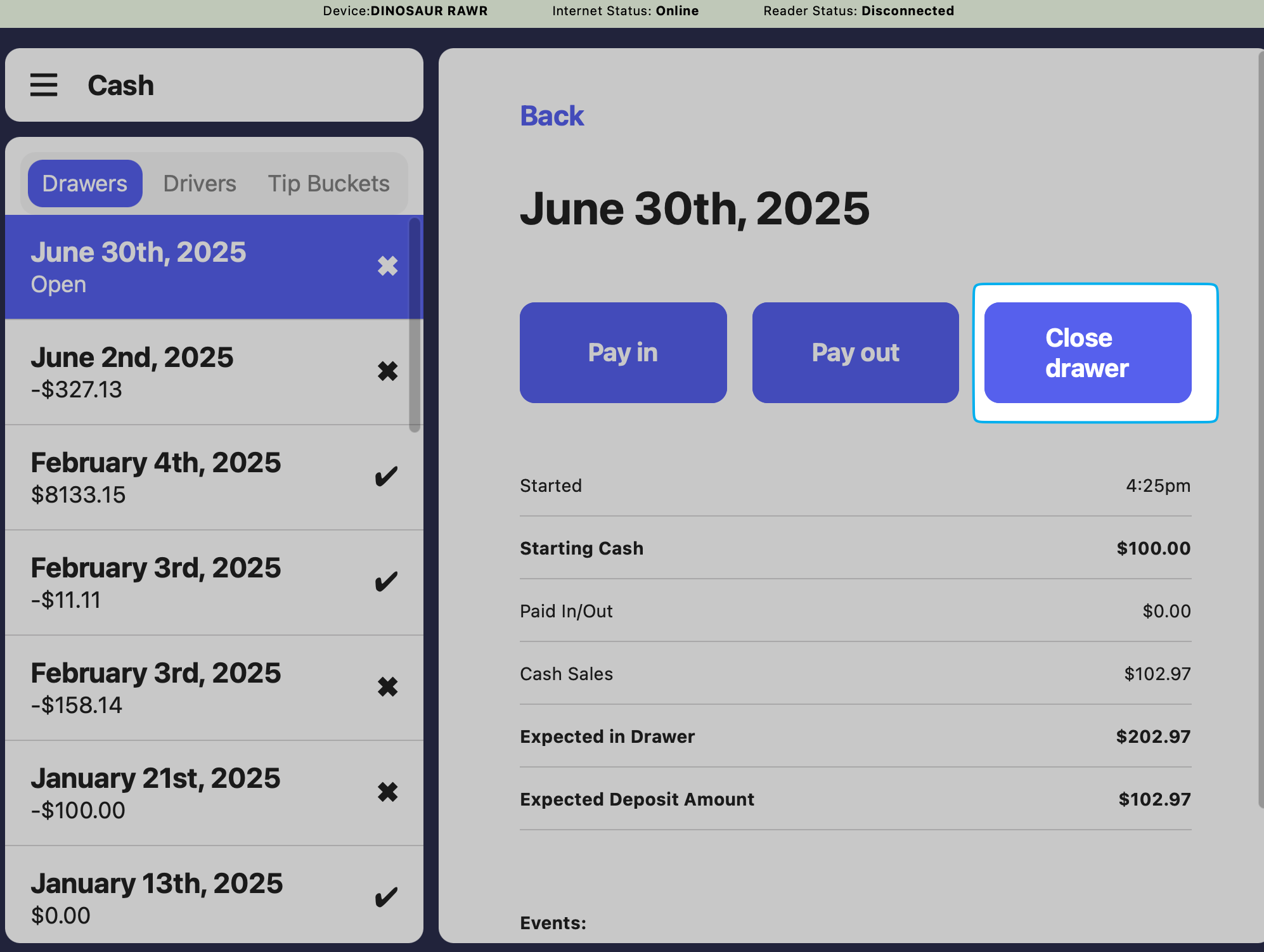
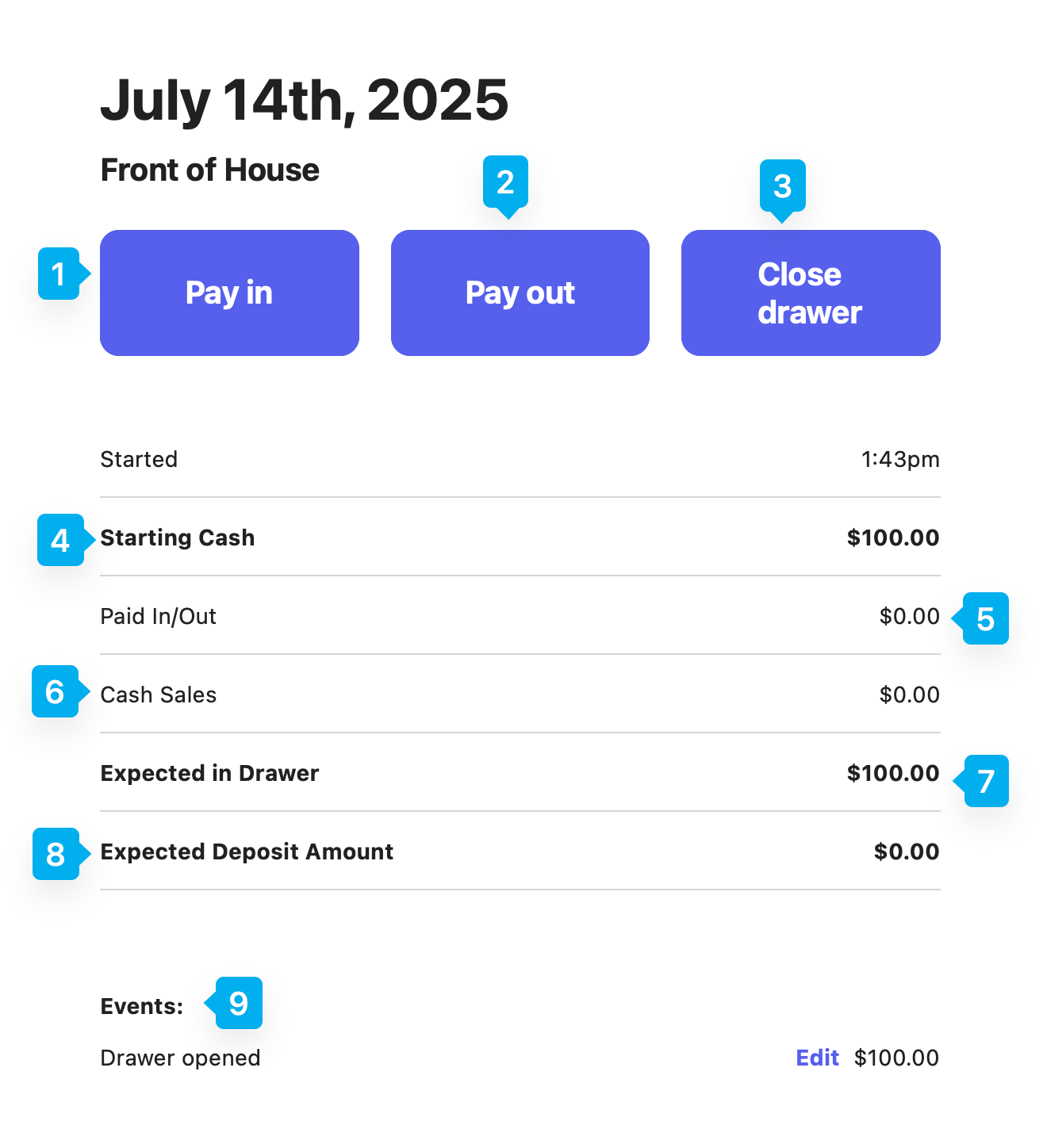 Document when cash put into the drawer (not a sale), i.e. change from grabbing milk at the grocery store
Document when cash is taken out of the drawer for business purposes, i.e. to go to the store to grab a gallon of milk
Press to close a drawer at the end of the day
Initial amount of cash the drawer had upon opening
Total balance of pay ins and pay outs
Total cash sales on the POS since the drawer was opened
Based on the starting cash, pay ins/out, and cash sales
Based on if the same starting cash amount is to remain in the drawer after closing (Expected In Drawer - Starting Cash)
All events except sales, including drawer opening and closing, tip bucket pay ins, and other pay ins and pay outs.
***
## Close a Cash Drawer
Close a cash drawer at the end of every day, or at the start of a shift change - whichever makes the most sense for your business!
Find the open drawer and tap Close Drawer
Document when cash put into the drawer (not a sale), i.e. change from grabbing milk at the grocery store
Document when cash is taken out of the drawer for business purposes, i.e. to go to the store to grab a gallon of milk
Press to close a drawer at the end of the day
Initial amount of cash the drawer had upon opening
Total balance of pay ins and pay outs
Total cash sales on the POS since the drawer was opened
Based on the starting cash, pay ins/out, and cash sales
Based on if the same starting cash amount is to remain in the drawer after closing (Expected In Drawer - Starting Cash)
All events except sales, including drawer opening and closing, tip bucket pay ins, and other pay ins and pay outs.
***
## Close a Cash Drawer
Close a cash drawer at the end of every day, or at the start of a shift change - whichever makes the most sense for your business!
Find the open drawer and tap Close Drawer
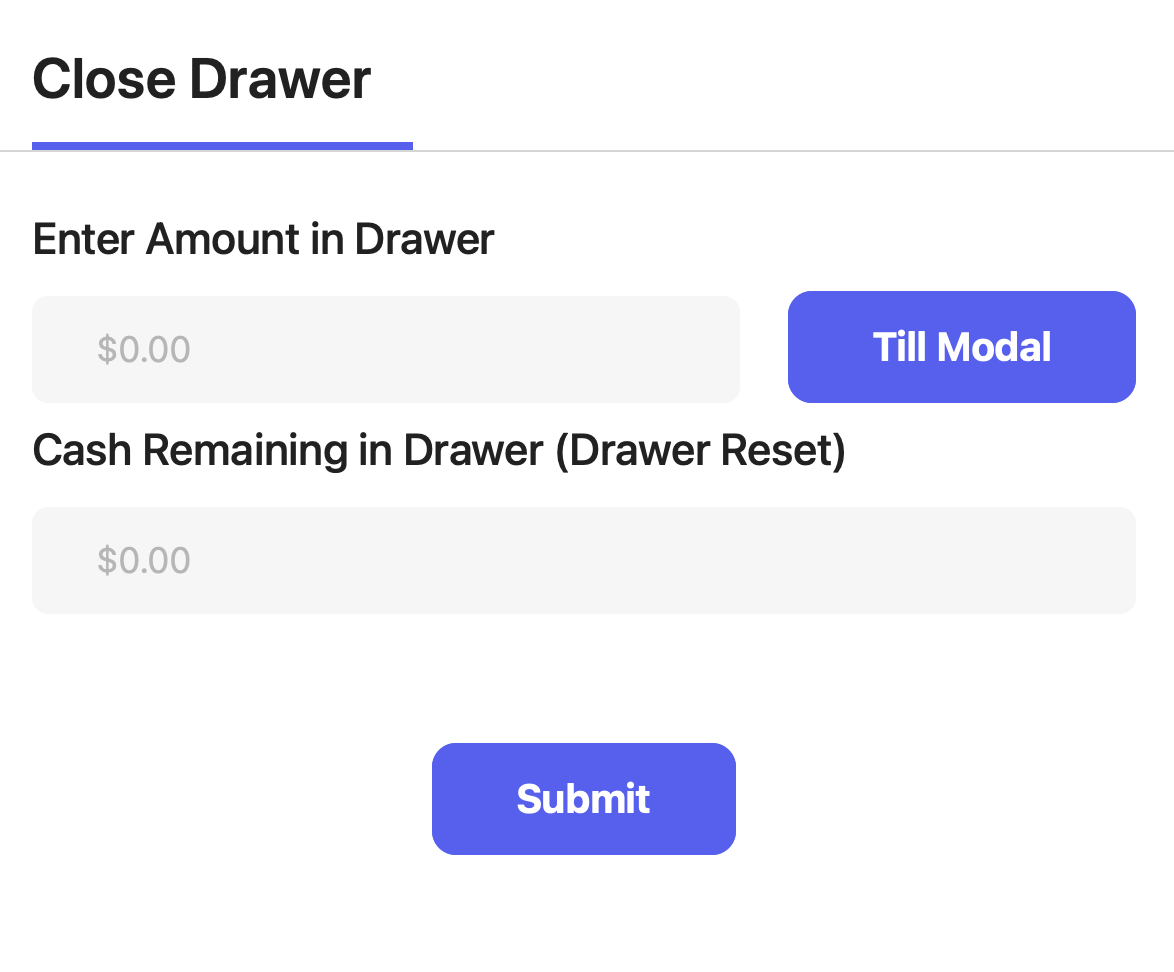
 **Enter Amount in Drawer**: The total amount of cash counted in the drawer at closing
**Drawer Reset**: Amount of cash to leave in the drawer for the next opener
**Enter Amount in Drawer**: The total amount of cash counted in the drawer at closing
**Drawer Reset**: Amount of cash to leave in the drawer for the next opener
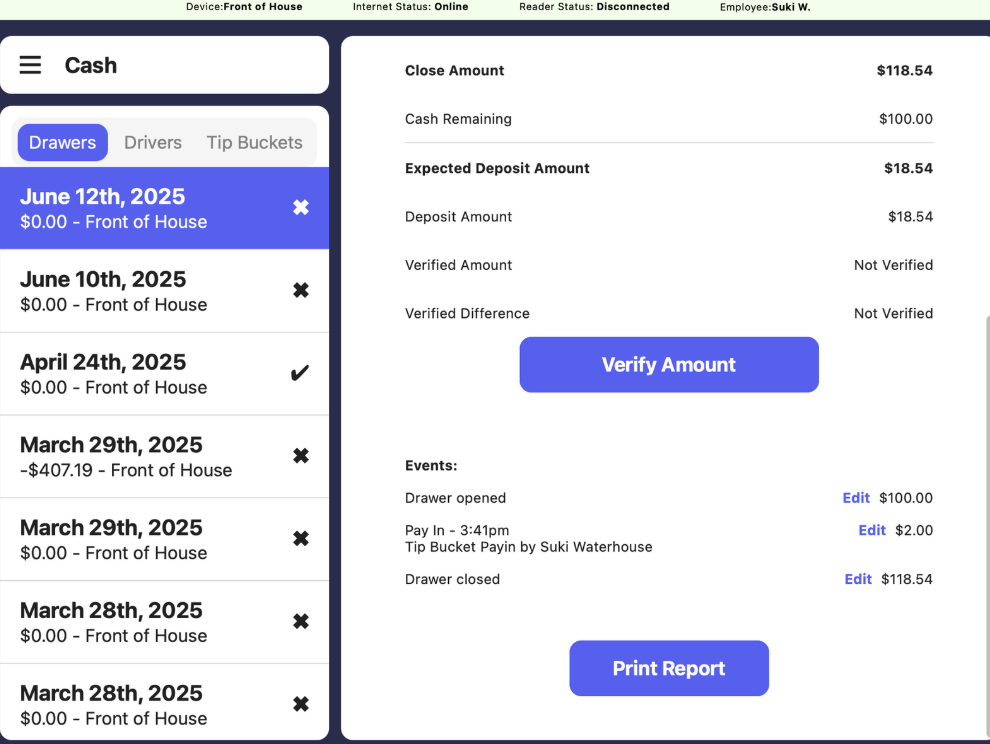
 **Verify Amount**: Confirm the amount counted in the drawer at closing
**Print Report**: Print the cash drawer report with each line item listed
**Print Report** will only appear on the host device that the printer is connected to.
**Verify Amount**: Confirm the amount counted in the drawer at closing
**Print Report**: Print the cash drawer report with each line item listed
**Print Report** will only appear on the host device that the printer is connected to.
 ***
## View & Edit Cash Drawers
***
## View & Edit Cash Drawers