> ## Documentation Index
> Fetch the complete documentation index at: https://support.dripos.com/llms.txt
> Use this file to discover all available pages before exploring further.

# Invoice Actions

> View, manage and refund invoices

## View Invoices

Learn how to view, edit, and manage invoices through different actions

<Accordion title="How to View & Edit Existing Invoices">
  <Steps>
    <Step title="">
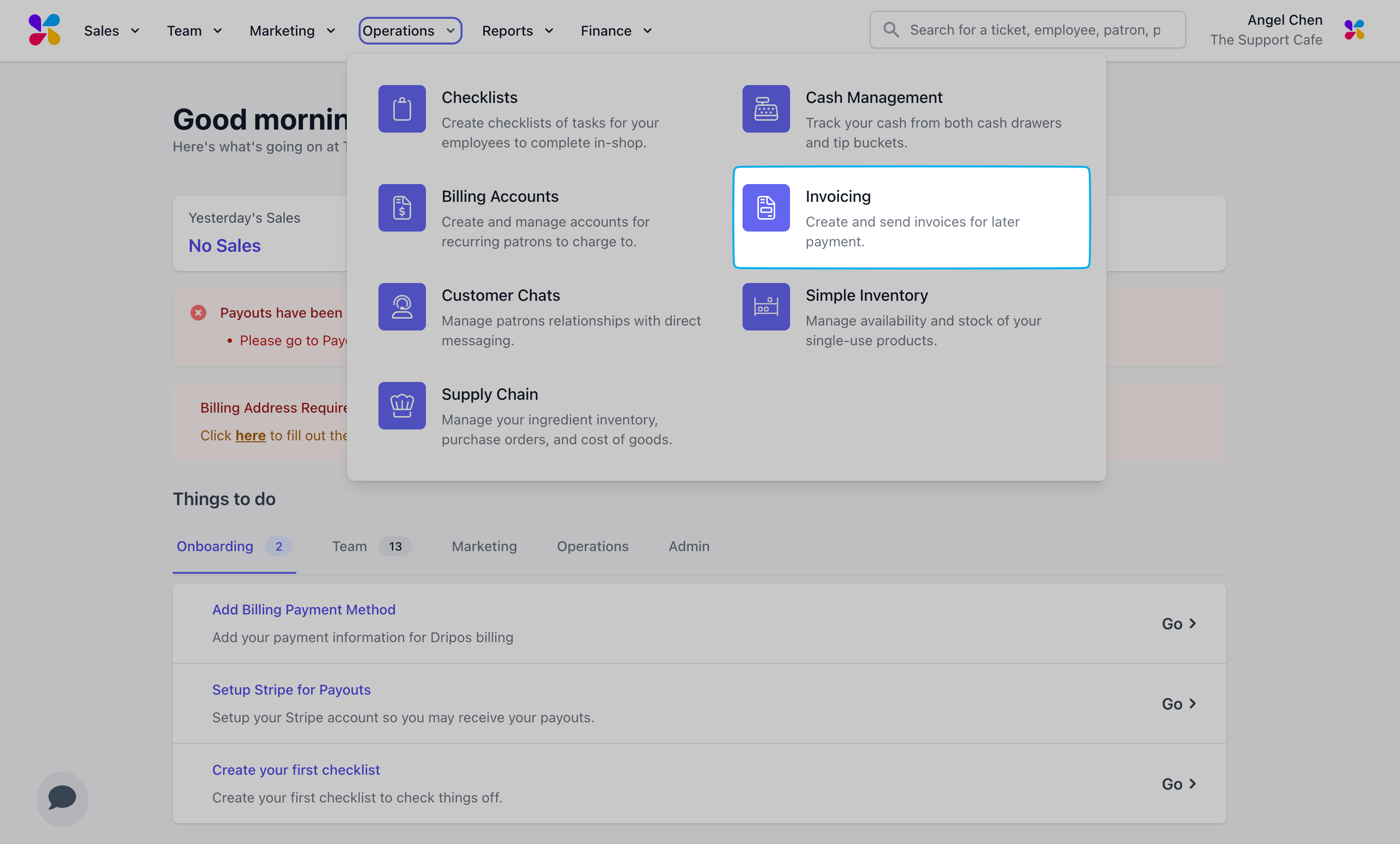
      Log in to the Dashboard and navigate to **Operations** > **Invoicing**
      <Frame>
        <img src="https://mintcdn.com/frostbytetechnologiesinc/Q3wq0FmCbBn5Z8Wt/images/orders/Invoicing/create1.png?fit=max&auto=format&n=Q3wq0FmCbBn5Z8Wt&q=85&s=921d6bc8d65938fcd2dd7f5e3fc4f1b7" width="2830" height="1706" data-path="images/orders/Invoicing/create1.png" />
      </Frame>
    </Step>

    <Step title="">
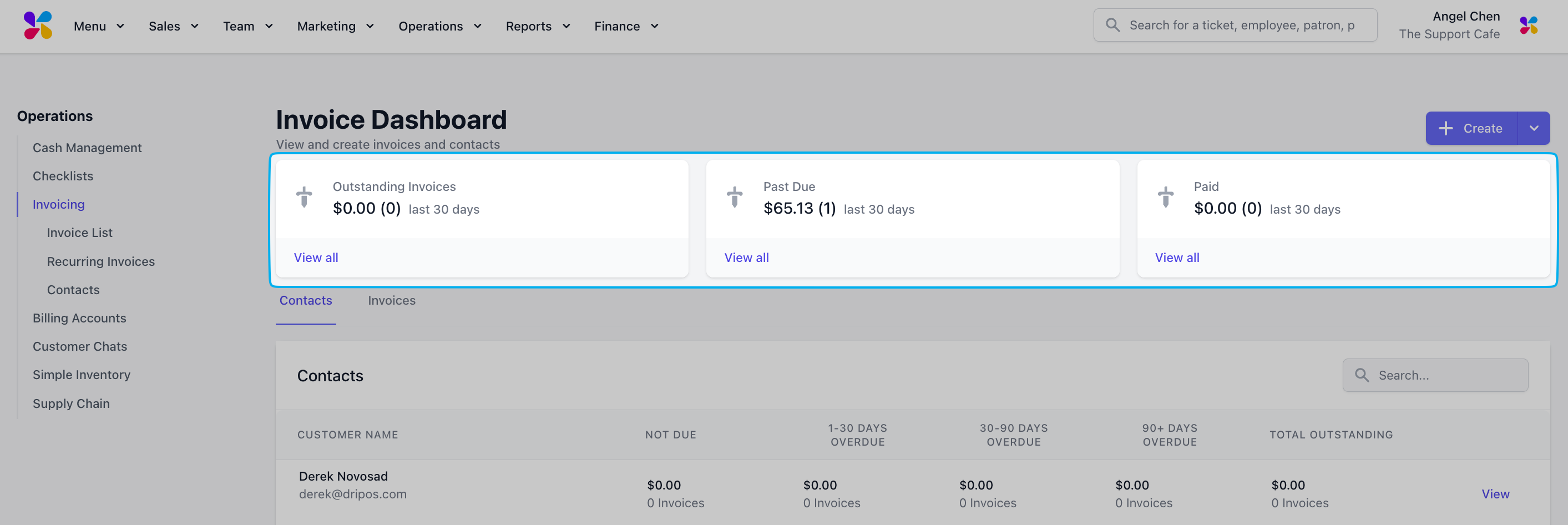
      On this page, you can View all for **Outstanding**, **Past Due**, and **Paid invoices**
      <Frame>
        <img src="https://mintcdn.com/frostbytetechnologiesinc/HrzBvcr2ZemoYKGF/images/orders/Invoicing/view1.png?fit=max&auto=format&n=HrzBvcr2ZemoYKGF&q=85&s=6dbc6347b20041801a7807acf2d28197" width="2826" height="946" data-path="images/orders/Invoicing/view1.png" />
      </Frame>
    </Step>

    <Step title="">
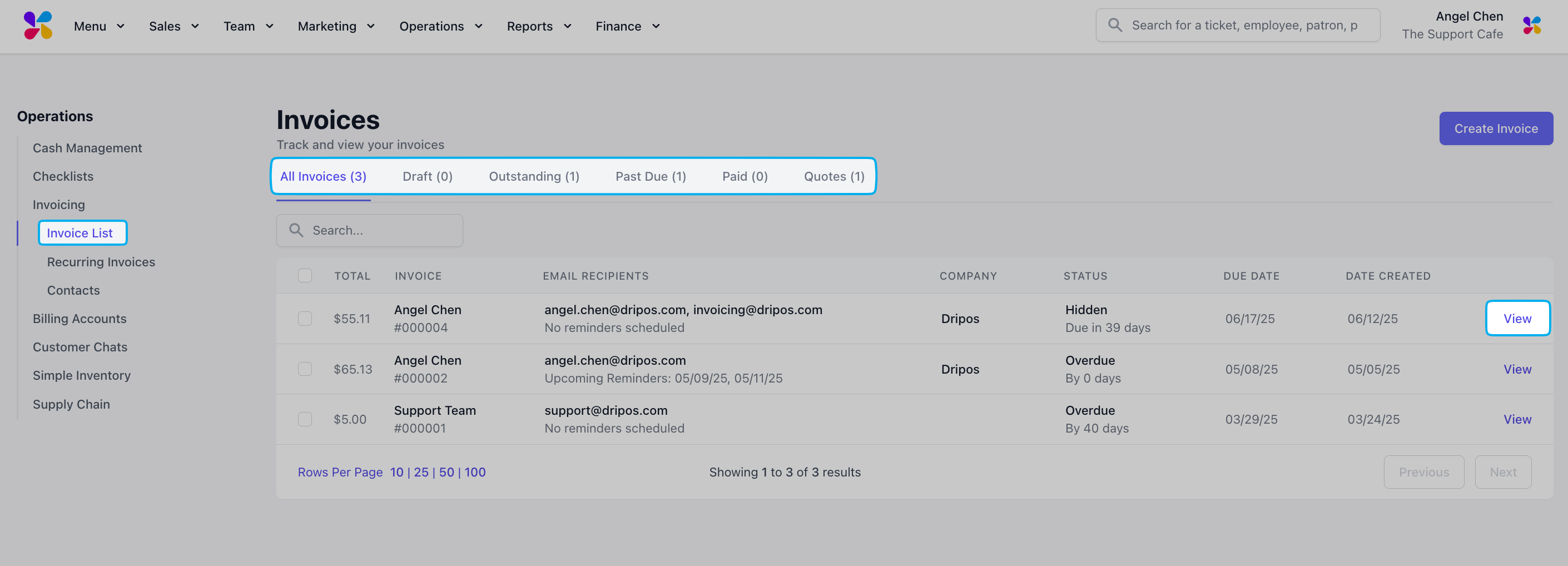
      Navigate to **Invoice List** and select the **All Invoices**, **Draft**, **Outstanding**, **Past Due**, **Paid**, or **Quotes** tab to View a specific invoice
      <Frame>
        <img src="https://mintcdn.com/frostbytetechnologiesinc/Q3wq0FmCbBn5Z8Wt/images/orders/Invoicing/action1.png?fit=max&auto=format&n=Q3wq0FmCbBn5Z8Wt&q=85&s=5b70423bbfdcacde77811c434c487f86" width="2820" height="1018" data-path="images/orders/Invoicing/action1.png" />
      </Frame>
    </Step>

    <Step title="">
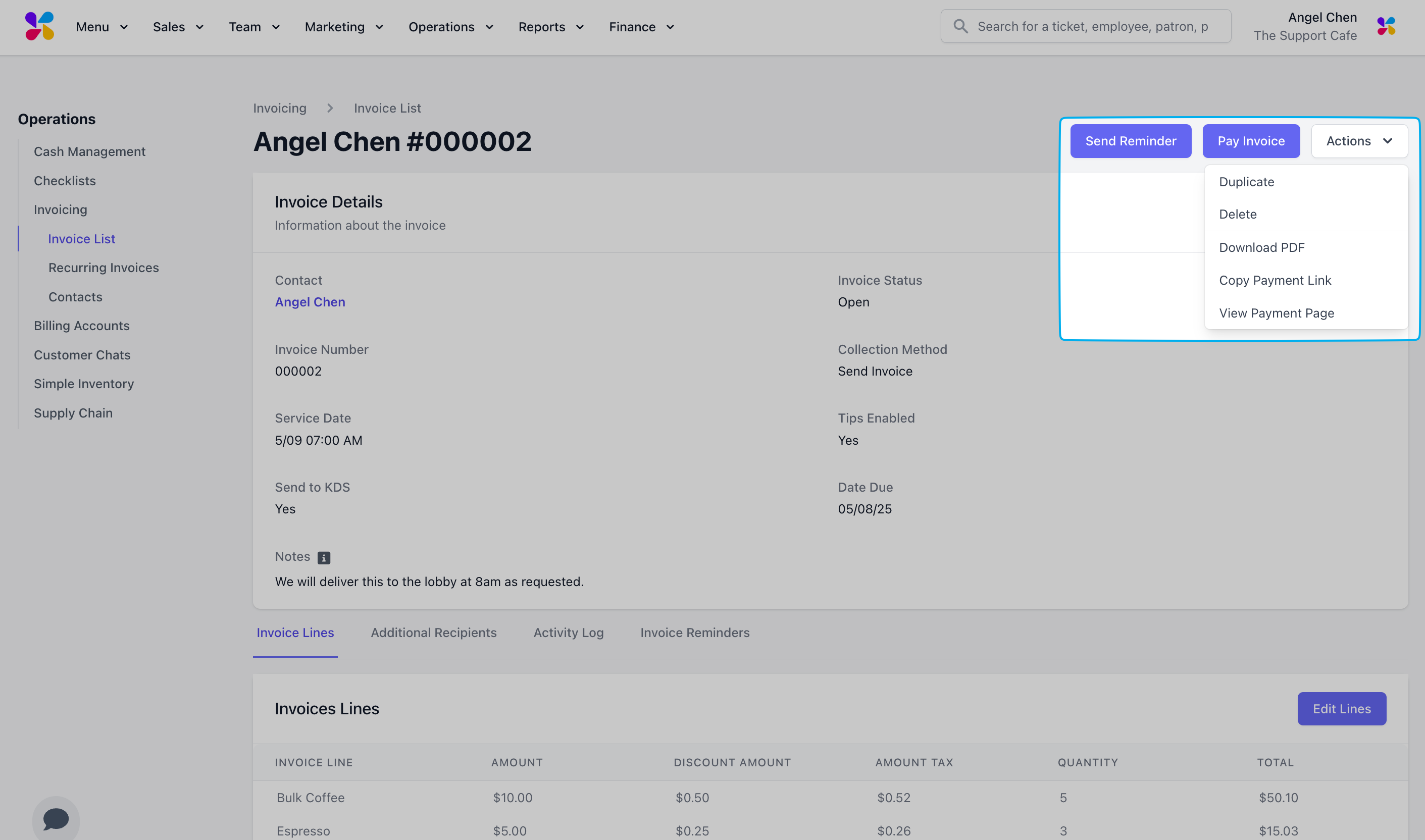
      Send a reminder or pay off an outstanding invoice
      <Frame>
        <img src="https://mintcdn.com/frostbytetechnologiesinc/Q3wq0FmCbBn5Z8Wt/images/orders/Invoicing/action2.png?fit=max&auto=format&n=Q3wq0FmCbBn5Z8Wt&q=85&s=7a83e2ecf372368548d9274f7c1ec24c" width="2822" height="1664" data-path="images/orders/Invoicing/action2.png" />
      </Frame>

      > **Send Reminder**: Send an email reminder to the contact and any additional recipients

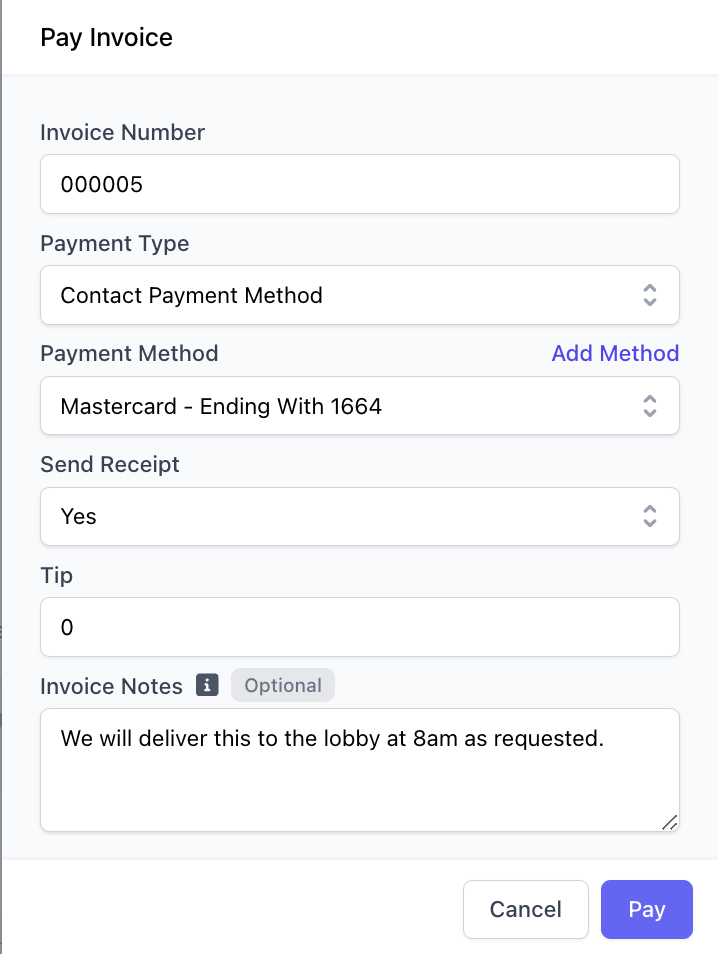
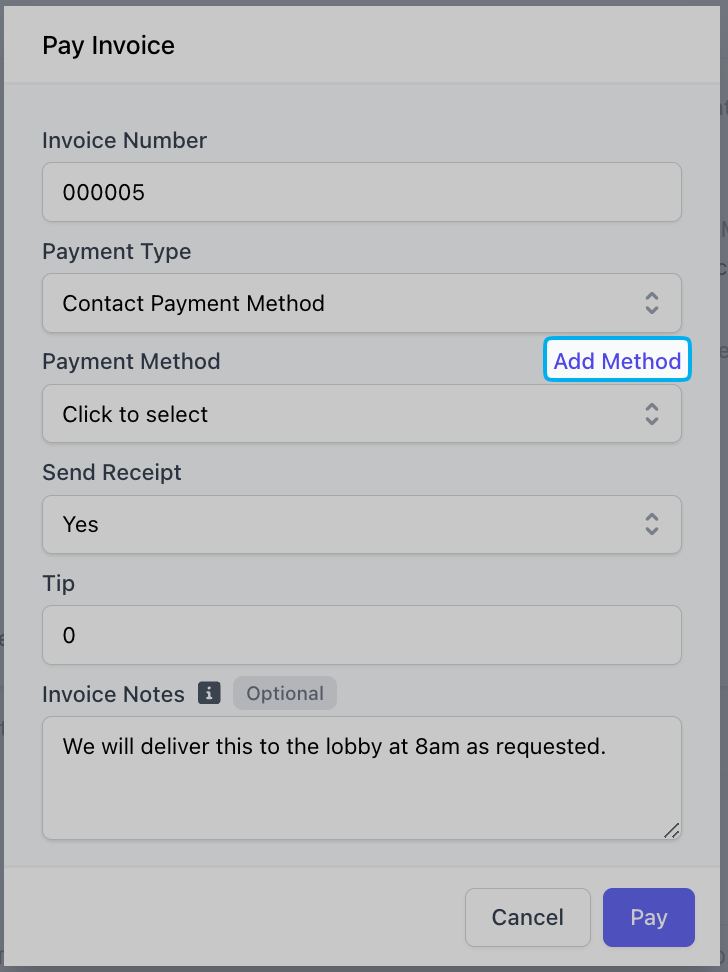
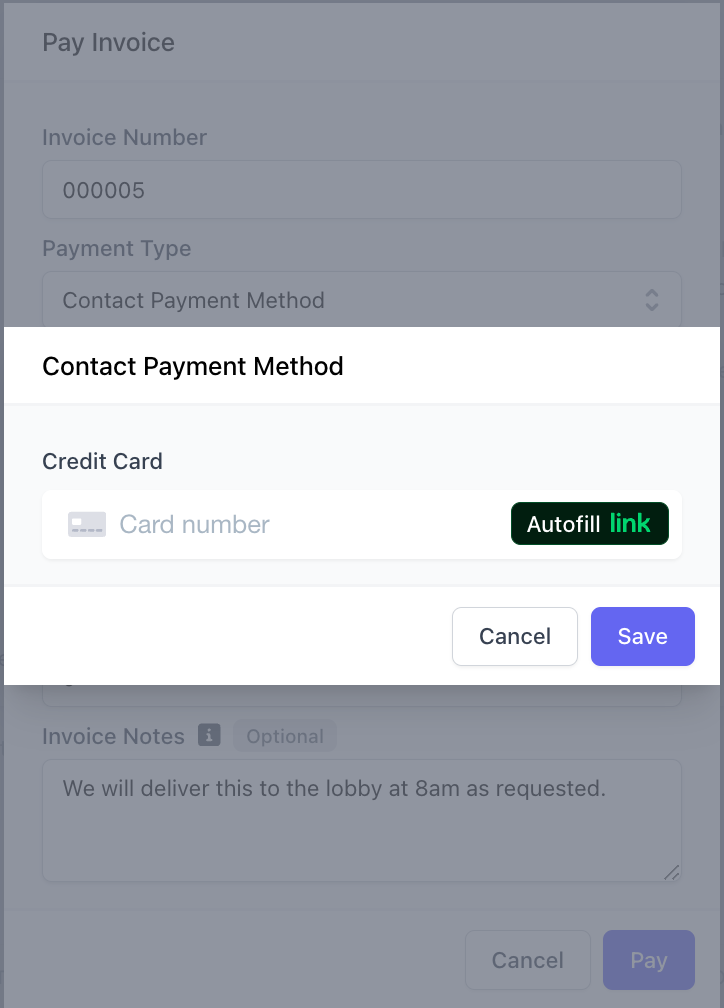
      > **Pay Invoice**: Pay the invoice via Contact Payment Method, Check, or Cash.
      <Frame>
        <img src="https://mintcdn.com/frostbytetechnologiesinc/HrzBvcr2ZemoYKGF/images/orders/Invoicing/pay4.png?fit=max&auto=format&n=HrzBvcr2ZemoYKGF&q=85&s=0c1ccc0eb021b9342e40367fa3d1ab34" width="728" height="972" data-path="images/orders/Invoicing/pay4.png" />
      </Frame>

      > Use **Add Method** to add and use a credit card for payment.
      <Frame>
        <img src="https://mintcdn.com/frostbytetechnologiesinc/HrzBvcr2ZemoYKGF/images/orders/Invoicing/pay5.png?fit=max&auto=format&n=HrzBvcr2ZemoYKGF&q=85&s=fc5caf420886342da5dc8074e1c31e0c" width="724" height="1008" data-path="images/orders/Invoicing/pay5.png" />
      </Frame>

      <Frame>
        <img src="https://mintcdn.com/frostbytetechnologiesinc/HrzBvcr2ZemoYKGF/images/orders/Invoicing/pay6.png?fit=max&auto=format&n=HrzBvcr2ZemoYKGF&q=85&s=f071dd4d531c5a406c8007a54cbe83b4" width="718" height="954" data-path="images/orders/Invoicing/pay6.png" />
      </Frame>
    </Step>

    <Step title="">
      Click the **Actions** dropdown in the top right corner for more options

      <Frame>
        <img src="https://mintcdn.com/frostbytetechnologiesinc/Q3wq0FmCbBn5Z8Wt/images/orders/Invoicing/action2.png?fit=max&auto=format&n=Q3wq0FmCbBn5Z8Wt&q=85&s=7a83e2ecf372368548d9274f7c1ec24c" width="2822" height="1664" data-path="images/orders/Invoicing/action2.png" />
      </Frame>

      > **Duplicate**: Recreate the invoice as a new invoice with the same recipient and invoice lines
      >
      > **Delete**: Delete the invoice
      >
      > **Download PDF**: Download the invoice as a PDF
      >
      > **Copy Payment Link**: Copy the payment link sent to the invoice contact
      >
      > **View Payment Page**: Visit the payment page used by the invoice contact to pay the outstanding balance
    </Step>

    <Step title="">
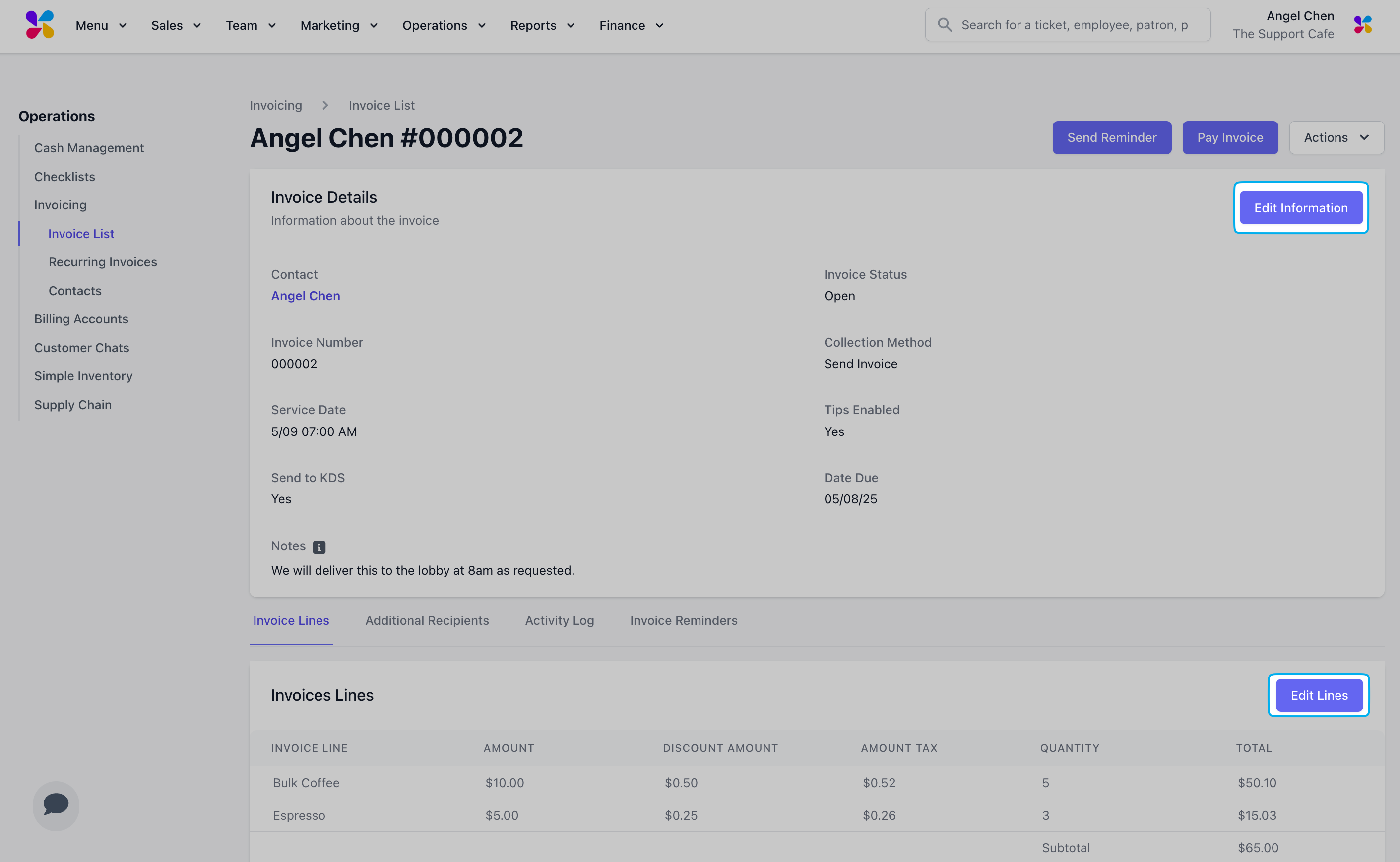
      Edit the invoice information or line items.
      <Frame>
        <img src="https://mintcdn.com/frostbytetechnologiesinc/Q3wq0FmCbBn5Z8Wt/images/orders/Invoicing/action3.png?fit=max&auto=format&n=Q3wq0FmCbBn5Z8Wt&q=85&s=95009ce6bbf523cc471f4510b84360aa" width="2822" height="1738" data-path="images/orders/Invoicing/action3.png" />
      </Frame>
    </Step>

    <Step title="">
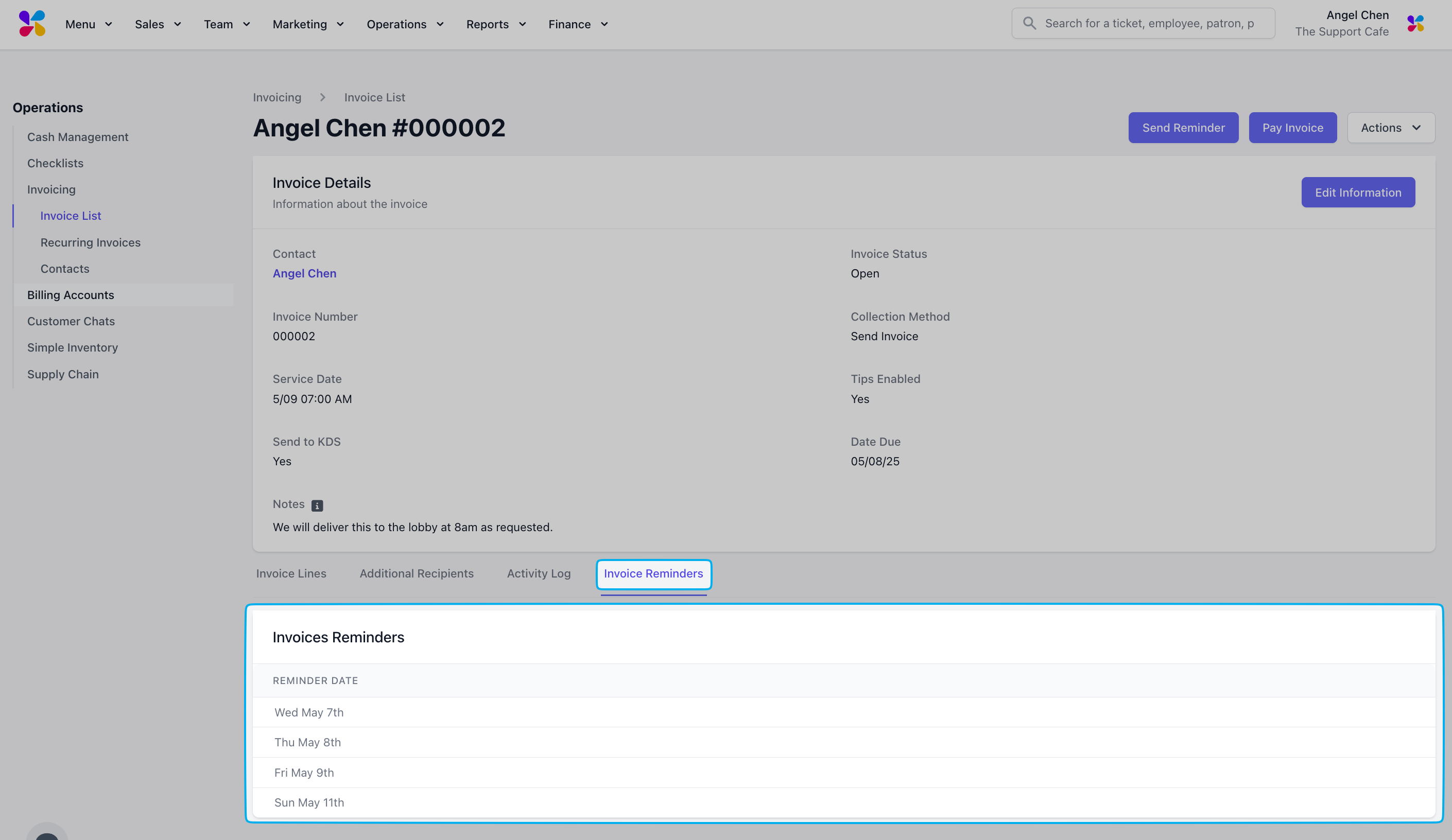
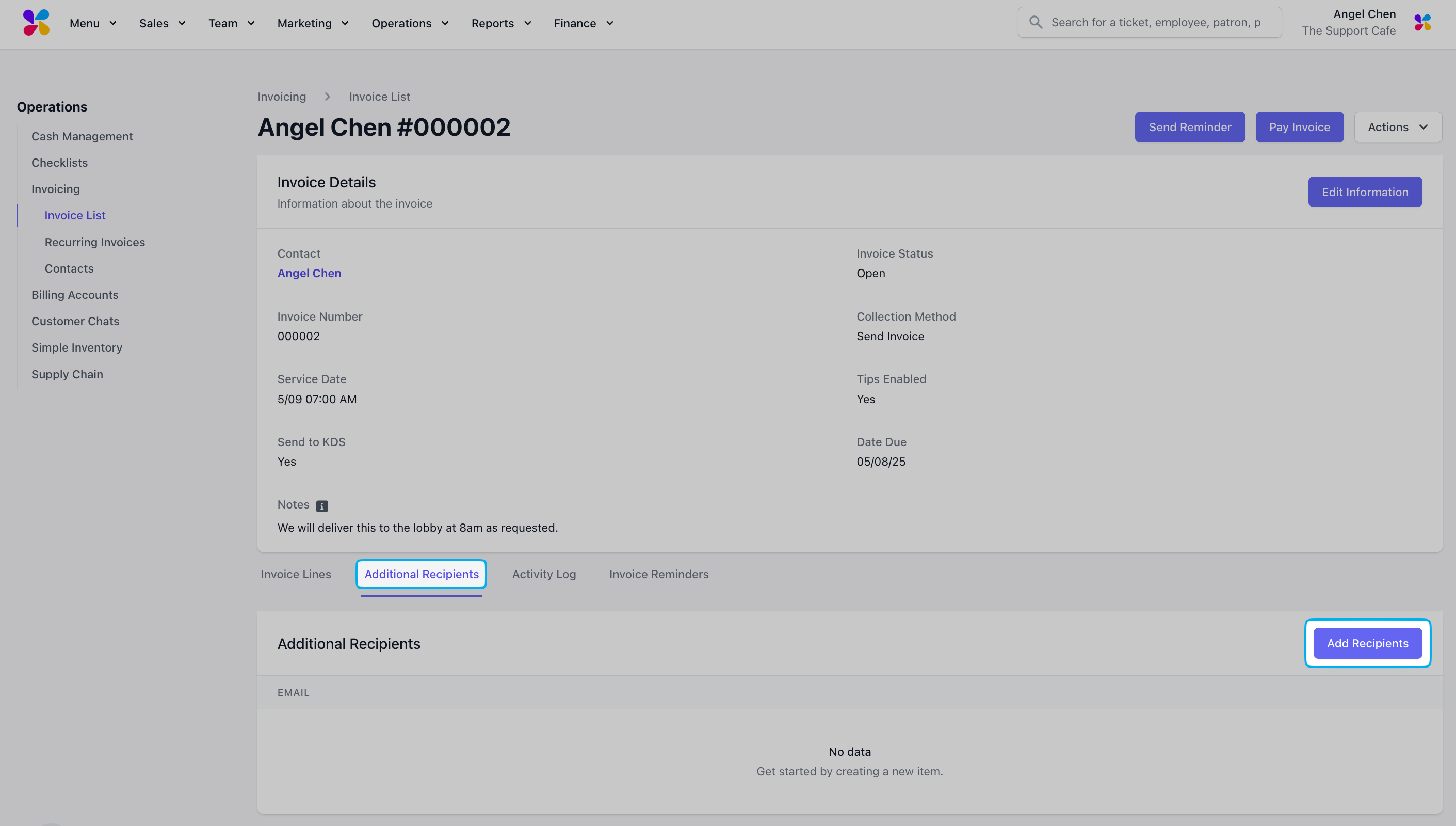
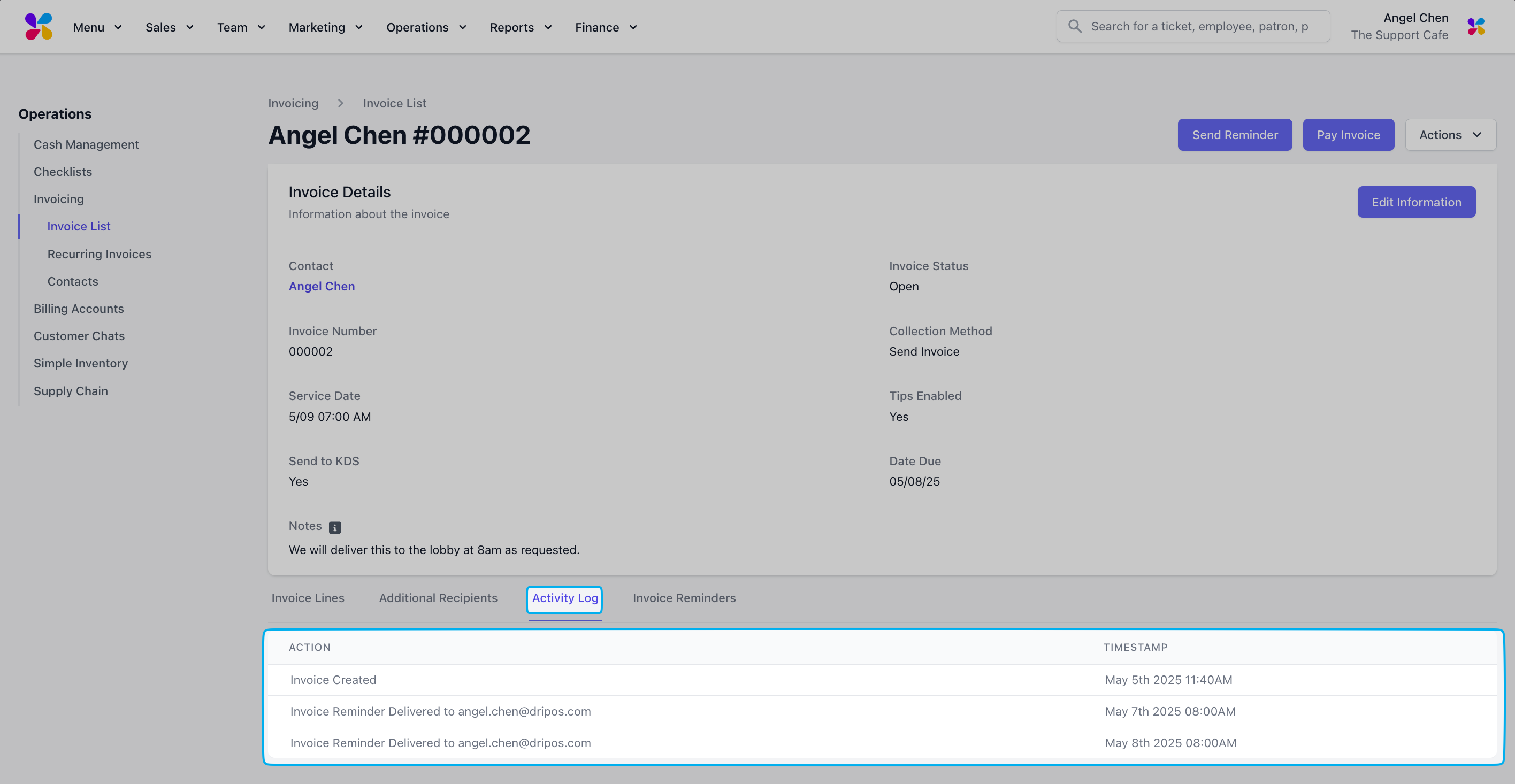
      Use the tabs at the bottom to view **Additional Recipients**, **Activity Log**, and **Invoice Reminders**
      <Frame>
        <img src="https://mintcdn.com/frostbytetechnologiesinc/Q3wq0FmCbBn5Z8Wt/images/orders/Invoicing/action4.png?fit=max&auto=format&n=Q3wq0FmCbBn5Z8Wt&q=85&s=f5f4d71b7cfc0abd54c10a5d1b9ce5f4" width="2822" height="1600" data-path="images/orders/Invoicing/action4.png" />
      </Frame>

      <Frame>
        <img src="https://mintcdn.com/frostbytetechnologiesinc/Q3wq0FmCbBn5Z8Wt/images/orders/Invoicing/action5.png?fit=max&auto=format&n=Q3wq0FmCbBn5Z8Wt&q=85&s=e25a4631b39c5700a329c9355ecc1132" width="2832" height="1466" data-path="images/orders/Invoicing/action5.png" />
      </Frame>

      <Frame>
        <img src="https://mintcdn.com/frostbytetechnologiesinc/Q3wq0FmCbBn5Z8Wt/images/orders/Invoicing/action6.png?fit=max&auto=format&n=Q3wq0FmCbBn5Z8Wt&q=85&s=79e7c4f5d34fa9e5b5c4ef0fc32fff5c" width="2820" height="1632" data-path="images/orders/Invoicing/action6.png" />
      </Frame>
    </Step>
  </Steps>
</Accordion>

***

## Refund Invoices

Issue refunds to invoices that have been paid

<Accordion title="How to Refund Invoices">
  <Steps>
    <Step title="">
      Log in to the Dashboard and navigate to Operations > Invoicing

      <Frame>
        <img src="https://mintcdn.com/frostbytetechnologiesinc/Q3wq0FmCbBn5Z8Wt/images/orders/Invoicing/create1.png?fit=max&auto=format&n=Q3wq0FmCbBn5Z8Wt&q=85&s=921d6bc8d65938fcd2dd7f5e3fc4f1b7" width="2830" height="1706" data-path="images/orders/Invoicing/create1.png" />
      </Frame>
    </Step>

    <Step title="">
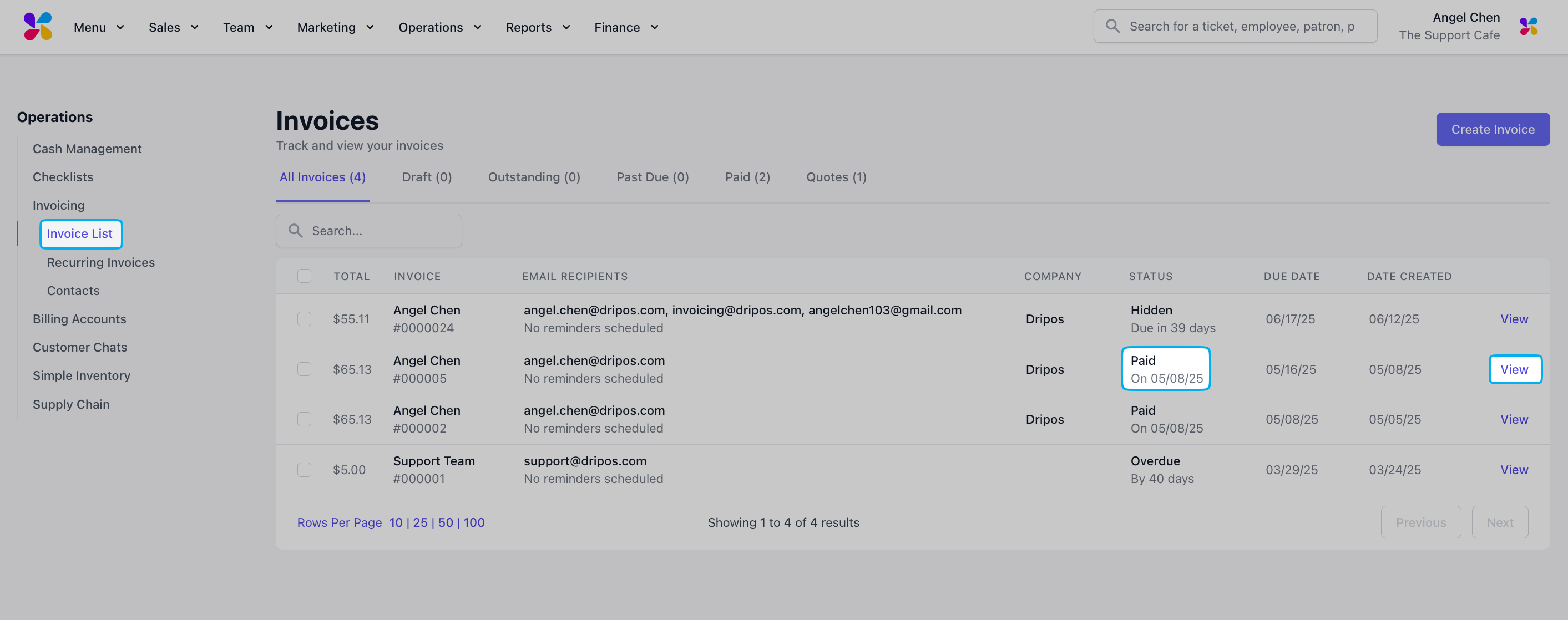
      Navigate to Invoice List and View a paid invoice
      <Frame>
        <img src="https://mintcdn.com/frostbytetechnologiesinc/HrzBvcr2ZemoYKGF/images/orders/Invoicing/refund1.png?fit=max&auto=format&n=HrzBvcr2ZemoYKGF&q=85&s=39545547bfe084e5211abe564caace41" width="2826" height="1118" data-path="images/orders/Invoicing/refund1.png" />
      </Frame>
    </Step>

    <Step title="">
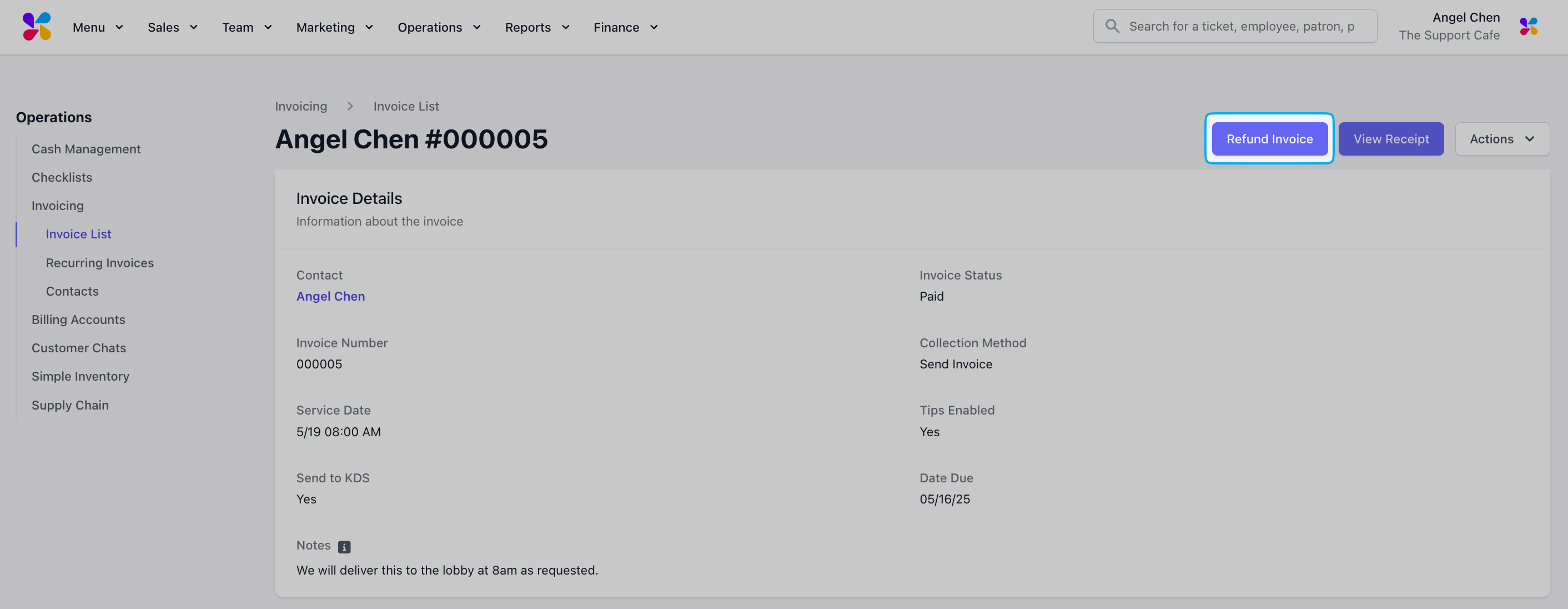
      Select the Refund Invoice button in the top right
      <Frame>
        <img src="https://mintcdn.com/frostbytetechnologiesinc/HrzBvcr2ZemoYKGF/images/orders/Invoicing/refund2.png?fit=max&auto=format&n=HrzBvcr2ZemoYKGF&q=85&s=894d2b1bda2c0f2461b7ba4e07b7404a" width="2824" height="1096" data-path="images/orders/Invoicing/refund2.png" />
      </Frame>
    </Step>

    <Step title="">
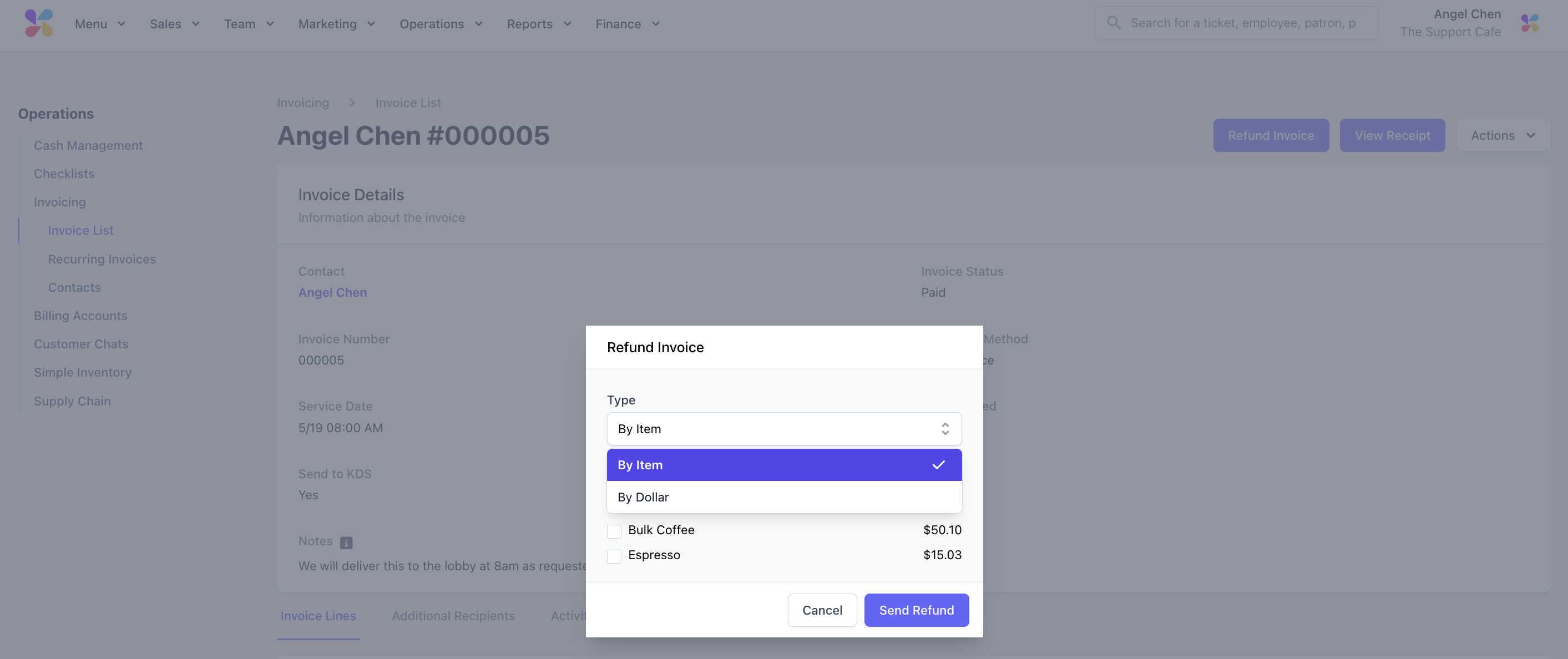
      Select the refund type

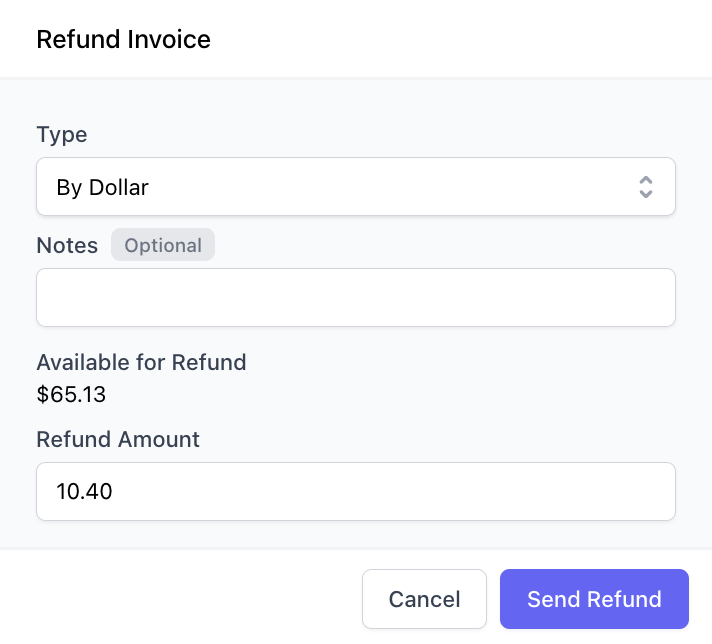
      > **By Item**: Refund the selected line items
      >
      > **By Dollar**: Refund a specific dollar amount
      >
      > **Notes (Optional)**: Include any notes for the refund
      <Frame>
        <img src="https://mintcdn.com/frostbytetechnologiesinc/HrzBvcr2ZemoYKGF/images/orders/Invoicing/refund3.png?fit=max&auto=format&n=HrzBvcr2ZemoYKGF&q=85&s=9343a8699f9aae7bab3c1642639c64a4" width="2826" height="1188" data-path="images/orders/Invoicing/refund3.png" />
      </Frame>

      <Frame>
        <img src="https://mintcdn.com/frostbytetechnologiesinc/HrzBvcr2ZemoYKGF/images/orders/Invoicing/refund4.png?fit=max&auto=format&n=HrzBvcr2ZemoYKGF&q=85&s=418e7ac97ac6bc6d7faf4f4689c80d8c" width="712" height="644" data-path="images/orders/Invoicing/refund4.png" />
      </Frame>
    </Step>

    <Step>
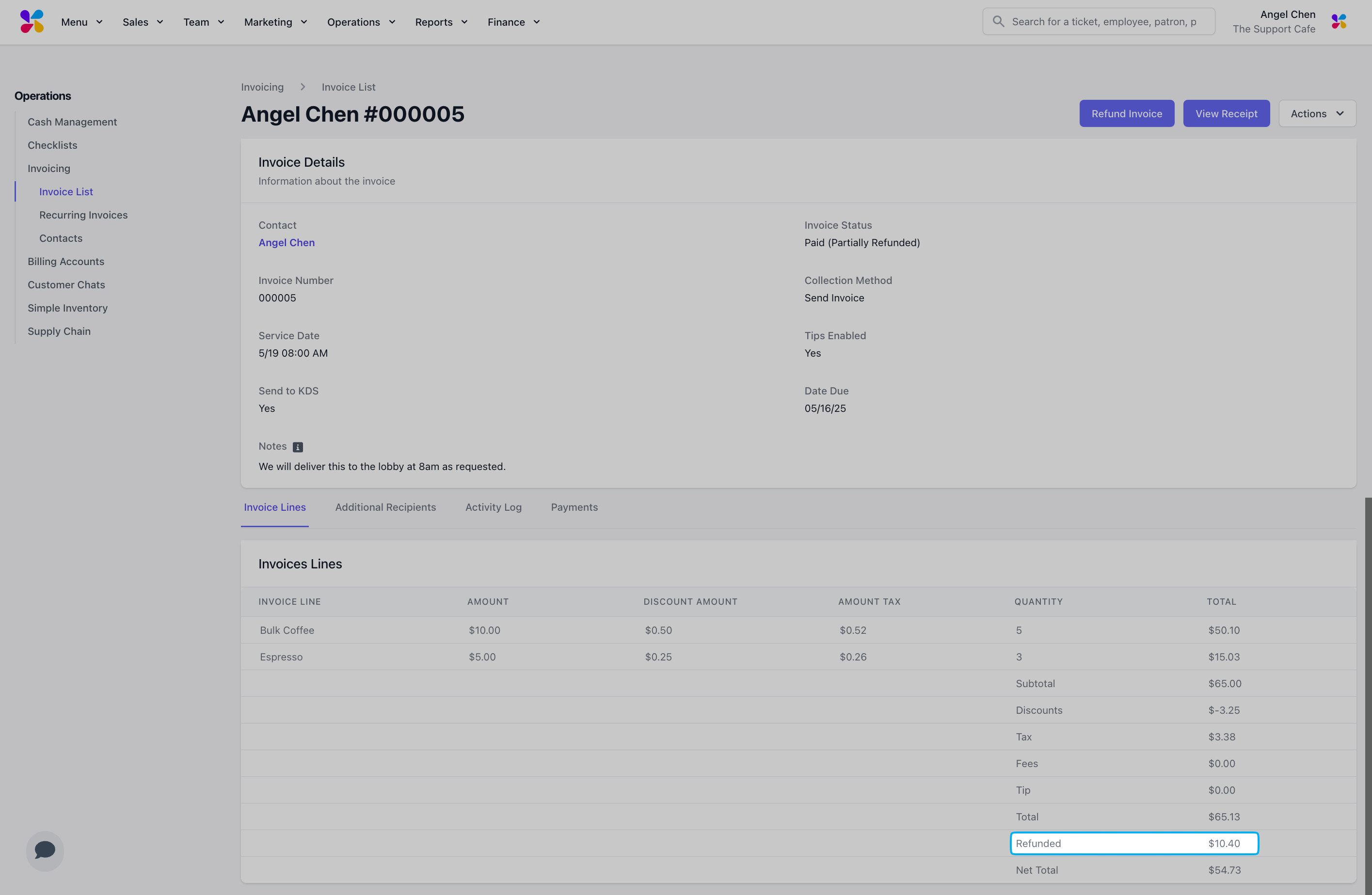
      Review the **Invoice Lines** to check the **Refunded** amount
      <Frame>
        <img src="https://mintcdn.com/frostbytetechnologiesinc/HrzBvcr2ZemoYKGF/images/orders/Invoicing/refund5.png?fit=max&auto=format&n=HrzBvcr2ZemoYKGF&q=85&s=5089646cf87a701ac8bc5537bfee9239" width="2830" height="1847" data-path="images/orders/Invoicing/refund5.png" />
      </Frame>
    </Step>
  </Steps>
</Accordion>

***

## Invoicing Reports

Understand your invoicing revenues and payment patterns

<Steps>
  <Step title="">
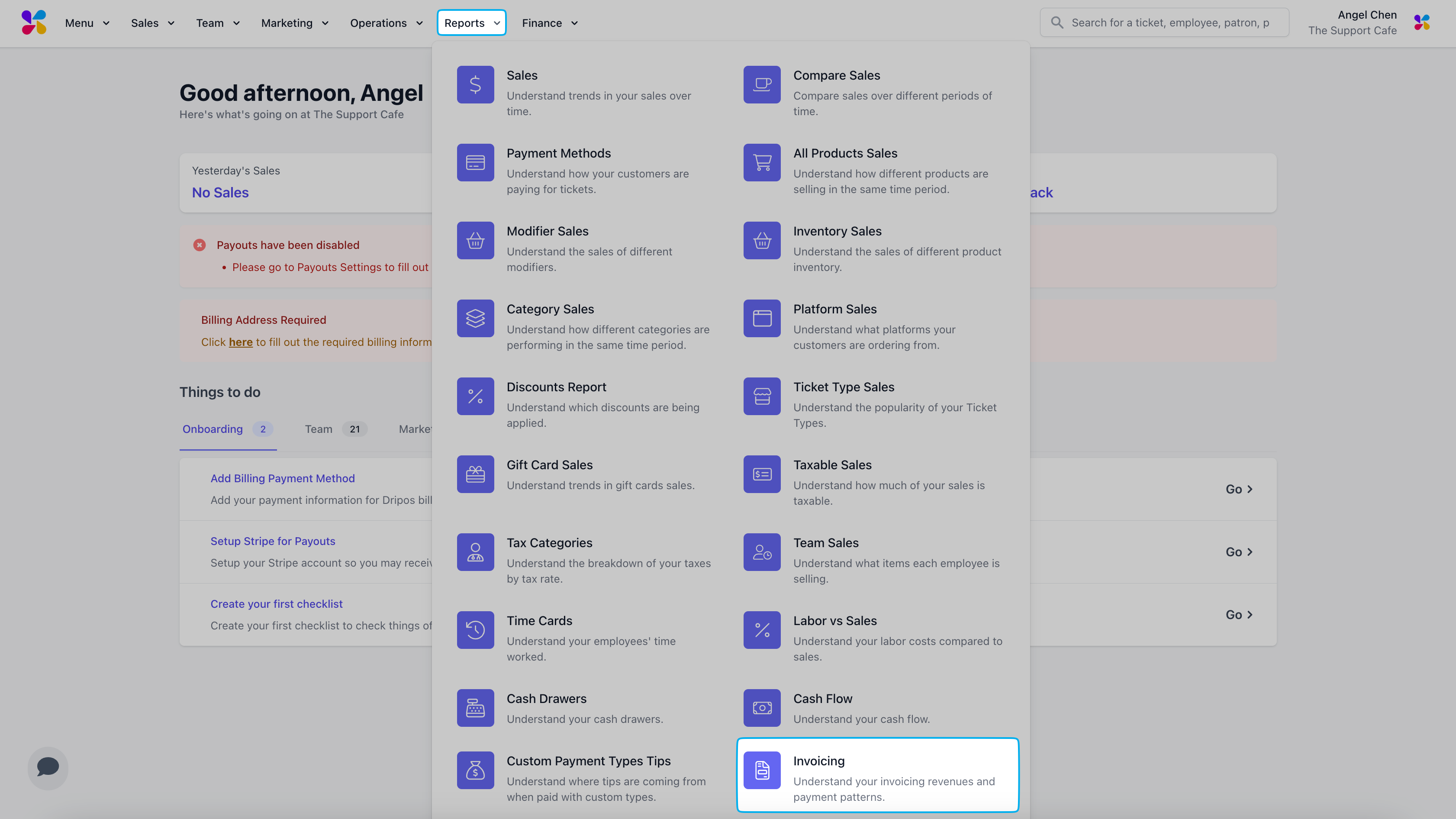
    Log in to the Dashboard and navigate to **Reports** > **Invoicing**
    <Frame>
      <img src="https://mintcdn.com/frostbytetechnologiesinc/HrzBvcr2ZemoYKGF/images/orders/Invoicing/reports1.png?fit=max&auto=format&n=HrzBvcr2ZemoYKGF&q=85&s=6409280f1e4402d54461b04b5aefbbe1" width="3364" height="1892" data-path="images/orders/Invoicing/reports1.png" />
    </Frame>
  </Step>

  <Step title="">
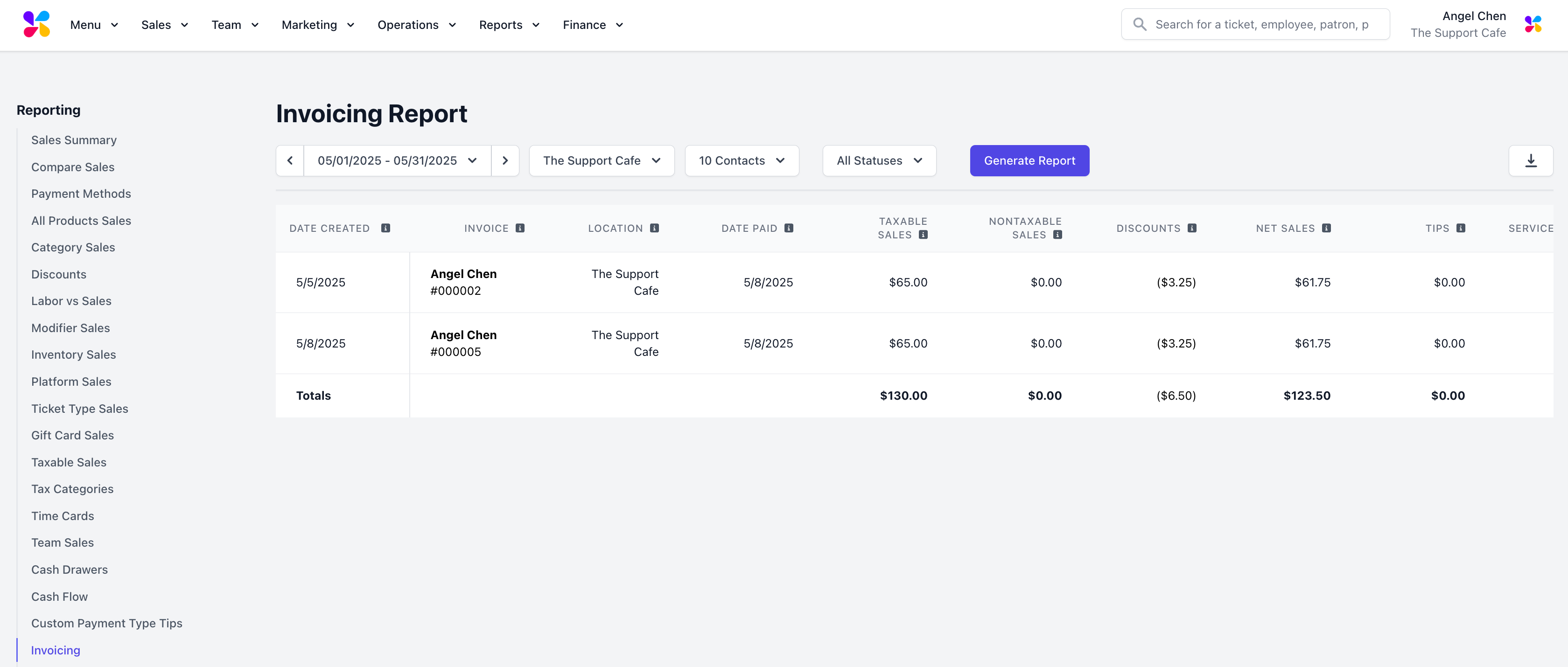
    Filter by your desired time period, location, contacts, and invoice statuses and click **Generate** **Report**
    <Frame>
      <img src="https://mintcdn.com/frostbytetechnologiesinc/HrzBvcr2ZemoYKGF/images/orders/Invoicing/reports2.png?fit=max&auto=format&n=HrzBvcr2ZemoYKGF&q=85&s=9d83e21d6720314a6212564128b9eda4" width="3360" height="1430" data-path="images/orders/Invoicing/reports2.png" />
    </Frame>
  </Step>
</Steps>