> ## Documentation Index
> Fetch the complete documentation index at: https://support.dripos.com/llms.txt
> Use this file to discover all available pages before exploring further.
# Get Started with Supply Chain
> An introductory guide to setting up and using the Supply Chain feature
Set up your Dripos Supply Chain in three steps:
In this guide, we’ll walk through an example of creating units and ingredients for a latte recipe.
For a complete instructional video guide with our Dripos Support team, please watch [here](https://www.loom.com/share/ba4521bf440a42048351b2c0e11836bf?sid=0fe84f16-2b83-4a25-b08f-62e983e4e5c7).
***
## Create a Unit
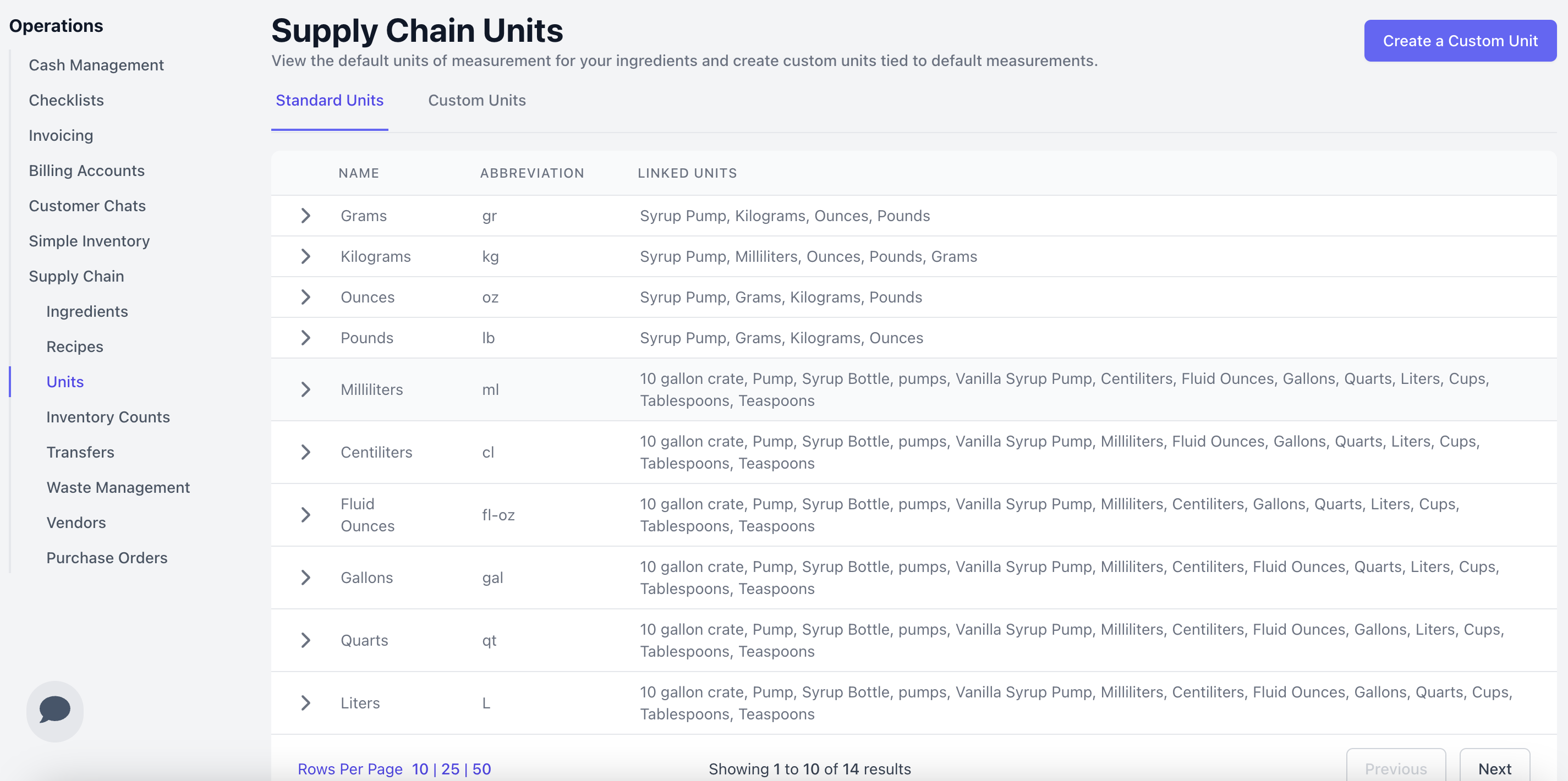
Every ingredient will be measured with units. Dripos provides standard units of measurement that are preset and ready for use. If the unit you need is not a standard unit, you may create a custom unit!
A ready-to-use set of standard units — like grams, milliliters, and count — plus their built-in unit conversions.
 For an ingredient not using a standard unit of measurement, create a custom unit linked to a standard unit.
**Create a Custom Unit**
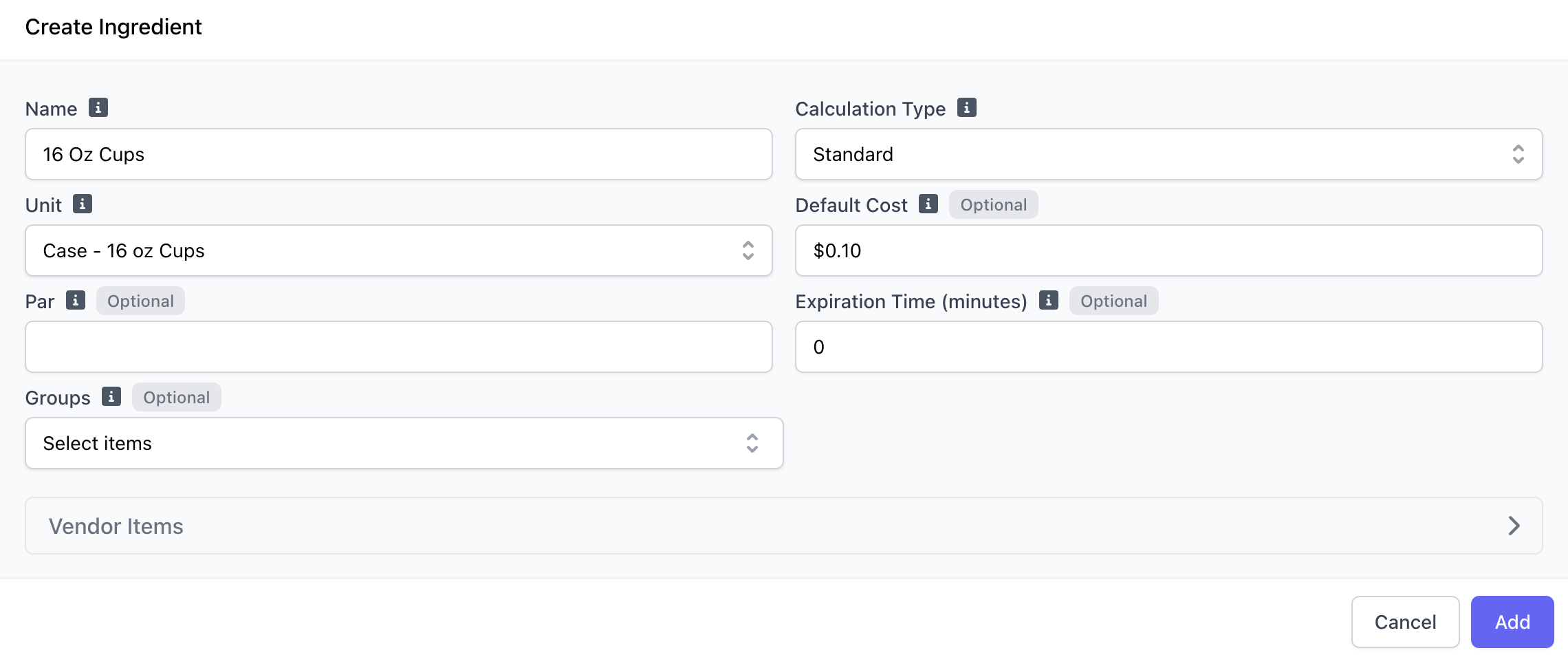
*In this example, we will create a custom unit for **Case - 16 oz. cups**, where **1 Case = 50 cups** and **Chocolate Sauce - 64oz**, where **1 case = 64 fluid oz***.
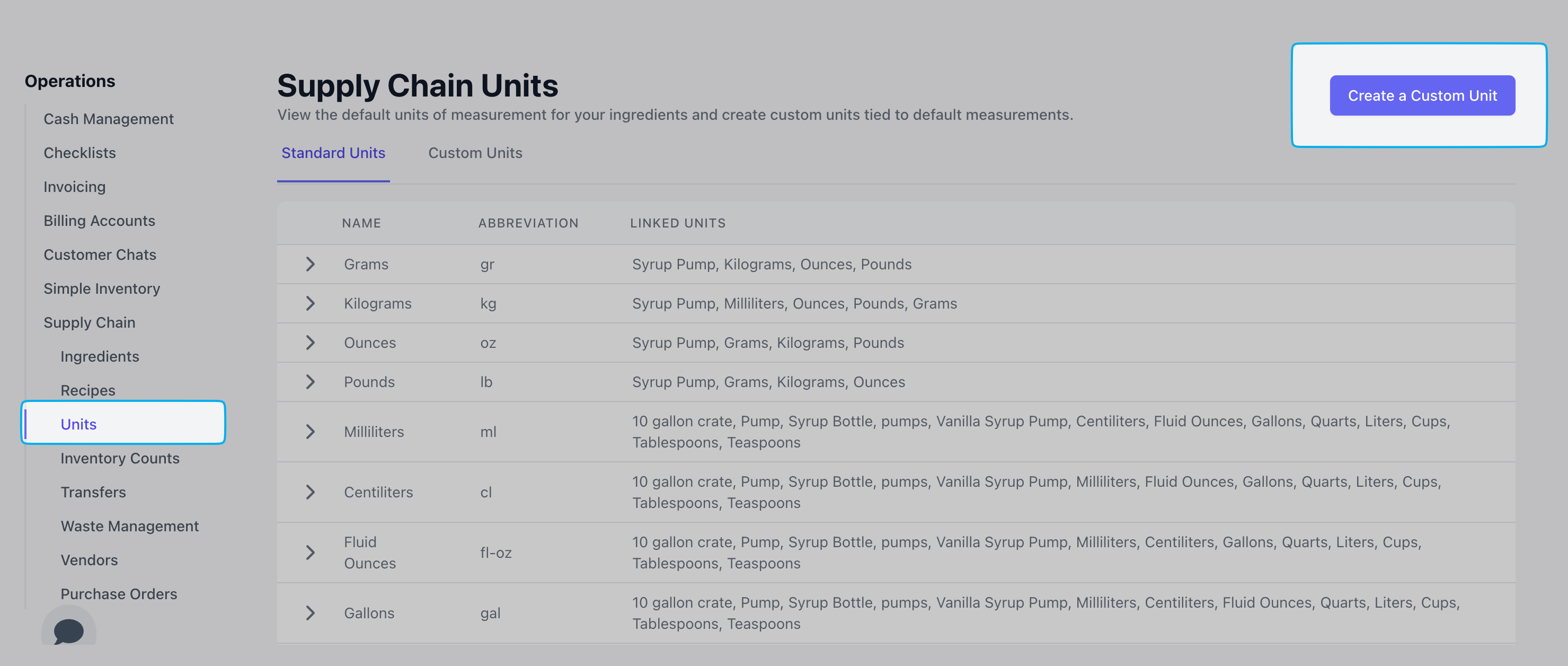
Navigate to the **Units** page > click **Create a Custom Unit** in the top-right corner.
For an ingredient not using a standard unit of measurement, create a custom unit linked to a standard unit.
**Create a Custom Unit**
*In this example, we will create a custom unit for **Case - 16 oz. cups**, where **1 Case = 50 cups** and **Chocolate Sauce - 64oz**, where **1 case = 64 fluid oz***.
Navigate to the **Units** page > click **Create a Custom Unit** in the top-right corner.
 Fill out the following fields and click **Add**
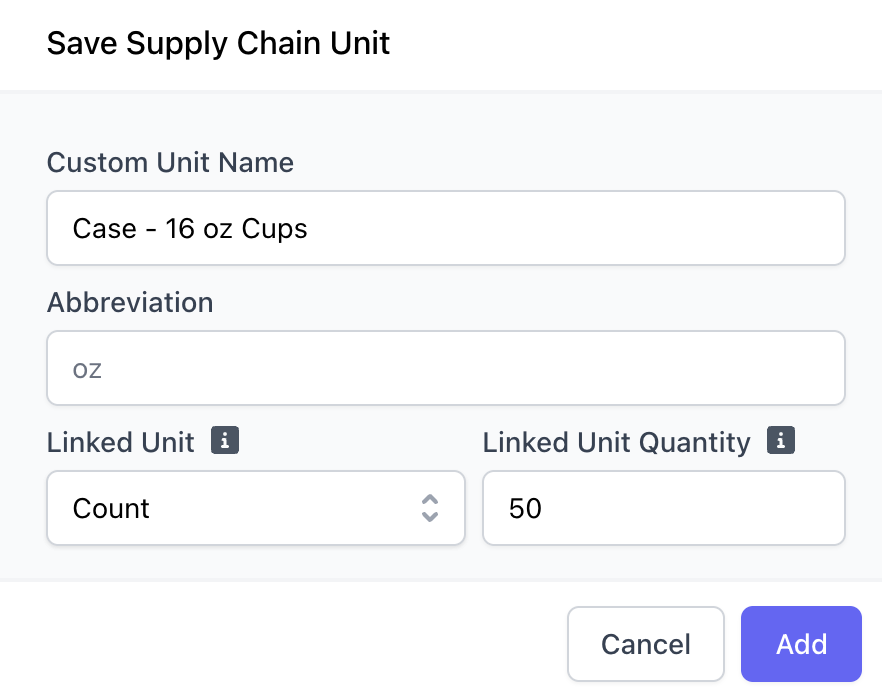
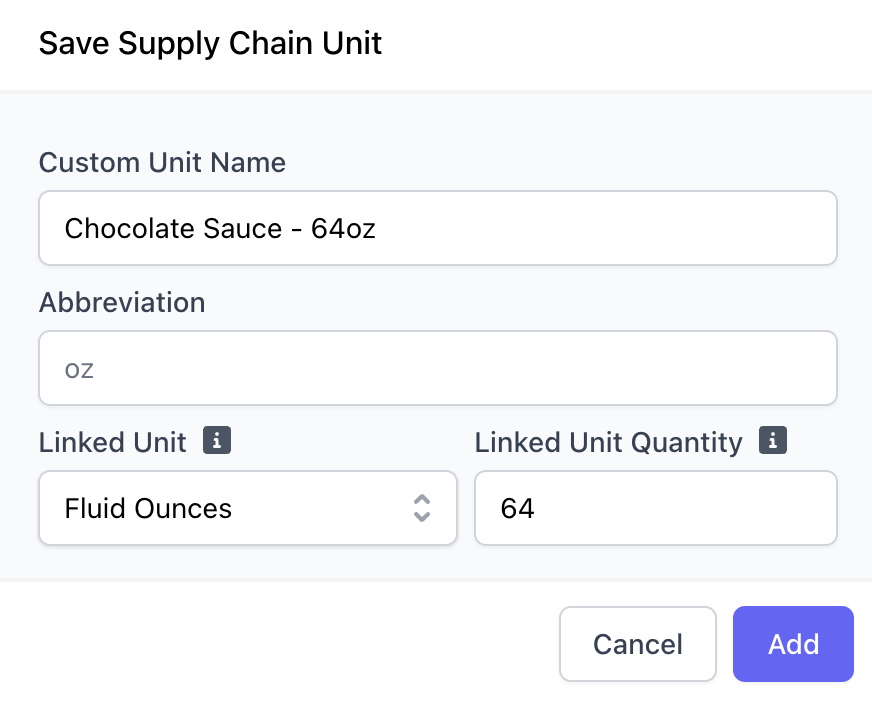 * **Name**, *i.e. Case - 16oz cups, Chocolate Sauce - 64oz*
* **Abbreviation:** A short code (2–3 letters) for your own internal tracking or labeling
* **Linked Unit:** The relational unit used to convert this custom unit, *i.e. count, fluid oz*
* **Linked Unit Quantity:** How much of the relational unit goes into one of the custom units, *i.e. 50, 64*
***
## Create an Ingredient
Ingredients make up a product's recipe. For example, a latte will be made up of espresso, various milk types, various cup sizes, various syrups, and so forth.
These are the goods that you will track the quantity of in your supply chain system.
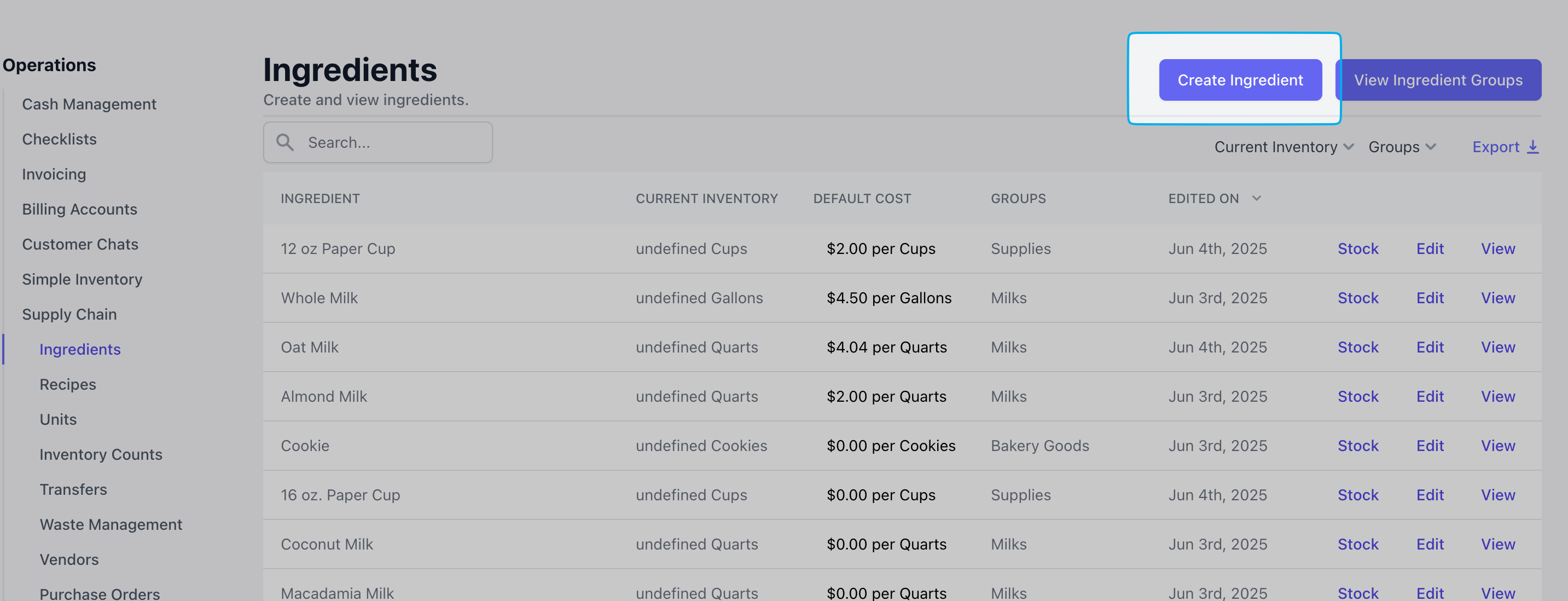
On the dashboard, click **Supply Chain** > **Ingredients** > **Create ingredient**
* **Name**, *i.e. Case - 16oz cups, Chocolate Sauce - 64oz*
* **Abbreviation:** A short code (2–3 letters) for your own internal tracking or labeling
* **Linked Unit:** The relational unit used to convert this custom unit, *i.e. count, fluid oz*
* **Linked Unit Quantity:** How much of the relational unit goes into one of the custom units, *i.e. 50, 64*
***
## Create an Ingredient
Ingredients make up a product's recipe. For example, a latte will be made up of espresso, various milk types, various cup sizes, various syrups, and so forth.
These are the goods that you will track the quantity of in your supply chain system.
On the dashboard, click **Supply Chain** > **Ingredients** > **Create ingredient**
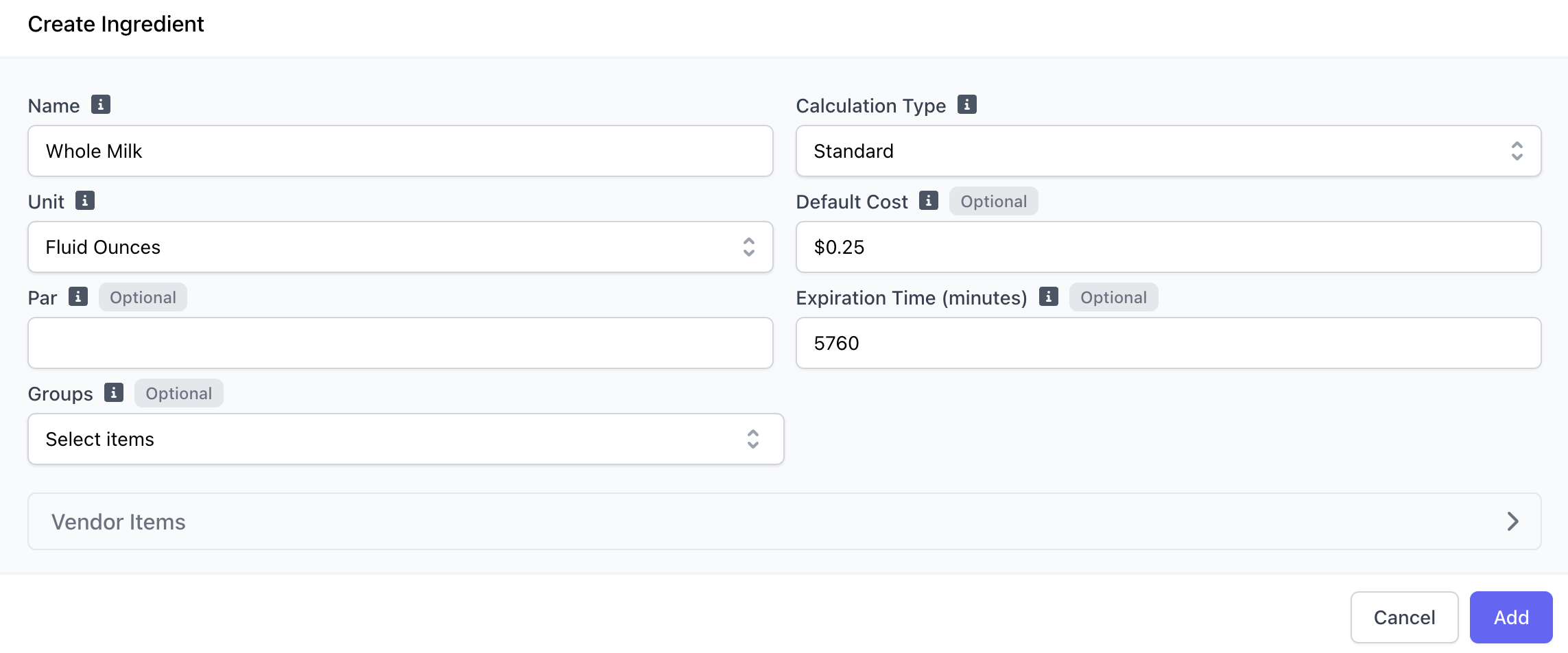
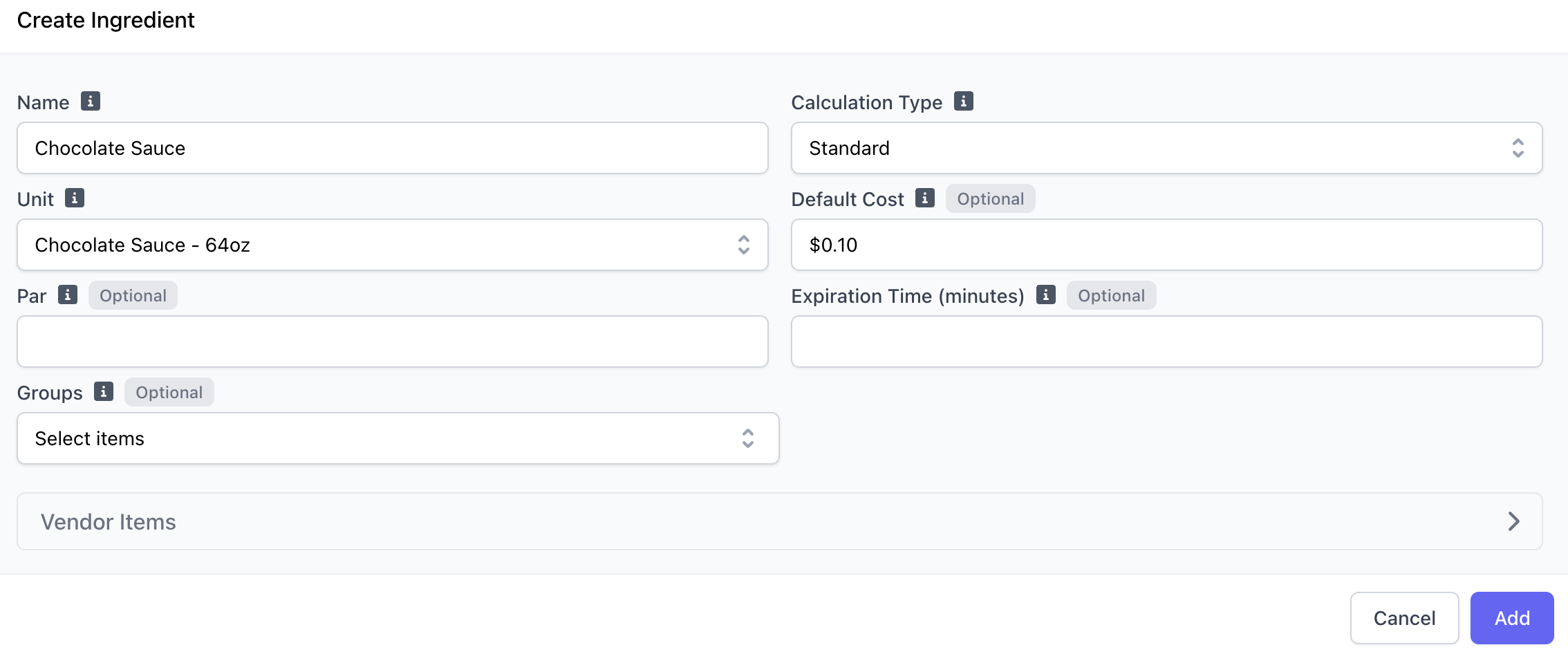
 Complete the following fields:
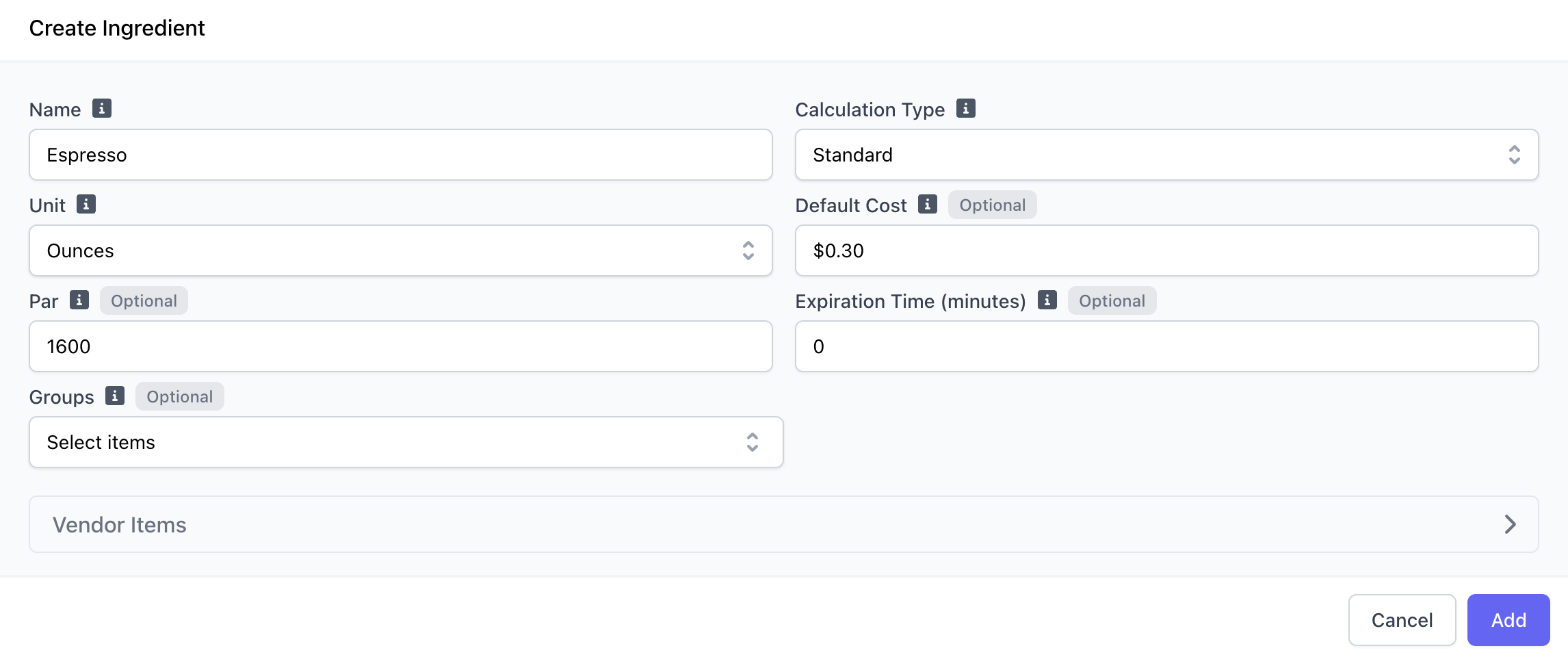
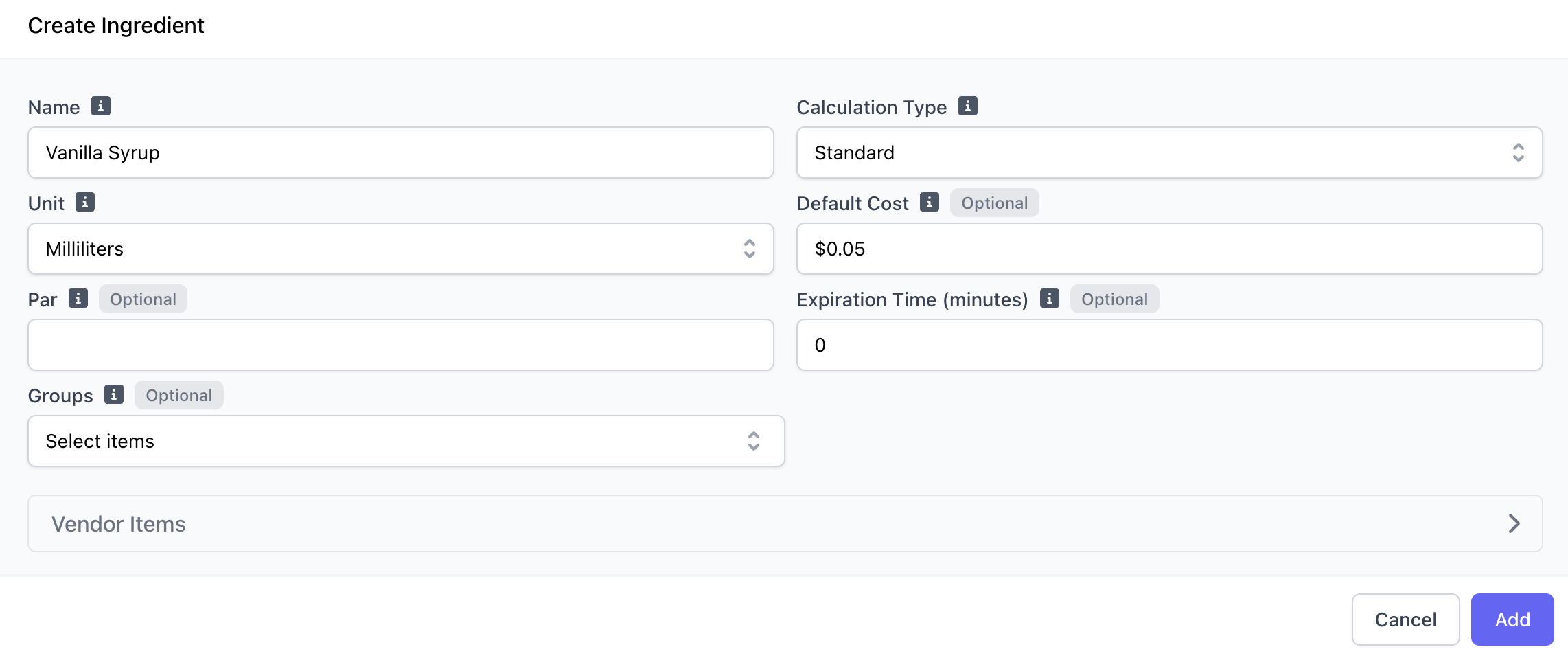
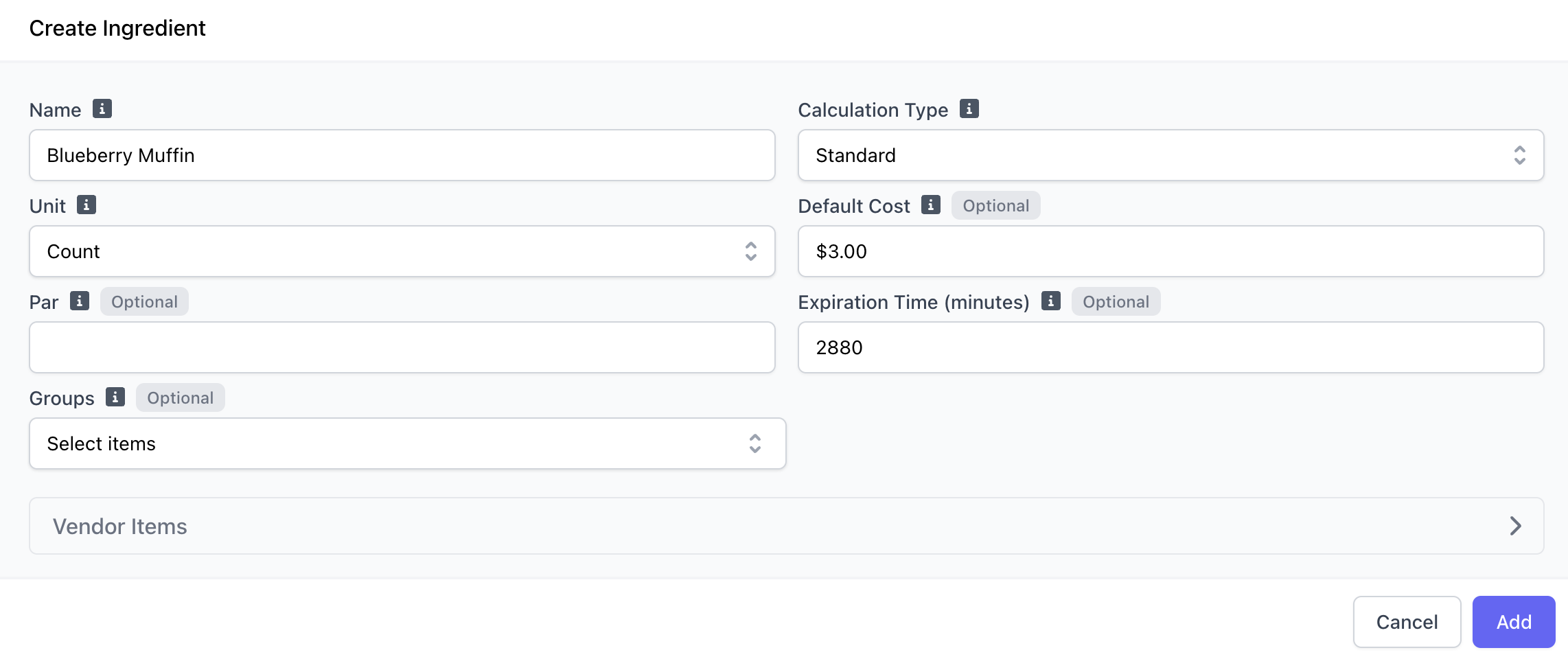
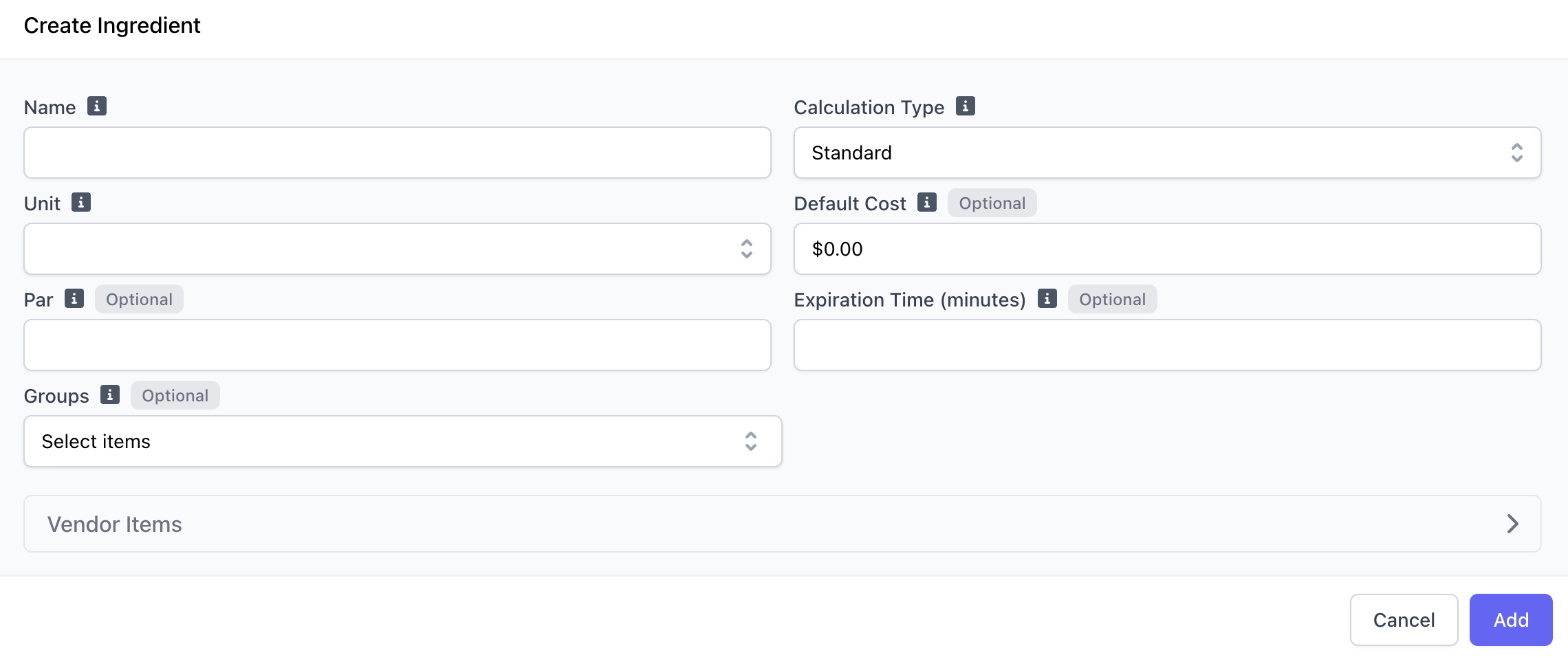 Espresso, Whole Milk, Vanilla, Chocolate Sauce, 16oz Cups, Bacon
* **Standard (Default):** Any stocking event will add/subtract from this ingredient’s stock directly.
* **Consume Sub-Recipes:** When a sub-recipe is linked to the product, stock adjustments will apply both to this ingredient and to the ingredients included in the sub-recipe.
This option will only appear if the ingredient has a sub-recipe attached. Click here to learn about sub-recipes.
How the ingredient will be measured in a recipe. *i.e. milk = fluid ounces, espresso = oz, blueberry muffin = count, syrup = milliliters*
**Custom Units**
16 oz cups = custom unit of Case - 16 oz cups
Chocolate Sauce = custom unit of Chocolate Sauce - 64oz
Cost of one unit of this ingredient. This cost will be used to calculate the cost of recipes, stocking events, and waste events.
*i.e., \$0.10 per ml of syrup, \$3 per count of blueberry muffin, \$0.30 per oz of espresso*
If sub-recipes exist, this is not configurable and is calculated based on the sub-recipe costs and quantities.
Baseline inventory quantity you want to have in stock at any given time.
This is for your own internal tracking and will not hinder supply chain usage.
If added, stock added of an ingredient will expire (and therefore, decrease) after the set amount of minutes
The ingredient group that the ingredient should be added to
Learn how to create ingredient groups here. Only existing groups will appear in the selection menu.
Espresso, Whole Milk, Vanilla, Chocolate Sauce, 16oz Cups, Bacon
* **Standard (Default):** Any stocking event will add/subtract from this ingredient’s stock directly.
* **Consume Sub-Recipes:** When a sub-recipe is linked to the product, stock adjustments will apply both to this ingredient and to the ingredients included in the sub-recipe.
This option will only appear if the ingredient has a sub-recipe attached. Click here to learn about sub-recipes.
How the ingredient will be measured in a recipe. *i.e. milk = fluid ounces, espresso = oz, blueberry muffin = count, syrup = milliliters*
**Custom Units**
16 oz cups = custom unit of Case - 16 oz cups
Chocolate Sauce = custom unit of Chocolate Sauce - 64oz
Cost of one unit of this ingredient. This cost will be used to calculate the cost of recipes, stocking events, and waste events.
*i.e., \$0.10 per ml of syrup, \$3 per count of blueberry muffin, \$0.30 per oz of espresso*
If sub-recipes exist, this is not configurable and is calculated based on the sub-recipe costs and quantities.
Baseline inventory quantity you want to have in stock at any given time.
This is for your own internal tracking and will not hinder supply chain usage.
If added, stock added of an ingredient will expire (and therefore, decrease) after the set amount of minutes
The ingredient group that the ingredient should be added to
Learn how to create ingredient groups here. Only existing groups will appear in the selection menu.
 ***
### Ingredient Groups
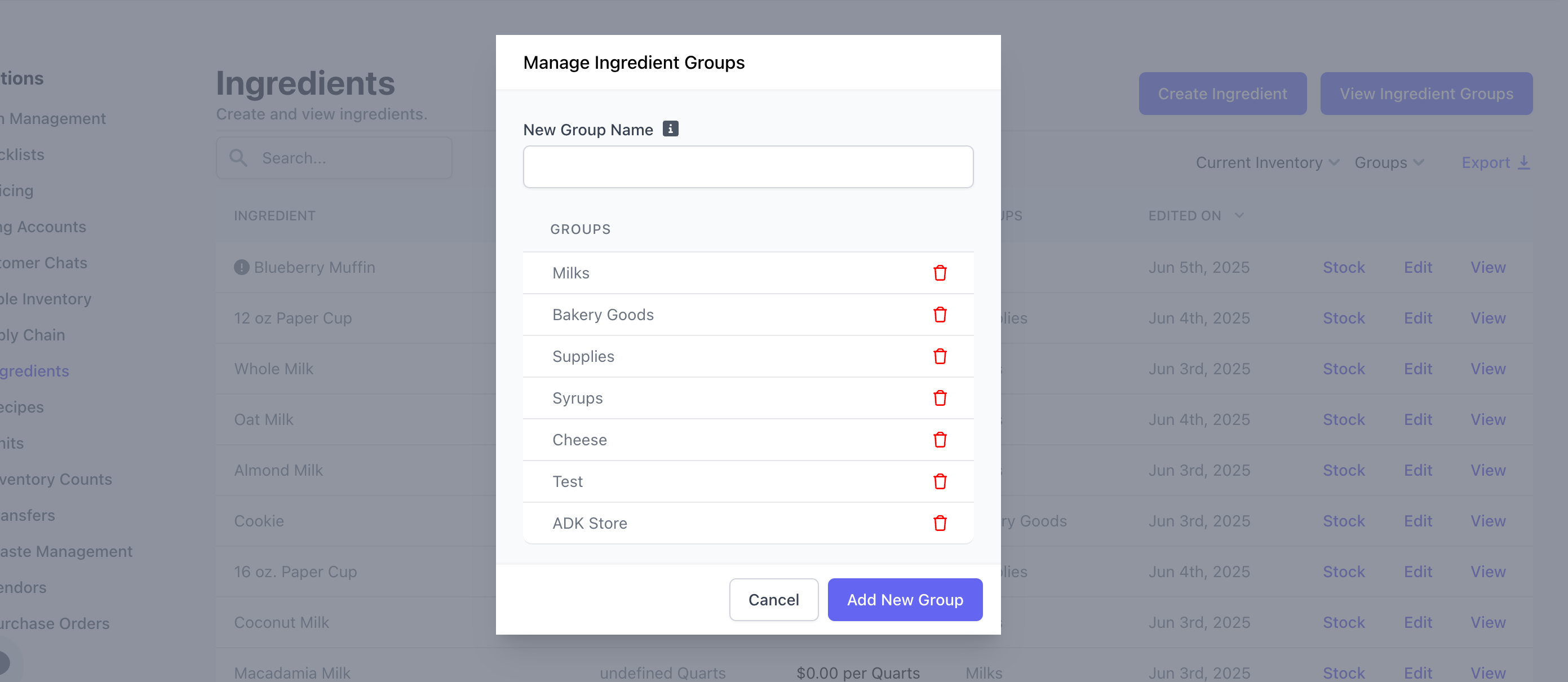
Organize your ingredients into groups to easily filter and manage your ingredient view.
On the ingredients page, click **View Ingredient Group** > Add a “New Group Name” > Click **Add New Group**
***
### Ingredient Groups
Organize your ingredients into groups to easily filter and manage your ingredient view.
On the ingredients page, click **View Ingredient Group** > Add a “New Group Name” > Click **Add New Group**
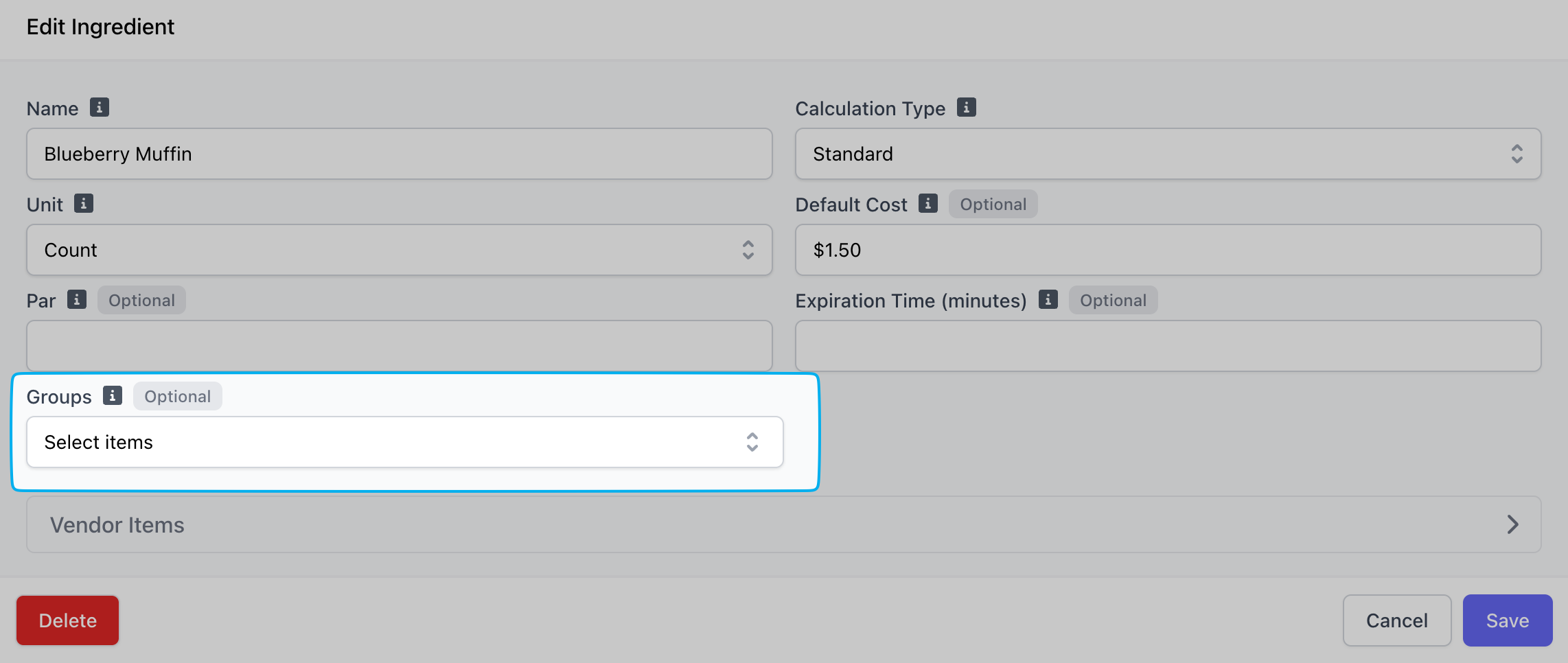
 To add an ingredient to an ingredient group, click **edit** on the ingredient to include > select the group
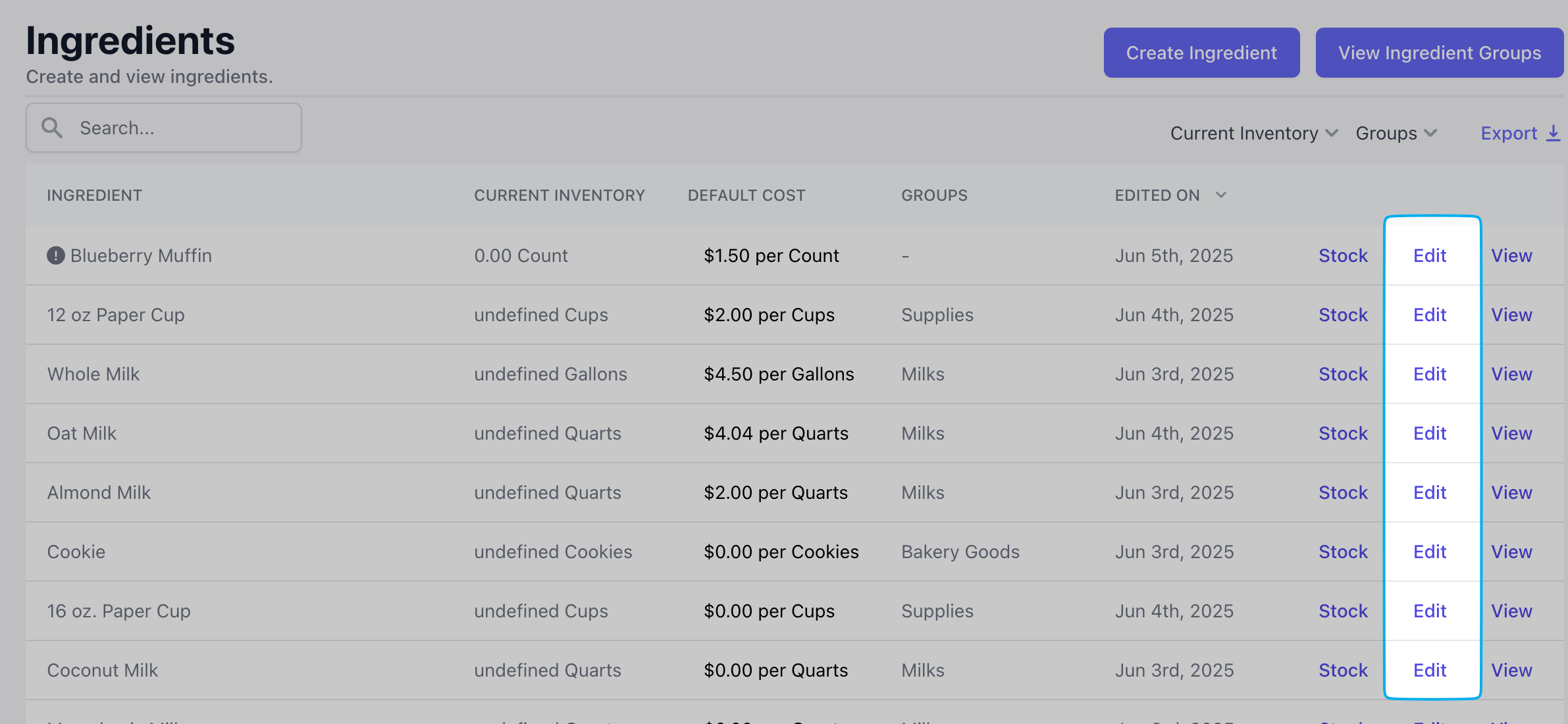
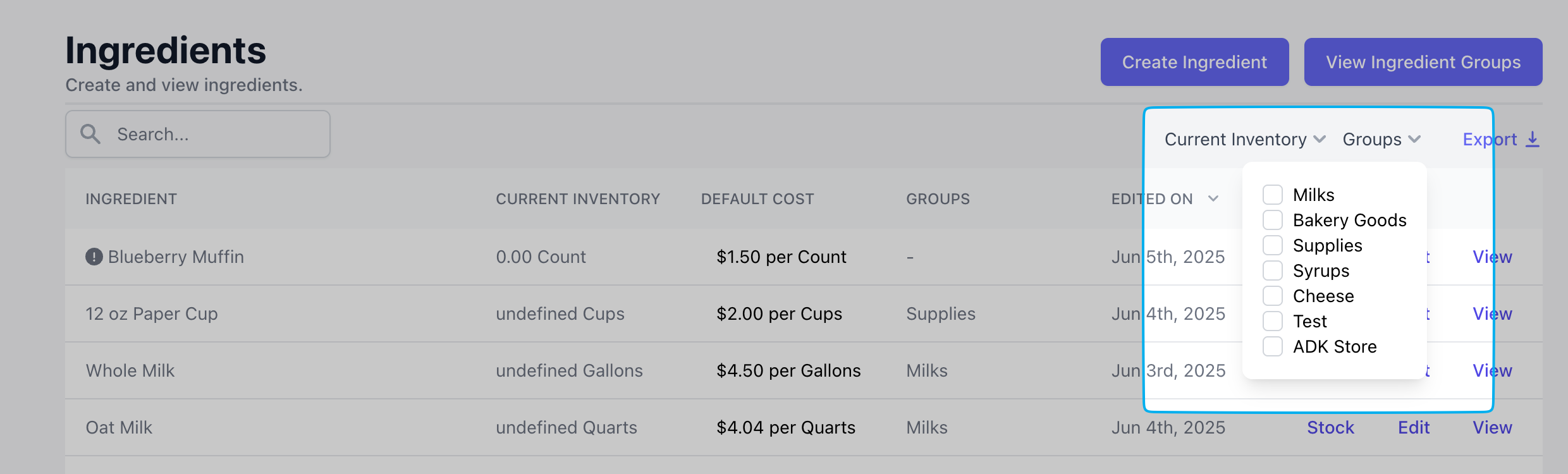
 Filter your ingredients by groups for easy viewing
 ***
### Activity Logs
**Track your Inventory History**
View all activity related to your ingredients:
✅ Sales | ✅ Quick Stock adjustments
\| ✅ Waste | ✅ Inventory Counts | ✅ Purchase Orders
***
### Activity Logs
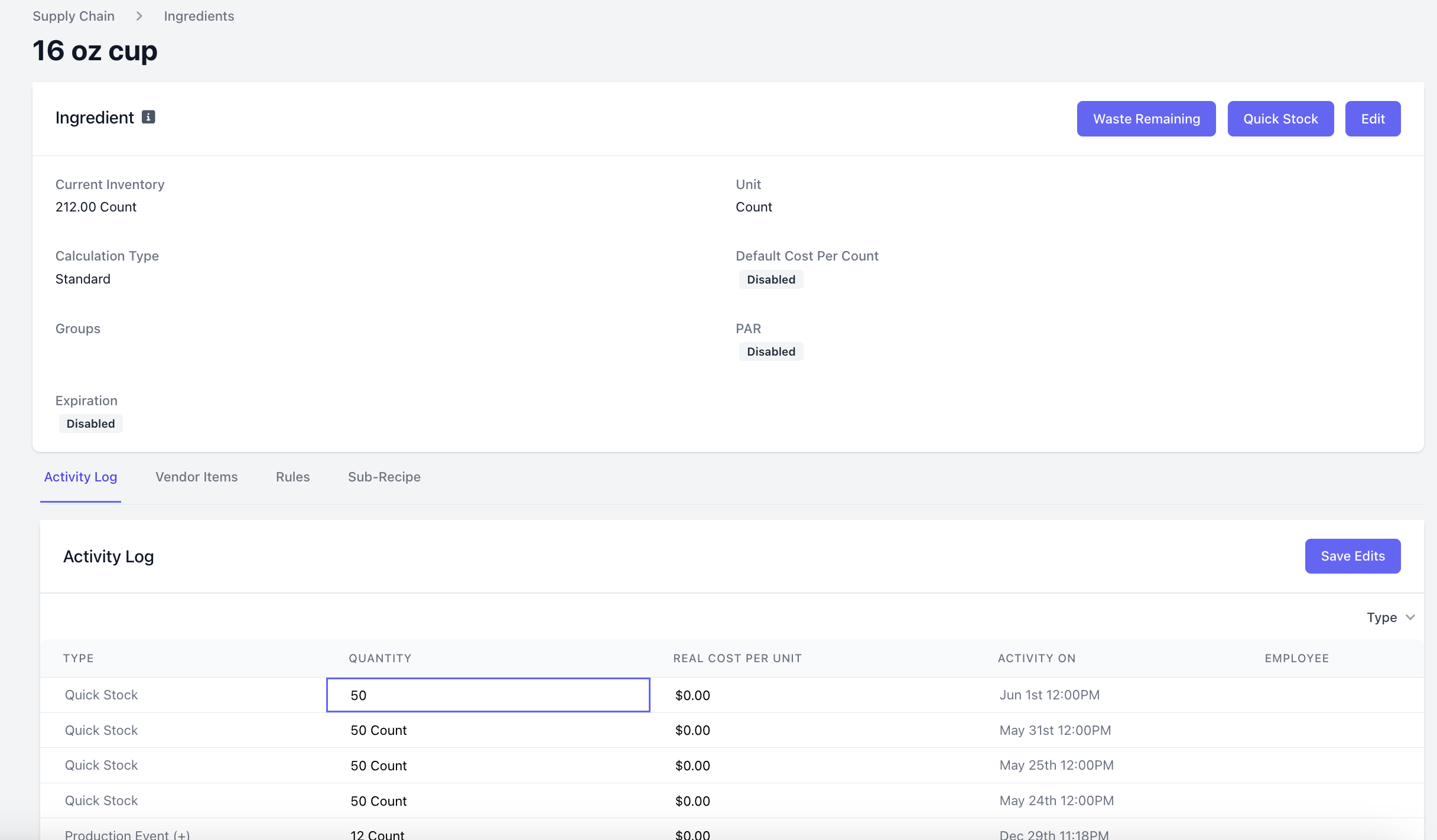
**Track your Inventory History**
View all activity related to your ingredients:
✅ Sales | ✅ Quick Stock adjustments
\| ✅ Waste | ✅ Inventory Counts | ✅ Purchase Orders
 ***
### Rules
**Automate ingredient restocking**
Set up automatic restocking schedules for individual ingredients—perfect for ingredients you receive or make on a regular basis.
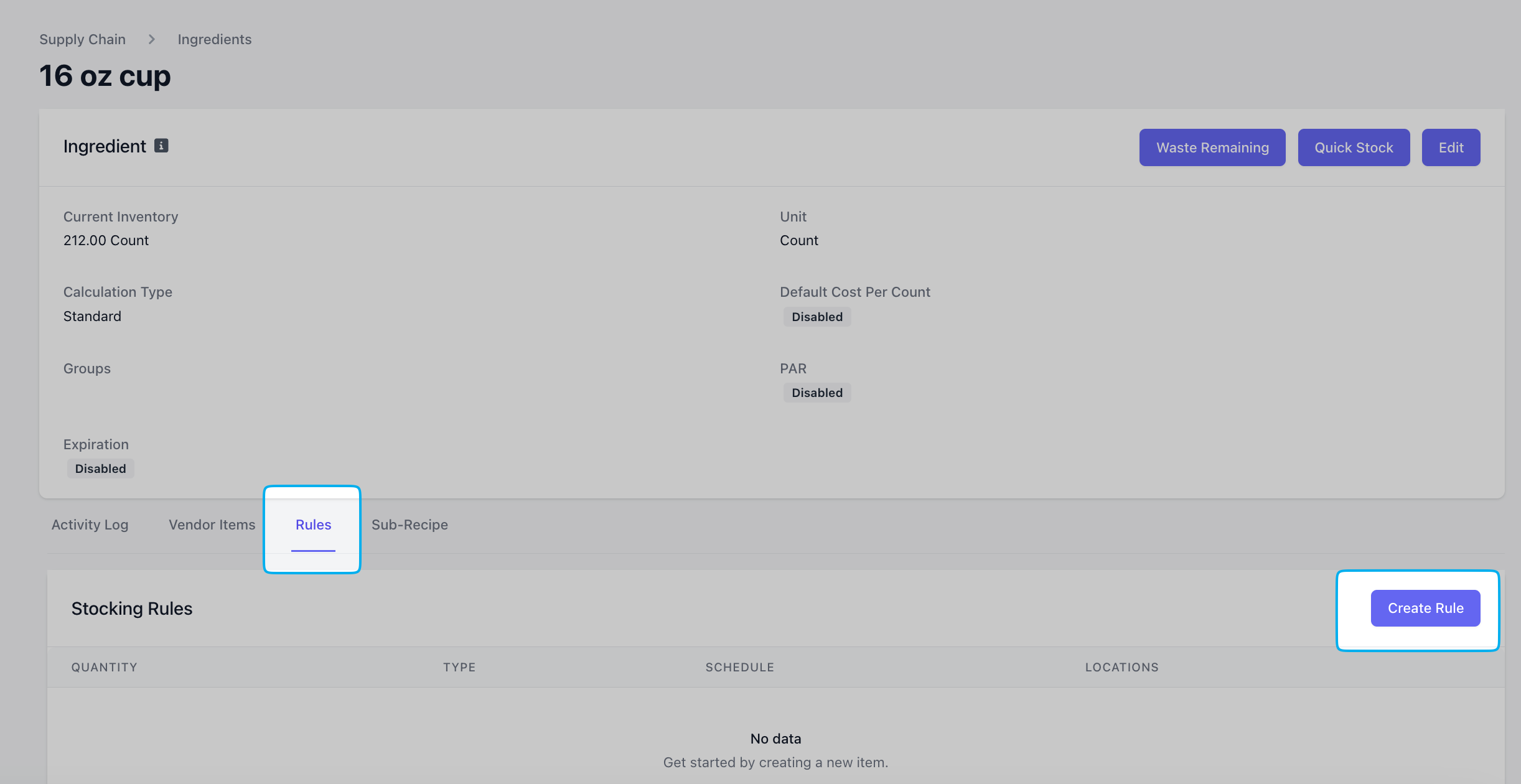
On the Dashboard > Supply Chain > Ingredients > click **view** on an ingredient > **Rules** > **Create Rule**
***
### Rules
**Automate ingredient restocking**
Set up automatic restocking schedules for individual ingredients—perfect for ingredients you receive or make on a regular basis.
On the Dashboard > Supply Chain > Ingredients > click **view** on an ingredient > **Rules** > **Create Rule**
 Fill in the following fields:
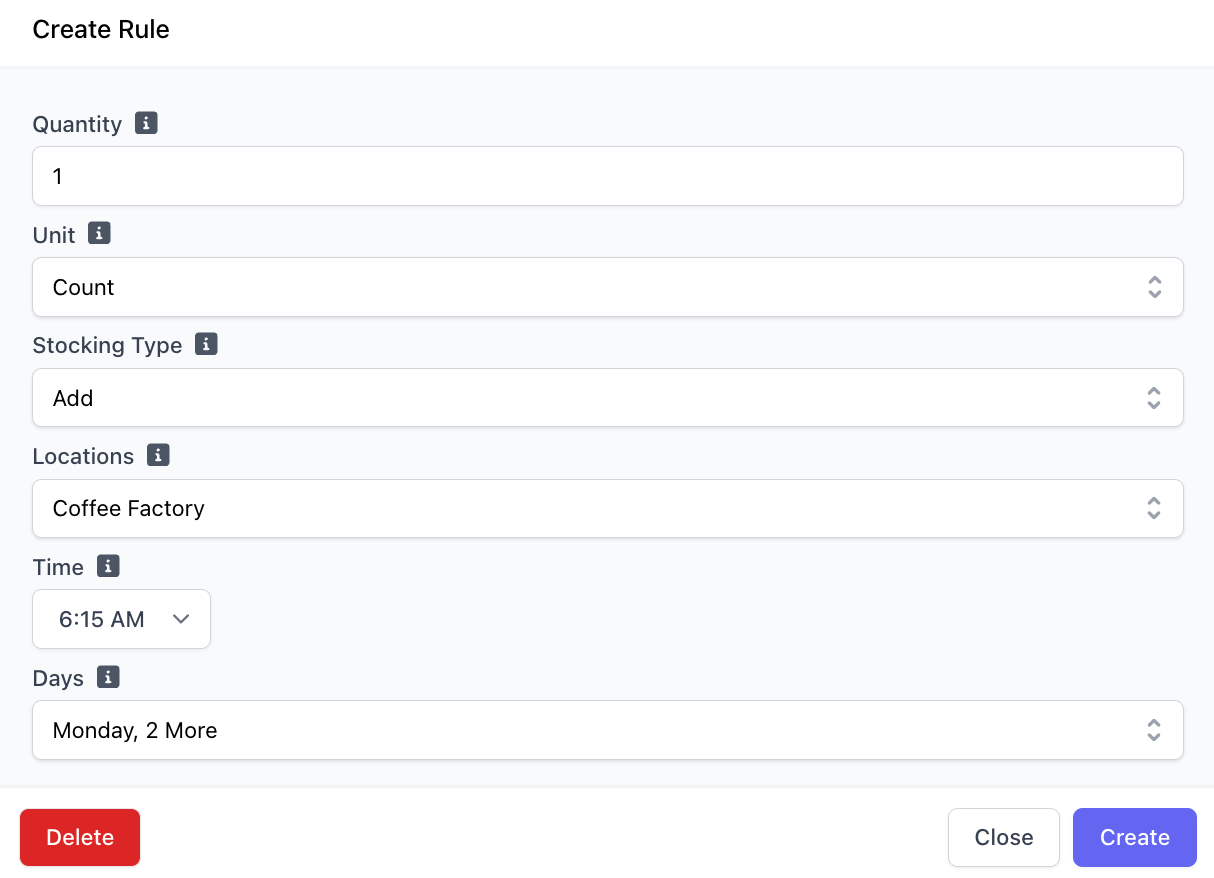 **Reset**: The current inventory will be set to the selected quantity
* ***Record Waste**: If selected, surplus stock will be designated as waste, and a corresponding waste event will be logged.*
**Add**: The selected quantity will be added to the current inventory count
The number of units that should be automatically stocked for that given rule
The unit to stock
Select a minimum of one day when the rule will be automatically triggered and the time
***
### Sub Recipes
**Track ingredients composed of other ingredients by creating sub-recipes.**
Do you make your syrups in-house? Are your breads made fresh daily? Use subrecipes to track ingredients used to make those ingredients attached to products for sale.
Learn how to stock sub-recipe ingredients and their corresponding ingredients properly with **Production Events**.
In this example, we will create a subrecipe for house-made vanilla syrup.
Create the ingredients that will be used to make the final ingredient (*i.e. vanilla syrup will be made up of two ingredients: simple syrup and vanilla extract*).
The process to make these ingredients is the same as any other ingredient!
Create the sub recipe within the ingredient page.
Navigate to **Ingredients** > **view** the ingredient.
**Reset**: The current inventory will be set to the selected quantity
* ***Record Waste**: If selected, surplus stock will be designated as waste, and a corresponding waste event will be logged.*
**Add**: The selected quantity will be added to the current inventory count
The number of units that should be automatically stocked for that given rule
The unit to stock
Select a minimum of one day when the rule will be automatically triggered and the time
***
### Sub Recipes
**Track ingredients composed of other ingredients by creating sub-recipes.**
Do you make your syrups in-house? Are your breads made fresh daily? Use subrecipes to track ingredients used to make those ingredients attached to products for sale.
Learn how to stock sub-recipe ingredients and their corresponding ingredients properly with **Production Events**.
In this example, we will create a subrecipe for house-made vanilla syrup.
Create the ingredients that will be used to make the final ingredient (*i.e. vanilla syrup will be made up of two ingredients: simple syrup and vanilla extract*).
The process to make these ingredients is the same as any other ingredient!
Create the sub recipe within the ingredient page.
Navigate to **Ingredients** > **view** the ingredient.
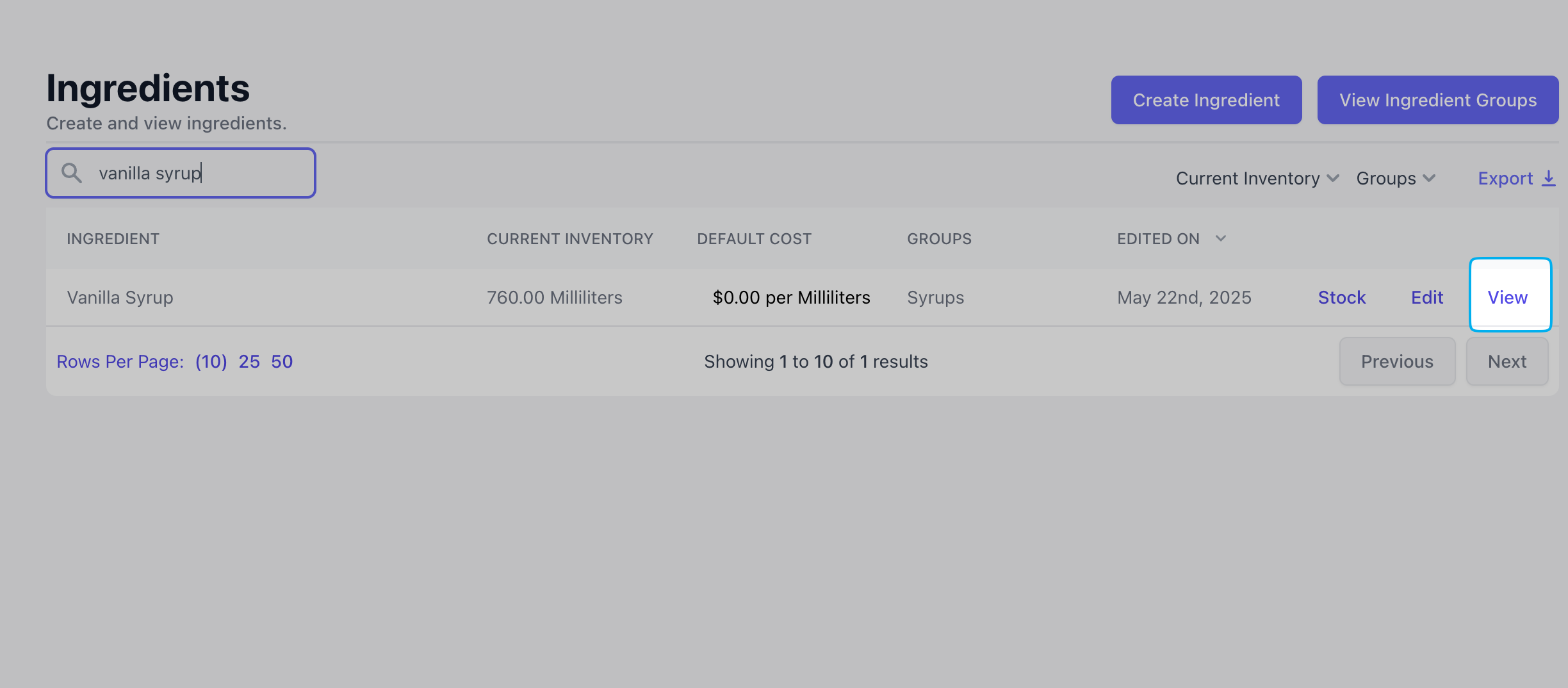 Click the **Sub-Recipe** tab > **Add Ingredient**
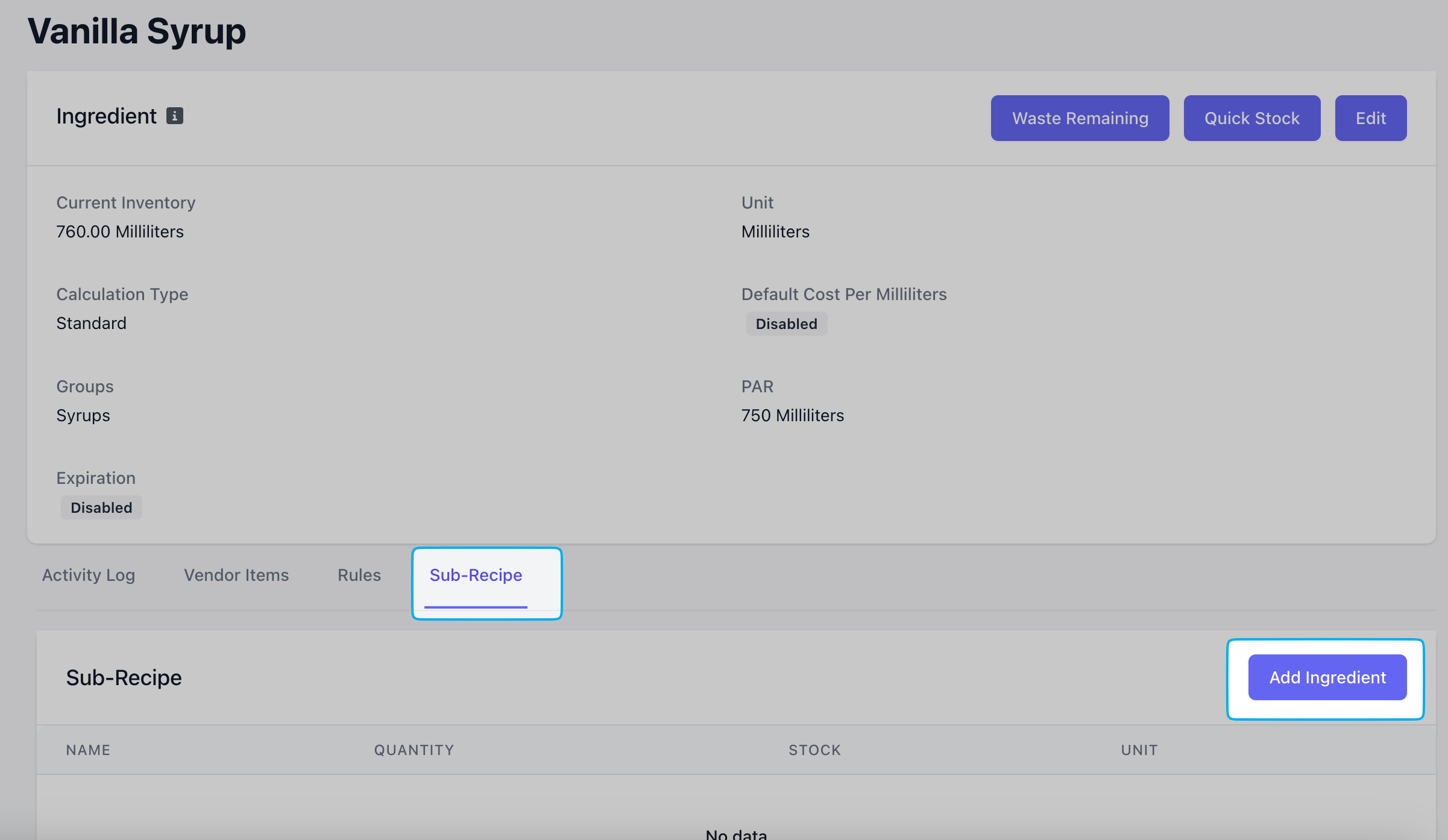 Add the ingredients one by one.
This ingredient of Vanilla Syrup is measured in fluid ounces. The sub recipe will consist of the quantity of ingredients needed to make 1 fluid ounce of Vanilla Syrup.
For this example, let's say that to make 1 fluid ounce of Vanilla Syrup, 10ml of vanilla extract and 20 ml of simple syrup are needed.
Add the ingredients one by one.
This ingredient of Vanilla Syrup is measured in fluid ounces. The sub recipe will consist of the quantity of ingredients needed to make 1 fluid ounce of Vanilla Syrup.
For this example, let's say that to make 1 fluid ounce of Vanilla Syrup, 10ml of vanilla extract and 20 ml of simple syrup are needed.
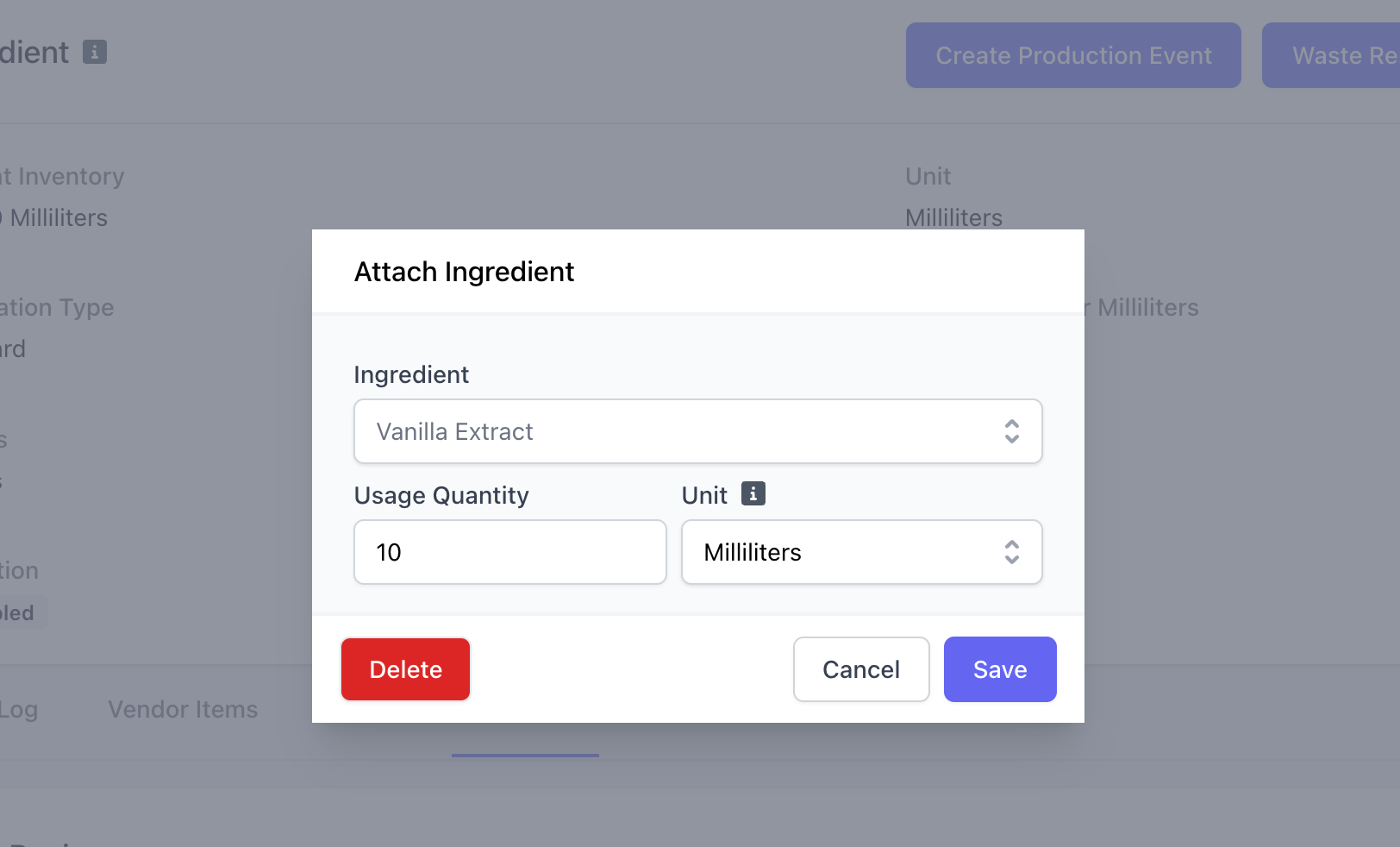 View your sub-recipe below and edit the sub-recipe at any time
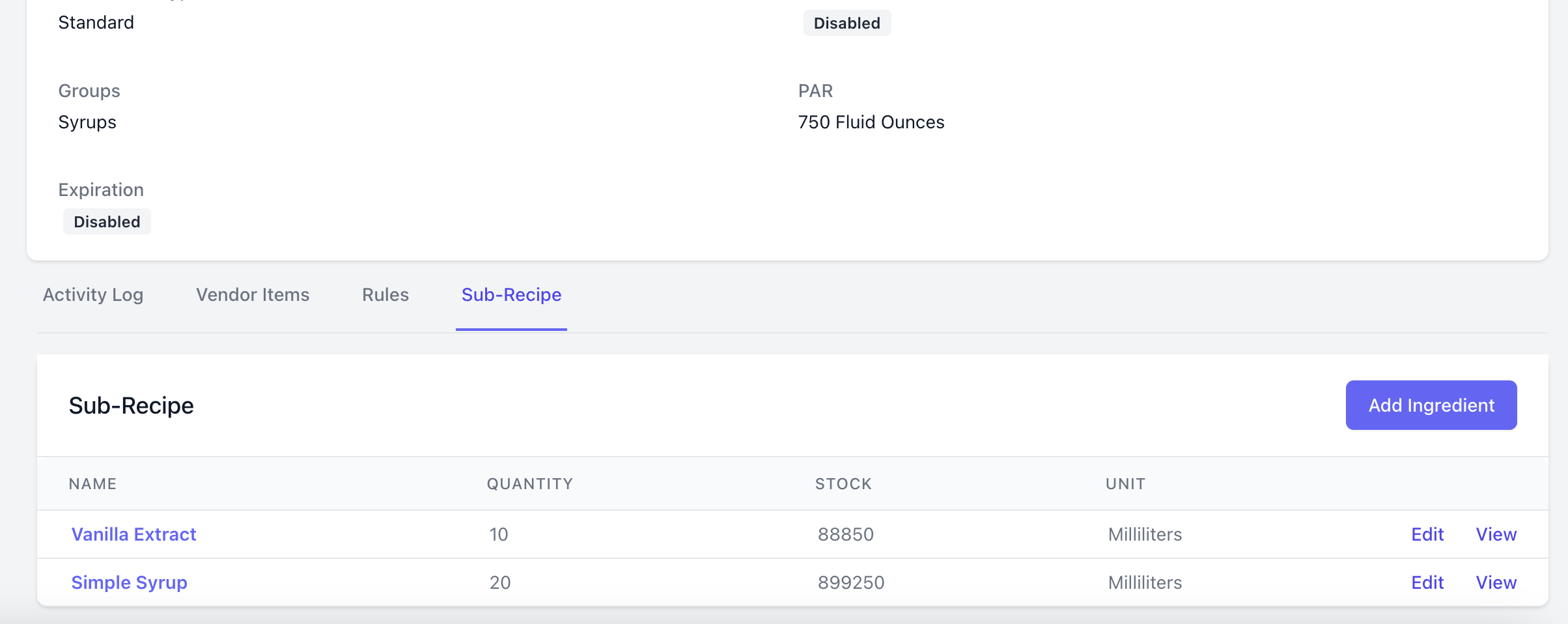 Have you just finished making a fresh batch of house-made syrup?
Use a production event to decrease the stock of the ingredients used in the sub recipe and in turn, restock the final ingredient.
Navigate to **Ingredients** > **view** the ingredient to stock (in this example, Vanilla Syrup)
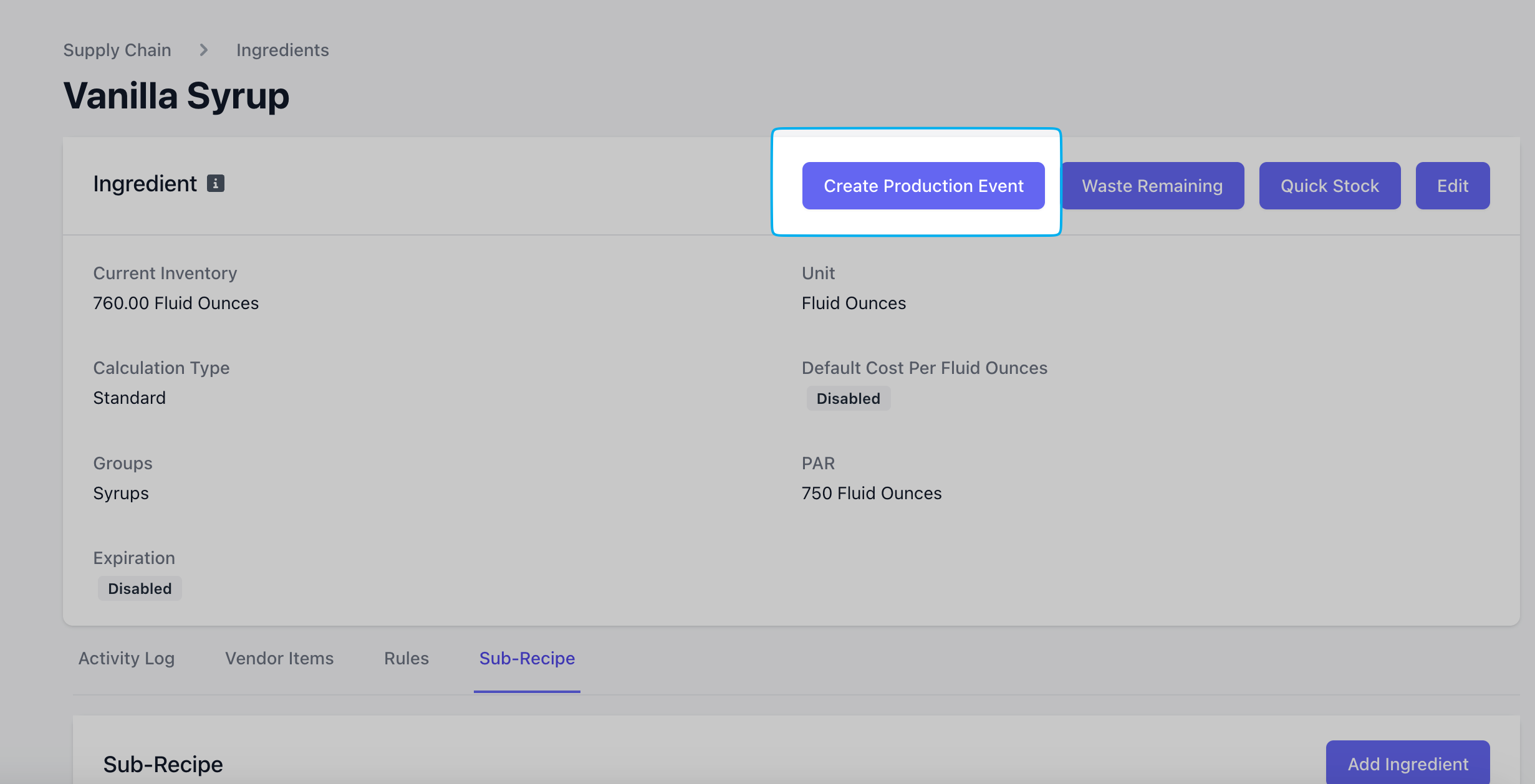
Click **Create Production Event**
Have you just finished making a fresh batch of house-made syrup?
Use a production event to decrease the stock of the ingredients used in the sub recipe and in turn, restock the final ingredient.
Navigate to **Ingredients** > **view** the ingredient to stock (in this example, Vanilla Syrup)
Click **Create Production Event**
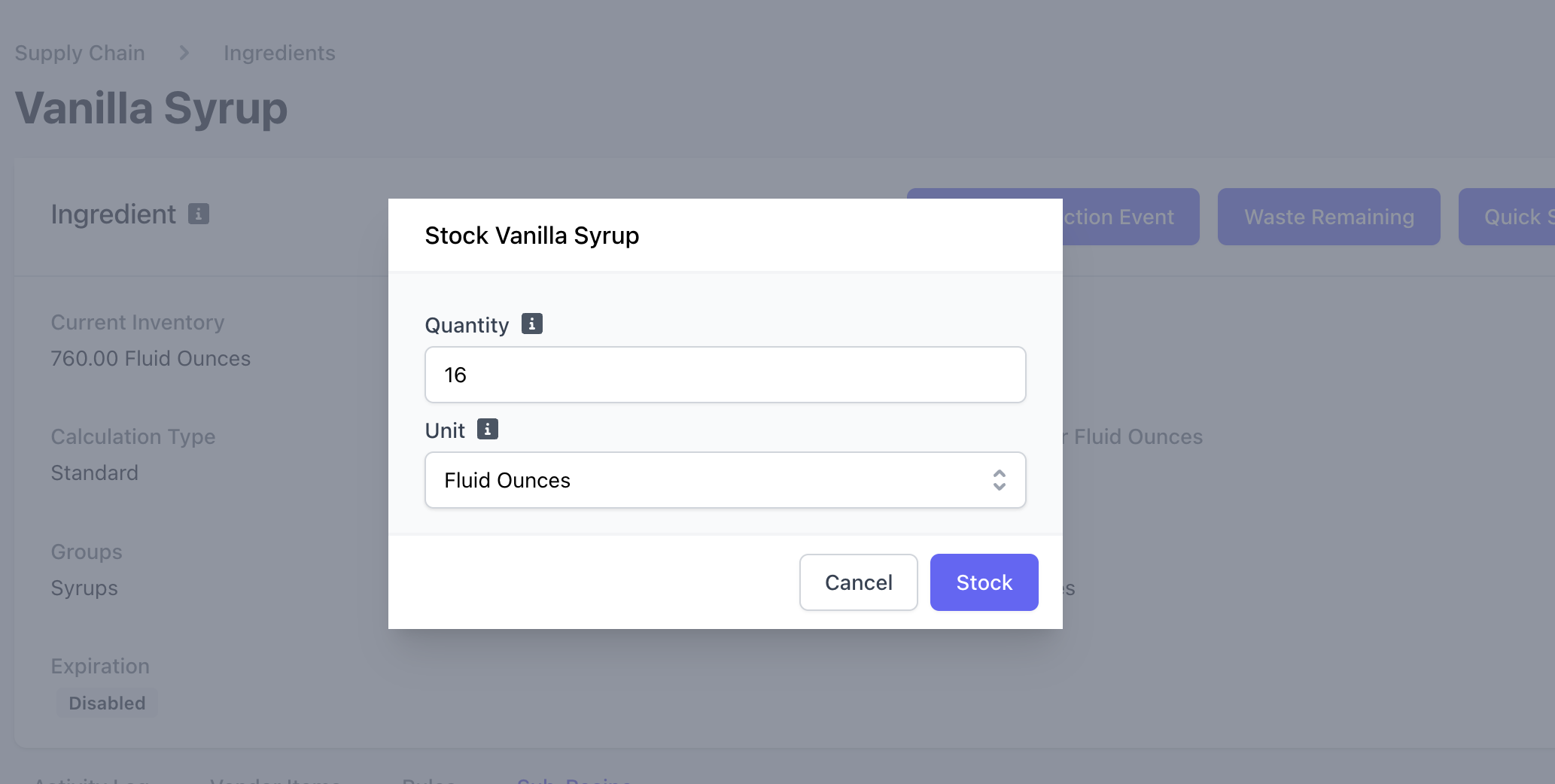
 Stock the amount of the ingredient you've made (*i.e., 16oz of Vanilla Syrup*)
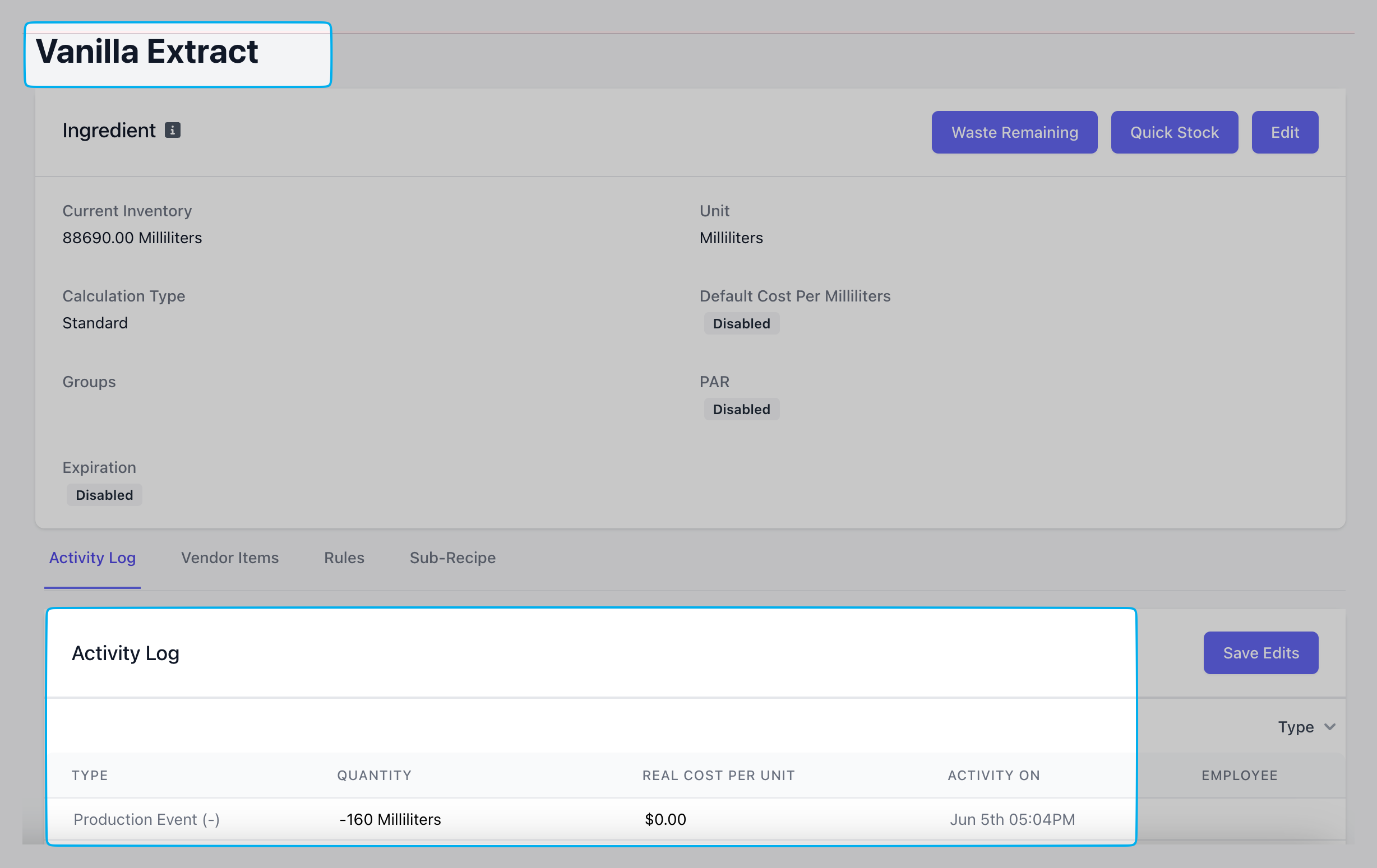
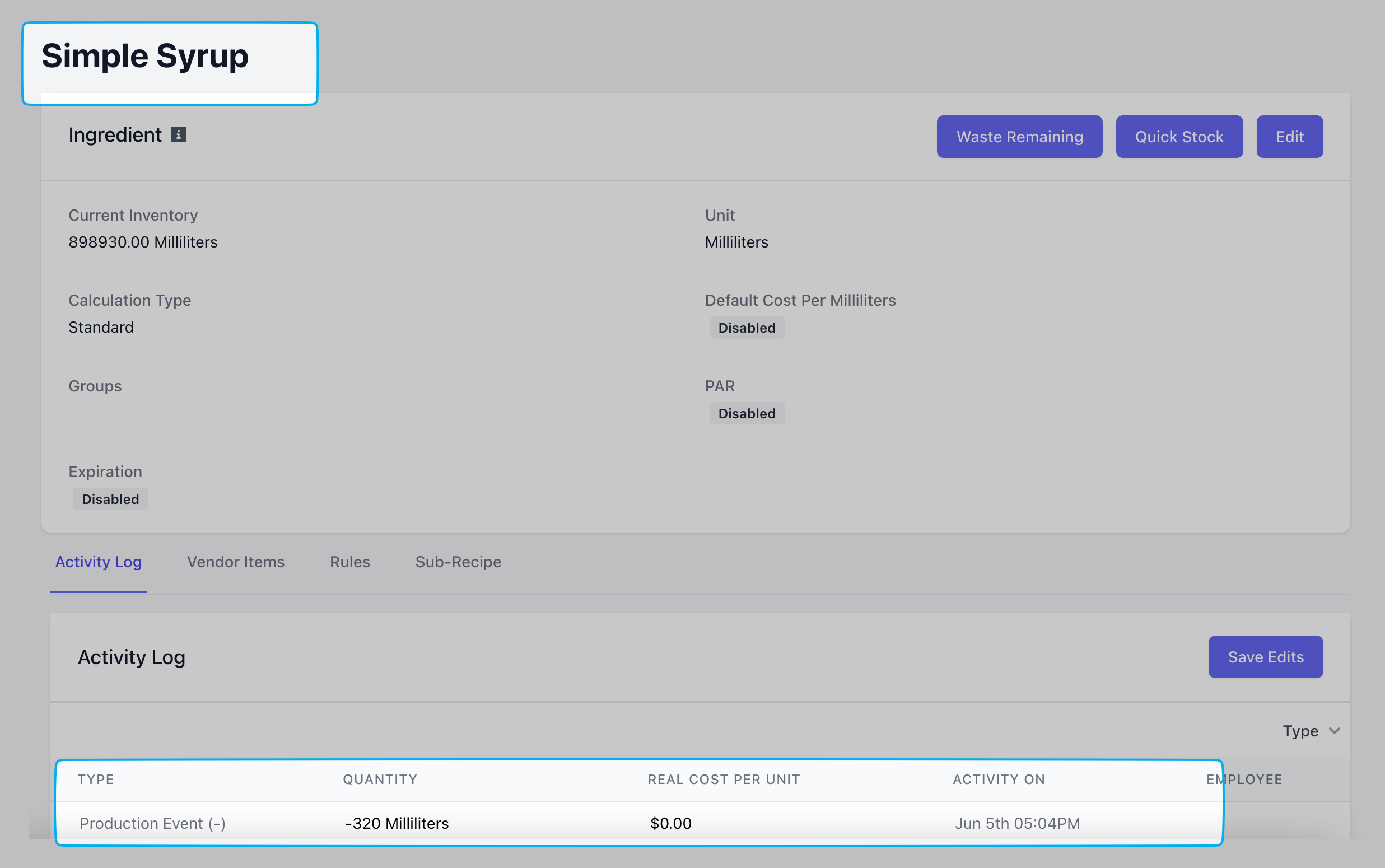
 The stock of your ingredient has just increased, and the stock of the sub-recipe ingredients have subsequently decreased by the quantity used.
View the activity logs of your sub-recipe ingredients to see the production event history.
The stock of your ingredient has just increased, and the stock of the sub-recipe ingredients have subsequently decreased by the quantity used.
View the activity logs of your sub-recipe ingredients to see the production event history.
 ***
## Build a Recipe
Every product in your menu has a recipe ready to build upon in Dripos Supply Chain.
When a product is sold on any Dripos platform, the stocks of ingredients linked to its recipe are automatically reduced by the amount used.
### Customizable Products
Follow these steps to create a recipe for a customizable product that relies on modifier options for ordering (i.e. espresso drinks, breakfast sandwiches, etc.)
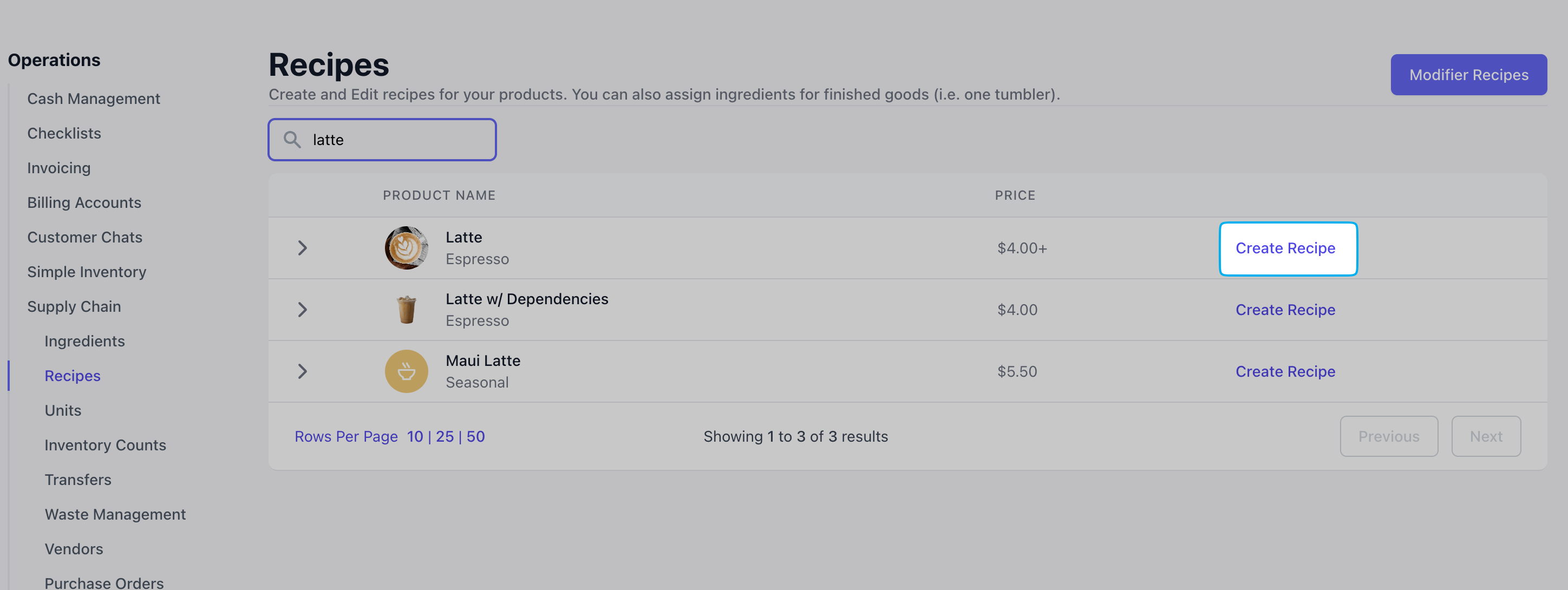
On the Dashboard, navigate to **Menu** > **Supply Chain** > **Recipes** > select **Create** next to the desired product
***
## Build a Recipe
Every product in your menu has a recipe ready to build upon in Dripos Supply Chain.
When a product is sold on any Dripos platform, the stocks of ingredients linked to its recipe are automatically reduced by the amount used.
### Customizable Products
Follow these steps to create a recipe for a customizable product that relies on modifier options for ordering (i.e. espresso drinks, breakfast sandwiches, etc.)
On the Dashboard, navigate to **Menu** > **Supply Chain** > **Recipes** > select **Create** next to the desired product
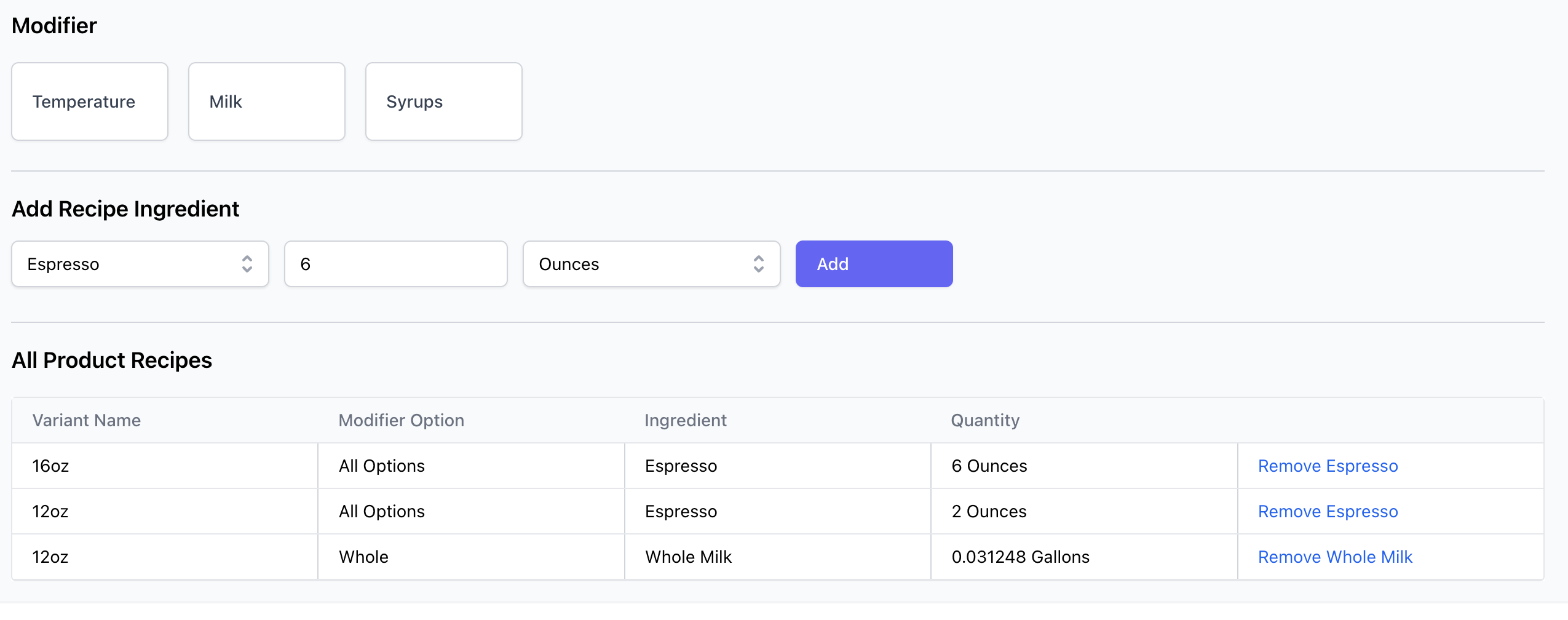
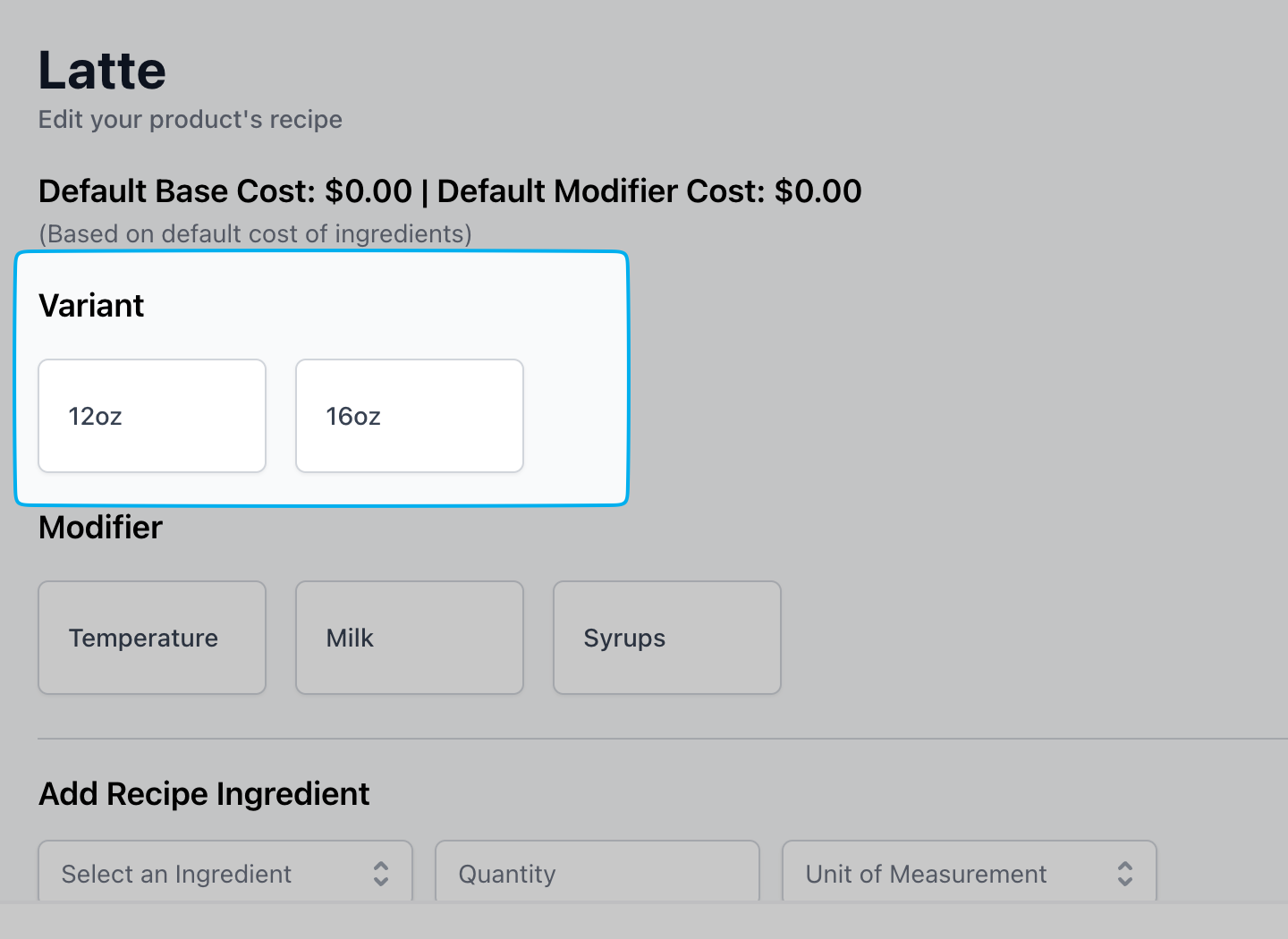 **Variant**: A variant is your product's pricing model. If the quantity of an ingredient used varies by size or price, you’ll need to select a variant when adding that ingredient to a recipe.
*i.e., a 12oz latte will use 2oz of espresso, a 16oz will use 6oz of espresso*
If an ingredient's quantity used in a recipe **will be the same** regardless of the product size/price (i.e., 1 cup sleeve, 2 bread slices), a variant does not need to be selected prior to adding an ingredient.
**Variant**: A variant is your product's pricing model. If the quantity of an ingredient used varies by size or price, you’ll need to select a variant when adding that ingredient to a recipe.
*i.e., a 12oz latte will use 2oz of espresso, a 16oz will use 6oz of espresso*
If an ingredient's quantity used in a recipe **will be the same** regardless of the product size/price (i.e., 1 cup sleeve, 2 bread slices), a variant does not need to be selected prior to adding an ingredient.
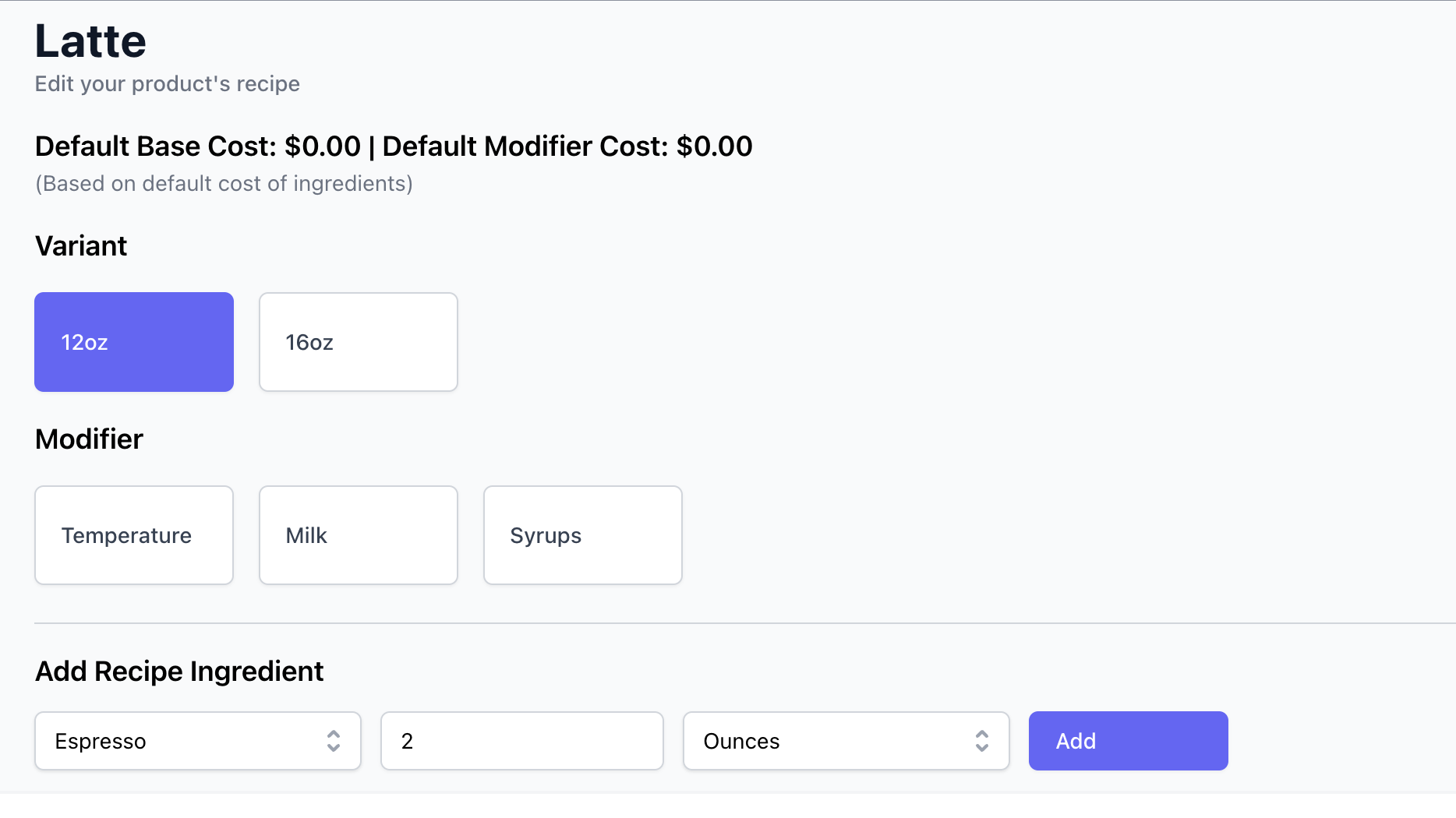 To add, for example, the ingredient espresso to different latte sizes, select the variant (12oz) > add the **recipe ingredient** > enter the quantity to use (2oz) > click **Add**. Repeat the action for other variants with their corresponding ingredient quantity.
For example, a 12oz and 16oz latte will use different amounts of milk. To add the ingredient of whole milk to each variant, select the variant (12oz) > select the modifier **Milk** > select the whole milk **option** > add the recipe ingredient > enter the quantity to use (2oz) > click **Add**
To add, for example, the ingredient espresso to different latte sizes, select the variant (12oz) > add the **recipe ingredient** > enter the quantity to use (2oz) > click **Add**. Repeat the action for other variants with their corresponding ingredient quantity.
For example, a 12oz and 16oz latte will use different amounts of milk. To add the ingredient of whole milk to each variant, select the variant (12oz) > select the modifier **Milk** > select the whole milk **option** > add the recipe ingredient > enter the quantity to use (2oz) > click **Add**
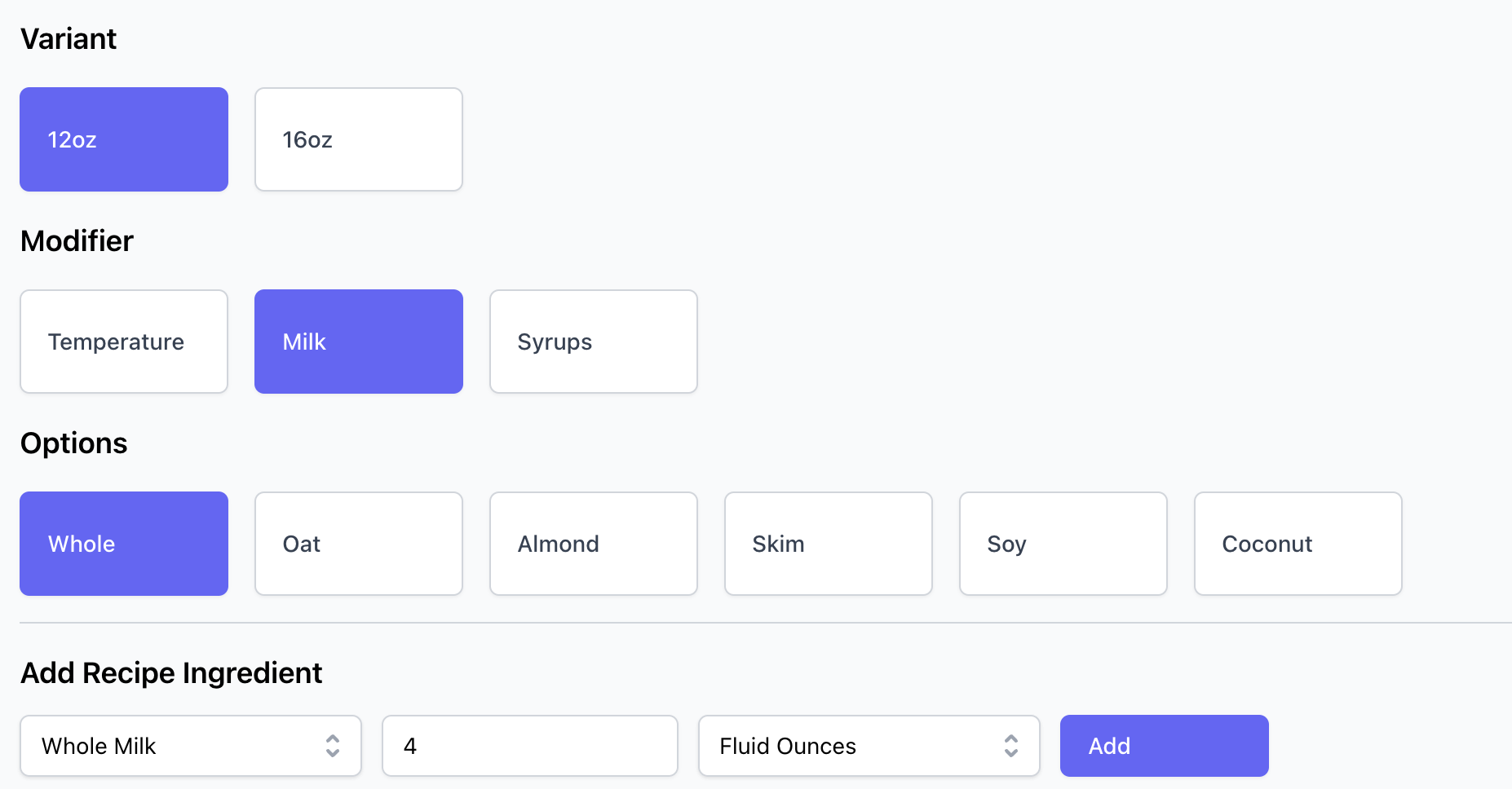 Ensure you are using the right unit of measurement! Click the drop down next to the ingredient to select the correct unit. You want to add fluid ounces of milk to a latte, not gallons!
All added ingredients and their corresponding variants (if applicable) and modifiers will be listed at the bottom of the recipe page.
Ingredients cannot be edited. Remove the ingredient and make a new ingredient to make changes.
Ensure you are using the right unit of measurement! Click the drop down next to the ingredient to select the correct unit. You want to add fluid ounces of milk to a latte, not gallons!
All added ingredients and their corresponding variants (if applicable) and modifiers will be listed at the bottom of the recipe page.
Ingredients cannot be edited. Remove the ingredient and make a new ingredient to make changes.
 ***
### Grab & Go Products
Use supply chain to track quantity of simple inventory products such as bakery items and canned beverages.
Use these steps if you have a stand alone product for sale, *i.e. water bottle, croissant*
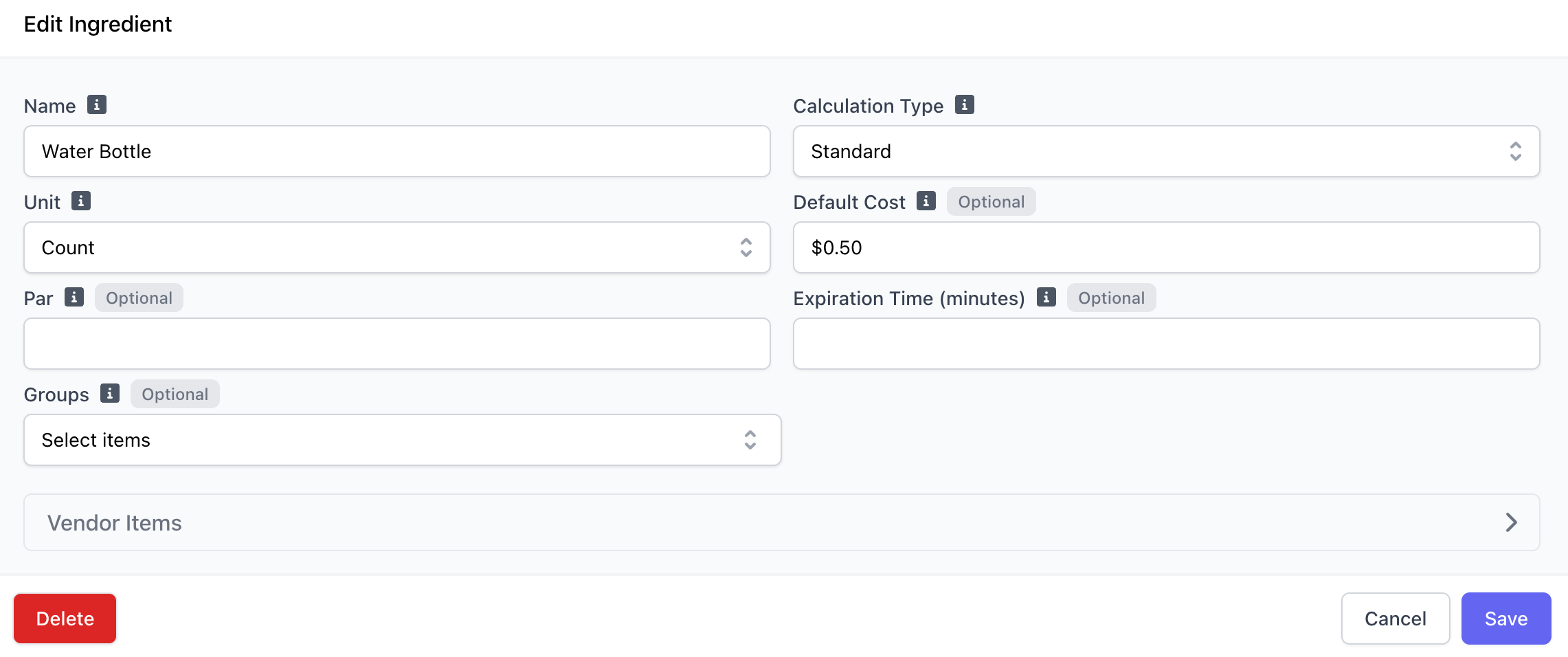
Create a singular ingredient for the product (i.e., water bottle)
***
### Grab & Go Products
Use supply chain to track quantity of simple inventory products such as bakery items and canned beverages.
Use these steps if you have a stand alone product for sale, *i.e. water bottle, croissant*
Create a singular ingredient for the product (i.e., water bottle)
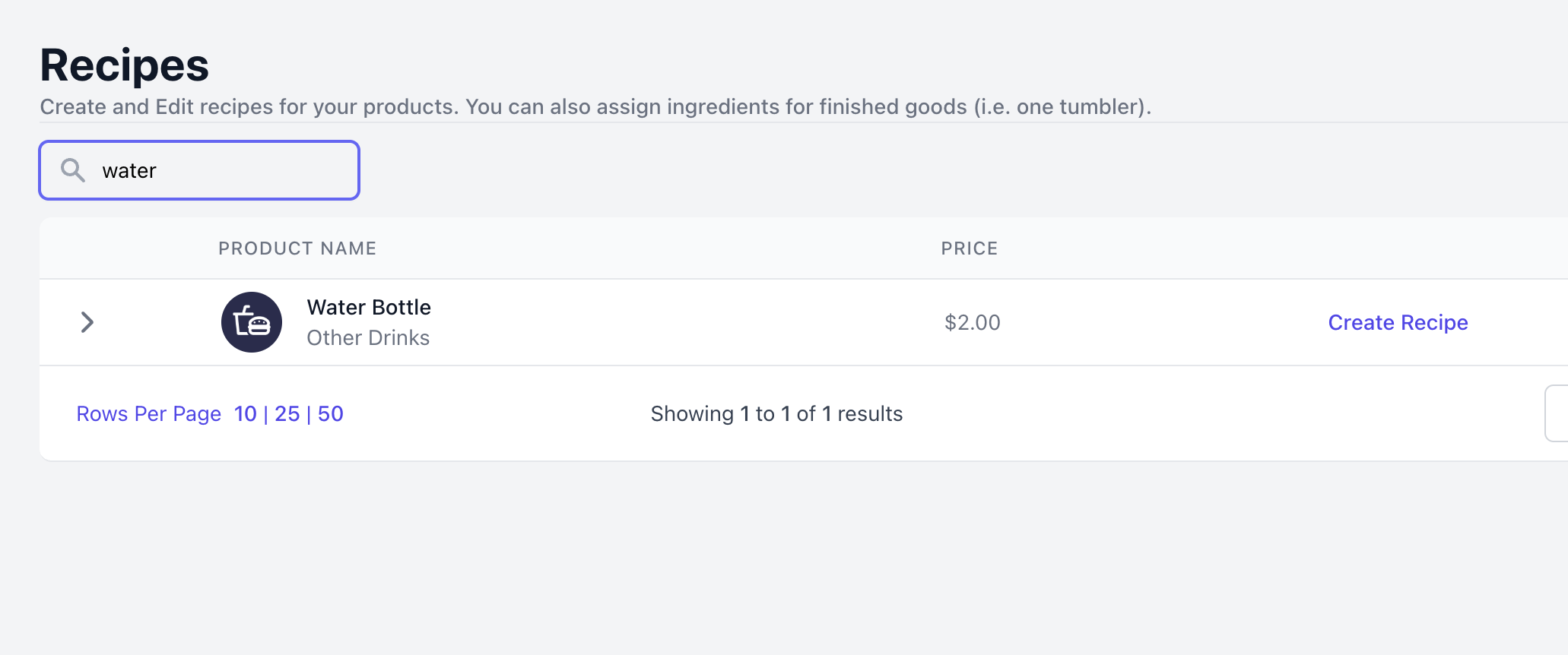
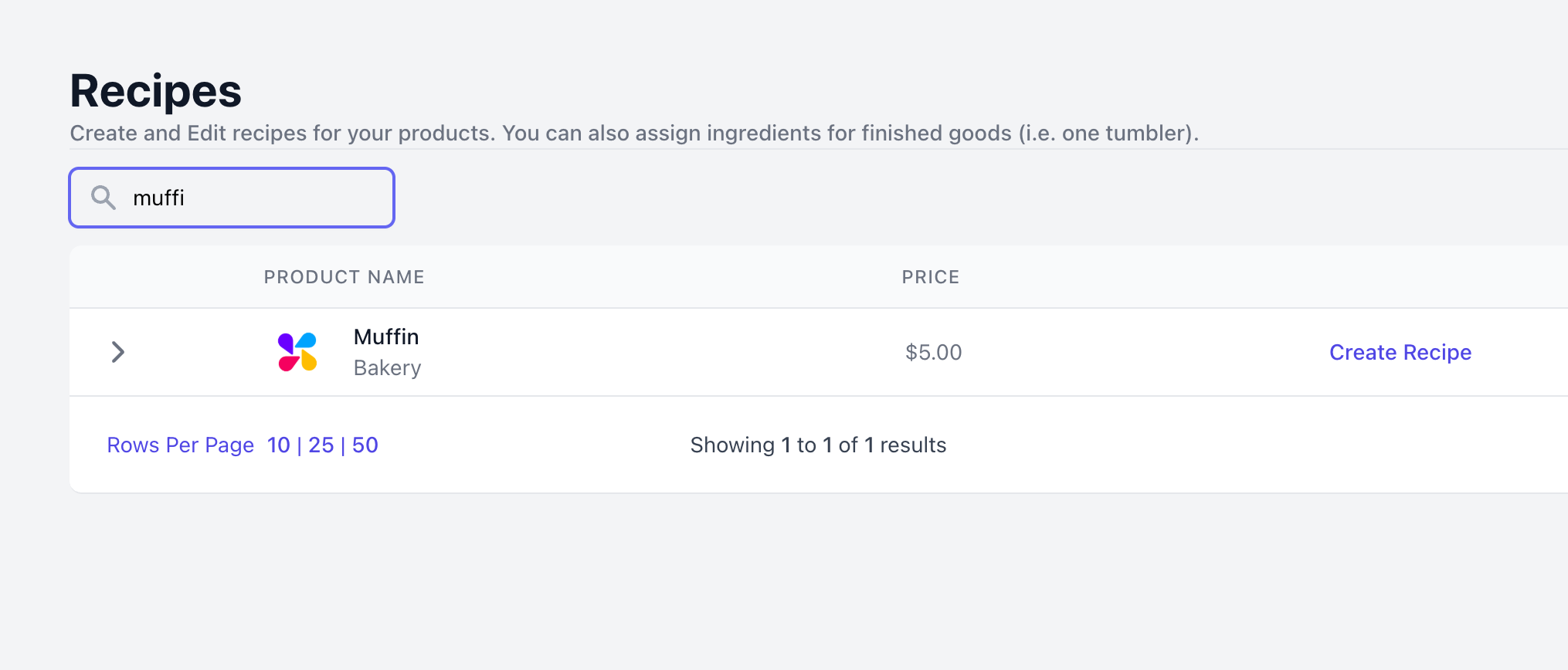
 Navigate to **Recipes** > find product and click **Create Recipe**
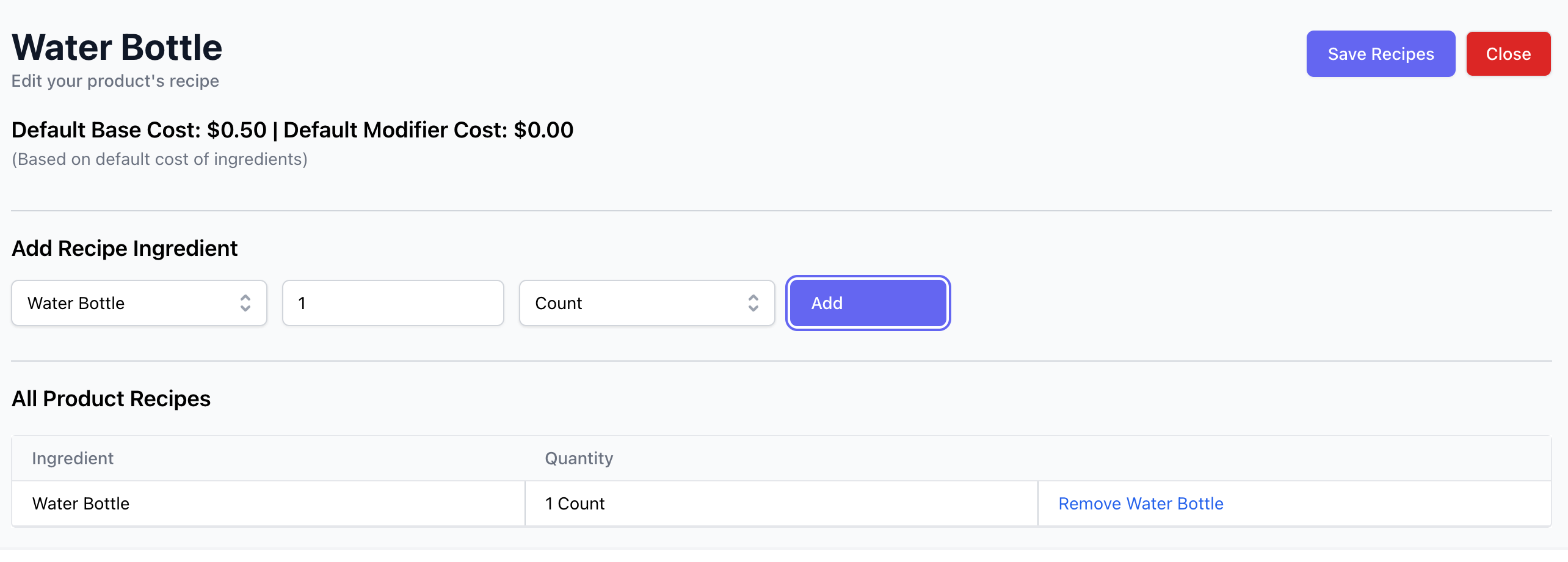
 Set the ingredient quantity to 1 so that each sale reduces the ingredient stock by one unit.
 Use these steps if you have a product with modifier options acting as a singular flavor/type/choice, *i.e. product is muffins and has various flavor option modifiers*
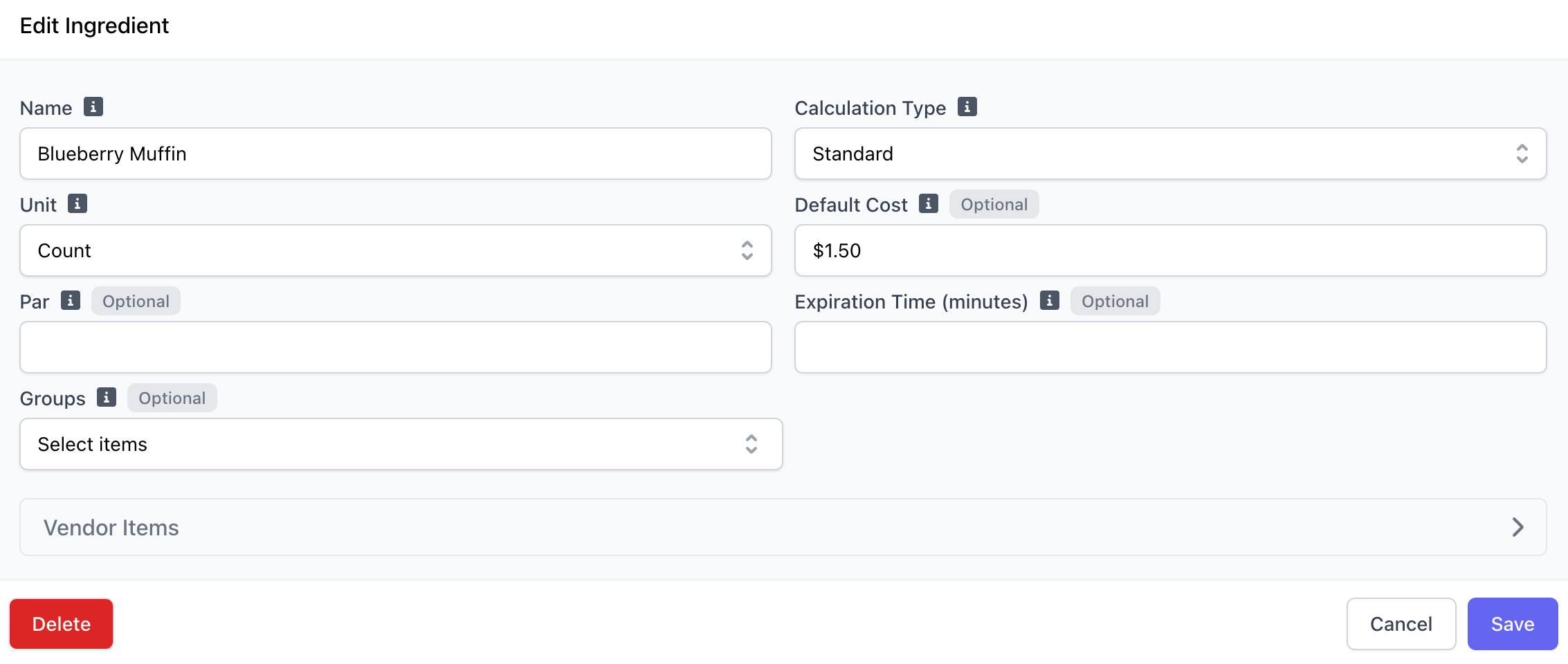
Create a singular ingredient for each modifier choice (i.e., an ingredient for each muffin flavor)
Use these steps if you have a product with modifier options acting as a singular flavor/type/choice, *i.e. product is muffins and has various flavor option modifiers*
Create a singular ingredient for each modifier choice (i.e., an ingredient for each muffin flavor)
 Navigate to **Recipes** > find product and click **Create Recipe**
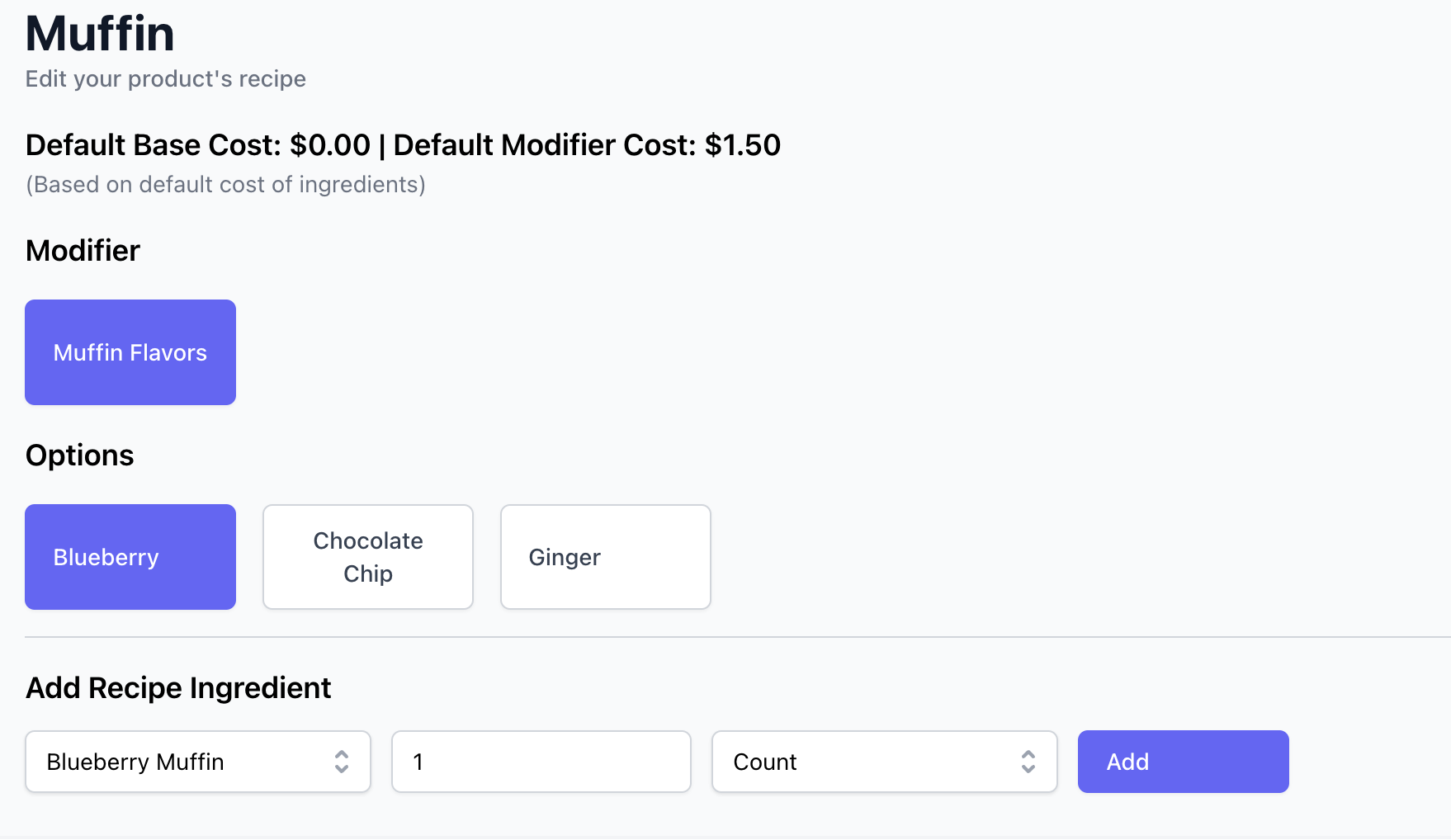
 Click the **modifier type** > select the modifier **option** > add the **recipe ingredient**.
Set the ingredient **quantity to 1** so that each sale reduces the ingredient stock by one unit.
Click the **modifier type** > select the modifier **option** > add the **recipe ingredient**.
Set the ingredient **quantity to 1** so that each sale reduces the ingredient stock by one unit.
 ***
### Modifier Recipes
**Attach an ingredient to a global modifier**
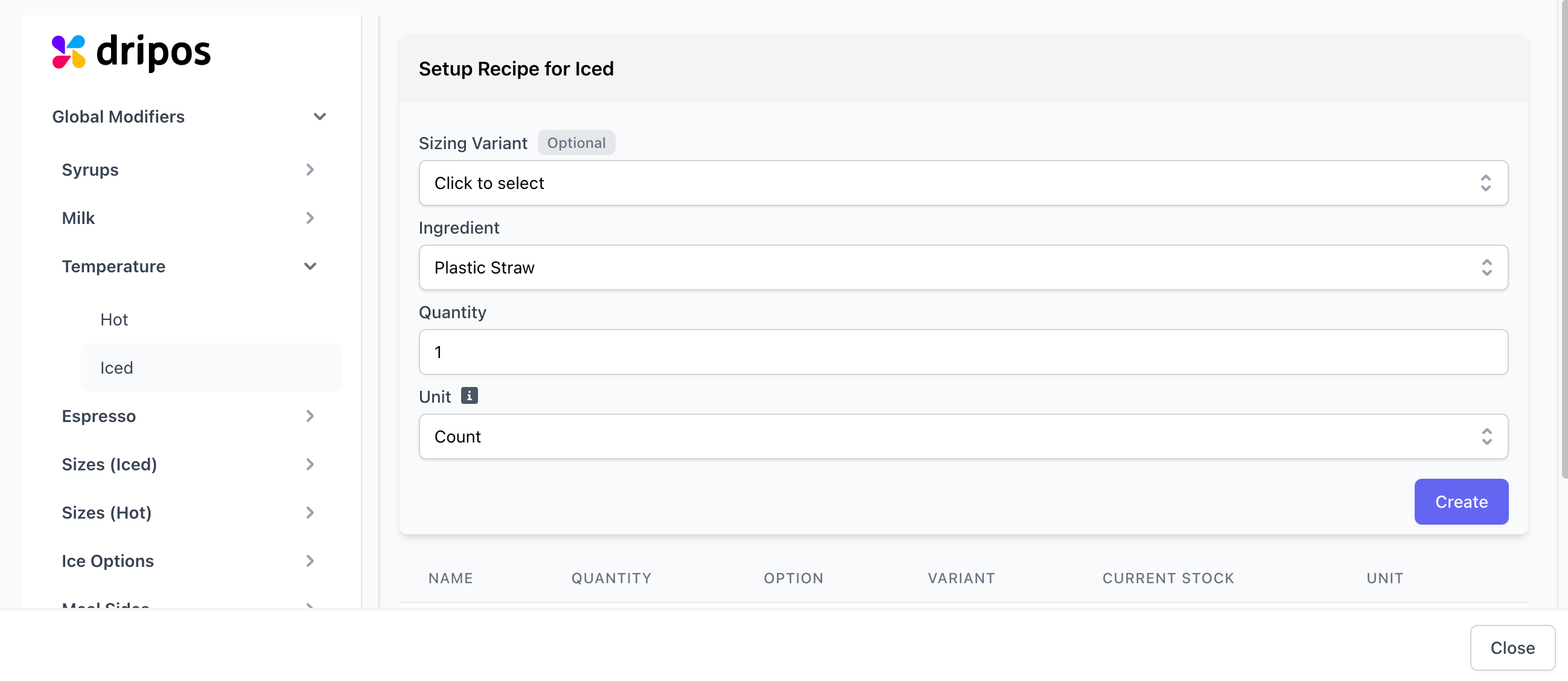
For example, all iced drinks use one straw. Add the ingredient of one straw to the **Temperature = Iced** modifier.
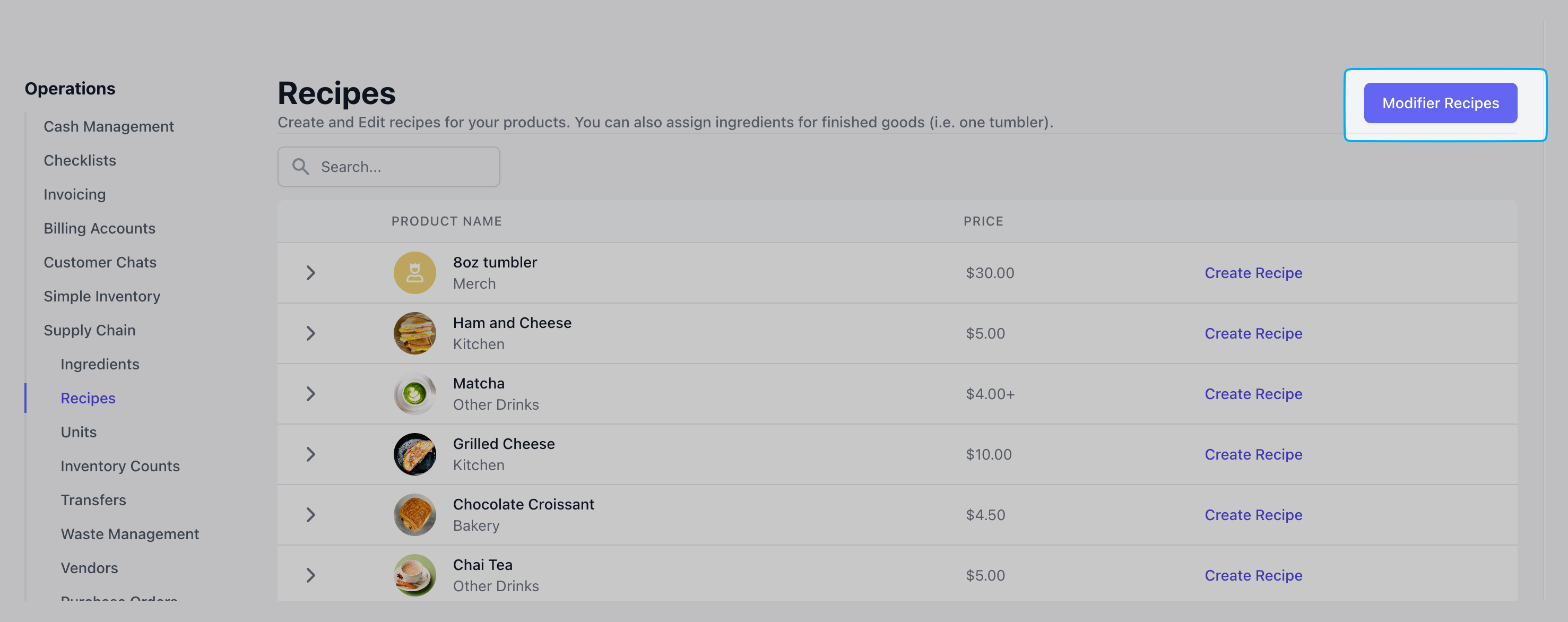
Click **Modifier Recipes** in the top right corner of supply chain > recipes
***
### Modifier Recipes
**Attach an ingredient to a global modifier**
For example, all iced drinks use one straw. Add the ingredient of one straw to the **Temperature = Iced** modifier.
Click **Modifier Recipes** in the top right corner of supply chain > recipes
 Select the modifier and the modifier option (Temperature > Iced)
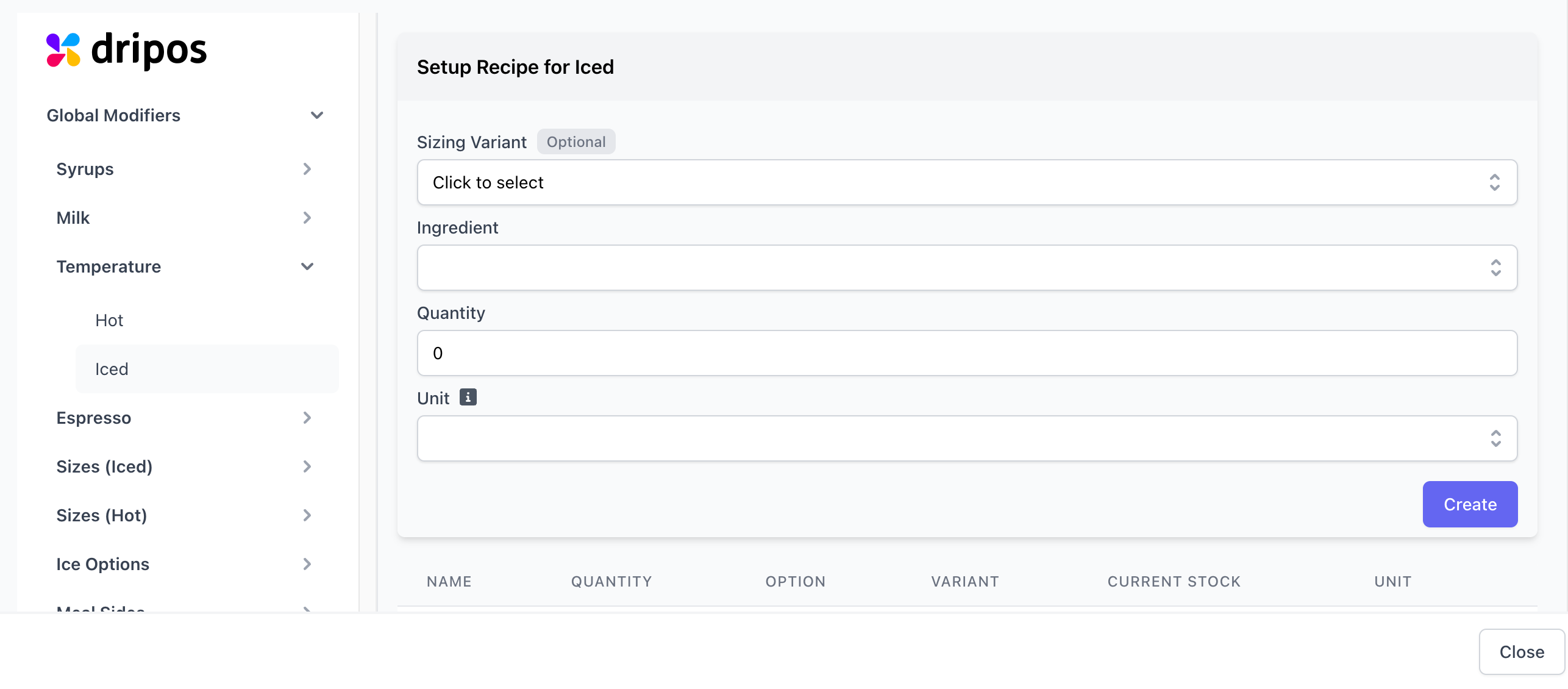 Choose the sizing variant (optional) and input the ingredient and the respective quantity to use > click **create**