> ## Documentation Index
> Fetch the complete documentation index at: https://support.dripos.com/llms.txt
> Use this file to discover all available pages before exploring further.
# Inventory Management
> Learn how to manage your inventory on Dripos Supply Chain
## Adjust Inventory Stock
Make adjustments to your ingredient stock.
Make adjustments to your ingredient stock directly from your Dashboard.
Navigate to **Operations** > **Supply Chain** > **Ingredients** > **View** ingredient
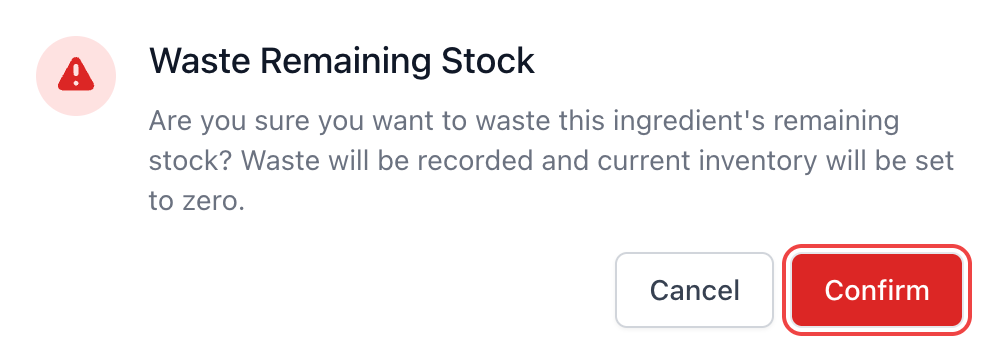
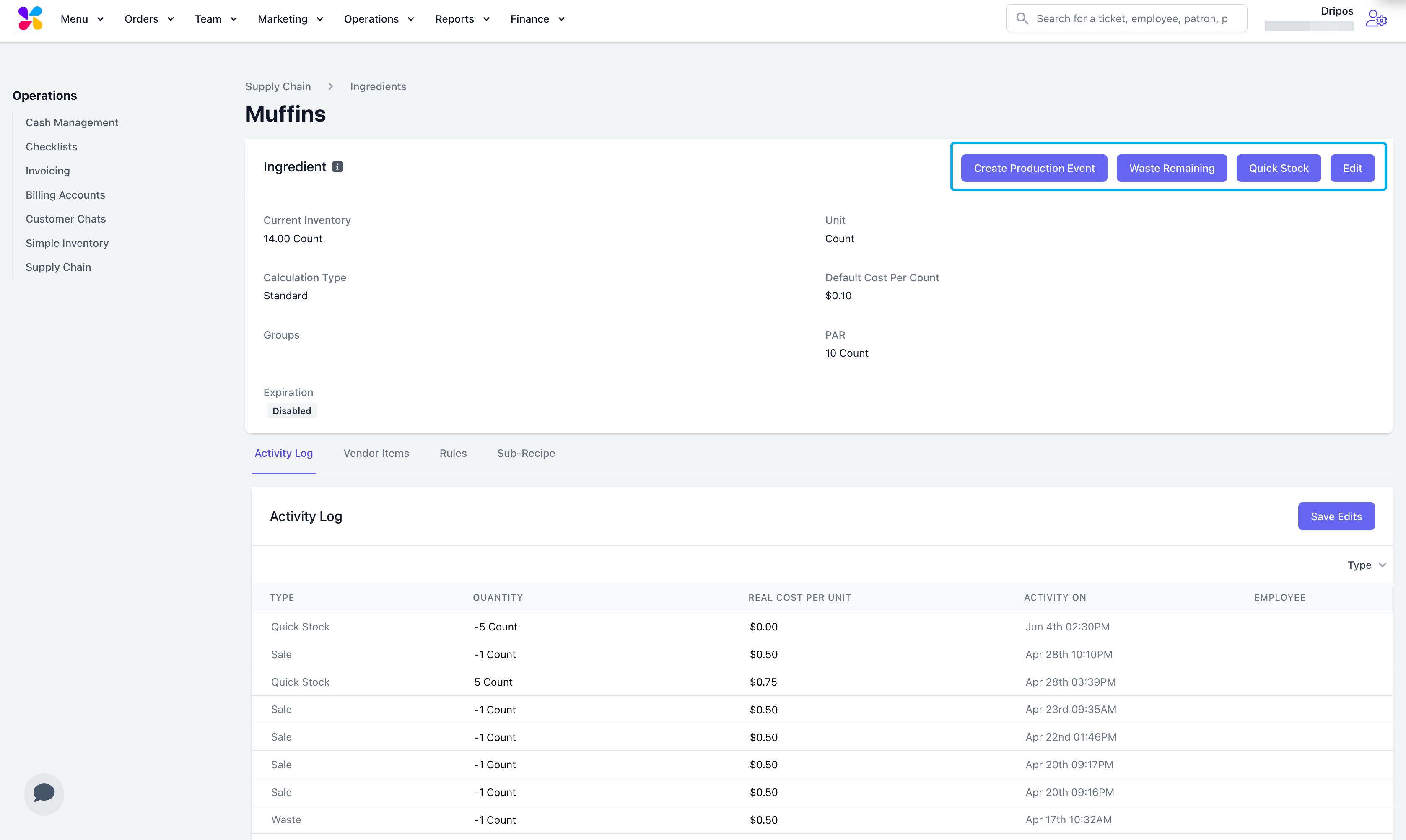 Waste all remaining ingredient stock. This will set the quantity in stock to 0 and create a **Waste Event** for the ingredient.
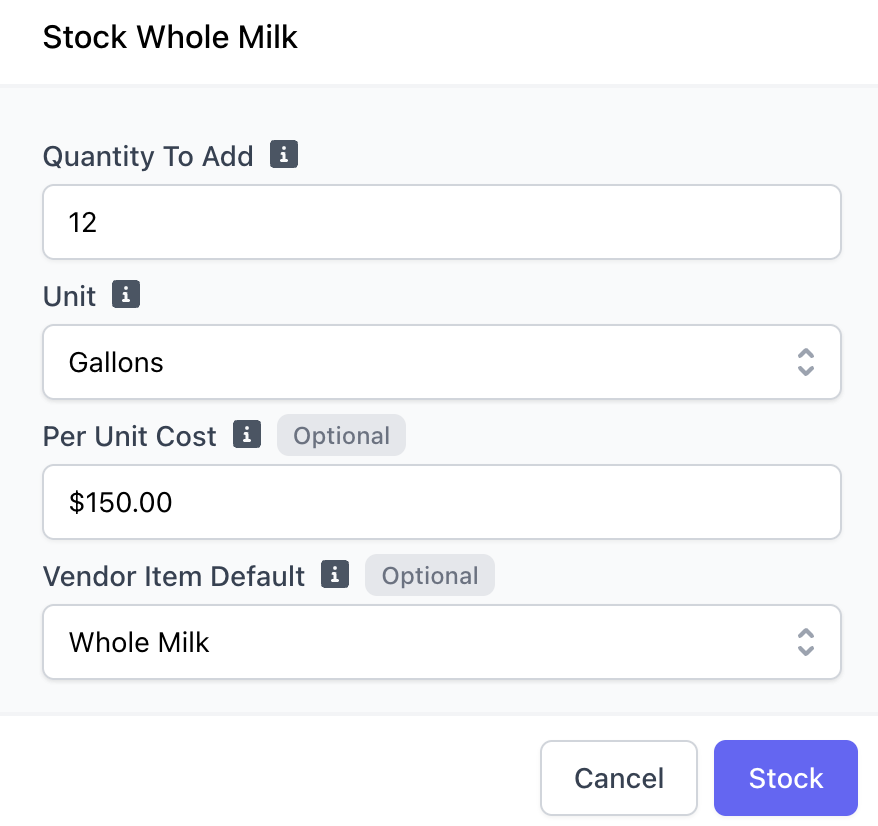
 Add quantity to an ingredient's stock. Ensure the proper unit is selected. The Per Unit Cost will autofill. If a vendor item is attached, it too will autofill.
 Use a production event to decrease the stock of the ingredients used in the sub recipe and in turn, restock the final ingredient.
Learn more about production events [here](/operations/supply/supply-basics#create-a-production-event)
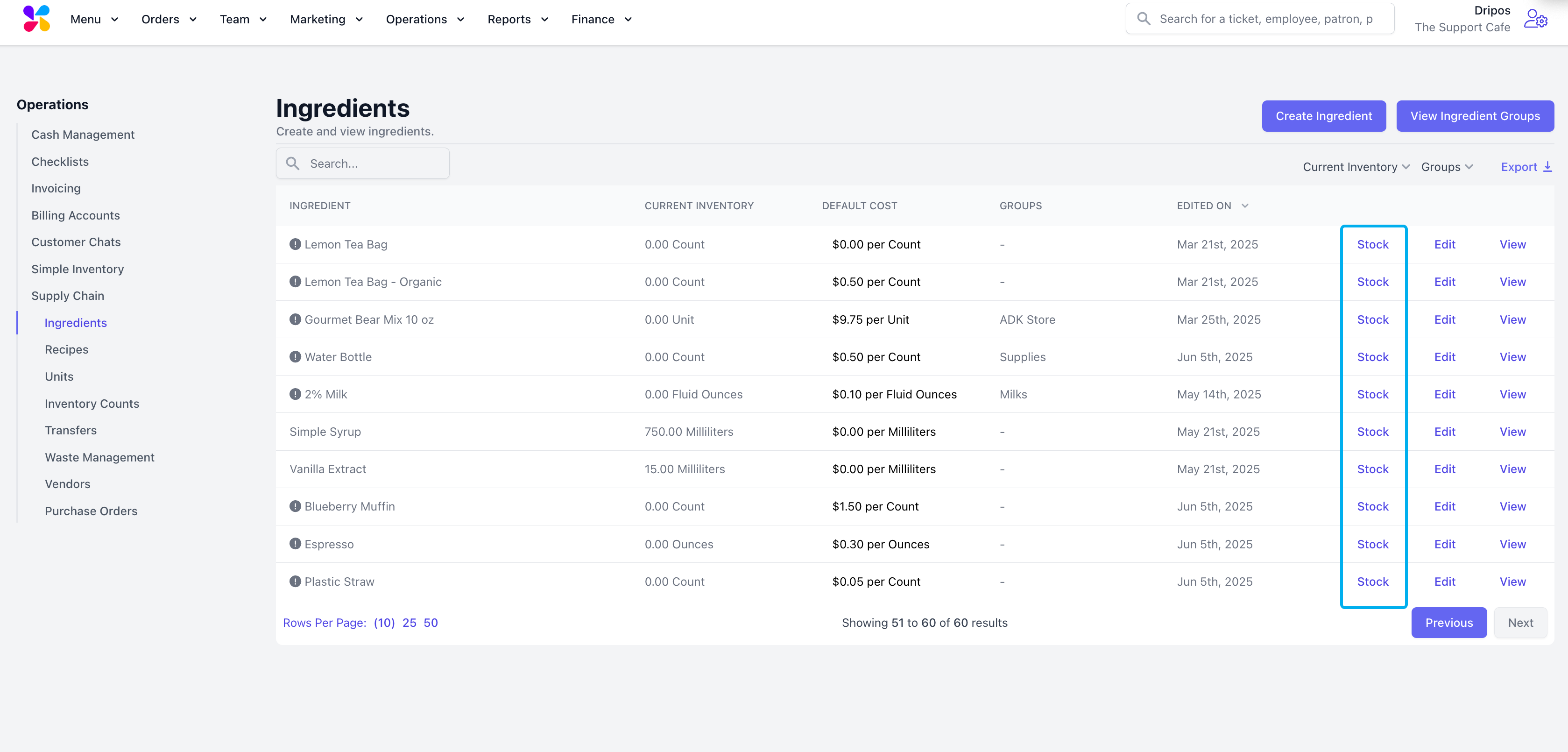
Additionally, edit ingredient stock directly from the Ingredients page.
Select the Stock button to the right of the ingredient you want to add or subtract stock from.
Use a production event to decrease the stock of the ingredients used in the sub recipe and in turn, restock the final ingredient.
Learn more about production events [here](/operations/supply/supply-basics#create-a-production-event)
Additionally, edit ingredient stock directly from the Ingredients page.
Select the Stock button to the right of the ingredient you want to add or subtract stock from.
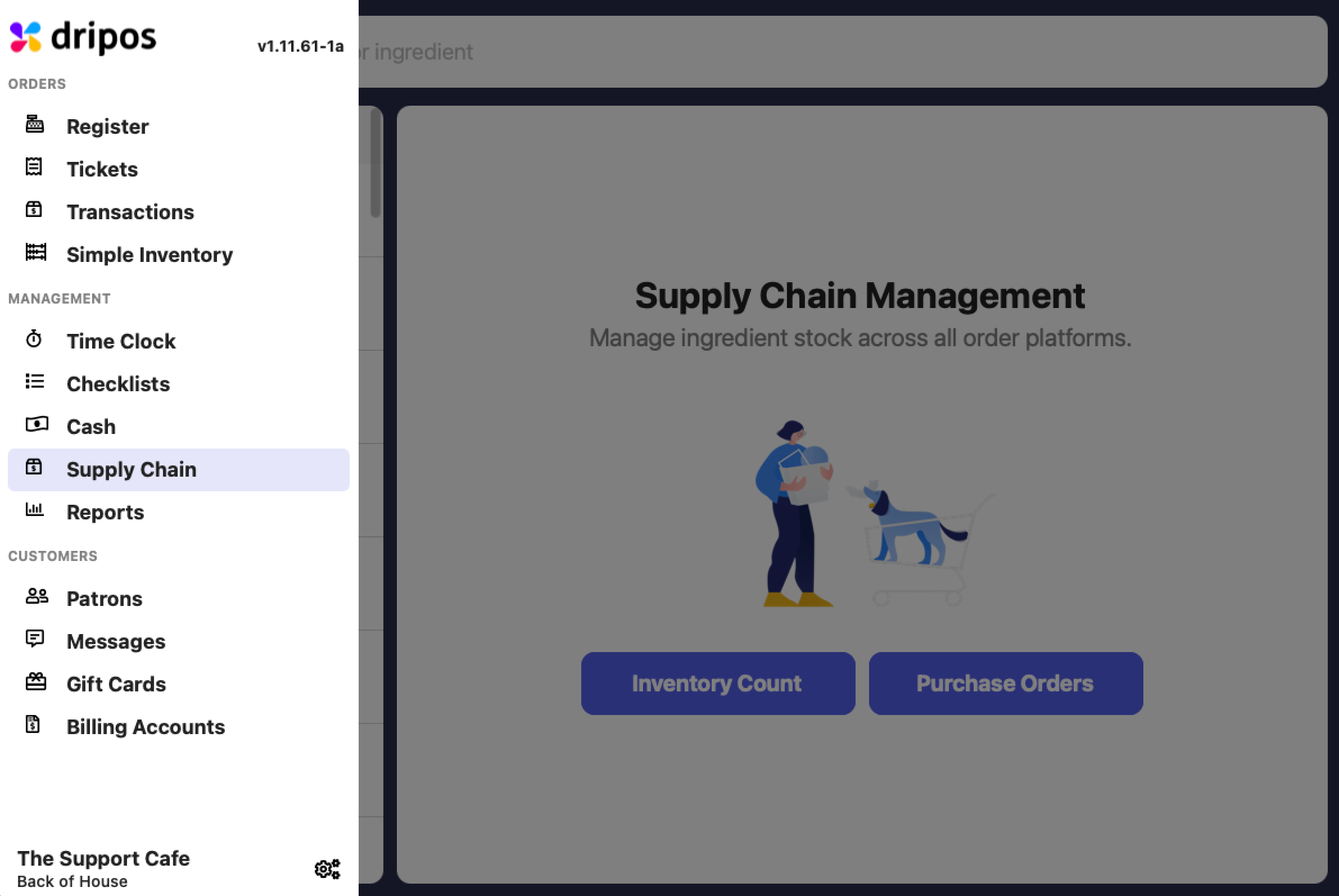
 Make adjustments to your ingredient stock directly from your POS.
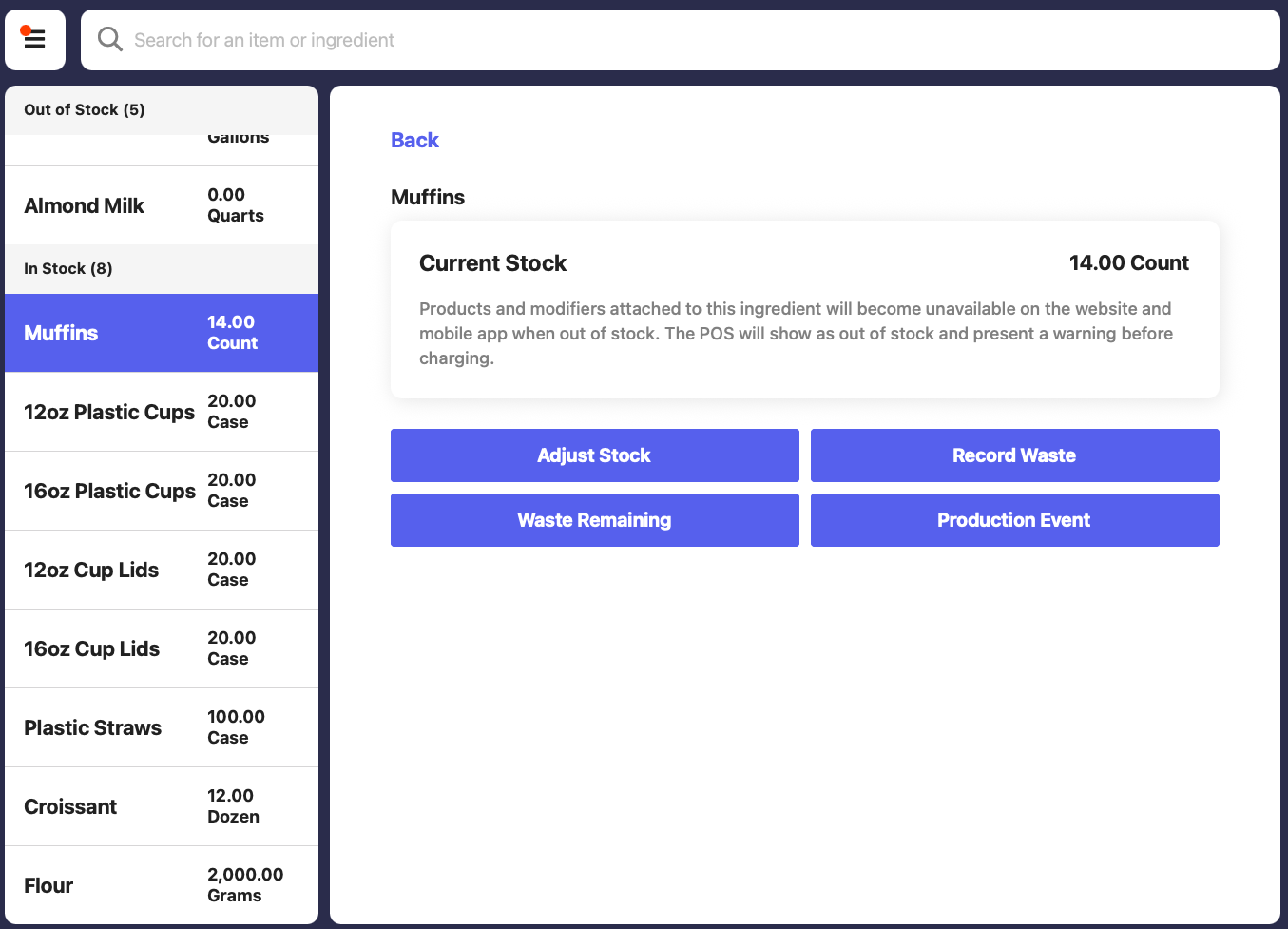
 Ingredients are sorted by Out of Stock and In Stock
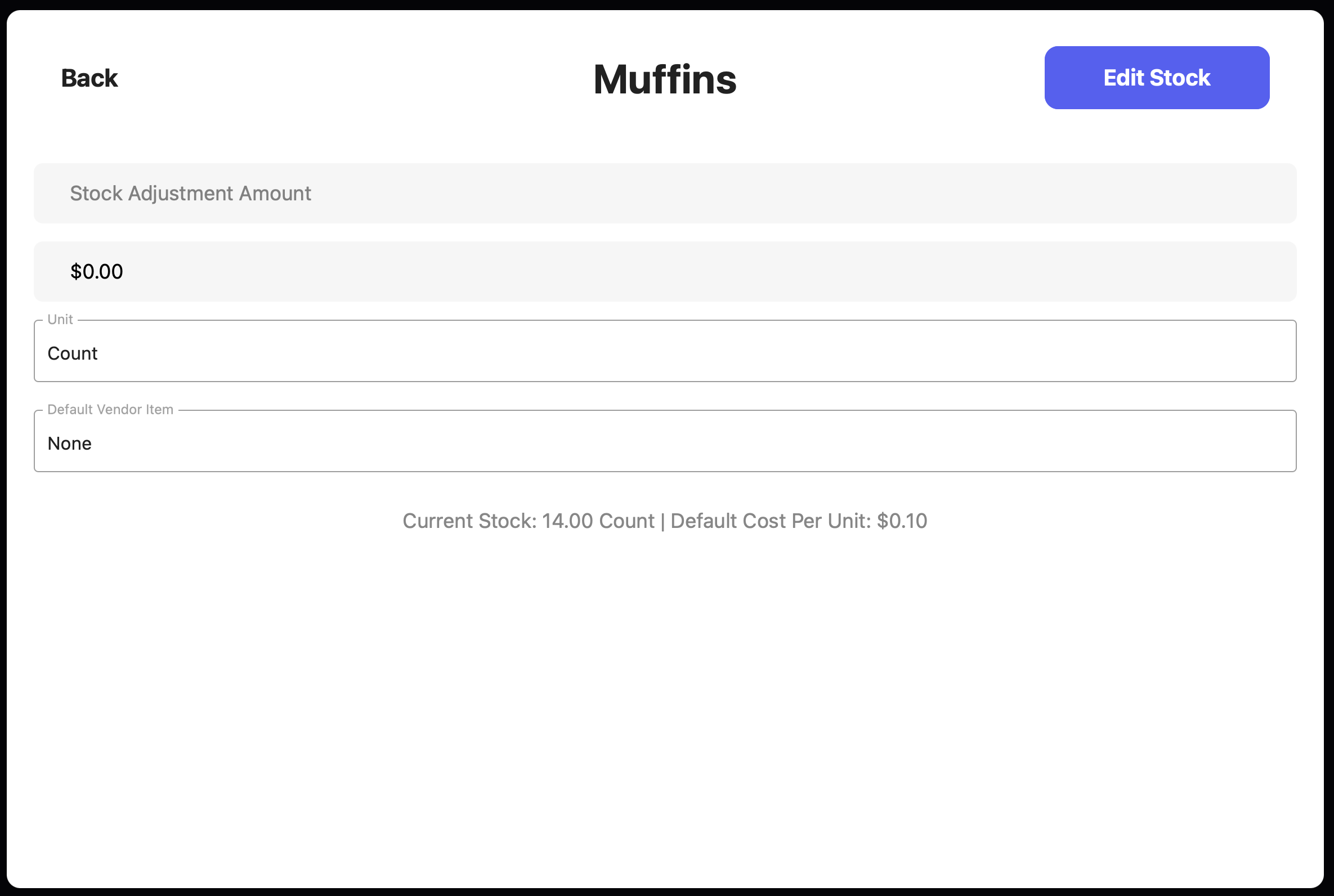
 Manually add or subtract (by inputting a negative value) stock from an ingredient.
Once the stock value is inputted, press Edit Stock to confirm your changes.
Manually add or subtract (by inputting a negative value) stock from an ingredient.
Once the stock value is inputted, press Edit Stock to confirm your changes.
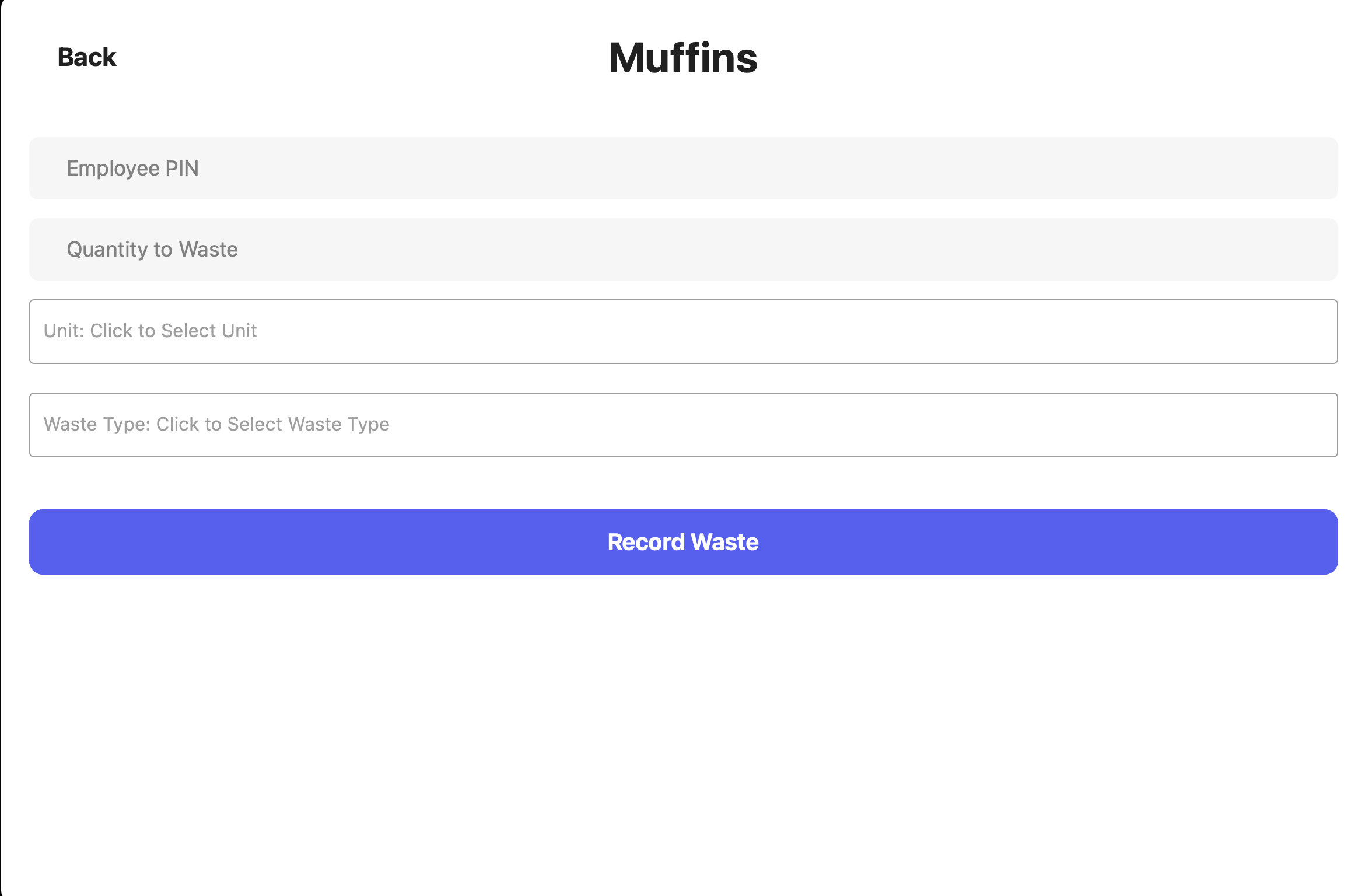
 Record and categorize waste to decrease ingredient stock. Once values are inputted, press Record Waste to confirm your changes.
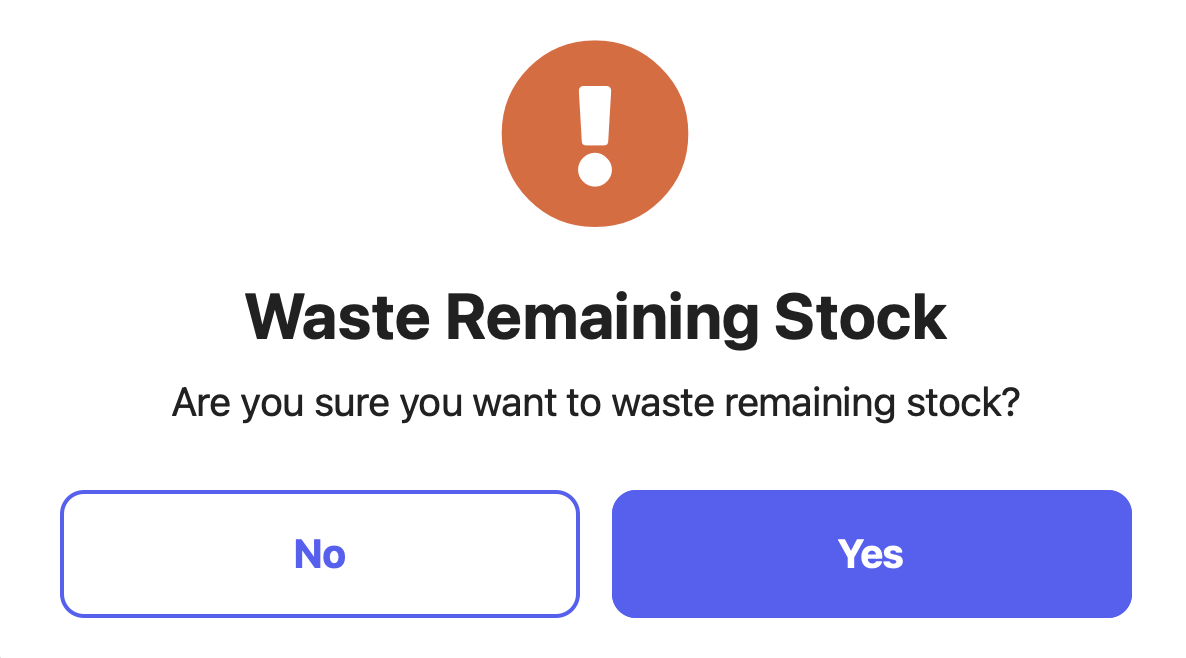
 Waste all remaining ingredient stock. Select then confirm.
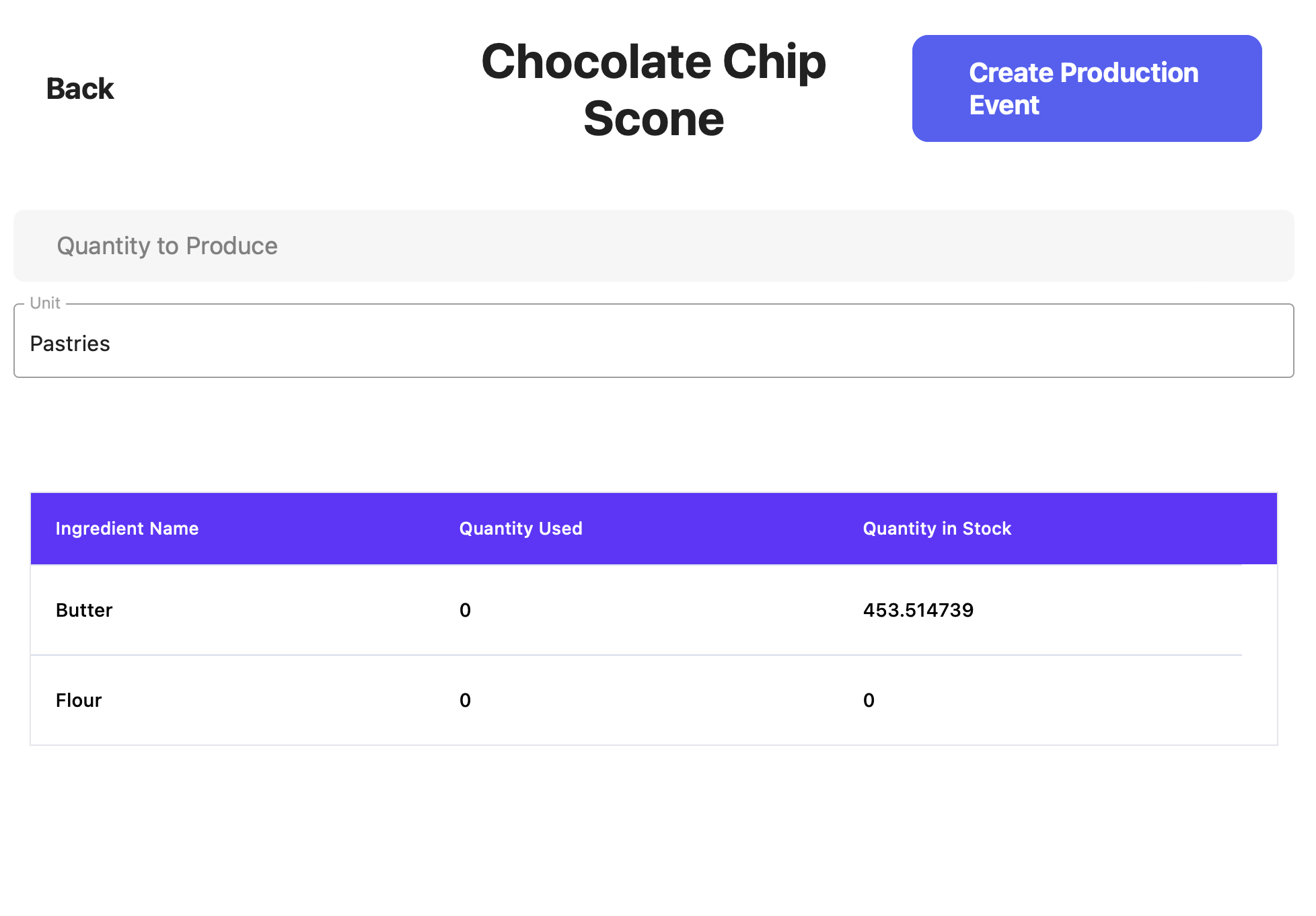
 Use a production event to decrease the stock of the ingredients used in the sub recipe and in turn, restock the final ingredient.
Learn more about production events [here](/operations/supply/supply-basics#create-a-production-event)
Use a production event to decrease the stock of the ingredients used in the sub recipe and in turn, restock the final ingredient.
Learn more about production events [here](/operations/supply/supply-basics#create-a-production-event)
 ## Inventory Counts
Perform Inventory Counts to adjust the stock of multiple ingredients at once.
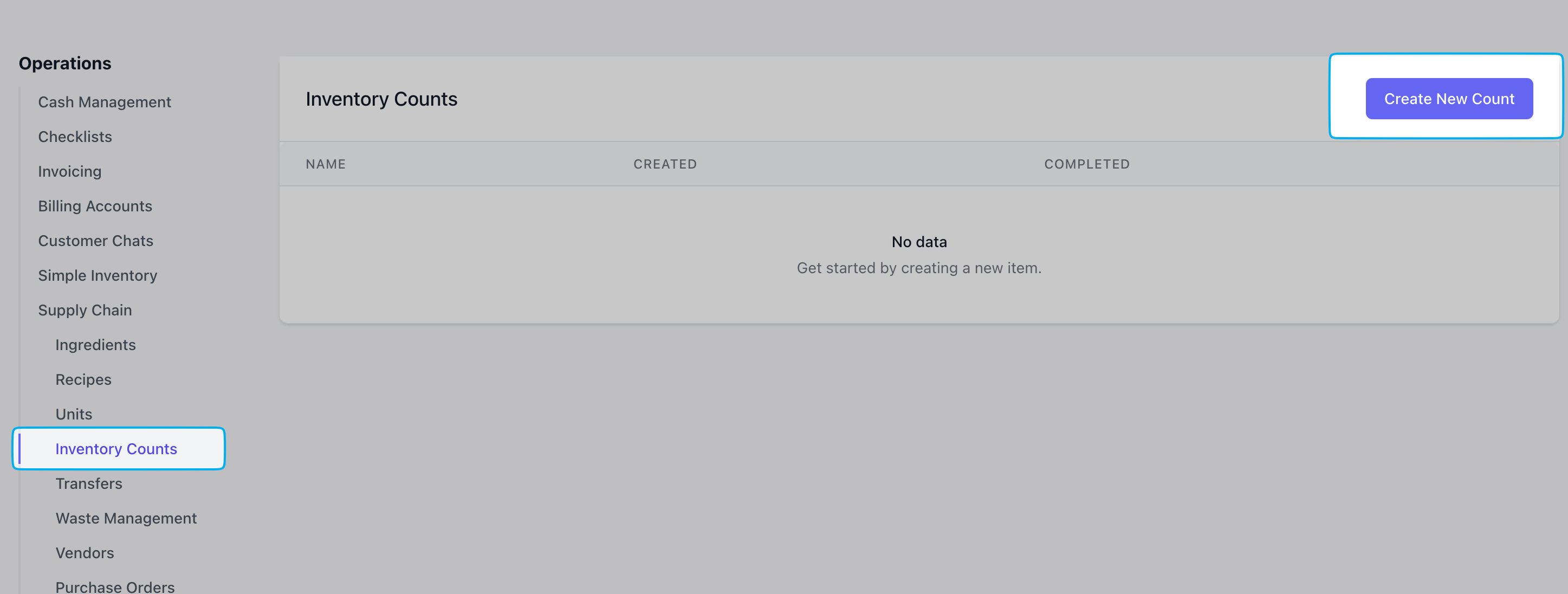
Under **Operations** > **Supply Chain** > click **Inventory Counts** > **Create New Count**
## Inventory Counts
Perform Inventory Counts to adjust the stock of multiple ingredients at once.
Under **Operations** > **Supply Chain** > click **Inventory Counts** > **Create New Count**
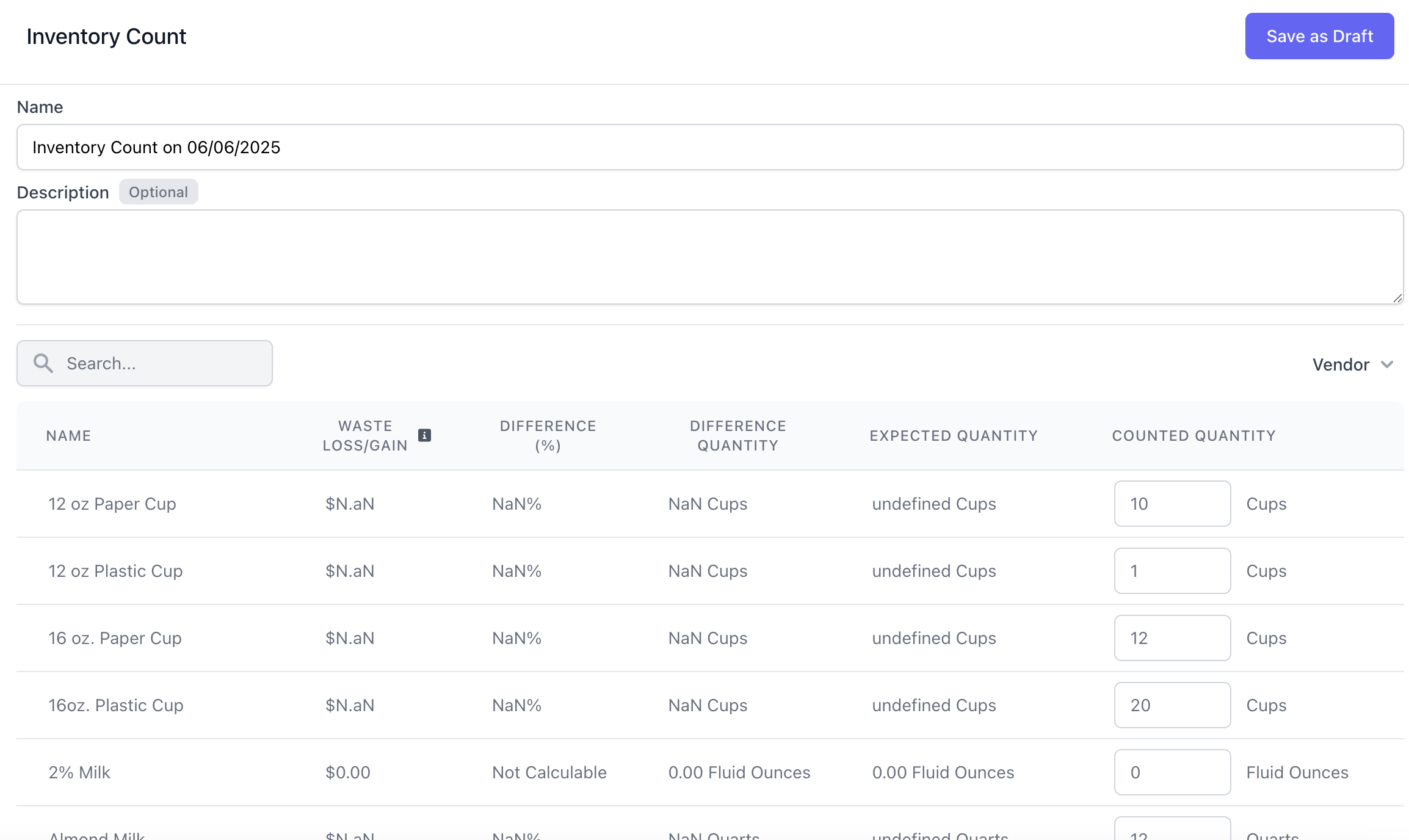
 Adjust the current stock of each ingredient in the **Counted Quantity** column. Click **Save as Draft**.
The inventory count is not yet completed!
Adjust the current stock of each ingredient in the **Counted Quantity** column. Click **Save as Draft**.
The inventory count is not yet completed!
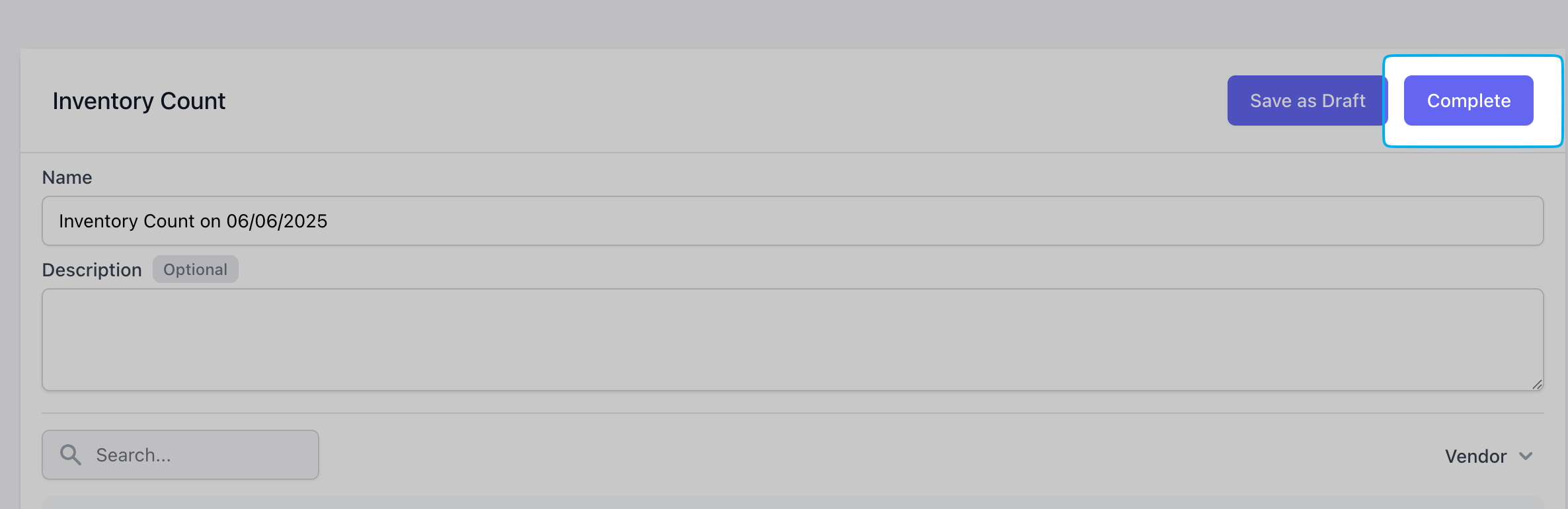
 View the inventory draft you've just created > click **Complete**
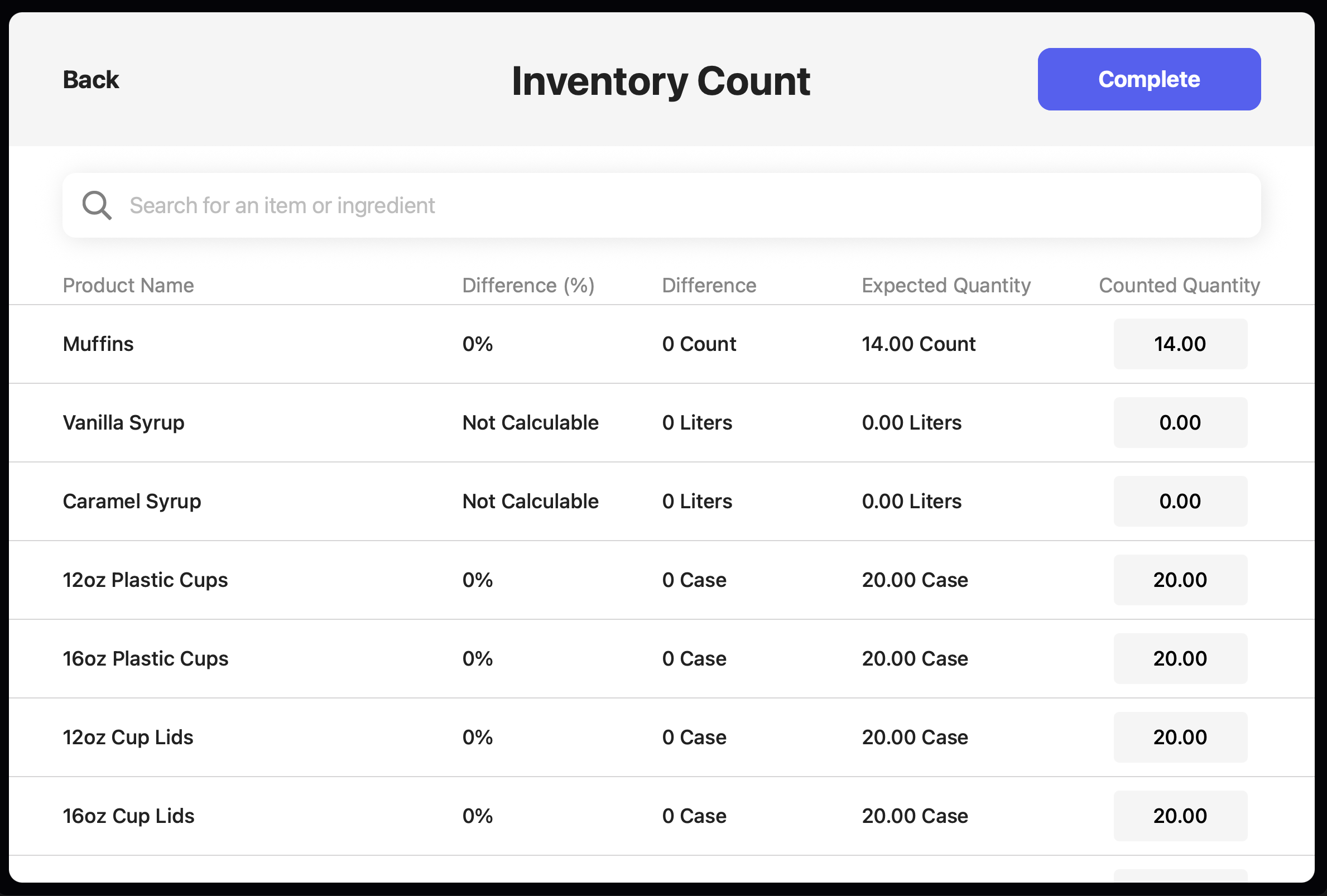
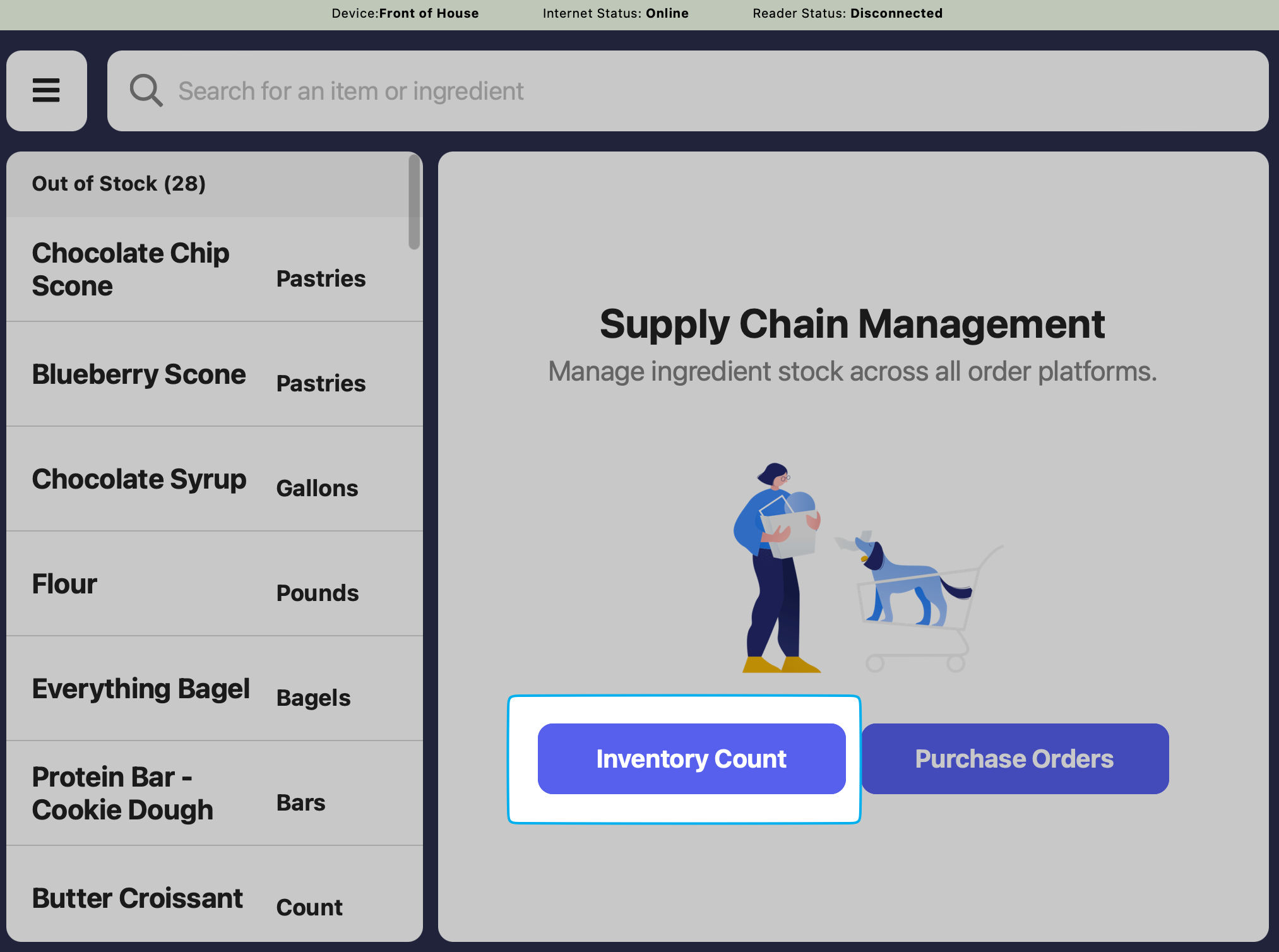
 Click the **Supply Chain** tab on the POS > **Inventory Count**
 Adjust the current stock of each ingredient in the **Counted Quantity** column. Press **Complete** to save.