> ## Documentation Index
> Fetch the complete documentation index at: https://support.dripos.com/llms.txt
> Use this file to discover all available pages before exploring further.
# Vendor Management
> Add your Vendors into Dripos to organize your purchases
Dripos Vendor Management allows you to seamlessly add and organize your vendors and link your purchases directly to your inventory.
## Add Vendors
On the **Dashboard**, navigate to **Operations** > **Supply Chain** > **Vendors**
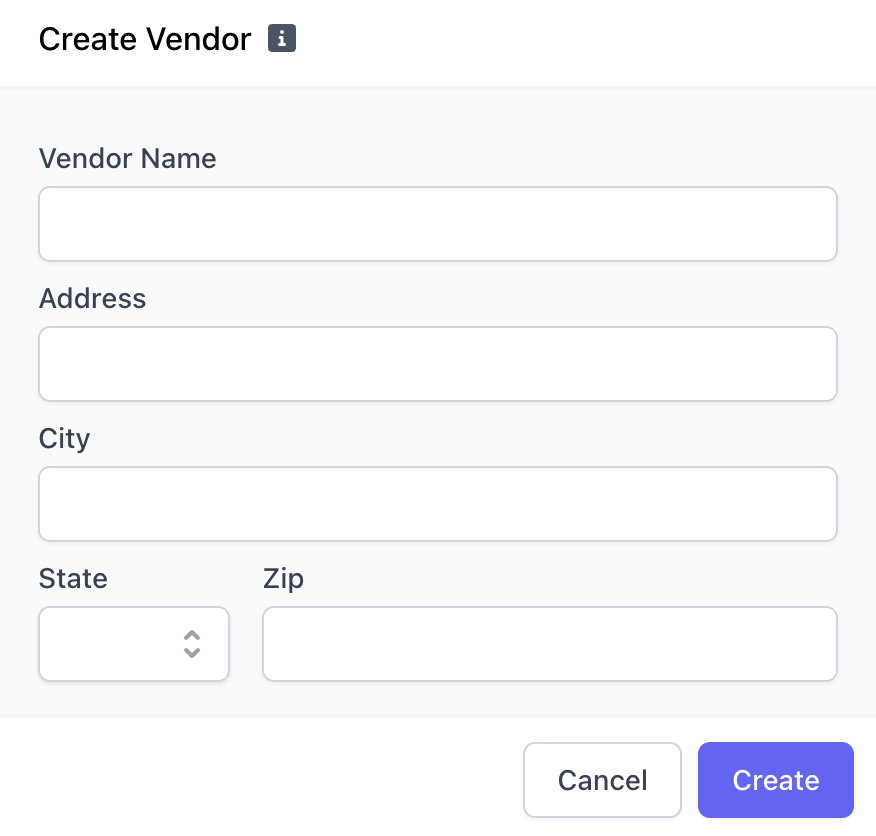
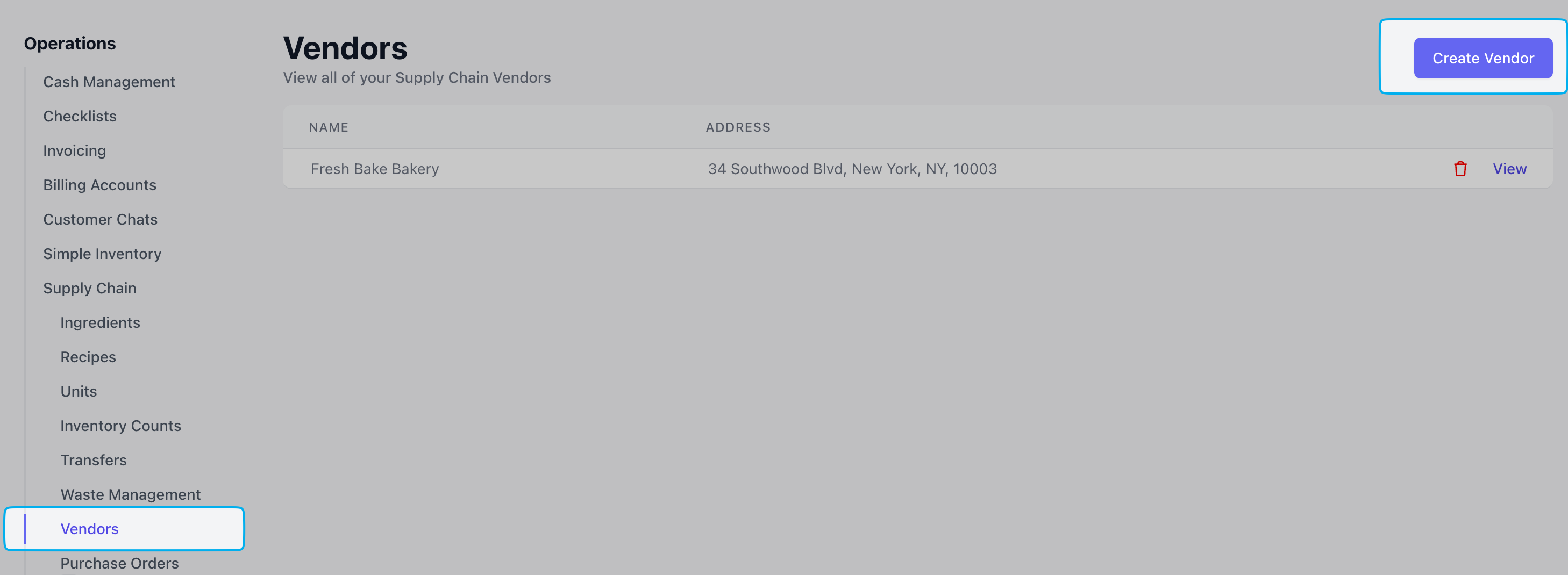 Click **Create Vendor** and fill in the necessary fields.
 ***
## Manage Vendors
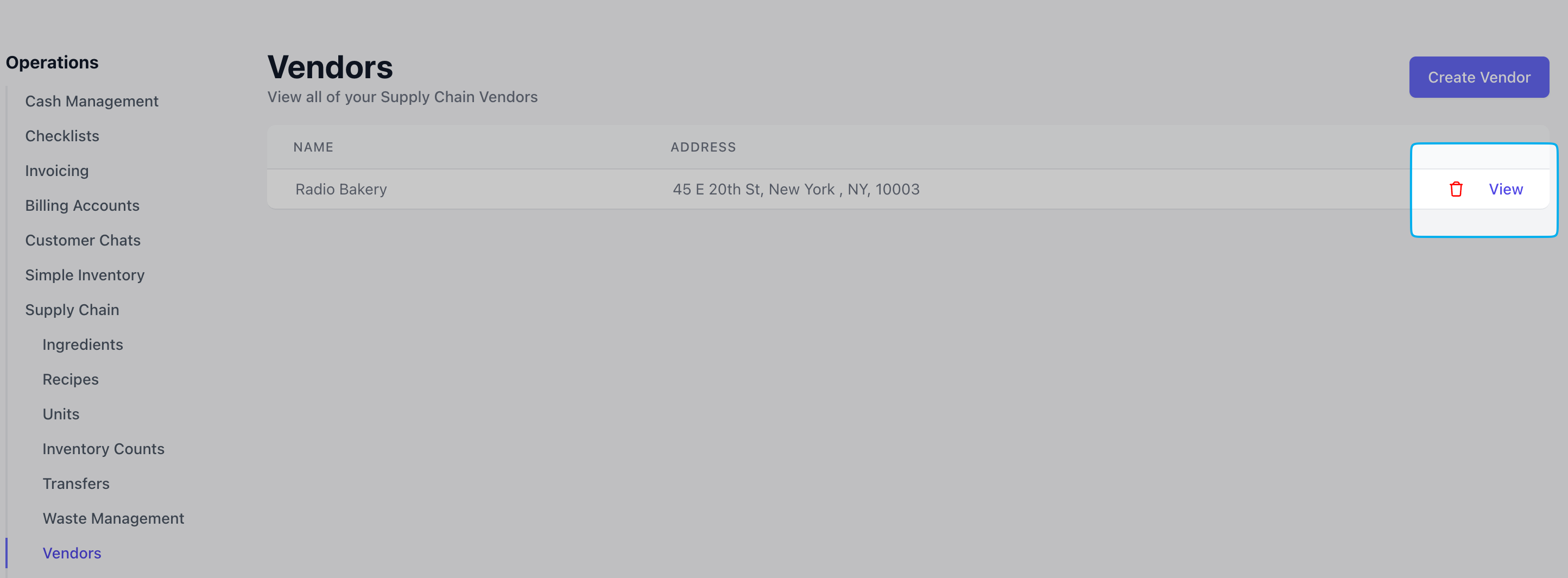
All added vendors can be viewed in the Vendors tab. Click **View** to open the vendor's page
***
## Manage Vendors
All added vendors can be viewed in the Vendors tab. Click **View** to open the vendor's page
 Click **Add Contact**
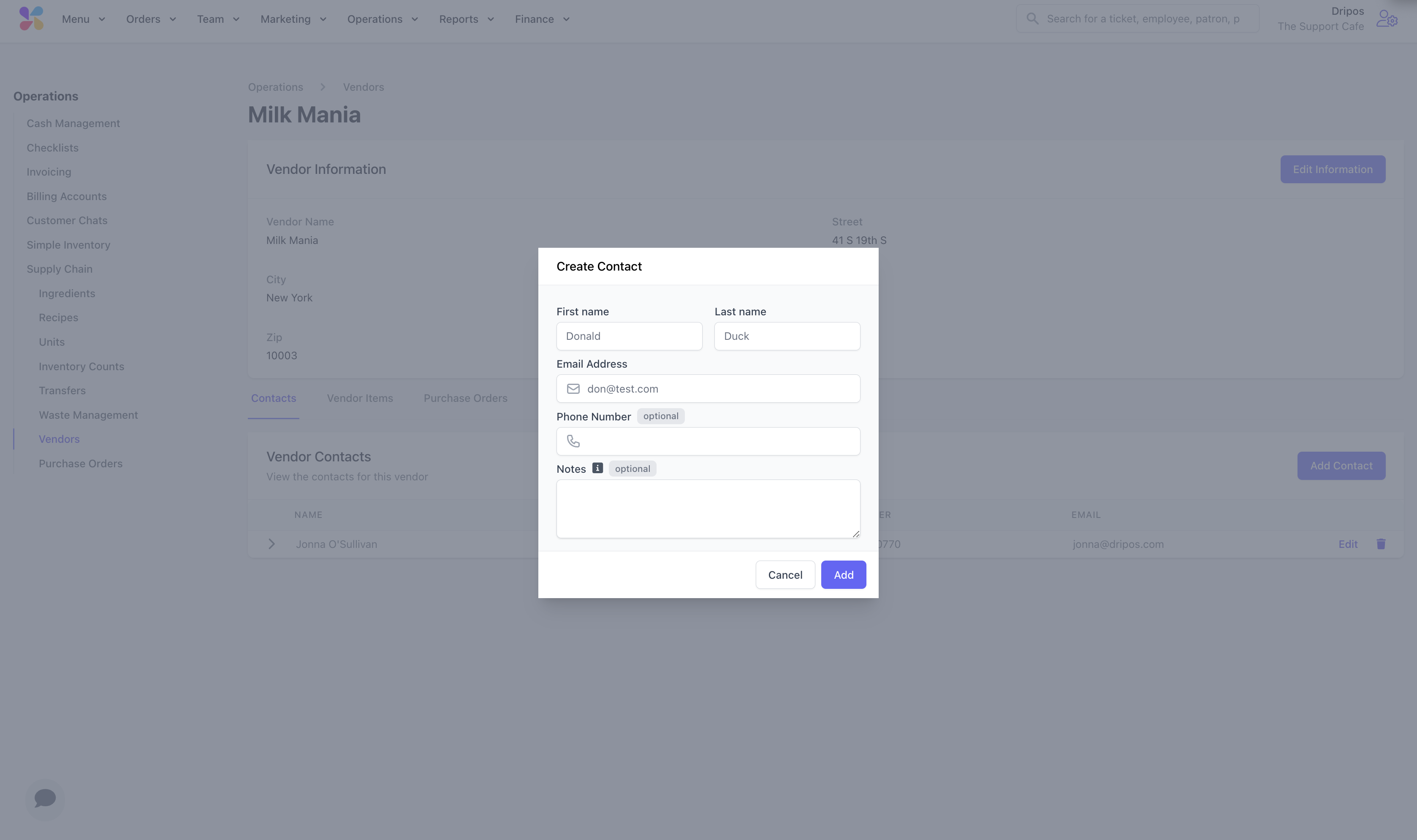
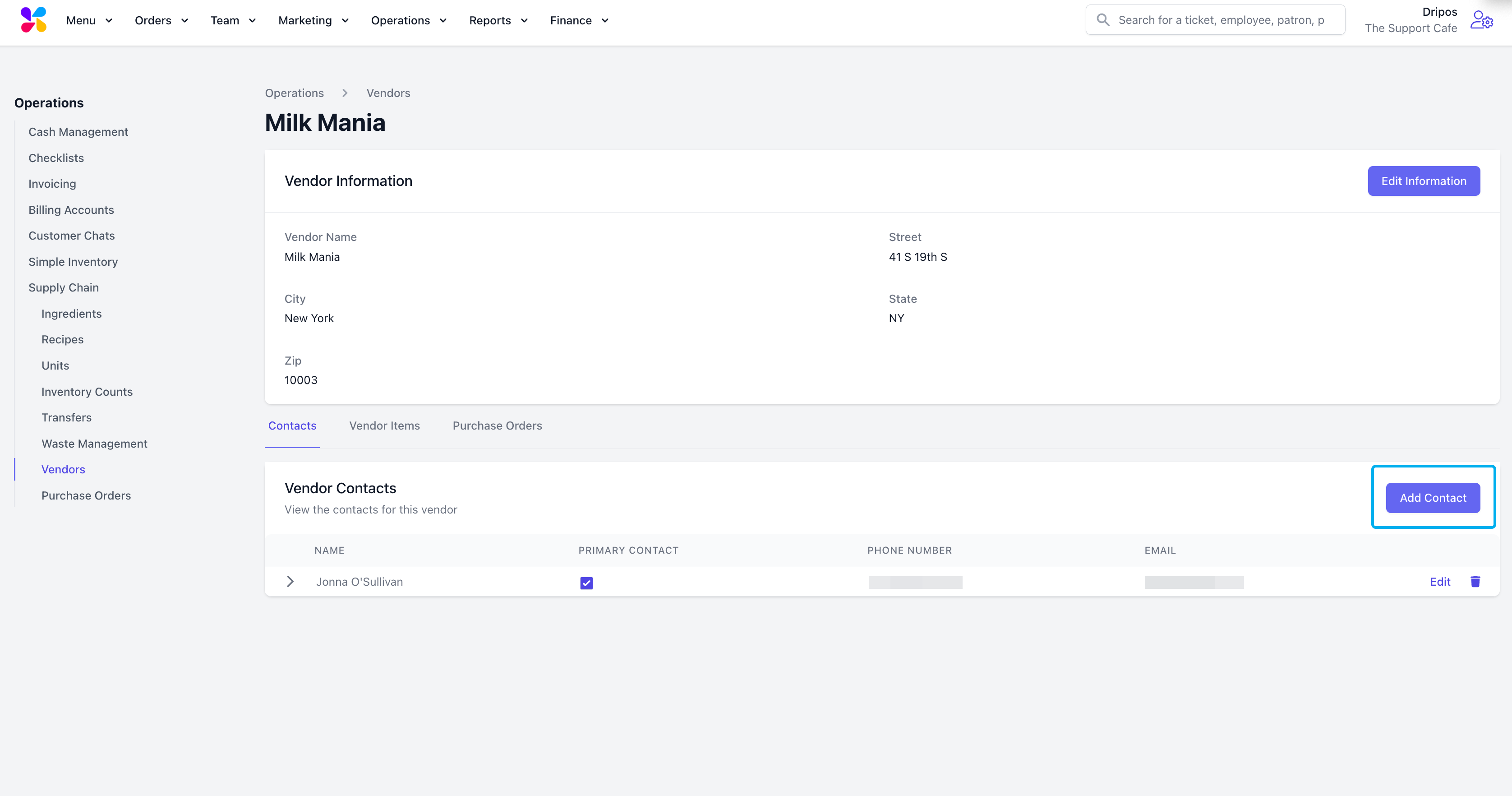 Add contact information > press **Save**
 Determine which supply chain ingredients are supplied from a vendor.
Navigate to the **Vendor Items** tab > **Create Vendor Item**
Complete the following fields and click **Add**
Determine which supply chain ingredients are supplied from a vendor.
Navigate to the **Vendor Items** tab > **Create Vendor Item**
Complete the following fields and click **Add**
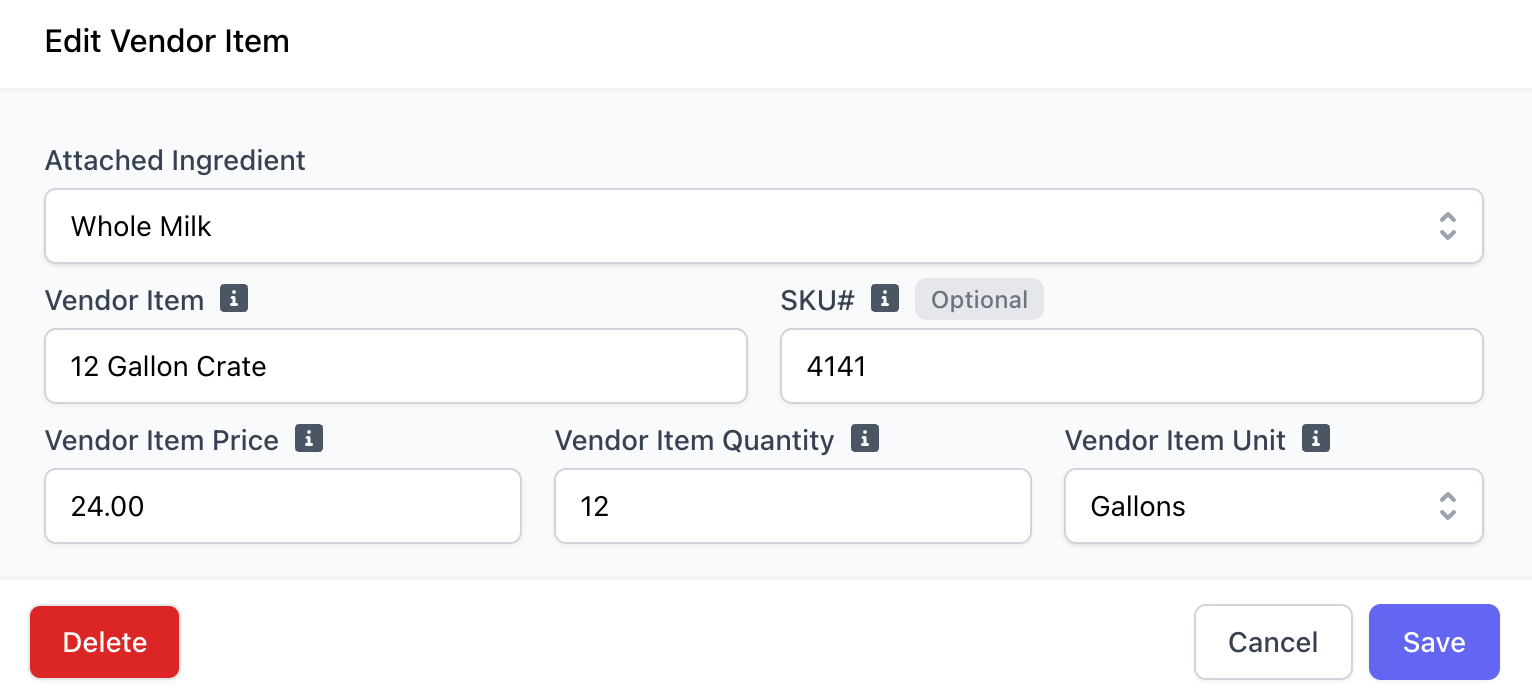 > **Attached Ingredient**: Select the ingredient from your Inventory to attach to your vendor
>
> **Vendor Item**: Enter the name that the vendor displays on their price list
>
> **SKU#**: Enter the product code that the vendor displays on their price list
>
> **Vendor Item Price**: Enter the cost of the vendor item
>
> **Vendor Item Quantity and Unit**: Enter the number of units contained in one case. For example, a shipment of 12 gallons of milk would have a case count of 12 and the unit as gallons.
Create and view past purchase orders with a selected vendor.
⭐ When a purchase order is created in Dripos, the stock of the ingredients purchase automatically increases.
> **Attached Ingredient**: Select the ingredient from your Inventory to attach to your vendor
>
> **Vendor Item**: Enter the name that the vendor displays on their price list
>
> **SKU#**: Enter the product code that the vendor displays on their price list
>
> **Vendor Item Price**: Enter the cost of the vendor item
>
> **Vendor Item Quantity and Unit**: Enter the number of units contained in one case. For example, a shipment of 12 gallons of milk would have a case count of 12 and the unit as gallons.
Create and view past purchase orders with a selected vendor.
⭐ When a purchase order is created in Dripos, the stock of the ingredients purchase automatically increases.
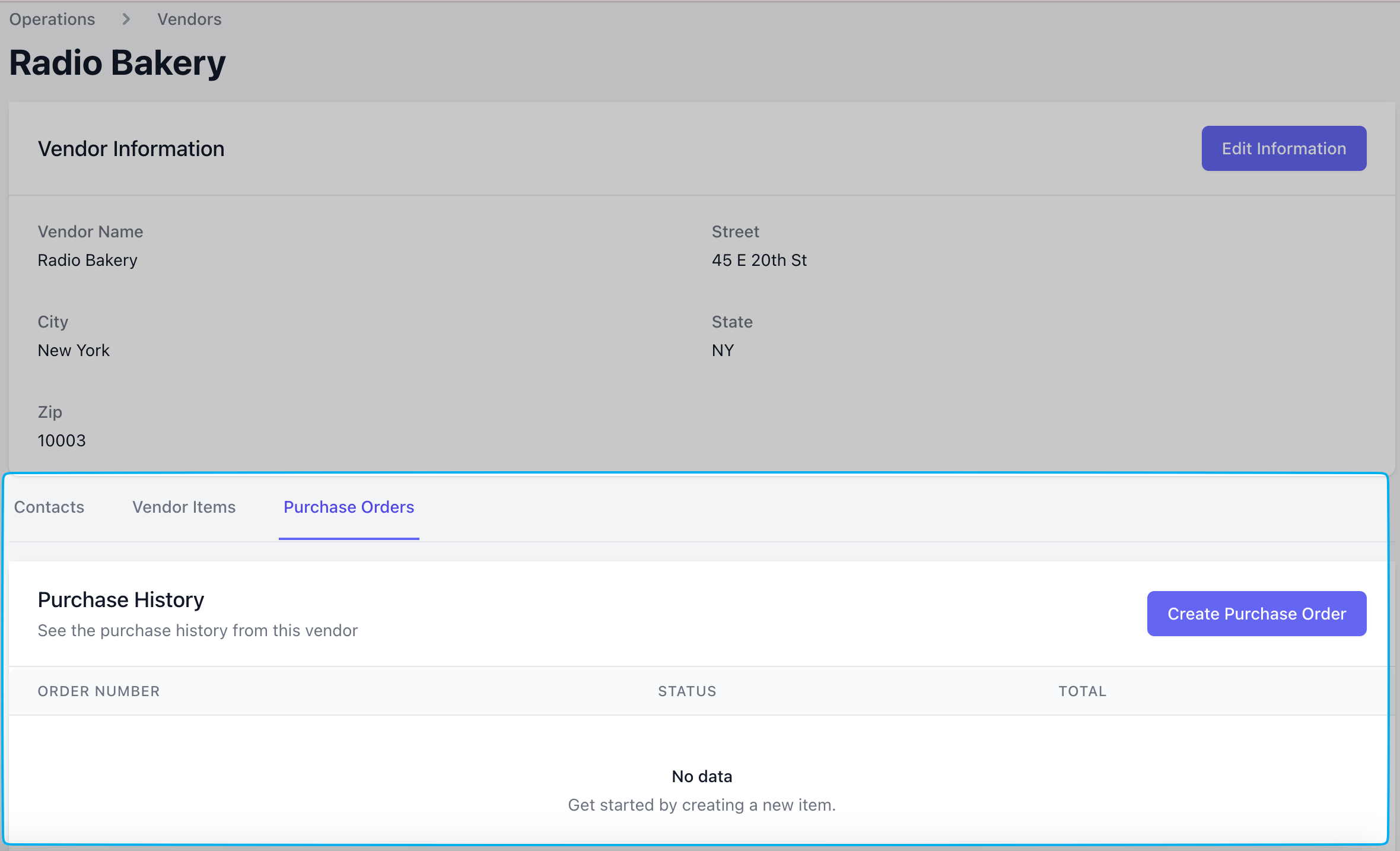 On the **Dashboard**, navigate to **Operations** > **Supply Chain** > **Purchase Orders** > **Create Purchase Order**
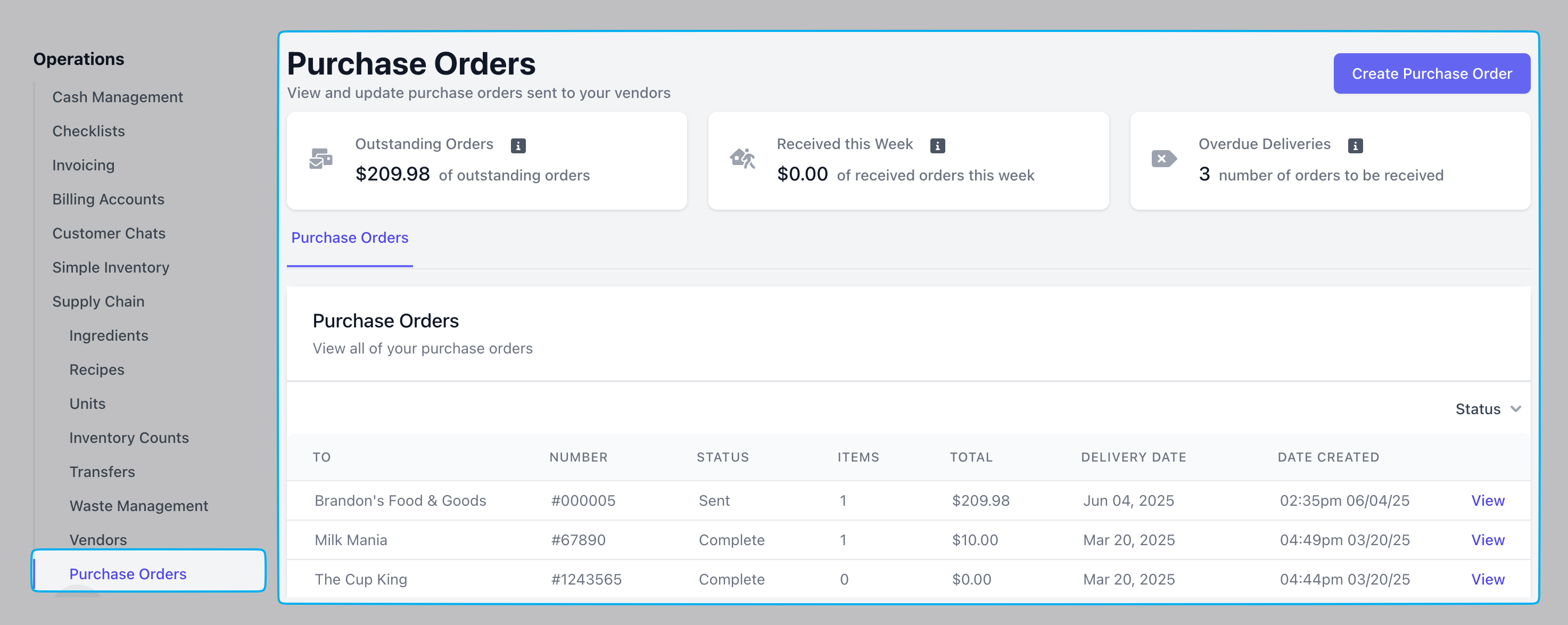 The total value of all purchase orders that have been sent but not yet delivered.
The total number of orders received in the past 7 days.
The total number of orders where the delivery date has passed but have not been marked as received in Dripos.
Complete the following fields and **Create Purchase Order** once complete
The total value of all purchase orders that have been sent but not yet delivered.
The total number of orders received in the past 7 days.
The total number of orders where the delivery date has passed but have not been marked as received in Dripos.
Complete the following fields and **Create Purchase Order** once complete
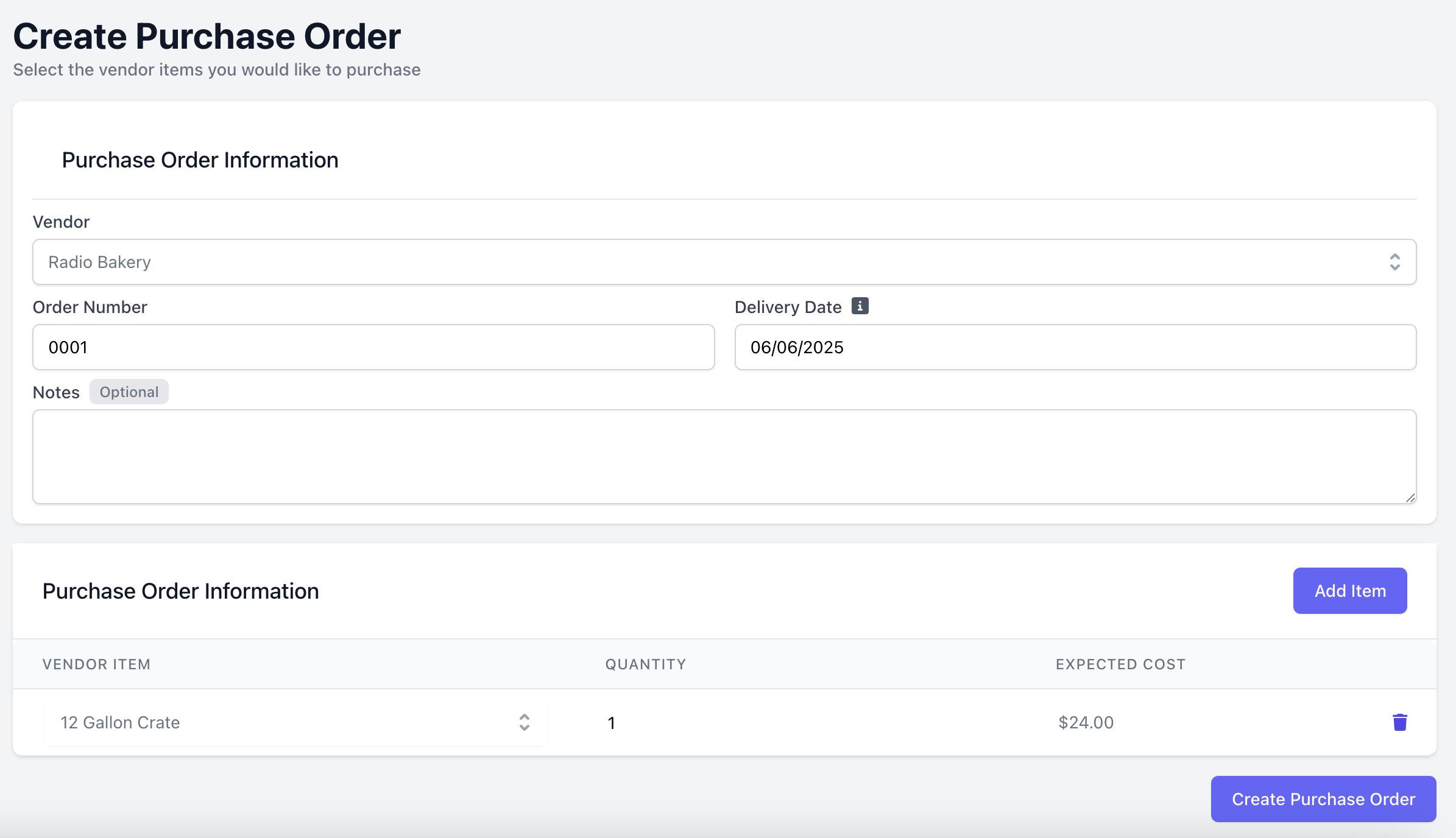 > **Vendor**: Select the vendor you’re purchasing from
>
> **Order Number**: Enter a number to label this purchase order
>
> **Delivery Date**: Specify the expected delivery date for this purchase order. This helps track average vendor delays.
>
> **Notes (Optional)**: Add any additional notes related to this purchase order
>
> **Vendor Items**: Click **Add Item** for each ingredients to include in this purchase order and their respective quantity
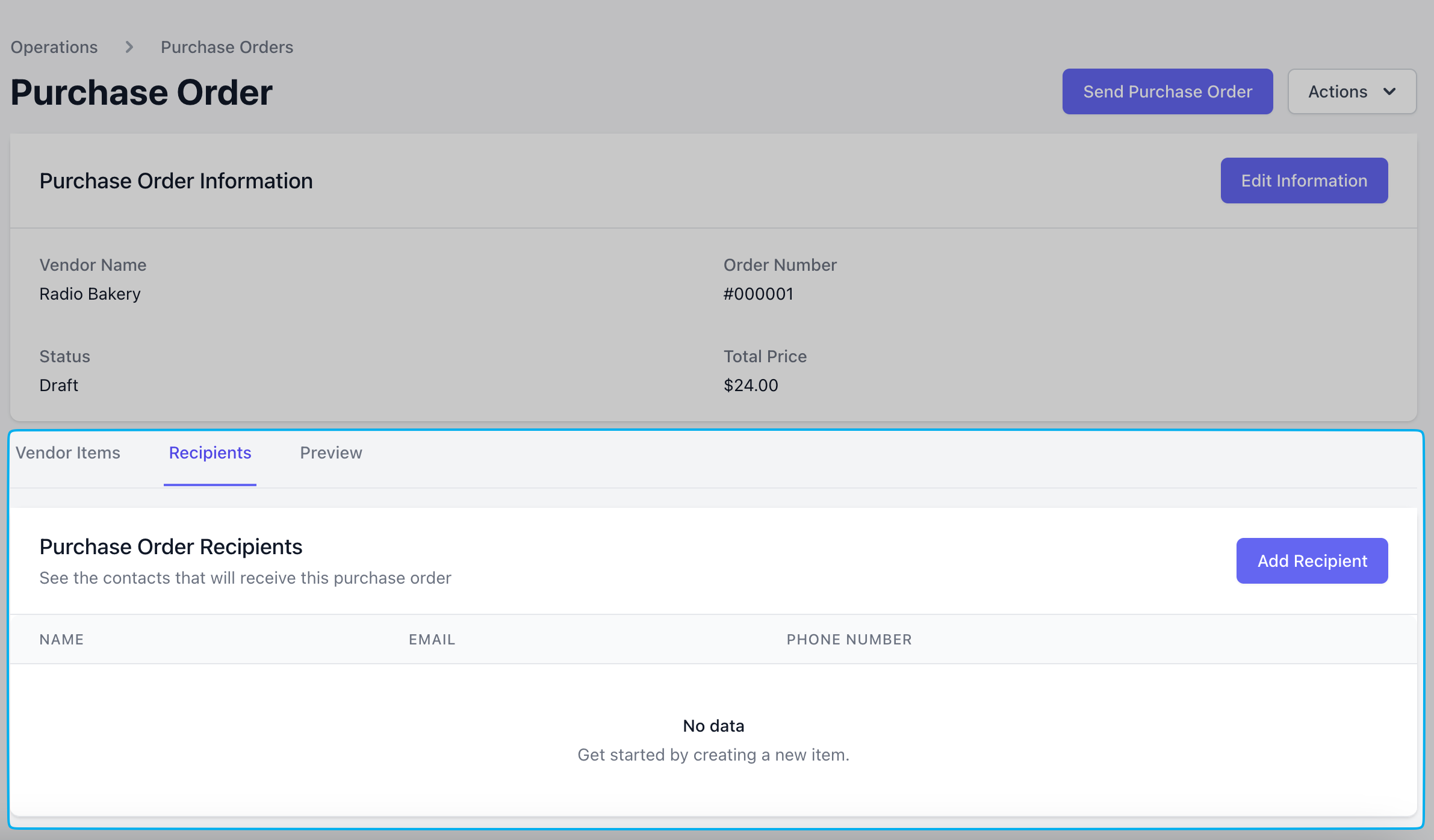
Add a vendor contact as a recipient for the purchase order > click **Send Purchase Order** to email the vendor contact your order for fulfillment.
> **Vendor**: Select the vendor you’re purchasing from
>
> **Order Number**: Enter a number to label this purchase order
>
> **Delivery Date**: Specify the expected delivery date for this purchase order. This helps track average vendor delays.
>
> **Notes (Optional)**: Add any additional notes related to this purchase order
>
> **Vendor Items**: Click **Add Item** for each ingredients to include in this purchase order and their respective quantity
Add a vendor contact as a recipient for the purchase order > click **Send Purchase Order** to email the vendor contact your order for fulfillment.
 See a preview of the order to send to the vendor contact under **Preview**:
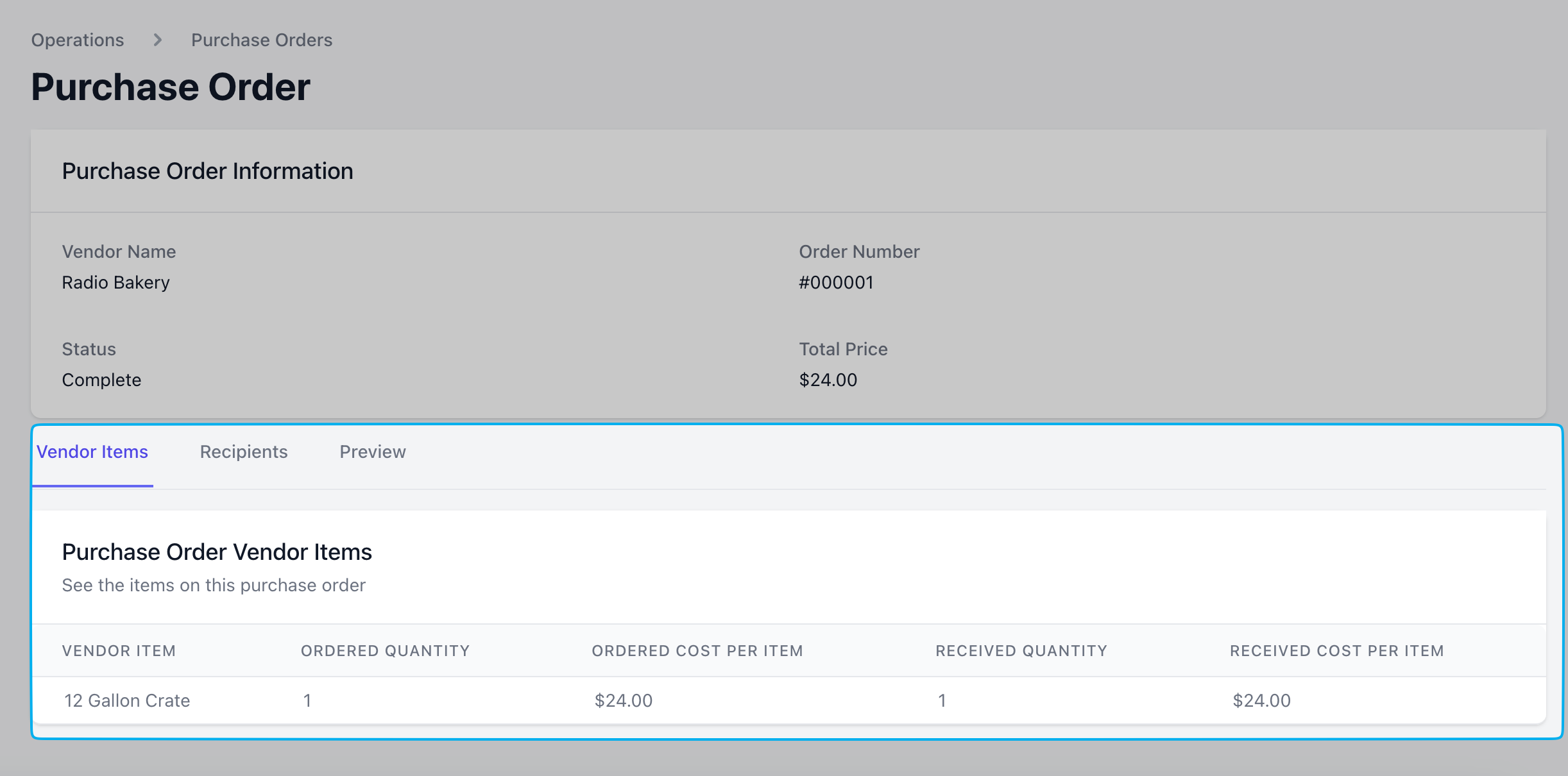
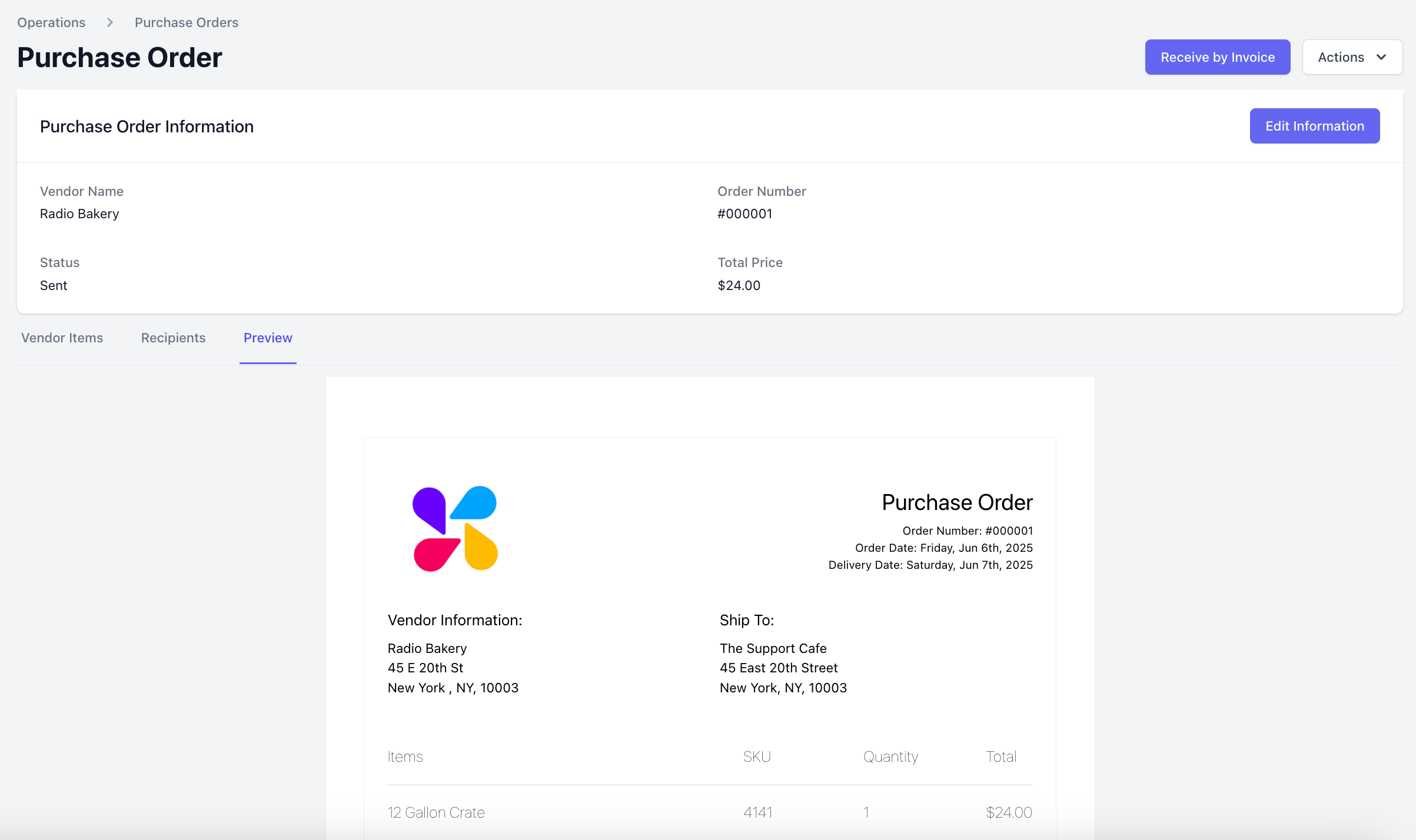 Once the goods are received, mark the purchase order as received to increase the stock of your ingredients accordingly.
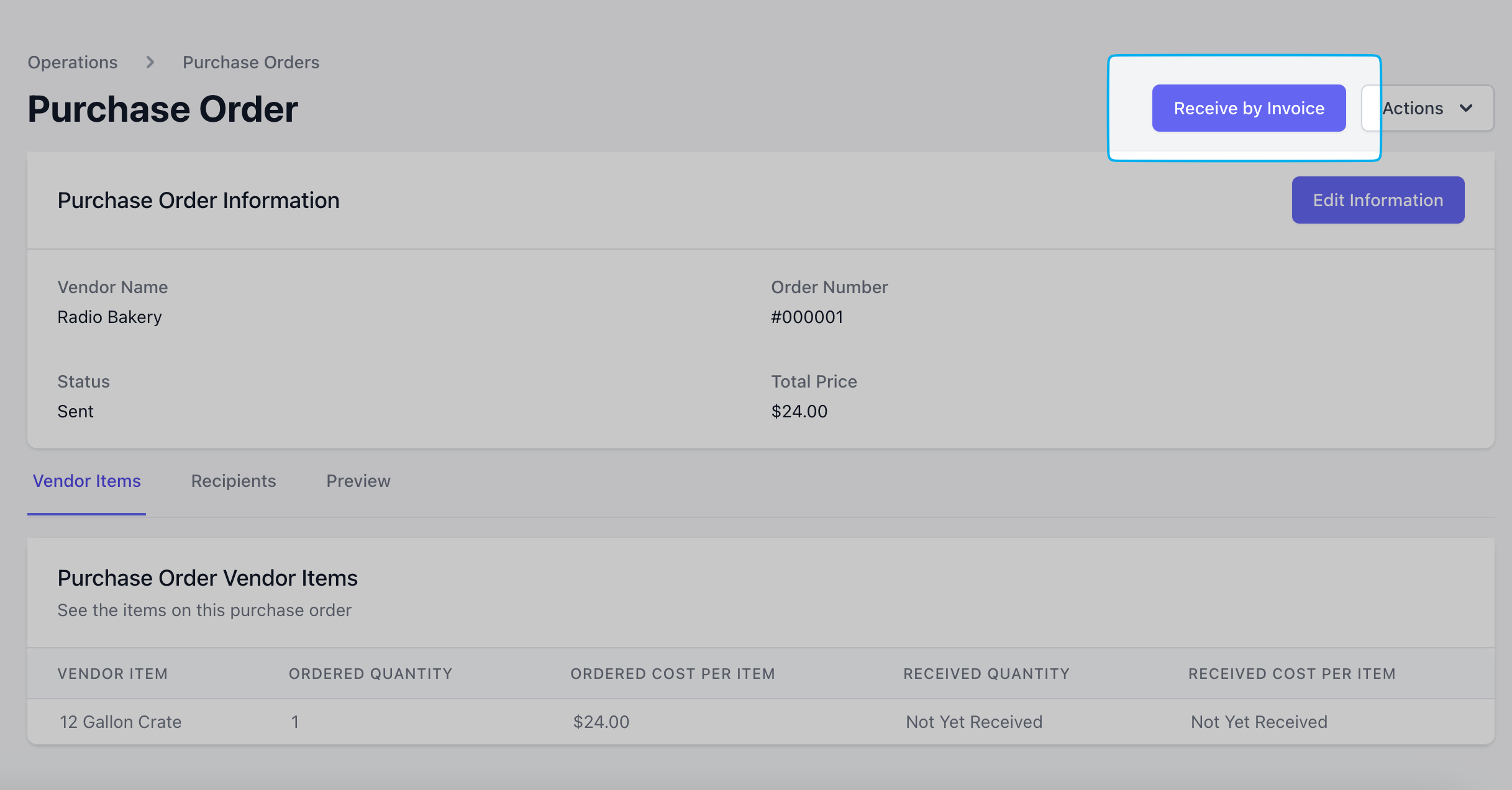
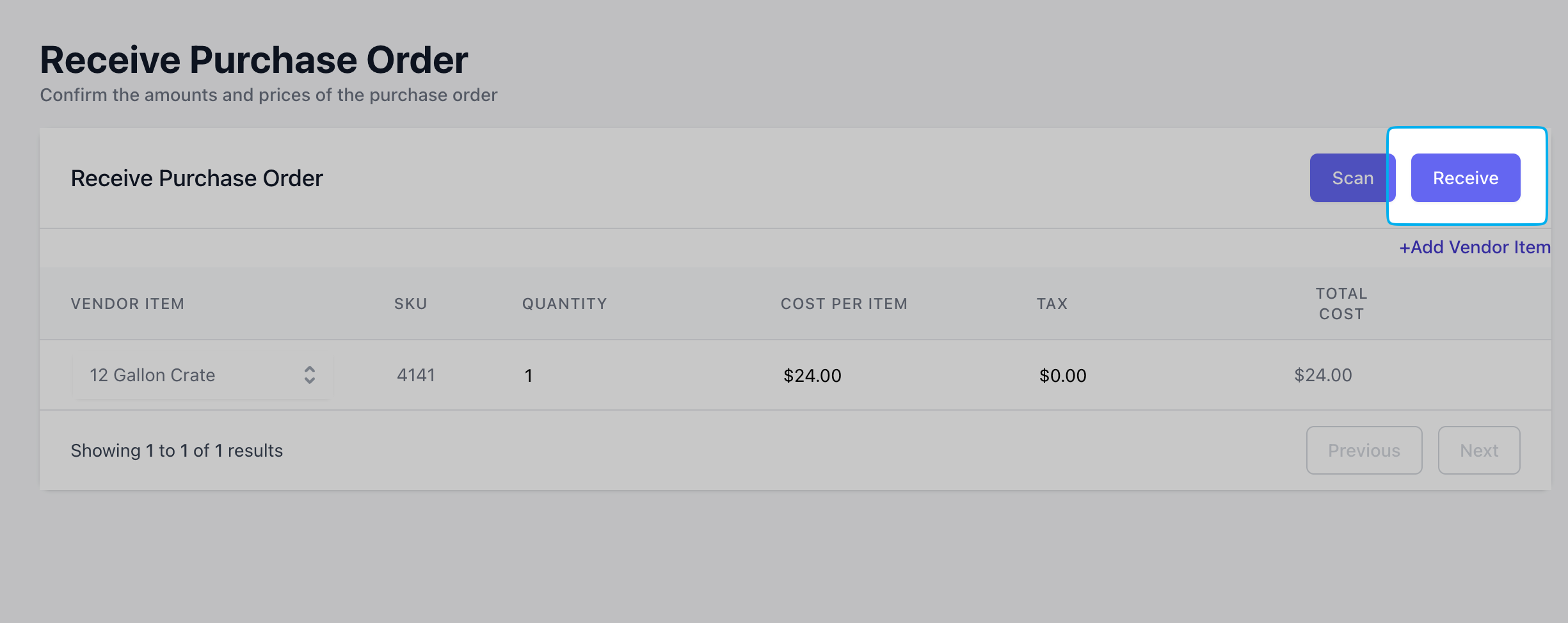
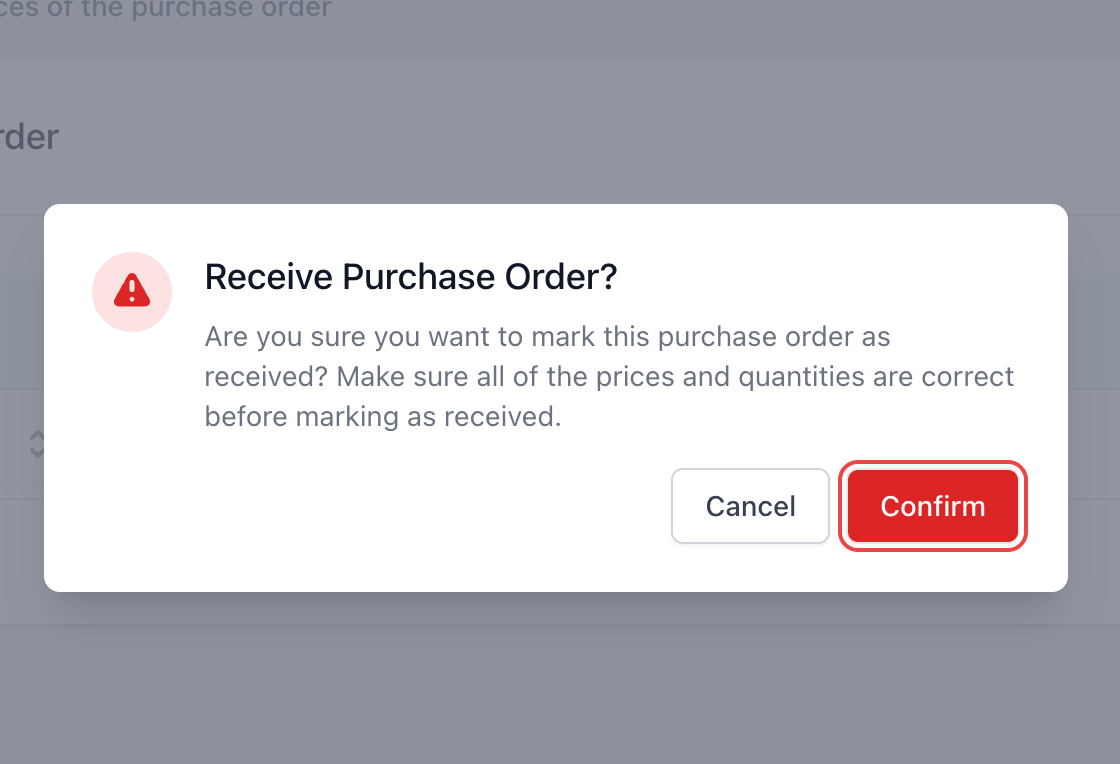 See your received items listed within the **Vendor Items** tab of the purchase order, and additionally see the purchase order in the activity log of the ingredient that was fulfilled.