> ## Documentation Index
> Fetch the complete documentation index at: https://support.dripos.com/llms.txt
> Use this file to discover all available pages before exploring further.
# Waste Management
> Easily track and reduce waste with Dripos’ Waste Management
Create custom waste types like “spillage”, log waste events at the Point of Sale, and monitor trends over time to identify inefficiencies and minimize loss.
## Create a Waste Type
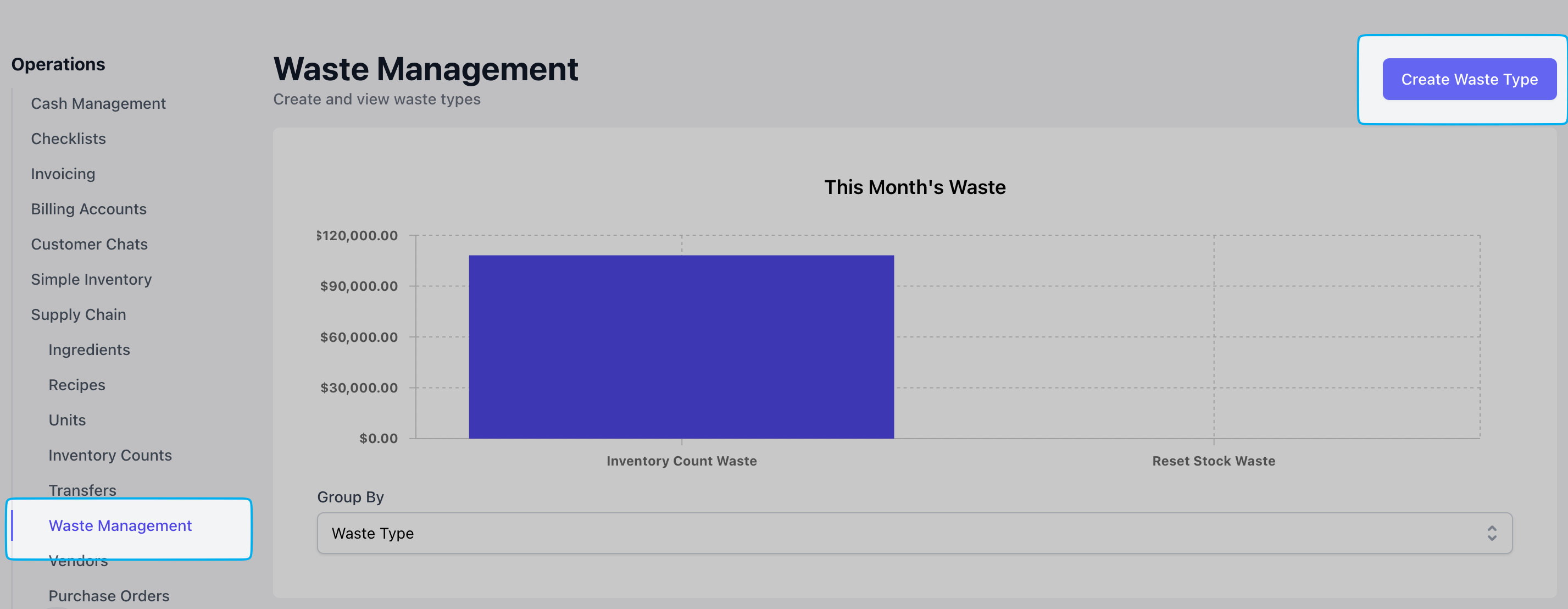
On the Dashboard, navigate to **Operations** > \*\*Supply Chain > **Waste Management** > **Create Waste Type**
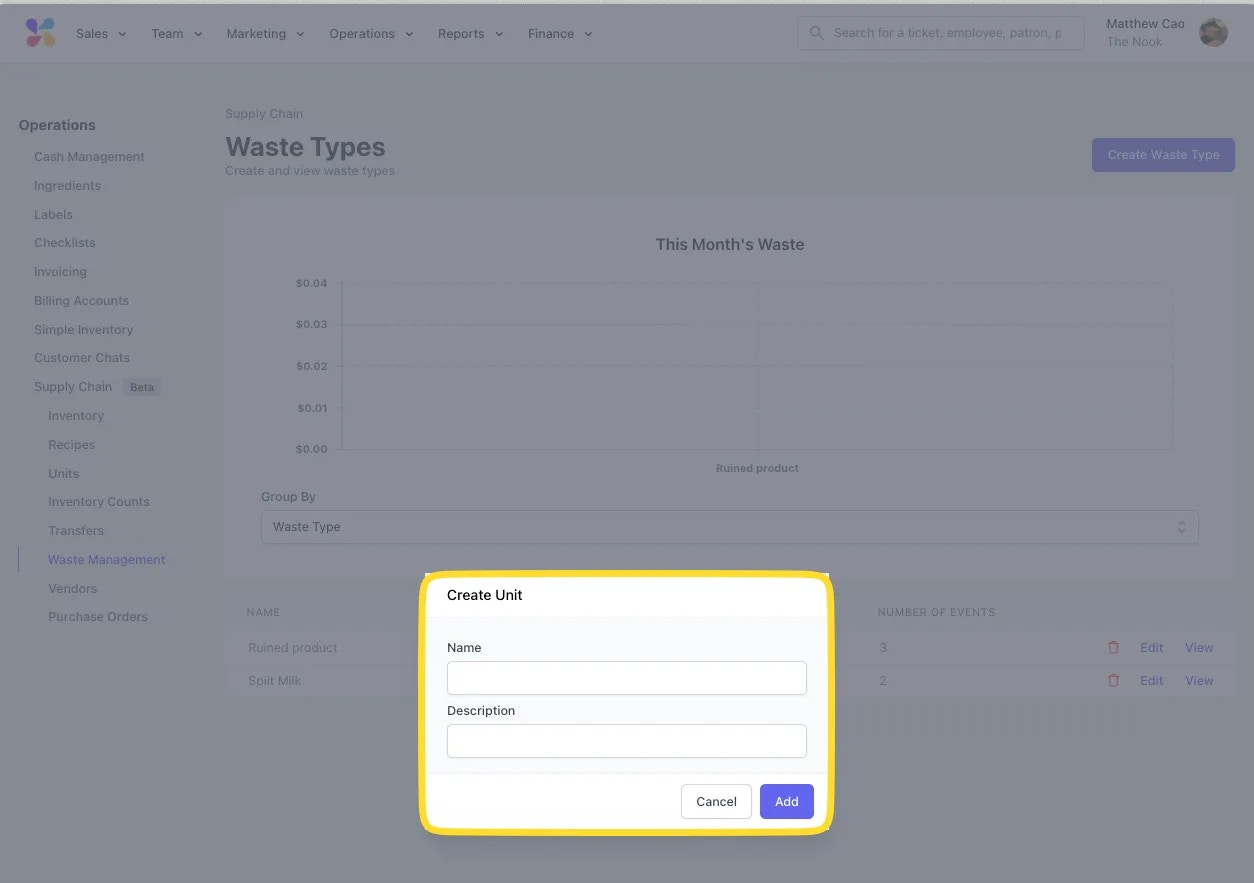
 Input the **Name** and **Description** on this waste type (i.e., spillage, drink was dropped or knocked over) > **Add**
 ***
## Record Waste
Navigate to the POS Supply Chain Tab:
***
## Record Waste
Navigate to the POS Supply Chain Tab:
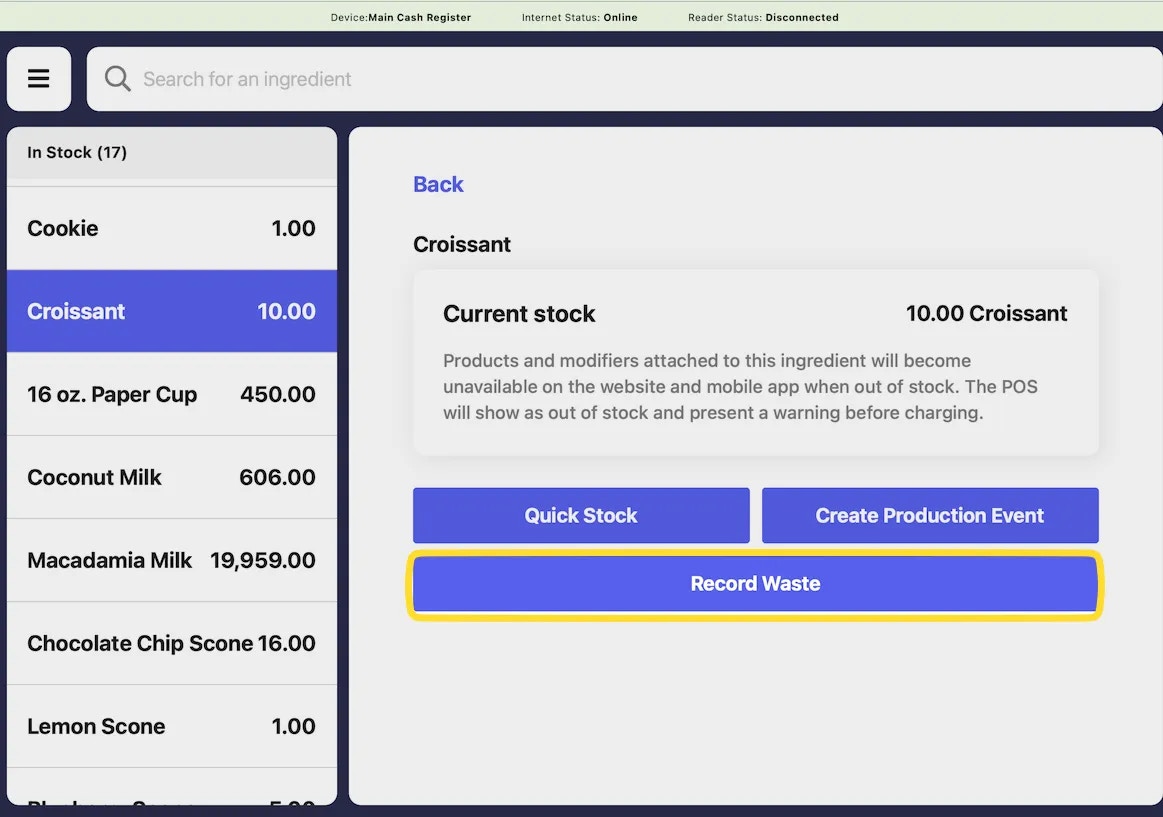
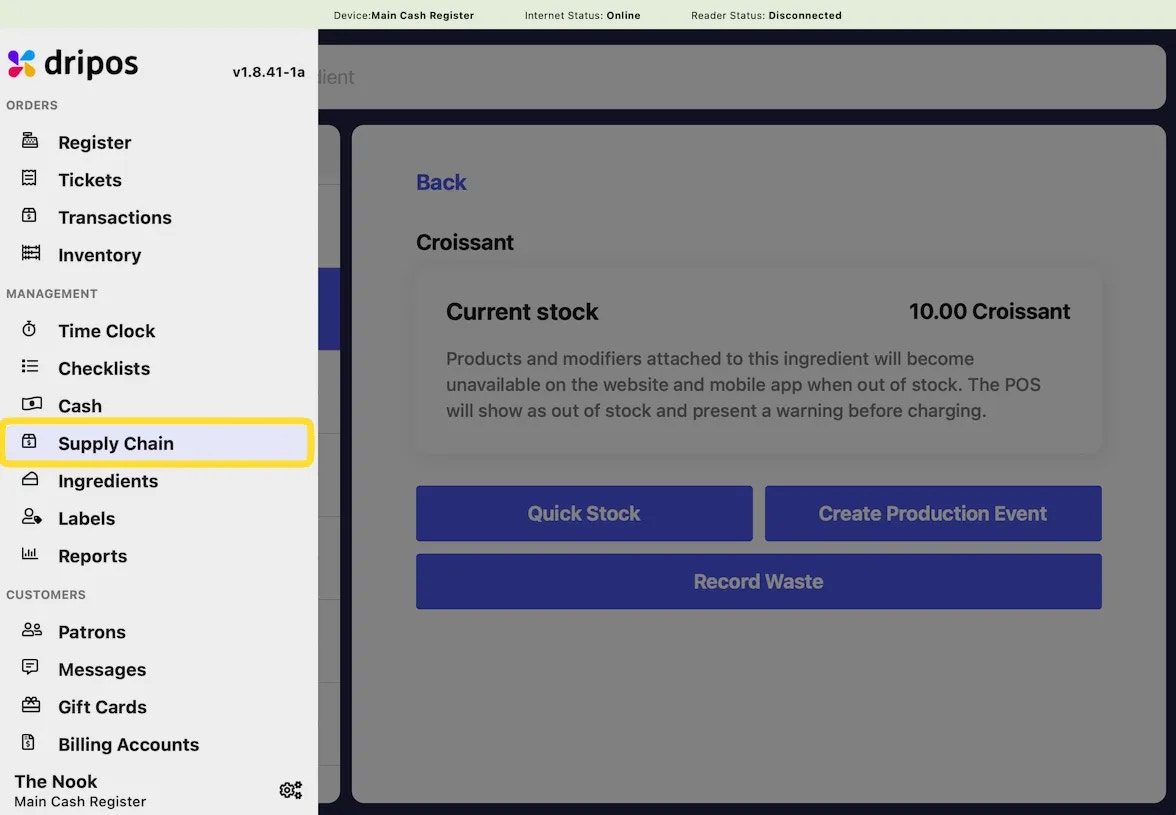 Select an ingredient to record the Waste Event on the left hand side, and select **Record Waste** to bring up the Waste Modal:
 The Record Waste modal will allow you to enter essential details on the event:
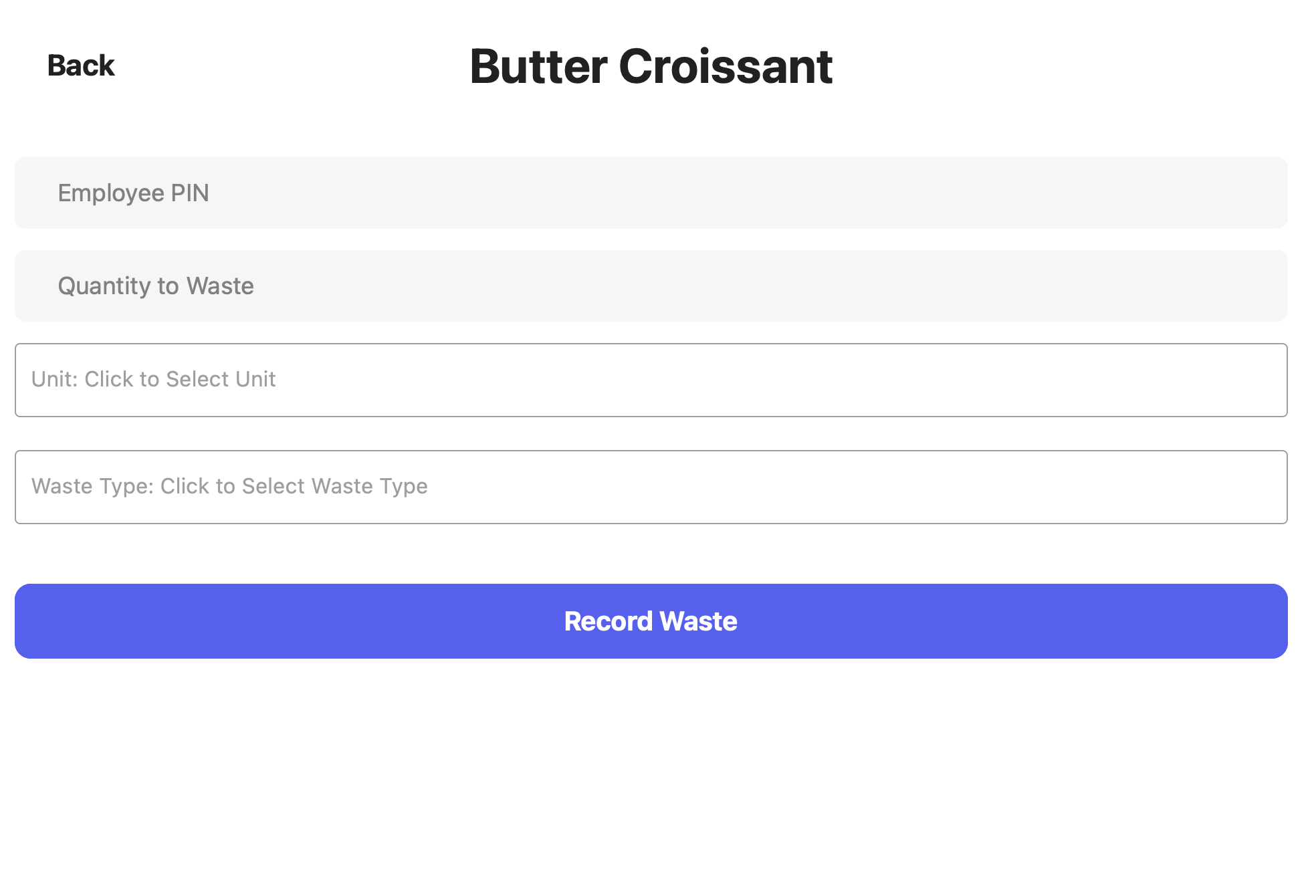 > **Quantity to Waste**: The number amount to waste in this event.
>
> **Unit**: The unit of the amount to waste.
>
> **Waste Type**: Select the Waste Type you'd like to attach to this event.
>
> **Employee PIN**: The Employee PIN to be attached to the Waste Event.
When ready, press **Record Waste** to complete the Waste Record.
***
## Manage Waste
On the Dashboard, navigate to **Operations** > **Supply Chain** > **Waste Management**
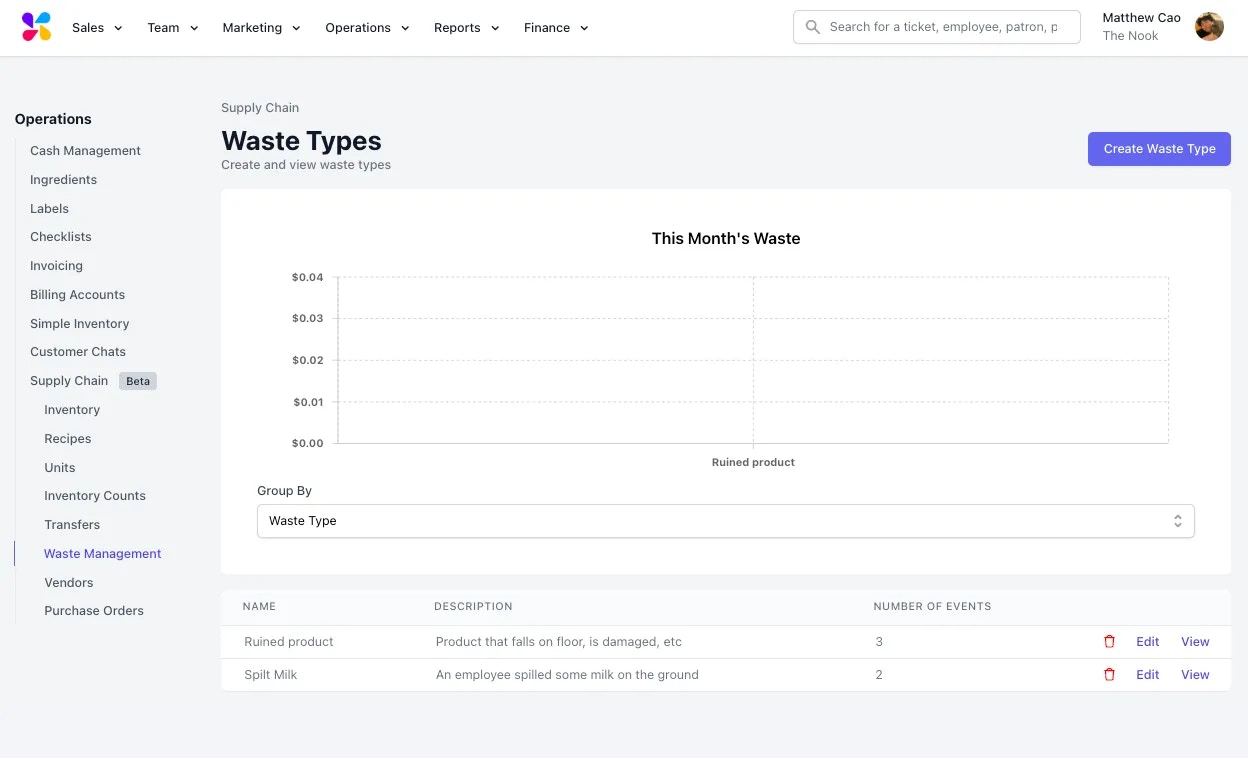
The Waste Types page shows your monthly waste with the ability to group by **Waste Type**, **Employee**, and **Ingredient**.
You can additionally find all of your Waste Types listed by **Name**, **Description**, and **Number of Events**:
> **Quantity to Waste**: The number amount to waste in this event.
>
> **Unit**: The unit of the amount to waste.
>
> **Waste Type**: Select the Waste Type you'd like to attach to this event.
>
> **Employee PIN**: The Employee PIN to be attached to the Waste Event.
When ready, press **Record Waste** to complete the Waste Record.
***
## Manage Waste
On the Dashboard, navigate to **Operations** > **Supply Chain** > **Waste Management**
The Waste Types page shows your monthly waste with the ability to group by **Waste Type**, **Employee**, and **Ingredient**.
You can additionally find all of your Waste Types listed by **Name**, **Description**, and **Number of Events**:
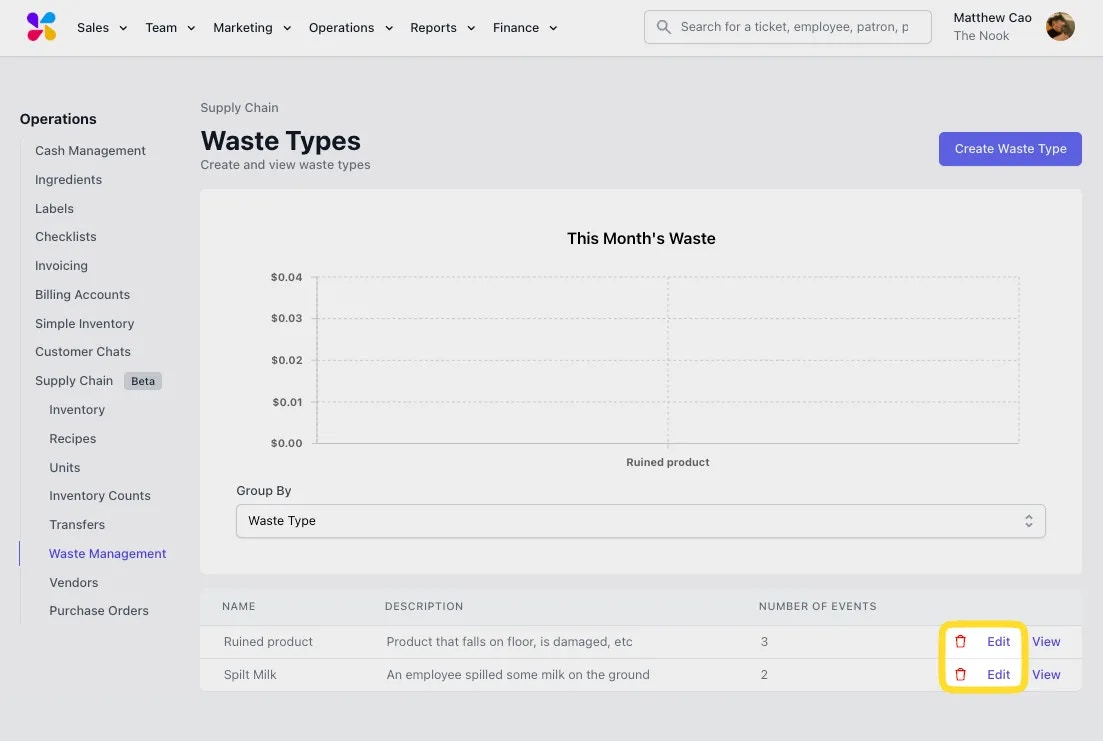
 Your Waste Types page will allow you to delete the Waste Type via the **Trash Button** as well as **Edit** the name and description:
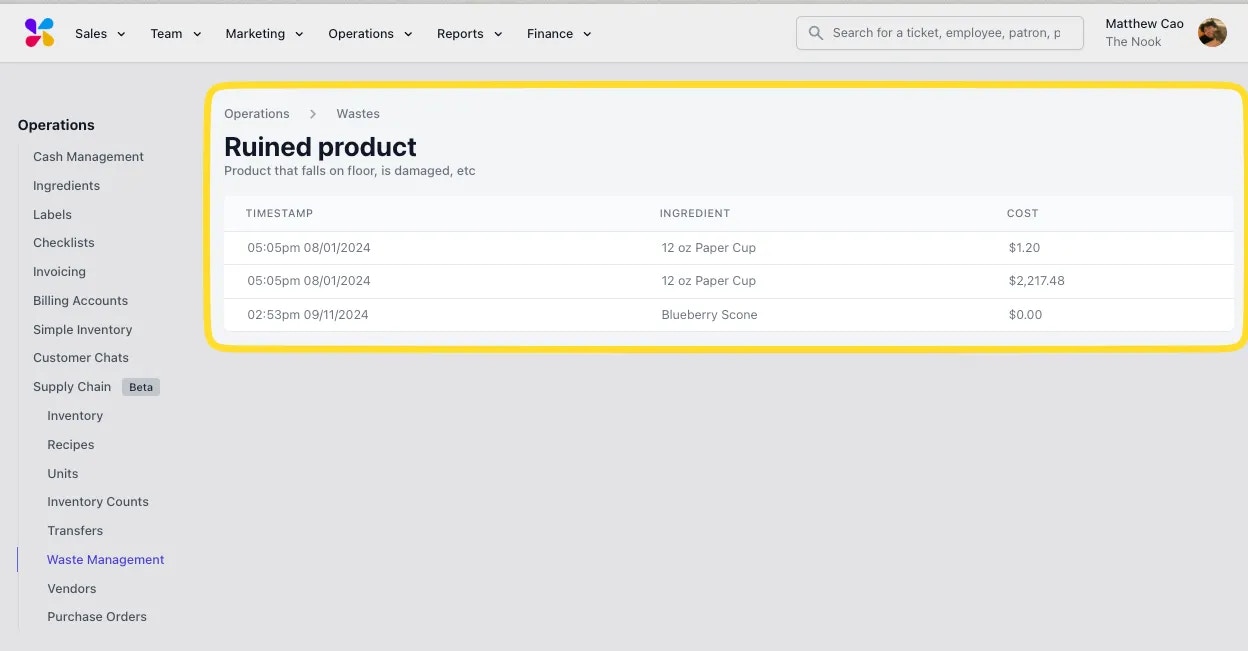
 Selecting **View** on a Waste Type will allow you to see individual instances of that Waste Type when recorded by on the POS. These are sorted by time:
Your Waste Types page will allow you to delete the Waste Type via the **Trash Button** as well as **Edit** the name and description:
Selecting **View** on a Waste Type will allow you to see individual instances of that Waste Type when recorded by on the POS. These are sorted by time:
Your Waste Types page will allow you to delete the Waste Type via the **Trash Button** as well as **Edit** the name and description: