> ## Documentation Index
> Fetch the complete documentation index at: https://support.dripos.com/llms.txt
> Use this file to discover all available pages before exploring further.
# Kitchen Display System Settings
> Streamline orders, reduce wait times, and keep your team in sync—so you can serve up great food and drinks, faster.
## Device Specific Settings
Navigate to the Point of Sale settings by pressing the **tribar (≡)** at the top left of the screen > **settings icon (⚙️)** below > **Tickets**
Kitchen Display Settings are specific to each Point of Sale device at your location. Want the same setup on multiple devices? Just customize each one individually to match your needs.
### Filter Settings
Use filtering to customize which categories, products, ticket types, and device orders appear on each KDS screen.
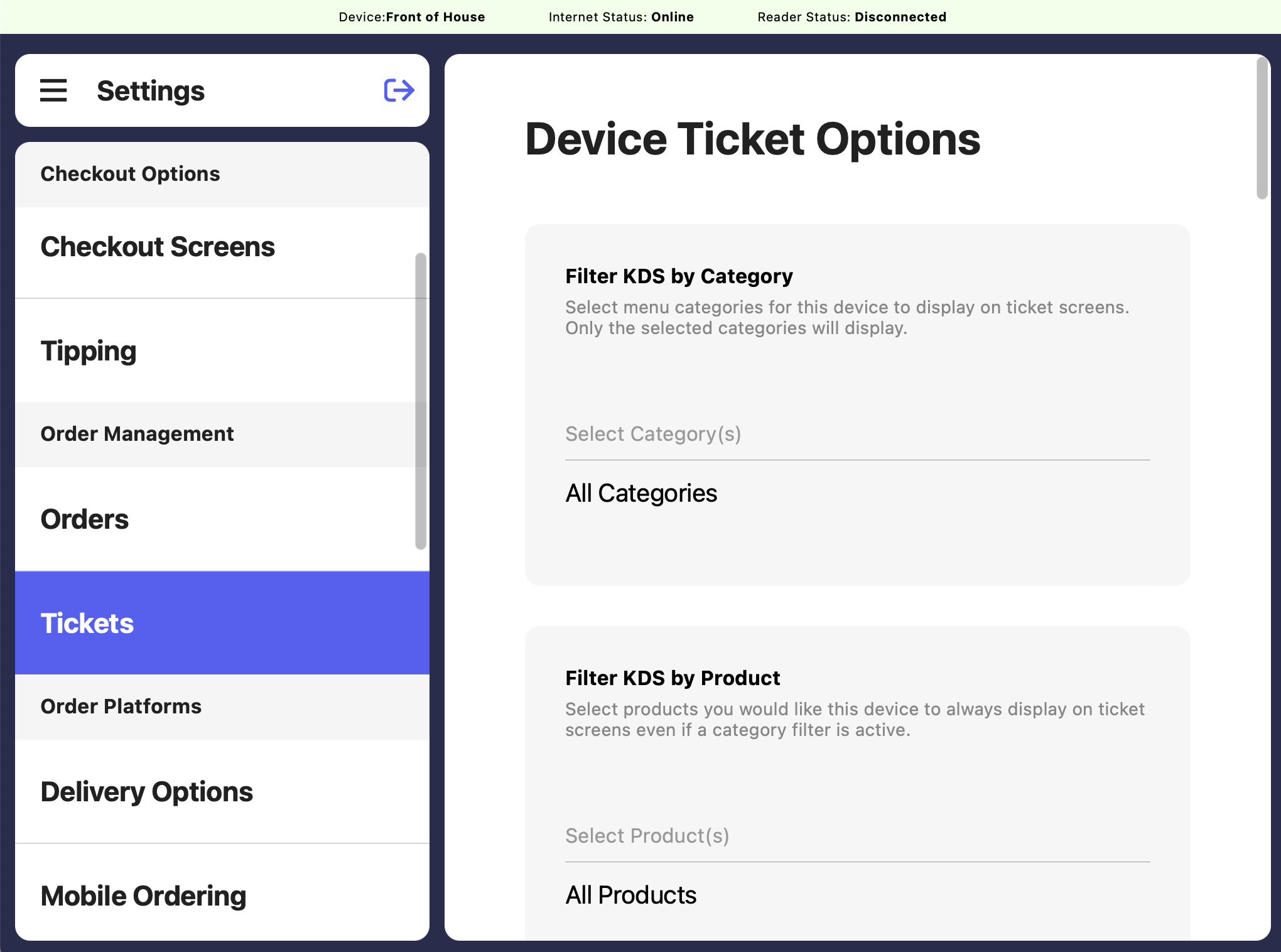 Select menu categories for the set device to display on ticket screens. Only the selected categories will display.
Select products you would like the set device to always display on ticket screens even if a category filter is active.
Select devices you would like the set device to display orders from on ticket screens. Only orders created from the selected devices will show.
Select the order types you would like the set device to display on ticket screens. Only the selected order types will show.
### Screen Settings
Select menu categories for the set device to display on ticket screens. Only the selected categories will display.
Select products you would like the set device to always display on ticket screens even if a category filter is active.
Select devices you would like the set device to display orders from on ticket screens. Only orders created from the selected devices will show.
Select the order types you would like the set device to display on ticket screens. Only the selected order types will show.
### Screen Settings
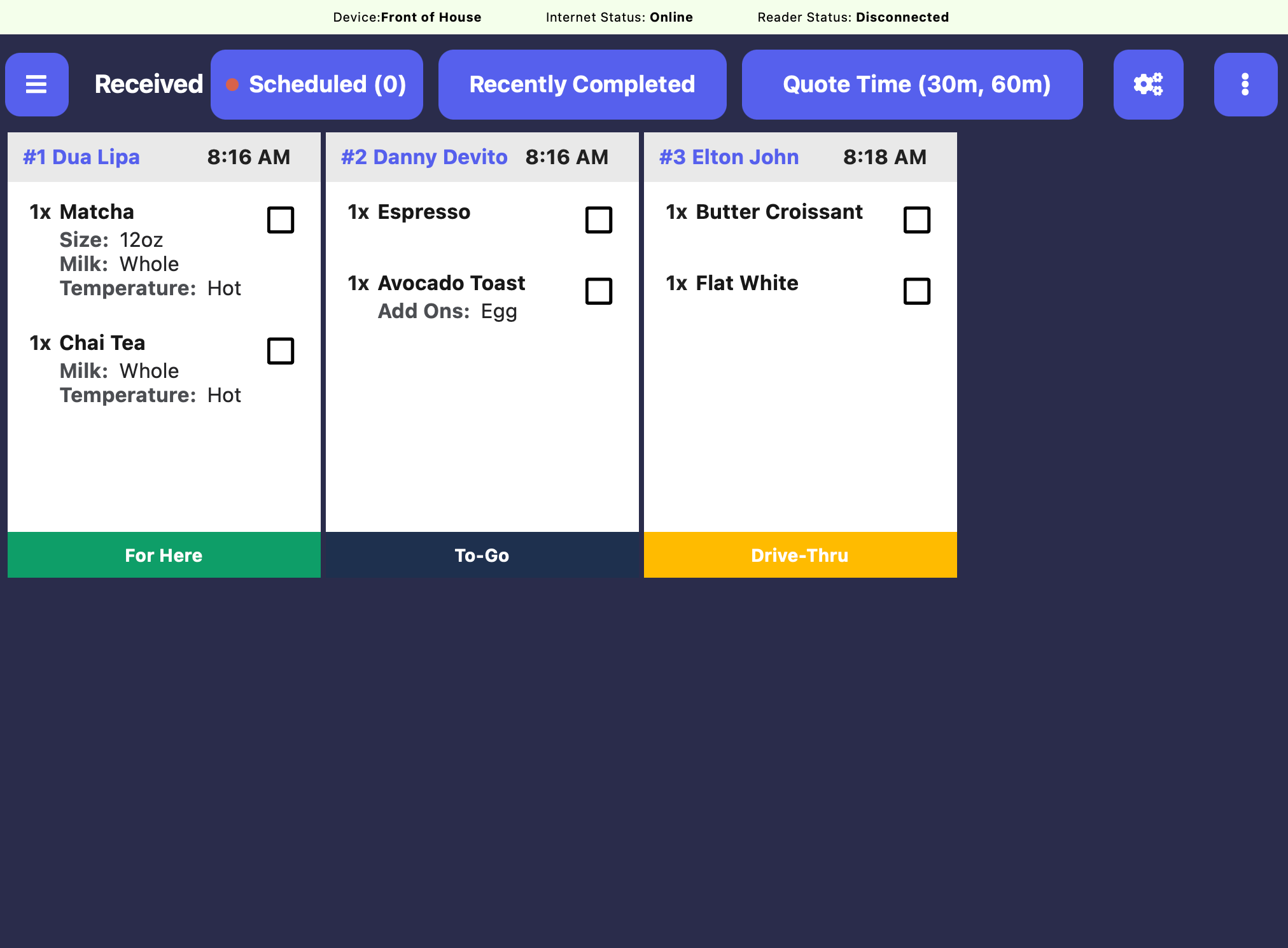
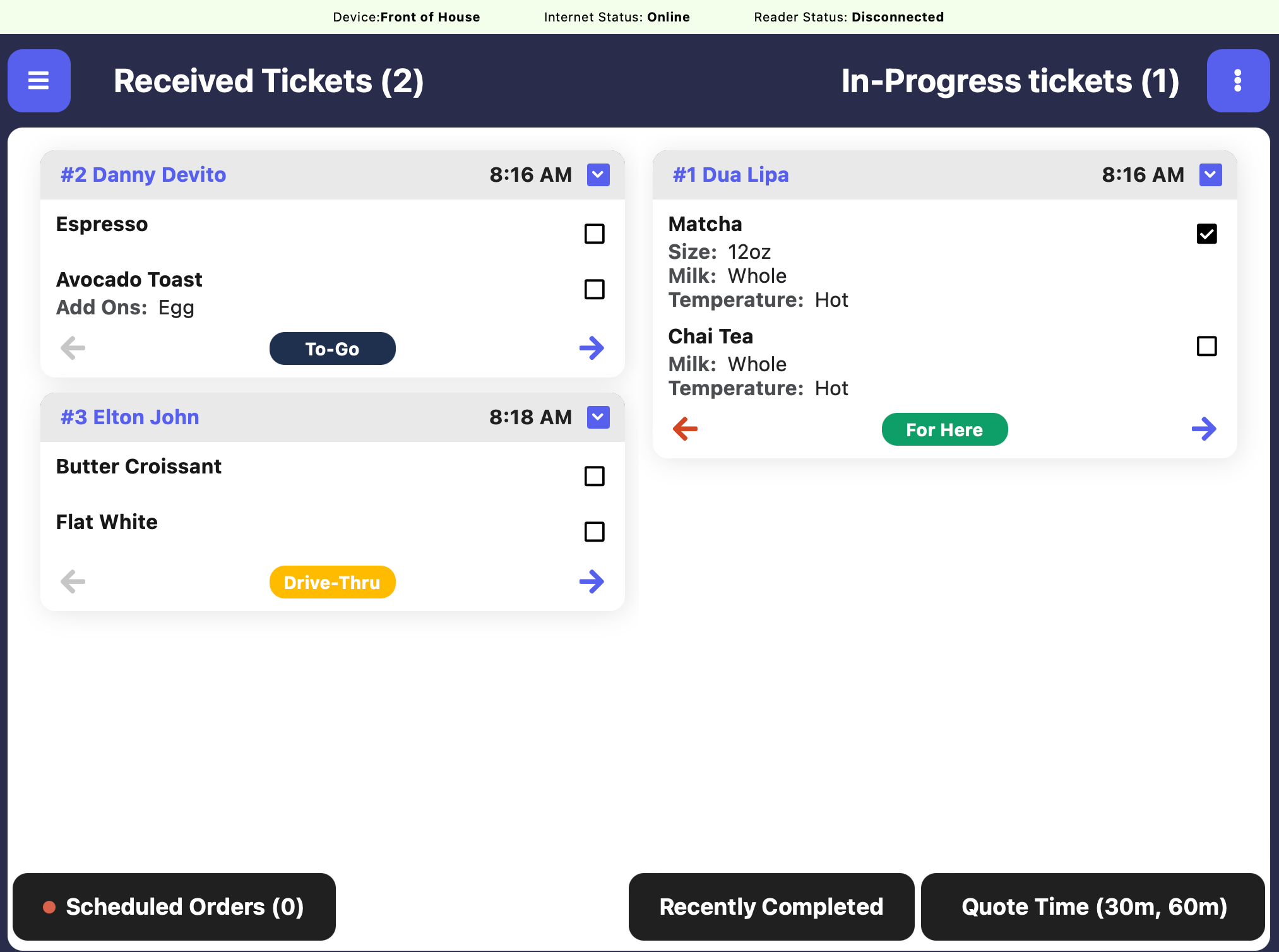
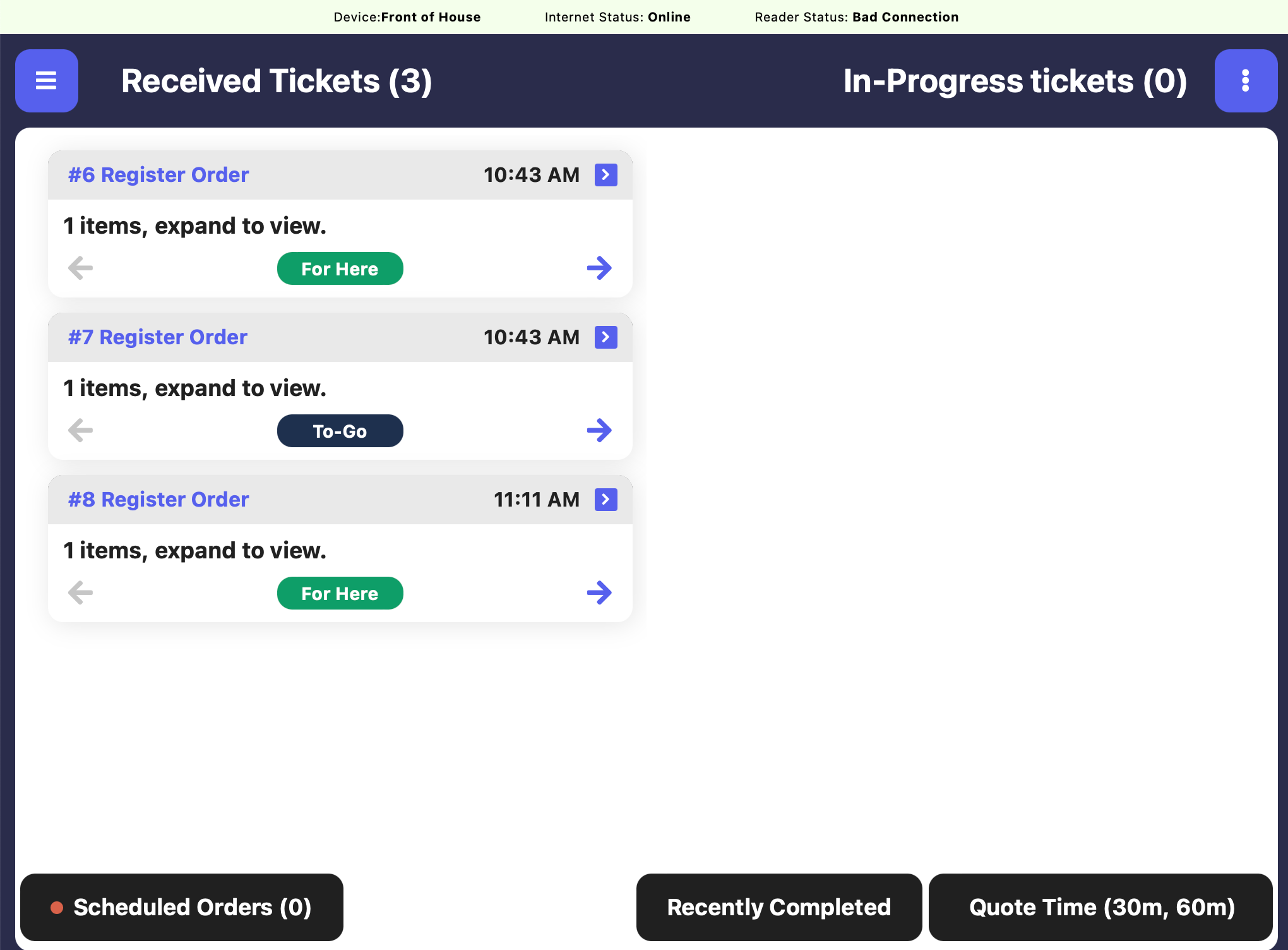
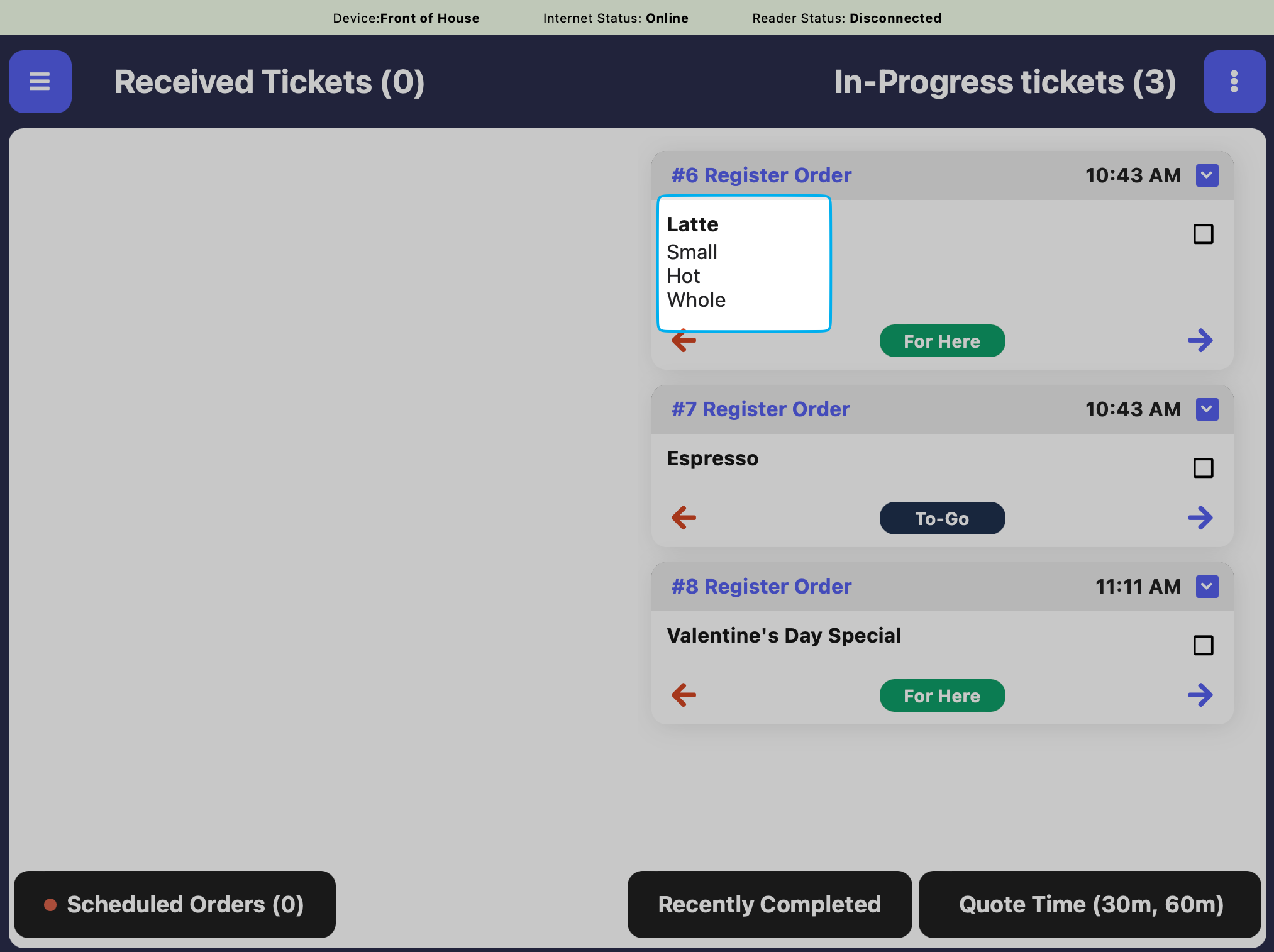
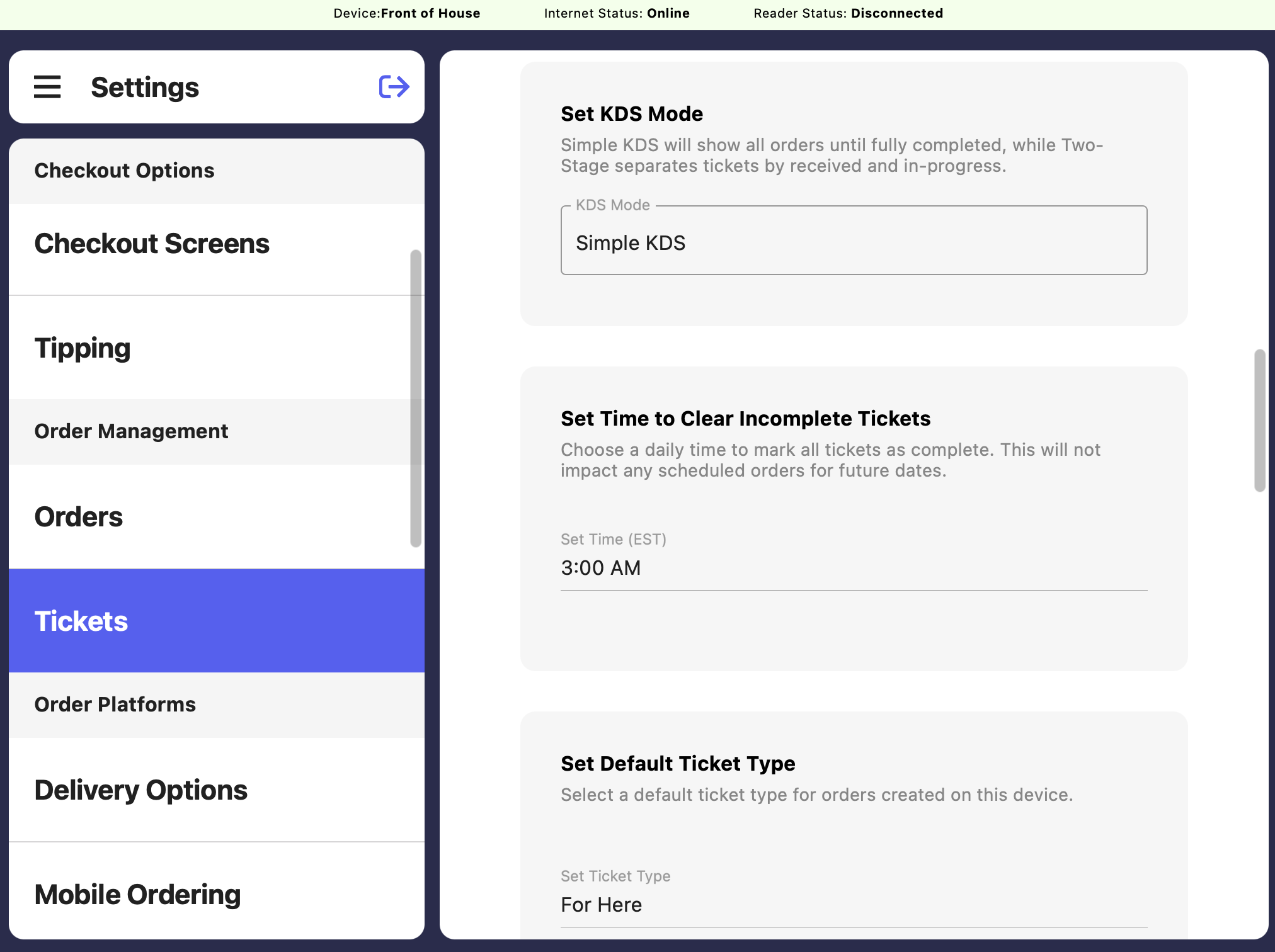 Use this setting to switch between our two KDS Modes: Simple KDS & Two-Stage KDS. Simple KDS will show all orders until completed, while two-stage separates tickets by received and in-progress.
 Choose a daily time to mark all orders as complete. *This will not impact any scheduled orders for future dates.*
Select a default ticket type for orders created on the set device.
### Fire Ticket Settings
Choose when orders are sent to kitchen display screens and printers.
Choose a daily time to mark all orders as complete. *This will not impact any scheduled orders for future dates.*
Select a default ticket type for orders created on the set device.
### Fire Ticket Settings
Choose when orders are sent to kitchen display screens and printers.
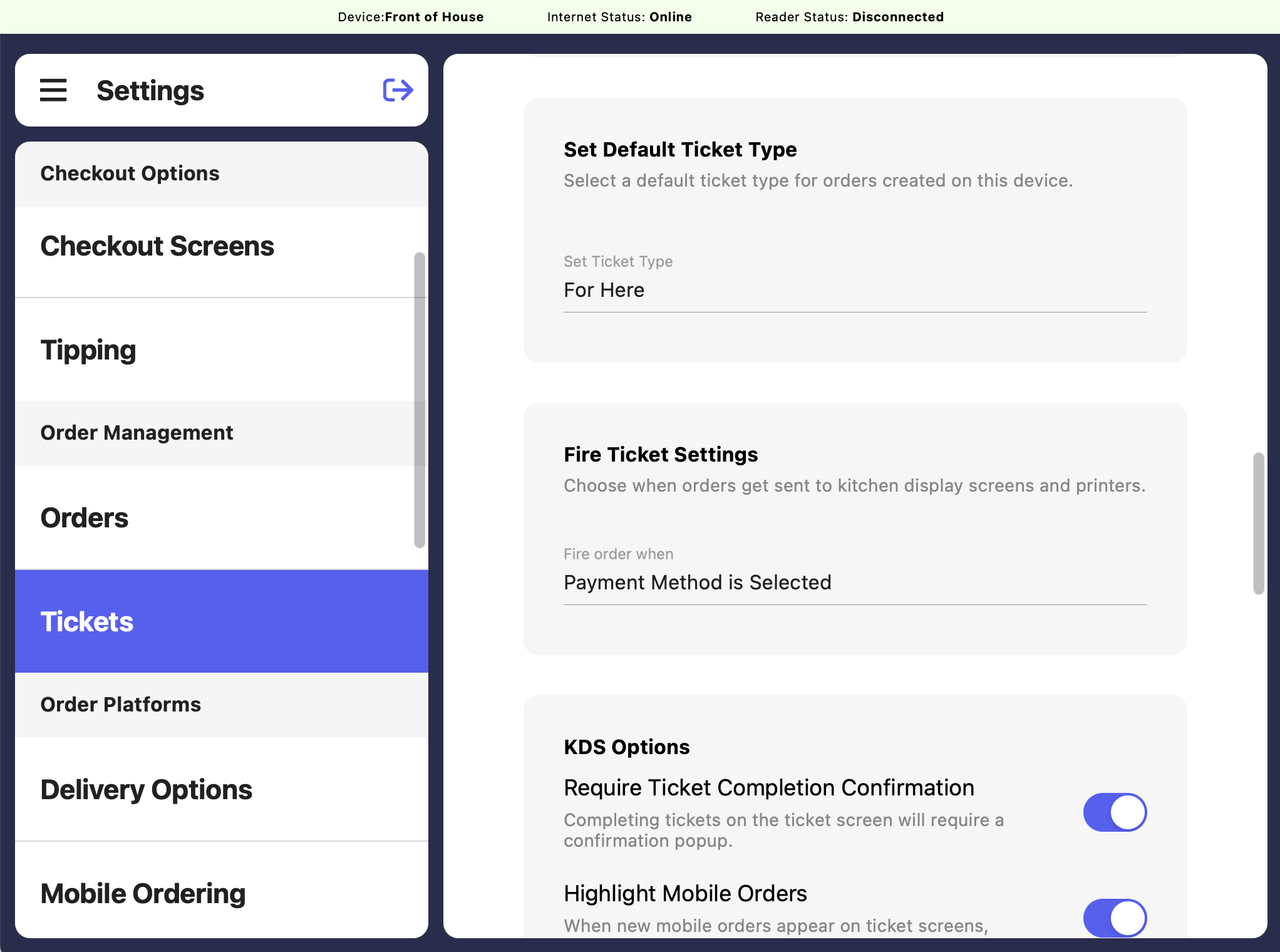 Tickets appear on the Ticket screen as soon as the order is paid for.
As soon as a payment method is chosen (cash, card, etc.), the ticket will appear on the Ticket screen, even before payment is collected.
Once an order is given a name—either through a Patron profile or a quick name entry—it will automatically appear on the Ticket screen.
When a product is added to the cart, it will instantly appear on the Ticket screen—if it matches the selected filters.
### KDS Options
Configure various KDS options to customize how tickets are completed
Tickets appear on the Ticket screen as soon as the order is paid for.
As soon as a payment method is chosen (cash, card, etc.), the ticket will appear on the Ticket screen, even before payment is collected.
Once an order is given a name—either through a Patron profile or a quick name entry—it will automatically appear on the Ticket screen.
When a product is added to the cart, it will instantly appear on the Ticket screen—if it matches the selected filters.
### KDS Options
Configure various KDS options to customize how tickets are completed
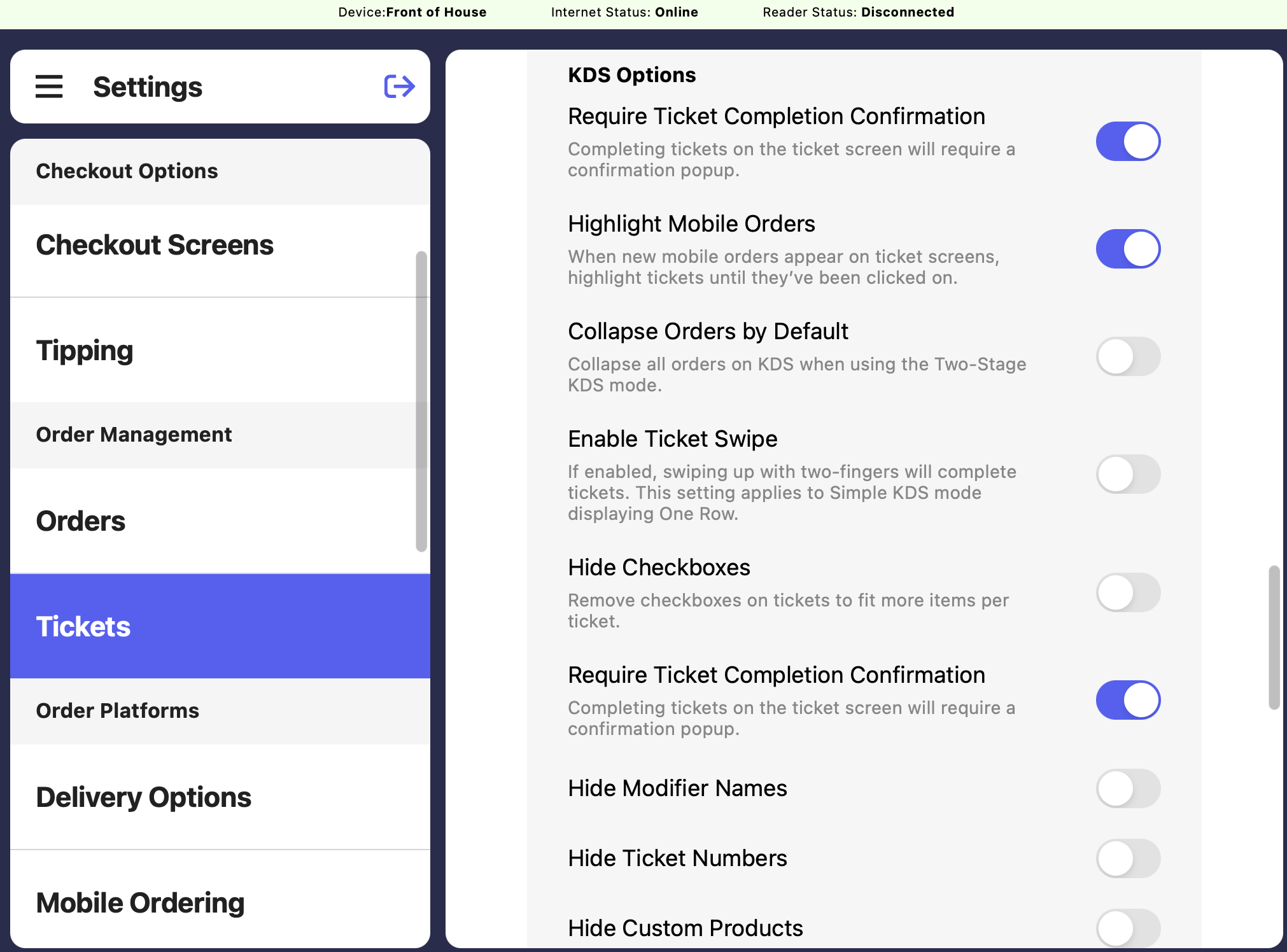 Completing tickets on the KDS will require a confirmation popup.
When new mobile orders appear on ticket screens, highlight tickets until they’ve been clicked on.
Collapse all orders on KDS when using the Two-Stage KDS mode.
Completing tickets on the KDS will require a confirmation popup.
When new mobile orders appear on ticket screens, highlight tickets until they’ve been clicked on.
Collapse all orders on KDS when using the Two-Stage KDS mode.
 If enabled, swiping up with two-fingers will complete tickets. This setting applies to Simple KDS Mode displaying One Row.
Remove checkboxes on tickets to fit more items per ticket.
Completing tickets on the KDS will require a confirmation popup.
If enabled, this will hide modifier names (not modifier selections) on the KDS.
If enabled, swiping up with two-fingers will complete tickets. This setting applies to Simple KDS Mode displaying One Row.
Remove checkboxes on tickets to fit more items per ticket.
Completing tickets on the KDS will require a confirmation popup.
If enabled, this will hide modifier names (not modifier selections) on the KDS.
 If enabled, this will hide ticket numbers on the KDS.
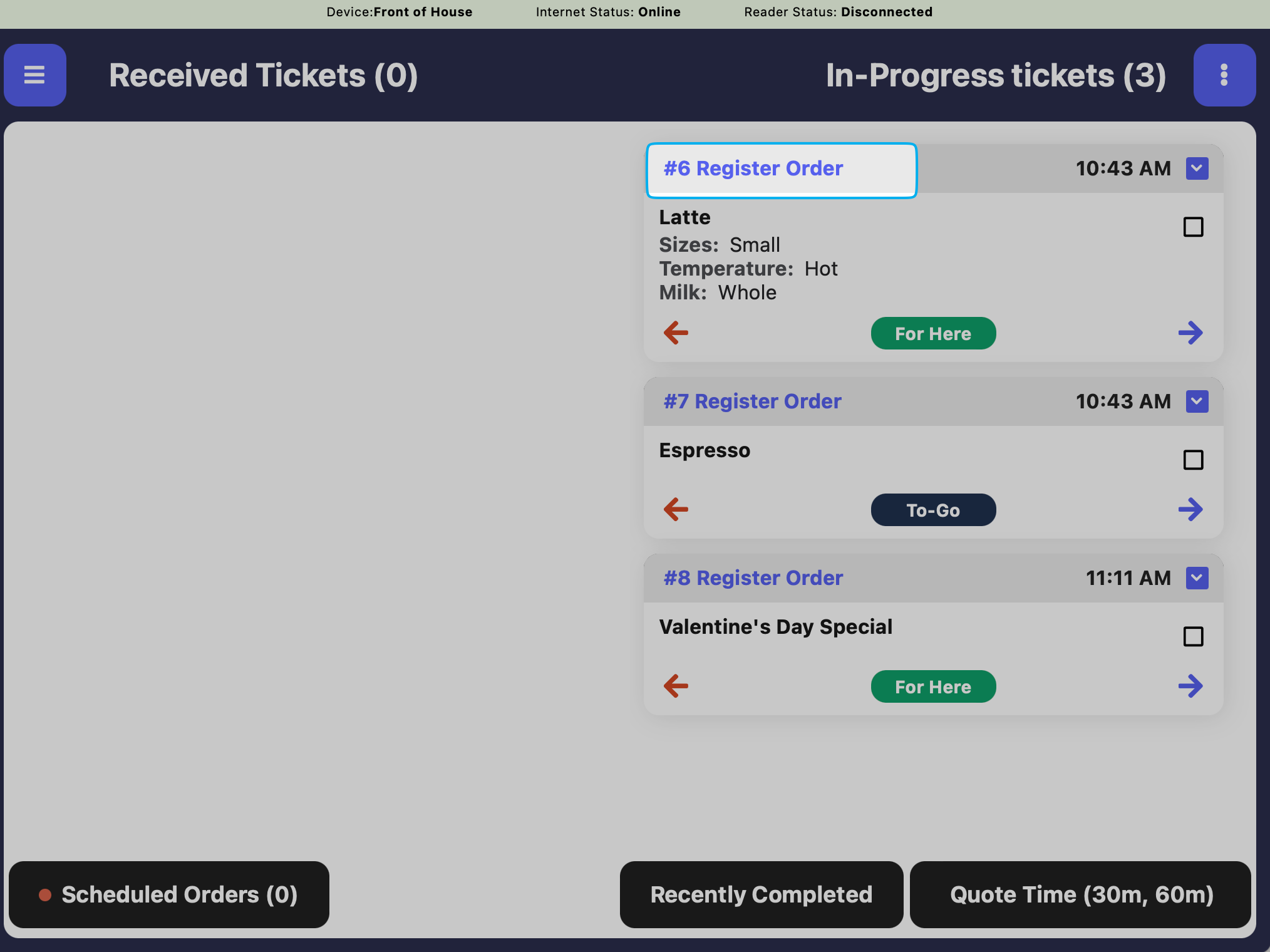
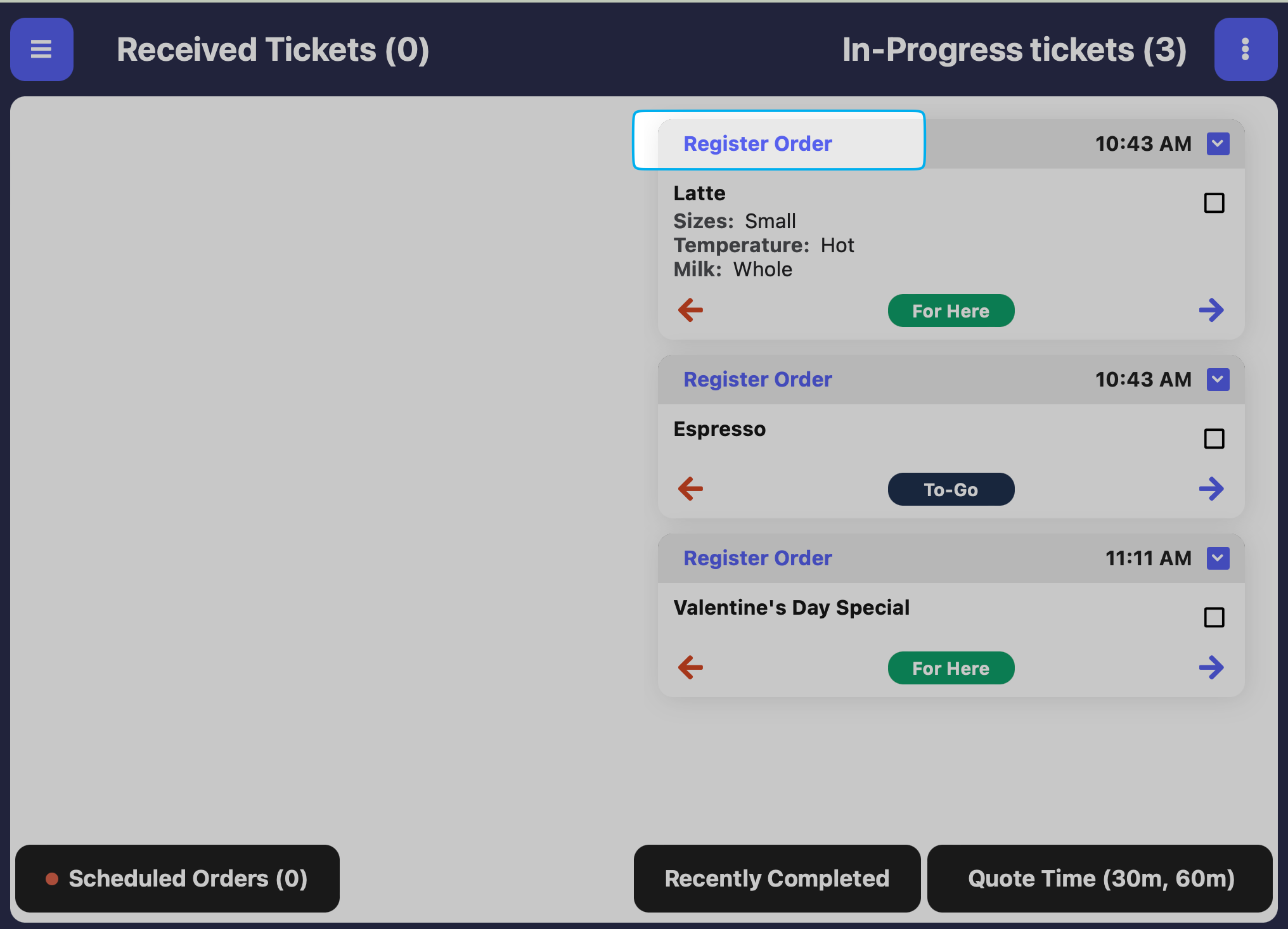 If enabled, this will hide custom products from displaying on the KDS.
If enabled, this will hide completed items from tickets on the KDS and show only active items that still need to be prepared.
If enabled, this will display the total item count alongside the filtered count at the bottom of each ticket. It does3 not include auto-completed items.
If enabled, this will hide custom products from displaying on the KDS.
If enabled, this will hide completed items from tickets on the KDS and show only active items that still need to be prepared.
If enabled, this will display the total item count alongside the filtered count at the bottom of each ticket. It does3 not include auto-completed items.
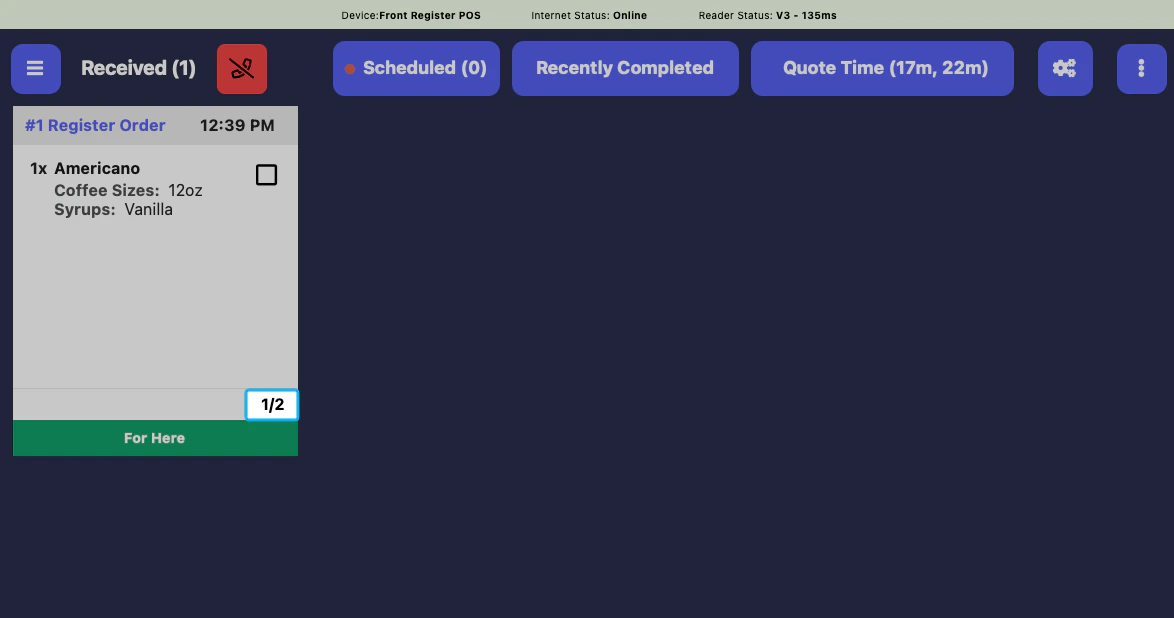 Set this device as an Expo Screen to complete expo tickets.
An Expo Screen will require an additional Point of Sale device for use.
An Expo Screen adds one more additional check before an order can be marked as complete.
*Example workflow: The kitchen marks an order as complete from the Ticket screen. This order then is sent to the Expo screen at the front counter. The front counter employee then marks the order as comple from the Expo screen when it's ready to hand to the customer*
**Complete the following steps on all ticket types that will require Expo completion:**
On the **Dashboard**, navigate to **Orders** > **Ticket Type** > **View Ticket Type**
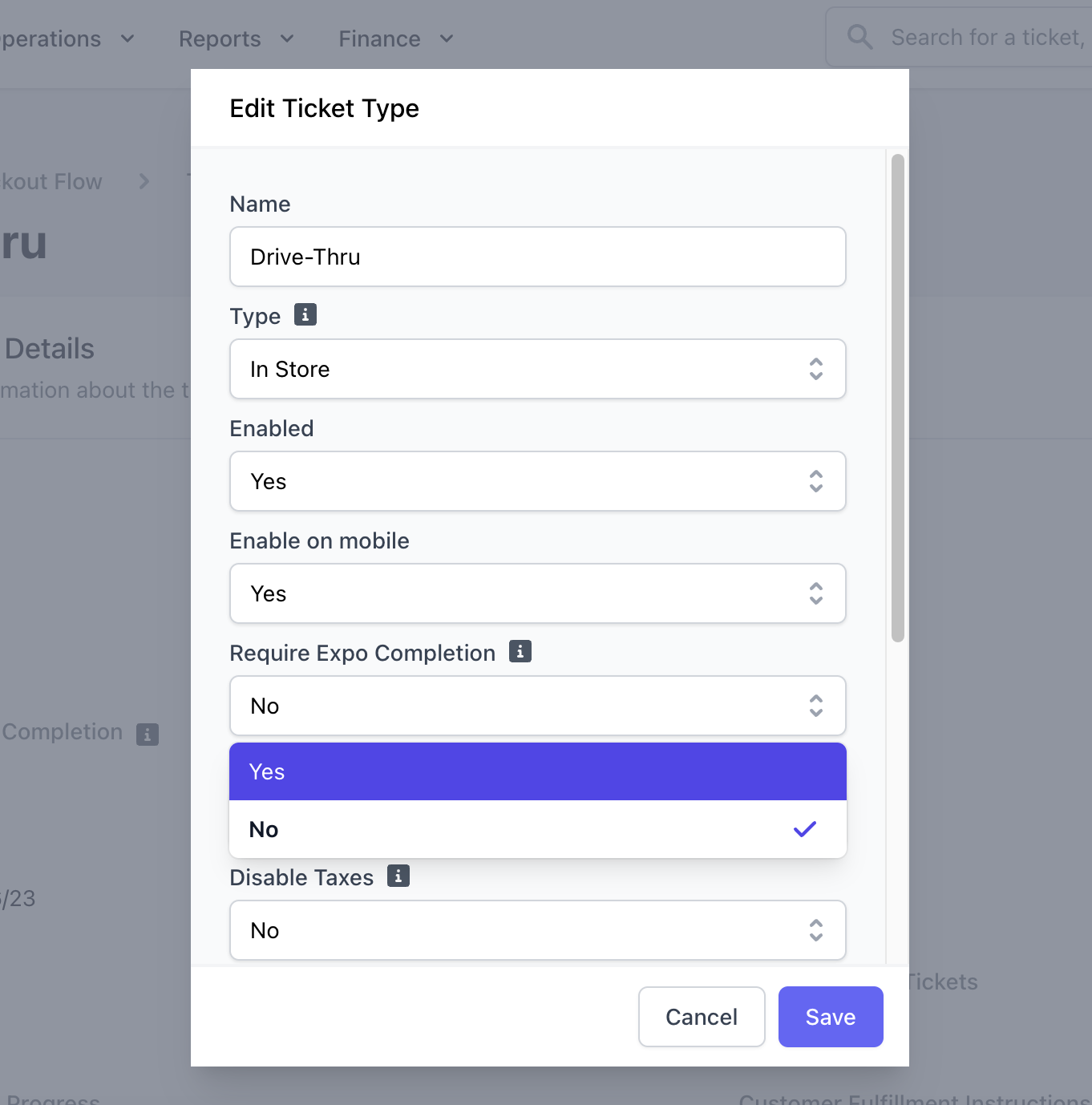
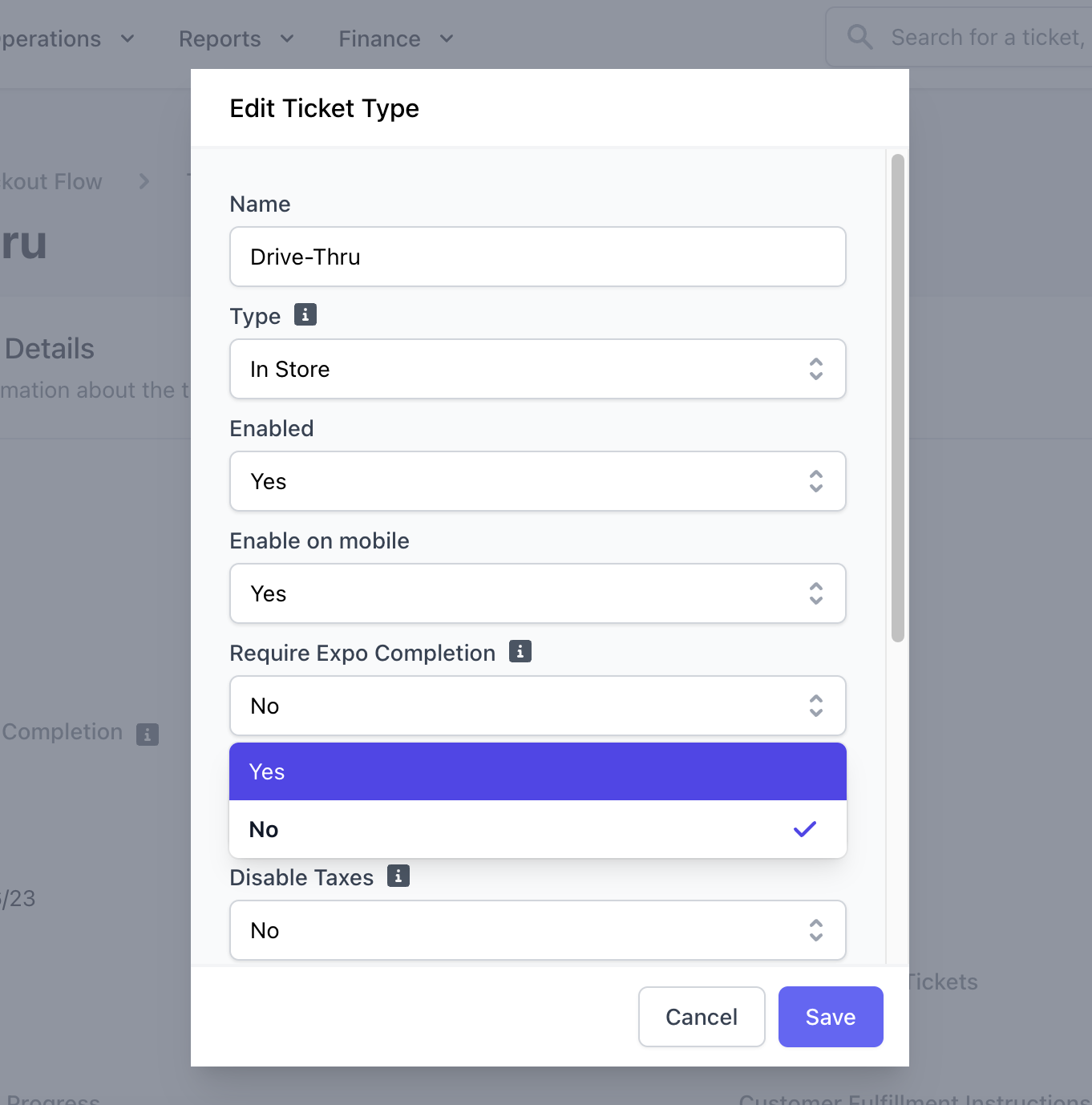
Click **Edit Information** > **Require Expo Completion** = **Yes** > **Save**
Set this device as an Expo Screen to complete expo tickets.
An Expo Screen will require an additional Point of Sale device for use.
An Expo Screen adds one more additional check before an order can be marked as complete.
*Example workflow: The kitchen marks an order as complete from the Ticket screen. This order then is sent to the Expo screen at the front counter. The front counter employee then marks the order as comple from the Expo screen when it's ready to hand to the customer*
**Complete the following steps on all ticket types that will require Expo completion:**
On the **Dashboard**, navigate to **Orders** > **Ticket Type** > **View Ticket Type**
Click **Edit Information** > **Require Expo Completion** = **Yes** > **Save**
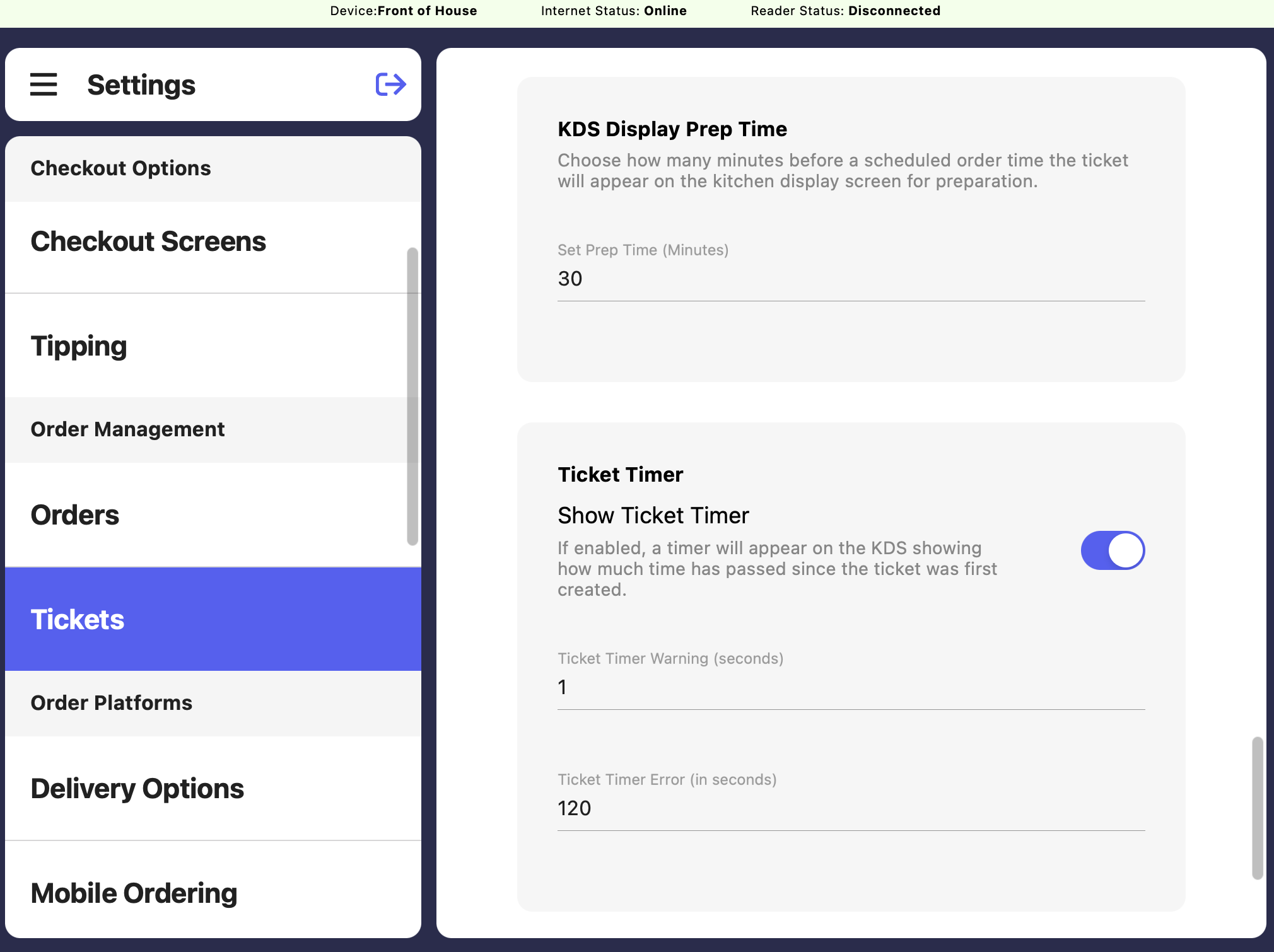 > **KDS Display Prep Time:** Chose how many minutes before a scheduled order time the ticket will appear on the kitchen display screen for preparation.
>
> **Show Ticket Timer:** If enabled, a timer will appear on the KDS showing how much time has passed since the ticket was first created.
### Sound Options
When a new ticket appears on the set device’s KDS, set a sound to play on the device.
> **KDS Display Prep Time:** Chose how many minutes before a scheduled order time the ticket will appear on the kitchen display screen for preparation.
>
> **Show Ticket Timer:** If enabled, a timer will appear on the KDS showing how much time has passed since the ticket was first created.
### Sound Options
When a new ticket appears on the set device’s KDS, set a sound to play on the device.
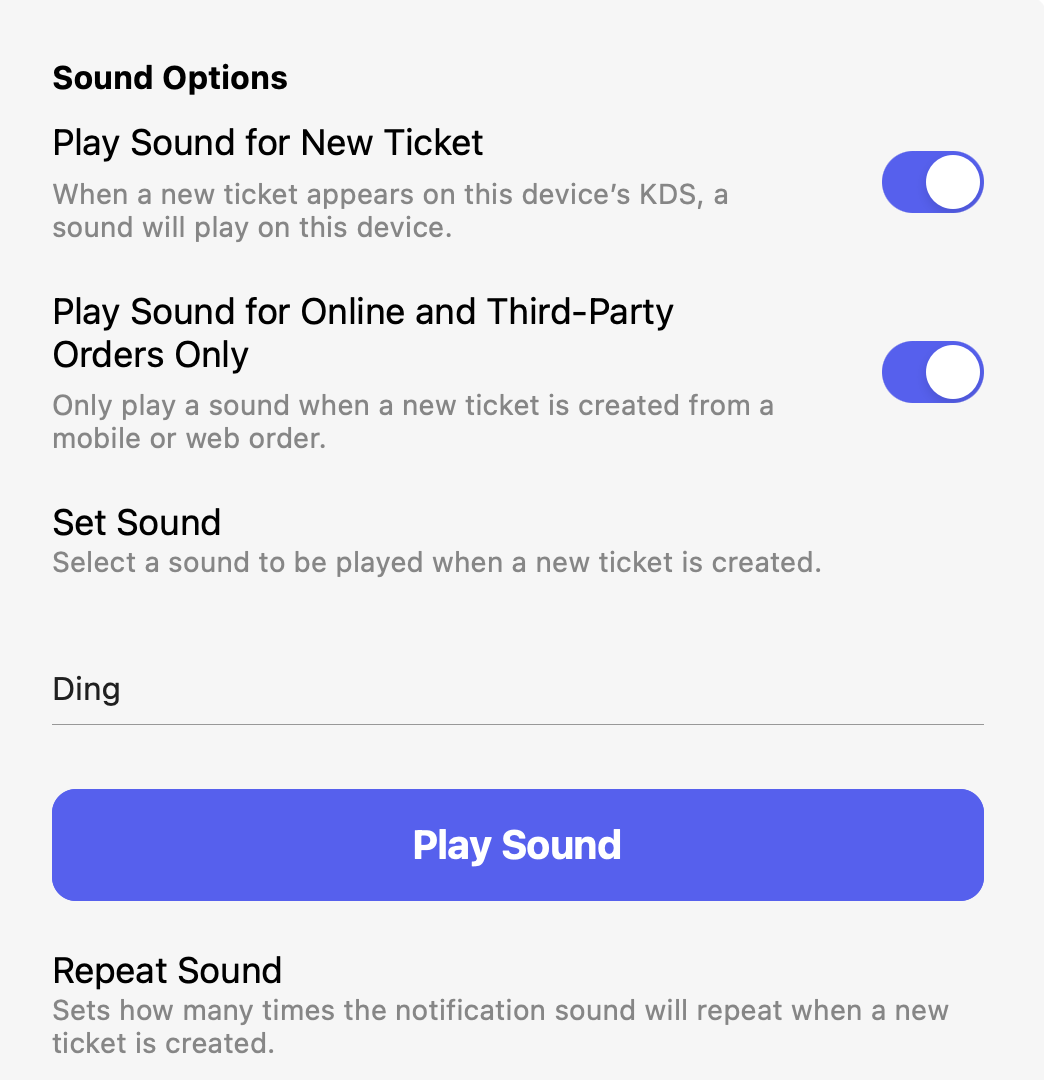
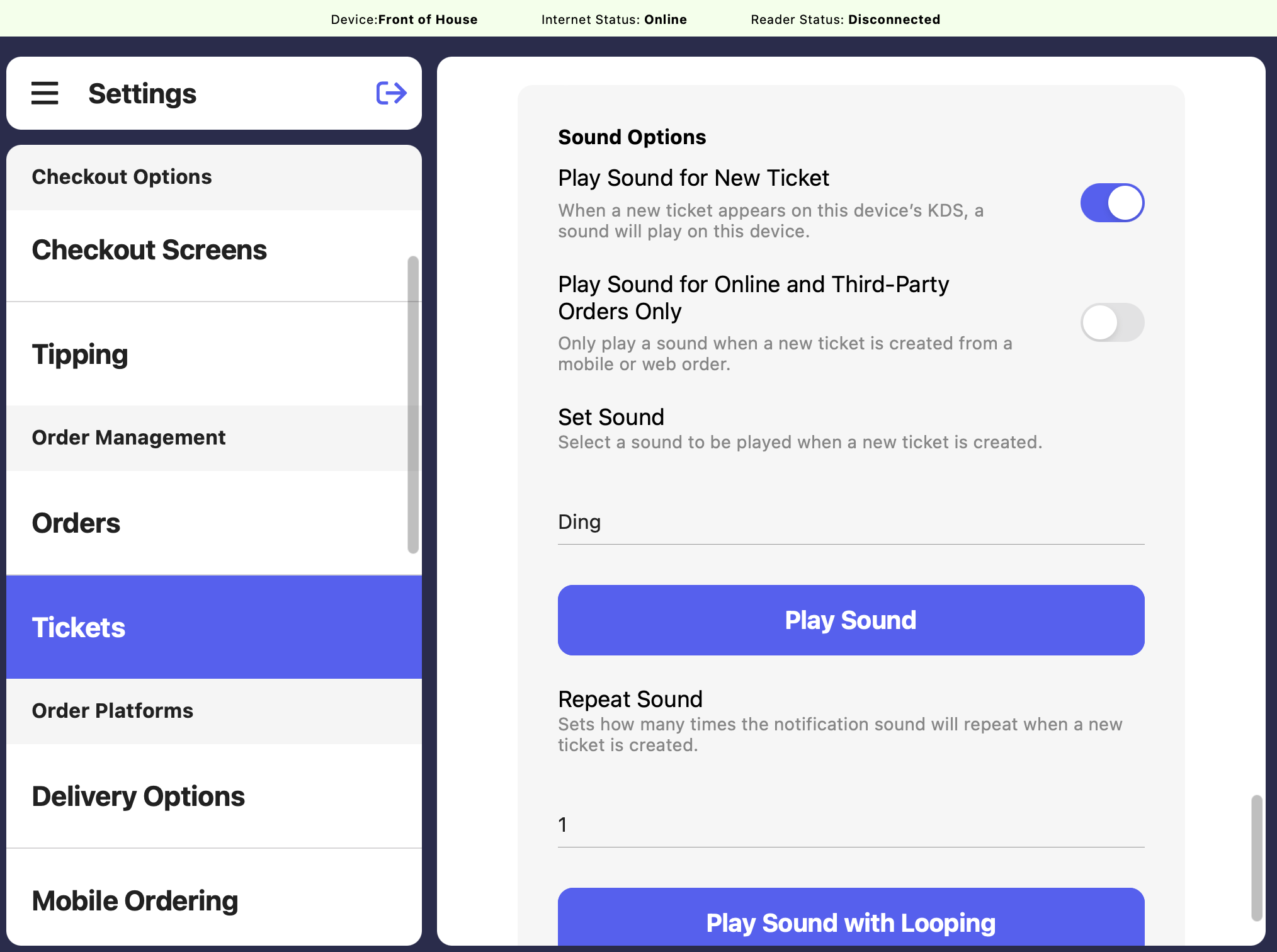 To enable sounds solely for online and third-party orders, toggle ON both sound options
 {/*
---
### Device Ticket Settings
Device Ticket settings are specific to each Point of Sale device at your location. Want the same setup on multiple devices? Just customize each one individually to match your needs.
Navigate to Device Ticket settings on any Point of Sale > press the **tribar (≡)** at the top left of the screen > **settings icon (⚙️)** below > **Device Ticket Options**
{/*
---
### Device Ticket Settings
Device Ticket settings are specific to each Point of Sale device at your location. Want the same setup on multiple devices? Just customize each one individually to match your needs.
Navigate to Device Ticket settings on any Point of Sale > press the **tribar (≡)** at the top left of the screen > **settings icon (⚙️)** below > **Device Ticket Options**
 **Want to keep things simple?**
Customize each station to see only what they need— like showing just food items in the kitchen and only espresso drinks at the barista station. No extra clutter, just what matters most!
Use Display Tickets Filtering to customize which categories, products, ticket types, and device orders appear on each Ticket screen.
If all filters are left blank, all tickets will appear on the Ticket screen
**By Categories**: Only products from the selected categories will show on the Ticket screen— everything else will be hidden.
**By Products**: Only these selected producted will show on the Ticket screen- everything else will be hidden.
**By Device**: Only orders placed on these devices will show on the Ticket screen- everything else will be hidden.
If the Ticket screen is filtered By Device, mobile orders will never appear on the Ticket screen.
**By Type**: Only orders of the selected Ticket Types will show on the Ticket screen- everything else will be hidden.
**Want to keep things simple?**
Customize each station to see only what they need— like showing just food items in the kitchen and only espresso drinks at the barista station. No extra clutter, just what matters most!
Use Display Tickets Filtering to customize which categories, products, ticket types, and device orders appear on each Ticket screen.
If all filters are left blank, all tickets will appear on the Ticket screen
**By Categories**: Only products from the selected categories will show on the Ticket screen— everything else will be hidden.
**By Products**: Only these selected producted will show on the Ticket screen- everything else will be hidden.
**By Device**: Only orders placed on these devices will show on the Ticket screen- everything else will be hidden.
If the Ticket screen is filtered By Device, mobile orders will never appear on the Ticket screen.
**By Type**: Only orders of the selected Ticket Types will show on the Ticket screen- everything else will be hidden.
 Select a default ticket type to automatically apply to an order upon checkout if **Show Order Type Screen** is disabled
 Determine when a ticket should be sent to the Ticket screen during the checkout process
**Fire tickets when checkout is complete (default)**: Tickets appear on the Ticket screen as soon as the order is paid for.
**Fire tickets when items are added to cart**: When a product is added to the cart, it will instantly appear on the Ticket screen—if it matches the selected filters.
**Fire tickets when named**: Once an order is given a name—either through a Patron profile or a quick name entry—it will automatically appear on the Ticket screen.
**Fire tickets when payment method is selected**: As soon as a payment method is chosen (cash, card, etc.), the ticket will appear on the Ticket screen, even before payment is collected.
Determine when a ticket should be sent to the Ticket screen during the checkout process
**Fire tickets when checkout is complete (default)**: Tickets appear on the Ticket screen as soon as the order is paid for.
**Fire tickets when items are added to cart**: When a product is added to the cart, it will instantly appear on the Ticket screen—if it matches the selected filters.
**Fire tickets when named**: Once an order is given a name—either through a Patron profile or a quick name entry—it will automatically appear on the Ticket screen.
**Fire tickets when payment method is selected**: As soon as a payment method is chosen (cash, card, etc.), the ticket will appear on the Ticket screen, even before payment is collected.
 If enabled, when a saved ticket is created the employee will be prompted to decide if this patron should be saved for future visits.
If enabled, when you click "New Order" after checkout, you'll be taken directly to the saved KDS instead of the register screen.
If enabled, all tickets on the KDS will be collapsed default
If enabled, when a saved ticket is created the employee will be prompted to decide if this patron should be saved for future visits.
If enabled, when you click "New Order" after checkout, you'll be taken directly to the saved KDS instead of the register screen.
If enabled, all tickets on the KDS will be collapsed default
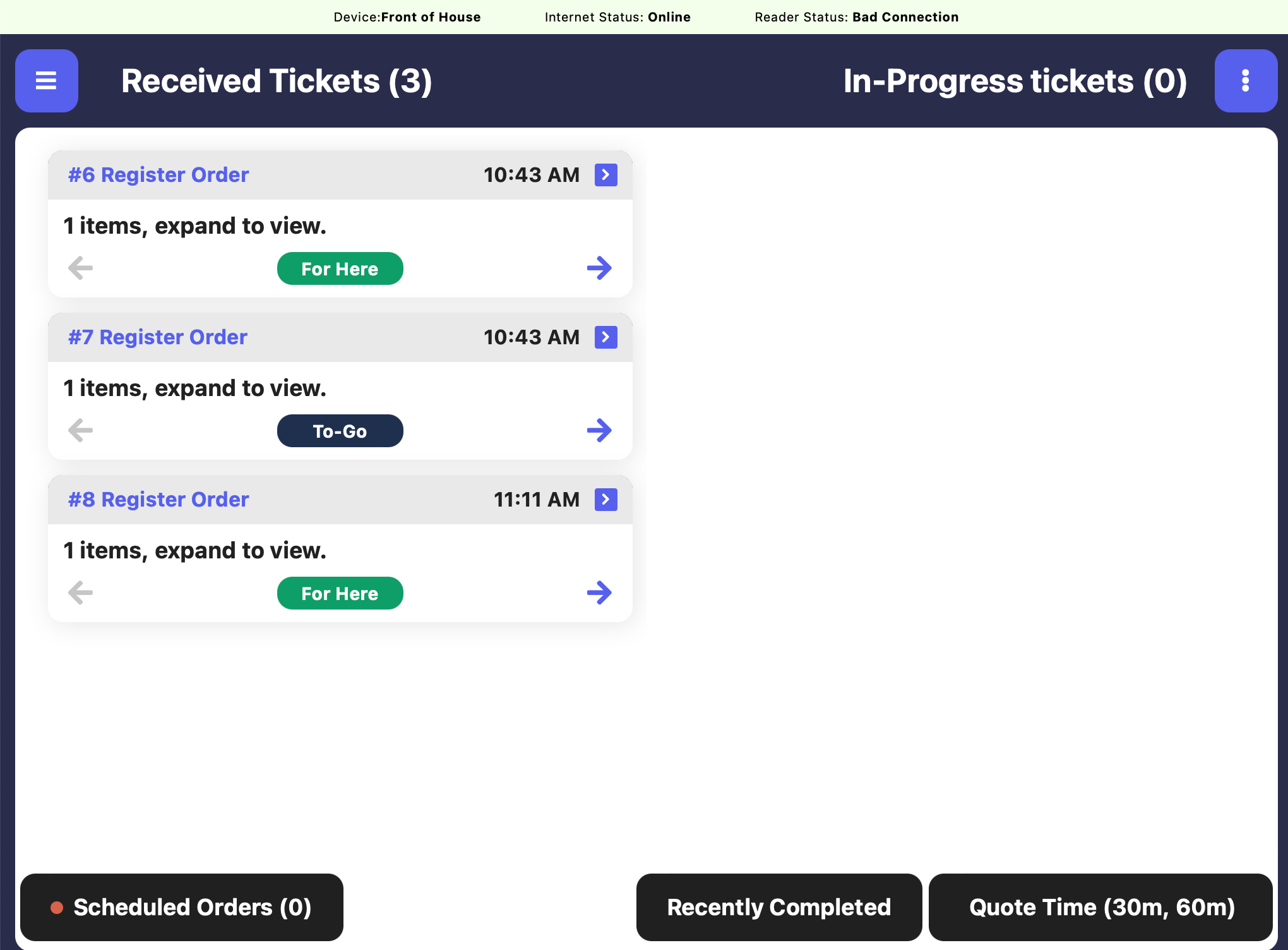 If enabled, the checkboxes from Ticket screen tickets will be removed
This feature lets you swipe tickets to easily move them between "In Progress" and "Completed" statuses.
If enabled, the checkboxes from Ticket screen tickets will be removed
This feature lets you swipe tickets to easily move them between "In Progress" and "Completed" statuses.
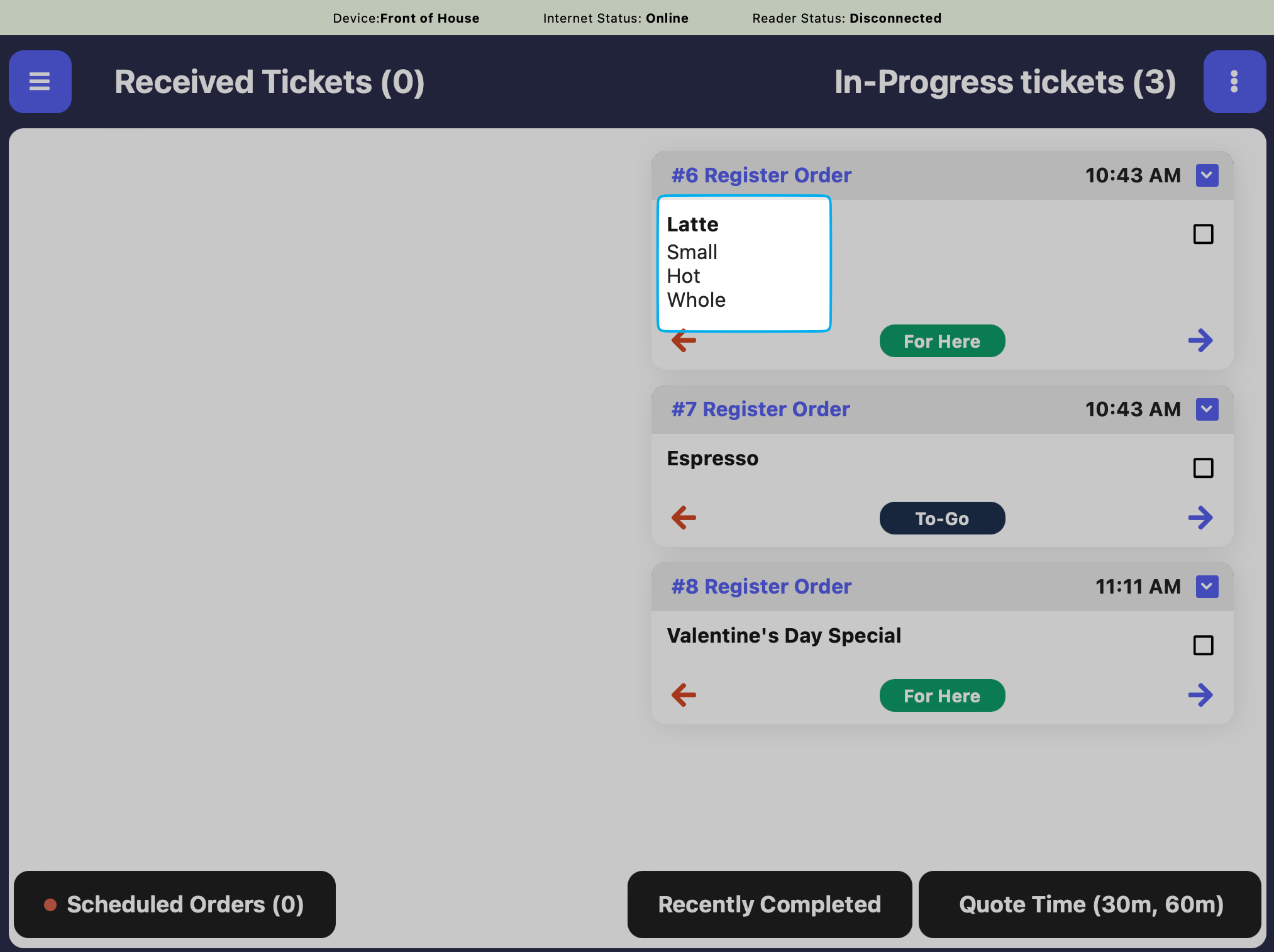
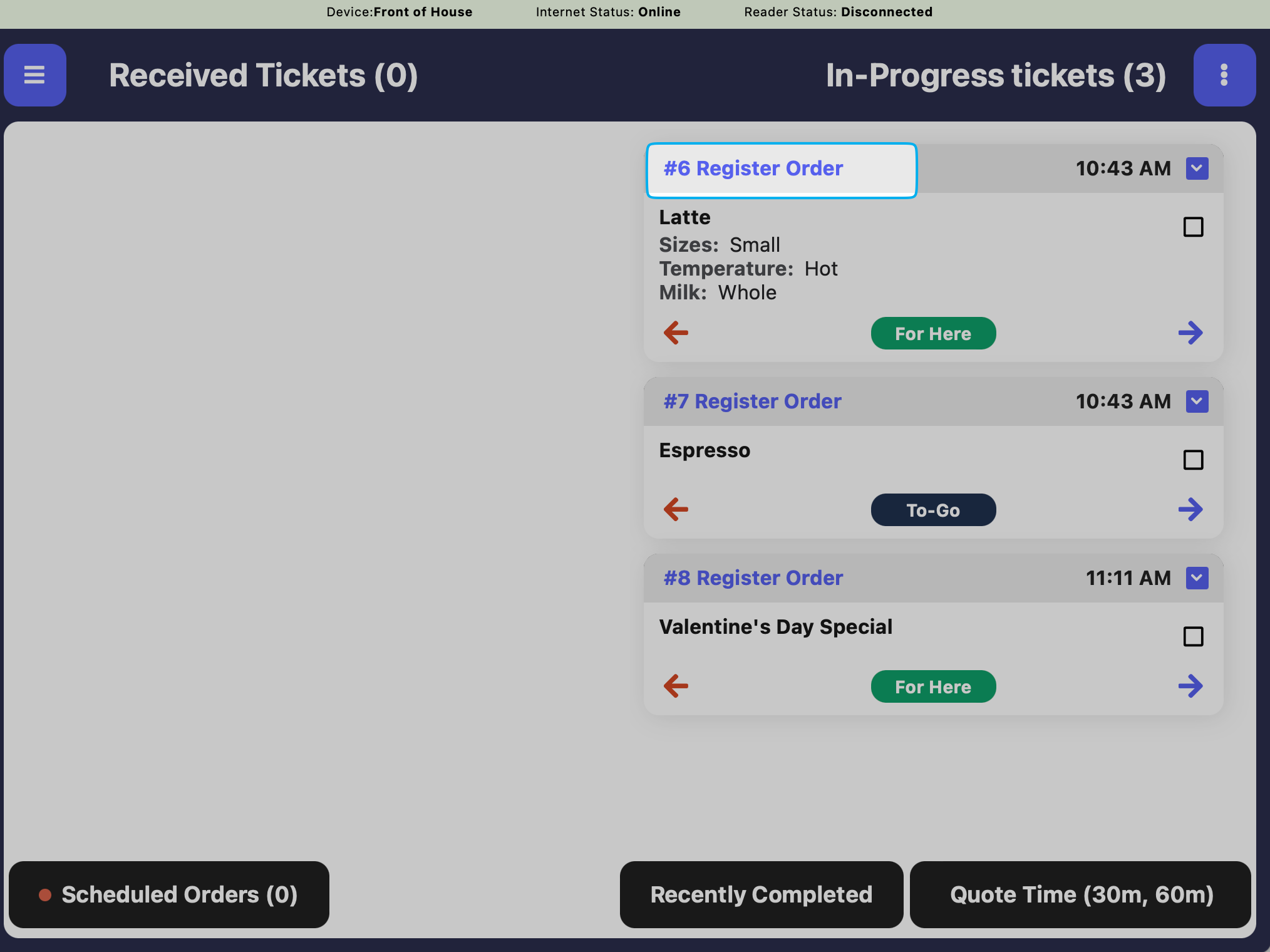
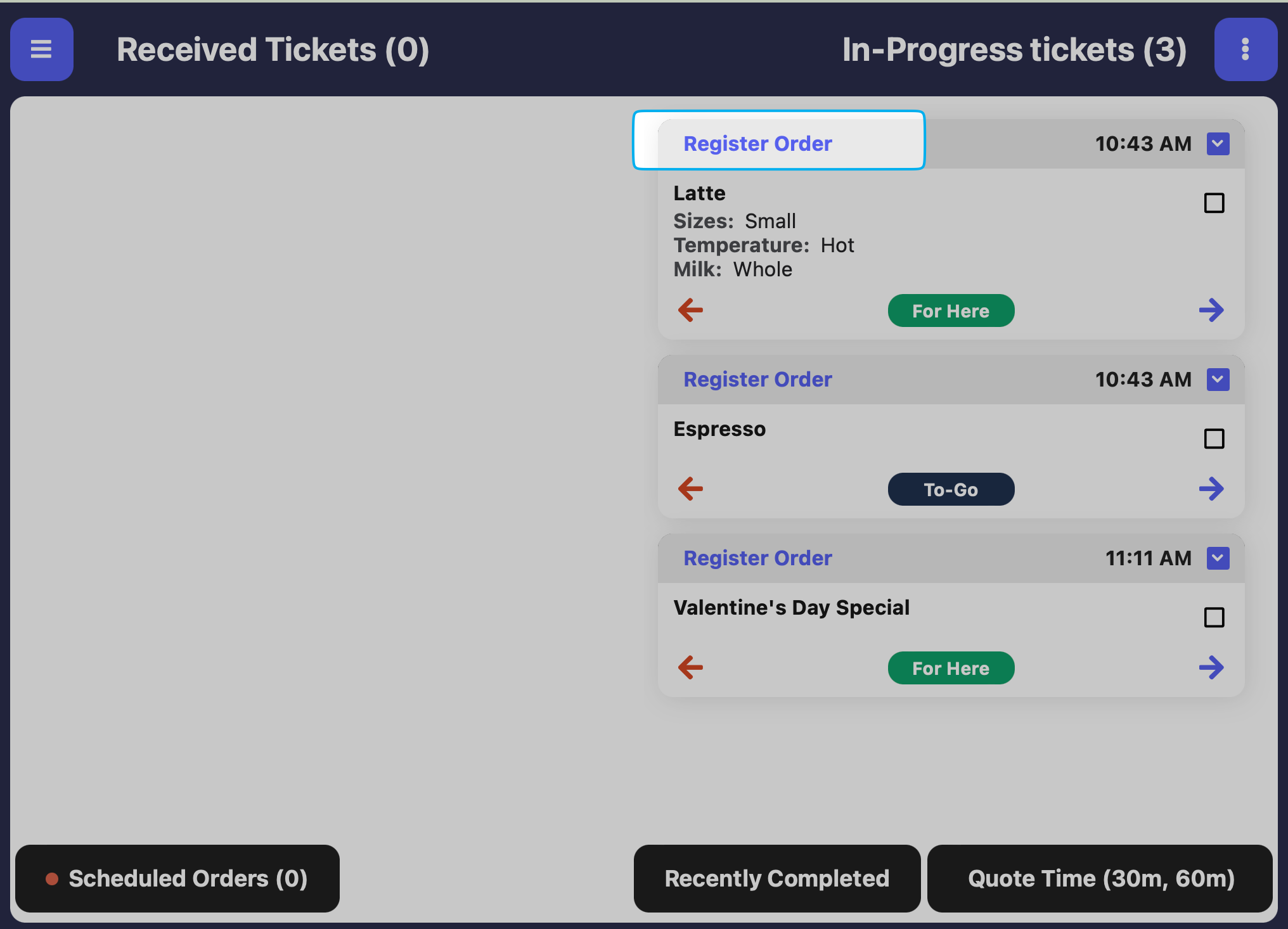 When enabled, a custom product added to an order will never appear on the Ticket Screen.
If a enabled, when a patron is added during checkout, their name will replace the current ticket name.
When enabled, a custom product added to an order will never appear on the Ticket Screen.
If a enabled, when a patron is added during checkout, their name will replace the current ticket name.
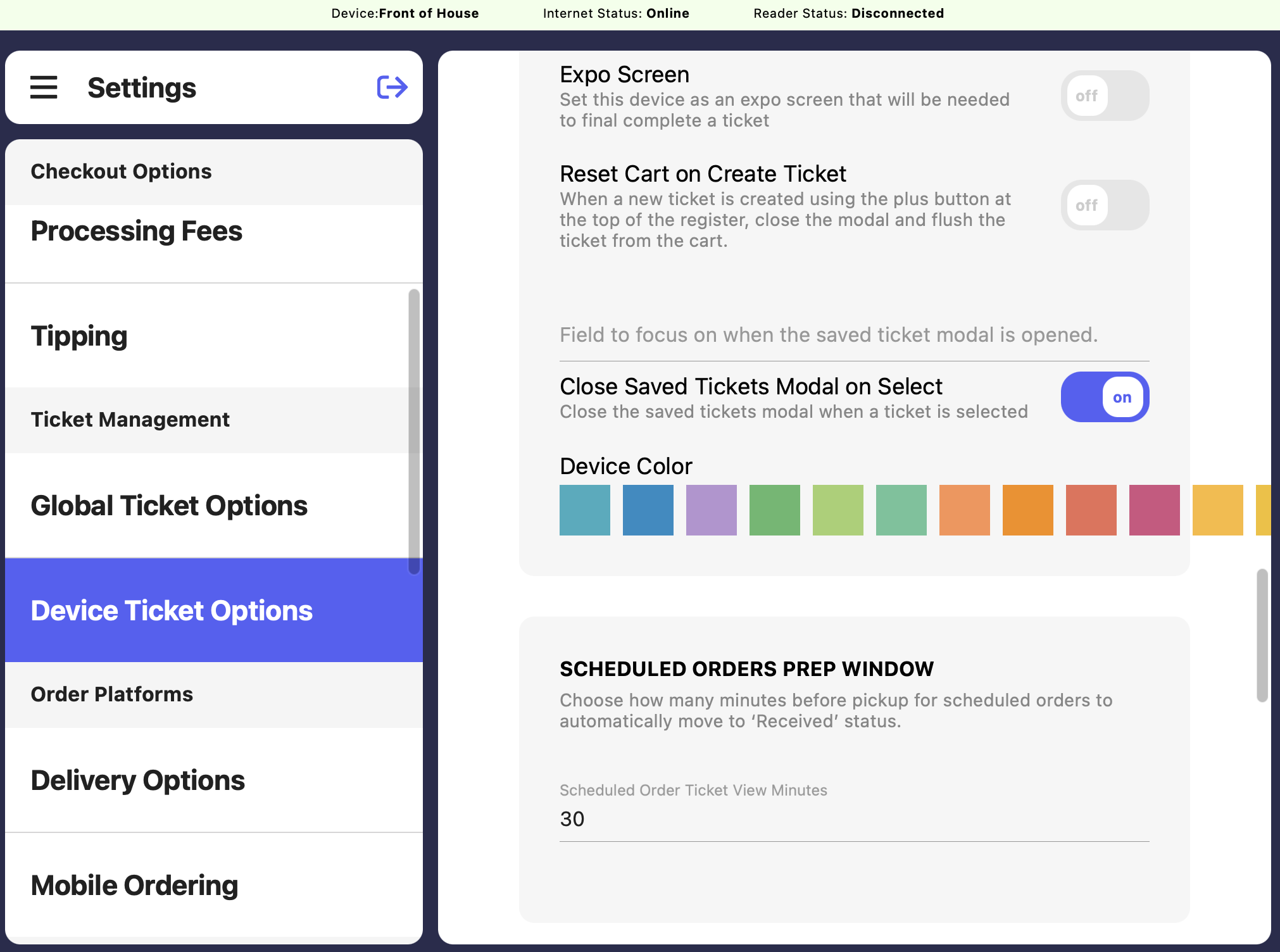 If enabled, this device will be used as the Expo Screen.
An Expo Screen will require an additional Point of Sale device for use.
An Expo Screen adds one more additional check before an order can be marked as complete.
_Example workflow: The kitchen marks an order as complete from the Ticket screen. This order then is sent to the Expo screen at the front counter. The front counter employee then marks the order as comple from the Expo screen when it's ready to hand to the customer_
**Complete the following steps on all ticket types that will require Expo completion:**
On the **Web Dashboard**, navigate to **Sales** > **Checkout Flow** > **Ticket Type** > **View Ticket Type**
Click **Edit Information** > **Require Expo Completion** = **Yes** > **Save**
If enabled, this device will be used as the Expo Screen.
An Expo Screen will require an additional Point of Sale device for use.
An Expo Screen adds one more additional check before an order can be marked as complete.
_Example workflow: The kitchen marks an order as complete from the Ticket screen. This order then is sent to the Expo screen at the front counter. The front counter employee then marks the order as comple from the Expo screen when it's ready to hand to the customer_
**Complete the following steps on all ticket types that will require Expo completion:**
On the **Web Dashboard**, navigate to **Sales** > **Checkout Flow** > **Ticket Type** > **View Ticket Type**
Click **Edit Information** > **Require Expo Completion** = **Yes** > **Save**
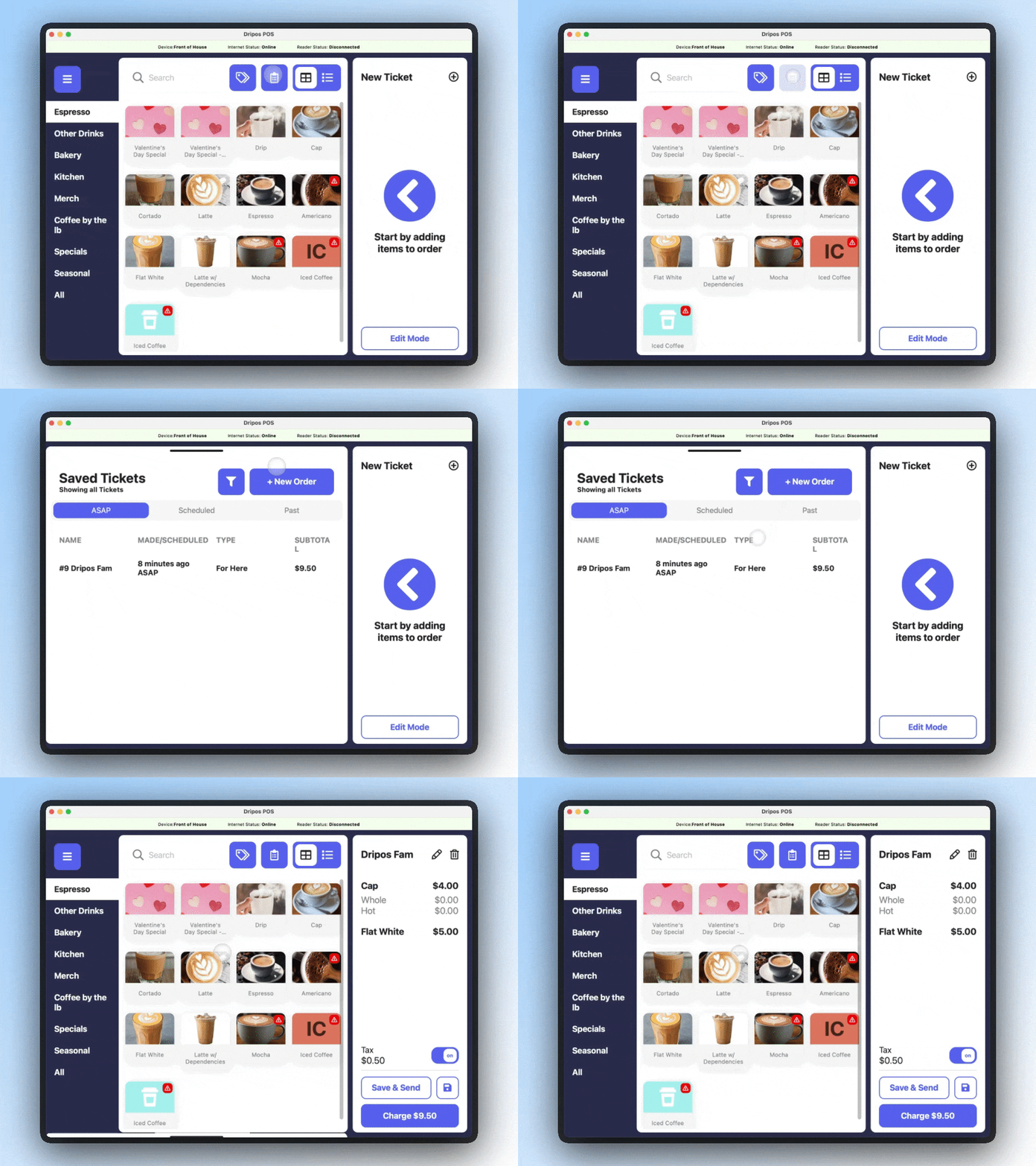
 When creating a new ticket using the plus (+) button at the top of the register, any existing product in cart will be removed
As soon as you start a new Saved Ticket, you can begin typing right away into the field— no need to click into the field!
Close the Saved Tickets modal automatically when a saved ticket is selected
When creating a new ticket using the plus (+) button at the top of the register, any existing product in cart will be removed
As soon as you start a new Saved Ticket, you can begin typing right away into the field— no need to click into the field!
Close the Saved Tickets modal automatically when a saved ticket is selected
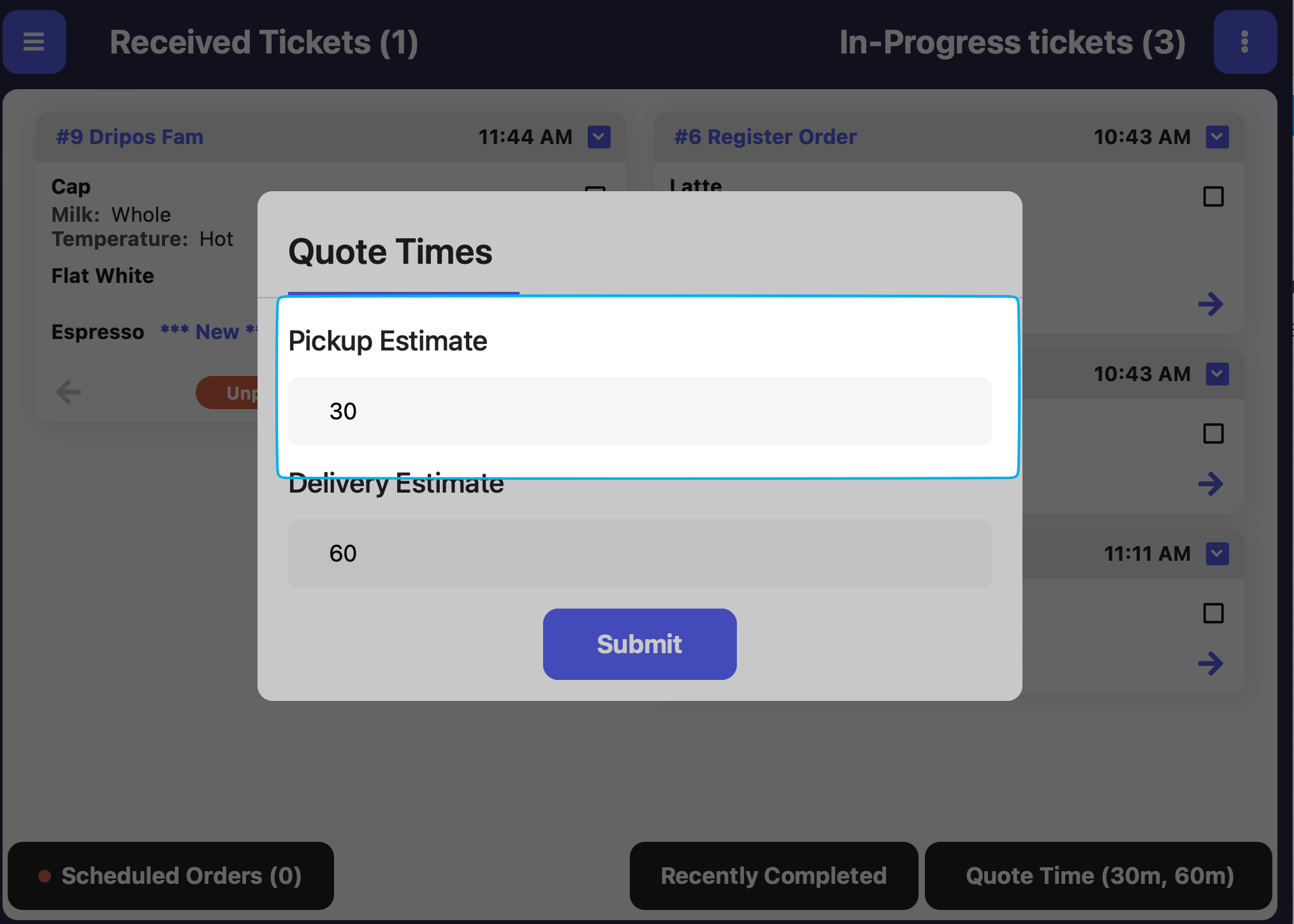
 Select the number of minutes before pickup when scheduled orders should automatically change to 'Received' status, thus appearing on the Ticket Screen.
Defaults to the pickup order estimate time determined on the Ticket screen
Select the number of minutes before pickup when scheduled orders should automatically change to 'Received' status, thus appearing on the Ticket Screen.
Defaults to the pickup order estimate time determined on the Ticket screen
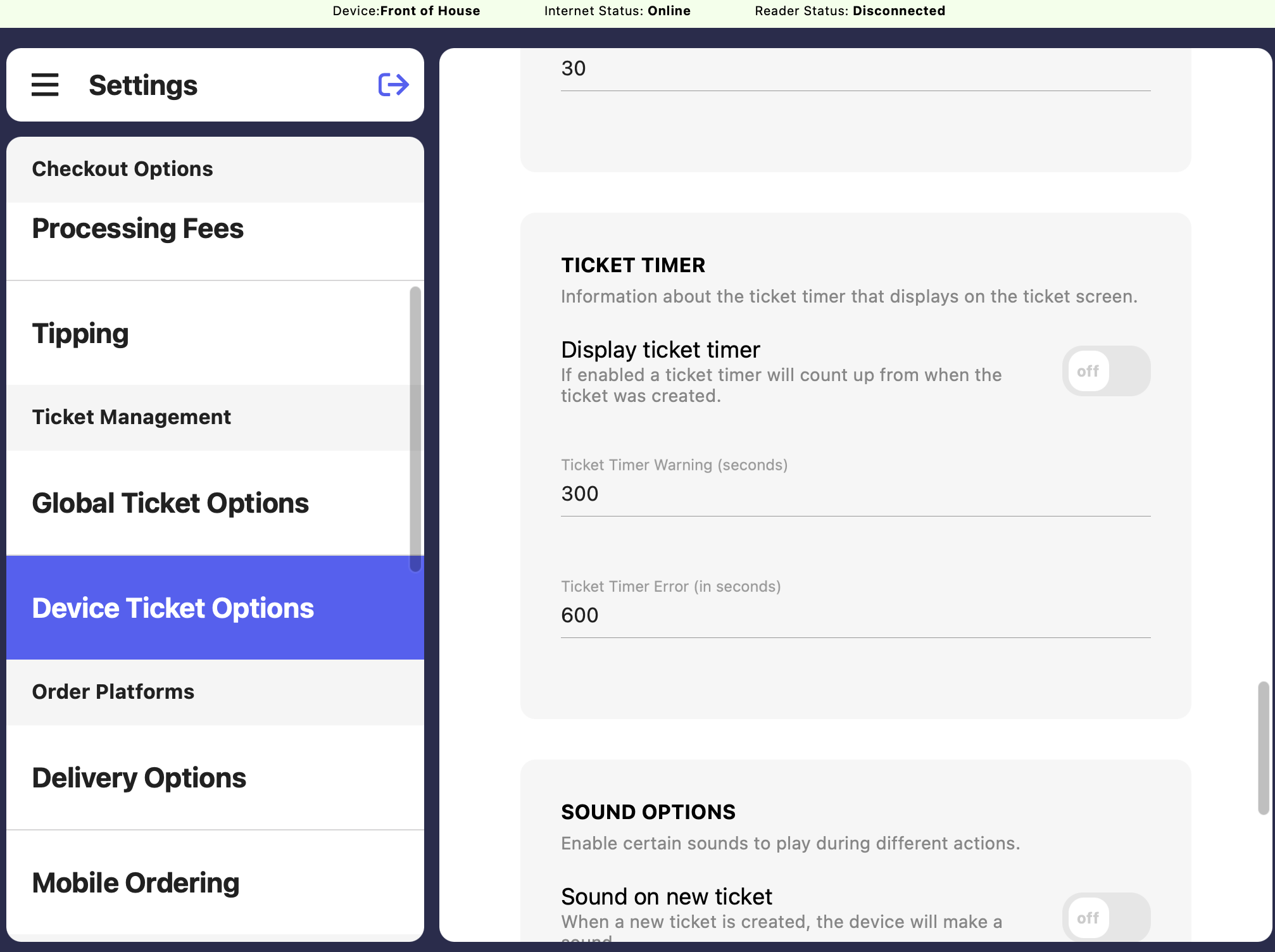 If enabled a ticket timer will count up from the time the ticket was created.
The time will turn red after X amount of seconds inputted for **Ticket Timer Warning**
If enabled a ticket timer will count up from the time the ticket was created.
The time will turn red after X amount of seconds inputted for **Ticket Timer Warning**

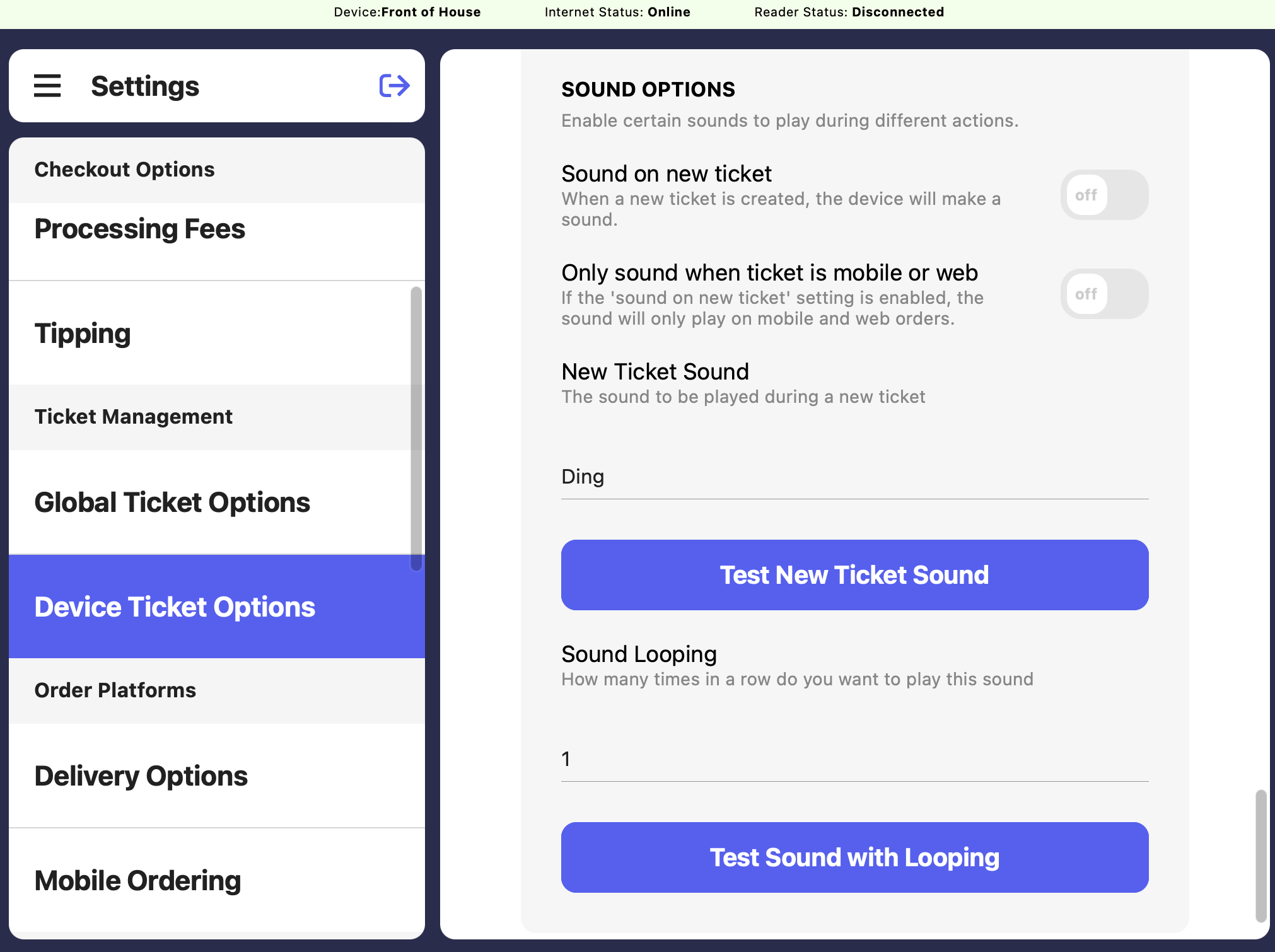 Enable sounds to play from your device when an order is created.
To play a sound whenever a new order comes through, simply turn on the **Sound on New Ticket** toggle
To play a sound **only** when mobile orders come through, turn on **both** the **Sound on New Ticket** and **Only sound when ticket is mobile or web** toggles
Enable sounds to play from your device when an order is created.
To play a sound whenever a new order comes through, simply turn on the **Sound on New Ticket** toggle
To play a sound **only** when mobile orders come through, turn on **both** the **Sound on New Ticket** and **Only sound when ticket is mobile or web** toggles
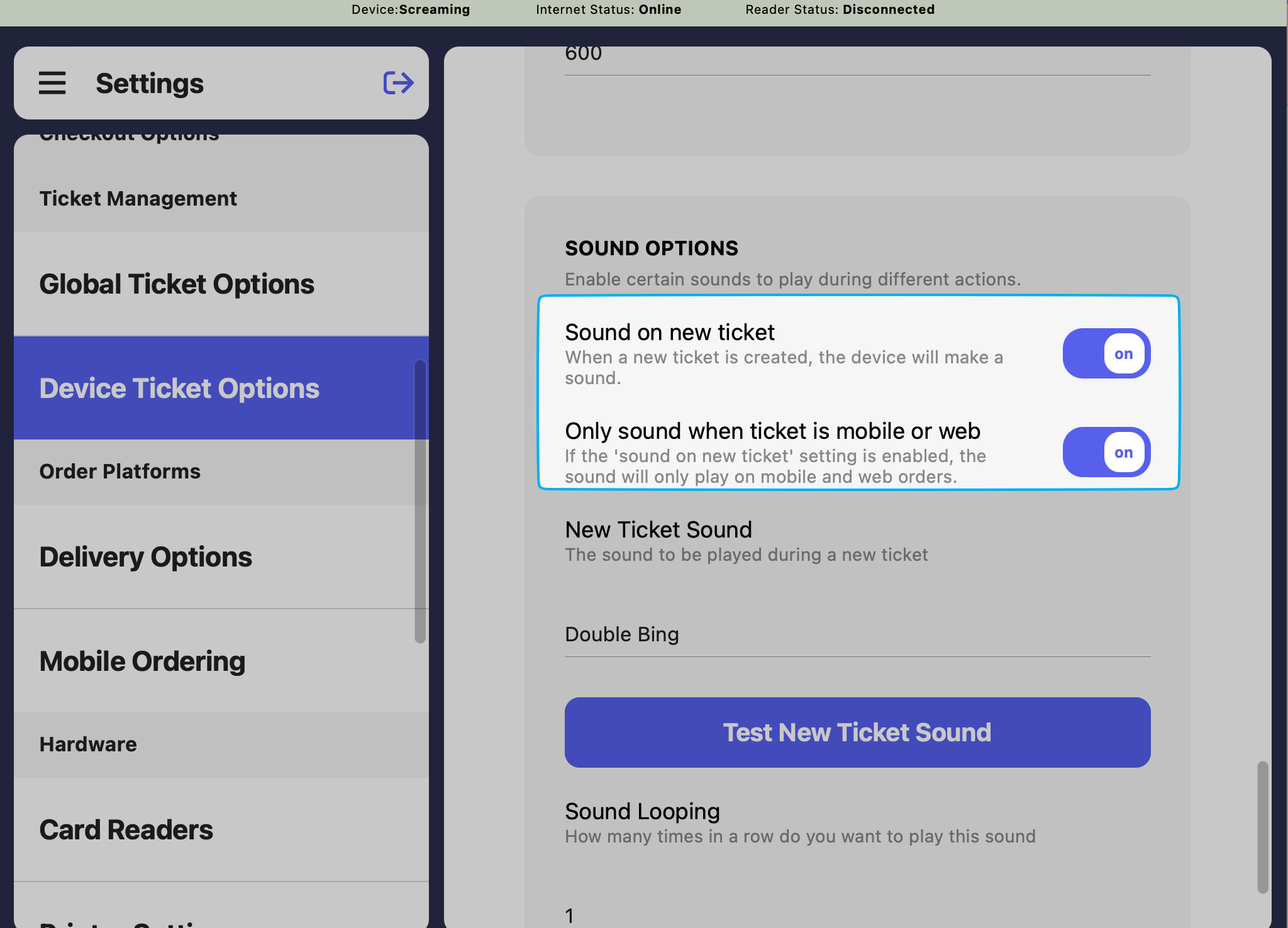 **Sound Looping**: Select how many times the sound should ring
Test your new ticket sound to make sure your staff can hear it!
*/}
**Sound Looping**: Select how many times the sound should ring
Test your new ticket sound to make sure your staff can hear it!
*/}