> ## Documentation Index
> Fetch the complete documentation index at: https://support.dripos.com/llms.txt
> Use this file to discover all available pages before exploring further.
# Checkout Settings
Learn about checkout settings on the POS and Dashboard.
## Point of Sale Settings
Navigate to the Point of Sale settings by pressing the **tribar (≡)** in the top left of the screen and selecting the **Settings** (⚙️) at the bottom.
### Register Settings
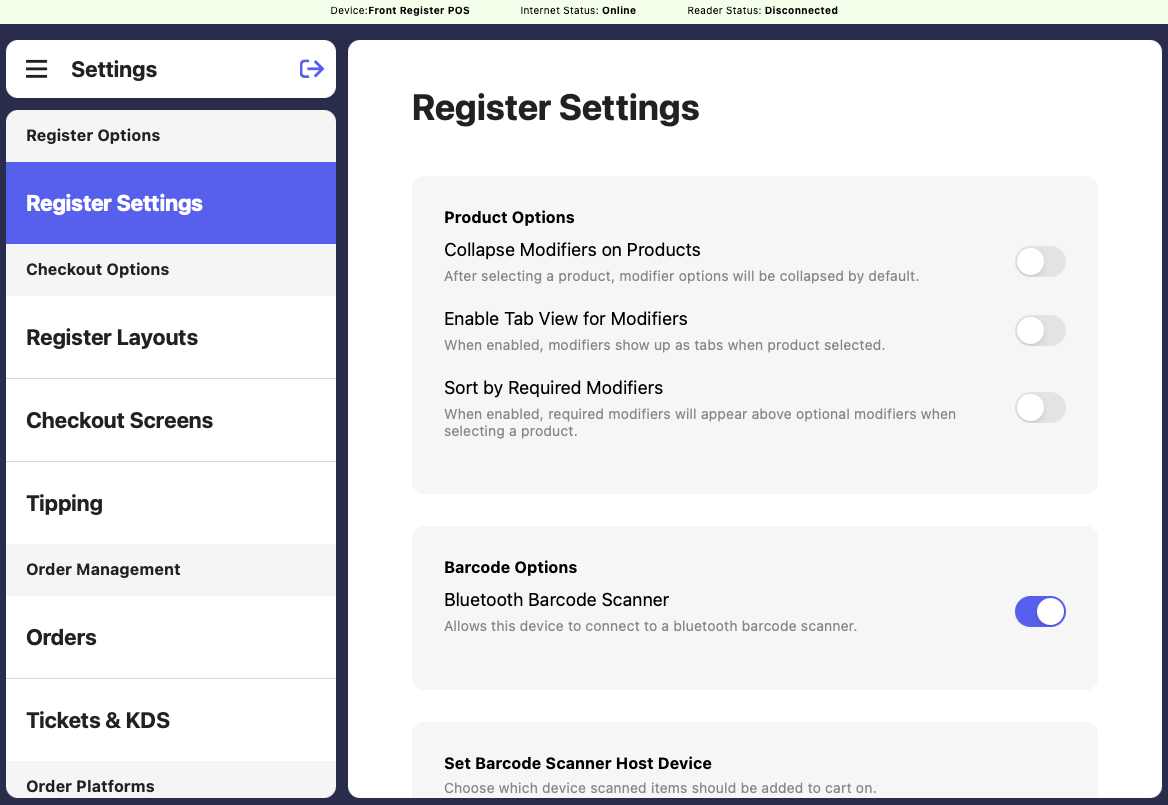
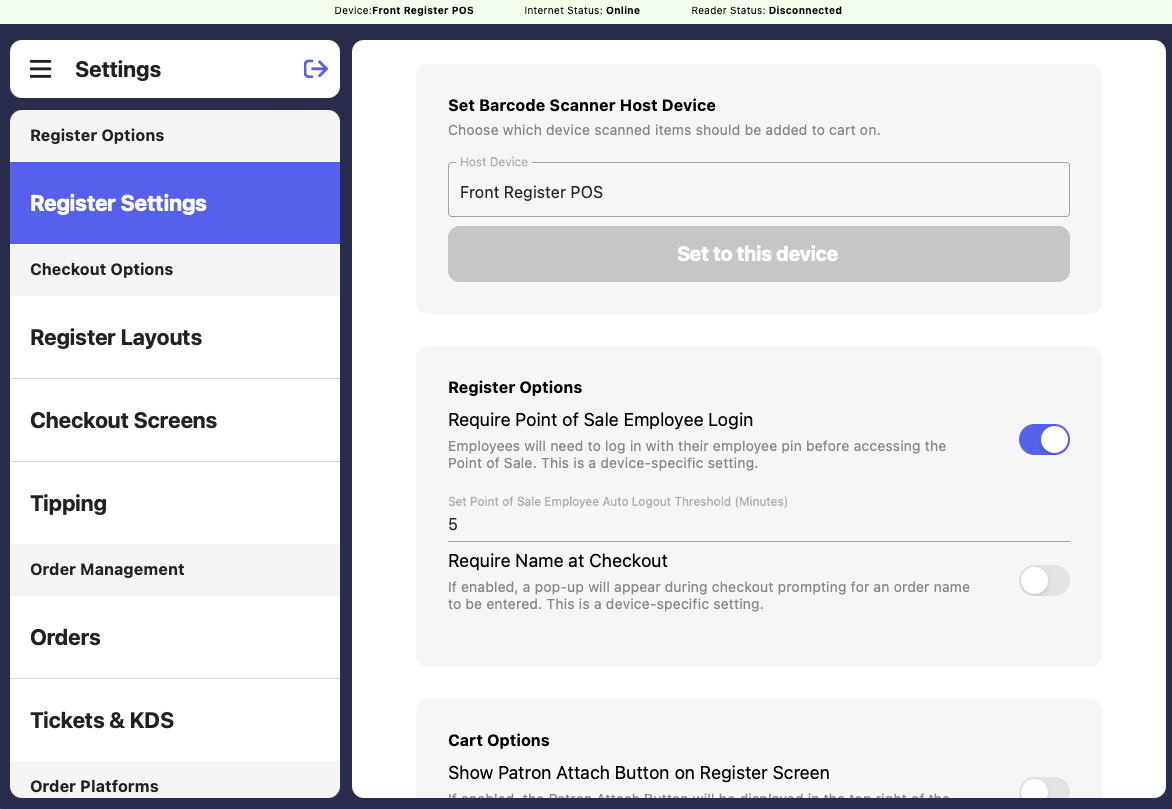
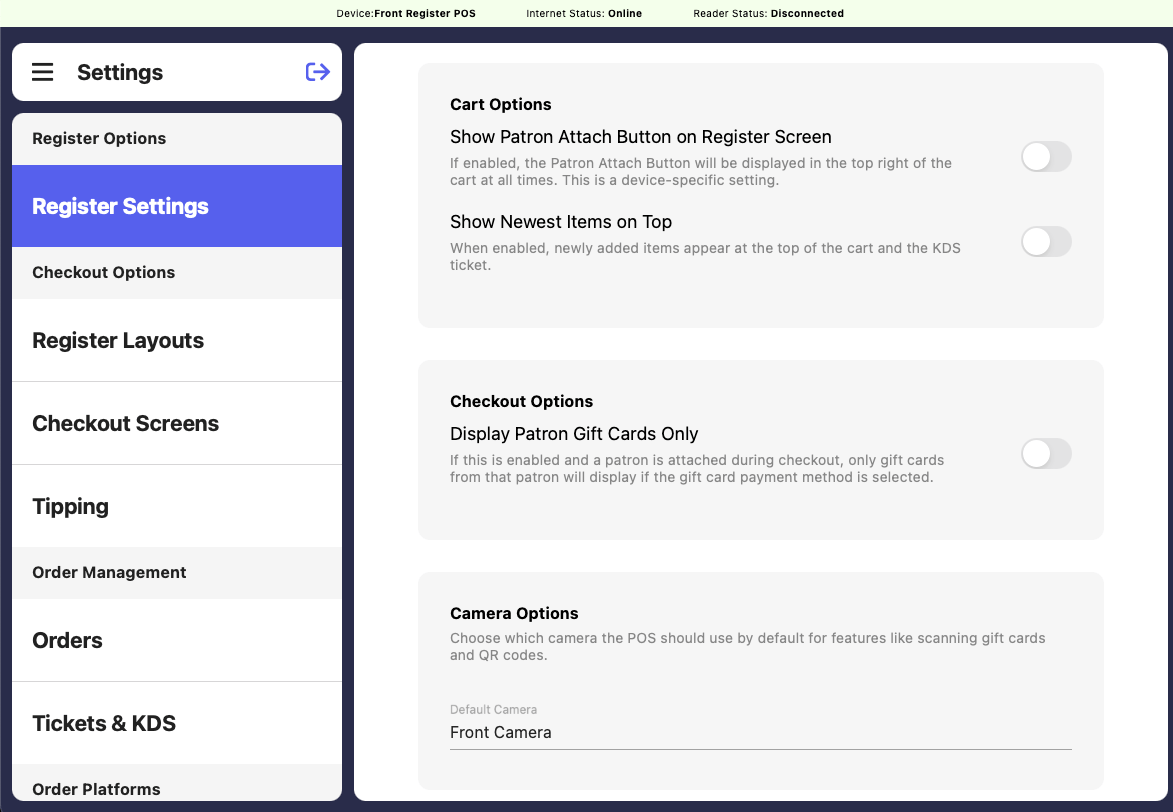
Select Product, Cart, Checkout, and Camera Options that best fit your workflow.
 ### Register Layouts
Customize your register layout and create custom dashboards.
### Register Layouts
Customize your register layout and create custom dashboards.
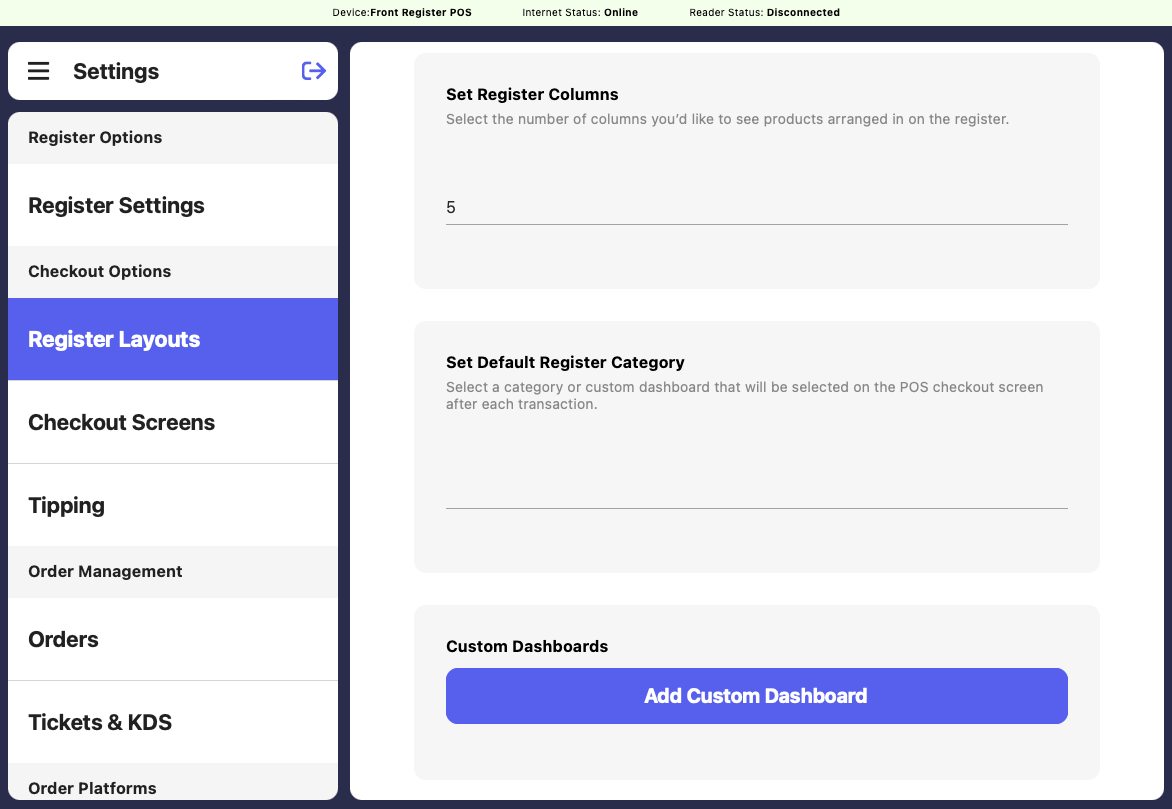 Select the number of columns products will be arranged into on the Register tab
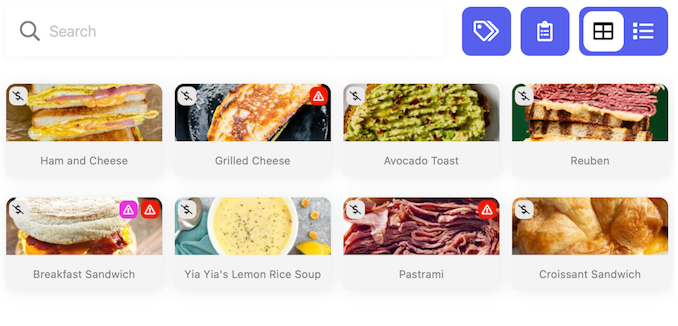
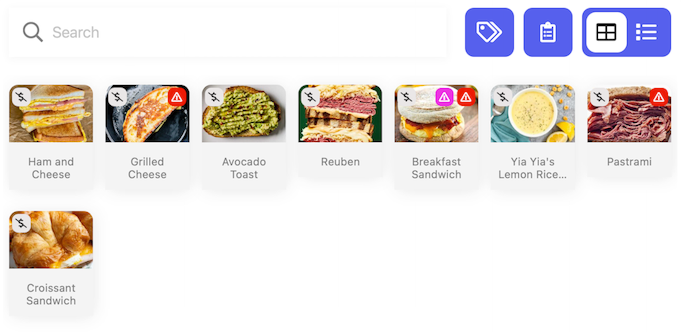 Select a category or custom dashboard to auto-select upon returning to the Register tab after each transaction.
* Defaults to “All Products”
Create an additional dashboard on the Register tab consisting of products that exist in other categories
*A common custom dashboard is a list of bestsellers consisting of the most popular products sold at the POS.*
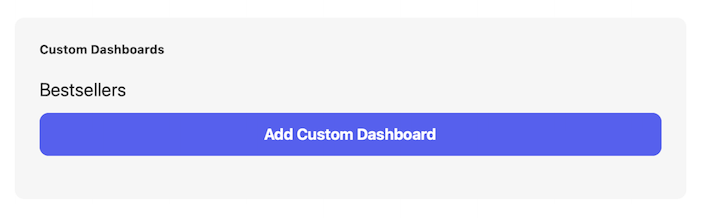
Press **Add Custom Dashboard**
Name the custom dashboard > press **Create Dashboard**, *i.e. Bestsellers*
Select a category or custom dashboard to auto-select upon returning to the Register tab after each transaction.
* Defaults to “All Products”
Create an additional dashboard on the Register tab consisting of products that exist in other categories
*A common custom dashboard is a list of bestsellers consisting of the most popular products sold at the POS.*
Press **Add Custom Dashboard**
Name the custom dashboard > press **Create Dashboard**, *i.e. Bestsellers*
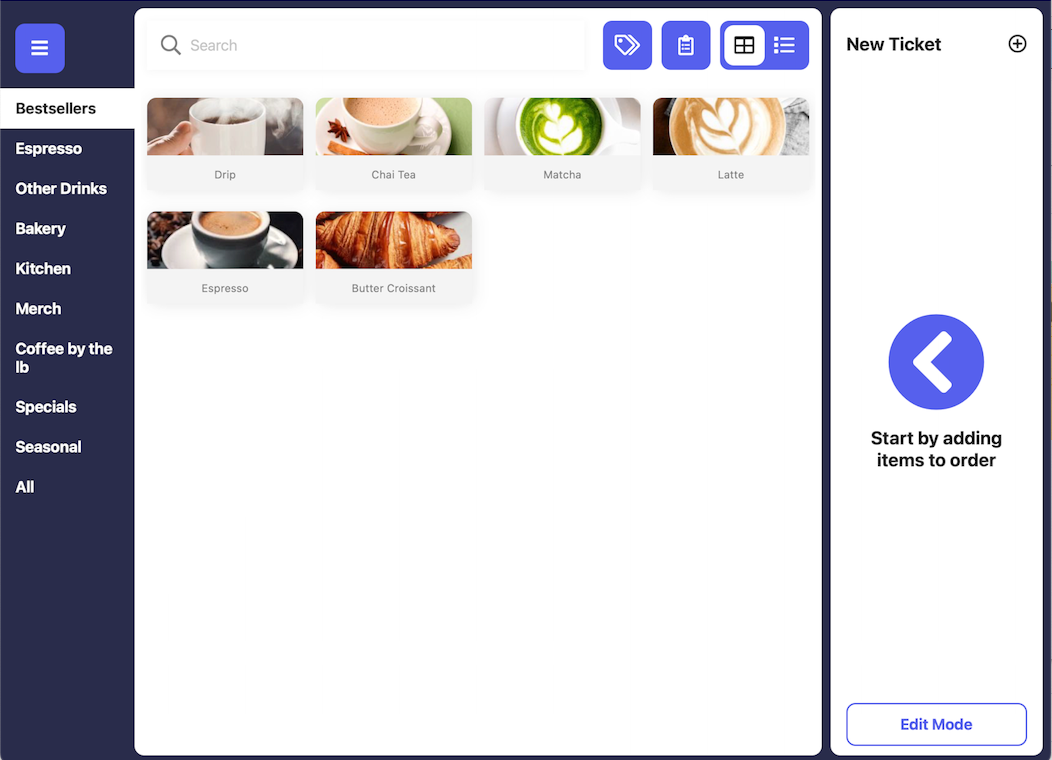
 Press the newly created custom dashboard > select the products to display within the custom dashboard > press **Save Changes**
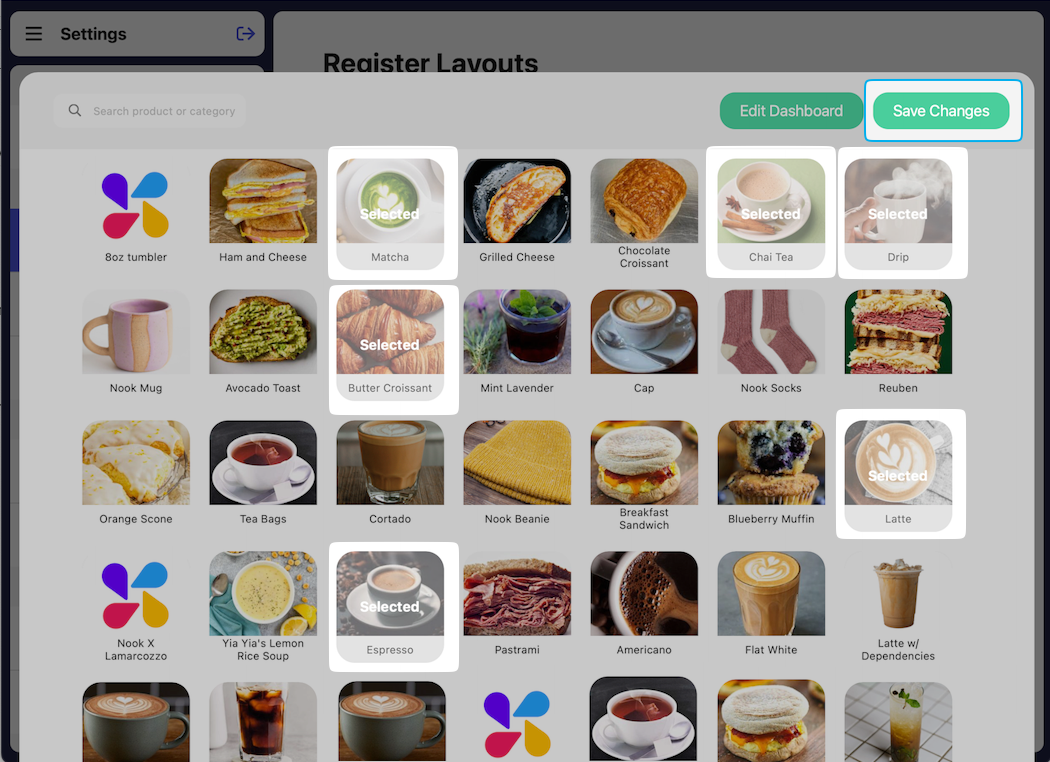 The newly created custom dashboard will appear at the top of the Register tab.
 ### Checkout Screens
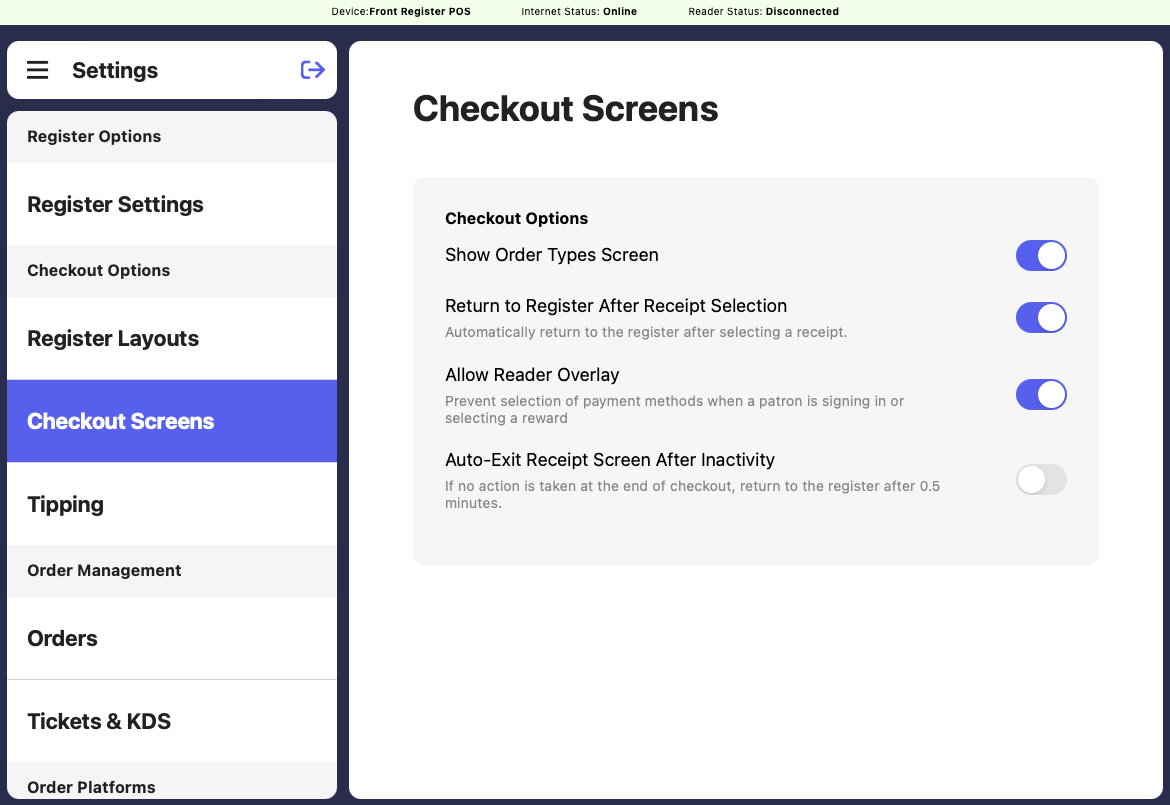
Turn on Checkout Options that best fit your workflow.
### Checkout Screens
Turn on Checkout Options that best fit your workflow.
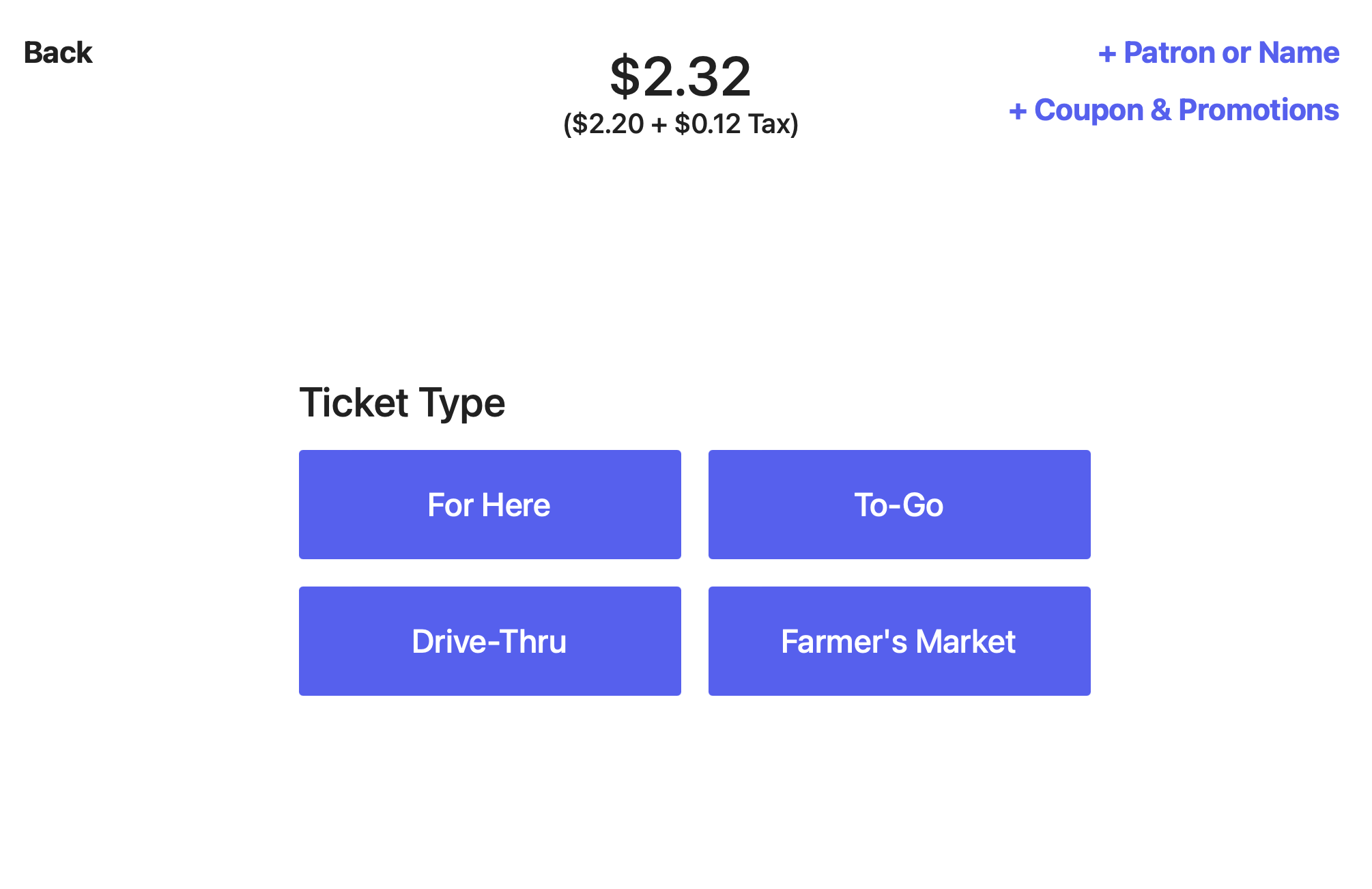
 If enabled, display order type screen during checkout
 ### Orders
Auto complete certain orders and review General Order Options.
**Auto Complete Settings**:
### Orders
Auto complete certain orders and review General Order Options.
**Auto Complete Settings**:
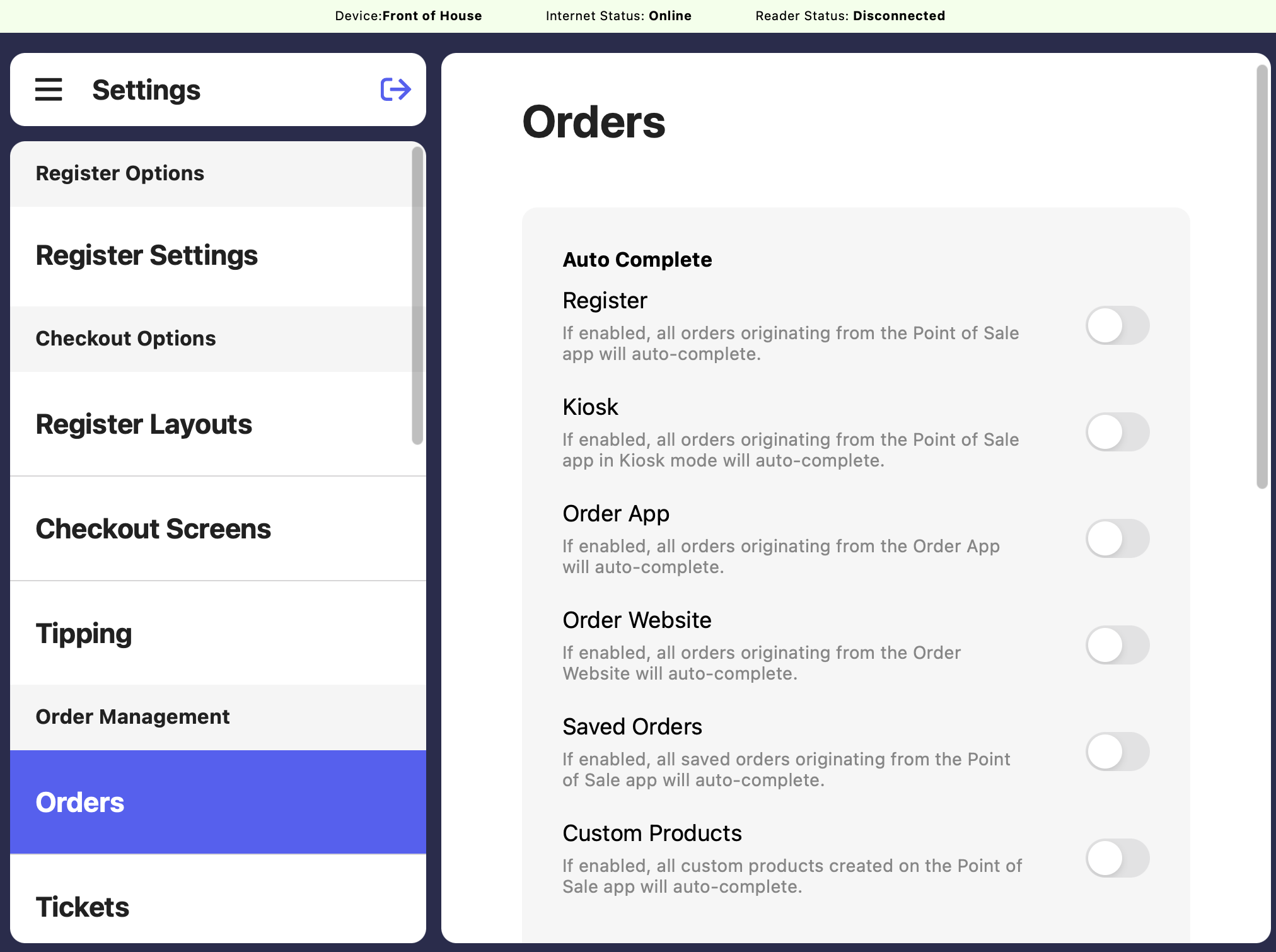 > **Register**: If enabled, all orders originating from the Point of Sale app will auto-complete.
> **Kiosk**: If enabled, all orders originating from the Point of Sale app in Kiosk mode will auto-complete.
> **Order App**: If enabled, all orders originating from the Order App will auto-complete.
> **Order Website**: If enabled, all orders originating from the Order Website will auto-complete.
> **Saved Orders**: If enabled, all saved orders originating from the Point of Sale app will auto-complete.
> **Custom Products**: If enabled, all custom products created on the Point of Sale app will auto-complete
**General Order Options:**
> **Register**: If enabled, all orders originating from the Point of Sale app will auto-complete.
> **Kiosk**: If enabled, all orders originating from the Point of Sale app in Kiosk mode will auto-complete.
> **Order App**: If enabled, all orders originating from the Order App will auto-complete.
> **Order Website**: If enabled, all orders originating from the Order Website will auto-complete.
> **Saved Orders**: If enabled, all saved orders originating from the Point of Sale app will auto-complete.
> **Custom Products**: If enabled, all custom products created on the Point of Sale app will auto-complete
**General Order Options:**
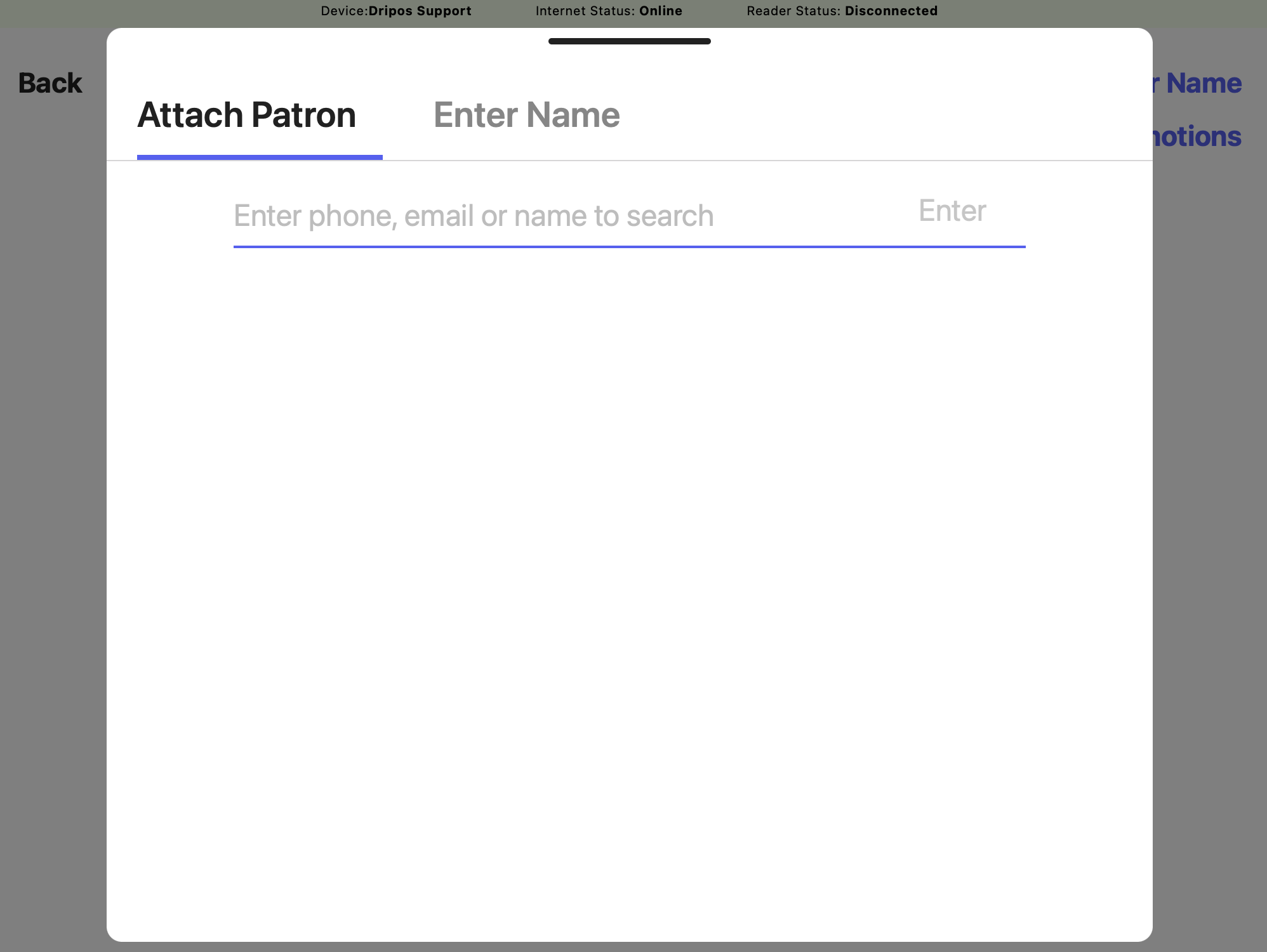
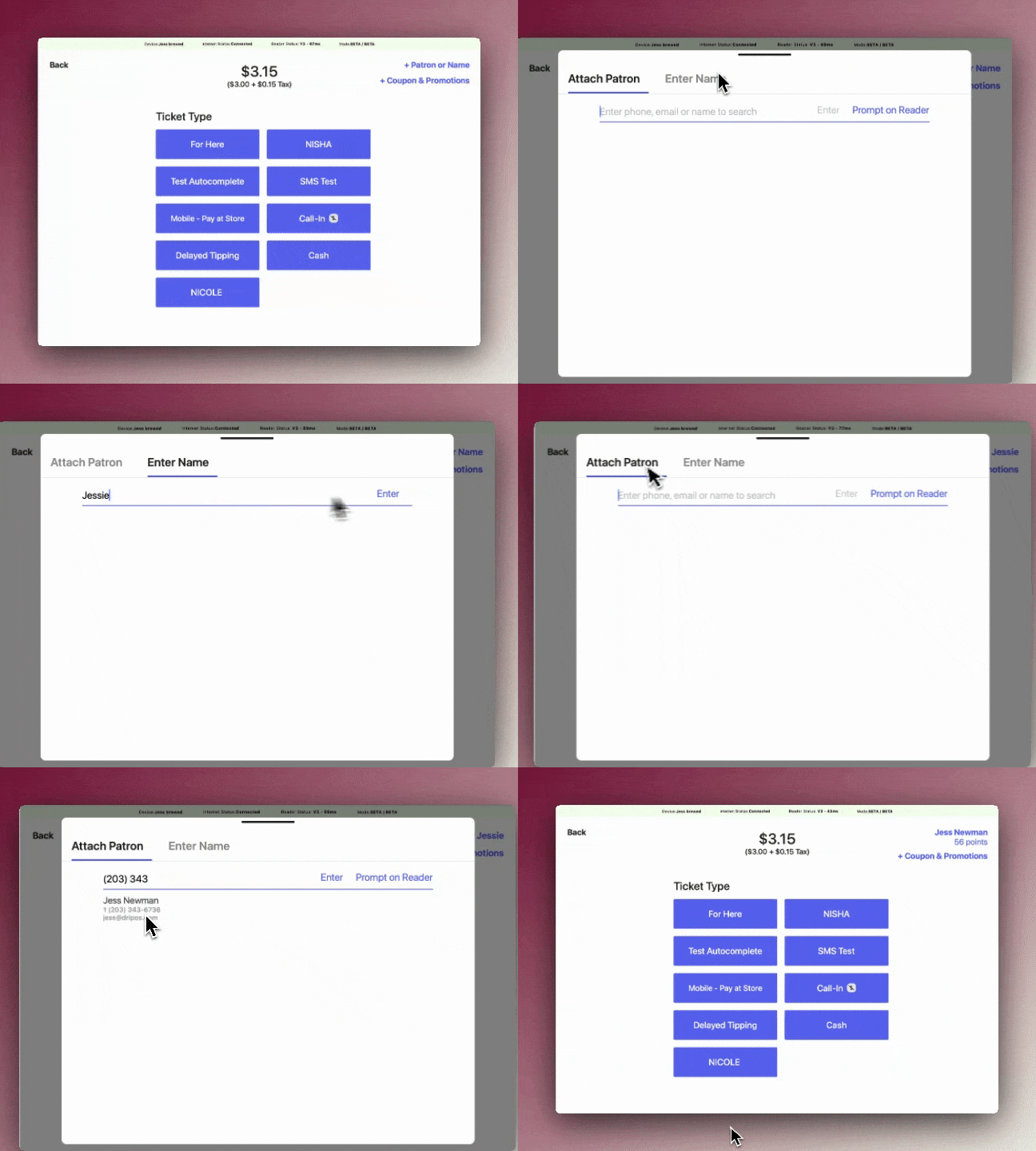
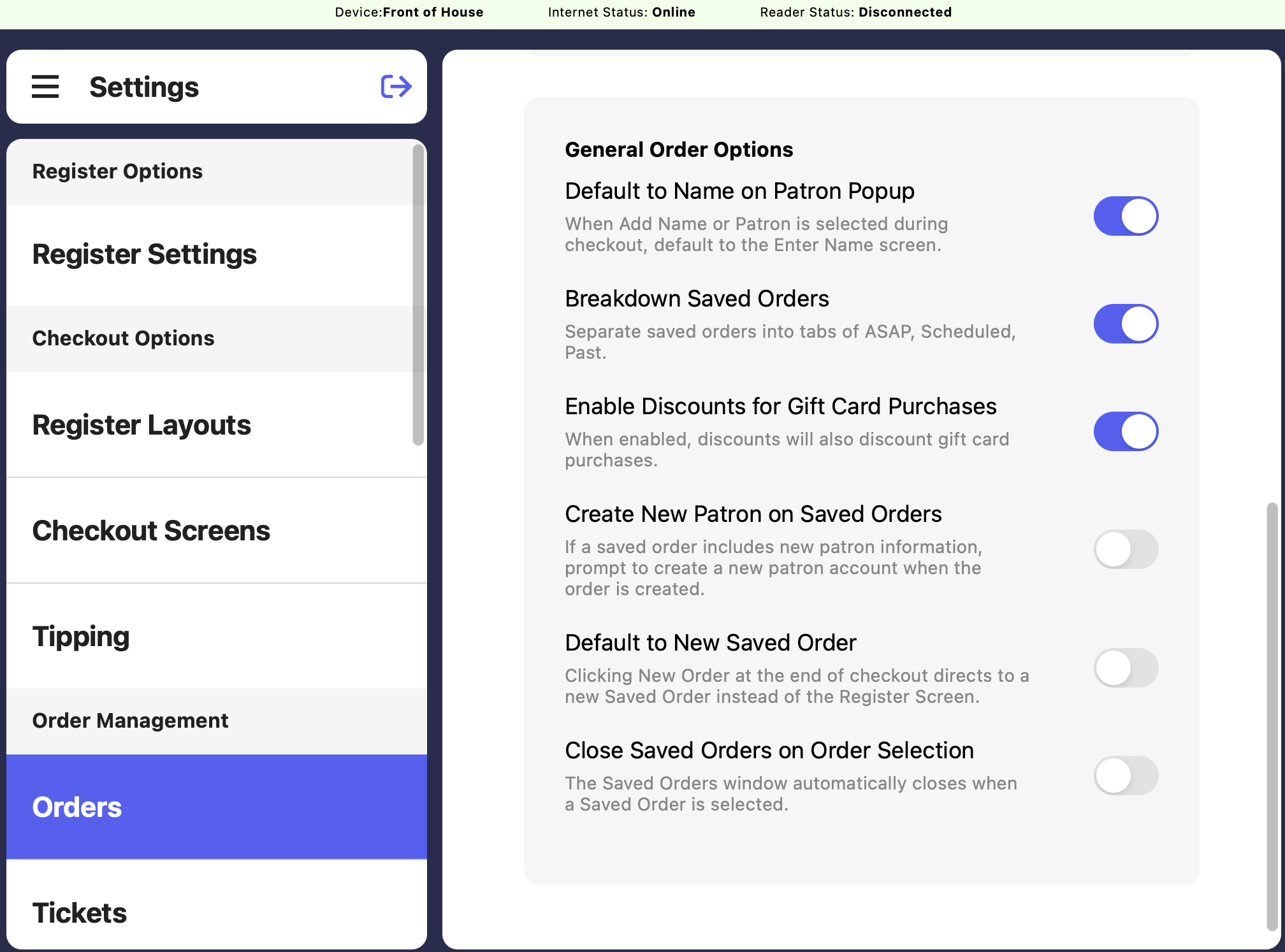 When Add Name or Patron is selected during checkout, Enter Name will be defaulted upon selection
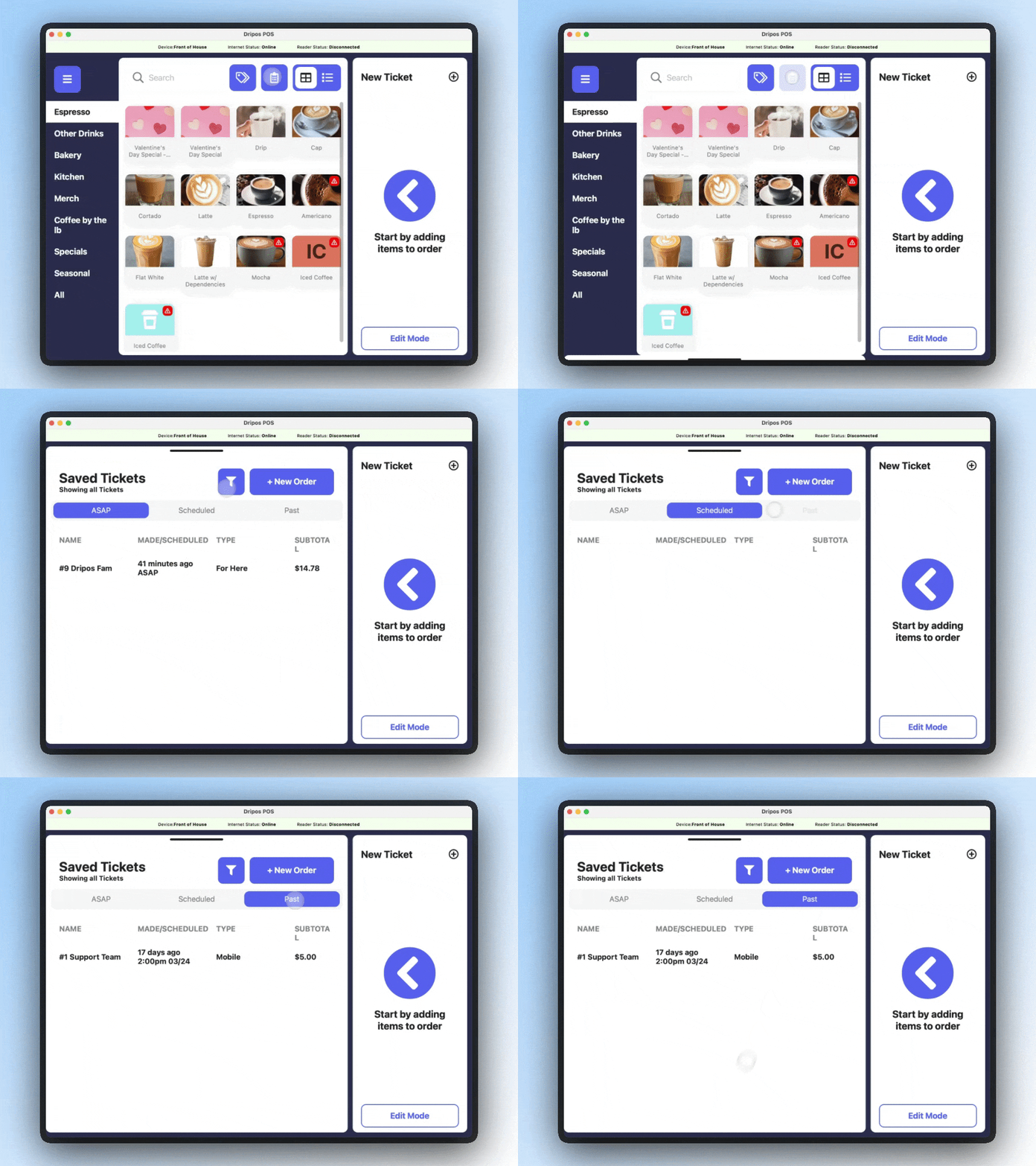
 If enabled, the Saved Orders tab will filter into separate tabs for ASAP, Scheduled, and Past orders.
 If enabled, discounts will also be applied to gift card purchases. Learn more [here](/orders/discounts/discounts-gc)
If enabled, creating a saved order with new patron information will prompt the creation of a new patron account
If enabled, clicking New Order at the end of checkout will lead to a new Saved Order rather than the Register Screen
If enabled, the Saved Orders window will automatically closes when a Saved Order is selected
**Order Name Options:**
If enabled, discounts will also be applied to gift card purchases. Learn more [here](/orders/discounts/discounts-gc)
If enabled, creating a saved order with new patron information will prompt the creation of a new patron account
If enabled, clicking New Order at the end of checkout will lead to a new Saved Order rather than the Register Screen
If enabled, the Saved Orders window will automatically closes when a Saved Order is selected
**Order Name Options:**
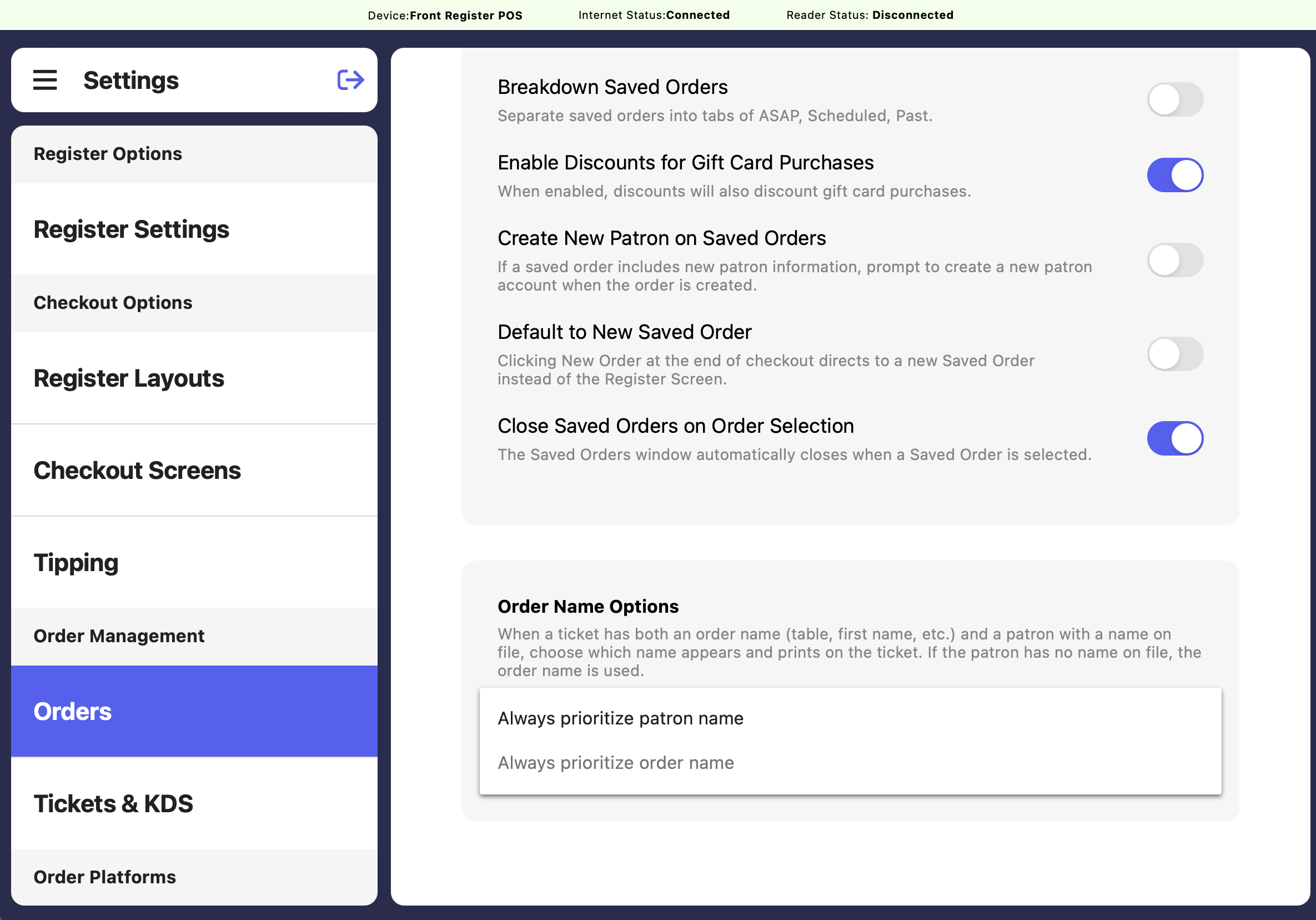 When a ticket has both an order name (table, first name, etc.) and a patron with a name on file, choose which name appears and prints on the ticket. If the patron has no name on file, the order name is used. Even if you override a name tied to a patron, that patron still earns loyalty points for the order.
 ***
## Dashboard Settings
On the Dripos dashboard, click the **Settings Icon** in the upper right corner > **Settings** > **Ticket**
***
## Dashboard Settings
On the Dripos dashboard, click the **Settings Icon** in the upper right corner > **Settings** > **Ticket**
 **Autocomplete Settings**:
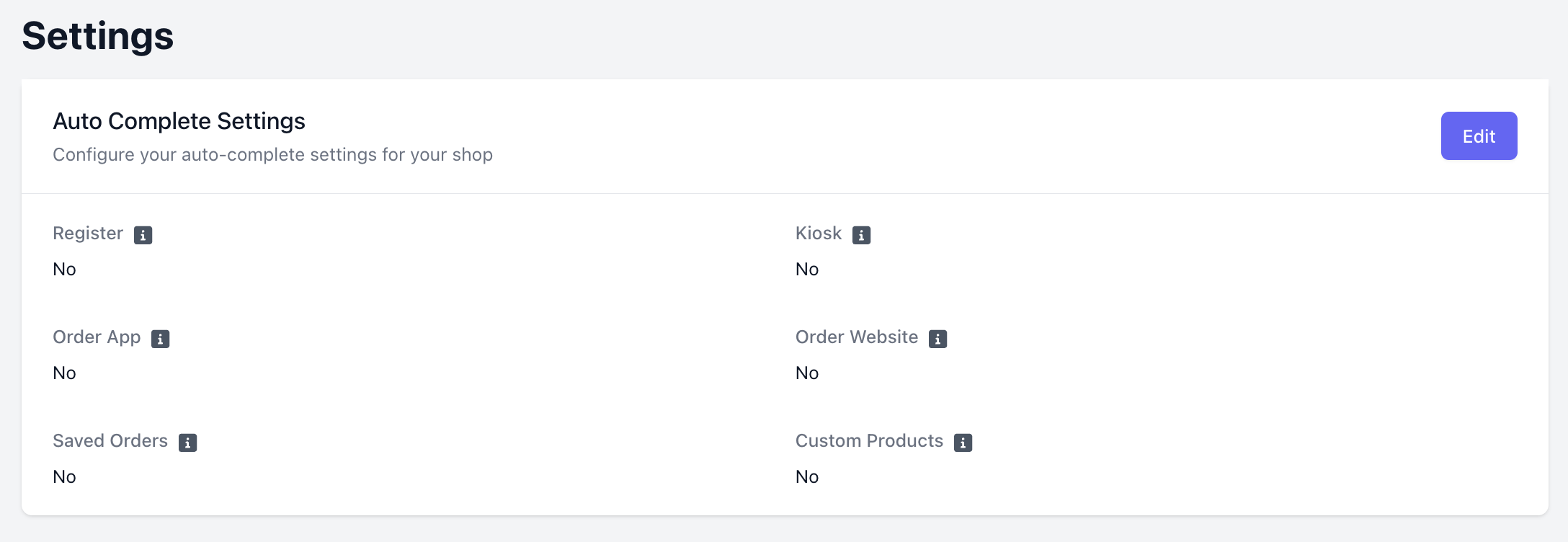
> **Register**: If enabled, all orders originating from the Point of Sale app will auto-complete
> **Kiosk**: If enabled, all orders originating from the Point of Sale app in Kiosk mode will auto-complete.
> **Order App**: If enabled, all orders originating from the Order App will auto-complete.
> **Order Website**: If enabled, all orders originating from the Order Website will auto-complete.
> **Saved Orders**: If enabled, all saved orders originating from the Point of Sale app will auto-complete.
> **Custom Products**: If enabled, all custom products created on the Point of Sale app will auto-complete
**Autocomplete Settings**:
> **Register**: If enabled, all orders originating from the Point of Sale app will auto-complete
> **Kiosk**: If enabled, all orders originating from the Point of Sale app in Kiosk mode will auto-complete.
> **Order App**: If enabled, all orders originating from the Order App will auto-complete.
> **Order Website**: If enabled, all orders originating from the Order Website will auto-complete.
> **Saved Orders**: If enabled, all saved orders originating from the Point of Sale app will auto-complete.
> **Custom Products**: If enabled, all custom products created on the Point of Sale app will auto-complete