> ## Documentation Index
> Fetch the complete documentation index at: https://support.dripos.com/llms.txt
> Use this file to discover all available pages before exploring further.
# Menu Markup
> Learn about Menu Markup settings
Menu markup upcharges the entire menu by a specified percent. Shops can offset processing fees by applying a menu-wide price increase, then offering a cash discount to customers who pay with cash.
Menu Markup is a location-based setting and must be enabled individually for each location.
Menu markup and cash discount rules may vary by region. Please ensure this feature aligns with state and local regulations.
This feature is currently not supported for shops using inclusive tax rates.
## Menu Markup Dashboard Settings
To turn on Menu Markup for a location:
Navigate to your Dashboard.
Click the **Settings** icon in the upper-right corner.
Select **Settings** and navigate to **Order System** on the left sidebar.
Locate **Menu Markup** and click **Edit**.
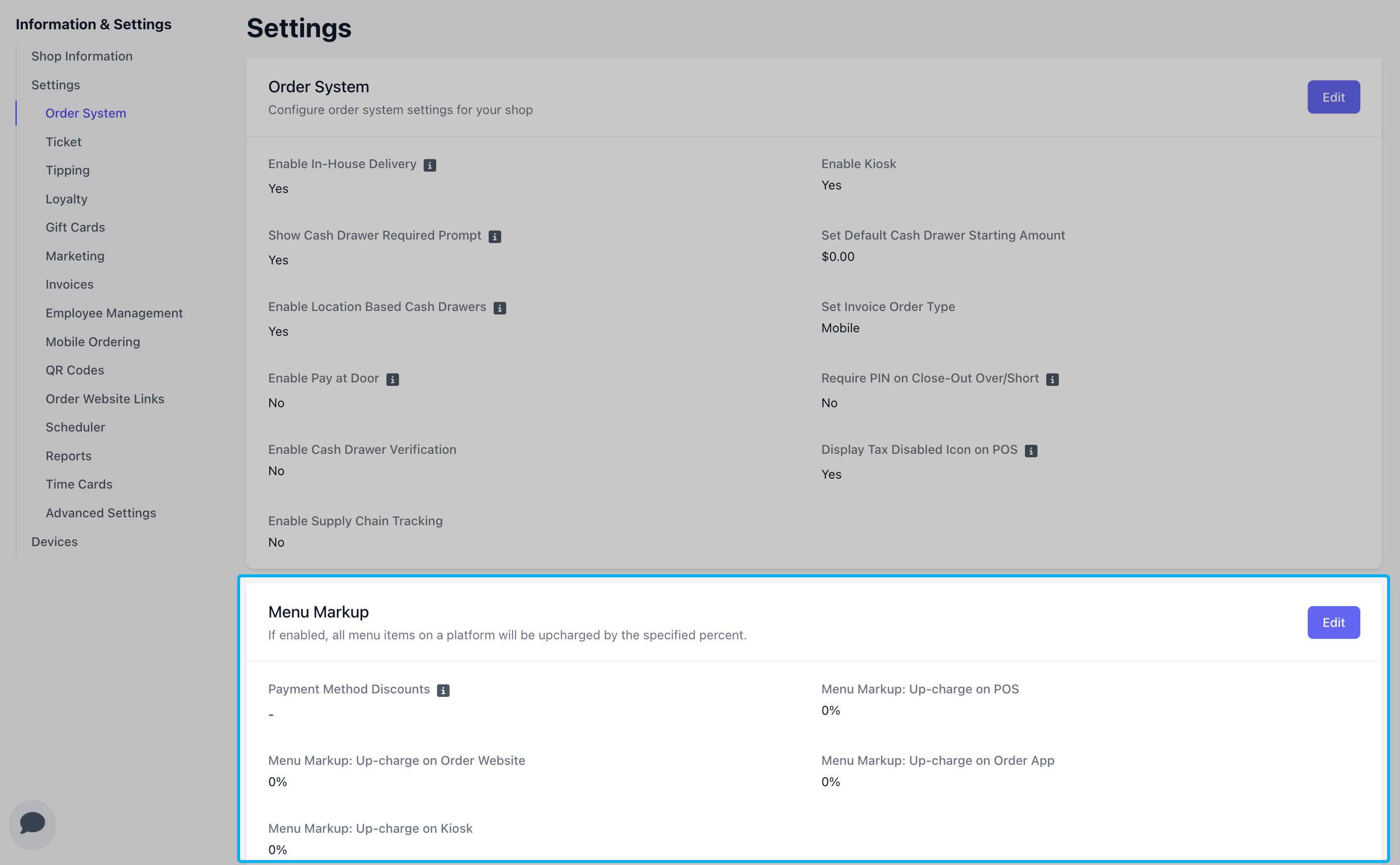 Select which Payment Methods are eligible for cash discounts and enter your menu markup percentage for each platform.
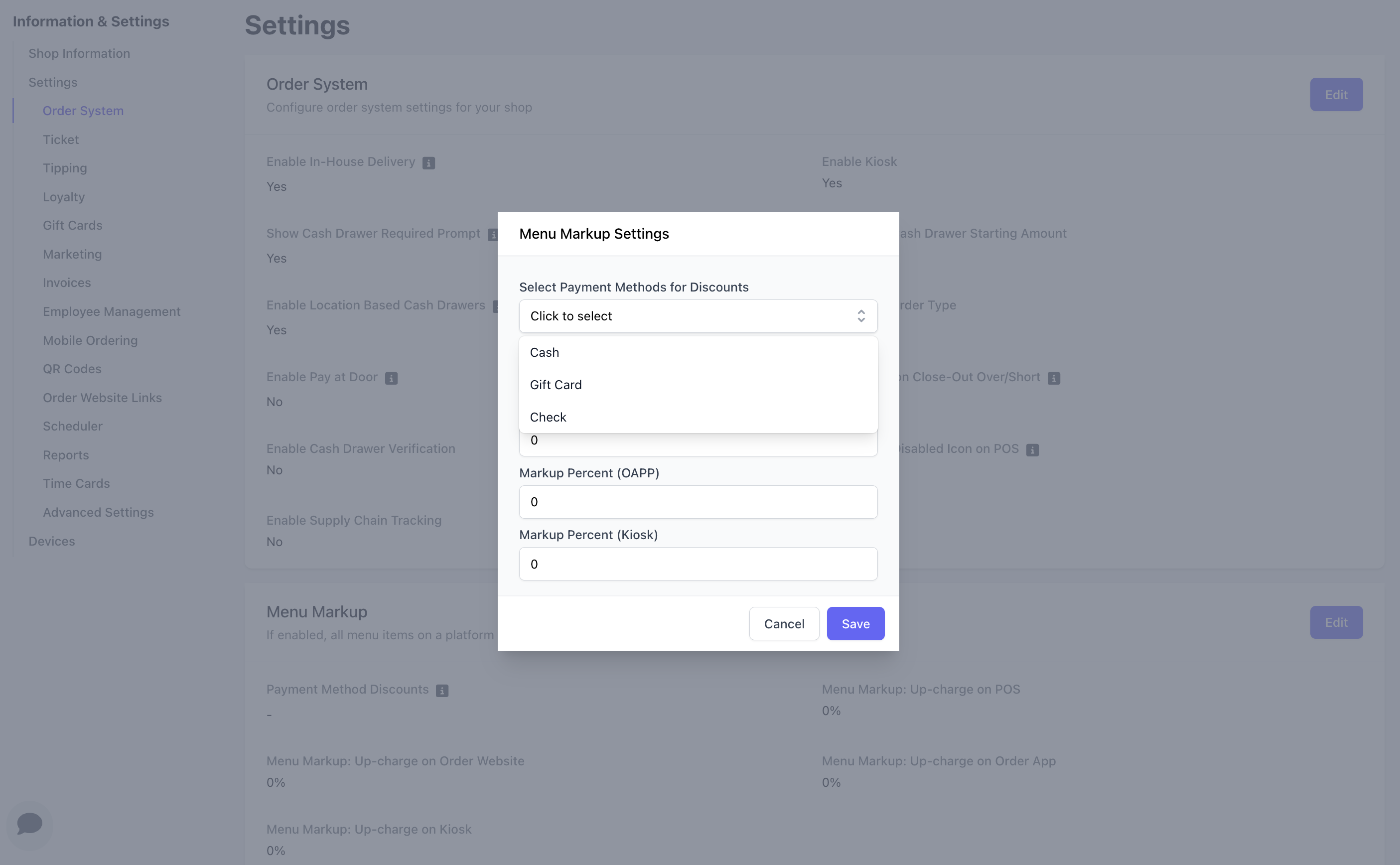 Your original menu prices will remain unchanged in the dashboard after you turn on menu markup settings. This markup will only appear on applicable platforms. In addition, your cash discount will deduct only by the marked up amount.
## Menu Markup and Cash Discounts on the POS
A menu markup of 3% will result in a menu-wide increase of 3% on the applicable platforms. The checkout total will display the price with the markup.
Your original menu prices will remain unchanged in the dashboard after you turn on menu markup settings. This markup will only appear on applicable platforms. In addition, your cash discount will deduct only by the marked up amount.
## Menu Markup and Cash Discounts on the POS
A menu markup of 3% will result in a menu-wide increase of 3% on the applicable platforms. The checkout total will display the price with the markup.
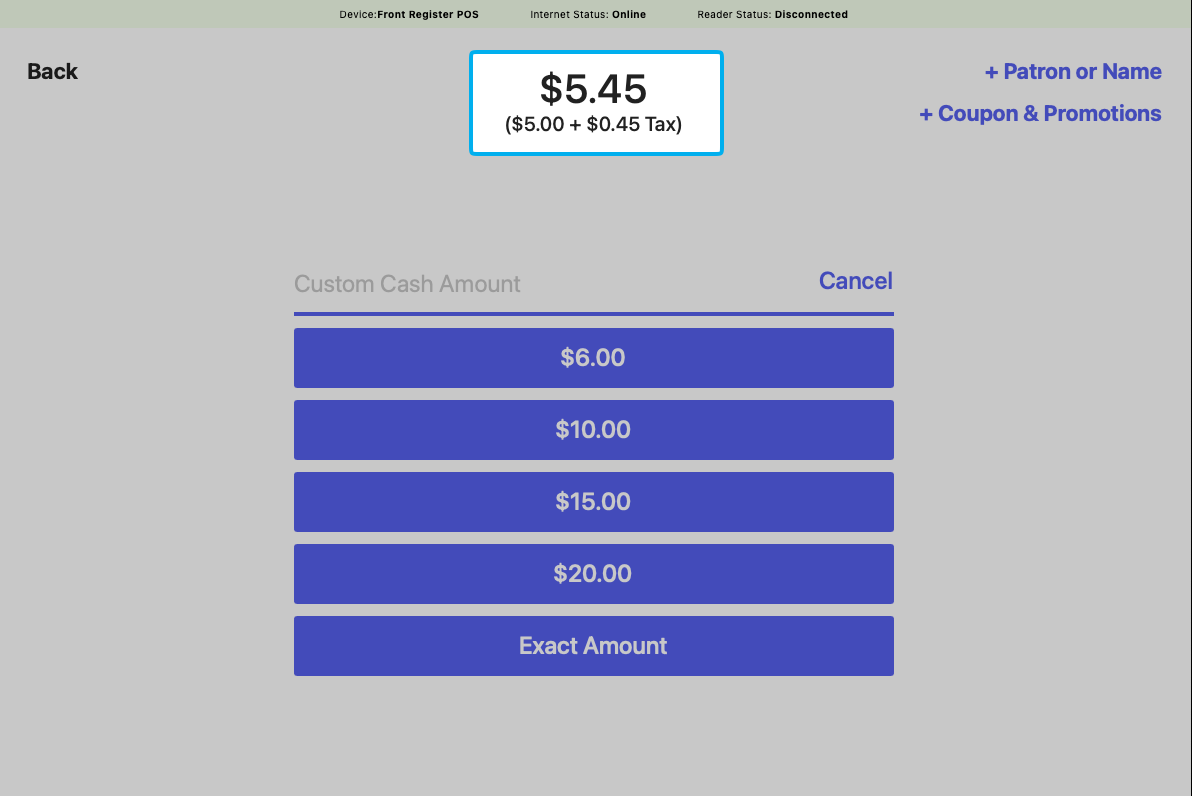
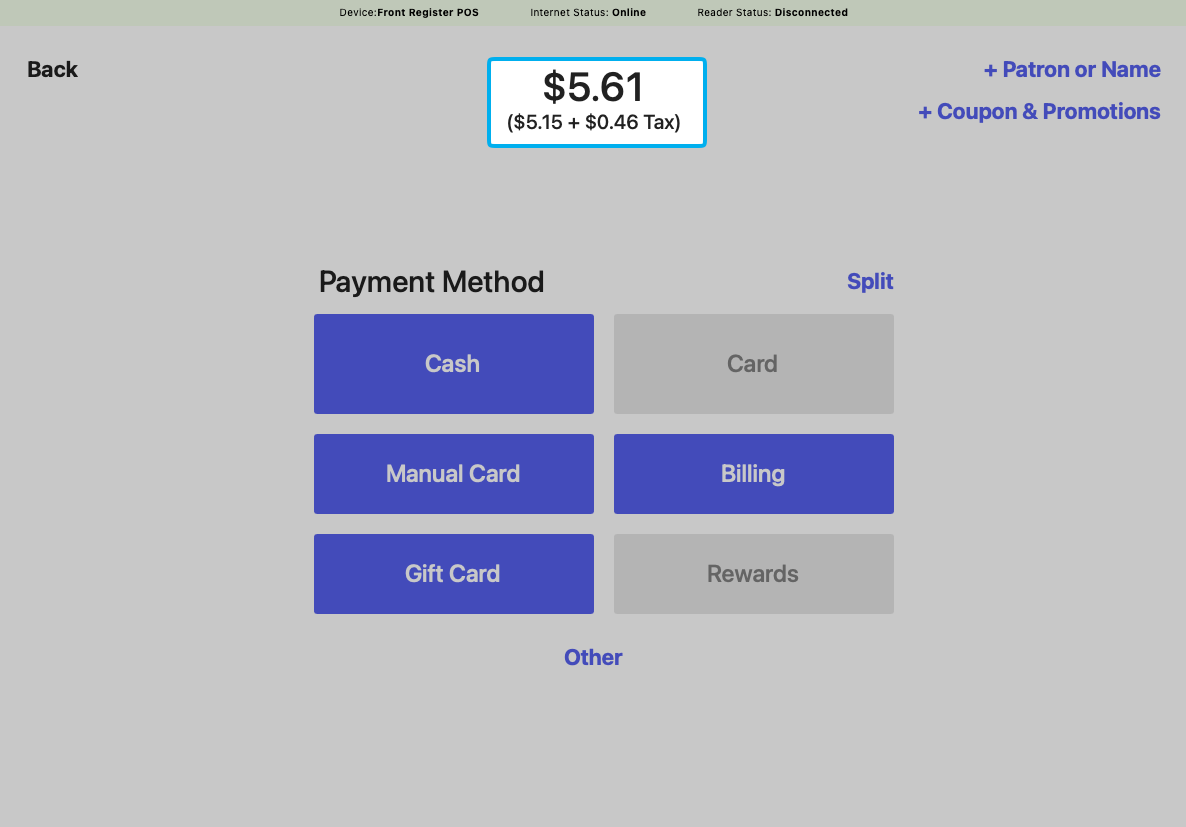 A 3% discount will automatically be applied at checkout when a payment method eligible for a discount is selected.
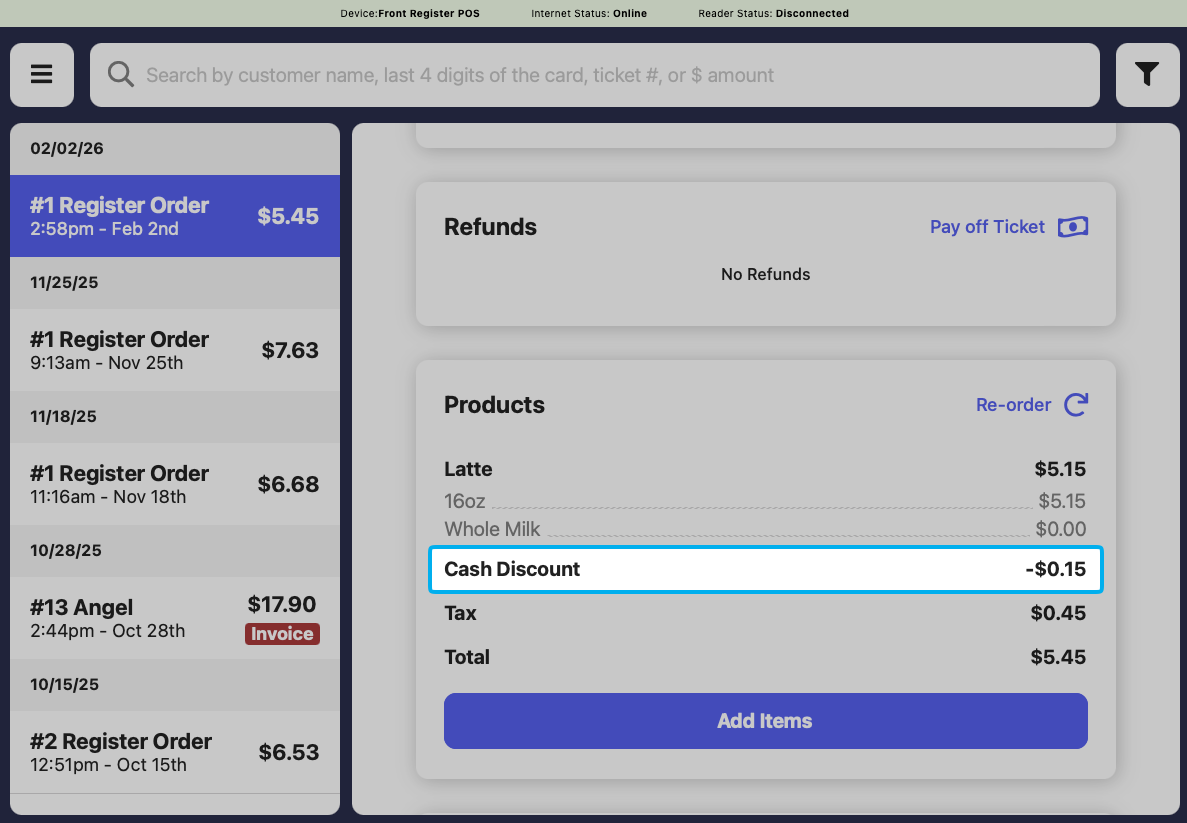
 The cash discount will also be reflected on the transaction page.
 ## View Cash Discounts in Reports
To see cash discounts adjustments across transactions:
Navigate to **Reports**.
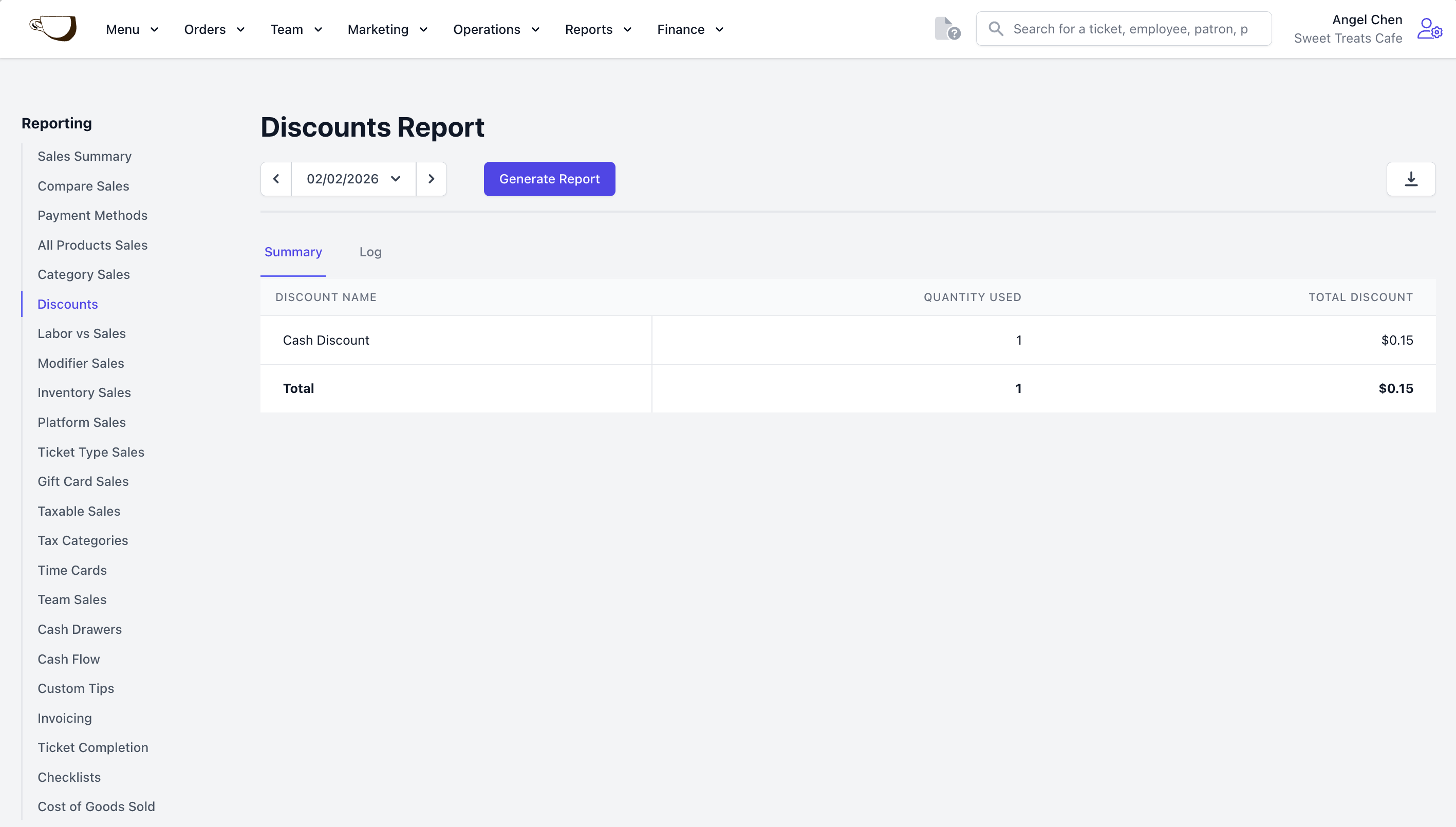
Open the **Discounts Report**.
View the **Cash Discounts** line item in the Discounts Report.
## View Cash Discounts in Reports
To see cash discounts adjustments across transactions:
Navigate to **Reports**.
Open the **Discounts Report**.
View the **Cash Discounts** line item in the Discounts Report.