> ## Documentation Index
> Fetch the complete documentation index at: https://support.dripos.com/llms.txt
> Use this file to discover all available pages before exploring further.
# Payment Types
> Learn how to create and manage payment types
## Overview
Utilize the standard Dripos payment methods that customers can use at checkout.
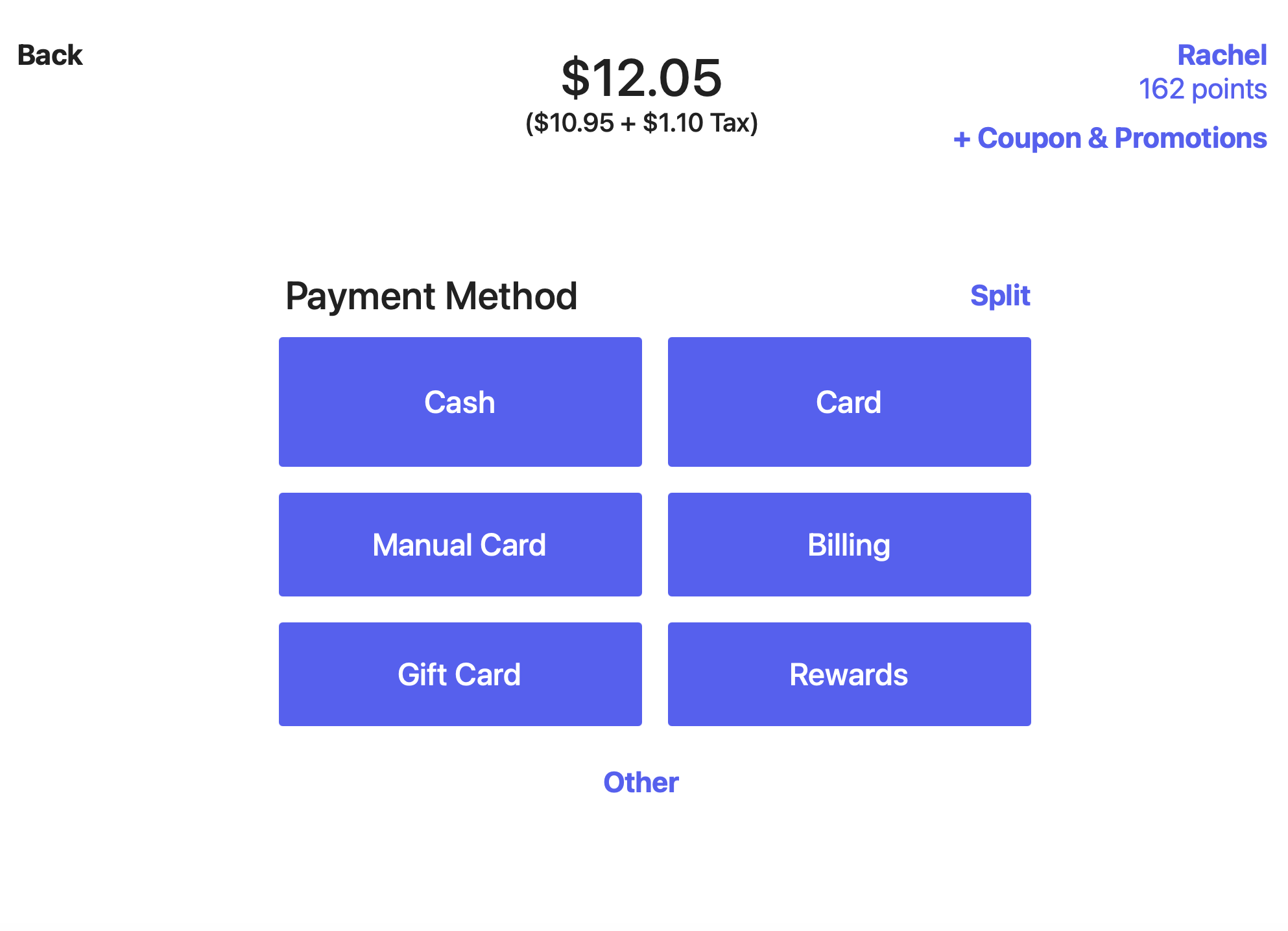
 Physical dollars
Physical debit and credit cards, as well as Tap to Pay using Apple Pay and Google Pay
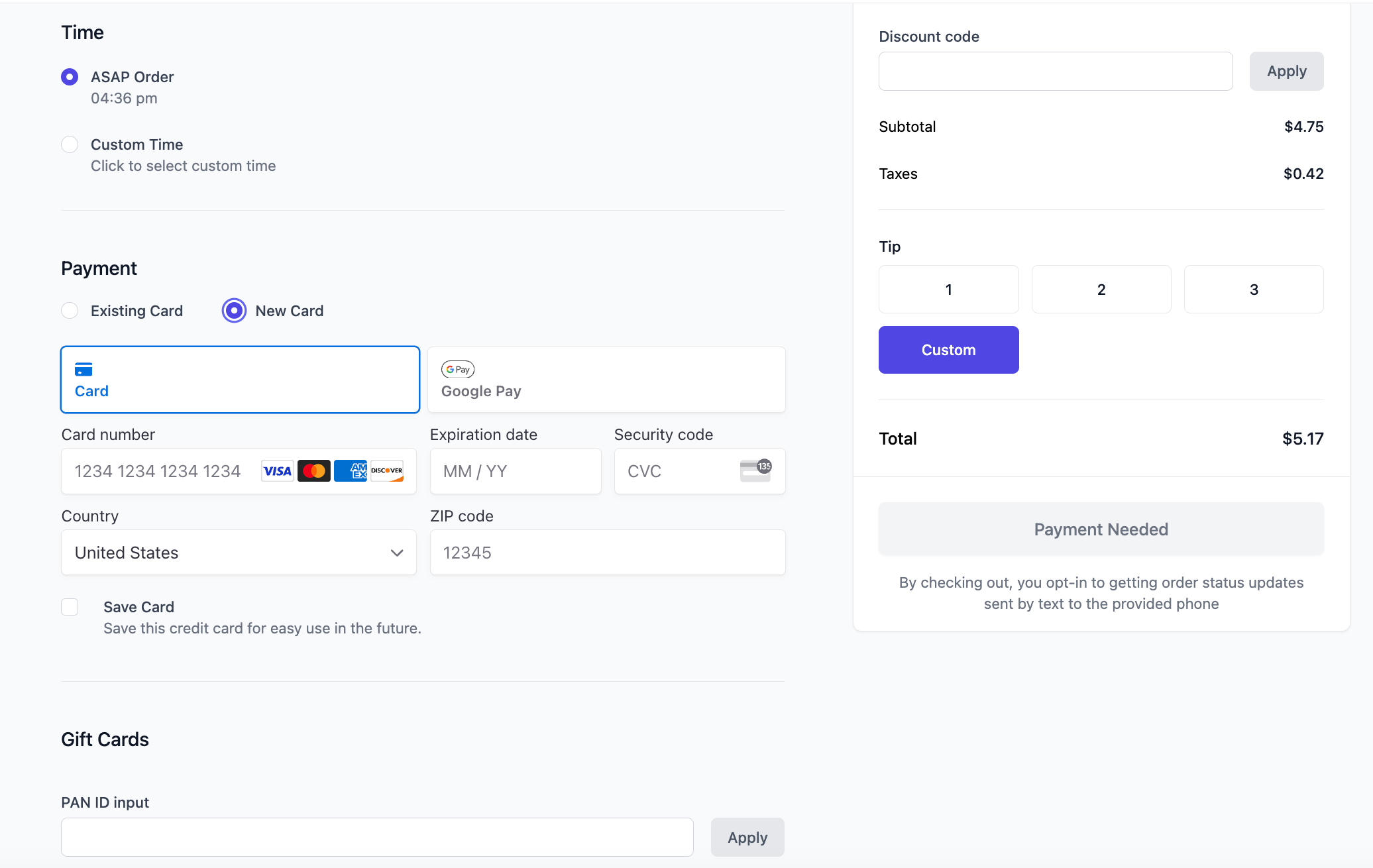
Physical debit and credit cards, typing the card number, expiry, and CSV into the POS
Assign a payment to an existing billing account to be paid at a later date. Learn more [here](operations/billing/billing-overview).
Physical or digital gift cards issued by Dripos. Learn more [here](marketing/giftcards/giftcards-overview)
Redeeming loyalty points earned on a qualifying purchase. Learn more [here](marketing/loyalty/loyalty-overview)
## Create New Payment Type
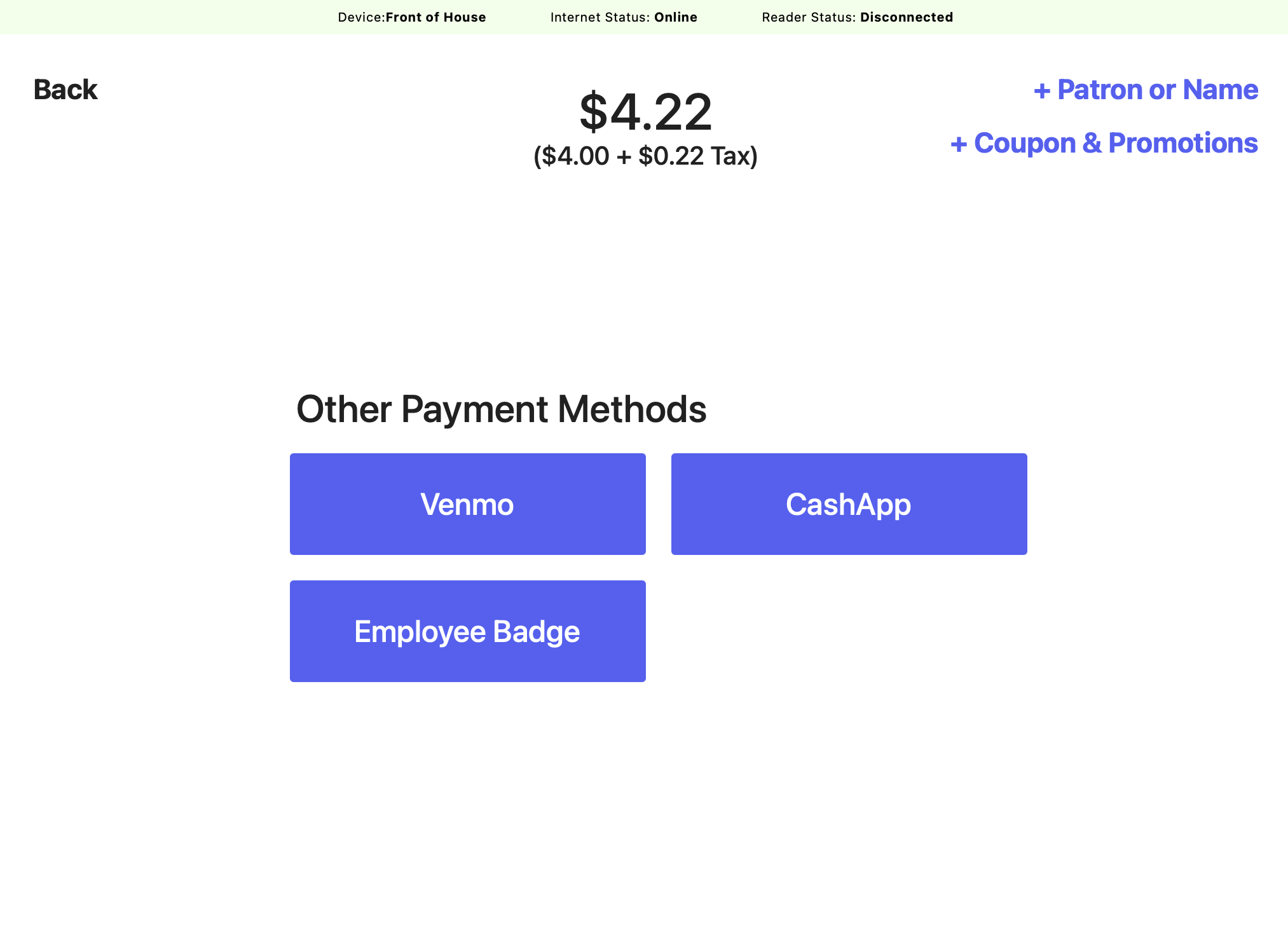
Create new payment methods to track payments collected from third party money transfer apps.
Dripos does not integrate with third party payment platforms.
Stores are responsible for the collections of funds from third party payment platforms.
Dripos will only keep track of sales made with these third party payments and will **not** initiate any payment with third party payment platforms.
Physical dollars
Physical debit and credit cards, as well as Tap to Pay using Apple Pay and Google Pay
Physical debit and credit cards, typing the card number, expiry, and CSV into the POS
Assign a payment to an existing billing account to be paid at a later date. Learn more [here](operations/billing/billing-overview).
Physical or digital gift cards issued by Dripos. Learn more [here](marketing/giftcards/giftcards-overview)
Redeeming loyalty points earned on a qualifying purchase. Learn more [here](marketing/loyalty/loyalty-overview)
## Create New Payment Type
Create new payment methods to track payments collected from third party money transfer apps.
Dripos does not integrate with third party payment platforms.
Stores are responsible for the collections of funds from third party payment platforms.
Dripos will only keep track of sales made with these third party payments and will **not** initiate any payment with third party payment platforms.
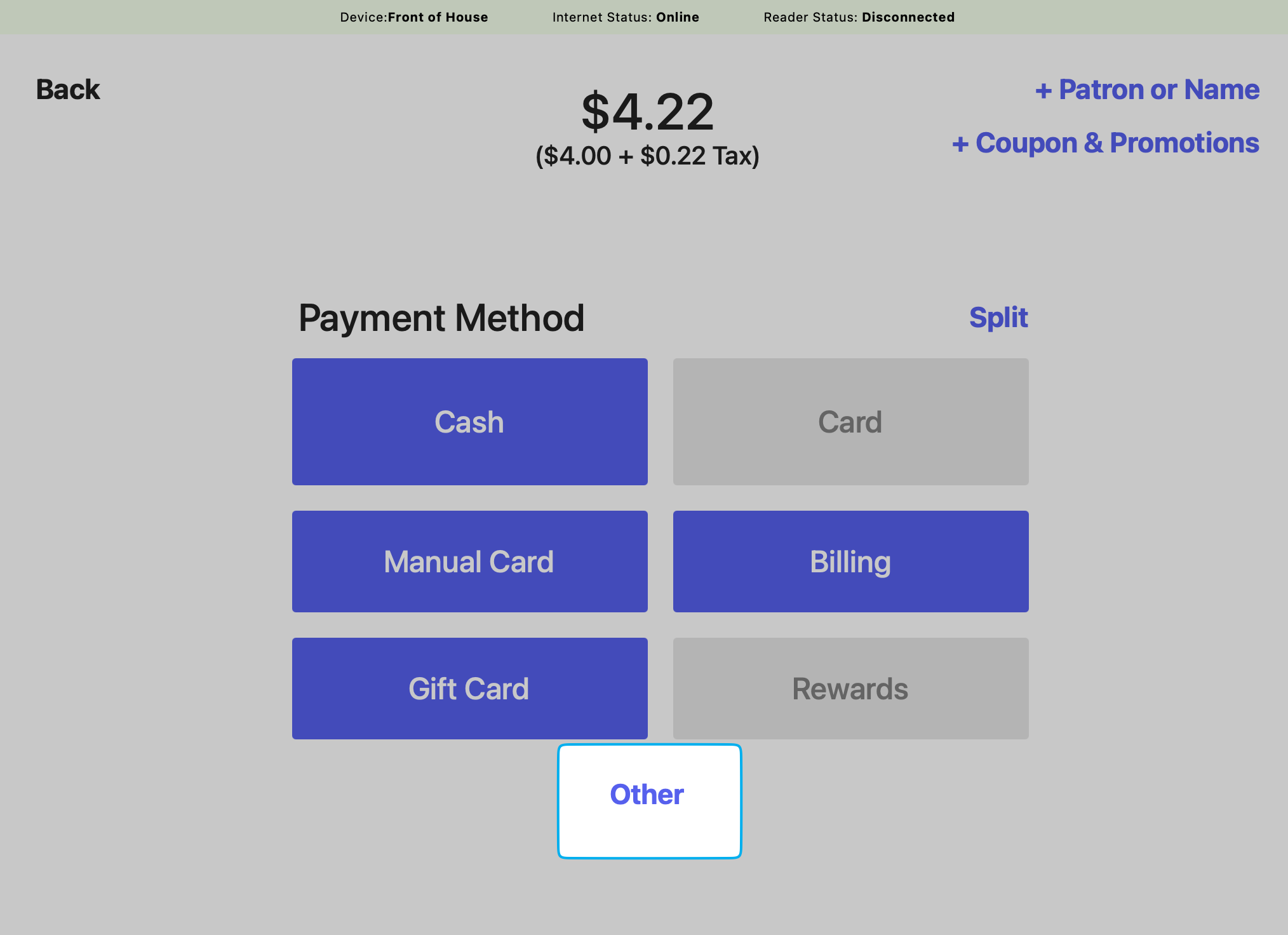
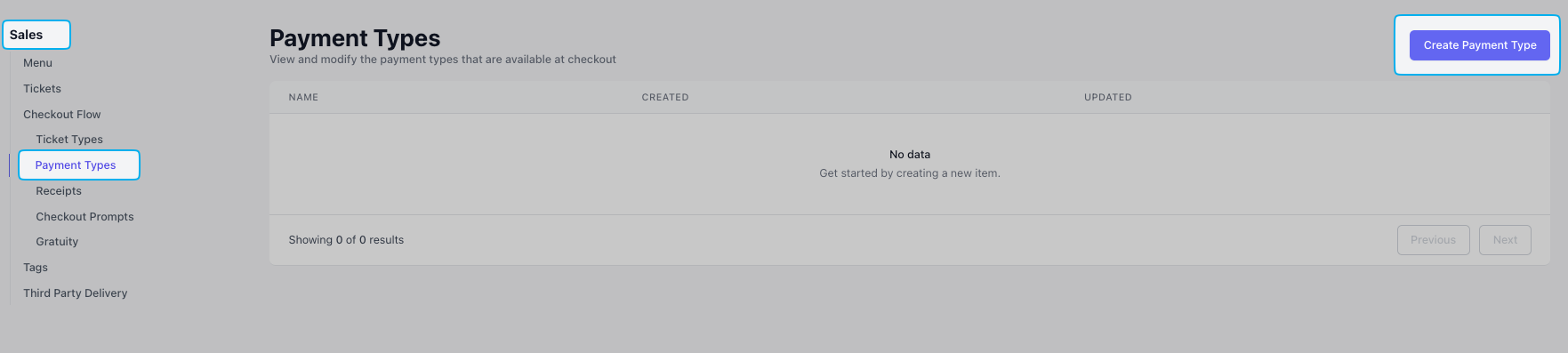
 On the **Web Dashboard**, click **Orders** > **Checkout Flow** > **Payment Types** > **Create Payment Type**
 Complete the following fields > click **Add**
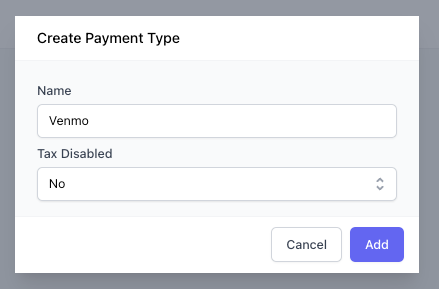 Name to distinguish this custom payment type
**Yes** = taxes will automatically be removed from an order using this payment method
**No** = taxes will be chaged to an order using this payment method
***
## View Payment Method Used
### Point of Sale
On the **Point of Sale** view the **Transactions** page
Select the desired transaction
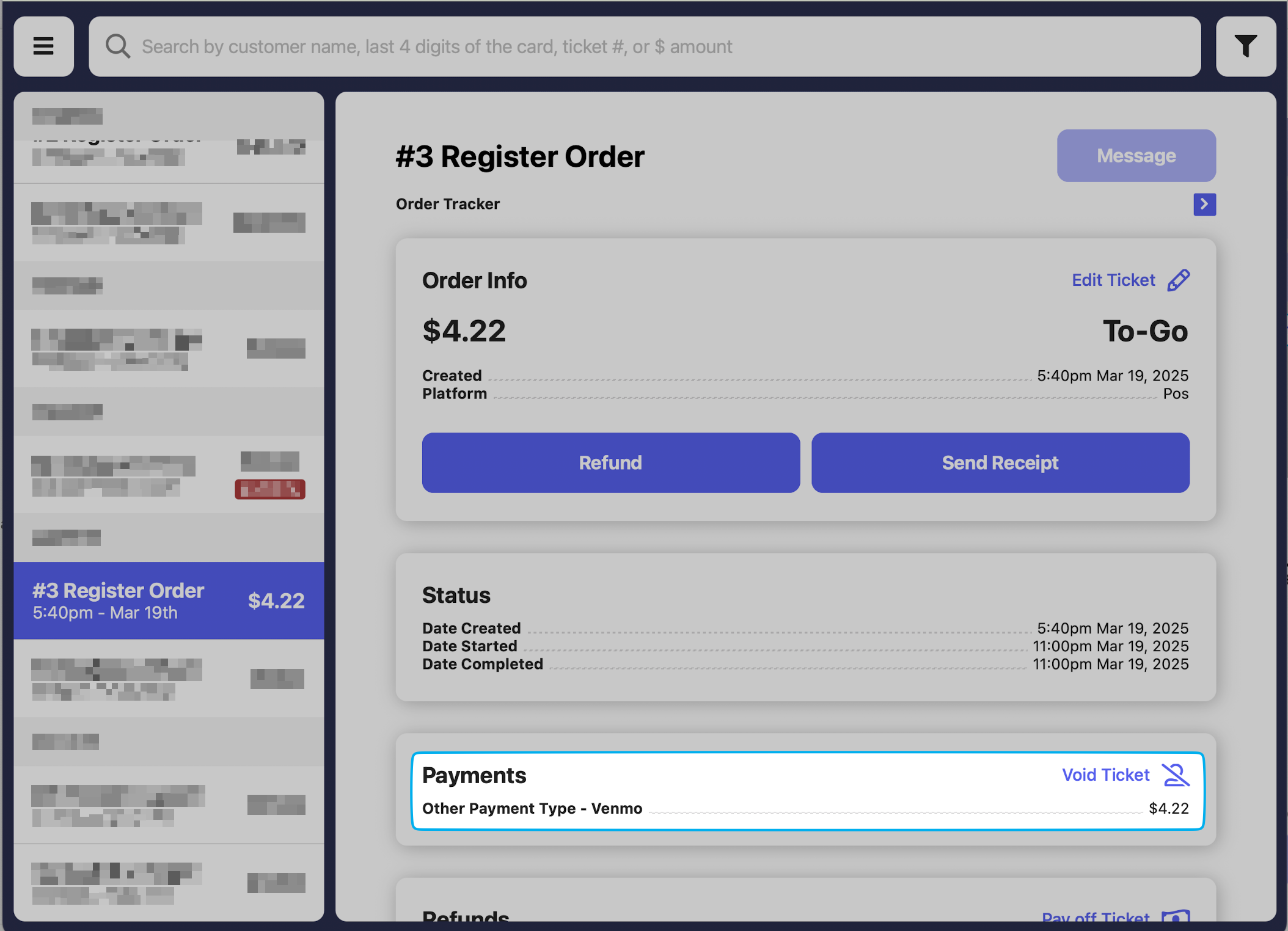
Scroll down within the transaction details to **Payments** to view the used payment method
Name to distinguish this custom payment type
**Yes** = taxes will automatically be removed from an order using this payment method
**No** = taxes will be chaged to an order using this payment method
***
## View Payment Method Used
### Point of Sale
On the **Point of Sale** view the **Transactions** page
Select the desired transaction
Scroll down within the transaction details to **Payments** to view the used payment method
 ### Web Dashboard
Click on **Sales** > **Tickets**
Click **View** on the desired ticket
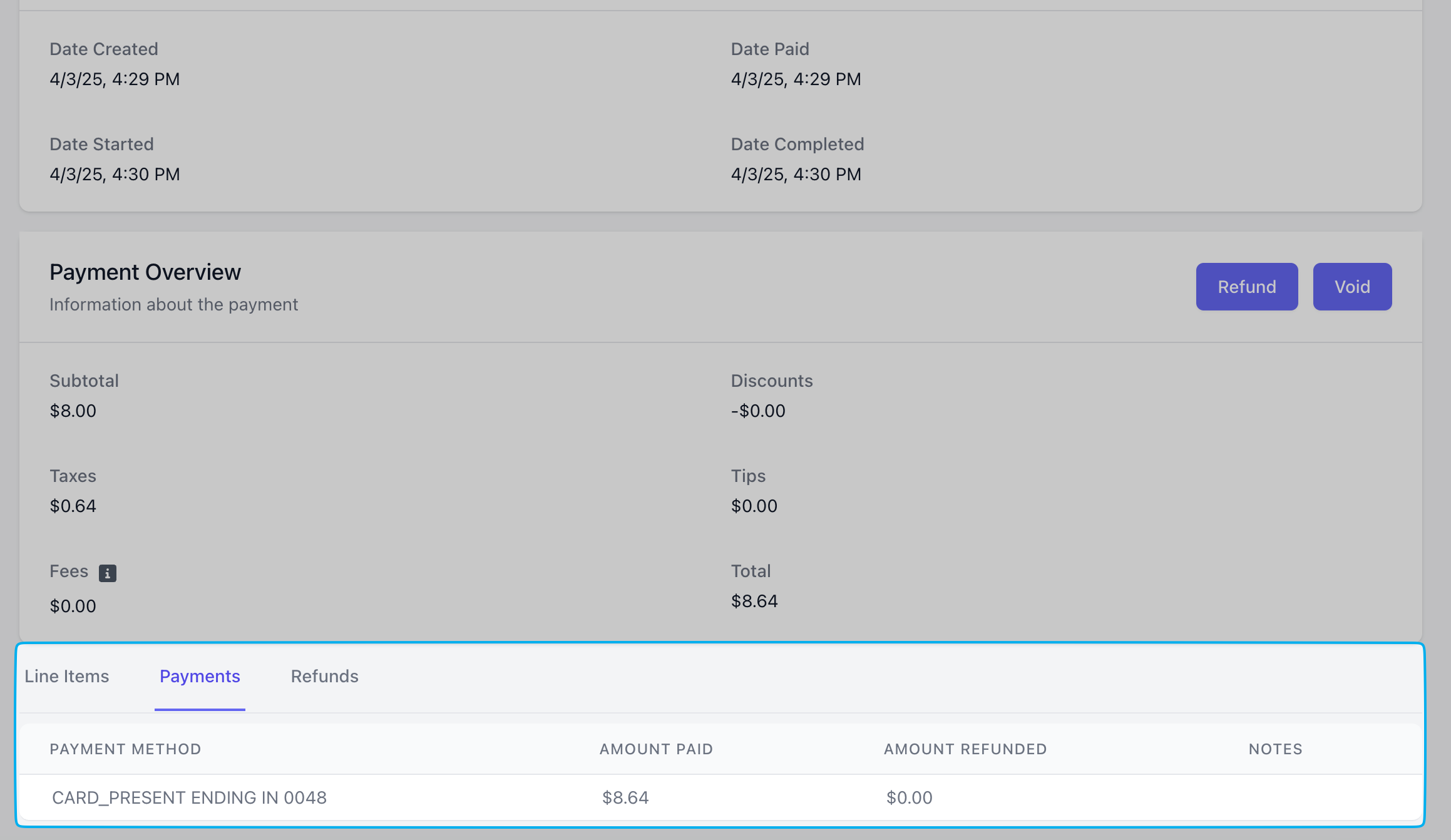
Scroll down to the bottom of the ticket and click the **Payments** tab
### Web Dashboard
Click on **Sales** > **Tickets**
Click **View** on the desired ticket
Scroll down to the bottom of the ticket and click the **Payments** tab
 ***
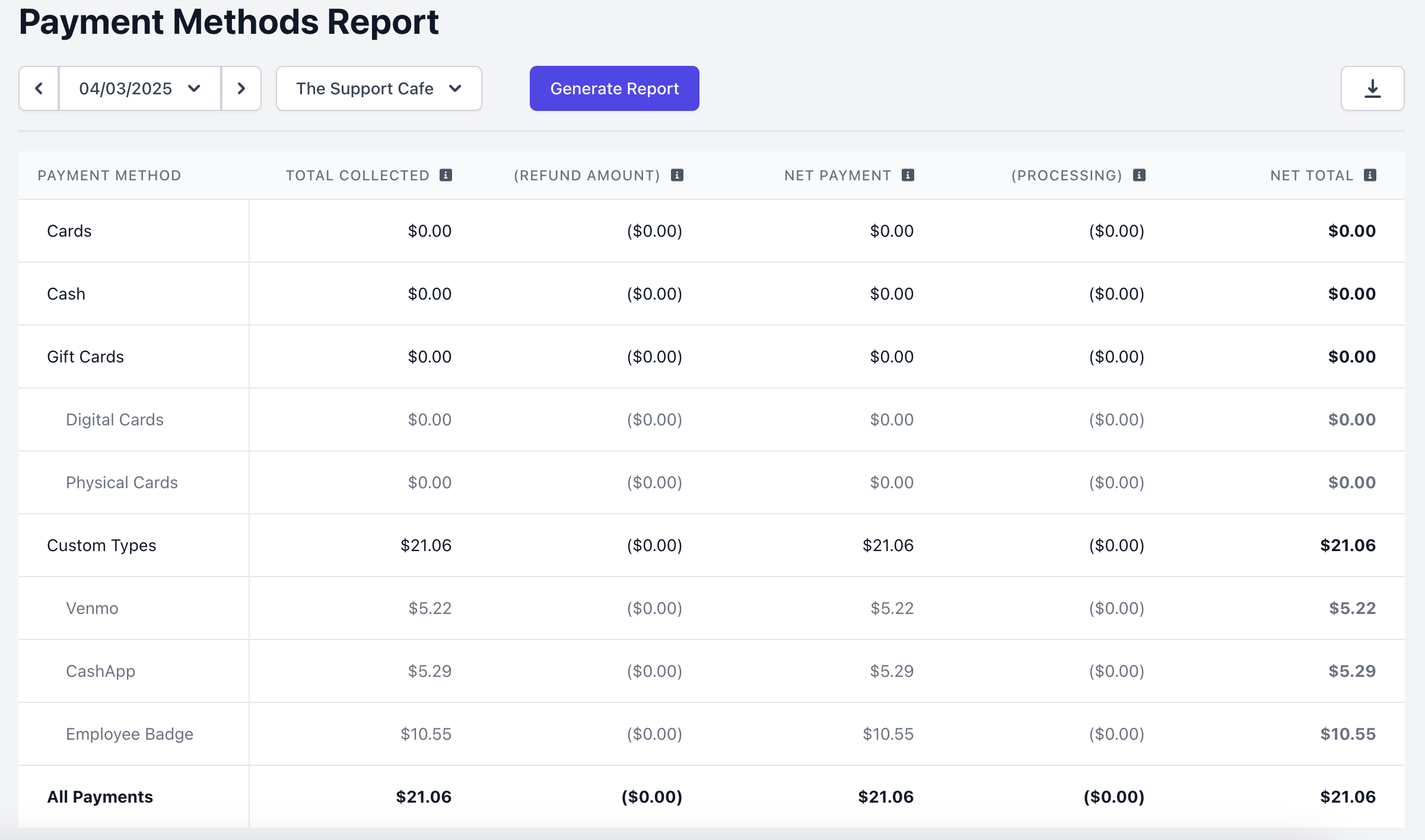
## View Payment Type Sales Report
View sales for all Dripos payment methods, as well as sales of custom payment methods created.
On the [**Web Dashboard**](https://dashboard.dripos.com/reports/payment-methods), click **Reports** > **Payment Methods** > select a date range and click **Generate Report**
***
## View Payment Type Sales Report
View sales for all Dripos payment methods, as well as sales of custom payment methods created.
On the [**Web Dashboard**](https://dashboard.dripos.com/reports/payment-methods), click **Reports** > **Payment Methods** > select a date range and click **Generate Report**