> ## Documentation Index
> Fetch the complete documentation index at: https://support.dripos.com/llms.txt
> Use this file to discover all available pages before exploring further.
# Checkout Prompts
> Learn how to create and utilize checkout prompts
Create **required** or **optional** checkout prompts for different **ticket types**.
Customers will answer checkout prompts before they finish placing their order.
## Create Checkout Prompts
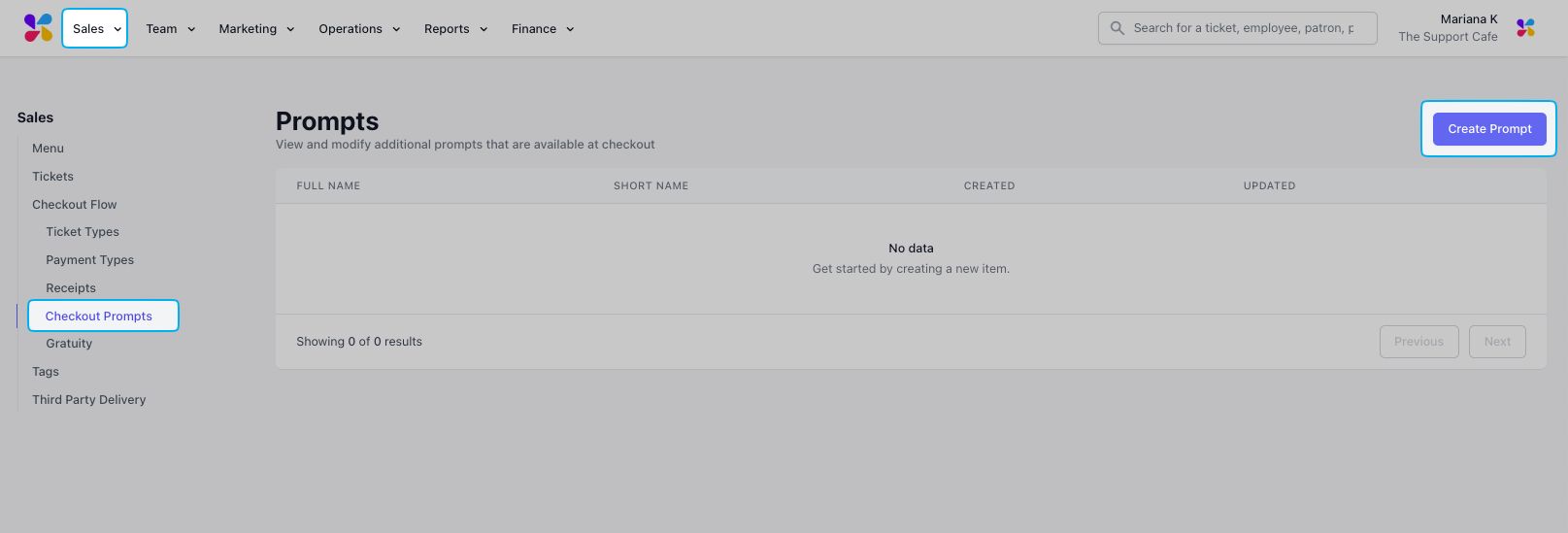
On the **Web Dashboard**, click **Sales** > click **Checkout Flow** > click **Checkout Prompts** > Click **Create Prompt**
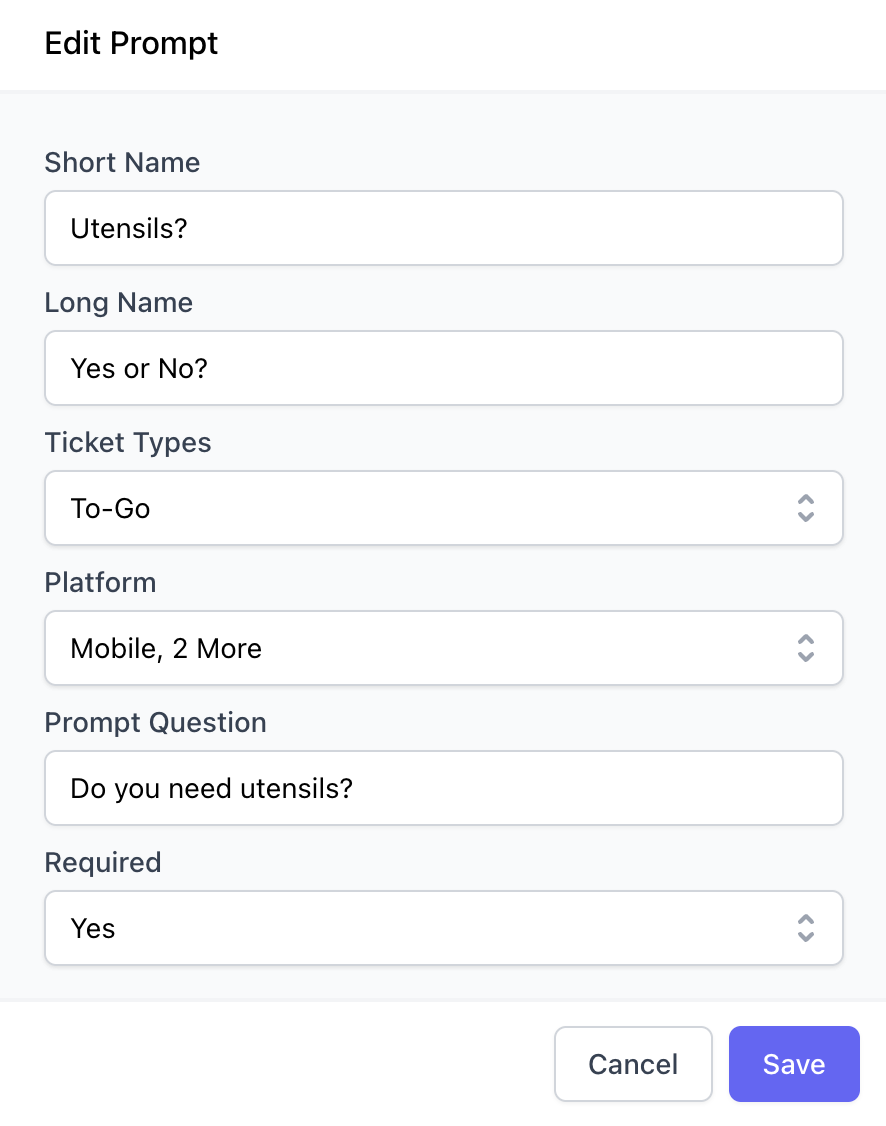
 Complete the following fields and click **Add**
 How the checkout prompt appears on the POS
How the checkout prompt appears on the Order Website and Order App
Select at least one ticket type for this checkout prompt to tie to.
**Example:** For the To-Go ticket type, a customer may need utensils. Use a checkout prompt for the To-Go ticket type to ask if they would like utensils included with their order.
Select at least one of Dripos ordering platforms the checkout prompt will appear on; multiple may be selected at once
The full checkout prompt phrased as a question for the patron to answer
**Yes**= Checkout will be prevented unless the prompt is filled out
**No** = A patron can checkout without completing this prompt
## Use Checkout Prompts
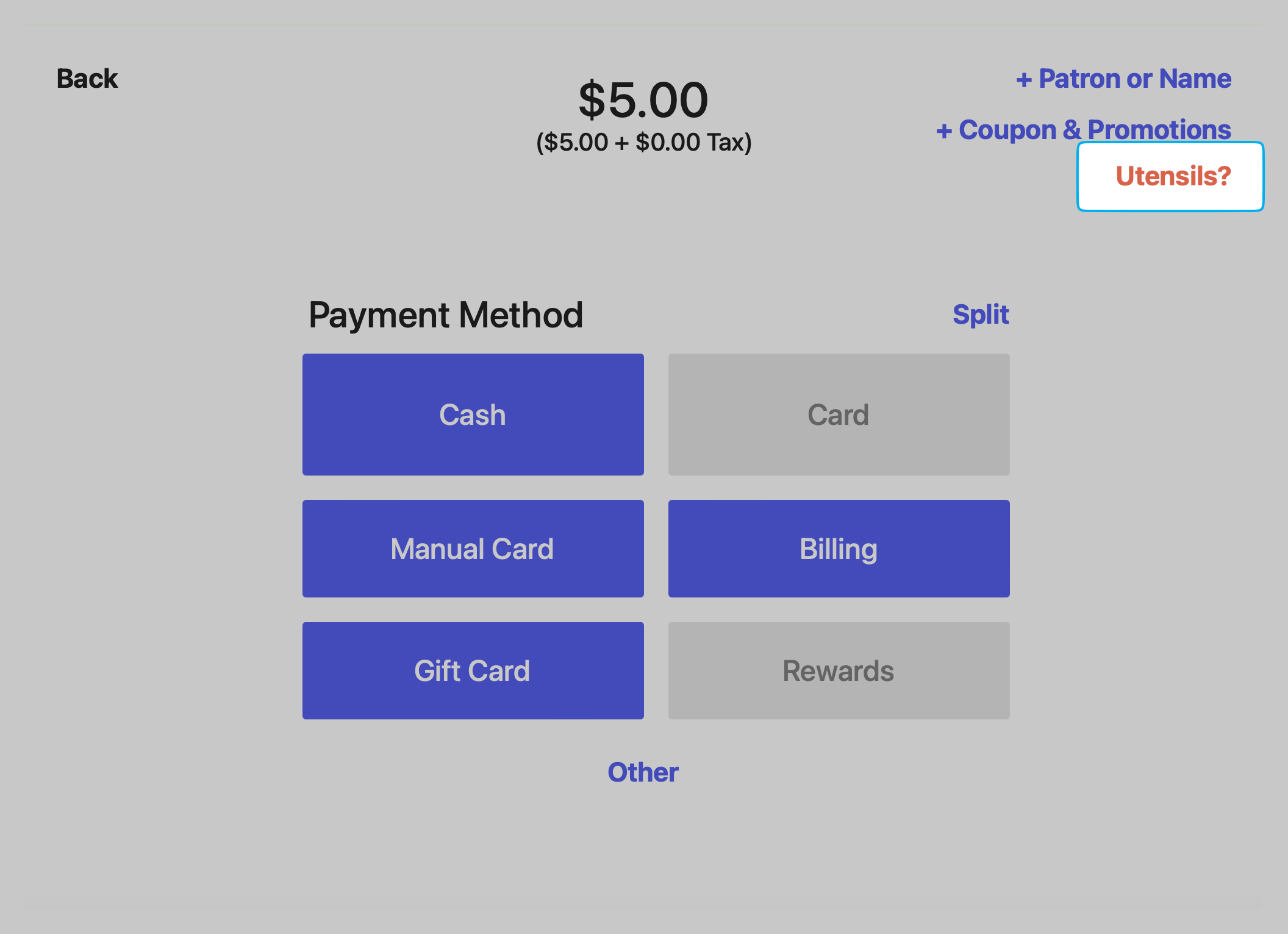
The checkout prompt will become available to complete on the Payment page in the checkout process.
How the checkout prompt appears on the POS
How the checkout prompt appears on the Order Website and Order App
Select at least one ticket type for this checkout prompt to tie to.
**Example:** For the To-Go ticket type, a customer may need utensils. Use a checkout prompt for the To-Go ticket type to ask if they would like utensils included with their order.
Select at least one of Dripos ordering platforms the checkout prompt will appear on; multiple may be selected at once
The full checkout prompt phrased as a question for the patron to answer
**Yes**= Checkout will be prevented unless the prompt is filled out
**No** = A patron can checkout without completing this prompt
## Use Checkout Prompts
The checkout prompt will become available to complete on the Payment page in the checkout process.
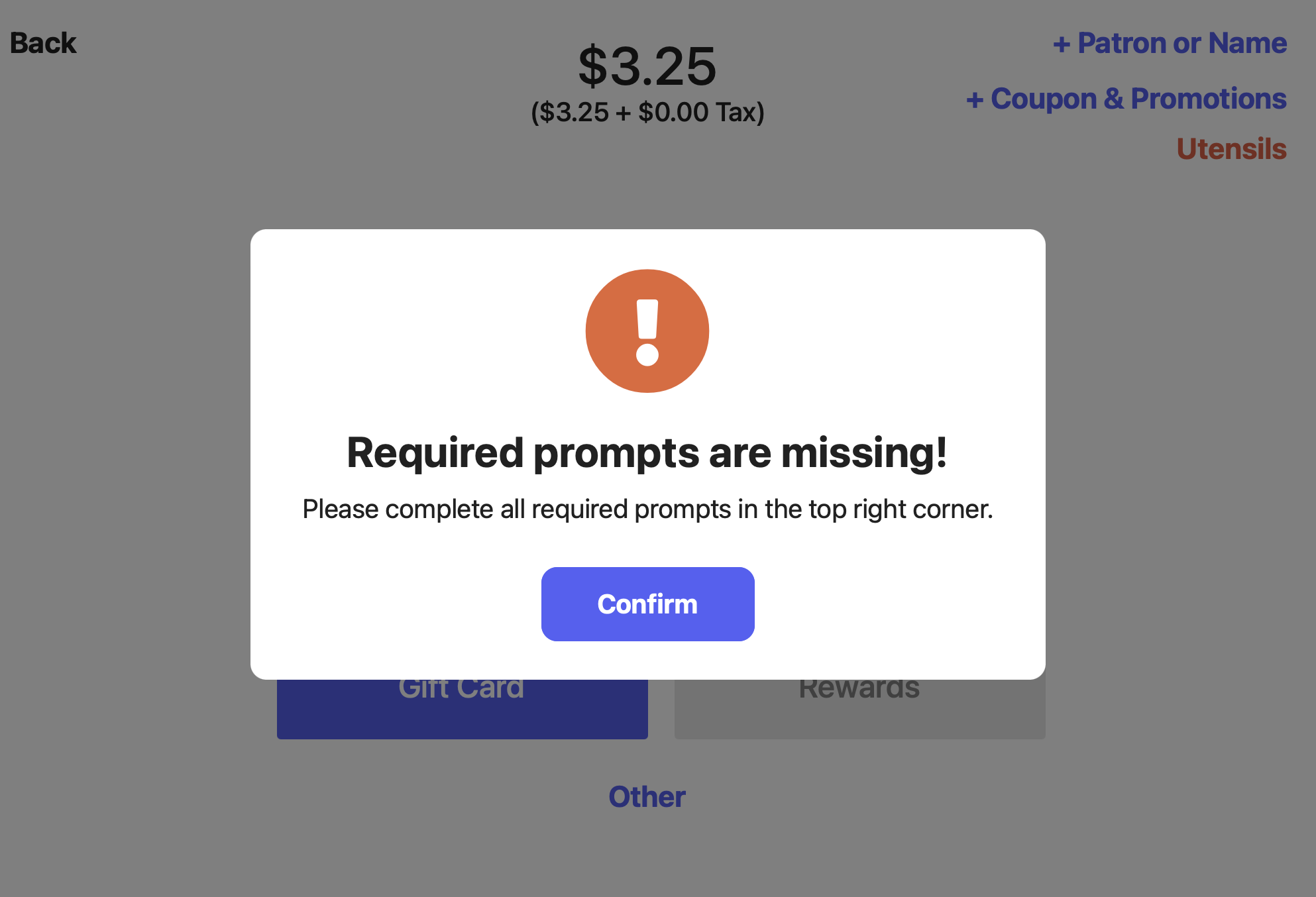
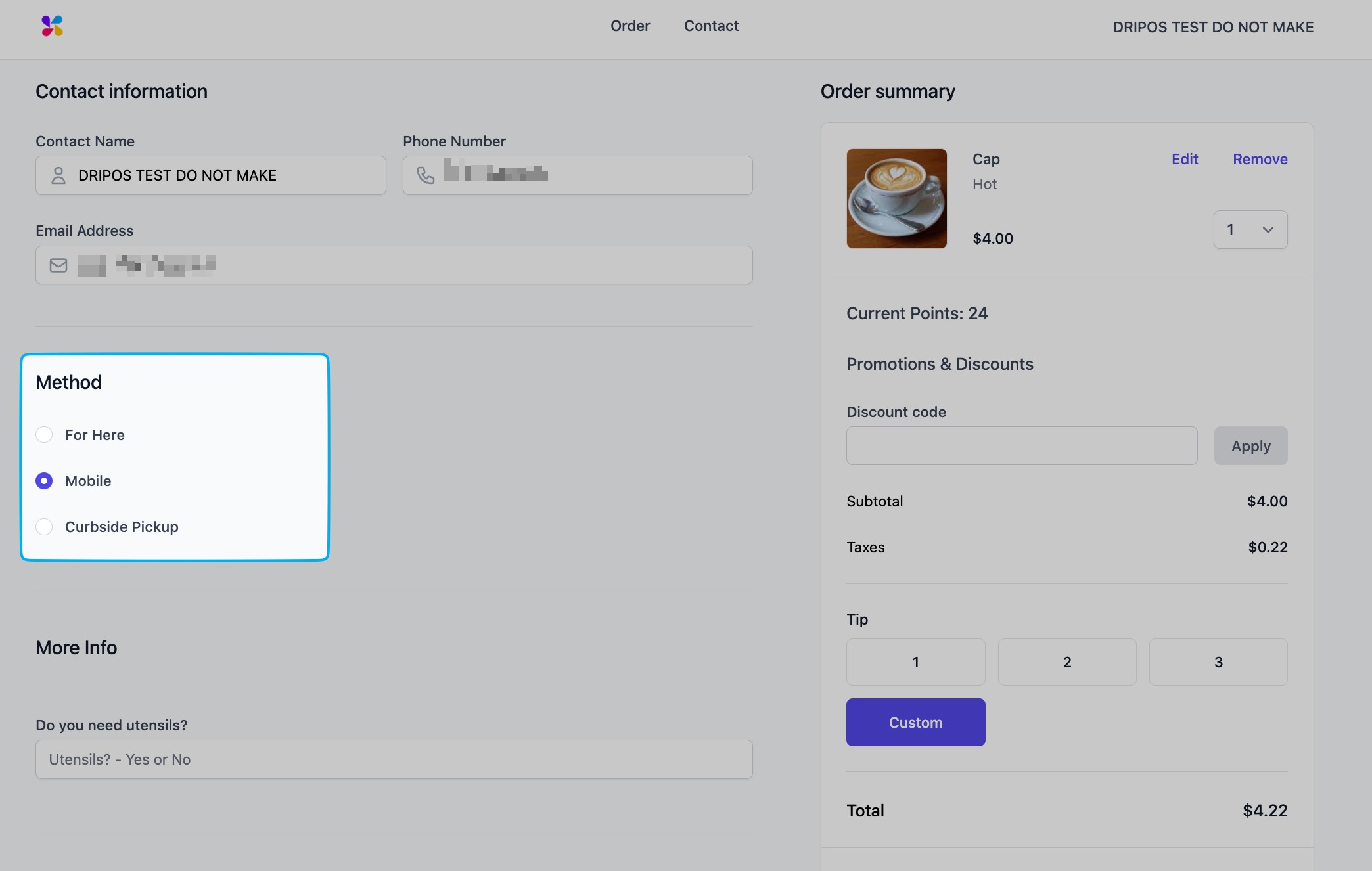
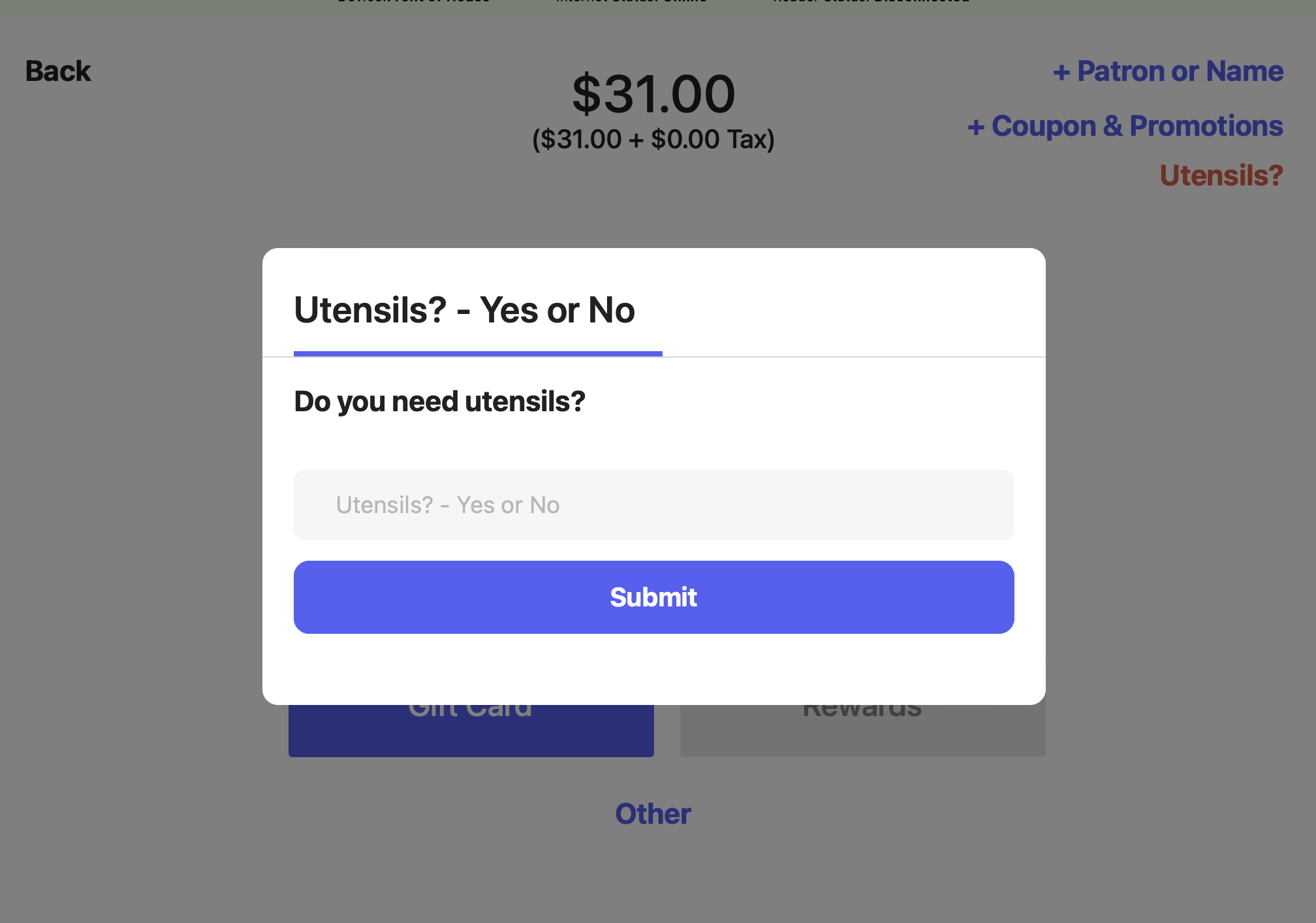 The checkout prompt will become available when the patron views their cart and adds their payment method.
 ## View Checkout Prompts
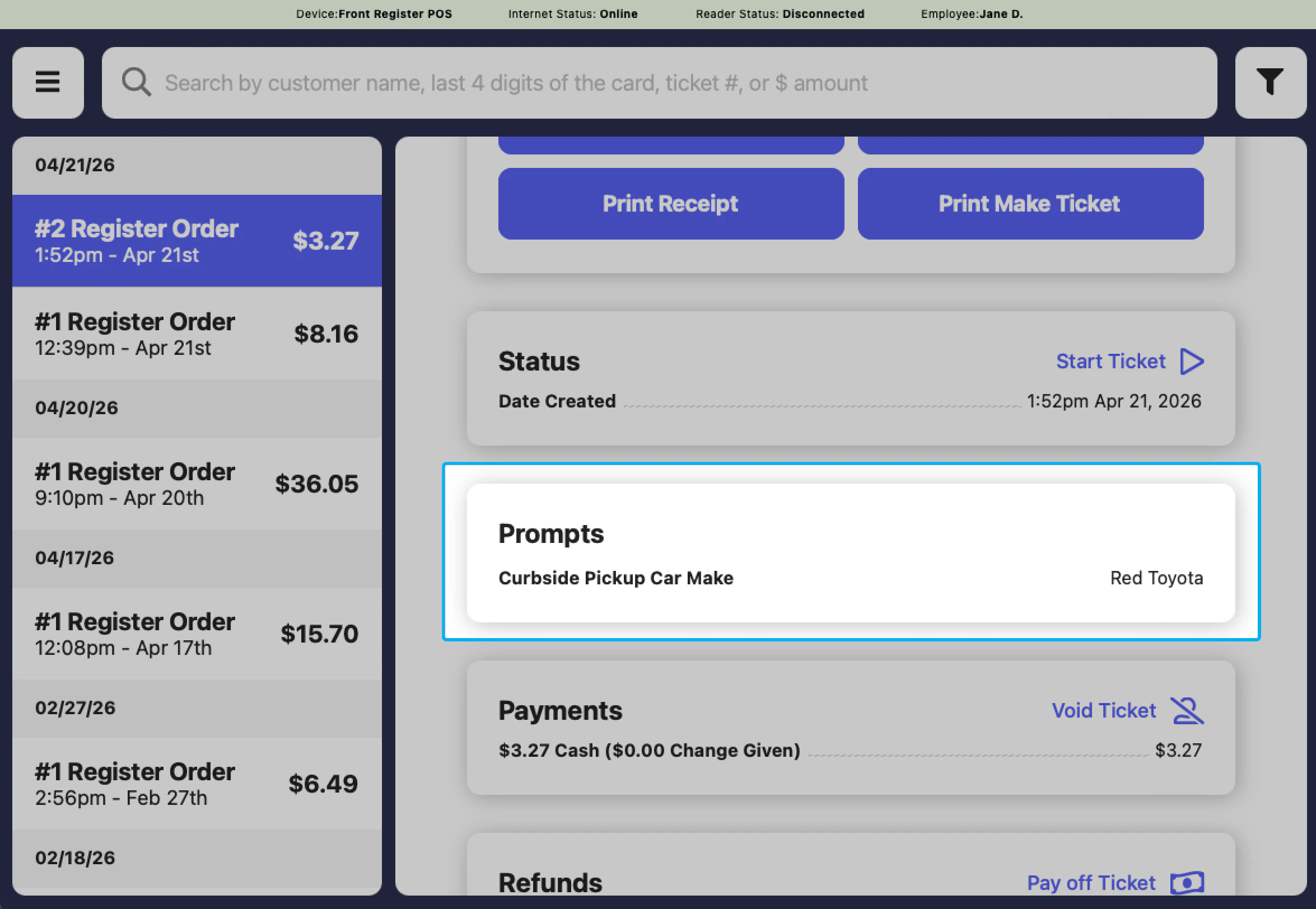
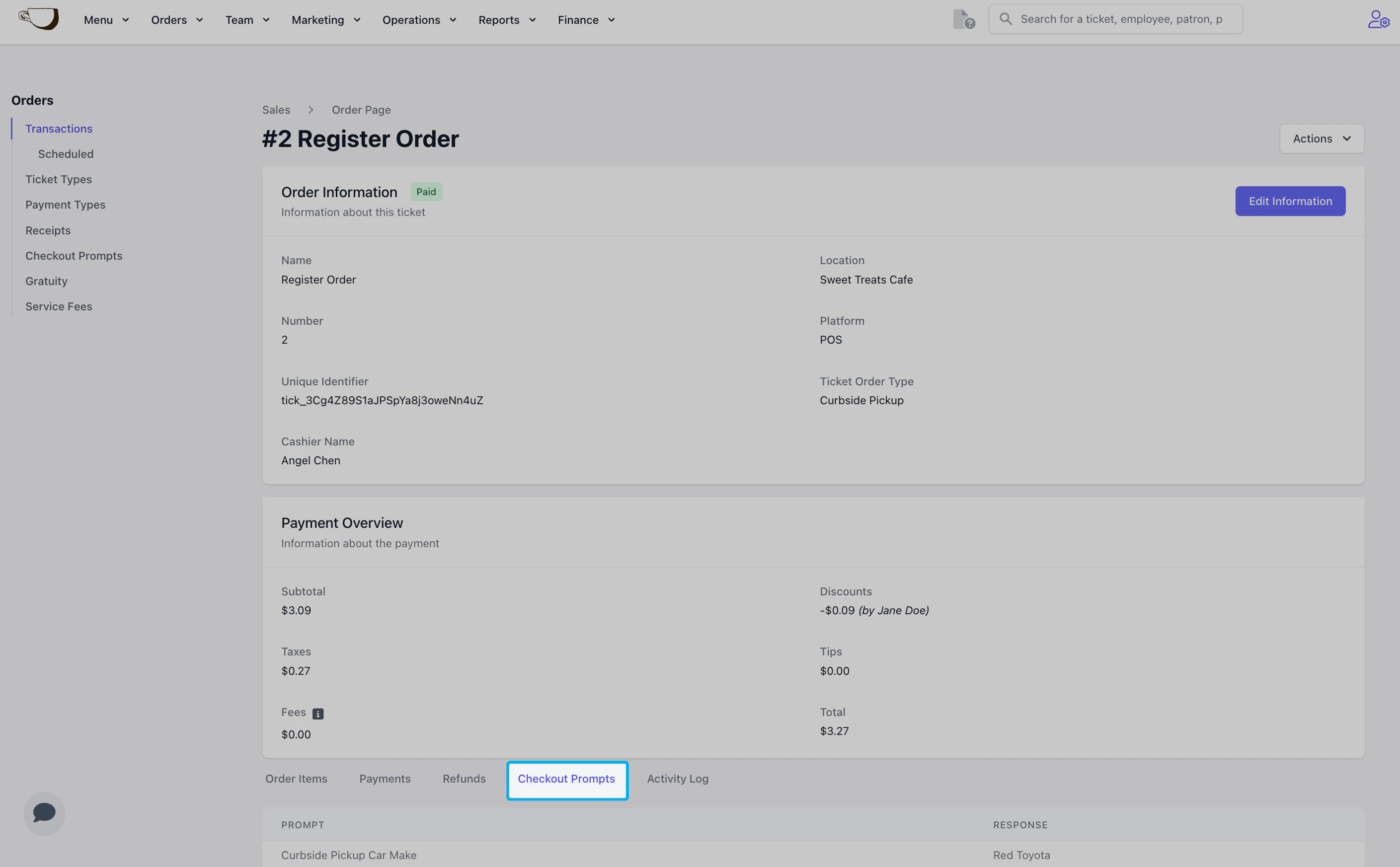
On the dashboard, **View** the Transaction you would like to see the checkout prompt response for.
Scroll down and select the **Checkout Prompts** tab to see the response.
## View Checkout Prompts
On the dashboard, **View** the Transaction you would like to see the checkout prompt response for.
Scroll down and select the **Checkout Prompts** tab to see the response.
 On the POS, click the tribar on the top left and navigate to Transactions.
Select a transaction that has a checkout prompt and scroll down the see the response.
On the POS, click the tribar on the top left and navigate to Transactions.
Select a transaction that has a checkout prompt and scroll down the see the response.