> ## Documentation Index
> Fetch the complete documentation index at: https://support.dripos.com/llms.txt
> Use this file to discover all available pages before exploring further.
# Ticket Types
> Learn how ticket types are created and used for ordering
## Overview
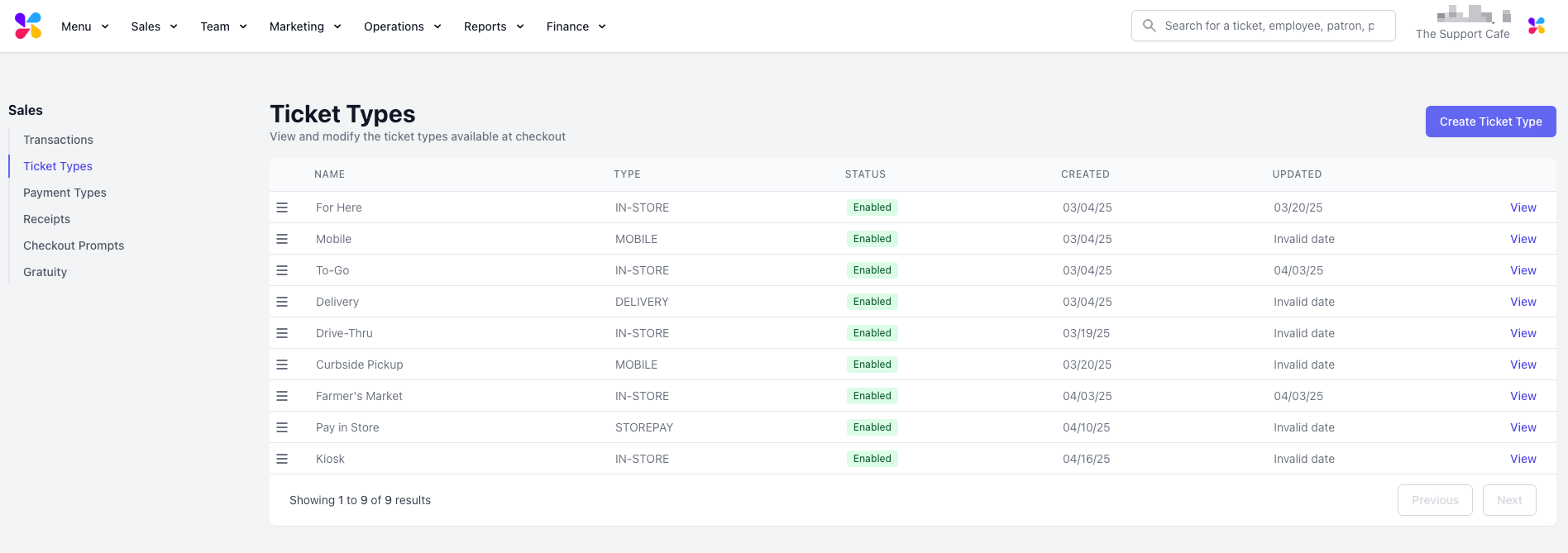
Ticket types help to determine how to prepare an order. Ticket types may also be referred to as Order Types when navigating on the Point of Sale.
Four ticket types will automatically be set up in your Dripos system:
Learn more about Mobile ordering [here](orders/mobile/mobile-overview)
If applicable
 ***
## Create Ticket Types
### Create a New Ticket Type
Create additional ticket types for your shop's desired workflows.
On the **Dashboard**, click **Orders** > **Checkout Flow** > **Ticket Types** > **Create Ticket Type**
***
## Create Ticket Types
### Create a New Ticket Type
Create additional ticket types for your shop's desired workflows.
On the **Dashboard**, click **Orders** > **Checkout Flow** > **Ticket Types** > **Create Ticket Type**
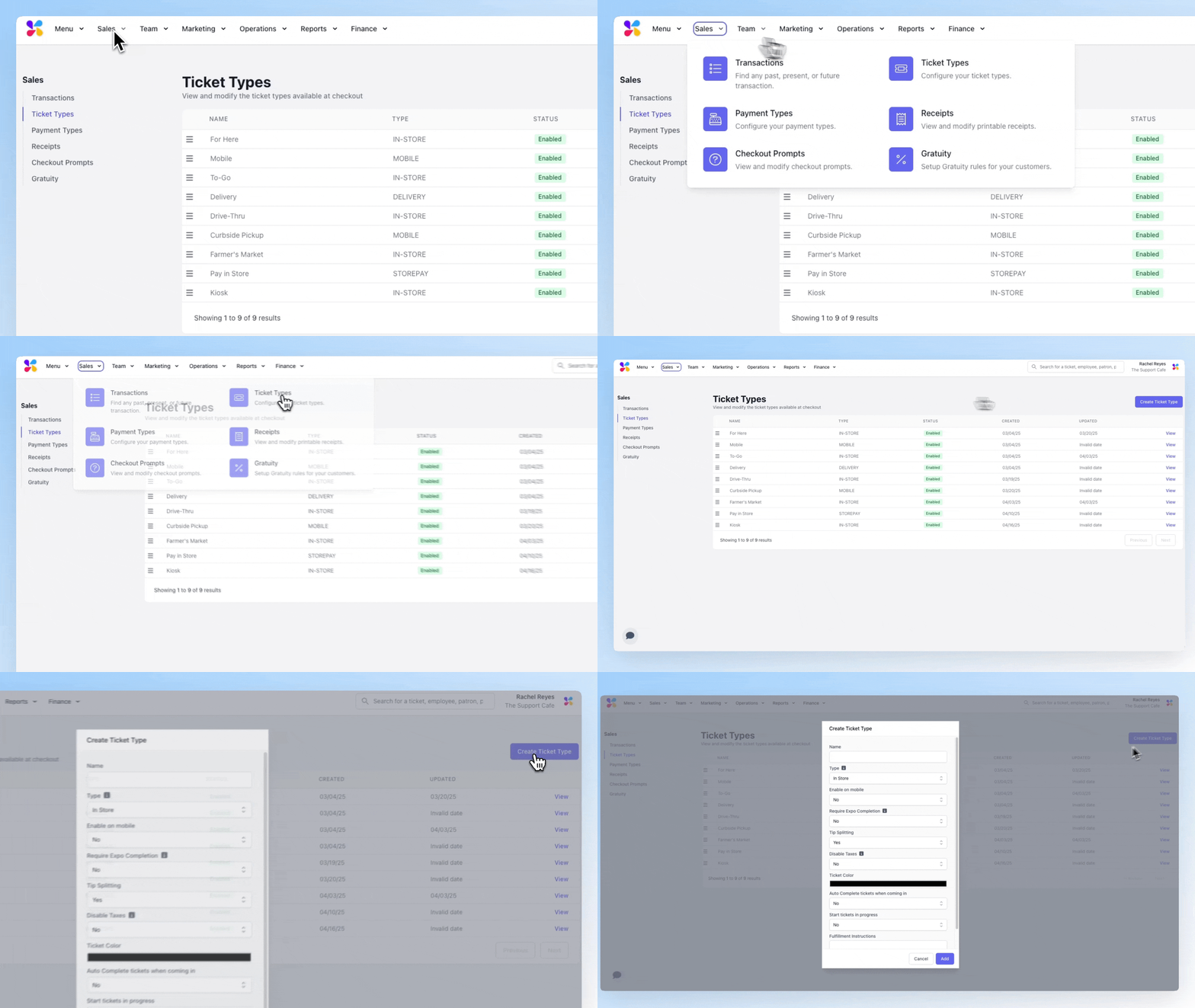 Learn more about **ticket type components** below. Edit these fields at any time from the ticket's page > **Edit Information**
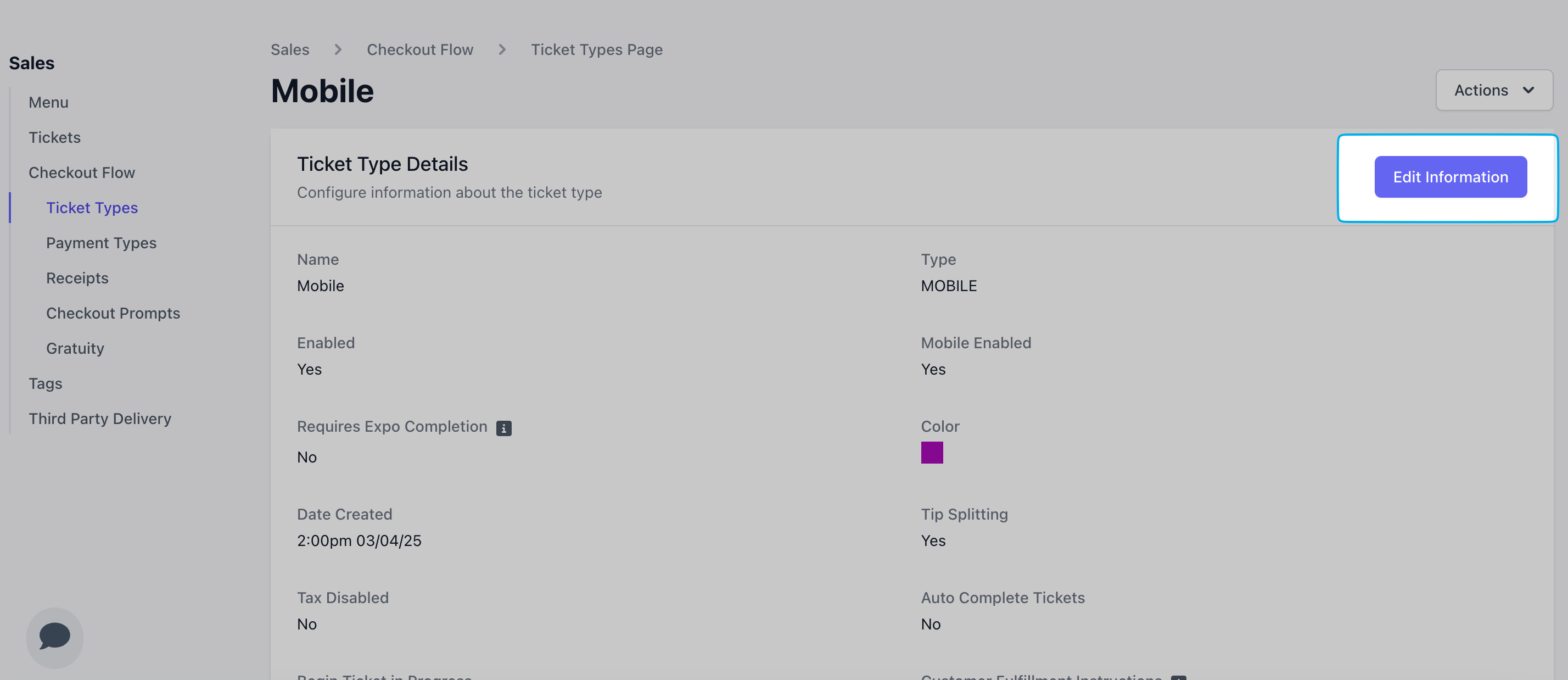 ### Ticket Type Components
Learn what makes up a Dripos Ticket Type and how to customize them.
### Ticket Type Components
Learn what makes up a Dripos Ticket Type and how to customize them.
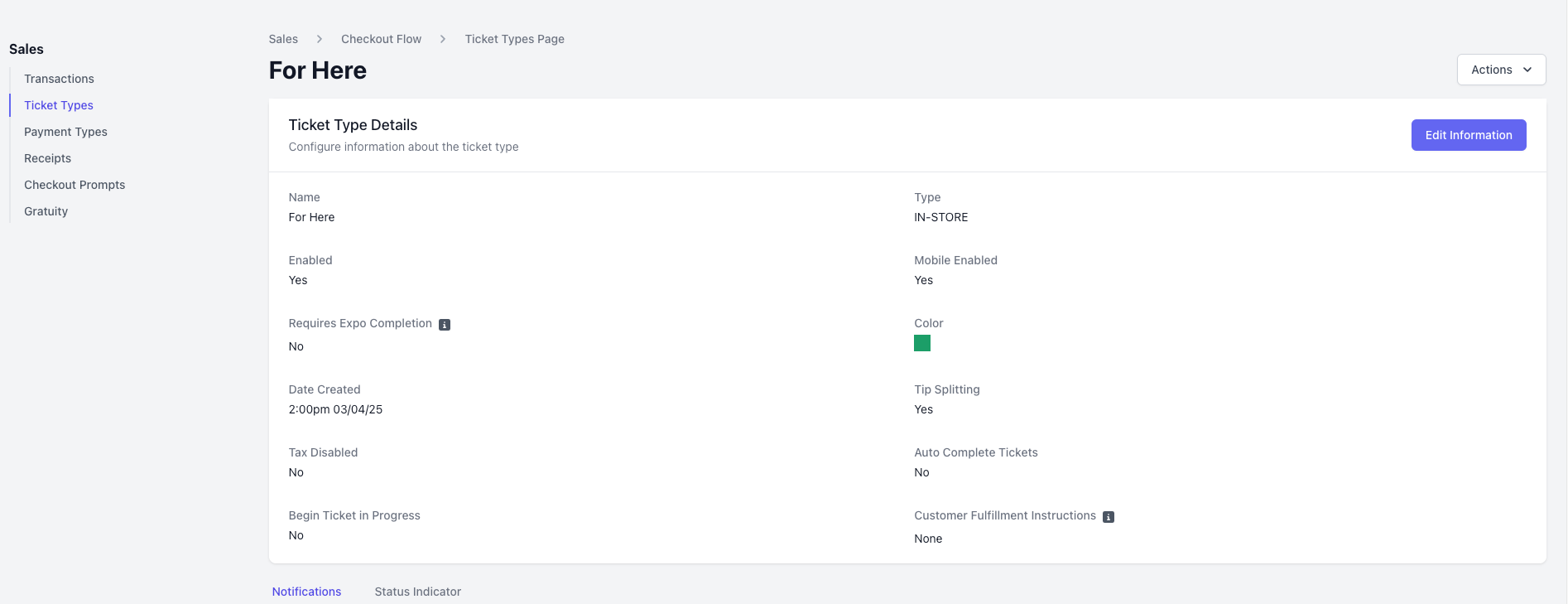 Available at the POS
Patron can place an order via the Order App and Order Website and pay upon arrival at the store
Patron can place an order via the Order Website for in-house delivery (learn more Here)
Patron can place an order via the Order App and Order Website and pay upon checkout
Patron can place an order via the Order App and Order Website and their order will be delivered by a DoorDash driver \*Please reach out to Dripos Support to enable this ticket type
Available at the POS and allows the patron to tip via the printed receipt for tip entry at a later time
Ticket type is available upon checkout across all platforms.
Ticket type is **not** available upon checkout across all platforms.
Ticket type is available upon checkout on the order website and order app.
Ticket type is **not** available upon checkout on the order website and order app.
Tickets will send to an Expo screen
Tips received on orders of this ticket type will be added into the employee tip pool.
Tips received on orders of this ticket type will **not** be added into the employee tip pool.
Ticket color on the kitchen display screen
Choose to disable taxes on this ticket type automatically at checkout
If set to **yes**, tickets will **not** send to the kitchen display screen and be marked immediately as completed
Tickets will be marked as “In-Progress” immediately
Customer-facing instructions displayed on the receipt screen after Mobile checkout.
***
## Set Default Ticket Type
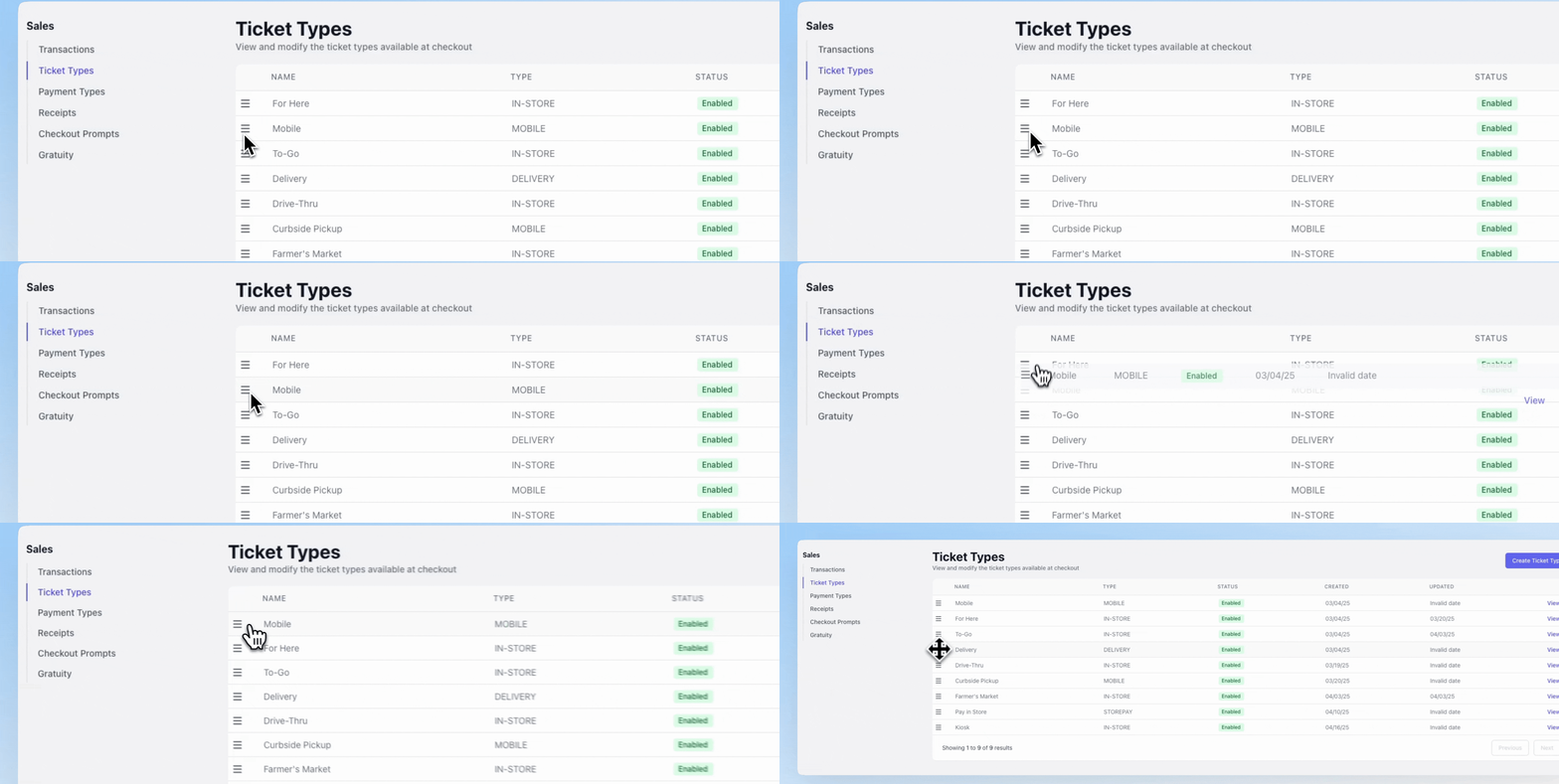
On the **Dashboard** > **Orders** > **Checkout Flow** > **Ticket Types** > drag the desired default ticket type to the top of the list of ticket types
Available at the POS
Patron can place an order via the Order App and Order Website and pay upon arrival at the store
Patron can place an order via the Order Website for in-house delivery (learn more Here)
Patron can place an order via the Order App and Order Website and pay upon checkout
Patron can place an order via the Order App and Order Website and their order will be delivered by a DoorDash driver \*Please reach out to Dripos Support to enable this ticket type
Available at the POS and allows the patron to tip via the printed receipt for tip entry at a later time
Ticket type is available upon checkout across all platforms.
Ticket type is **not** available upon checkout across all platforms.
Ticket type is available upon checkout on the order website and order app.
Ticket type is **not** available upon checkout on the order website and order app.
Tickets will send to an Expo screen
Tips received on orders of this ticket type will be added into the employee tip pool.
Tips received on orders of this ticket type will **not** be added into the employee tip pool.
Ticket color on the kitchen display screen
Choose to disable taxes on this ticket type automatically at checkout
If set to **yes**, tickets will **not** send to the kitchen display screen and be marked immediately as completed
Tickets will be marked as “In-Progress” immediately
Customer-facing instructions displayed on the receipt screen after Mobile checkout.
***
## Set Default Ticket Type
On the **Dashboard** > **Orders** > **Checkout Flow** > **Ticket Types** > drag the desired default ticket type to the top of the list of ticket types
 ***
## Ticket Type Alerts
Ticket Type Notifications automatically send patrons a text after placing an order, completing the ticket, or both.
***
## Ticket Type Alerts
Ticket Type Notifications automatically send patrons a text after placing an order, completing the ticket, or both.
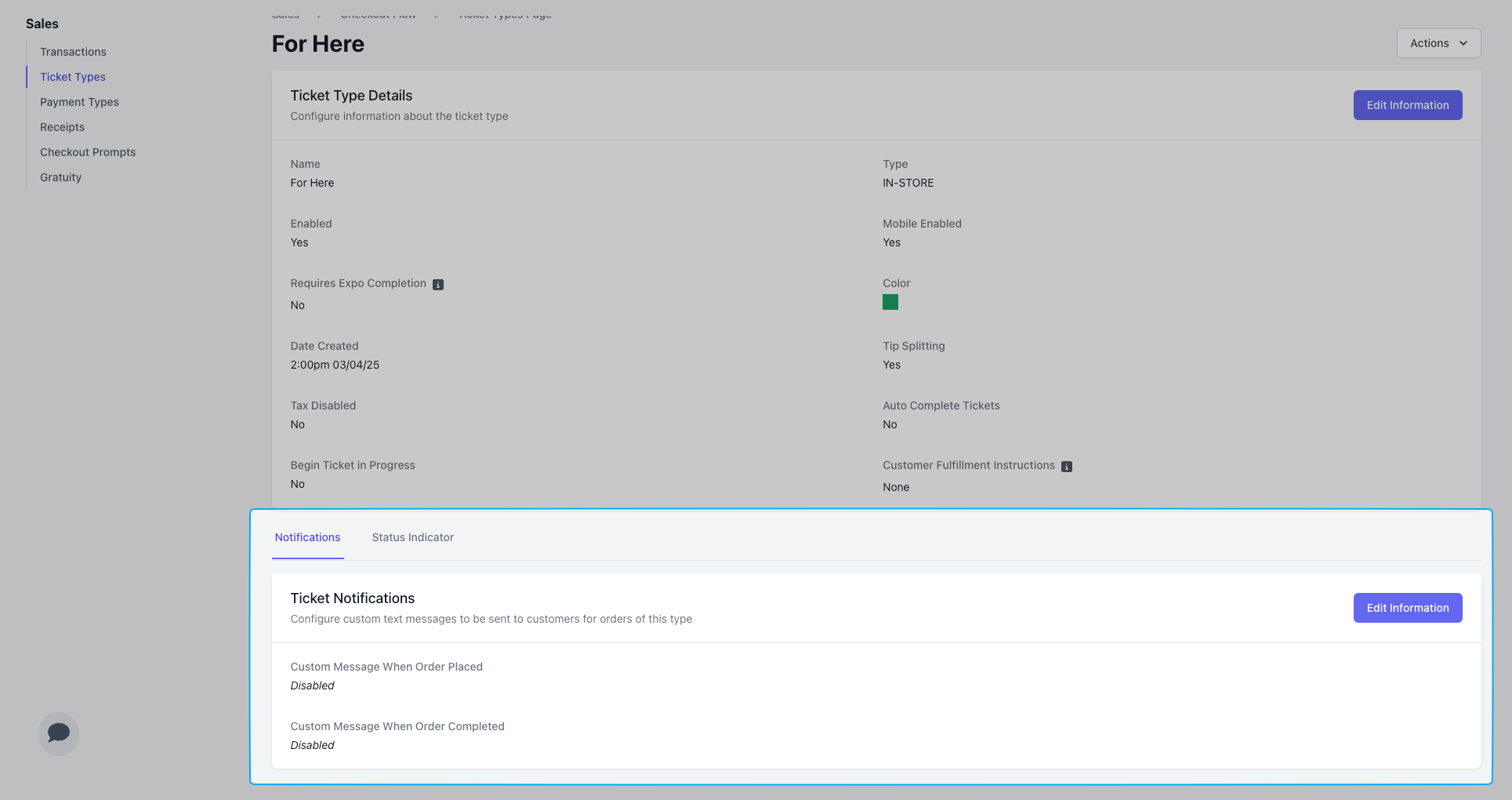 By default, new ticket types have notifications and statuses turned **off**
#### Notifications
Create messages to send to customers as soon as their order is placed and as soon as the order is ready!
By default, new ticket types have notifications and statuses turned **off**
#### Notifications
Create messages to send to customers as soon as their order is placed and as soon as the order is ready!
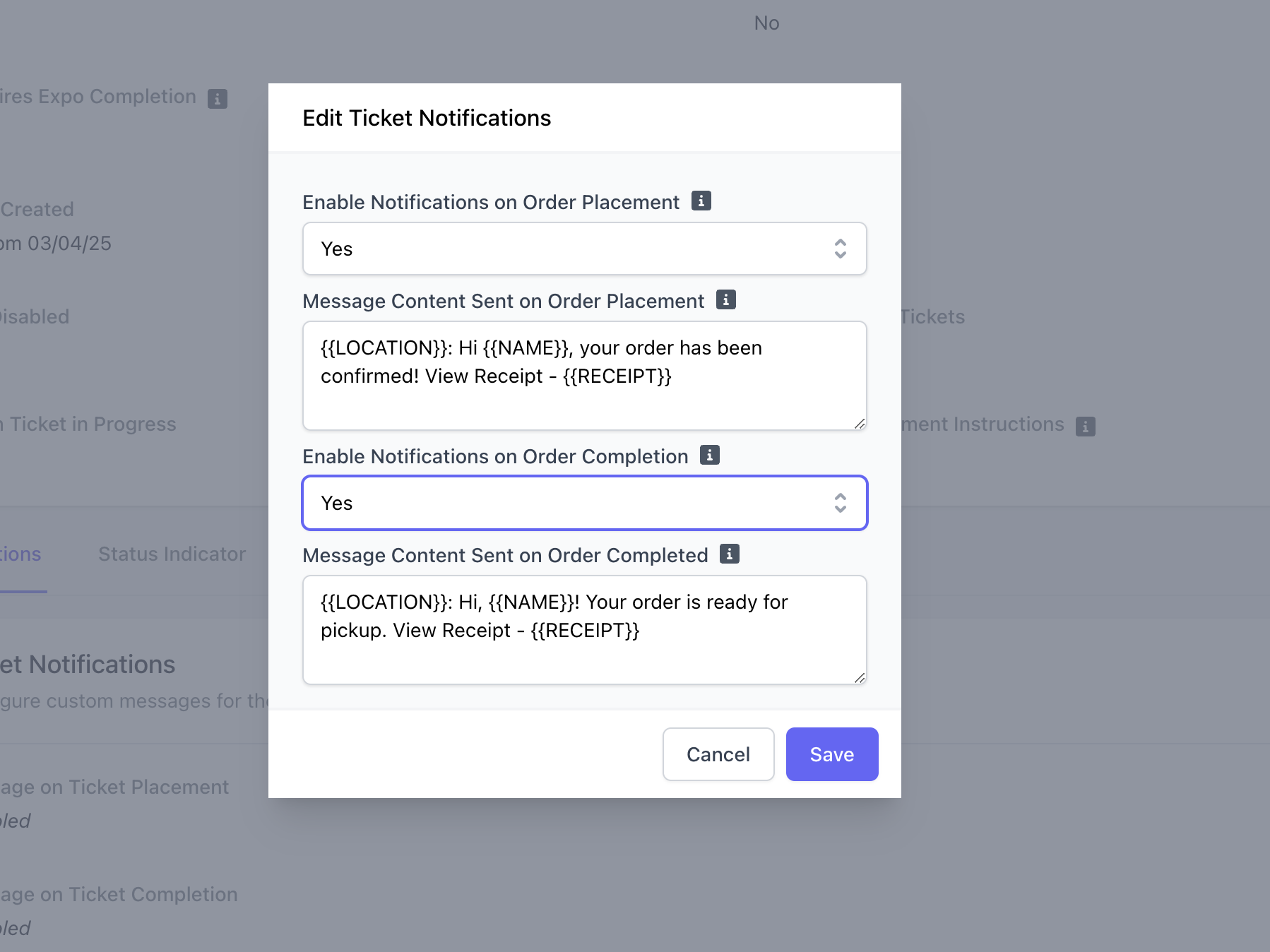 If enabled, as soon as order checkout is completed on any platform, the patron will receive this message.
If enabled, as soon as order is marked as complete on the kitchen display screen, the patron will receive this message.
#### Status Indicators
Create messages to send customers at each stage of the order completion process.
If enabled, as soon as order checkout is completed on any platform, the patron will receive this message.
If enabled, as soon as order is marked as complete on the kitchen display screen, the patron will receive this message.
#### Status Indicators
Create messages to send customers at each stage of the order completion process.
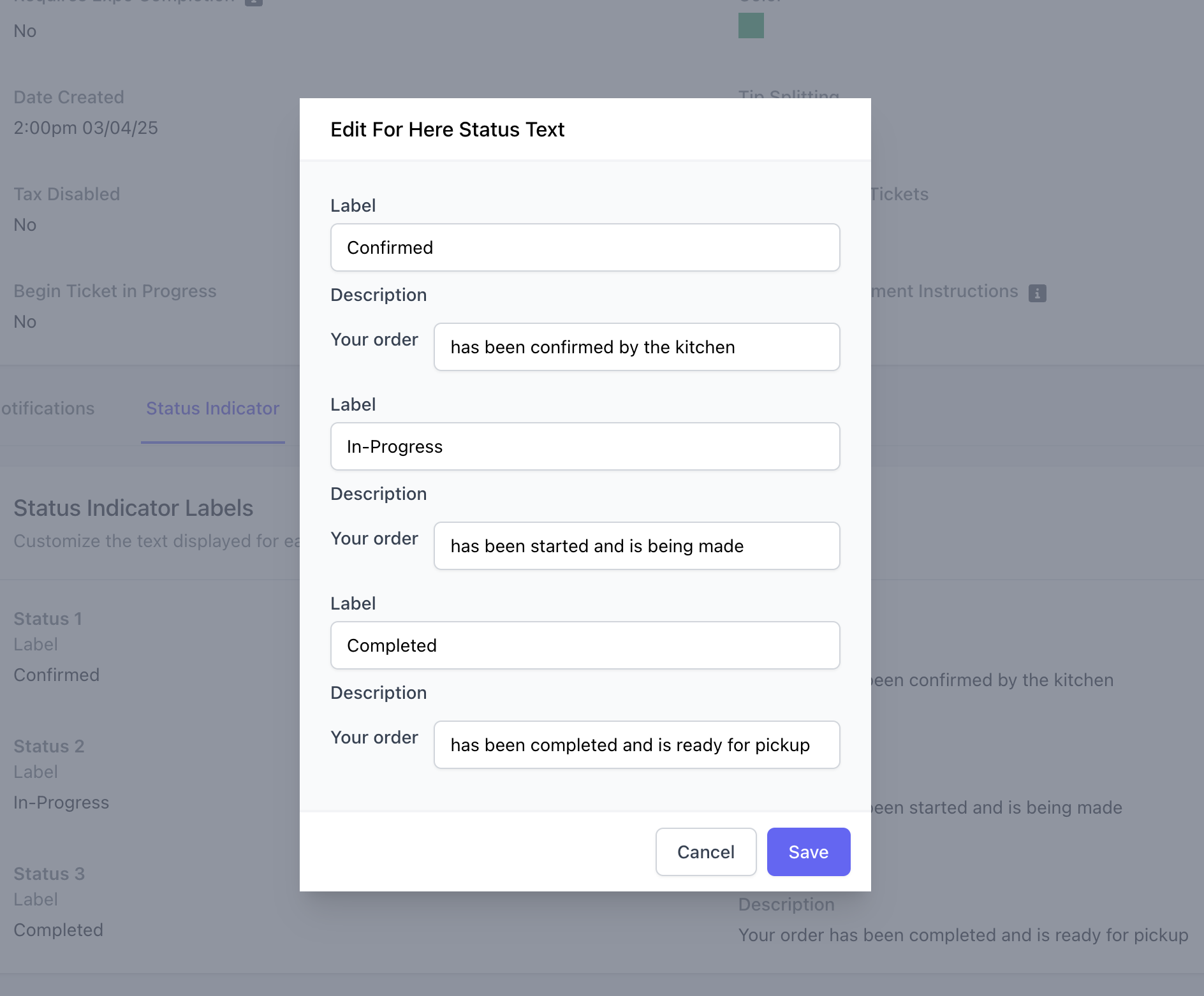 Message to send when an order arrives on the kitchen display screen
Message to send when an order is marked as in-progress on the kitchen display screen
Message to send when an order is marked as completed from the kitchen display screen
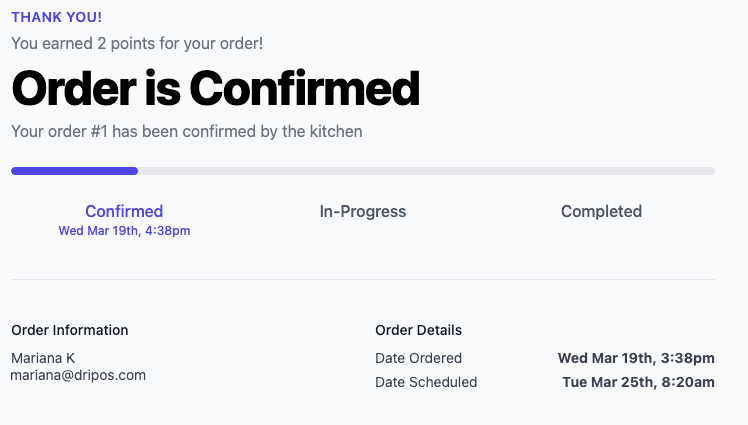
### View Status on Order Website
Message to send when an order arrives on the kitchen display screen
Message to send when an order is marked as in-progress on the kitchen display screen
Message to send when an order is marked as completed from the kitchen display screen
### View Status on Order Website
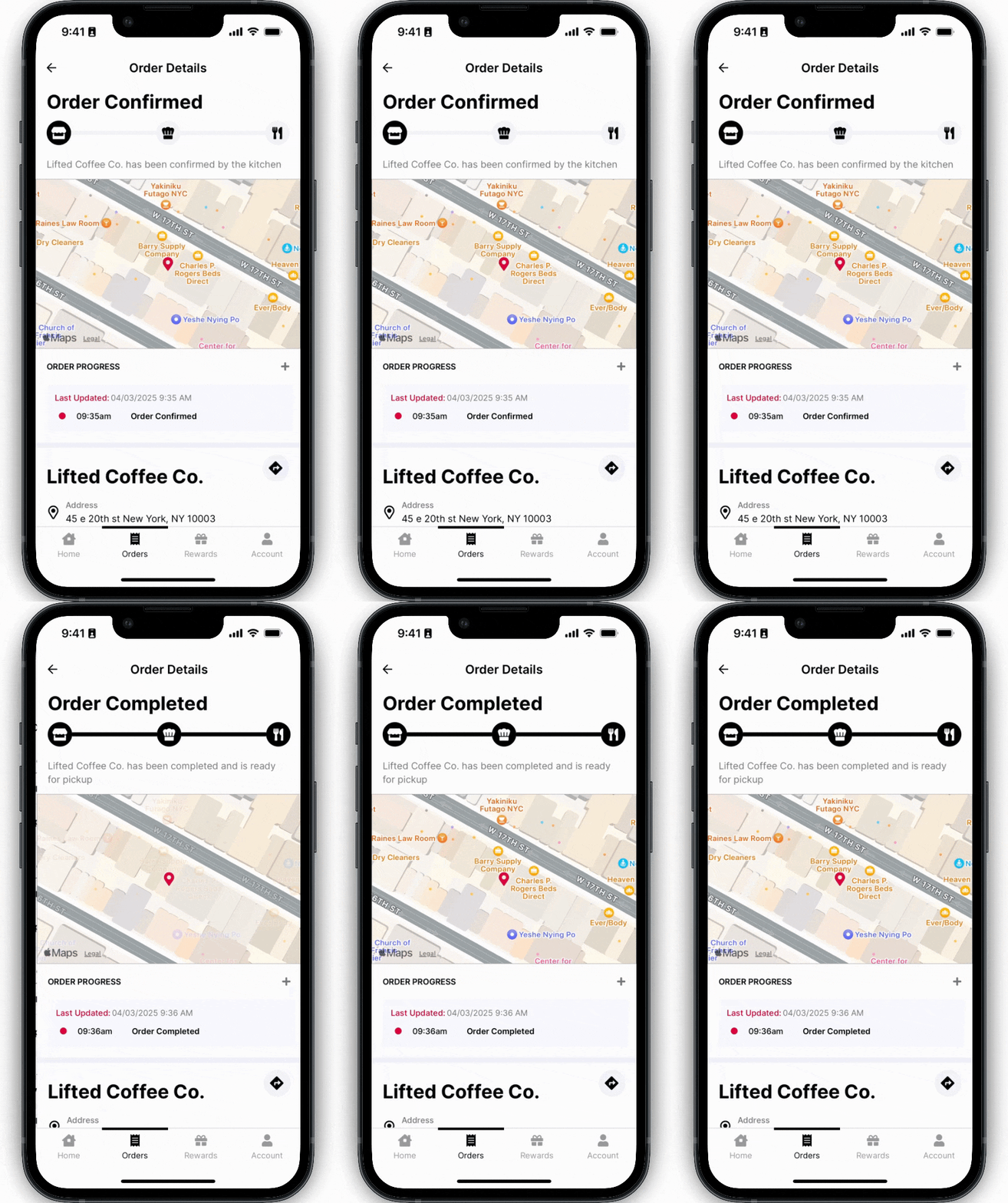
 ### View Status on Order App
 ***
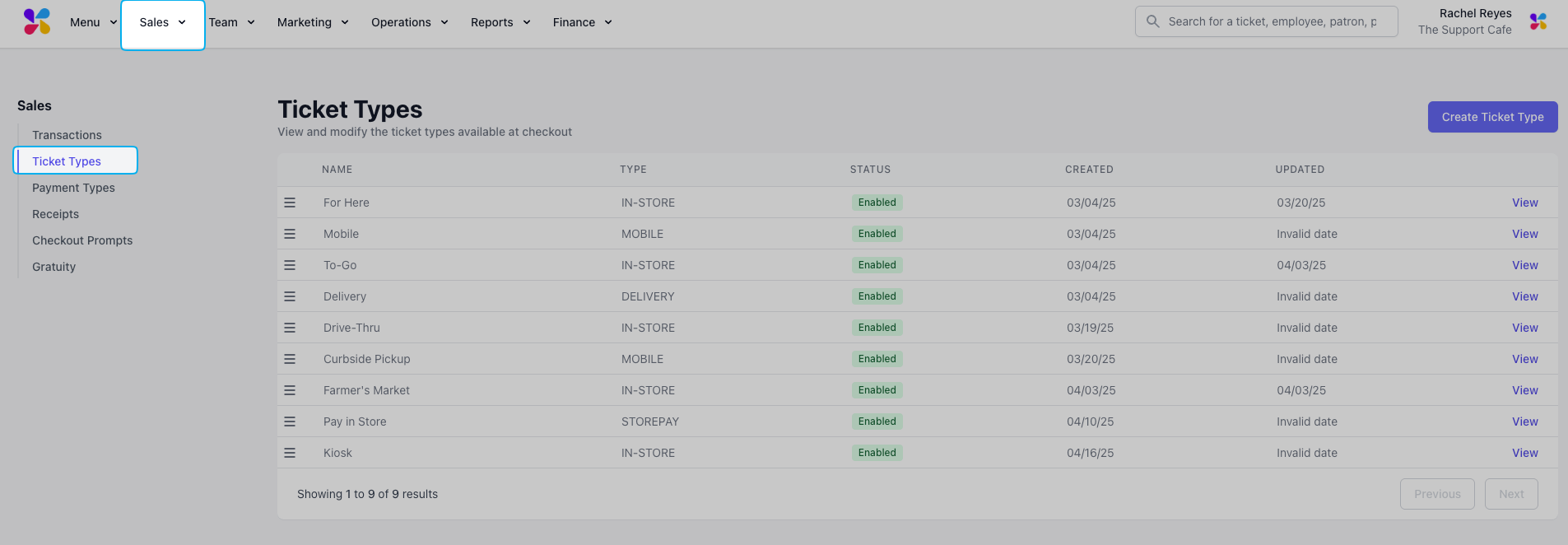
## View Ticket Types
Enable and disable any ticket type on the [Dashboard](https://dashboard.dripos.com/flow/tickets), as well as edit all ticket type components.
***
## View Ticket Types
Enable and disable any ticket type on the [Dashboard](https://dashboard.dripos.com/flow/tickets), as well as edit all ticket type components.
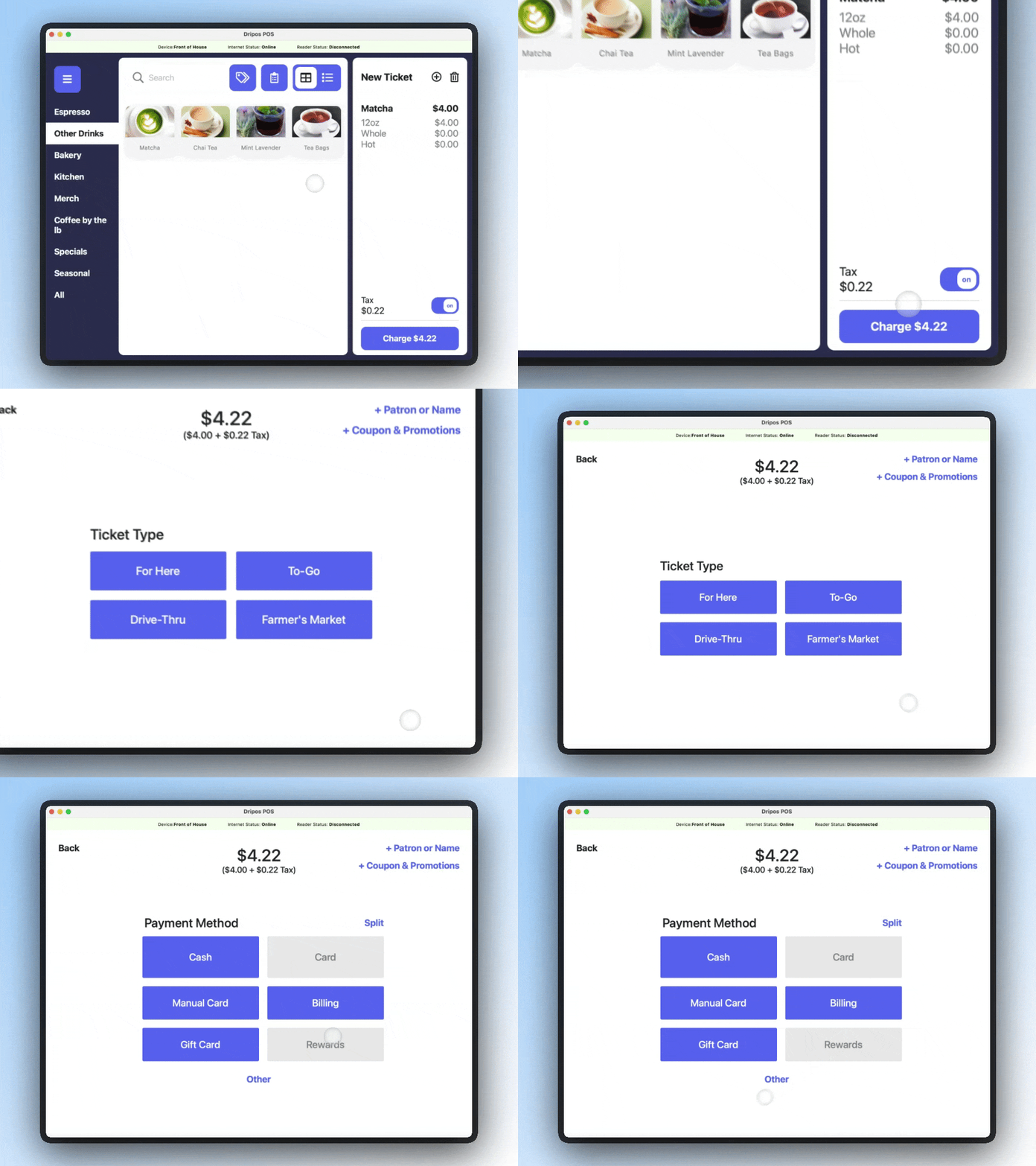
 Determine ticket types for an order upon checkout at the Point of Sale
If your store only uses one ticket type and all orders should default to this ticket, you may disable the ticket type screen during checkout.
On the **Point of Sale**, navigate to the system settings > **Checkout Screens** > toggle **off** **Show Order Type Screen**
Determine ticket types for an order upon checkout at the Point of Sale
If your store only uses one ticket type and all orders should default to this ticket, you may disable the ticket type screen during checkout.
On the **Point of Sale**, navigate to the system settings > **Checkout Screens** > toggle **off** **Show Order Type Screen**
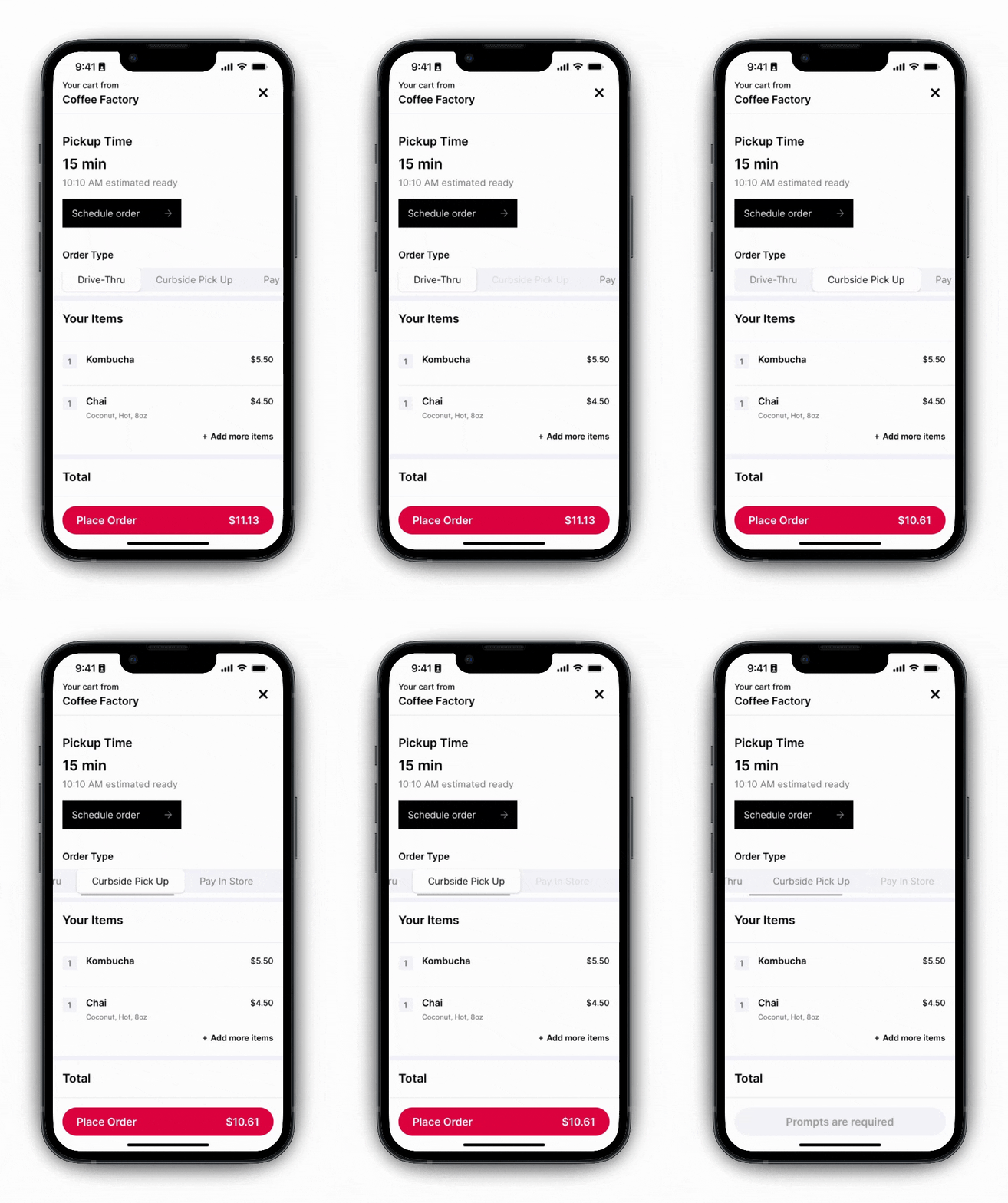
 When ticket types are enabled on **Mobile** platforms, patrons can select any ticket types available to them on the order website.
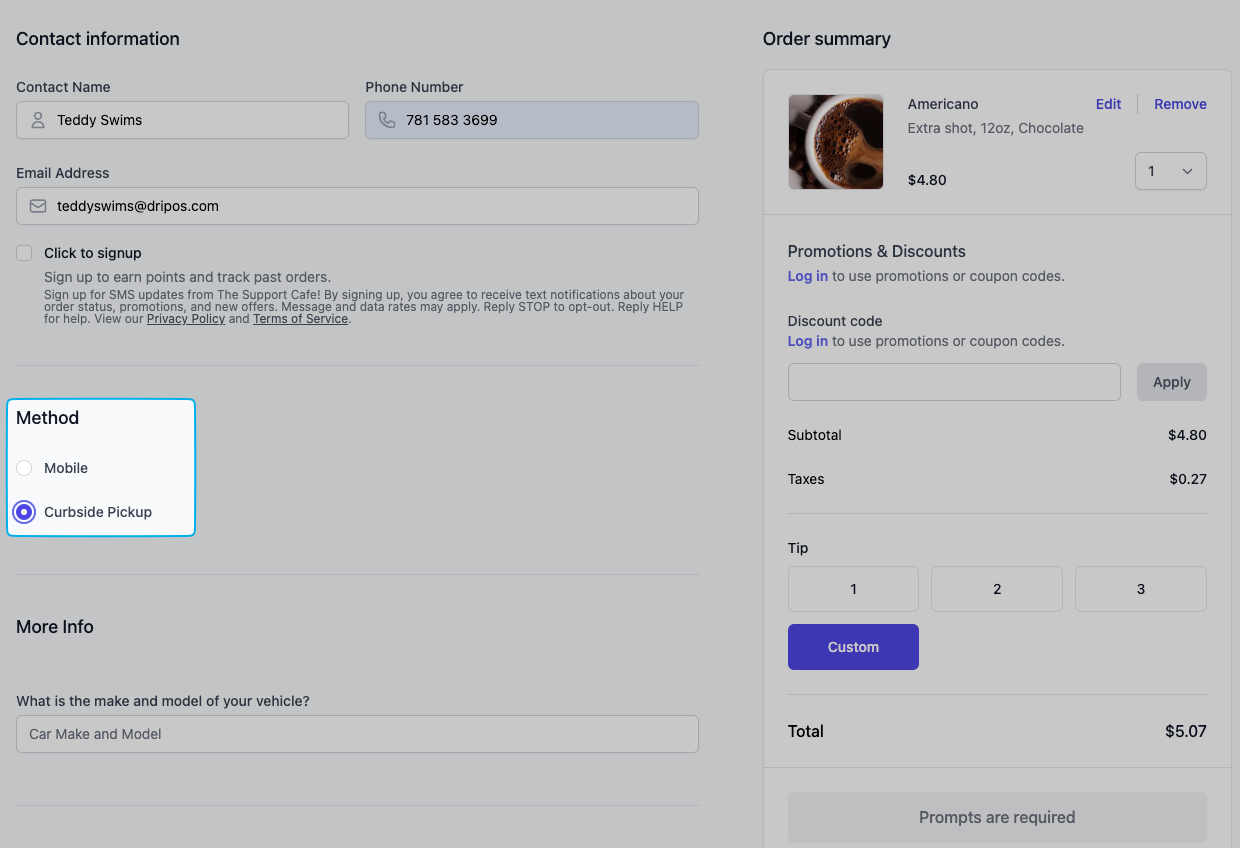 When ticket types are enabled on **Mobile** platforms, patrons can select any ticket types available to them on the order app.