> ## Documentation Index
> Fetch the complete documentation index at: https://support.dripos.com/llms.txt
> Use this file to discover all available pages before exploring further.
# Explore Discounts
> Learn about the different types of discounts Dripos offers
## Product Discounts
Product discounts are discounts that can be applied to an individual product
Product discounts are can be applied to a product when adding a product to cart
Product discounts are only applied on the Point of Sale
### Create Product Discounts
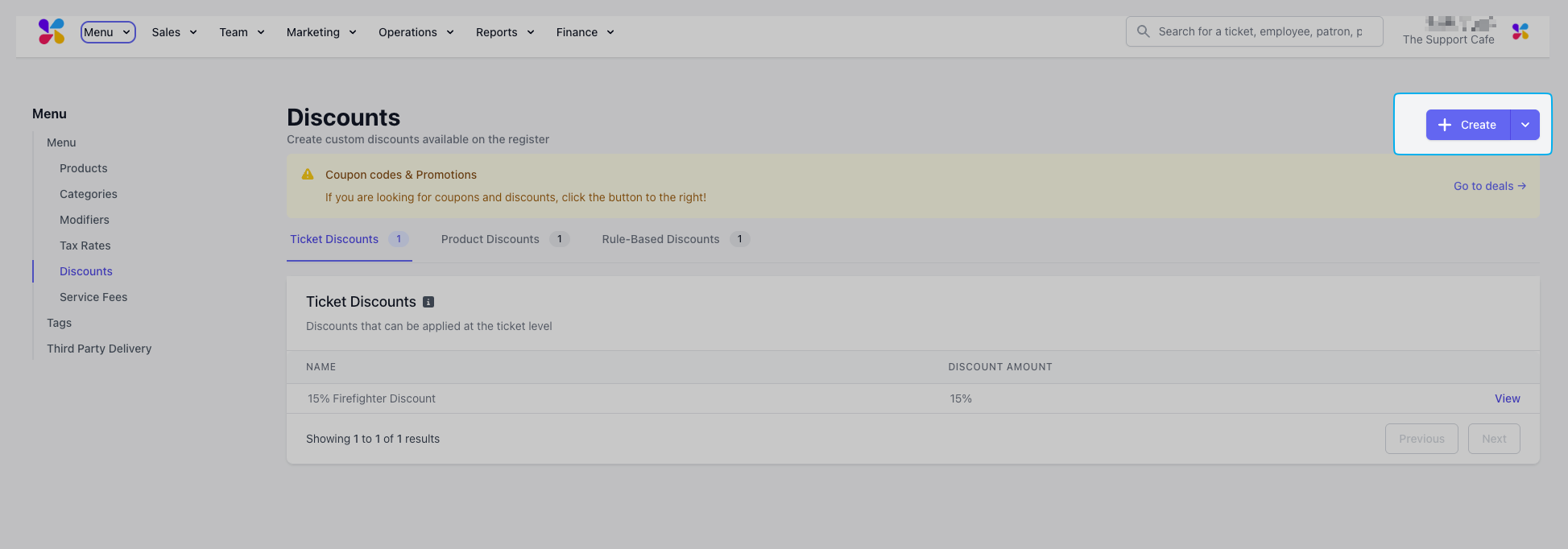
On the **Dashboard,** click **Menu** > **Discounts**. On the **Discounts** page, click **Create Discount** > **Product Discount**.
 Complete the following fields and click **Save**:
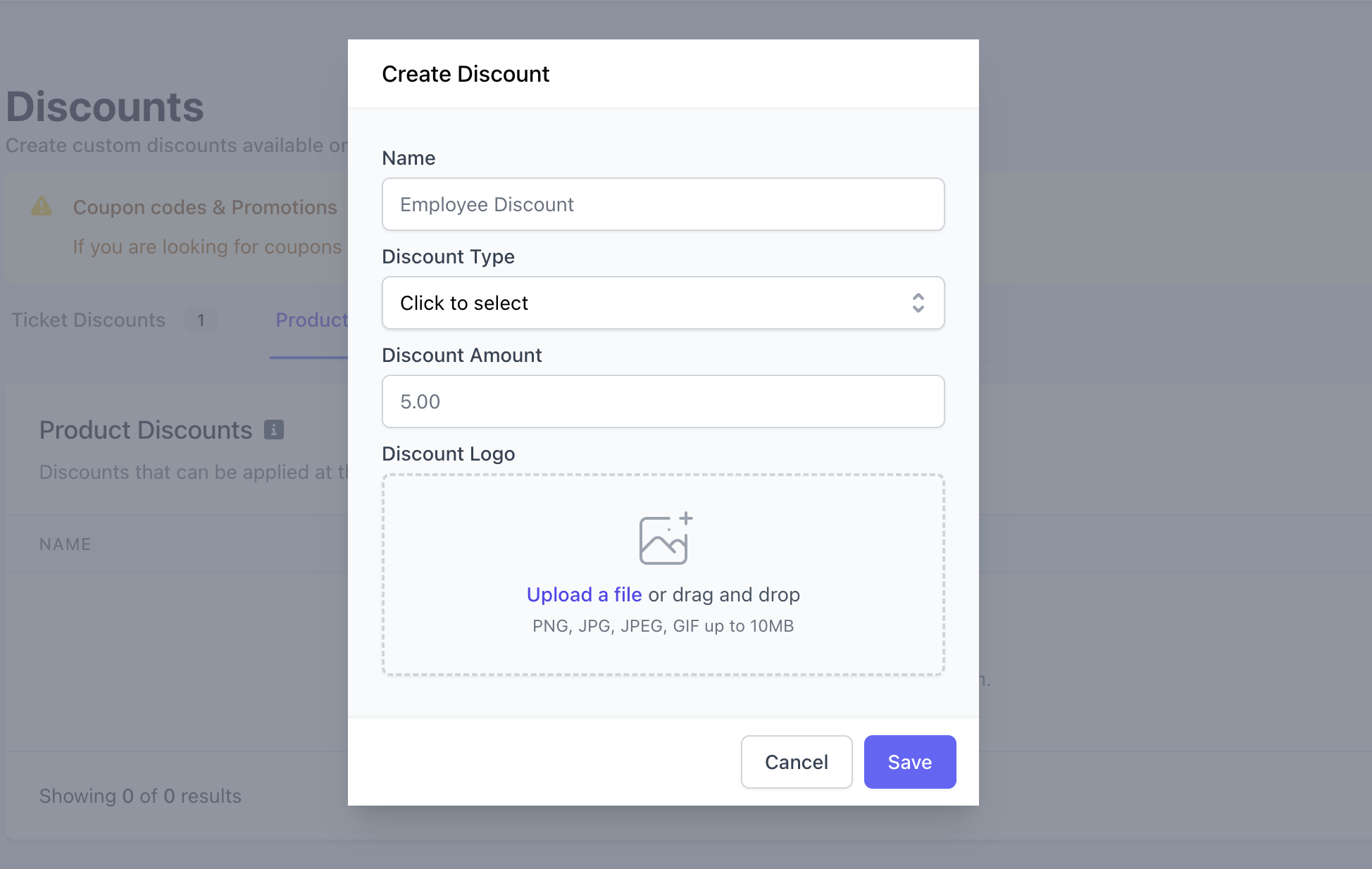 **Flat**: Dollar amount for the discount, **Amount**: 2, i.e. \$2 off a product
**Percent**: Percentage amount for the discount, **Amount**: 10, i.e. 10% off a product
Click **Add Product**.
**Flat**: Dollar amount for the discount, **Amount**: 2, i.e. \$2 off a product
**Percent**: Percentage amount for the discount, **Amount**: 10, i.e. 10% off a product
Click **Add Product**.
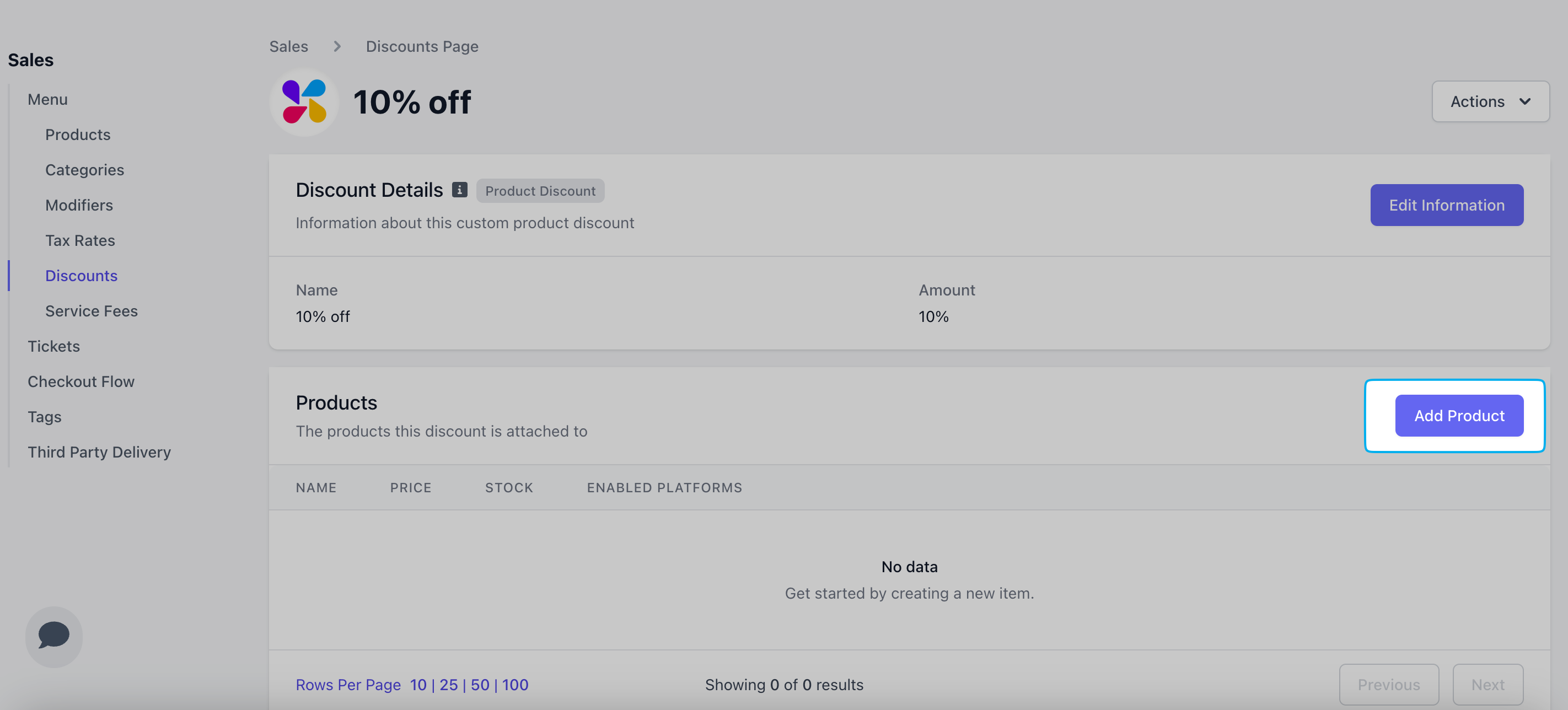 Add one or multiple products at a time > click **Save**.
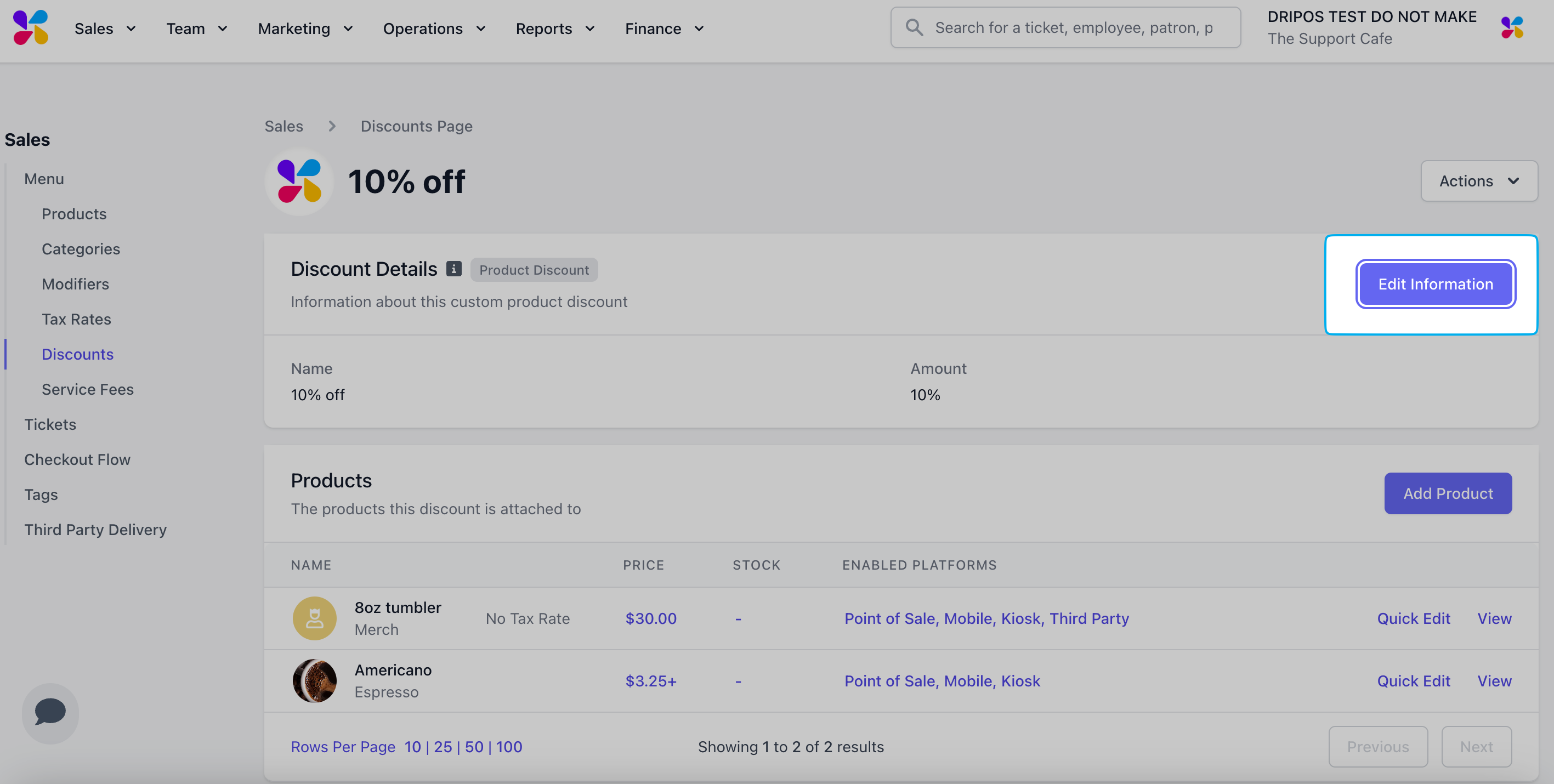
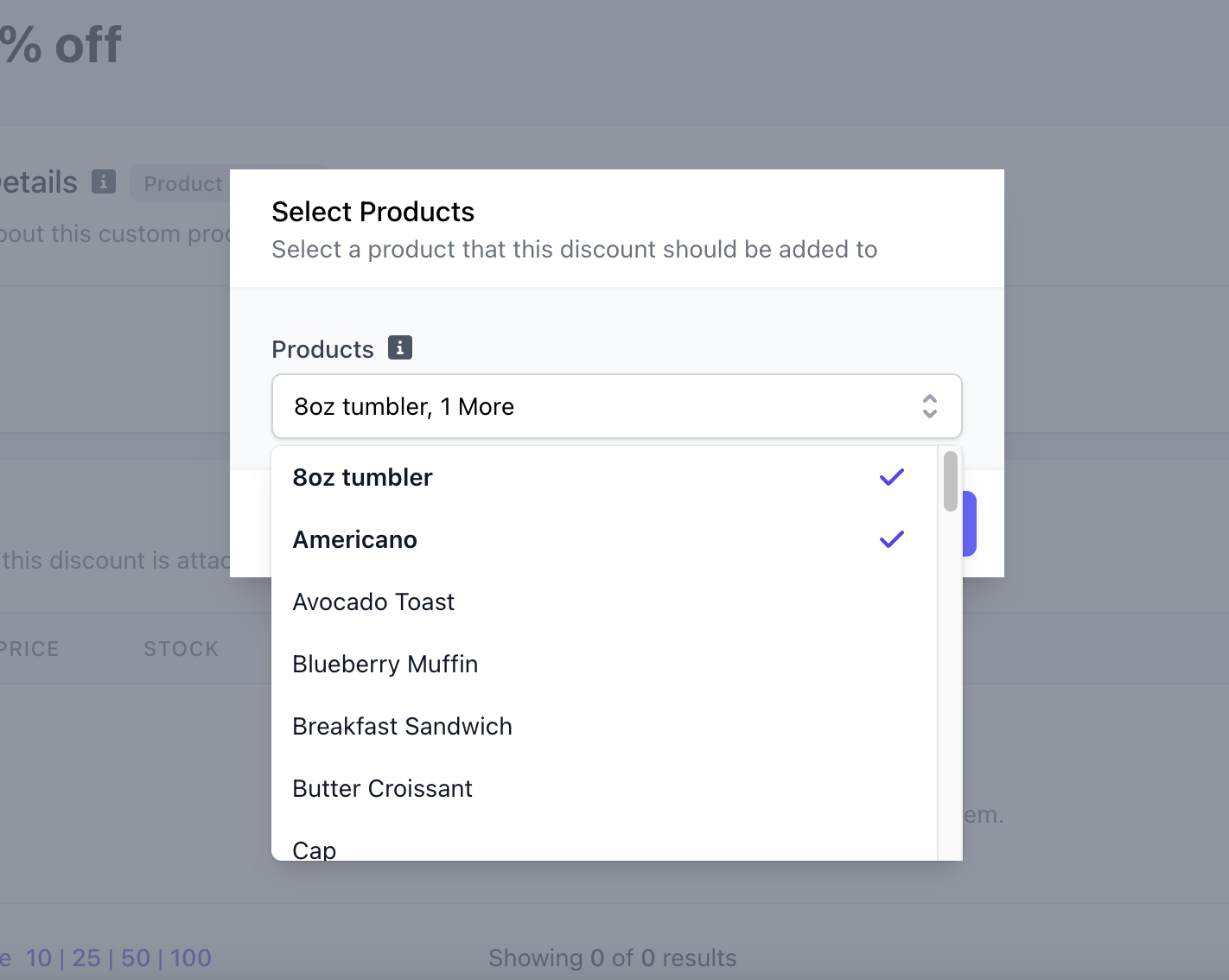 Edit this product discount's name, type, and amount at any time by clicking **Edit Information**.
 ### Apply Product Discounts
Apply product discounts from the Point of Sale and DriposGO
**Point of Sale**
Press a product to add to cart
Scroll to the bottom of the product page > press the product discount > press **Add** to cart
Additionally, click on the product in cart to add or remove a product discount
**Dripos GO**
### Apply Product Discounts
Apply product discounts from the Point of Sale and DriposGO
**Point of Sale**
Press a product to add to cart
Scroll to the bottom of the product page > press the product discount > press **Add** to cart
Additionally, click on the product in cart to add or remove a product discount
**Dripos GO**
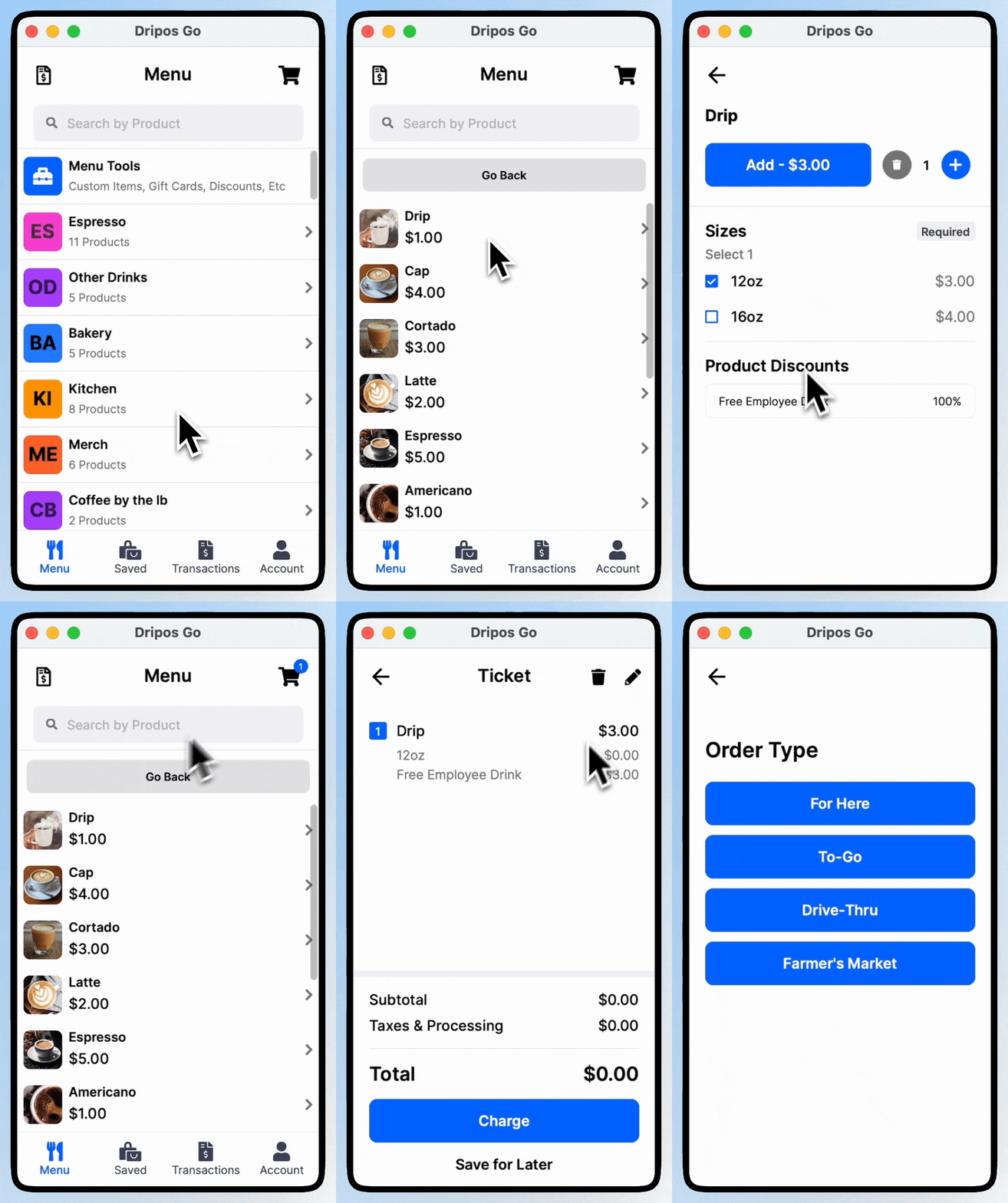 Select a product to add to cart
Before adding to cart, select the product discount listed at the bottom of the product's page.
Any applicable product modifiers will be listed for use. Tap to add the discount and add the product to cart.
**How to detach a discount from a product's page:**
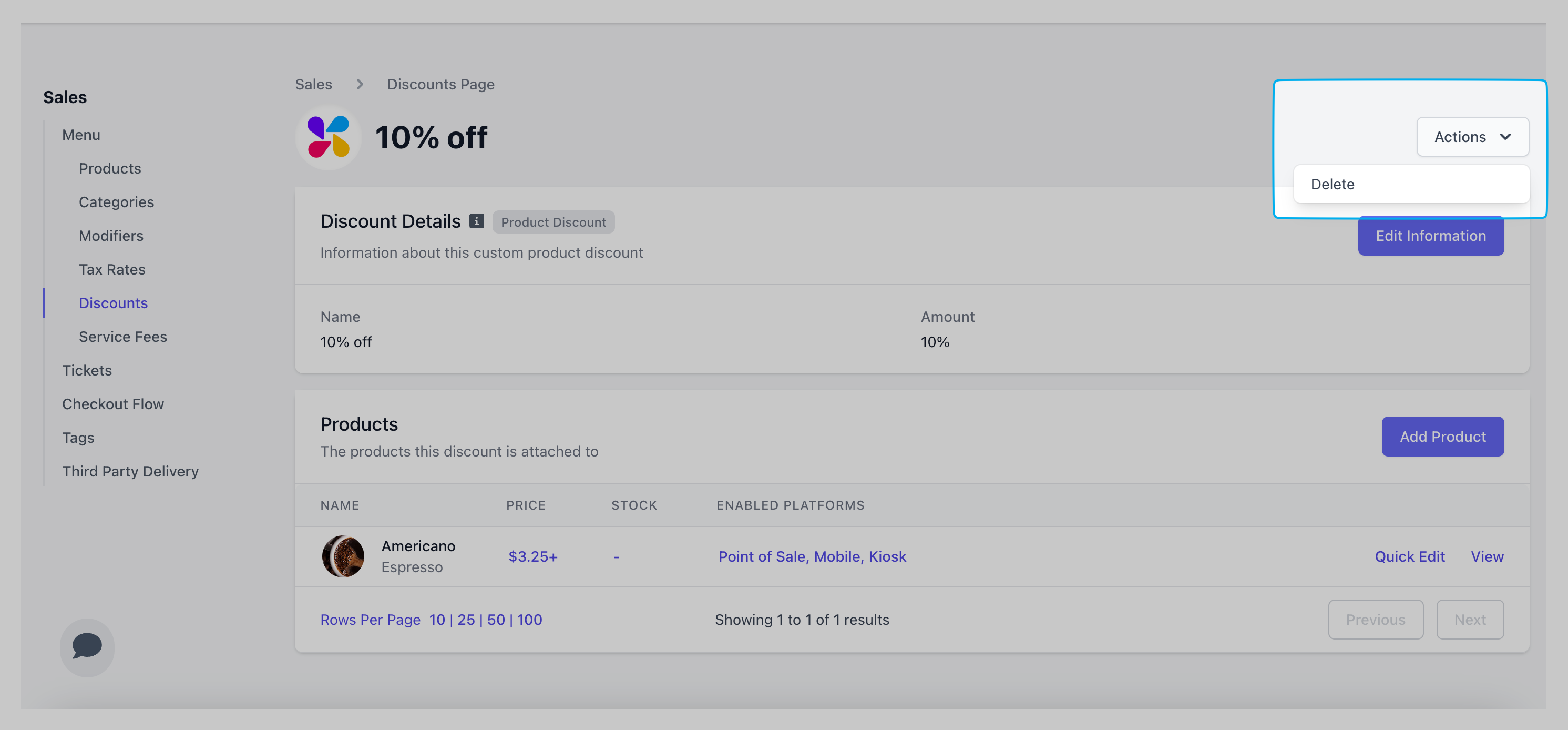
Navigate to the discount page itself (**Menu** > **Discounts** > **View** the discount)> click **View** on the product to remove from this discount.
Select a product to add to cart
Before adding to cart, select the product discount listed at the bottom of the product's page.
Any applicable product modifiers will be listed for use. Tap to add the discount and add the product to cart.
**How to detach a discount from a product's page:**
Navigate to the discount page itself (**Menu** > **Discounts** > **View** the discount)> click **View** on the product to remove from this discount.
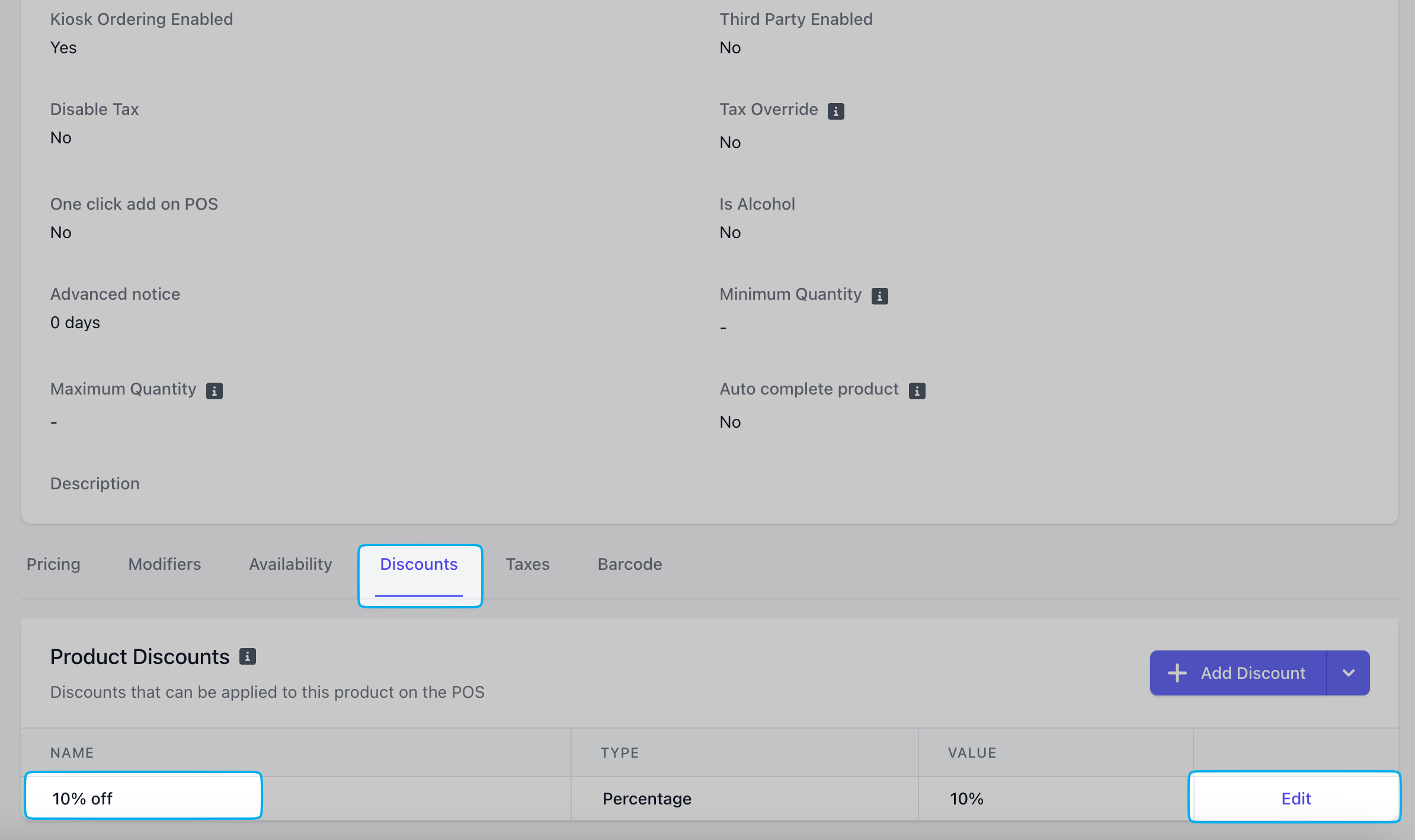
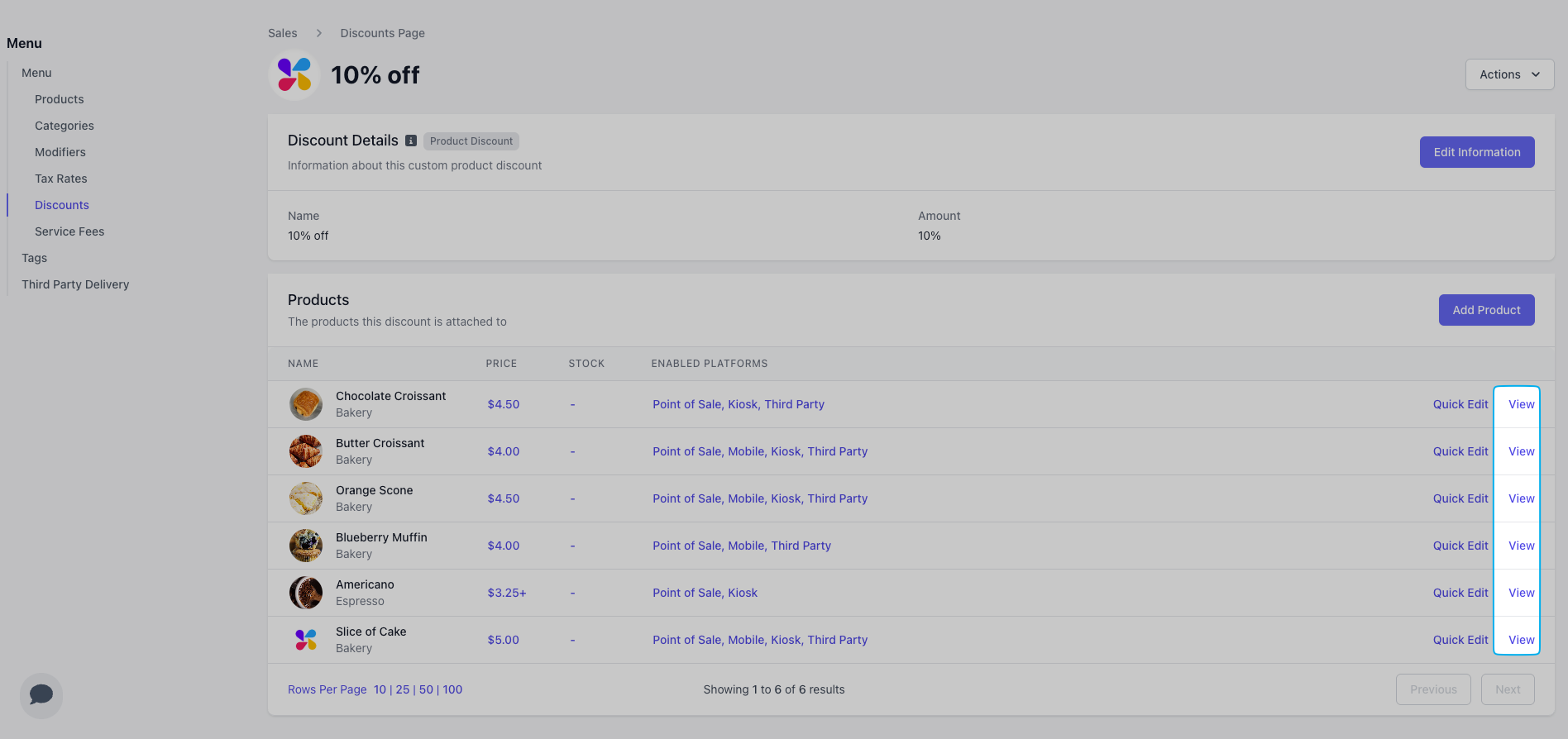 Scroll to the bottom of the product's page > click **Discounts** > click **Edit**
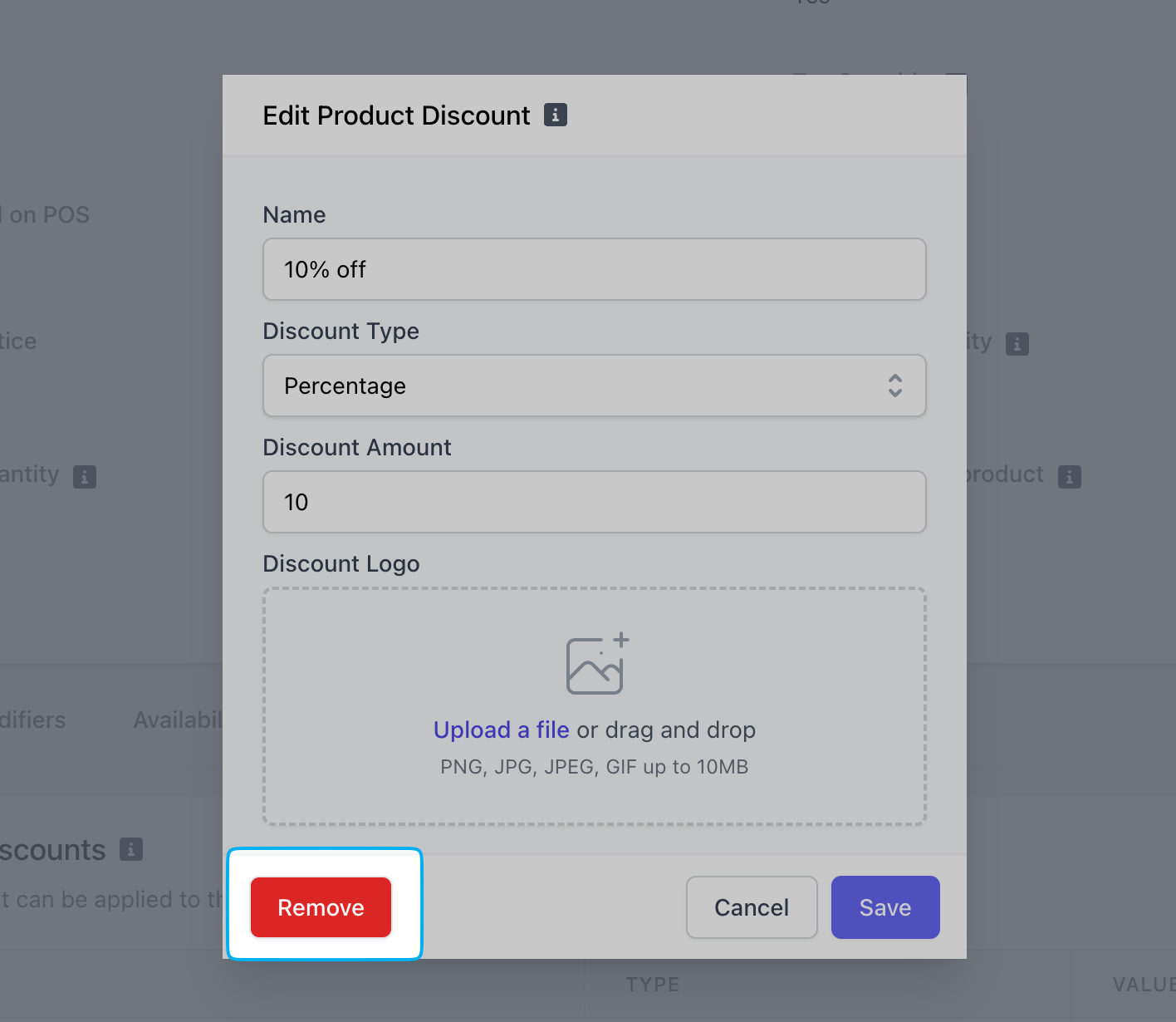
 Click **Remove** to detach this discount from the product
 Navigate to the discount page itself (**Menu** > **Discounts** > **View** the discount) > click **Actions** > **Delete**
 ***
## Ticket Discounts
Ticket discounts are discounts that will apply to an entire order
Ticket discounts can be applied to an order at any point before clicking 'Charge' and proceeding to payment
Ticket discounts are only applied on the Point of Sale
### Create Ticket Discounts
On the **Dashboard,** click **Menu** > **Discounts**. On the **Discounts** page, click **Create Discount** > **Ticket Discount**
Complete the following fields and click **Save**:
**Flat**: Dollar amount for the discount, **Amount**: 5, i.e. \$5 off an order
**Percent**: Percentage amount for the discount, **Amount**: 20, i.e. 20% off an order
Edit this ticket discount's name, type, and amount at any time by clicking **Edit Information**.
### Apply Ticket Discounts
Apply ticket discounts from the Point of Sale and Dripos GO.
**Point of Sale**
Add products to cart
Press the **tag icon** at the top of the register to navigate to the **Main Register Page**
Under **Discounts**, press the ticket discount you've created to apply it to the entire order
**Dripos GO**
Add product to cart
Return back to menu home page and press **Menu Tools**
Press **Discounts** and add a premade ticket discount
Navigate to the discount page itself (**Menu** > **Discounts** > **View** the discount) > click **Actions** > **Delete**
***
## Ticket Discounts
Ticket discounts are discounts that will apply to an entire order
Ticket discounts can be applied to an order at any point before clicking 'Charge' and proceeding to payment
Ticket discounts are only applied on the Point of Sale
### Create Ticket Discounts
On the **Dashboard,** click **Menu** > **Discounts**. On the **Discounts** page, click **Create Discount** > **Ticket Discount**
Complete the following fields and click **Save**:
**Flat**: Dollar amount for the discount, **Amount**: 5, i.e. \$5 off an order
**Percent**: Percentage amount for the discount, **Amount**: 20, i.e. 20% off an order
Edit this ticket discount's name, type, and amount at any time by clicking **Edit Information**.
### Apply Ticket Discounts
Apply ticket discounts from the Point of Sale and Dripos GO.
**Point of Sale**
Add products to cart
Press the **tag icon** at the top of the register to navigate to the **Main Register Page**
Under **Discounts**, press the ticket discount you've created to apply it to the entire order
**Dripos GO**
Add product to cart
Return back to menu home page and press **Menu Tools**
Press **Discounts** and add a premade ticket discount
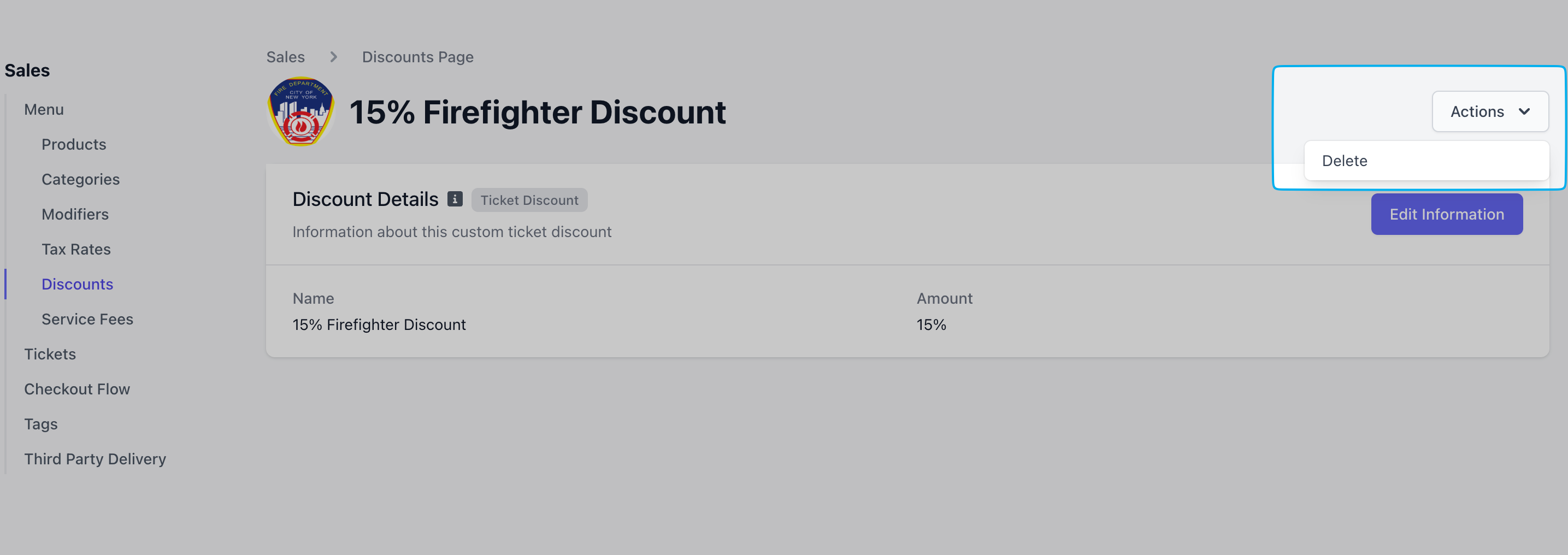
Navigate to the discount page itself (**Menu** > **Discounts** > **View** the discount) > click **Actions** > **Delete**
 ***
## Rule-Based Discounts
Rule-based discounts apply automatically to cart when the products in cart trigger a rule
Rule-based discounts are best for BOGO discounts
Rule-based discounts apply automatically to orders placed on the Point of Sale, Kiosk, Order Website, and Order App.
### Create Rule-Based Discounts
On the **Dashboard,** click **Menu** > **Discounts**. On the **Discounts** page, click **Create Discount**.
Complete the following fields and click **Add**:
***
## Rule-Based Discounts
Rule-based discounts apply automatically to cart when the products in cart trigger a rule
Rule-based discounts are best for BOGO discounts
Rule-based discounts apply automatically to orders placed on the Point of Sale, Kiosk, Order Website, and Order App.
### Create Rule-Based Discounts
On the **Dashboard,** click **Menu** > **Discounts**. On the **Discounts** page, click **Create Discount**.
Complete the following fields and click **Add**:
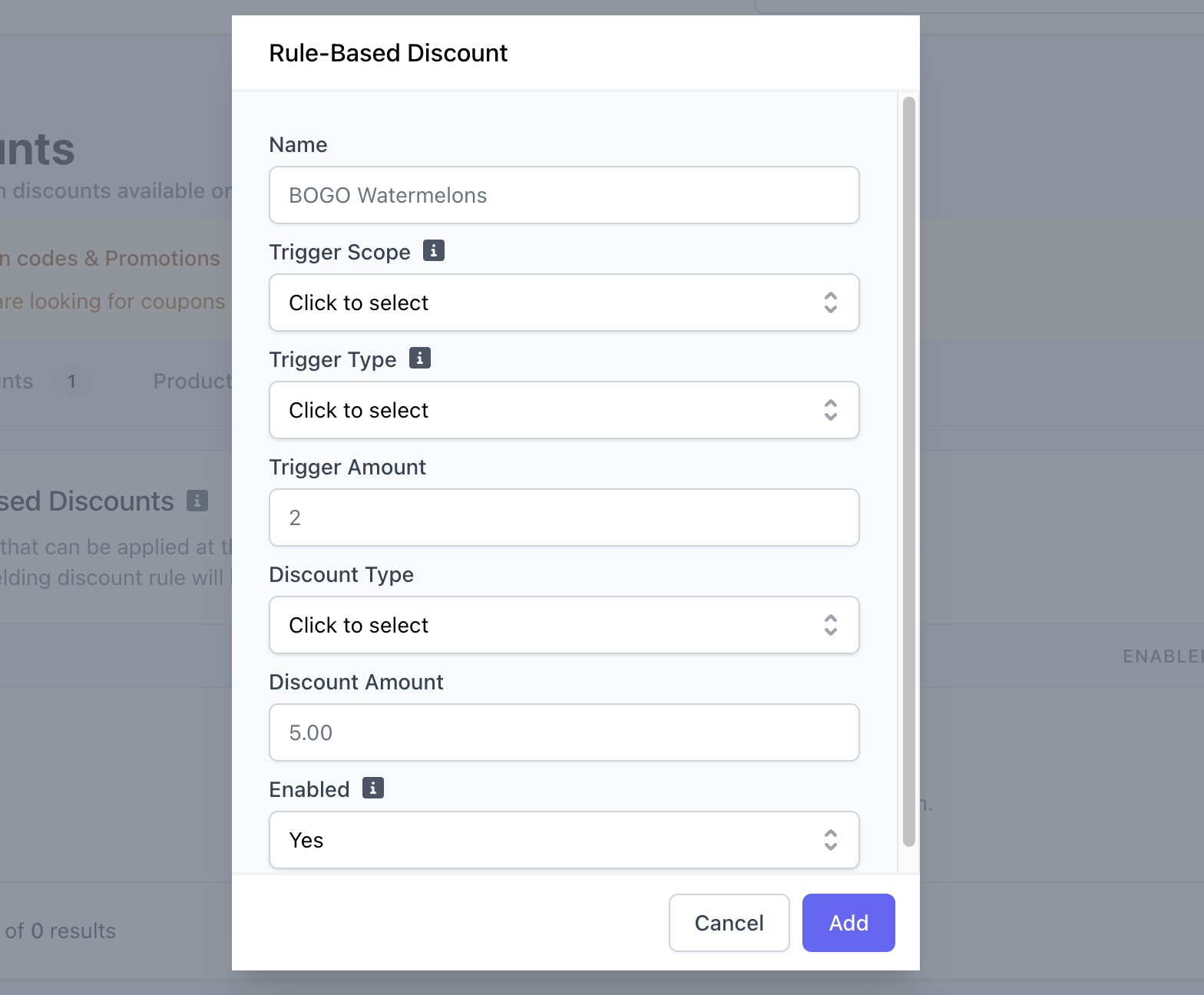 **Product Discount**: When added to cart, the products chosen for this rule will trigger this discount rule to apply to the order if the **Trigger Type** is met
*Example: Americano*
**Category Discount**: When added to cart, the products of the categories chosen for this rule will trigger this discount rule to apply to the order if the **Trigger Type** is met
*Example: Bakery*
**Order Discount**: Any products added to cart can trigger this discount rule to apply if the **Trigger Type** is met
**Dollar Amount**:
If the specified products are added to cart and their total price equals or exceeds the Trigger Dollar Amount, the rule will apply
*Example: Amount is \$5, if two Americanos are added to cart for a total of \$6, this discount will trigger*
If products added to cart are of the specified category and their total price equals or exceeds the Trigger Dollar Amount, the rule will apply
*Example: Amount is \$10, if two scones and a muffin are added to cart for a total of \$10, this discount will trigger*
If the order's total price equals or exceeds the Trigger Dollar Amount, regardless of what is in the cart, the rule will apply
*Example: Amount is \$20, if the cart total is \$20 or greater, this discount will trigger*
**Quantity**:
If the specified products are added to cart and their total price equals or exceeds the Trigger Dollar Amount, the rule will apply
*Example: Amount is 2, if two Americanos are added to cart, this discount will trigger*
If products added to cart are of the specified category and their total price equals or exceeds the Trigger Dollar Amount, the rule will apply
*Example: Amount is 3, if two scones and a muffin are added to cart, this discount will trigger*
If the order's total price equals or exceeds the Trigger Dollar Amount, regardless of what is in the cart, the rule will apply
*Example: Amount is 5, if five or more products are added to cart, this discount will trigger*
**Flat**: Dollar discount amount, i.e. **Discount Amount** = 5 = \$5
Dollar amount to discount off one singular product in cart (the lowest priced product will be discounted)
*Example: Trigger amount is \$5, Discount amount is \$2, if two Americanos are added to cart (\$3/ea), one Americano will be discounted \$2*
Dollar amount to discount off one singular product of that category in cart (the lowest priced product will be discounted)
*Example: Trigger amount is 3, Discount amount is \$1, if two scones (\$2/ea) and a muffin (\$3/ea) are added to cart, one scone will be discounted \$1*
Dollar amount to discount from the order total
*Example: Trigger amount is 5, Discount amount is 10%, if five or more products are added to cart, the order total will be discounted 10%*
**Percent**: Percent discount amount, i.e. **Discount Amount** = 10 = 10%
Percentage amount to discount off one singular product in cart (the lowest priced product will be discounted)
*Example: Trigger amount is \$5, Discount amount is 20%, if two Americanos are added to cart (\$3/ea), one Americano will be discounted 20%*
Percentage amount to discount off one singular product of that category in cart (the lowest priced product will be discounted)
*Example: Trigger amount is 3, Discount amount is 20%, if two scones (\$2/ea) and a muffin (\$3/ea) are added to cart, one scone will be discounted 20%*
Percentage amount to discount the order total
*Example: Trigger amount is 5, Discount amount is 10, if five or more products are added to cart, the order total will be discounted 10%*
**Yes**: This rule-based discount will apply to cart automatically if triggered
**No**: This rule-based discount is not active and will not apply to cart automatically
Select **Forever** keep this setting active indefinitely. Select **Date Range** to specify a start and end date for this rule-based discount.
Select which days of the week this rule will be active on during the set date range.
Select the date this discount will first be active. If **Date Range** was selected, select the end date of this rule-based discount.
Select the start and end time that this discount will be active on the specified days of the week you've select.
### Apply Rule-Based Discounts
When Enabled = **Yes**, a rule-based discount will apply automatically to cart when triggered upon checkout on all order platforms:
**Point of Sale** **Kiosk** **Order Website** **Order App** **Dripos GO**
When Enabled = **No**, a rule-based discount is considered inactive and will not apply to cart on any of the three order platforms.
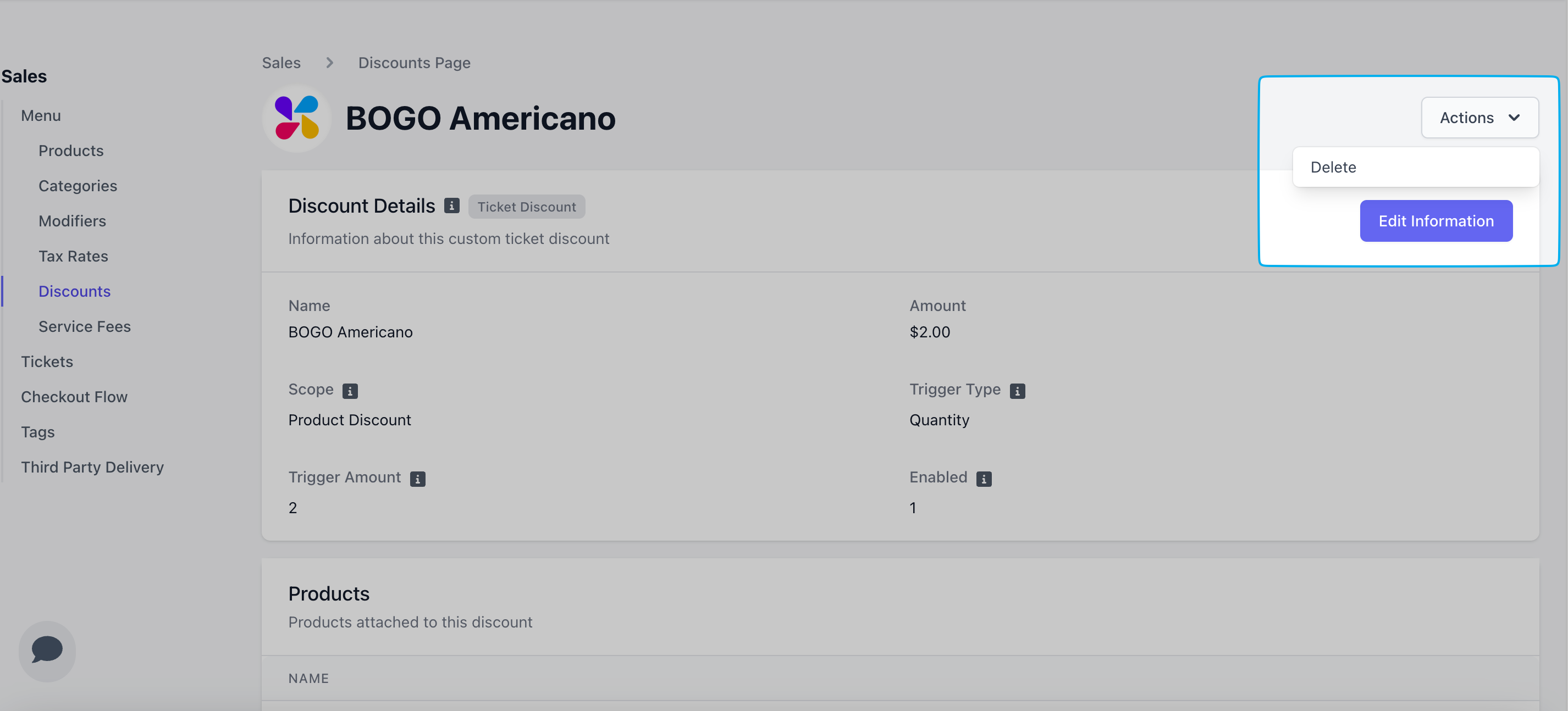
To edit or delete a rule-based discount, either click **Edit Information** or **Actions** > **Delete**, respectively.
**Product Discount**: When added to cart, the products chosen for this rule will trigger this discount rule to apply to the order if the **Trigger Type** is met
*Example: Americano*
**Category Discount**: When added to cart, the products of the categories chosen for this rule will trigger this discount rule to apply to the order if the **Trigger Type** is met
*Example: Bakery*
**Order Discount**: Any products added to cart can trigger this discount rule to apply if the **Trigger Type** is met
**Dollar Amount**:
If the specified products are added to cart and their total price equals or exceeds the Trigger Dollar Amount, the rule will apply
*Example: Amount is \$5, if two Americanos are added to cart for a total of \$6, this discount will trigger*
If products added to cart are of the specified category and their total price equals or exceeds the Trigger Dollar Amount, the rule will apply
*Example: Amount is \$10, if two scones and a muffin are added to cart for a total of \$10, this discount will trigger*
If the order's total price equals or exceeds the Trigger Dollar Amount, regardless of what is in the cart, the rule will apply
*Example: Amount is \$20, if the cart total is \$20 or greater, this discount will trigger*
**Quantity**:
If the specified products are added to cart and their total price equals or exceeds the Trigger Dollar Amount, the rule will apply
*Example: Amount is 2, if two Americanos are added to cart, this discount will trigger*
If products added to cart are of the specified category and their total price equals or exceeds the Trigger Dollar Amount, the rule will apply
*Example: Amount is 3, if two scones and a muffin are added to cart, this discount will trigger*
If the order's total price equals or exceeds the Trigger Dollar Amount, regardless of what is in the cart, the rule will apply
*Example: Amount is 5, if five or more products are added to cart, this discount will trigger*
**Flat**: Dollar discount amount, i.e. **Discount Amount** = 5 = \$5
Dollar amount to discount off one singular product in cart (the lowest priced product will be discounted)
*Example: Trigger amount is \$5, Discount amount is \$2, if two Americanos are added to cart (\$3/ea), one Americano will be discounted \$2*
Dollar amount to discount off one singular product of that category in cart (the lowest priced product will be discounted)
*Example: Trigger amount is 3, Discount amount is \$1, if two scones (\$2/ea) and a muffin (\$3/ea) are added to cart, one scone will be discounted \$1*
Dollar amount to discount from the order total
*Example: Trigger amount is 5, Discount amount is 10%, if five or more products are added to cart, the order total will be discounted 10%*
**Percent**: Percent discount amount, i.e. **Discount Amount** = 10 = 10%
Percentage amount to discount off one singular product in cart (the lowest priced product will be discounted)
*Example: Trigger amount is \$5, Discount amount is 20%, if two Americanos are added to cart (\$3/ea), one Americano will be discounted 20%*
Percentage amount to discount off one singular product of that category in cart (the lowest priced product will be discounted)
*Example: Trigger amount is 3, Discount amount is 20%, if two scones (\$2/ea) and a muffin (\$3/ea) are added to cart, one scone will be discounted 20%*
Percentage amount to discount the order total
*Example: Trigger amount is 5, Discount amount is 10, if five or more products are added to cart, the order total will be discounted 10%*
**Yes**: This rule-based discount will apply to cart automatically if triggered
**No**: This rule-based discount is not active and will not apply to cart automatically
Select **Forever** keep this setting active indefinitely. Select **Date Range** to specify a start and end date for this rule-based discount.
Select which days of the week this rule will be active on during the set date range.
Select the date this discount will first be active. If **Date Range** was selected, select the end date of this rule-based discount.
Select the start and end time that this discount will be active on the specified days of the week you've select.
### Apply Rule-Based Discounts
When Enabled = **Yes**, a rule-based discount will apply automatically to cart when triggered upon checkout on all order platforms:
**Point of Sale** **Kiosk** **Order Website** **Order App** **Dripos GO**
When Enabled = **No**, a rule-based discount is considered inactive and will not apply to cart on any of the three order platforms.
To edit or delete a rule-based discount, either click **Edit Information** or **Actions** > **Delete**, respectively.
 ***
## Custom Discounts
Custom discounts are percentage or dollar discounts that can be applied to a product or order on the fly
Custom discounts are only applied at the Point of Sale
### Create & Apply Custom Discounts
Custom Discounts can be applied at the product level and the ticket level from the Point of Sale
Before adding the product to cart, scroll to the bottom of the product's page and select either **Add Percent Discount** or **Add Dollar Discount**.
***
## Custom Discounts
Custom discounts are percentage or dollar discounts that can be applied to a product or order on the fly
Custom discounts are only applied at the Point of Sale
### Create & Apply Custom Discounts
Custom Discounts can be applied at the product level and the ticket level from the Point of Sale
Before adding the product to cart, scroll to the bottom of the product's page and select either **Add Percent Discount** or **Add Dollar Discount**.
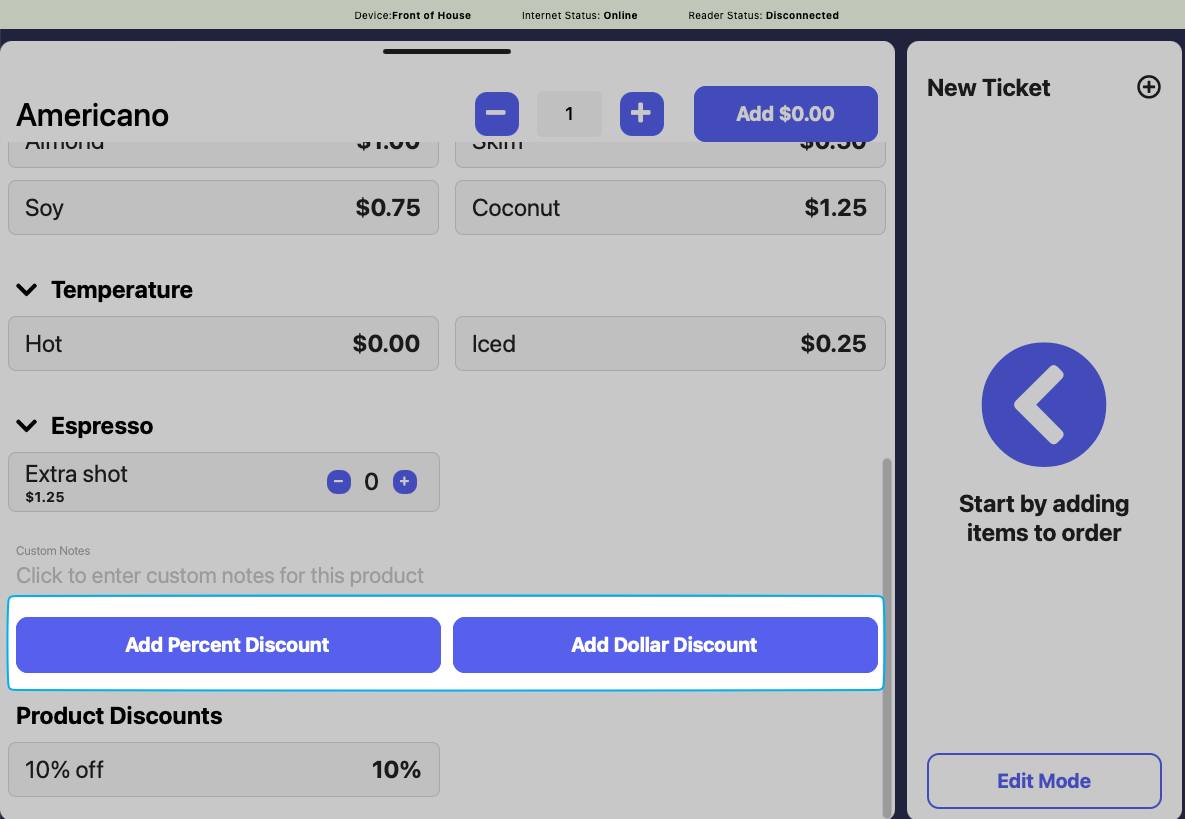 Press **Add** discount and then **Add** the product to cart
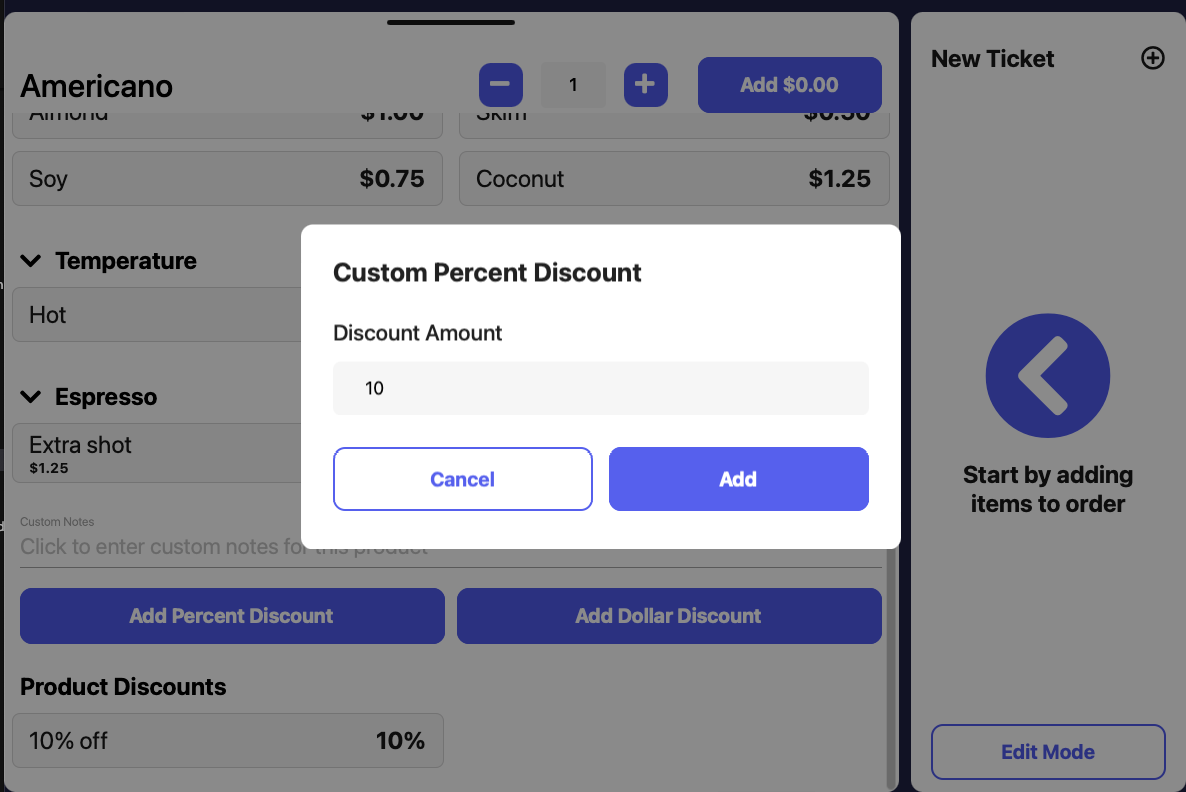 The custom discount will attach itself to the product in cart
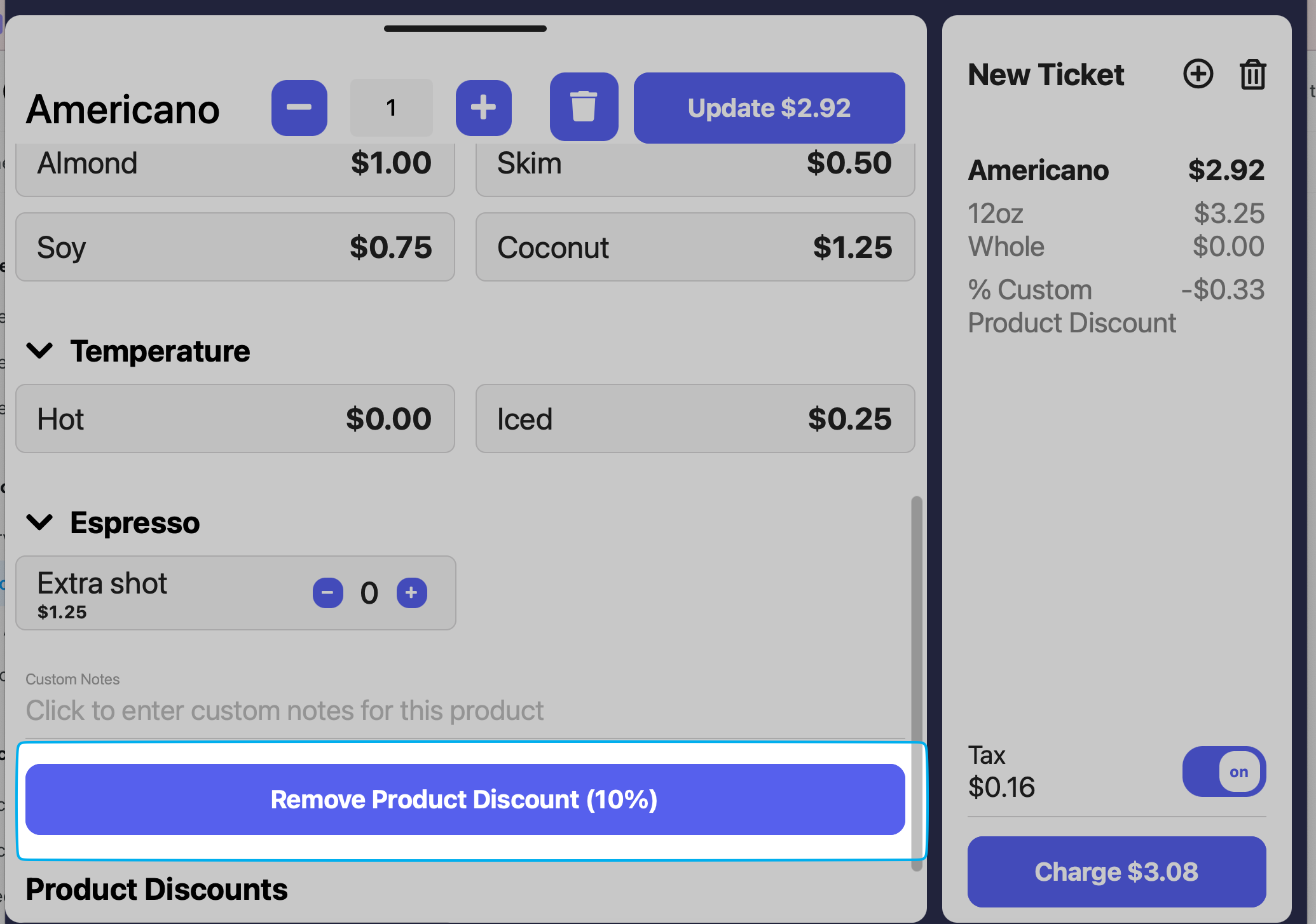
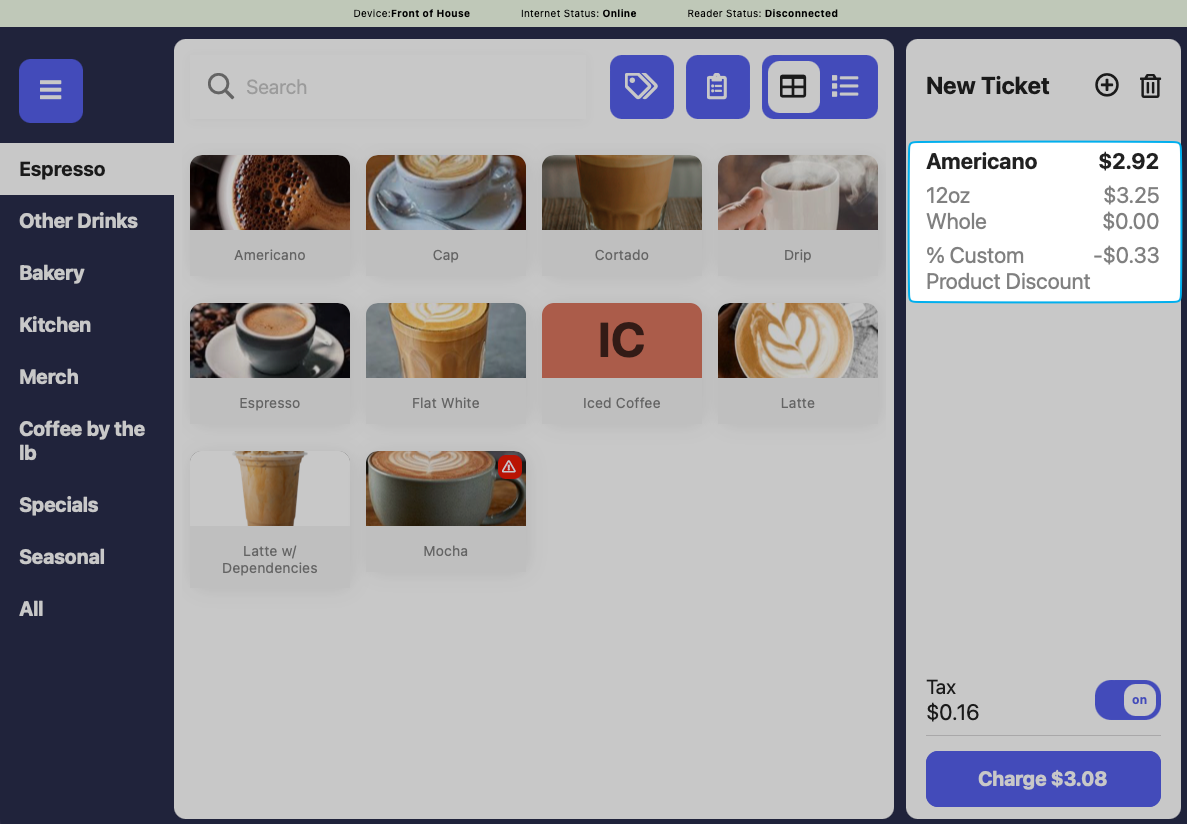 To delete a custom product discount, press on the product in the cart > scroll to the bottom of the product page and press **Remove Product Discount** > **Update**
 Add products to cart
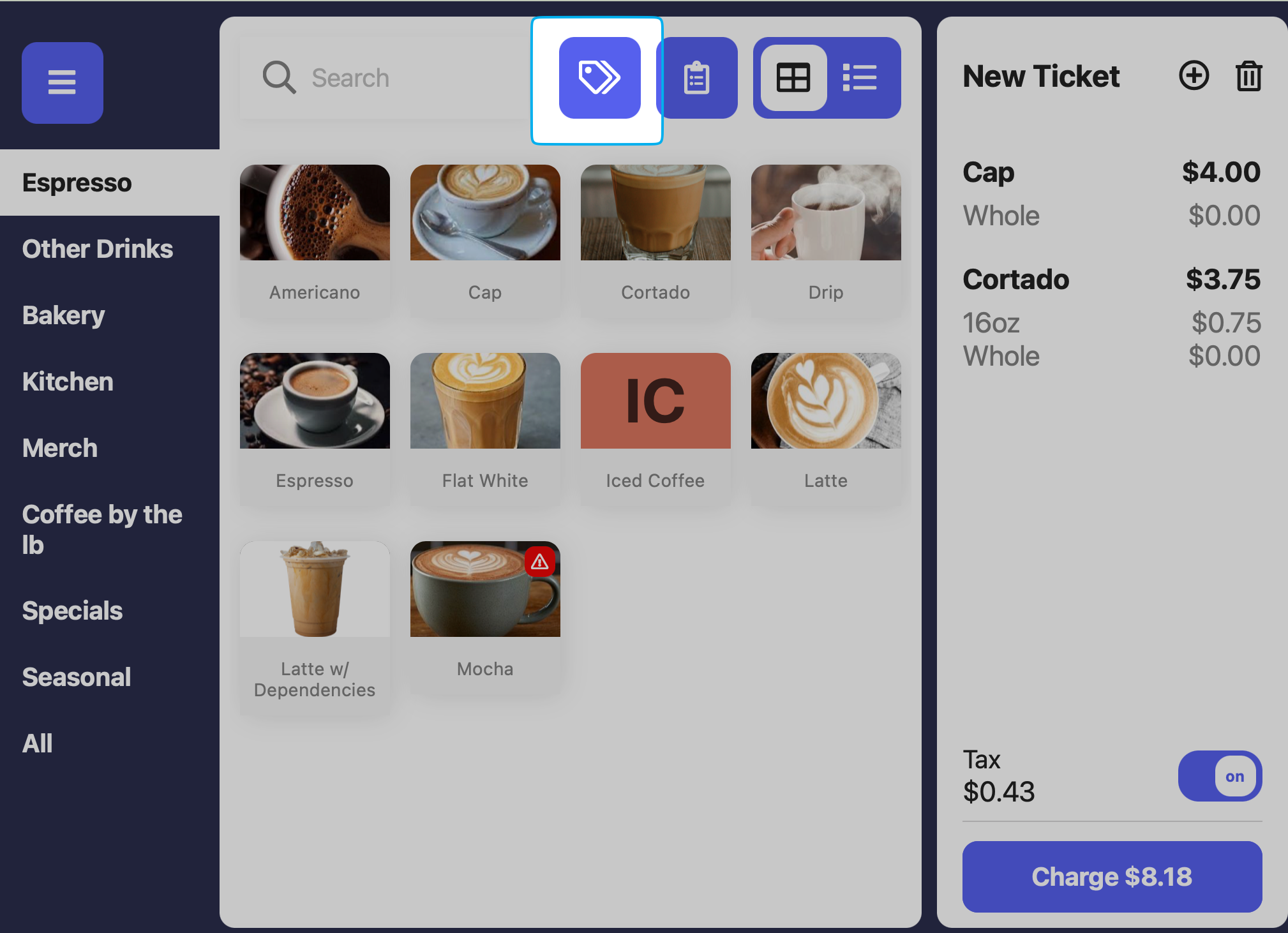
Before checkout, press the **tag icon** at the top of the register to navigate to the **Main Register Page**
Add products to cart
Before checkout, press the **tag icon** at the top of the register to navigate to the **Main Register Page**
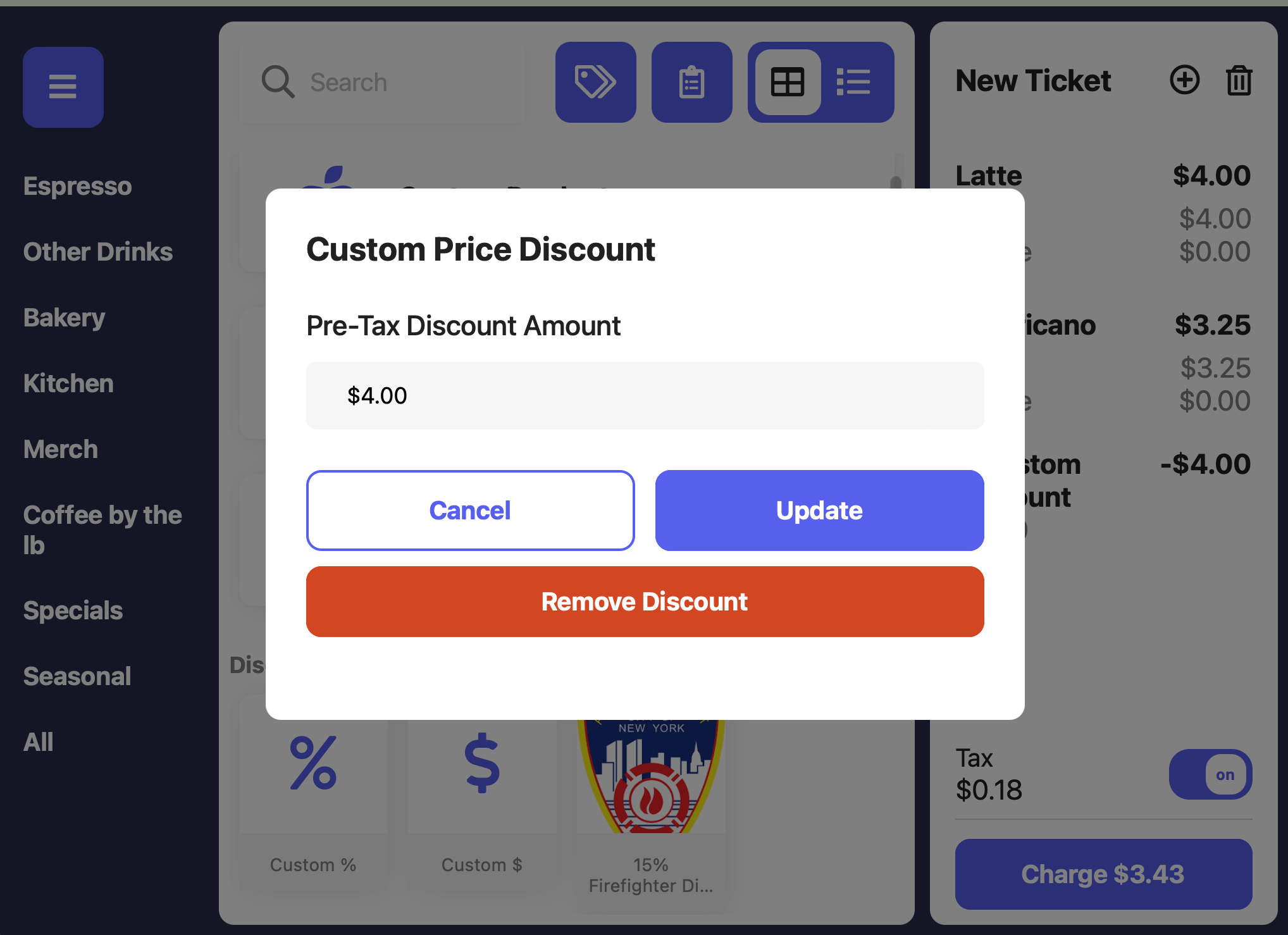
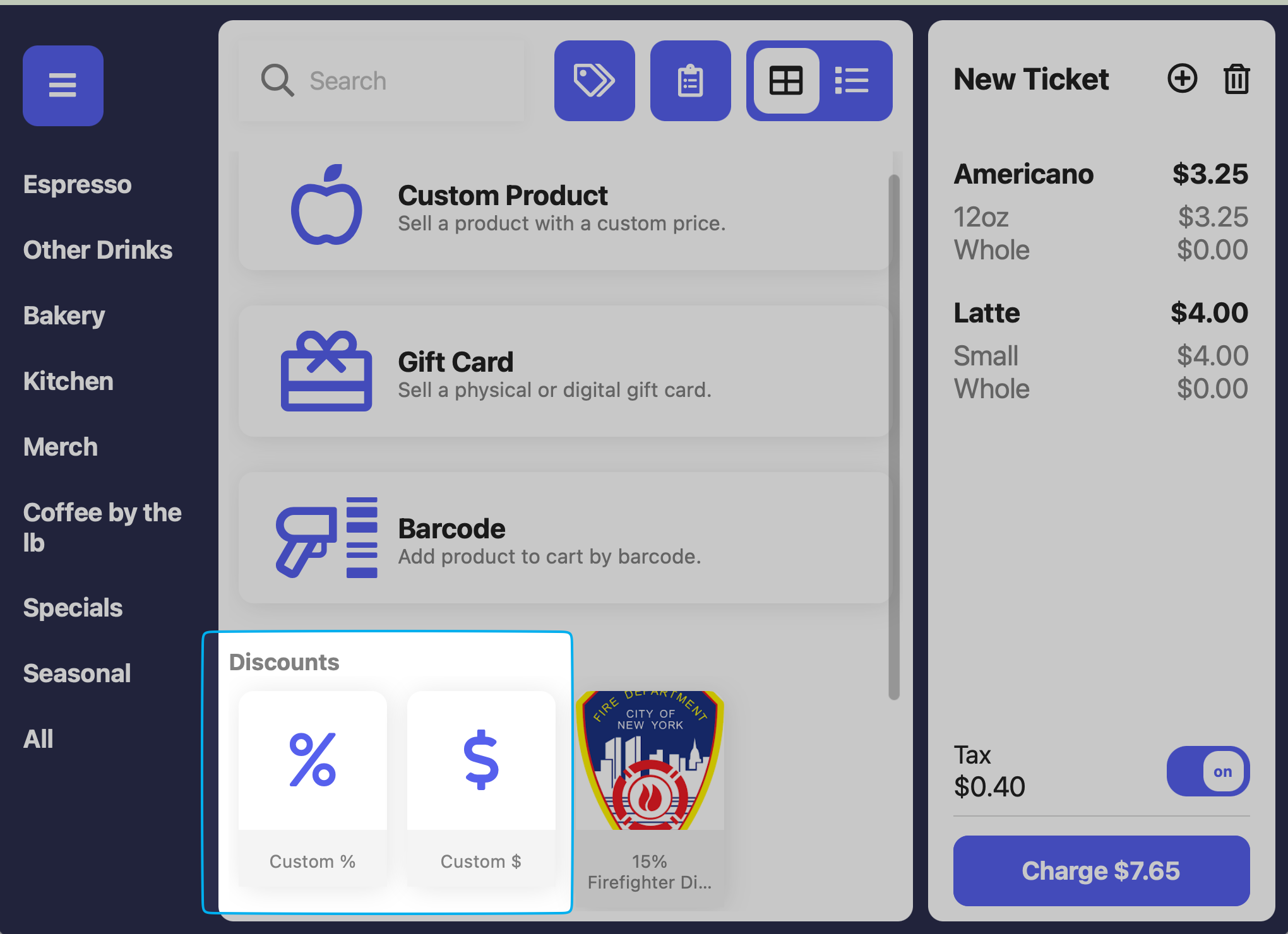
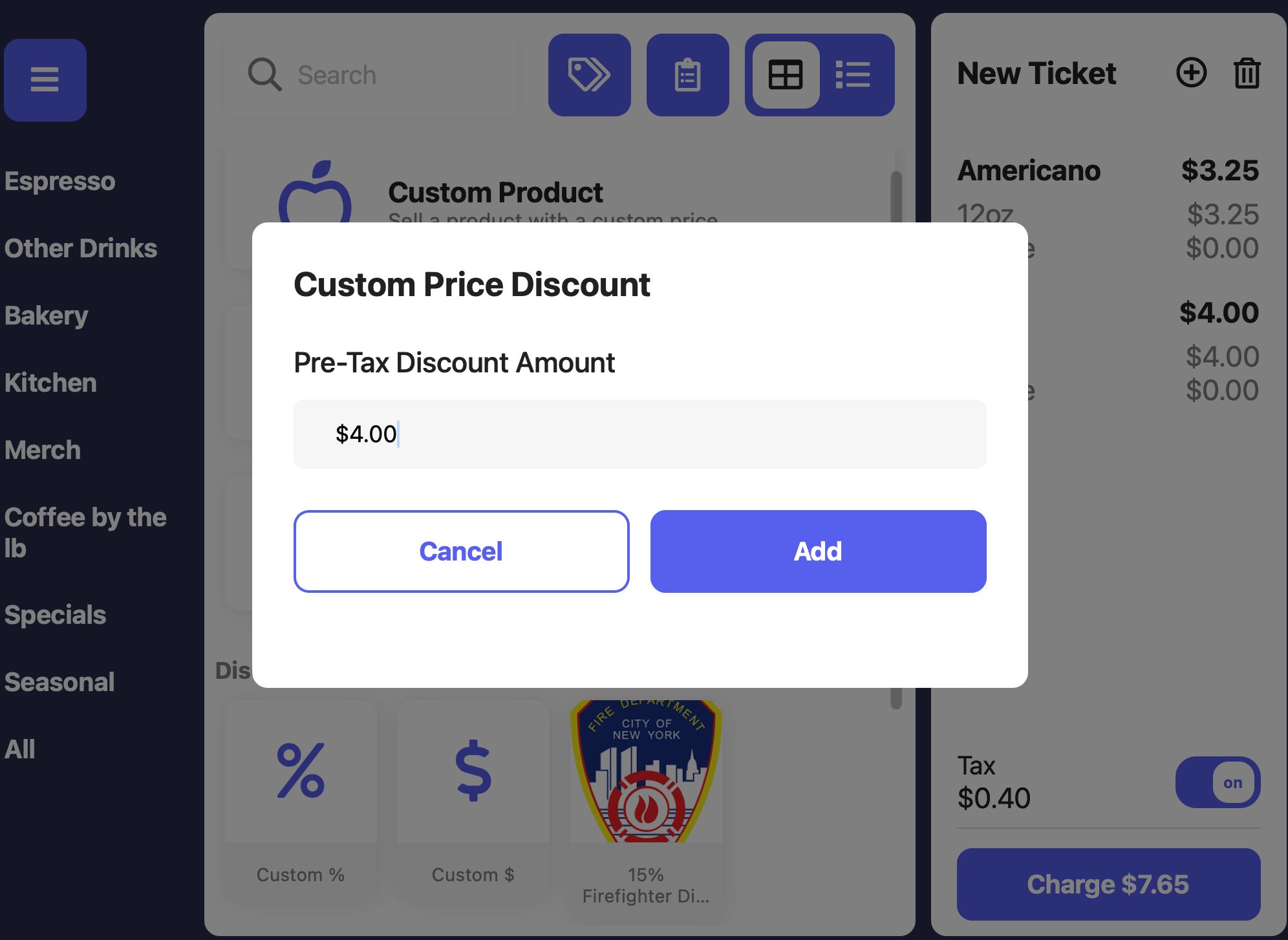
 Near the bottom of the page, press **Custom %** or **Customer \$** to apply a customer percent or dollar discount, respectively.
 Type in the dollar or percent discount amount. This discount will apply to the entire order total.
Custom ticket discounts will always apply to the order's pre-tax total.
Type in the dollar or percent discount amount. This discount will apply to the entire order total.
Custom ticket discounts will always apply to the order's pre-tax total.
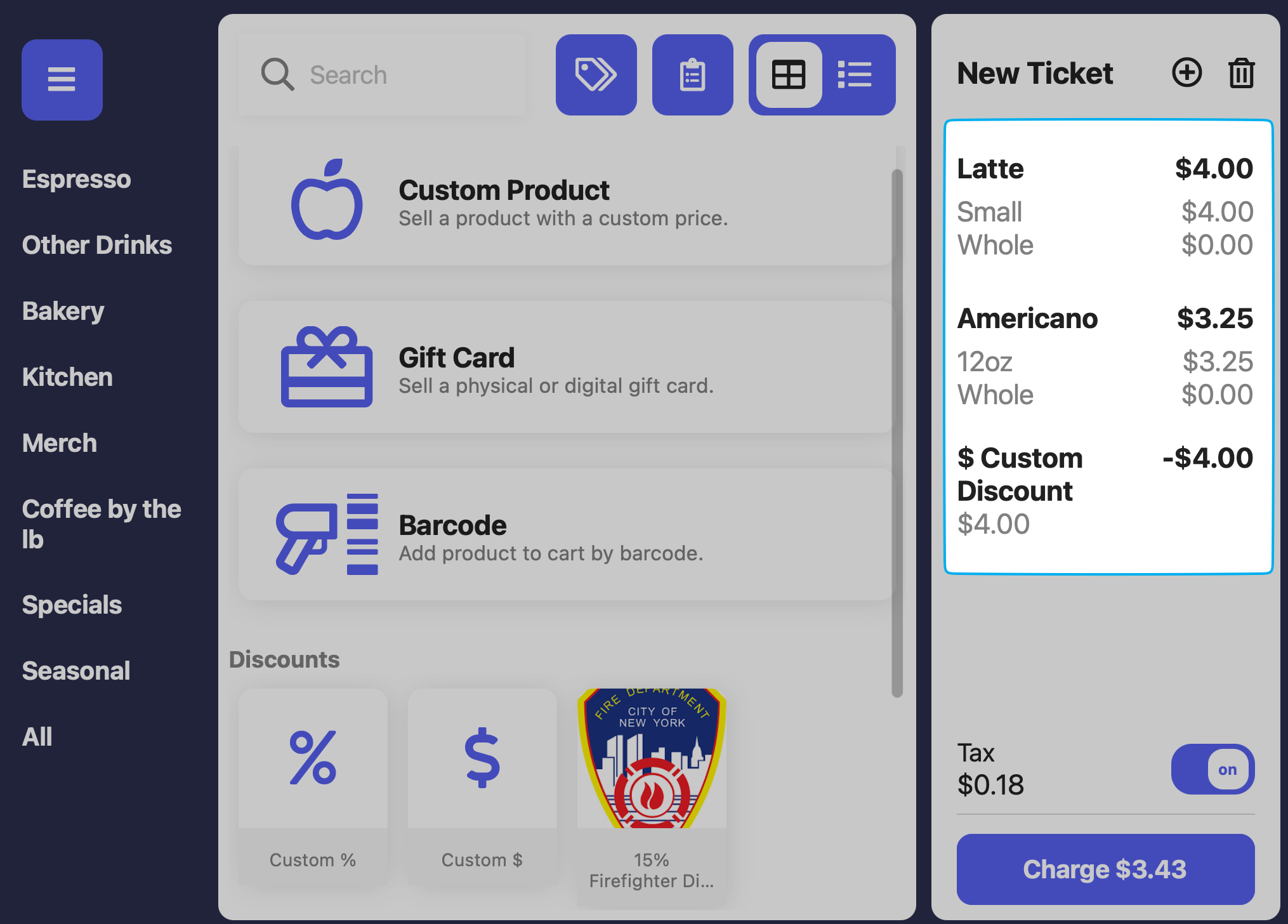 To edit or delete a custom ticket discount in cart, press the discount in cart > **Remove Discount**