> ## Documentation Index
> Fetch the complete documentation index at: https://support.dripos.com/llms.txt
> Use this file to discover all available pages before exploring further.
# Create and Manage Menu Categories
> Organize your shop's menu with categories
## **Create a Category**
On the **Dashboard** click **Menu** > **Categories** > **Create Category**
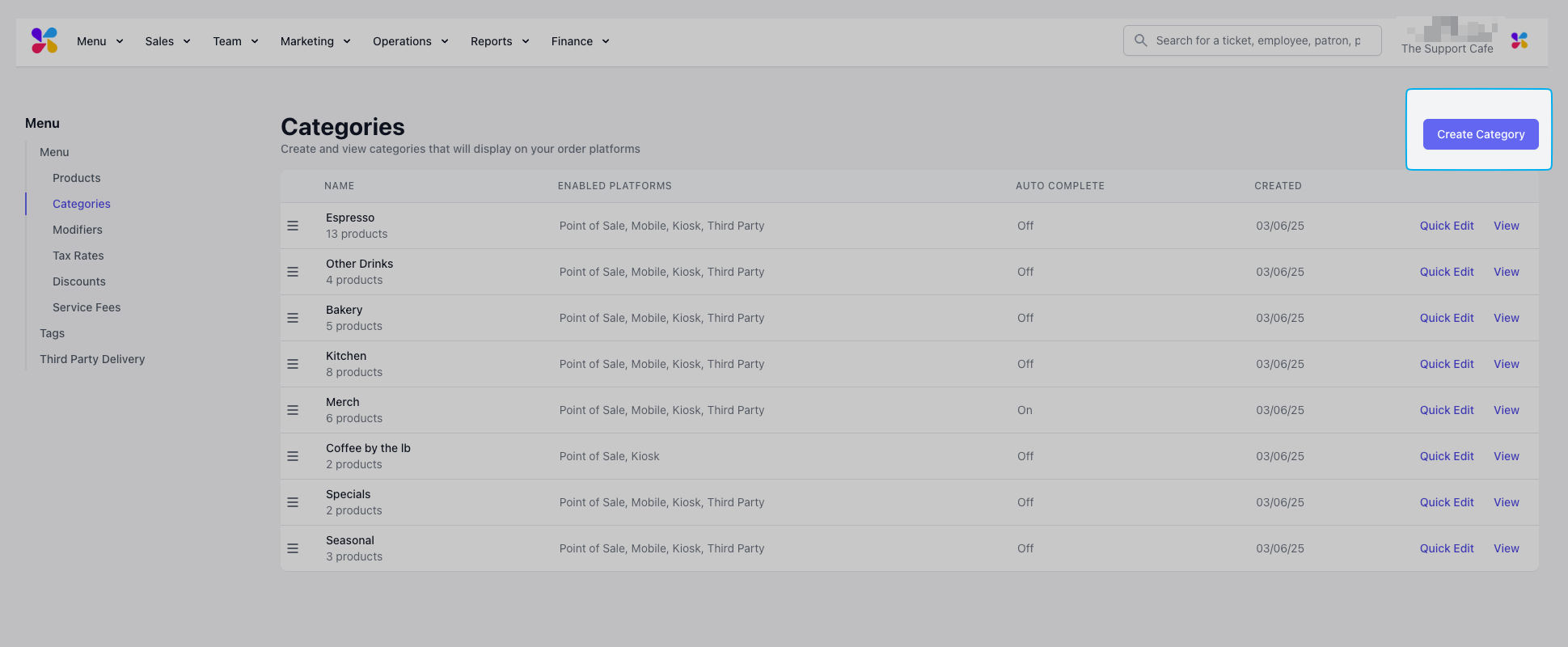 **Enable on Point of Sale:** If **yes**, the category will be displayed on the POS.
**Enable on Mobile:** If **yes**, the category will be available for order on the Order App and Order Website .
**Enable on Kiosk:** If **yes**, the category will be available for order when the POS is in kiosk mode.
**Enable on Third Party:** If **yes**, the category will be available for order on third party order websites, such as DoorDash.
**Auto Complete Products:** If set to **yes**, products in the category will automatically be marked as complete and will not appear on the ticket screen.
***
## Manage Categories
Add and remove products, tax rates, and discounts from a category. Additionally, add a schedule to a category.
On the **Web Dashboard** click **Menu** > **Categories** > **View** category
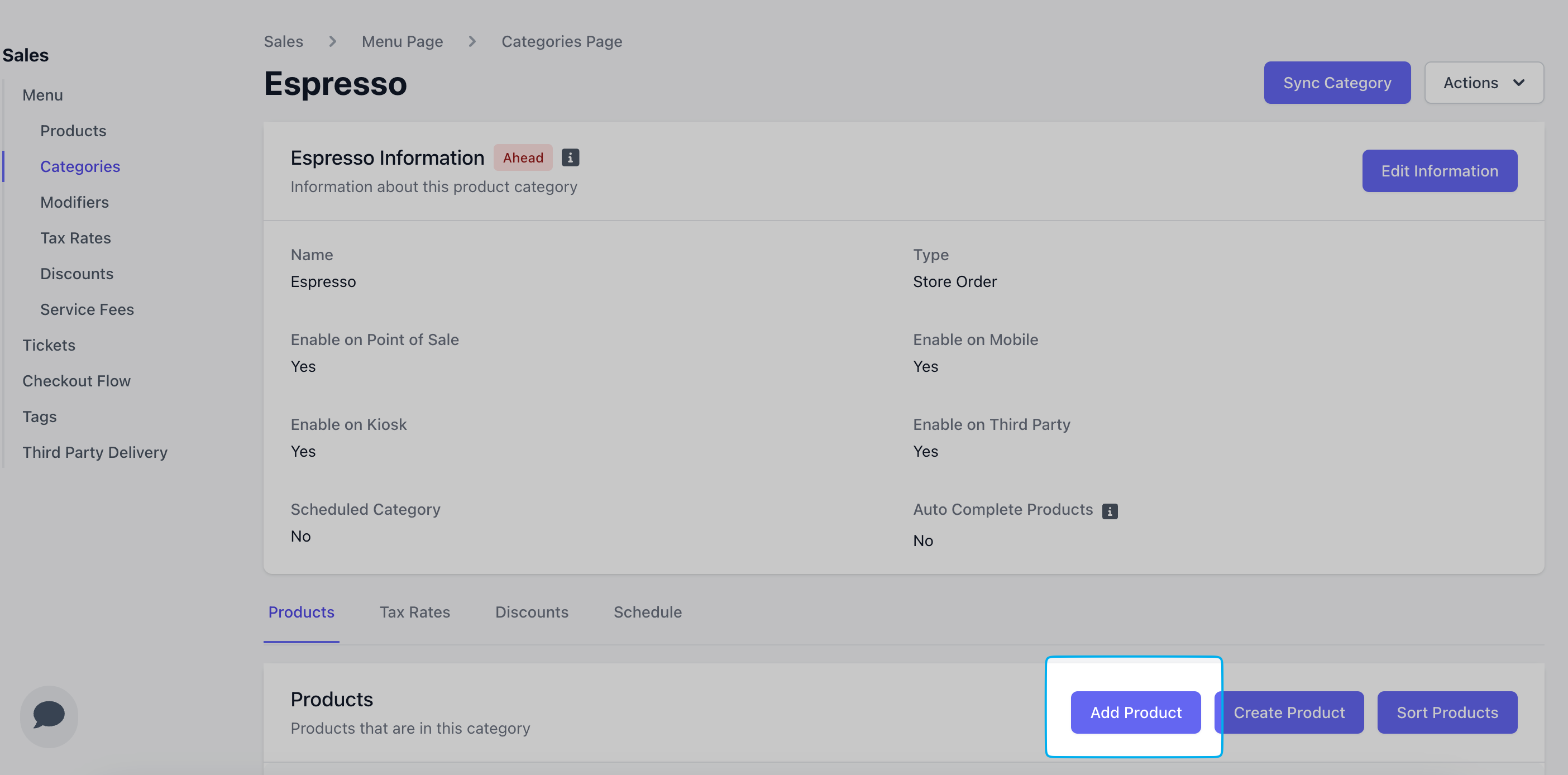
* To add an existing product to a category, click **Add Product** > select an existing product from the dropdown > **Add**
**Enable on Point of Sale:** If **yes**, the category will be displayed on the POS.
**Enable on Mobile:** If **yes**, the category will be available for order on the Order App and Order Website .
**Enable on Kiosk:** If **yes**, the category will be available for order when the POS is in kiosk mode.
**Enable on Third Party:** If **yes**, the category will be available for order on third party order websites, such as DoorDash.
**Auto Complete Products:** If set to **yes**, products in the category will automatically be marked as complete and will not appear on the ticket screen.
***
## Manage Categories
Add and remove products, tax rates, and discounts from a category. Additionally, add a schedule to a category.
On the **Web Dashboard** click **Menu** > **Categories** > **View** category
* To add an existing product to a category, click **Add Product** > select an existing product from the dropdown > **Add**
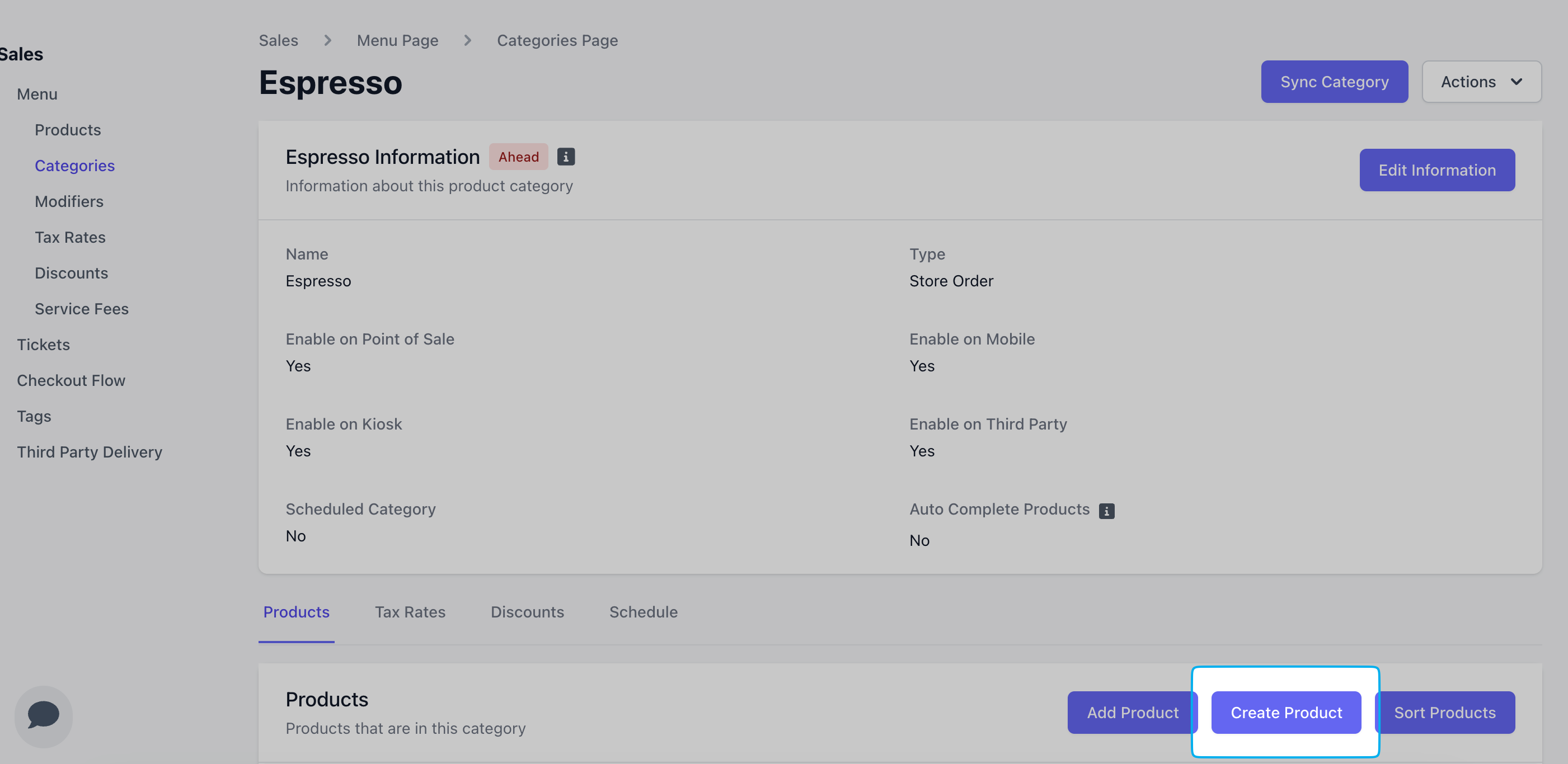
 * To add a new product to a category, click **Create Product**. Learn more about how to create a product [here](/orders/menu/products/products-basics).
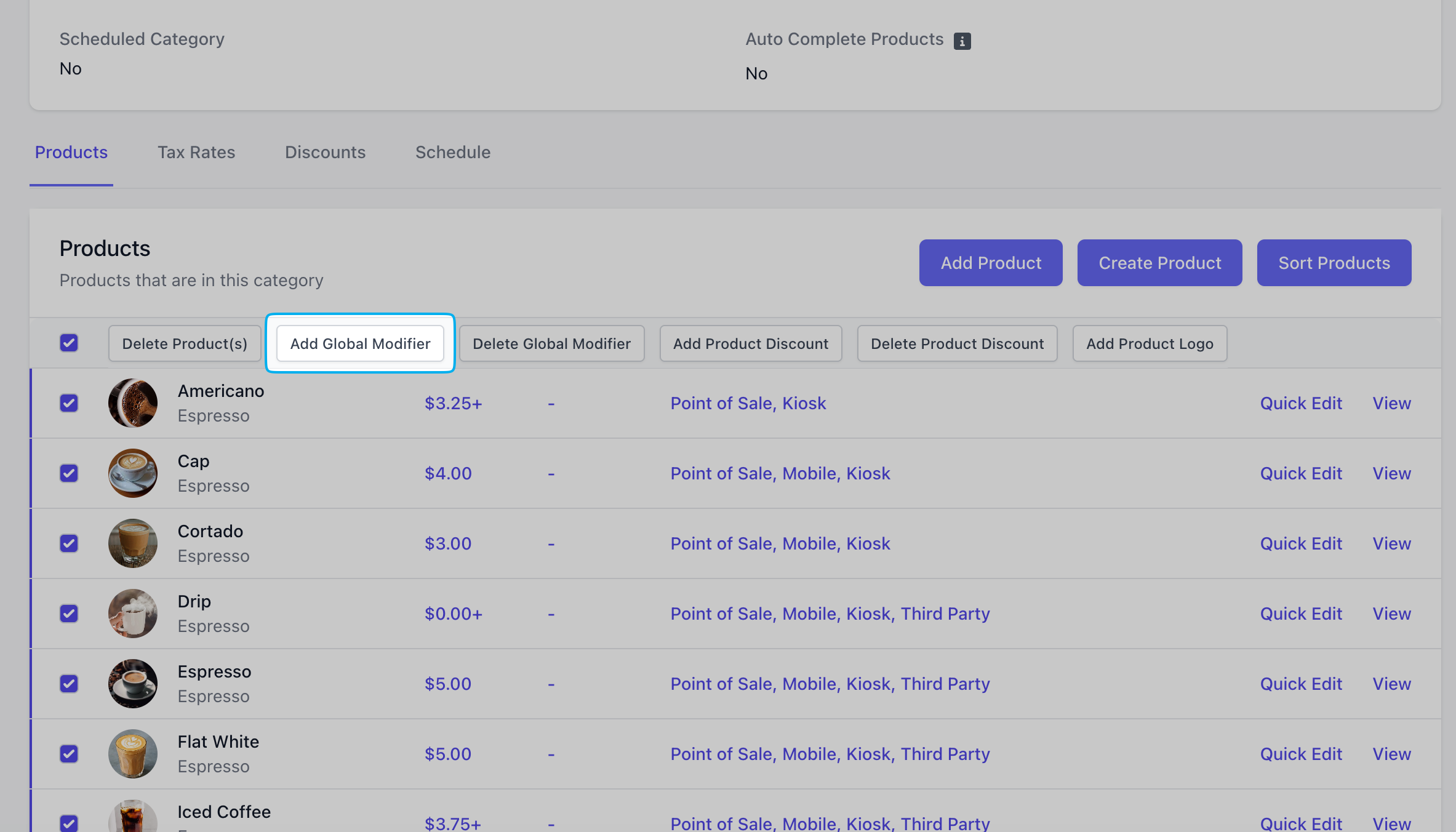
 * To add a global modifier to products in a category, click the checkbox next to the left of the product(s) > **Add Global Modifier**. Learn more about how to create modifiers [here](/orders/menu/modifiers/modifiers-basics).
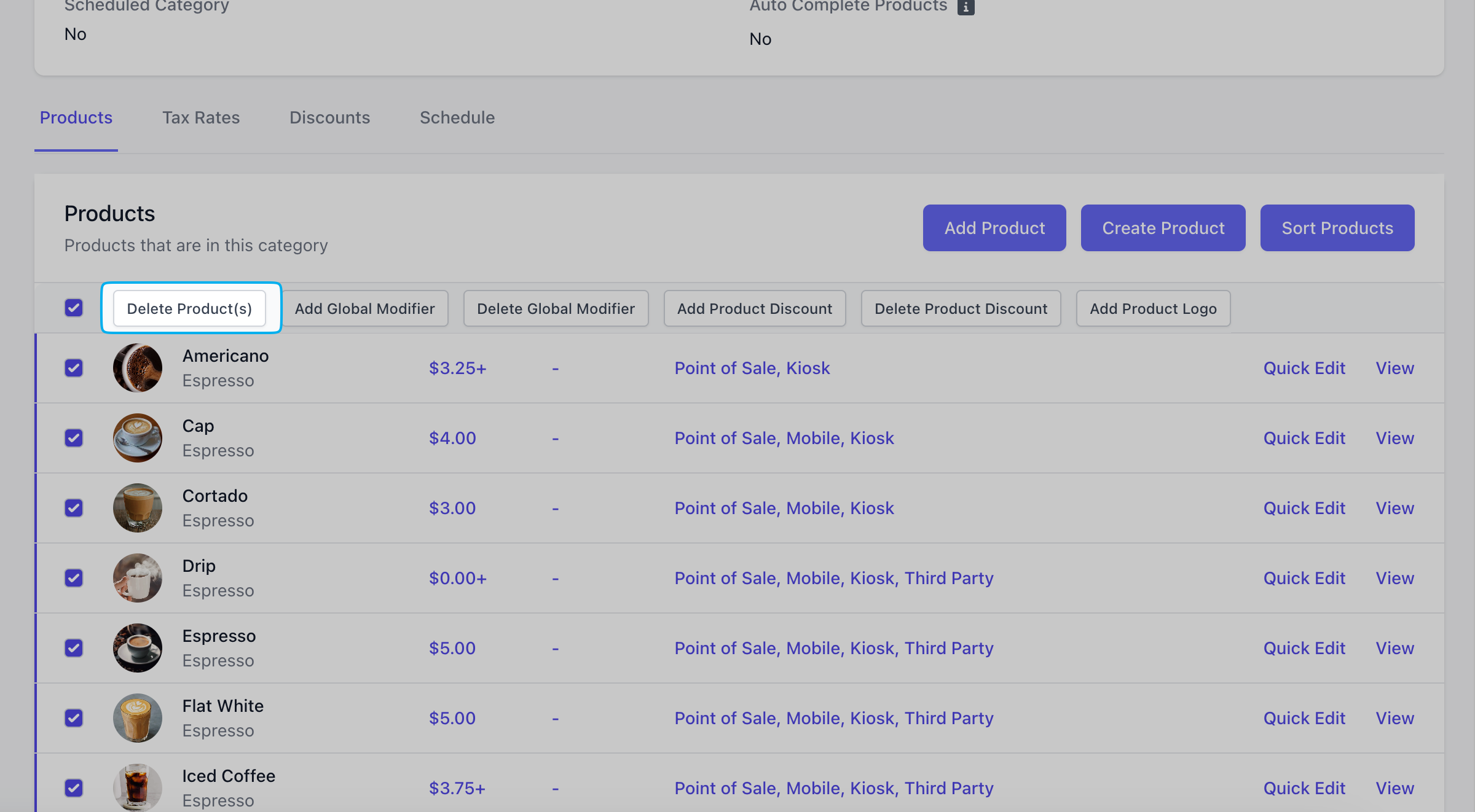
 * To delete a product from a category, click the checkbox next to the left of the product(s) > **Delete Product(s)**
 Reorder the list of products within a category on all ordering platforms from the Point of Sale using **Edit Mode**. Learn how to use **Edit Mode** [here](/orders/menu/menu-editmode).
Adding a tax rate to a category will automatically apply the tax rate to all products in the category.
Learn how to add and remove tax rates from a category [here](orders/menu/menu-taxrates)
Determine when a category is available for ordering on all enabled ordering platforms.
If no schedule is set, the category will always be available during store hours.
If a schedule is set, the category will only appear on enabled platforms during its scheduled time frames.
On the **Web Dashboard** click **Menu** > **Categories** > **View** category
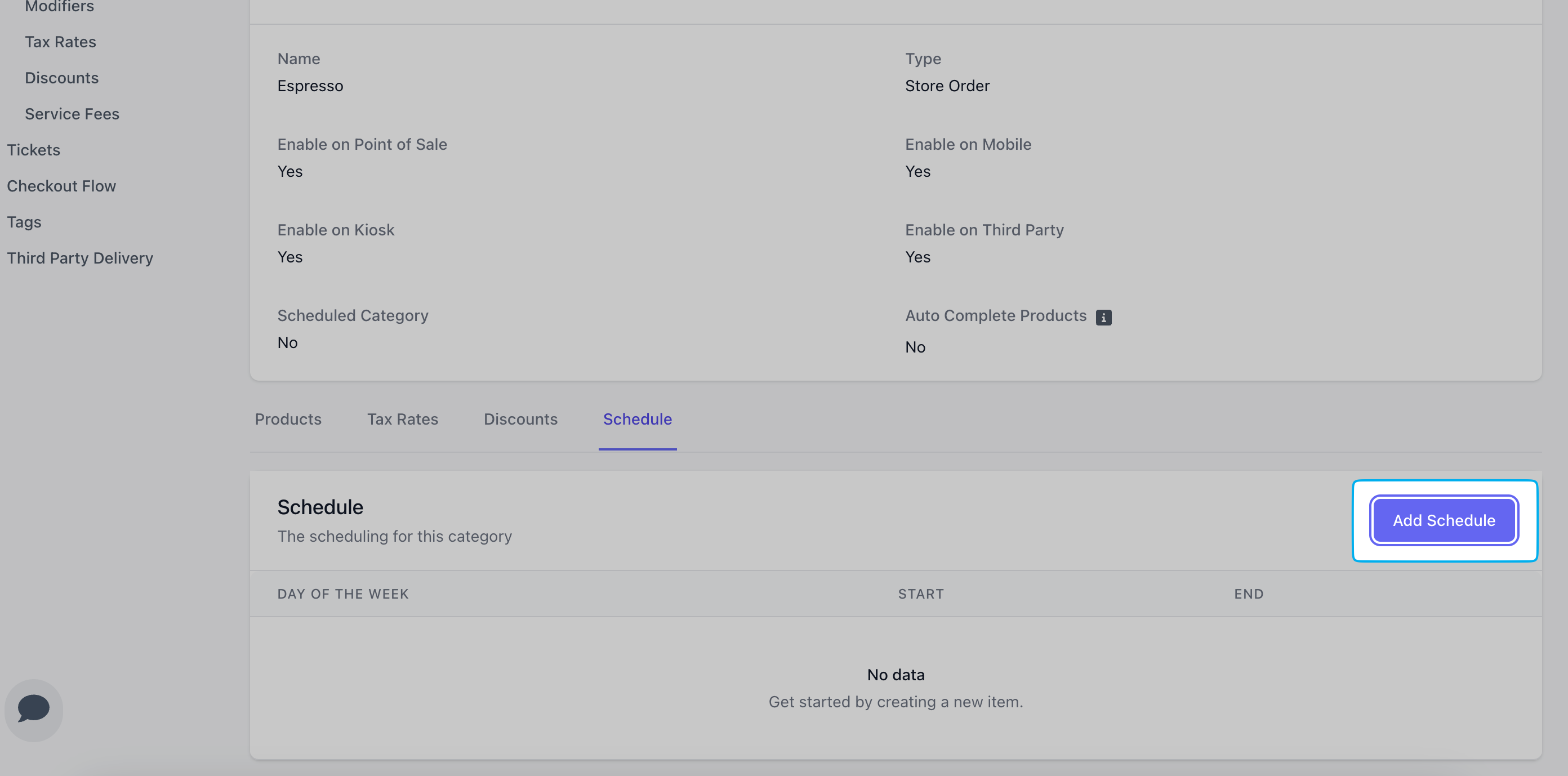
Scroll down to the bottom of the category's page > **Add Schedule**.
Reorder the list of products within a category on all ordering platforms from the Point of Sale using **Edit Mode**. Learn how to use **Edit Mode** [here](/orders/menu/menu-editmode).
Adding a tax rate to a category will automatically apply the tax rate to all products in the category.
Learn how to add and remove tax rates from a category [here](orders/menu/menu-taxrates)
Determine when a category is available for ordering on all enabled ordering platforms.
If no schedule is set, the category will always be available during store hours.
If a schedule is set, the category will only appear on enabled platforms during its scheduled time frames.
On the **Web Dashboard** click **Menu** > **Categories** > **View** category
Scroll down to the bottom of the category's page > **Add Schedule**.
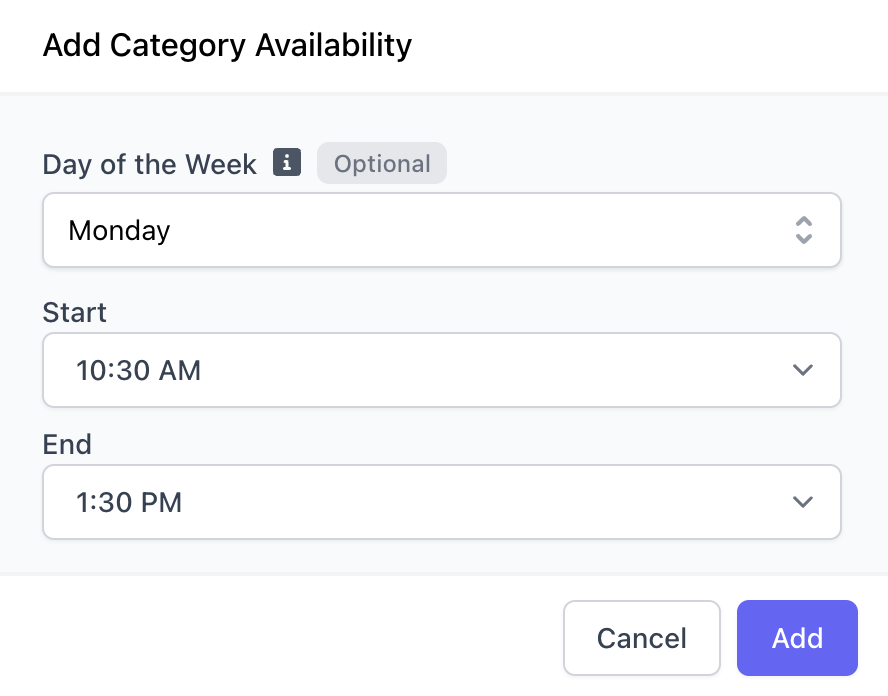
 Create a new schedule for each day of the week as necessary.
 On the **Web Dashboard** click **Menu** > **Categories** > **View** category
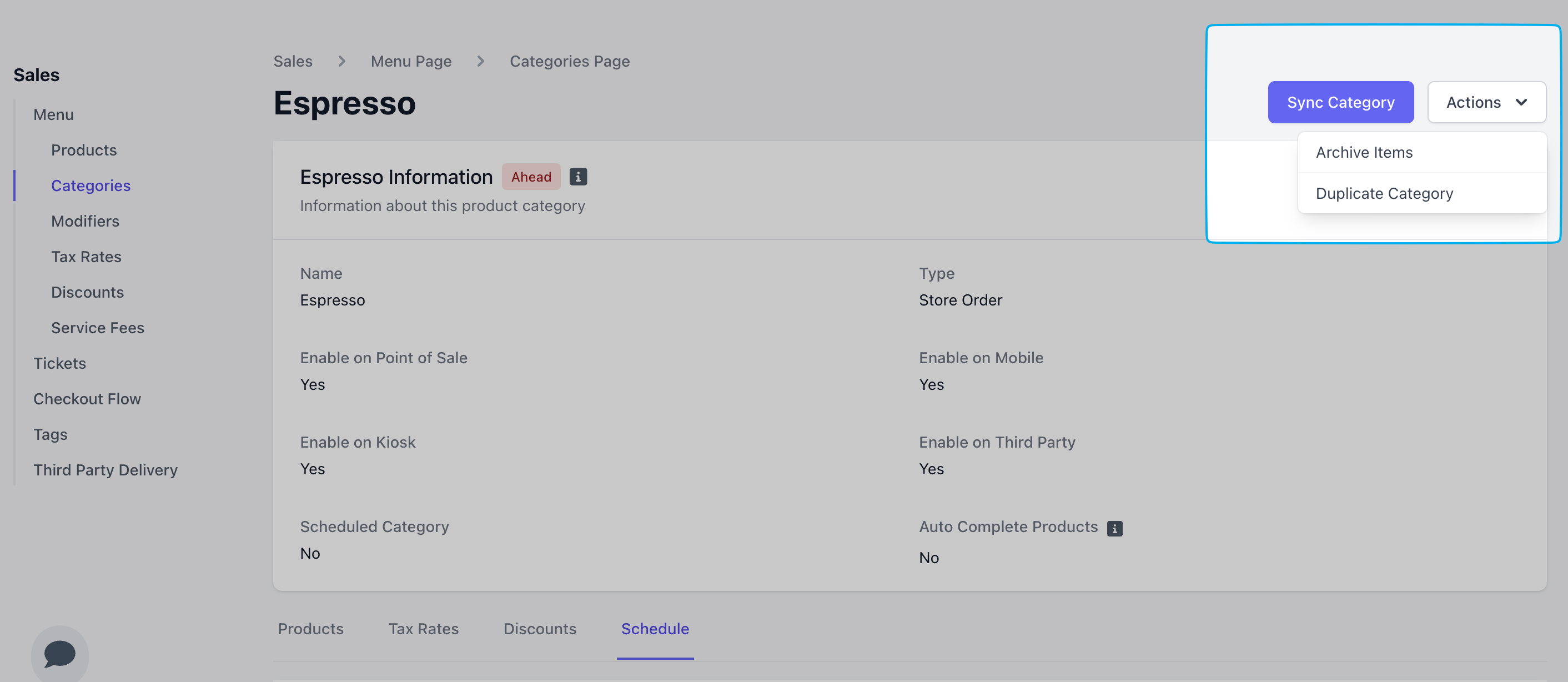
Click **Actions** > **Archive Items**
On the **Web Dashboard** click **Menu** > **Categories** > **View** category
Click **Actions** > **Archive Items**
 ***
## Duplicate a Category
Duplicating a category will create duplicate products.
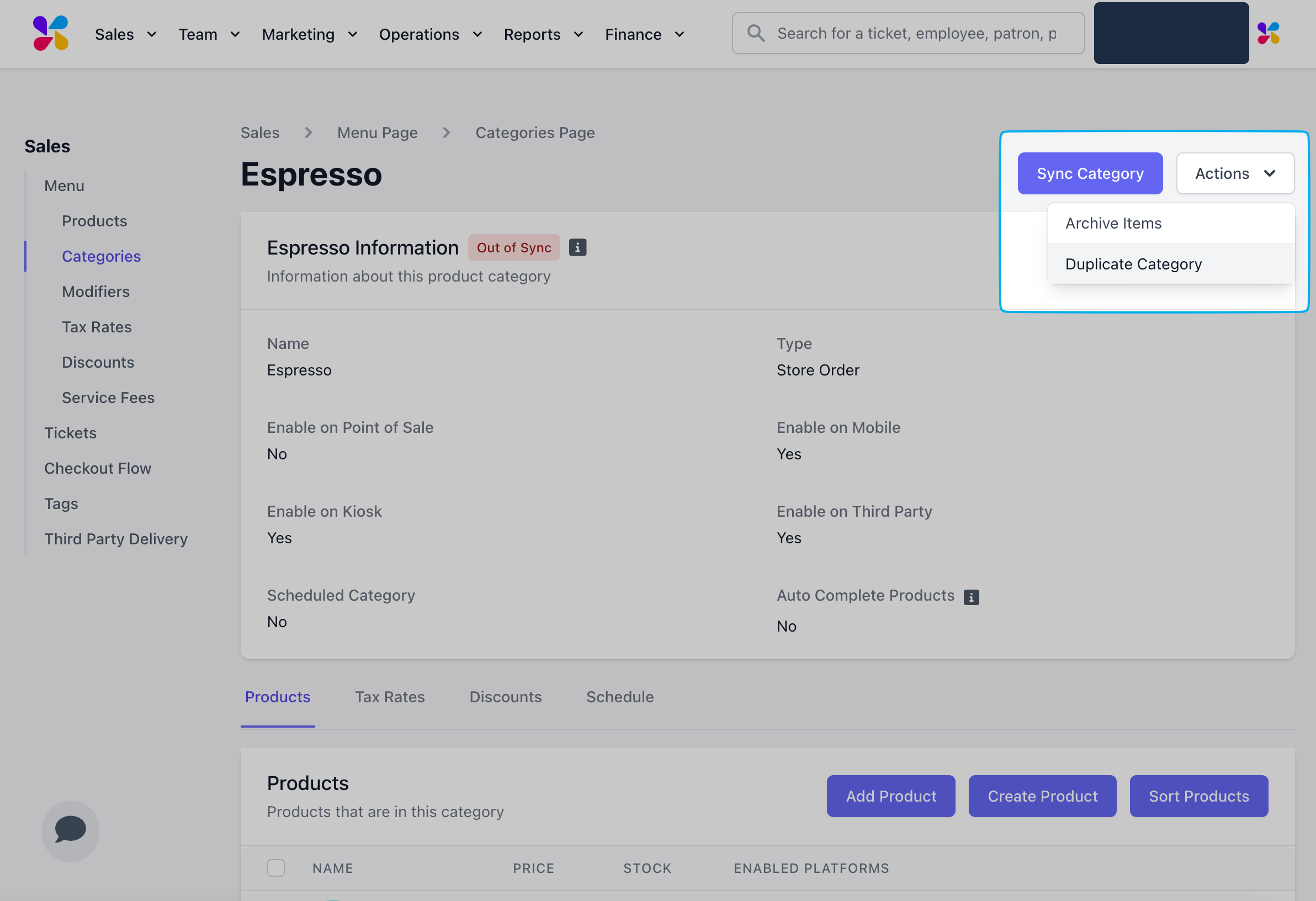
On the **Web Dashboard** click **Menu** > **Categories** > **View** category
Click **Action** and select **Duplicate Category**
The duplicated category will appear as “Category Name — Duplicate” on your menu.
***
## Duplicate a Category
Duplicating a category will create duplicate products.
On the **Web Dashboard** click **Menu** > **Categories** > **View** category
Click **Action** and select **Duplicate Category**
The duplicated category will appear as “Category Name — Duplicate” on your menu.