> ## Documentation Index
> Fetch the complete documentation index at: https://support.dripos.com/llms.txt
> Use this file to discover all available pages before exploring further.
# Company Menu Categories
> Create shared categories and choose where they are available.
Categories organize the products in your Company Menu. A category is shared across the company, while **Location Availability** controls which stores offer it.
These instructions apply to Company Menu. If your locations maintain separate menus, use [Create and Manage Menu Categories](/orders/menu/categories/categories-basics).
## Create a category
On the Web Dashboard, go to **Menu** > **Categories**.
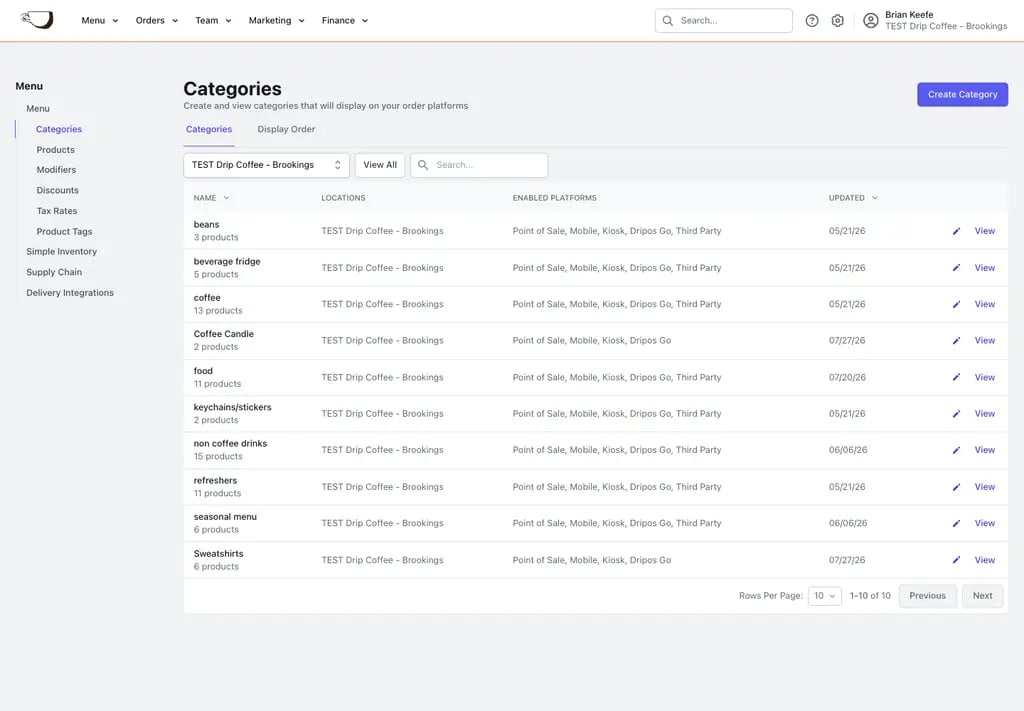 Click **Create Category** and complete the category information.
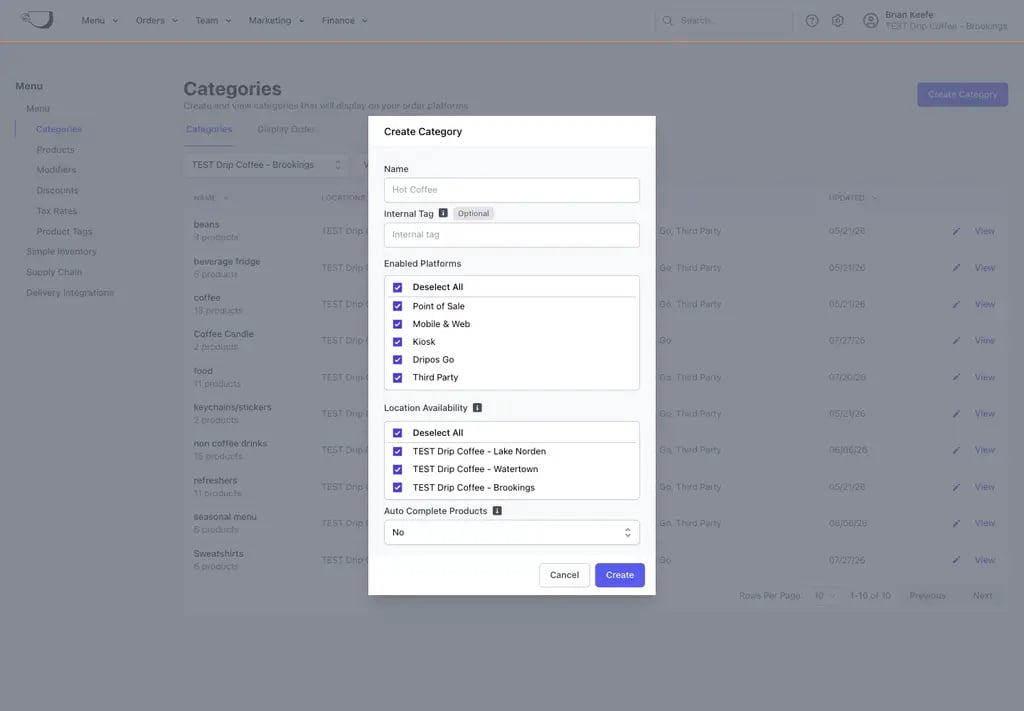 * **Name:** The customer-facing category name.
* **Internal Tag:** An internal label that helps your team tell similarly named categories apart. Customers do not see it.
* **Enabled Platforms:** Choose whether the category appears on Point of Sale, Mobile & Web, Kiosk, Dripos Go, and Third Party ordering platforms.
* **Location Availability:** Select every store that should offer this category.
* **Auto Complete Products:** When enabled, products in this category are automatically completed after purchase and do not remain on the ticket screen.
Click **Create**. The category is added to the shared Company Menu and appears only at its selected locations.
Editing the category name, platforms, schedule, or other shared settings affects every location where the category is available.
## Manage category information
Open **Menu** > **Categories**, then click **View** on a category.
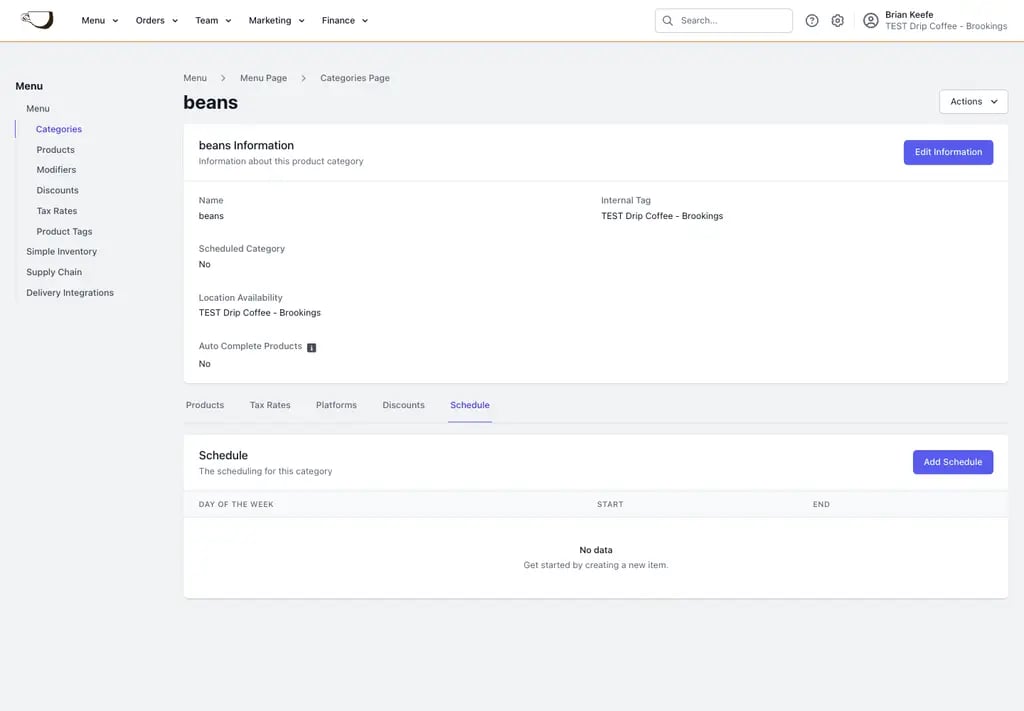
The Information section shows the customer-facing name, Internal Tag, Scheduled Category, Location Availability, and Auto Complete Products setting. Click **Edit Information** to update them.
* **Name:** The customer-facing category name.
* **Internal Tag:** An internal label that helps your team tell similarly named categories apart. Customers do not see it.
* **Enabled Platforms:** Choose whether the category appears on Point of Sale, Mobile & Web, Kiosk, Dripos Go, and Third Party ordering platforms.
* **Location Availability:** Select every store that should offer this category.
* **Auto Complete Products:** When enabled, products in this category are automatically completed after purchase and do not remain on the ticket screen.
Click **Create**. The category is added to the shared Company Menu and appears only at its selected locations.
Editing the category name, platforms, schedule, or other shared settings affects every location where the category is available.
## Manage category information
Open **Menu** > **Categories**, then click **View** on a category.
The Information section shows the customer-facing name, Internal Tag, Scheduled Category, Location Availability, and Auto Complete Products setting. Click **Edit Information** to update them.
 ## Manage platforms
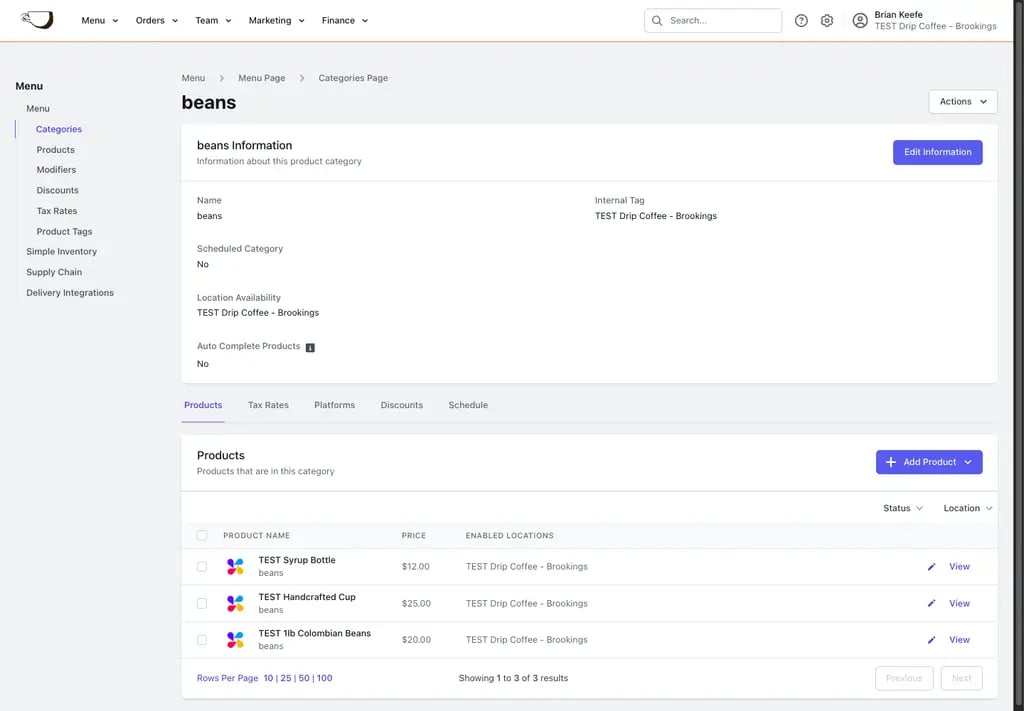
Open the **Platforms** tab to control where customers can order products in this category.
* **Point of Sale**
* **Mobile**
* **Kiosk**
* **Dripos Go**
* **Third Party**
Click **Edit Platforms**, make the changes, and save. Platform settings are shared across the category's selected locations.
## Manage platforms
Open the **Platforms** tab to control where customers can order products in this category.
* **Point of Sale**
* **Mobile**
* **Kiosk**
* **Dripos Go**
* **Third Party**
Click **Edit Platforms**, make the changes, and save. Platform settings are shared across the category's selected locations.
 ## Add products
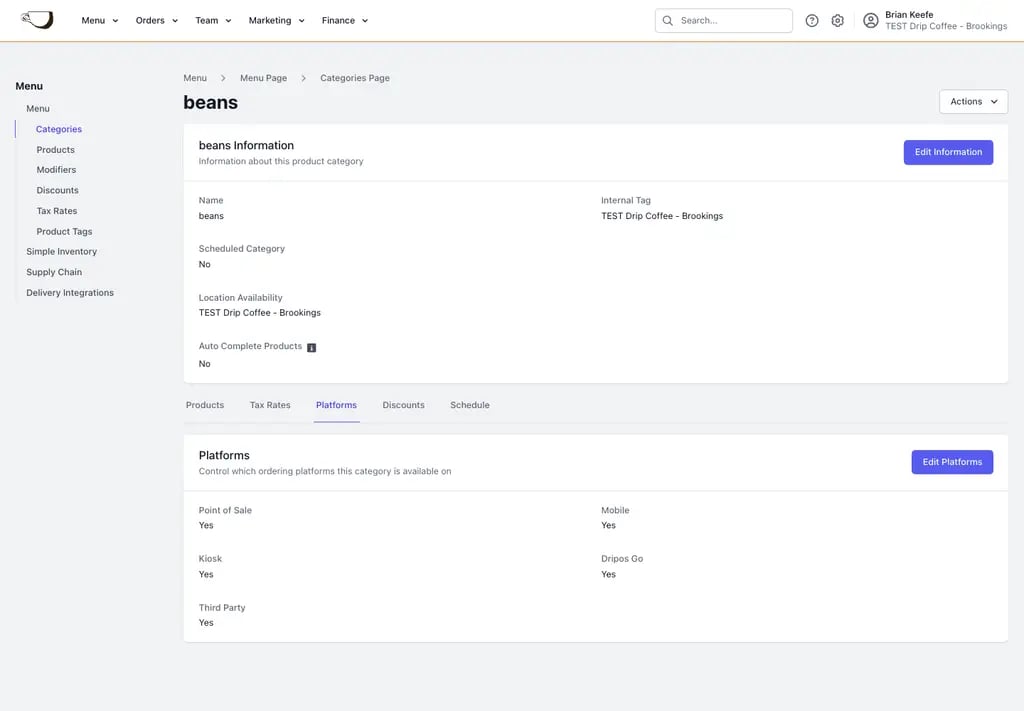
Open the category's **Products** tab and click **Add Product**.
Choose an existing Company Menu product, then attach it to this category.
Create a new product from the category page. The current category is selected automatically, but you can choose another category before saving.
Adding or creating a product does not automatically make it available at every store. Review the product's Location Availability before saving.
## Manage tax rates and discounts
Use the **Tax Rates** tab to attach or remove category tax rates. A category tax rate applies to products in that category unless a product's tax settings override it.
Use the **Discounts** tab to review discounts attached to the category. Discount availability must be compatible with the category and product locations.
## Create a category schedule
Open the **Schedule** tab to choose when the category is available on its enabled ordering platforms.
If there is no schedule, the category remains available during store hours. If a schedule exists, the category appears only during the configured date ranges or daily recurrence periods. Click **Add Schedule** to create one.
## Add products
Open the category's **Products** tab and click **Add Product**.
Choose an existing Company Menu product, then attach it to this category.
Create a new product from the category page. The current category is selected automatically, but you can choose another category before saving.
Adding or creating a product does not automatically make it available at every store. Review the product's Location Availability before saving.
## Manage tax rates and discounts
Use the **Tax Rates** tab to attach or remove category tax rates. A category tax rate applies to products in that category unless a product's tax settings override it.
Use the **Discounts** tab to review discounts attached to the category. Discount availability must be compatible with the category and product locations.
## Create a category schedule
Open the **Schedule** tab to choose when the category is available on its enabled ordering platforms.
If there is no schedule, the category remains available during store hours. If a schedule exists, the category appears only during the configured date ranges or daily recurrence periods. Click **Add Schedule** to create one.
 ## Duplicate a category
1. Open the category.
2. Click **Actions** > **Duplicate Category**.
3. Confirm the duplicate.
The duplicate is created in the same Company Menu with its products and location availability copied. Review its name, products, platforms, and locations before using it.
## Remove a category
If the category contains products, open it and choose **Actions** > **Archive Items**. This archives the category's products and removes the category, so confirm that no location still needs those items.
If the category is empty, choose **Actions** > **Delete Category**.
## Duplicate a category
1. Open the category.
2. Click **Actions** > **Duplicate Category**.
3. Confirm the duplicate.
The duplicate is created in the same Company Menu with its products and location availability copied. Review its name, products, platforms, and locations before using it.
## Remove a category
If the category contains products, open it and choose **Actions** > **Archive Items**. This archives the category's products and removes the category, so confirm that no location still needs those items.
If the category is empty, choose **Actions** > **Delete Category**.