> ## Documentation Index
> Fetch the complete documentation index at: https://support.dripos.com/llms.txt
> Use this file to discover all available pages before exploring further.
# Company Menu Modifier Basics
> Create shared pricing and add-on modifiers for Company Menu products.
Modifiers customize how a product is priced or prepared. Company Menu supports **Pricing** modifiers and **Add-on** modifiers.
These instructions apply to Company Menu. If your locations maintain separate menus, use the original [Modifier Basics guide](/orders/menu/modifiers/modifiers-basics).
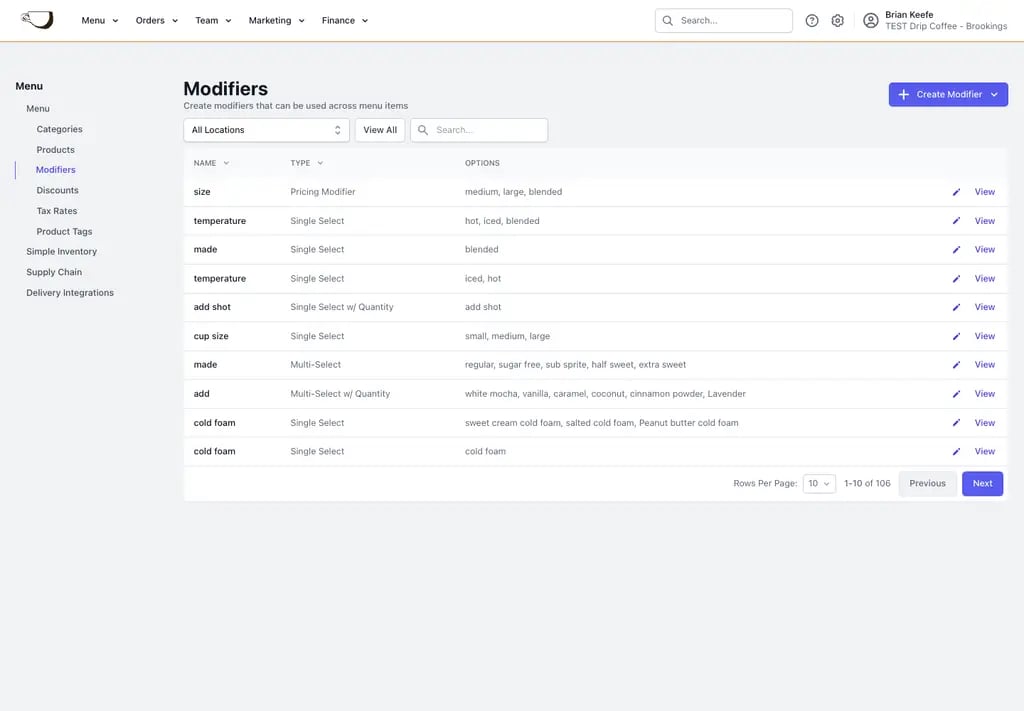 ## Choose the right modifier
Ask two questions before creating a modifier:
1. Does the selection change the product's base price, or add to it?
* Use a **Pricing modifier** when size or type changes the base price.
* Use an **Add-on modifier** for additions, substitutions, or customizations.
2. Is the modifier shared or product-specific?
* Use a **Global modifier** when several Company Menu products use the same options.
* Use a **Custom modifier** when the options belong to one product only.
## Choose the right modifier
Ask two questions before creating a modifier:
1. Does the selection change the product's base price, or add to it?
* Use a **Pricing modifier** when size or type changes the base price.
* Use an **Add-on modifier** for additions, substitutions, or customizations.
2. Is the modifier shared or product-specific?
* Use a **Global modifier** when several Company Menu products use the same options.
* Use a **Custom modifier** when the options belong to one product only.
 ## How Company Menu modifiers differ
Global modifiers are shared across the Company Menu. You do not need to sync separate copies between locations.
Editing a Global modifier updates every attached product. Since those products may be available at several stores, review the attached products before changing option names, prices, defaults, or availability.
Custom modifiers belong to one product. The modifier is product-specific, but the product can still be shared across several locations.
## How Company Menu modifiers differ
Global modifiers are shared across the Company Menu. You do not need to sync separate copies between locations.
Editing a Global modifier updates every attached product. Since those products may be available at several stores, review the attached products before changing option names, prices, defaults, or availability.
Custom modifiers belong to one product. The modifier is product-specific, but the product can still be shared across several locations.
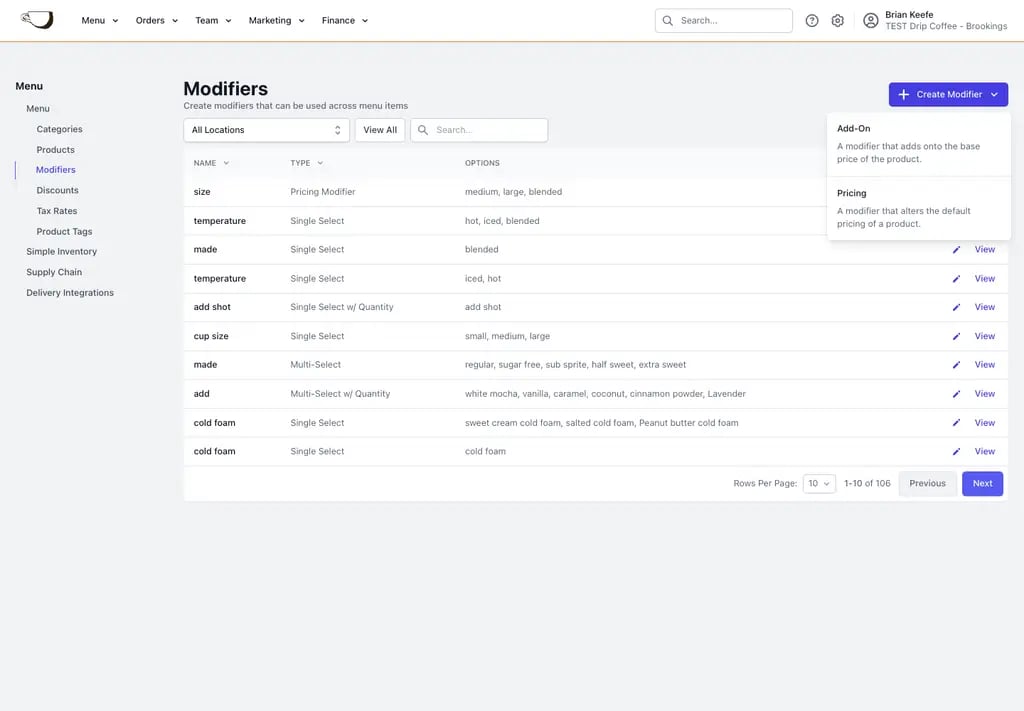
 ## Create a Global Pricing modifier
On the Web Dashboard, go to **Menu** > **Modifiers** > **Create Modifier** > **Pricing**.
## Create a Global Pricing modifier
On the Web Dashboard, go to **Menu** > **Modifiers** > **Create Modifier** > **Pricing**.
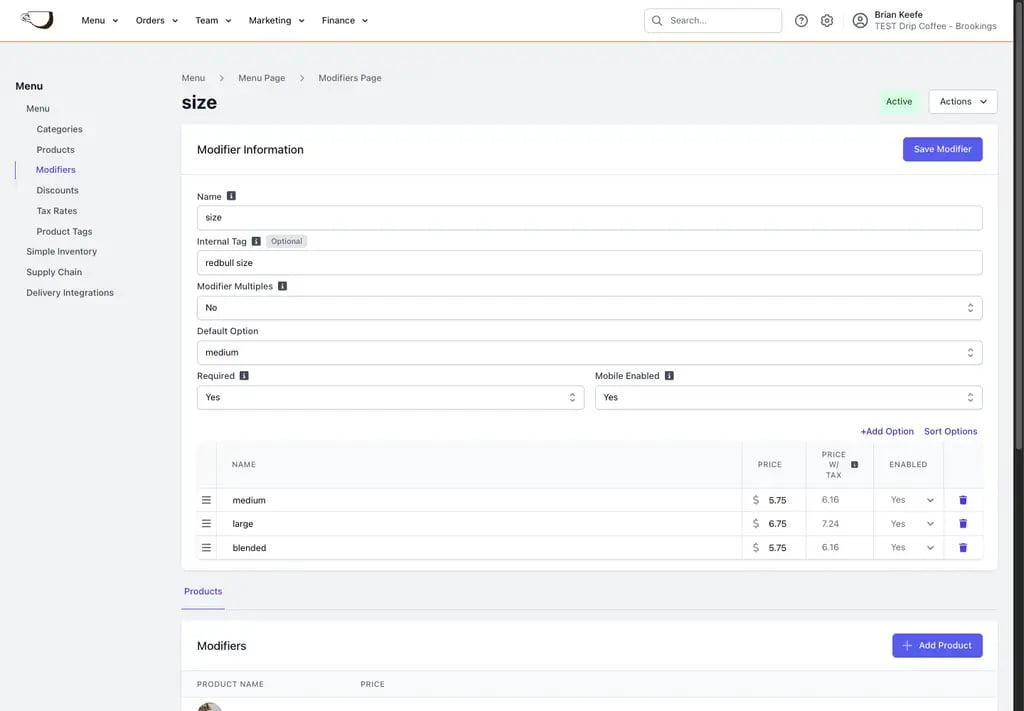
 * **Name:** The customer-facing modifier name, such as Latte Sizes.
* **Internal Tag:** An internal label used to distinguish similarly named modifiers. Customers do not see it.
* **Modifier Multiples:** Allow option prices to scale with quantity when appropriate.
* **Default Option:** The option selected automatically when the product is added.
* **Required:** Require an option before checkout.
* **Mobile Enabled:** Show the modifier on supported mobile ordering platforms.
Add each size or type with its name, price, and Enabled setting.
Save the modifier, then attach products from its Products tab.
## Create a Global Add-on modifier
On the Web Dashboard, go to **Menu** > **Modifiers** > **Create Modifier** > **Add-On**.
* **Single Select:** One option can be selected.
* **Single Select w/ Quantity:** One option can be selected with an adjustable quantity.
* **Multi-Select:** Several different options can be selected.
* **Multi-Select w/ Quantity:** Several options can be selected with quantity limits.
* **Multi-Select w/ Fixed Price:** Several options can be selected for one fixed modifier price.
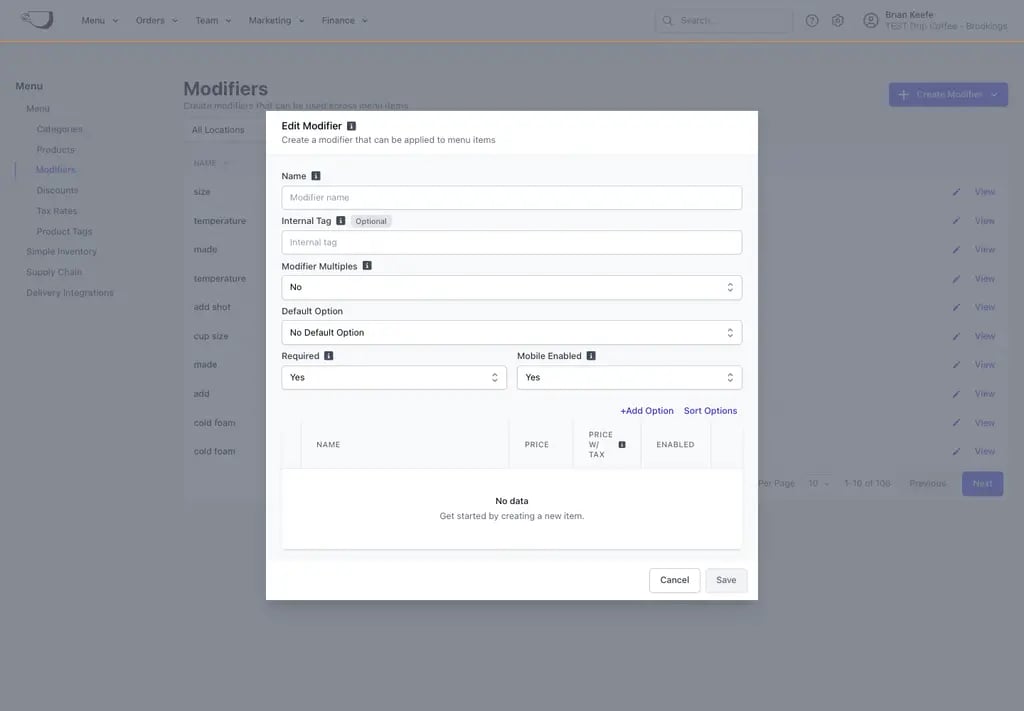
* **Name:** The customer-facing modifier name, such as Latte Sizes.
* **Internal Tag:** An internal label used to distinguish similarly named modifiers. Customers do not see it.
* **Modifier Multiples:** Allow option prices to scale with quantity when appropriate.
* **Default Option:** The option selected automatically when the product is added.
* **Required:** Require an option before checkout.
* **Mobile Enabled:** Show the modifier on supported mobile ordering platforms.
Add each size or type with its name, price, and Enabled setting.
Save the modifier, then attach products from its Products tab.
## Create a Global Add-on modifier
On the Web Dashboard, go to **Menu** > **Modifiers** > **Create Modifier** > **Add-On**.
* **Single Select:** One option can be selected.
* **Single Select w/ Quantity:** One option can be selected with an adjustable quantity.
* **Multi-Select:** Several different options can be selected.
* **Multi-Select w/ Quantity:** Several options can be selected with quantity limits.
* **Multi-Select w/ Fixed Price:** Several options can be selected for one fixed modifier price.
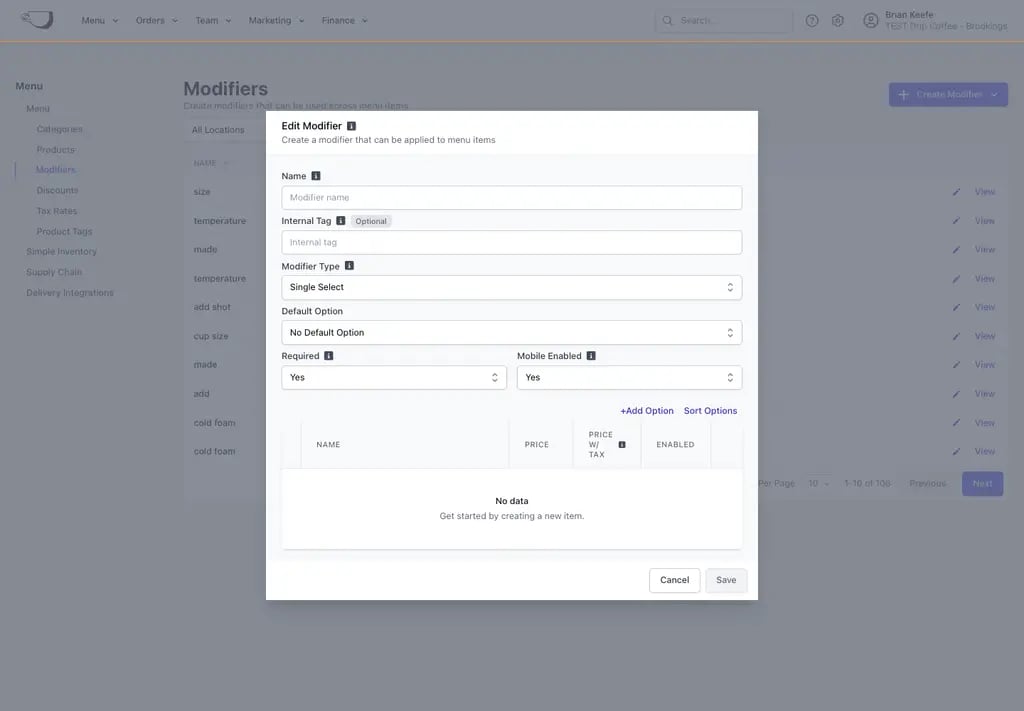 Enter the Name and optional Internal Tag, then configure Default Option, Required, Mobile Enabled, and any Minimum or Maximum Selections. Dependencies are set on the product, see [Modifier Dependencies](/orders/menu/company-menu/modifier-dependencies).
Add each option with its Name, Price, and Enabled setting.
Save the modifier, then attach products from its Products tab.
## Attach a Global modifier to products
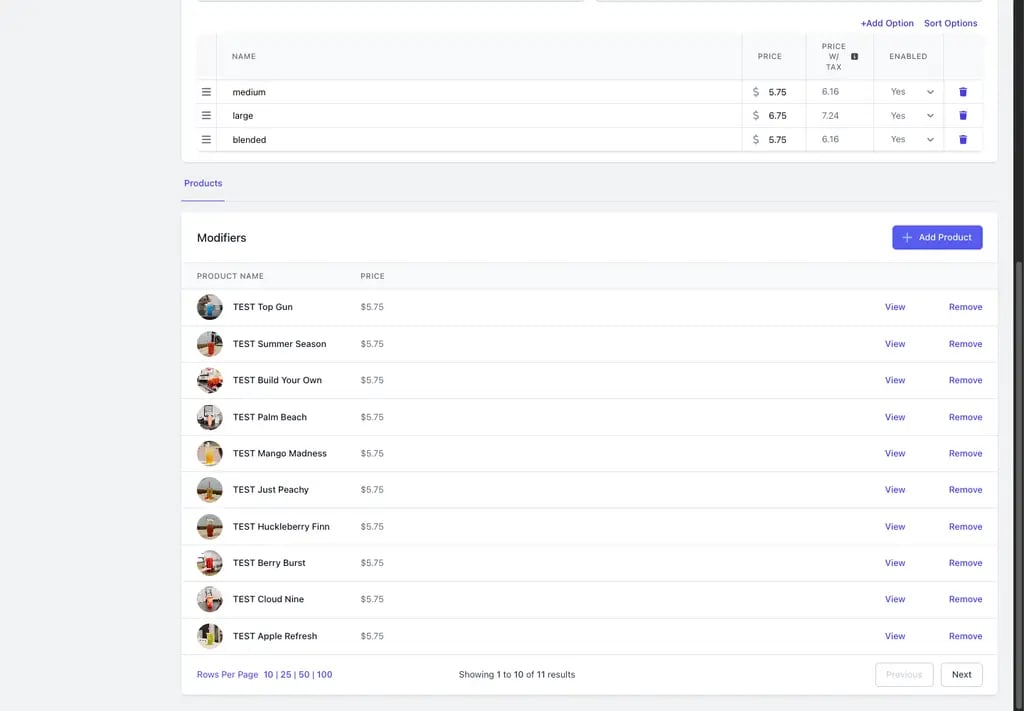
Open **Menu** > **Modifiers** > **View** modifier > **Products** > **Add Product**.
Select the Company Menu products that should use the modifier and click **Add**.
Enter the Name and optional Internal Tag, then configure Default Option, Required, Mobile Enabled, and any Minimum or Maximum Selections. Dependencies are set on the product, see [Modifier Dependencies](/orders/menu/company-menu/modifier-dependencies).
Add each option with its Name, Price, and Enabled setting.
Save the modifier, then attach products from its Products tab.
## Attach a Global modifier to products
Open **Menu** > **Modifiers** > **View** modifier > **Products** > **Add Product**.
Select the Company Menu products that should use the modifier and click **Add**.
 Open **Menu** > **Products** > **View** product.
* For an Add-on modifier, open **Modifiers** > **Add Modifier** > **Global Modifier**.
* For a Pricing modifier, open **Pricing**, select Sized Pricing, and attach a pre-made modifier.
A product must be available at a location before customers at that location can use its modifiers.
## Reorder product modifiers
Open the product's **Modifiers** tab and drag the modifier handle to change the checkout order. The order is saved to the shared product.
## Create a Custom modifier
1. Open **Menu** > **Products** > **View** product.
2. Open the **Modifiers** tab.
3. Click **Add Modifier** > **Custom**.
4. Configure the modifier type, behavior, and options.
5. Save.
Changes to a Custom modifier affect only that product.
## Remove or delete a modifier
To remove a modifier from one product, open that product and remove the modifier attachment.
To delete a Global modifier entirely, go to **Menu** > **Modifiers** > **View** modifier > **Actions** > **Delete Modifier**. Deleting it removes the modifier from every product and location that uses it, so review the attached products first.
Open **Menu** > **Products** > **View** product.
* For an Add-on modifier, open **Modifiers** > **Add Modifier** > **Global Modifier**.
* For a Pricing modifier, open **Pricing**, select Sized Pricing, and attach a pre-made modifier.
A product must be available at a location before customers at that location can use its modifiers.
## Reorder product modifiers
Open the product's **Modifiers** tab and drag the modifier handle to change the checkout order. The order is saved to the shared product.
## Create a Custom modifier
1. Open **Menu** > **Products** > **View** product.
2. Open the **Modifiers** tab.
3. Click **Add Modifier** > **Custom**.
4. Configure the modifier type, behavior, and options.
5. Save.
Changes to a Custom modifier affect only that product.
## Remove or delete a modifier
To remove a modifier from one product, open that product and remove the modifier attachment.
To delete a Global modifier entirely, go to **Menu** > **Modifiers** > **View** modifier > **Actions** > **Delete Modifier**. Deleting it removes the modifier from every product and location that uses it, so review the attached products first.