> ## Documentation Index
> Fetch the complete documentation index at: https://support.dripos.com/llms.txt
> Use this file to discover all available pages before exploring further.

# Tax Rates

> Learn how to properly tax your products through Dripos

Add local and state sales tax rates to apply to your menu. Taxes may be applied to specific products, categories, and ticket types.

<Warning>
  Dripos is **not** responsible for determining the tax rates applied to products at your shop. Please ensure compliance with local and state regulations when setting tax rates.
</Warning>

## **Create Tax Rates**

<Accordion title="How to Create a Tax Rate">
  Navigate to the [**Dashboard**](https://dashboard.dripos.com/taxes) to create a tax rate.
  <Steps>
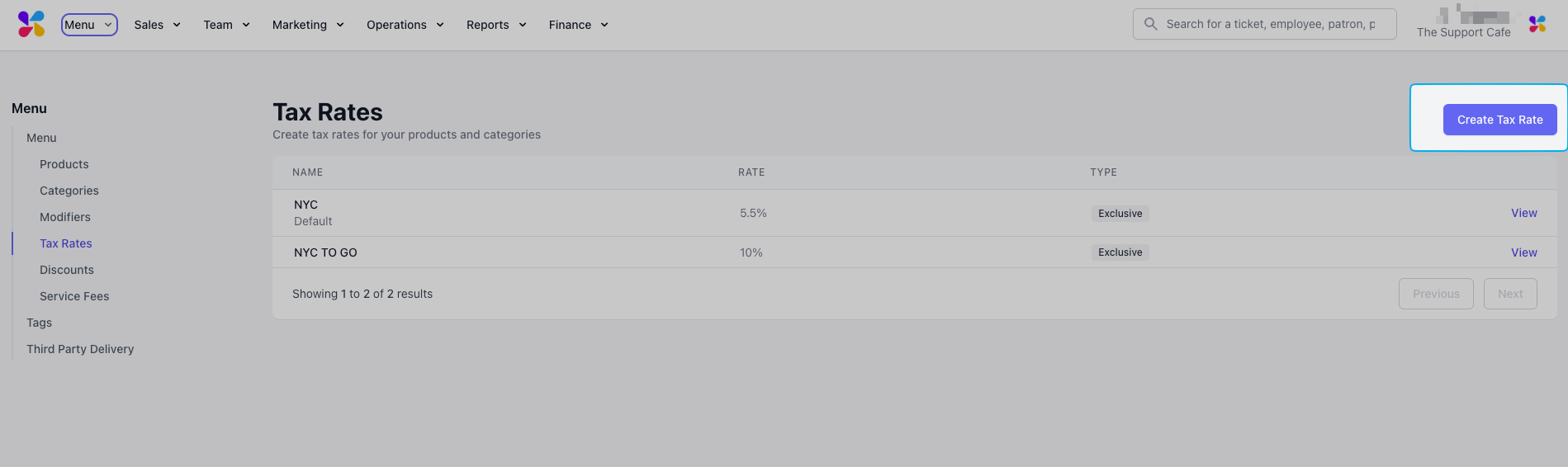
    <Step title="Click Menu > Tax Rates > click Create Tax Rate">
      <Frame>
        <img src="https://mintcdn.com/frostbytetechnologiesinc/HrzBvcr2ZemoYKGF/images/orders/SCR-20250317-qfoe.png?fit=max&auto=format&n=HrzBvcr2ZemoYKGF&q=85&s=59d2c9d64b5028401accc70f954e9b9e" width="1899" height="566" data-path="images/orders/SCR-20250317-qfoe.png" />
      </Frame>
    </Step>

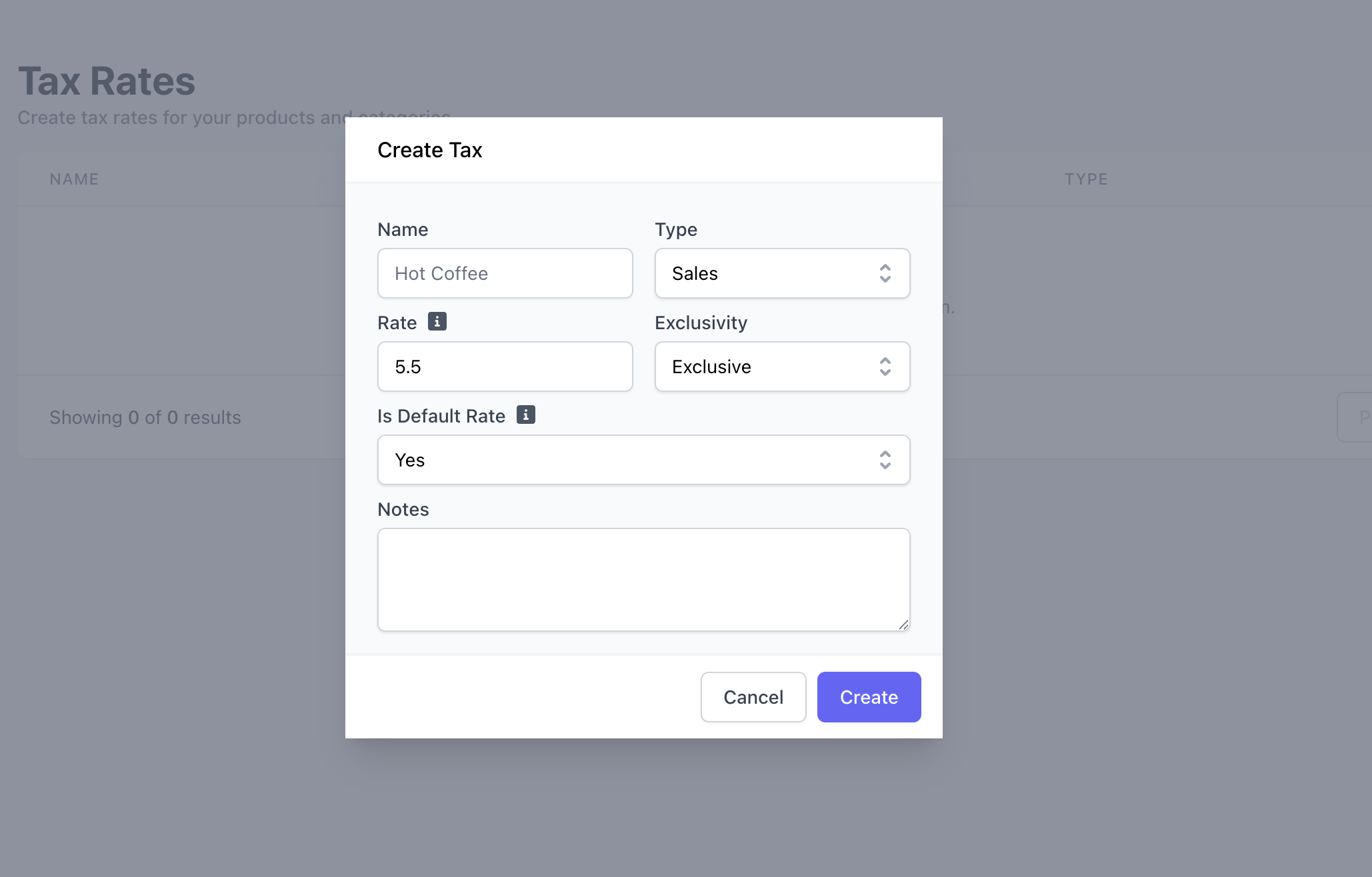
    <Step title="Fill in the following fields and click Create">
      <Tip>
        Select a minimum of one tax rate to be the store's **default tax rate**. A store can have multiple default tax rates that will be combined when calculating the total tax.
      </Tip>

      <Frame>
        <img src="https://mintcdn.com/frostbytetechnologiesinc/BFRl1awCCX14LfJl/images/orders/menu/taxrates-info-rachel-1.png?fit=max&auto=format&n=BFRl1awCCX14LfJl&q=85&s=19dc10c53851b46bda5ddc26692aedd8" width="2058" height="1316" data-path="images/orders/menu/taxrates-info-rachel-1.png" />
      </Frame>

      <Note>
        **Tax Rate Exclusivity**

        Tax rates can either be included in the price of a product or added on top
        of a product’s price.

        **Exclusive**: Taxes are applied in addition to a
        product’s price, i.e. \$5 latte with a 5% NY State Tax = \$5.25 total

        **Inclusive**: Taxes are included in the total price of a product
        i.e. \$5 latte with a 5% NY State Tax = \$4.75 latte and \$0.25 NY State Tax = \$5 total
      </Note>
    </Step>

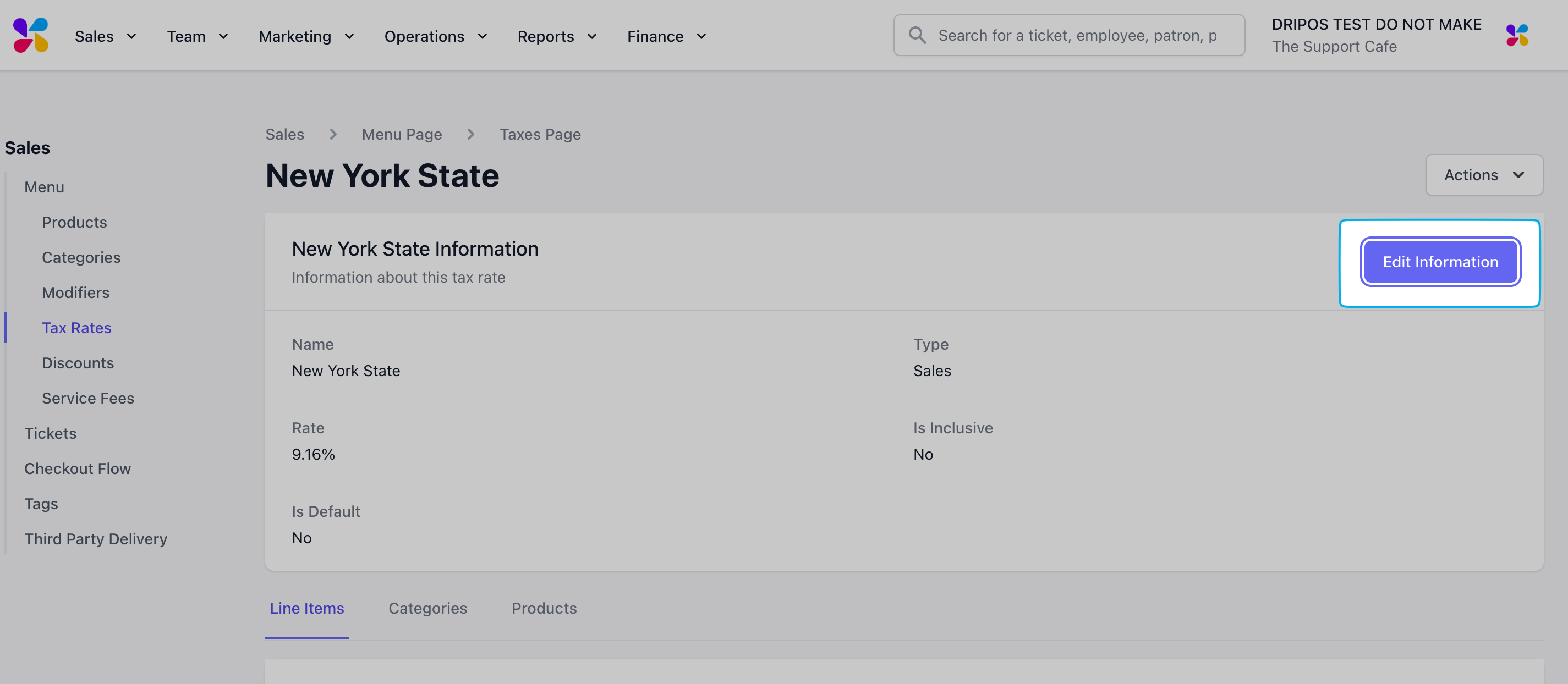
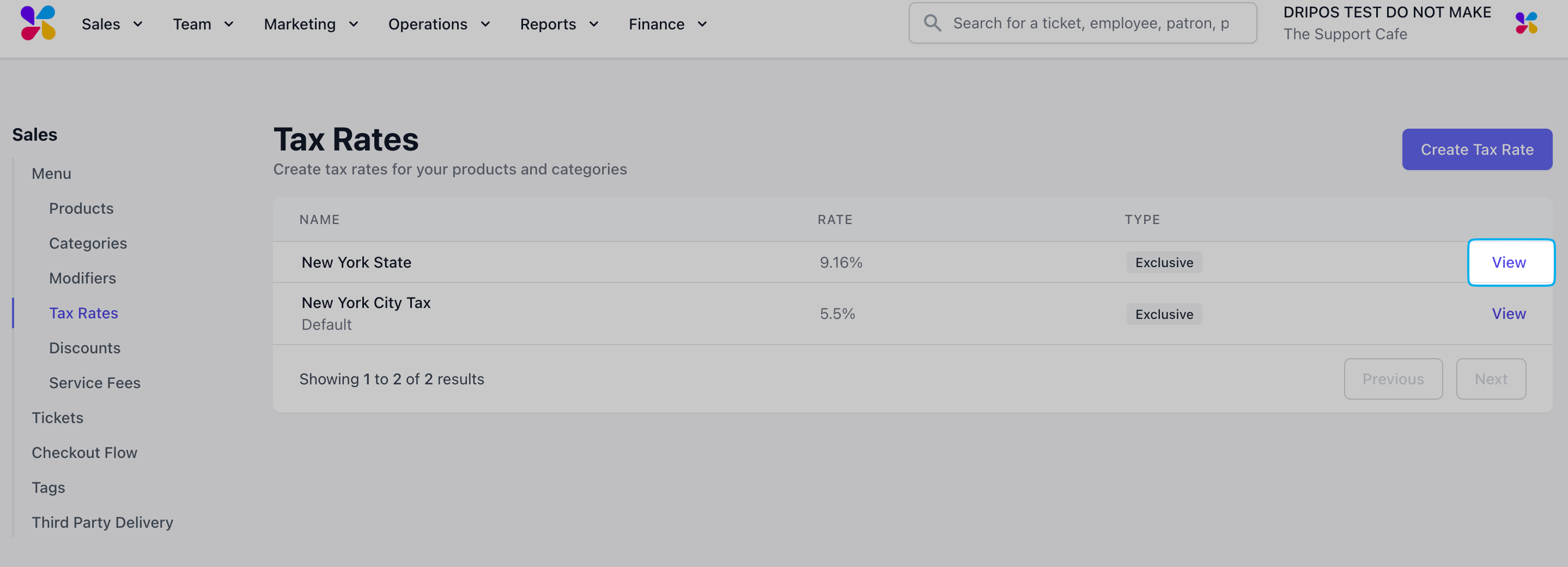
    <Step title="To edit existing tax rates, click View on the existing tax rate > Edit Information">
      <Frame>
        <img src="https://mintcdn.com/frostbytetechnologiesinc/SXotzUvIxt9U3dOU/images/orders/menu/create-tax-1.png?fit=max&auto=format&n=SXotzUvIxt9U3dOU&q=85&s=97d2640e2e1c0392486a84c0372ef9d9" width="2878" height="1040" data-path="images/orders/menu/create-tax-1.png" />
      </Frame>

      <Frame>
        <img src="https://mintcdn.com/frostbytetechnologiesinc/Eo5VZFjVcWP77hy0/images/orders/menu/SCR-20250317-psti.png?fit=max&auto=format&n=Eo5VZFjVcWP77hy0&q=85&s=341e3ba92daf569f1a67ae8c32ace62e" width="2850" height="1244" data-path="images/orders/menu/SCR-20250317-psti.png" />
      </Frame>
    </Step>
  </Steps>
</Accordion>

***

## Apply Tax Rates

Apply a tax rate to any of the following items:

<Tabs>
  <Tab title="Category">
    ### **Apply Tax Rates to a Category**

    <Info>
      Tax rates will automatically be applied to all products within the category.
    </Info>

    <Steps>
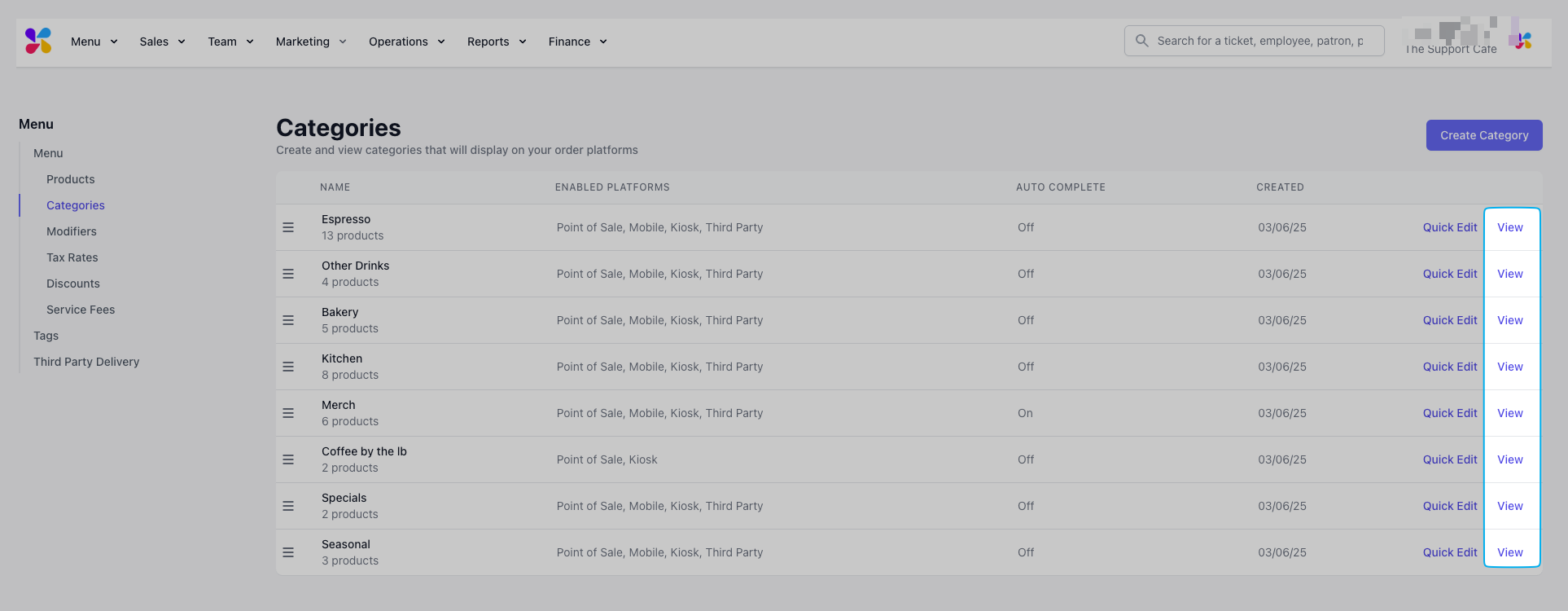
      <Step title="On the Dashboard click Menu > Categories > click View on the desired category">
        <Frame>
          <img src="https://mintcdn.com/frostbytetechnologiesinc/42ocdBm5_Zir3Nl5/images/orders/taxrates-apply-prod-2.png?fit=max&auto=format&n=42ocdBm5_Zir3Nl5&q=85&s=aa51cdf3dc5f3d1478fbf0cd71c9f056" width="1926" height="750" data-path="images/orders/taxrates-apply-prod-2.png" />
        </Frame>
      </Step>

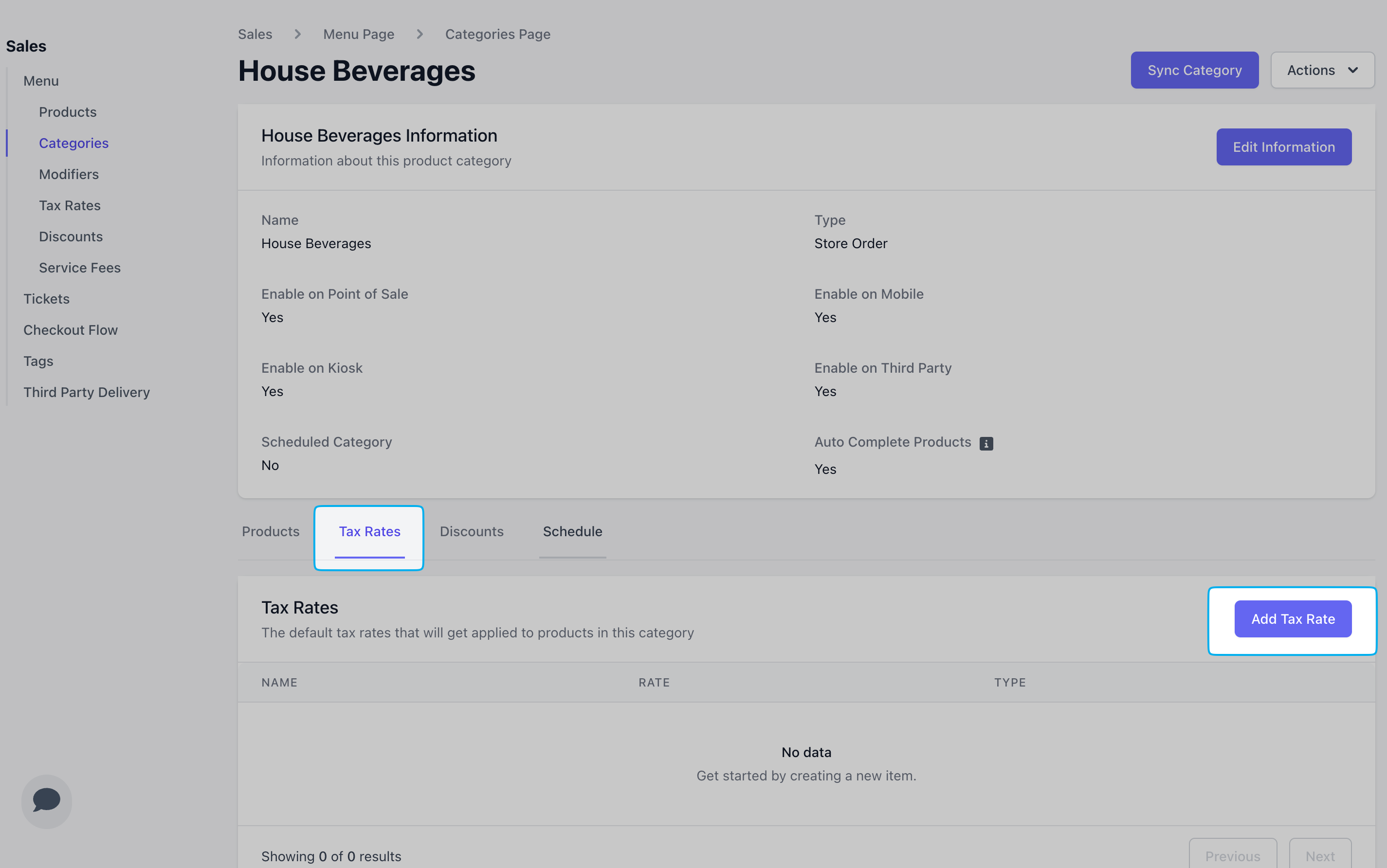
      <Step title="Scroll to the bottom of the page > click the Tax Rates tab > Add Tax Rate">
        <Frame>
          <img src="https://mintcdn.com/frostbytetechnologiesinc/BFRl1awCCX14LfJl/images/orders/menu/taxrates-apply-2.png?fit=max&auto=format&n=BFRl1awCCX14LfJl&q=85&s=d2dfcff21fc6d5b16cbc98fcefc2b959" width="2850" height="1784" data-path="images/orders/menu/taxrates-apply-2.png" />
        </Frame>
      </Step>

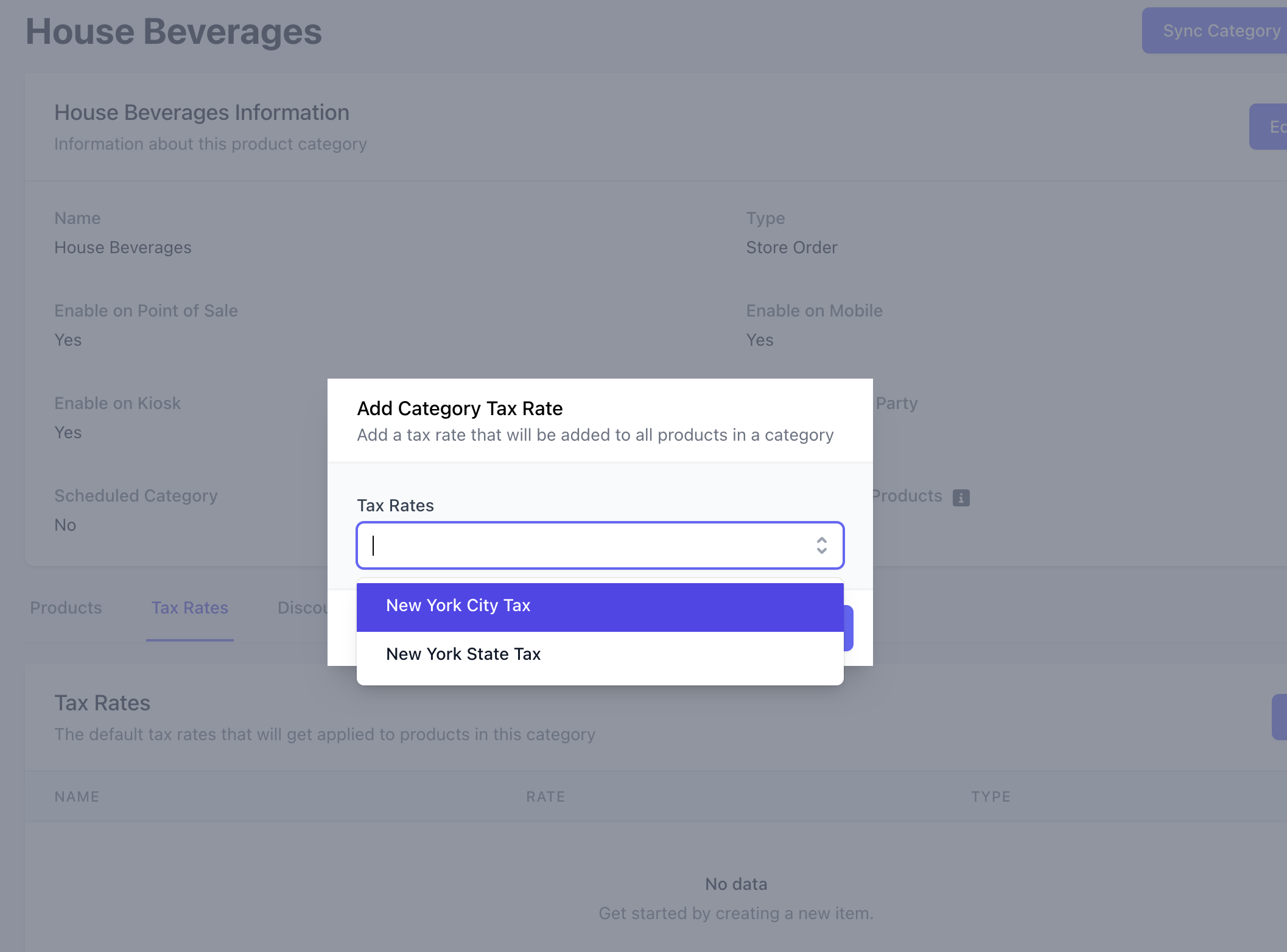
      <Step title="Select a tax rate to apply to the category">
        To apply an additional tax rate to a category, repeat these steps. There is no limit to the number of tax rates that can be applied to a category.
        <Frame>
          <img src="https://mintcdn.com/frostbytetechnologiesinc/BFRl1awCCX14LfJl/images/orders/menu/taxrates-apply-3.png?fit=max&auto=format&n=BFRl1awCCX14LfJl&q=85&s=b44d3cd425d82829cee50fc4ae9be94d" width="2114" height="1564" data-path="images/orders/menu/taxrates-apply-3.png" />
        </Frame>
      </Step>
    </Steps>
  </Tab>

  <Tab title="Products">
    ### **Apply Tax Rates to a Product**

    <Steps>
      <Step title="On the Dashboard click Menu > Products > click View on the desired product">
        <Frame>
          <img src="https://mintcdn.com/frostbytetechnologiesinc/HrzBvcr2ZemoYKGF/images/orders/SCR-20250515-kgev.png?fit=max&auto=format&n=HrzBvcr2ZemoYKGF&q=85&s=441130f6cb4aae931873392eb7874597" width="1903" height="935" data-path="images/orders/SCR-20250515-kgev.png" />
        </Frame>
      </Step>

      <Step title="Scroll to the bottom of the page > click the Tax Rates tab > Add Tax Rate">
        <Frame>
          <img src="https://mintcdn.com/frostbytetechnologiesinc/BFRl1awCCX14LfJl/images/orders/menu/taxrates-apply-prod-2.png?fit=max&auto=format&n=BFRl1awCCX14LfJl&q=85&s=66ce2c55edf818f0fe31c6ae35068679" width="2870" height="1798" data-path="images/orders/menu/taxrates-apply-prod-2.png" />
        </Frame>
      </Step>

      <Step title="Select a tax rate to apply to the product">
        To apply an additional tax rate to a product, repeat these steps. There is no limit to the number of tax rates that can be applied to a product.

        <Frame>
          <img src="https://mintcdn.com/frostbytetechnologiesinc/BFRl1awCCX14LfJl/images/orders/menu/taxrates-apply-prod-3.png?fit=max&auto=format&n=BFRl1awCCX14LfJl&q=85&s=854979b80f2ddb4abf91e218ac534fe0" width="2198" height="1514" data-path="images/orders/menu/taxrates-apply-prod-3.png" />
        </Frame>
      </Step>
    </Steps>
  </Tab>

  <Tab title="Service Fees">
    ### **Apply Tax Rates to a Service Fee**

    <Steps>
      <Step title="On the Dashboard click Menu > Service Fees > click Edit on the desired Service Fee">
        <Frame>
          <img src="https://mintcdn.com/frostbytetechnologiesinc/HrzBvcr2ZemoYKGF/images/orders/SCR-20250515-kgpd.png?fit=max&auto=format&n=HrzBvcr2ZemoYKGF&q=85&s=c6b5e3347449fc68a1666e31ef320488" width="1895" height="566" data-path="images/orders/SCR-20250515-kgpd.png" />
        </Frame>
      </Step>

      <Step title="Click Edit Information">
        <Frame>
          <img src="https://mintcdn.com/frostbytetechnologiesinc/BFRl1awCCX14LfJl/images/orders/menu/taxrates-apply-sf-2.png?fit=max&auto=format&n=BFRl1awCCX14LfJl&q=85&s=0ad92d42d34d8b12541eea9c30817105" width="2878" height="1534" data-path="images/orders/menu/taxrates-apply-sf-2.png" />
        </Frame>
      </Step>

      <Step title="Select at tax rate to apply to the service fee">
        To apply an additional tax rate to a category, repeat these steps. There is no limit to the number of tax rates that can be applied to a service fee.

        <Frame>
          <img src="https://mintcdn.com/frostbytetechnologiesinc/BFRl1awCCX14LfJl/images/orders/menu/taxrates-apply-sf-3.png?fit=max&auto=format&n=BFRl1awCCX14LfJl&q=85&s=477fce0fbc554d9f522d5aa1aa25e065" width="2172" height="1384" data-path="images/orders/menu/taxrates-apply-sf-3.png" />
        </Frame>
      </Step>
    </Steps>
  </Tab>

  <Tab title="Ticket Types">
    ### **Apply Default Tax Rates to a Ticket Type**

    <Steps>
      <Step title="On the Dashboard click Sales > Ticket Types > click View on the desired ticket type">
        <Frame>
          <img src="https://mintcdn.com/frostbytetechnologiesinc/HrzBvcr2ZemoYKGF/images/orders/SCR-20250515-kgyt.png?fit=max&auto=format&n=HrzBvcr2ZemoYKGF&q=85&s=b8401f42017b8276af1b7672f7acaa46" width="1907" height="688" data-path="images/orders/SCR-20250515-kgyt.png" />
        </Frame>
      </Step>

      <Step title="Click Edit Information">
        <Frame>
          <img src="https://mintcdn.com/frostbytetechnologiesinc/HrzBvcr2ZemoYKGF/images/orders/SCR-20250515-khvm.png?fit=max&auto=format&n=HrzBvcr2ZemoYKGF&q=85&s=62c0f81ebf81efe31731dfe08af1fb64" width="1896" height="865" data-path="images/orders/SCR-20250515-khvm.png" />
        </Frame>
      </Step>

      <Step title="Select enable or disable to taxes for this ticket type">
        <Info>
          Disable Taxes = **'No'** is to **enable** taxes on thsi ticket type. The default tax rates of products in cart will apply to the ticket

          Disable Taxes = **'Yes'** is to **disable** taxes on this ticket type entirely.
        </Info>

        <Frame>
          <img src="https://mintcdn.com/frostbytetechnologiesinc/BFRl1awCCX14LfJl/images/orders/menu/taxrates-apply-tickets-3.png?fit=max&auto=format&n=BFRl1awCCX14LfJl&q=85&s=ccc65099dc28b9abaee2462c64645b0a" width="2852" height="1770" data-path="images/orders/menu/taxrates-apply-tickets-3.png" />
        </Frame>
      </Step>
    </Steps>
  </Tab>

  <Tab title="Custom Products">
    ### **Apply Tax Rates to Custom Products on the POS**

    <Steps>
      <Step title="Create a Custom Product on the POS">
        Press the **Tag Icon** <Icon icon="tags" iconType="solid" /> > select **Custom Product**

        <Frame>
          <img src="https://mintcdn.com/frostbytetechnologiesinc/BFRl1awCCX14LfJl/images/orders/menu/taxrate-apply-custom-1.png?fit=max&auto=format&n=BFRl1awCCX14LfJl&q=85&s=f2c5394917d8ac68ecc0fcdba0d1251f" width="2034" height="1532" data-path="images/orders/menu/taxrate-apply-custom-1.png" />
        </Frame>
      </Step>

      <Step title="Turn the Enable Tax toggle on or off to apply or disable the default tax rate, respectively">
        <Frame>
          <img src="https://mintcdn.com/frostbytetechnologiesinc/BFRl1awCCX14LfJl/images/orders/menu/taxrate-apply-custom-2.png?fit=max&auto=format&n=BFRl1awCCX14LfJl&q=85&s=13fc736af3f7407139d1042346df5af5" width="2042" height="1534" data-path="images/orders/menu/taxrate-apply-custom-2.png" />
        </Frame>
      </Step>
    </Steps>
  </Tab>

  <Tab title="Point of Sale Orders">
    ### **Disable Tax Rates on POS Orders**

    <Steps>
      <Step title="Before pressing Charge, turn the Tax toggle on or off to enable or disable taxes on an order">
        <Frame>
          <img src="https://mintcdn.com/frostbytetechnologiesinc/BFRl1awCCX14LfJl/images/orders/menu/taxrates-apply-order-1.png?fit=max&auto=format&n=BFRl1awCCX14LfJl&q=85&s=0168cf1f3b78c3edace39ad3e6526f25" width="2038" height="1470" data-path="images/orders/menu/taxrates-apply-order-1.png" />
        </Frame>

        <Frame>
          <img src="https://mintcdn.com/frostbytetechnologiesinc/BFRl1awCCX14LfJl/images/orders/menu/taxrates-apply-orders-2.png?fit=max&auto=format&n=BFRl1awCCX14LfJl&q=85&s=8870c71b68ebff9da1268e822892c02f" width="2032" height="1510" data-path="images/orders/menu/taxrates-apply-orders-2.png" />
        </Frame>
      </Step>
    </Steps>
  </Tab>
</Tabs>

***

## **Delete Tax Rates**

<Accordion title="How to Delete a Tax Rate">
  <Note>
    Deleting a tax rate will remove the tax rate from all products, categories, and service fees.
  </Note>

  <Steps>
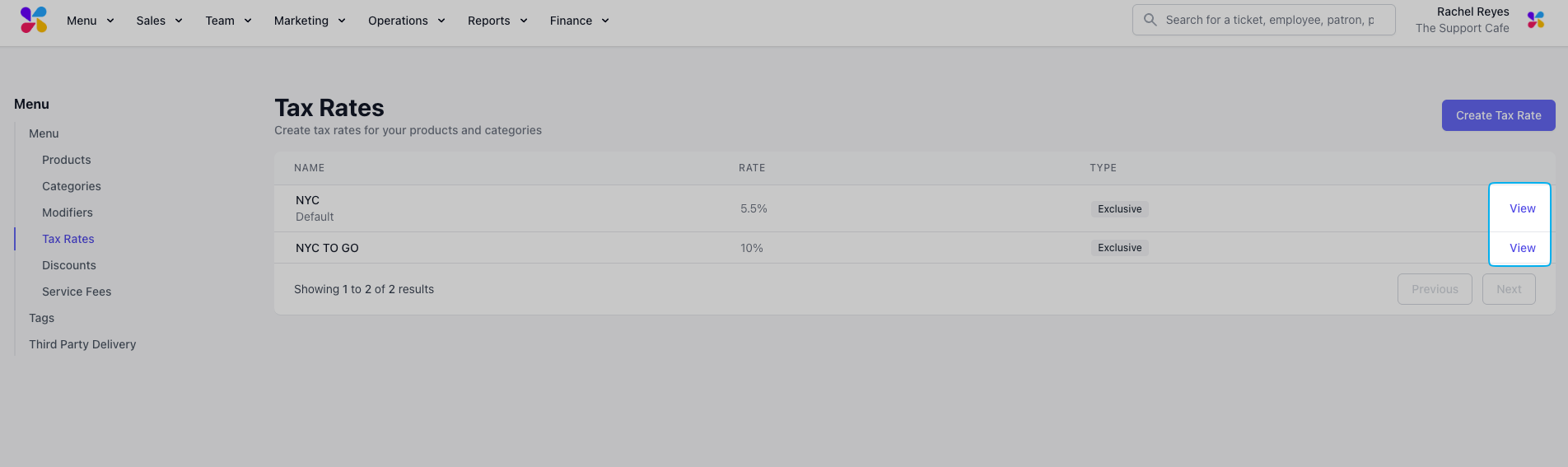
    <Step title="Click Menu > Tax Rates > click View on the existing tax rate">
      <Frame>
        <img src="https://mintcdn.com/frostbytetechnologiesinc/HrzBvcr2ZemoYKGF/images/orders/SCR-20250515-kihp.png?fit=max&auto=format&n=HrzBvcr2ZemoYKGF&q=85&s=f147030e04b5f3e34164a58a2c0b8d29" width="1904" height="567" data-path="images/orders/SCR-20250515-kihp.png" />
      </Frame>
    </Step>

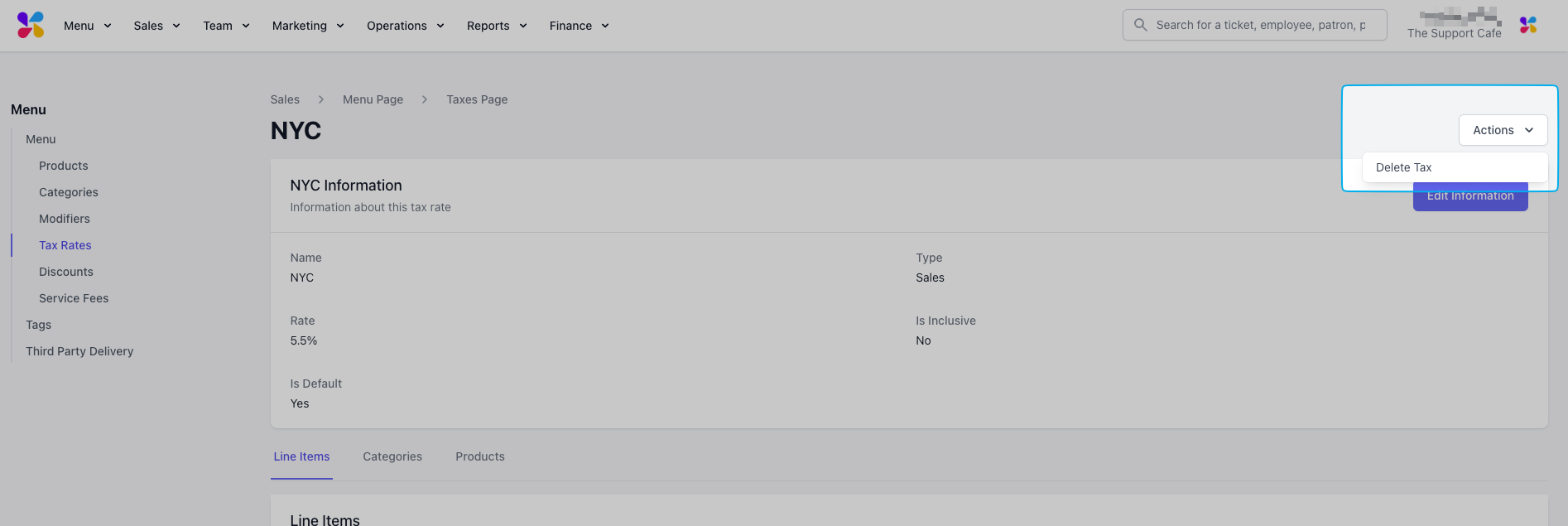
    <Step title="Click Actions > Delete Tax">
      <Frame>
        <img src="https://mintcdn.com/frostbytetechnologiesinc/HrzBvcr2ZemoYKGF/images/orders/SCR-20250515-kjaz.png?fit=max&auto=format&n=HrzBvcr2ZemoYKGF&q=85&s=fc177e424f6b9331f27cf06f9f8590e1" width="1894" height="635" data-path="images/orders/SCR-20250515-kjaz.png" />
      </Frame>
    </Step>
  </Steps>
</Accordion>

***

## **View Sales by Tax Rate**

<Tabs>
  <Tab title="View Tickets">
    ### View Tickets

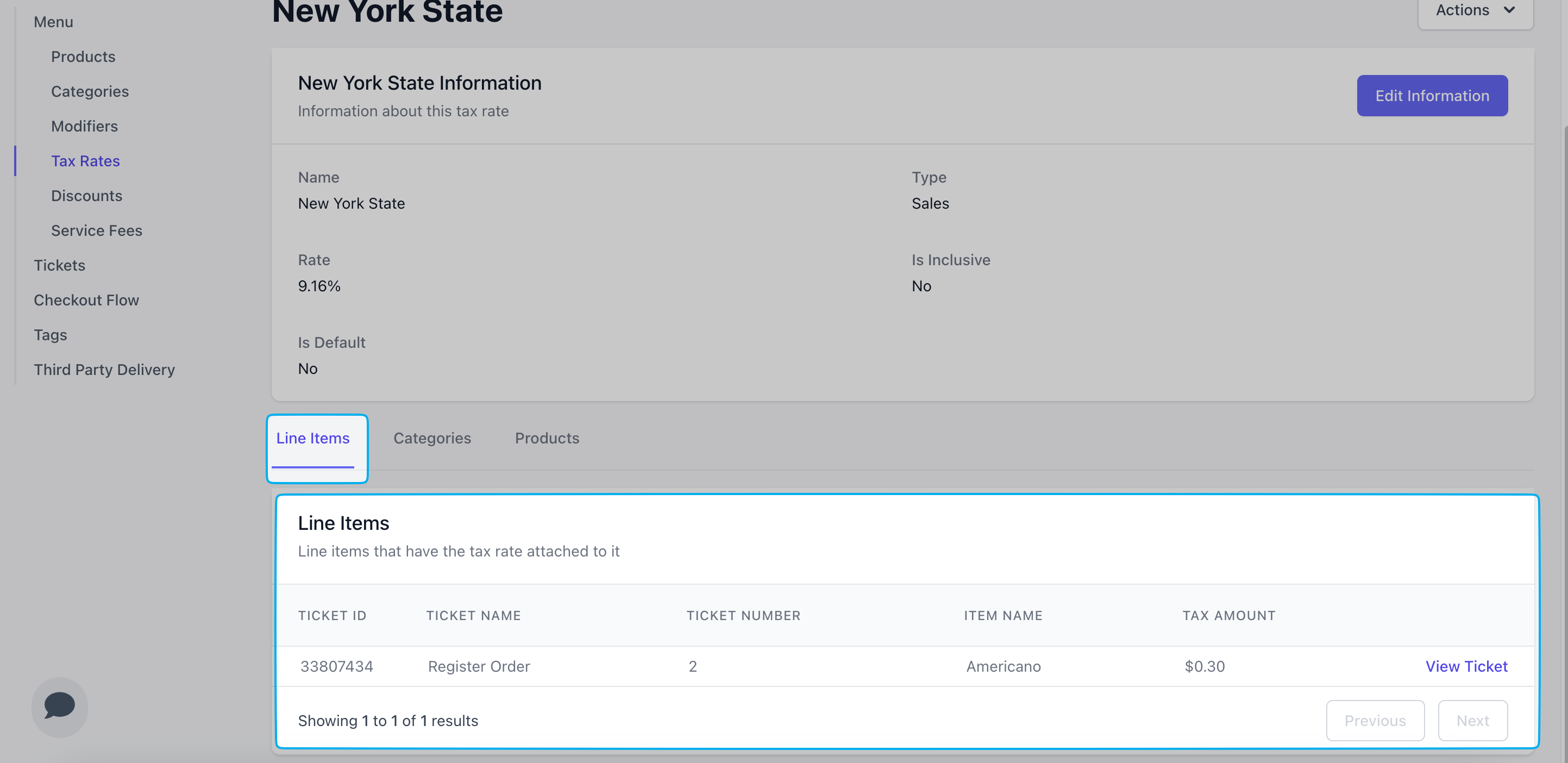
    See every ticket that utilized a specific tax rate
    <Steps>
      <Step title="Click Menu > Tax Rates > click View on the existing tax rate">
        <Frame>
          <img src="https://mintcdn.com/frostbytetechnologiesinc/HrzBvcr2ZemoYKGF/images/orders/SCR-20250515-kihp.png?fit=max&auto=format&n=HrzBvcr2ZemoYKGF&q=85&s=f147030e04b5f3e34164a58a2c0b8d29" width="1904" height="567" data-path="images/orders/SCR-20250515-kihp.png" />
        </Frame>
      </Step>

      <Step title="Scroll to the bottom of the page and click the Line Items tab to view tickets">
        <Frame>
          <img src="https://mintcdn.com/frostbytetechnologiesinc/BFRl1awCCX14LfJl/images/orders/menu/taxrates-view.png?fit=max&auto=format&n=BFRl1awCCX14LfJl&q=85&s=3201a36321f4bd5e2303a8b76eac9312" width="2886" height="1404" data-path="images/orders/menu/taxrates-view.png" />
        </Frame>
      </Step>
    </Steps>
  </Tab>

  <Tab title="View Tax Categories Reports">
    ### View Tax Categories Reports

    <Steps>
      <Step title="Click Reports > Tax Categories > Select a date range > Click Generate Report">
        <Frame>
          <img src="https://mintcdn.com/frostbytetechnologiesinc/BFRl1awCCX14LfJl/images/orders/menu/taxcategories.png?fit=max&auto=format&n=BFRl1awCCX14LfJl&q=85&s=0375e00fe6a0c23670b4b98aff3c6b0b" width="2882" height="1316" data-path="images/orders/menu/taxcategories.png" />
        </Frame>

        <Info>
          **Tax Collected**: The dollar amount of tax collected from sales

          **Taxable Amount**: The dollar amount of sales that tax was collected on
        </Info>
      </Step>
    </Steps>
  </Tab>
</Tabs>