> ## Documentation Index
> Fetch the complete documentation index at: https://support.dripos.com/llms.txt
> Use this file to discover all available pages before exploring further.
# Modifier Basics
> Customize your menu products with modifiers
There are two types of modifiers: **Pricing** and **Add-on**. Both types can be created globally and applied to multiple products on the menu or custom to one specific product.
To determine what type of modifier to create, walk through the questions below:
1. Will the modifier ***change*** the base price of the product or ***add-on*** to the base price?
* Change the base price, based on size or type of product -> **Pricing Modifier**
* Add-on to the base price, based on additions or substitutions -> **Add-on Modifier**
2. Will the modifier be used for multiple products or is it specific to one product?
* Used for multiple products, such as Milk Options available for several coffee products -> **Global**
* Custom made specific to one product, such as Breakfast Sandwich Add-Ons only available for one breakfast product -> **Custom**
# Global Modifiers
Global modifiers can be applied to multiple products on the menu.
When a global modifier is edited or deleted, it will be edited or deleted for all products using this modifier.
### Create Global Pricing Modifiers
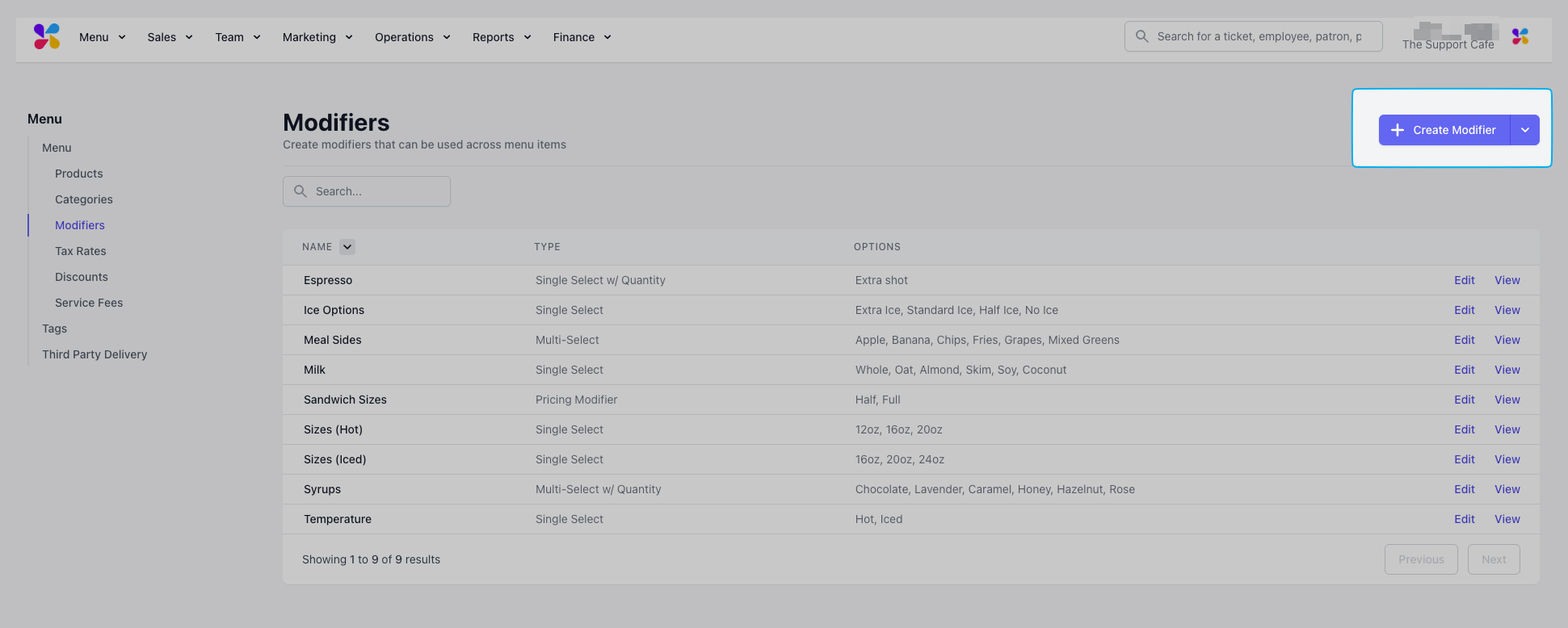
On the **Dashboard**, navigate to **Menu** > **Modifiers** > **Create Modifier**
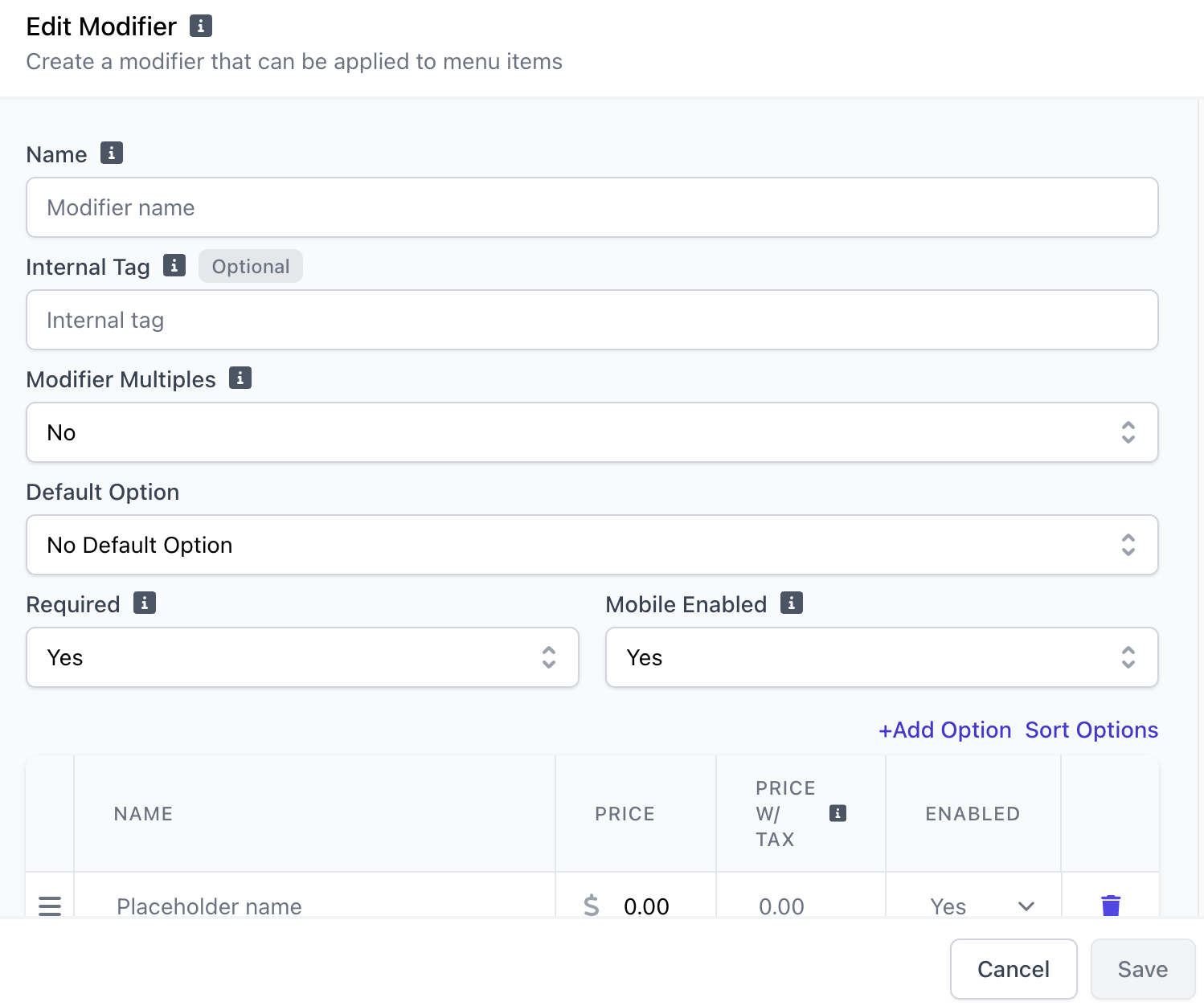 **Name**: i.e., Latte Sizes
**Internal Tag**: If two modifiers have the same name, the internal tag helps differentiate them. This name is not displayed on the POS.
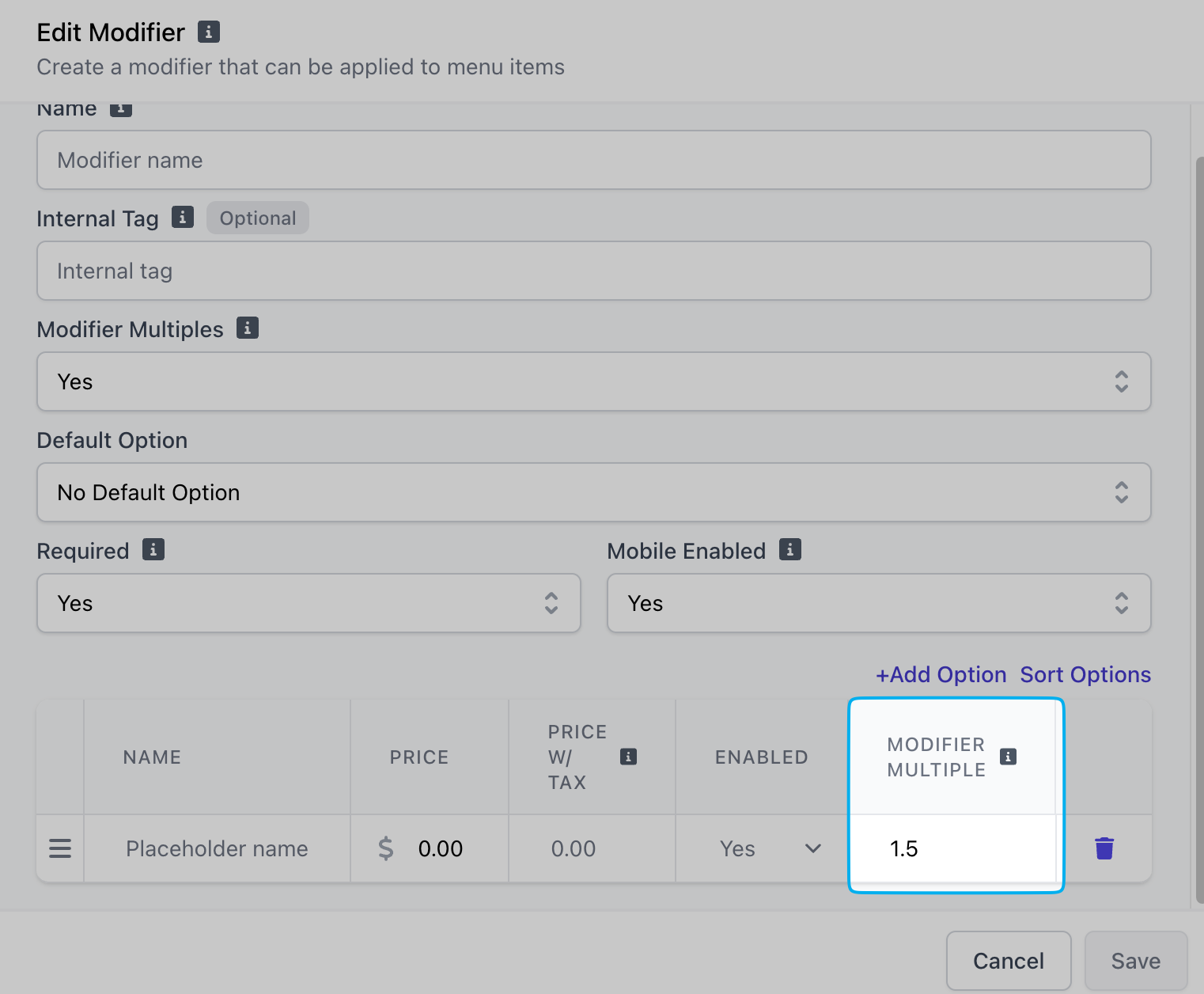
**Modifier Multiples**: If **Yes**, the prices of modifiers attached to this product will be multiplied by the amount inputted for each option
**Name**: i.e., Latte Sizes
**Internal Tag**: If two modifiers have the same name, the internal tag helps differentiate them. This name is not displayed on the POS.
**Modifier Multiples**: If **Yes**, the prices of modifiers attached to this product will be multiplied by the amount inputted for each option
 **Default Option**: Create modifier options first, then select a default option if applicable
**Required**: If **Yes**, the product cannot be added to cart until a modifier option is select
**Mobile Enabled**: If **Yes**, the modifier will be shown on mobile ordering platforms
Click **+ Add Option** to add a modifier option.
**Default Option**: Create modifier options first, then select a default option if applicable
**Required**: If **Yes**, the product cannot be added to cart until a modifier option is select
**Mobile Enabled**: If **Yes**, the modifier will be shown on mobile ordering platforms
Click **+ Add Option** to add a modifier option.
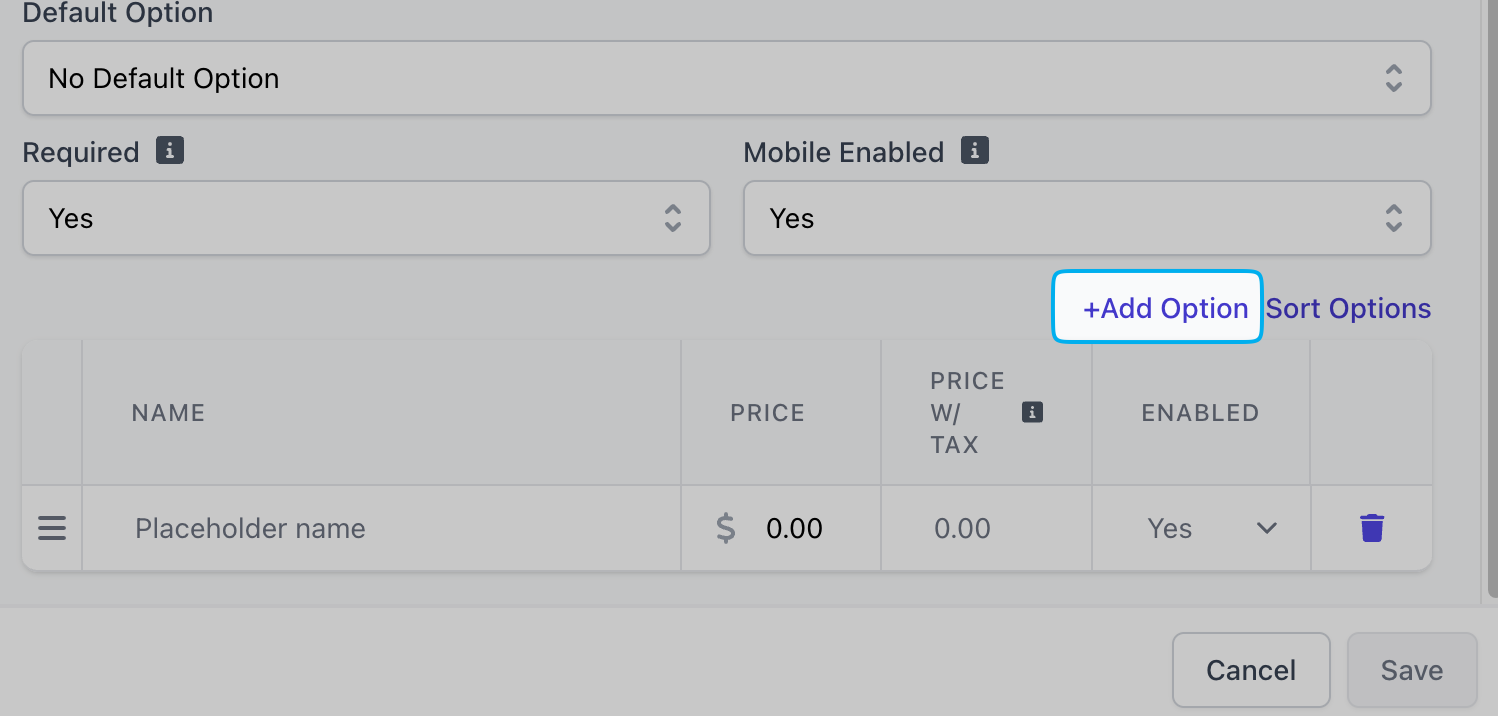 **Name**: i.e., 12oz - Hot, 12oz - Iced
**Price**: Price of the option
**Enabled**: If **Yes**, this modifier option will be available for ordering on all platforms
Click **Save**
Once a global modifier is created, it can be added to products.
### Pricing Global Modifier
Find the modifier on the **Dashboard** under **Menu** > **Modifiers** > **View Modifier**
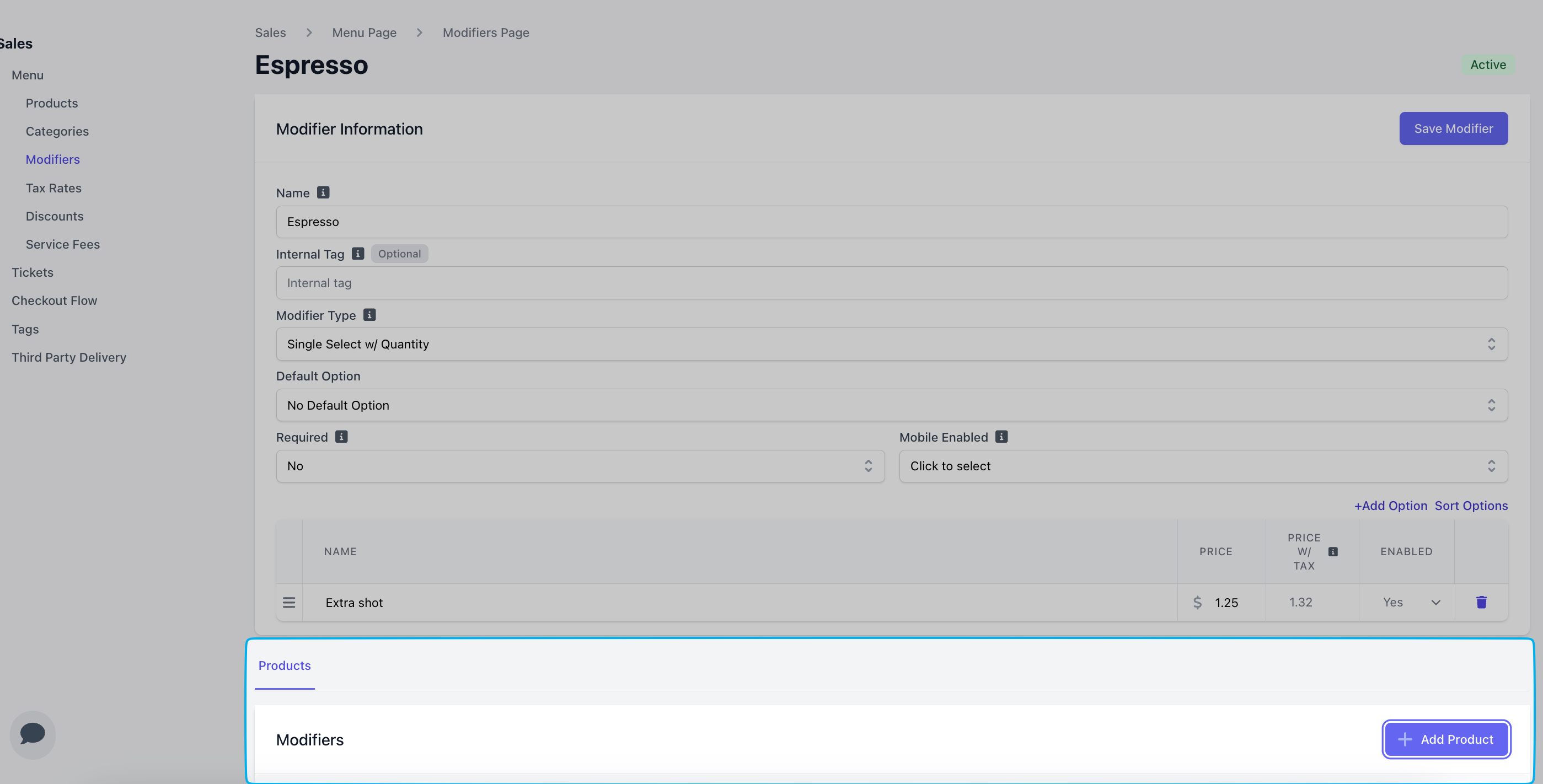
Scroll to the bottom of the modifier's page to add a product by clicking **Add Product**
**Name**: i.e., 12oz - Hot, 12oz - Iced
**Price**: Price of the option
**Enabled**: If **Yes**, this modifier option will be available for ordering on all platforms
Click **Save**
Once a global modifier is created, it can be added to products.
### Pricing Global Modifier
Find the modifier on the **Dashboard** under **Menu** > **Modifiers** > **View Modifier**
Scroll to the bottom of the modifier's page to add a product by clicking **Add Product**
 Find the product on the **Dashboard** under **Menu** > **Products** > **View** product
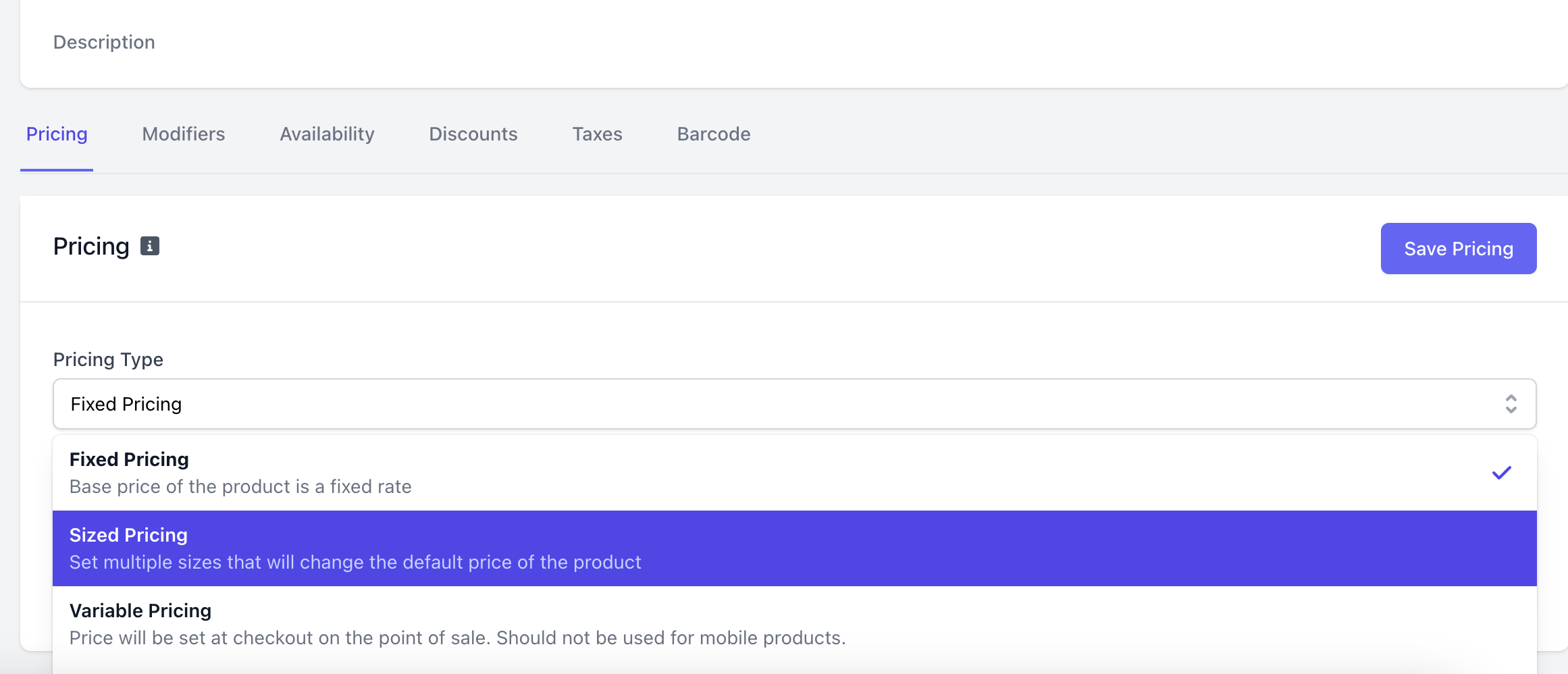
Scroll to the bottom of the product's page > **Pricing** > select **Sized Pricing** > **Pre-Made Modifier** > select one **Modifier** > **Add**
Find the product on the **Dashboard** under **Menu** > **Products** > **View** product
Scroll to the bottom of the product's page > **Pricing** > select **Sized Pricing** > **Pre-Made Modifier** > select one **Modifier** > **Add**
 Find the product on the **Dashboard** under **Menu** > **Products** > **View** product
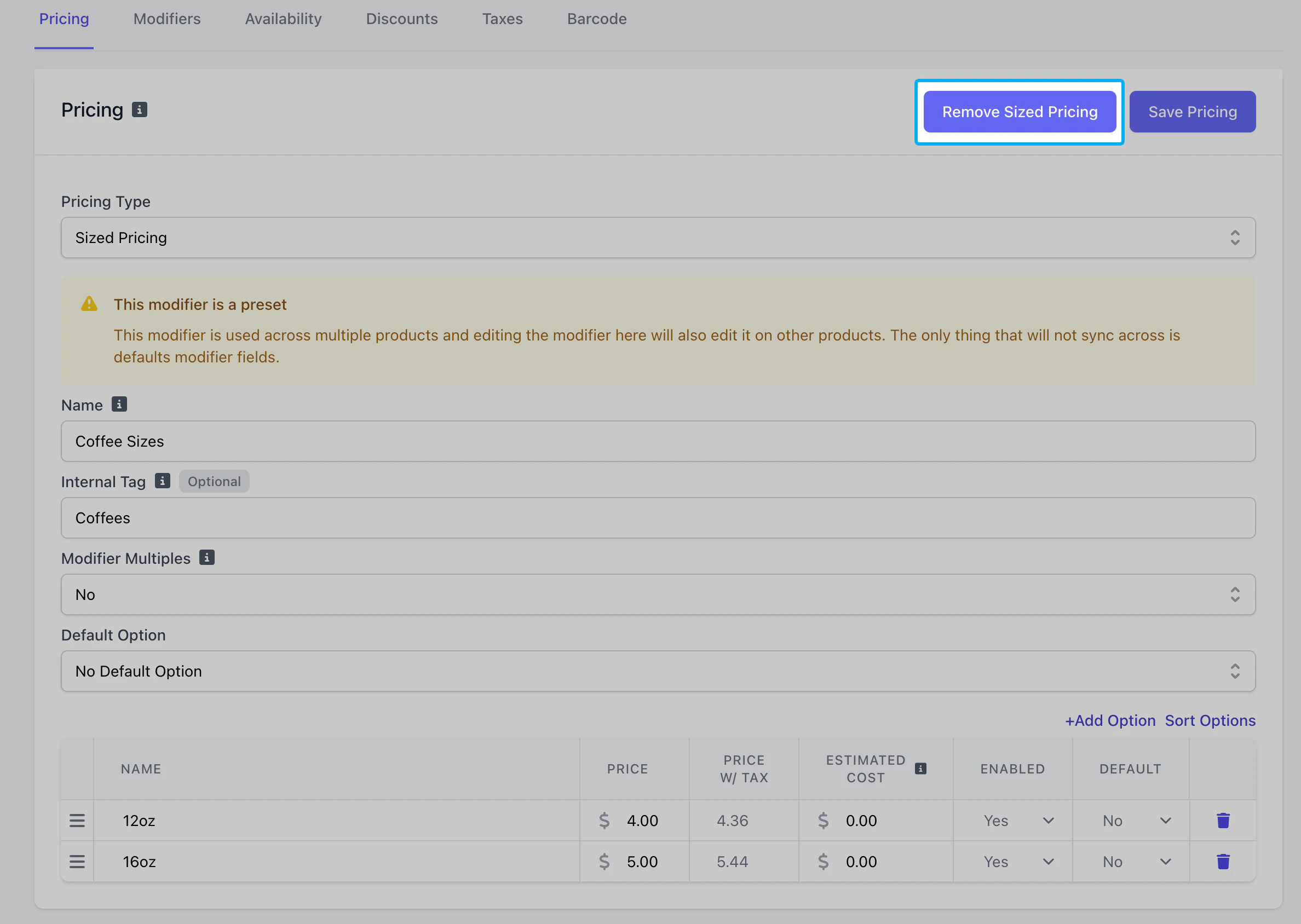
On the product page, scroll down to **Pricing** > **Remove Sized Pricing**
Find the product on the **Dashboard** under **Menu** > **Products** > **View** product
On the product page, scroll down to **Pricing** > **Remove Sized Pricing**
 ### Create Global Add-On Modifiers
Add-on modifier is a selection that adds on to the base price of a product, such as Milk Options, Syrup Flavors, Extra Shot
On the **Dashboard**, navigate to **Menu** > **Modifiers** > **Create Modifier**
### Create Global Add-On Modifiers
Add-on modifier is a selection that adds on to the base price of a product, such as Milk Options, Syrup Flavors, Extra Shot
On the **Dashboard**, navigate to **Menu** > **Modifiers** > **Create Modifier**
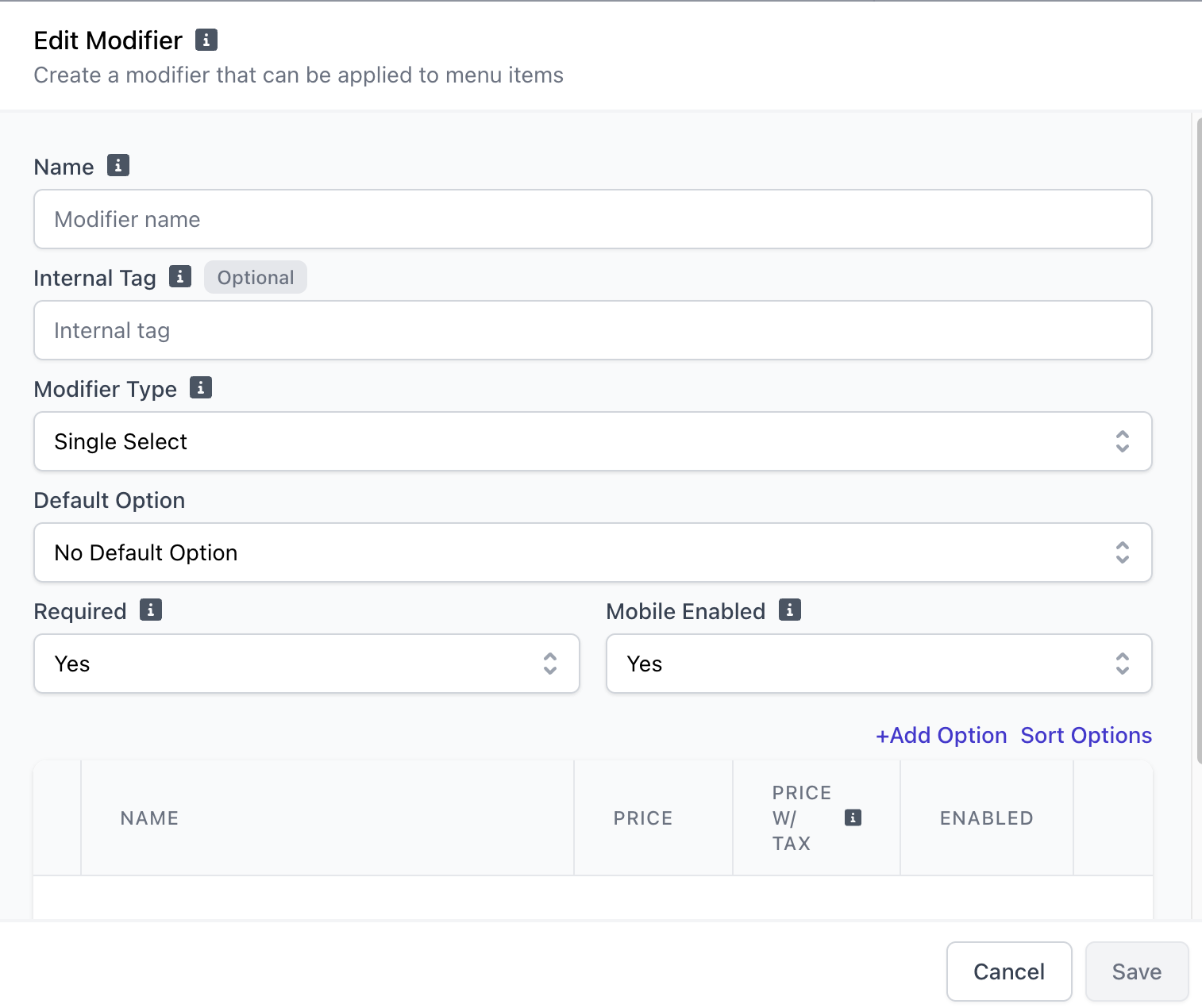 **Name**: i.e., Syrups
**Internal Tag**: If two modifiers have the same name, the internal tag helps differentiate them. This name is not displayed on the POS.
**Modifier Type**:
***Single Select:*** Customers can only select one option *(i.e, 1 pump of raspberry syrup)*
***Single Select w/ Quantity:*** Customers can select only one option but can change the quantity of that option *(i.e., 4 pumps of raspberry syrup)*
***Multi-Select:*** Customers can select multiple options *(i.e., 1 pump of raspberry syrup and 1 pump of white chocolate)*
***Multi-Select with Quantity:*** Customers can select multiple options and set the minimum/maximum total quantity across all options *(i.e., 4 pumps of raspberry syrup and 2 pumps of white chocolate)*
***Multi-Select with w/ Fixed Price:*** Customers can select multiple options but at one price, does not stack with multiple options *(i.e., select raspberry syrup and white chocolate for fixed price of \$0.50)*
**Default Option**: Create options first, then select a default option if applicable
**Required**: If **Yes**, product cannot be added to cart until a modifier option is select
**Mobile Enabled**: If **Yes**, modifier group will be available on mobile ordering platforms
Click **Add Option** to add a single option. There is no limit to the number of modifier options that can be added.
**Name**: i.e., raspberry syrup
**Price**: Cost of modifier to add on to base price of product
**Enabled**: If **Yes**, this modifier option will be available for ordering
Click **Save**
Once a global modifier is created, it can be added to products.
### Pricing Global Modifier
Find the modifier on the **Dashboard** under **Menu** > **Modifiers** > **View Modifier**
Scroll to the bottom of the modifier's page to add a product by clicking **Add Product**
Find the product on the **Dashboard** under **Menu** > **Products** > **View** product
Scroll to the bottom of the product's page > **Pricing** > select **Sized Pricing** > **Pre-Made Modifier** > select one **Modifier** > **Add**
### Add-On Global Modifier
Find the modifier on the **Dashboard** under **Menu** > **Modifiers** > **View Modifier**
Scroll to the bottom of the modifier's page to add a product by clicking **Add Product**
Find the product on the **Dashboard** under **Menu** > **Products** > **View** product
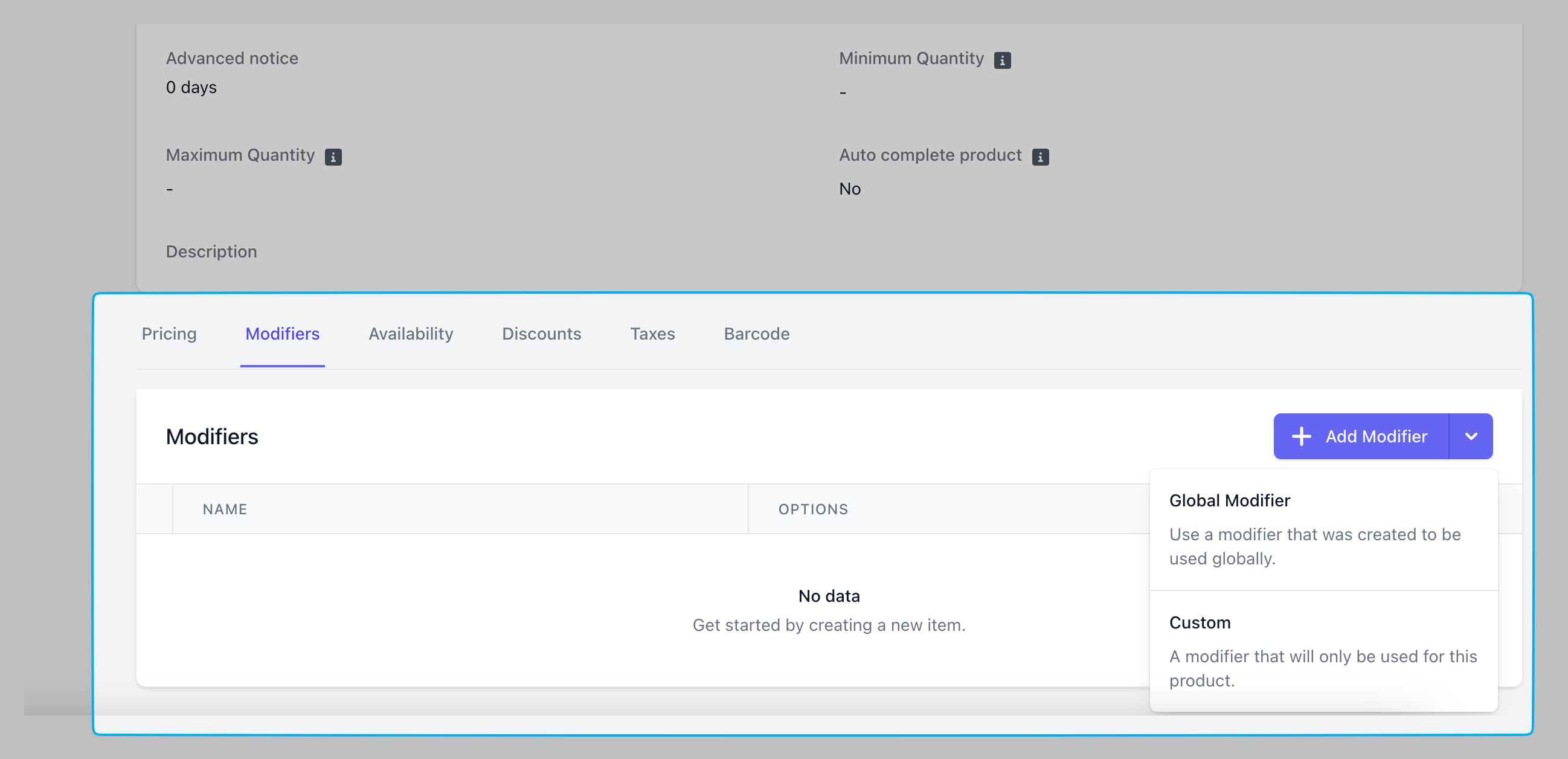
Scroll to the bottom of the product's page > **Modifiers** > **Add Modifier** > **Global Modifier** > select one modifier > **Add**
**Name**: i.e., Syrups
**Internal Tag**: If two modifiers have the same name, the internal tag helps differentiate them. This name is not displayed on the POS.
**Modifier Type**:
***Single Select:*** Customers can only select one option *(i.e, 1 pump of raspberry syrup)*
***Single Select w/ Quantity:*** Customers can select only one option but can change the quantity of that option *(i.e., 4 pumps of raspberry syrup)*
***Multi-Select:*** Customers can select multiple options *(i.e., 1 pump of raspberry syrup and 1 pump of white chocolate)*
***Multi-Select with Quantity:*** Customers can select multiple options and set the minimum/maximum total quantity across all options *(i.e., 4 pumps of raspberry syrup and 2 pumps of white chocolate)*
***Multi-Select with w/ Fixed Price:*** Customers can select multiple options but at one price, does not stack with multiple options *(i.e., select raspberry syrup and white chocolate for fixed price of \$0.50)*
**Default Option**: Create options first, then select a default option if applicable
**Required**: If **Yes**, product cannot be added to cart until a modifier option is select
**Mobile Enabled**: If **Yes**, modifier group will be available on mobile ordering platforms
Click **Add Option** to add a single option. There is no limit to the number of modifier options that can be added.
**Name**: i.e., raspberry syrup
**Price**: Cost of modifier to add on to base price of product
**Enabled**: If **Yes**, this modifier option will be available for ordering
Click **Save**
Once a global modifier is created, it can be added to products.
### Pricing Global Modifier
Find the modifier on the **Dashboard** under **Menu** > **Modifiers** > **View Modifier**
Scroll to the bottom of the modifier's page to add a product by clicking **Add Product**
Find the product on the **Dashboard** under **Menu** > **Products** > **View** product
Scroll to the bottom of the product's page > **Pricing** > select **Sized Pricing** > **Pre-Made Modifier** > select one **Modifier** > **Add**
### Add-On Global Modifier
Find the modifier on the **Dashboard** under **Menu** > **Modifiers** > **View Modifier**
Scroll to the bottom of the modifier's page to add a product by clicking **Add Product**
Find the product on the **Dashboard** under **Menu** > **Products** > **View** product
Scroll to the bottom of the product's page > **Modifiers** > **Add Modifier** > **Global Modifier** > select one modifier > **Add**
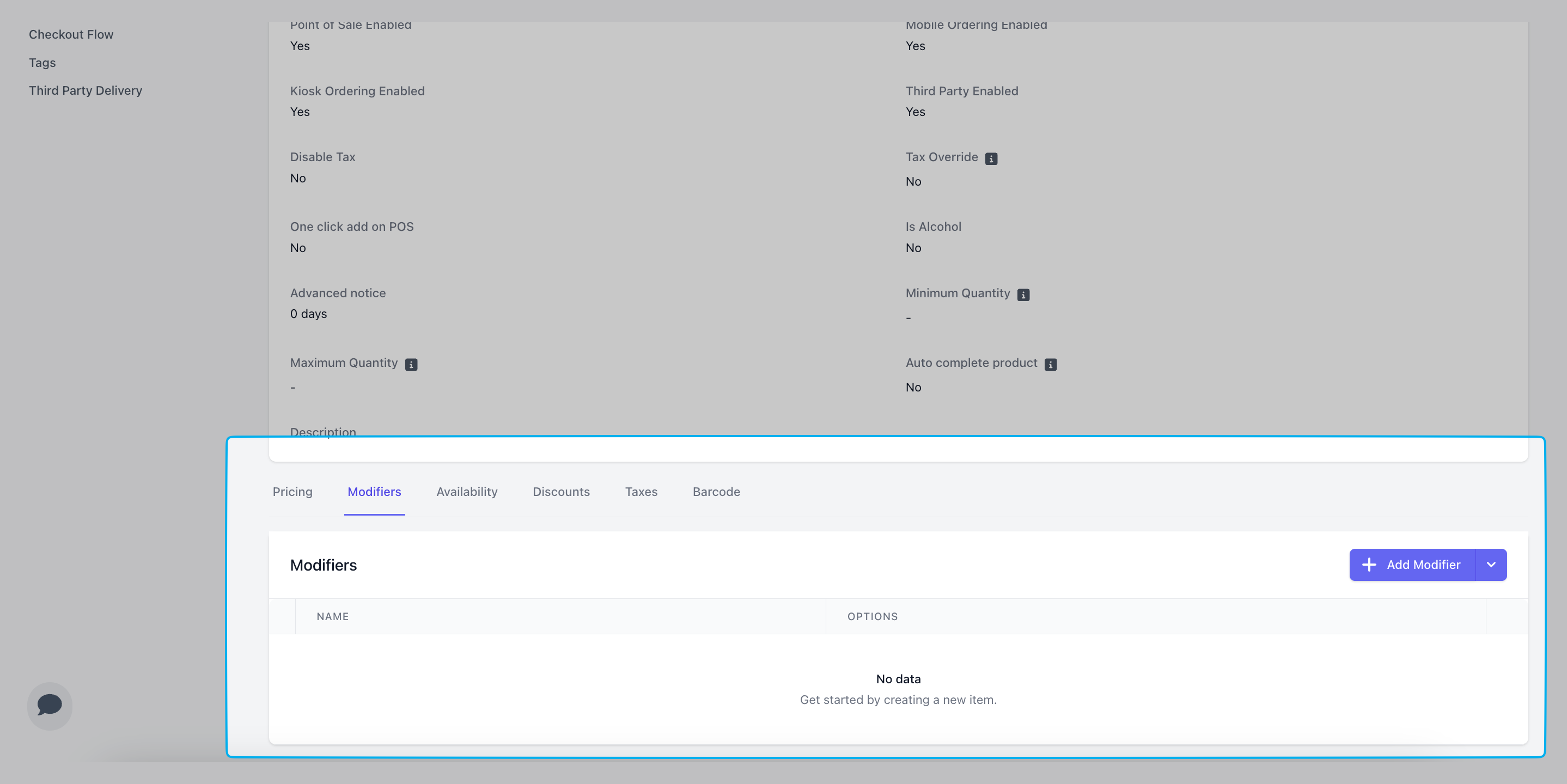 Find the product on the **Dashboard** under **Menu** > **Products** > **View** product
Scroll to the bottom of the product's page > **Pricing** > **Edit** Global Modifier
Find the product on the **Dashboard** under **Menu** > **Products** > **View** product
Scroll to the bottom of the product's page > **Pricing** > **Edit** Global Modifier
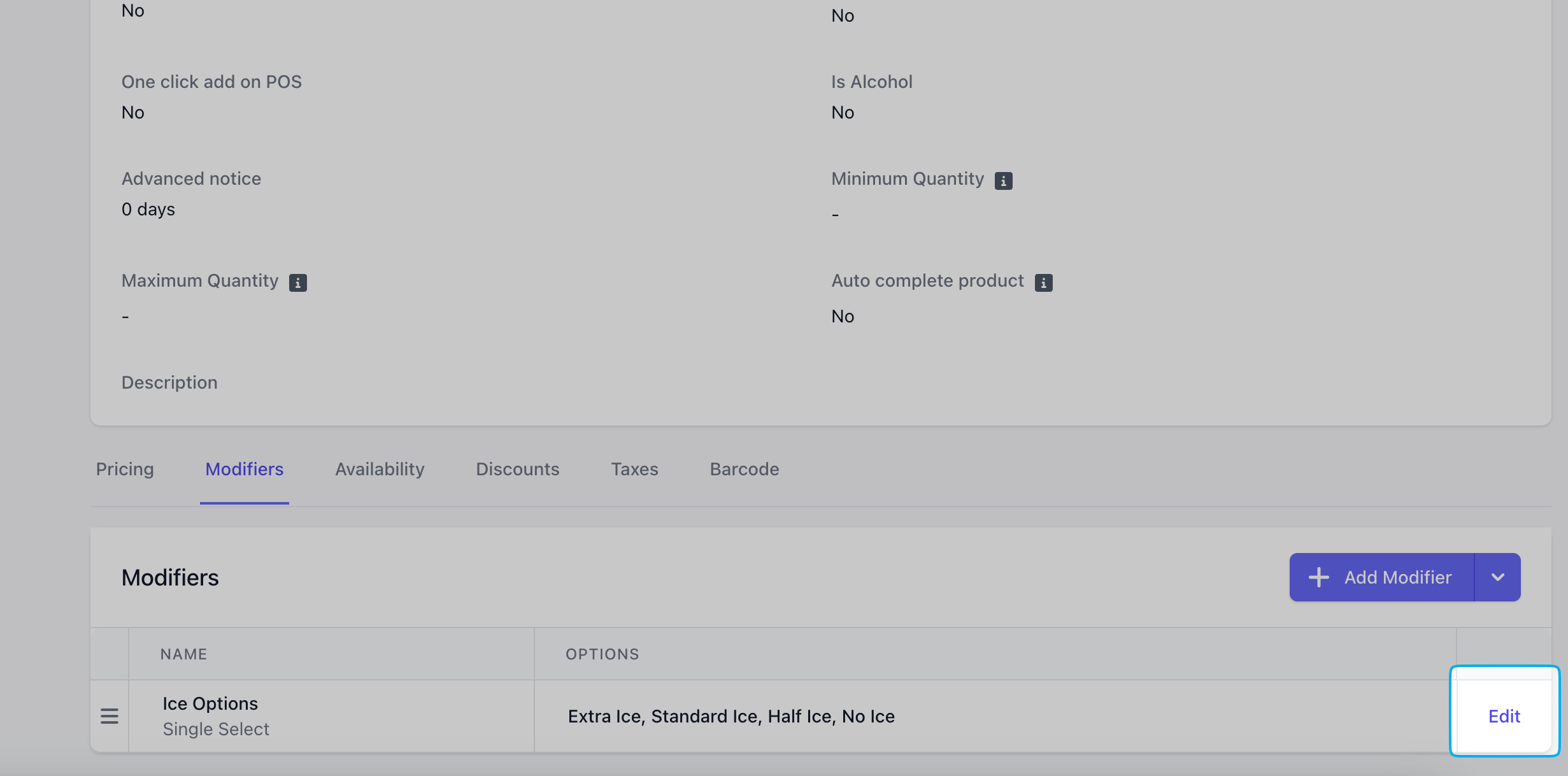 Click **Remove**
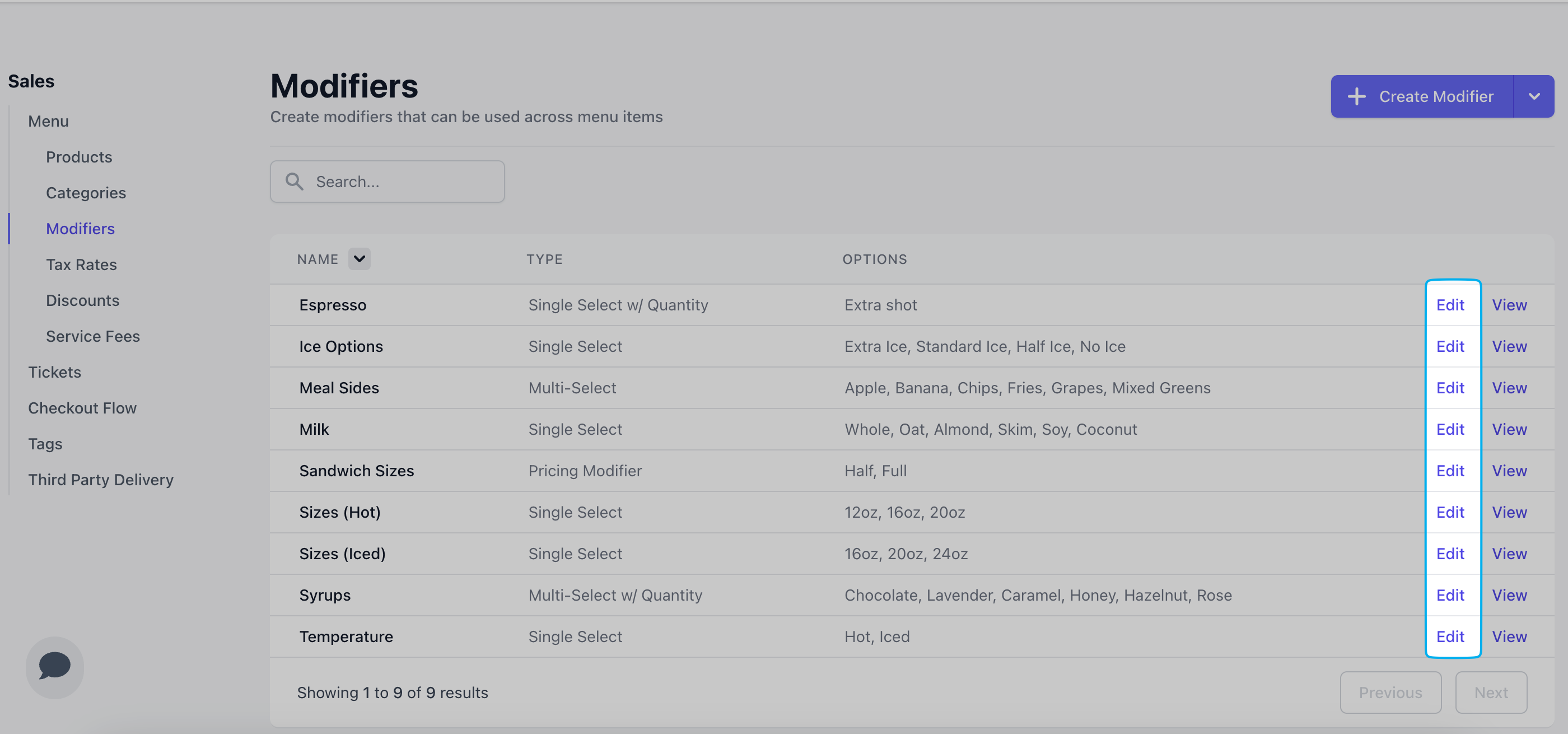
Find the modifier on the **Dashboard** under **Menu** > **Modifiers** > **Edit Modifier**
Click **Remove**
Find the modifier on the **Dashboard** under **Menu** > **Modifiers** > **Edit Modifier**
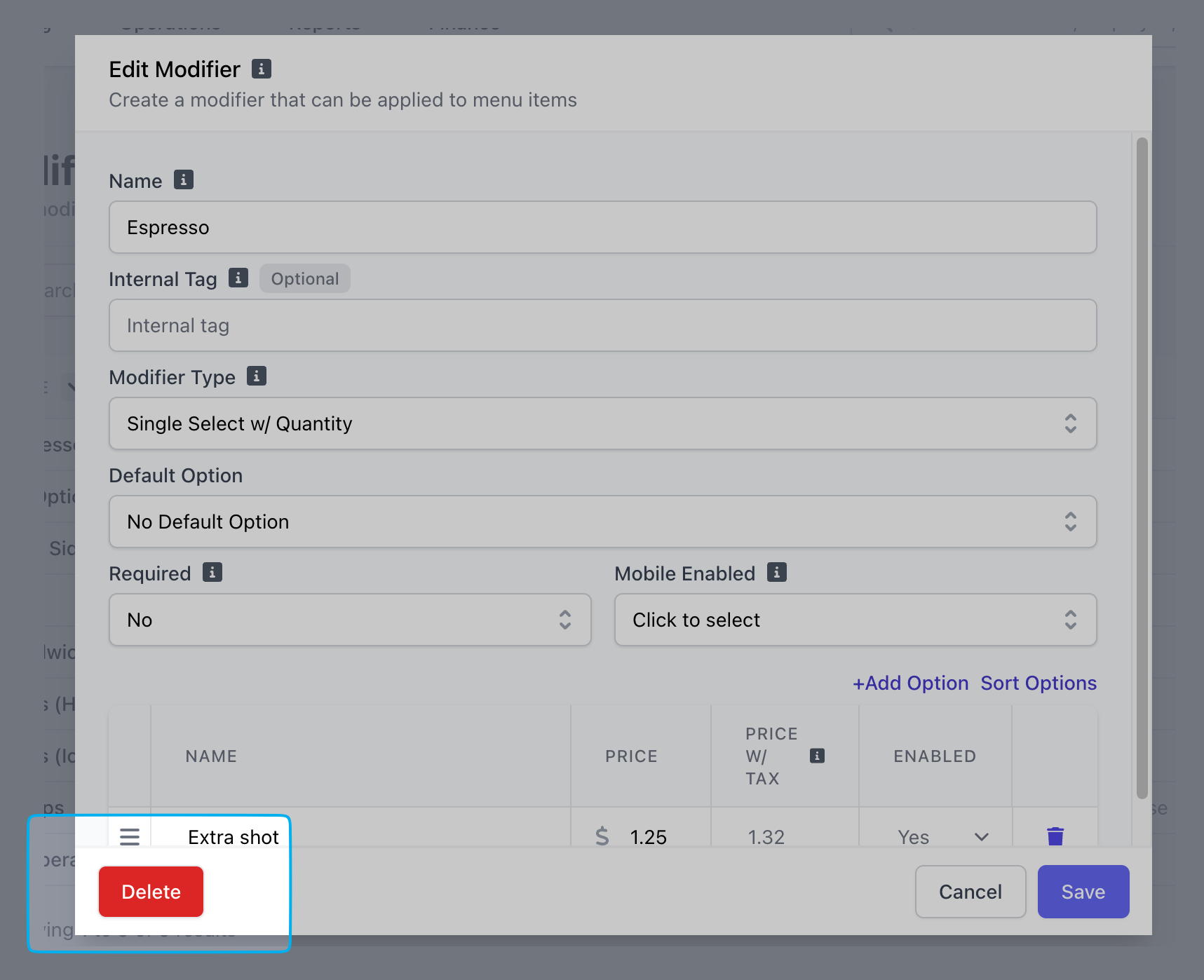
 Click **Delete**
 ***
## Custom Modifiers
Custom Modifiers are made for one specific product.
Changes made to this modifier will only ever affect the product it is attached to.
To make a modifier for multiple products to use, see **Global Modifiers** above.
Find the product to add a modifier to on the **Dashboard** under **Menu** > **Products** > **View** product
Scroll to the bottom of the product's page > **Modifiers** > **Add Modifier** > **Custom**
***
## Custom Modifiers
Custom Modifiers are made for one specific product.
Changes made to this modifier will only ever affect the product it is attached to.
To make a modifier for multiple products to use, see **Global Modifiers** above.
Find the product to add a modifier to on the **Dashboard** under **Menu** > **Products** > **View** product
Scroll to the bottom of the product's page > **Modifiers** > **Add Modifier** > **Custom**
 **Name**: i.e., Syrups
**Internal Tag**: If two modifiers have the same name, this is used to uniquely identify them. This name is not displayed on the POS.
**Modifier Type**:
***Single Select:*** Customers can only select one option *(i.e, 1 pump of raspberry syrup)*
***Single Select w/ Quantity:*** Customers can select only one option but can change the quantity of that option *(i.e., 4 pumps of raspberry syrup)*
***Multi-Select:*** Customers can select multiple options *(i.e., 1 pump of raspberry syrup and 1 pump of white chocolate)*
***Multi-Select with Quantity:*** Customers can select multiple options and set the minimum/maximum total quantity across all options *(i.e., 4 pumps of raspberry syrup and 2 pumps of white chocolate)*
***Multi-Select with w/ Fixed Price:*** Customers can select multiple options but at one price, does not stack with multiple options *(i.e., select raspberry syrup and white chocolate for fixed price of \$0.50)*
**Default Option**: Create options first, then select a default option if applicable
**Required**: If **Yes**, product cannot be added to cart until a modifier option is select
**Mobile Enabled**: If **Yes**, modifier group will be available on mobile ordering platforms
Click **Add Option** to add a single option. There is no limit to the number of modifier options that can be added.
**Name**: i.e., raspberry syrup
**Price**: Cost of modifier to add on to base price of product
**Enabled**: If **Yes**, this modifier option will be available for ordering
Click **Save**
Find the product on the **Dashboard** under **Menu** > **Products** > **View** product
Scroll to the bottom of the product's page > **Modifiers** > **Edit** Custom Modifier
Find the product on the **Dashboard** under **Menu** > **Products** > **View** product
Scroll to the bottom of the product's page > **Modifiers** > **Edit** modifier
Click **Remove**
**Name**: i.e., Syrups
**Internal Tag**: If two modifiers have the same name, this is used to uniquely identify them. This name is not displayed on the POS.
**Modifier Type**:
***Single Select:*** Customers can only select one option *(i.e, 1 pump of raspberry syrup)*
***Single Select w/ Quantity:*** Customers can select only one option but can change the quantity of that option *(i.e., 4 pumps of raspberry syrup)*
***Multi-Select:*** Customers can select multiple options *(i.e., 1 pump of raspberry syrup and 1 pump of white chocolate)*
***Multi-Select with Quantity:*** Customers can select multiple options and set the minimum/maximum total quantity across all options *(i.e., 4 pumps of raspberry syrup and 2 pumps of white chocolate)*
***Multi-Select with w/ Fixed Price:*** Customers can select multiple options but at one price, does not stack with multiple options *(i.e., select raspberry syrup and white chocolate for fixed price of \$0.50)*
**Default Option**: Create options first, then select a default option if applicable
**Required**: If **Yes**, product cannot be added to cart until a modifier option is select
**Mobile Enabled**: If **Yes**, modifier group will be available on mobile ordering platforms
Click **Add Option** to add a single option. There is no limit to the number of modifier options that can be added.
**Name**: i.e., raspberry syrup
**Price**: Cost of modifier to add on to base price of product
**Enabled**: If **Yes**, this modifier option will be available for ordering
Click **Save**
Find the product on the **Dashboard** under **Menu** > **Products** > **View** product
Scroll to the bottom of the product's page > **Modifiers** > **Edit** Custom Modifier
Find the product on the **Dashboard** under **Menu** > **Products** > **View** product
Scroll to the bottom of the product's page > **Modifiers** > **Edit** modifier
Click **Remove**