> ## Documentation Index
> Fetch the complete documentation index at: https://support.dripos.com/llms.txt
> Use this file to discover all available pages before exploring further.
# Create Mobile Menu
> Customize the Mobile menu separately from the Point of Sale menu
Determine which categories and products will be available on mobile ordering platforms following the steps below:
## Add / Remove Categories
*Watch the video below to learn how to easily enable and disable **categories** from mobile ordering:*
## Add / Remove Products
*Watch the videos below to learn how to easily enable and disable **products** from mobile ordering on either the **Dashboard** or the **Point of Sale**:*
## Add / Remove Modifiers
*Watch the videos below to learn how to easily enable and disable **modifiers** from mobile ordering on either the **Dashboard** or the **Point of Sale**:*
Enabling and disabling a global modifier from one product's page will enable/disable the global modifier on all products that utilize it.
## Create Menu Availability
Determine when certain menu items are available for ordering on your shop's mobile platforms as well as the Point of Sale using the options below:
### Category Availability
Determine when an entire category and its products are available for ordering on both the mobile platforms and the Point of Sale.
Categories will not appear on the mobile platforms or the POS outside of their set availability.
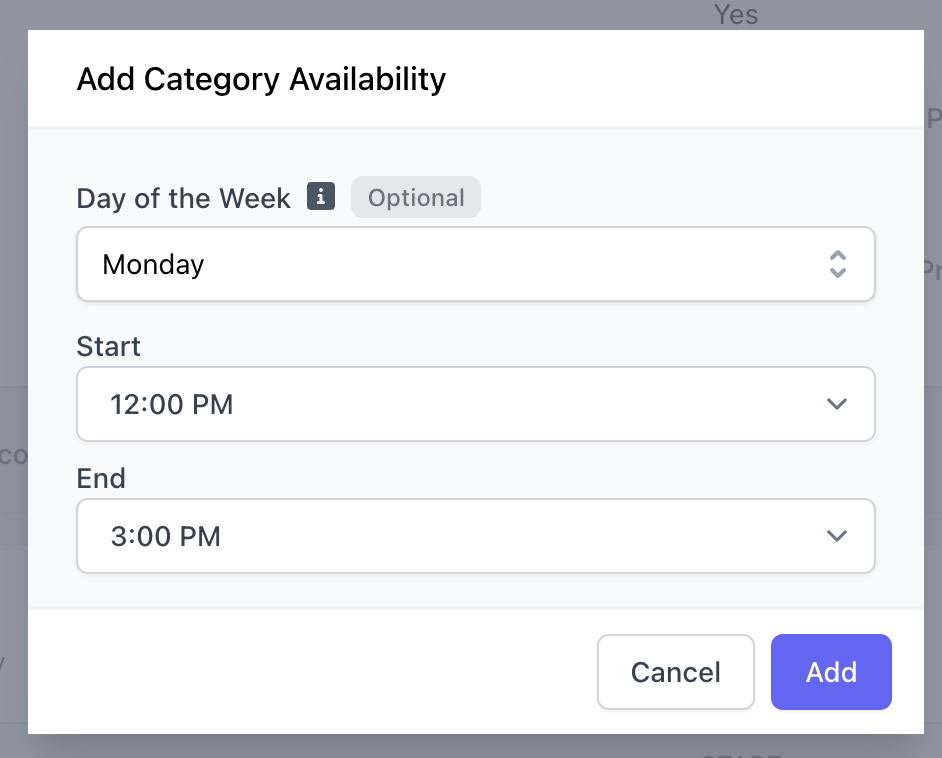
On the **Dashboard**, navigate to **Menu** > **Categories** > **View** a category > **Schedule** > **Add Schedule**
**Day of the Week**: Select one day at a time
**Start & End**: Time period during that day the category will be available for ordering
 ***
### Product Availability
Determine when a product is available for ordering on both the mobile platforms and the Point of Sale.
If a product's category has set availability, a product will never appear outside of the category set availability.
On the **Dashboard**, navigate to **Menu** > **Products** > **View** a product > **Availability** > **Add Availability**
**Recurring Product Availability**
Set up weekly availability for specific products, *i.e. available to order every Monday from 8:00AM - 11:30AM*
***
### Product Availability
Determine when a product is available for ordering on both the mobile platforms and the Point of Sale.
If a product's category has set availability, a product will never appear outside of the category set availability.
On the **Dashboard**, navigate to **Menu** > **Products** > **View** a product > **Availability** > **Add Availability**
**Recurring Product Availability**
Set up weekly availability for specific products, *i.e. available to order every Monday from 8:00AM - 11:30AM*
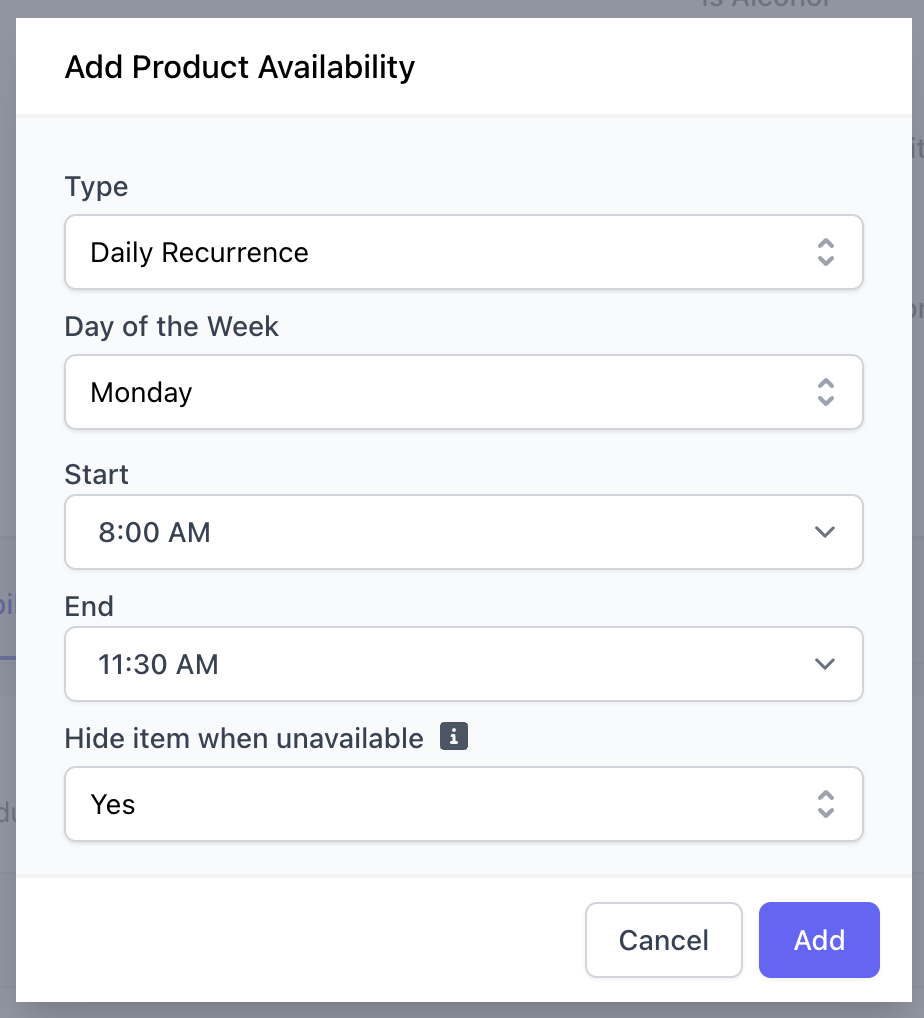 Select **Type** = **Daily Recurrence**
Select one day of the week for availability
There is no limit to the amount of daily recurrences that can be set up, but they must be created one at a time.
Select a time period for daily availability
For full day availability, set start and end times to 12:00AM - 11:59AM, respectively.
**Yes** = Item will only appear on order website during availability period
**No** = Item will be available on the order website always, but can only be scheduled for pick up during the availability date range & time, i.e preorder
**One-time Product Availability**
Set up a specified date range for when a product is availability
**Examples:**
* Valentine's Day Specials can only be scheduled for pick up or ordered on February 14th
* Limited time products only available for a week
Select **Type** = **Daily Recurrence**
Select one day of the week for availability
There is no limit to the amount of daily recurrences that can be set up, but they must be created one at a time.
Select a time period for daily availability
For full day availability, set start and end times to 12:00AM - 11:59AM, respectively.
**Yes** = Item will only appear on order website during availability period
**No** = Item will be available on the order website always, but can only be scheduled for pick up during the availability date range & time, i.e preorder
**One-time Product Availability**
Set up a specified date range for when a product is availability
**Examples:**
* Valentine's Day Specials can only be scheduled for pick up or ordered on February 14th
* Limited time products only available for a week
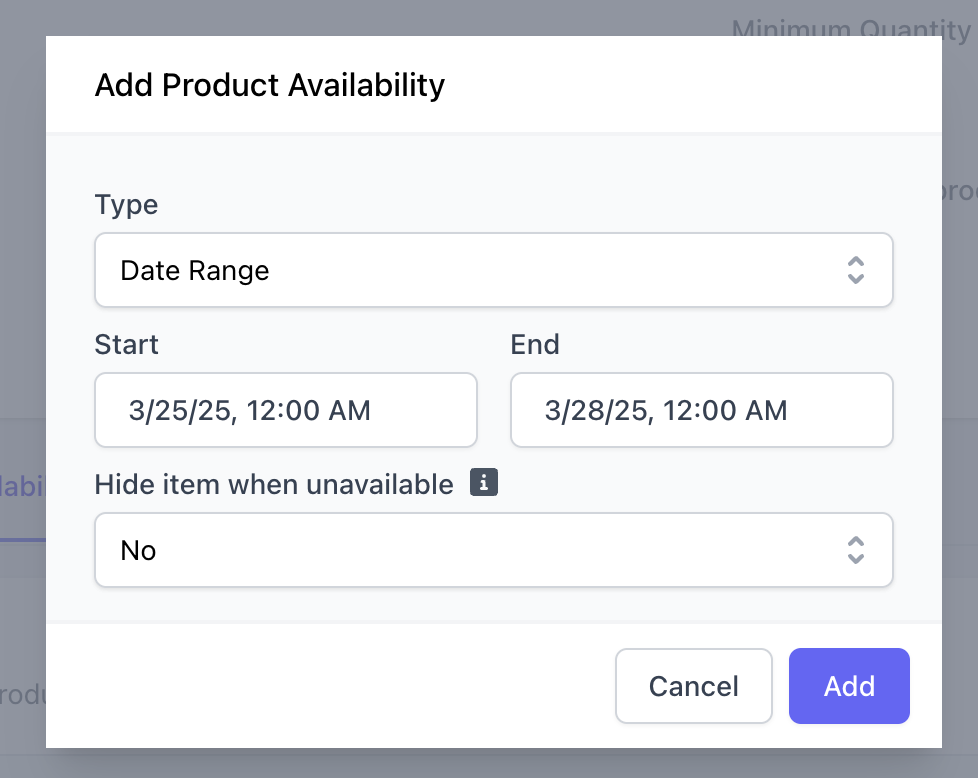 Select **Type** = **Date Range**
This will be the beginning and end time for the period, *i.e. from March 10th at 9AM to March 11th at 10PM.*
**Yes** = Item will only appear on the order website during the availability period
**No** = Item will be available on the order website always, but can only be scheduled for pick up during the availability date range & time, *i.e pre-order*
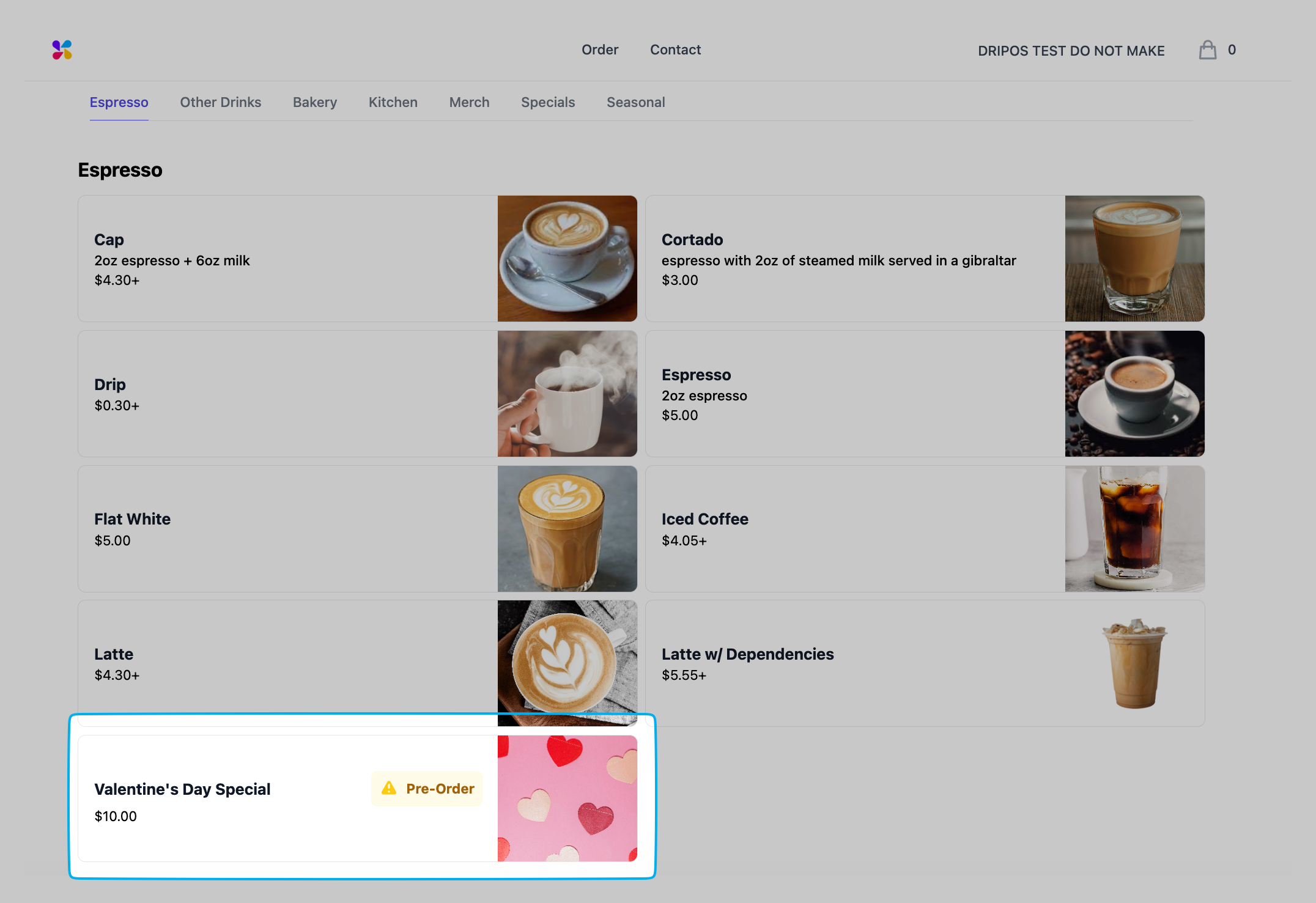
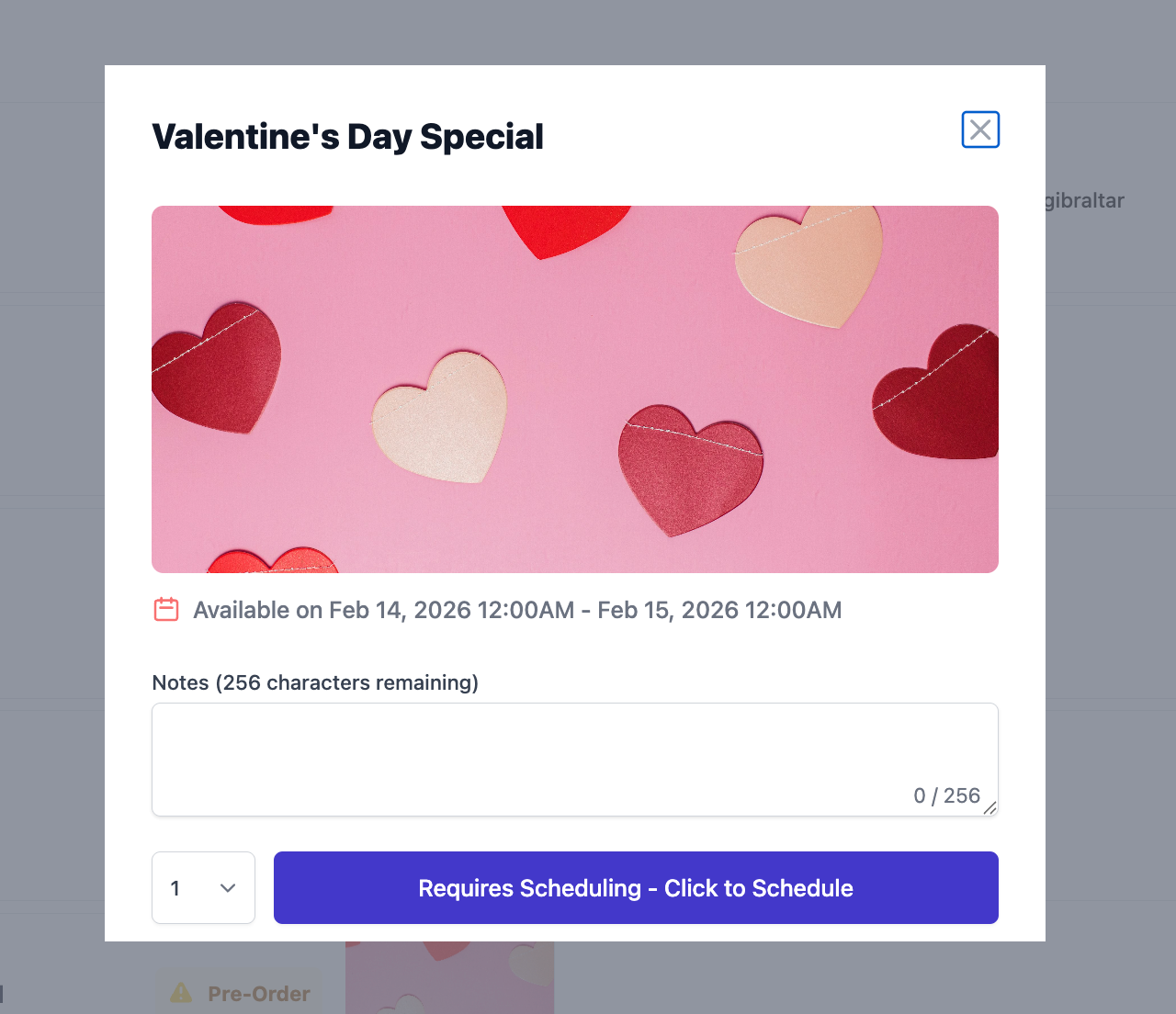
**Example:** The Valentine's Day Special is only available for pick up on February 14th, but on February 12th it is available for pre-order on the order website
Select **Type** = **Date Range**
This will be the beginning and end time for the period, *i.e. from March 10th at 9AM to March 11th at 10PM.*
**Yes** = Item will only appear on the order website during the availability period
**No** = Item will be available on the order website always, but can only be scheduled for pick up during the availability date range & time, *i.e pre-order*
**Example:** The Valentine's Day Special is only available for pick up on February 14th, but on February 12th it is available for pre-order on the order website
 ## Advanced Notice for Products
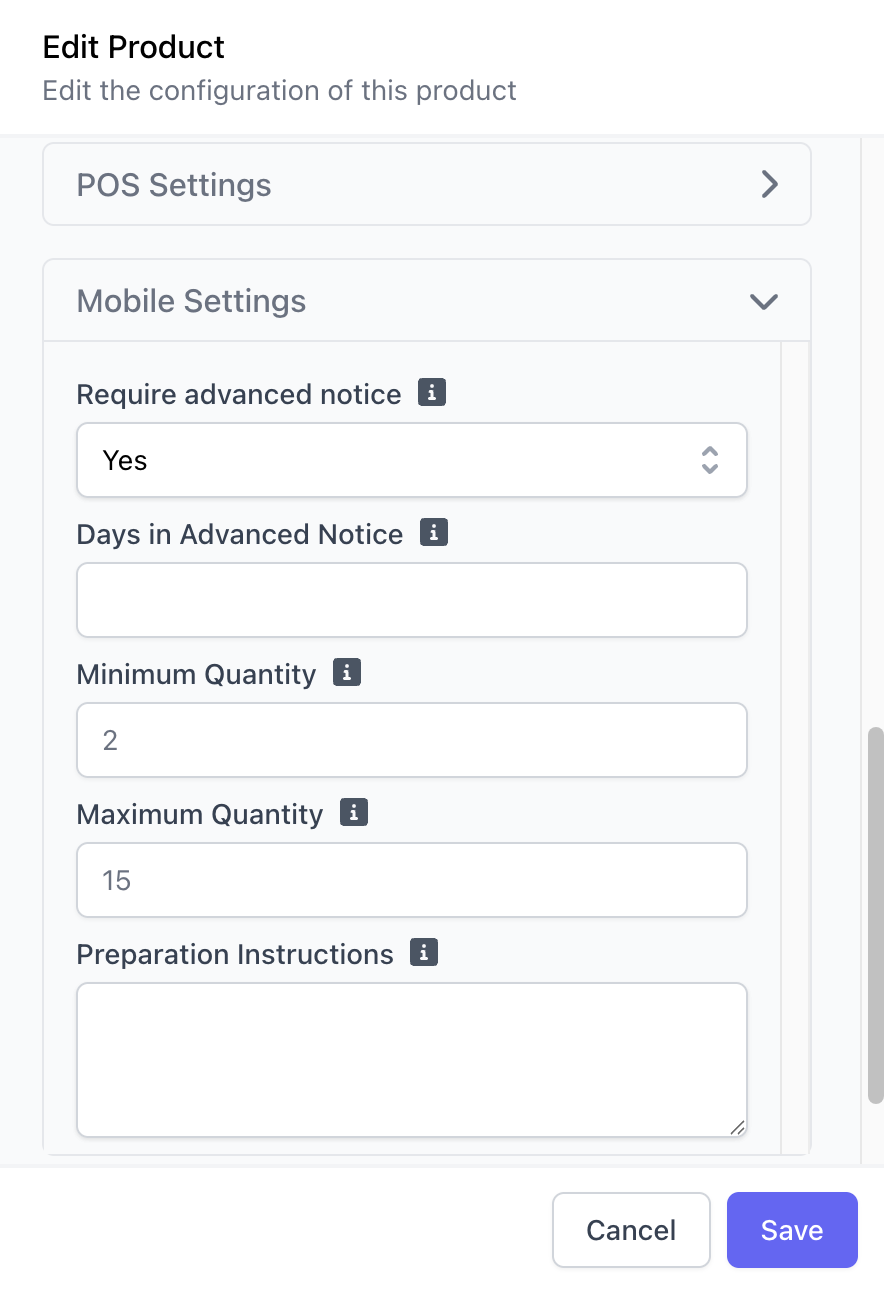
Require an advance notice to order a product on all ordering platforms, *i.e. a product must be ordered 2 days ahead of pickup time.*
On the Dashboard, navigate to **Menu** > **Products** > **View** the desired product
Click **Edit Information** > **Mobile Settings** > **Require Advanced Notice** = **Yes**
Set the Advanced Notice in days
**Optional**: Select a minimum or maximum quantity for ordering
## Advanced Notice for Products
Require an advance notice to order a product on all ordering platforms, *i.e. a product must be ordered 2 days ahead of pickup time.*
On the Dashboard, navigate to **Menu** > **Products** > **View** the desired product
Click **Edit Information** > **Mobile Settings** > **Require Advanced Notice** = **Yes**
Set the Advanced Notice in days
**Optional**: Select a minimum or maximum quantity for ordering