> ## Documentation Index
> Fetch the complete documentation index at: https://support.dripos.com/llms.txt
> Use this file to discover all available pages before exploring further.
# Manage Mobile Orders
> Learn how to receive and manage mobile orders on the Point of Sale
## Receive Mobile Orders
Mobile orders will immediately send to the Point of Sale in the form of a ticket.
View mobile order tickets on the Kitchen Display Screen
Print mobile orders automatically to your Dripos Printer
### Kitchen Display Screen
Use the Tickets screen to view all incoming tickets or customize the Tickets screen to only display mobile ticket types:
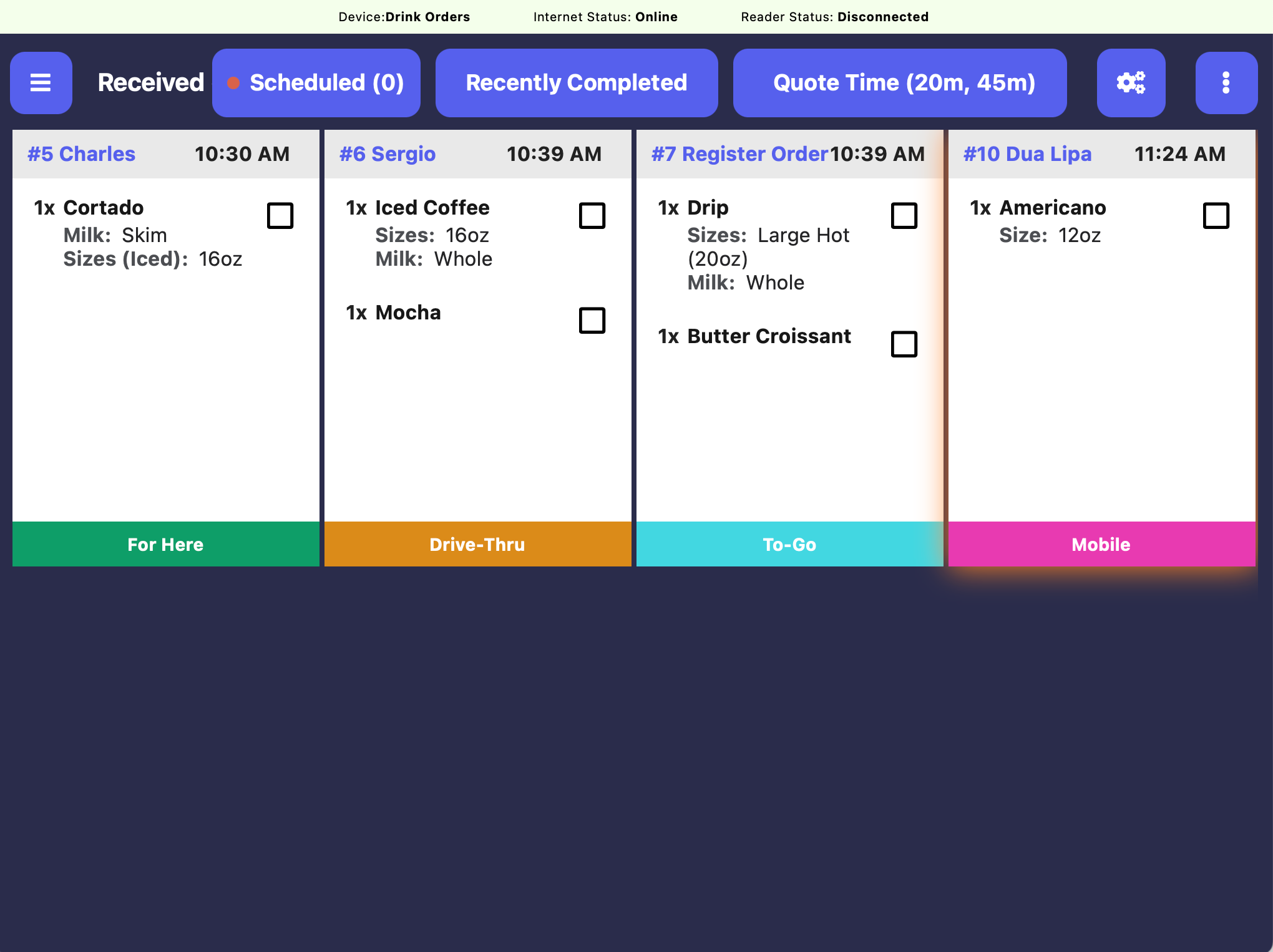
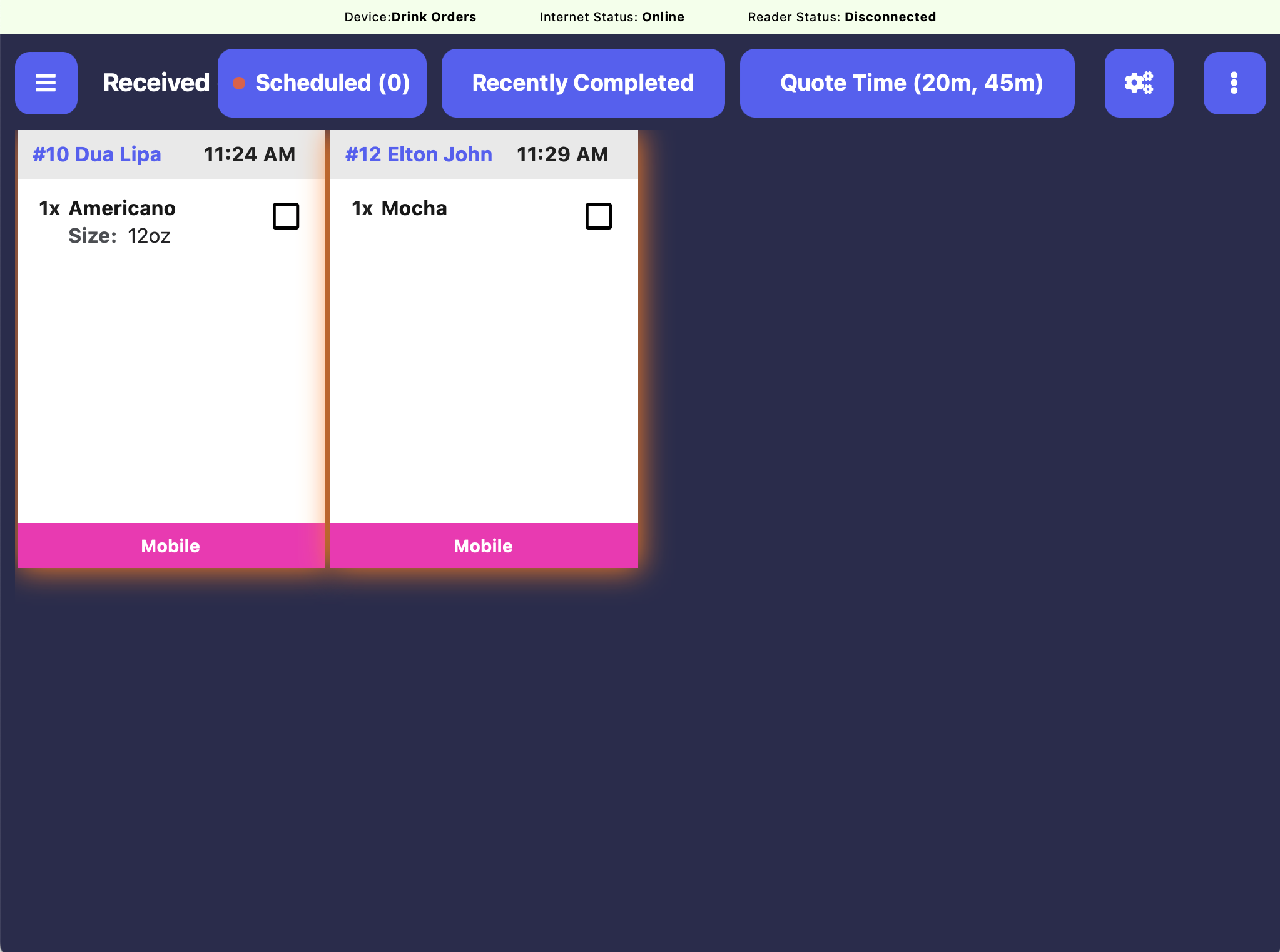 Kitchen Display Screen settings are specific to each device. Every tablet using Dripos should be logged into using a different device name. See here for how to create a new device.
On the Point of Sale tablet using the Kitchen Display Screen, press the **tribar** in the upper left screen corner > press the **Settings** button > scroll down to **Tickets**
Use filtering to customize which categories, products, ticket types, and device orders appear on each KDS screen.
Kitchen Display Screen settings are specific to each device. Every tablet using Dripos should be logged into using a different device name. See here for how to create a new device.
On the Point of Sale tablet using the Kitchen Display Screen, press the **tribar** in the upper left screen corner > press the **Settings** button > scroll down to **Tickets**
Use filtering to customize which categories, products, ticket types, and device orders appear on each KDS screen.
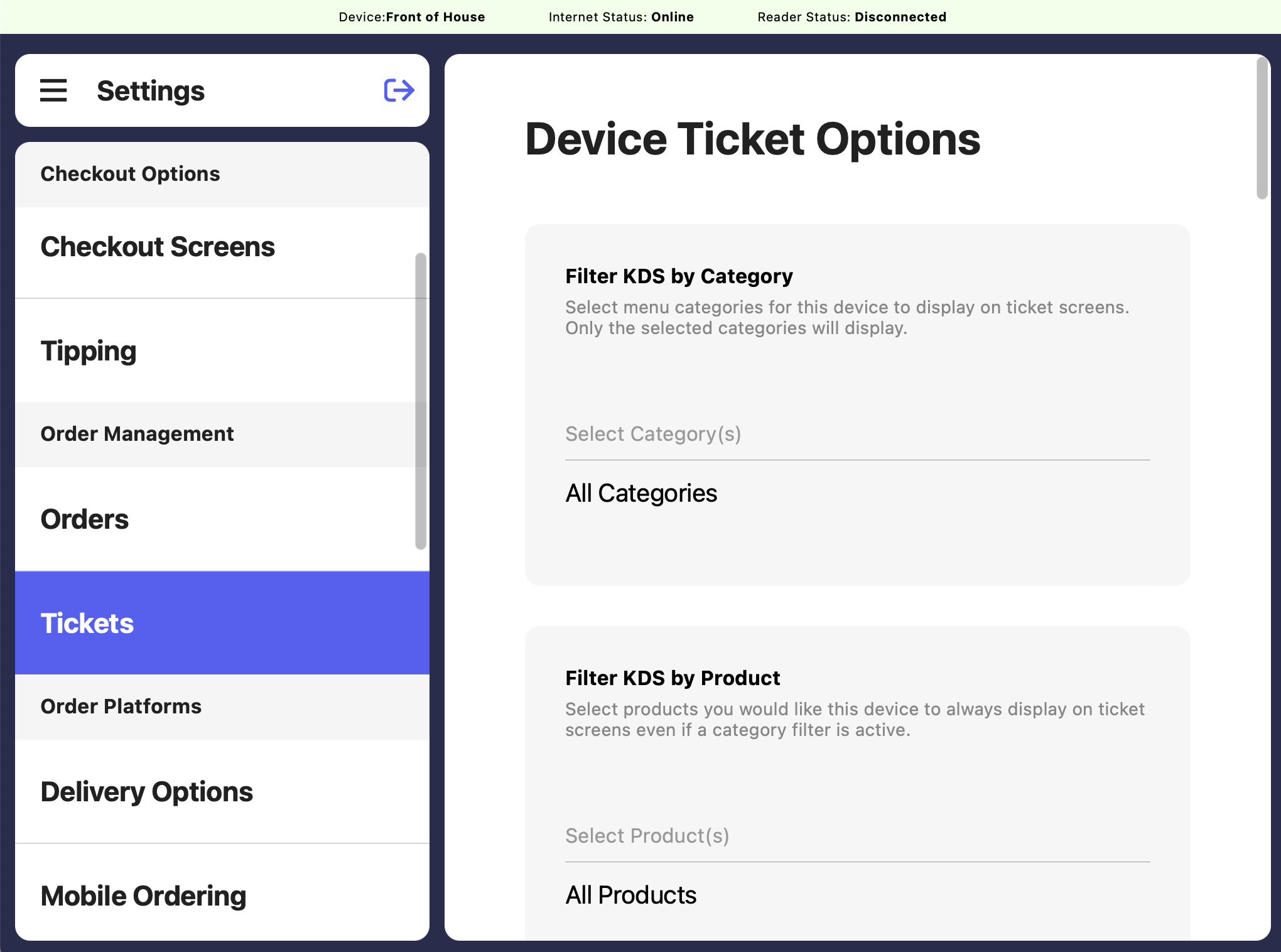 Select menu categories for the set device to display on ticket screens. Only the selected categories will display.
Select products you would like the set device to always display on ticket screens even if a category filter is active.
Select devices you would like the set device to display orders from on ticket screens. Only orders created from the selected devices will show.
Select the order types you would like the set device to display on ticket screens. Only the selected order types will show.
***
### Print Mobile Orders
If your shop utilizes a printer with Dripos, it can be used to print mobile order tickets automatically.
Once your printer is added to Dripos, learn how to add make tickets and receipt templates to your printer and filter mobile tickets to print out.
Follow [these steps](/hardware/print/basics/print-routes) and reach out to Dripos Support with any questions!
**To reprint a ticket:**
Press the ticket on the **Kitchen Display Screen**
Press **Print Make Ticket** or **Print Receipt** depending on your printer setup
***
### Scheduled Orders
Set **Allow Scheduled Orders** to **Yes** to allow customers to schedule orders for future pickup.
Select menu categories for the set device to display on ticket screens. Only the selected categories will display.
Select products you would like the set device to always display on ticket screens even if a category filter is active.
Select devices you would like the set device to display orders from on ticket screens. Only orders created from the selected devices will show.
Select the order types you would like the set device to display on ticket screens. Only the selected order types will show.
***
### Print Mobile Orders
If your shop utilizes a printer with Dripos, it can be used to print mobile order tickets automatically.
Once your printer is added to Dripos, learn how to add make tickets and receipt templates to your printer and filter mobile tickets to print out.
Follow [these steps](/hardware/print/basics/print-routes) and reach out to Dripos Support with any questions!
**To reprint a ticket:**
Press the ticket on the **Kitchen Display Screen**
Press **Print Make Ticket** or **Print Receipt** depending on your printer setup
***
### Scheduled Orders
Set **Allow Scheduled Orders** to **Yes** to allow customers to schedule orders for future pickup.
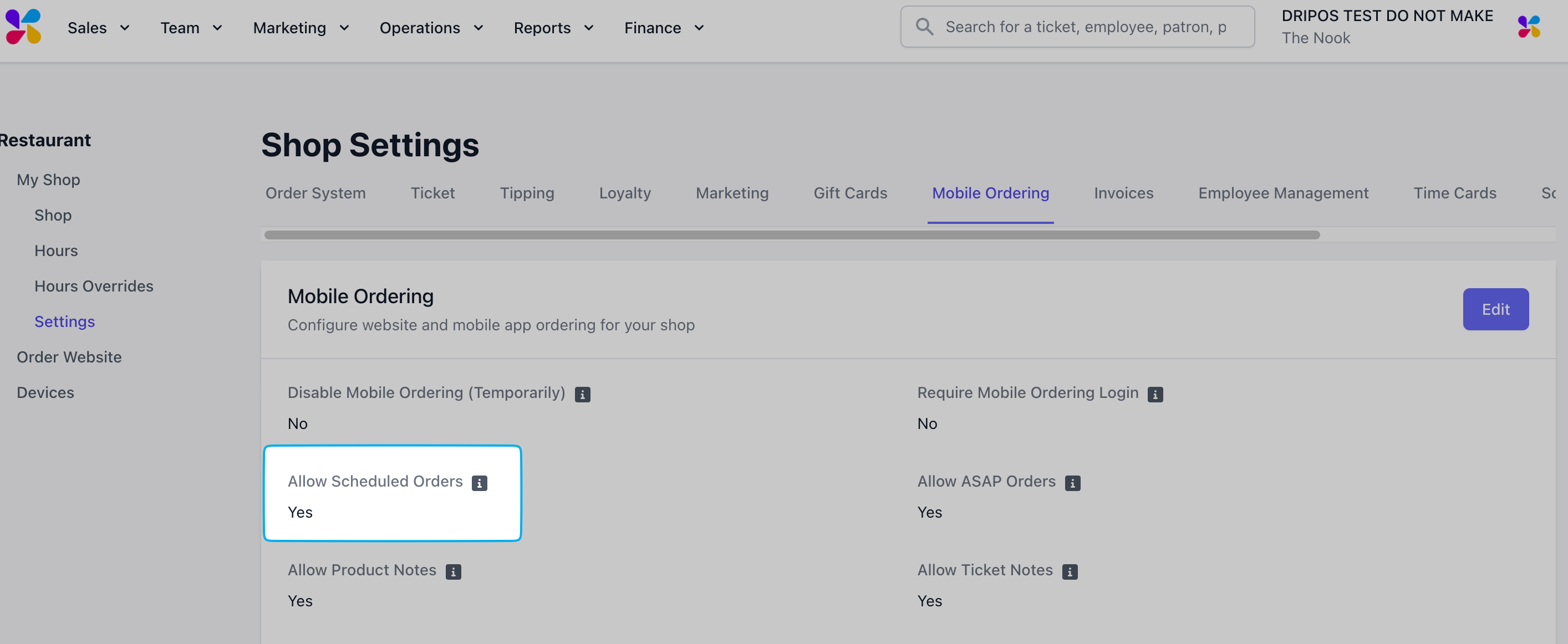 **Scheduled Orders** will live in their own tab on the **Tickets** page to view until it is time to prep the order, to which it will then move to the **Kitchen Display Screen** screen to start.
On the **Tickets** screen, press **Scheduled Orders** to see all scheduled orders for the future.
**Scheduled Orders** will live in their own tab on the **Tickets** page to view until it is time to prep the order, to which it will then move to the **Kitchen Display Screen** screen to start.
On the **Tickets** screen, press **Scheduled Orders** to see all scheduled orders for the future.
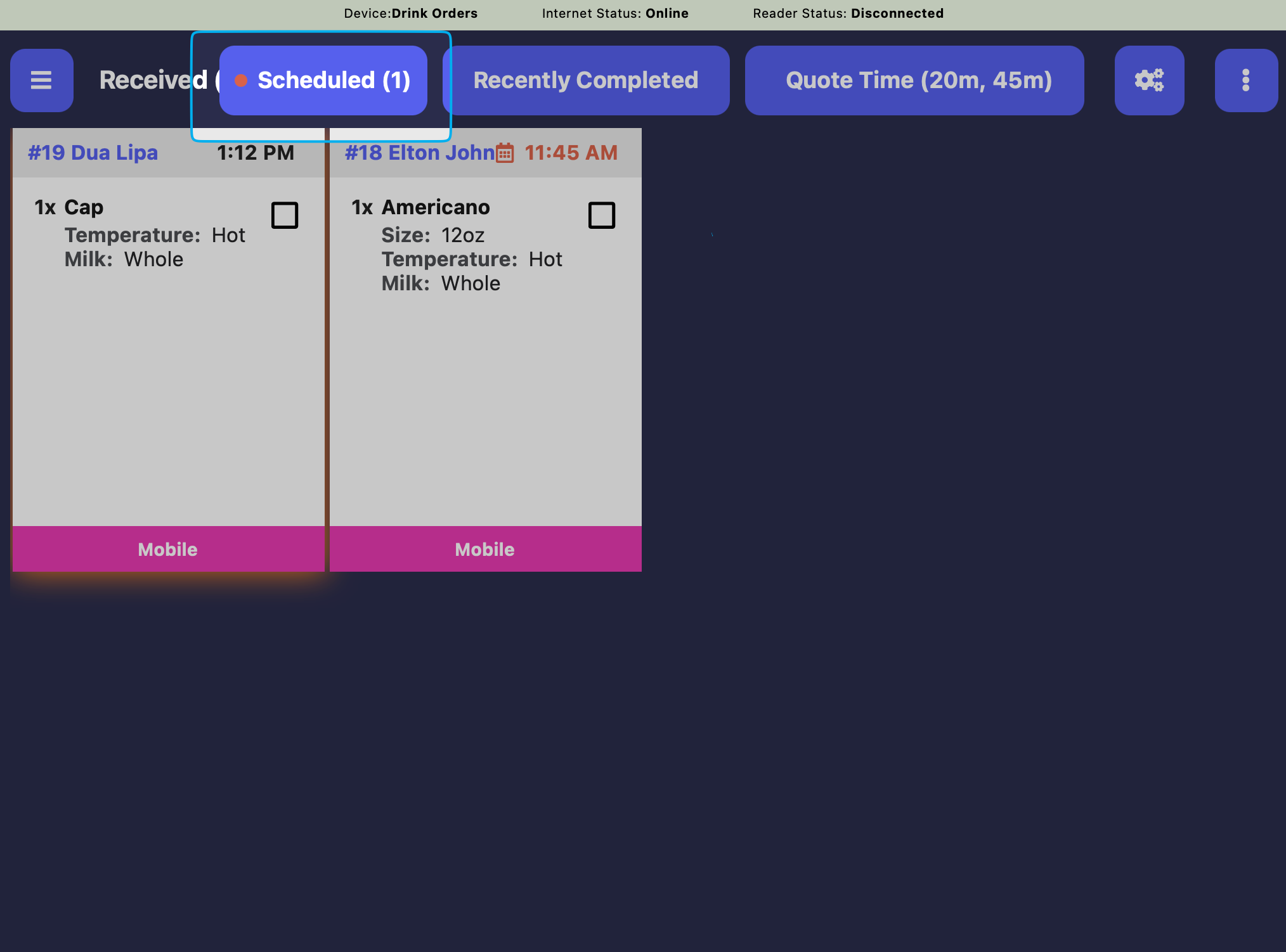 **Scheduled Orders** will automatically move to the **Kitchen Display Screen** when it is time to start prepping the order (Scheduled Pickup Time minus the Order Estimate Time in minutes)
Order estimate time is **15 minutes**. If an order is placed at **9:00AM** and is scheduled for pickup at **3:00PM**, the order will move from the **Scheduled Orders** page to the **Kitchen Display Screen** at **2:45PM**.
To move a **Scheduled Order** to the **Kitchen Display Screen** sooner, press the **Scheduled Orders** tab > press the order > scroll down and press **Start Ticket**
**Scheduled orders default to printing upon creation.** If an order is placed at **9:00AM** and is scheduled for pickup at **3:00PM**, the order will print at **9:00AM**.
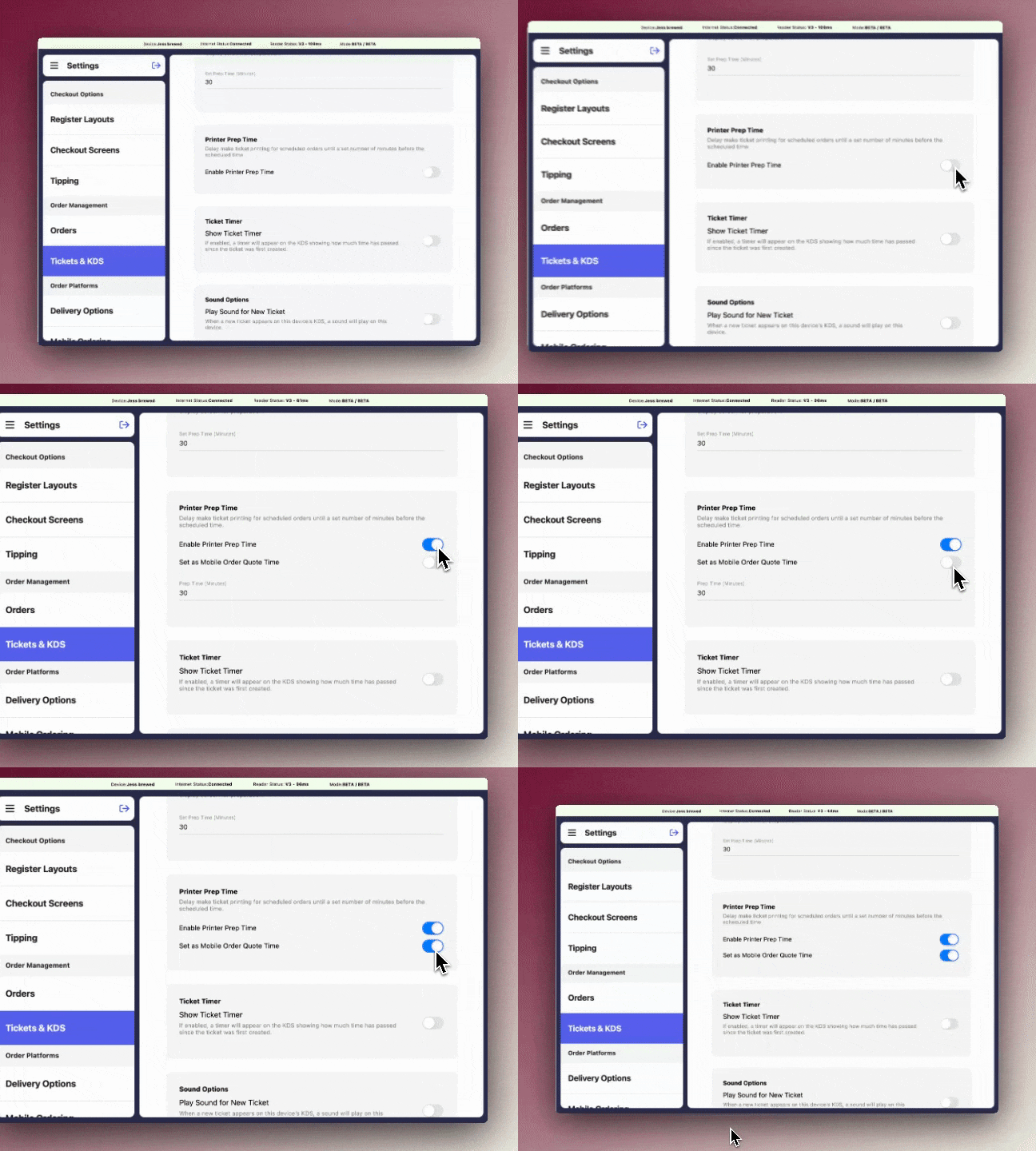
To print scheduled orders closer to the pickup time, navigate to **POS Settings > Tickets & KDS** to enable the following settings:
* **Printer Prep Time:** Delays make ticket printing for scheduled orders until a set number of minutes before the scheduled time
* **Set as Mobile Order Quote Time:** Sets tickets to print based on your current quote time — automatically updating whenever that time changes. This setting is per-device, so each station can use its own manual time or follow the quote time.
**Scheduled Orders** will automatically move to the **Kitchen Display Screen** when it is time to start prepping the order (Scheduled Pickup Time minus the Order Estimate Time in minutes)
Order estimate time is **15 minutes**. If an order is placed at **9:00AM** and is scheduled for pickup at **3:00PM**, the order will move from the **Scheduled Orders** page to the **Kitchen Display Screen** at **2:45PM**.
To move a **Scheduled Order** to the **Kitchen Display Screen** sooner, press the **Scheduled Orders** tab > press the order > scroll down and press **Start Ticket**
**Scheduled orders default to printing upon creation.** If an order is placed at **9:00AM** and is scheduled for pickup at **3:00PM**, the order will print at **9:00AM**.
To print scheduled orders closer to the pickup time, navigate to **POS Settings > Tickets & KDS** to enable the following settings:
* **Printer Prep Time:** Delays make ticket printing for scheduled orders until a set number of minutes before the scheduled time
* **Set as Mobile Order Quote Time:** Sets tickets to print based on your current quote time — automatically updating whenever that time changes. This setting is per-device, so each station can use its own manual time or follow the quote time.
 ## Complete Mobile Orders
Mark an order as complete to [alert a customer](/orders/mobile/mobile-setup#create-customer-order-notifications) that their order is ready.
View all completed tickets in the **Recently Completed** tab at the top of the **Tickets** screen.
## Complete Mobile Orders
Mark an order as complete to [alert a customer](/orders/mobile/mobile-setup#create-customer-order-notifications) that their order is ready.
View all completed tickets in the **Recently Completed** tab at the top of the **Tickets** screen.