> ## Documentation Index
> Fetch the complete documentation index at: https://support.dripos.com/llms.txt
> Use this file to discover all available pages before exploring further.
# Set Up Mobile Ordering
> Learn how to enable Mobile Ordering with Dripos
## Activate Mobile Order Platforms
To activate a location's mobile ordering website and page on the Dripos Mobile Order app:
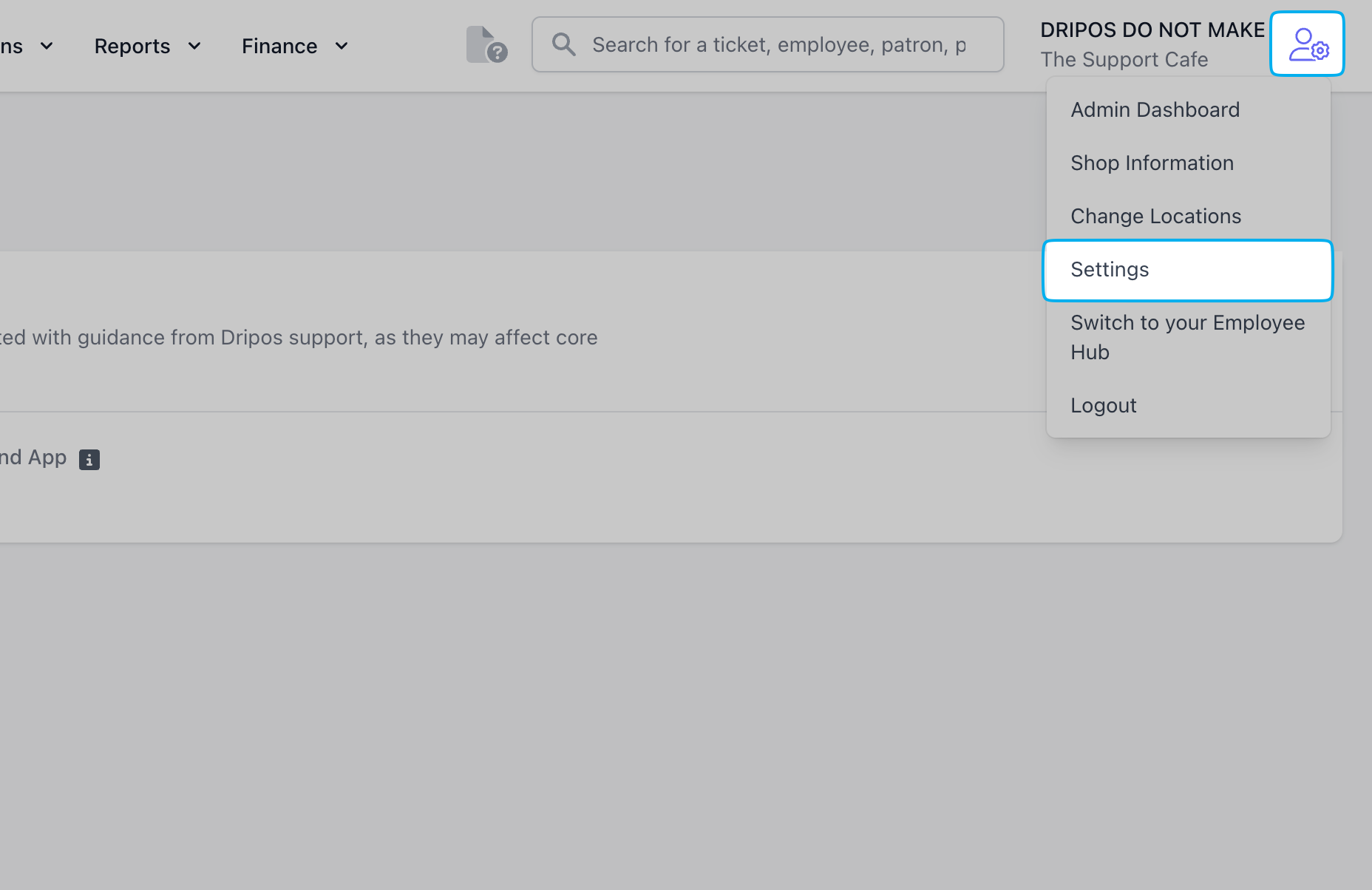
Navigate to the location's **Dashboard** > click the **settings icon** in the upper right corner > click **Settings**
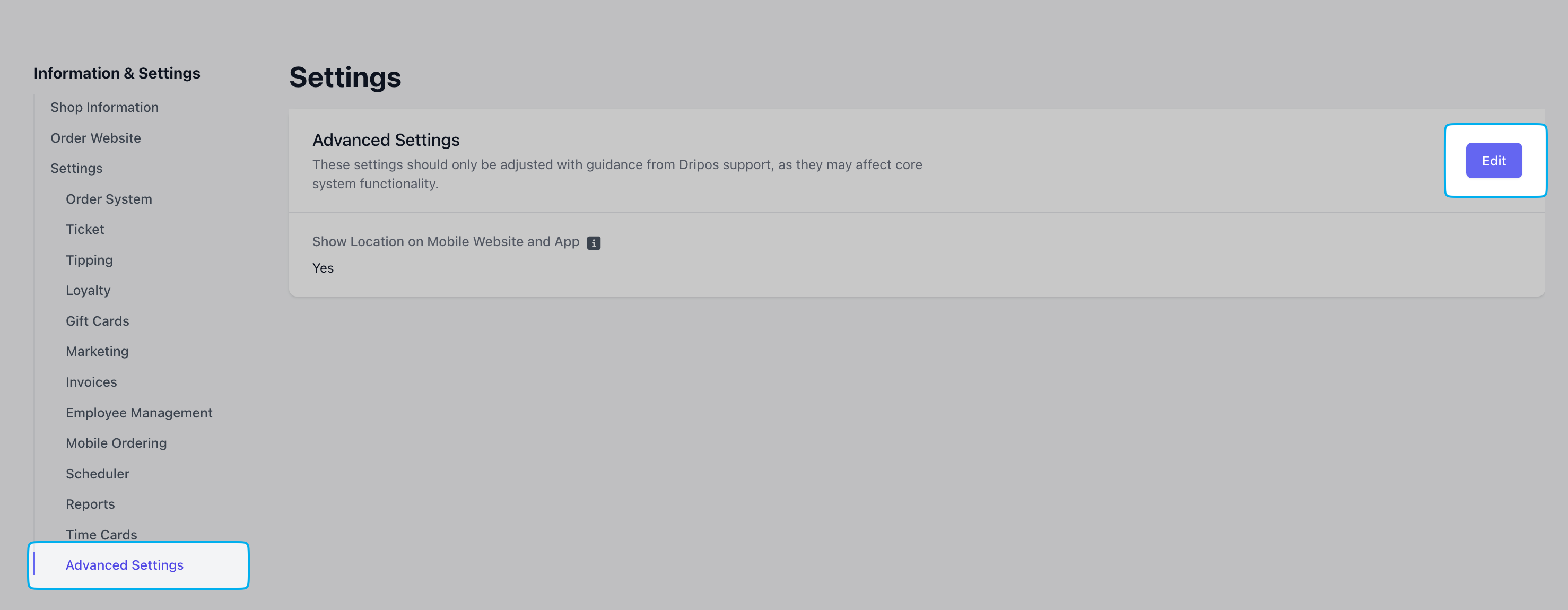
 Scroll to the last setting, **Advanced Settings** > click **Edit** > enable **Show Location on Mobile Website and App**
 ***
## Customize Online Store
To view and edit the order website link:
On the **Dashboard**, click on the **settings icon** in the top right corner
Click on the **Order Website** tab on the left-hand side > click **Edit** to adjust the following fields:
***
## Customize Online Store
To view and edit the order website link:
On the **Dashboard**, click on the **settings icon** in the top right corner
Click on the **Order Website** tab on the left-hand side > click **Edit** to adjust the following fields:
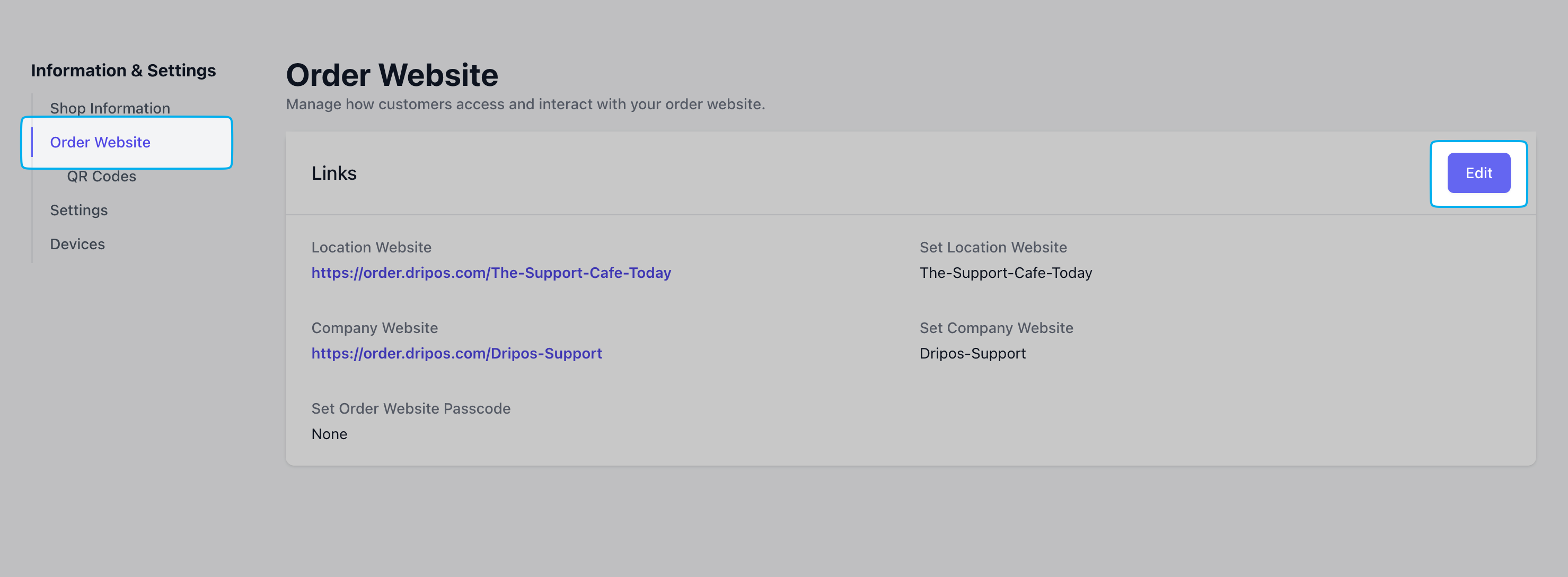 ### Change Location-Specific Order Website URL
The URL for a specific location's mobile order website will be [https://order.dripos.com/\[Location\_Slug](https://order.dripos.com/\[Location_Slug)]
To change the **Location\_Slug**, edit the **Location Slug** field
### Change Location-Specific Order Website URL
The URL for a specific location's mobile order website will be [https://order.dripos.com/\[Location\_Slug](https://order.dripos.com/\[Location_Slug)]
To change the **Location\_Slug**, edit the **Location Slug** field
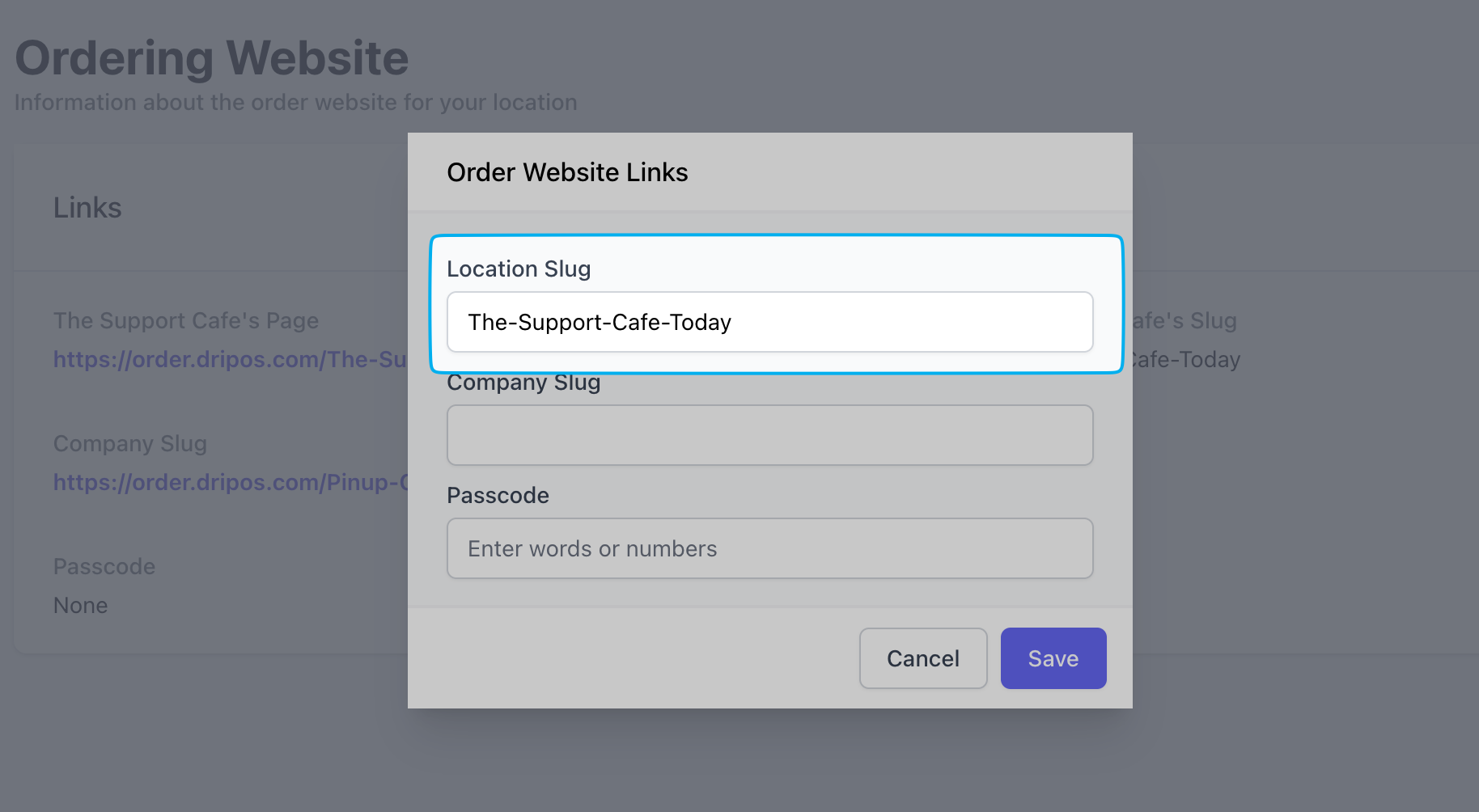 ### Change Company Order Website URL
This applies to companies using Dripos for multiple store locations. The company order website is a home page where customers can select a location to order from.
The URL for a company's mobile order website will be [https://order.dripos.com/\[Company\_Slug](https://order.dripos.com/\[Company_Slug)]
To change the **Company\_Slug**, edit the **Company Slug** field
### Change Company Order Website URL
This applies to companies using Dripos for multiple store locations. The company order website is a home page where customers can select a location to order from.
The URL for a company's mobile order website will be [https://order.dripos.com/\[Company\_Slug](https://order.dripos.com/\[Company_Slug)]
To change the **Company\_Slug**, edit the **Company Slug** field
 ### Set Store Password (Optional)
Require customers to input a **password** to place mobile orders at this specific location
### Set Store Password (Optional)
Require customers to input a **password** to place mobile orders at this specific location

 ### Change Store Image
Change the **header image** on the order website and app:
### Change Store Image
Change the **header image** on the order website and app:
 On the **Dashboard** click the settings icon in the upper-right corner > **Shop Info** > **Images**
Edit **Shop Image**
On the **Dashboard** click the settings icon in the upper-right corner > **Shop Info** > **Images**
Edit **Shop Image**
 ***
## Set Store Hours
### Daily Store Hours
Set daily store hours to determine when customers can place mobile orders.
Store hours will automatically be set in the timezone of the shop address on file under [**My Shop** > **Shop**](https://dashboard.dripos.com/shop). To manually set a different timezone, click **Set Timezone**.
On the **Dashboard**, click the settings icon in the upper-right corner > [**Shop Info** > **Hours**](https://dashboard.dripos.com/hours)
***
## Set Store Hours
### Daily Store Hours
Set daily store hours to determine when customers can place mobile orders.
Store hours will automatically be set in the timezone of the shop address on file under [**My Shop** > **Shop**](https://dashboard.dripos.com/shop). To manually set a different timezone, click **Set Timezone**.
On the **Dashboard**, click the settings icon in the upper-right corner > [**Shop Info** > **Hours**](https://dashboard.dripos.com/hours)
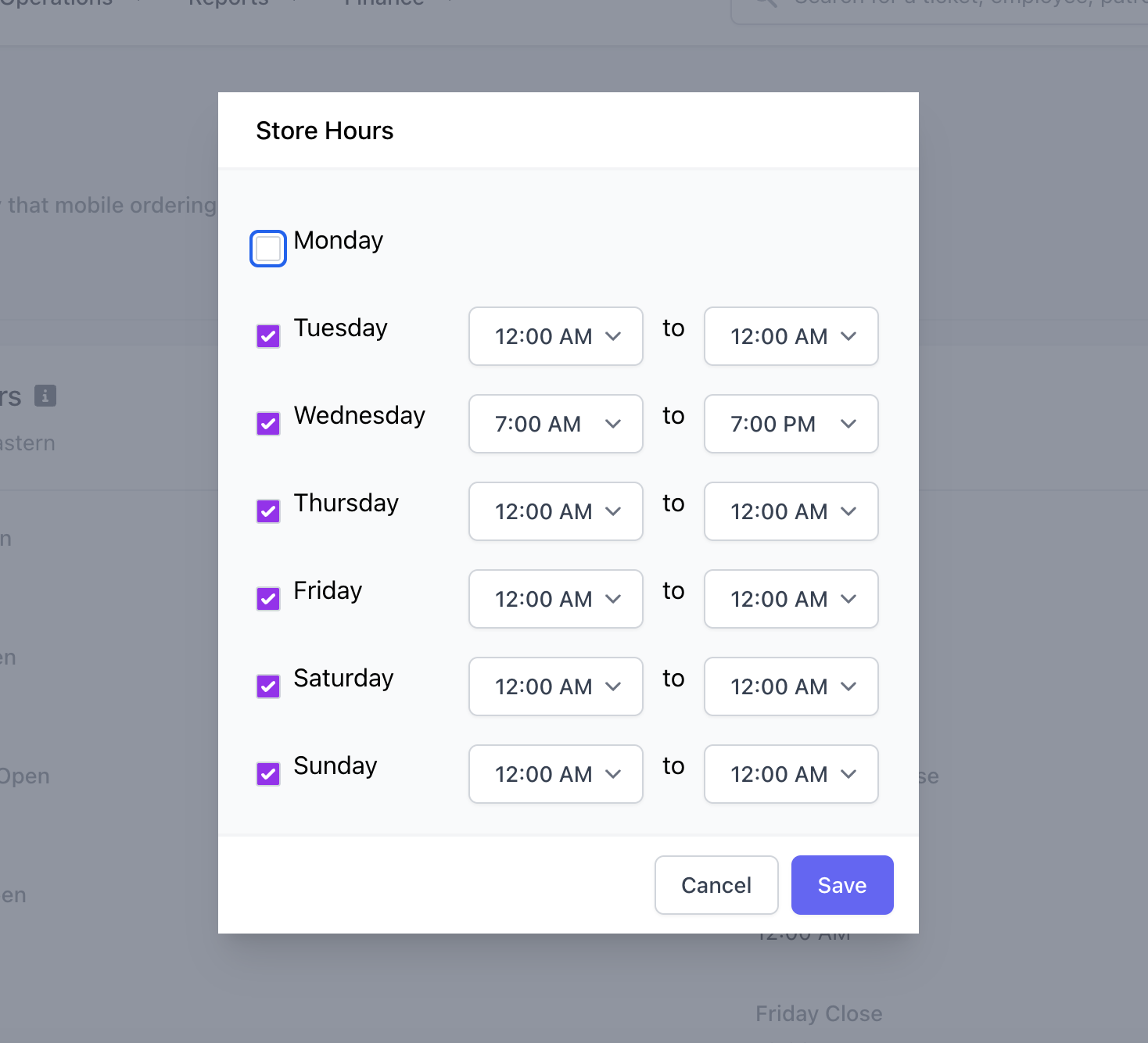
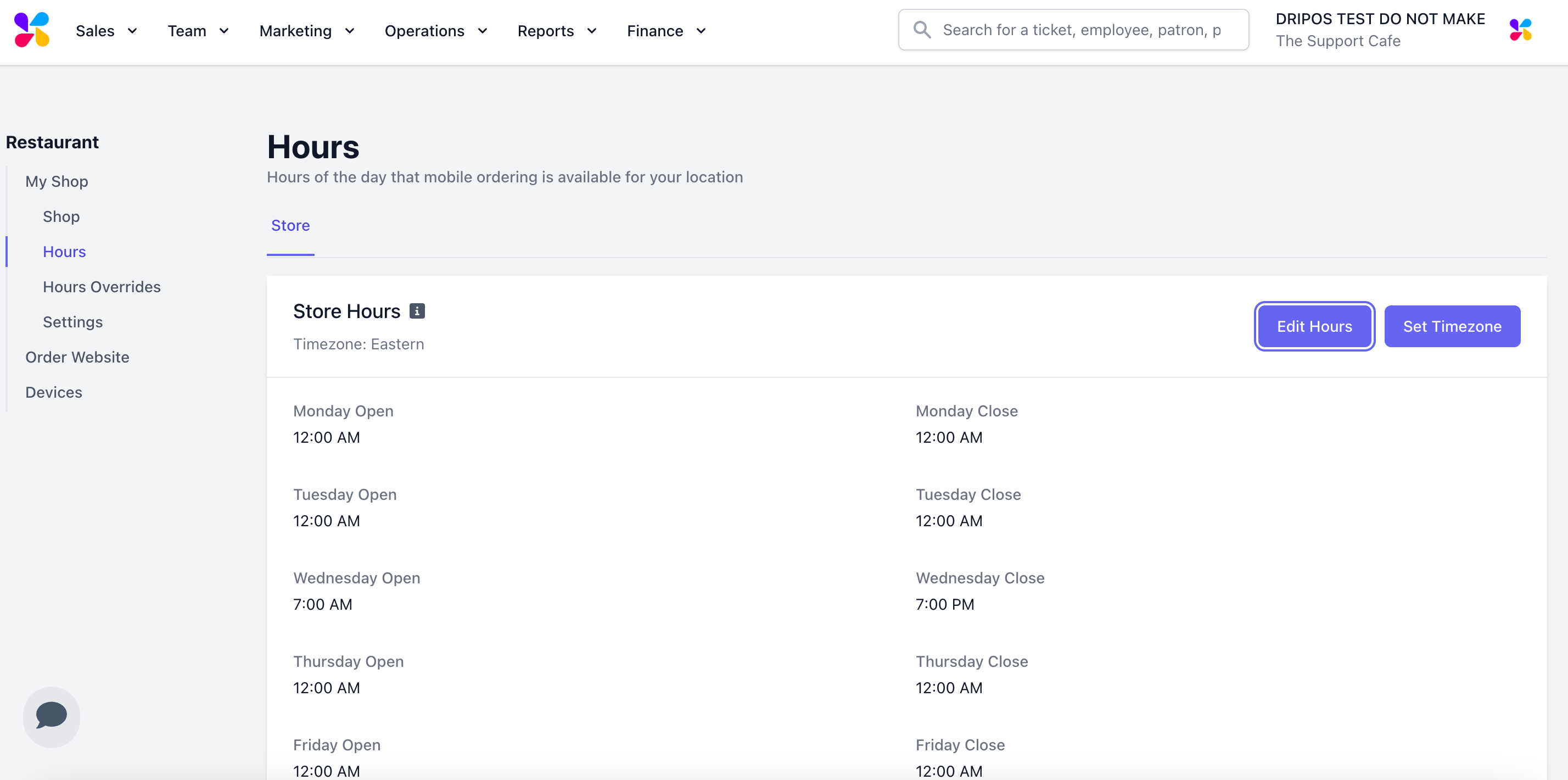 Click **Edit** and set daily store hours from open to close. Uncheck a day to mark the shop as closed all day > click **Save**
 ### Hours Overrides
Override daily store hours with a Full Day Closing or Special Hours on a specific date. Daily hours will remain the same outside of overrides.
Overrides are a great option for setting holiday hours, special event hours, or emergency closings.
On the **Dashboard**, click the settings icon in the upper-right corner > [**Shop Info** > **Hours Overrides**](https://dashboard.dripos.com/overrides) > **Add Override**
### Hours Overrides
Override daily store hours with a Full Day Closing or Special Hours on a specific date. Daily hours will remain the same outside of overrides.
Overrides are a great option for setting holiday hours, special event hours, or emergency closings.
On the **Dashboard**, click the settings icon in the upper-right corner > [**Shop Info** > **Hours Overrides**](https://dashboard.dripos.com/overrides) > **Add Override**
 Set a date range to close store hours all day
 Set special hours for one day at a time
*Example: on 3/20/25 the store is open from 1PM-3PM*
Set special hours for one day at a time
*Example: on 3/20/25 the store is open from 1PM-3PM*
 ***
## Mobile Ticket Types
Create new ticket types specifically for mobile checkout.
Existing ticket types, such as For Here or To-Go, can also be used at checkout.
To create or adjust mobile ticket types, on the **Dashboard** click **Orders** > **Ticket Types**
***
## Mobile Ticket Types
Create new ticket types specifically for mobile checkout.
Existing ticket types, such as For Here or To-Go, can also be used at checkout.
To create or adjust mobile ticket types, on the **Dashboard** click **Orders** > **Ticket Types**
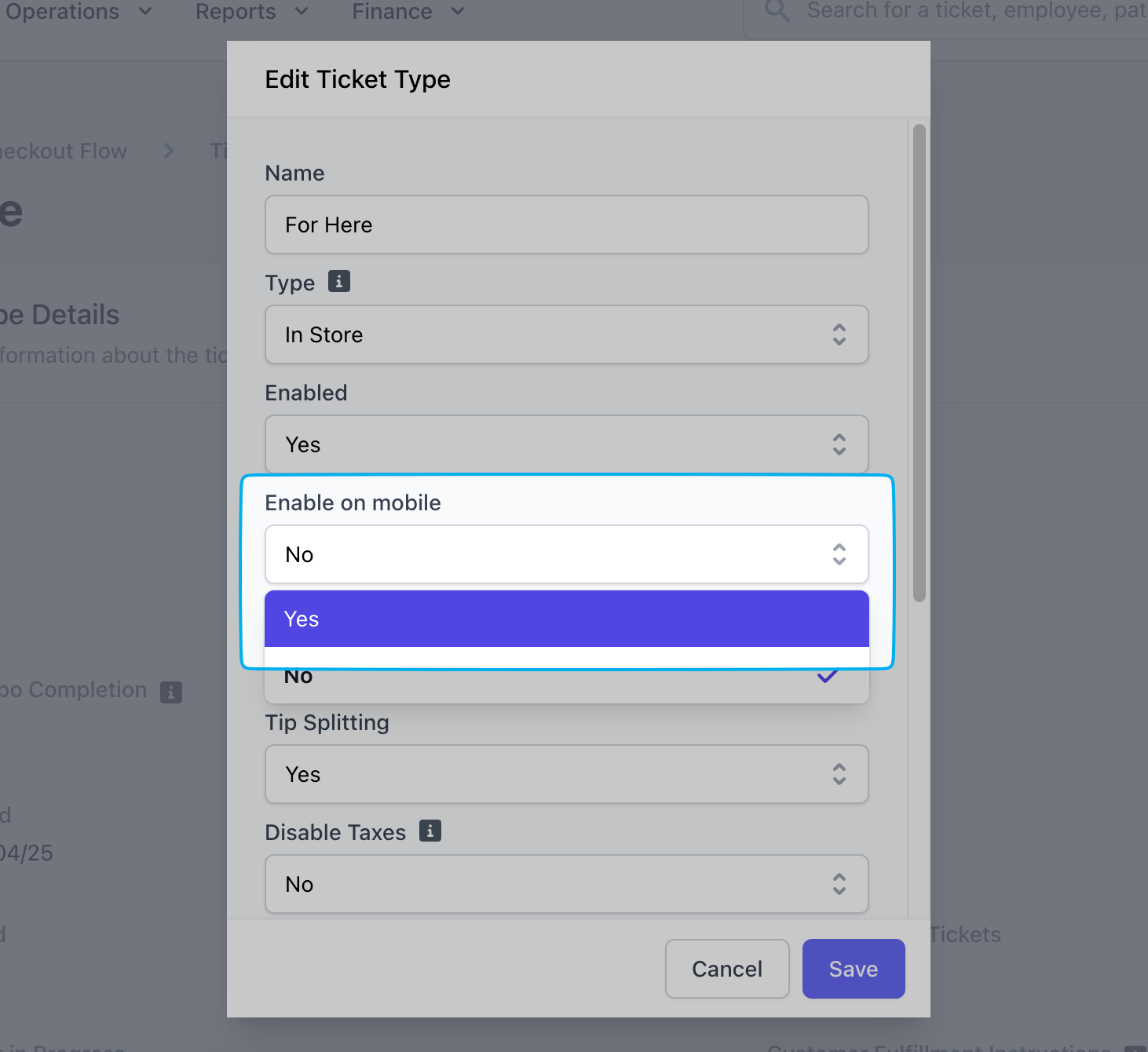
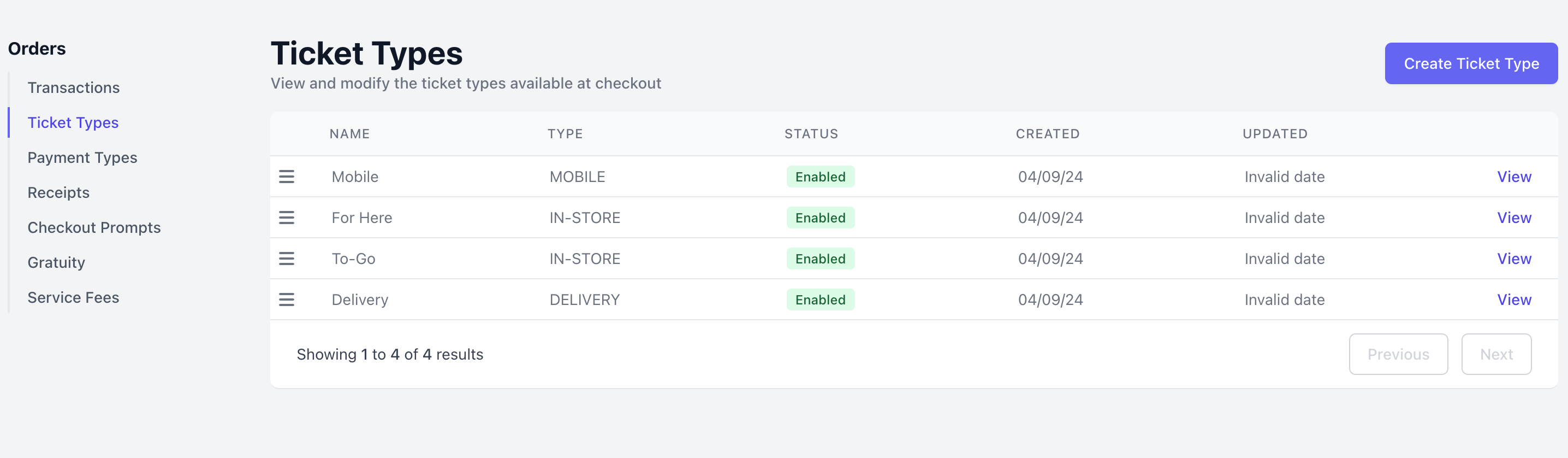 Any existing ticket types, such as For Here or To-Go, can be enabled for checkout on the mobile ordering platforms:
On the **Dashboard**, click **Orders** > **Ticket Types** > click **View** on an existing ticket type > click **Edit Information**
Any existing ticket types, such as For Here or To-Go, can be enabled for checkout on the mobile ordering platforms:
On the **Dashboard**, click **Orders** > **Ticket Types** > click **View** on an existing ticket type > click **Edit Information**
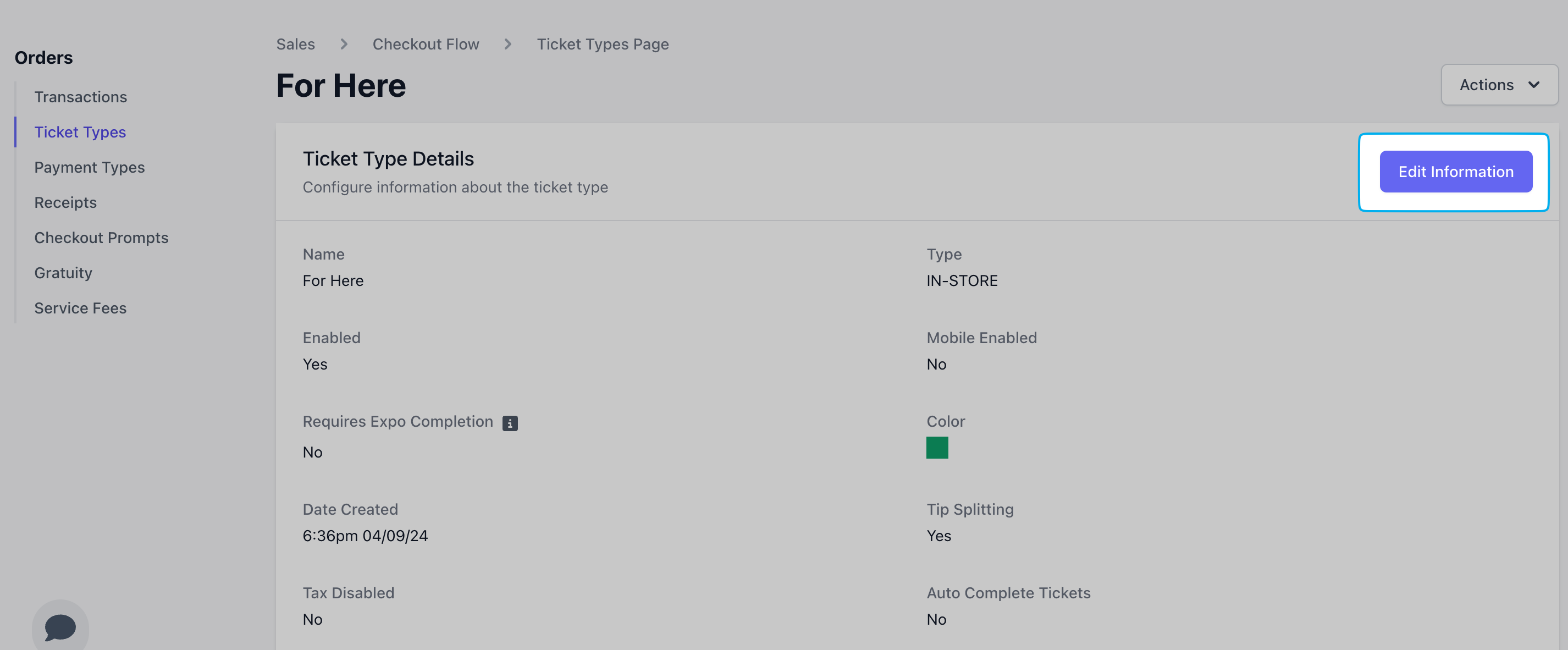 Change **Enable on Mobile** to **Yes** > click **Save**
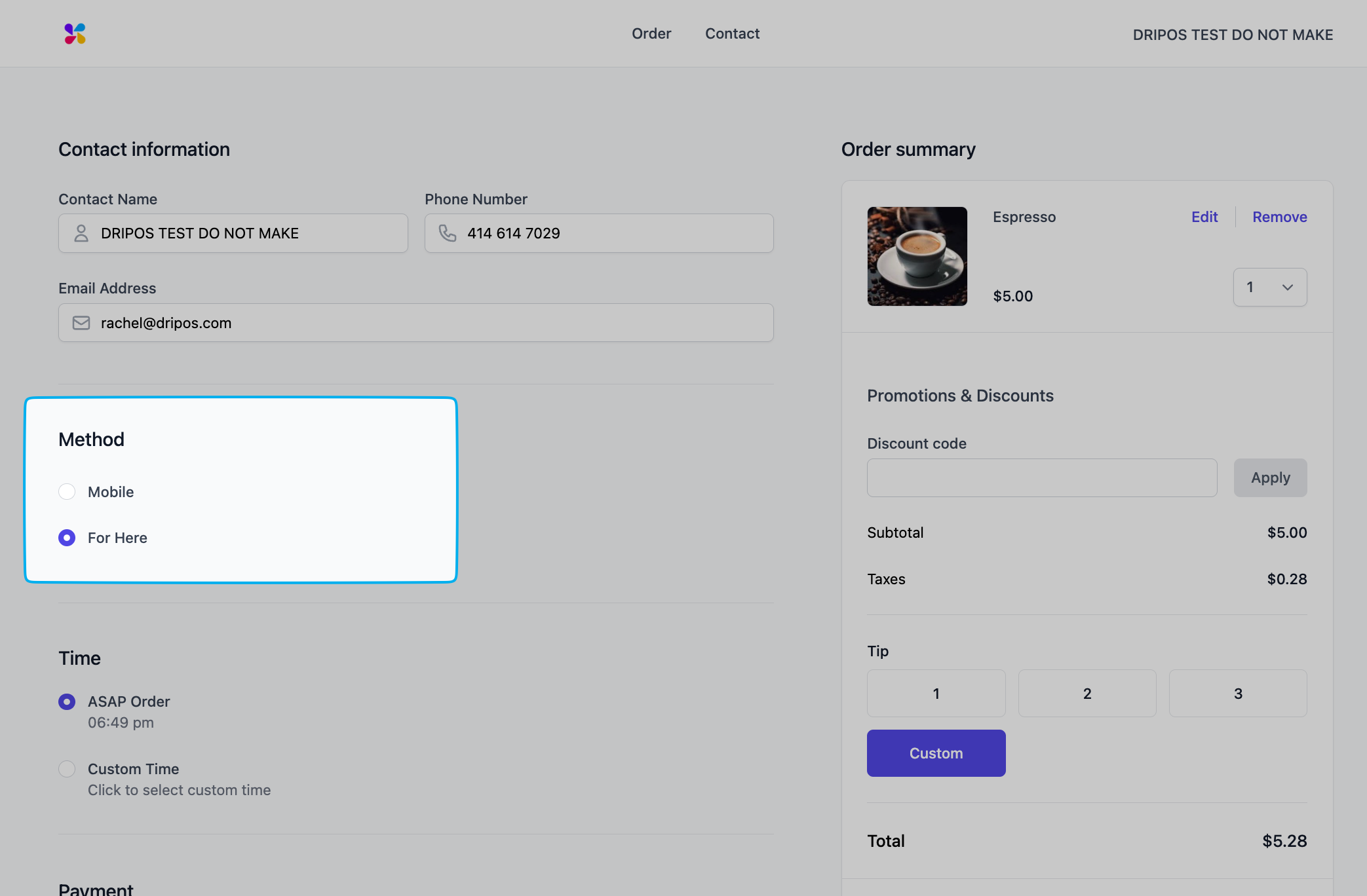
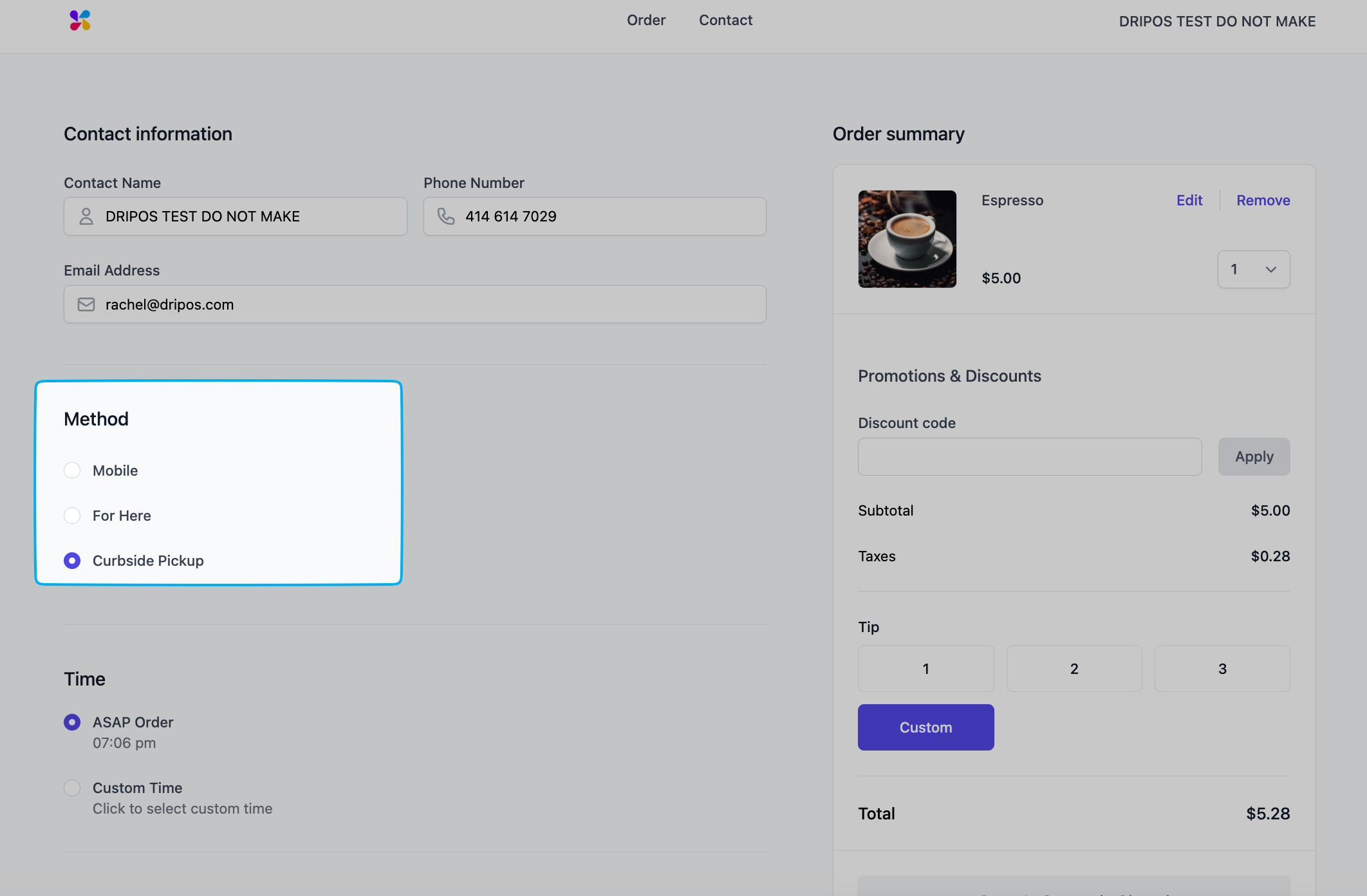
 The ticket type will then appear as a **Method** (ticket type) for customers to select at checkout.
 Create new ticket types that are only available for mobile checkout:
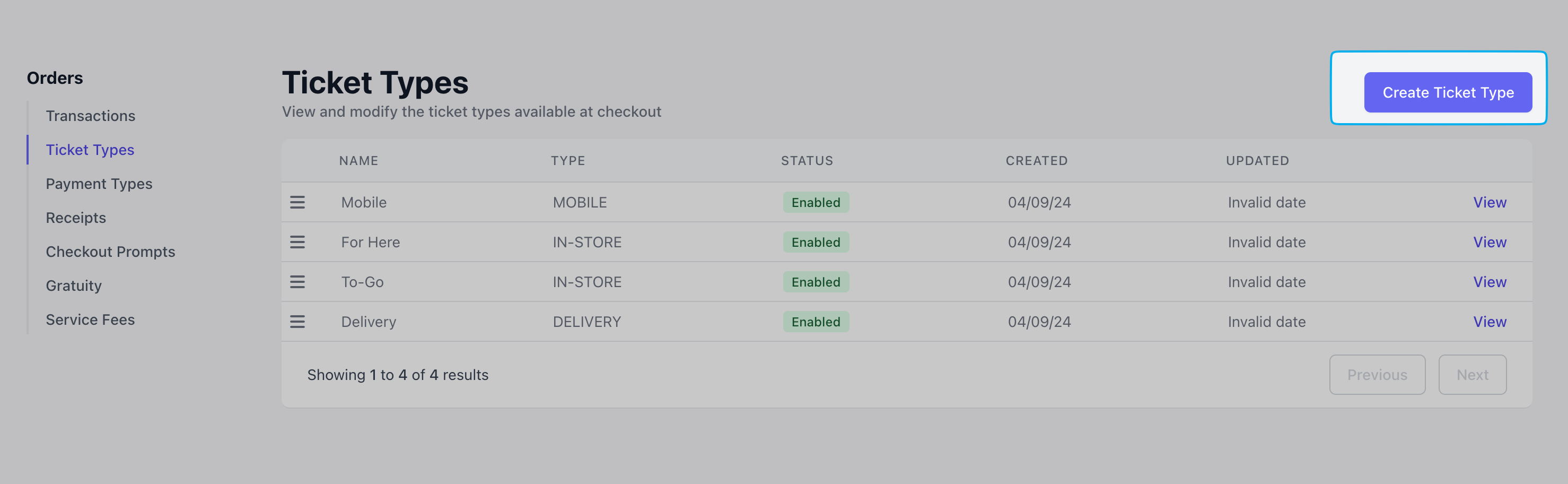
On the **Dashboard**, click **Orders** > **Ticket Types** > **Create Ticket Type**
Create new ticket types that are only available for mobile checkout:
On the **Dashboard**, click **Orders** > **Ticket Types** > **Create Ticket Type**
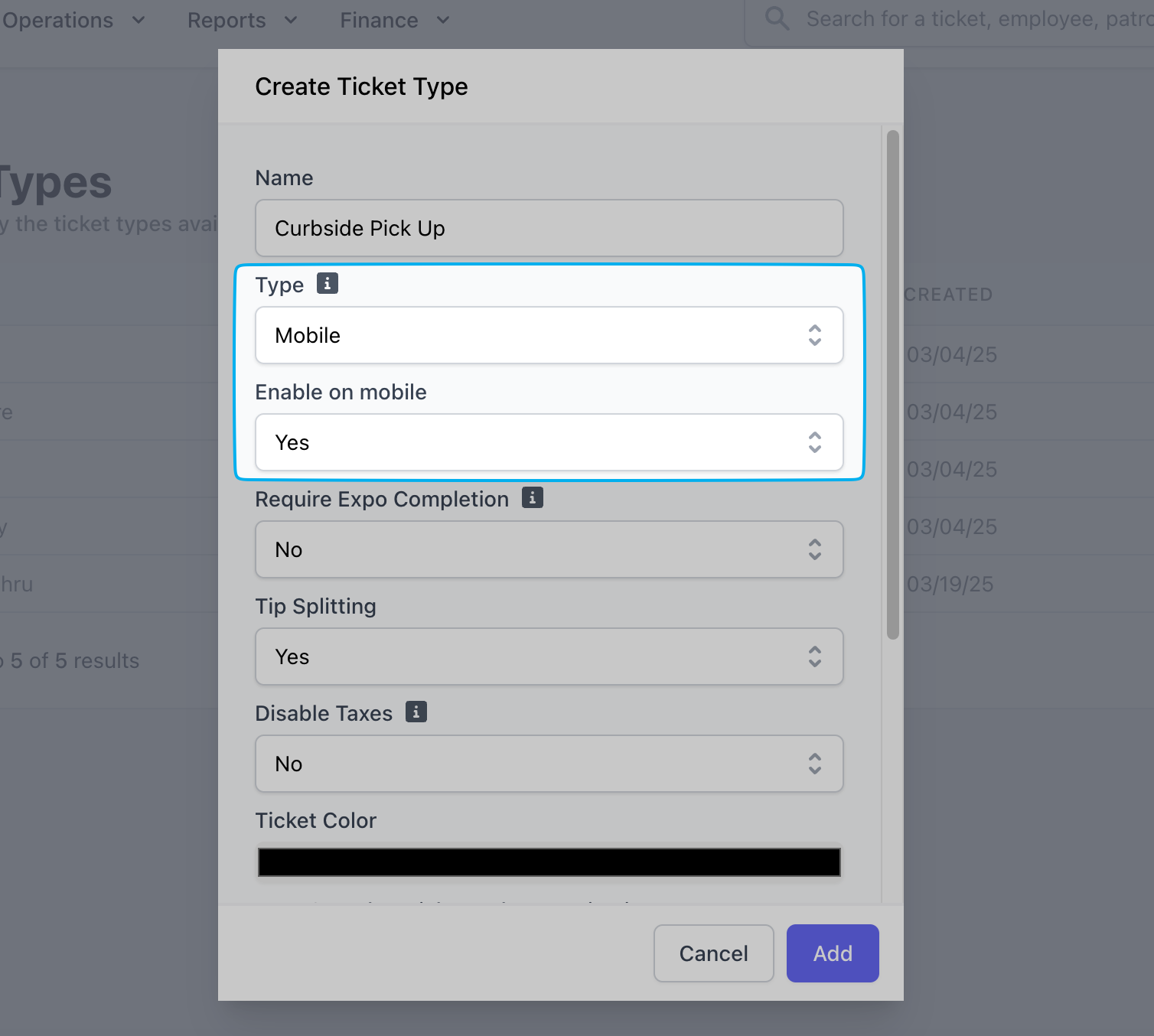 Select one of the two following options for **Type**:
Standard mobile ticket type requiring payment (card, Apple Pay, Google Pay, gift card) before completing mobile checkout
Allow customers place a mobile order without inputting a payment method at checkout, and instead pay at pickup.
Set **Enabled on mobile** = **Yes** > click **Save**
The ticket type will then appear as a **Method** (ticket type) for customers to select at checkout.
Select one of the two following options for **Type**:
Standard mobile ticket type requiring payment (card, Apple Pay, Google Pay, gift card) before completing mobile checkout
Allow customers place a mobile order without inputting a payment method at checkout, and instead pay at pickup.
Set **Enabled on mobile** = **Yes** > click **Save**
The ticket type will then appear as a **Method** (ticket type) for customers to select at checkout.
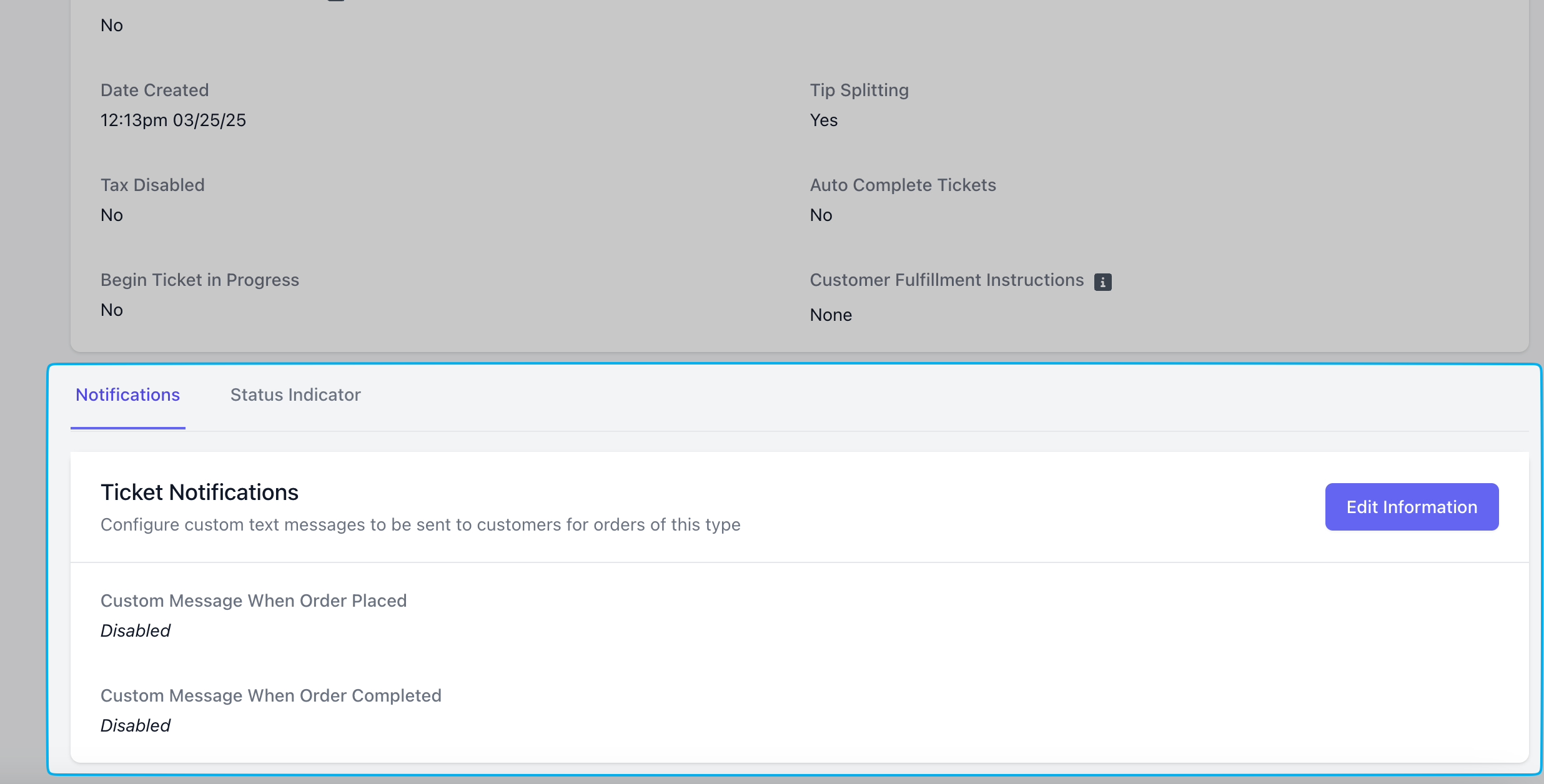
 Enable text notifications for customers to receive when their order is received and when the order is ready for pickup.
Notifications are created per ticket type.
On the **Dashboard**, click **Orders** > **Ticket Types** > **View Ticket Type**
Scroll down to see **Notifications** > **Edit Information**
Enable text notifications for customers to receive when their order is received and when the order is ready for pickup.
Notifications are created per ticket type.
On the **Dashboard**, click **Orders** > **Ticket Types** > **View Ticket Type**
Scroll down to see **Notifications** > **Edit Information**
 Select **Yes** or **No** enable or disable each notification type, respectively.
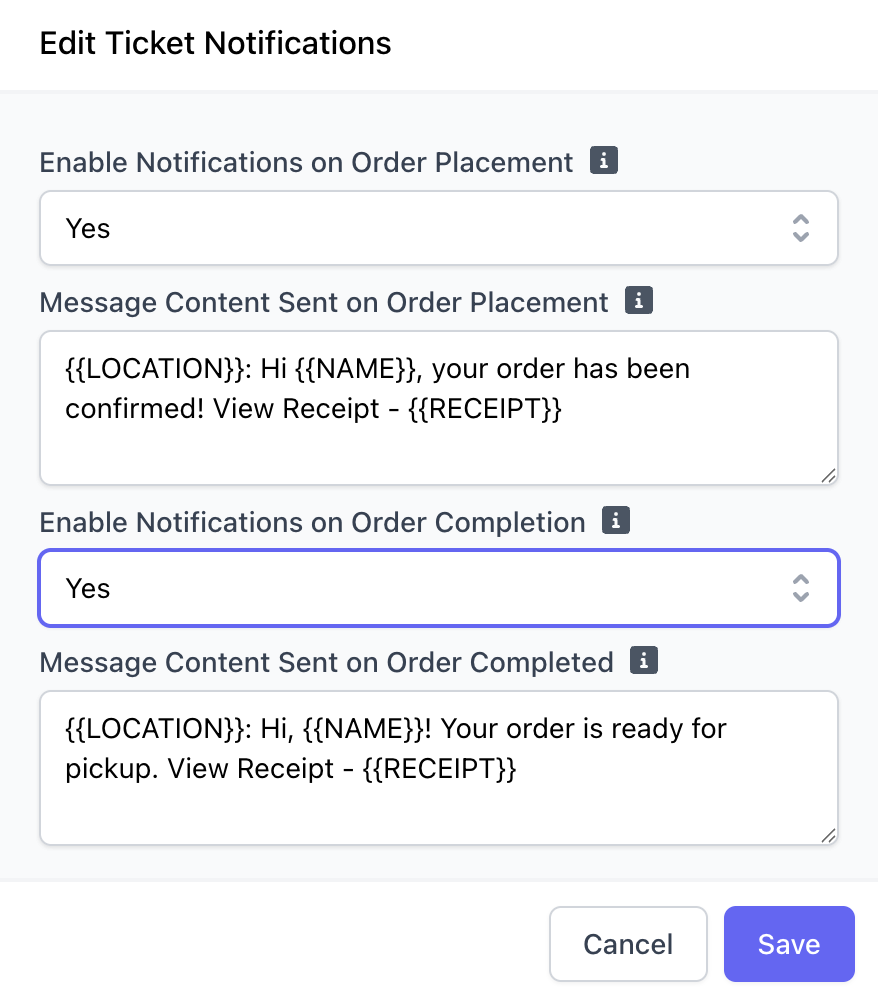 Write a custom message to your customers and utilize these variables to tailor the message to each customer automatically.
* \{\{LOCATION}}: Automatically adds the name of the shop location
* \{\{NAME}}: Automatically adds the name attached to the order
* \{\{RECEIPT}}: Automatically adds a link to a digital order receipt
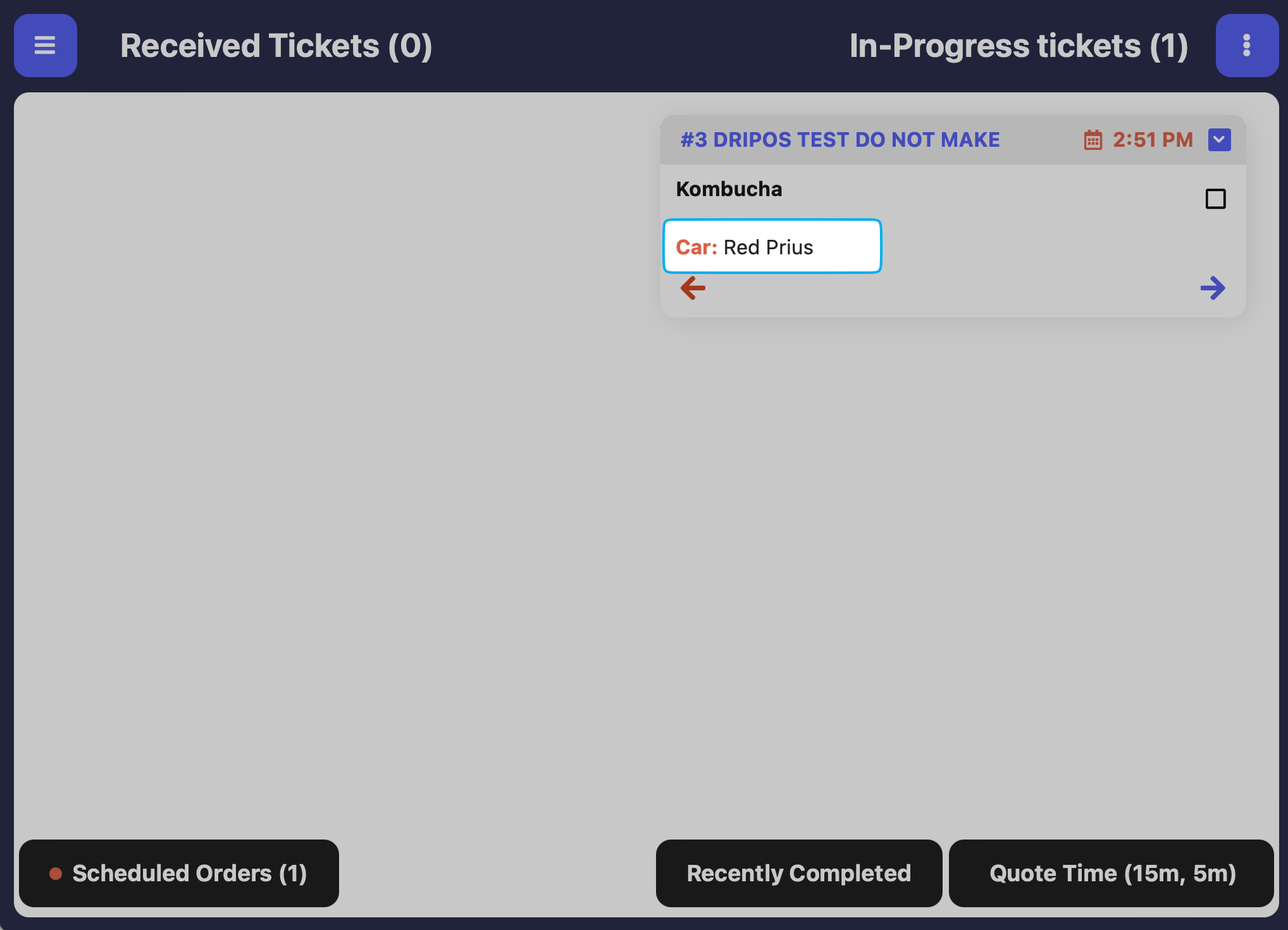
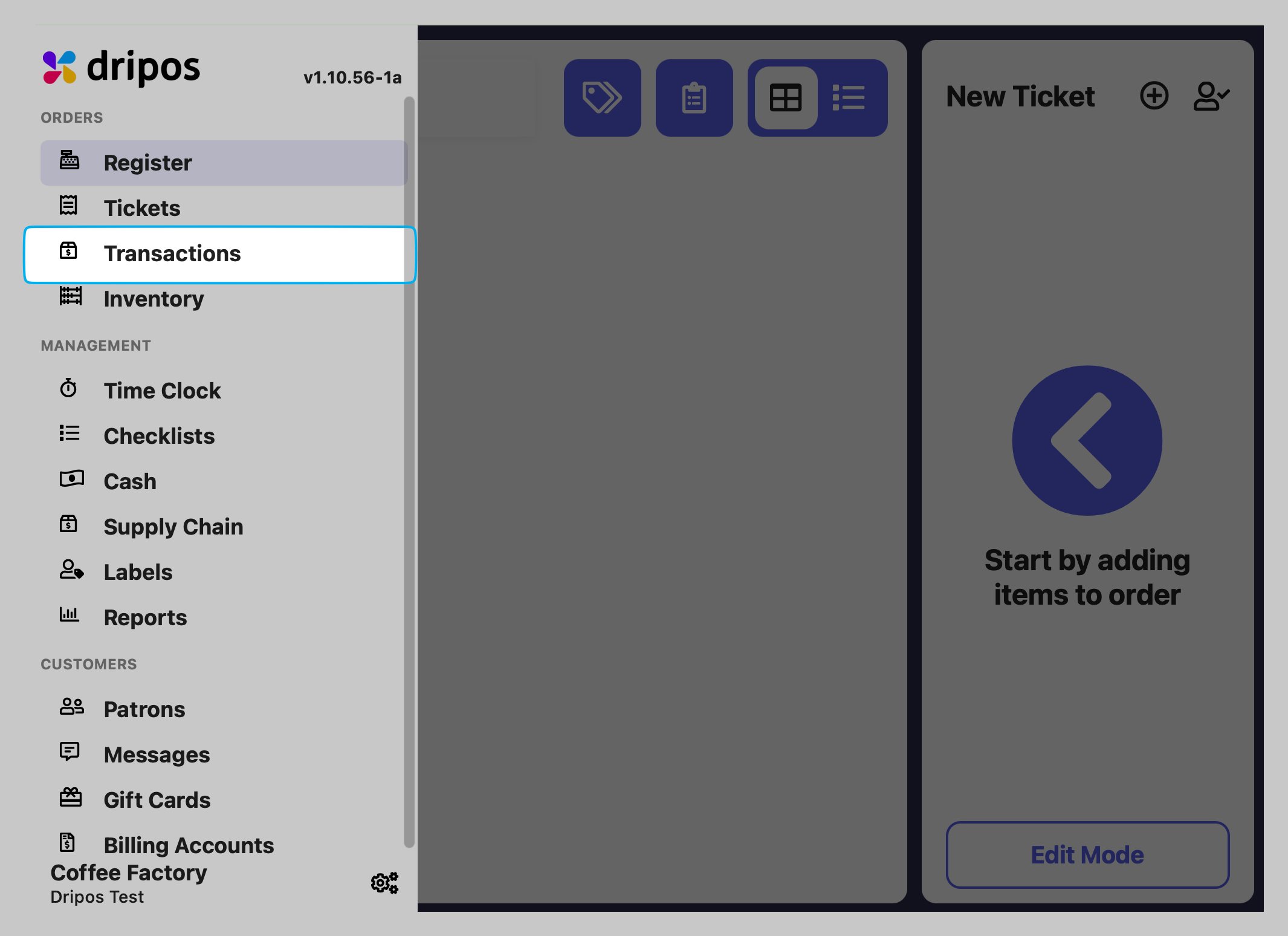
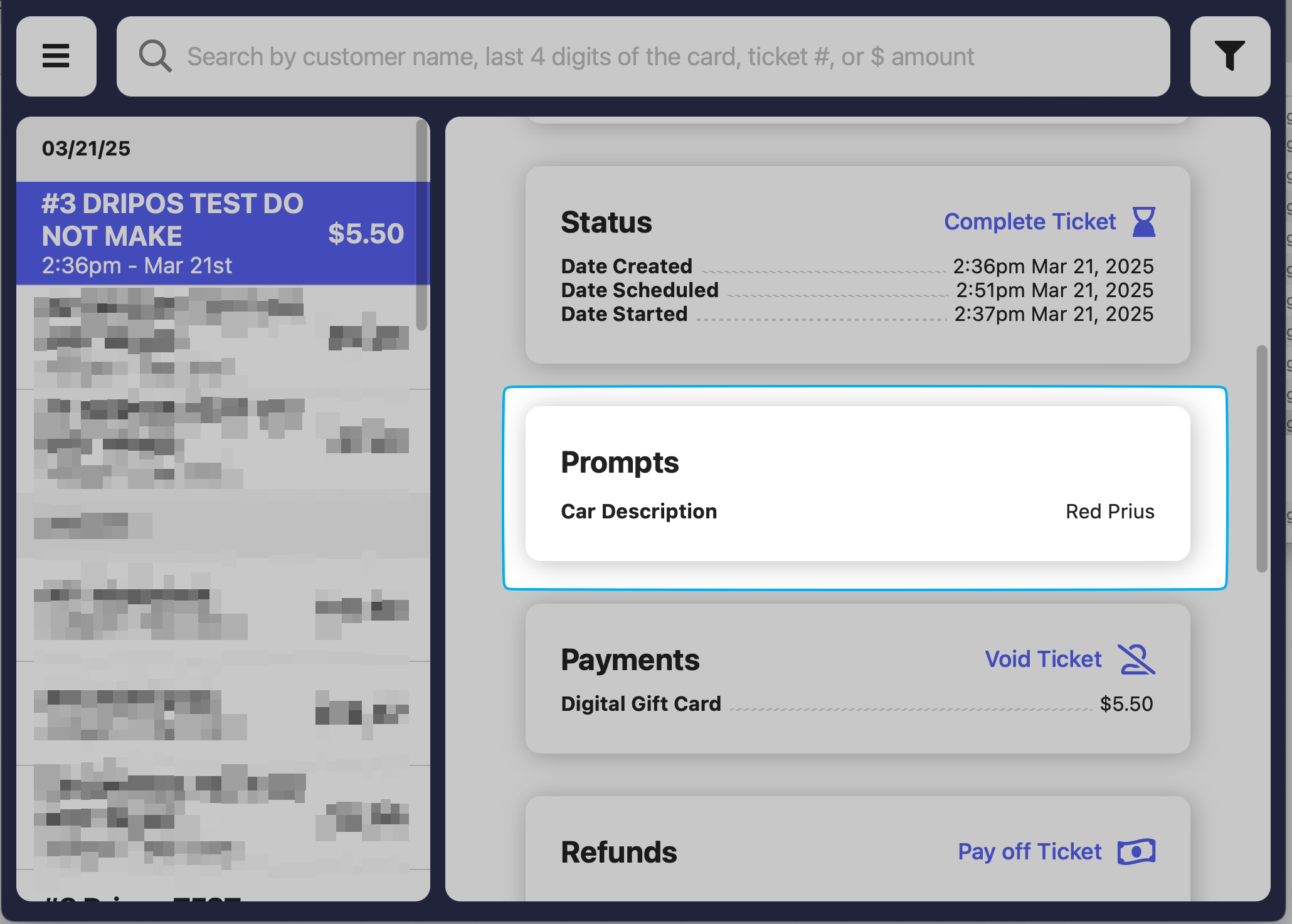
Add optional or required checkout prompts to mobile ticket types
Write a custom message to your customers and utilize these variables to tailor the message to each customer automatically.
* \{\{LOCATION}}: Automatically adds the name of the shop location
* \{\{NAME}}: Automatically adds the name attached to the order
* \{\{RECEIPT}}: Automatically adds a link to a digital order receipt
Add optional or required checkout prompts to mobile ticket types
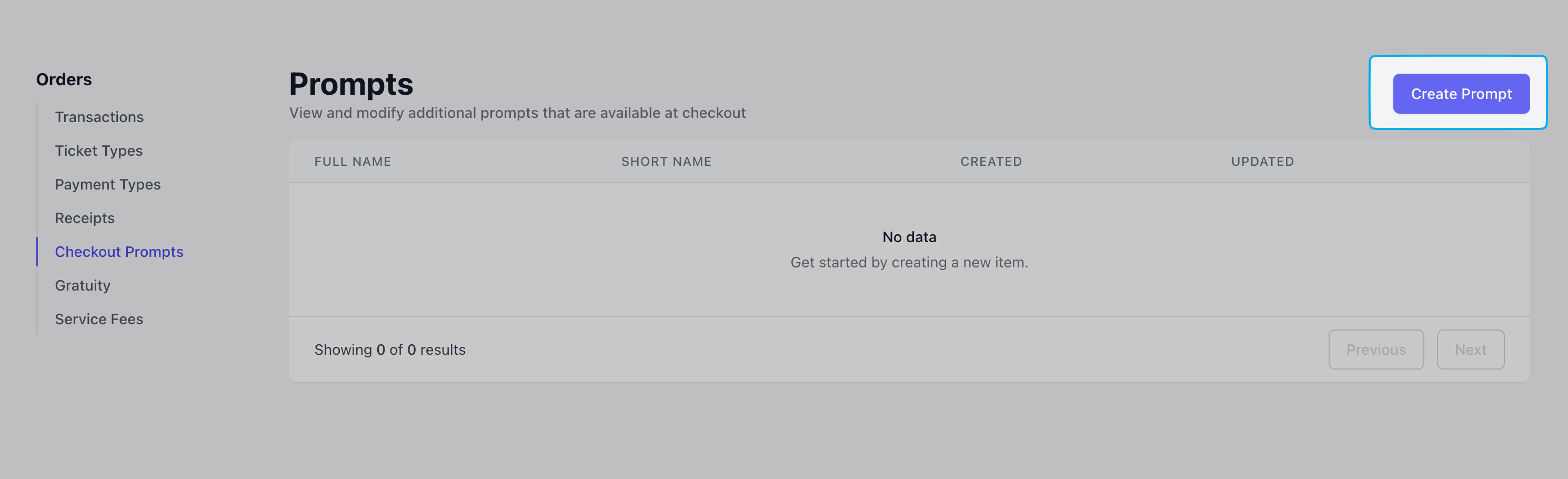
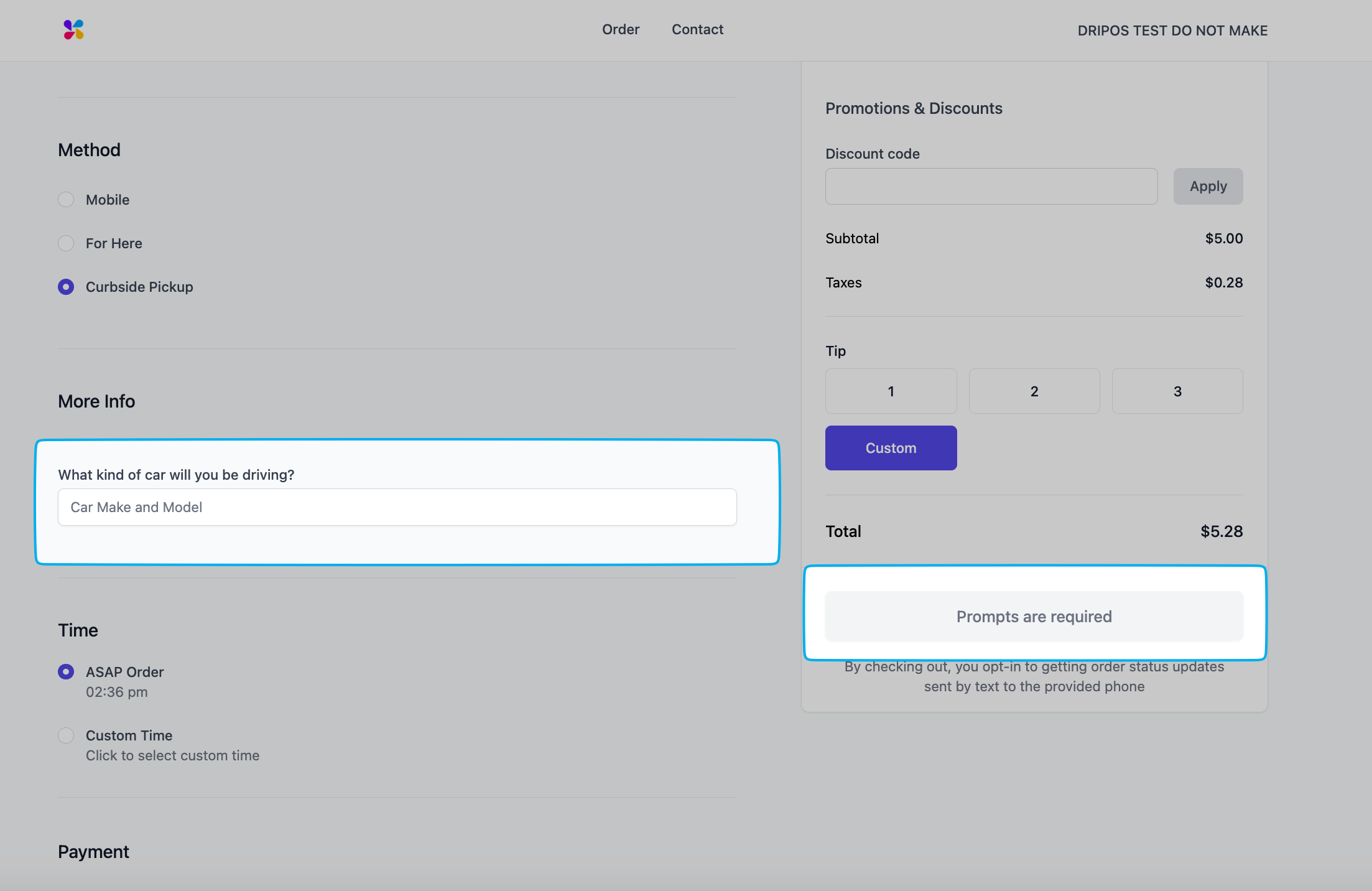 On the **Dashboard**, click on **Orders** > **Checkout Prompts** > **Create Prompt**
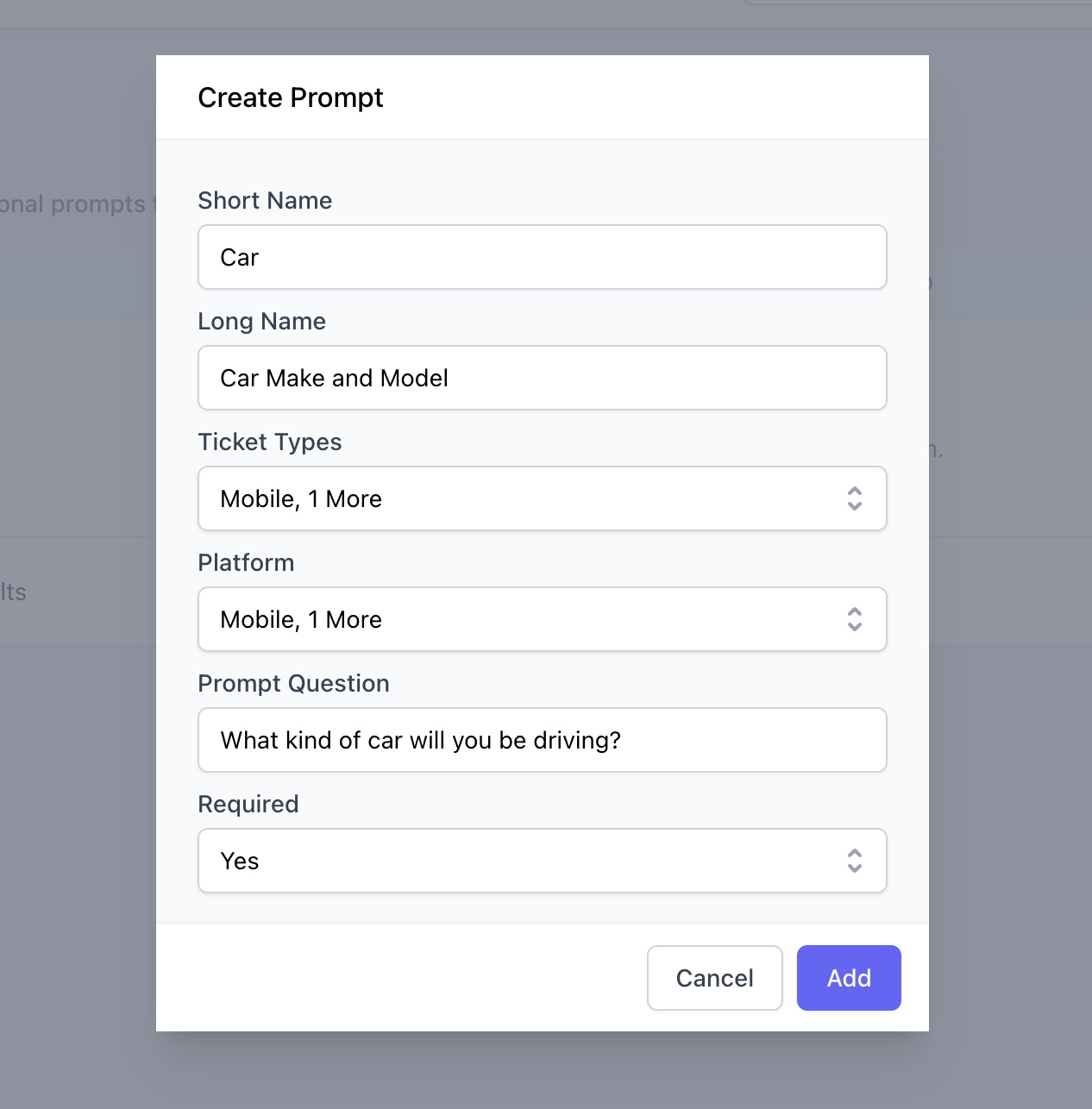 Internal label for checklist prompt. Only visible from the **Dashboard** and **Point of Sale**
Customer-facing description of the answer needed for the checkout prompt
Select a minimum of one ticket type to apply this checkout prompt to
Select a minimum of one platform for this checkout prompt to be visible on. Select both **Mobile** and **Web** to apply this checkout prompt on the **Order App** and the **Order Website**, respectively
The customer-facing prompt question that will need an answer upon checkout.
**Yes**: Customers will not be able to complete checkout without answering the prompt
**No**: The prompt is optional and checkout may be completed without answering the prompt
Internal label for checklist prompt. Only visible from the **Dashboard** and **Point of Sale**
Customer-facing description of the answer needed for the checkout prompt
Select a minimum of one ticket type to apply this checkout prompt to
Select a minimum of one platform for this checkout prompt to be visible on. Select both **Mobile** and **Web** to apply this checkout prompt on the **Order App** and the **Order Website**, respectively
The customer-facing prompt question that will need an answer upon checkout.
**Yes**: Customers will not be able to complete checkout without answering the prompt
**No**: The prompt is optional and checkout may be completed without answering the prompt
 ***
## Mobile Ordering Settings
**Review all mobile ordering settings before launching your mobile ordering platforms!**
### Configure Mobile Ordering Settings
Use Mobile Ordering settings to configure the best workflow for your shop.
Navigate to the **Dashboard** > click on the settings icon in the top right corner > **Settings** > **Mobile Ordering**
***
## Mobile Ordering Settings
**Review all mobile ordering settings before launching your mobile ordering platforms!**
### Configure Mobile Ordering Settings
Use Mobile Ordering settings to configure the best workflow for your shop.
Navigate to the **Dashboard** > click on the settings icon in the top right corner > **Settings** > **Mobile Ordering**
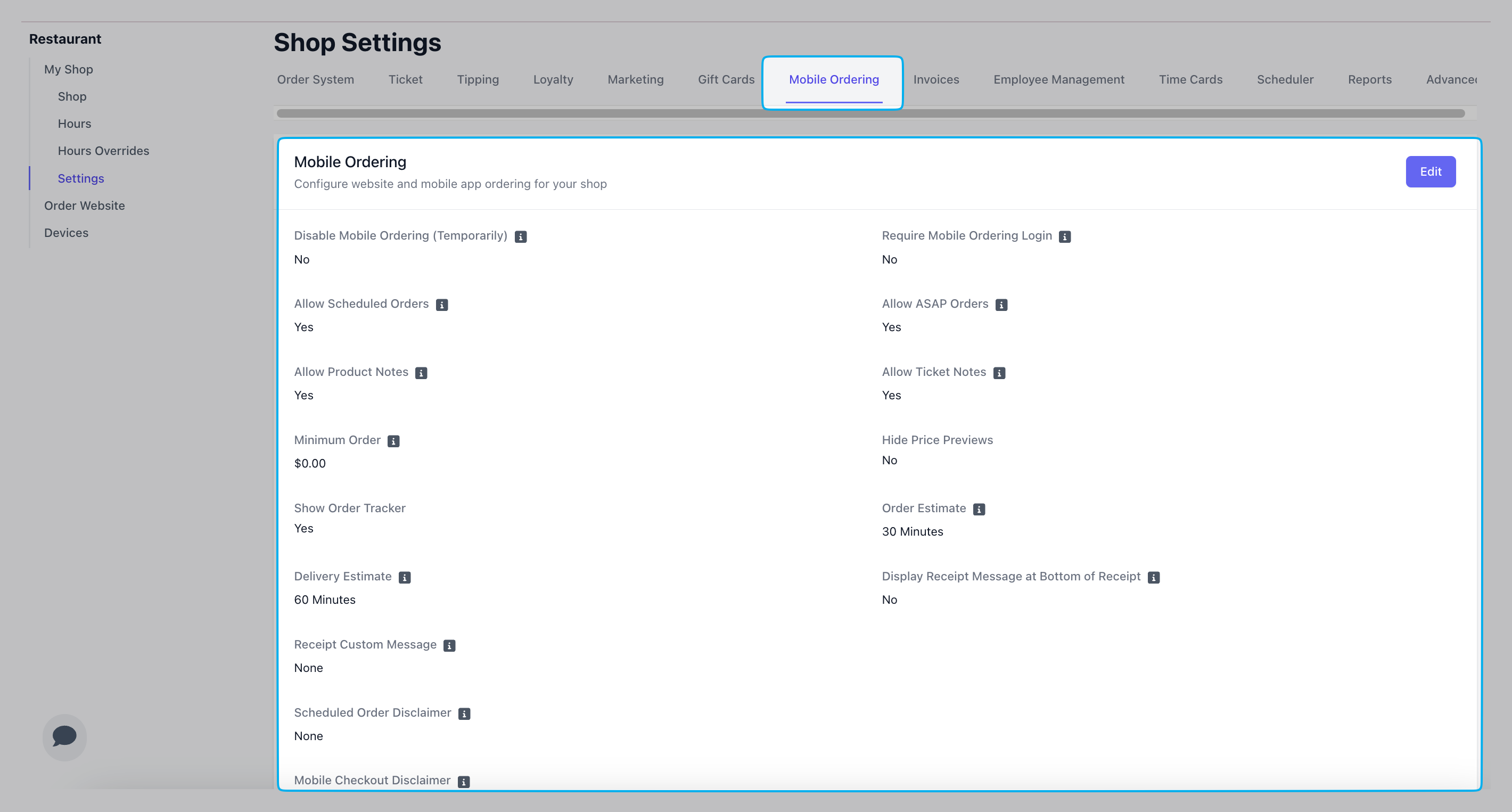 Any changes made to these settings will automatically take effect across all mobile ordering platforms.
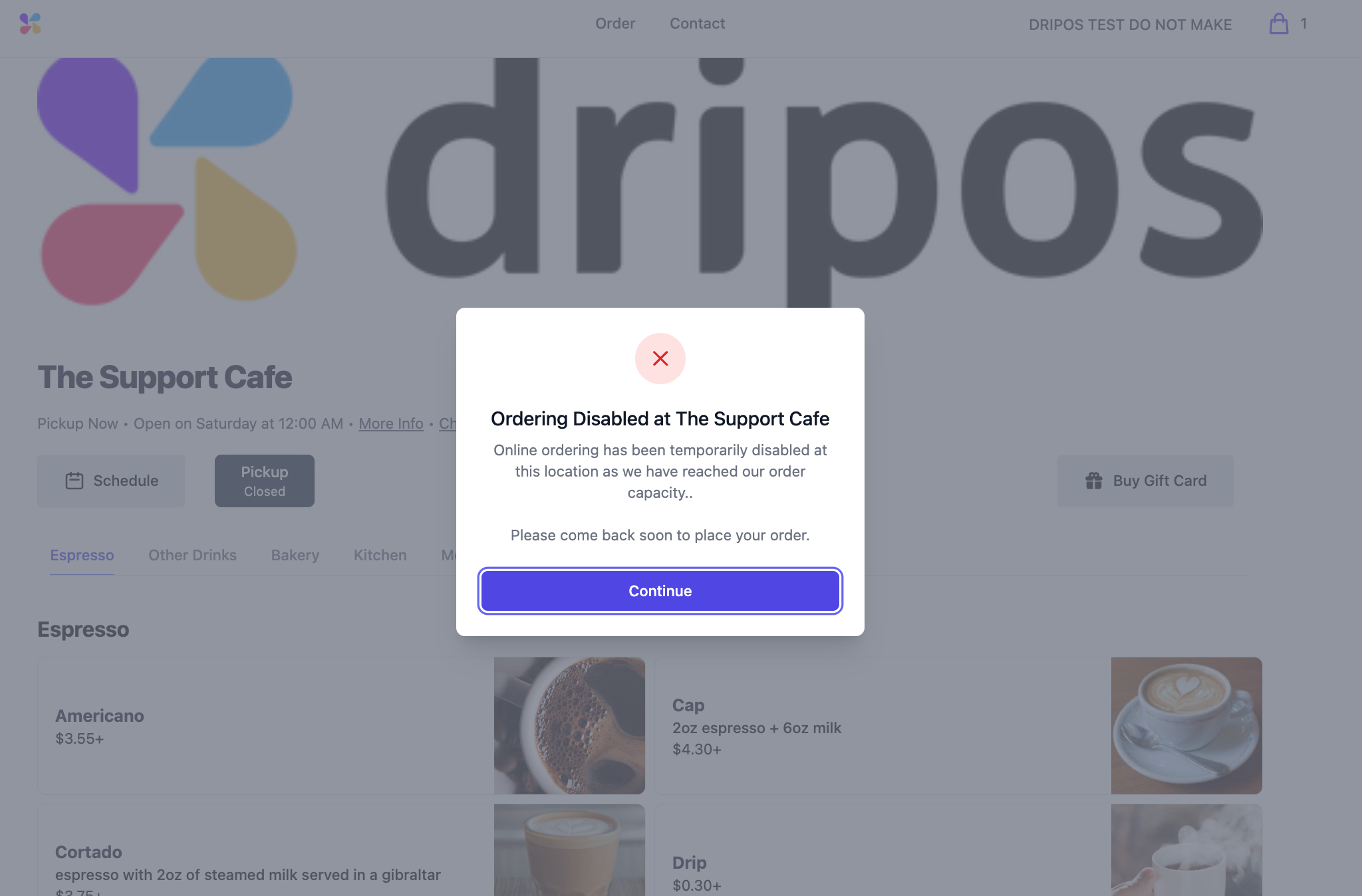
If set to **Yes**, orders will not be able to be placed through the order website and mobile app until set back to **No**
Any changes made to these settings will automatically take effect across all mobile ordering platforms.
If set to **Yes**, orders will not be able to be placed through the order website and mobile app until set back to **No**
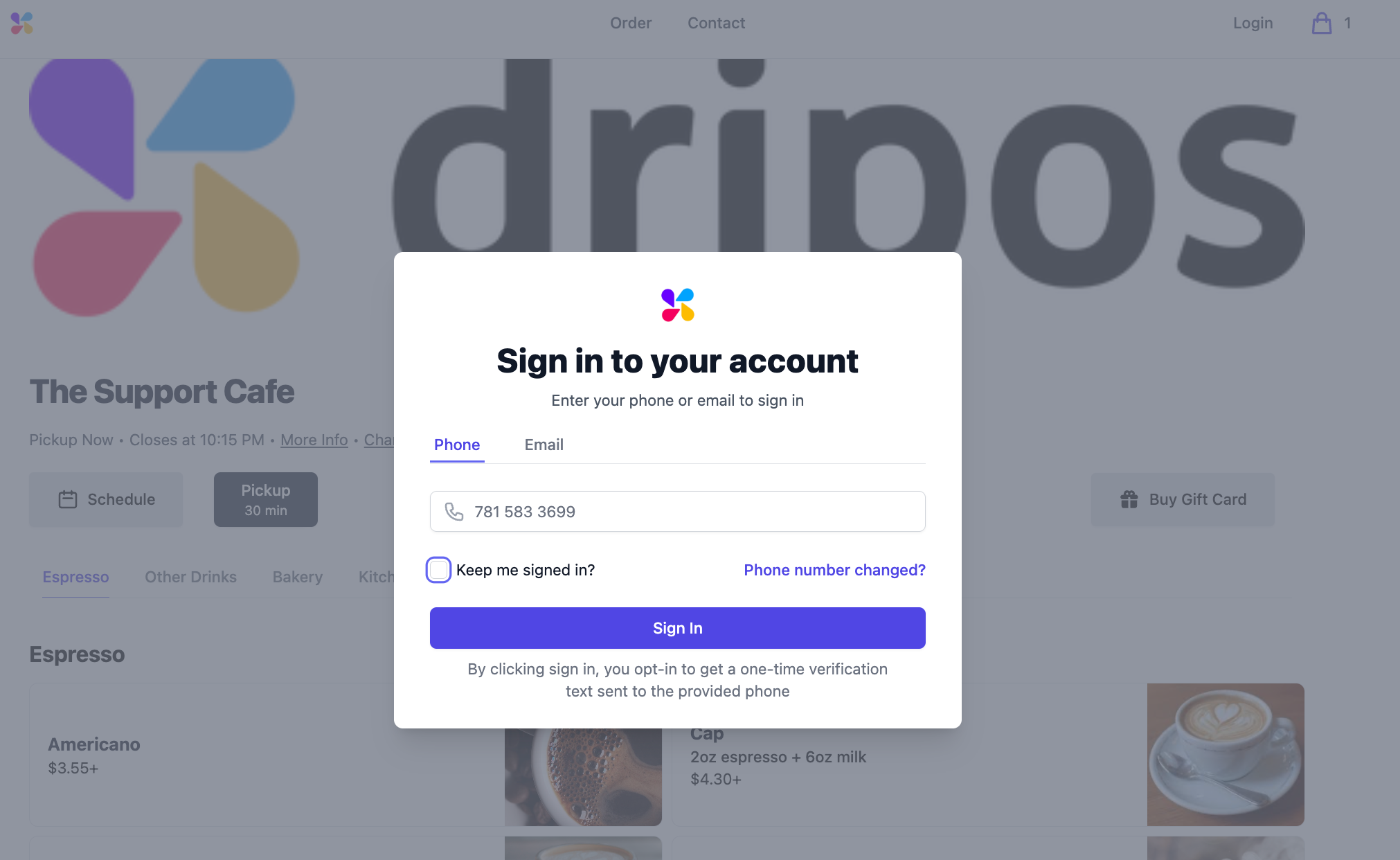
 If set to **Yes**, customers will need to sign in with their phone number in order to place a mobile order.
 If set to **Yes**, customers will be able to place orders on the order website and mobile app and be able to pick it up "as soon as possible".
The soonest pickup time will be based on order estimate and weighted queue times (see more below).
In order for a mobile order to be placed, one of the following **must** be enabled: **ASAP Orders** or **Scheduled Orders** - or both.
If set to **Yes**, customers will be able to place a mobile order for pickup at a future time.
In order for a mobile order to be placed, one of the following **must** be enabled: **ASAP Orders** or **Scheduled Orders** - or both.
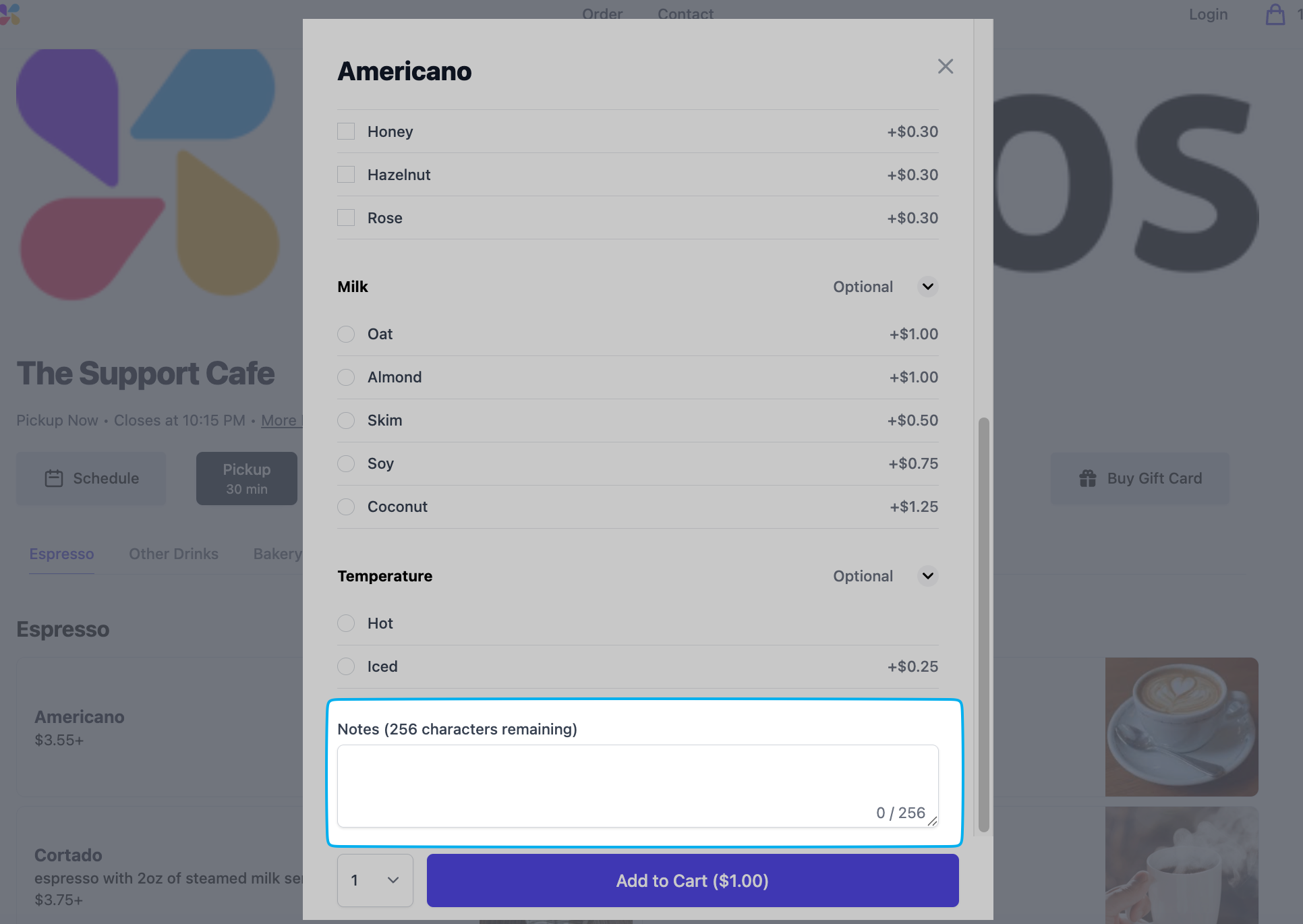
Allow customers to add notes to products on mobile and web ordering.
If set to **Yes**, customers will be able to place orders on the order website and mobile app and be able to pick it up "as soon as possible".
The soonest pickup time will be based on order estimate and weighted queue times (see more below).
In order for a mobile order to be placed, one of the following **must** be enabled: **ASAP Orders** or **Scheduled Orders** - or both.
If set to **Yes**, customers will be able to place a mobile order for pickup at a future time.
In order for a mobile order to be placed, one of the following **must** be enabled: **ASAP Orders** or **Scheduled Orders** - or both.
Allow customers to add notes to products on mobile and web ordering.
 **Currently Unavailable**
Allow customers to add notes to tickets on mobile and web ordering.
If set to **Yes**, customers can view the progress of their order.
**Optional**: Input the minimum cart total required (in dollars) to place a mobile order
If set to **Yes**, customers will be able to place a mobile order without inputting a payment method at checkout, and instead pay at pickup.
A [**Pay at Store Ticket Type**](/orders/mobile/mobile-setup/mobile-ticket-types.mdx) will need to be created as well.
Orders will appear within **Saved Tickets** screen on the POS until paid.
If set to **Yes**, the price of a product on the order website or mobile app can only be viewed if a customer clicks into the product.
Input the estimated amount of time (in minutes) that it will take for a mobile order to be ready for pickup.
Input the estimated amount of time (in minutes) that it will take for a delivery order to be delivered to the customer.
A delivery ticket type is required to utilize this setting.
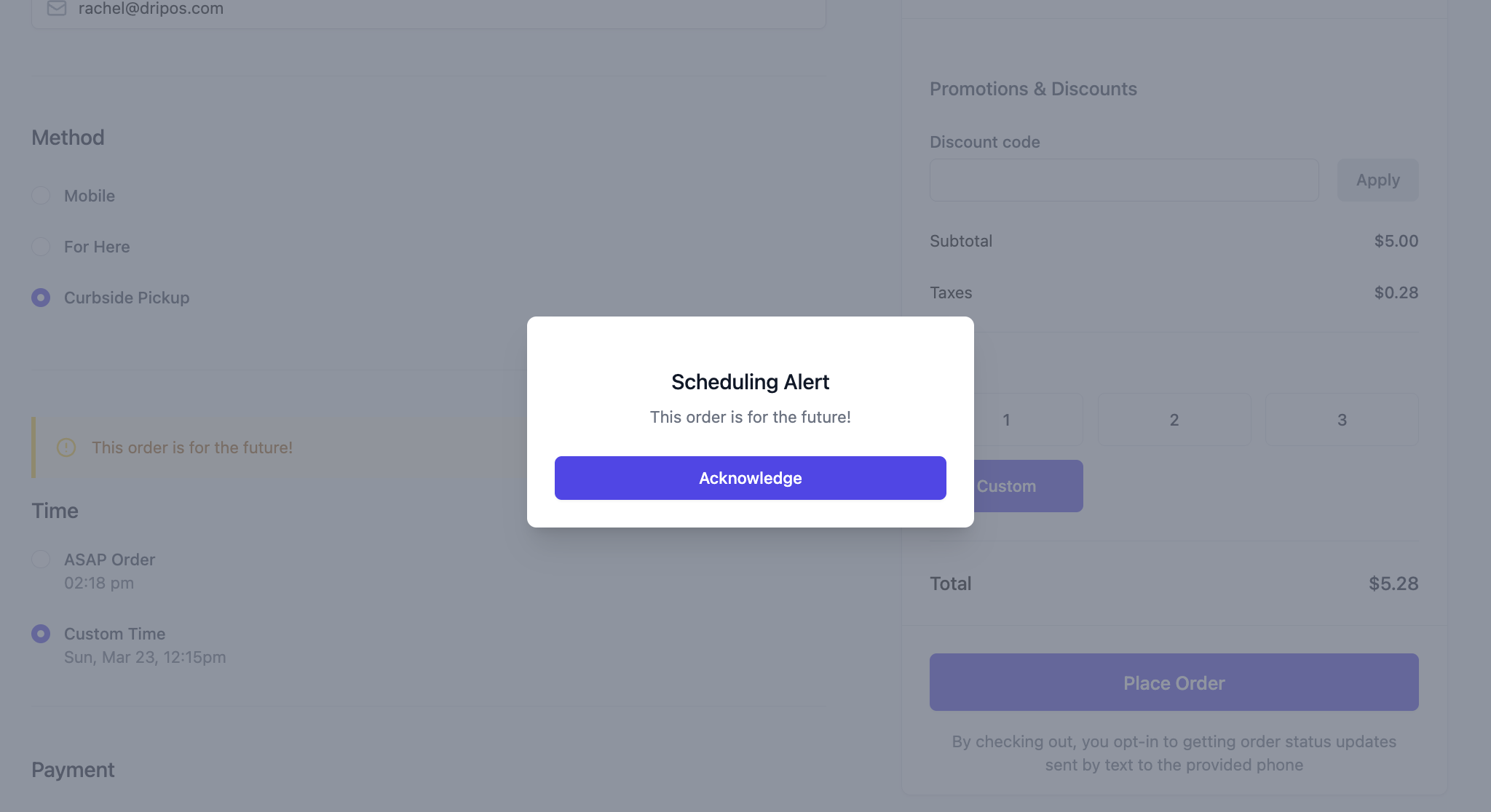
**Optional**: Attach a disclaimer that will pop up on screen and must be acknowledged to continue scheduling an order for a future date.
**Currently Unavailable**
Allow customers to add notes to tickets on mobile and web ordering.
If set to **Yes**, customers can view the progress of their order.
**Optional**: Input the minimum cart total required (in dollars) to place a mobile order
If set to **Yes**, customers will be able to place a mobile order without inputting a payment method at checkout, and instead pay at pickup.
A [**Pay at Store Ticket Type**](/orders/mobile/mobile-setup/mobile-ticket-types.mdx) will need to be created as well.
Orders will appear within **Saved Tickets** screen on the POS until paid.
If set to **Yes**, the price of a product on the order website or mobile app can only be viewed if a customer clicks into the product.
Input the estimated amount of time (in minutes) that it will take for a mobile order to be ready for pickup.
Input the estimated amount of time (in minutes) that it will take for a delivery order to be delivered to the customer.
A delivery ticket type is required to utilize this setting.
**Optional**: Attach a disclaimer that will pop up on screen and must be acknowledged to continue scheduling an order for a future date.
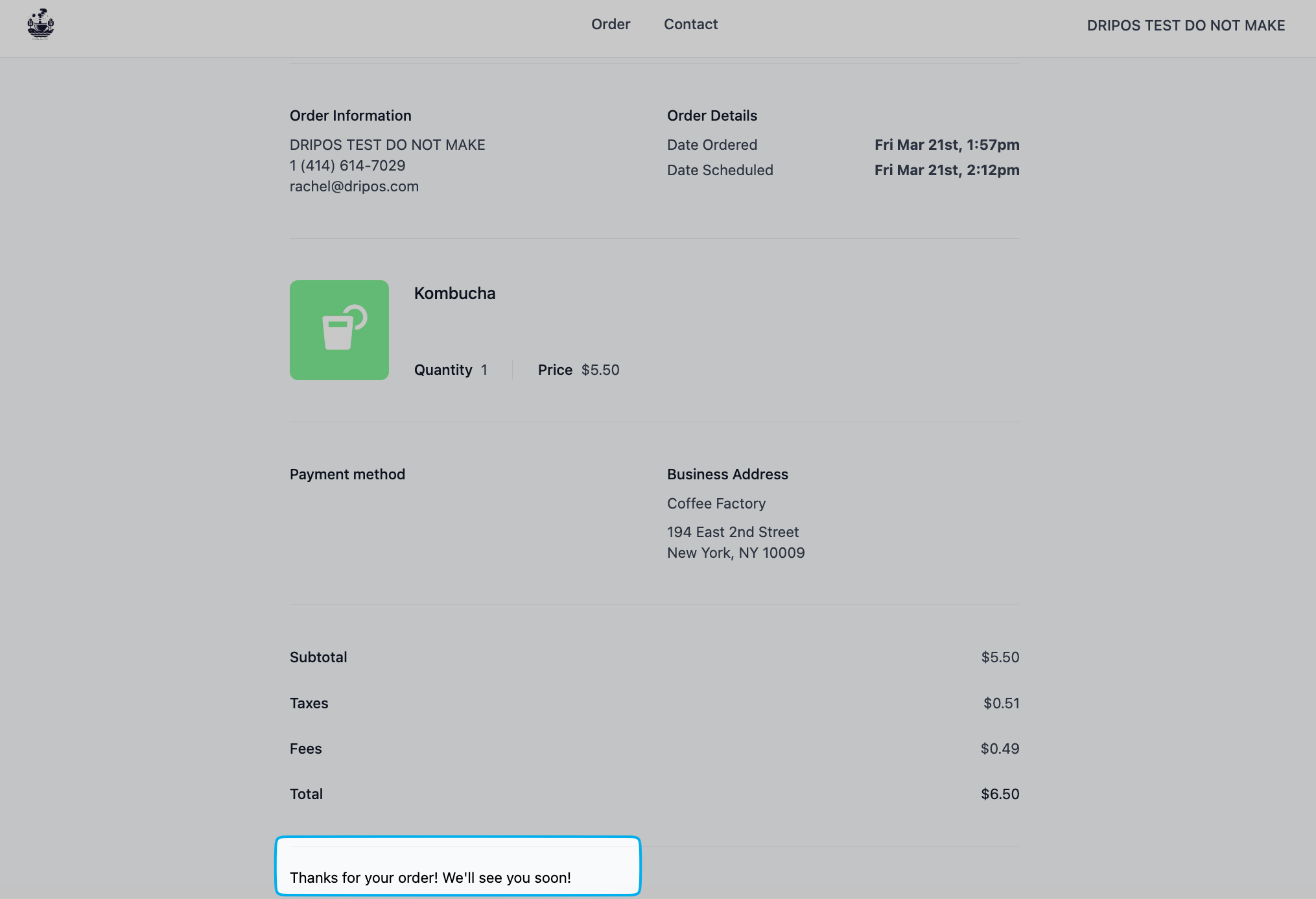
 A custom message to display on the receipt screen.
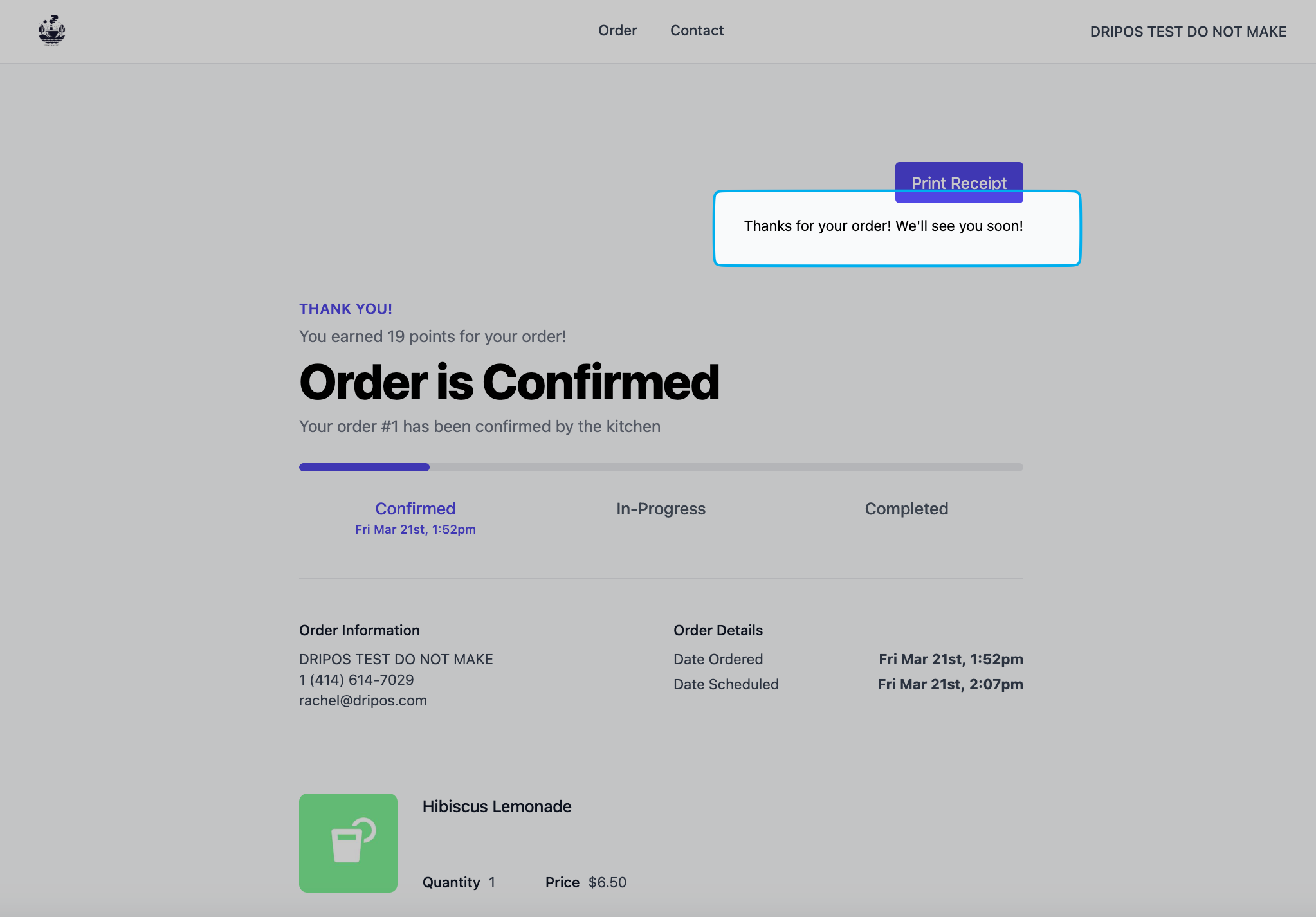 Enabling this setting will display the receipt custom message at the end of the receipt, rather than at the beginning.
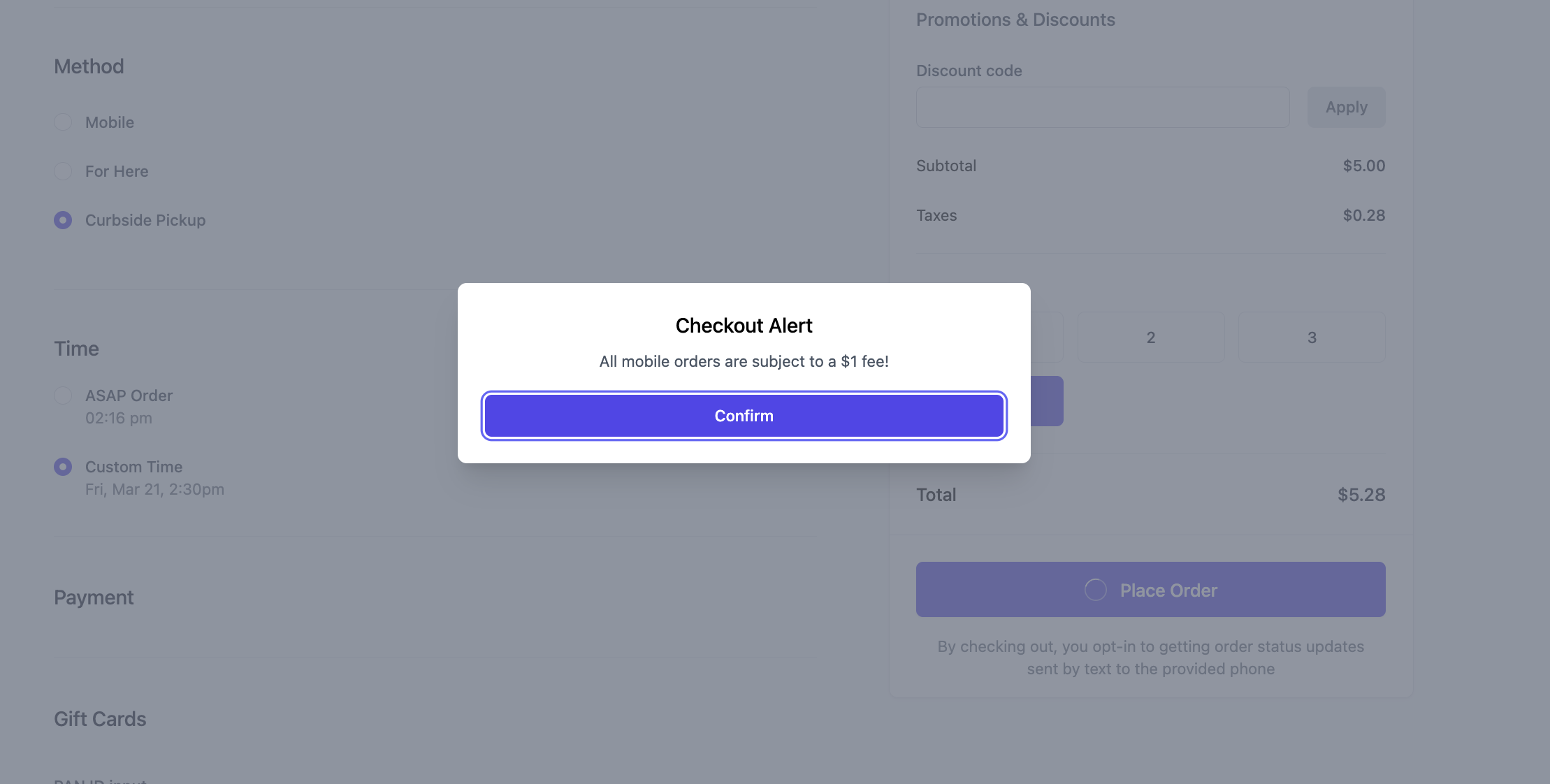
 **Optional**: A disclaimer that will appear on mobile ordering platforms that must be acknowledged before a patron submits their order.
 ### Quick Edit Mobile Ordering Settings
Adjust basic Mobile Order settings from the Point of Sale
Navigate to the **tribar** in the upper left screen corner > press the **Settings** button > scroll down to **Mobile Settings**
Any changes made to these settings will automatically take effect across all mobile ordering platforms.
Input the estimated amount of time (in minutes) that it will take for a mobile order to be ready for pickup.
If this toggle is turned **ON**, orders will not be able to be placed through the order website and mobile app until turned back **OFF**
If this toggle is turned **ON**, customers will be able to place a mobile order without inputting a payment method at checkout, and instead pay at pickup.
A [**Pay at Store Ticket Type**](/orders/mobile/mobile-setup/mobile-ticket-types.mdx) will need to be created as well.
Orders will appear within **Saved Tickets** screen on the POS until paid.
If this toggle is turned **ON**, customers will be able to place orders on the order website and mobile app and be able to pick it up "as soon as possible".
The soonest pickup time will be based on order estimate and weighted queue times (see more below).
In order for a mobile order to be placed, one of the following **must** be enabled: **ASAP Orders** or **Scheduled Orders** - or both.
If this toggle is turned **ON**, customers will be able to place a mobile order for pickup at a future time.
In order for a mobile order to be placed, one of the following **must** be enabled: **ASAP Orders** or **Scheduled Orders** - or both.
If this toggle is turned **ON**, the order estimate time chosen will be added to the current time when an ASAP mobile order is placed, and set that as the scheduled time for the ticket.
### Quick Edit Mobile Ordering Settings
Adjust basic Mobile Order settings from the Point of Sale
Navigate to the **tribar** in the upper left screen corner > press the **Settings** button > scroll down to **Mobile Settings**
Any changes made to these settings will automatically take effect across all mobile ordering platforms.
Input the estimated amount of time (in minutes) that it will take for a mobile order to be ready for pickup.
If this toggle is turned **ON**, orders will not be able to be placed through the order website and mobile app until turned back **OFF**
If this toggle is turned **ON**, customers will be able to place a mobile order without inputting a payment method at checkout, and instead pay at pickup.
A [**Pay at Store Ticket Type**](/orders/mobile/mobile-setup/mobile-ticket-types.mdx) will need to be created as well.
Orders will appear within **Saved Tickets** screen on the POS until paid.
If this toggle is turned **ON**, customers will be able to place orders on the order website and mobile app and be able to pick it up "as soon as possible".
The soonest pickup time will be based on order estimate and weighted queue times (see more below).
In order for a mobile order to be placed, one of the following **must** be enabled: **ASAP Orders** or **Scheduled Orders** - or both.
If this toggle is turned **ON**, customers will be able to place a mobile order for pickup at a future time.
In order for a mobile order to be placed, one of the following **must** be enabled: **ASAP Orders** or **Scheduled Orders** - or both.
If this toggle is turned **ON**, the order estimate time chosen will be added to the current time when an ASAP mobile order is placed, and set that as the scheduled time for the ticket.