> ## Documentation Index
> Fetch the complete documentation index at: https://support.dripos.com/llms.txt
> Use this file to discover all available pages before exploring further.
# Dripos Go
> Your POS on the Go!
Dripos Go is the mobile version of the Dripos POS, available on both Apple and Android devices.
It syncs effortlessly with the Point of Sale system, making it easy to manage tickets and access the full menu from anywhere.
Plus, accept payments with tap-to-pay right from a mobile device—perfect for fast, flexible checkouts.
## Download Dripos Go
Click to Download
Click to Download
***
## Getting Started
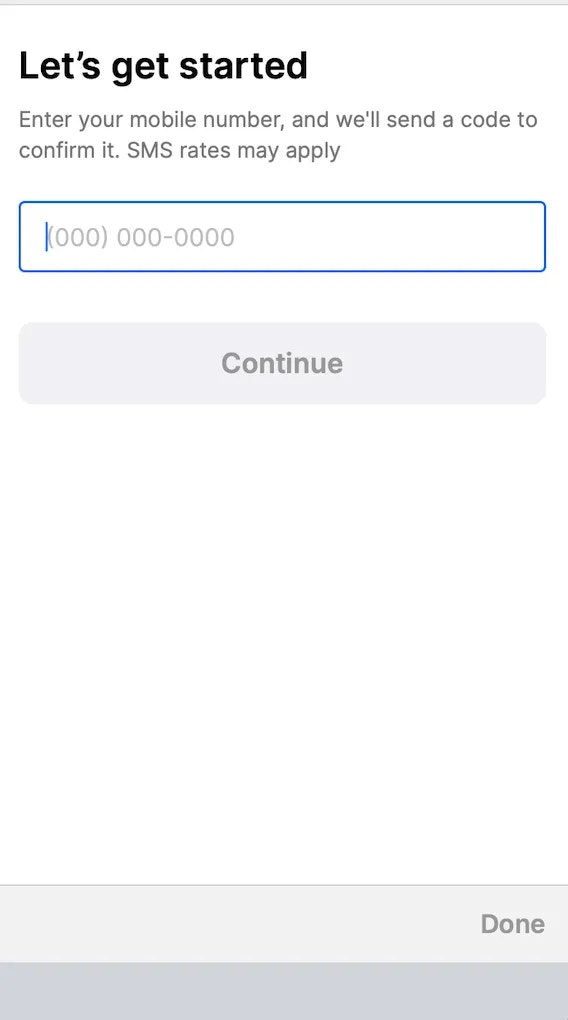
Once downloaded, log-in using an Admin phone number and input the Authentication Code.
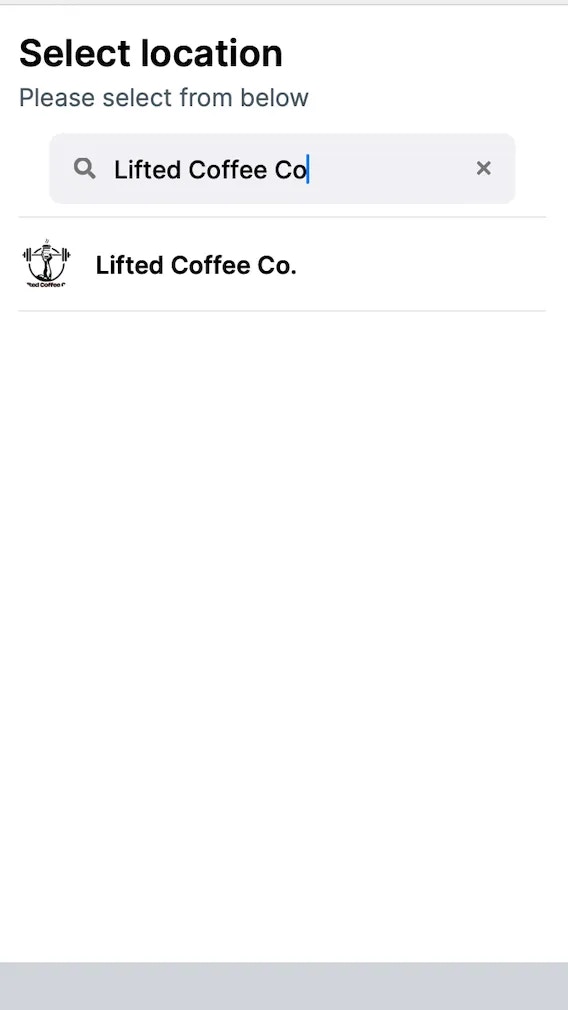
 Select your location.
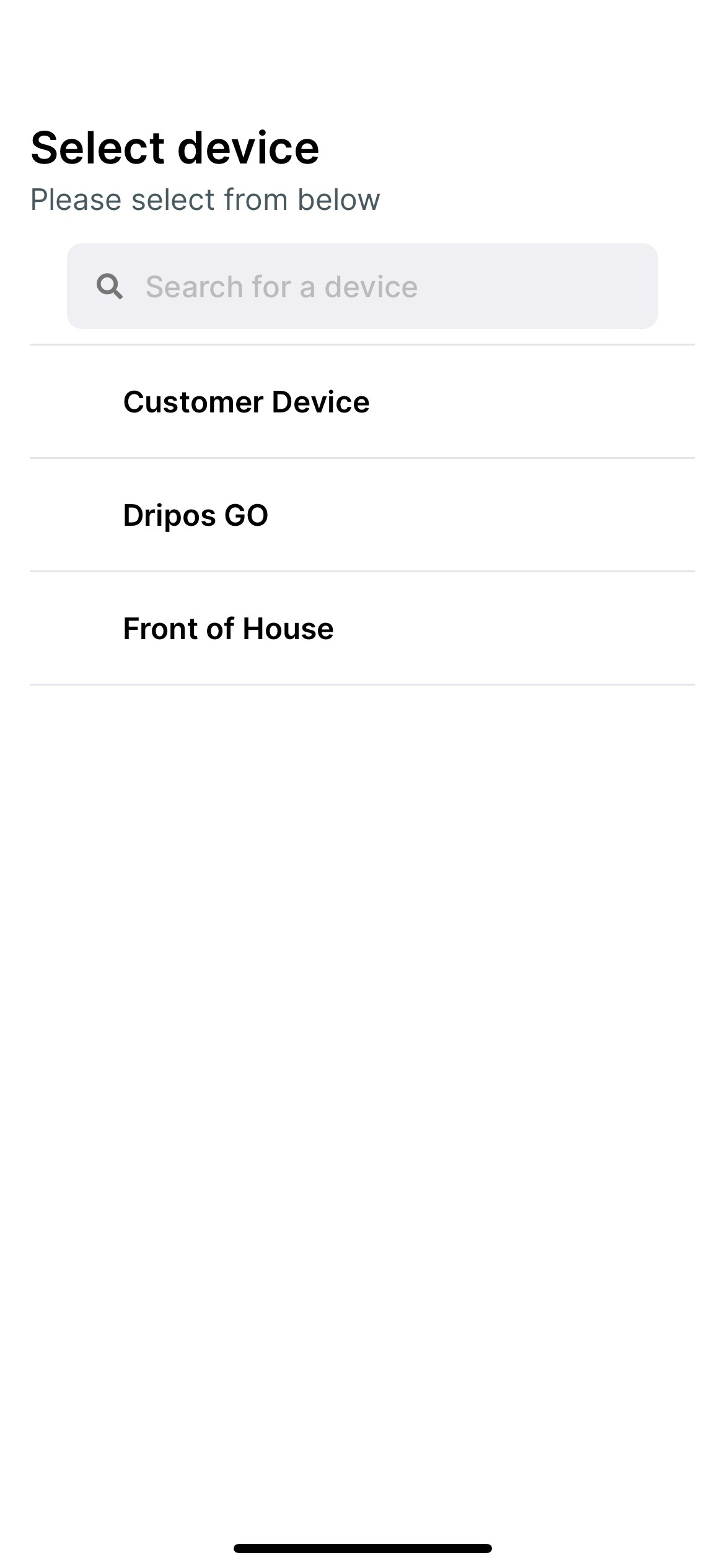
 Select the device.
We recommend creating a New Device on your POS App exclusively for Dripos Go. This will allow for option to separate DriposGO tickets from the Point of Sale tickets
1. On the **Point of Sale** press the **tribar** in the upper left screen corner > press the **Settings** button
Select the device.
We recommend creating a New Device on your POS App exclusively for Dripos Go. This will allow for option to separate DriposGO tickets from the Point of Sale tickets
1. On the **Point of Sale** press the **tribar** in the upper left screen corner > press the **Settings** button
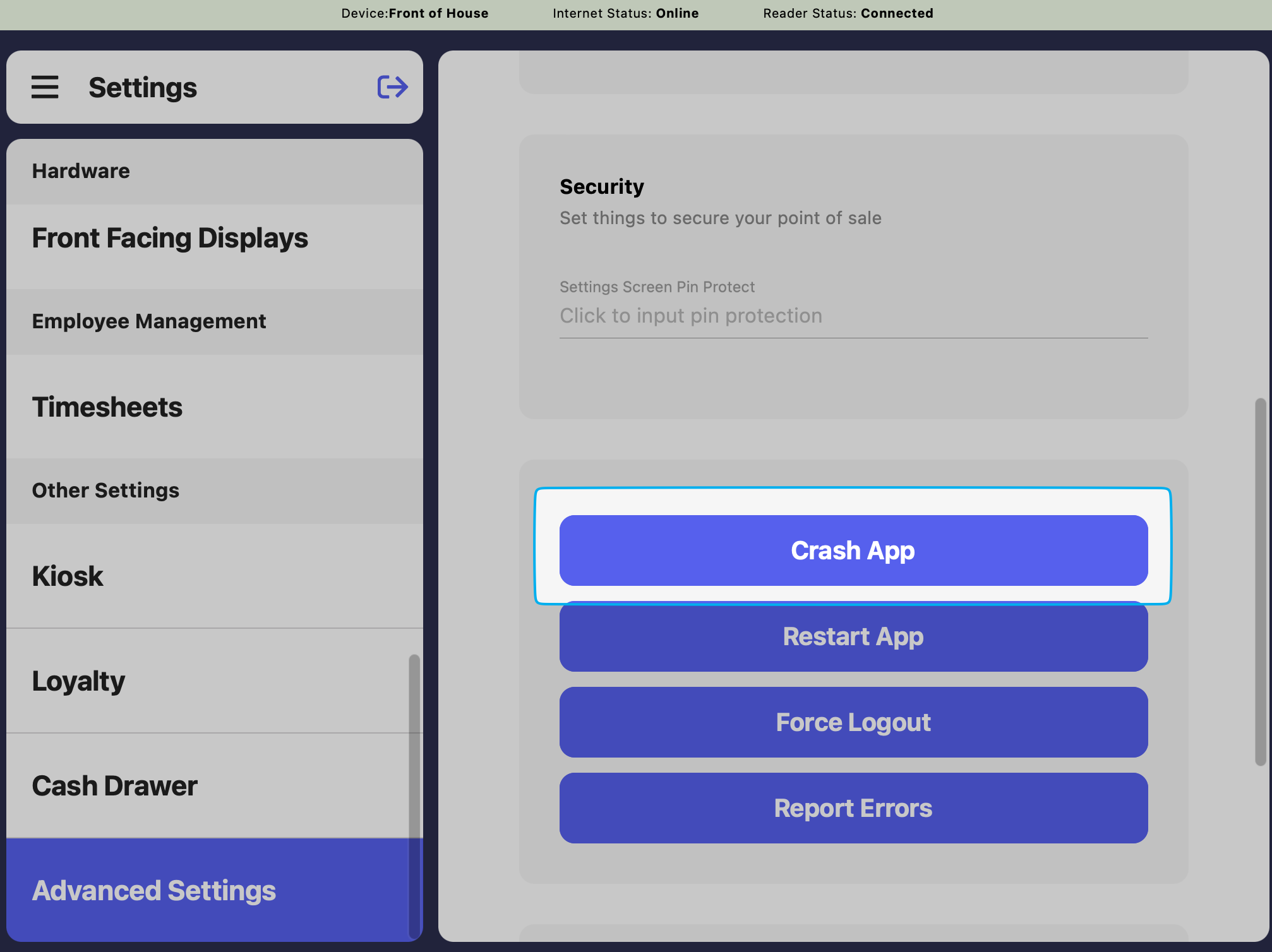
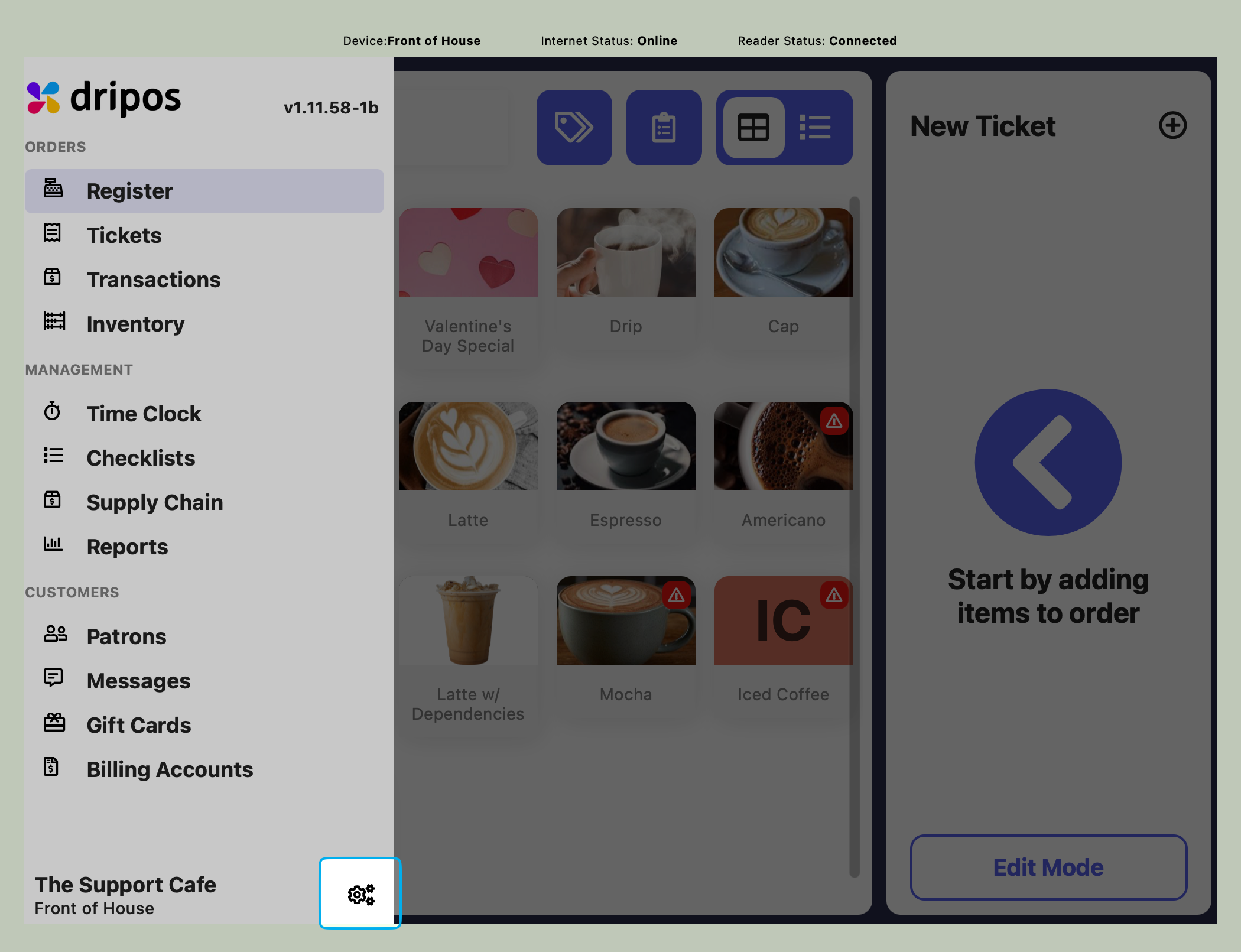 2. Scroll down to **Advanced Settings** > **Crash App**
 3. Select your location
4. Select **New Device** > name the device for Dripos Go
5. Navigate back to **Advanced Settings** > **Crash App**
6. Select **Existing Device** and log back into your original POS device name
3. Select your location
4. Select **New Device** > name the device for Dripos Go
5. Navigate back to **Advanced Settings** > **Crash App**
6. Select **Existing Device** and log back into your original POS device name
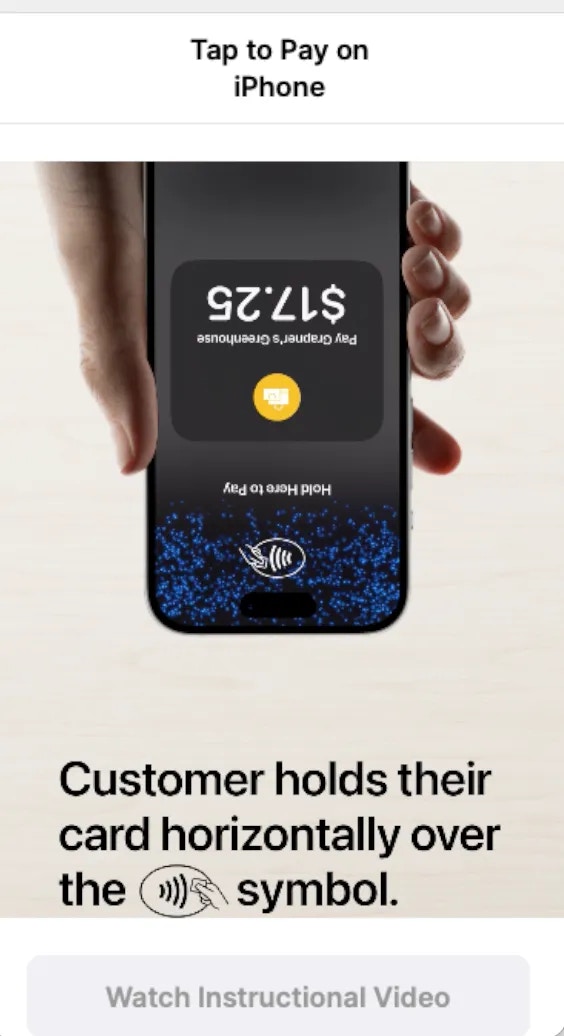
 Watch the Tap to Pay video tutorial.
 ***
## Navigating Dripos Go
If applicable, create a new ticket type for checkout on Dripos Go.
By doing so, sales from the Dripos Go app can be separated out from sales at the shop on the Point of Sale.
Creating a new ticket type is useful if you're running an event outside of daily shop operations.
Learn how to create a new ticket type [here](/orders/checkout/checkout-setup/checkout-tickets#create-ticket-types)
Place orders, enter patron information, collect payment, and distribute receipts- all with DriposGO!
Watch the video below on how to checkout using Dripos Go.
1. Create a Saved Ticket to be paid at a later time.
2. Press **Saved** at the bottom of the app > press the **+** button up top > enter in the ticket information > add items to cart
3. Instead of checking out, press **Save for Later**.
4. When ready to checkout, navigate to **Saved** at the bottom of the app > press the ticket you've created > navigate to cart and checkout
**Add Product Discounts**
Premade product discounts can be added to products ordered on Dripos GO.
Learn how to premake product discounts for use [here](/orders/discounts/discounts-basics#product-discounts).
***
## Navigating Dripos Go
If applicable, create a new ticket type for checkout on Dripos Go.
By doing so, sales from the Dripos Go app can be separated out from sales at the shop on the Point of Sale.
Creating a new ticket type is useful if you're running an event outside of daily shop operations.
Learn how to create a new ticket type [here](/orders/checkout/checkout-setup/checkout-tickets#create-ticket-types)
Place orders, enter patron information, collect payment, and distribute receipts- all with DriposGO!
Watch the video below on how to checkout using Dripos Go.
1. Create a Saved Ticket to be paid at a later time.
2. Press **Saved** at the bottom of the app > press the **+** button up top > enter in the ticket information > add items to cart
3. Instead of checking out, press **Save for Later**.
4. When ready to checkout, navigate to **Saved** at the bottom of the app > press the ticket you've created > navigate to cart and checkout
**Add Product Discounts**
Premade product discounts can be added to products ordered on Dripos GO.
Learn how to premake product discounts for use [here](/orders/discounts/discounts-basics#product-discounts).
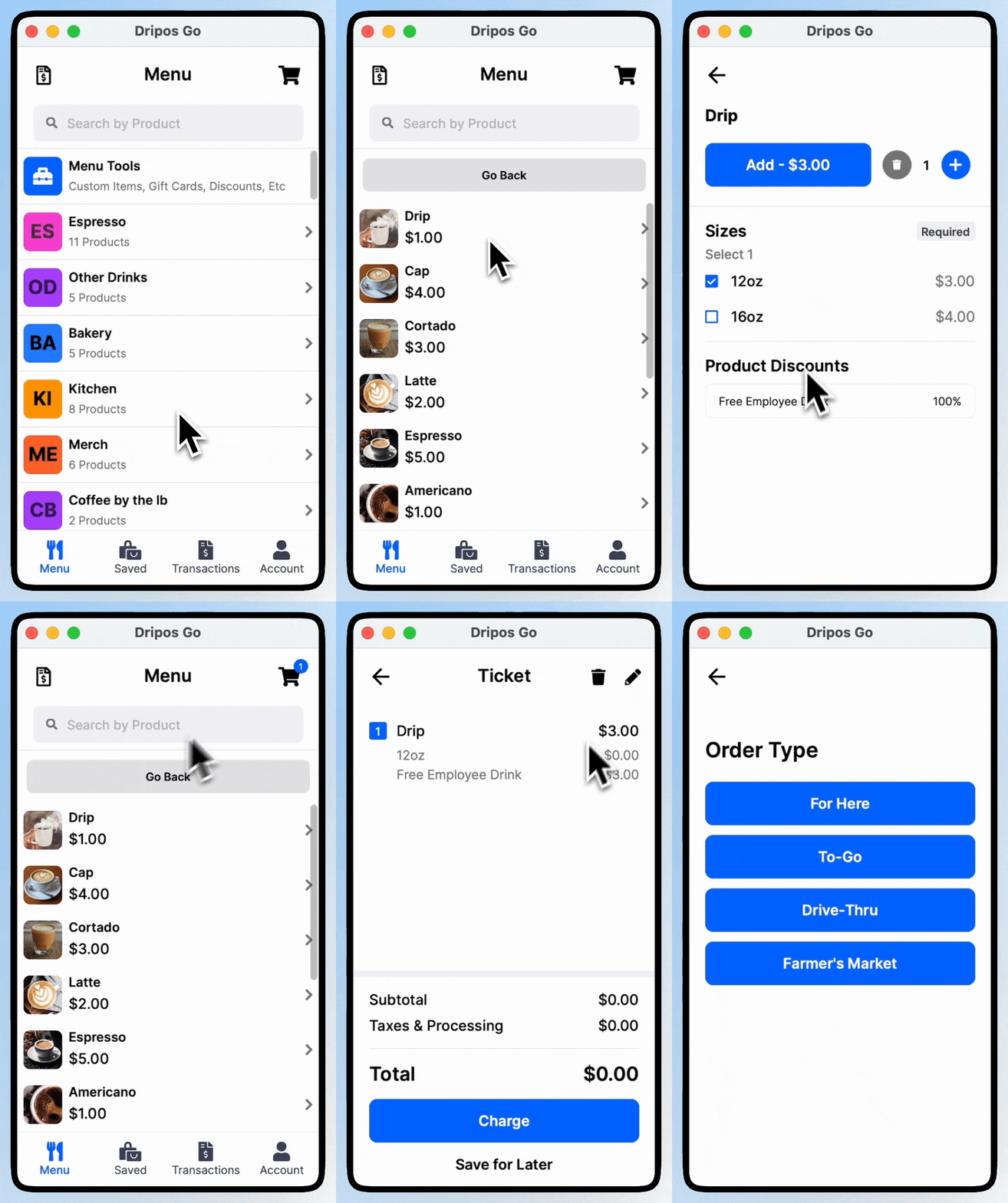 Select a product to add to cart
Before adding to cart, select the product discount listed at the bottom of the product's page.
Any applicable product modifiers will be listed for use. Tap to add the discount and add the product to cart.
**Ticket Discounts**
Premade tickets discounts can be added to orders placed on Dripos GO.
Learn how to premake ticket discounts for use [here](/orders/discounts/discounts-basics#ticket-discounts).
Add product to cart
Return back to menu home page and press **Menu Tools**
Press **Discounts** and add a premade ticket discount
Include or exclude your Dripos Go tickets from your Point of Sale ticket screen.
If DriposGO is being used an event outside of the main shop location, it will be important to separate out the event tickets from the shop's tickets. Ensure a [new ticket type](/orders/checkout/checkout-setup/checkout-tickets#create-ticket-types) is created first!
1. On the Point of Sale device being used, press the **tribar** in the upper left screen corner > press the **Settings** button
2. Navigate to **Device Ticket Options**
3. If the Point of Sale is to **exclude** the Dripos Go ticket *(i.e., ticket type named Farmers Market)* from the ticket screen, filter the device by all tickets **except** Farmers Market
Select a product to add to cart
Before adding to cart, select the product discount listed at the bottom of the product's page.
Any applicable product modifiers will be listed for use. Tap to add the discount and add the product to cart.
**Ticket Discounts**
Premade tickets discounts can be added to orders placed on Dripos GO.
Learn how to premake ticket discounts for use [here](/orders/discounts/discounts-basics#ticket-discounts).
Add product to cart
Return back to menu home page and press **Menu Tools**
Press **Discounts** and add a premade ticket discount
Include or exclude your Dripos Go tickets from your Point of Sale ticket screen.
If DriposGO is being used an event outside of the main shop location, it will be important to separate out the event tickets from the shop's tickets. Ensure a [new ticket type](/orders/checkout/checkout-setup/checkout-tickets#create-ticket-types) is created first!
1. On the Point of Sale device being used, press the **tribar** in the upper left screen corner > press the **Settings** button
2. Navigate to **Device Ticket Options**
3. If the Point of Sale is to **exclude** the Dripos Go ticket *(i.e., ticket type named Farmers Market)* from the ticket screen, filter the device by all tickets **except** Farmers Market
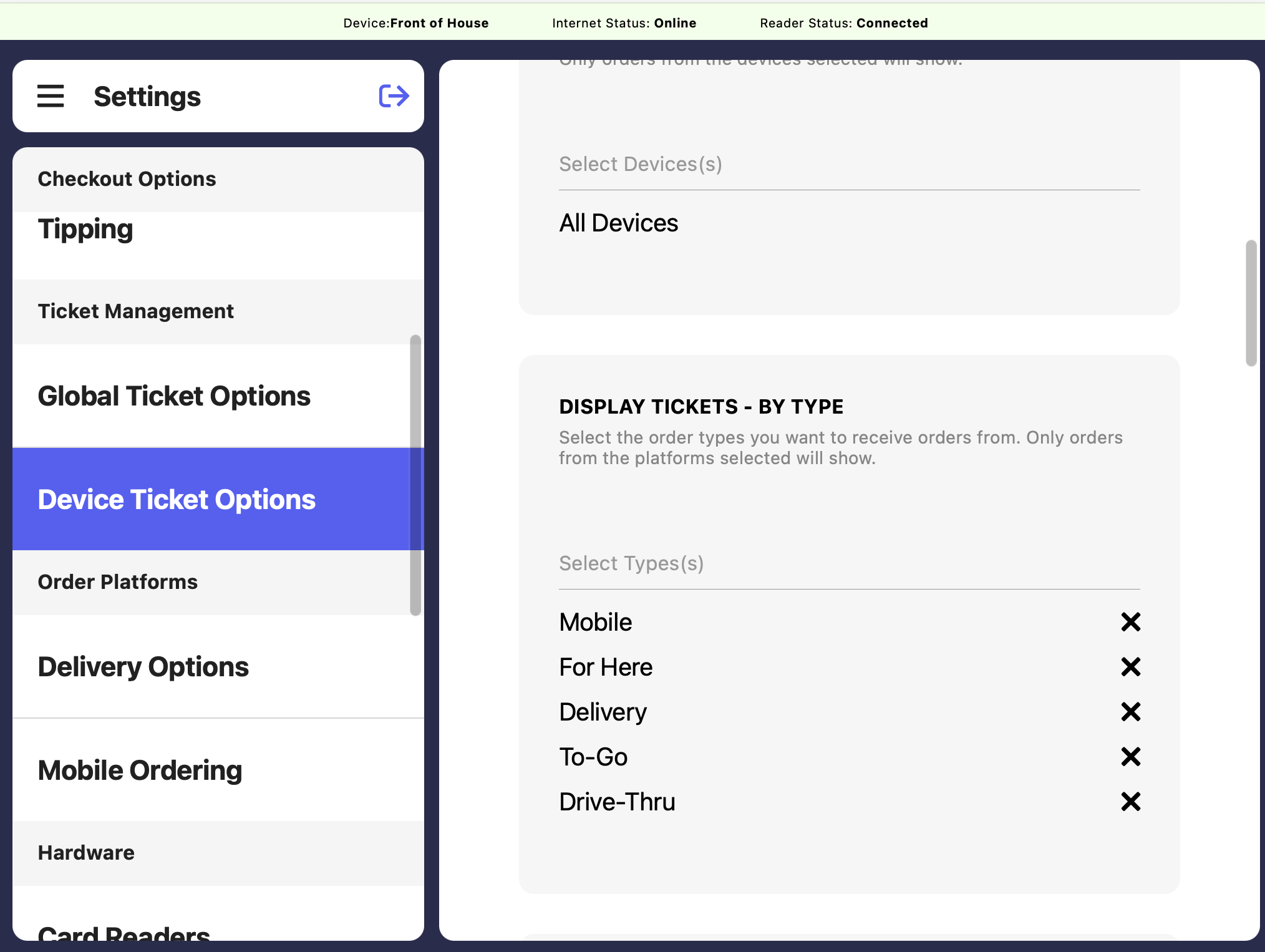 4. If the Point of Sale is to **include** only the DriposGO ticket *(i.e., ticket type named Farmers Market)* in the ticket screen, filter the device by only the Farmers Market ticket type
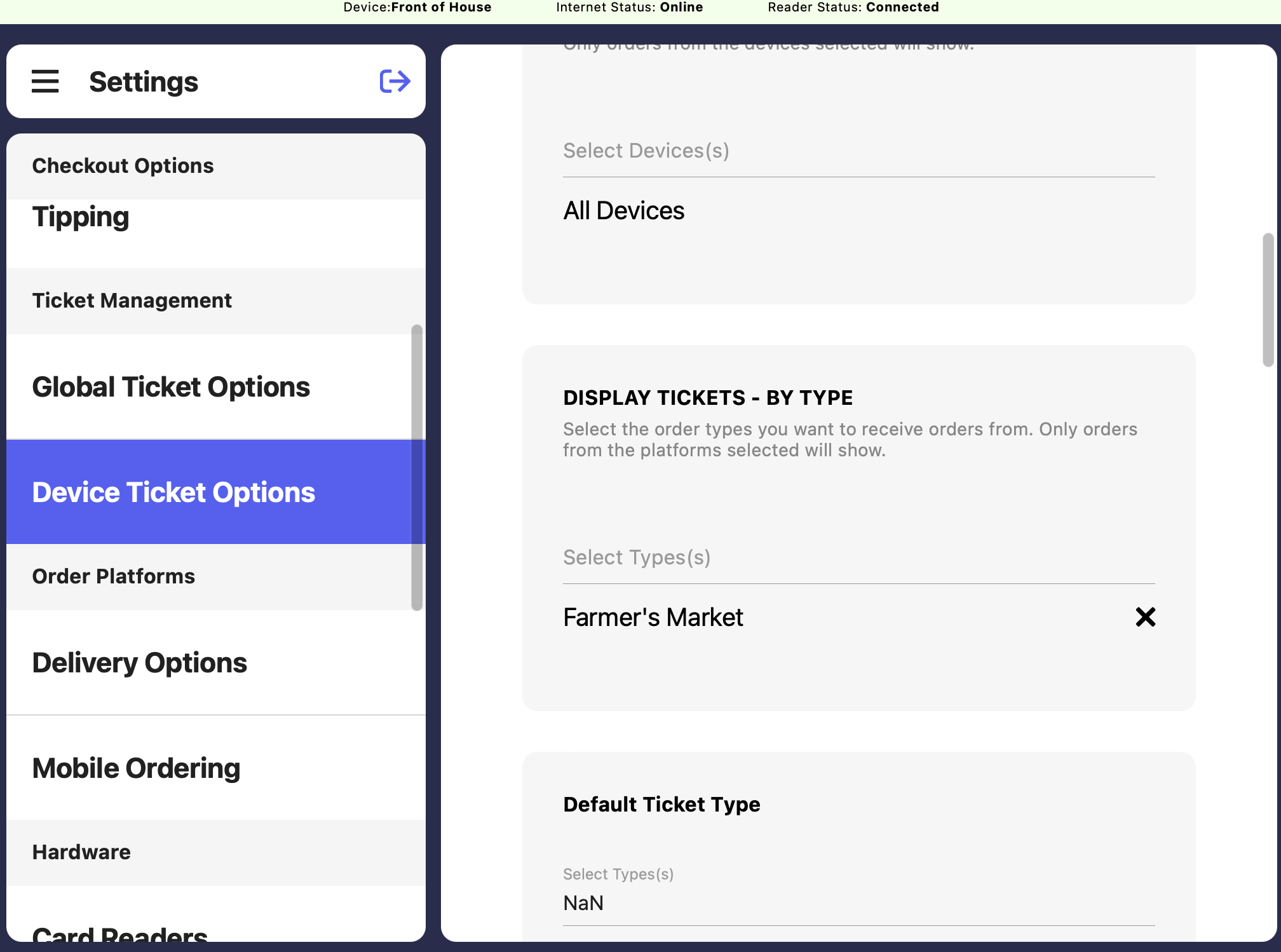 Include or exclude your DriposGO tickets from printing at your Point of Sale.
If Dripos Go is being used an event outside of the main shop location, it will be important to separate out the event tickets from the shop's tickets. Ensure a [new ticket type](/orders/checkout/checkout-setup/checkout-tickets#create-ticket-types) is created first!
1. On the Point of Sale device being used, press the **tribar** in the upper left screen corner > press the **Settings** button
2. Navigate to **Printer Settings**
3. Ensure printer is connected first > create new **Receipt \<> Printer Connection**
Include or exclude your DriposGO tickets from printing at your Point of Sale.
If Dripos Go is being used an event outside of the main shop location, it will be important to separate out the event tickets from the shop's tickets. Ensure a [new ticket type](/orders/checkout/checkout-setup/checkout-tickets#create-ticket-types) is created first!
1. On the Point of Sale device being used, press the **tribar** in the upper left screen corner > press the **Settings** button
2. Navigate to **Printer Settings**
3. Ensure printer is connected first > create new **Receipt \<> Printer Connection**
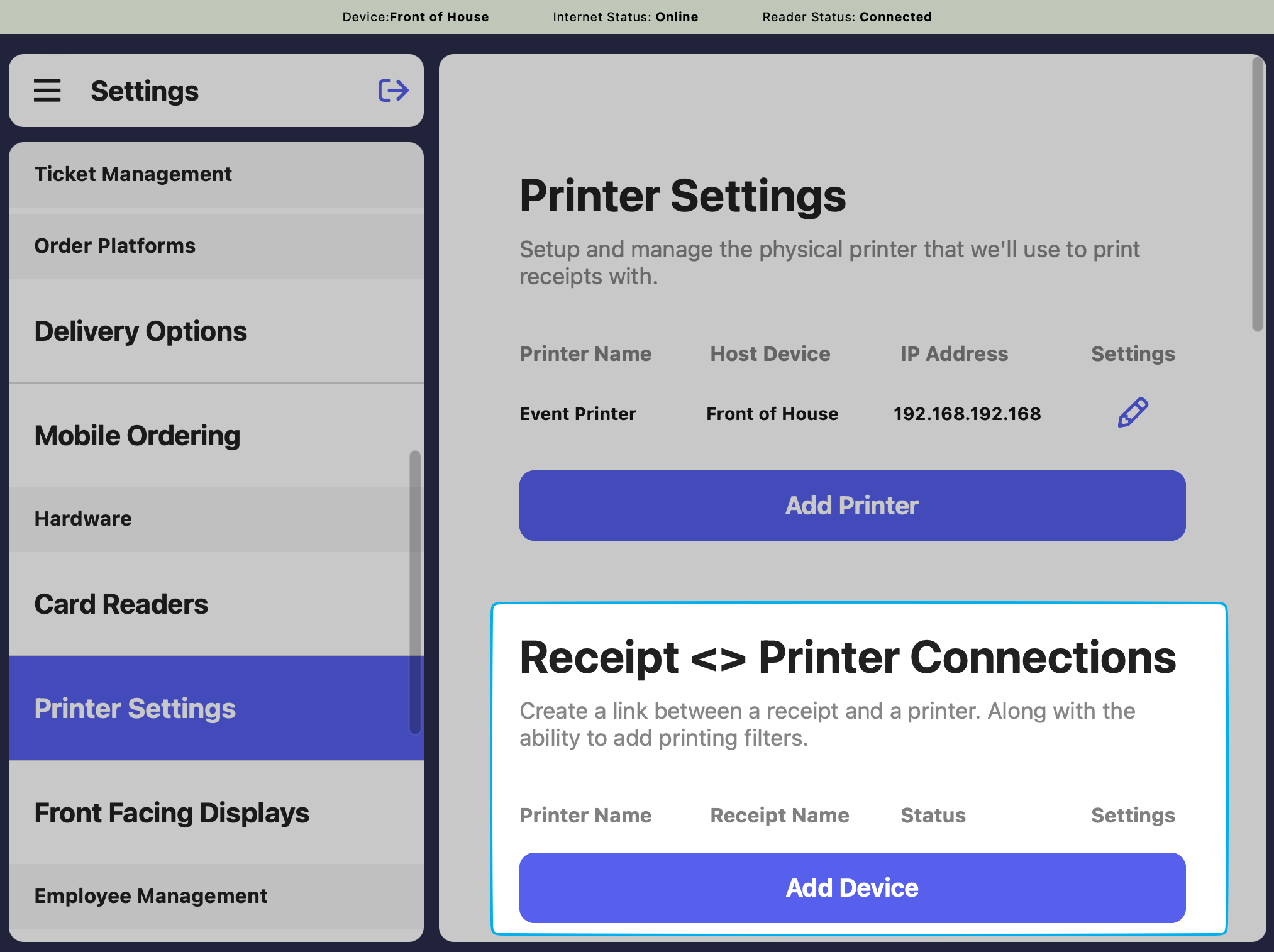 4. Click **Setup Toggles**
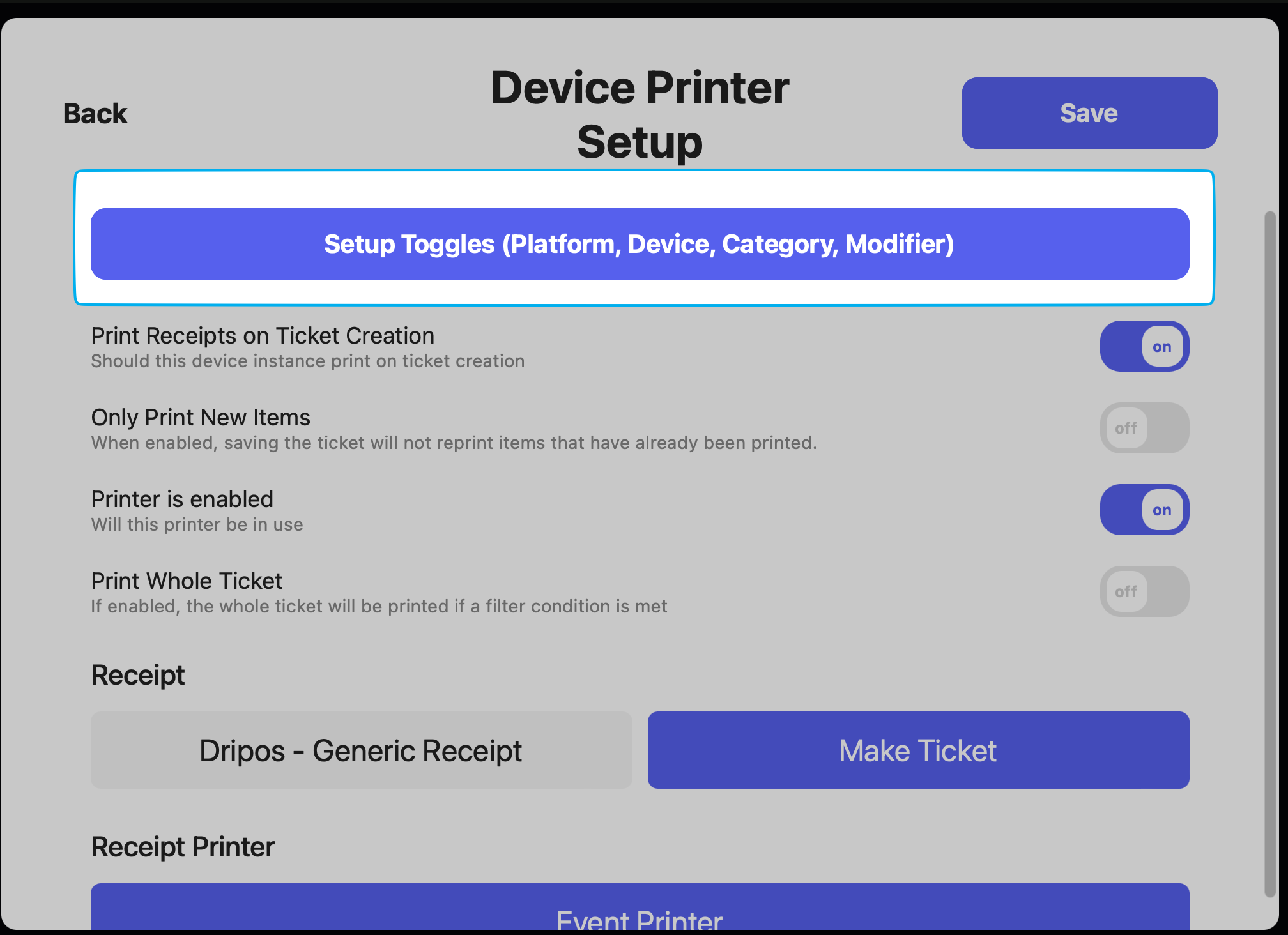 3. If the Point of Sale is to **exclude** the Dripos Go ticket *(i.e., ticket type named Farmers Market)* from printing, filter the connection by all tickets **except** Farmers Market
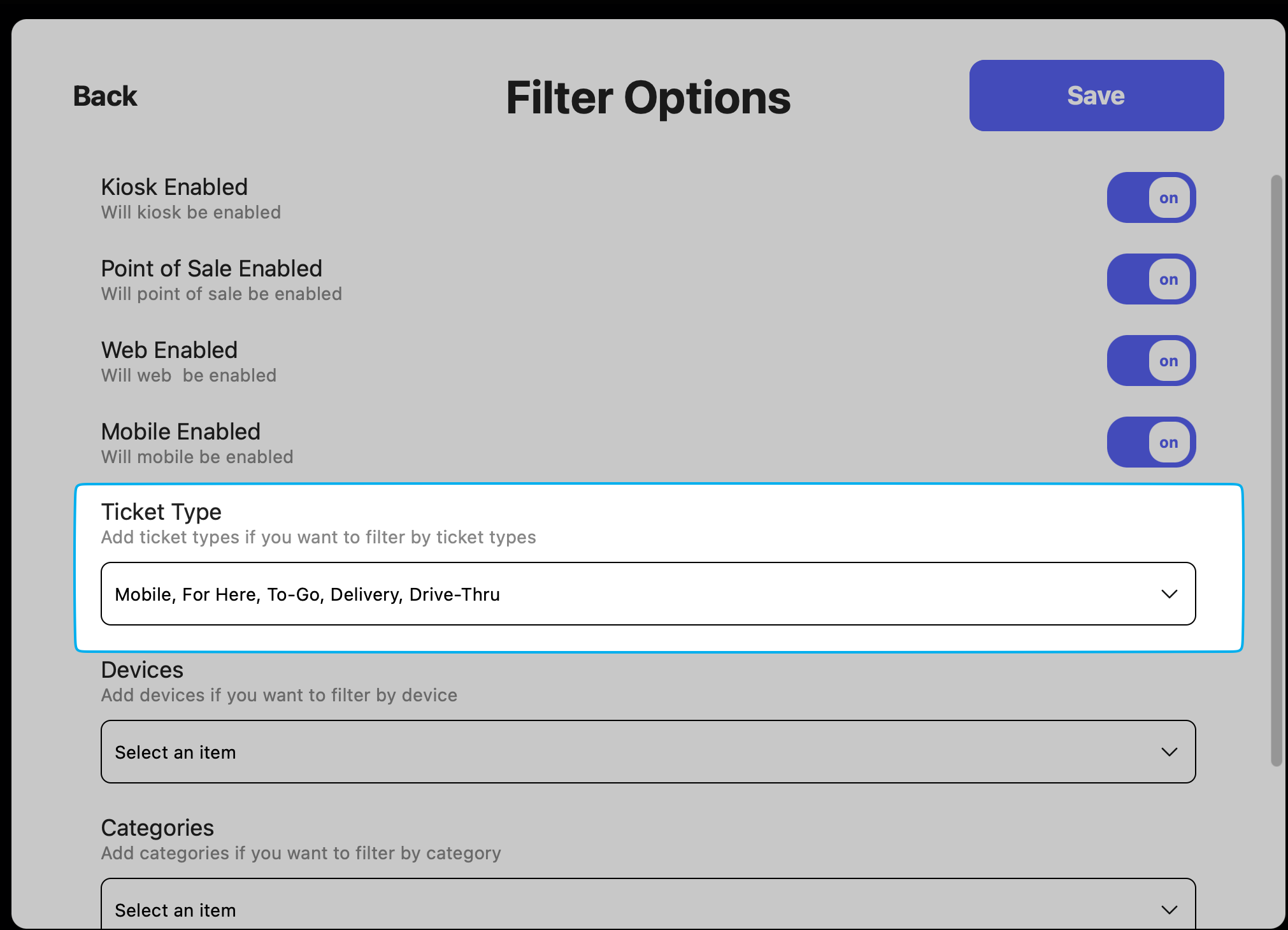 4. If the Point of Sale is to **include** only the Dripos Go ticket *(i.e., ticket type named Farmers Market)* in the ticket screen, filter the connection by only the Farmers Market ticket type
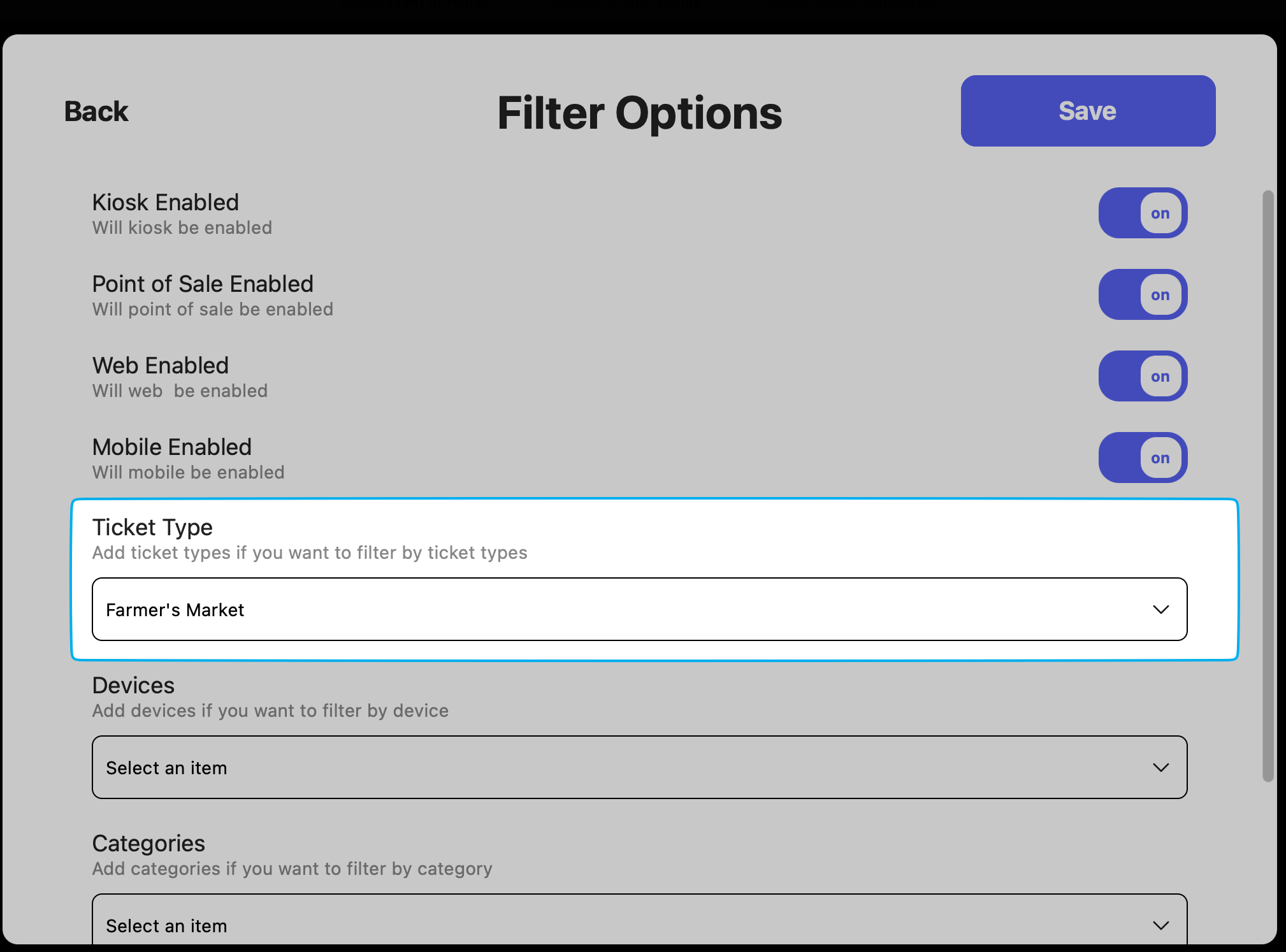 5. Click **Save**
View all DriposGO transactions on multiple Dripos platforms
**Web Dashboard**
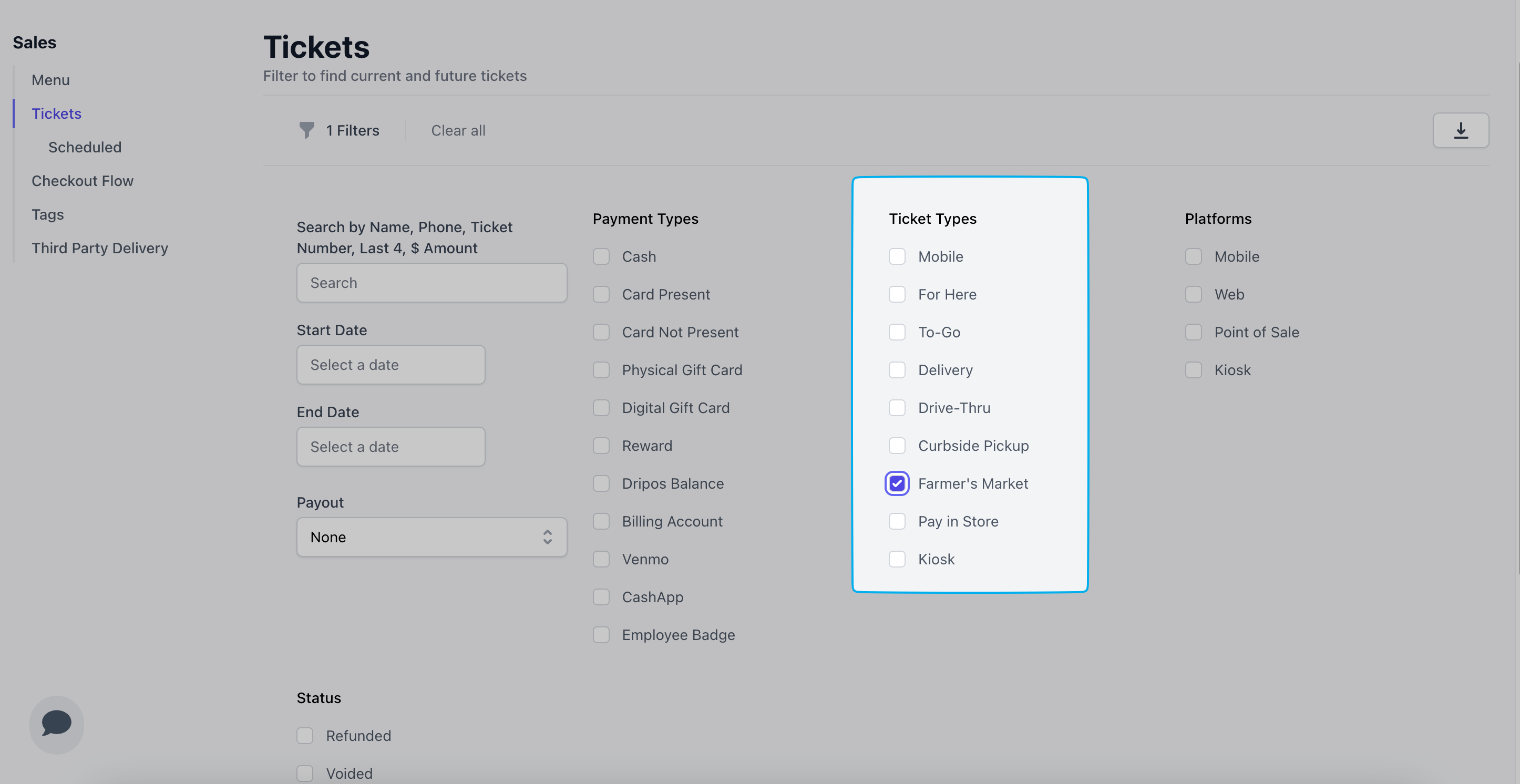
View all Dripos Go transactions on the Web Dashboard > Sales > Ticketse > filter by Ticket Type
5. Click **Save**
View all DriposGO transactions on multiple Dripos platforms
**Web Dashboard**
View all Dripos Go transactions on the Web Dashboard > Sales > Ticketse > filter by Ticket Type
 **Point of Sale**
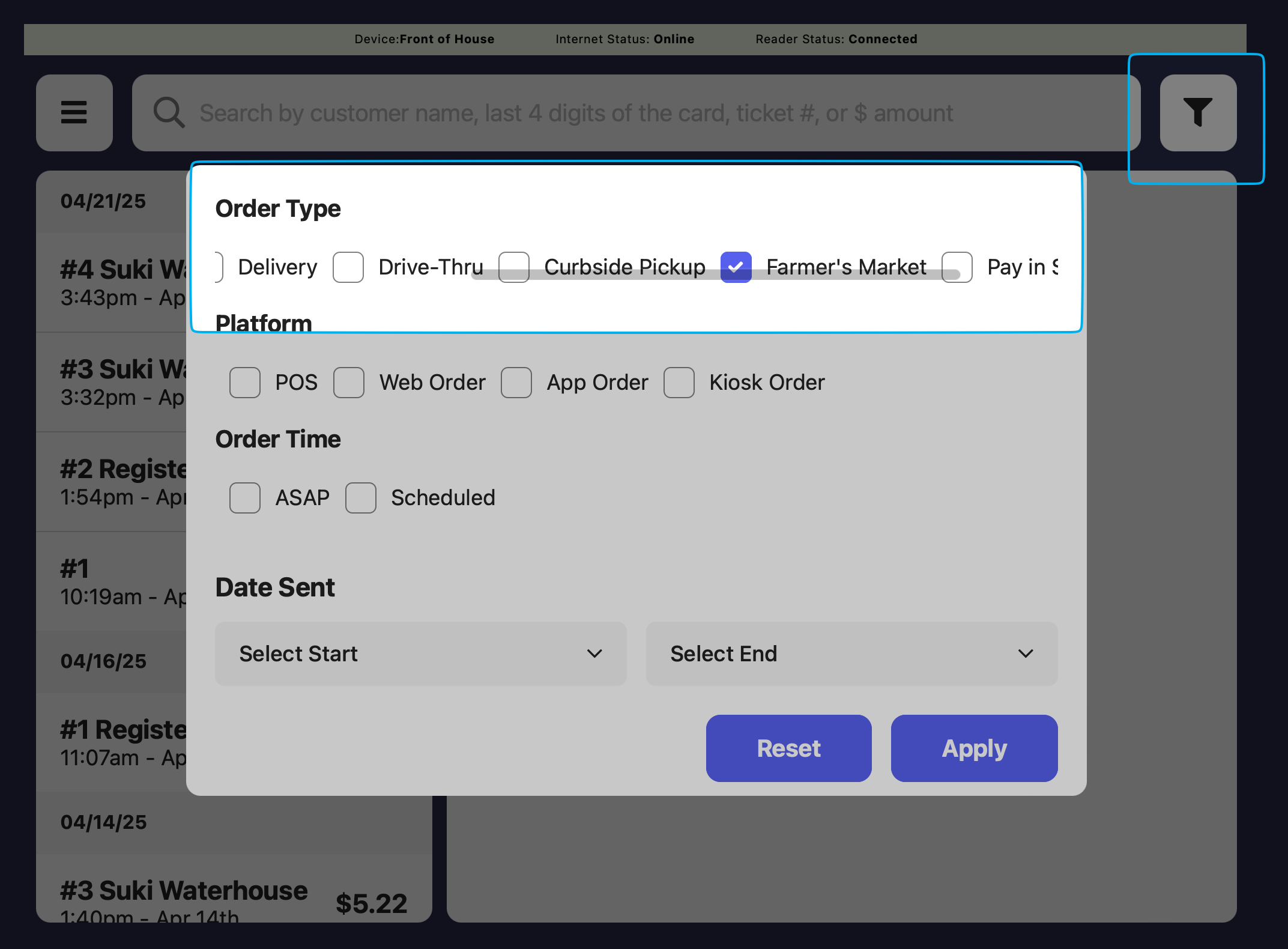
View all Dripos Go transactions on the Point of Sale > Transactions > filter by Ticket Type
**Point of Sale**
View all Dripos Go transactions on the Point of Sale > Transactions > filter by Ticket Type
 **DriposGO**
View all Dripos Go transactions on the app under **Transactions**
**DriposGO**
View all Dripos Go transactions on the app under **Transactions**
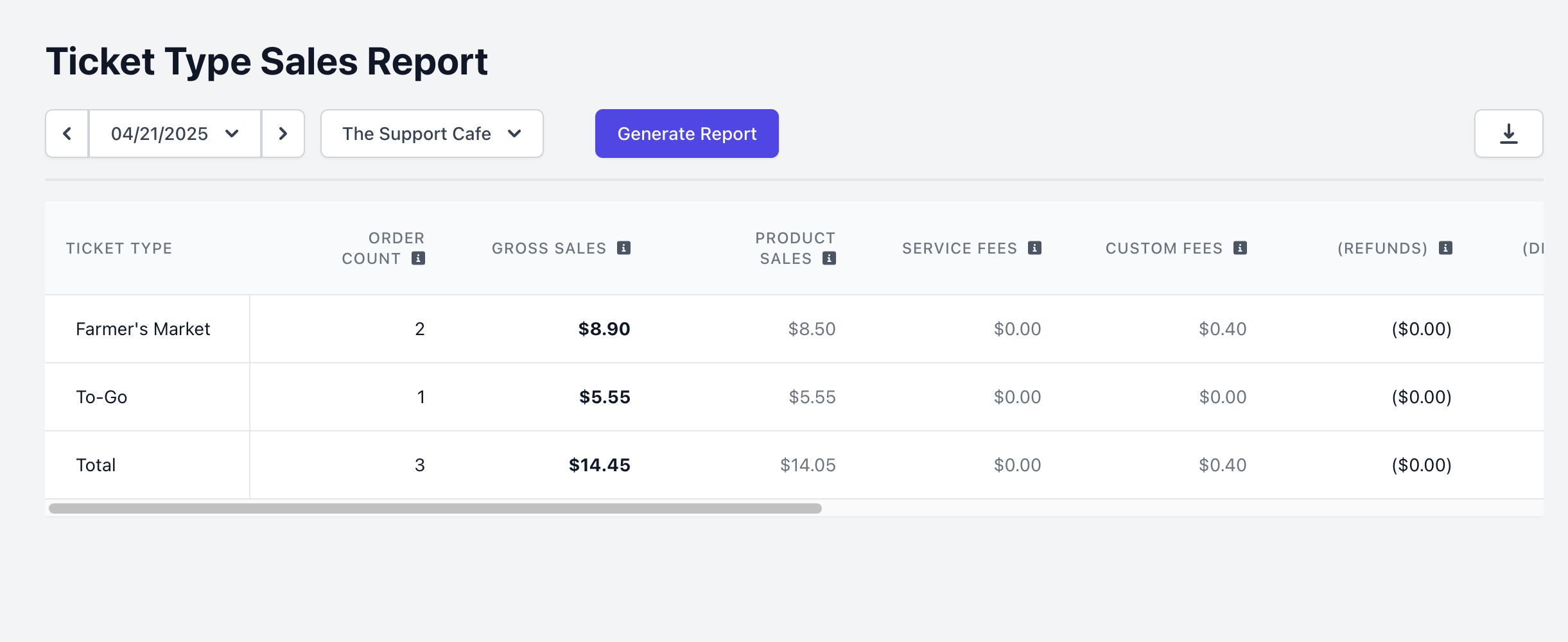
 View Dripos Go sales from multiple Dripos Reports
**Ticket Type Sales Report**
View Dripos Go sales from multiple Dripos Reports
**Ticket Type Sales Report**
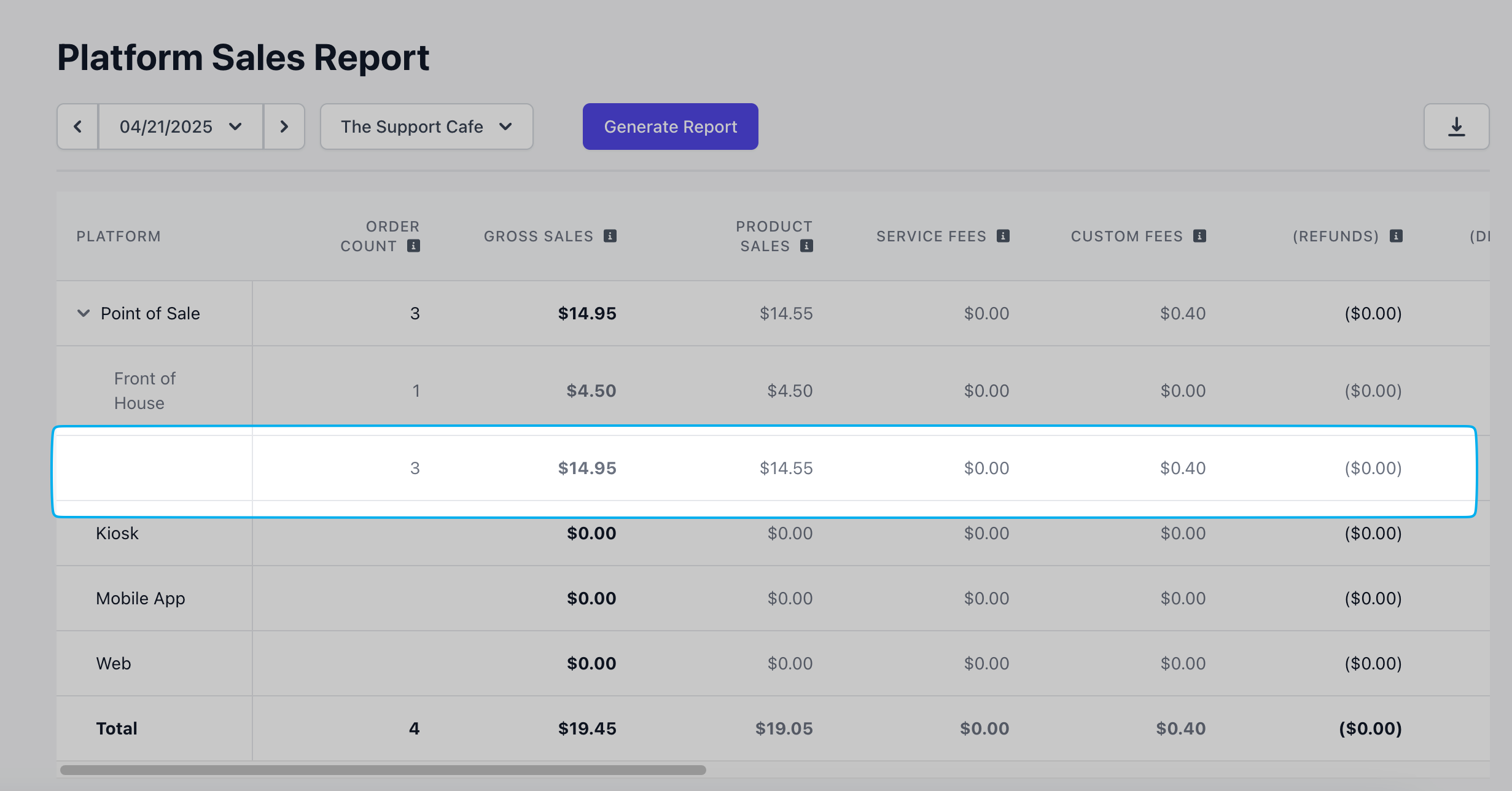
 **Platform Sales Report**