> ## Documentation Index
> Fetch the complete documentation index at: https://support.dripos.com/llms.txt
> Use this file to discover all available pages before exploring further.
# Kiosk Mode
> Learn how to set up a self-serve kiosk on the POS app
With a self-service kiosk, customers can independently add items to their cart and complete their transaction using a card.
Cash payments are not accepted in Kiosk Mode.
***
## Set Up a Kiosk
Before converting your POS into a kiosk, connect a card reader into [Kiosk Reader Mode](/hardware/reader/reader-s700) for self-service payments
On the device to be a Kiosk, navigate to the Point of Sale settings > **Kiosk**
Turn on the **Enable Kiosk** toggle
Click on the grey **Kiosk Order Ticket Type** > select the ticket type for kiosk orders (e.g. For here or to-go)
Set your Kiosk Exit Pin
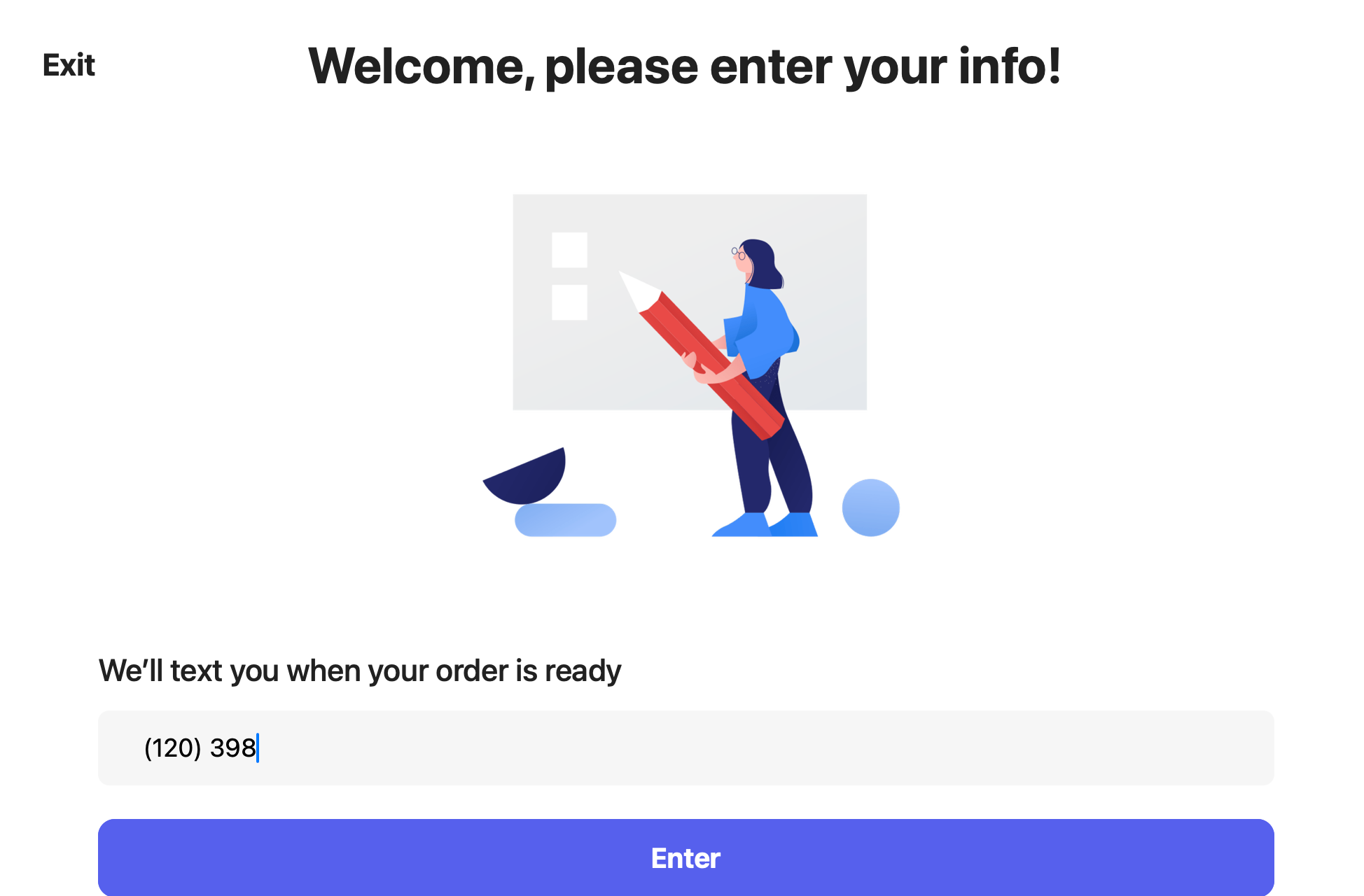
The default Dripos Kiosk Pin is 120398. You may change it to a pin of your choice.
Press **Enter Kiosk Mode**
***
## Configure Kiosk Menu
Enable and disable any category and its products for kiosk ordering.
On the **Dashboard**, navgiate to **Menu** > \*\* Categories\*\* > **Quick Edit** next to a category
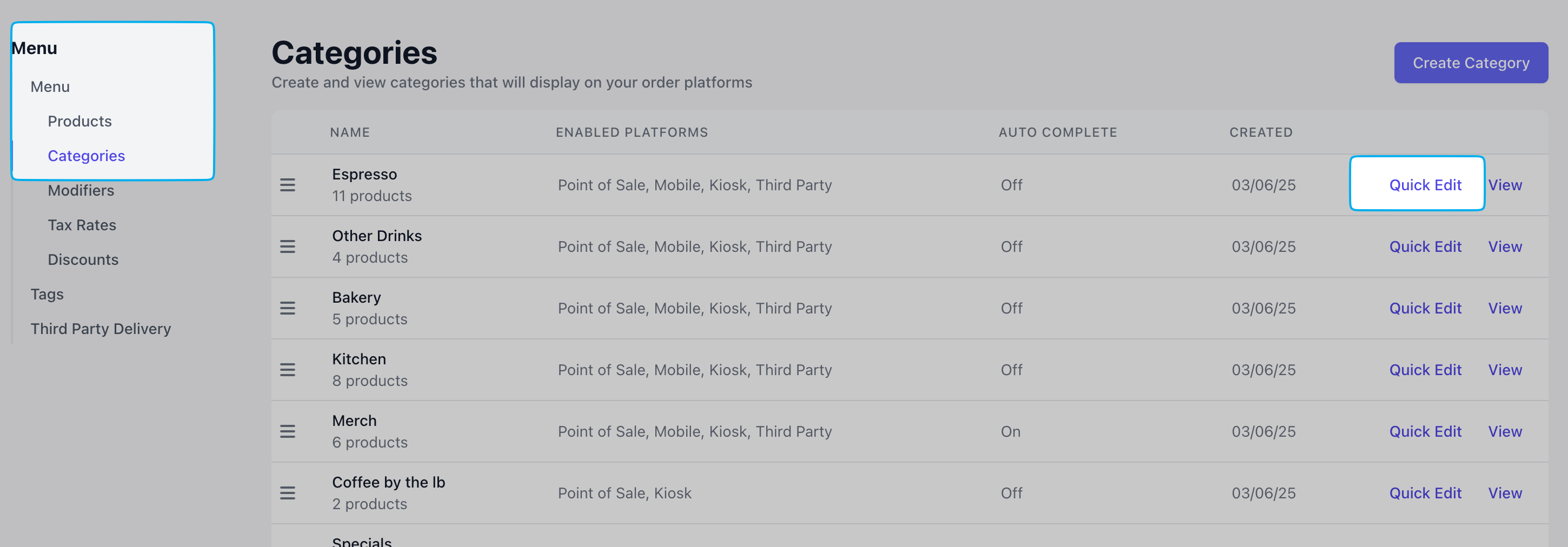 Enable or disable the category from kiosk > press Save
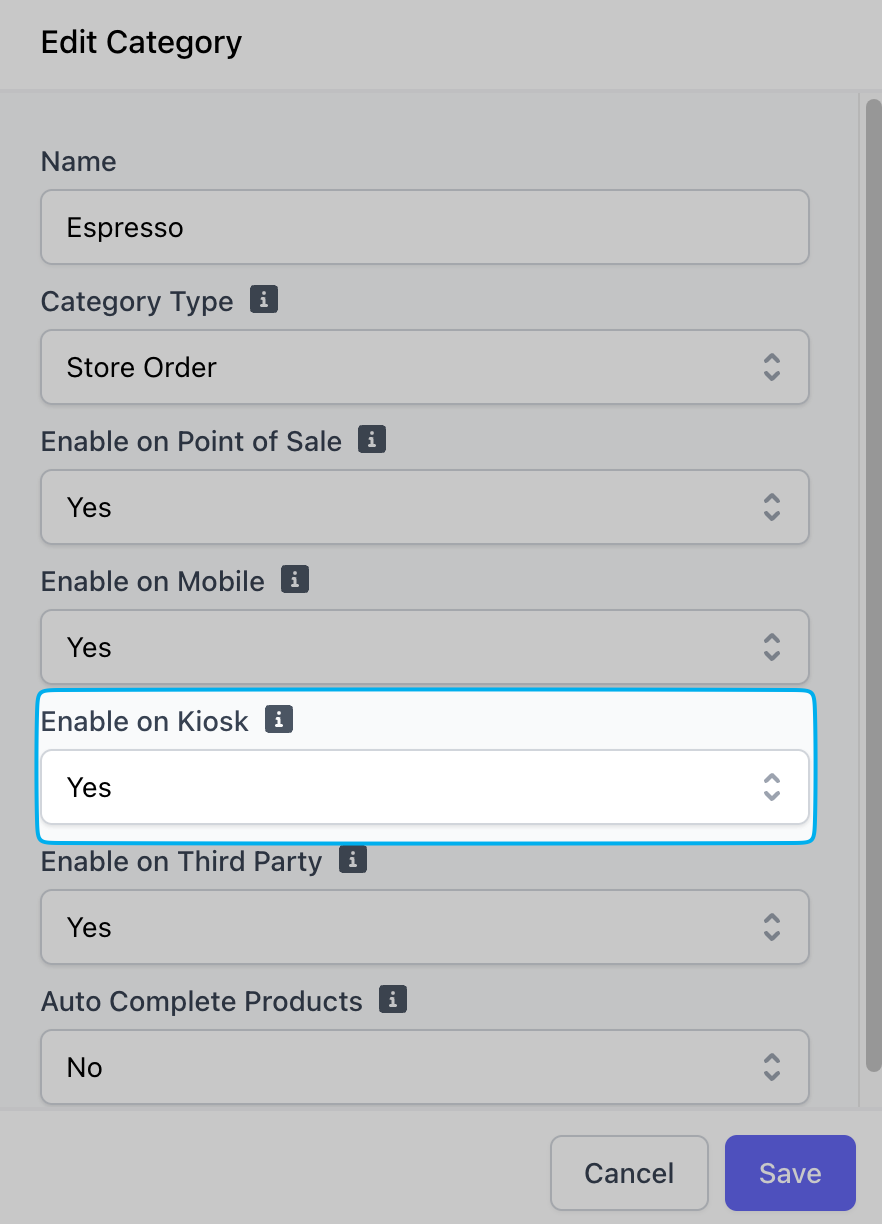 A product's category must be enabled on kiosk in order to enable a product
On the **Dashboard**, navgiate to **Menu** > \*\* Products\*\* > **Quick Edit** next to a product
A product's category must be enabled on kiosk in order to enable a product
On the **Dashboard**, navgiate to **Menu** > \*\* Products\*\* > **Quick Edit** next to a product
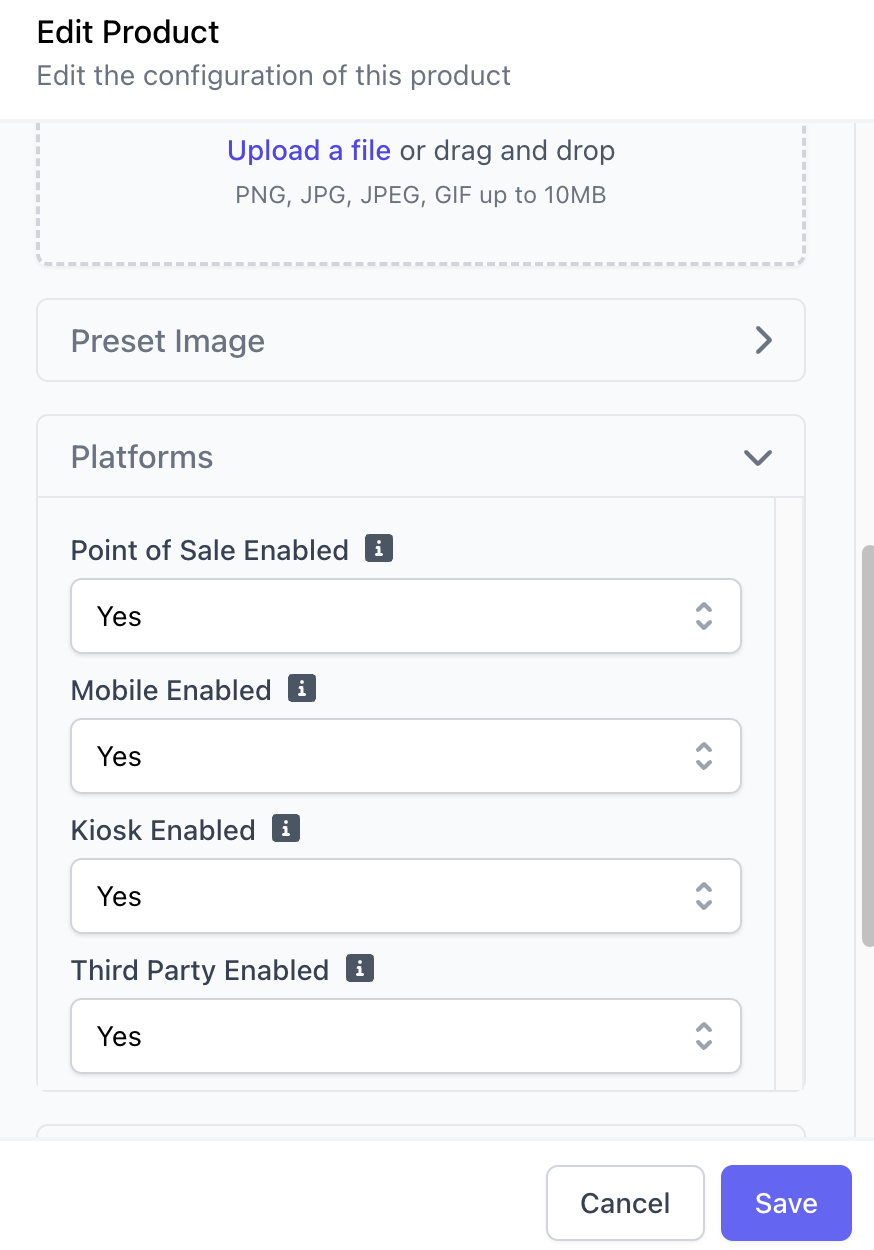
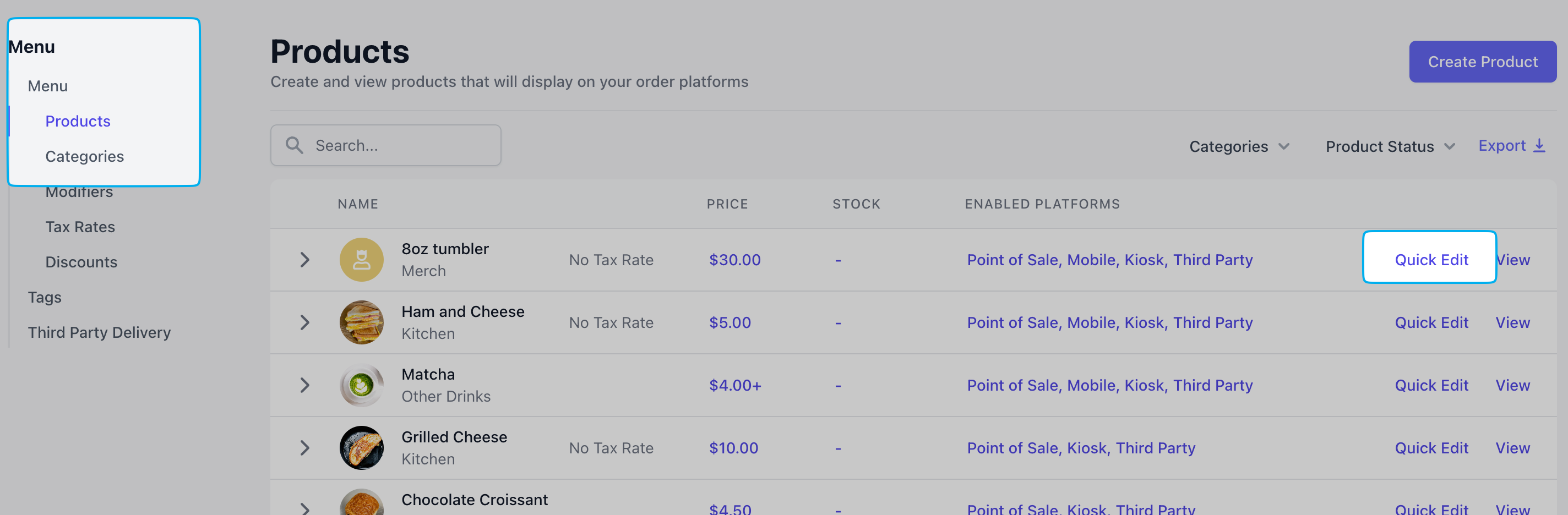 Press **Platforms** > enable or disable the product from kiosk > press Save
 ***
## Kiosk Settings
***
## Kiosk Settings
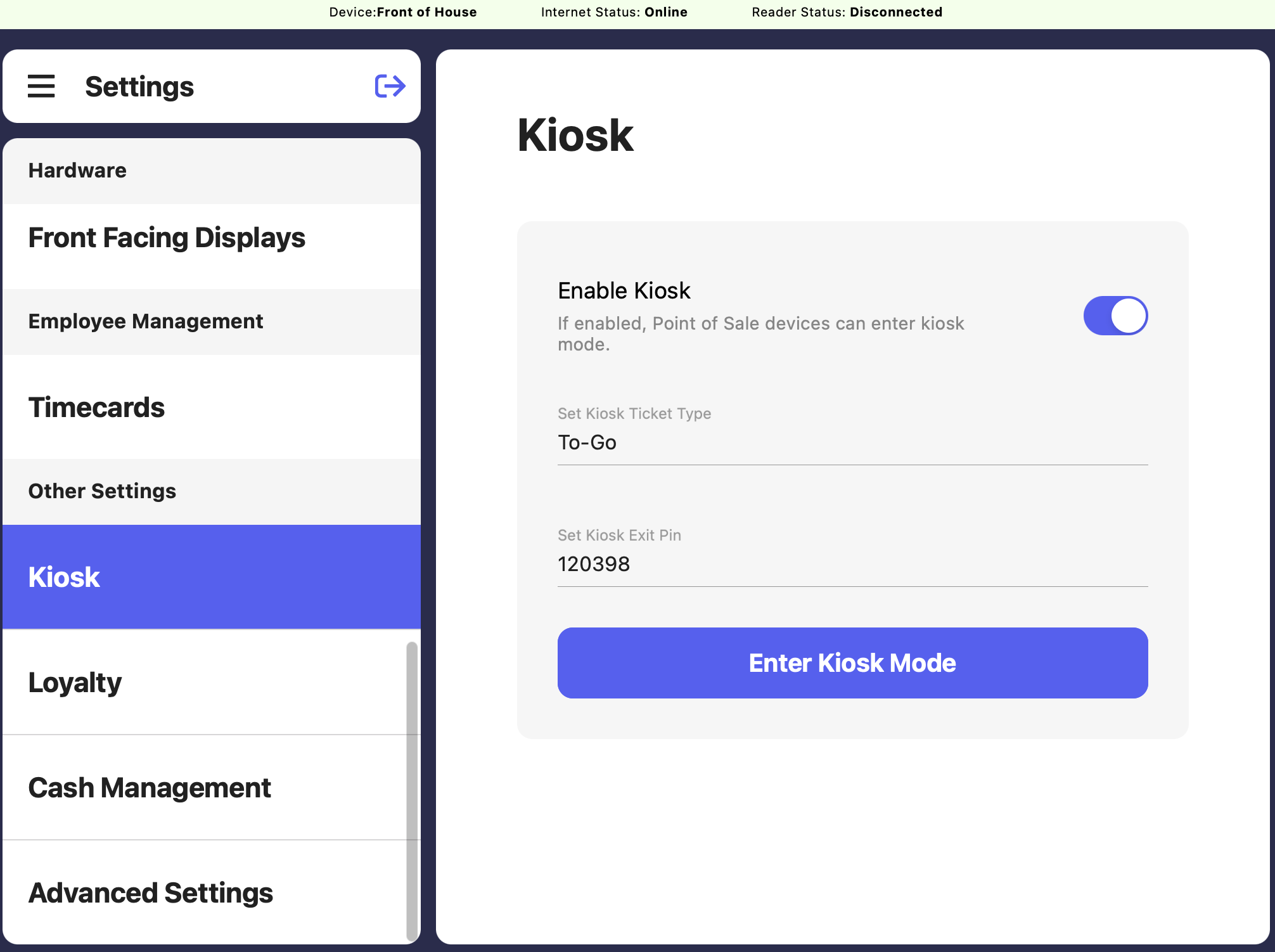 * **Enable Kiosk**: If enabled POS devices can enter Kiosk mode.
* **Set Kiosk Ticket Type**: Select a default ticket type created from kiosk devices e.g To GO, For Here, Pay at Window. This must be set before entering kiosk mode.
* **Set Kiosk Exit Pin**: This pin will be used to move a device out of kiosk mode when entered under ‘order phone number’. The default pin is 120398 for all devices.
* **Enter Kiosk Mode**: This button will enter the current device into kiosk mode.
***
## Exit Kiosk Mode
Press **Start Order**
* **Enable Kiosk**: If enabled POS devices can enter Kiosk mode.
* **Set Kiosk Ticket Type**: Select a default ticket type created from kiosk devices e.g To GO, For Here, Pay at Window. This must be set before entering kiosk mode.
* **Set Kiosk Exit Pin**: This pin will be used to move a device out of kiosk mode when entered under ‘order phone number’. The default pin is 120398 for all devices.
* **Enter Kiosk Mode**: This button will enter the current device into kiosk mode.
***
## Exit Kiosk Mode
Press **Start Order**
 Enter the predetermined exit pin from your Kiosk settings > press **Enter**
*The default pin is 120398 for all devices.*
Enter the predetermined exit pin from your Kiosk settings > press **Enter**
*The default pin is 120398 for all devices.*