> ## Documentation Index
> Fetch the complete documentation index at: https://support.dripos.com/llms.txt
> Use this file to discover all available pages before exploring further.
# Offline Mode
> Continue to take orders without an internet connection.
Offline Mode provides the ability to take orders when the Point of Sale is disconnected from the internet.
Accept cash, card, and manual card payments with the V3 Card Reader in Offline Mode.
When the internet comes back online, process all offline orders to complete the transactions.
There are several places you can reference to determine if your Dripos Point of Sale device has gone offline:
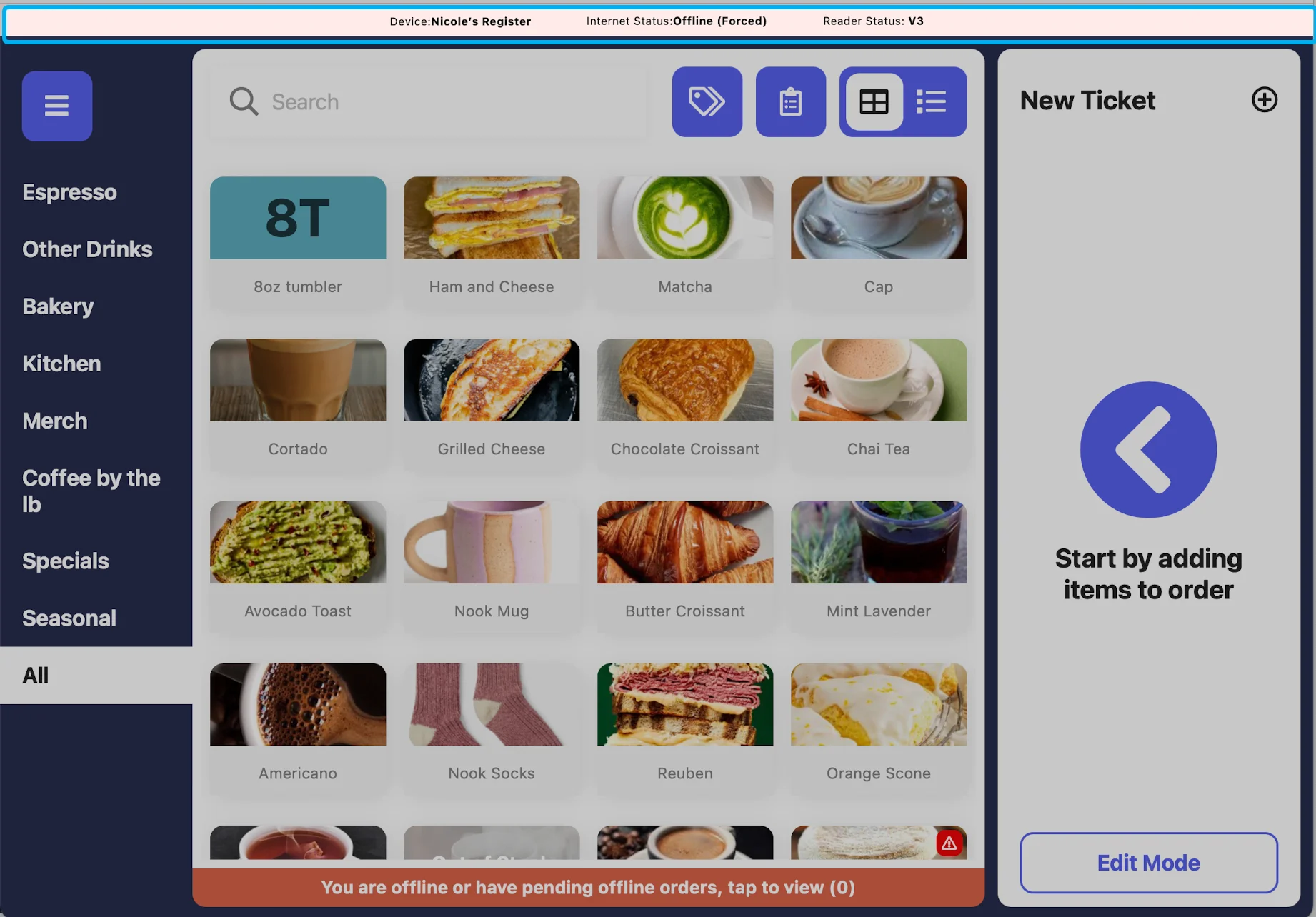
**The Status Bar**
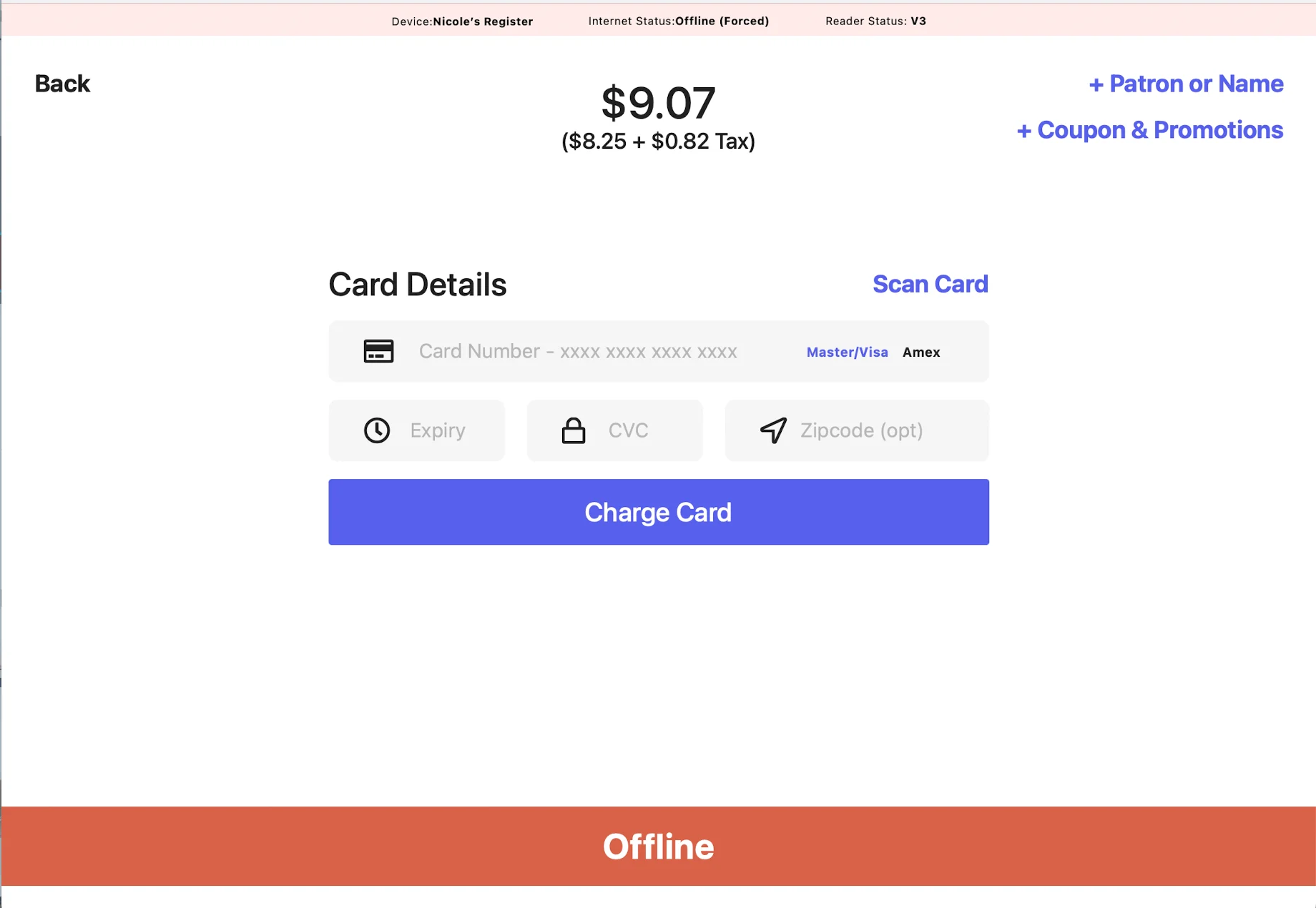
If the top status bar is red and says **Internet Status: Offline** or **Internet Status: Offline (Forced)** this means the POS is in Offline Mode:
 **Notification Banner**
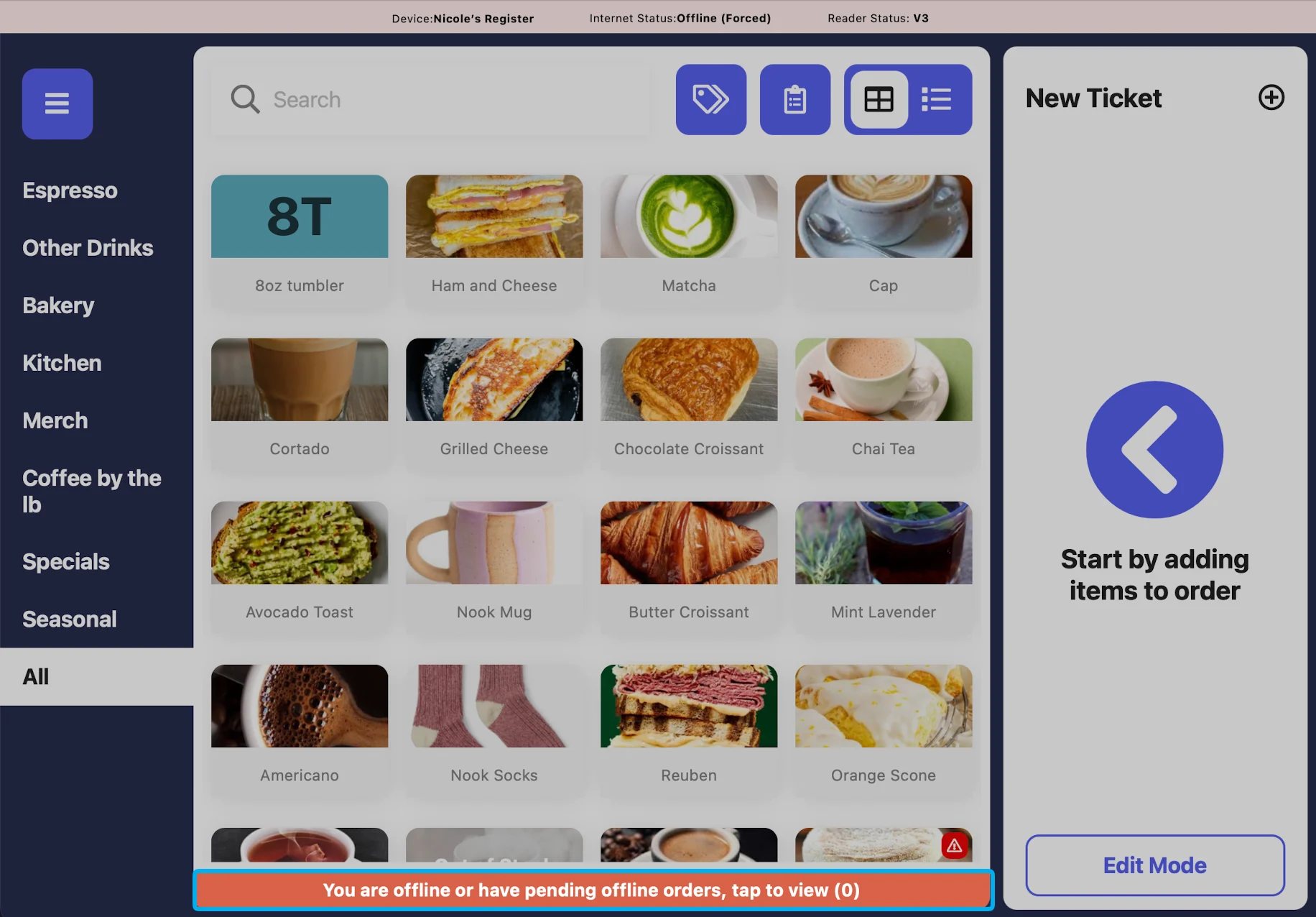
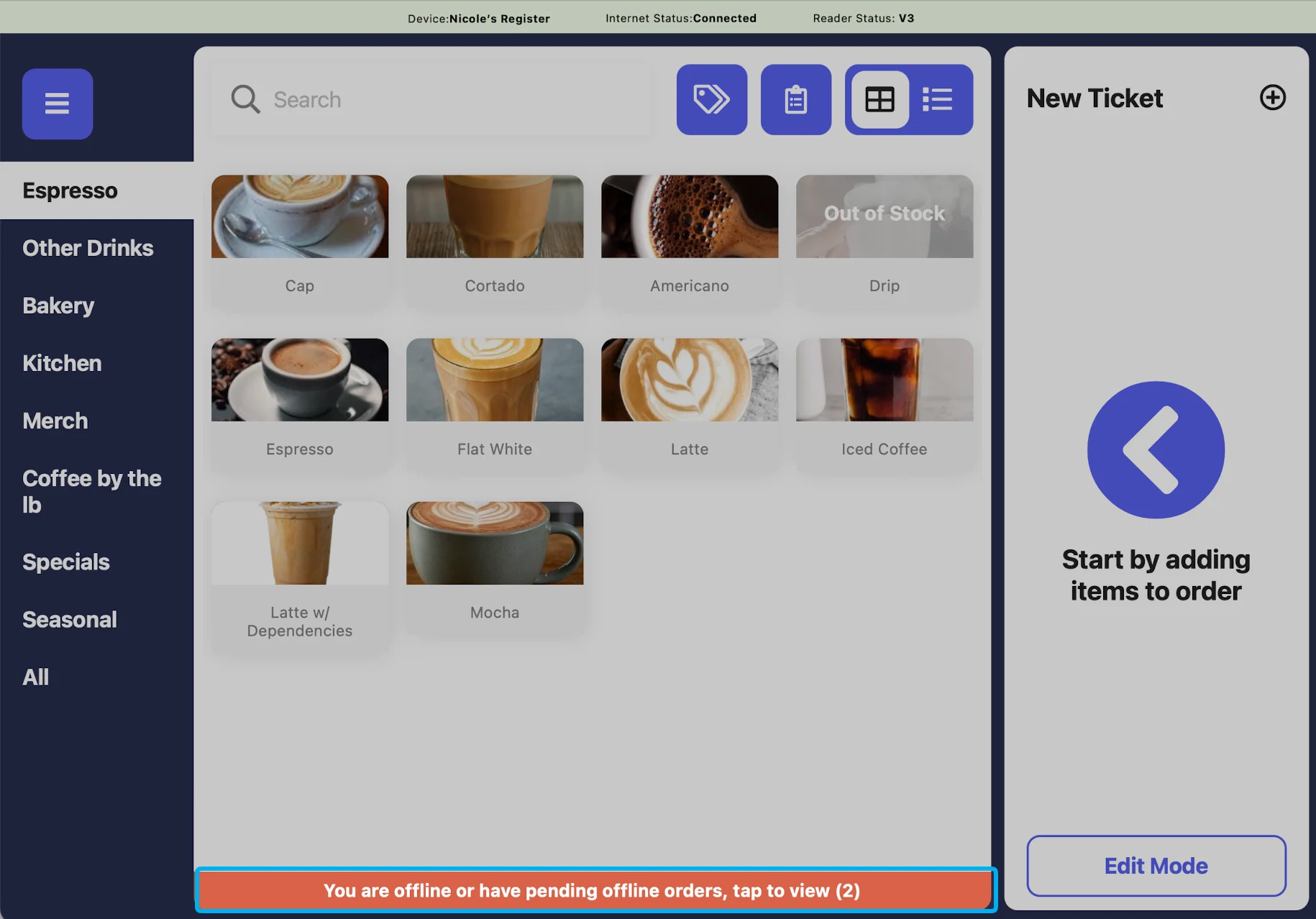
A notification banner appears at the bottom of the screen while offline and stays visible when you're back online until all pending orders are processed.
**Notification Banner**
A notification banner appears at the bottom of the screen while offline and stays visible when you're back online until all pending orders are processed.
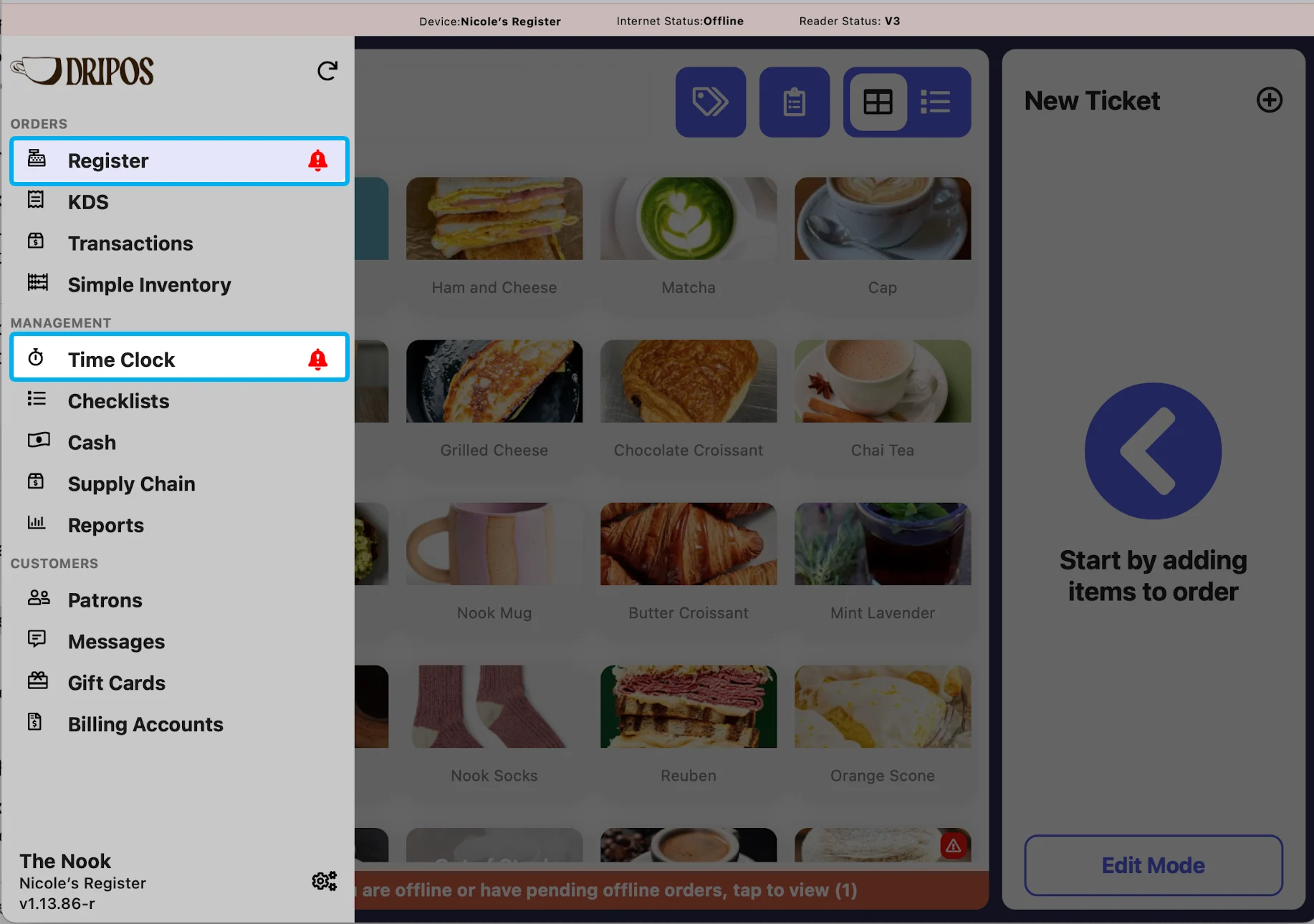
 **Icons**
If there are **offline orders** and **time cards** that need to be processed, **icons** will appear on the left-side menu of the POS.
The orders and time cards will need to be processed in order for the icons to disappear.
**Icons**
If there are **offline orders** and **time cards** that need to be processed, **icons** will appear on the left-side menu of the POS.
The orders and time cards will need to be processed in order for the icons to disappear.
 **Checkout Warning**
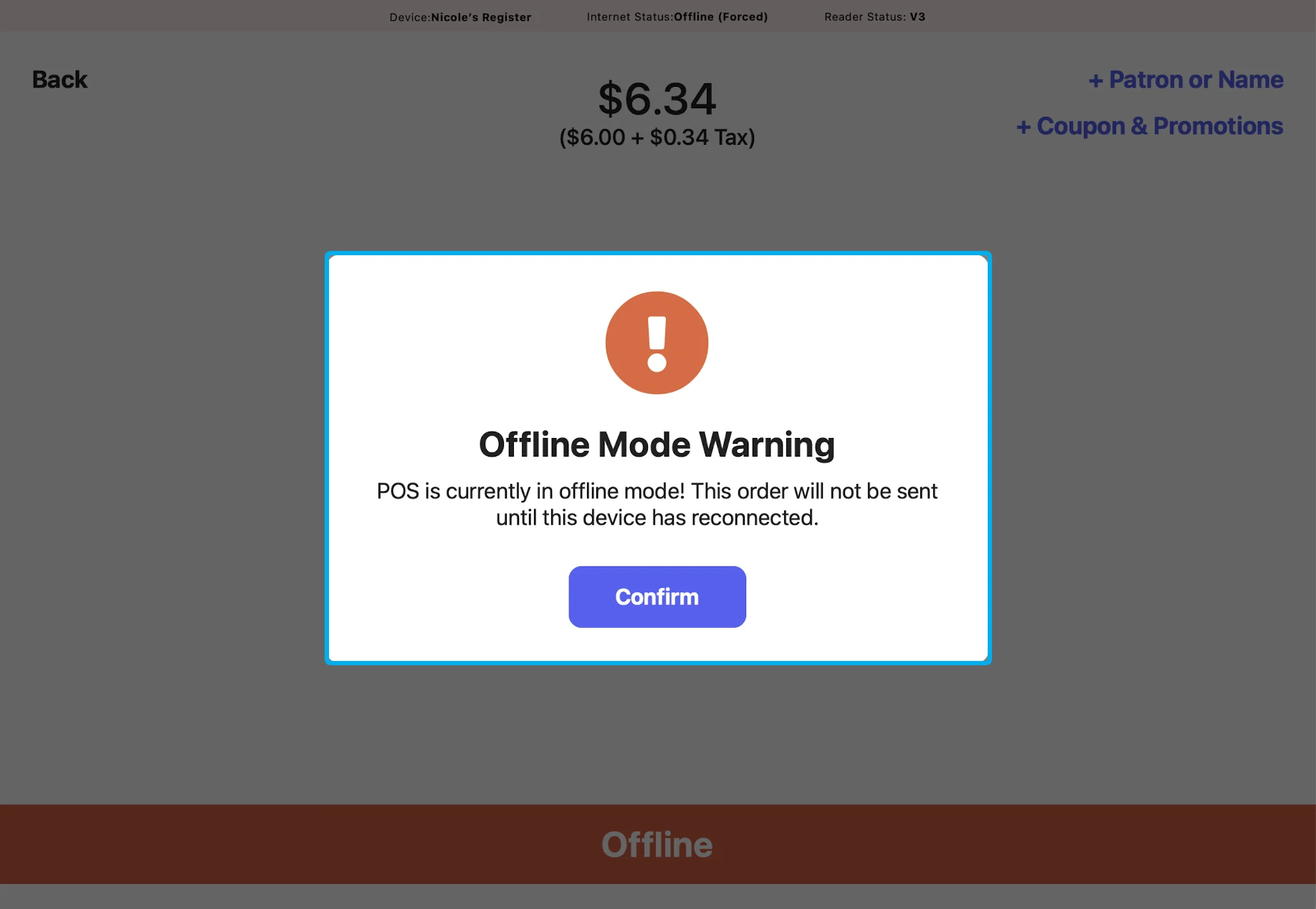
If an order is started while in Offline Mode, a pop-up will appear when you click "Charge".
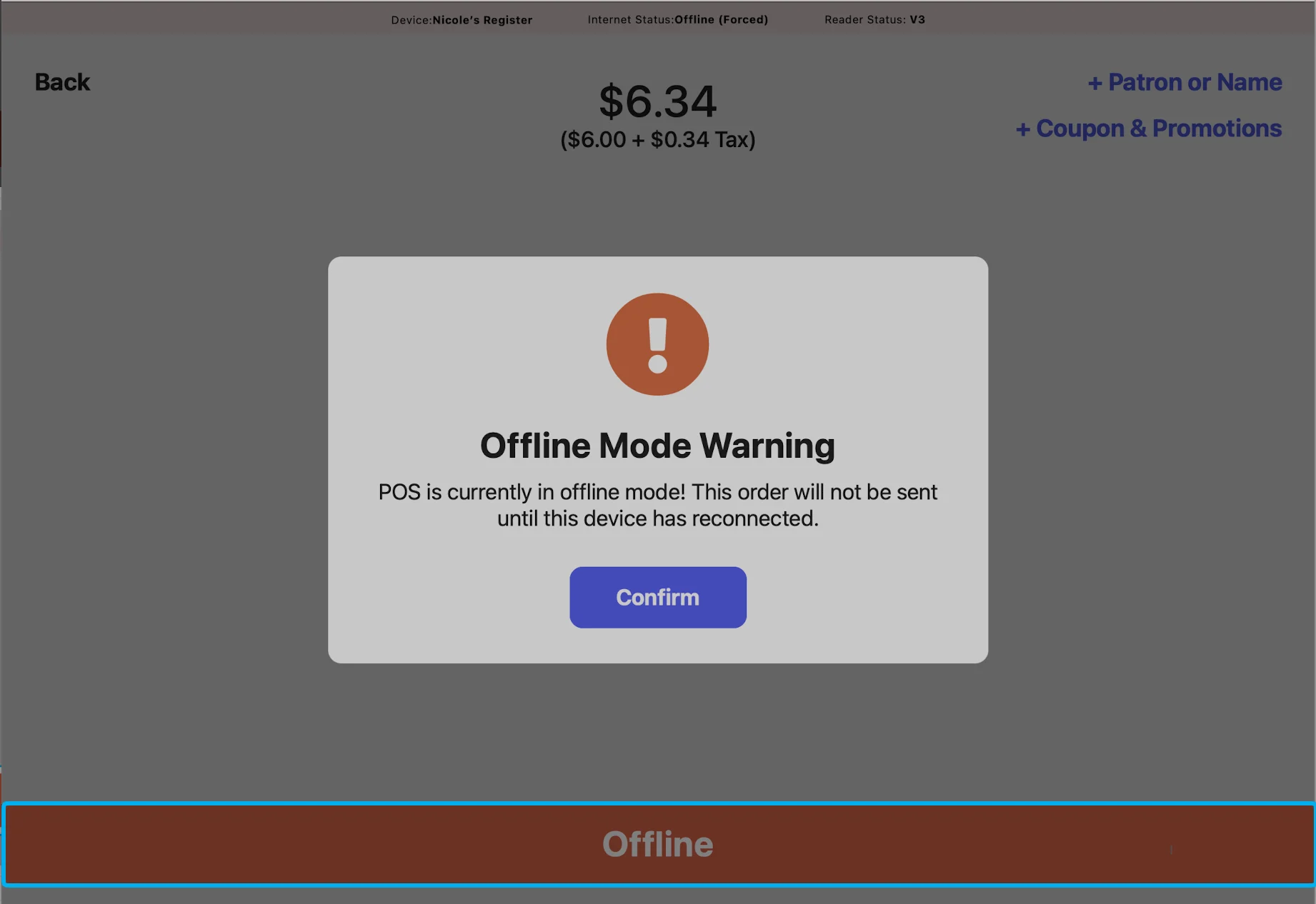
A banner will also display at the bottom of the POS during the entire checkout flow when offline.
**Checkout Warning**
If an order is started while in Offline Mode, a pop-up will appear when you click "Charge".
A banner will also display at the bottom of the POS during the entire checkout flow when offline.
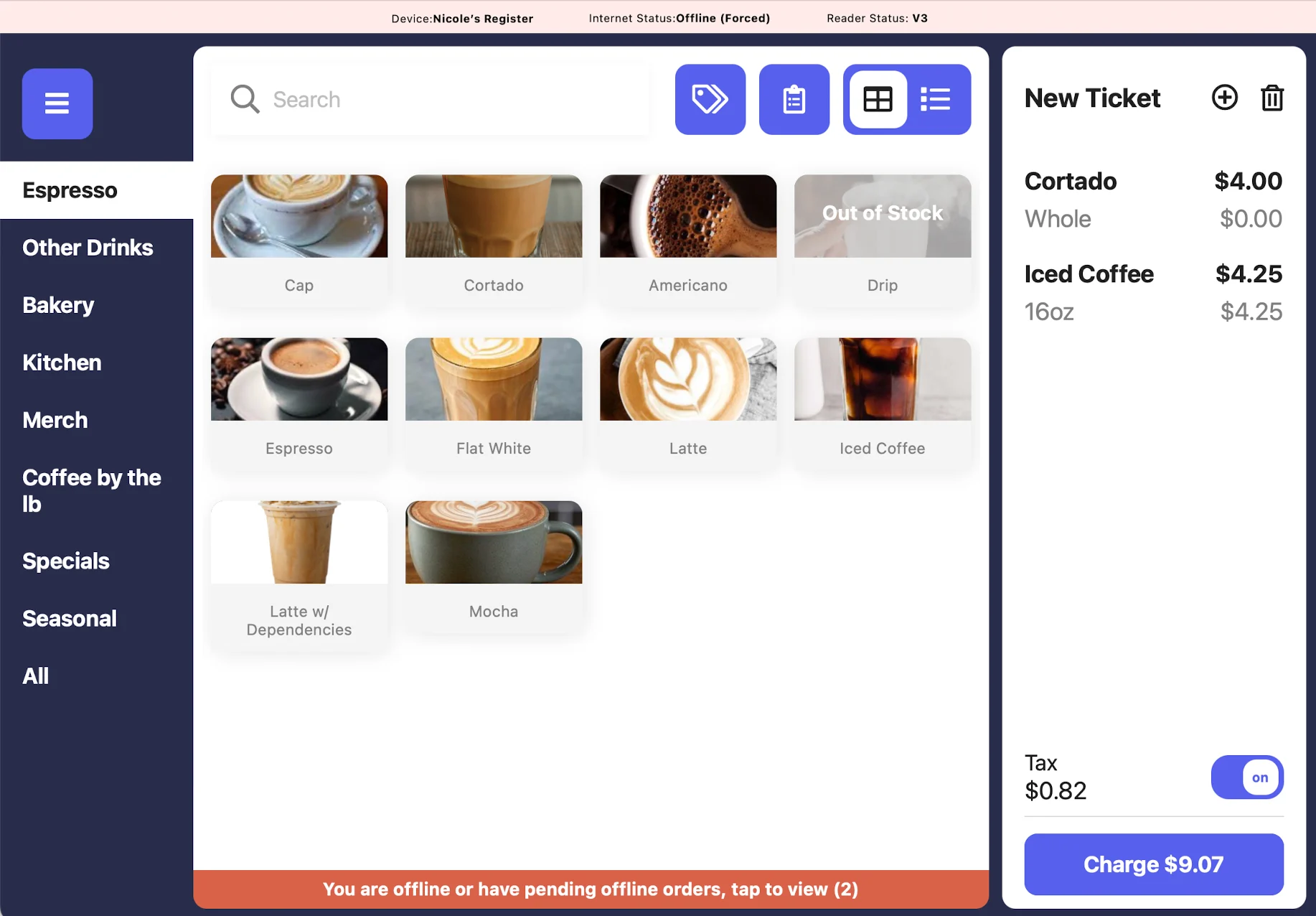
 In Offline Mode, you can still take orders with **cash**, **manual payment**, and **card payments** via the V3 Card Reader.
Add items to cart as usual and press **Charge** to proceed to payment
In Offline Mode, you can still take orders with **cash**, **manual payment**, and **card payments** via the V3 Card Reader.
Add items to cart as usual and press **Charge** to proceed to payment
 The POS will warn you that you are in Offline Mode with a pop-up. Press "Confirm" to proceed.
Once on the payment methods screen, if you are connected to a V3 Card Reader you will be able to select **cash**, **manual card**, or **card**.
The POS will warn you that you are in Offline Mode with a pop-up. Press "Confirm" to proceed.
Once on the payment methods screen, if you are connected to a V3 Card Reader you will be able to select **cash**, **manual card**, or **card**.
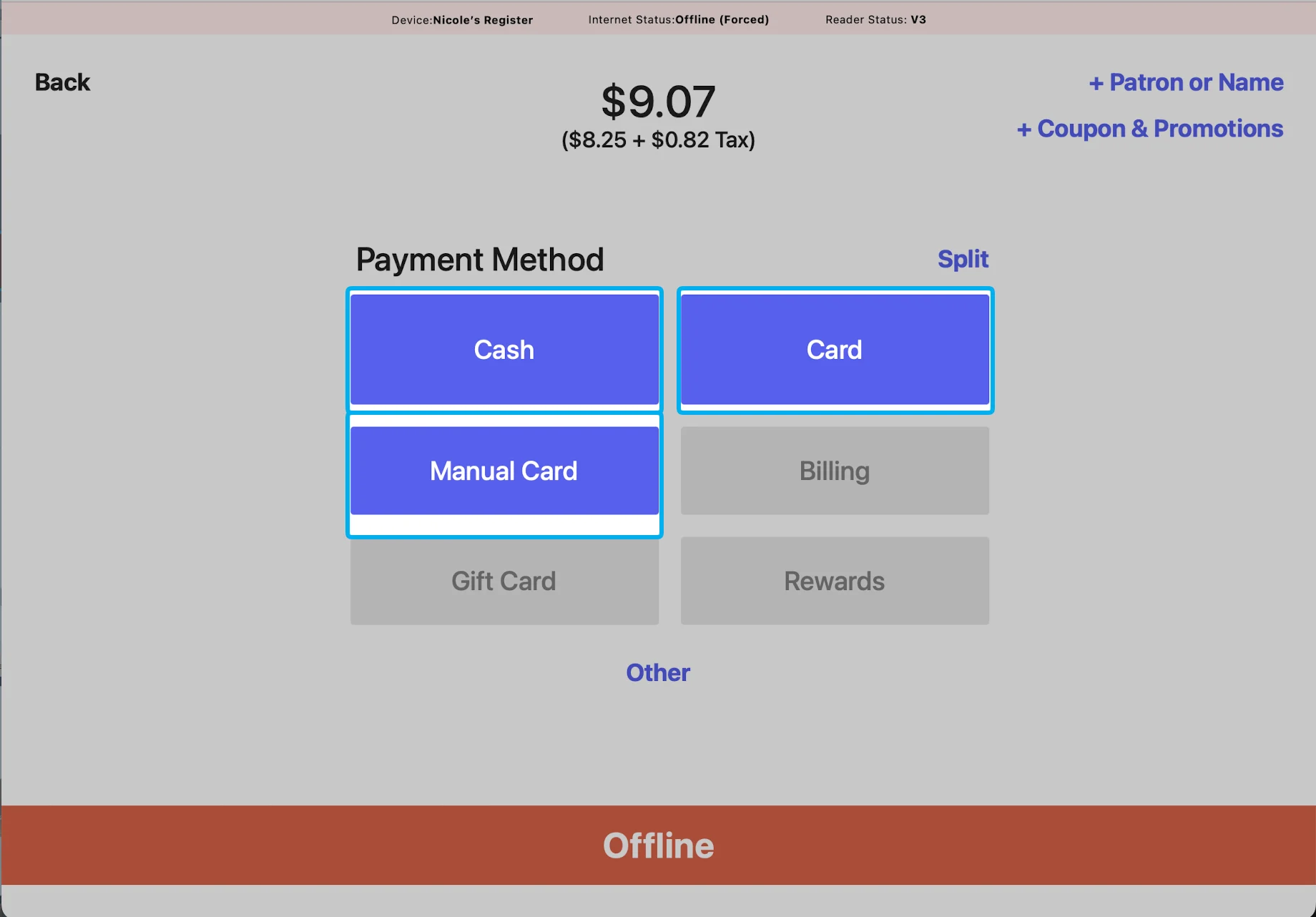 With our improved V3 Card Reader, you can select **Card** to process a card transaction as you normally would.
Select **Cash** to take a normal cash transaction (once the order is processed online, the cash drawer amounts will adjust).
Select **Manual Card** if a customer has a physical debit or credit card and enter the card details to charge.
Double-check manually entered card details. If anything is incorrect, the transaction will fail when you're back online and the sale will be lost!
With our improved V3 Card Reader, you can select **Card** to process a card transaction as you normally would.
Select **Cash** to take a normal cash transaction (once the order is processed online, the cash drawer amounts will adjust).
Select **Manual Card** if a customer has a physical debit or credit card and enter the card details to charge.
Double-check manually entered card details. If anything is incorrect, the transaction will fail when you're back online and the sale will be lost!
 Once the internet is reconnected to the Point of Sale, **all offline orders must be processed in order to complete the transaction.**
Press the red banner at the bottom of your screen that reads **"You are offline or have pending offline orders, tap to view"**.
Once the internet is reconnected to the Point of Sale, **all offline orders must be processed in order to complete the transaction.**
Press the red banner at the bottom of your screen that reads **"You are offline or have pending offline orders, tap to view"**.
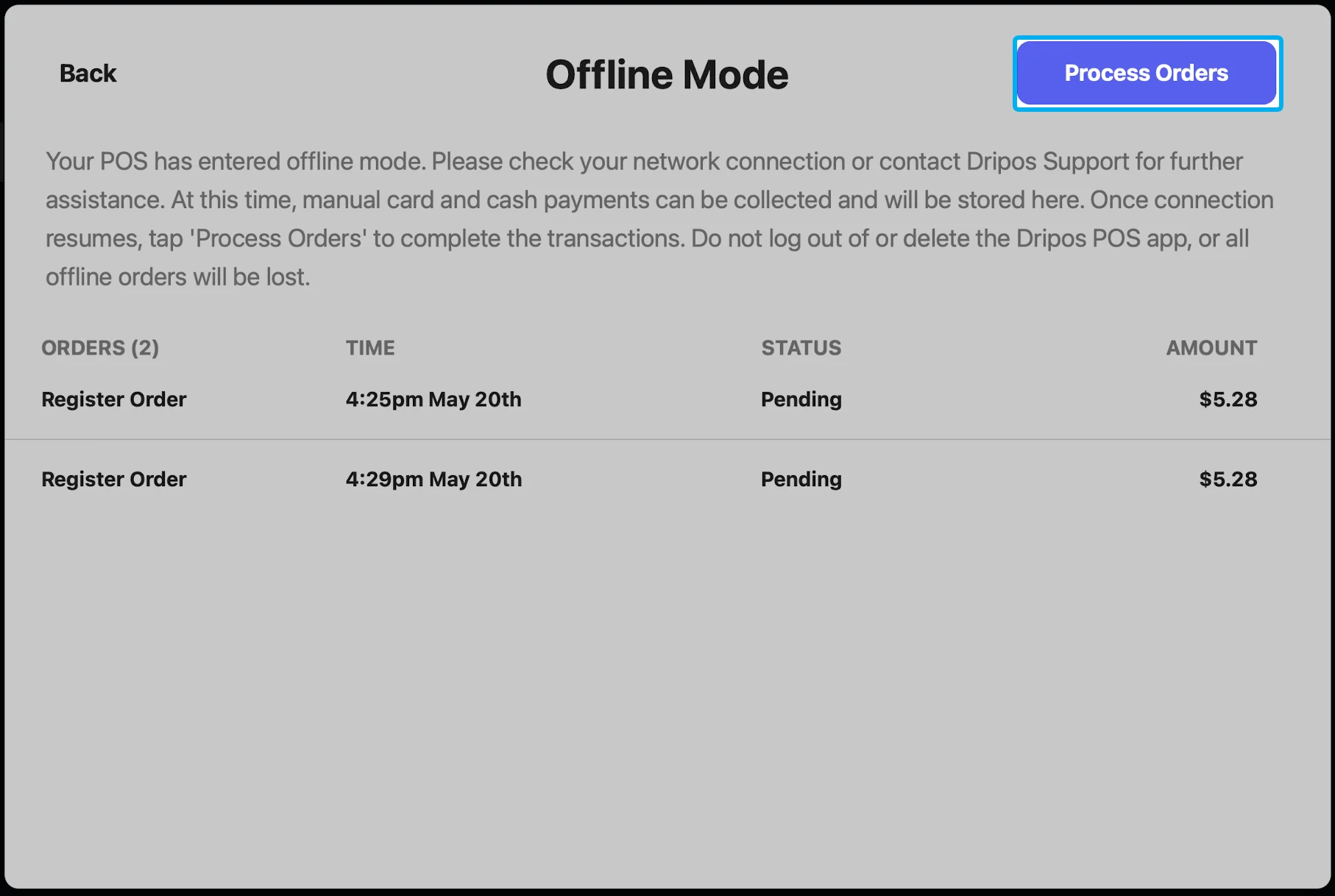
 This will prompt the offline mode screen to appear, which will display all orders taken while offline as well as the order name, time, status, and amount.
Press **Process Orders** in the top right corner
This will prompt the offline mode screen to appear, which will display all orders taken while offline as well as the order name, time, status, and amount.
Press **Process Orders** in the top right corner
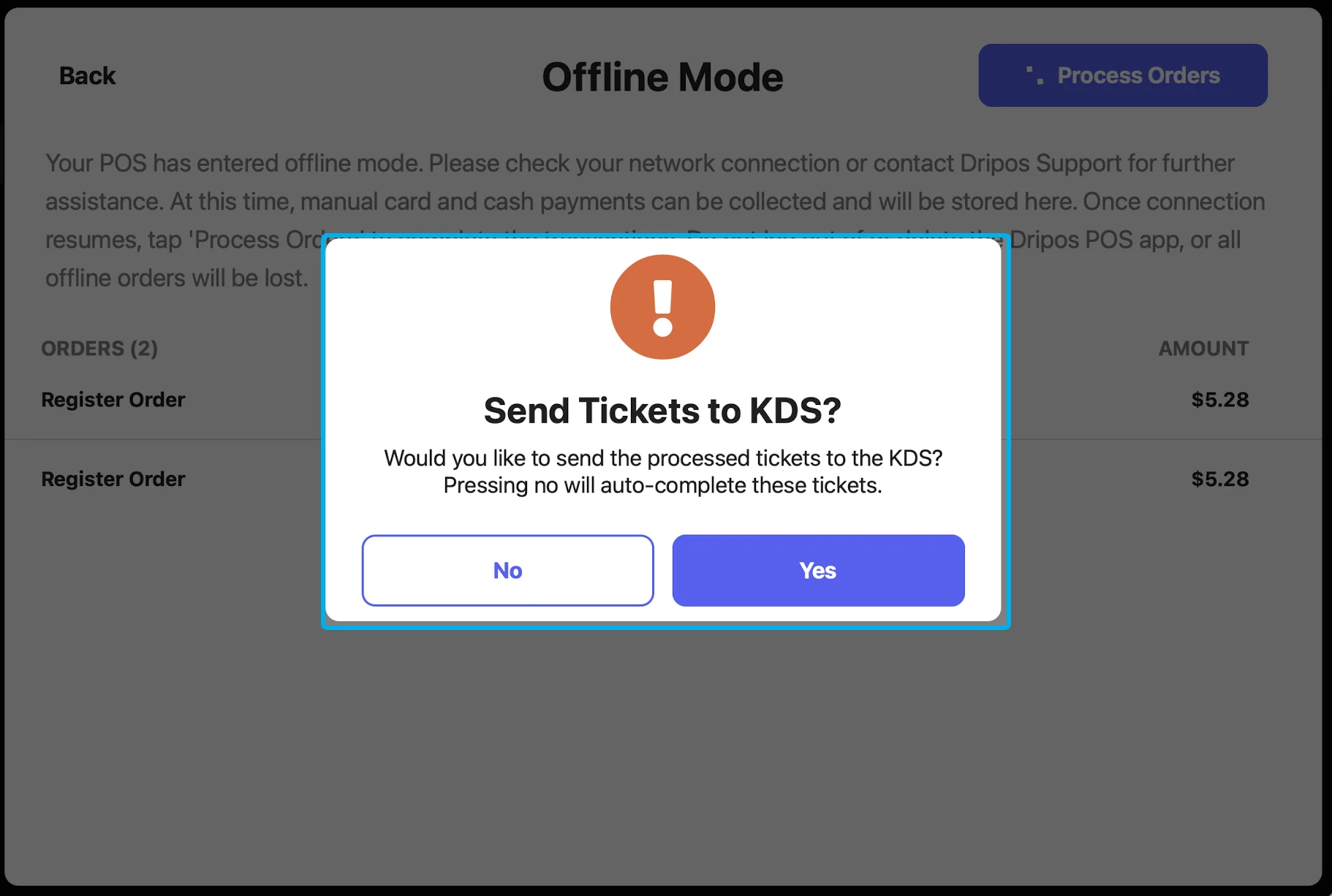
 A pop-up will appear asking if you would like to send these orders to the KDS.
* If you have already made these orders, press **No** and the tickets will be marked as complete.
* If you want them to be sent to the ticket screen to be made, press **Yes**.
A pop-up will appear asking if you would like to send these orders to the KDS.
* If you have already made these orders, press **No** and the tickets will be marked as complete.
* If you want them to be sent to the ticket screen to be made, press **Yes**.
 A modal will appear showing a summary of your offline session. You can filter your view by **cash**, **manual card**, or **card** transactions as well as see the processing status for each transaction. If a transaction failed to process, you will see a clear message explaining why.
Dripos is not responsbile for payments that failed due to incorrect card information or insufficient funds on card
A modal will appear showing a summary of your offline session. You can filter your view by **cash**, **manual card**, or **card** transactions as well as see the processing status for each transaction. If a transaction failed to process, you will see a clear message explaining why.
Dripos is not responsbile for payments that failed due to incorrect card information or insufficient funds on card
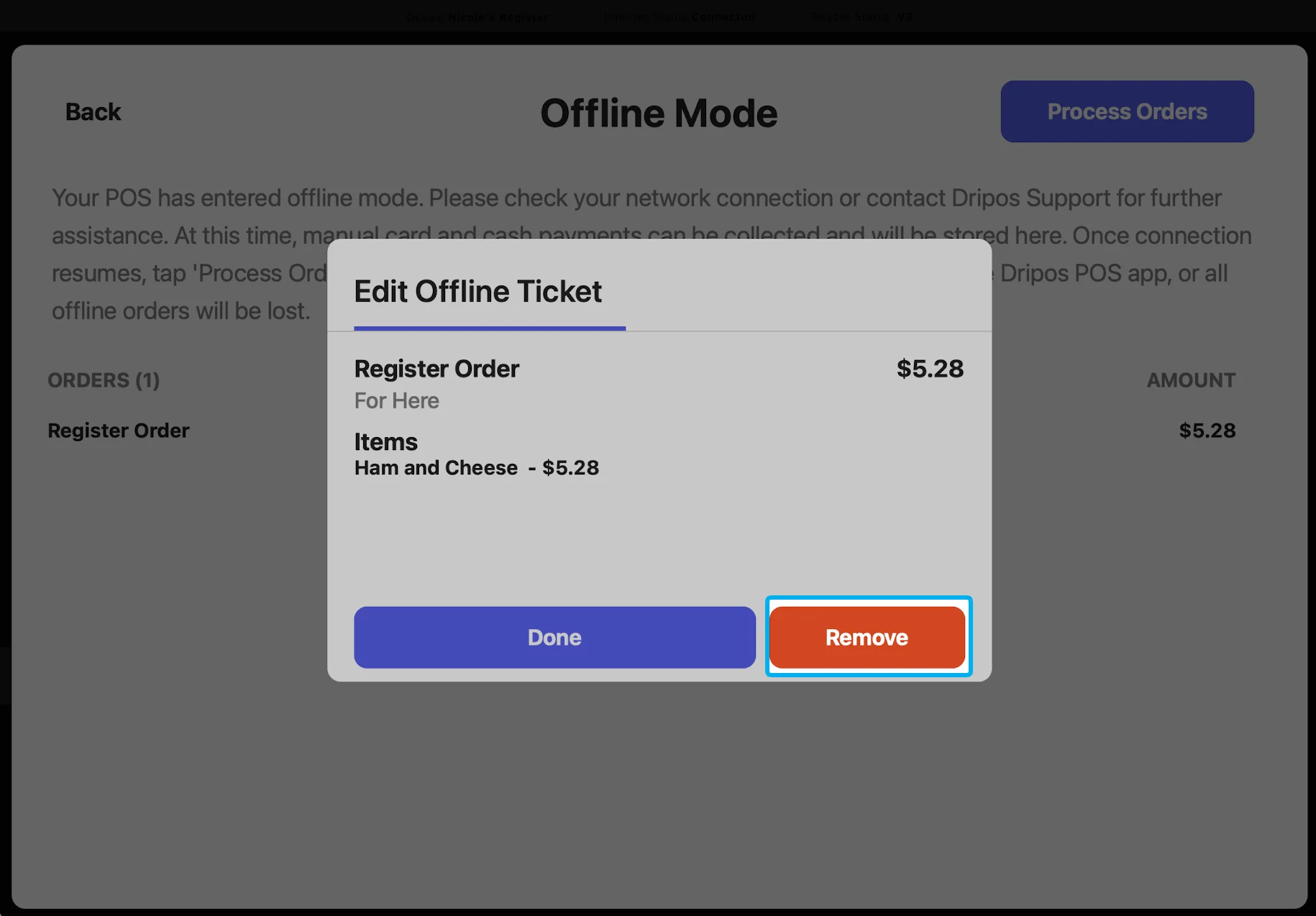
 To remove an order that failed to process, press **Done** and select the remaining order on the offline summary screen. Press **Remove**.
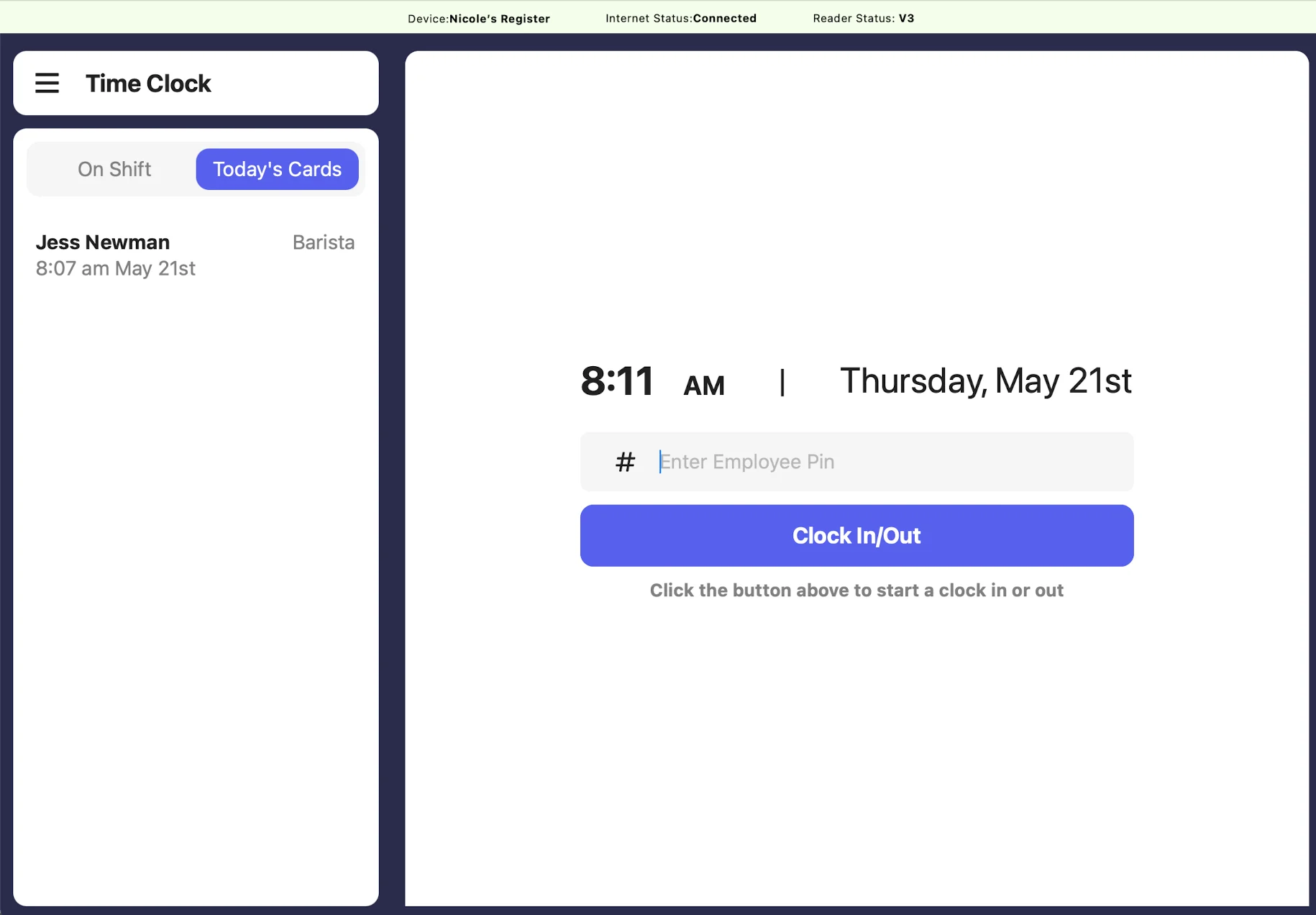
 Allow for employees to clock in and clock out from the Point of Sale even when in offline mode.
If your store utilizes **cash tip payouts** at the end of each shift, those tips will not be calculated until the Point of Sale is back online and time cards are processed. Employees will see those tips added on to their next shift payout.
Enter employee pin to punch in as usual.
Instead of pressing Clock In, the button will say **Record Offline Time Stamp**. Press this button to mark the start of a time card.
Allow for employees to clock in and clock out from the Point of Sale even when in offline mode.
If your store utilizes **cash tip payouts** at the end of each shift, those tips will not be calculated until the Point of Sale is back online and time cards are processed. Employees will see those tips added on to their next shift payout.
Enter employee pin to punch in as usual.
Instead of pressing Clock In, the button will say **Record Offline Time Stamp**. Press this button to mark the start of a time card.
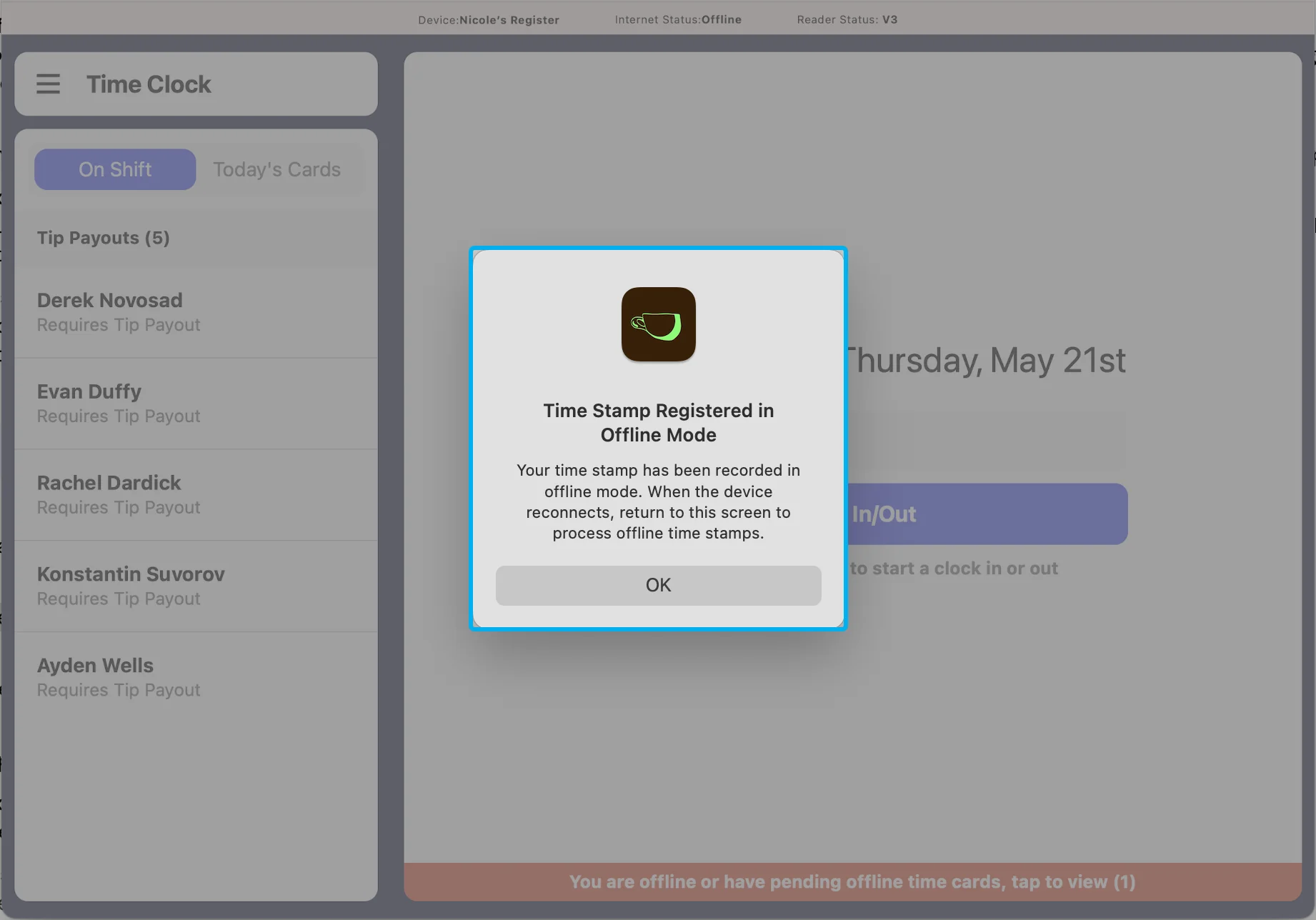
 This will prompt a pop-up to appear letting you know that this is an offline time stamp and that you will need to come back to process it once your device is back online. Press **OK** to confirm.
 Offline time cards must be processed once the internet is back online. See next steps to learn how to process these time cards.
Offline time cards must be processed once the internet is back online.
This also ensures that earned tips are attached to the correct time cards.
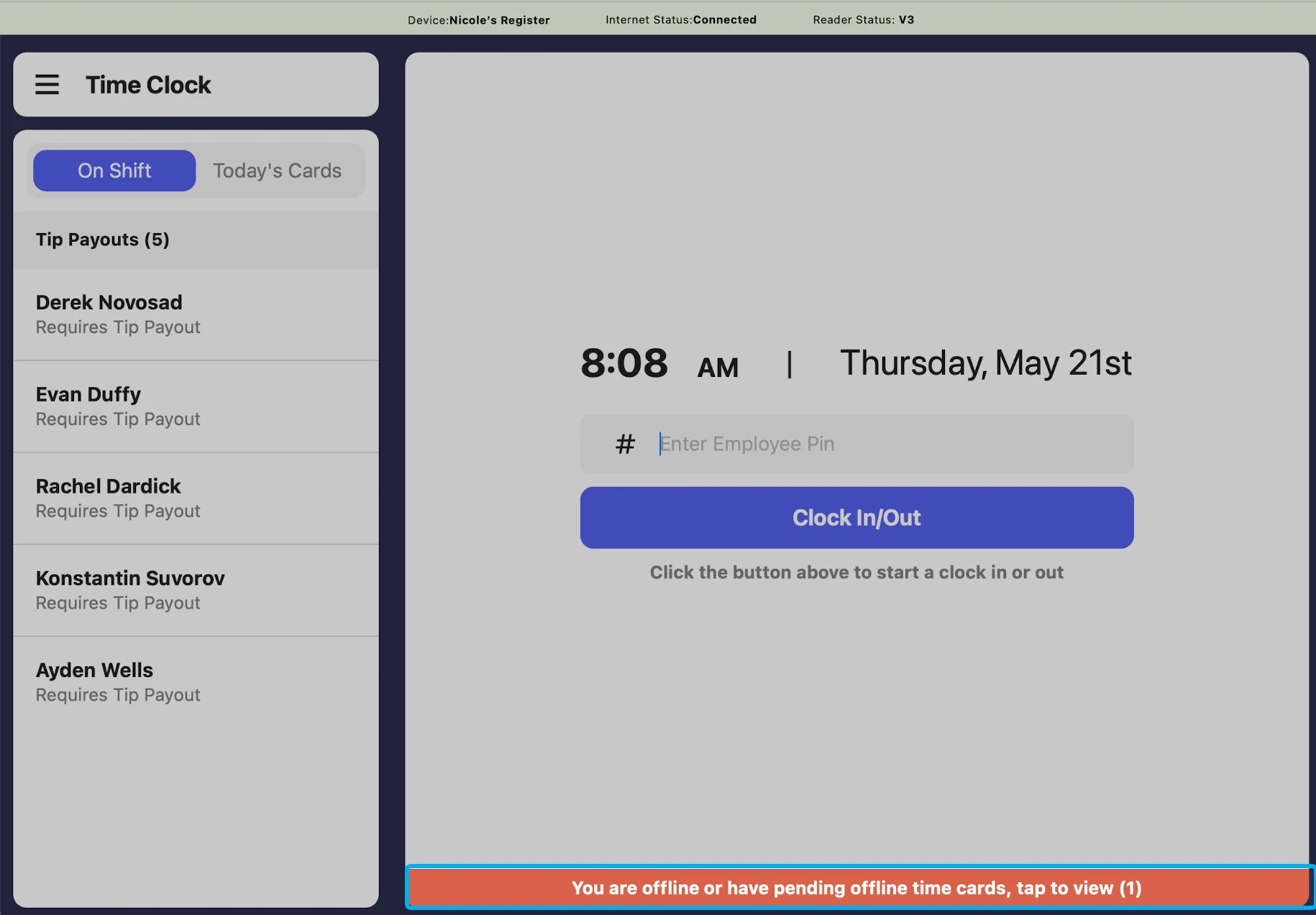
Once the Point of Sale is back online, navigate to **Time Cards**. Press the bottom bar that reads: **You are offline or have pending offline time cards, tap to view**:
Offline time cards must be processed once the internet is back online. See next steps to learn how to process these time cards.
Offline time cards must be processed once the internet is back online.
This also ensures that earned tips are attached to the correct time cards.
Once the Point of Sale is back online, navigate to **Time Cards**. Press the bottom bar that reads: **You are offline or have pending offline time cards, tap to view**:
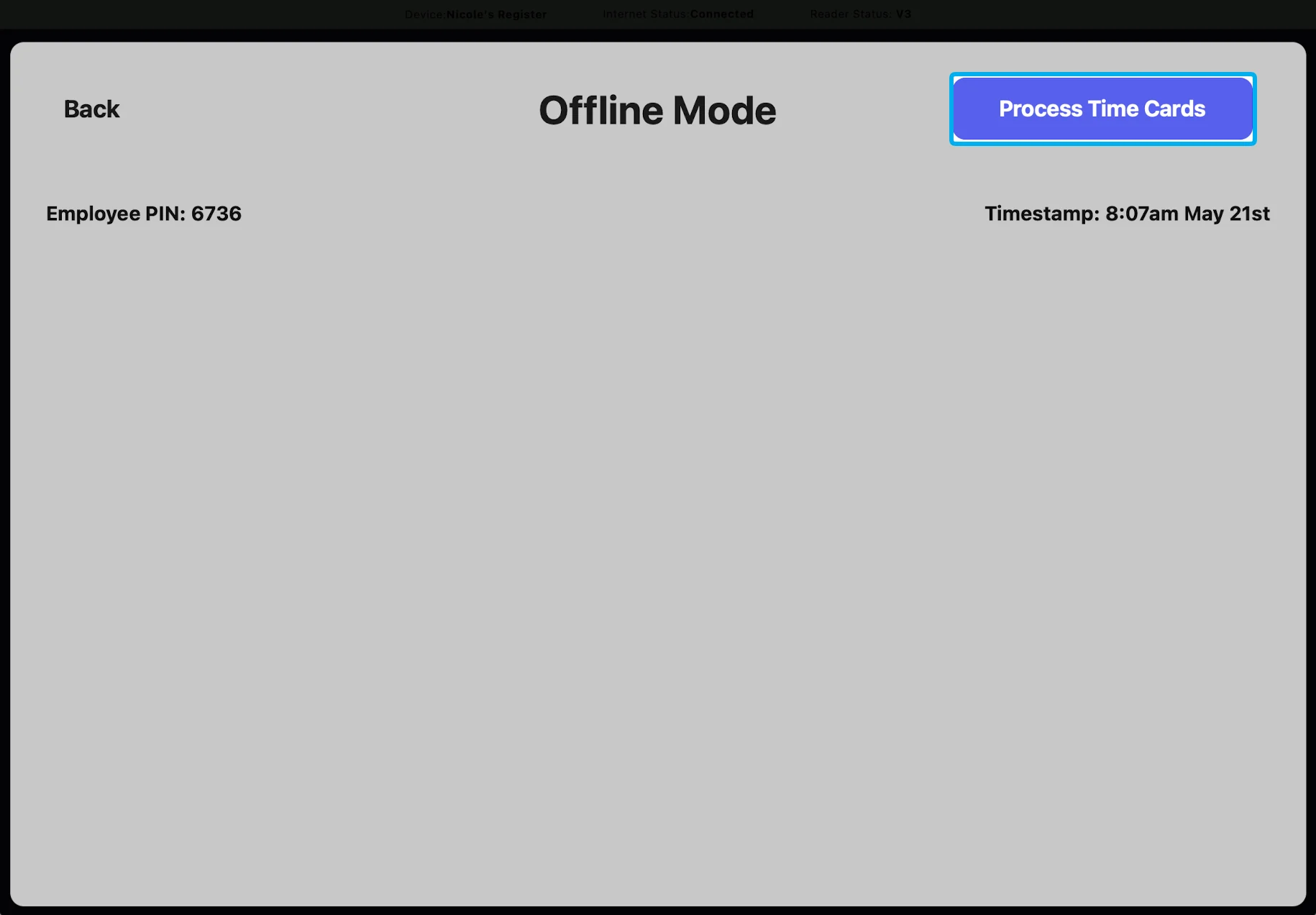
 Press **Process Time Cards**.
 To view the now processed time card, navigate back to **Time Cards** > **Today's Cards** > press the new time card to view.