> ## Documentation Index
> Fetch the complete documentation index at: https://support.dripos.com/llms.txt
> Use this file to discover all available pages before exploring further.
# Dripos Transactions
> Understand your shop's daily customer transactions
View all order history across all Dripos ordering platforms your shop utilizes
Every customer order creates a transaction record in the Dripos system
Use transaction history to void and refund orders, resend receipts, and view order history
## View Transactions
View all transactions from the Dashboard and the Point of Sale
Click **Orders** > **Transactions**
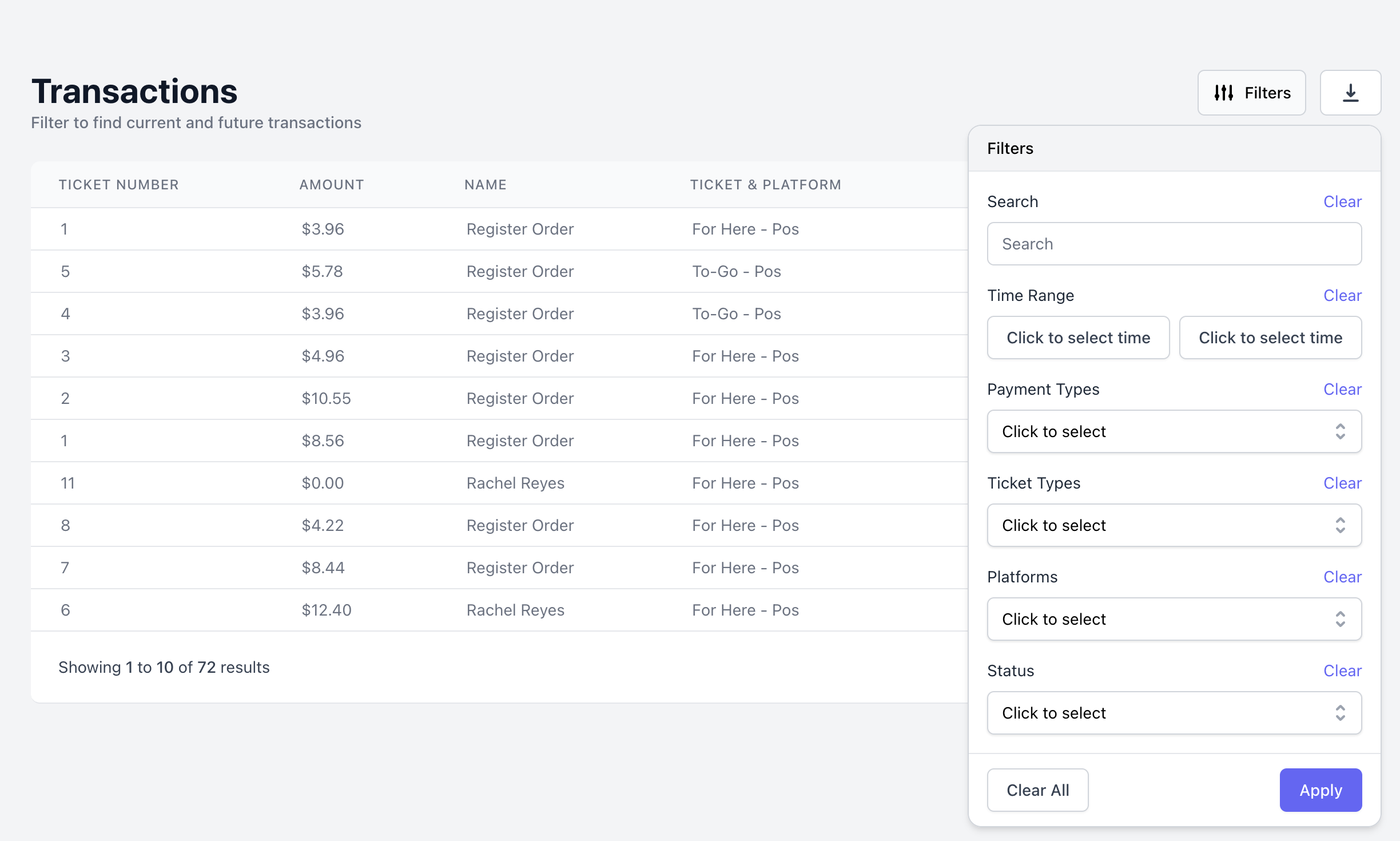
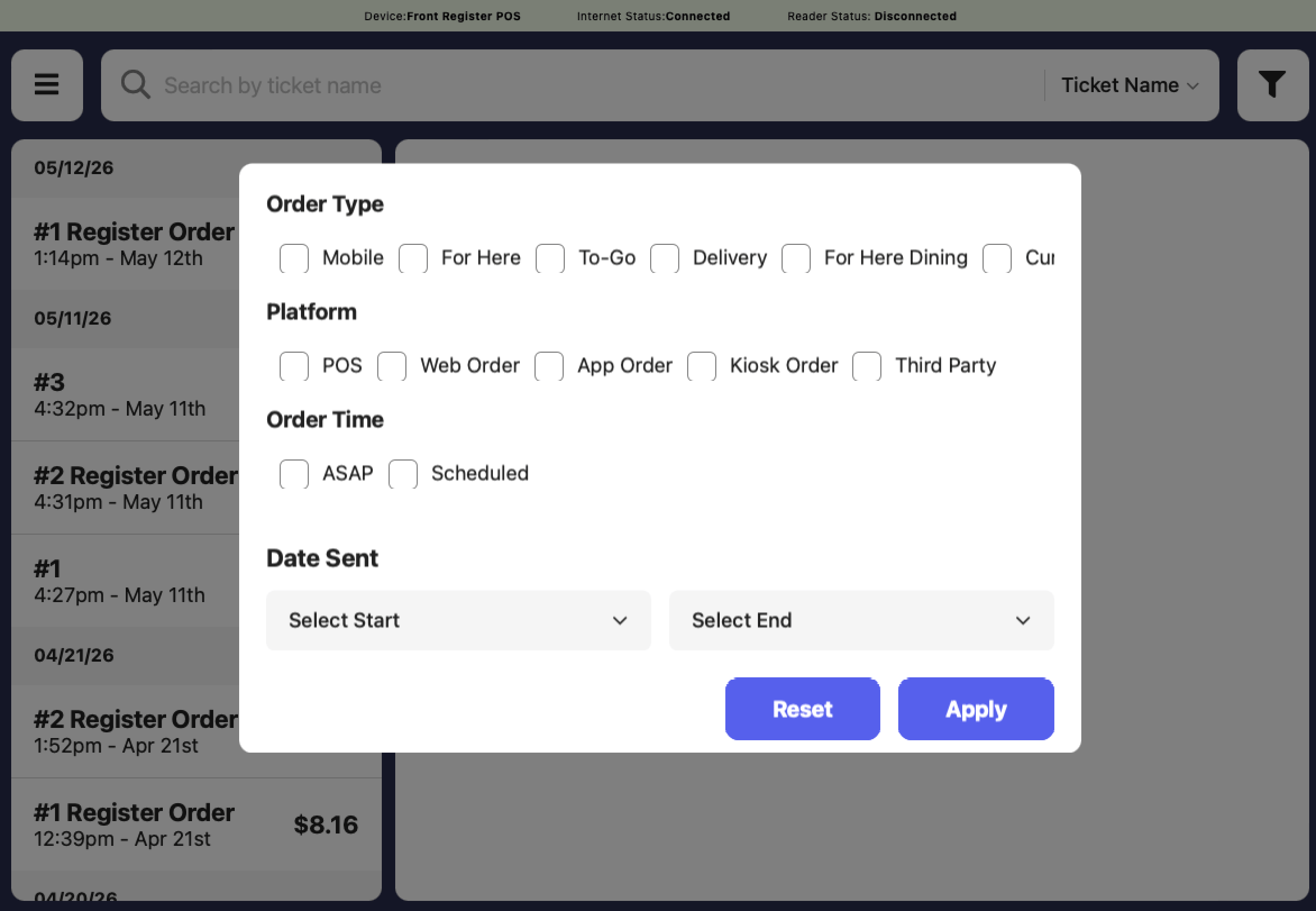
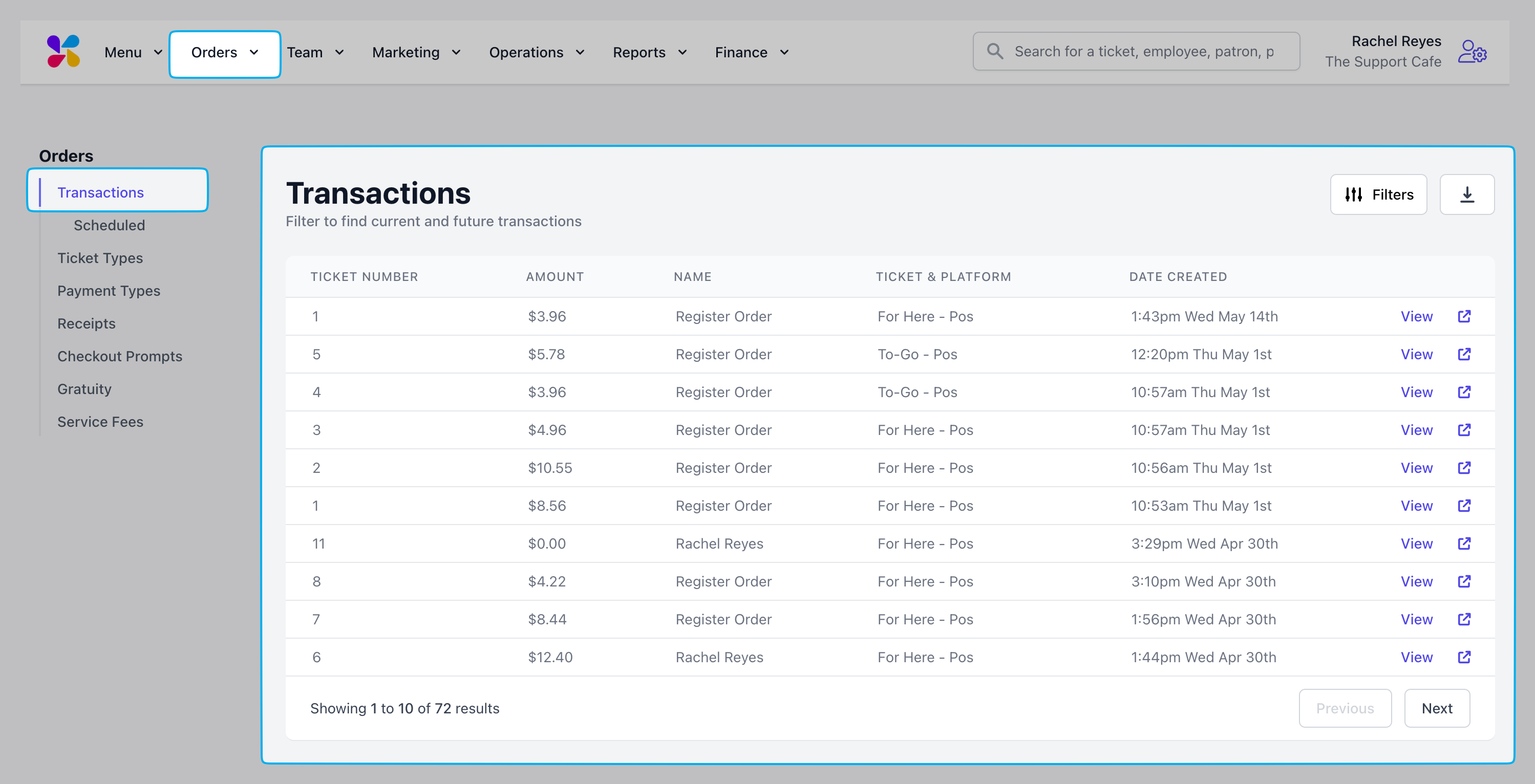 Filter transactions by
* Ticket Name
* Phone Number
* Ticket #
* Last 4 Card Digits
* Total (\$)
* Order Type
* Platform Ordered On
* Order Time
* Date Range
Filter transactions by
* Ticket Name
* Phone Number
* Ticket #
* Last 4 Card Digits
* Total (\$)
* Order Type
* Platform Ordered On
* Order Time
* Date Range
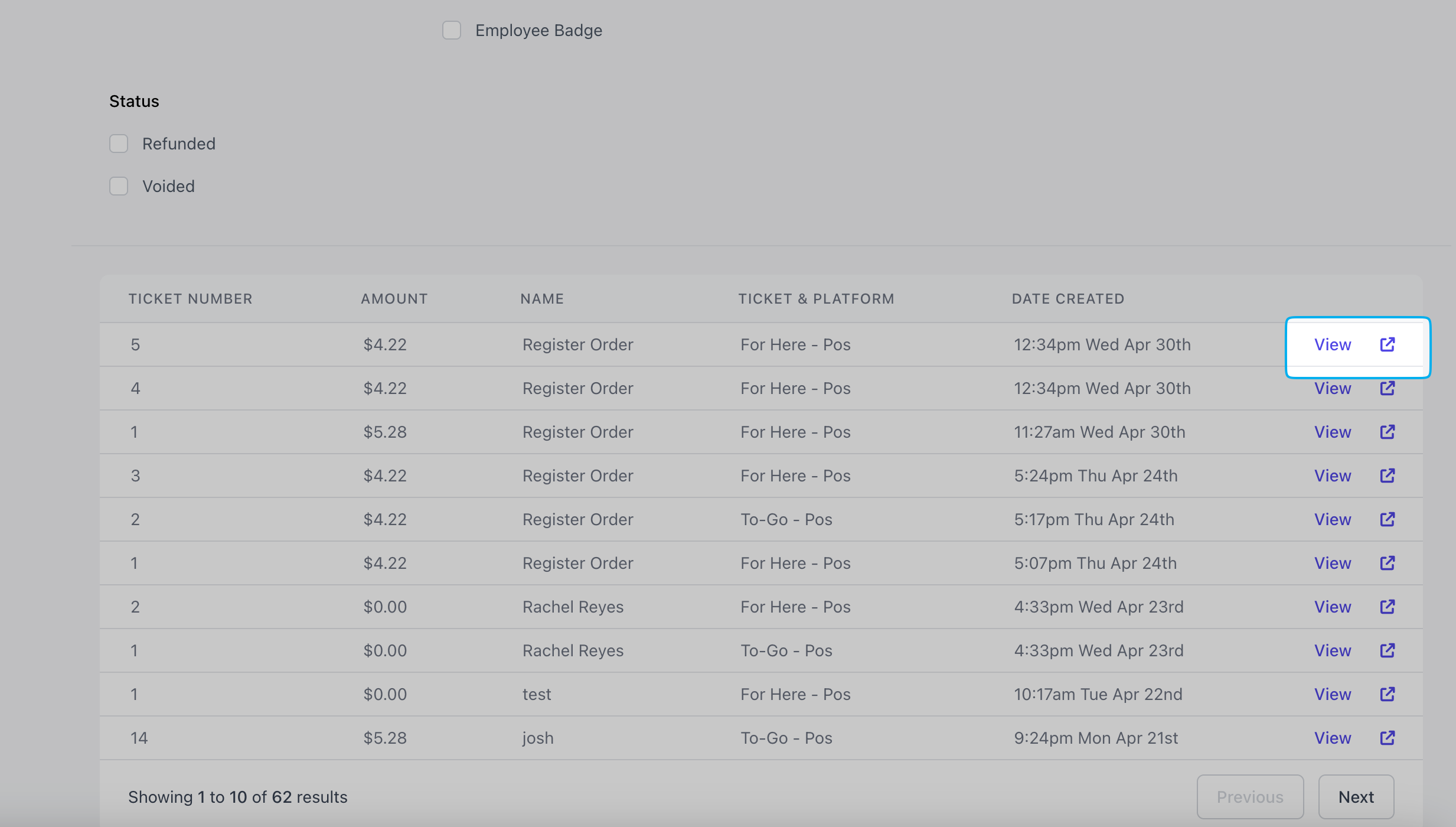
 Click **View** or the new tab icon to open a transaction's page
 View transaction information:
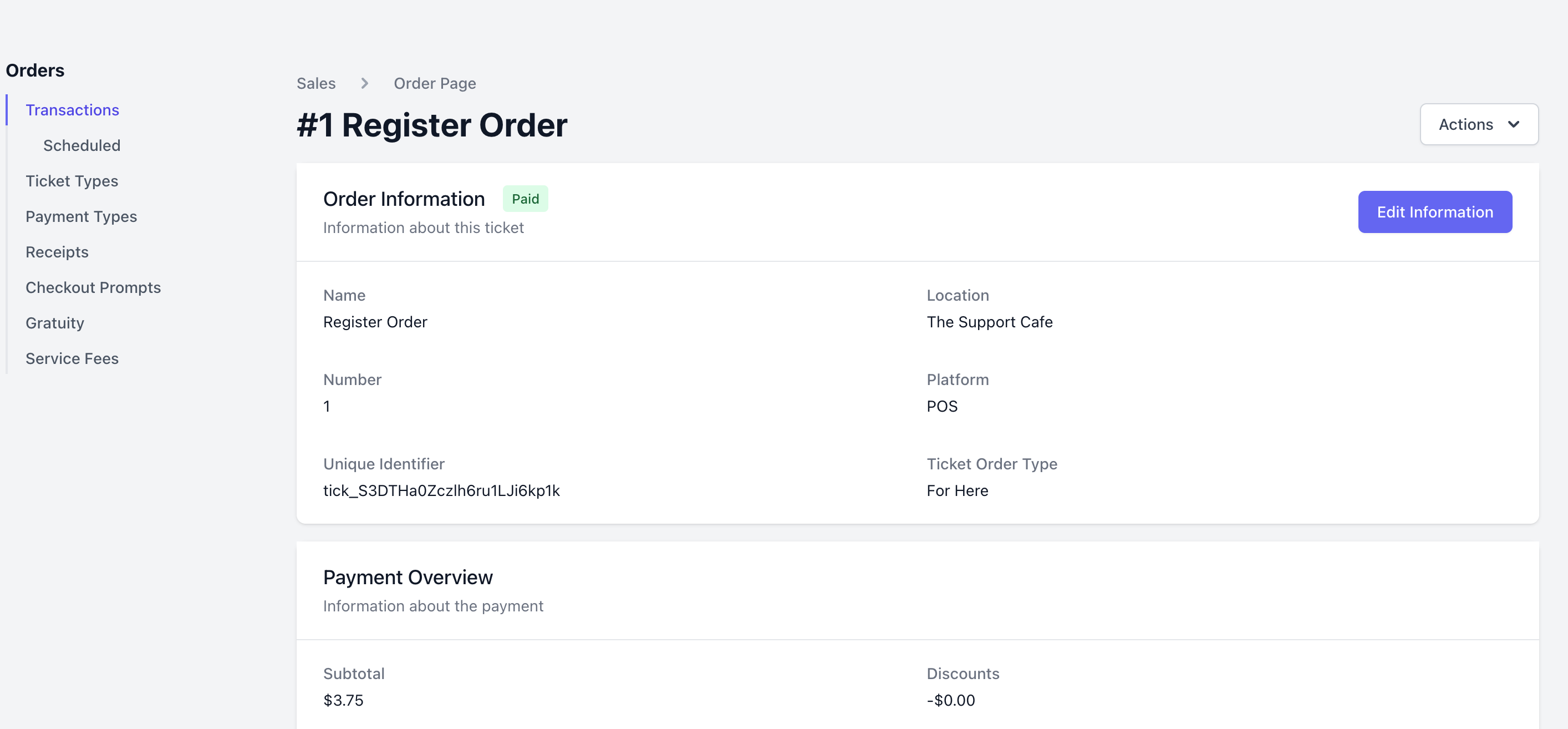 Click **Actions** and select one of the following options
* Download ticket as PDF
* Send Receipt
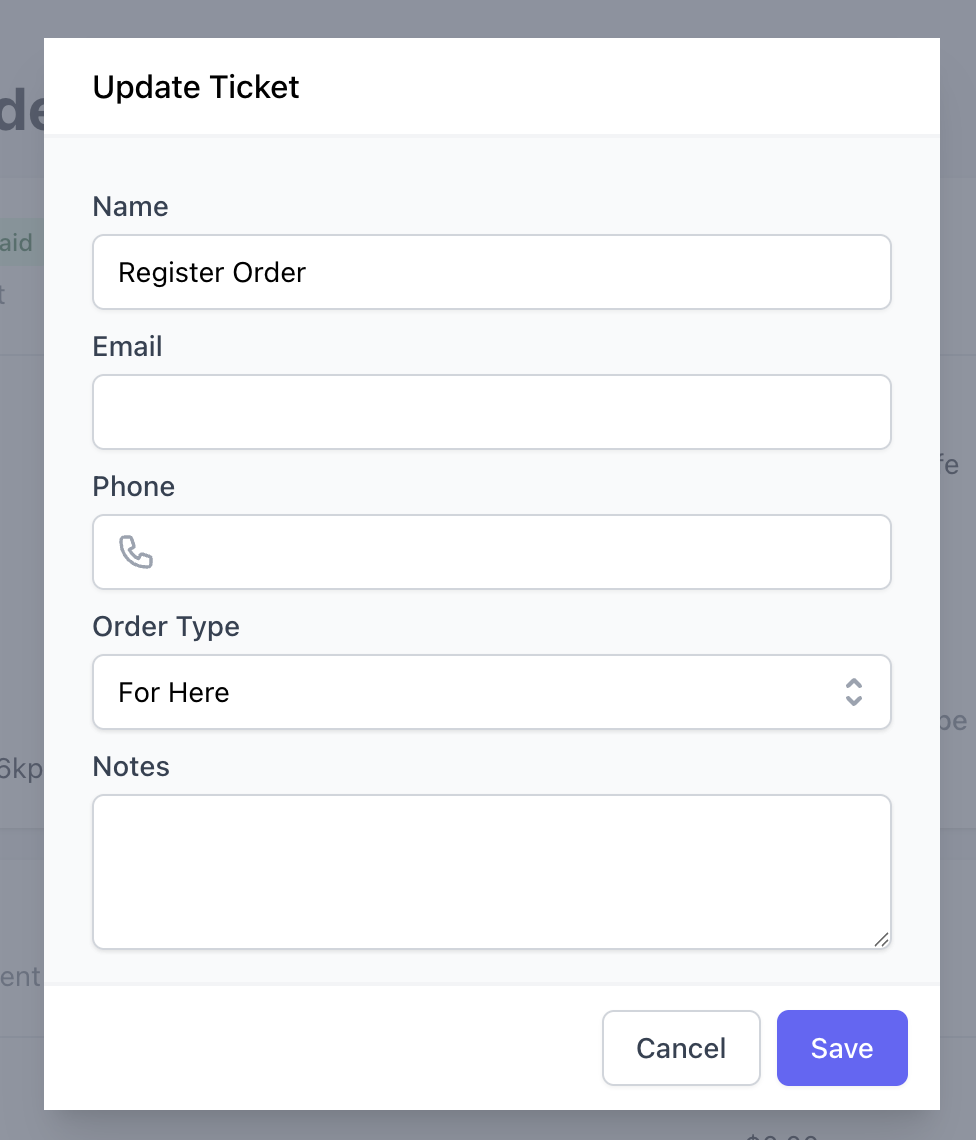
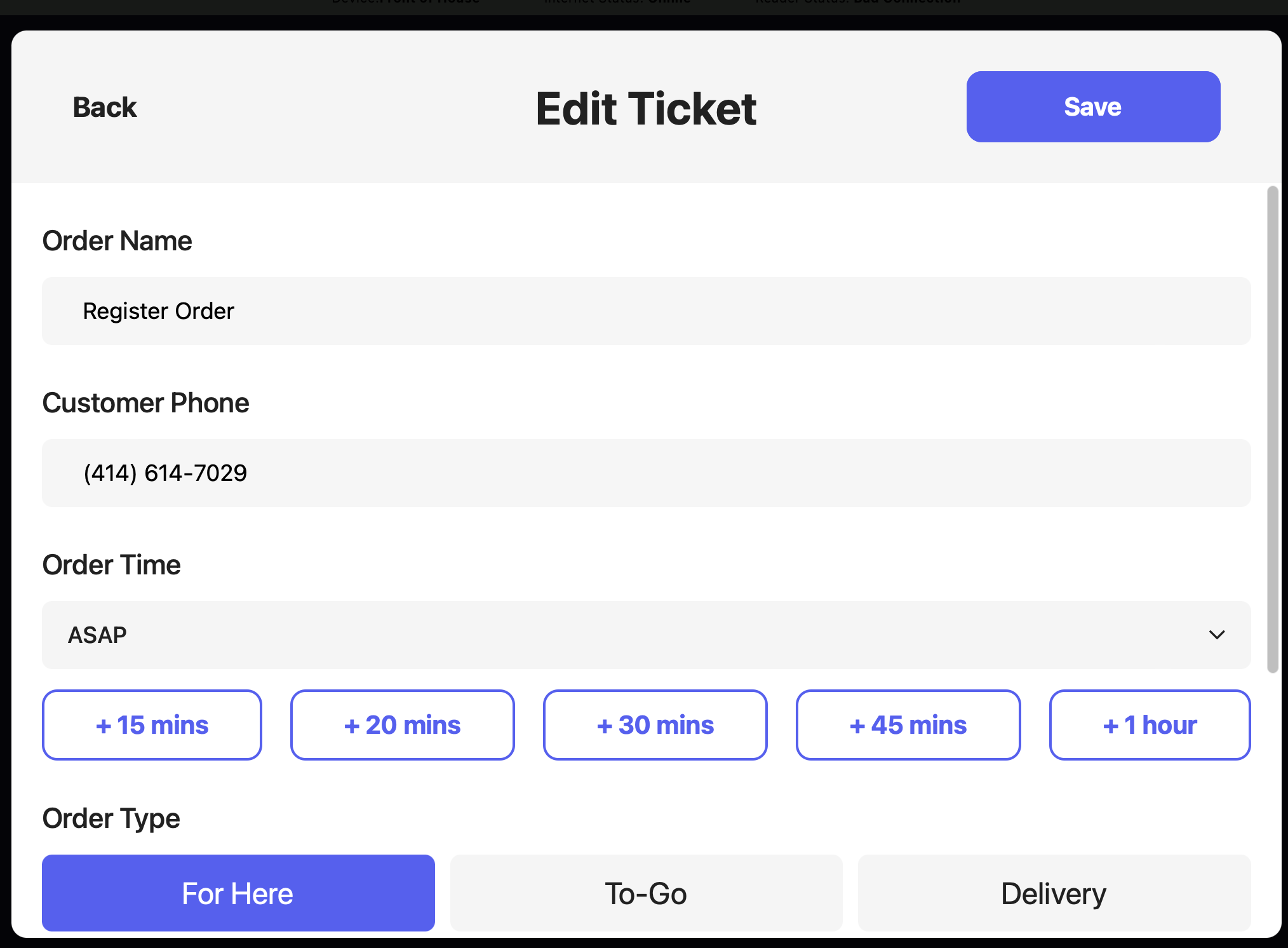
Edit the ticket's name, phone number, email, order type, and include any order notes.
Click **Actions** and select one of the following options
* Download ticket as PDF
* Send Receipt
Edit the ticket's name, phone number, email, order type, and include any order notes.
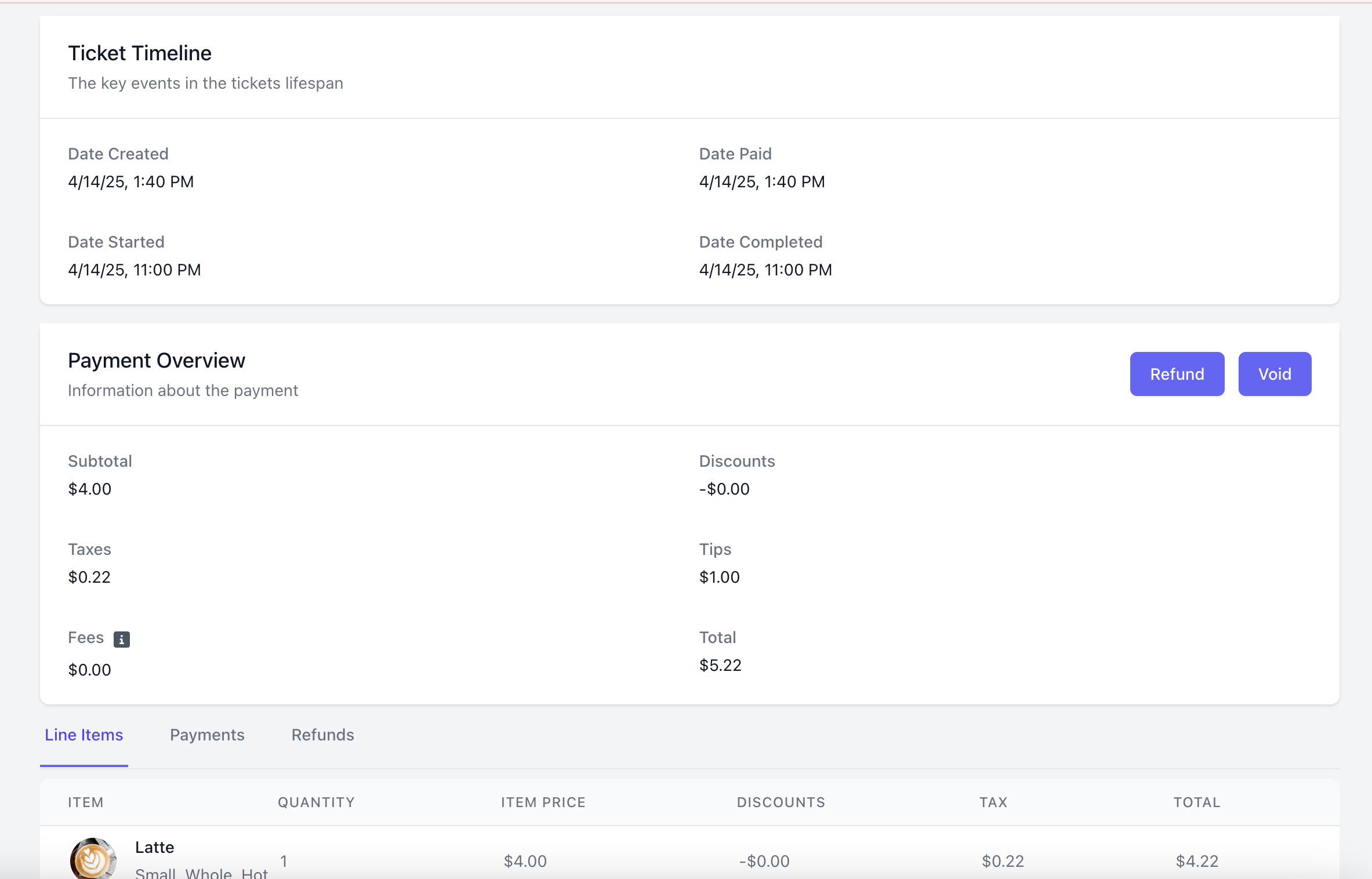 Understand when an order was placed (created), when it was paid for, started, and completed.
Understand all payment details that make up the total order cost.
Refund a full or partial amount, or void an entire transaction.
View the products ordered
View payment methods use for this order
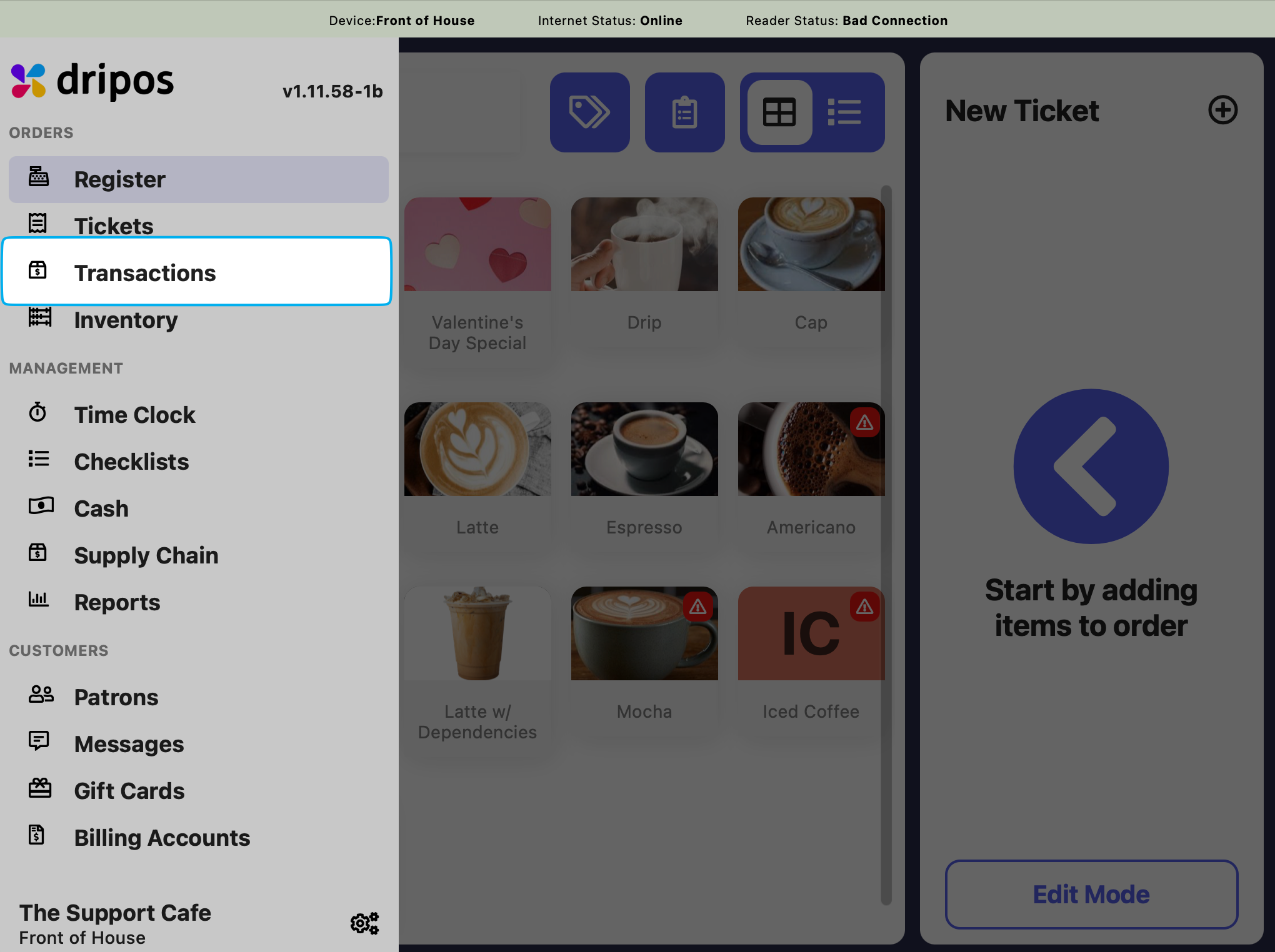
Press the **tribar** in the upper left screen corner > **Transactions**
Understand when an order was placed (created), when it was paid for, started, and completed.
Understand all payment details that make up the total order cost.
Refund a full or partial amount, or void an entire transaction.
View the products ordered
View payment methods use for this order
Press the **tribar** in the upper left screen corner > **Transactions**
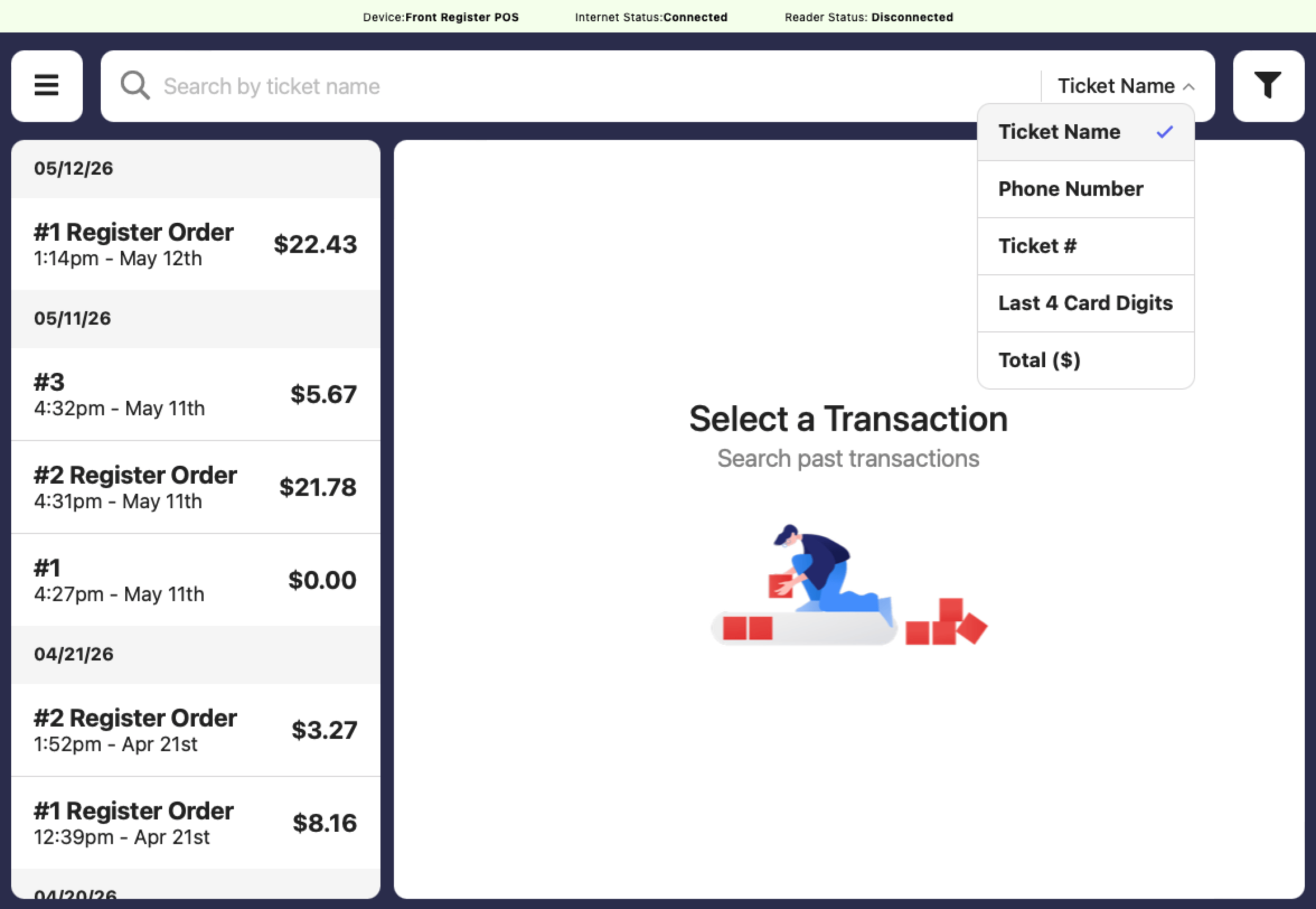
 Filter transactions by
* Ticket Name
* Phone Number
* Ticket #
* Last 4 Card Digits
* Total (\$)
* Order Type
* Platform Ordered On
* Order Time
* Date Range
Filter transactions by
* Ticket Name
* Phone Number
* Ticket #
* Last 4 Card Digits
* Total (\$)
* Order Type
* Platform Ordered On
* Order Time
* Date Range
 Tap a transaction to view
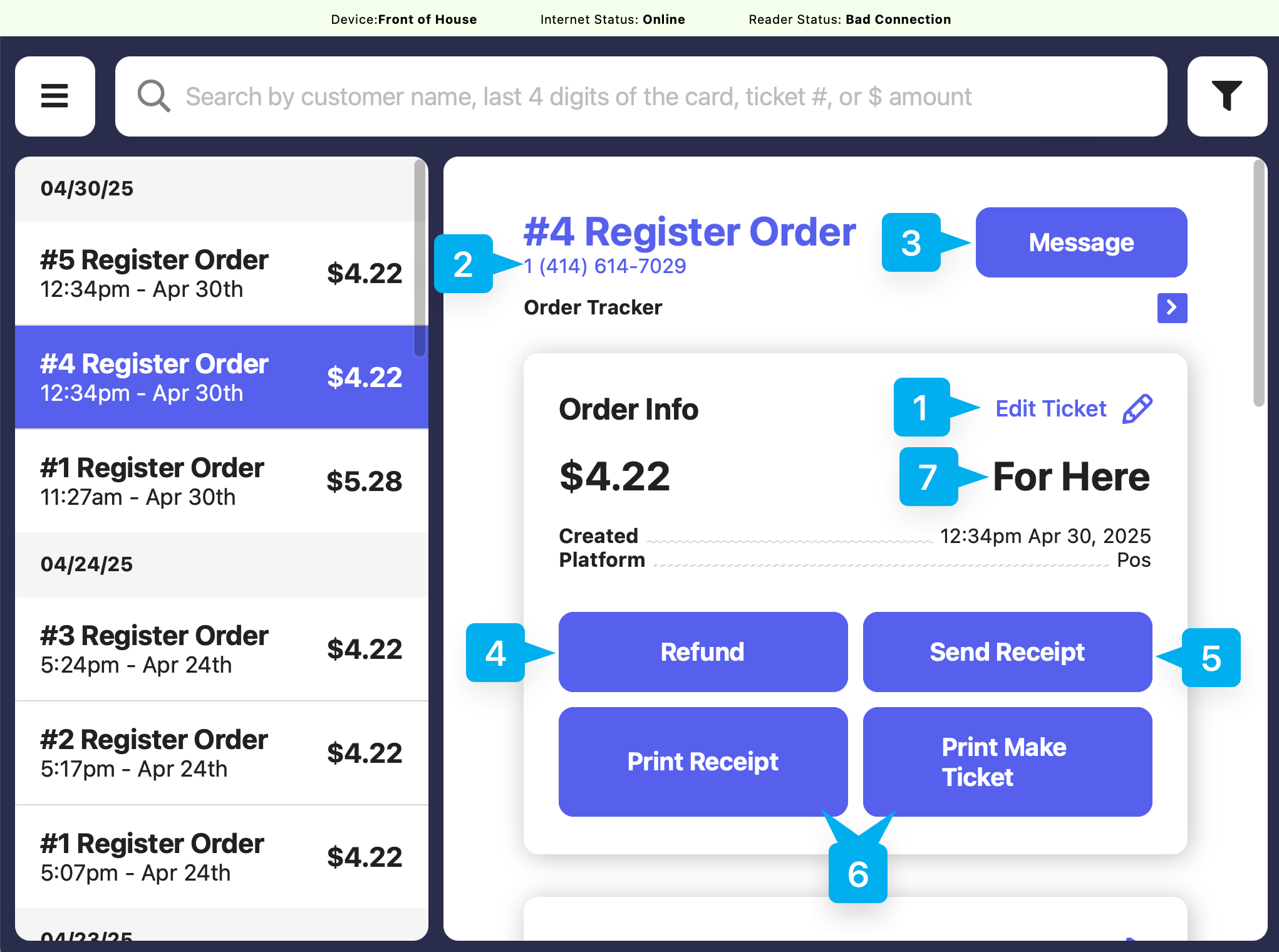 Edit a transactions name, phone number, ticket type, order time, and order type.
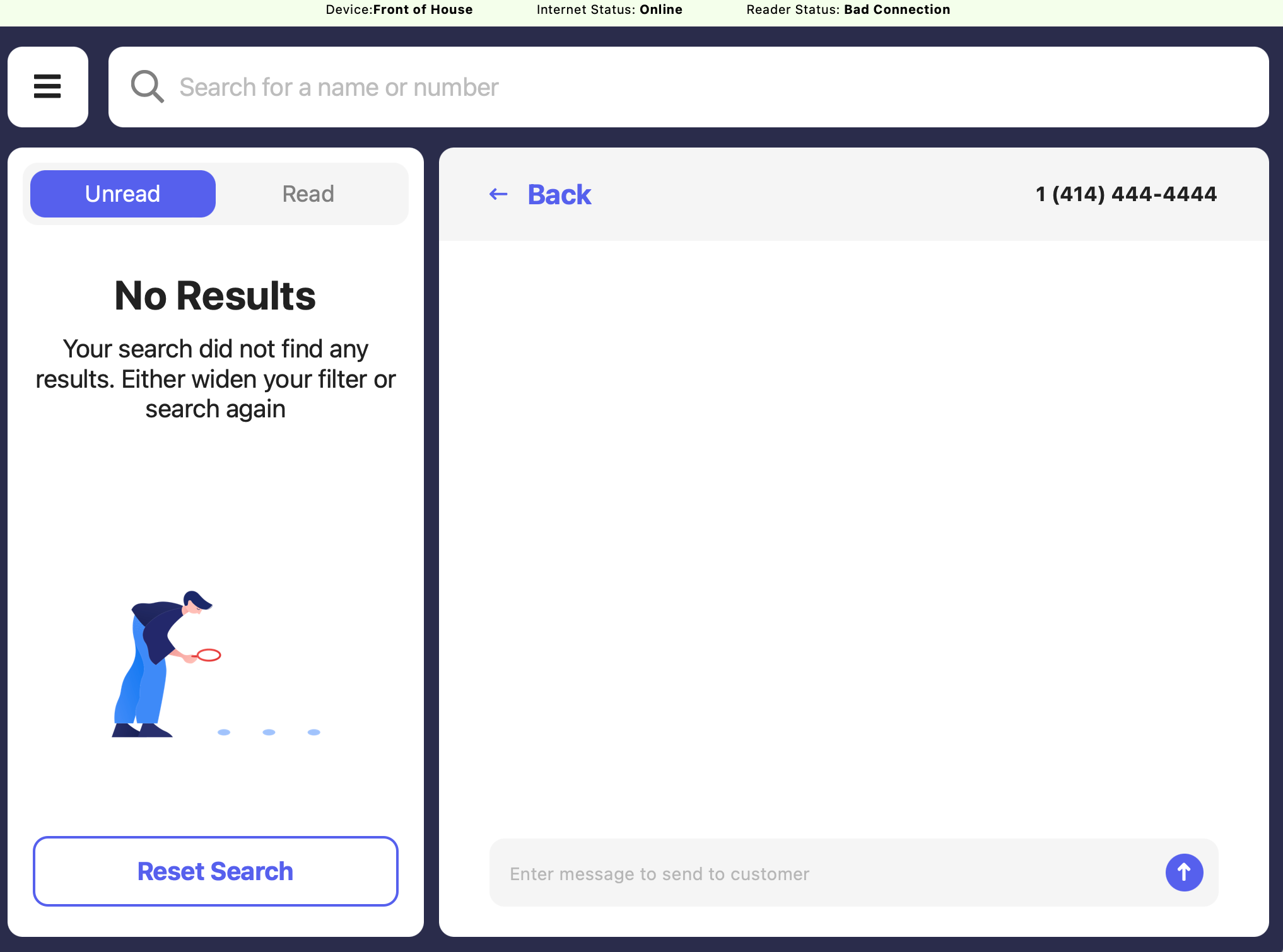
 If a patron has entered their phone number during the checkout process, the patron and their phone number will be linked here
If a patron has entered their phone number during the checkout process, send the patron a message directly to their phone.
If a patron has entered their phone number during the checkout process, the patron and their phone number will be linked here
If a patron has entered their phone number during the checkout process, send the patron a message directly to their phone.
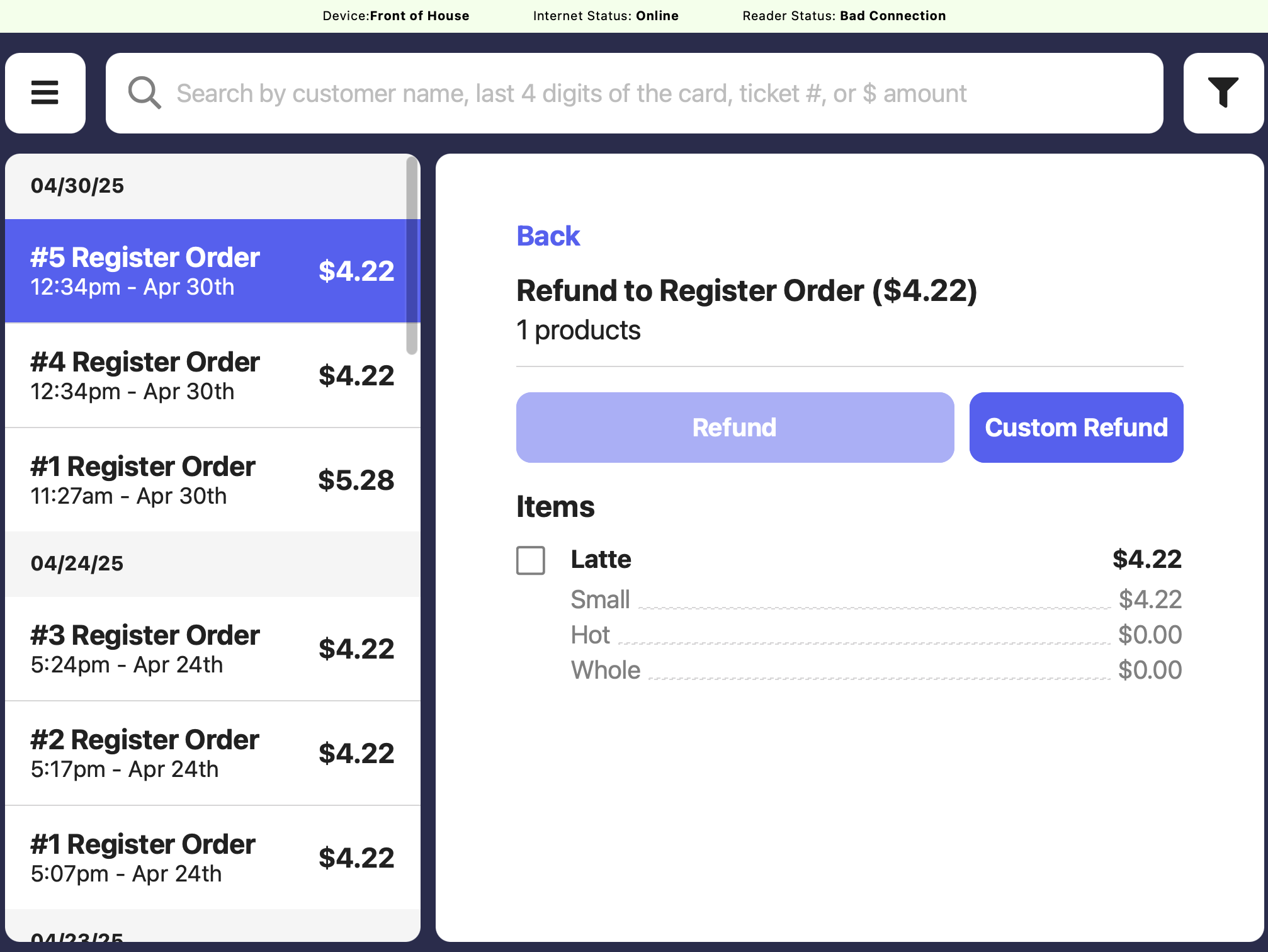
 Choose to refund the entire order, specific products, or a custom dollar amount
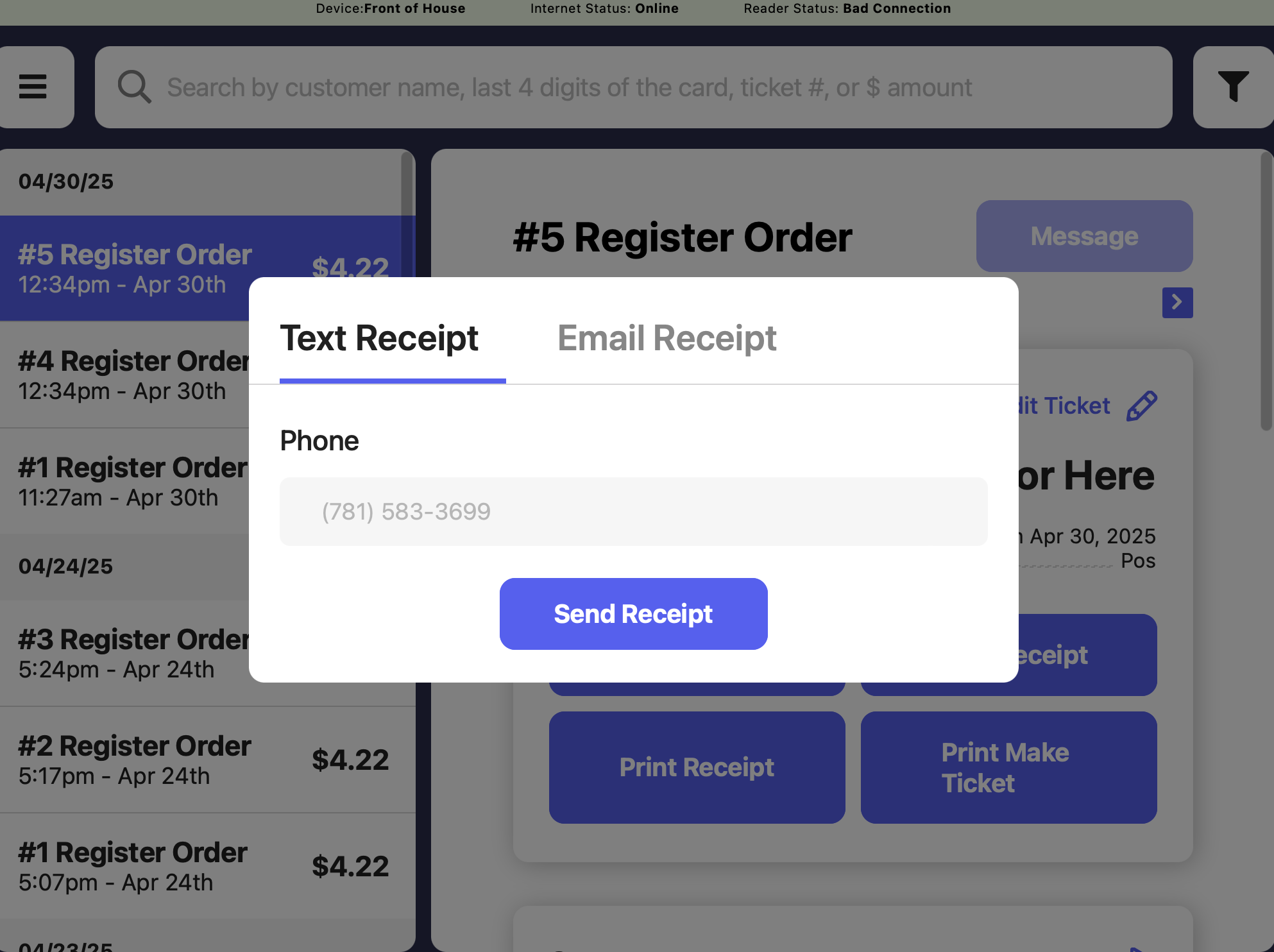
 Resend a receipt via text or email
 Reprint either the receipt or the make ticket for this order, if you have a Dripos printer properly set up to do so
The ticket type for this order (for here, to go, etc)
Reprint either the receipt or the make ticket for this order, if you have a Dripos printer properly set up to do so
The ticket type for this order (for here, to go, etc)
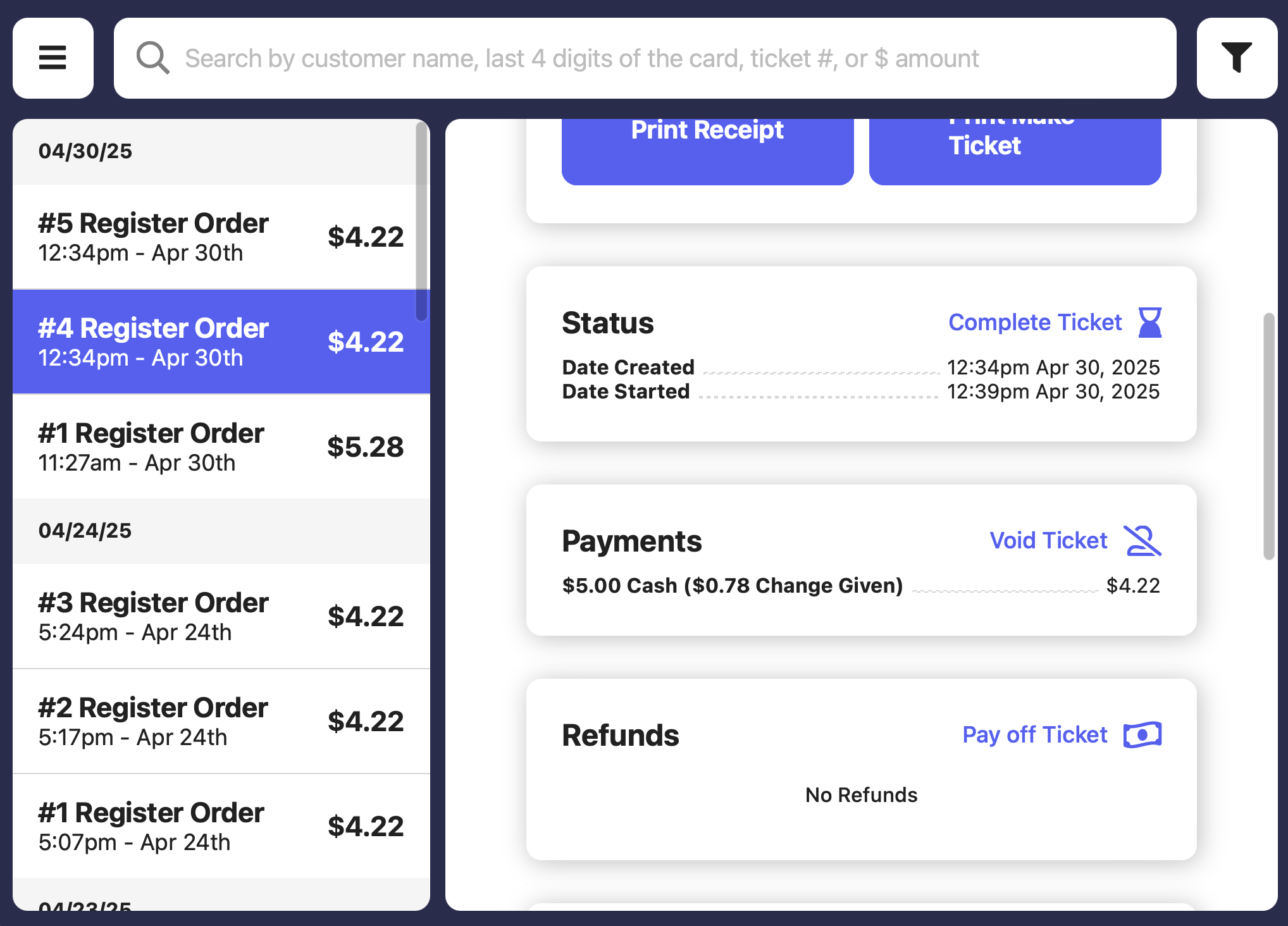 View and adjust the order status from date created, to started, to completed!
View the payment method details for this order.
Press **Void** to both refund and cancel the entire transaction
View any refunds for this order
View and adjust the order status from date created, to started, to completed!
View the payment method details for this order.
Press **Void** to both refund and cancel the entire transaction
View any refunds for this order
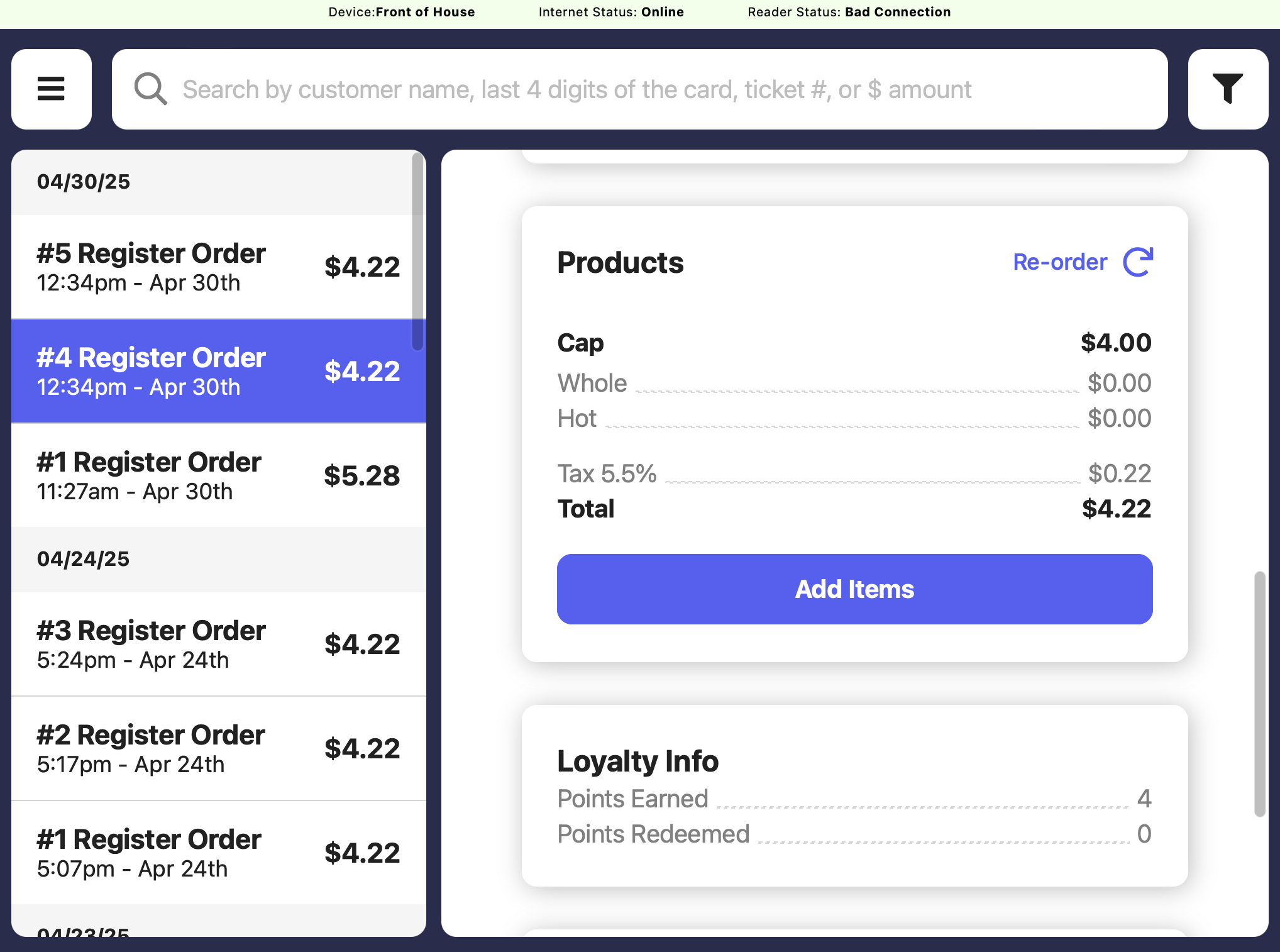 View the products ordered and reorder the same products, creating a new order.
View the loyalty points earned and redeemed for this order, if applicable.
After a transaction is complete, loyalty points earned and redeemed as well as the patron attached cannot be changed.
Adjust the points on a patron profile by navigating to the **tribar** in the upper left screen corner > **Patrons** > search for the patron > Edit Patron Info > Points
View the products ordered and reorder the same products, creating a new order.
View the loyalty points earned and redeemed for this order, if applicable.
After a transaction is complete, loyalty points earned and redeemed as well as the patron attached cannot be changed.
Adjust the points on a patron profile by navigating to the **tribar** in the upper left screen corner > **Patrons** > search for the patron > Edit Patron Info > Points