> ## Documentation Index
> Fetch the complete documentation index at: https://support.dripos.com/llms.txt
> Use this file to discover all available pages before exploring further.
# Customer Facing Tipping
> Learn how to customize tip options shown on the register, card reader, and Dripos ordering platforms
## Tipping Types
Dripos enables shops to configure **Regular Tipping** and **Small Ticket Tipping**.
Default tip options shown to your shop’s customers
Adds flexibility to your tipping workflow by displaying a different set of tipping options to customers with smaller orders
Tip settings can be updated at any time in the Dashboard and Point of Sale settings and automatically take effect across your shop.
### Dashboard
Log in to the Dashboard and click on the Dripos icon at the top right corner > select **Settings** > **Tipping**
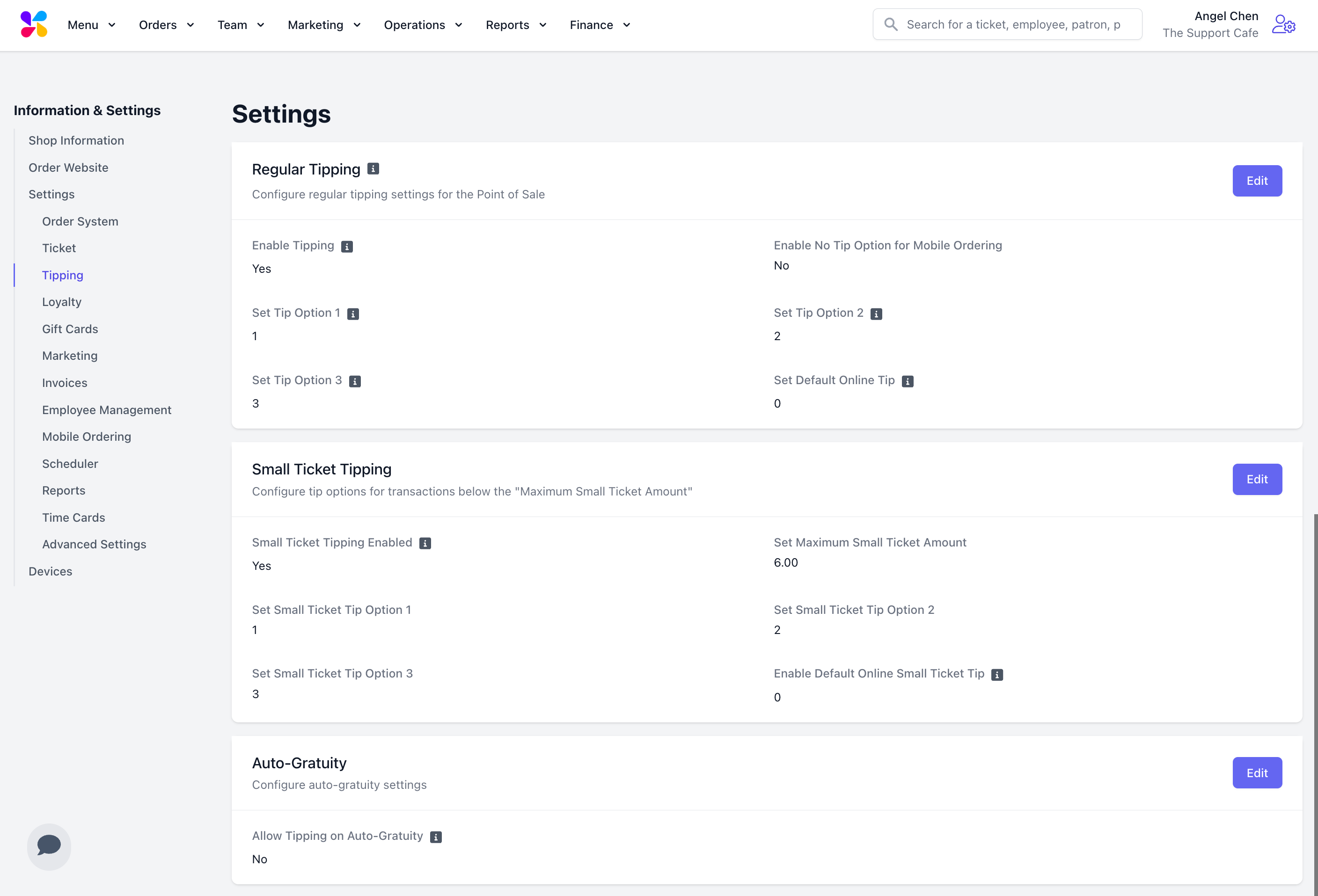 Tip options can be a percentage or dollar amount. To input a percentage, add the **%** symbol after entering the value.
**Enable Tipping:** If enabled, choose default tip amounts to be presented to the customer during checkout.
**Enable No Tip Option for Mobile Ordering:** If enabled, a No Tip option will appear on the mobile ordering checkout page.
**Set Tip Option 1, 2, 3:** Amounts can either be percentages (add the % character to the end of the amount) or dollar amounts. In addition to these amounts, customers can select a custom option.
**Set Default Online Tip:** If enabled, a default tip amount will be set for online orders, overriding preset options
Tip options can be a percentage or dollar amount. To input a percentage, add the **%** symbol after entering the value.
**Small Ticket Tipping Enabled:** If enabled, tickets with smaller total dollar amounts will be presented with different tipping options than than regular tickets.
**Set Maximum Small Ticket Amount:** Tickets below this dollar amount will be presented with small ticket tipping options.
**Set Small Ticket Tip Option 1, 2, 3:** Amounts can either be percentages (add the % character to the end of the amount) or dollar amounts. In addition to these amounts, customers can select a custom option.
**Set Default Online Small Ticket Tip:** If enabled, a default small ticket tip amount will be set for online orders, overriding preset options
**Allow Tipping on Auto-Gratuity:** If enabled, customers will be able to select a tip regardless of whether auto-gratuity has been applied.
### Point of Sale
Log in to the Point of Sale. Press the **tribar (≡)** at the top left of the screen. Press the **settings icon (⚙️)**
Navigate to the **Tipping** section
Tip options can be a percentage or dollar amount. To input a percentage, add the **%** symbol after entering the value.
**Enable Tipping:** If enabled, choose default tip amounts to be presented to the customer during checkout.
**Enable No Tip Option for Mobile Ordering:** If enabled, a No Tip option will appear on the mobile ordering checkout page.
**Set Tip Option 1, 2, 3:** Amounts can either be percentages (add the % character to the end of the amount) or dollar amounts. In addition to these amounts, customers can select a custom option.
**Set Default Online Tip:** If enabled, a default tip amount will be set for online orders, overriding preset options
Tip options can be a percentage or dollar amount. To input a percentage, add the **%** symbol after entering the value.
**Small Ticket Tipping Enabled:** If enabled, tickets with smaller total dollar amounts will be presented with different tipping options than than regular tickets.
**Set Maximum Small Ticket Amount:** Tickets below this dollar amount will be presented with small ticket tipping options.
**Set Small Ticket Tip Option 1, 2, 3:** Amounts can either be percentages (add the % character to the end of the amount) or dollar amounts. In addition to these amounts, customers can select a custom option.
**Set Default Online Small Ticket Tip:** If enabled, a default small ticket tip amount will be set for online orders, overriding preset options
**Allow Tipping on Auto-Gratuity:** If enabled, customers will be able to select a tip regardless of whether auto-gratuity has been applied.
### Point of Sale
Log in to the Point of Sale. Press the **tribar (≡)** at the top left of the screen. Press the **settings icon (⚙️)**
Navigate to the **Tipping** section
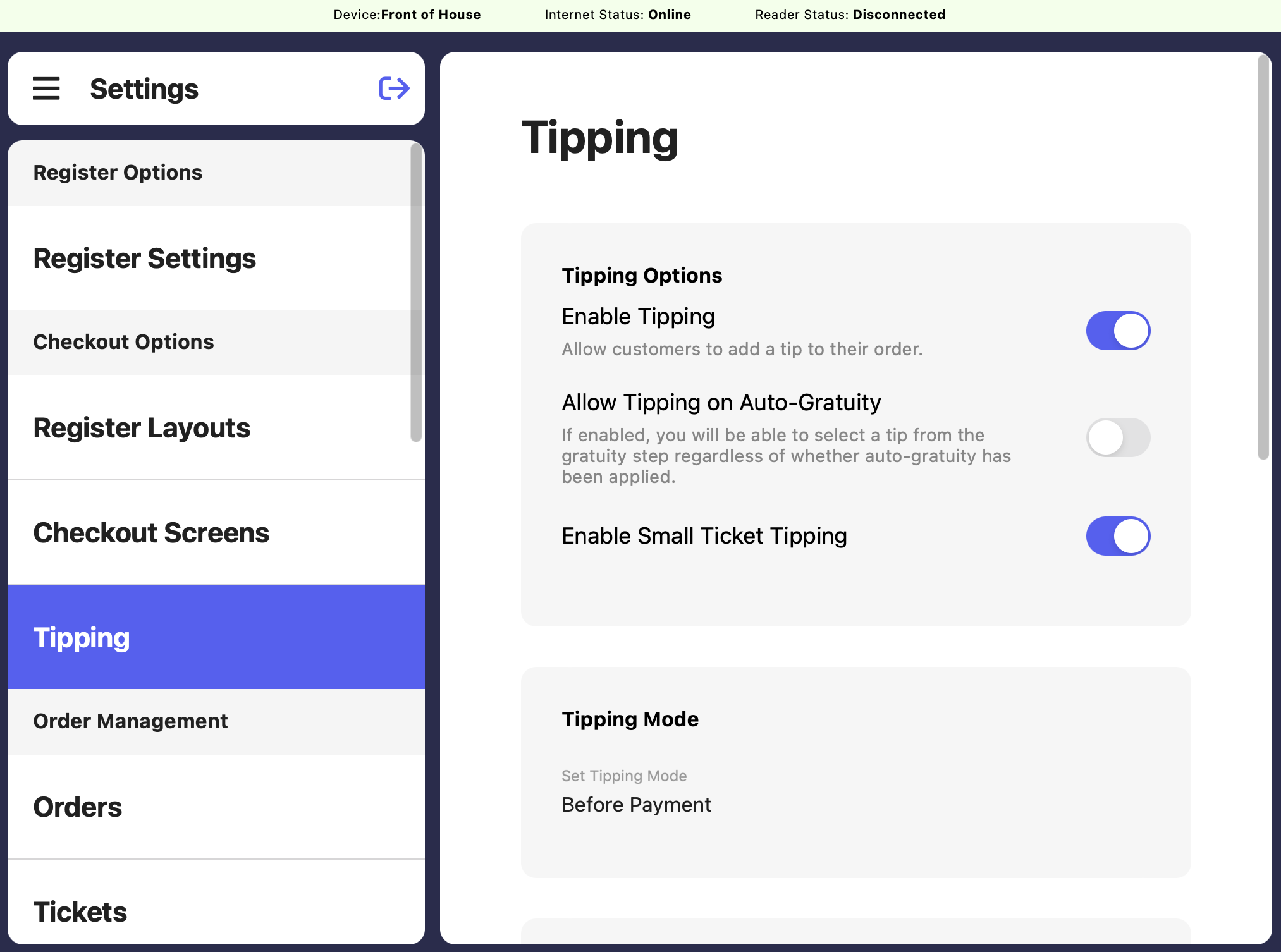 If disabled, customers will not be able to tip on their order
If enabled, customers will be able to tip regardless of whether auto-gratuity has been applied.
If enabled, small ticket tipping will take place effective immediately
* **Set Maximum Small Ticket Amount:** Tickets below this dollar amount will be presented with small ticket tipping options.
* **Set Small Ticket Tip Option 1, 2, 3:** Amounts can either be percentages (add the % character to the end of the amount) or dollar amounts. In addition to these amounts, customers can select a custom option
* **After Payment** will display tip options after payment has been taken for a transaction.
* **Before Payment** will display tip options before payment has been taken for a transaction. Tipping will appear after a payment method is selected.
If disabled, customers will not be able to tip on their order
If enabled, customers will be able to tip regardless of whether auto-gratuity has been applied.
If enabled, small ticket tipping will take place effective immediately
* **Set Maximum Small Ticket Amount:** Tickets below this dollar amount will be presented with small ticket tipping options.
* **Set Small Ticket Tip Option 1, 2, 3:** Amounts can either be percentages (add the % character to the end of the amount) or dollar amounts. In addition to these amounts, customers can select a custom option
* **After Payment** will display tip options after payment has been taken for a transaction.
* **Before Payment** will display tip options before payment has been taken for a transaction. Tipping will appear after a payment method is selected.