> ## Documentation Index
> Fetch the complete documentation index at: https://support.dripos.com/llms.txt
> Use this file to discover all available pages before exploring further.
# Delayed Tipping
> Learn how to set up delayed tipping to allow restaurant-style tipping on customer receipts
## Set Up Delayed Tipping Ticket Type
**Delayed Tipping** ticket types can be used to capture tips added on paper receipts after payment. Shops can create multiple ticket types with **Delayed Tipping** to support For Here, To Go, Dine-In, and other workflows as needed.
On the Dashboard, navigate to **Orders** > **Checkout Flow** > **Ticket Types**
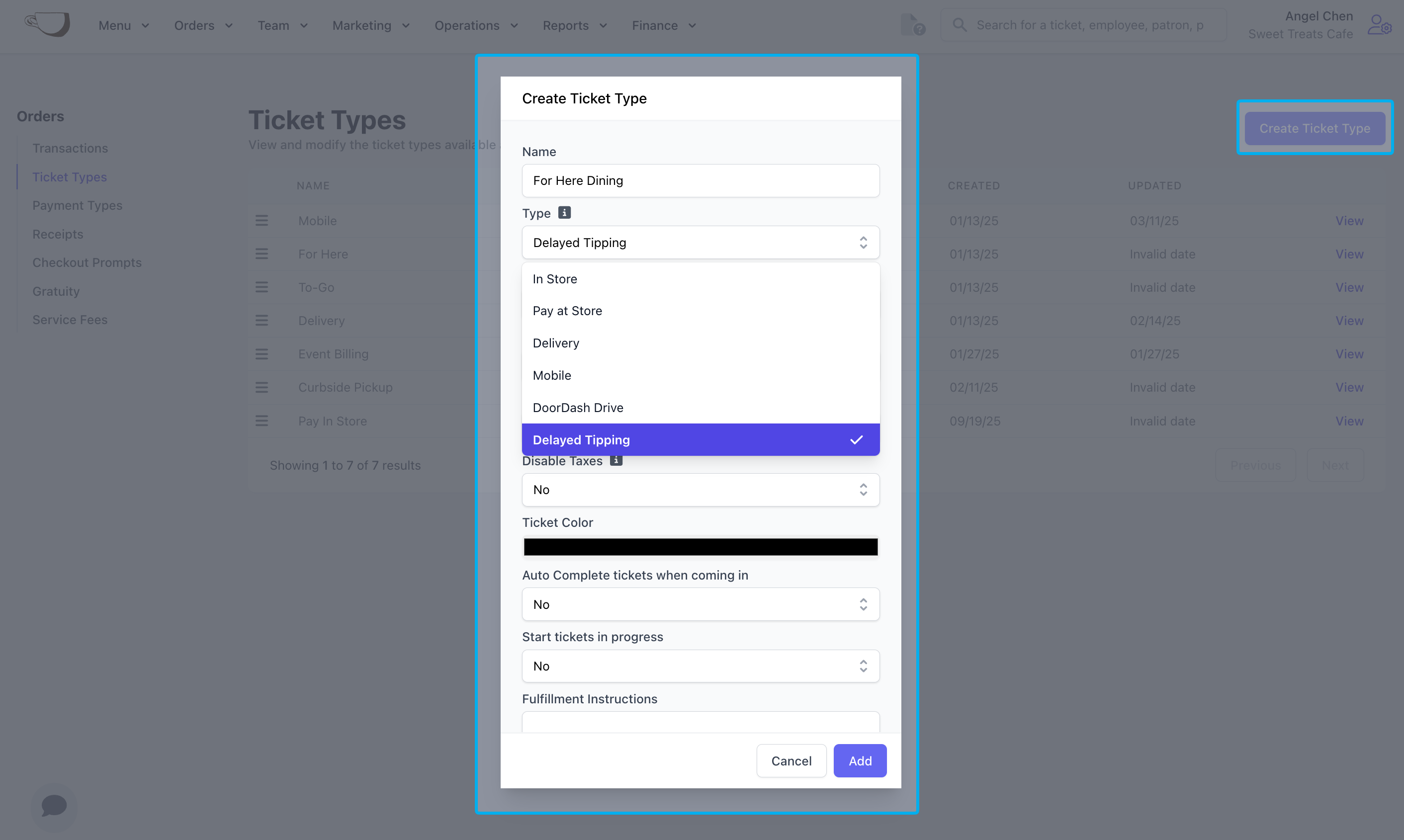
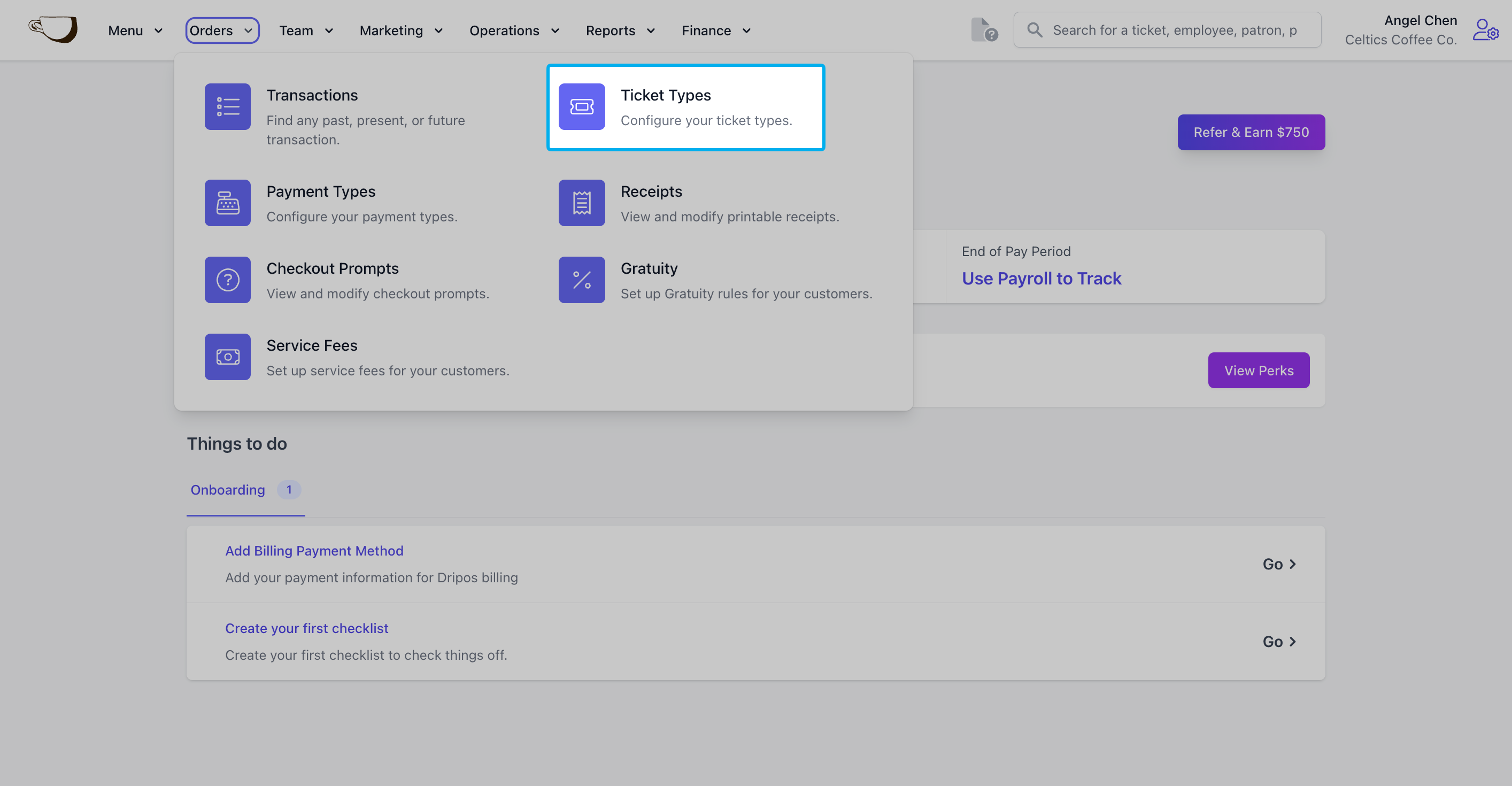 Click **Create Ticket Type** and select **Delayed Tipping** as the type. Adjust the settings as needed before clicking **Add**.
 ## Create New Receipt Template
Create a new receipt template to use for delayed tipping tickets. This allows customers to write in their desired tip amount, total, and sign.
## Create New Receipt Template
Create a new receipt template to use for delayed tipping tickets. This allows customers to write in their desired tip amount, total, and sign.
## Set Up Printer Filter
On the Point of Sale, navigate to **Settings** > **Printers** and select **Add Printing Rule**.
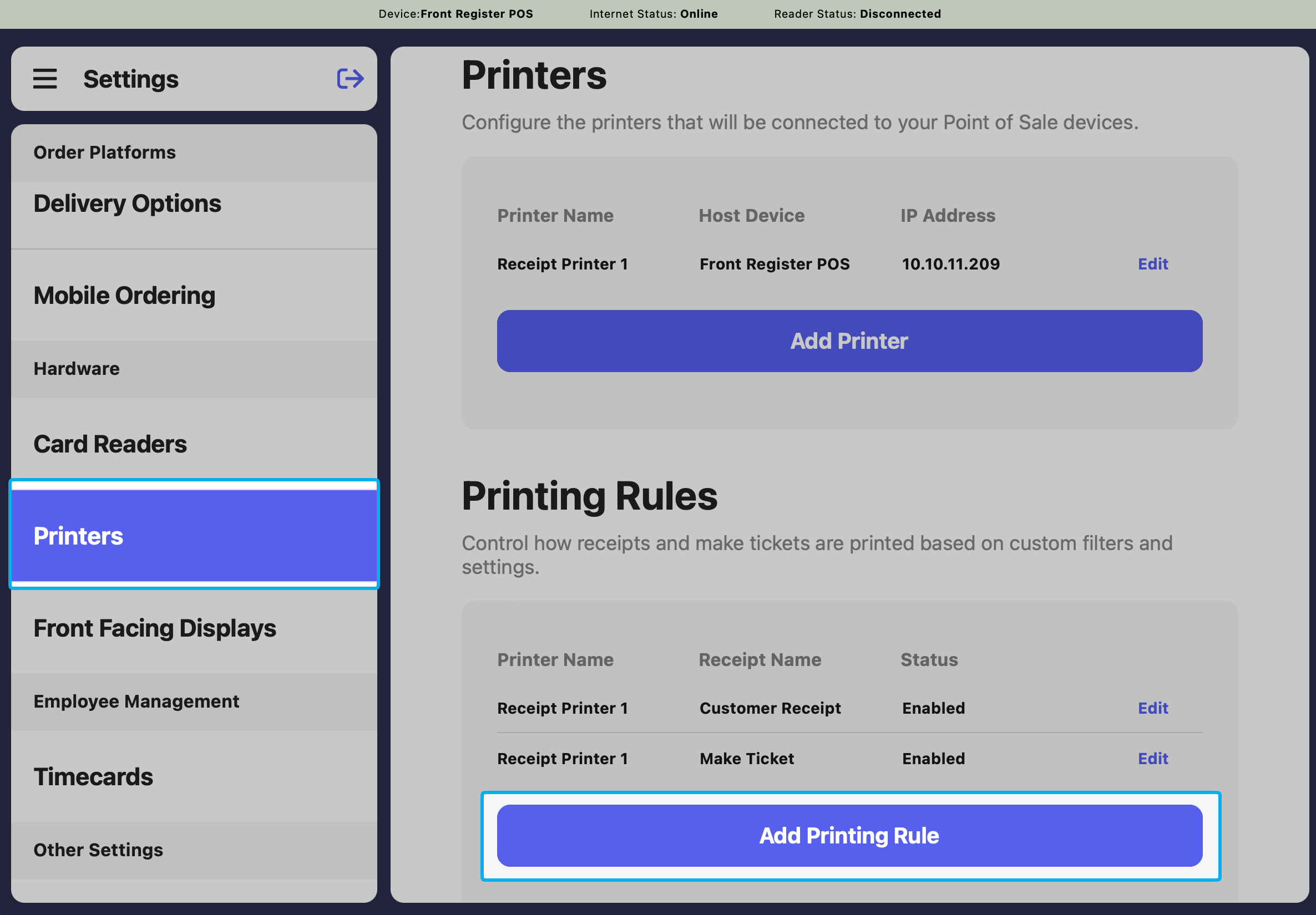 Choose the delayed tipping receipt as the receipt template and select which printer it should print from. Adjust the other settings as needed before clicking **Edit Filters**.
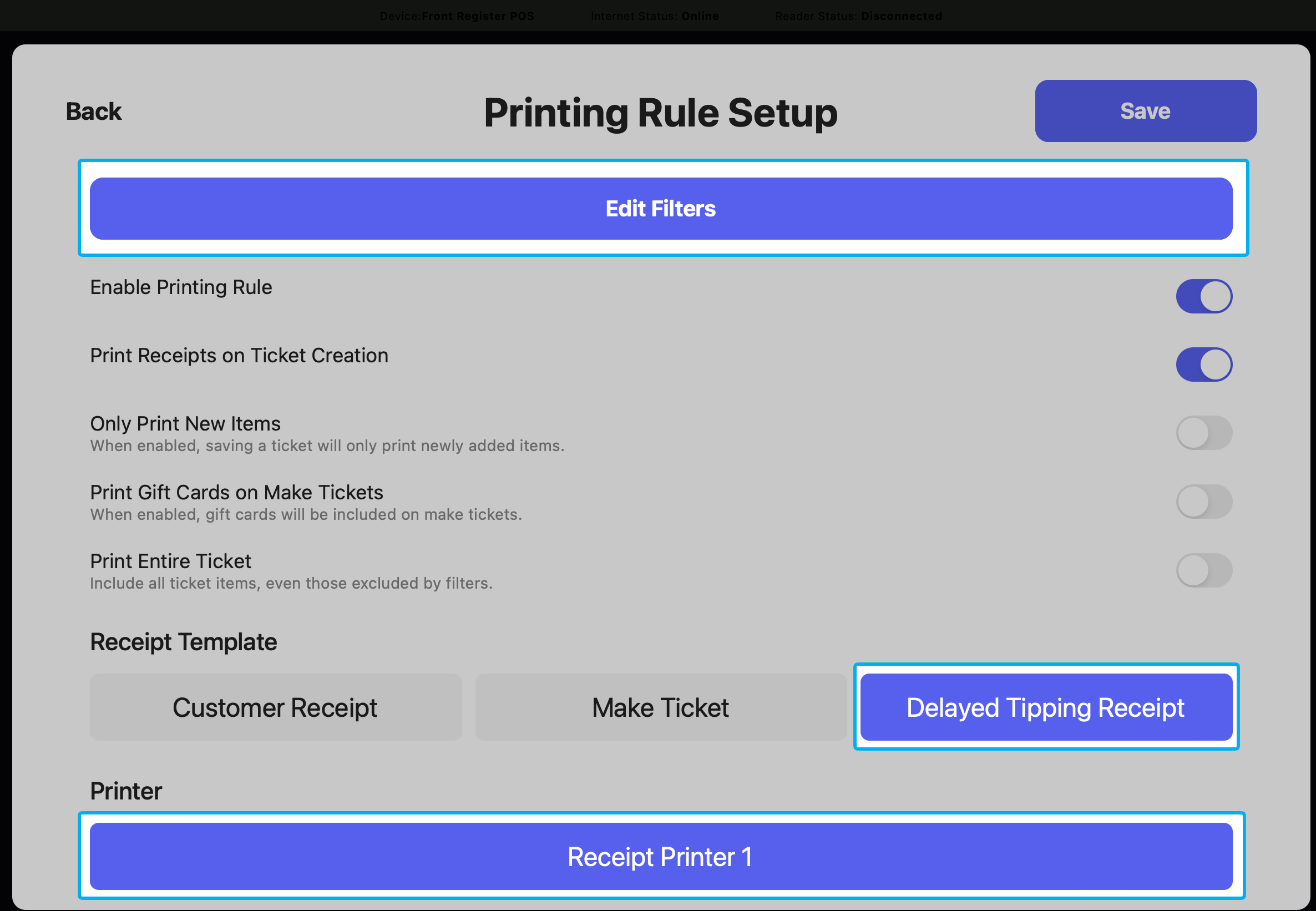 Select **Edit Filters** and add your delayed tipping ticket type to **Filter By Ticket Type**
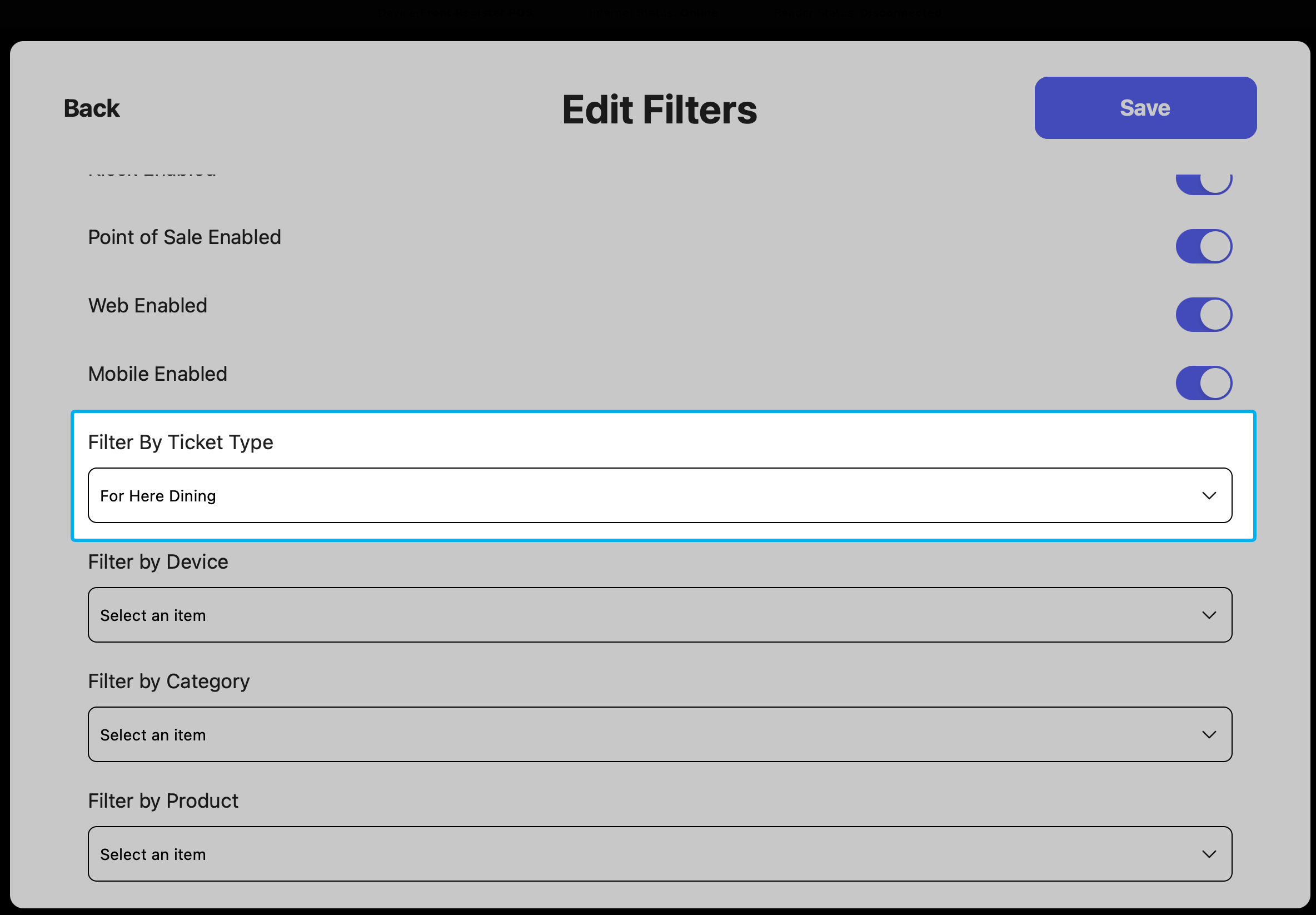 **Save** the filters and **Save** the printer rule.
## Delayed Tipping on the POS
Charge a customer for their order and select the delayed tipping ticket type.
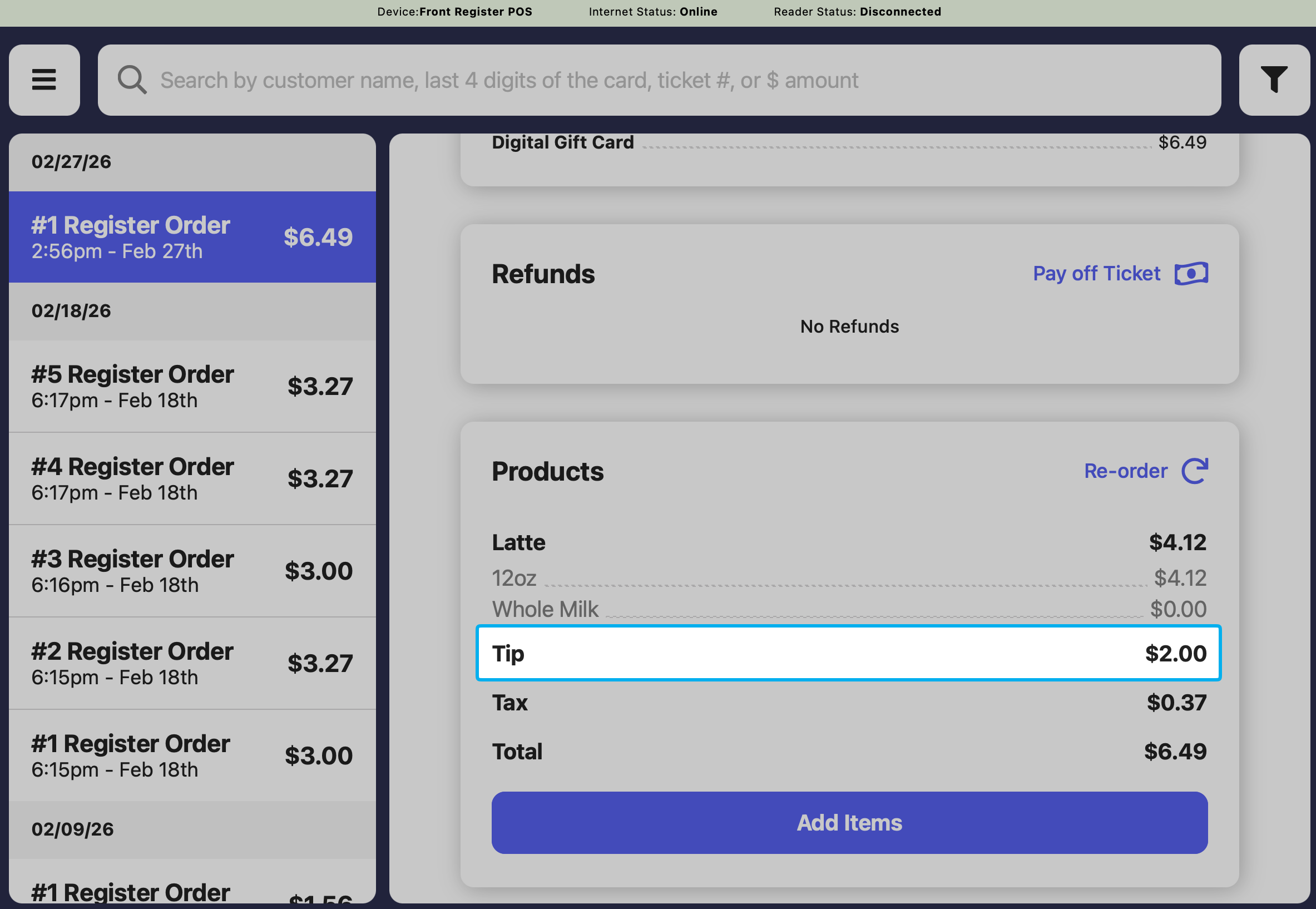
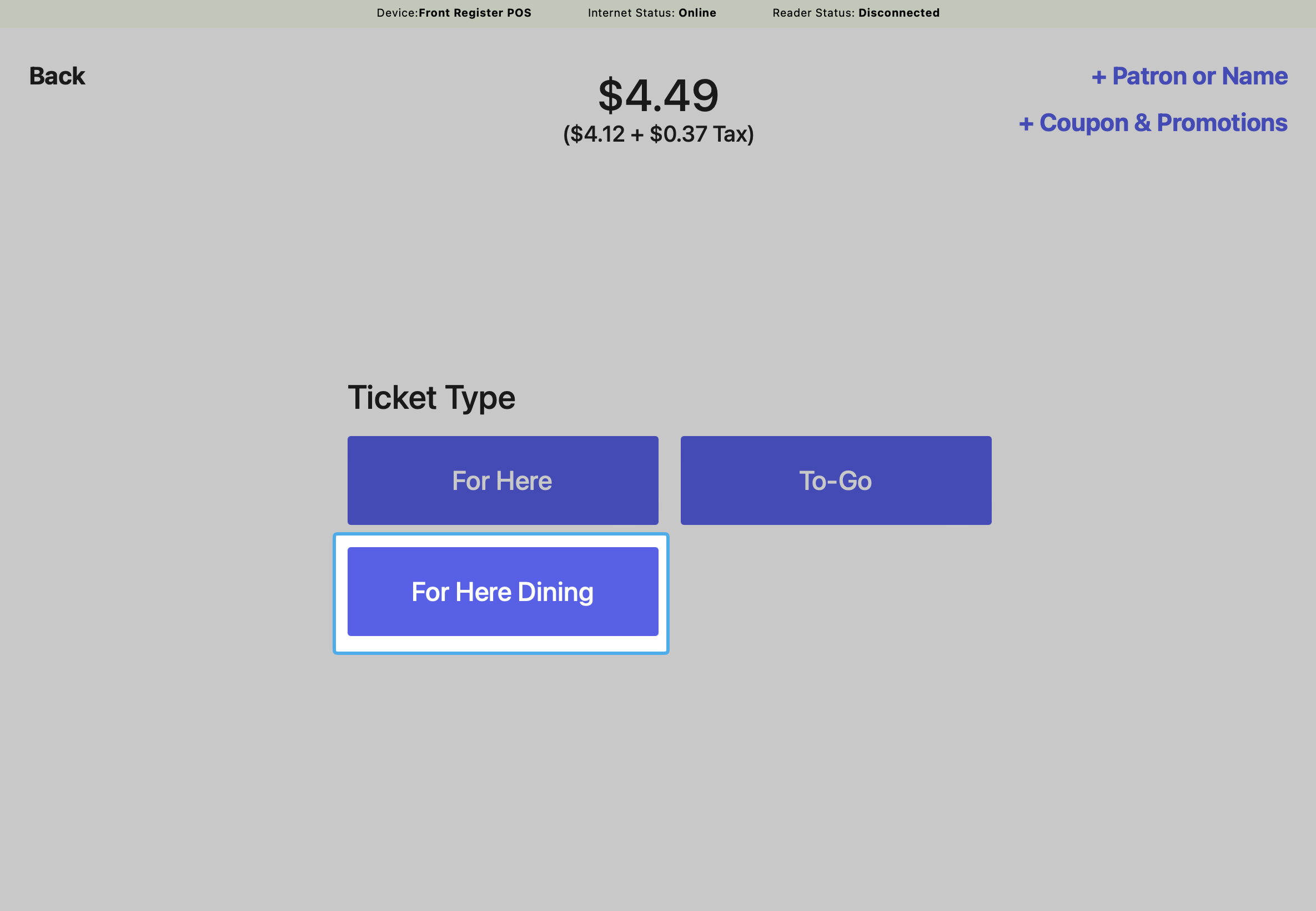 After the customer fills out the receipt fields, go to the **Transactions** tab on the POS to update the tip amount.
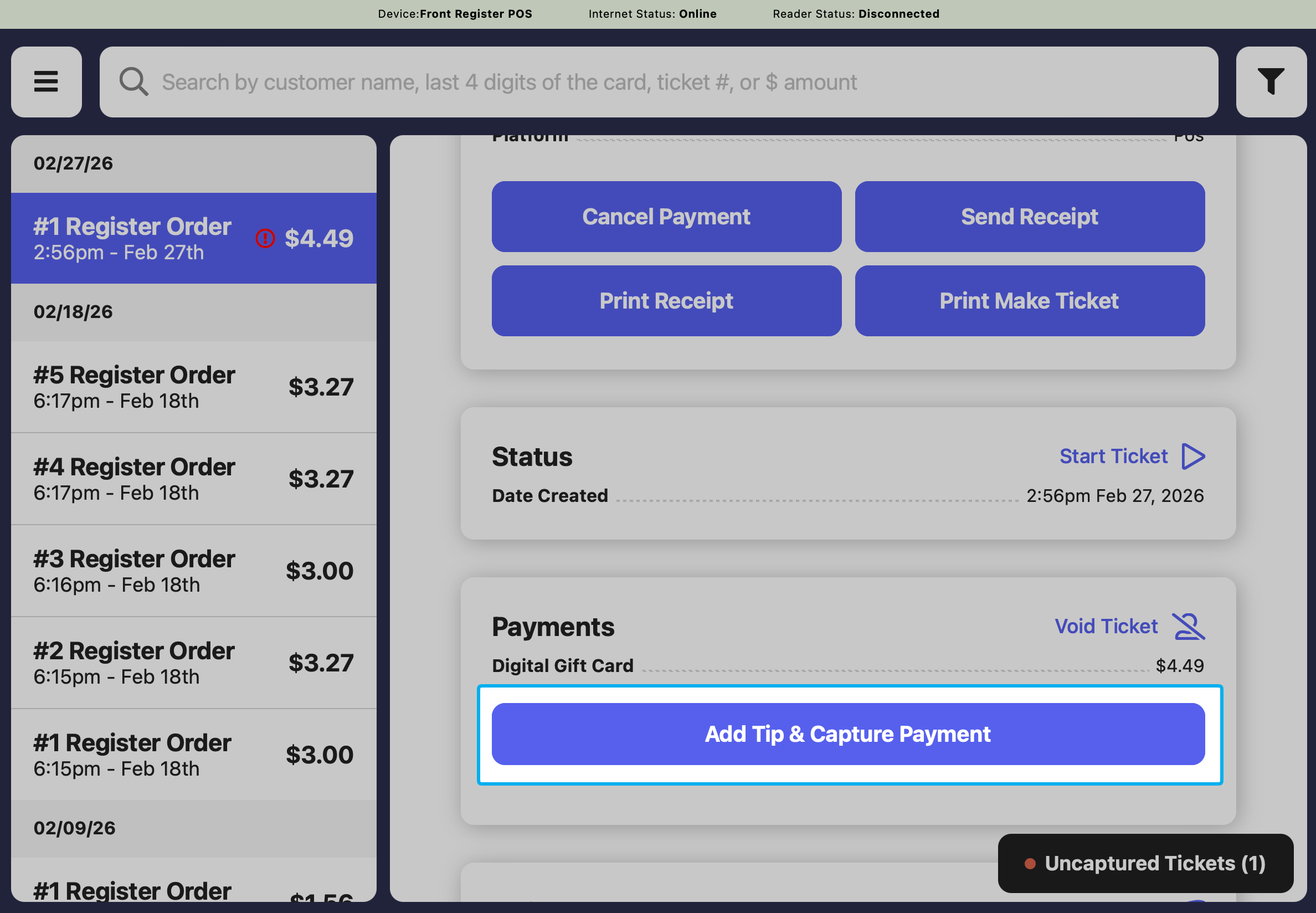 Click the **Add Tip & Capture Payment** button to enter the tip amount.
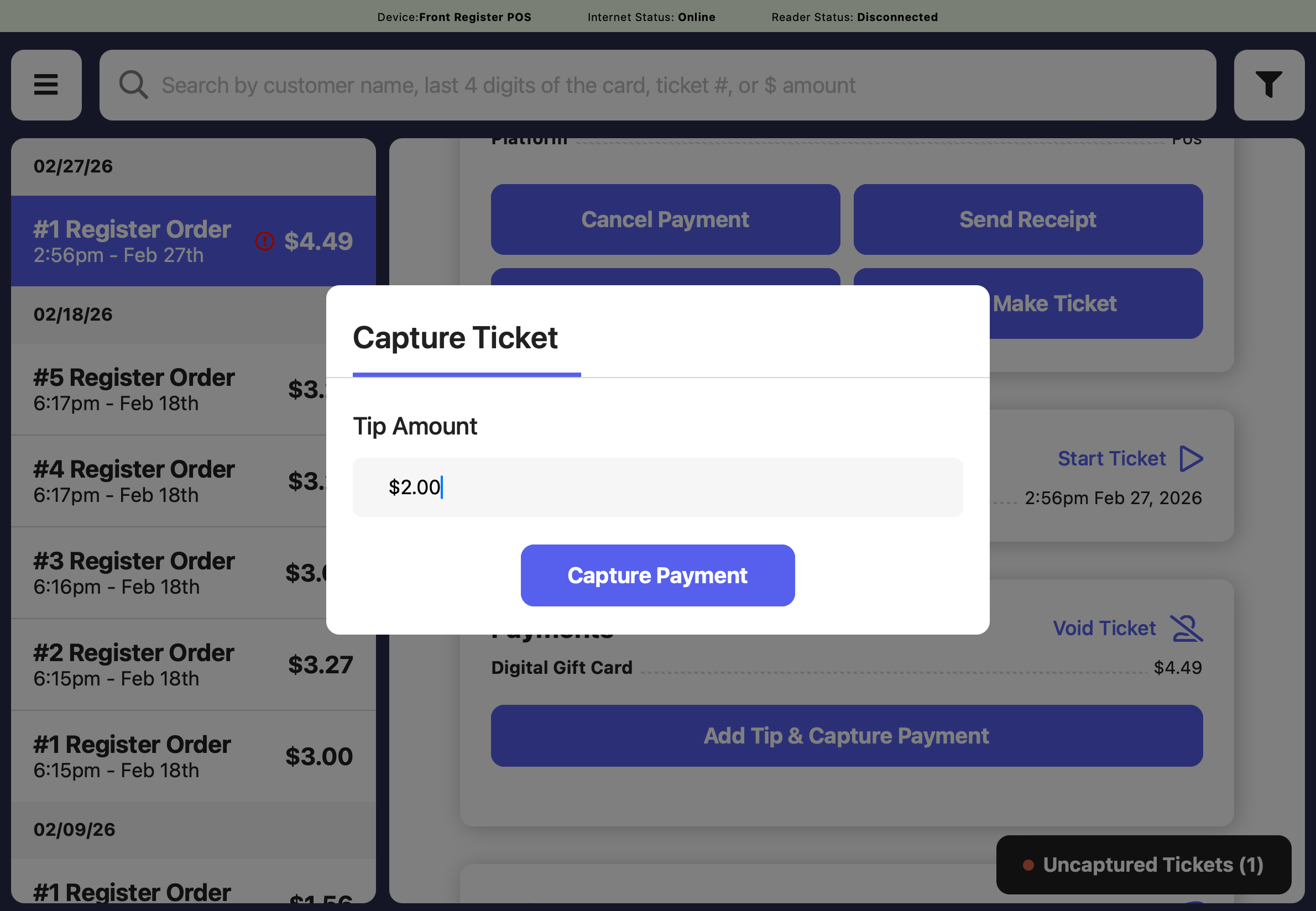 The transaction will reflect the new total, including the tip.