> ## Documentation Index
> Fetch the complete documentation index at: https://support.dripos.com/llms.txt
> Use this file to discover all available pages before exploring further.
# Employee Tip Payouts
> Learn how to automatically calculate tips for payouts in cash or via payroll
## Cash Tip Payouts
Dripos can automatically calculate the total tips earned per shift by each employee. Using the cash tip payouts feature, you can easily determine how much each employee should take home upon clocking out.
### Important FAQs
This workflow is specifically for shops paying out tips owed to employees in cash at the end of each shift. It should only be used if tips are split evenly between clocked-in employees, known as tip splitting by transaction in Dripos.
*For example, if only one barista is clocked in, all tips received during this shift will go to that employee. When a second barista clocks in, all subsequent tips will be split evenly between both clocked-in employees.*
Learn more about tip splitting methods [here](/orders/tipping/tipping-basics).
Dripos calculates tips owed to employees based on time cards. Employees with tip-enabled roles join the tipping pool upon clock in. Upon clock out, Dripos calculates their portion of tips to be paid out in cash for that shift.
A manager or owner is responsible for confirming these tip payouts and distributing the amount due in cash.
Cash tips recorded as Tip Bucket Payins are included in cash tip payouts to employees. For this specific workflow, Tip Buckets must be recorded before **each** shift change (before an employee clocks in or out). Learn more about Tip Buckets [here](operations/cash/cash-tipbuckets).
* Dripos calculates tip payouts based on existing time cards. If time cards are missing or incorrect at the time of a tip payout, employees may be under- or over-awarded tips at the end of their shift.
* Dripos uses a **credit and debit system** to correctly redistribute tips if time cards are added or edited after a tip payout has occurred. This calculation evens out the incorrectly paid out tips at the time of the next clock out by crediting employees that are owed more tips, or debiting employees that were overpaid tips.
* These credits and debits are tracked on each time card and can be viewed on the Web Dashboard.
We highly recommend making corrections to time cards as soon as they are noticed. This allows the credit and debit system to correctly redistribute tips to each impacted employee upon clocking out of their next shift.
**Credit and Debit System Example:**
* Veronica and Betty are scheduled for a shift together, however Veronica forgets to clock in.
* Upon clock out, the system does not account for Veronica due to the missing time card and Betty is overpaid tips.
* The manager creates the missing time card for Veronica on the Web Dashboard.
* Dripos accounts for the retroactively created time card and recalculates the tips owed to each employee on that shift.
* Betty clocks in for her shift the next day and upon clock out, the tips she was overpaid the previous day is **debited** (subtracted) from the tip payout she is owed. Veronica clocks in for her shift the next day and upon clock out, the tips she was not paid from the previous day is **credited** (added) to the tip payout she is owed.
If your shop uses Dripos payroll and cash tip payouts, you can set your payroll settings to automatically report these payouts for tax purposes.
For this specific workflow, turn **Calculate Tips with Dripos** to Yes. The **Tip Calculation Method** must be By Transaction, with **Tip Payout** set to Cash Tips. Learn more about payroll settings [here](finance/payroll/manage/payroll-settings).
Dripos payroll reflects the cash tips each employee should have taken home based on existing time cards within the pay period. It is the responsibility of the employer to confirm these numbers match the actual amount the employee has taken home.
If there are any pending credits or debits, this can only be applied the next time the affected employee clocks out of their shift.
### Setup Payouts
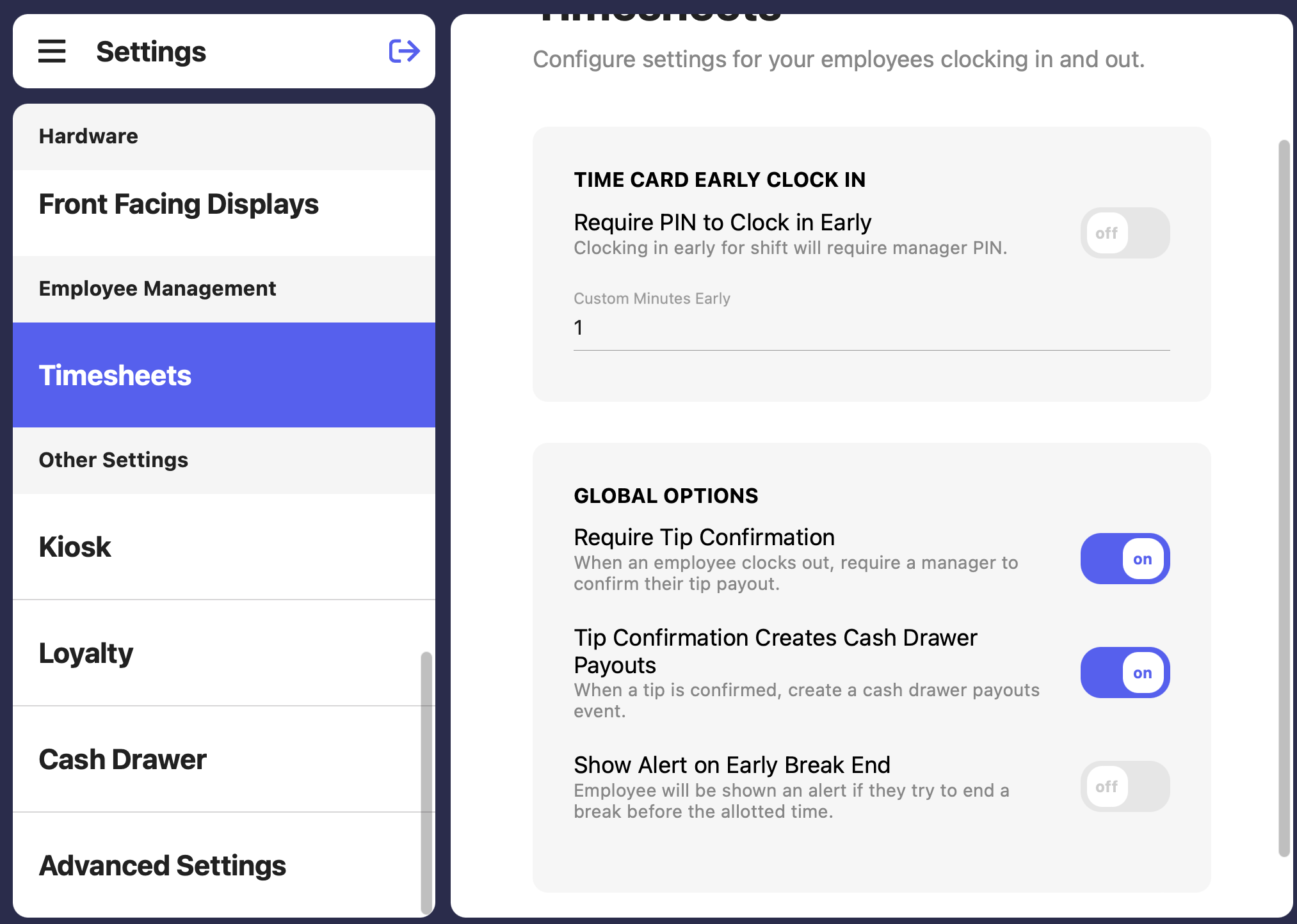
On the Point of Sale, press the **tribar (≡)** at the top left of the screen, press the **settings icon (⚙️)**
Toggle **on** the following settings:
* **Require Tip Confirmation:** Upon clock out, employees are notified of how much in tips they are owed from that shift.
* **Tip Confirmation Creates Cash Drawer Payout:** When an employee confirms the tips received at the end of a shift, a payout is automatically recorded to balance out the open cash drawer.
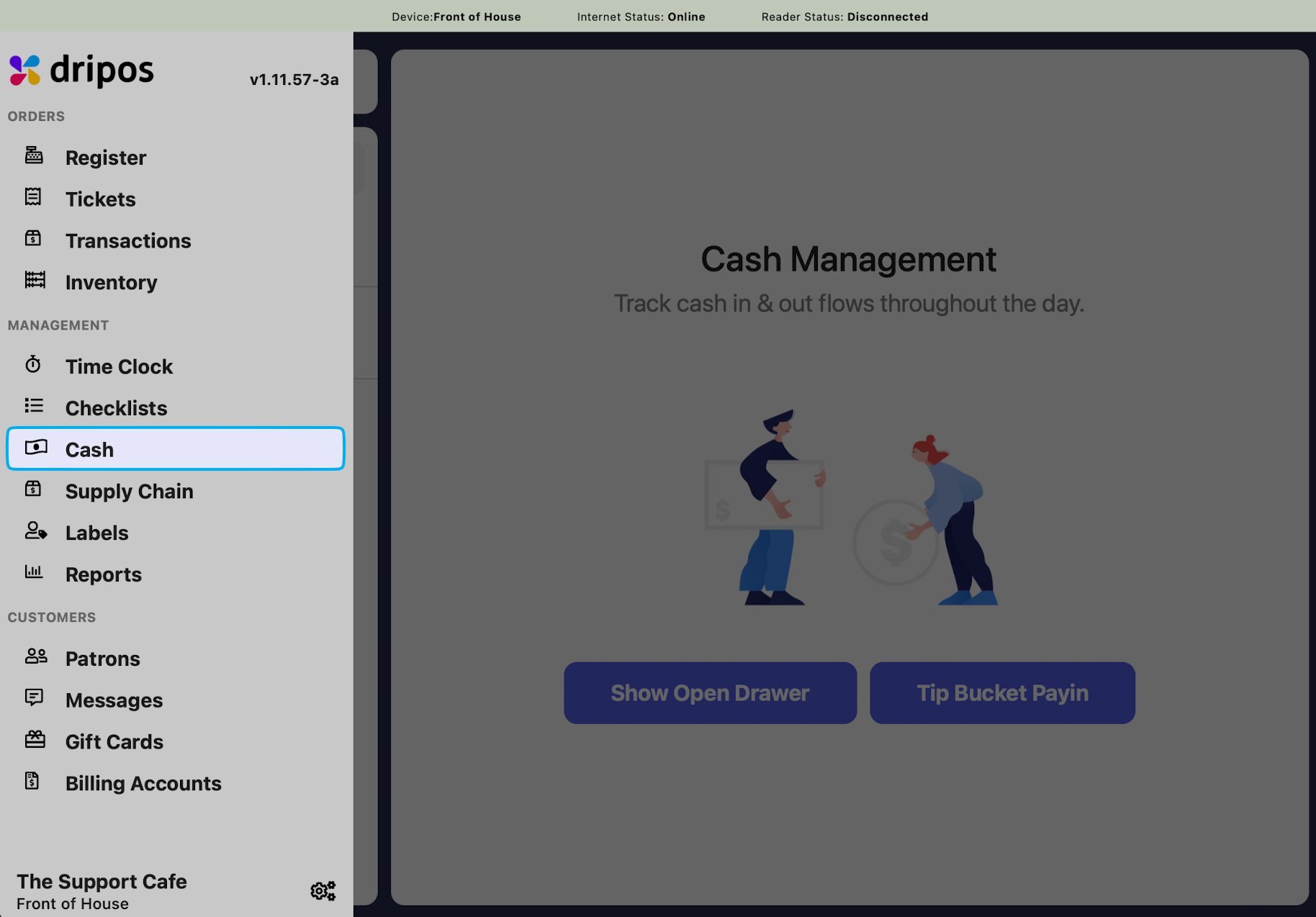
 On the Point of Sale, press the **tribar (≡)** at the top left of the screen and navigate to the **Cash** tab
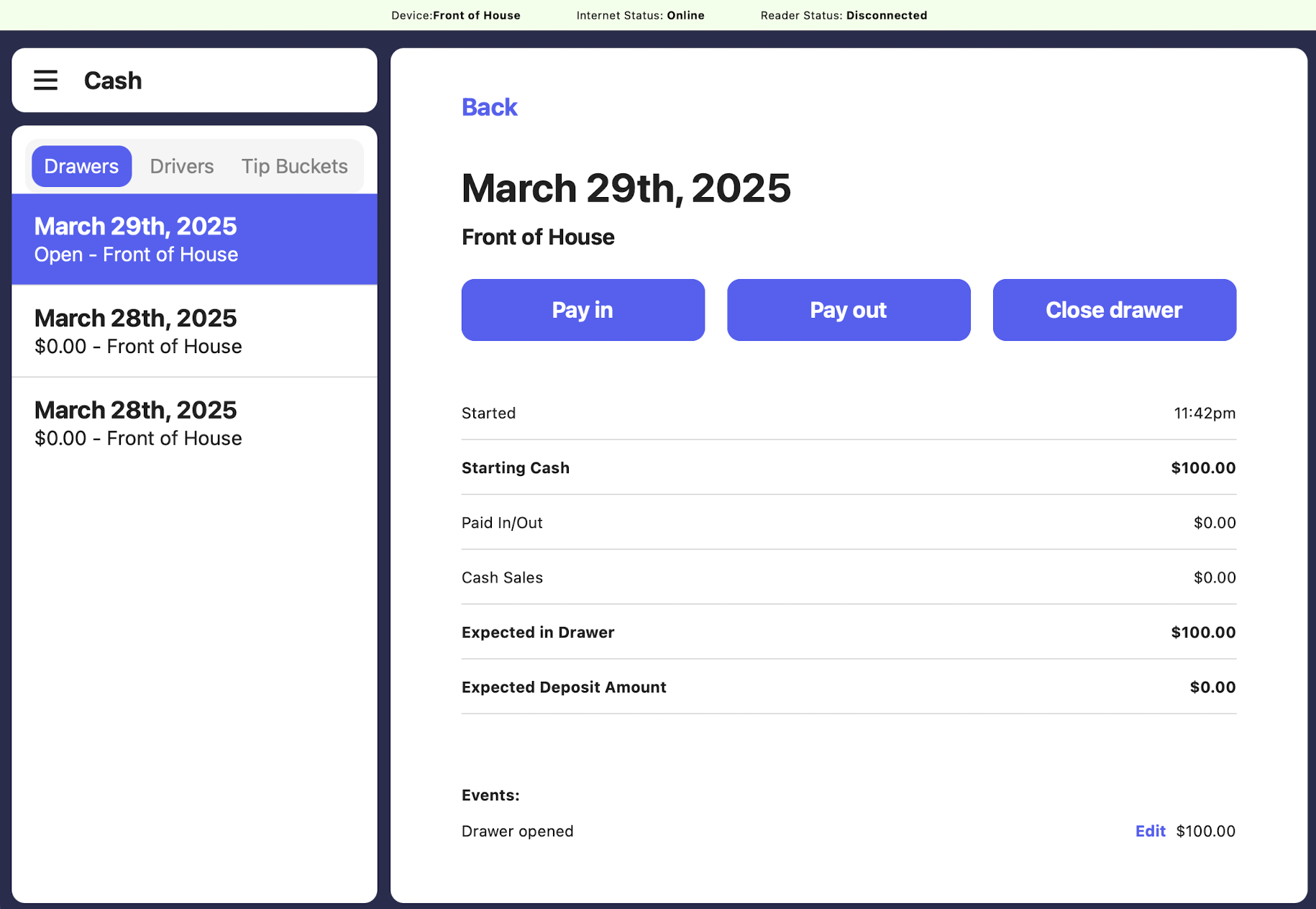
 Confirm there is an Open drawer for the day to ensure all cash flow is properly tracked
 Press the **tribar (≡)** at the top left of the screen and navigate to the **Time Clock** tab
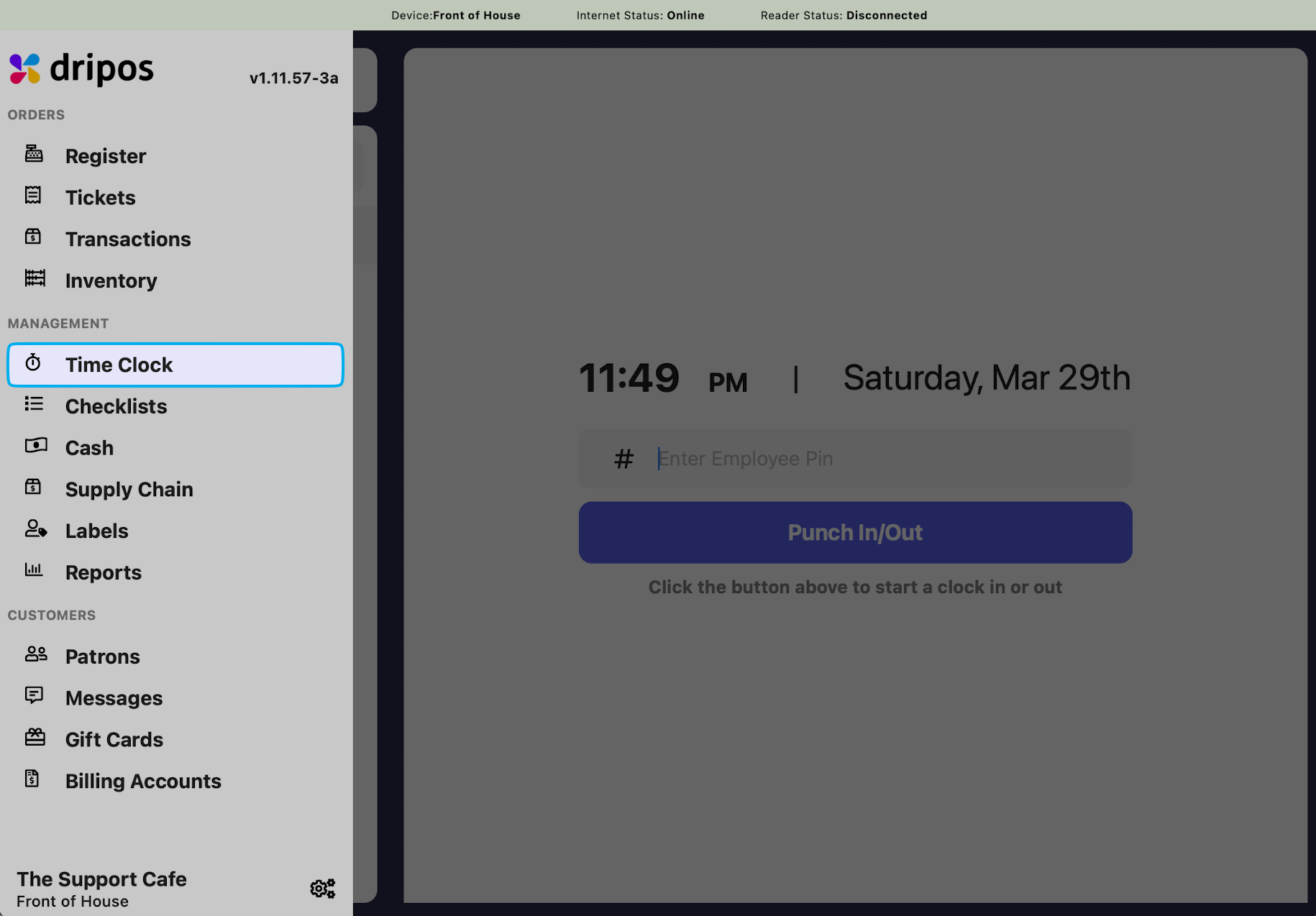 Employee will clock out at the end of their shift
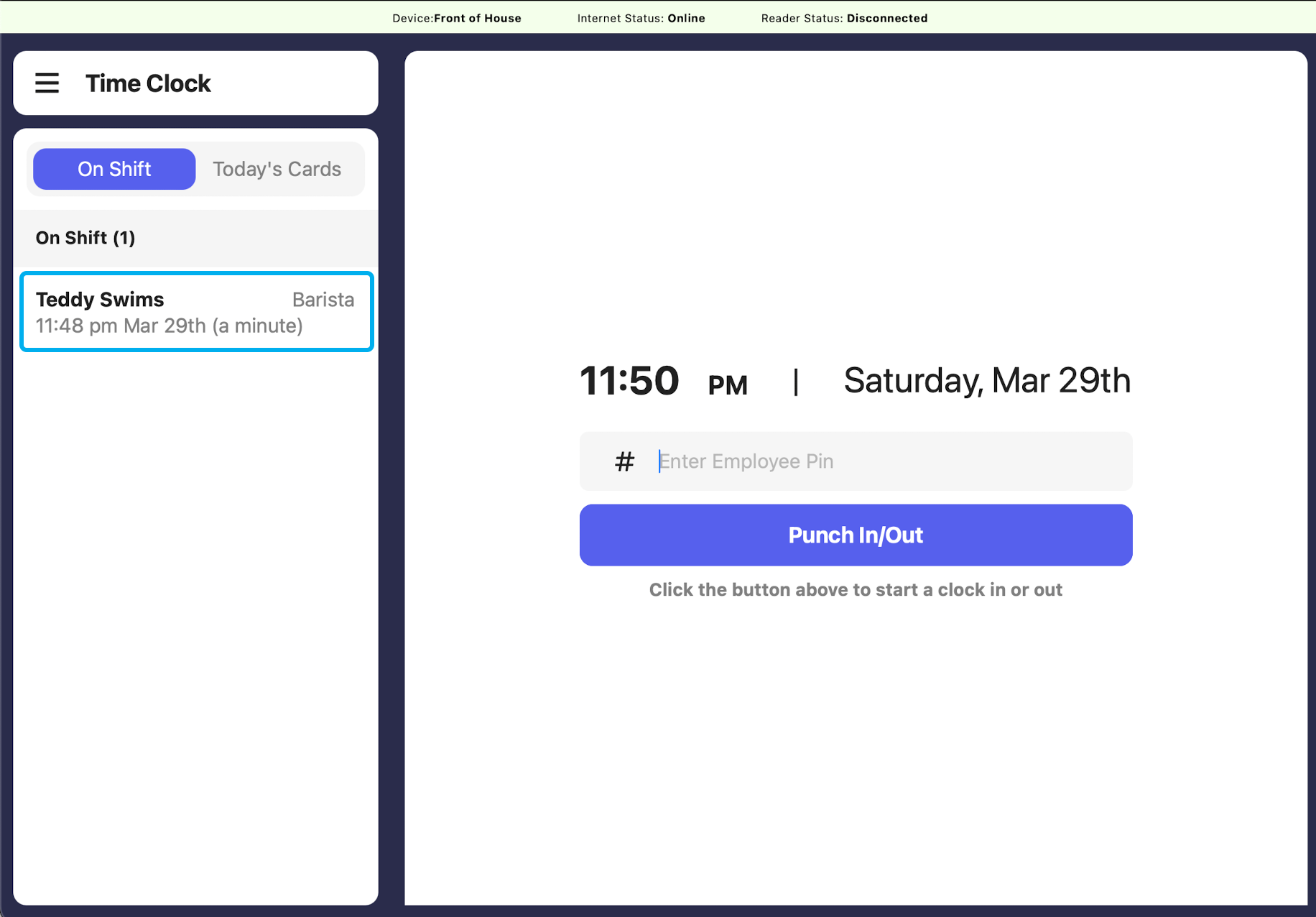
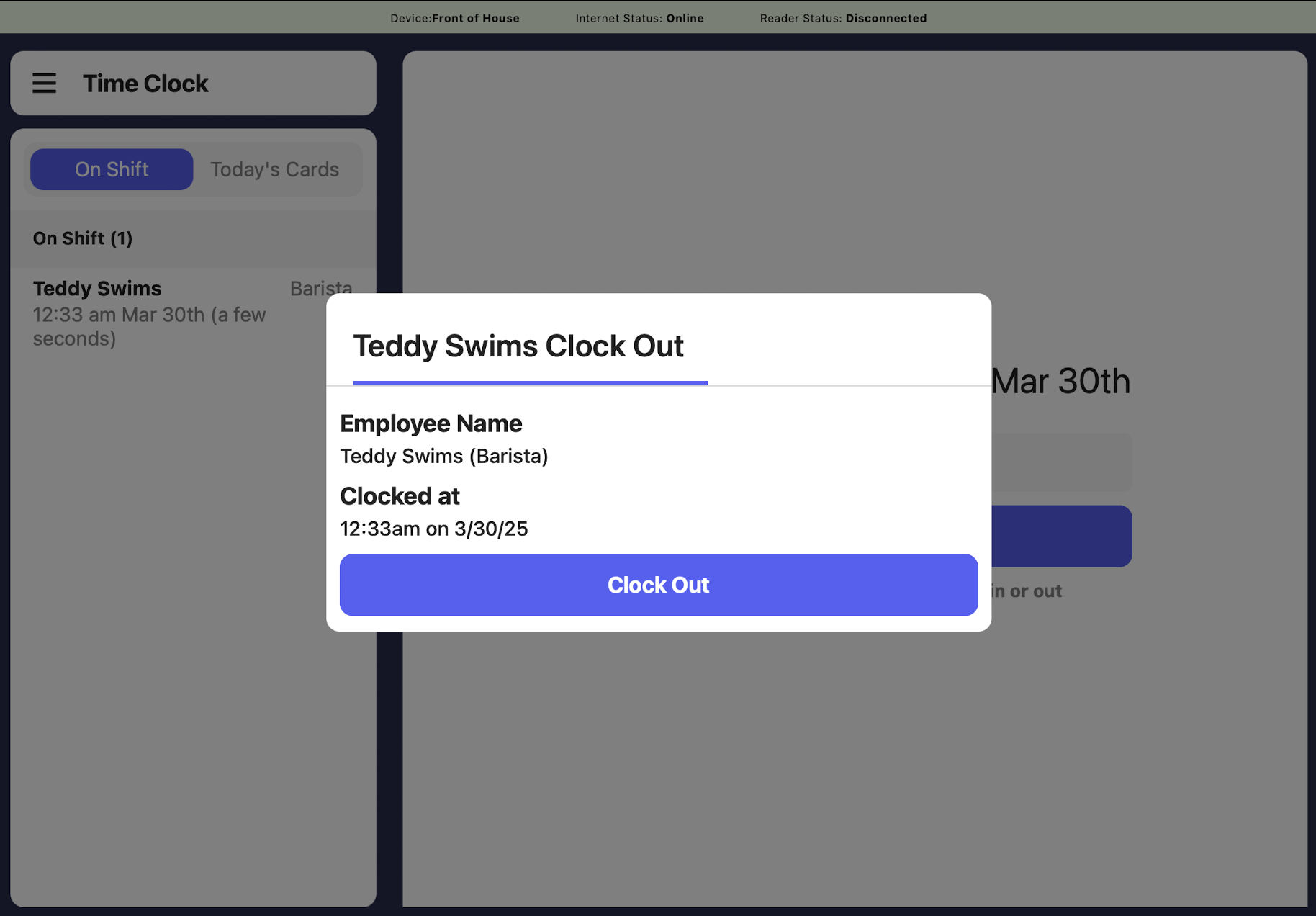 Time cards requiring a tip payout will appear under the **Tip Payouts** section
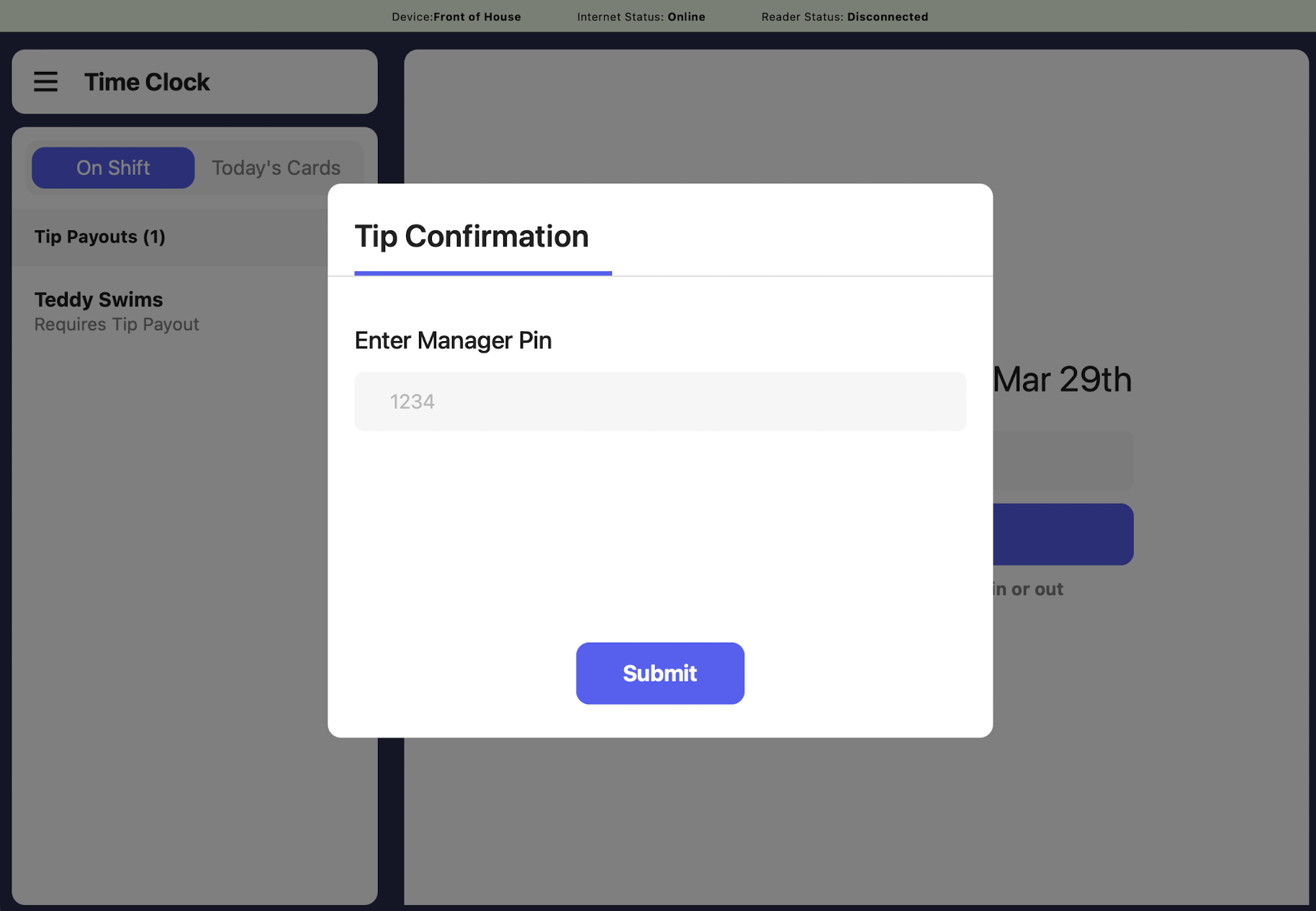
 Click on the time card requiring a tip payout to view the amount & input the Manager Pin
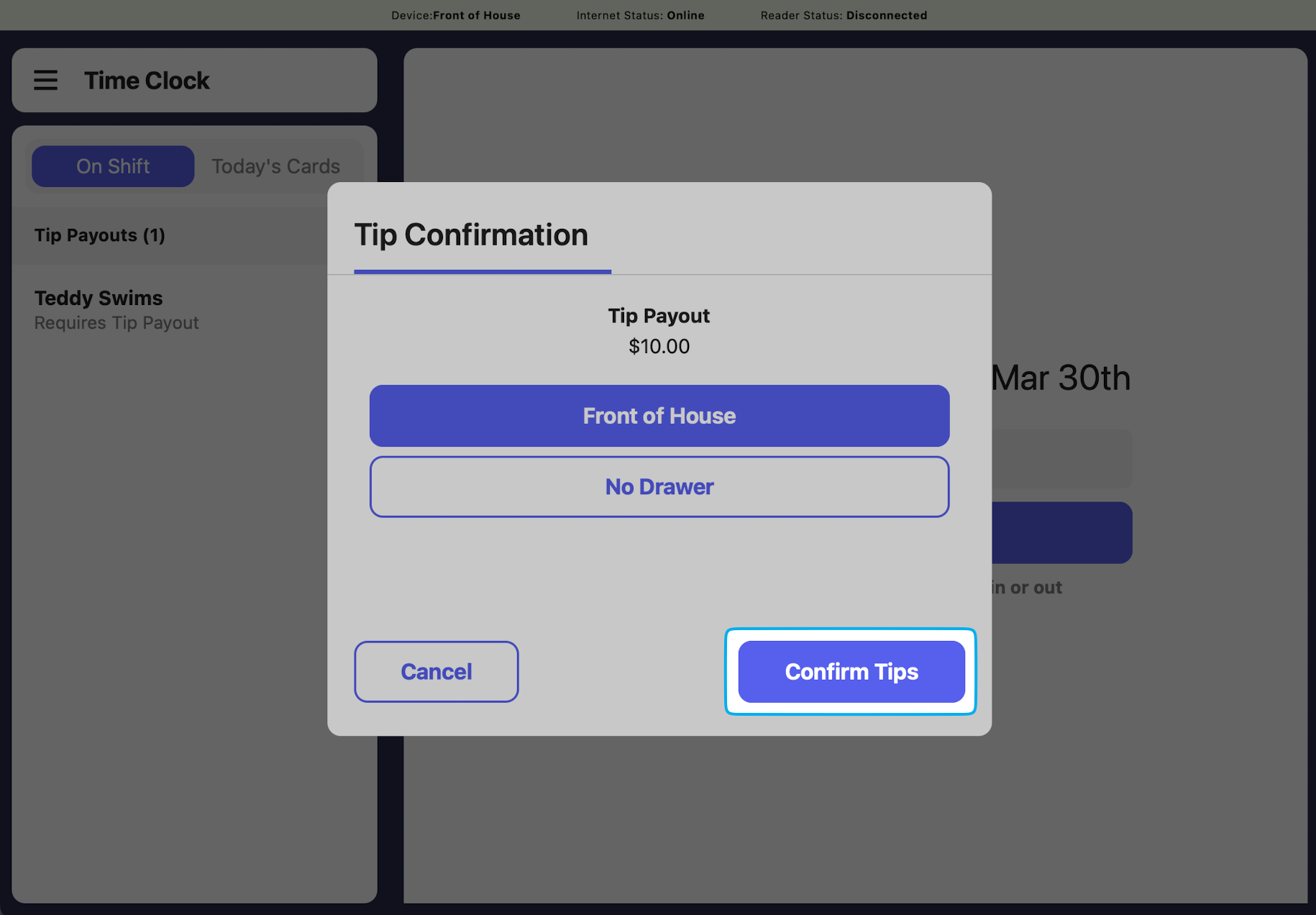
 Review the tip amount shown and select the cash drawer to record the cash tip payout in
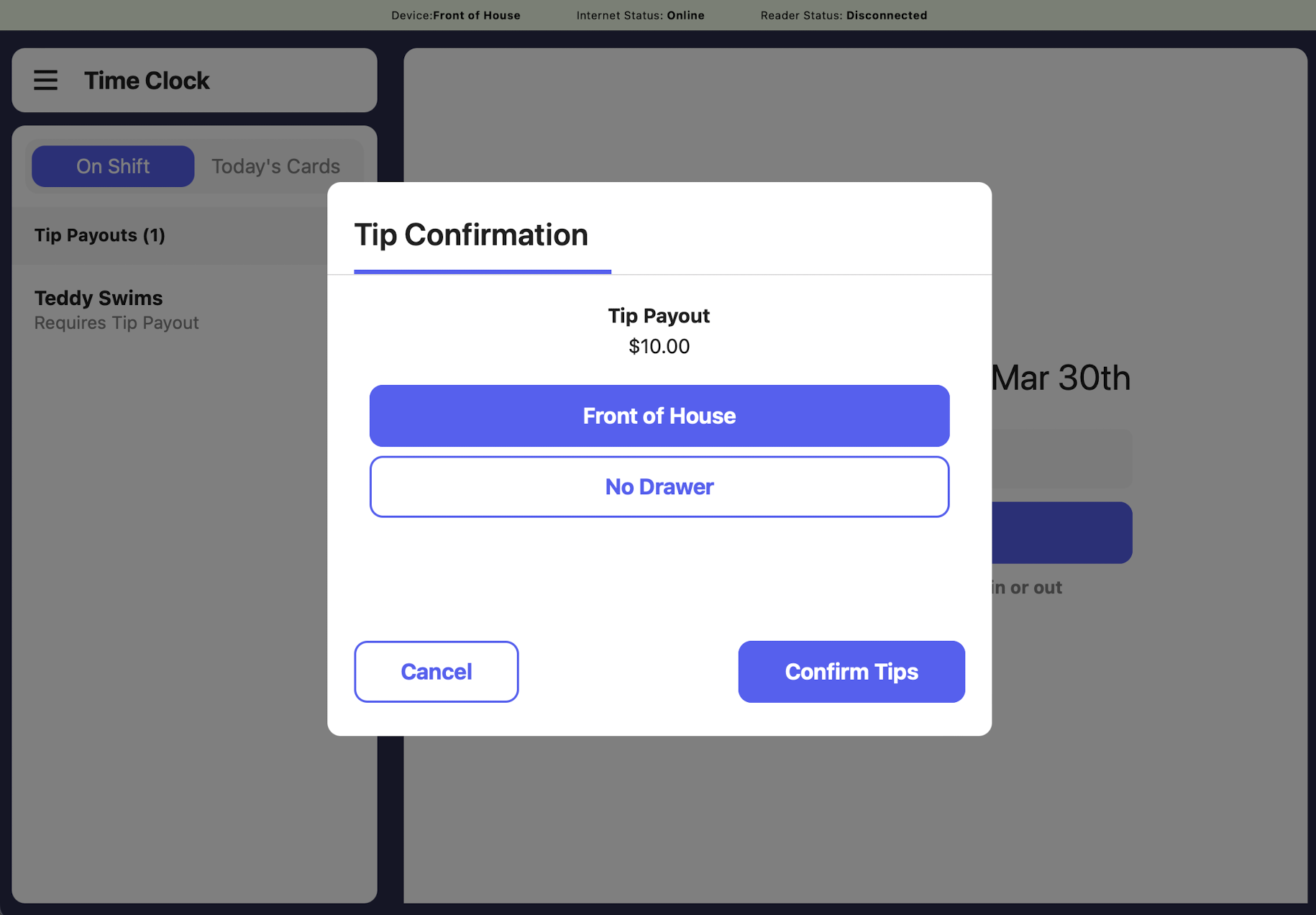 Press **Confirm Tips** to finalize the payout
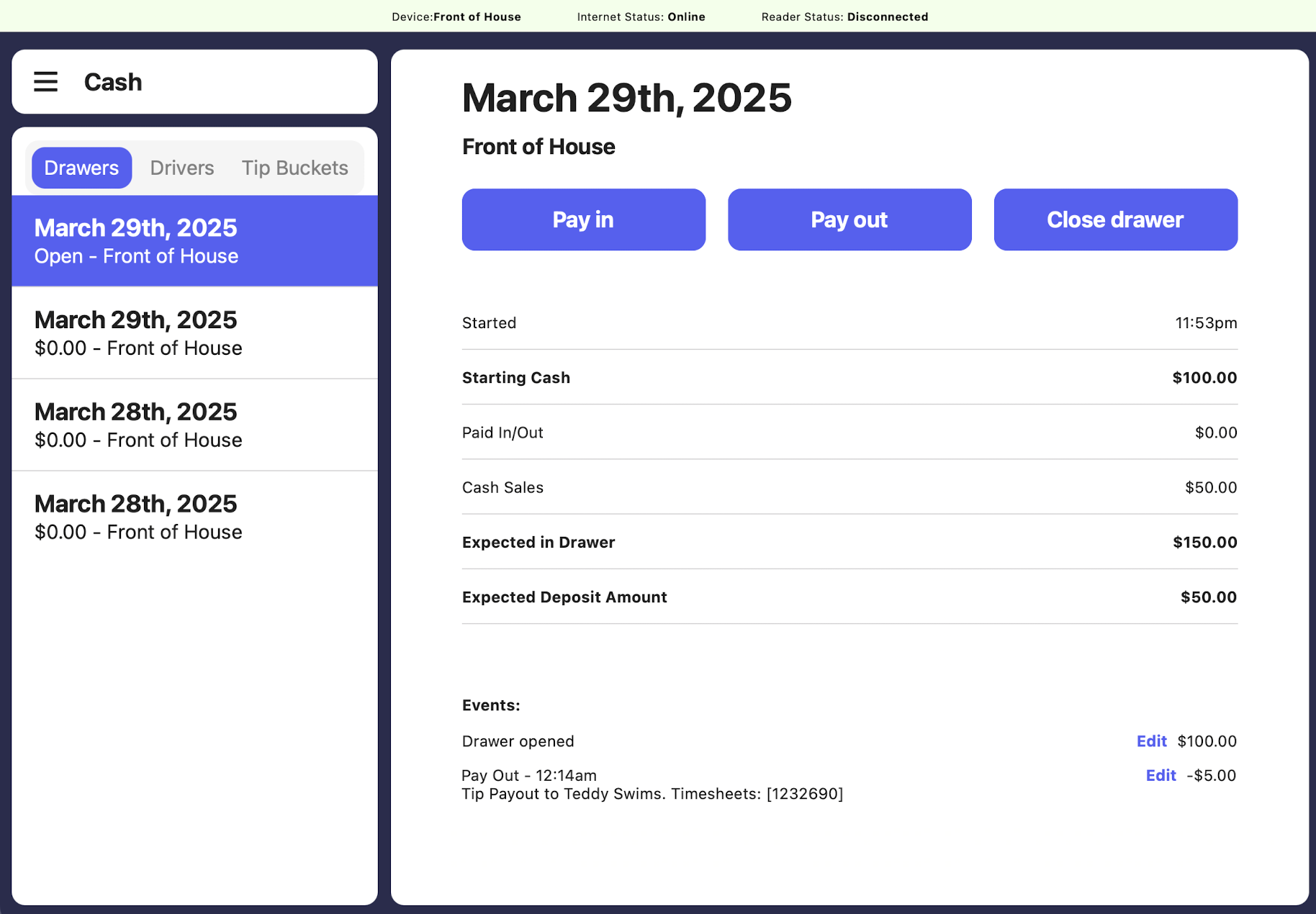
 Pay out the tip amount to the employee in cash and review the cash drawer events
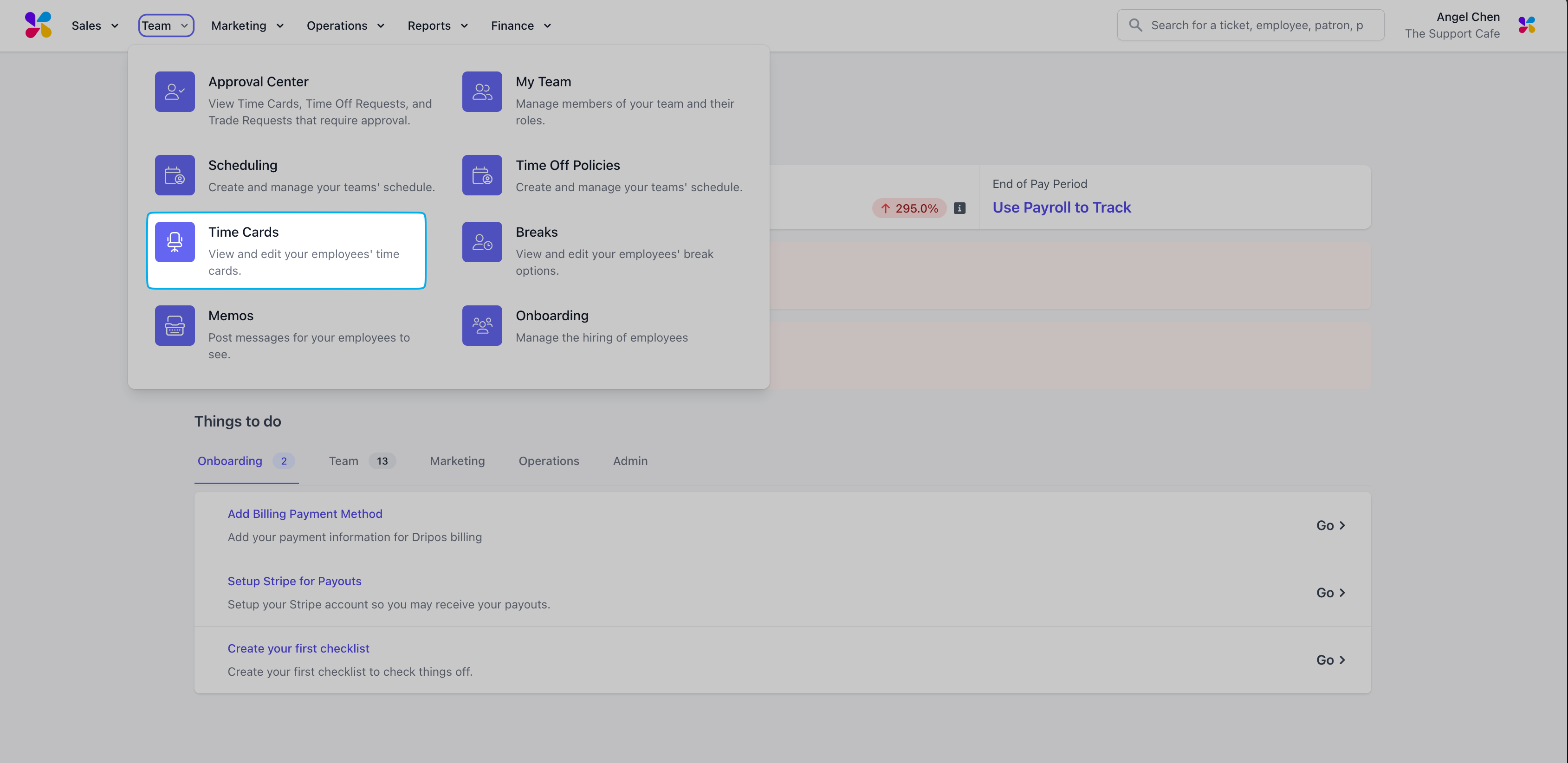
 Log in to the Web Dashboard and navigate to **Team > Time Cards**
 Click on the time card you would like to view more information for
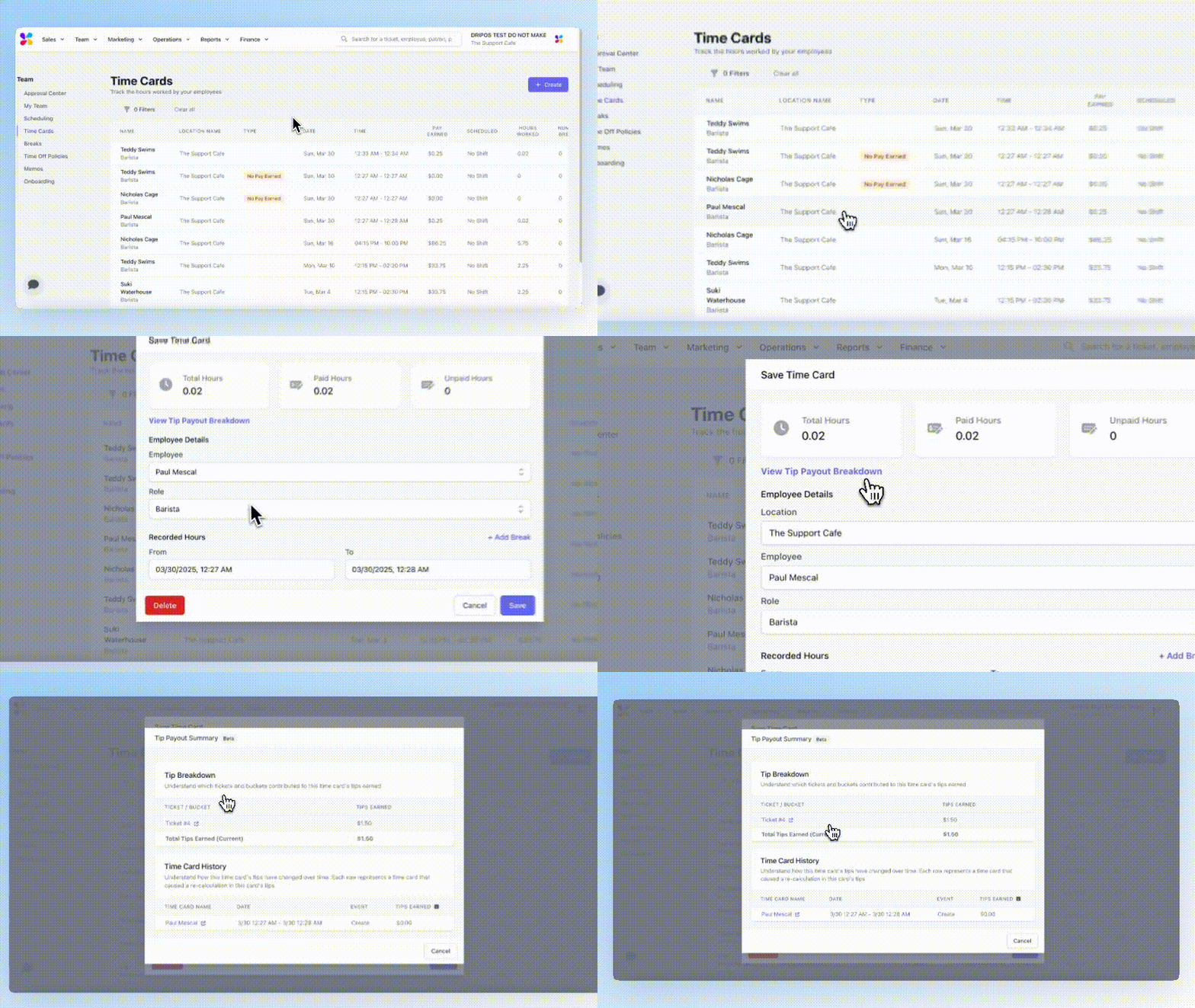
Click **View Tip Payout Breakdown** and use the dropdown arrows to show more details
Click on the time card you would like to view more information for
Click **View Tip Payout Breakdown** and use the dropdown arrows to show more details
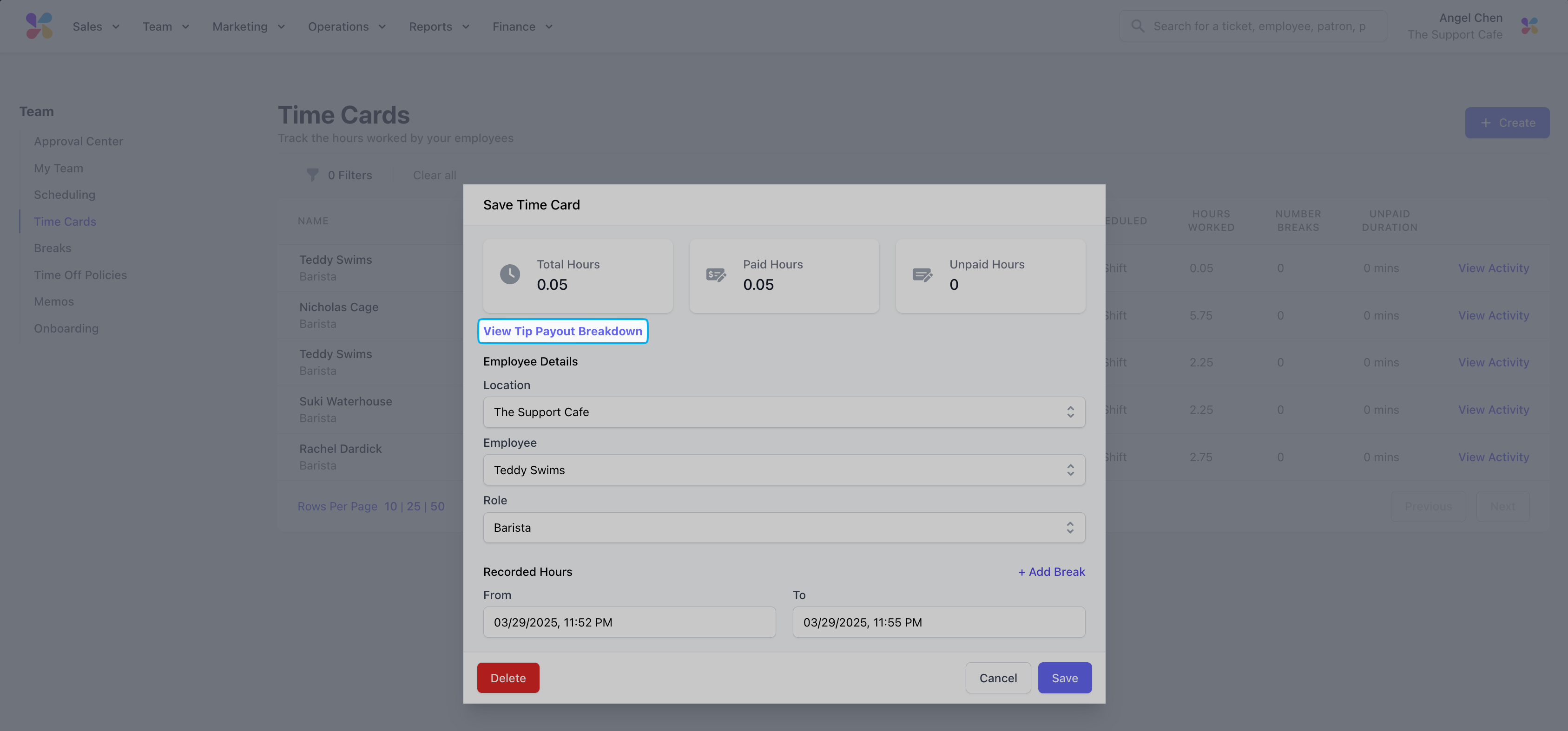
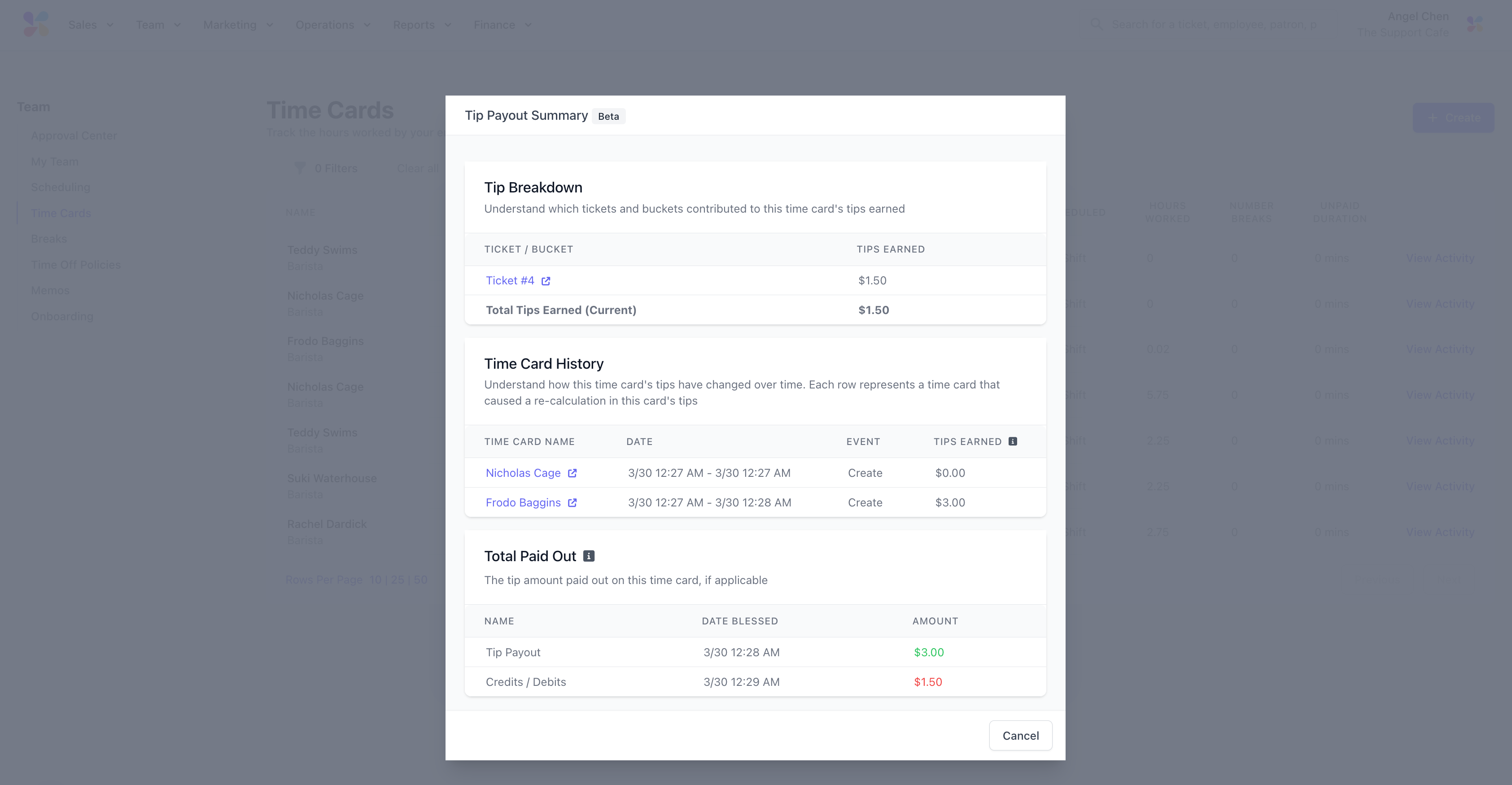 * **Tip Breakdown:** Breakdown of tips earned by the employee from each transaction that occurred during this shift
* **Total Paid Out:** Summary of tip amounts paid out and any pending credits or debits
* **Tip Payout:** Actual tip amount paid to the employee at the end of this shift
* **Credits / Debits:** View any credits (tips added) or debits (tips subtracted) to this tip payout
***
## Payroll Tip Payouts
Automatically pay out tips earned by your employees for each pay period with Dripos Payroll.
Learn more about Dripos payroll [here](finance/payroll/payroll-overview).
Log in to the Web Dashboard and navigate to **Finance > Payroll > Settings**
Click **Edit Settings**
* **Tip Breakdown:** Breakdown of tips earned by the employee from each transaction that occurred during this shift
* **Total Paid Out:** Summary of tip amounts paid out and any pending credits or debits
* **Tip Payout:** Actual tip amount paid to the employee at the end of this shift
* **Credits / Debits:** View any credits (tips added) or debits (tips subtracted) to this tip payout
***
## Payroll Tip Payouts
Automatically pay out tips earned by your employees for each pay period with Dripos Payroll.
Learn more about Dripos payroll [here](finance/payroll/payroll-overview).
Log in to the Web Dashboard and navigate to **Finance > Payroll > Settings**
Click **Edit Settings**
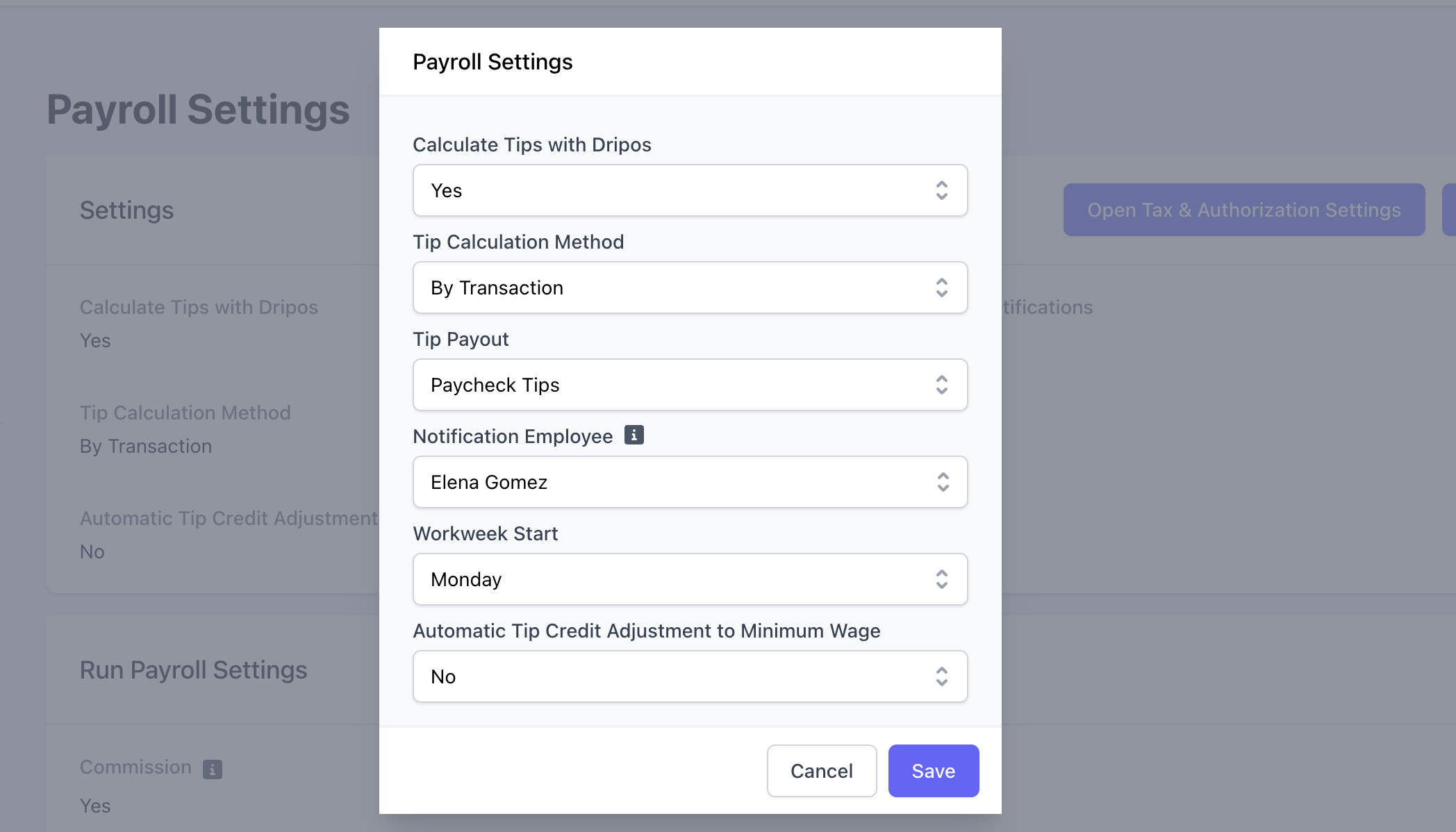 **Paycheck Tips:** If you are paying out tips to employees via paycheck, ensure **Calculate Tips with Dripos** is set to **Yes** and select **Paycheck Tips** for Tip Payout.
When running payroll, paycheck tips will automatically populate on the Hours & Pay page for each employee.
***
**Cash Tips:** If you are paying out tips to employees via [cash](orders/tipping/tipping-payout#cash-tip-payouts), ensure **Calculate Tips with Dripos** is set to **Yes** and select **Cash Tips** for Tip Payout.
Cash tips will not pay employees additional tips via payroll, but it will account for these taxes when calcuating payroll taxes
**Paycheck Tips:** If you are paying out tips to employees via paycheck, ensure **Calculate Tips with Dripos** is set to **Yes** and select **Paycheck Tips** for Tip Payout.
When running payroll, paycheck tips will automatically populate on the Hours & Pay page for each employee.
***
**Cash Tips:** If you are paying out tips to employees via [cash](orders/tipping/tipping-payout#cash-tip-payouts), ensure **Calculate Tips with Dripos** is set to **Yes** and select **Cash Tips** for Tip Payout.
Cash tips will not pay employees additional tips via payroll, but it will account for these taxes when calcuating payroll taxes