> ## Documentation Index
> Fetch the complete documentation index at: https://support.dripos.com/llms.txt
> Use this file to discover all available pages before exploring further.
# Employee Tipping Setup
> Customize tip pooling and tip splitting for your employees
## Employee Tip Pool
A tip pool is a system where all tips are combined into a collective pool and redistributed among eligible employees.
Dripos allows your shop to configure the tipping pool based on **Roles** and **Ticket Types.**
Include or exclude roles from earning tips and manage which order types contribute tips to the pool:
Manage which roles to include or exclude from the tipping pool.
*For example, you may want to include baristas and cashiers in the tipping pool, but exclude owners or salaried managers.*
Log in to the Web Dashboard and navigate to **Team > My Team > Roles**
Click **Edit** on the role you would like to include or exclude from the tipping pool
On the **Role Information** page, click **Edit Information** in the top right corner
Update the **Tips Disabled** setting and Save
If set to **Yes**, this role will **not** be included in the tipping pool. If set to **No**, employees with this role **will** receive a share of the tips.
Manage which ticket types contribute to the tipping pool.
*For example, you may want tips on “To-Go” and “For Here” orders to make up the tipping pool, but not tips left on delivery orders.*
Log in to the Web Dashboard and navigate to **Sales** > **Checkout Flow** > select the **Ticket Types** tab on the left side
Click **View** on the ticket type you would like to include or exclude from the tipping pool
On the Ticket Type **Details** page, click **Edit Information** in the top right corner
Update the Tip Splitting setting and **Save**
If set to Yes, tips received on this ticket type will contribute to the tipping pool.
***
## Tip Splitting Methods
Dripos can calculate and split tips amongst employees with tip-enabled roles in the following ways:
**By Transaction**: Tips left on each transaction are split evenly between clocked in employees.
*For example, if Betty is the only employee clocked in when a \$10 tip is left, she earns all \$10. If Betty and Veronica are both clocked in when a \$10 tip is left, the tip is evenly split and they earn \$5 each.*
**By Day**: Tips are split proportional to the hours worked by every employee clocked in that day.
*For example, a total of \$100 in tips were received that day. Betty worked 7 hours and Veronica worked 3 hours. Proportional to the hours they worked that day, Betty earns \$70 and Veronica earns \$30*
**By Week**: Tips are split proportional to the hours worked by every employee clocked in that week.
*For example, a total of \$500 in tips were received that week. Betty worked 25 hours, Veronica worked 15 hours, and Archie worked 10 hours. Proportional to the hours they worked that week, Betty earns \$250, Veronica earns \$150, and Archie earns \$100.*
**By Period (for Dripos Payroll)**: Tips are split proportional to the hours worked by every employee clocked in that pay period.
***
## View Collected Tips
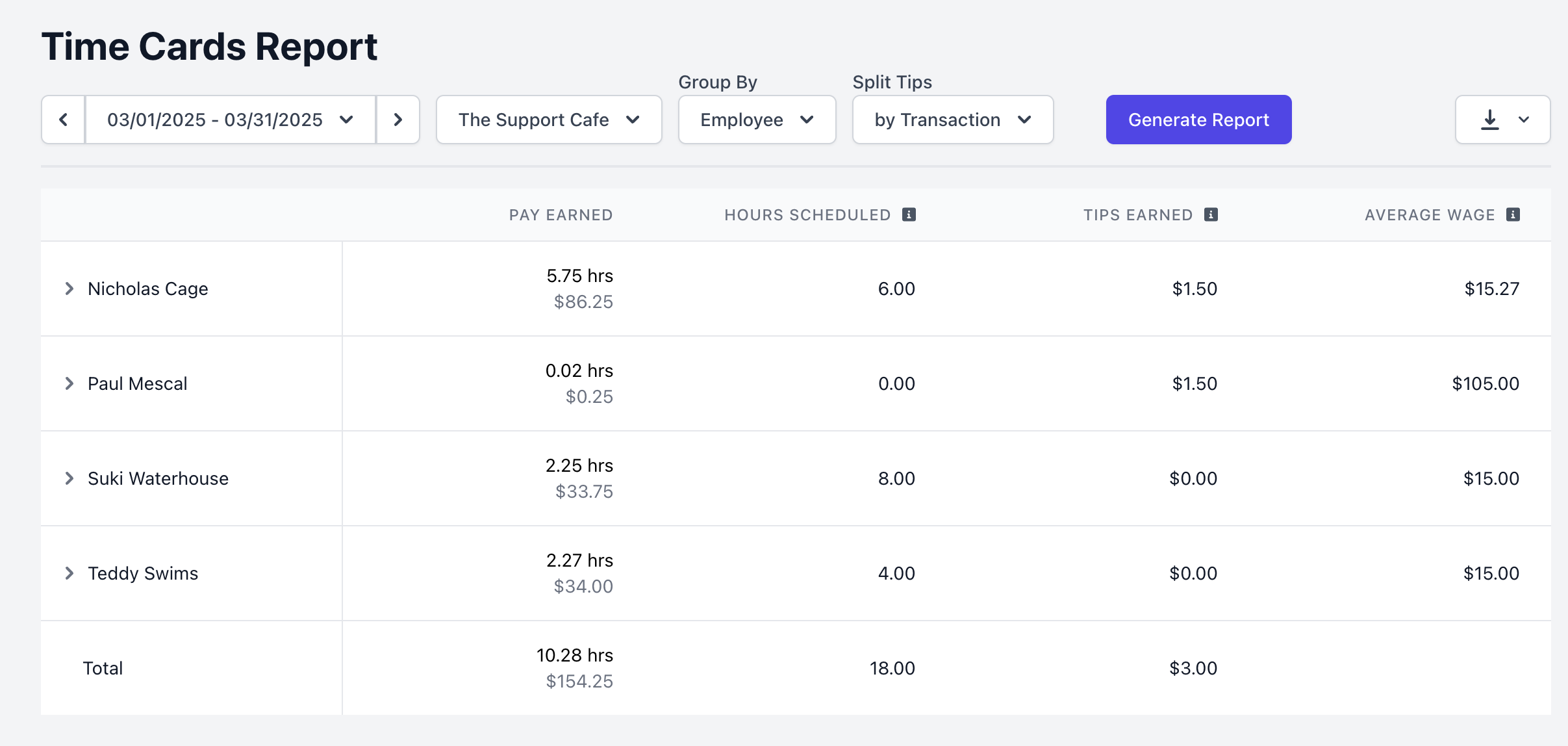
Use the Time Cards Report to review and analyze all tips collected by employees within a designated time period.
Log in to the Web Dashboard and navigate to **Reports > Time Cards**
Input the desired time frame and tip splitting method
Click **Generate Report**
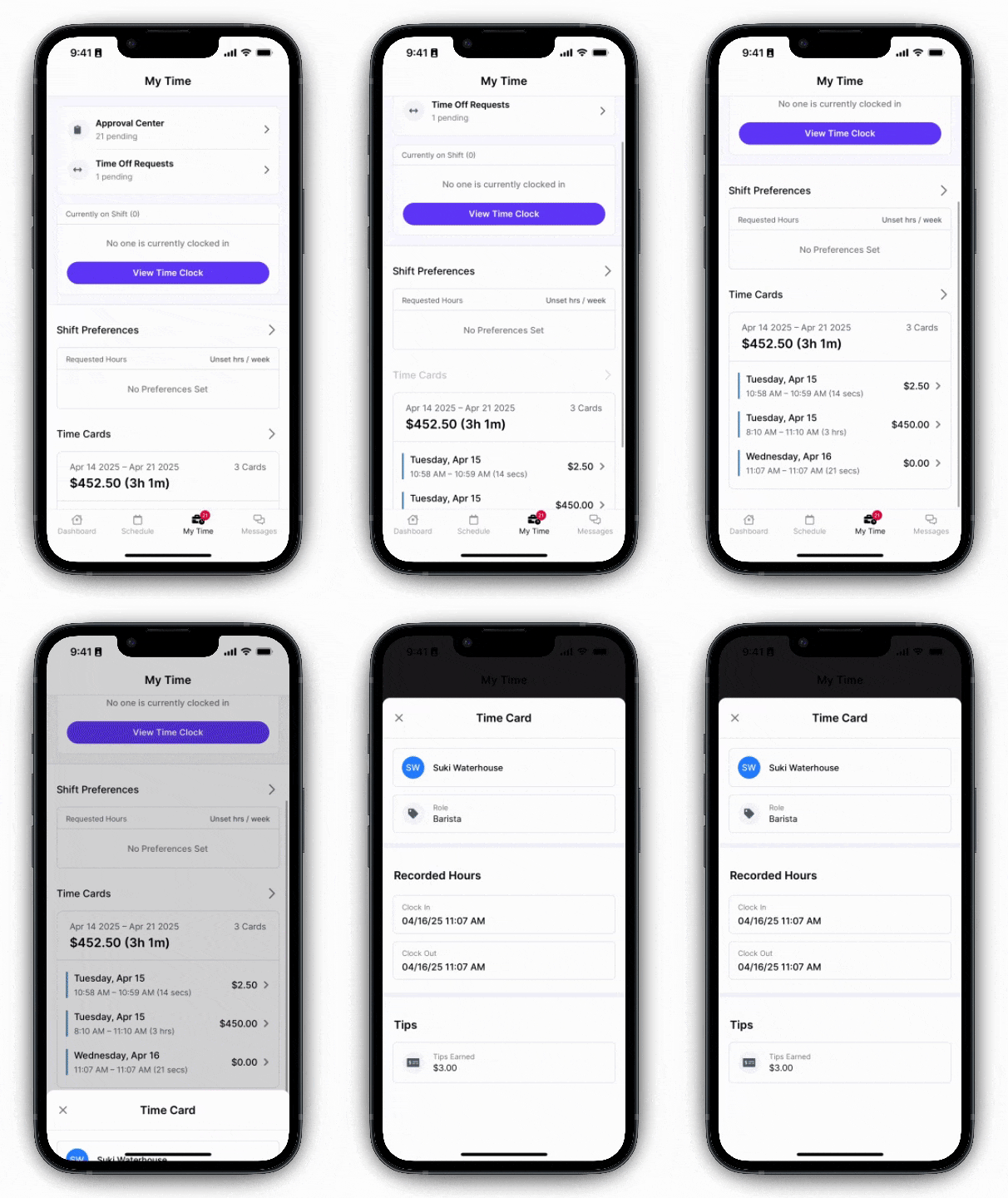
 Allow your employees to view the tips they've earned on each time card from the Hub App
This feature only applies to tips split by transaction. Learn more about tip splitting methods [above](/orders/tipping/tipping-split#tip-splitting-methods)
Allow your employees to view the tips they've earned on each time card from the Hub App
This feature only applies to tips split by transaction. Learn more about tip splitting methods [above](/orders/tipping/tipping-split#tip-splitting-methods)
 On the **Web Dashboard** > **Dripos logo** in the right hand corner > **Settings** > [Employee Management](https://dashboard.dripos.com/settings?tab=employee-management)
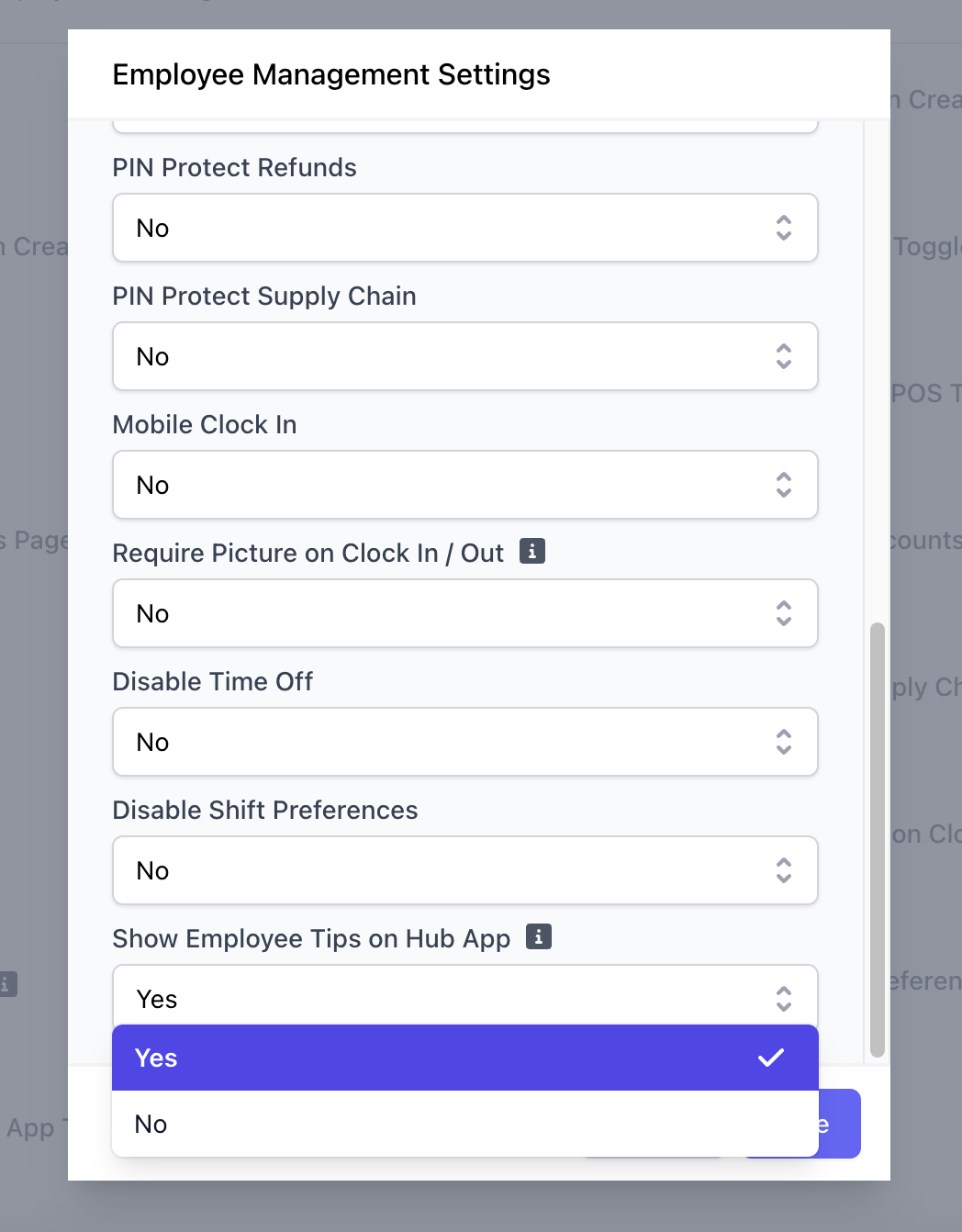
Click **Edit** > **Show Employee Tips on Hub App** > **Yes**
On the **Web Dashboard** > **Dripos logo** in the right hand corner > **Settings** > [Employee Management](https://dashboard.dripos.com/settings?tab=employee-management)
Click **Edit** > **Show Employee Tips on Hub App** > **Yes**