> ## Documentation Index
> Fetch the complete documentation index at: https://support.dripos.com/llms.txt
> Use this file to discover all available pages before exploring further.
# Weighted Tip Splitting
> Assign tip proportions by role so back-of-house and support staff receive a fair, configurable share of every tip pool.
By default, Dripos splits tips evenly — every clocked-in employee with a tip-enabled role receives an equal share. **Weighted Tip Splitting** lets you give each role a tip proportion (1–100%) so that, for example, a Kitchen role earns a smaller share of the pool than a Barista role, automatically, on every transaction.
Weighted Tip Distribution is an opt-in feature. It must be enabled before any proportion values take effect. When disabled, tips continue to split as before.
* **This setting is per-location.** It must be turned on separately for each location where you want it active.
* **Roles are company-wide.** Since Roles are shared across all Locations in your Company, any tip weight you set on a role will apply at every Location where Weighted Tip Distribution is enabled. You cannot set different proportions for the same role at different locations.
Weighted Tip Distribution only applies to the **By Transaction** tip splitting method. It has no effect on By Day, By Week, or By Pay Period calculations.
***
## How It Works
Every clocked-in employee contributes their role's tip proportion to a total pool weight. Each employee's share is:
**Employee Share = (Employee Role Weight ÷ Total Pool Weight) × Total Tip Amount**
**Example — 1 Barista (100%) + 1 Kitchen (25%), \$10 tip:**
* Total Pool Weight = 125
* Barista → (100 ÷ 125) × \$10 = \$8.00
* Kitchen → (25 ÷ 125) × \$10 = \$2.00
**Example — 2 Baristas (100% each) + 1 Kitchen (25%), \$10 tip:**
* Total Pool Weight = 225
* Each Barista → (100 ÷ 225) × \$10 = \$4.44
* Kitchen → (25 ÷ 225) × \$10 = \$1.12
When every active role is set to 100%, the math is identical to the standard even split — so enabling the feature with all roles at the default has no impact on tip calculations.
***
## Enable Weighted Tip Distribution
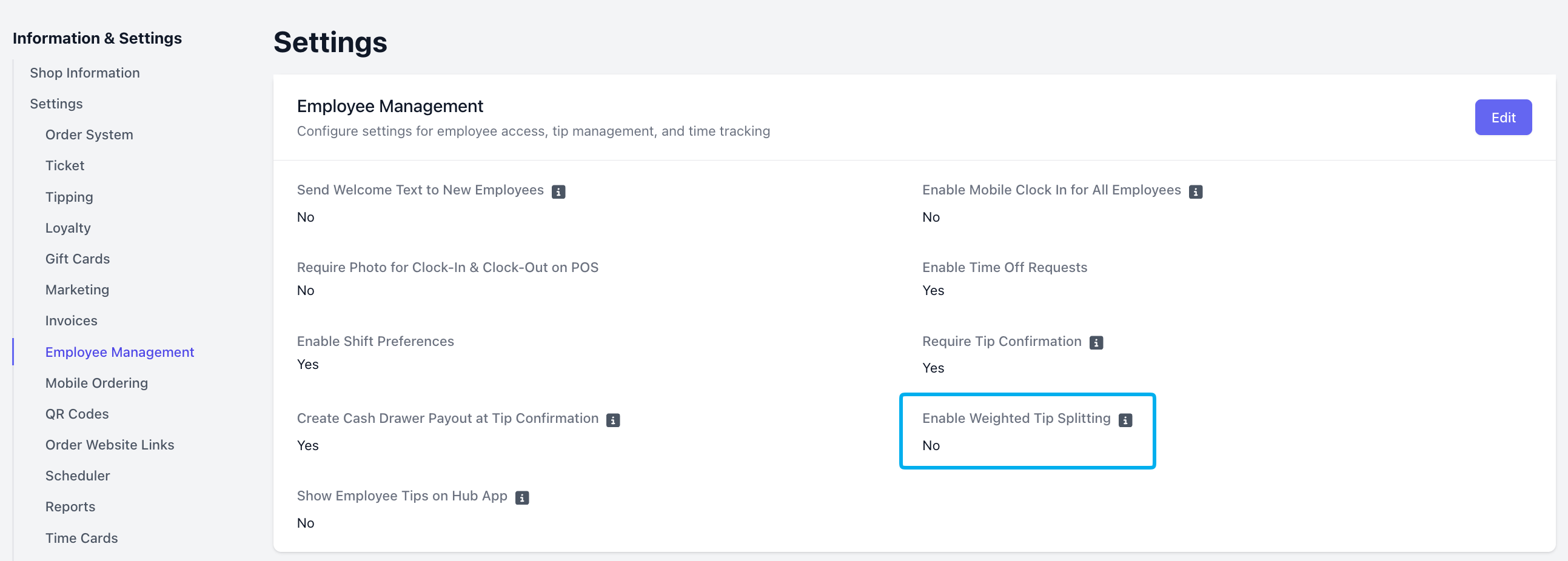
Log in to the Web Dashboard and navigate to **Shop Settings > Employee Management**
Locate the **Enable Weighted Tip Splitting** setting and toggle it to **Yes**
Once enabled, configure each role's proportion from **Team > My Team > Roles**
 ***
## Set or Update Tip Weights
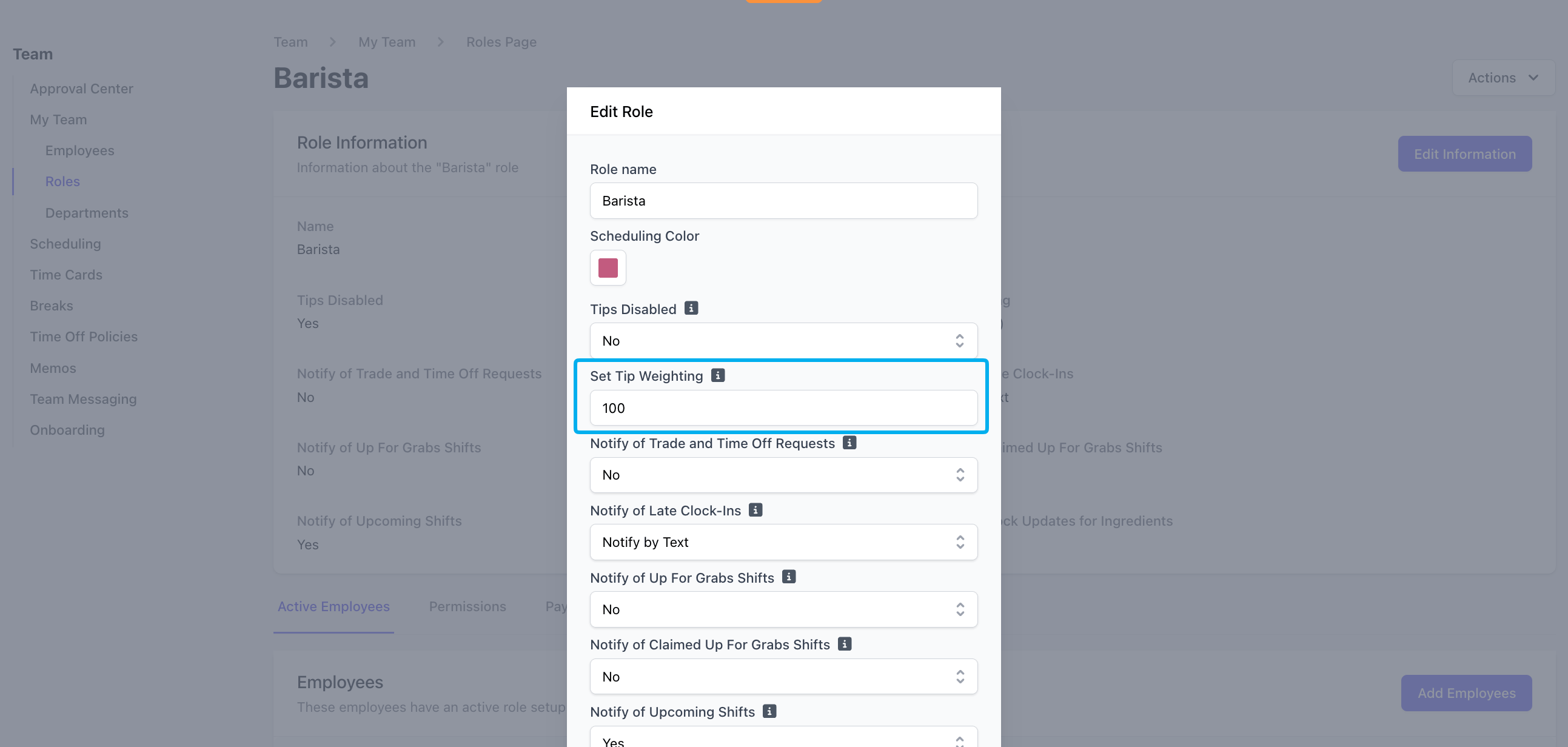
All Roles default to a Tip Weight of **100**. You can configure each Role's proportion at any time, but it will only impact your Employees' tip splitting when it is enabled.
Navigate to **Team > My Team > Roles**
Click **Edit** on the role you want to update
On the Role Information page, click **Edit Information**
Update the **Set Tip Weighting** field and click **Save**
***
## Set or Update Tip Weights
All Roles default to a Tip Weight of **100**. You can configure each Role's proportion at any time, but it will only impact your Employees' tip splitting when it is enabled.
Navigate to **Team > My Team > Roles**
Click **Edit** on the role you want to update
On the Role Information page, click **Edit Information**
Update the **Set Tip Weighting** field and click **Save**
 Changes to Weighted Tip Distribution settings take effect on tips that are processed when the setting is enabled. Tips are calculated using the settings active at the time of the transaction.
This applies to both toggling the feature on / off and editing an individual role's tip proportion.
If a role has **Tips Disabled** set to **Yes**, that role is excluded from the tip pool entirely. The remaining clocked-in employees split the tip based on their own proportions, unaffected.
***
## Viewing Tip Calculations
Weighted tip values are reflected everywhere tips appear in Dripos:
* **Dashboard > Reports > Time Cards** — the Tips column shows each employee's weighted earnings for the selected period when viewing the report By Transaction.
* **Payroll Export** — weighted tip amounts are included in payroll calculations
Once a payroll period is closed, the tips recorded on those timesheets are frozen. Changing a role's tip proportion after a payroll closes will not affect previously closed periods — only the current open period reflects the updated weights.
Changes to Weighted Tip Distribution settings take effect on tips that are processed when the setting is enabled. Tips are calculated using the settings active at the time of the transaction.
This applies to both toggling the feature on / off and editing an individual role's tip proportion.
If a role has **Tips Disabled** set to **Yes**, that role is excluded from the tip pool entirely. The remaining clocked-in employees split the tip based on their own proportions, unaffected.
***
## Viewing Tip Calculations
Weighted tip values are reflected everywhere tips appear in Dripos:
* **Dashboard > Reports > Time Cards** — the Tips column shows each employee's weighted earnings for the selected period when viewing the report By Transaction.
* **Payroll Export** — weighted tip amounts are included in payroll calculations
Once a payroll period is closed, the tips recorded on those timesheets are frozen. Changing a role's tip proportion after a payroll closes will not affect previously closed periods — only the current open period reflects the updated weights.