> ## Documentation Index
> Fetch the complete documentation index at: https://support.dripos.com/llms.txt
> Use this file to discover all available pages before exploring further.
# Approval Center
> Review, edit, and approve all employee time cards and time-off requests
The Dripos Approval Center allows managers to efficiently review, edit, and approve all employee-related requests from the Dashboard and Hub App:
* Time Cards
* Trade Requests
* Time Off Requests
* Open Shifts
***
## Access the Approval Center
**Access Approval Center on Web Dashboard**
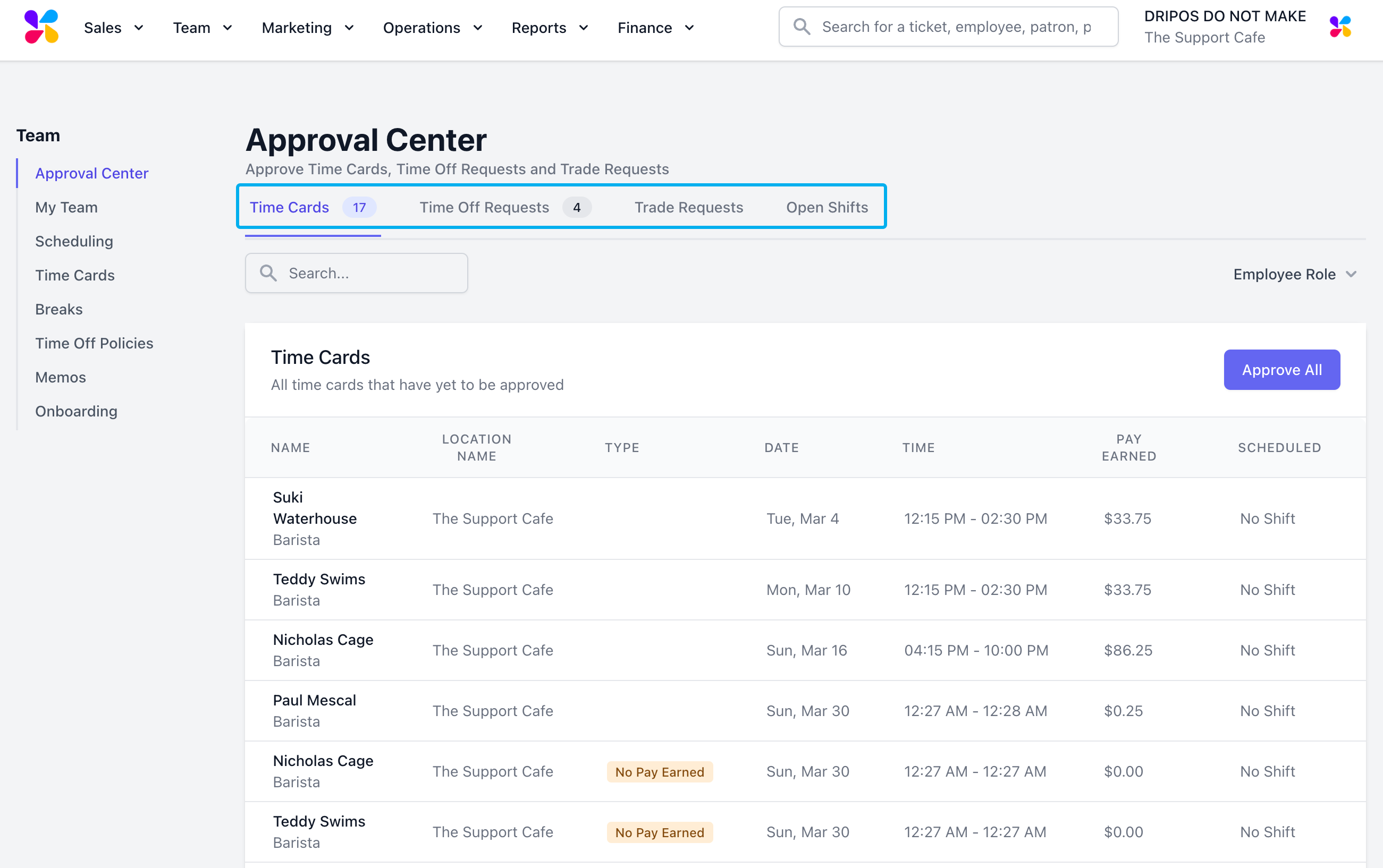
On the **Web Dashboard** > select **Team** > **Approval Center**
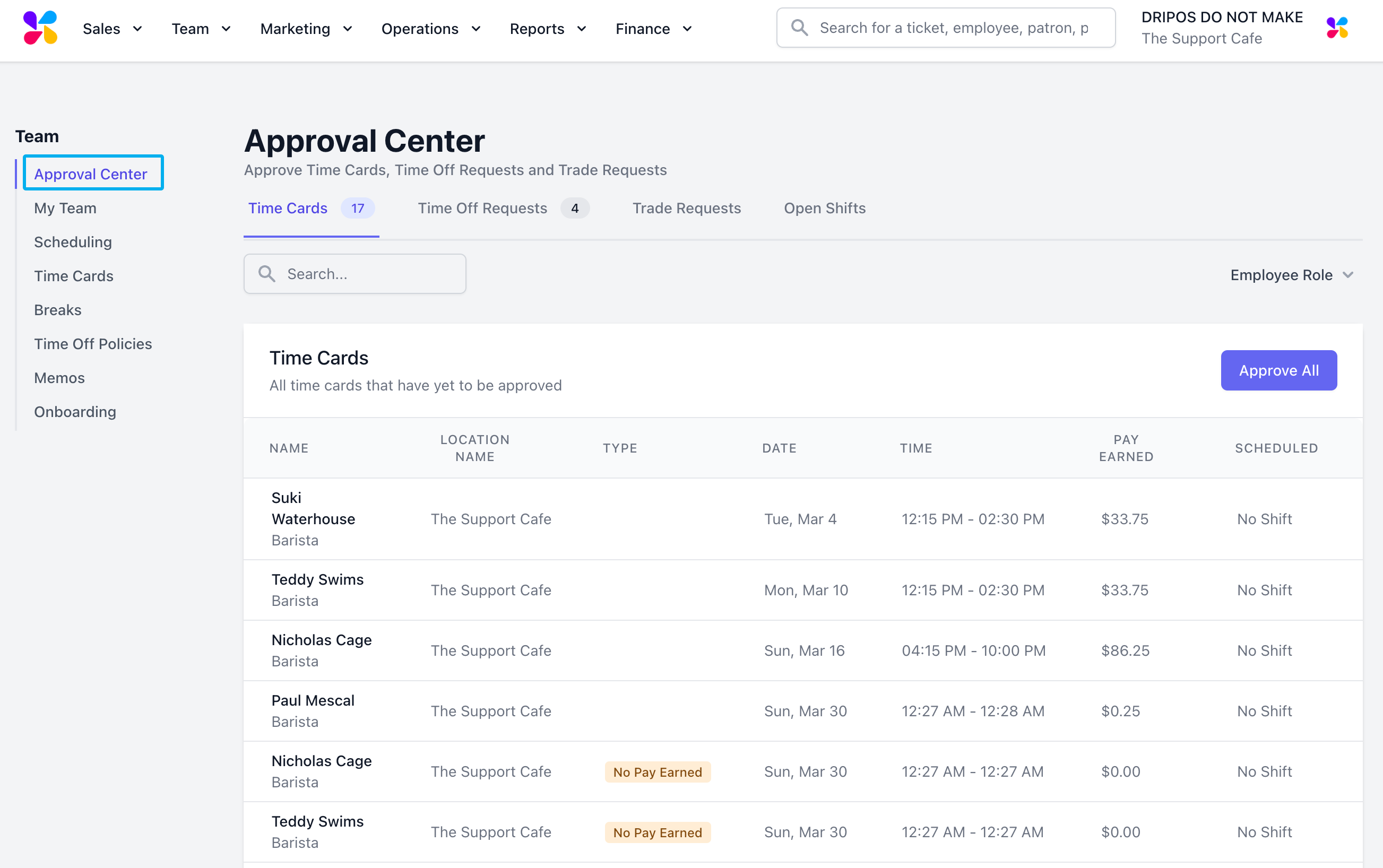 Click on the **Time Cards, Time Off Requests, Trade Requests, or Open Shifts** tabs to view the respective time cards or requests that require manager approval
 **Access Approval Center on the Hub App**
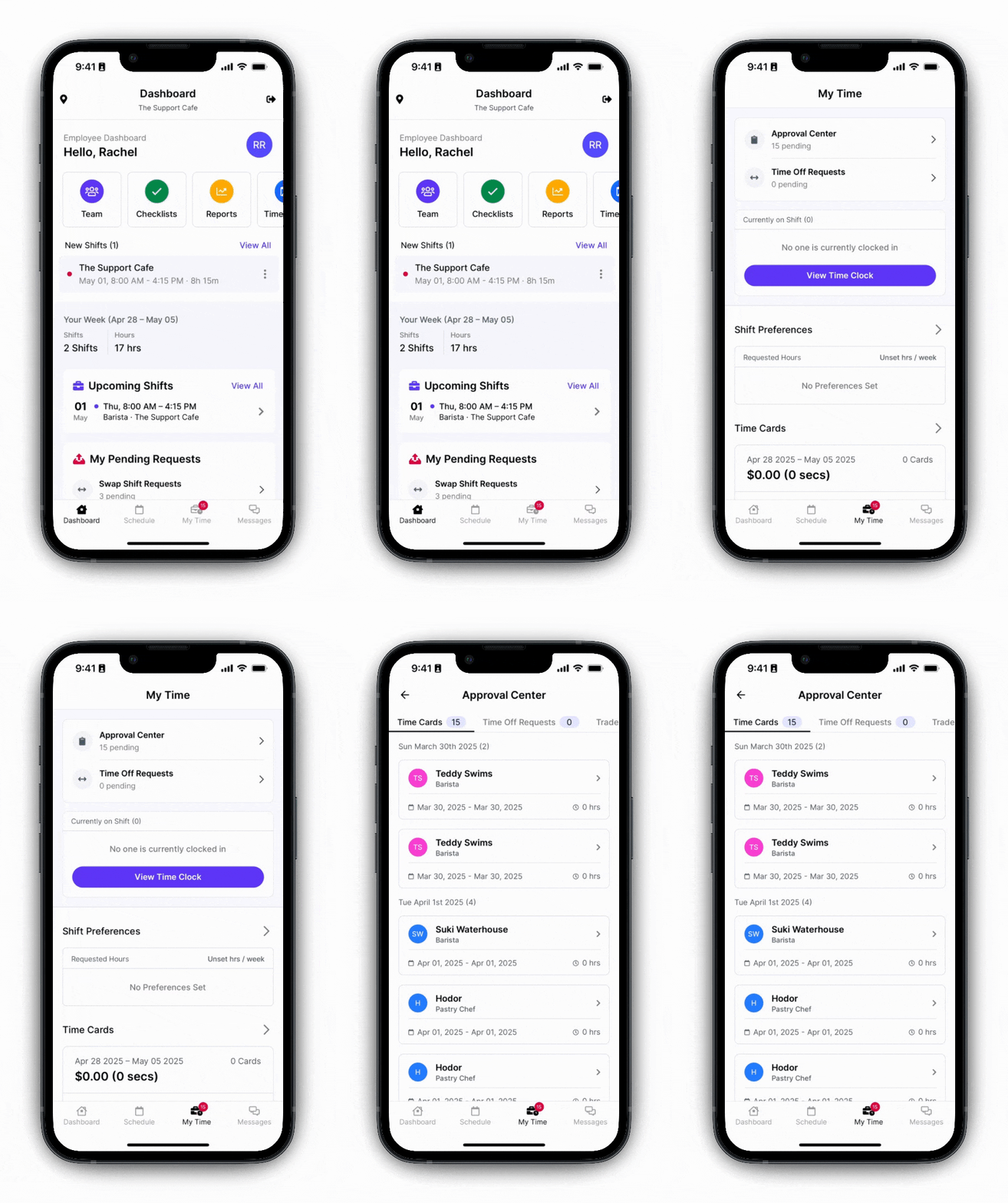
Navigate to the **My Time** tab on the Hub App and click **Approval Center**
Press **Time Cards, Time Off, Trade Requests, or Open Shifts** tabs at the top of the page to view the respective time cards or requests that require manager approval
**Access Approval Center on the Hub App**
Navigate to the **My Time** tab on the Hub App and click **Approval Center**
Press **Time Cards, Time Off, Trade Requests, or Open Shifts** tabs at the top of the page to view the respective time cards or requests that require manager approval
 ***
## Utilize the Approval Center
On the **Dashboard**, select **Team** > **Approval Center**
Click on the **Time Cards** tab to view all time cards that require manager approval:
***
## Utilize the Approval Center
On the **Dashboard**, select **Team** > **Approval Center**
Click on the **Time Cards** tab to view all time cards that require manager approval:
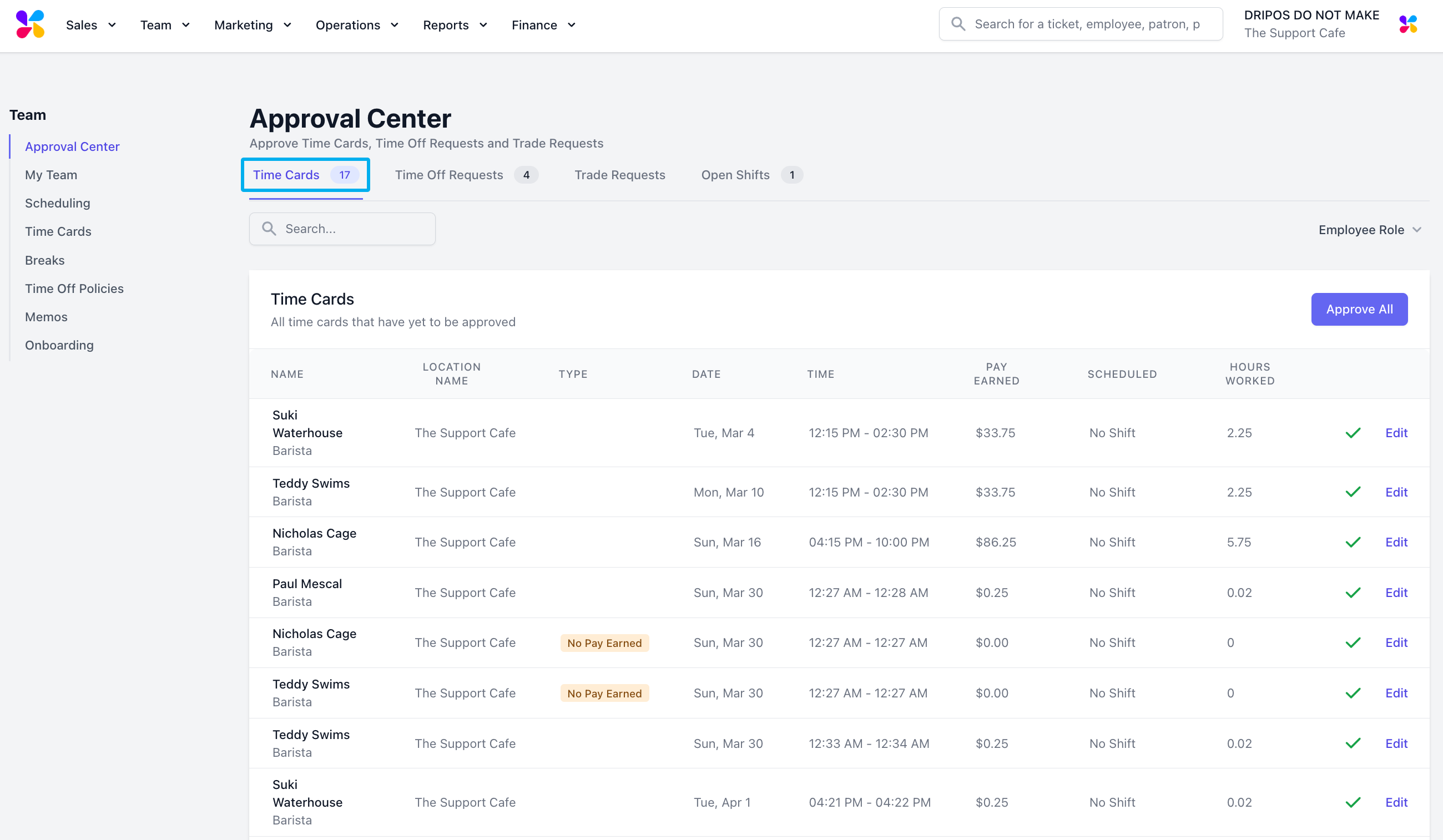 To **approve** a time card and remove it from the approval center, click on the **green checkmark** to its right.
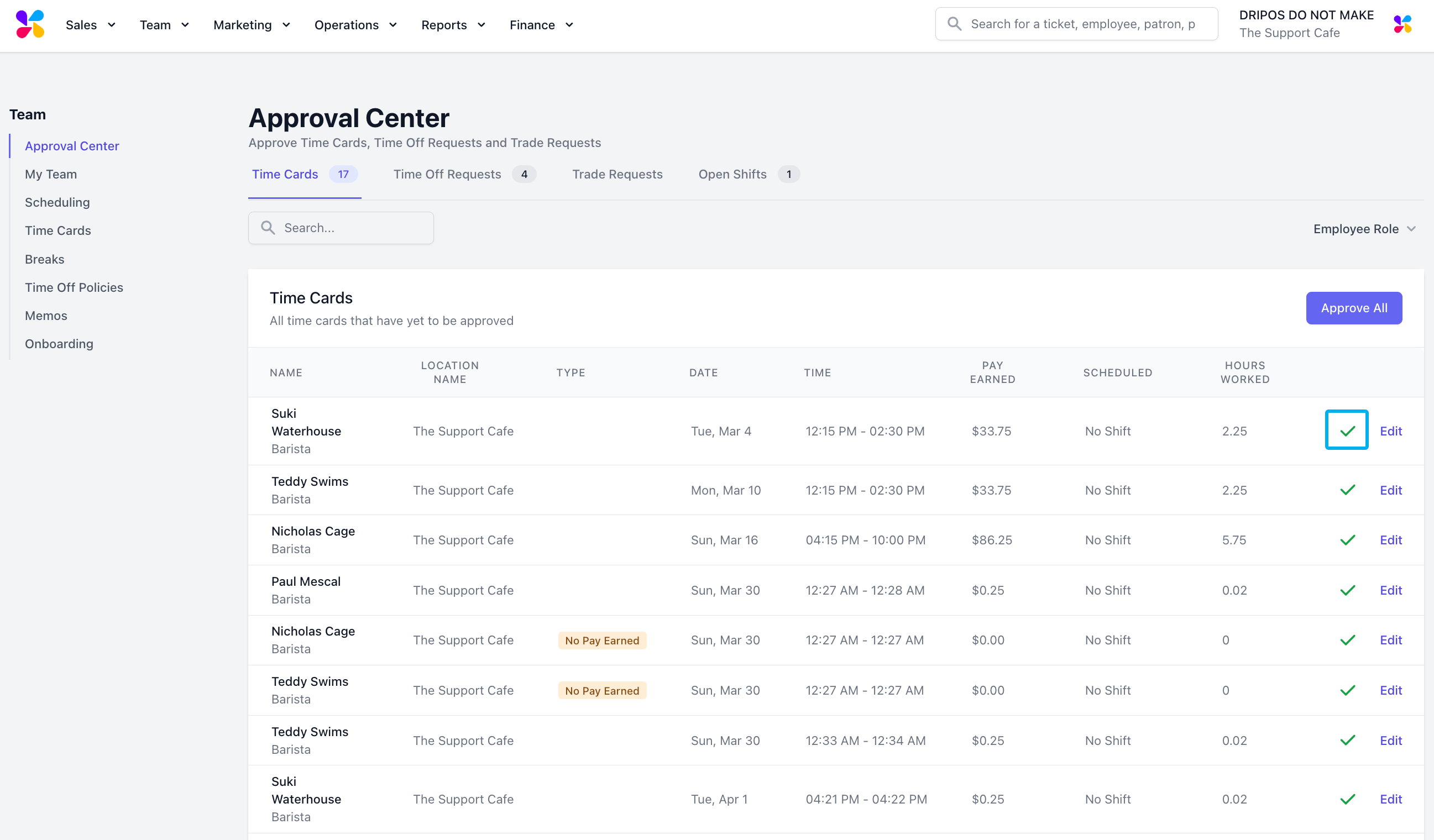 To edit a time card’s information, click on the **Edit** button to its right.
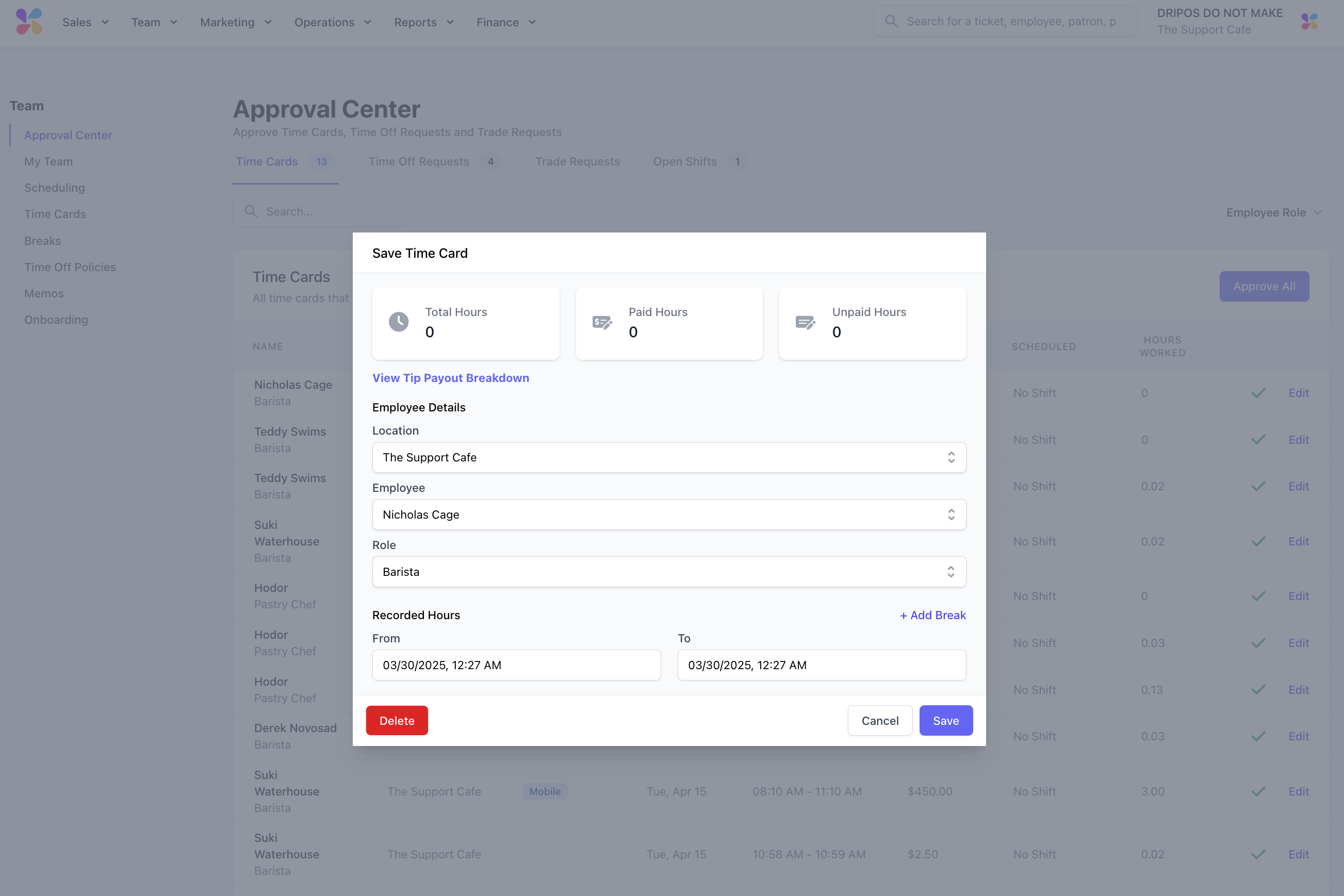
This will prompt a pop-up to appear where you can edit the **Location, Employee, and Role** attached to the timecard, as well as the recorded **start and end times** for the shift.
To delete a time card altogether, click on the **Delete** button at the bottom left of the pop-up page.
To edit a time card’s information, click on the **Edit** button to its right.
This will prompt a pop-up to appear where you can edit the **Location, Employee, and Role** attached to the timecard, as well as the recorded **start and end times** for the shift.
To delete a time card altogether, click on the **Delete** button at the bottom left of the pop-up page.
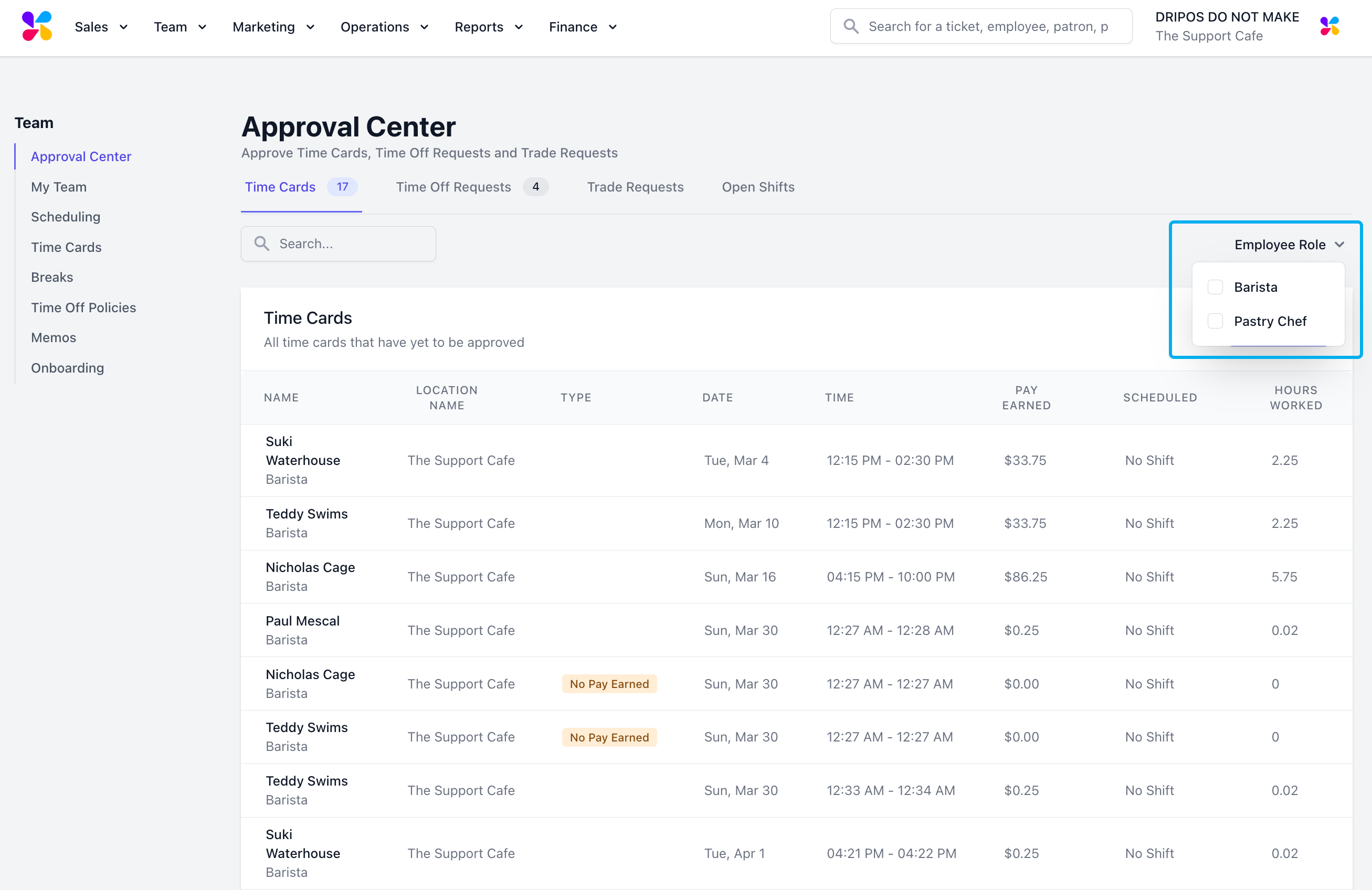
 Filter the requests based on Employee Role
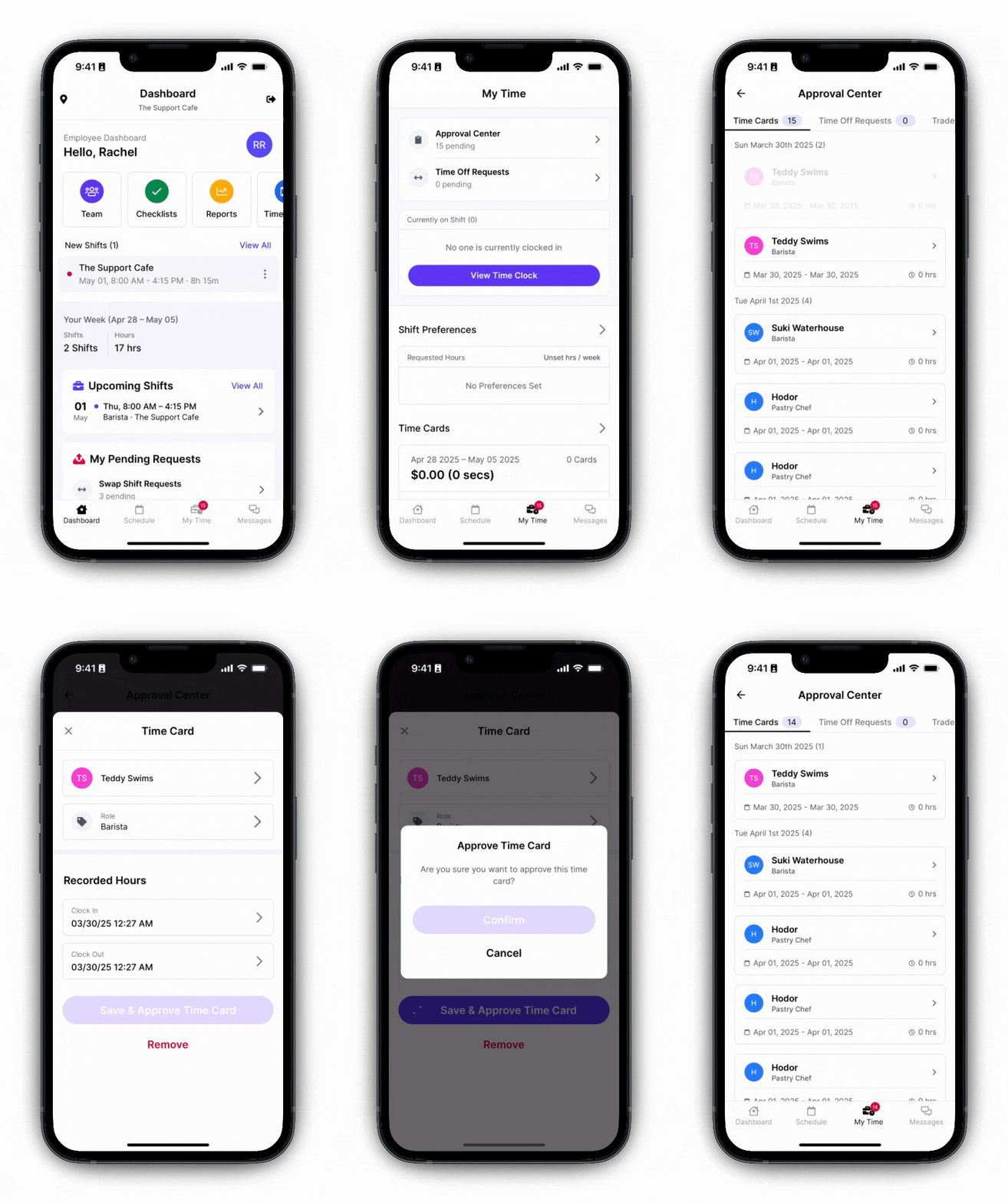
 On the Dripos Hub App, select **My Time** > **Approval Center**
Click on the **Time Cards** tab to view all of your employees’ pending time cards
Select a time card to reveal it’s details.
* Here you can edit the Time Card’s Employee, Role, and Recorded Hours before approving via the “Save & Approve Time Card” button:
If you wish to delete the time card all together, click on the **Remove** at the bottom of the pop-up page:
On the Dripos Hub App, select **My Time** > **Approval Center**
Click on the **Time Cards** tab to view all of your employees’ pending time cards
Select a time card to reveal it’s details.
* Here you can edit the Time Card’s Employee, Role, and Recorded Hours before approving via the “Save & Approve Time Card” button:
If you wish to delete the time card all together, click on the **Remove** at the bottom of the pop-up page:
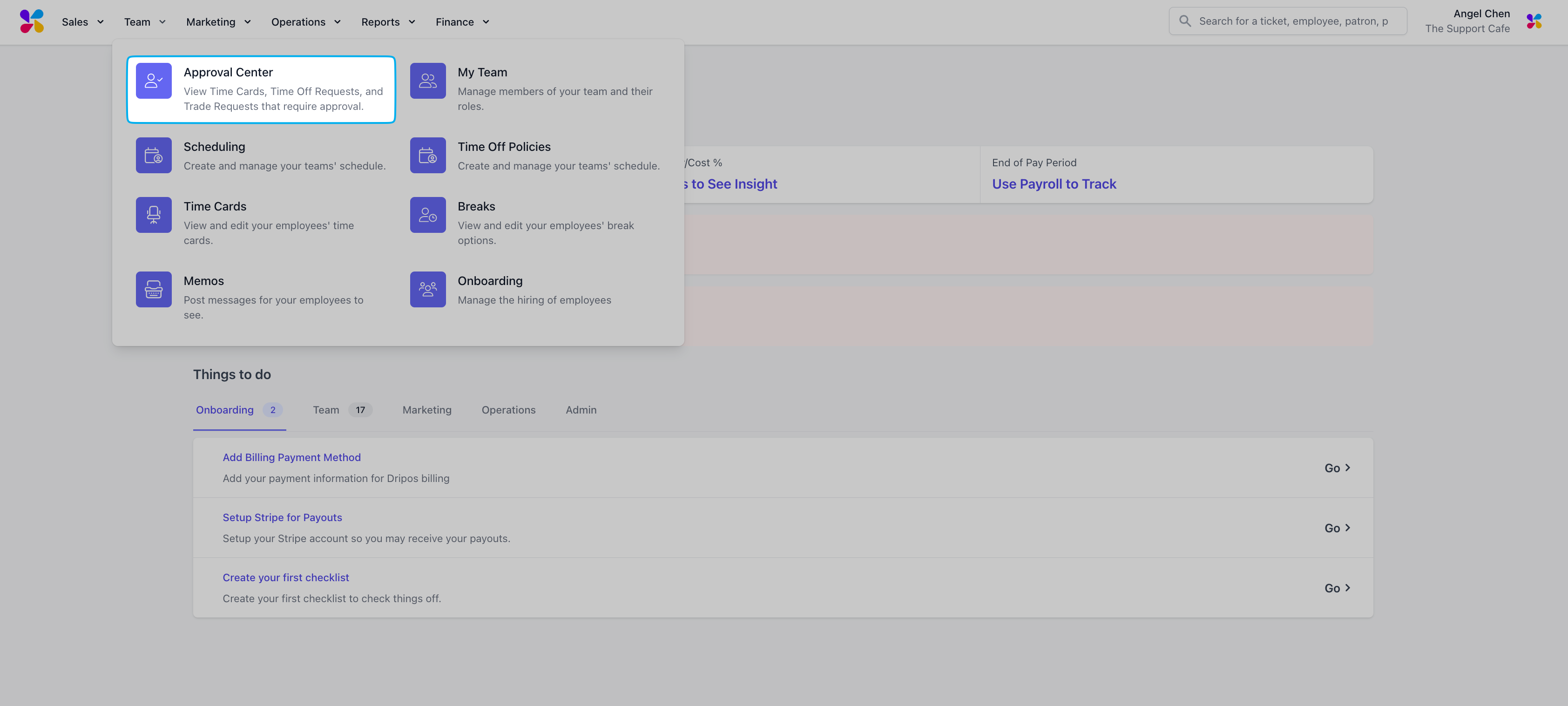
 Log in to the Dashboard and navigate to **Team > Approval Center**
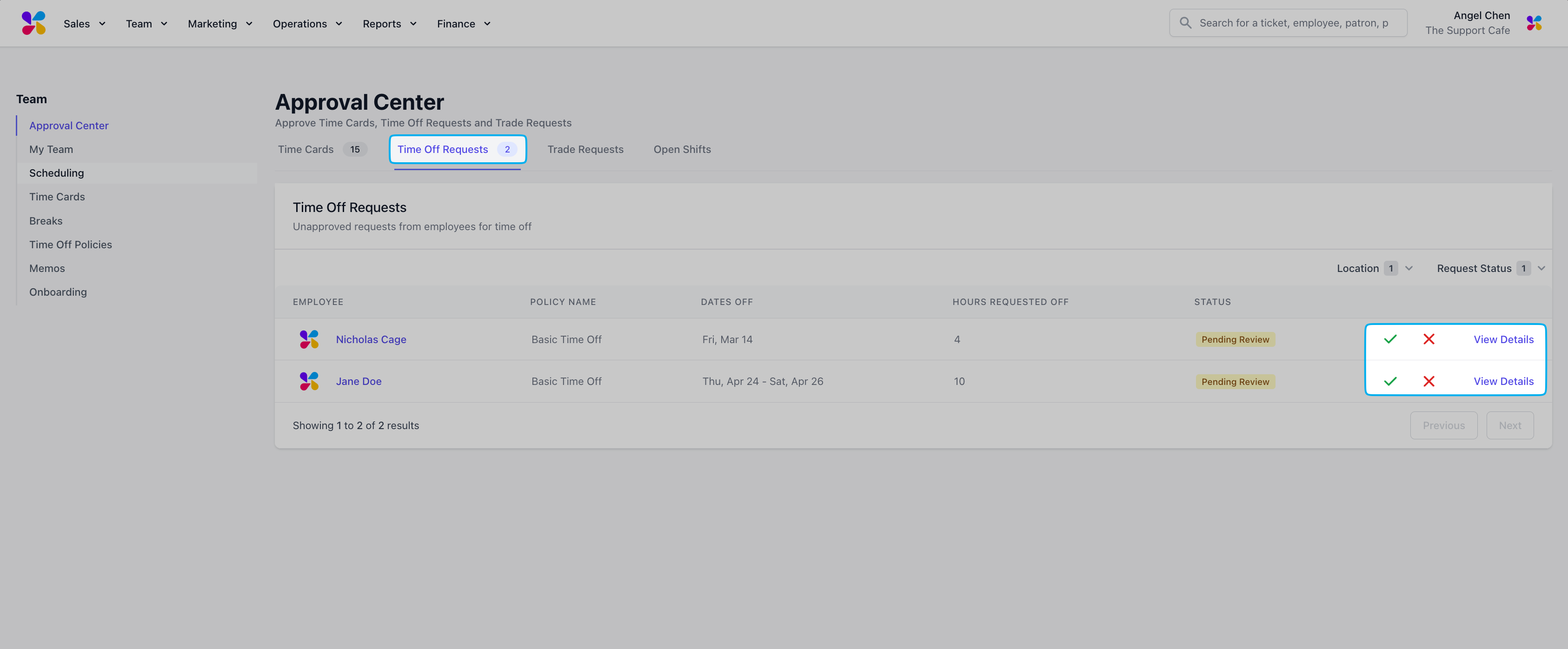
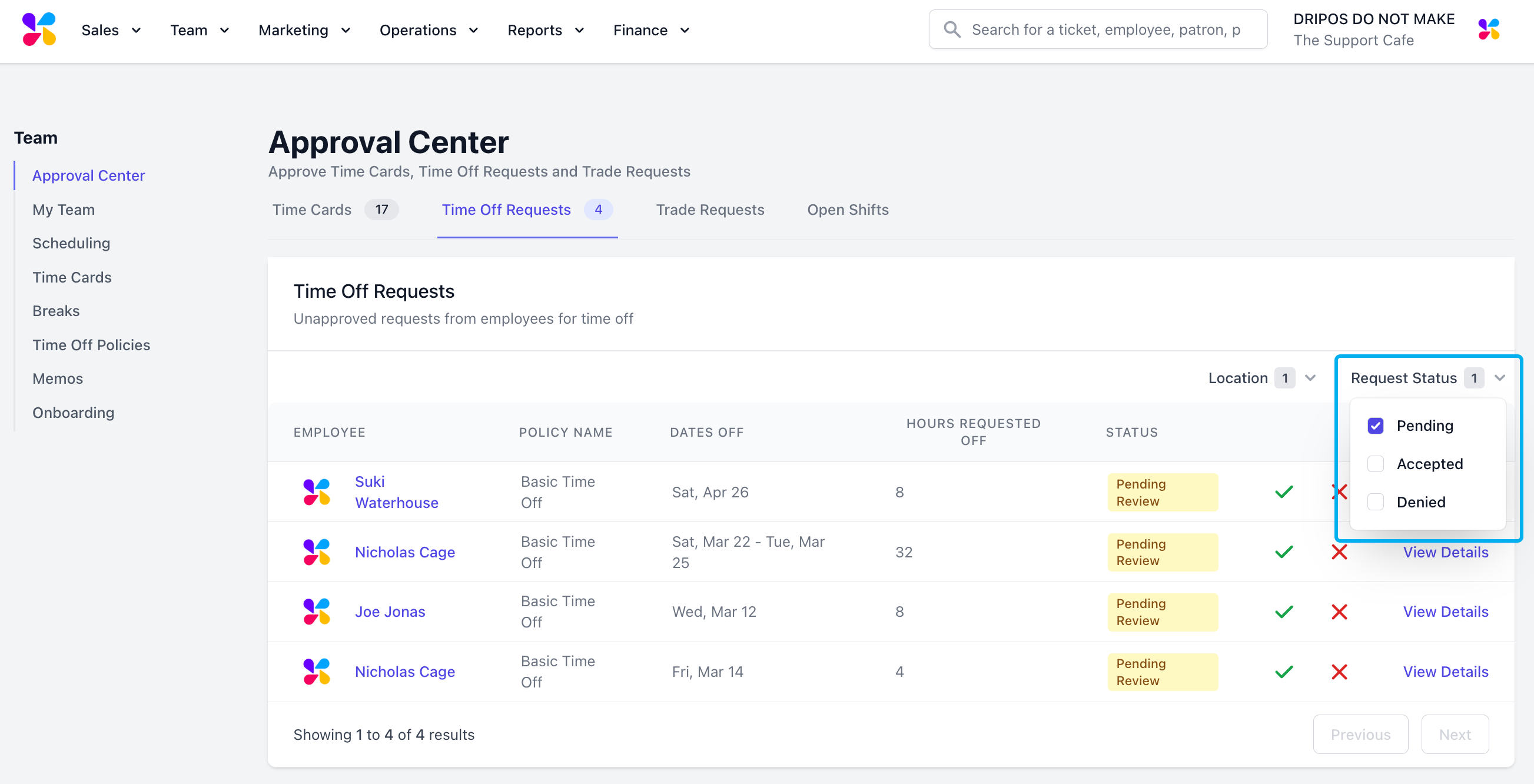
 Navigate to the **Time Off Requests** tab and use the ✓ to approve or X to reject requests.
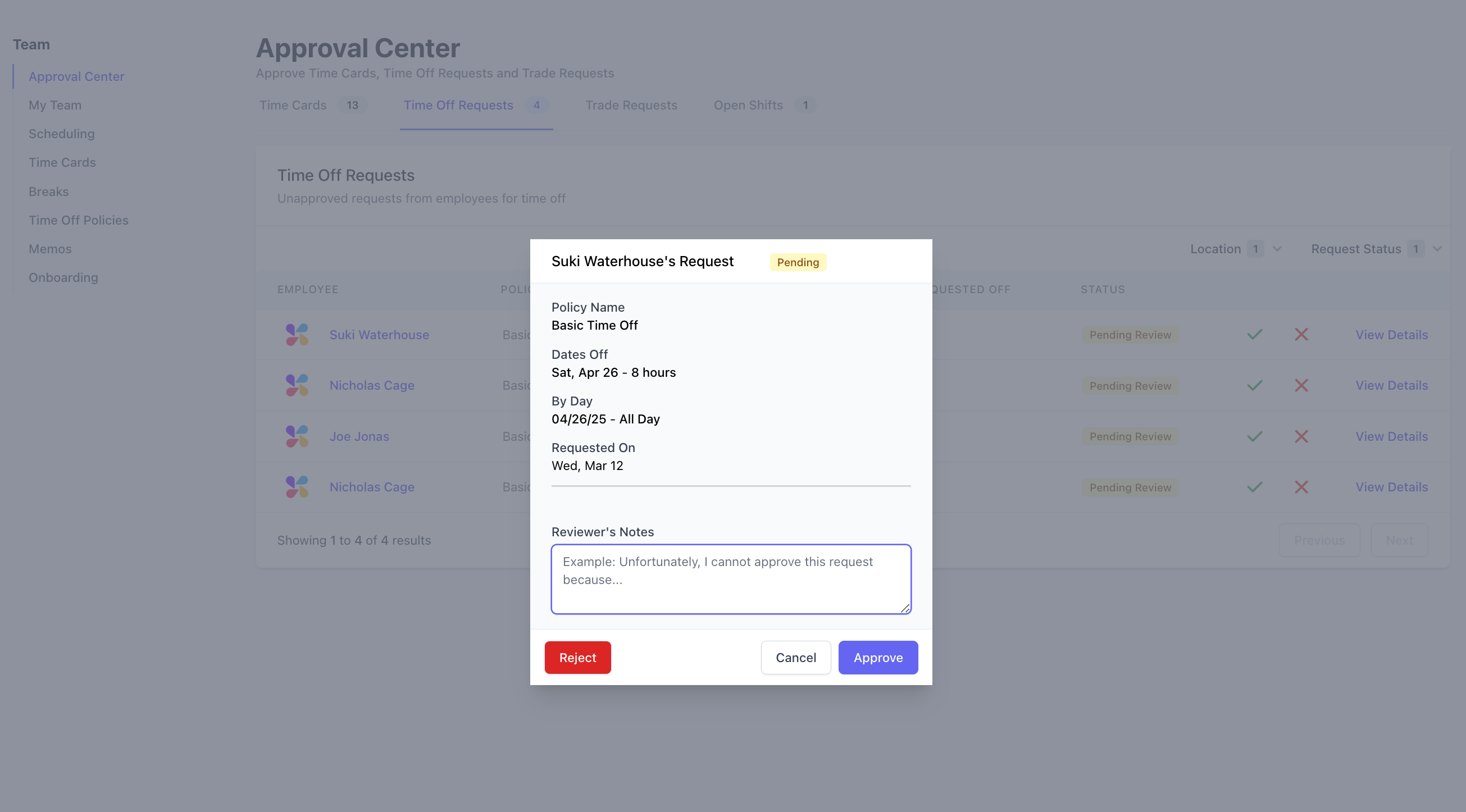
 Click **View Details** next to a request listed to view the days / times the employee has requested off, the day the request was made, attach notes for the employees to see, and approve or reject the request.
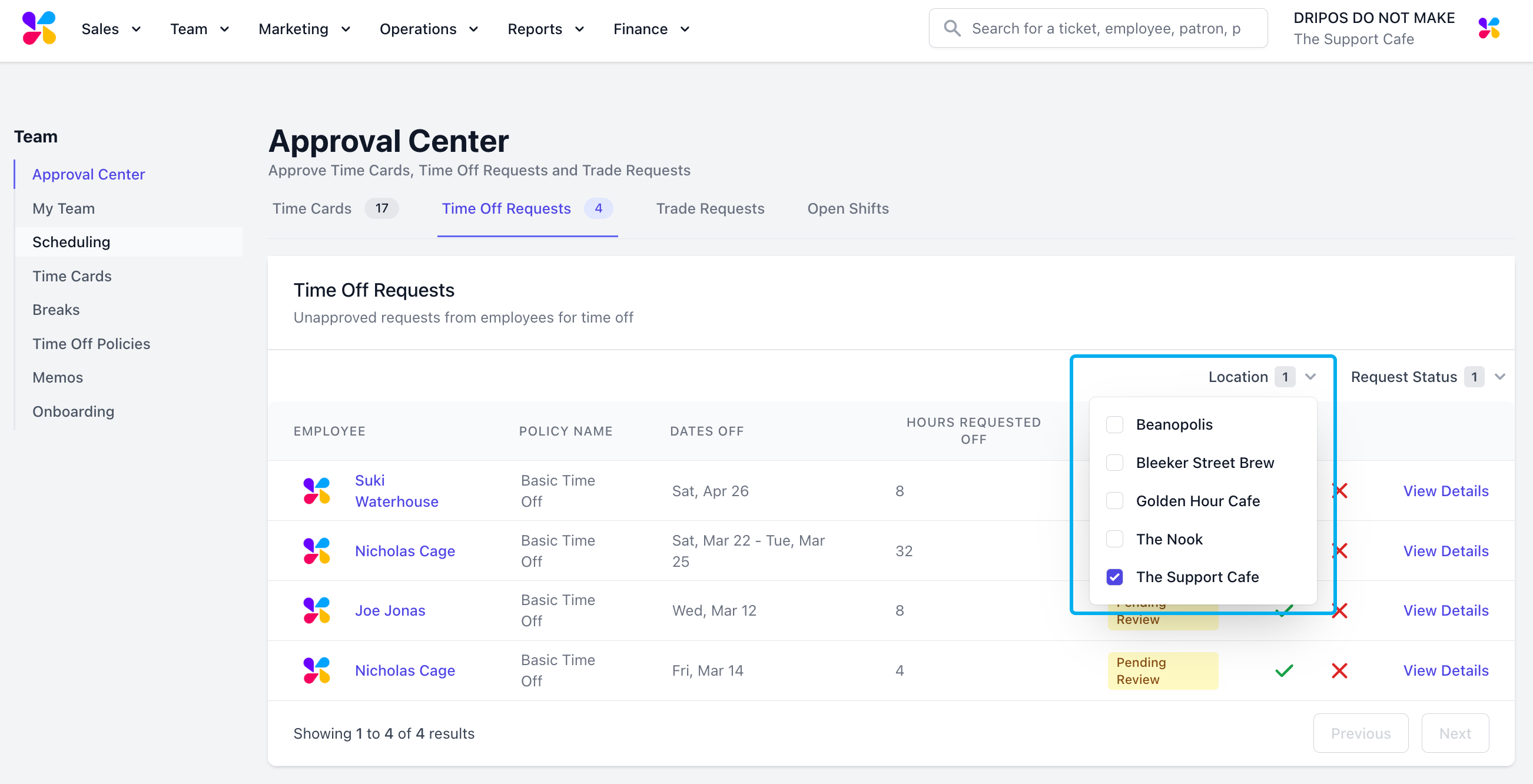
 Filter the requests based on Location and / or Request Status
 Log in to the Hub App and navigate to **My Time > Approval Center**

 Navigate to the **Time Off Requests** tab and view **Pending** requests
 Select the request to review and use the ✓ to approve or X to deny. Optional approval or rejection notes can be included in the Reviewer Notes section.
 View all **Approved** or **Declined** requests.
 On the **Dashboard**, select **Team** > **Approval Center**
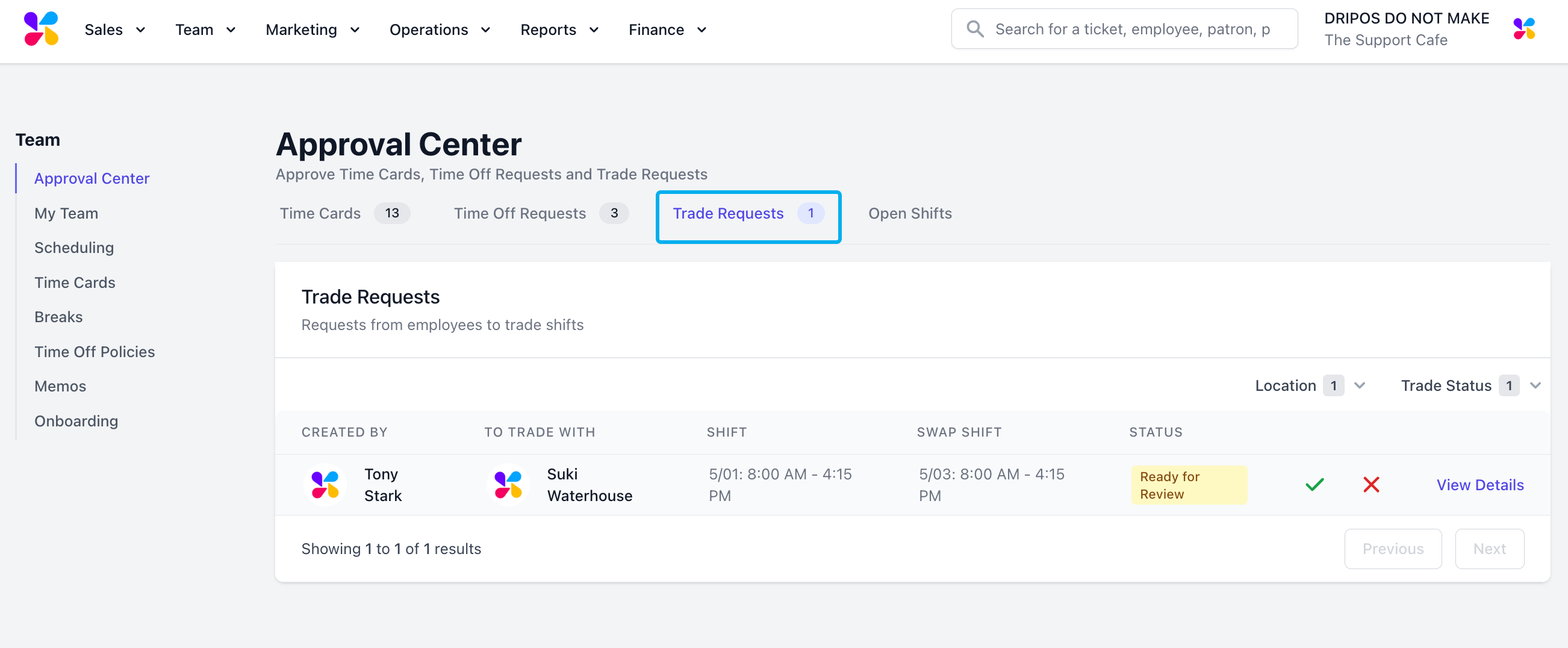
Click on the **Trade Requests** tab to view all submitted trade requests that require manager approval
Select the shift to review and use the ✓ to approve or X to deny.
On the **Dashboard**, select **Team** > **Approval Center**
Click on the **Trade Requests** tab to view all submitted trade requests that require manager approval
Select the shift to review and use the ✓ to approve or X to deny.
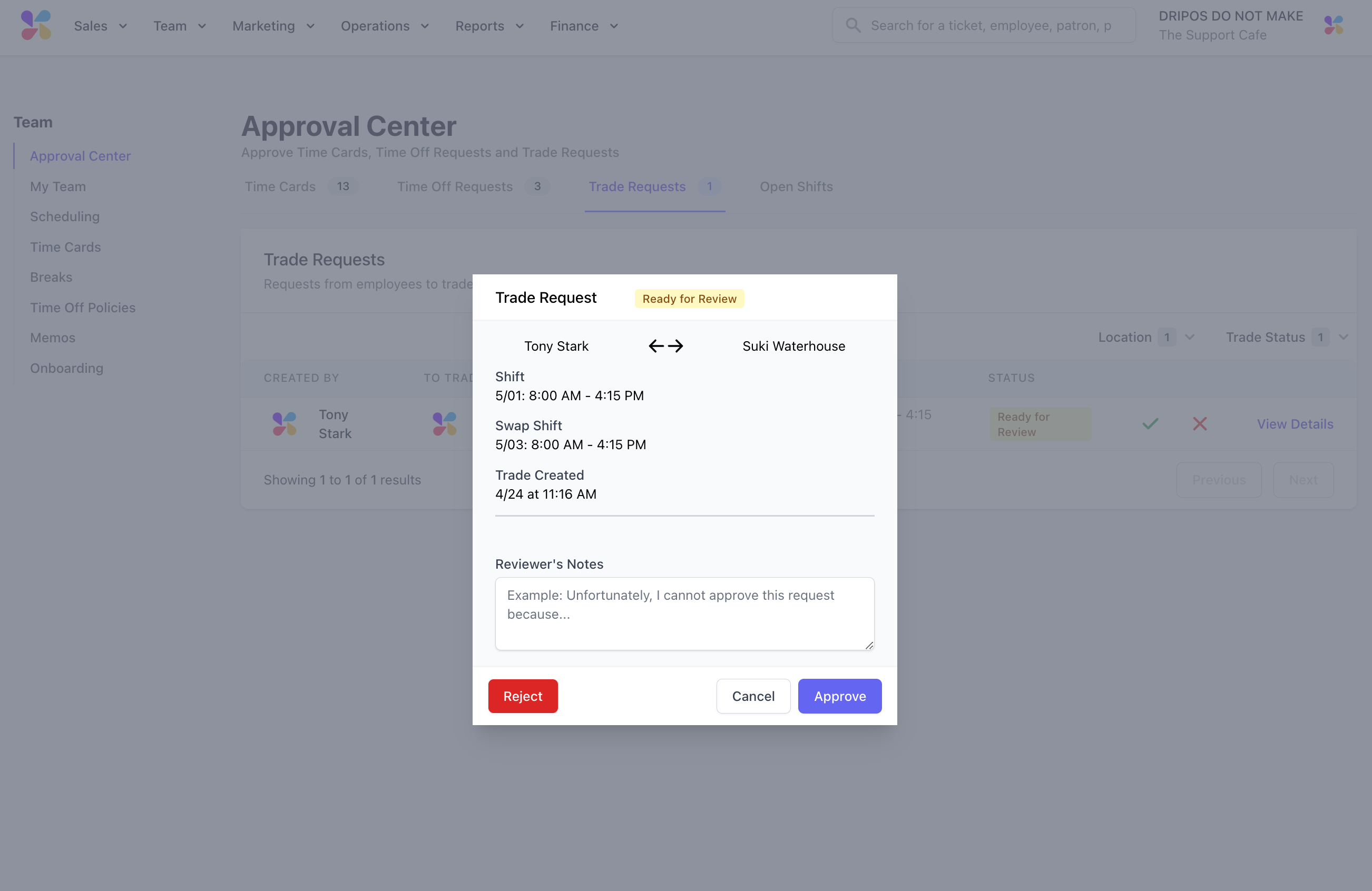
 Click **View Details** next to a trade request to view the shift being traded, who the shift was originally made for, who the shift is being traded to, and time the trade was made.
You can also attach notes that the employees will be able to see and approve or reject the request:
Click **View Details** next to a trade request to view the shift being traded, who the shift was originally made for, who the shift is being traded to, and time the trade was made.
You can also attach notes that the employees will be able to see and approve or reject the request:
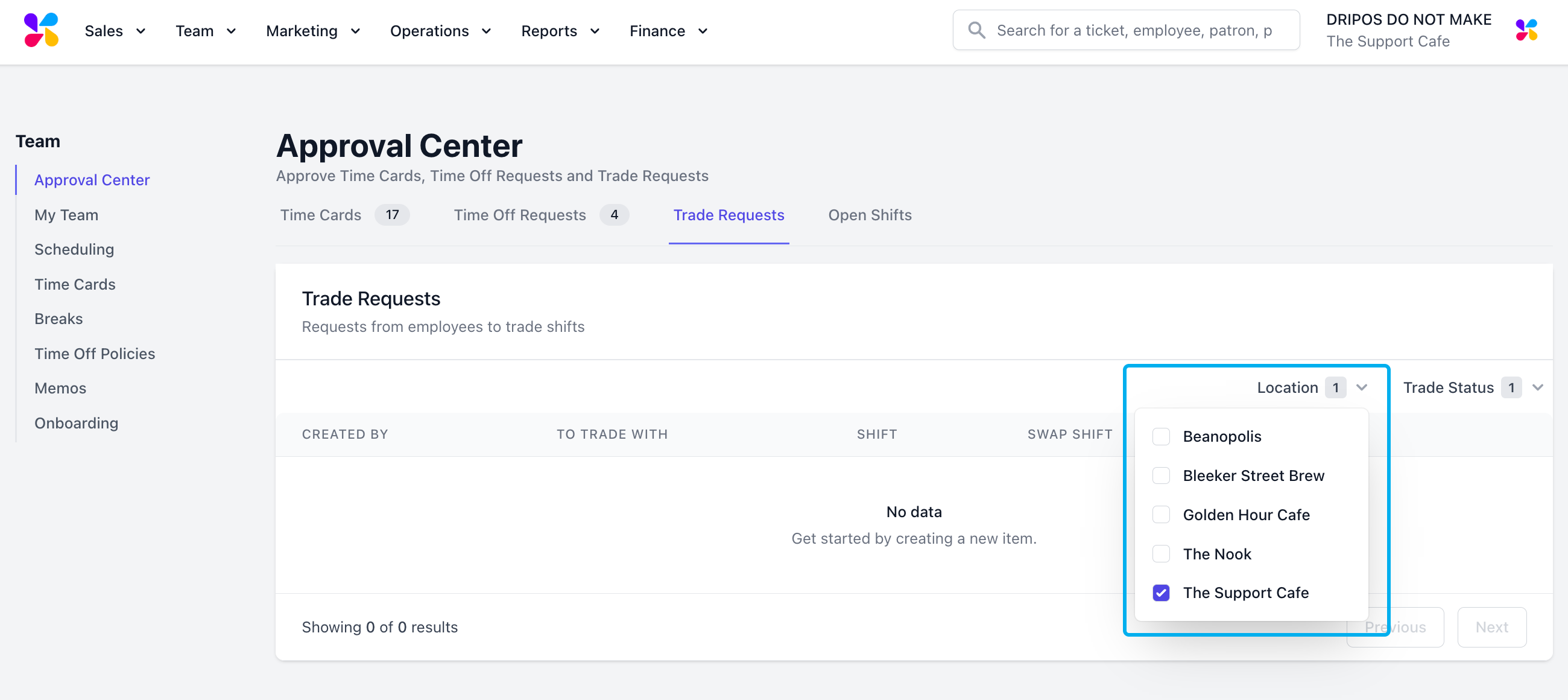
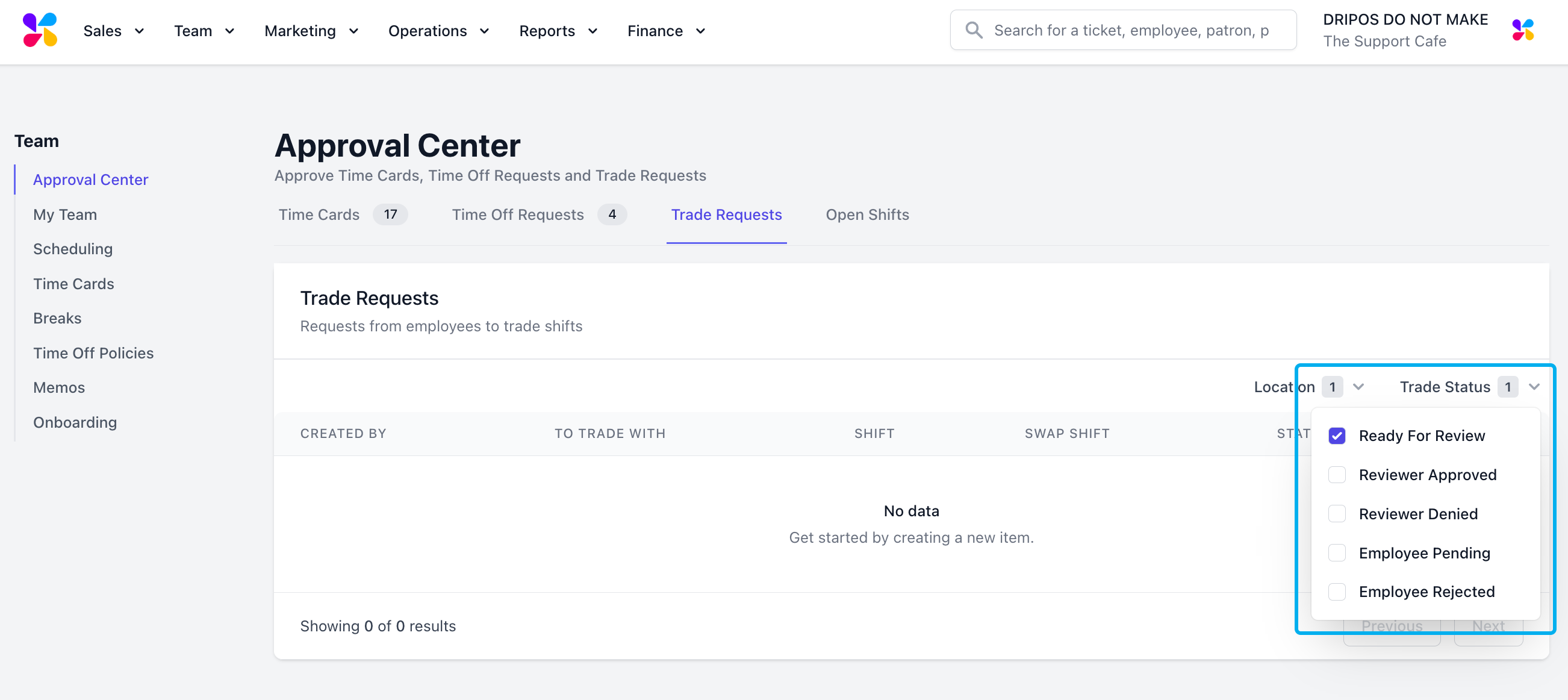
 Filter the requests based on Location and / or Trade Status
 On the Dripos Hub App, select My Time > Approval Center
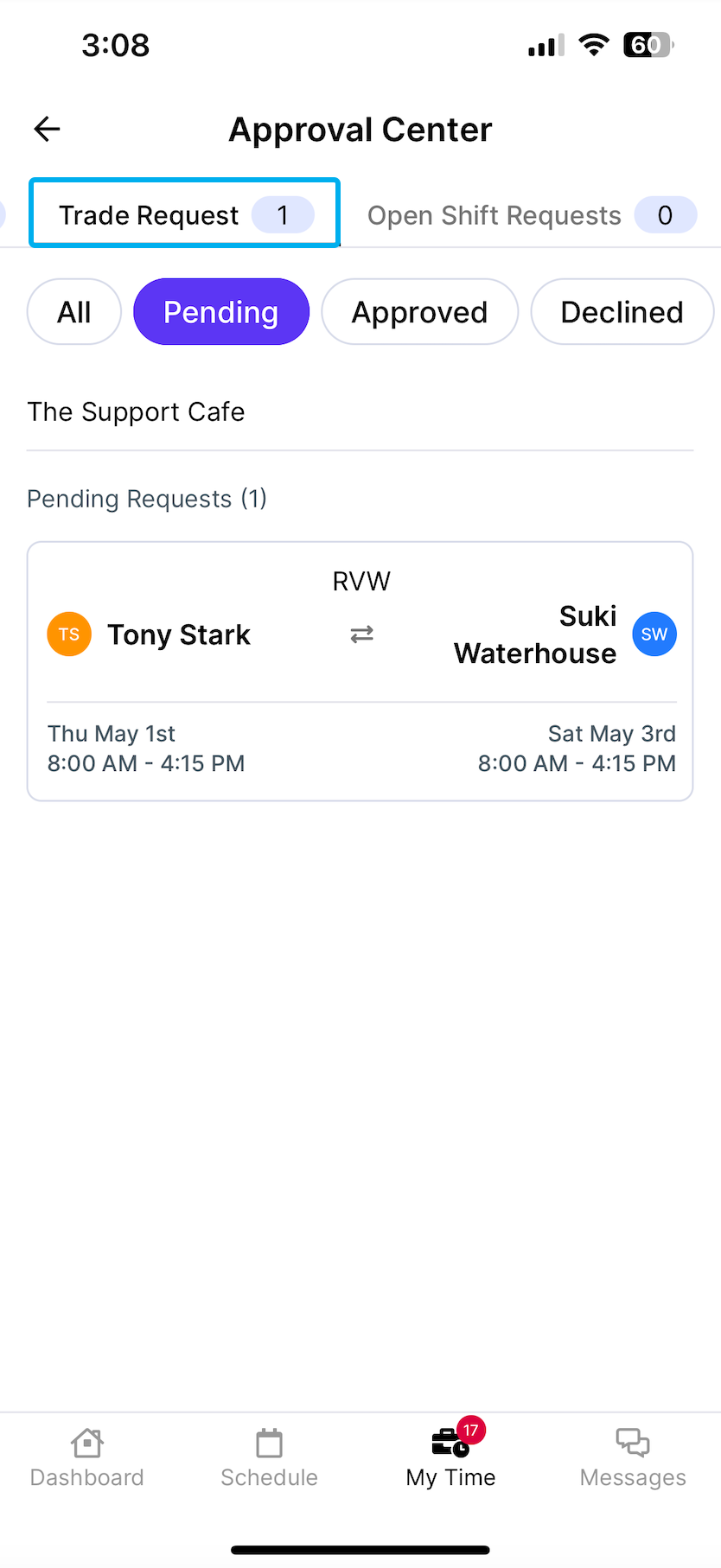
Click on the **Trade Request** tab to view all of your employees’ pending trade requests:
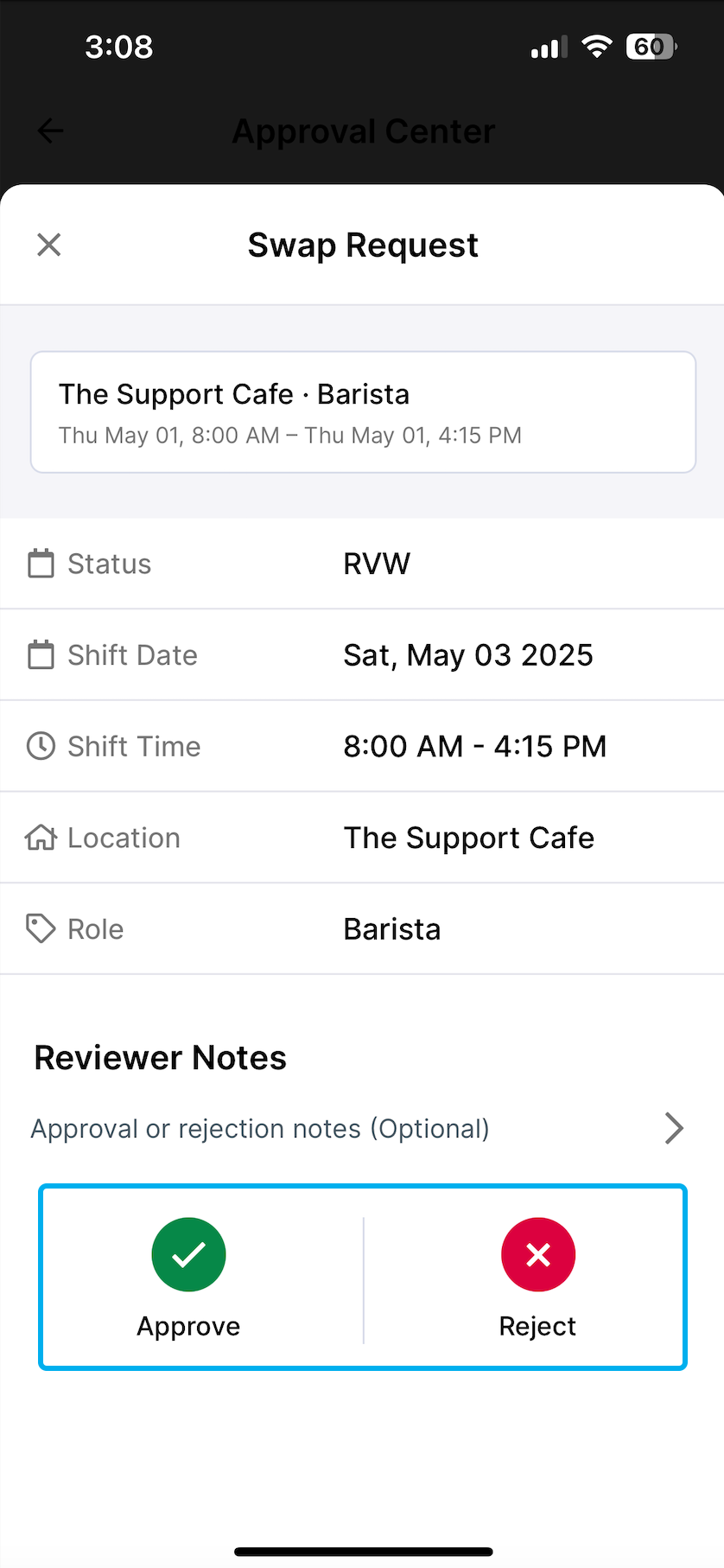
Select a request to reveal shift details as well as **Approve** and **Reject** buttons:
On the Dripos Hub App, select My Time > Approval Center
Click on the **Trade Request** tab to view all of your employees’ pending trade requests:
Select a request to reveal shift details as well as **Approve** and **Reject** buttons:
 On the **Dashboard**, select **Team** > **Approval Center**
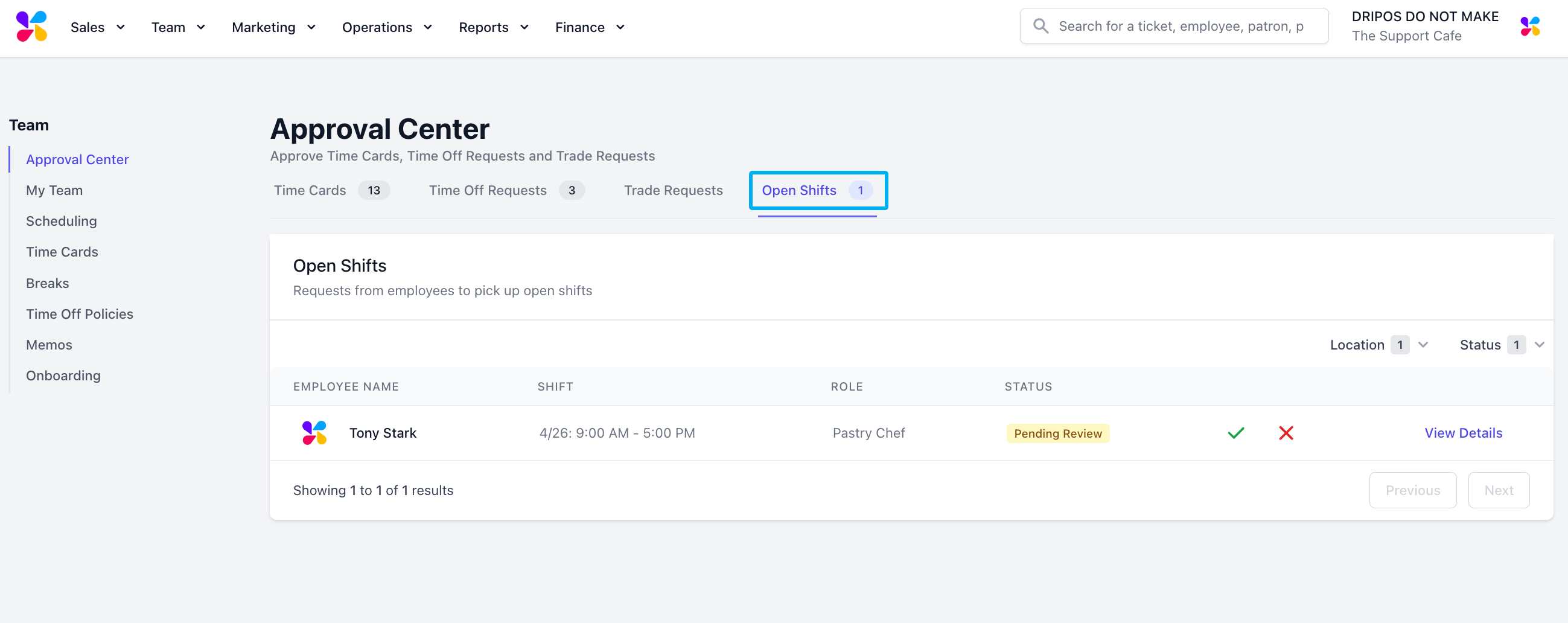
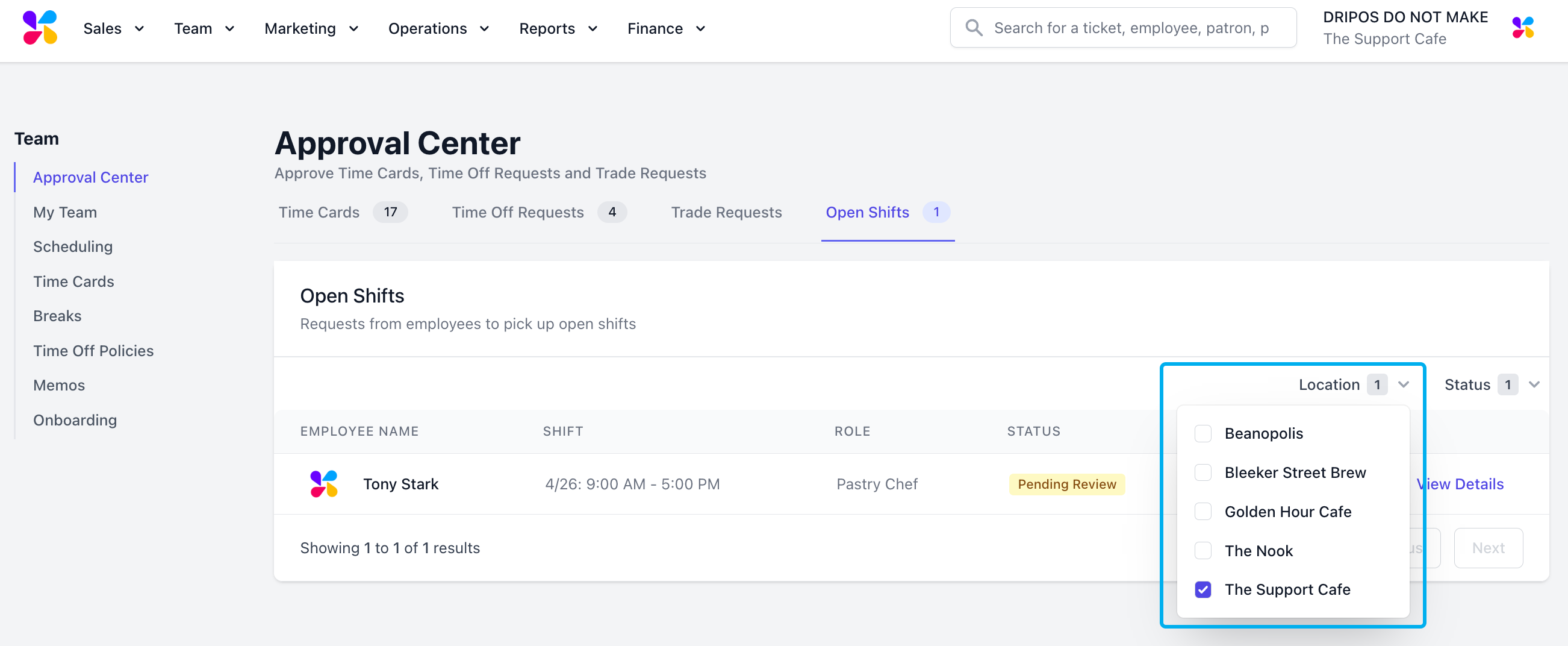
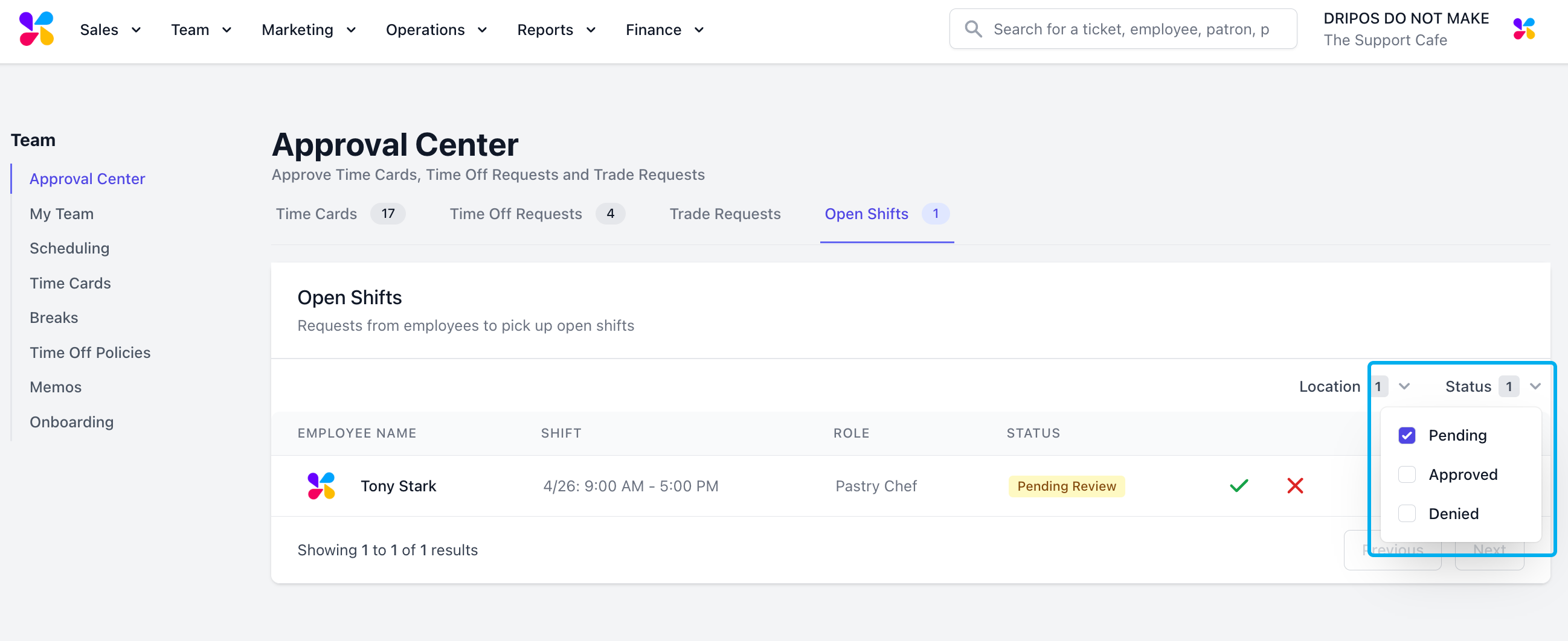
Click on the **Open Shifts** tab to view all open shifts that your employees have requested to pick up
Select the shift to review and use the ✓ to approve or X to deny.
On the **Dashboard**, select **Team** > **Approval Center**
Click on the **Open Shifts** tab to view all open shifts that your employees have requested to pick up
Select the shift to review and use the ✓ to approve or X to deny.
 Open shifts do not automatically display in the approval center.
To learn how to enable picked up open shifts to appear in the approval center, click [**here**](https://support.dripos.com/team/approval/approval-settings).
Filter the requets based on Location and / or Status:
Open shifts do not automatically display in the approval center.
To learn how to enable picked up open shifts to appear in the approval center, click [**here**](https://support.dripos.com/team/approval/approval-settings).
Filter the requets based on Location and / or Status:
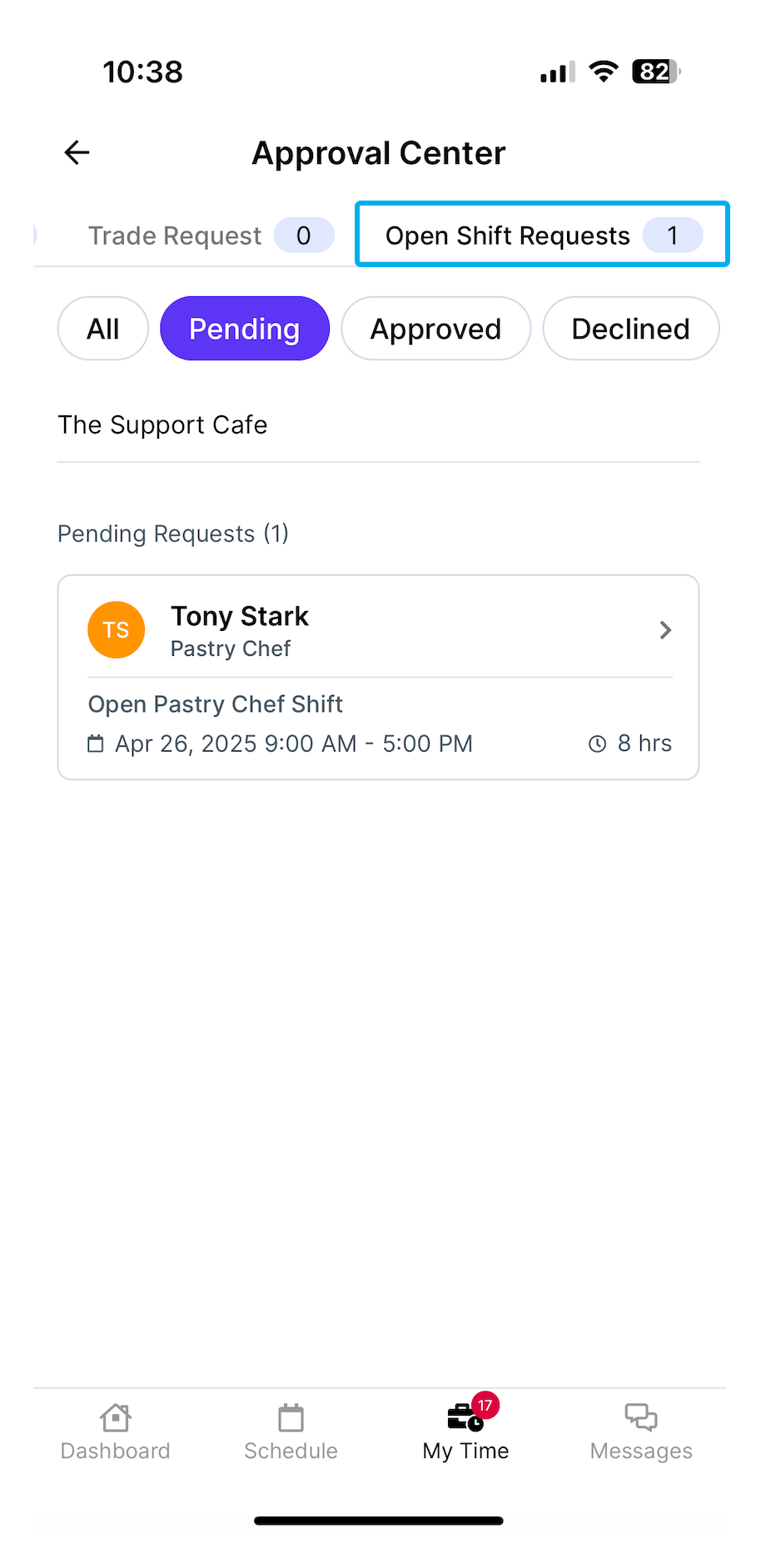
 On the Dripos Hub App, select My Time > Approval Center
Click on the **Open Shift Requests** tab to view all open shifts that your employees have requested to pick up:
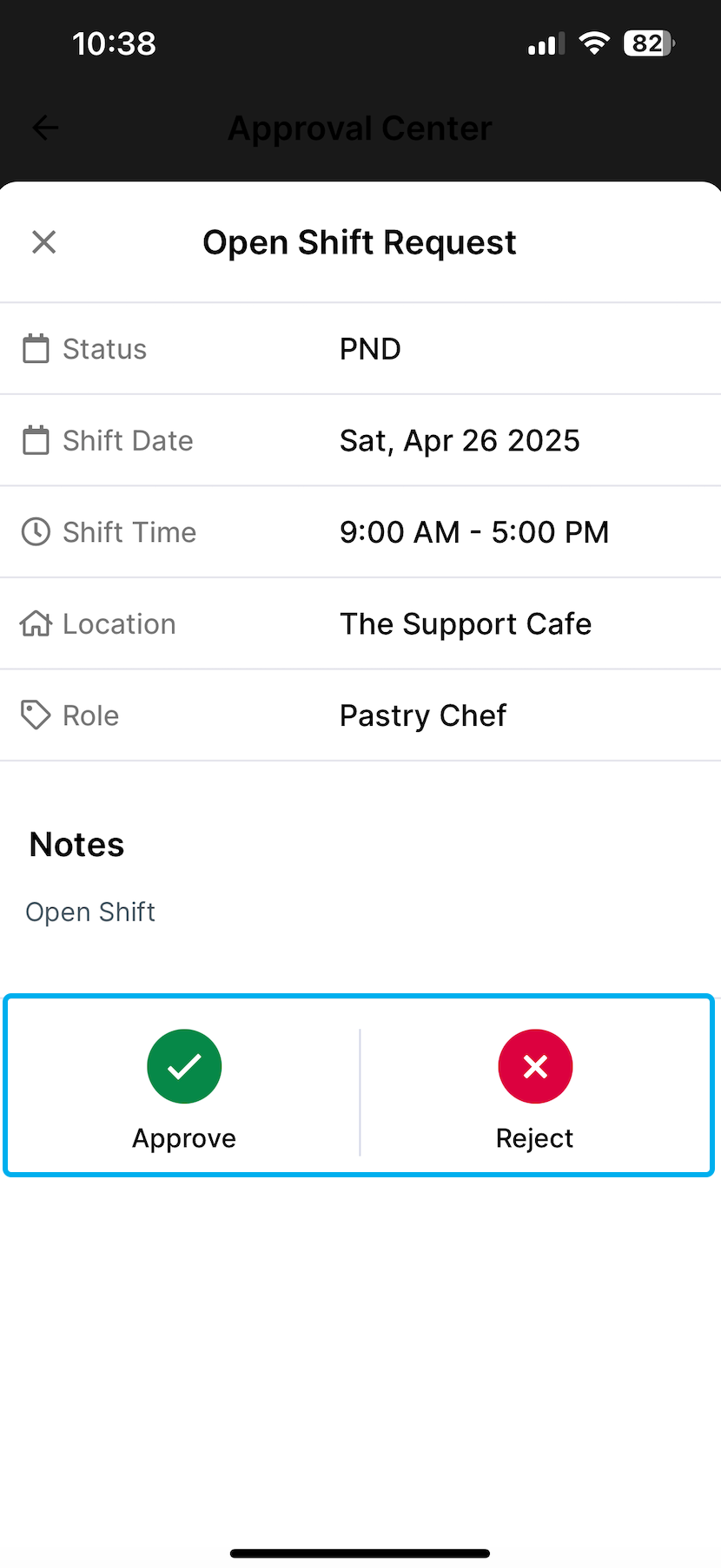
Select a request to reveal shift details as well as **Approve** and **Reject** buttons:
On the Dripos Hub App, select My Time > Approval Center
Click on the **Open Shift Requests** tab to view all open shifts that your employees have requested to pick up:
Select a request to reveal shift details as well as **Approve** and **Reject** buttons:
 ***
## Approval Center Settings
If enabled, time cards will be auto-approved if they fall within the designated threshold of shift start and end times
Access Auto-Approval settings from the [**Web Dashboard**](https://dashboard.dripos.com/settings?tab=auto-approval) > **Settings** > **Time Cards:**
***
## Approval Center Settings
If enabled, time cards will be auto-approved if they fall within the designated threshold of shift start and end times
Access Auto-Approval settings from the [**Web Dashboard**](https://dashboard.dripos.com/settings?tab=auto-approval) > **Settings** > **Time Cards:**
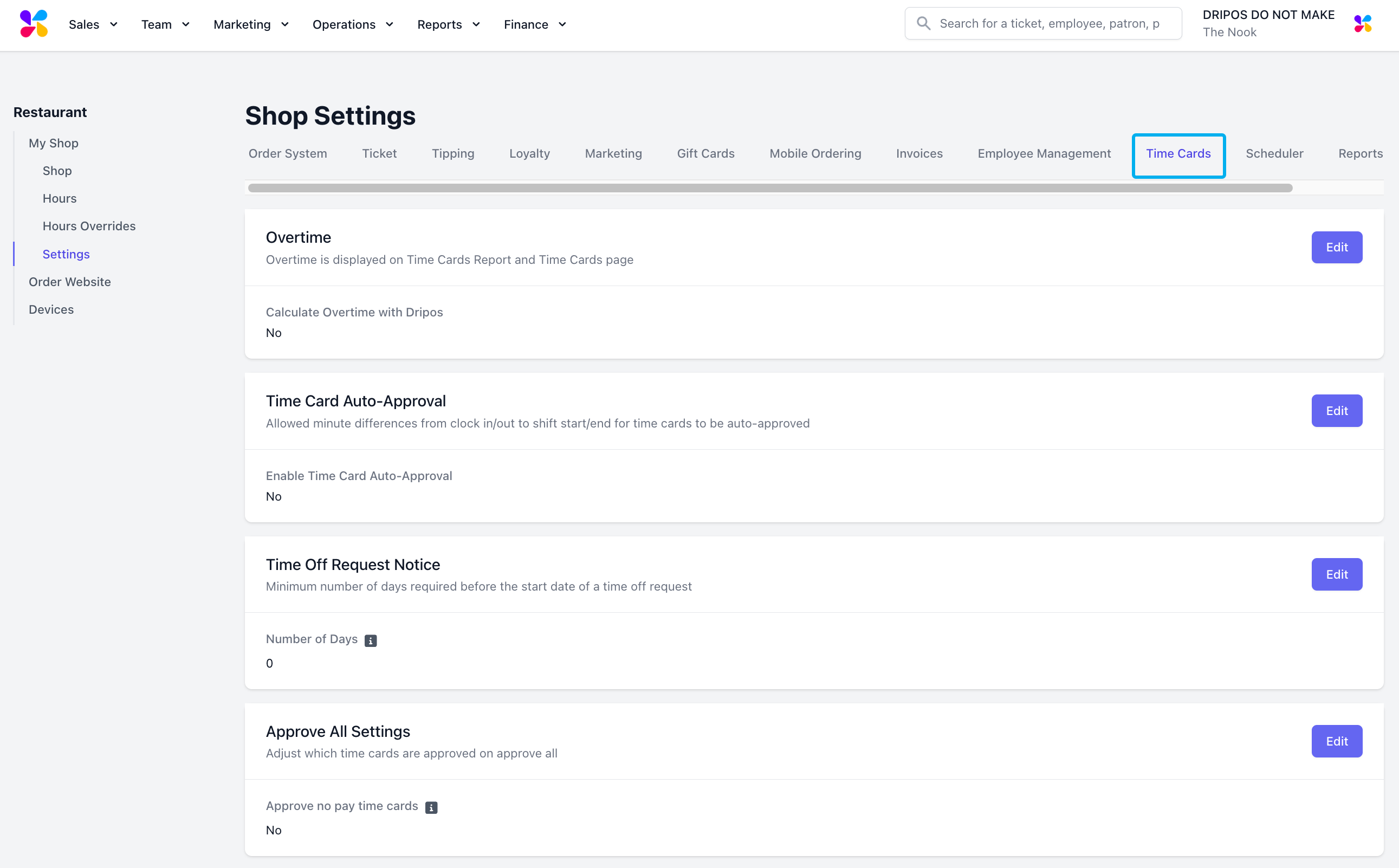 View your shop’s existing auto-approval settings under the **Time Card Auto-Approval** section:
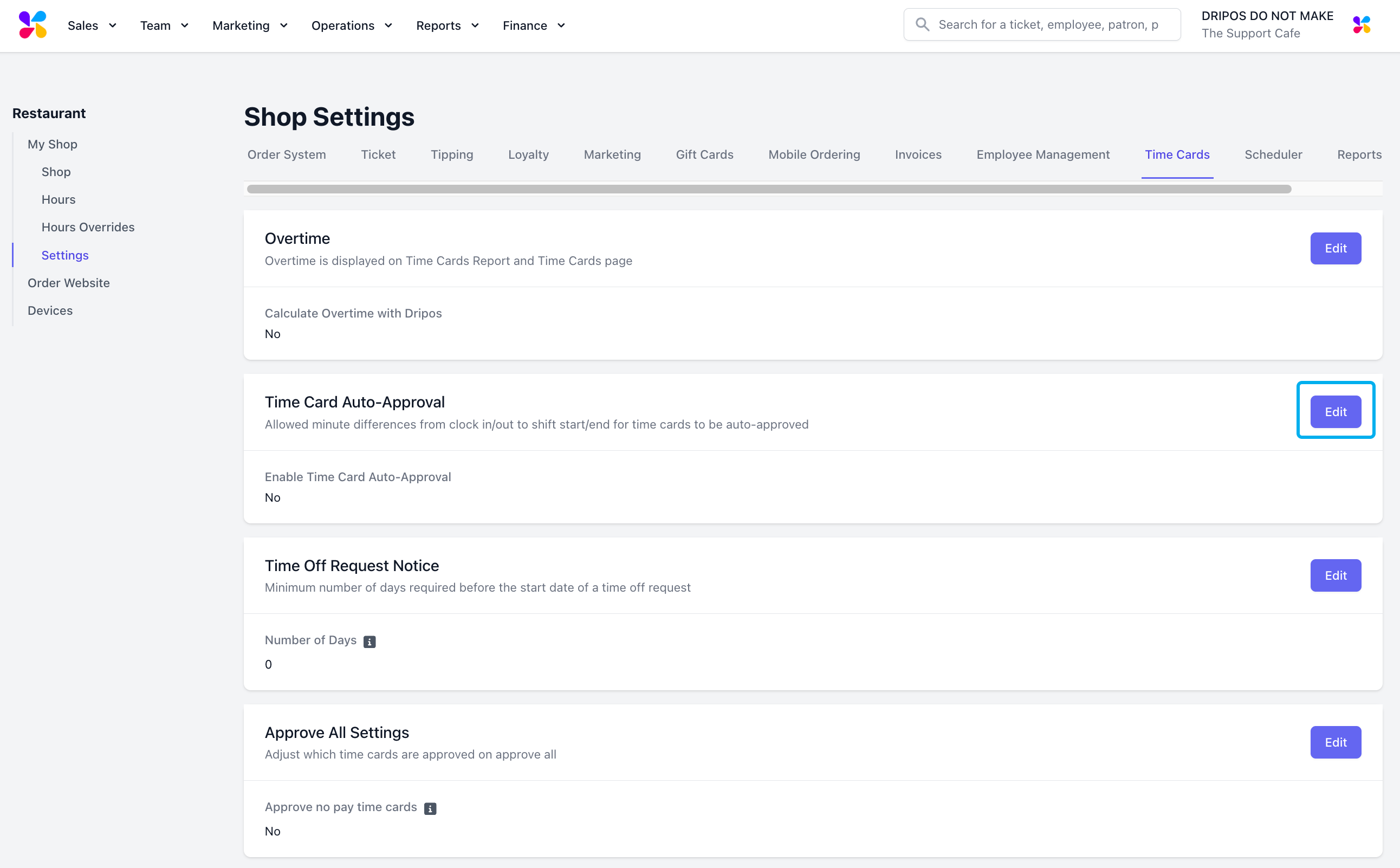
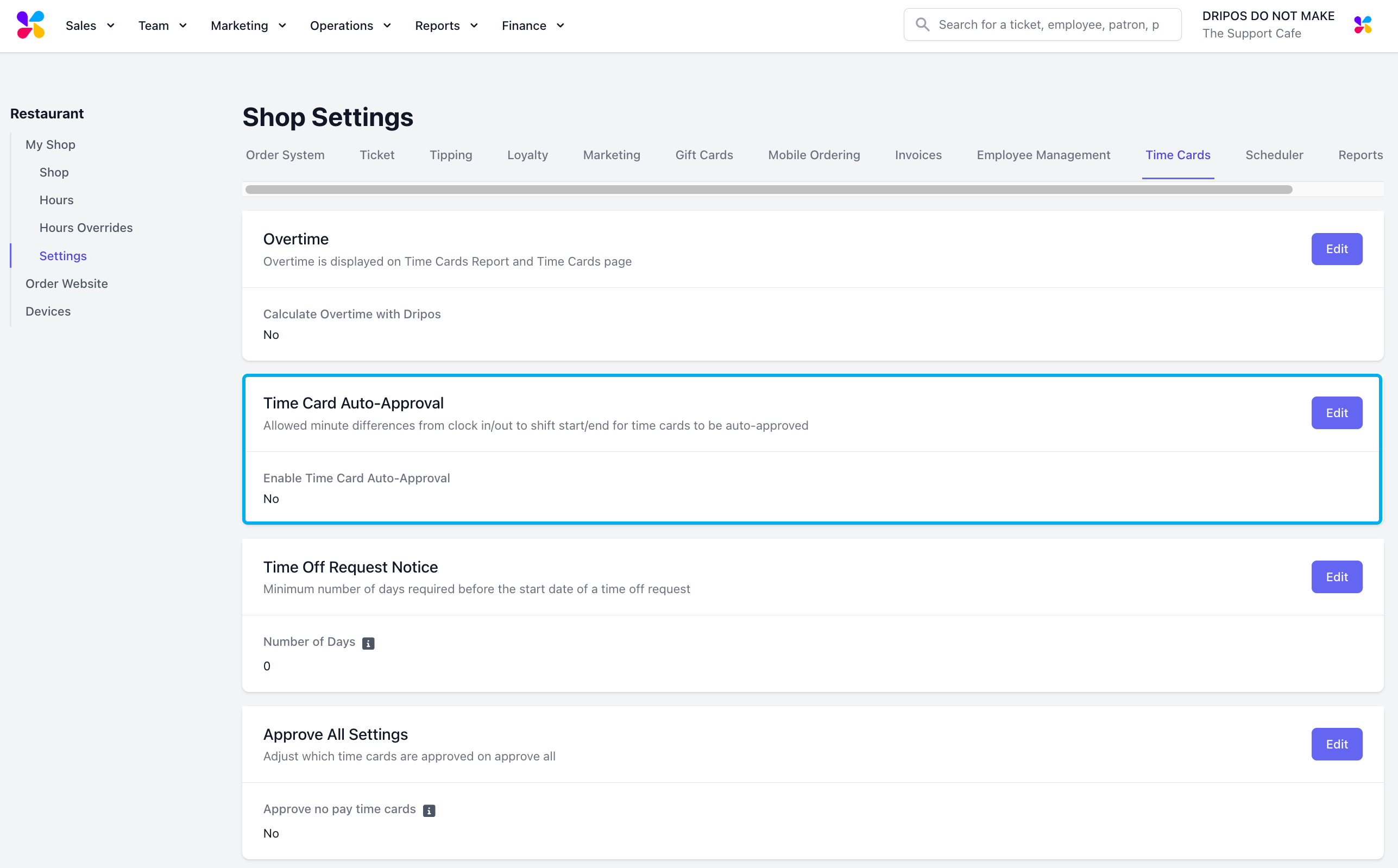 To modify your current auto-approval settings, click on the **Edit** box to its right:
 This will prompt a pop-up to appear to modify the allowed minute differences from **clock in / out** to **shift start / end** for time cards to be auto approved:
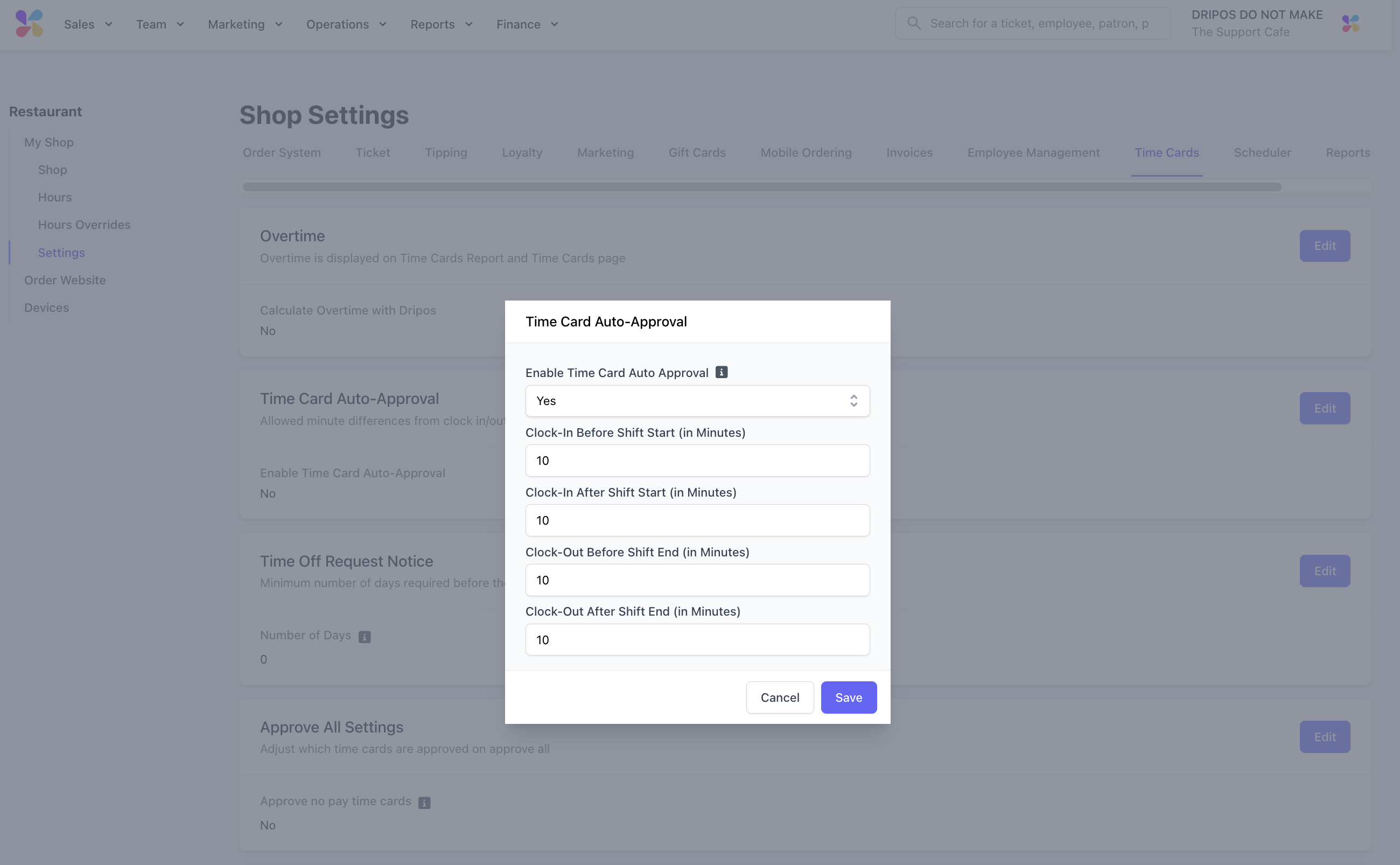 Click **Save** to confirm any changes made.
If enabled, time cards with no amount paid will be approved when approving all in the approval center.
Access Auto-Approval settings from the [**Web Dashboard**](https://dashboard.dripos.com/settings?tab=auto-approval) > **Settings** > **Time Cards:**
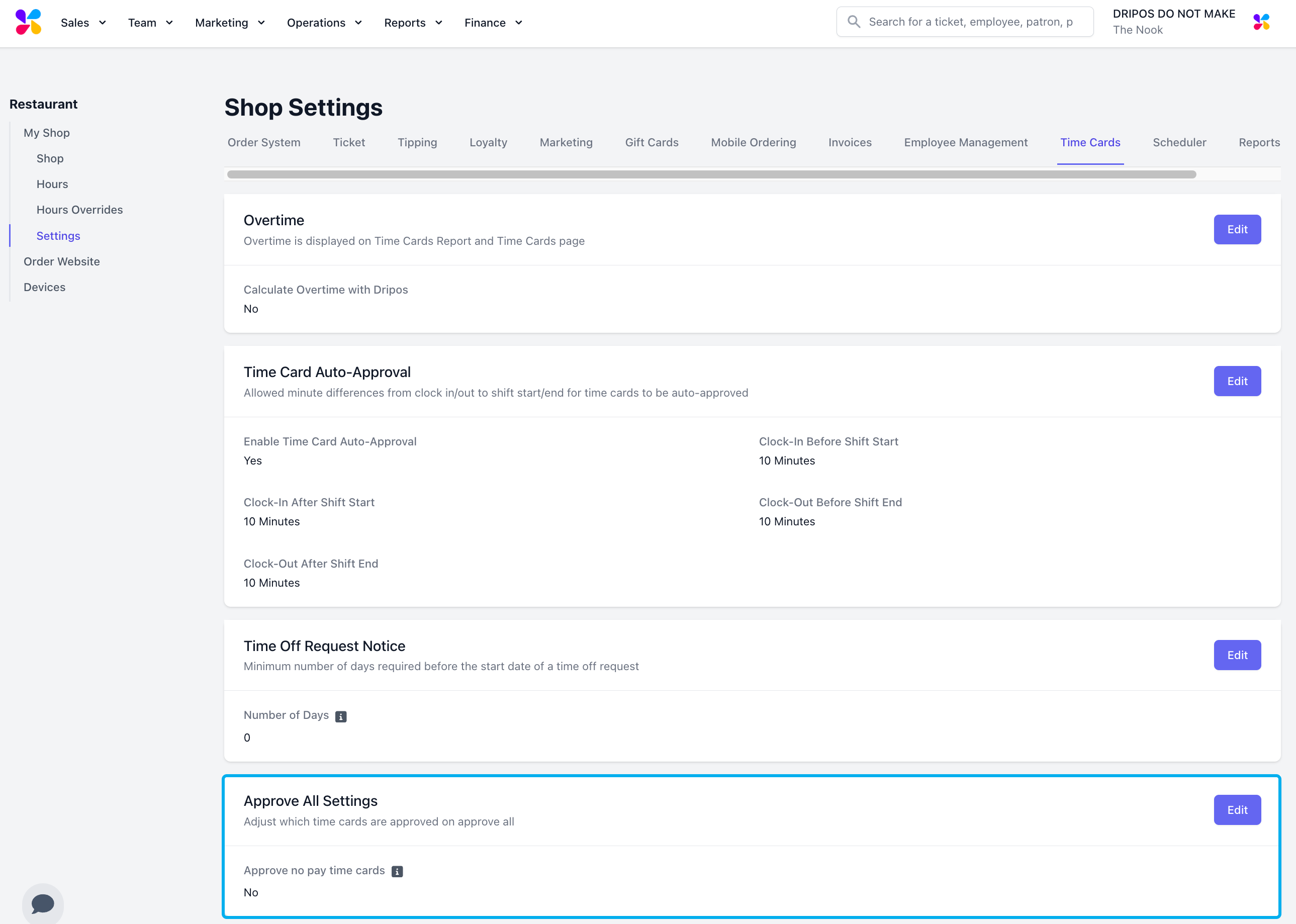
View your shop’s existing settings for approving all time cards under the **Approve All Settings** section:
Click **Save** to confirm any changes made.
If enabled, time cards with no amount paid will be approved when approving all in the approval center.
Access Auto-Approval settings from the [**Web Dashboard**](https://dashboard.dripos.com/settings?tab=auto-approval) > **Settings** > **Time Cards:**
View your shop’s existing settings for approving all time cards under the **Approve All Settings** section:
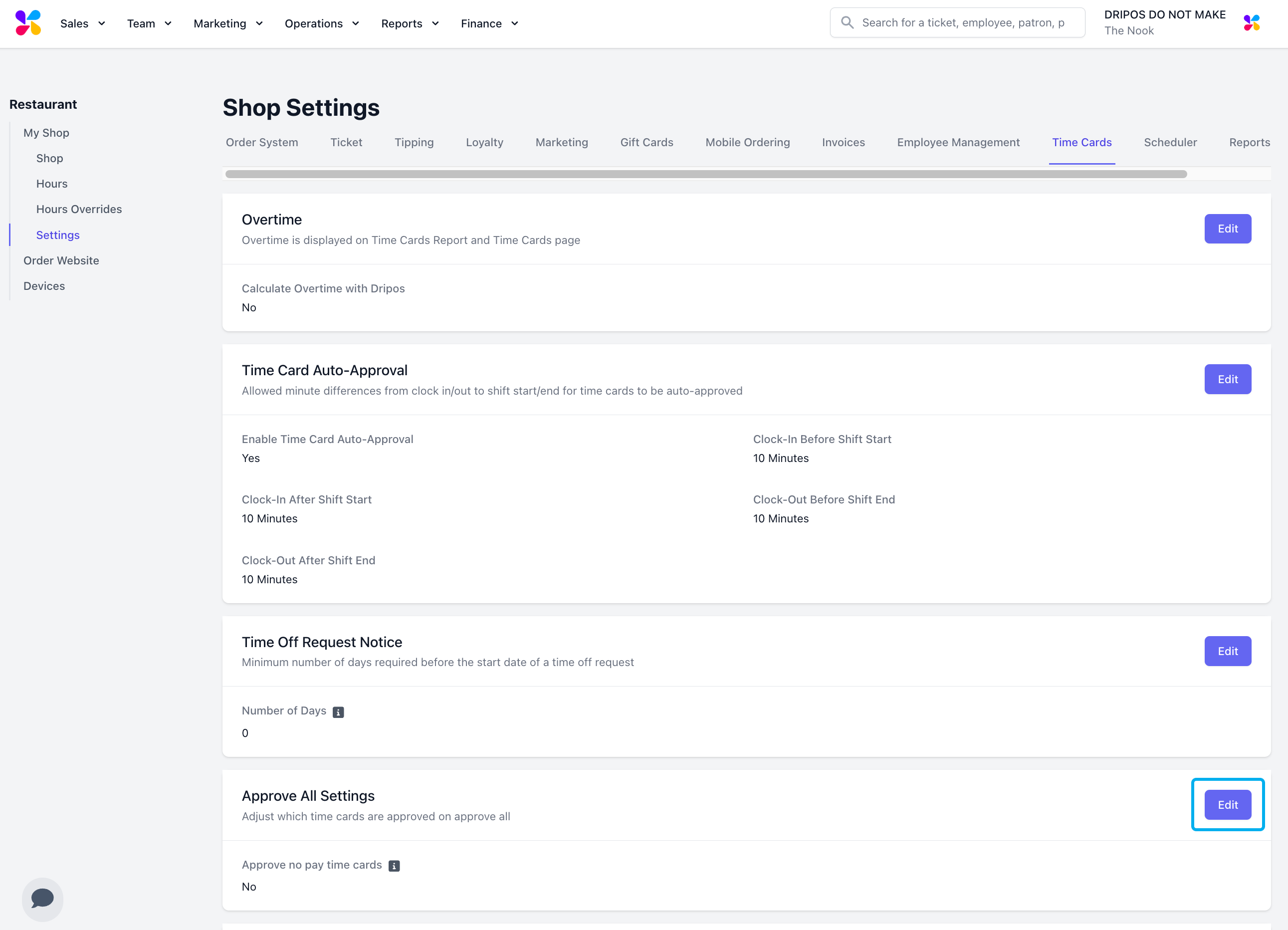
 To modify your existing *approve all* settings, click the **Edit** box to its right:
 This will prompt a pop-up to appear to select from the dropdown to **approve no pay time cards:**
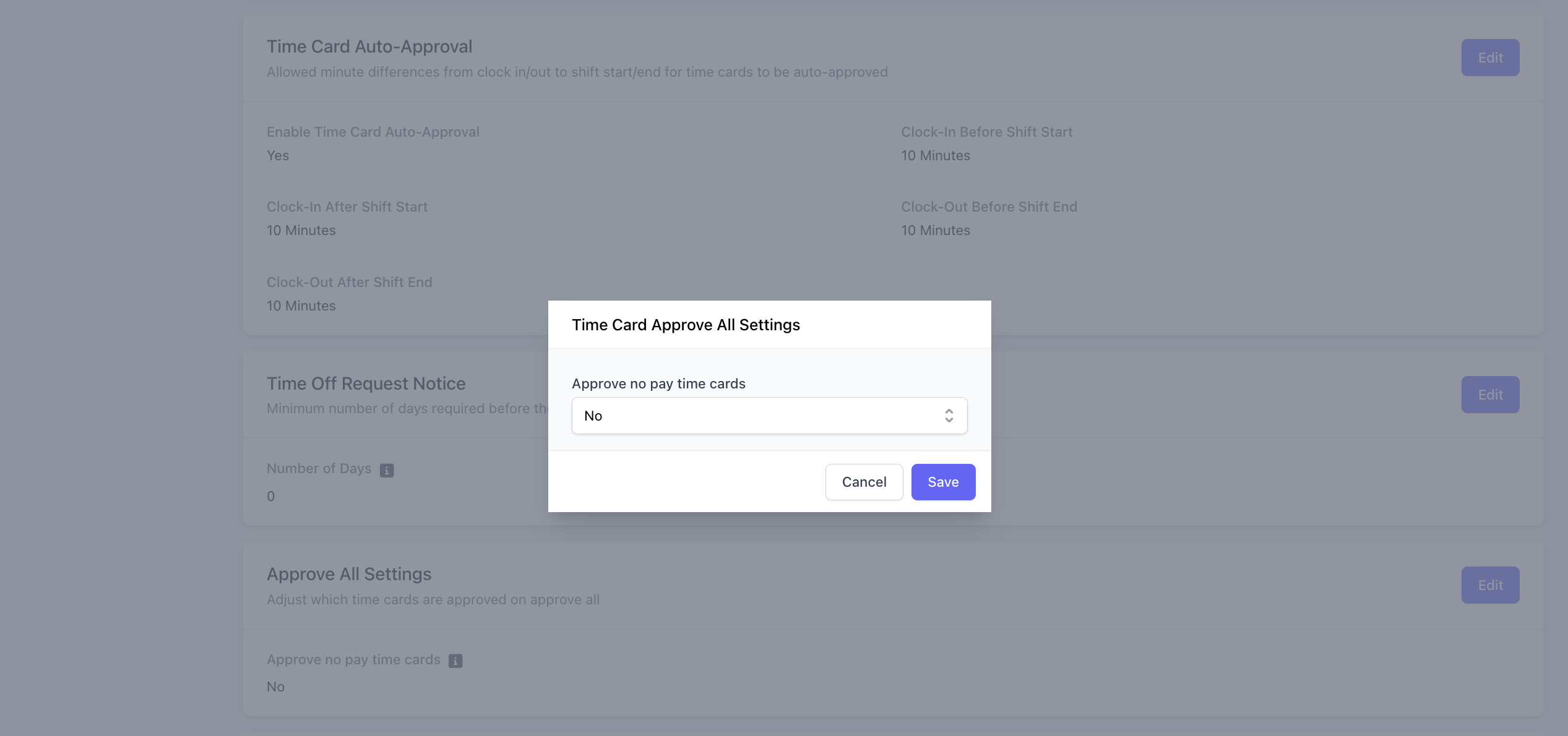 Once you have finished making your desired changes, click **Save.**