> ## Documentation Index
> Fetch the complete documentation index at: https://support.dripos.com/llms.txt
> Use this file to discover all available pages before exploring further.

# Employee Messaging

> Communicate with your employees with Dripos Team Messaging

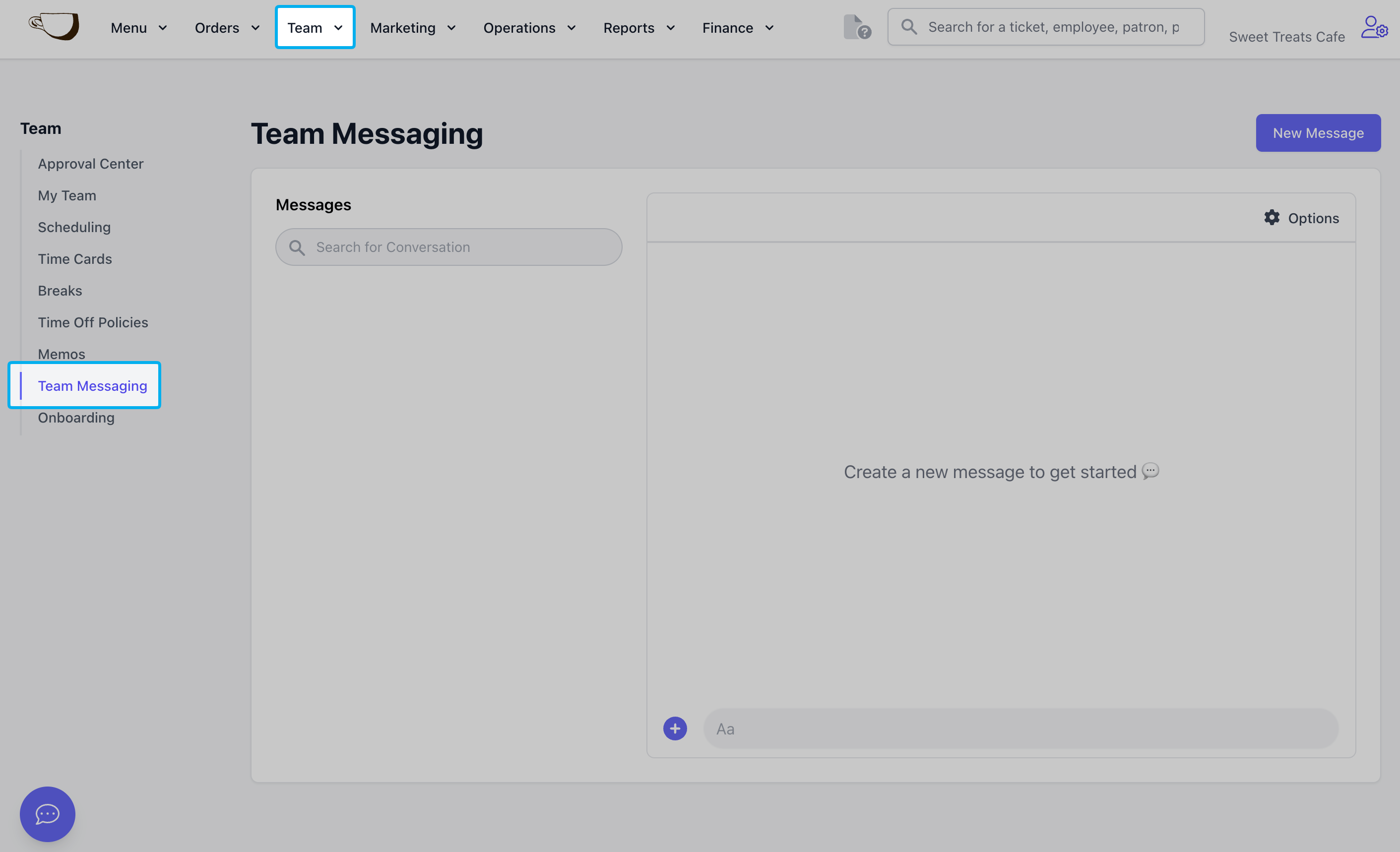
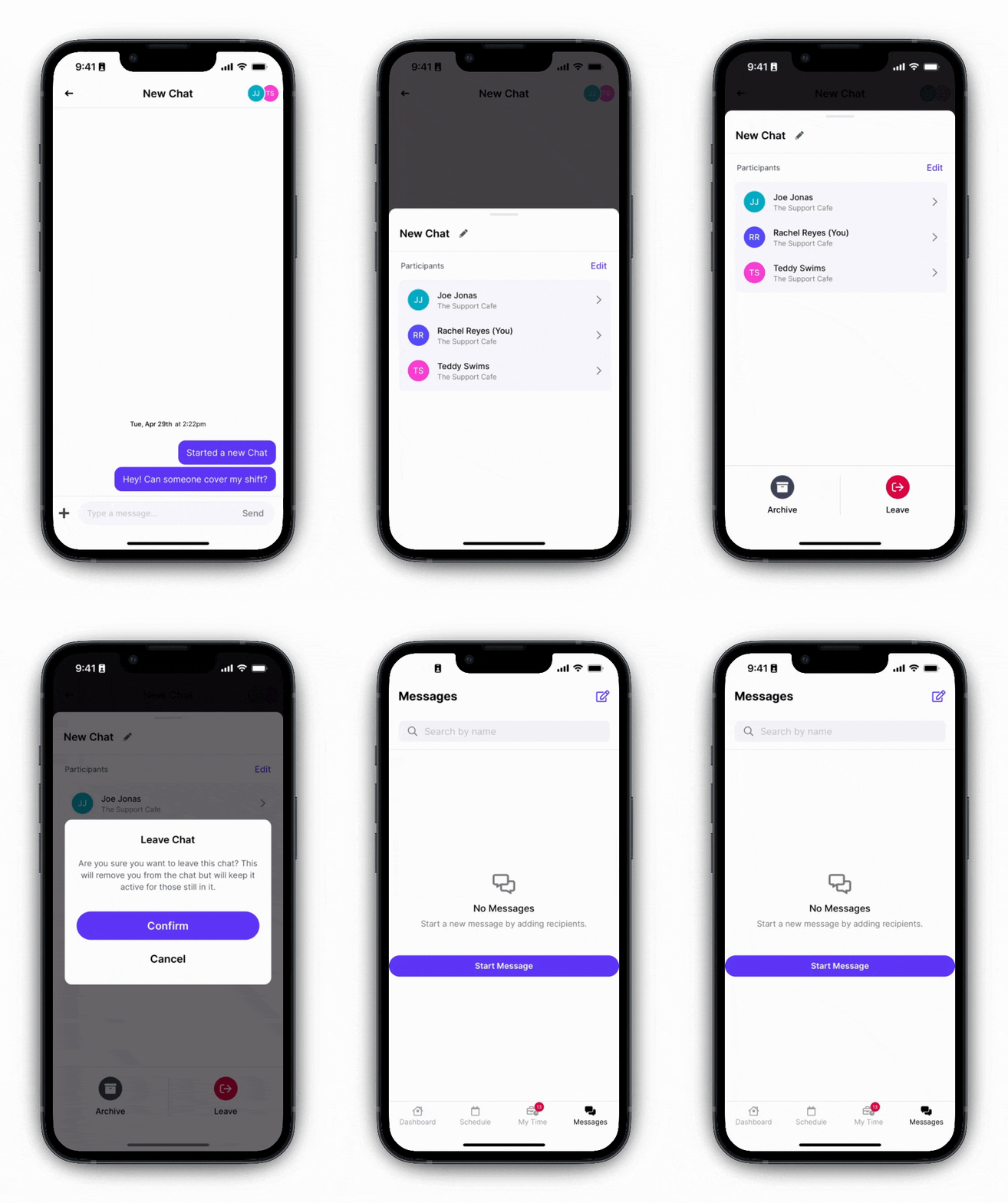
💬 Create team chats

🗣️ Send out announcements

📱 Message individual employees

Access Team Chats from both the Dashboard and the Hub App!

***

## Create Team Chats

Easily create team chats with all employees or a selected group.

<AccordionGroup>
  <Accordion title="Create Team Chats from the Dashboard">
    <iframe frameborder="1" className="rounded-xl w-full aspect-video" allow="accelerometer; autoplay; clipboard-write; encrypted-media; gyroscope; picture-in-picture; web-share" allowfullscreen src="https://www.loom.com/embed/06d04143950f43099dfc436e199e89b0?sid=072d7e1f-09d1-4040-a46e-d8122a9978f4" />
  </Accordion>

  <Accordion title="Create Team Chats from the Hub App">
    <video autoPlay muted loop playsInline className="w-full max-w-[200px] md:w-[200px] h-auto" src="https://mintcdn.com/frostbytetechnologiesinc/YqwdzHDi4ywuzB6Y/images/Team%20mgmt/Create%20Chat%20on%20Hub%20App.mp4?fit=max&auto=format&n=YqwdzHDi4ywuzB6Y&q=85&s=444e4fd602aa6e8eefa271067224dea9" data-path="images/Team mgmt/Create Chat on Hub App.mp4" />
  </Accordion>
</AccordionGroup>

***

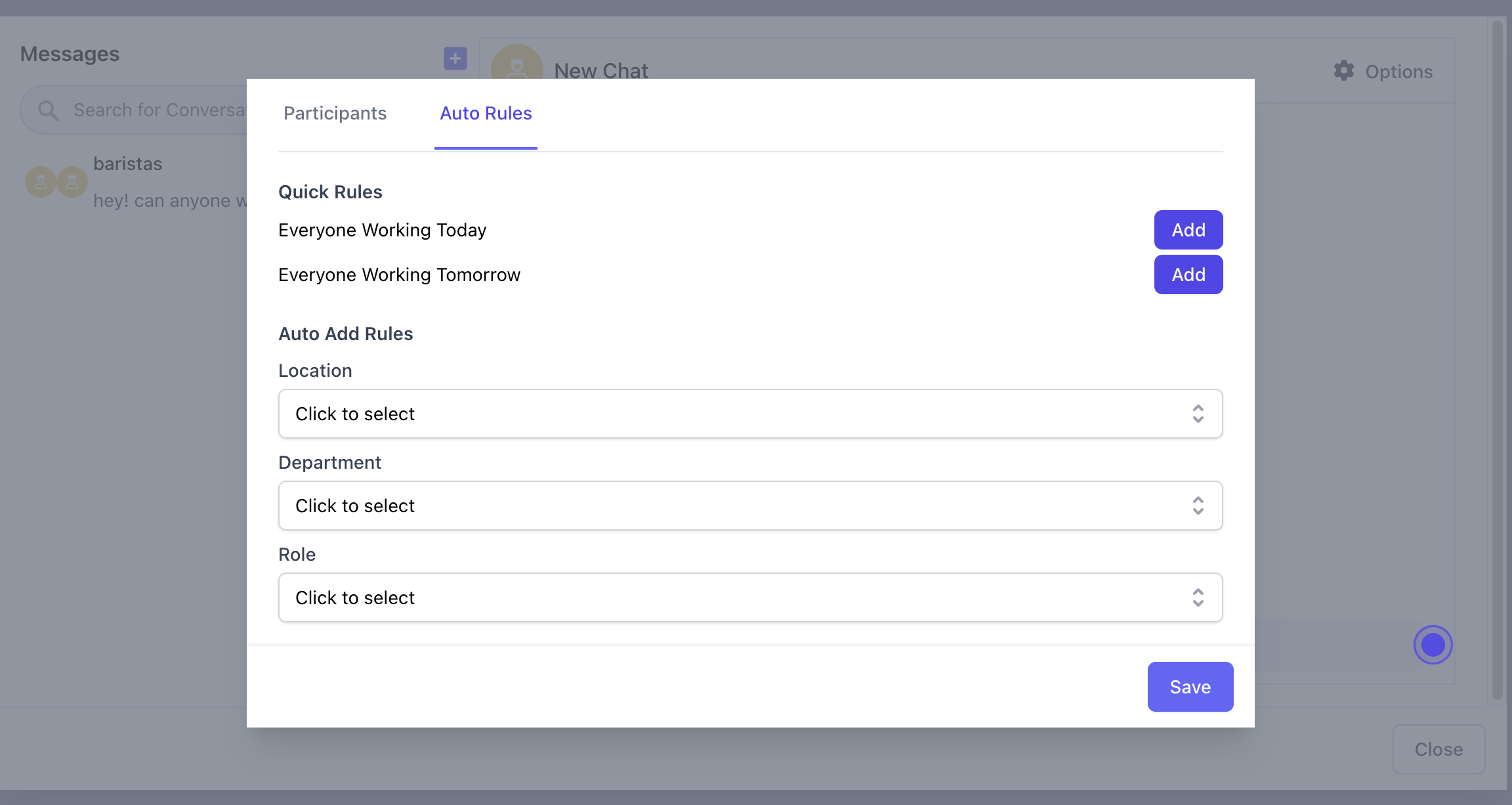
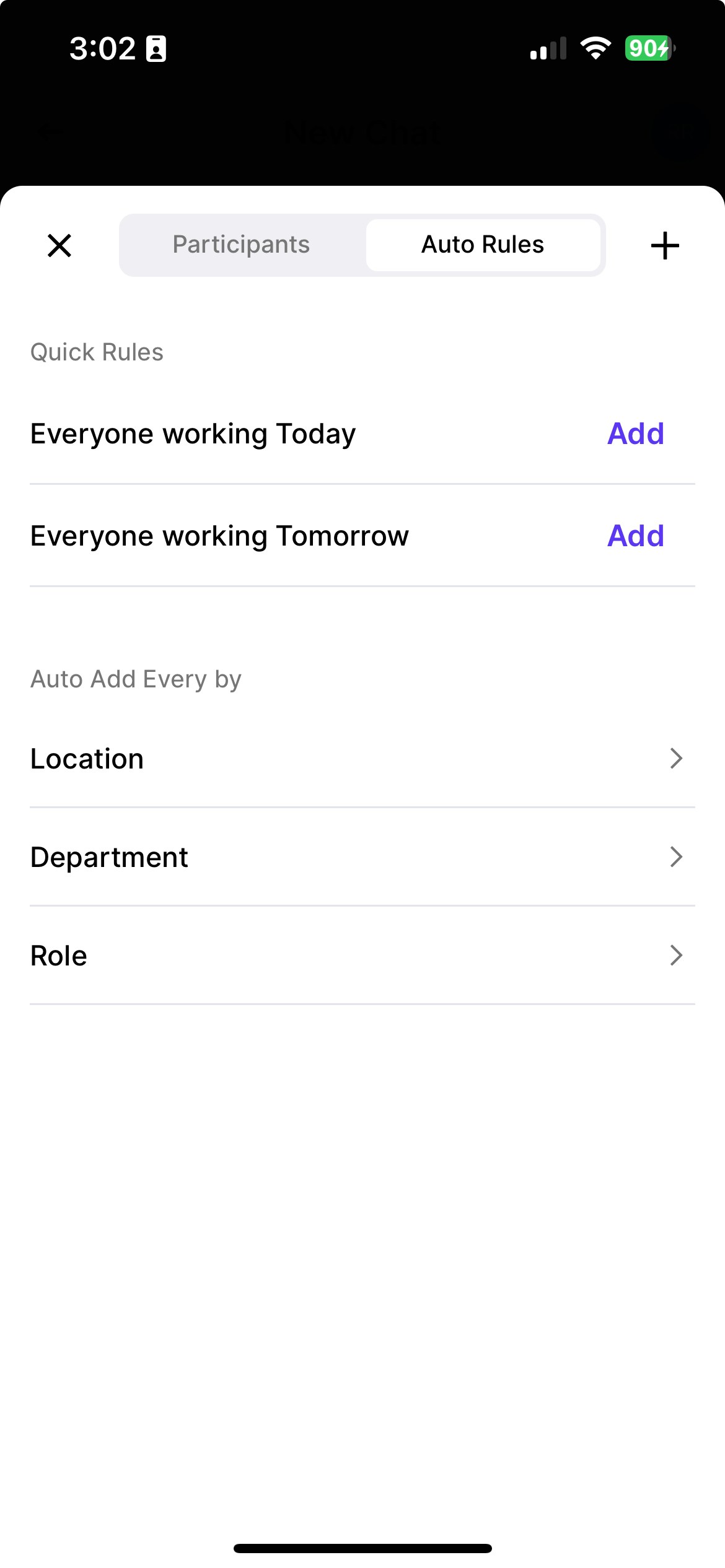
## Create Team Chats with Auto Rules

Create team chats and autopopulate the chats with employees that meet the selected criteria

> **Quick Rules**: Click **Add** to include employees in this chat who work either today or tomorrow

> **Auto Add Rules**: Add employees to chat if they work at a specific location, are in a department, or are of a certain role
<Tabs>
  <Tab title="Dashboard">
    <Frame>
      <img src="https://mintcdn.com/frostbytetechnologiesinc/YqwdzHDi4ywuzB6Y/images/Team%20mgmt/autorules.png?fit=max&auto=format&n=YqwdzHDi4ywuzB6Y&q=85&s=7785b7115dc4fed8a7d8c58b9b662450" width="2304" height="1226" data-path="images/Team mgmt/autorules.png" />
    </Frame>
  </Tab>

  <Tab title="Hub App">
    <Frame>
      <img src="https://mintcdn.com/frostbytetechnologiesinc/aYSIunkE6wJOUCy1/images/Team%20mgmt/hubauto.jpeg?fit=max&auto=format&n=aYSIunkE6wJOUCy1&q=85&s=cd199cdda93f89f236426f6b1c9b7d39" width="1170" height="2532" data-path="images/Team mgmt/hubauto.jpeg" />
    </Frame>
  </Tab>
</Tabs>

***

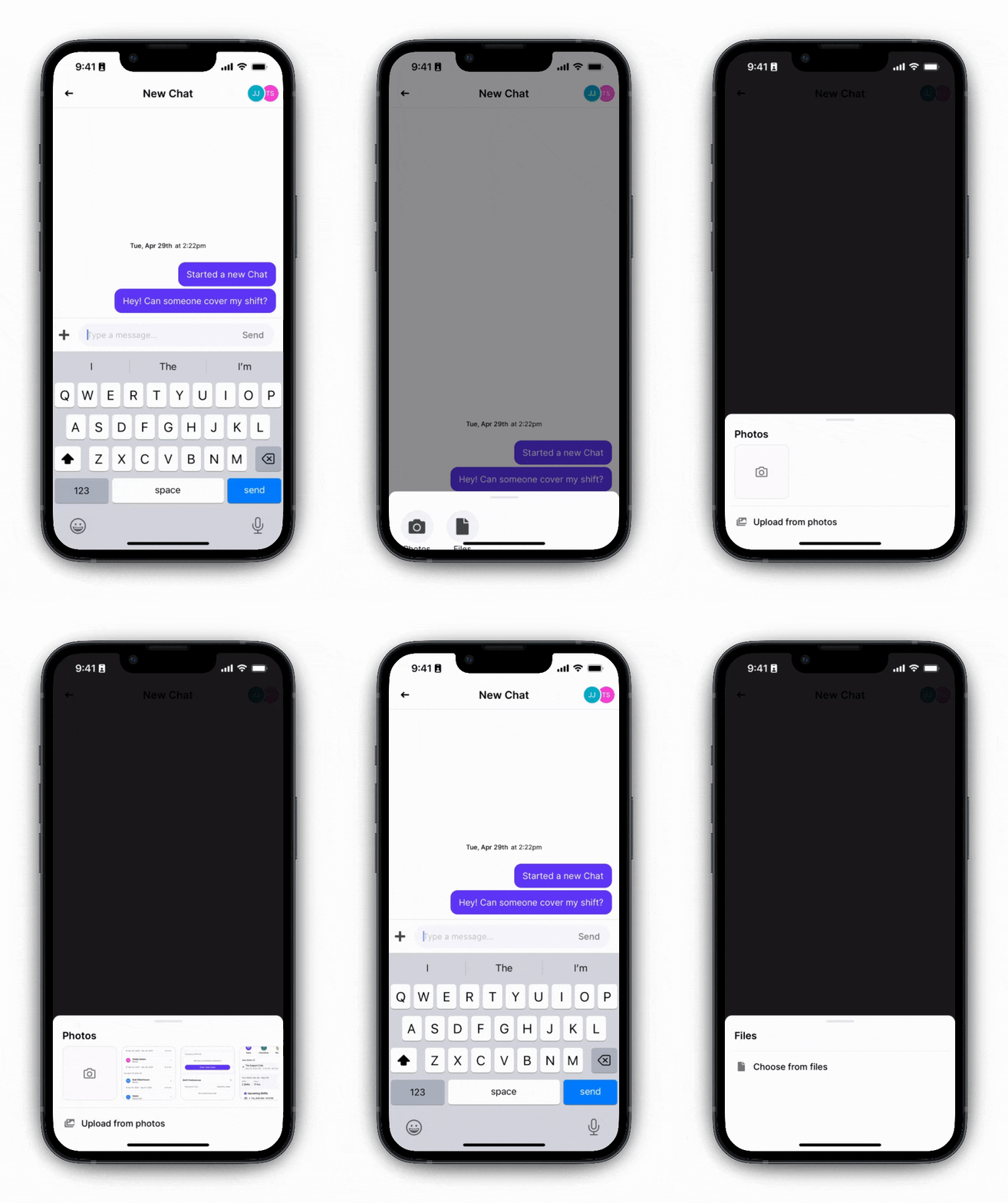
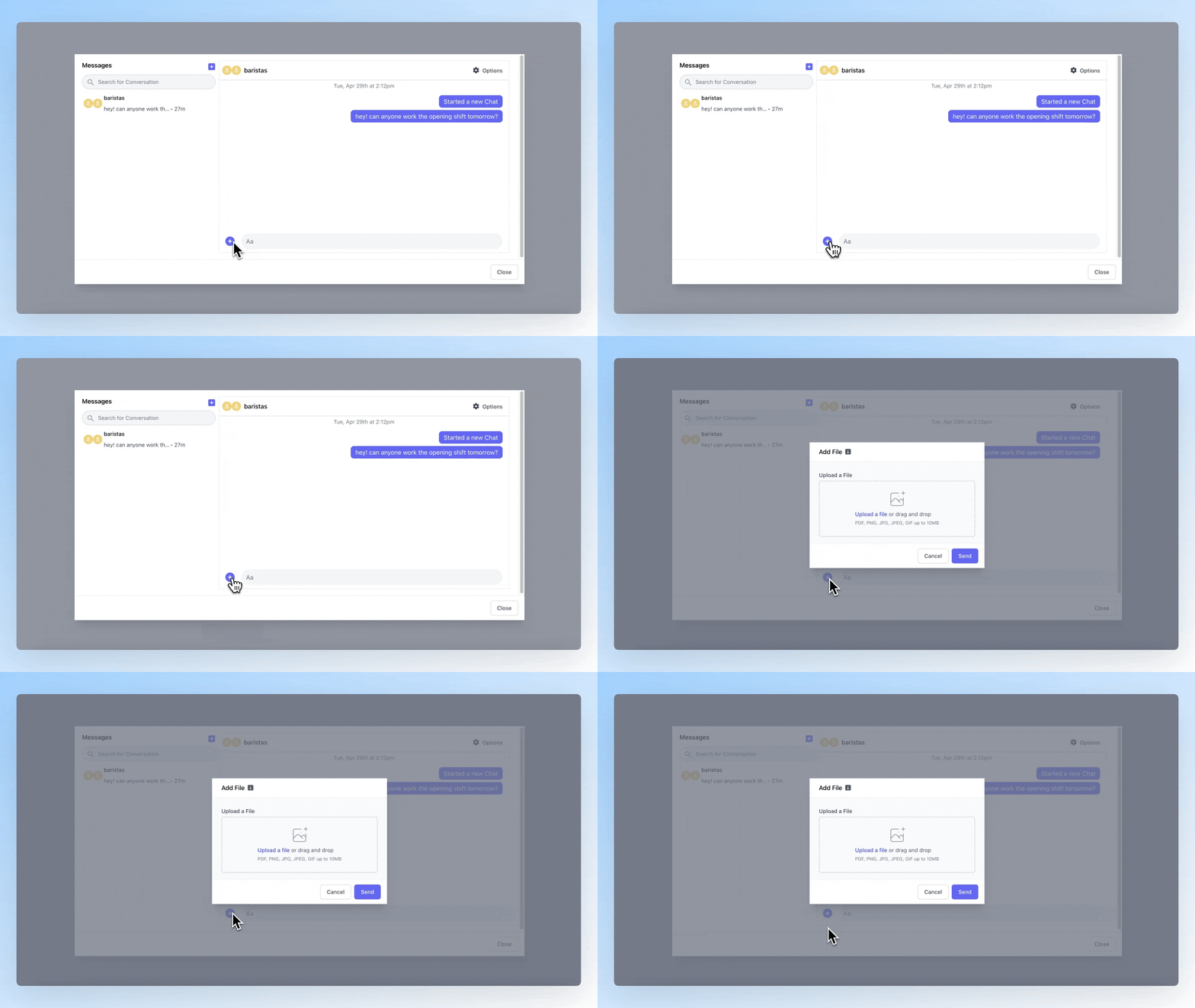
## Send Images and Files in Chats

Images and files may be sent in chats for all to view
<Tabs>
  <Tab title="Dashboard">
    <Frame>
      <img src="https://mintcdn.com/frostbytetechnologiesinc/YqwdzHDi4ywuzB6Y/images/Team%20mgmt/Add%20Image%20Dash.gif?s=26f78fb4227fe0f7d7a8e39302cd9e8c" width="1920" height="1080" data-path="images/Team mgmt/Add Image Dash.gif" />
    </Frame>
  </Tab>

  <Tab title="Hub App">
    <Frame>
      <img src="https://mintcdn.com/frostbytetechnologiesinc/YqwdzHDi4ywuzB6Y/images/Team%20mgmt/Add%20Images%20and%20Files.gif?s=601acca48436266cc71cffec59aec768" width="604" height="1080" data-path="images/Team mgmt/Add Images and Files.gif" />
    </Frame>
  </Tab>
</Tabs>

***

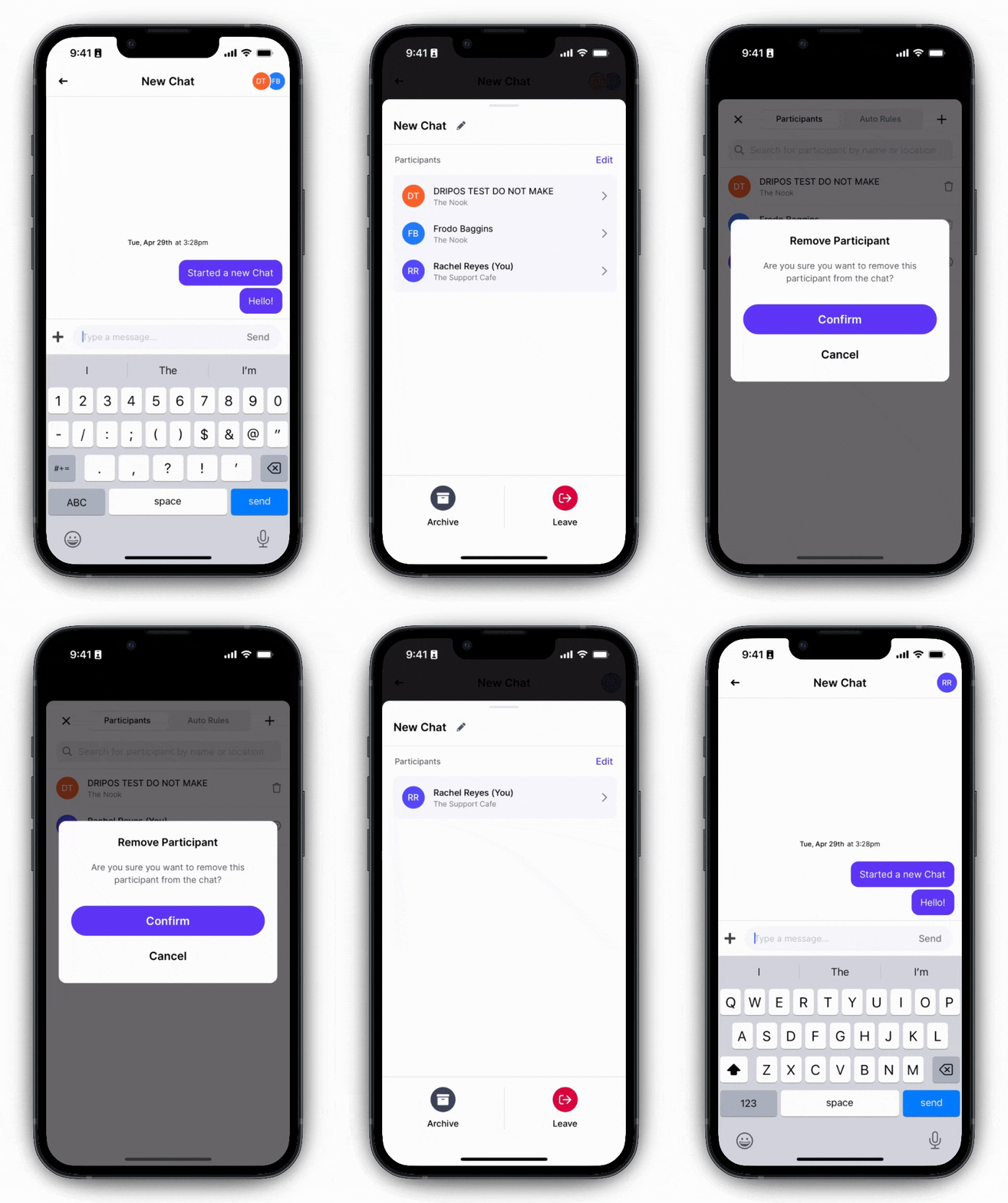
## Remove Employees from Chats

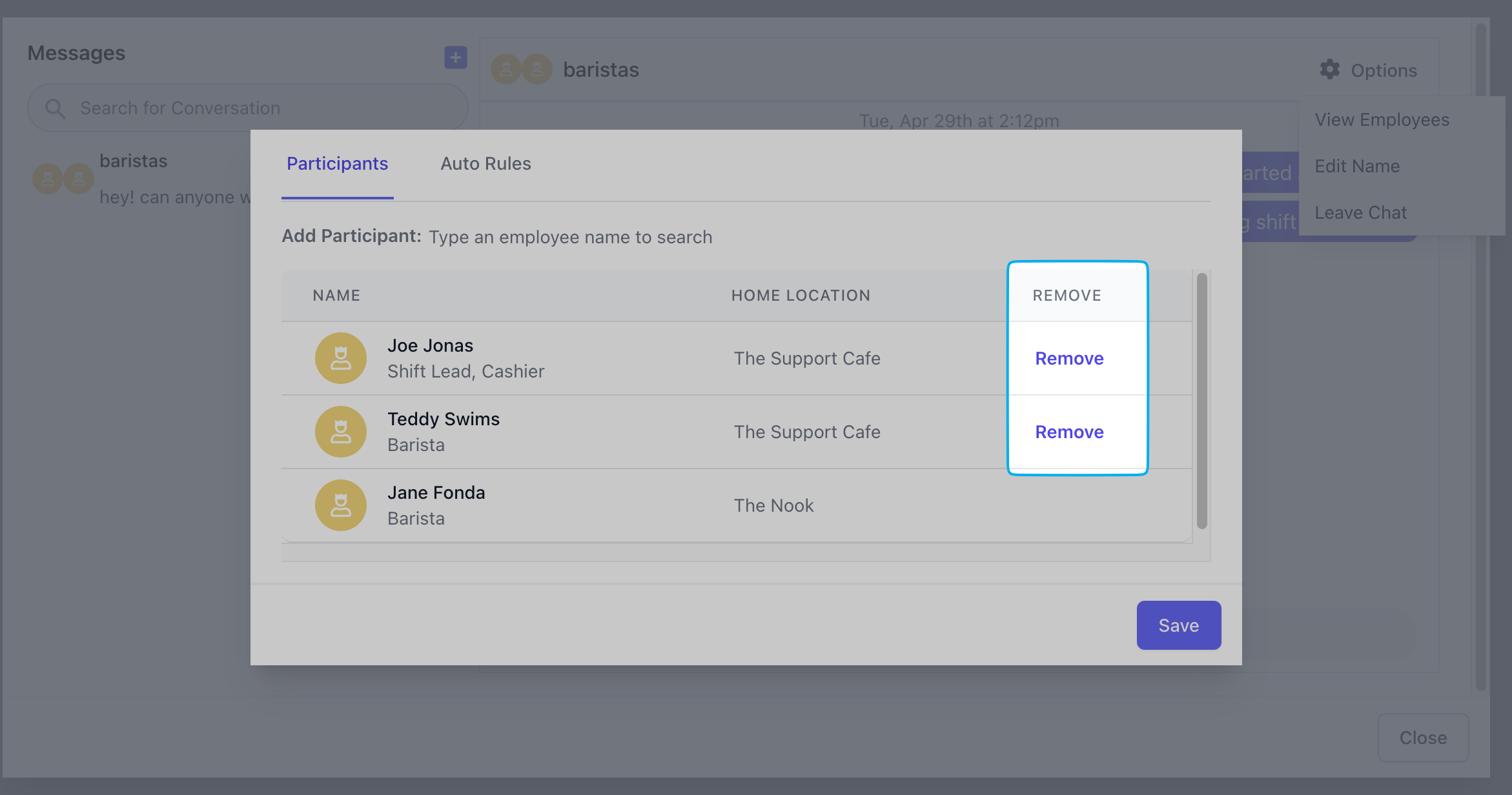
The individual who created the chat has the ability to remove participants from the chat

<Tabs>
  <Tab title="Dashboard">
    **Remove Employees from Chats on the Dashboard**

    <Steps>
      <Step>
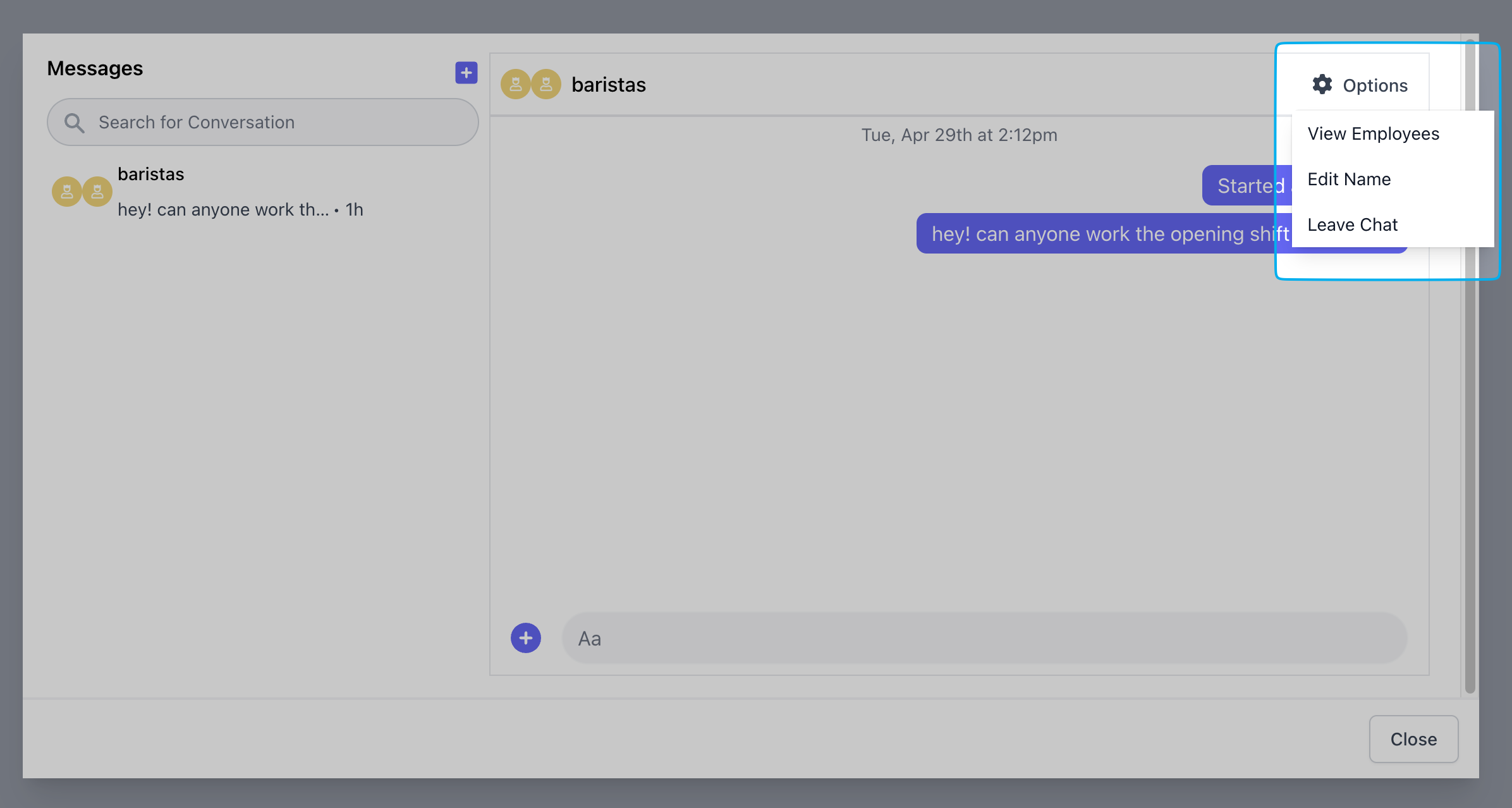
        In the chat, press the **Settings** <Icon icon="gear" /> button > **View Employees**

        <Frame>
          <img src="https://mintcdn.com/frostbytetechnologiesinc/aYSIunkE6wJOUCy1/images/Team%20mgmt/remove1.png?fit=max&auto=format&n=aYSIunkE6wJOUCy1&q=85&s=486df8b56a00951111a5237f3ba38d55" width="2392" height="1278" data-path="images/Team mgmt/remove1.png" />
        </Frame>
      </Step>

      <Step>
        Click **Remove** next to an employee

        <Frame>
          <img src="https://mintcdn.com/frostbytetechnologiesinc/aYSIunkE6wJOUCy1/images/Team%20mgmt/remove2.png?fit=max&auto=format&n=aYSIunkE6wJOUCy1&q=85&s=d7985414a7281099cc958cf5432f3e09" width="2342" height="1232" data-path="images/Team mgmt/remove2.png" />
        </Frame>
      </Step>
    </Steps>
  </Tab>

  <Tab title="Hub App">
    **Remove Employees from Chats on the Hub App**
    <Frame>
      <img src="https://mintcdn.com/frostbytetechnologiesinc/aYSIunkE6wJOUCy1/images/Team%20mgmt/removehub.gif?s=bea1de02f211881ad47e67e445307066" width="604" height="1080" data-path="images/Team mgmt/removehub.gif" />
    </Frame>
  </Tab>
</Tabs>

***

## Leave Team Chats

<Tabs>
  <Tab title="Dashboard">
    **Leave Team Chats from the Dashboard**

    <Steps>
      <Step>
        In the chat, press the **Settings** <Icon icon="gear" /> button
      </Step>

      <Step>
        Click **Leave Chat**

        <Frame>
          <img src="https://mintcdn.com/frostbytetechnologiesinc/aYSIunkE6wJOUCy1/images/Team%20mgmt/remove1.png?fit=max&auto=format&n=aYSIunkE6wJOUCy1&q=85&s=486df8b56a00951111a5237f3ba38d55" width="2392" height="1278" data-path="images/Team mgmt/remove1.png" />
        </Frame>
      </Step>
    </Steps>
  </Tab>

  <Tab title="Hub App">
    **Leave Team Chats from the Hub App**

    <Frame>
      <img src="https://mintcdn.com/frostbytetechnologiesinc/aYSIunkE6wJOUCy1/images/Team%20mgmt/leavehub.gif?s=c7053bb095e3af0102d65b923de45c81" width="604" height="1080" data-path="images/Team mgmt/leavehub.gif" />
    </Frame>
  </Tab>
</Tabs>