> ## Documentation Index
> Fetch the complete documentation index at: https://support.dripos.com/llms.txt
> Use this file to discover all available pages before exploring further.
# Employee Guide - Onboarding
> Learn how to fill out onboarding packets assigned by your employer.
Using the Dripos Onboarding features, your employer may have assigned you an onboarding packet to fill out after you've been hired. You'll need to log into your employee online hub in order to fill out any assigned packets. See the below steps for how to complete your onboarding!
Note: We strongly recommend using a computer or laptop to fill out your onboarding packet. We're working on putting these features on the Dripos hub app in the near future!
1. Once your employer has assigned you a packet, you'll receive an email notifying you:
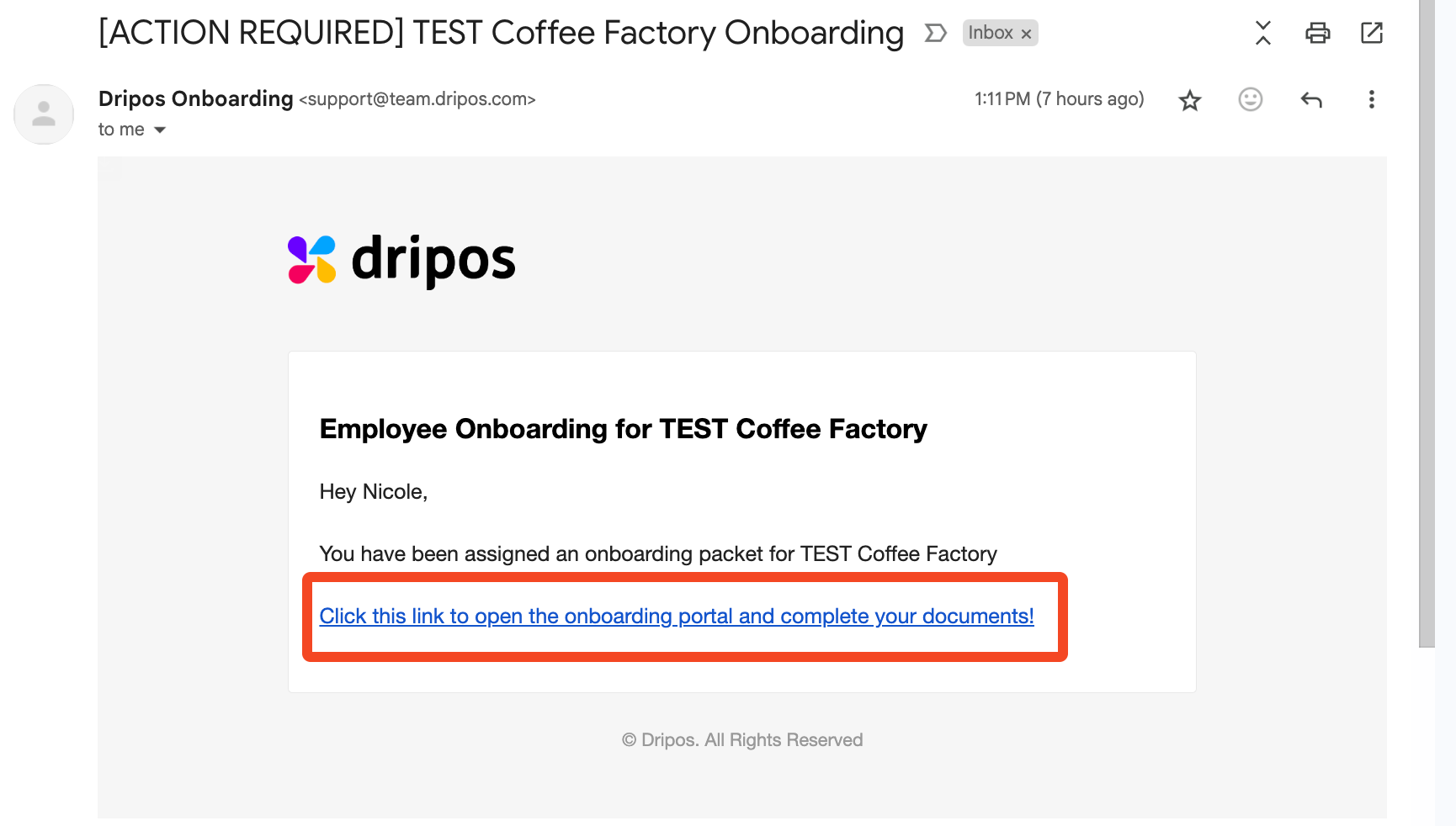 Click the link. This will take you to your online employee hub, where you can fill out any documents. If you are not already signed in, you may have to sign in using your phone number.
Note: If you want to return to your online employee hub, you can find it anytime at this link: [dashboard.dripos.com/hub](https://dashboard.dripos.com/hub). The onboarding specific link is [dashboard.dripos.com/hub/employee-onboarding. ](https://dashboard.dripos.com/hub/employee-onboarding)
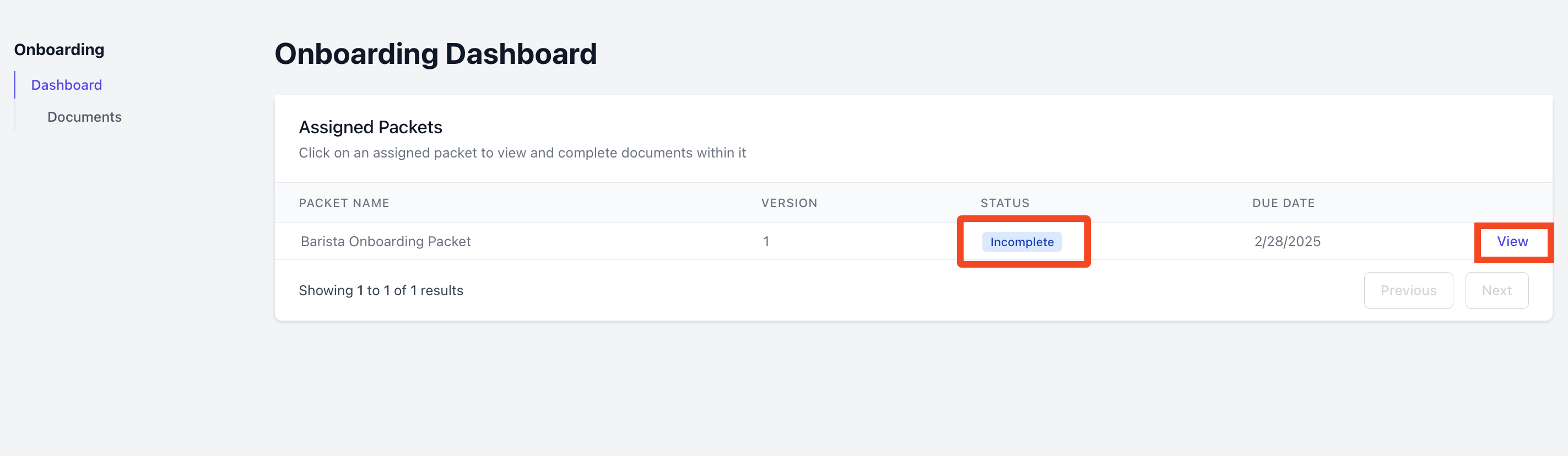
1. Once you sign in, you will see any packets assigned to you currently or in the past. Anything requiring action will be marked *Incomplete*. Press *View* to start filling out your documents.
Click the link. This will take you to your online employee hub, where you can fill out any documents. If you are not already signed in, you may have to sign in using your phone number.
Note: If you want to return to your online employee hub, you can find it anytime at this link: [dashboard.dripos.com/hub](https://dashboard.dripos.com/hub). The onboarding specific link is [dashboard.dripos.com/hub/employee-onboarding. ](https://dashboard.dripos.com/hub/employee-onboarding)
1. Once you sign in, you will see any packets assigned to you currently or in the past. Anything requiring action will be marked *Incomplete*. Press *View* to start filling out your documents.
 2. When you press *View*, you'll be able to see the separate documents within the packet. Documents that have not been started at all will have a blank bubble next to them, indicating that they require action.
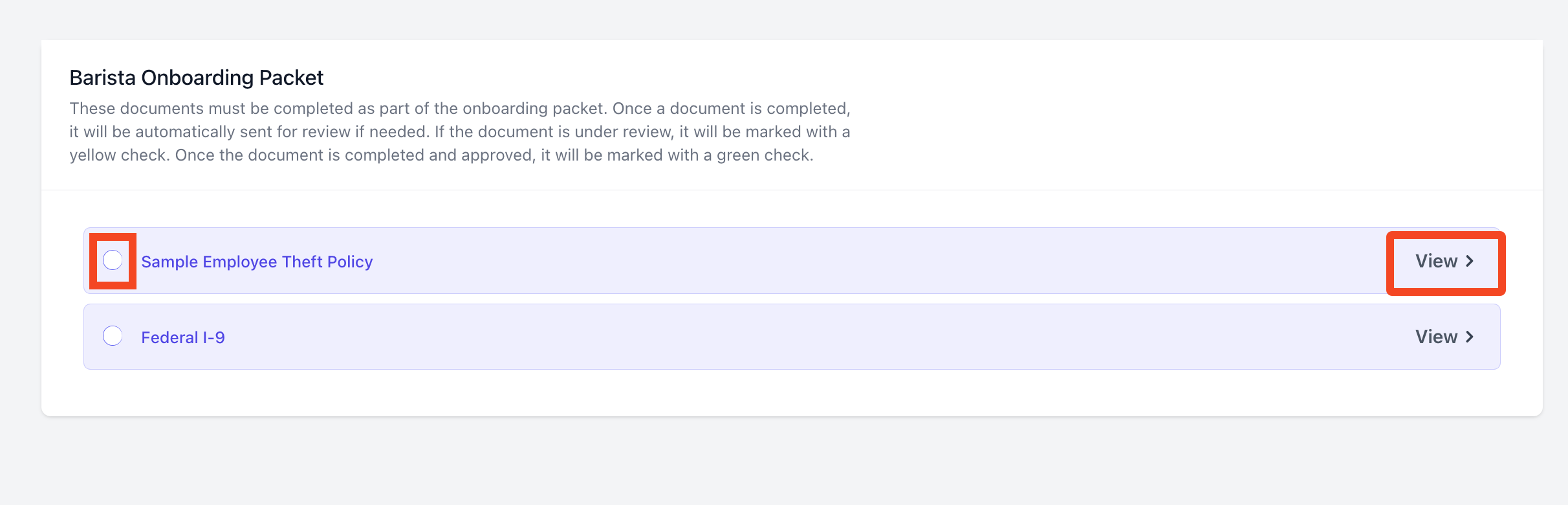 Press *View* to start filling out a document.
1. You will be prompted to fill out any required fields in the document:
Press *View* to start filling out a document.
1. You will be prompted to fill out any required fields in the document:
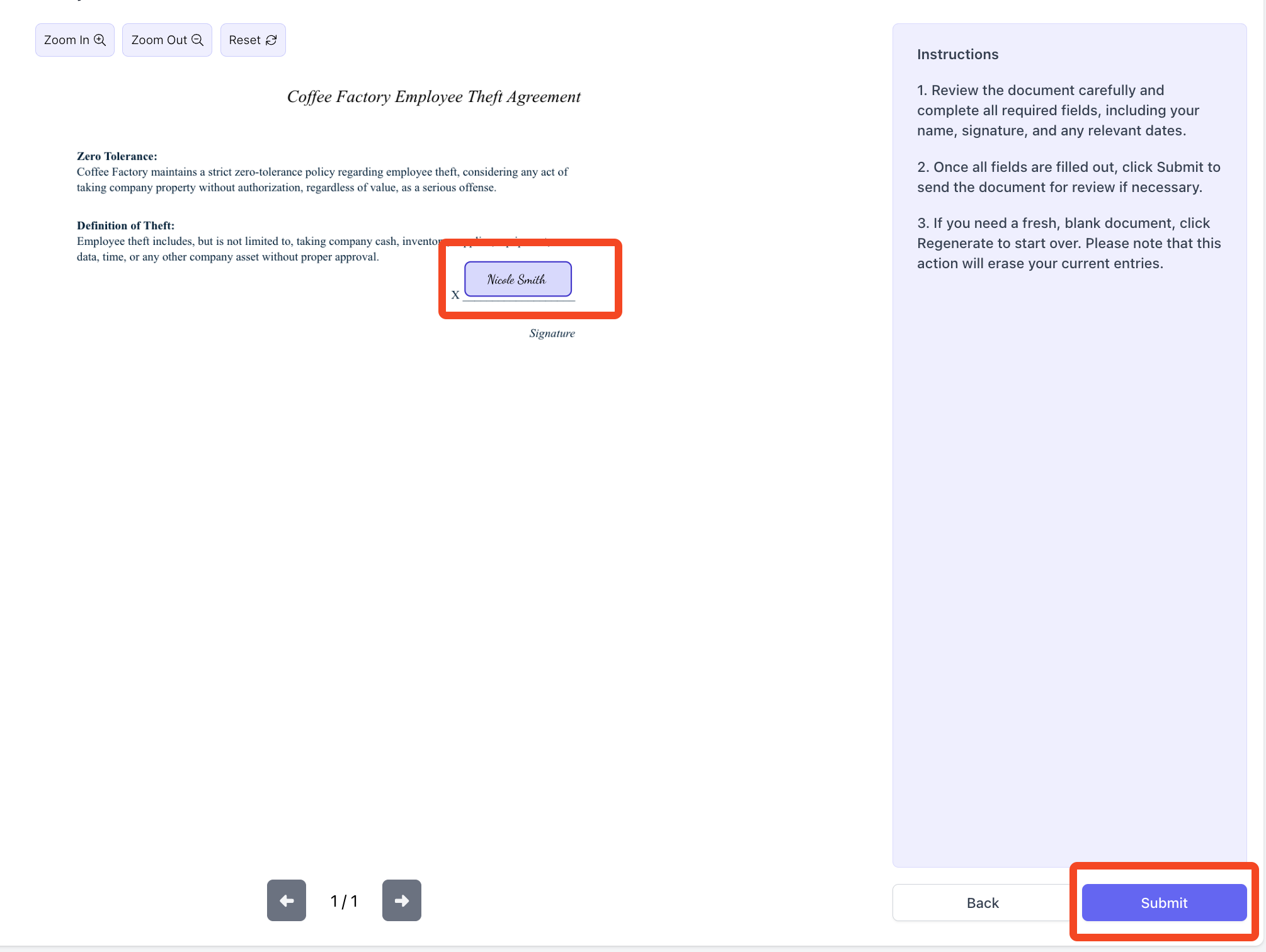 Press *Submit* to finalize.
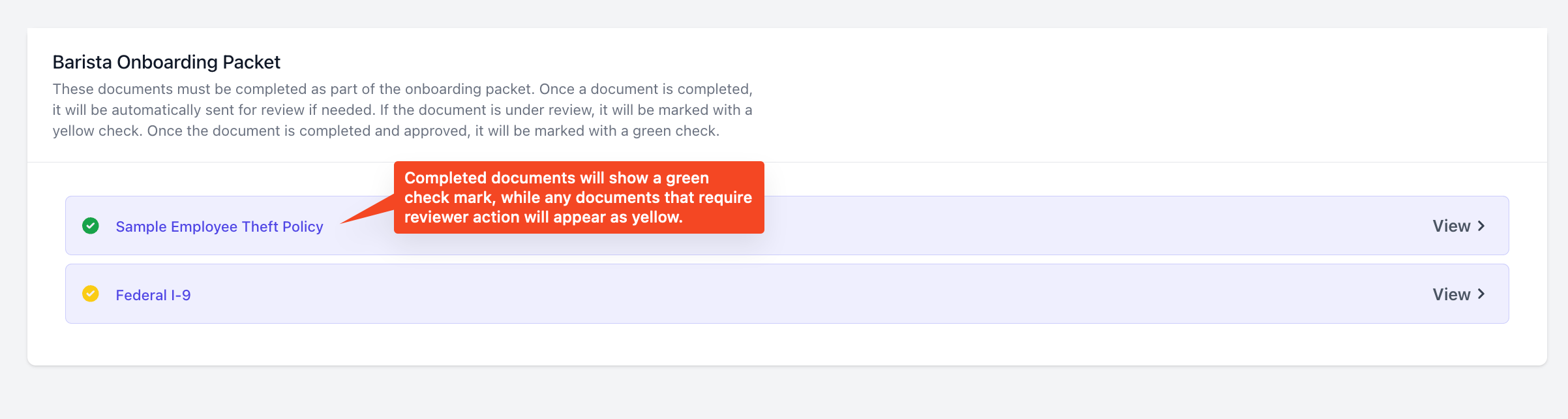
2. You will then be taken back to the employee online hub, where you can see the status of your documents. Completed documents will appear with a check mark next to them:
Press *Submit* to finalize.
2. You will then be taken back to the employee online hub, where you can see the status of your documents. Completed documents will appear with a check mark next to them:
 3. Once you have completed all documents in your packet, the packet will get sent to your employer for review. Once your employer approves your packet, the packet will show as complete!