> ## Documentation Index
> Fetch the complete documentation index at: https://support.dripos.com/llms.txt
> Use this file to discover all available pages before exploring further.
# Reviewing Documents and Packets
> Once packets are assigned to your employees, track their progress and review completed documents from your onboarding dashboard.
## Your Onboarding Dashboard
Once you've created your company documents and packets and assigned them to employees, you can monitor employee progress and review completed documents from your onboarding dashboard.
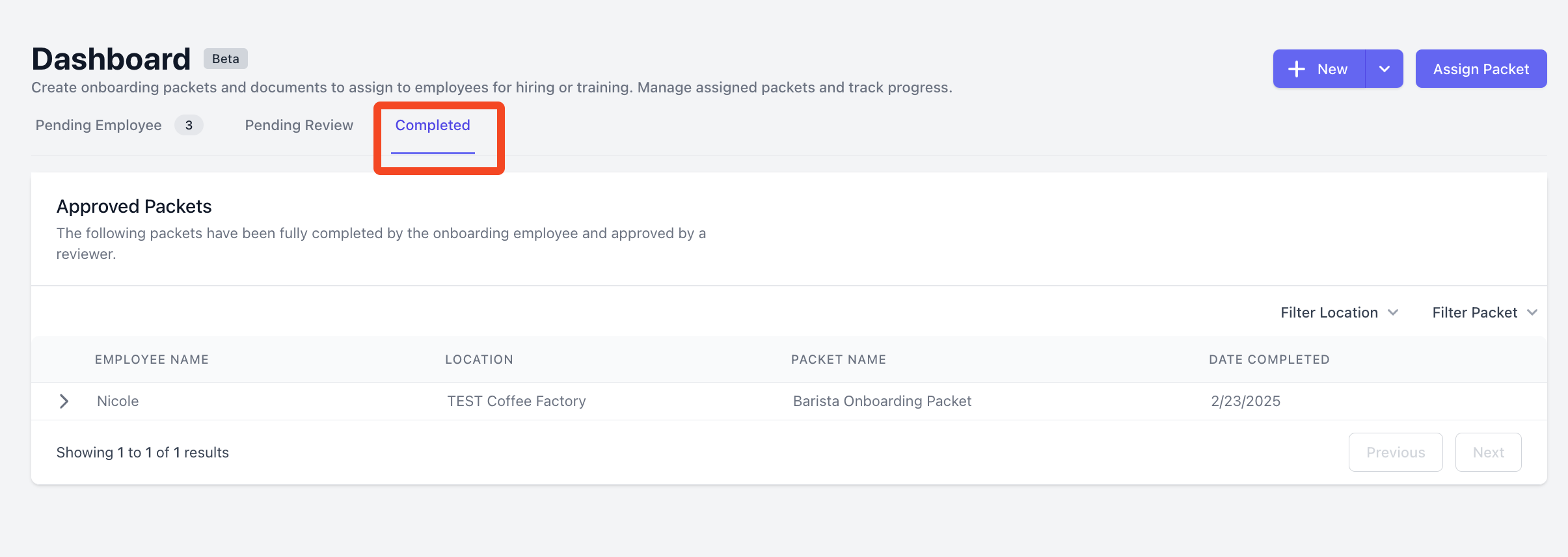
To view your onboarding dashboard, go to *Team > Onboarding:* 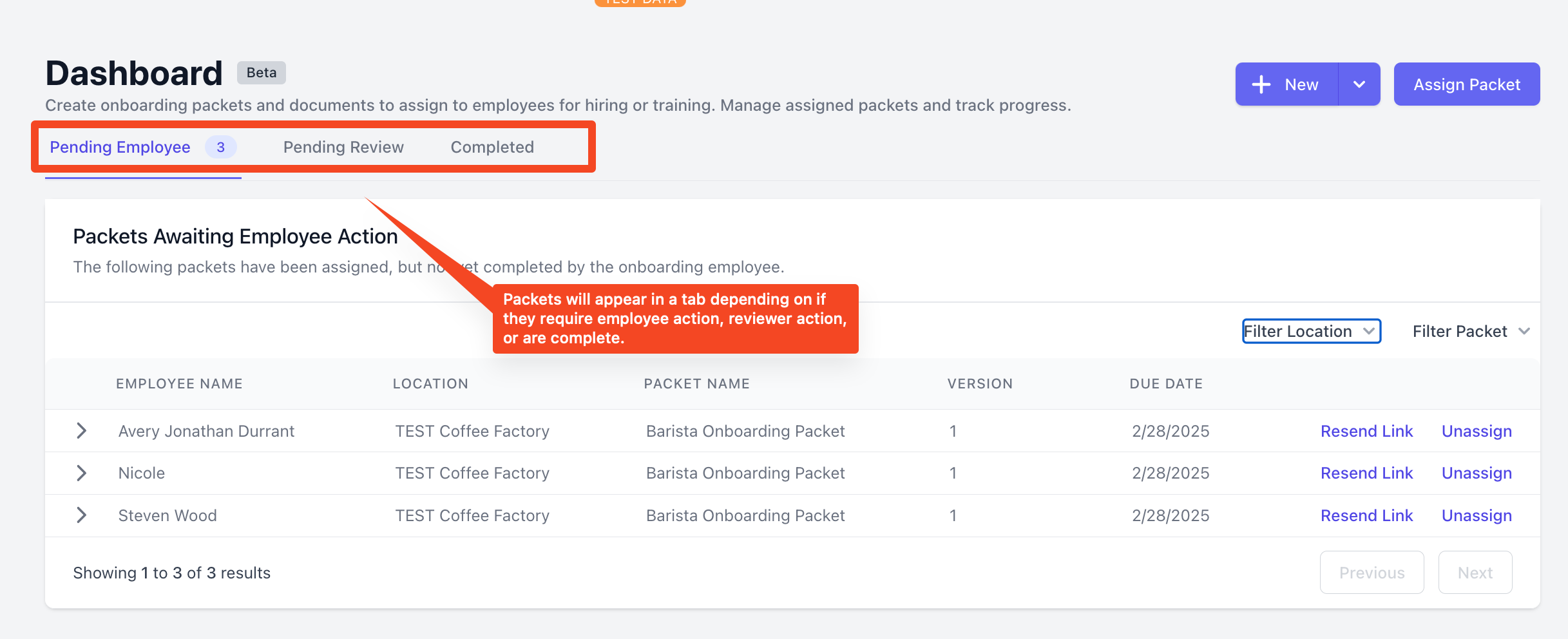 From here, you can:
* Easily view all outstanding employee documents
* Resend links to remind employees to fill out their documents
* Unassign packets from employees
* See if any documents or packets require your review
* View completed onboarding packets
* Quick create a new document or packet, or assign a packet
## Reviewing Documents and Packets
Once your employees finish filling out documents, they will start to appear in the *Pending Review* section of the onboarding dashboard. The *Pending Review* section is separated into two sections: *(1) Documents Needing Review* and *(2) Packets Needing Approval.*
From here, you can:
* Easily view all outstanding employee documents
* Resend links to remind employees to fill out their documents
* Unassign packets from employees
* See if any documents or packets require your review
* View completed onboarding packets
* Quick create a new document or packet, or assign a packet
## Reviewing Documents and Packets
Once your employees finish filling out documents, they will start to appear in the *Pending Review* section of the onboarding dashboard. The *Pending Review* section is separated into two sections: *(1) Documents Needing Review* and *(2) Packets Needing Approval.* 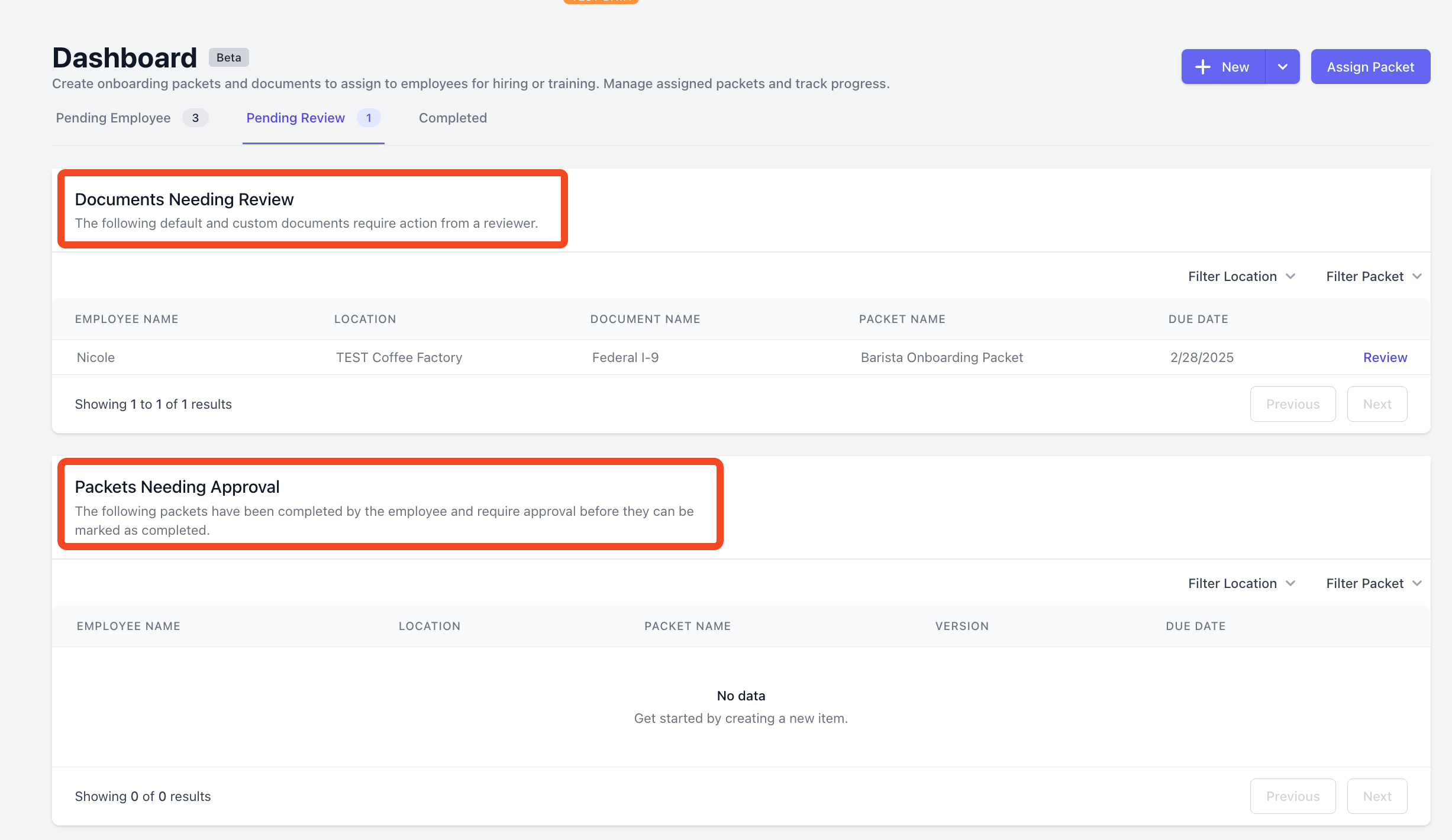 ### Reviewing Documents as an Employer
If any documents need specific action from the reviewer, they will appear in the *Documents Needing Review* section. This includes I-9 documents and any custom document that uses employer form fields. See **here** for details on custom documents. To review a document:
1. Click *Review* next to the document:
### Reviewing Documents as an Employer
If any documents need specific action from the reviewer, they will appear in the *Documents Needing Review* section. This includes I-9 documents and any custom document that uses employer form fields. See **here** for details on custom documents. To review a document:
1. Click *Review* next to the document:
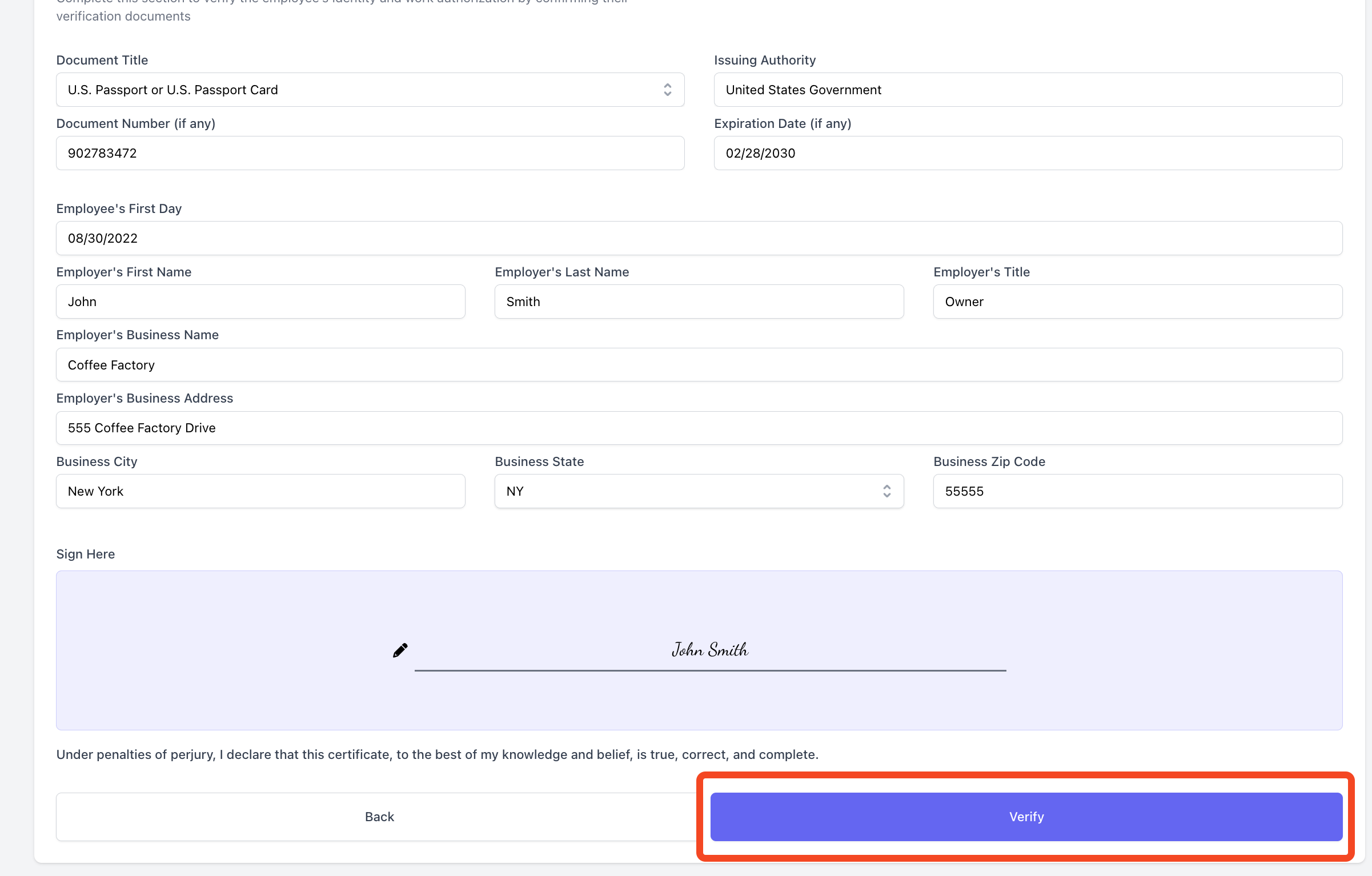
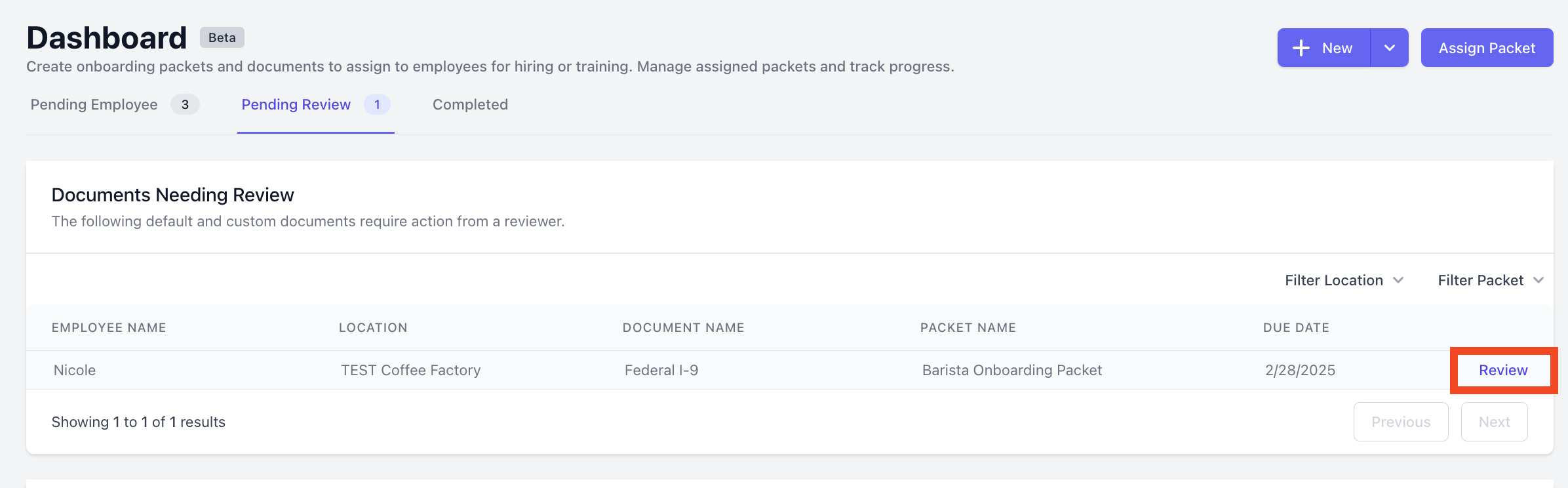 2. You will be taken to the document and prompted to fill out any required fields. You will be prompted to *Verify* if you are filling out an I-9 document, or *Submit* if filling out a custom document:
 3. The document will then disappear from the *Documents Needing Review* section.
### Approving Packets
After **every** document in a packet has no more action available (by employee and employer), it will appear in the *Packets Needing Approval* section. To approve a packet:
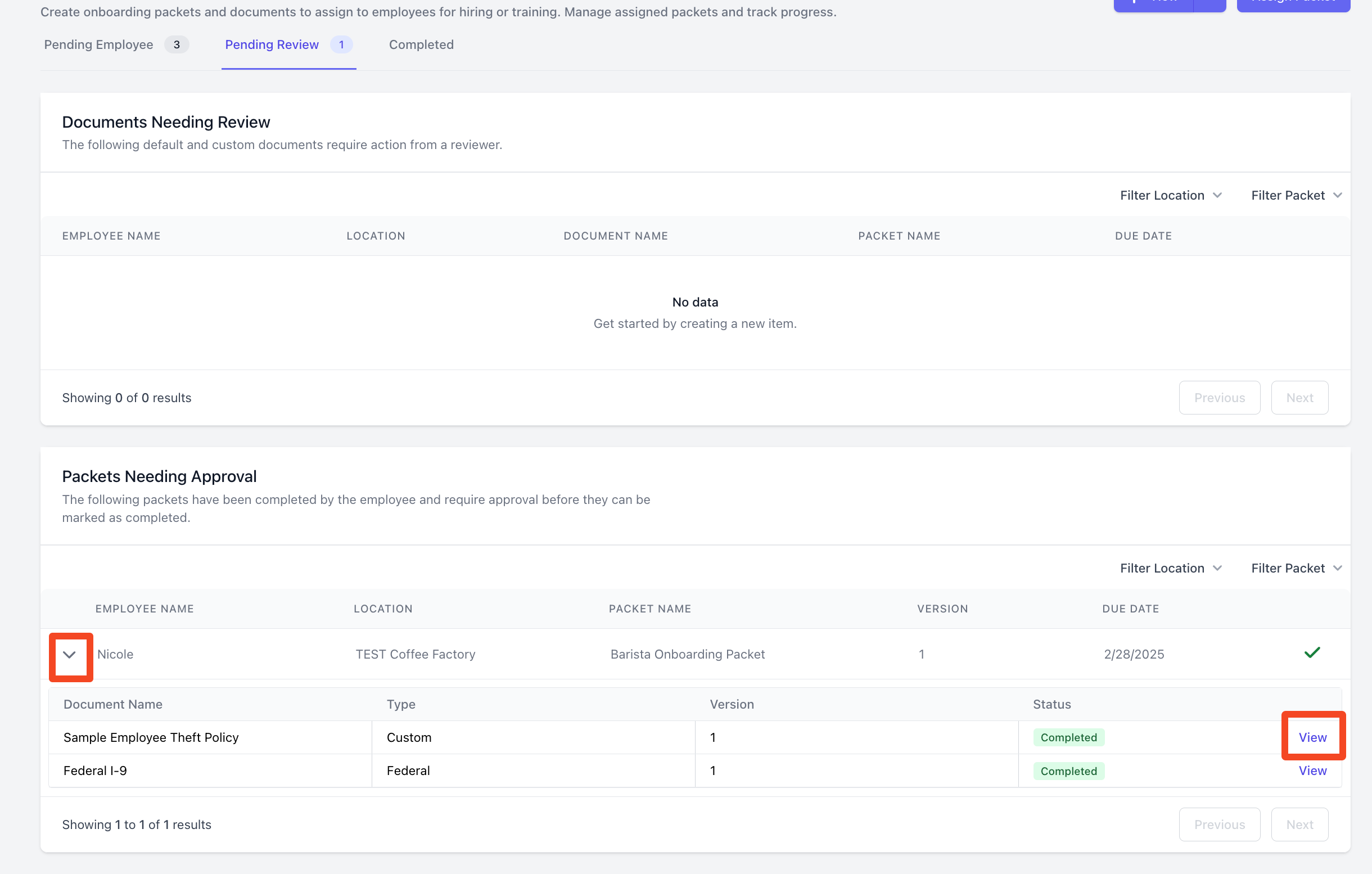
1. Click the arrow next to the packet to expand the view and which documents are included in the packet. Press *View* to download and view each document separately.
3. The document will then disappear from the *Documents Needing Review* section.
### Approving Packets
After **every** document in a packet has no more action available (by employee and employer), it will appear in the *Packets Needing Approval* section. To approve a packet:
1. Click the arrow next to the packet to expand the view and which documents are included in the packet. Press *View* to download and view each document separately.
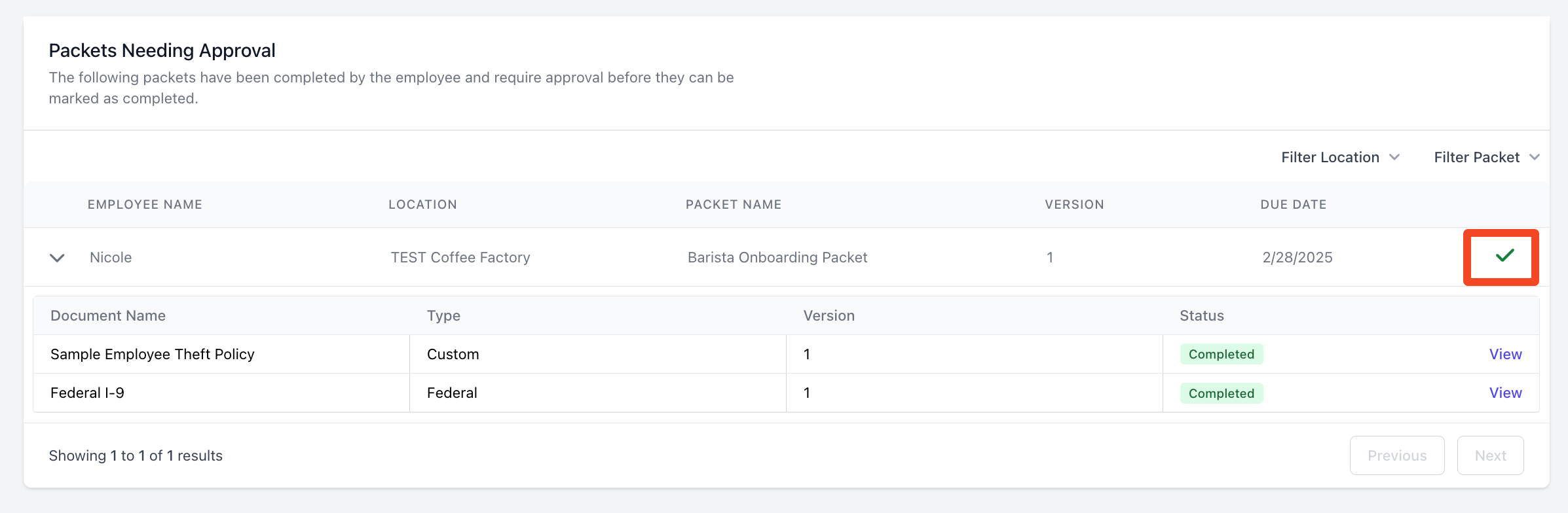
 2. Once you've viewed the documents and would like to finalize the packet, press the check mark to approve.
 3. The packet will then show up in the *Completed* section of the onboarding dashboard.